 UPDF
UPDF
 UPDF for Windows
 UPDF for Mac
 UPDF for iPhone/iPad
 UPDF for Android
 Nomostar
 UPDF AI Online
 UPDF Sign
 IvyCraft
 Edit PDF
 Annotate PDF
 Create PDF
 PDF Form
 Edit links
 Convert PDF
 OCR
OCR PDF to Word
 PDF to Image
 PDF to Excel
 Organize PDF
 Merge PDF
 Split PDF
 Crop PDF
 Rotate PDF
 Protect PDF
 Sign PDF
 Redact PDF
 Sanitize PDF
 Remove Security
 Read PDF
 UPDF Cloud
 Compress PDF
 Print PDF
 Batch Process
 About UPDF AI
 UPDF AI Solutions
 AI User Guide
 FAQ about UPDF AI
 Summarize PDF
 Translate PDF
 Chat with PDF
 Chat with AI
 Chat with image
 PDF to Mind Map
 Explain PDF
 PDF AI Tools
 Image AI Tools
 AI Chat Tools
 AI Writing Tools
 AI Study Tools
 AI Working Tools
 Other AI Tools
 AI Bookmark Generation
 AI Bookmark Summary
 AI Watermark Generation
 AI Background Generation
 AI Sticker Generation
 AI Stamp Generation
 AI Editing Suite
 UPDF Copilot
 AI Page Management
 AI Semantic Search
 PDF to Word
 PDF to Excel
 PDF to PowerPoint
 Enterprise Solution
 Enterprise Sign
 Enterprise AI
 Enterprise Plan
 Enterprise User Guide
 Enterprise Webinar
 IT
IT Education
 Construction
 Financial Service
 Healthcare
 Insurance
 Legal
Legal Manufacturing
 Government
 Researchers & PhDs
 Solopreneurs & Freelancers
 Lawyers & Legal Professionals
 Real Estate Agents & Brokers
 Education Solution
 Customer Stories
 User Guide
 UPDF Tricks
 FAQs
FAQs UPDF Reviews
 Download Center
 Blog
Blog Newsroom
 Tech Spec
 Updates
 UPDF vs. Adobe Acrobat
 UPDF vs. Foxit
 UPDF vs. PDF Expert

Imagine you're finalizing a high-stakes marketing presentation, and you need to pull three product photographs from a 120-page supplier PDF catalog. You try taking a manual screenshot, but when you zoom in on your slides, the image is instantly blurry, pixelated, and completely unprofessional. Worse yet, repeating this cropping loop fifty times for a major asset migration wastes hours of manual labor.
The right output depends on whether you need the full page or a particular visual. You can follow the video below for an introduction to editing PDF content in UPDF.
The technical root cause is simple: screenshot shortcuts only capture flat screen pixels compressed at a mere 72 or 96 DPI. To preserve absolute visual fidelity, you must bypass what your monitor displays and access the raw, uncompressed source image data embedded natively at 300+ DPI within the PDF code layer. Utilizing a professional pdf image extractor is the only reliable way to extract image from pdf with high quality, isolating raw visual layers cleanly without damaging the original document layout.
This guide explains simple ways to grab clean pictures using smart PDF image extractors on desktops, web, and phones. Throughout the article, readers will also see how UPDF gives fast, clear, and flexible image extraction.
If you also need to replace, resize, or reorganize the extracted visuals, use a full PDF editor so the image and surrounding page content can be updated together.
Windows • macOS • iOS • Android 100% secure
Why Traditional Screenshots Destroy Image Quality When Extracting from PDF
Selecting the appropriate framework to extract images from PDF assets requires a strategic evaluation of your document's native architecture. While enterprise compliance folders mandate local, sandboxed desktop pipelines to protect corporate data, a casual browser screenshot tool or a single-function cloud engine may suffice for non-confidential text matrices.
Deploy the strategic routing matrix below to instantly isolate your target page ranges, bypass active browser sandbox memory crashes, and preserve original 300+ DPI pixel densities before initiating your extraction pipeline:
| User Intent/Scenario | Recommended Extractor | Technical Edge/File Control |
| Need images from certain pages, with PNG/TIFF and clean names | UPDF Desktop | Page ranges, PNG/TIFF/JPEG, pageX_imageY naming |
| On a guest machine, need a browser tool to pull all images to a ZIP | iLovePDF Online | Web-based, extract images or convert full pages to images |
| Want a fully free online tool with no page or file limits | PDF24 online | No limits, auto extraction, simple sequential filenames |
| Using existing enterprise software on a secure office computer | Adobe Acrobat Pro | On‑premise use, strong data security, and advanced export controls |
| Moving around and must save one graphic directly to the phone gallery | UPDF Mobile | iOS/Android support, tap‑to‑extract single visual element |
The Best PDF Image Extractor for Desktop (Advanced Control & Custom Formatting)
Many users need flexible ways to pull images from PDFs without losing quality or wasting time. Different projects demand varied control over pages, formats, naming, and full‑page conversions on desktop systems.
1 UPDF — The Ultimate PDF Image Extractor (Win & Mac)
The main problem is that one rigid tool rarely fits every desktop image extraction workflow well. This is where UPDF comes in, offering a versatile PDF image extractor for everyday projects. UPDF supports separate workflows for bulk image export, single‑asset capture, and full page‑to‑image conversion. Let's explore the different methods to extract images from PDFs.
Method 1: Export All Embedded Images via PDF Converter Panel
Best For:
The Workflow:
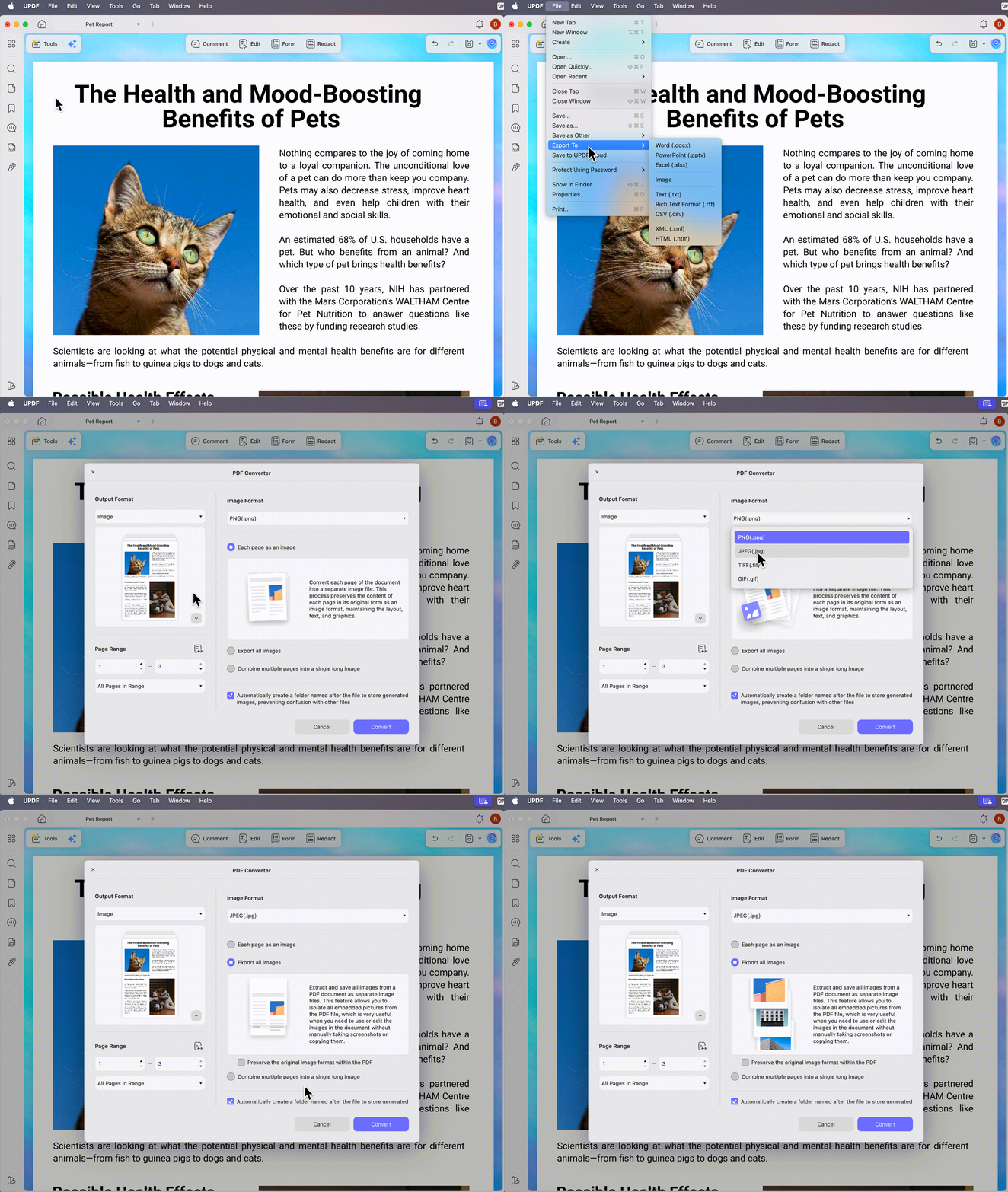
- On Mac, open your PDF document in UPDF, navigate to the top-left toolbar, click on File, and select Export To > Image.
- Choose your preferred output extension (PNG/TIFF/JPEG), specify your exact page range, check the Export all images option, and click Apply to select a saving directory.
Windows • macOS • iOS • Android 100% secure
Note: The steps on Windows are similar.
Extraction is often half the battle in document design. If you are reconstructing a catalog and need to insert new high-res visual assets back into your pages, consult our guide on how to add image to pdf.
Method 2: Manual Single-Image Extraction with Source Document Referencing
Best For:
The Workflow:
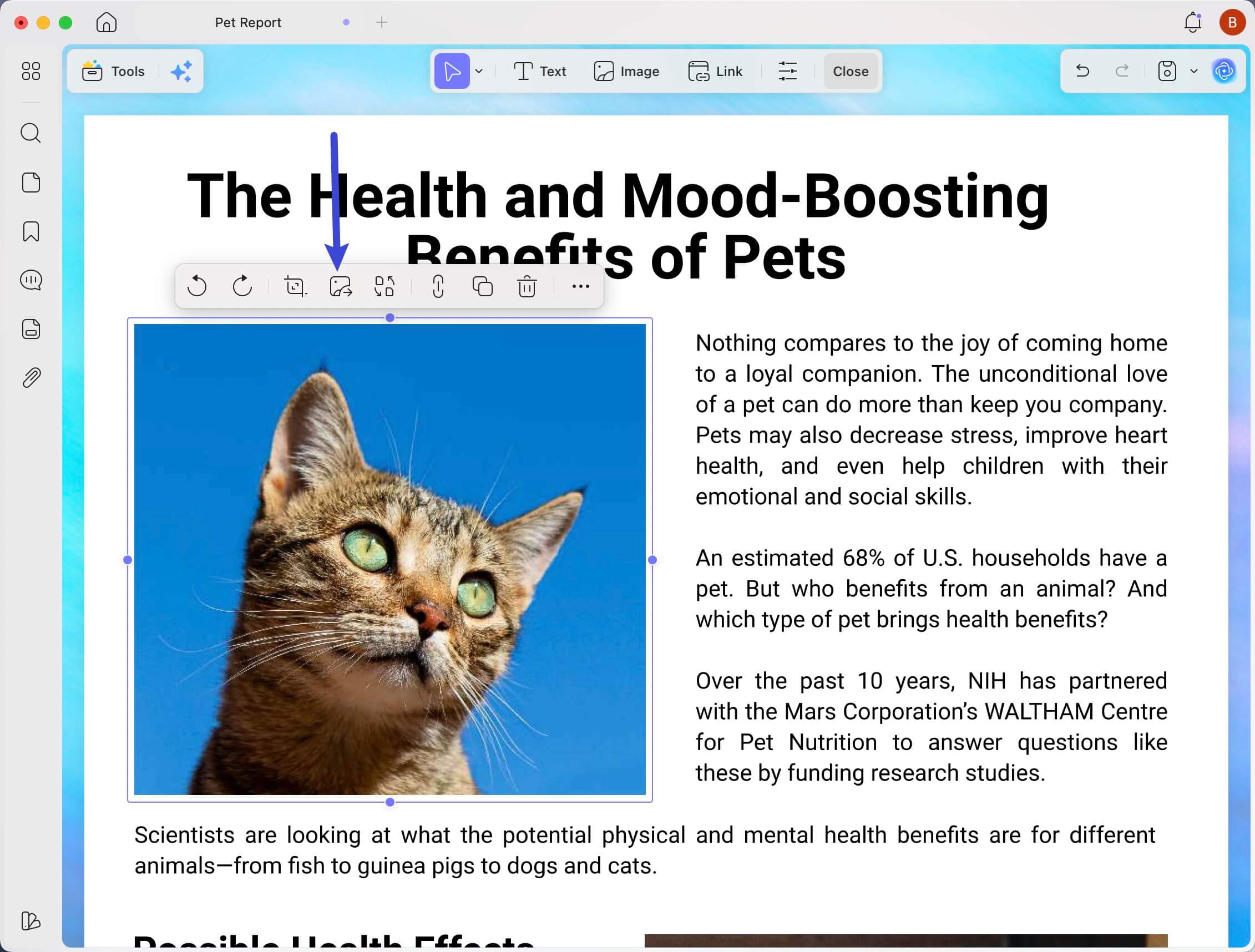
- Click the Edit PDF icon on the left sidebar to activate the interactive design layer.
- Single-click the target graphic asset on your canvas page, then tap the floating Extract Image utility shortcut next to your cursor bounds to save it locally.
Requires a local software installation file download to run its offline extraction engines. Mac enterprise teams looking for native Apple Silicon optimization matrices can consult our specialized ocr software for mac workspace guide.
Method 3: Extract Image From PDF with High Quality (Whole Page Export)
Best For:
The Workflow:
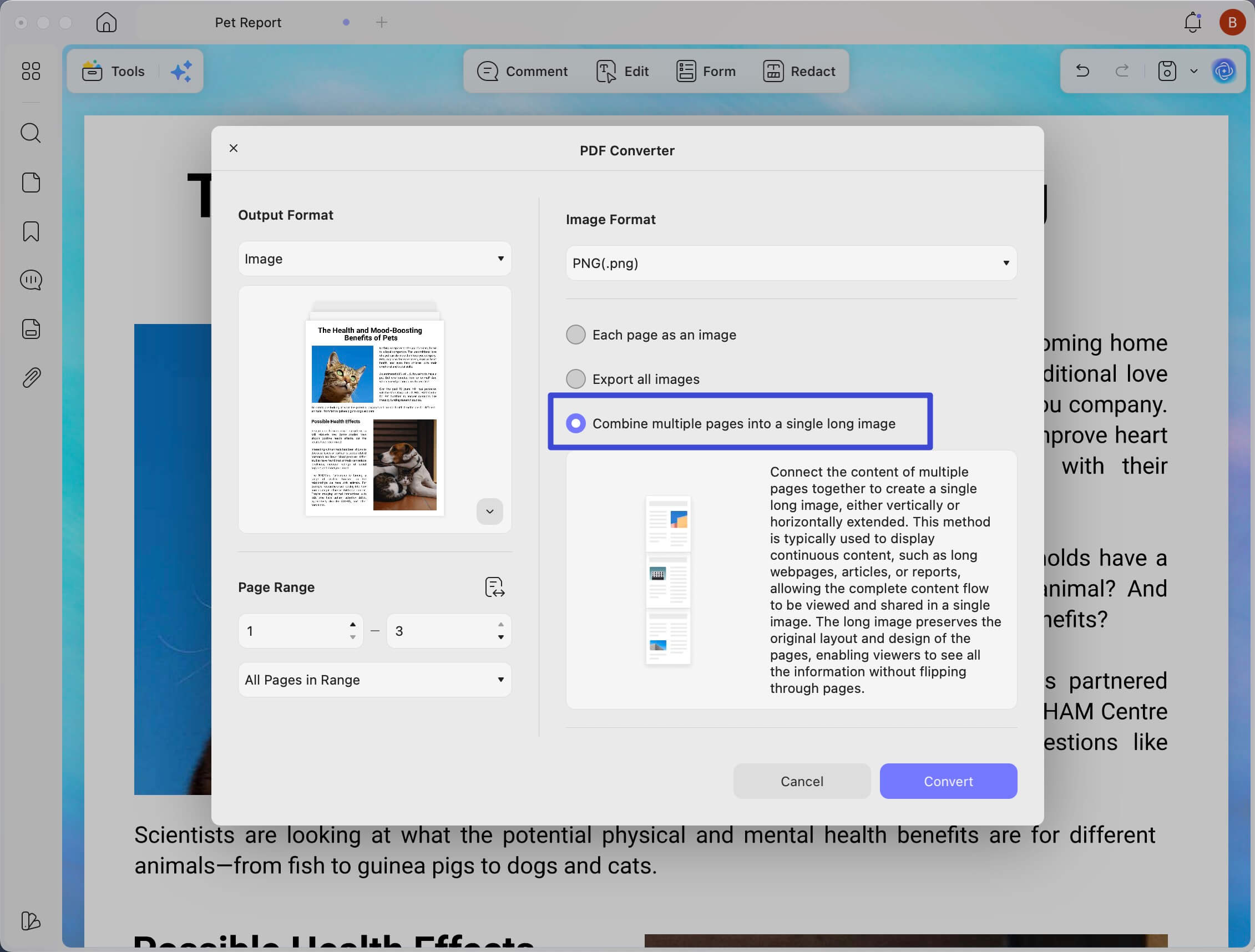
- Launch the Export PDF > Image panel on the right, and choose between Each page as an image or Combine multiple pages into a single long image.
- Select your target image resolution layer and click Apply to execute the page-to-image layout conversion.
When combining multiple layout pages into unified graphic web assets, check your dimensions. If your newly generated images are too bulky for web uploads, discover the exact steps to resize image in pdf without losing aspect ratio.
Pros & Cons of UPDF Desktop
Pros:
- Adjusts PNG, GIF, and TIFF formats and page ranges together.
- Uses pageX_imageY names, keeping exported image folders neatly organized.
- Converts full PDF pages into separate high‑resolution image files.
- Creates long scrolling images ideal for web and mobile marketing.
Cons:
- Some advanced export functions require a paid upgrade from the free version.
- Interface depth means beginners may need time exploring options.
Part 3. Recommended PDF Image Extraction Tools: No-Installation Online Bulk Extraction
Many people need to pull images from PDFs quickly, without installing any extra software or apps. Online tools let you upload a file, grab the pictures, and download them in seconds.
The main challenge is choosing a safe, simple PDF image extractor that works well in any browser. Next, explore different online methods so you can match your needs and avoid downloading unnecessary software:
#2 iLovePDF Cloud Extractor
Best For: Remote workers or students on temporary or guest devices who need a fast, browser-based solution to separate raw images from text or convert full PDF pages into individual JPG files inside a compressed ZIP archive.
The Workflow:
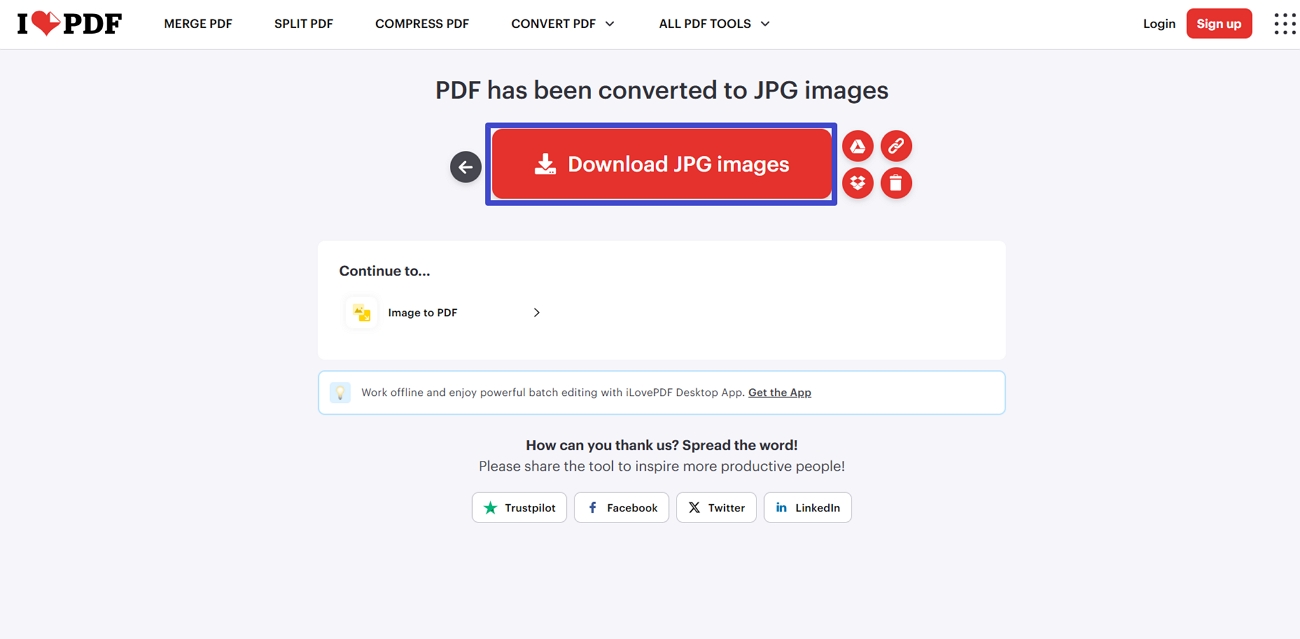
- Upload your file to the iLovePDF PDF to JPG web interface.
- Check the Extract Images radio button and click Convert to JPG to download your packaged folder.
If you need more than extraction, explore how to edit a PDF online directly in your browser.
Pros & Cons of iLovePDF
Pros:
- Works across Chrome, Safari, and Edge with a modern interface.
- Cloud-based service, no installation needed, accessible from almost any device.
Cons:
- Free use has daily task limits and maximum upload file sizes.
- Does not support custom page ranges when extracting images from PDFs online.
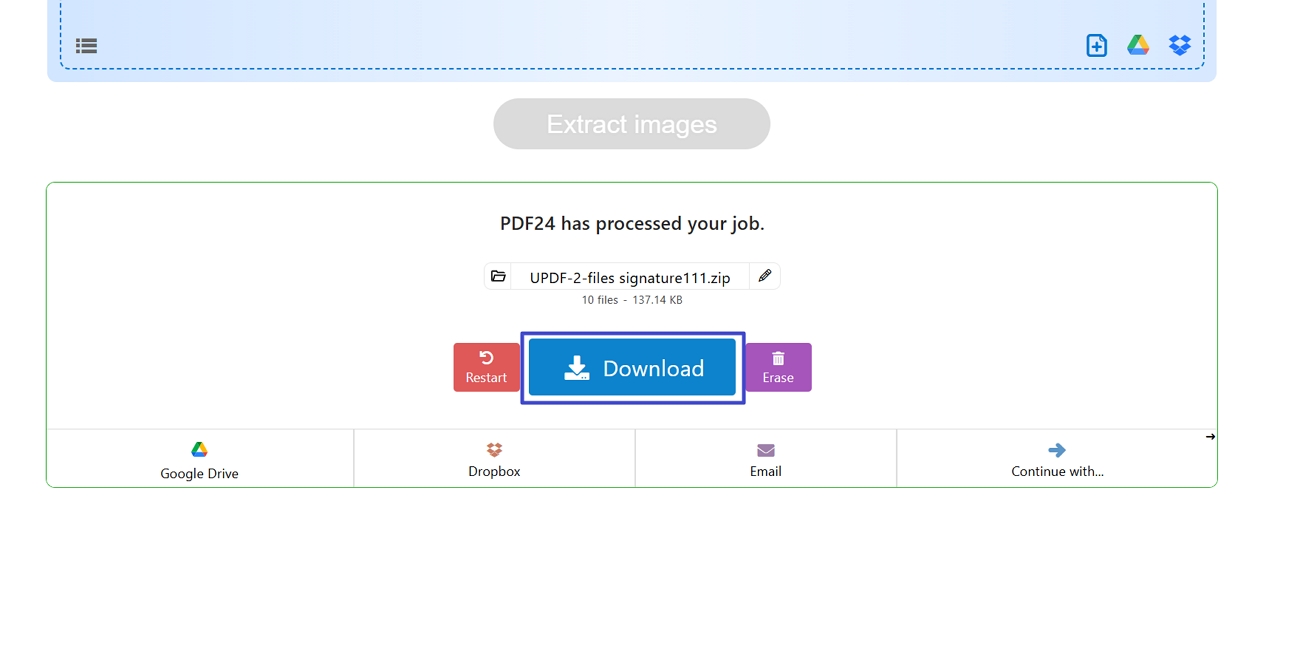
#3 PDF24 Creator Web Suite
Best For: Users looking for a 100% free web utility with absolutely no hidden subscription paywalls, processing page limits, or feature restrictions.
The Workflow:
- Drop your document into the PDF24 online image extraction interface and click Extract Images.
- Wait for the server compilation to finish and tap Download to fetch the folder.
Pros & Cons of PDF24 Online
Pros:
- Completely free, with no page limits or feature restrictions.
- No registration needed, unlimited processing for most everyday PDF tasks.
Cons:
- Lacks options to change output formats or target specific page ranges.
- Simple numeric filenames mean extra manual sorting after downloads.
Enterprise Solutions: Legacy Desktop PDF Image Extraction Tool
Many companies already use Acrobat Pro as part of larger creative or office software bundles. Security policies often require sensitive PDFs and image extraction to stay fully offline on trusted machines.
#4 Adobe Acrobat Pro
The core need here is a stable desktop tool that never sends documents to external servers. Among the best PDF image extractors, Acrobat Pro stands out for local, high‑quality enterprise workflows.
Best For:
The Workflow:
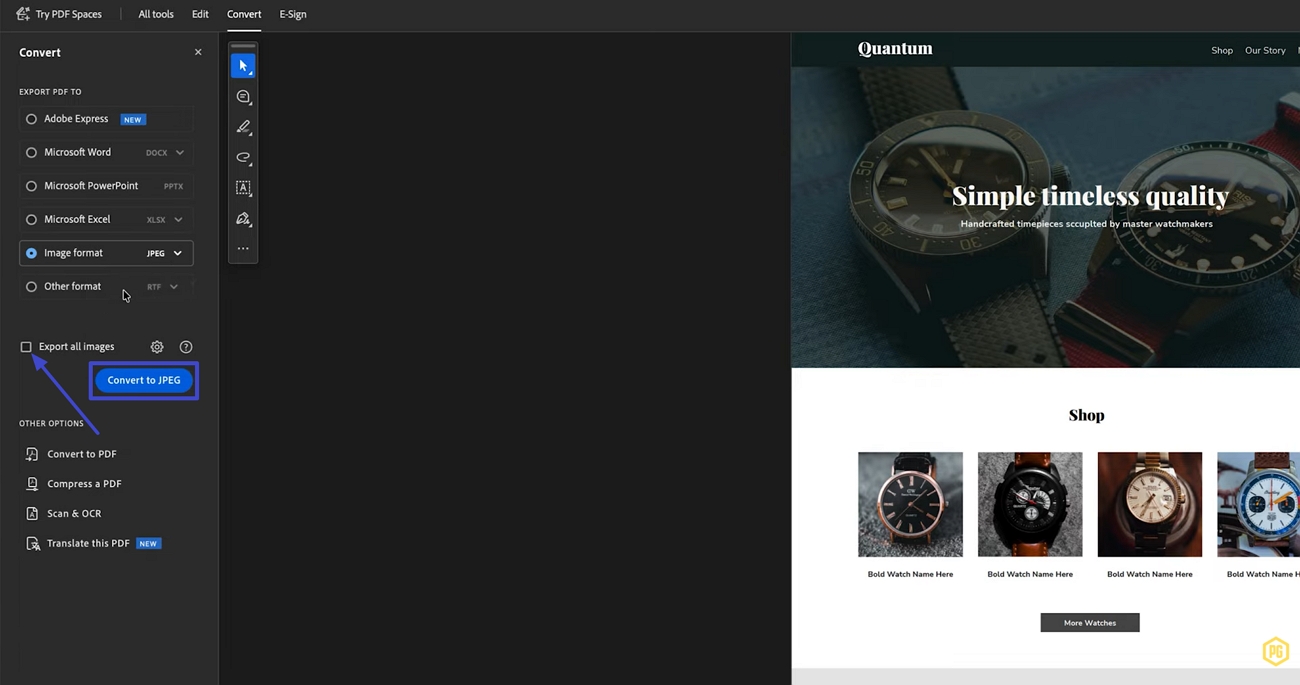
- Import the PDF asset into Acrobat Pro, navigate to the Export a PDF menu, and select Image Format.
- Check the Export All Images toggle, choose your compression codec (JPEG/TIFF), and execute the local directory download.
Pros & Cons of Adobe Acrobat Pro
Pros:
- Local sandboxed processing supports strict enterprise data safety and compliance rules.
- High‑quality image exports suitable for professional print and publishing workflows.
Cons:
- High subscription prices make personal use expensive for many users.
- "Export all images" command hides inside deeper, nested menu structures.
Other PDF Image Extraction Tools
Some users need quick image grabs when they are away from full desktop software. Others prefer very simple methods, even if they sacrifice some control and final quality.
Mobile workflows help when a client sends files while you are commuting or traveling between meetings. Screenshot tools provide fast captures but often reduce quality compared with methods that extract images from PDFs. Explore different on-the-go and manual options to match image quality to each situation.
#5 UPDF for iOS/Android
Best For:
The Workflow:
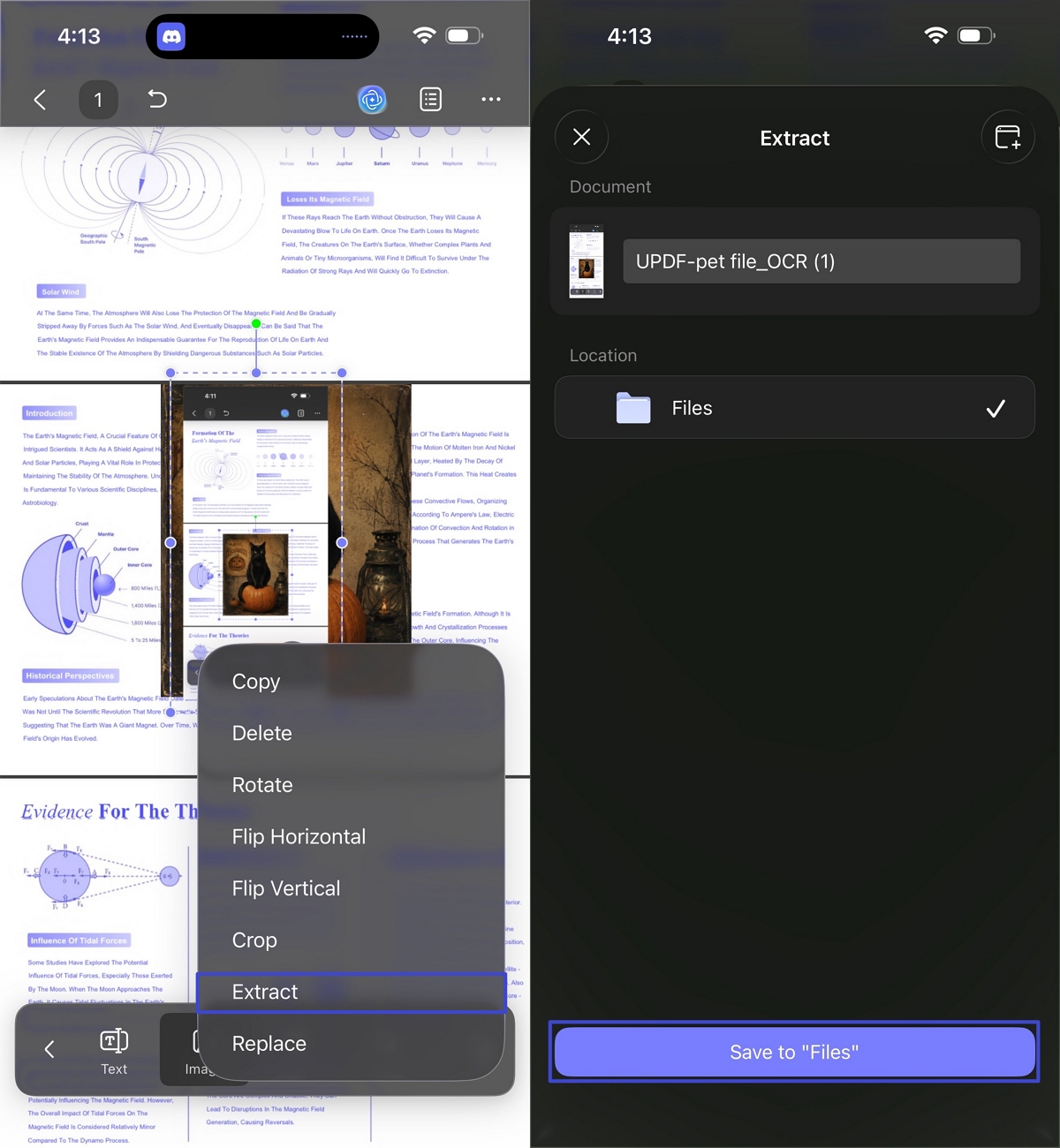
- Open your document inside the UPDF mobile app and activate the Edit mode layer.
- Tap the specific graphic asset on the page layout and select the pop-up Extract command to save it locally.
Pros & Cons of Mobile Method
Pros:
- Fills gaps for on-the-go workflows without needing desktop computers.
- Lets users quickly save a single image directly to smartphone storage.
Cons:
- Mobile systems limit workflows to manual, single-image exports instead of bulk downloads.
- Battery and storage limits can interrupt longer sessions with multiple PDFs.
#6 Windows Snipping Tool/Mac Grab
Best For: Casual office workers who only need to grab a quick icon or thumbnail illustration for an informal internal team reference chat, where professional presentation standards are unnecessary.
The Workflow:
- Maximize your PDF viewing software until the visual asset occupies the largest screen area possible.
- Trigger your native system capture shortcut commands (Win + Shift + S on Windows or Cmd + Shift + 4 on macOS) and drag the crosshairs precisely over the borders of the image.
Keyboard screen clippings are handy, but smarter clipboard shortcuts keep sharper images than rushed captures. To preserve pixel density, learn how to copy an image from a PDF directly into slides.
Pros & Cons of Screenshot Method
Pros:
- Requires no extra software and is built into every modern operating system.
- Works instantly for quick icons or thumbnails in casual conversations.
Cons:
- Suffers severe quality loss from monitor resolution scaling and low DPI.
- Slow and tiring when many separate images need repeated captures.
Frequently Asked Questions
Why does extracting images via screenshots lower the overall image quality?
Screenshots capture whatever the monitor shows at roughly 72–96 DPI, not full-resolution data.
Embedded PDF images are often stored at around 300 DPI or higher, so screenshots lose sharp pixel detail.
Can I isolate or crop an image inside a PDF before exporting it?
Sometimes you only need part of a picture, like one detail or a smaller focus area. To trim away extra margins cleanly, follow our guide on how to crop a PDF image.
Can I extract images from a specific page range rather than the entire PDF?
Yes. Basic web tools usually process entire files, even when you only need a few pages. But you can use advanced software like UPDF to enter ranges like "10-25" to limit extraction.
Conclusion
To conclude, we showed how different readers need different tools, from quick screenshots to careful desktop workflows. You also learned when simple online helpers are enough, and when a flexible PDF image extractor matters. For one solution that keeps images sharp and workflows simple, download the free version of UPDF today.
Windows • macOS • iOS • Android 100% secure
Extended Reading & Contextual Upsells
Keep learning with these focused guides that deepen your PDF editing skills inside UPDF.
- Master Guide: Go beyond basics with this step‑by‑step tutorial on how to edit a PDF.
- Advanced Graphics: Refine visual layouts using this quick walkthrough on editing images in PDF.
- Advanced Document Polishing: Remove old watermarks or sensitive text using our visual erase text in the PDF guide.





 Enrica Taylor
 Lizzy Lozano

 Engelbert White