 UPDF
UPDF
 UPDF for Windows
 UPDF for Mac
 UPDF for iPhone/iPad
 UPDF for Android
 Nomostar
 UPDF AI Online
 UPDF Sign
 IvyCraft
 Edit PDF
 Annotate PDF
 Create PDF
 PDF Form
 Edit links
 Convert PDF
 OCR
OCR PDF to Word
 PDF to Image
 PDF to Excel
 Organize PDF
 Merge PDF
 Split PDF
 Crop PDF
 Rotate PDF
 Protect PDF
 Sign PDF
 Redact PDF
 Sanitize PDF
 Remove Security
 Read PDF
 UPDF Cloud
 Compress PDF
 Print PDF
 Batch Process
 About UPDF AI
 UPDF AI Solutions
 AI User Guide
 FAQ about UPDF AI
 Summarize PDF
 Translate PDF
 Chat with PDF
 Chat with AI
 Chat with image
 PDF to Mind Map
 Explain PDF
 PDF AI Tools
 Image AI Tools
 AI Chat Tools
 AI Writing Tools
 AI Study Tools
 AI Working Tools
 Other AI Tools
 AI Bookmark Generation
 AI Bookmark Summary
 AI Watermark Generation
 AI Background Generation
 AI Sticker Generation
 AI Stamp Generation
 AI Editing Suite
 UPDF Copilot
 AI Page Management
 AI Semantic Search
 PDF to Word
 PDF to Excel
 PDF to PowerPoint
 Enterprise Solution
 Enterprise Sign
 Enterprise AI
 Enterprise Plan
 Enterprise User Guide
 Enterprise Webinar
 IT
IT Education
 Construction
 Financial Service
 Healthcare
 Insurance
 Legal
Legal Manufacturing
 Government
 Researchers & PhDs
 Solopreneurs & Freelancers
 Lawyers & Legal Professionals
 Real Estate Agents & Brokers
 Education Solution
 Customer Stories
 User Guide
 UPDF Tricks
 FAQs
FAQs UPDF Reviews
 Download Center
 Blog
Blog Newsroom
 Tech Spec
 Updates
 UPDF vs. Adobe Acrobat
 UPDF vs. Foxit
 UPDF vs. PDF Expert

You fix a typo on a PDF, save the file, and discover the wrong word still remains underneath. This happens because your iPad only placed a mark instead of changing the original document. Many people confuse PDF writing with real editing because both actions appear similar at first. Learning how to edit PDF documents on iPad starts with understanding how these two methods work differently.
Writing on PDFs adds notes and signatures above pages without changing the original content. Editing PDFs changes the actual text and formatting while keeping the layout unchanged. Choosing the right method depends on whether you need simple notes or complete document changes. This guide explains different iPad PDF editing methods and helps you choose the best option.
Using This Workflow on iPadOS 27
Recheck the Files, Preview or Markup, multitasking, and Apple Pencil steps on iPadOS 27. Current devices such as iPad Pro with M5 and iPad Air with M4 can use the same core PDF workflow, but tool names and placement may differ between the built-in apps and UPDF.
Quick Navigation Matrix: Which Way to Edit PDF Documents on iPad?
The table below shows the right method based on what you want to do:
| What You Want to Do | Annotation or True Editing? | Recommended Method (Click to Jump) |
| Quick hand-drawn notes or a signature | Annotation layer | Method 1: Apple Files app (free and native) |
| Study notes and handwritten workflows | Annotation layer | Method 2: Apple Notes app (free) |
| No app download, light cover-ups | Mostly annotation, some text editing | Method 4: iLovePDF (online tool) |
| Changing existing text, images, links, or scans | True PDF editing | Method 3: UPDF for iOS (full PDF editor) |
Method 1: The Native Files App (Free & Quickest for Markup)
Best for:
- Free hand-drawn markups, basic shapes, and dropping a signature onto a page without installing anything.
Every iPad includes Markup, which helps users annotate PDFs without downloading apps or tools. It works quickly for adding signatures and marking important parts of a PDF file. You do not need to install anything or create an account before using it.
Apple's guide explains that shapes become cleaner when you draw and briefly pause afterward. Lines, arrows, circles, squares, and triangles can automatically turn into neat shapes during editing.
How to Edit a PDF on iPad via Files
Three taps get you from a stored file to a marked-up page:
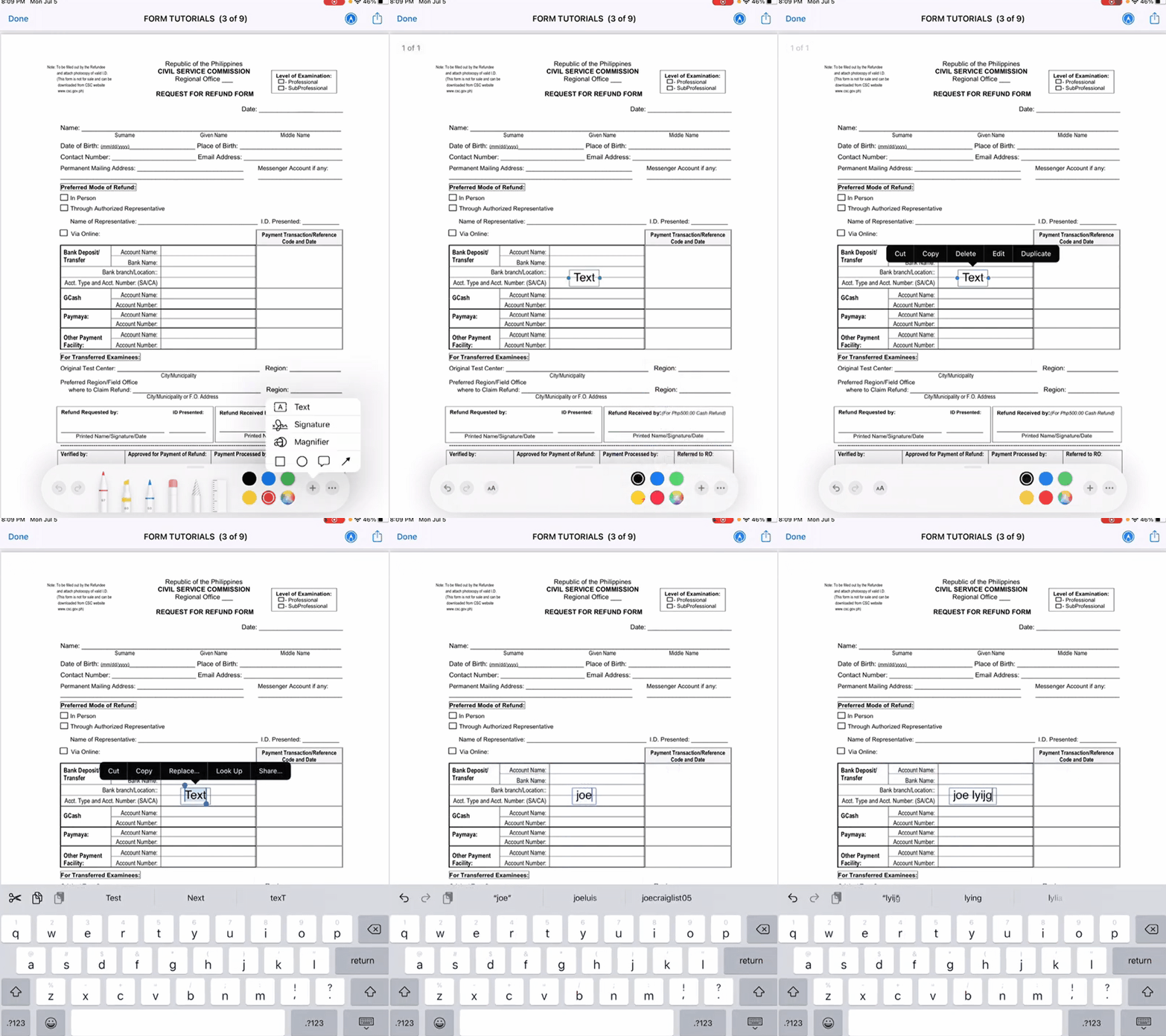
Step 1. Open the Files app on your iPad and import the PDF you want to work on.
Step 2. Tap the "Markup" icon and press the "Pen" icon in the bottom right corner. After that, tap on the "+" icon and choose a tool like "Text." Next, add a text box and start typing.
Limitations:
-
Markup cannot touch anything already in the file. Existing text stays where it is, images stay as they are, and nothing reflows. Every change you make sits on top of the page.
Method 2: The Notes App (Free for Hand-Written Workflows)
Best for:
- Folding a PDF into study guides or meeting notes, then handwriting around it.
The Notes app lets you add a PDF inside notes and write around it using Apple Pencil or your finger. Apple allows PDF viewing and annotations in Notes for study and meeting documents. Unlike PDF editors, Notes focuses on handwriting instead of changing existing PDF text. It keeps your PDFs and handwritten notes together in one searchable place.
How to Annotate PDFs Using Notes App
Follow the steps below to import your PDF and use the same annotation tools as Markup:
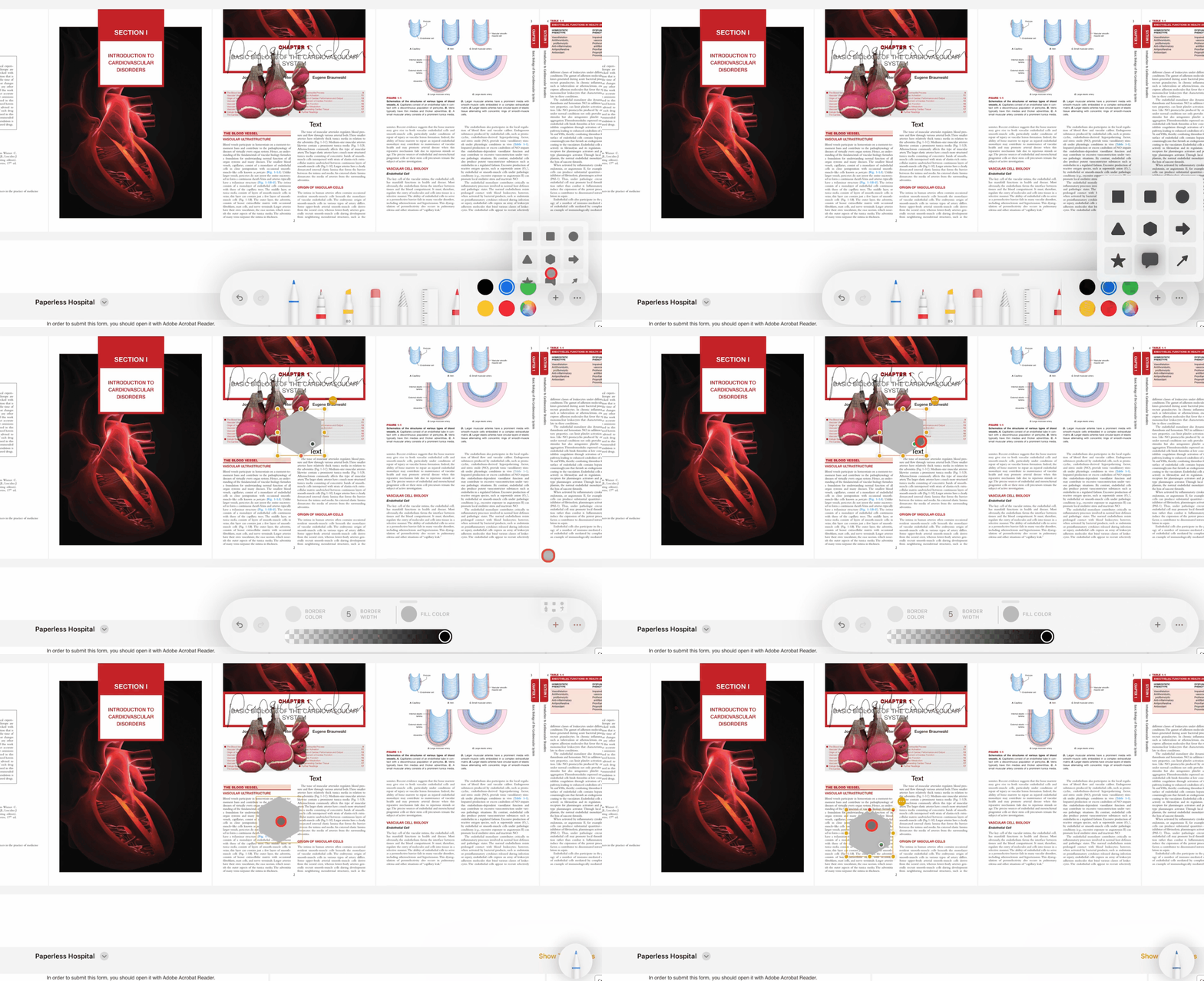
Step 1. First, touch and hold the PDF in Files, tap the "Share" icon, choose "Notes", then tap "Save."
Step 2. Next, tap the PDF preview inside the note to open it. Use the "Markup" tools to handwrite comments or add shapes.
Step 3. Then, switch the preview between "Small," "Medium," and "Large" under "View As", and show thumbnails on the larger sizes for faster navigation.
Limitations:
- Notes is designed for notes, not documents, so formatting can sometimes shift. Large multi-page PDFs may become slower, and you cannot edit existing text.
Method 3: UPDF for iOS (Best All-in-One Solution for Direct PDF Editing)
Best for:
- Full control over existing text, images, links, backgrounds, and scanned paperwork on the iPad itself.
The three methods above have limits when you need to change existing PDF content directly. Two options cannot rewrite text, while the other requires browser uploads before making changes. UPDF works differently because it is a full PDF editor app for iPad. It lets you edit PDFs on an iPad directly without sending files to external servers.
Windows • macOS • iOS • Android 100% secure
Your edits happen inside the original file while keeping your document content and layout intact. For reading only, use a lighter PDF viewer for iPad instead. This guide covers editing, while annotate PDF on iPad and how to edit a PDF explain more.
Key Advantages & Capabilities
- Direct Editing: Tap text, images, links, or backgrounds to change them directly. Small edits keep the page layout without needing a full rebuild.
- Text Control: Change fonts, colors, and sizes to improve your PDF text. Move text boxes and adjust alignment as needed.
- Scan and OCR: Scan documents using your iPad camera with UPDF tools. Use the UPDF Scan to PDF Guide to make scans editable.
How to Edit Text & Alignment
The text tools are available under the Edit option. Follow the UPDF edit text guide to modify PDF text easily.
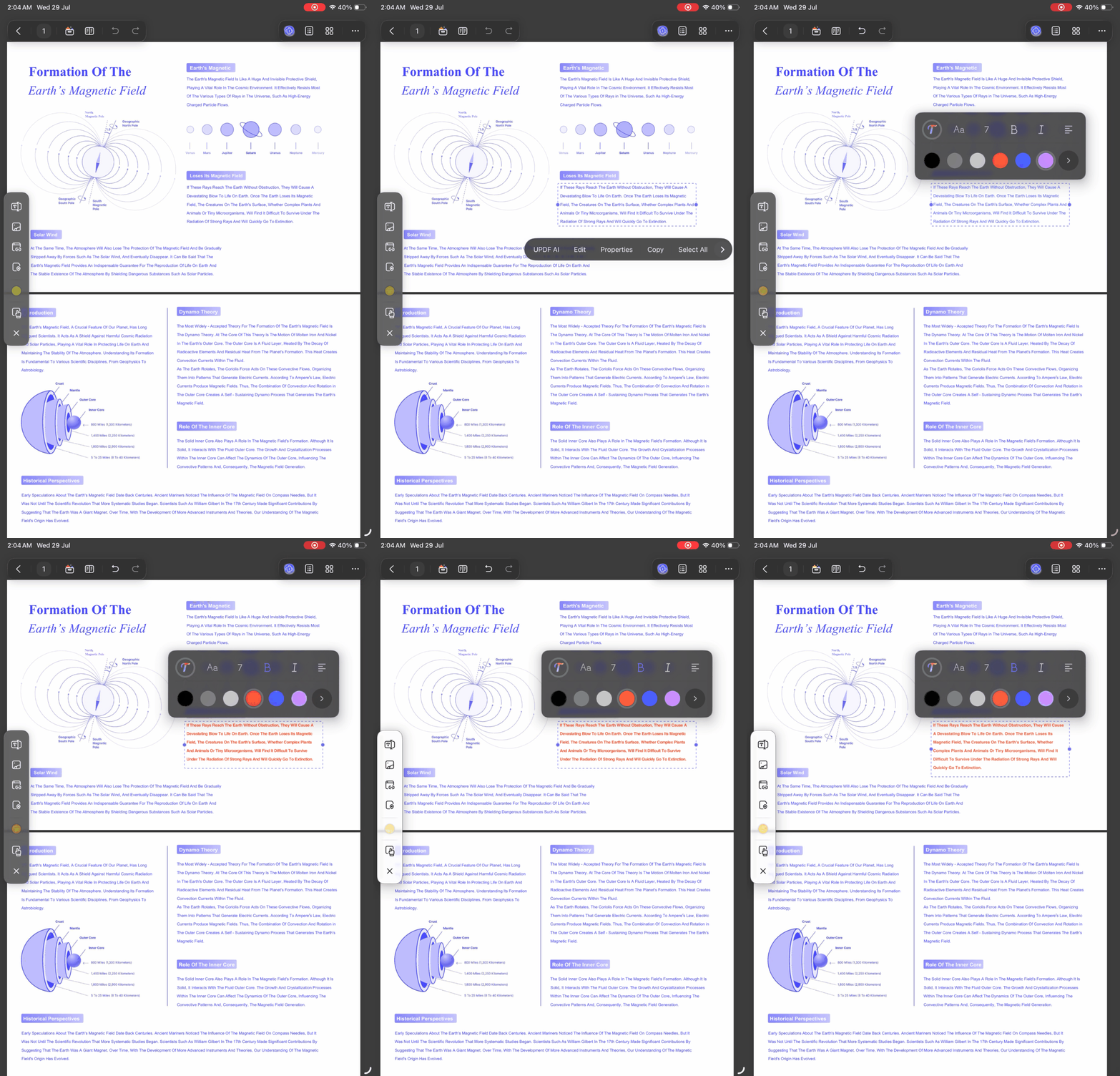
Step 1. Open the file in UPDF on your iPad and tap the "Edit" icon. Next, tap on the "Text" option and choose the text that you want to edit.
Step 2. After that, change the text and tap "Properties" to adjust the font size, style, color, and alignment.
How to Edit, Crop & Replace Images
Images use the same Edit mode, and the UPDF edit image guide walks through the options:
Step 1. With Edit mode already open, tap the "Image" icon and press the image that you want to edit.
Step 2. Choose an action like "Delete," "Rotate," or "Flip." To replace the image, press the "Replace" option and choose the new image for the PDF.
How to Add & Customize Hyperlinks
Links are edited through the Edit option instead of being added as simple annotations. Adhere to the UPDF Add Link Guide to add or change PDF links easily.
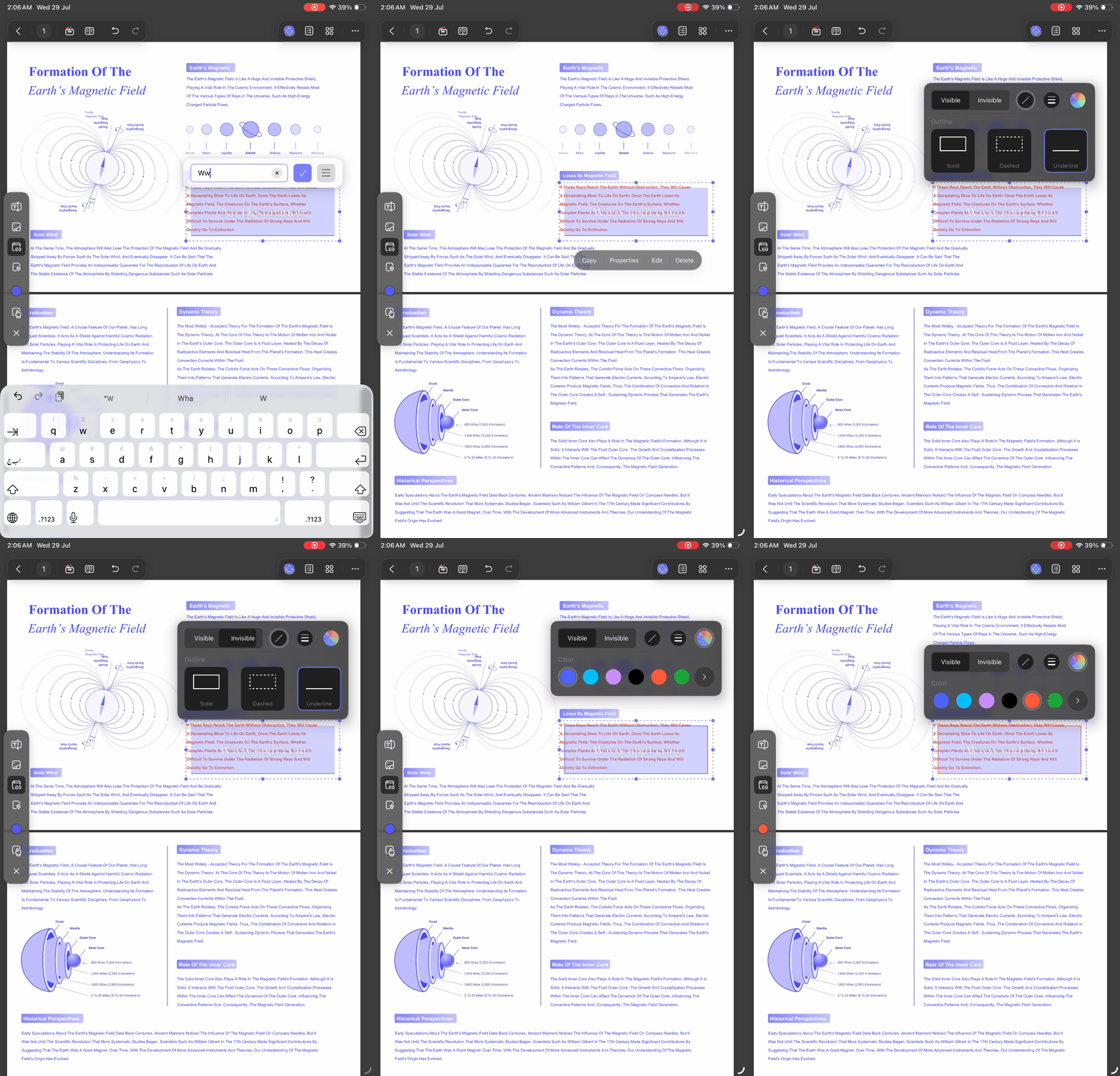
Step 1. Stay in editing mode and select the "Link" tool. Then, tap the area you want to make clickable. Choose "Link to Web" for a URL or "Link to Page" for an internal jump.
Step 2. Then, double-tap the link box and open "Properties" to set the color, visibility, outline, and thickness of the box.
Method 4: iLovePDF (Free Online Tool for Light Quick Edits)
Best for:
- Quick, non-confidential fixes in Safari when you would rather not install an app.
iLovePDF works directly in the browser, so iPad users need no additional app. It offers more than basic annotations by allowing users to edit PDF content. The editor can detect text and lets you change words, fonts, sizes, and colors. These tools make quick PDF changes easier without installing software on your iPad.
How to Make Changes in a PDF on iPad via iLovePDF
To see how to edit a PDF document on iPad, follow the steps from start to finish:
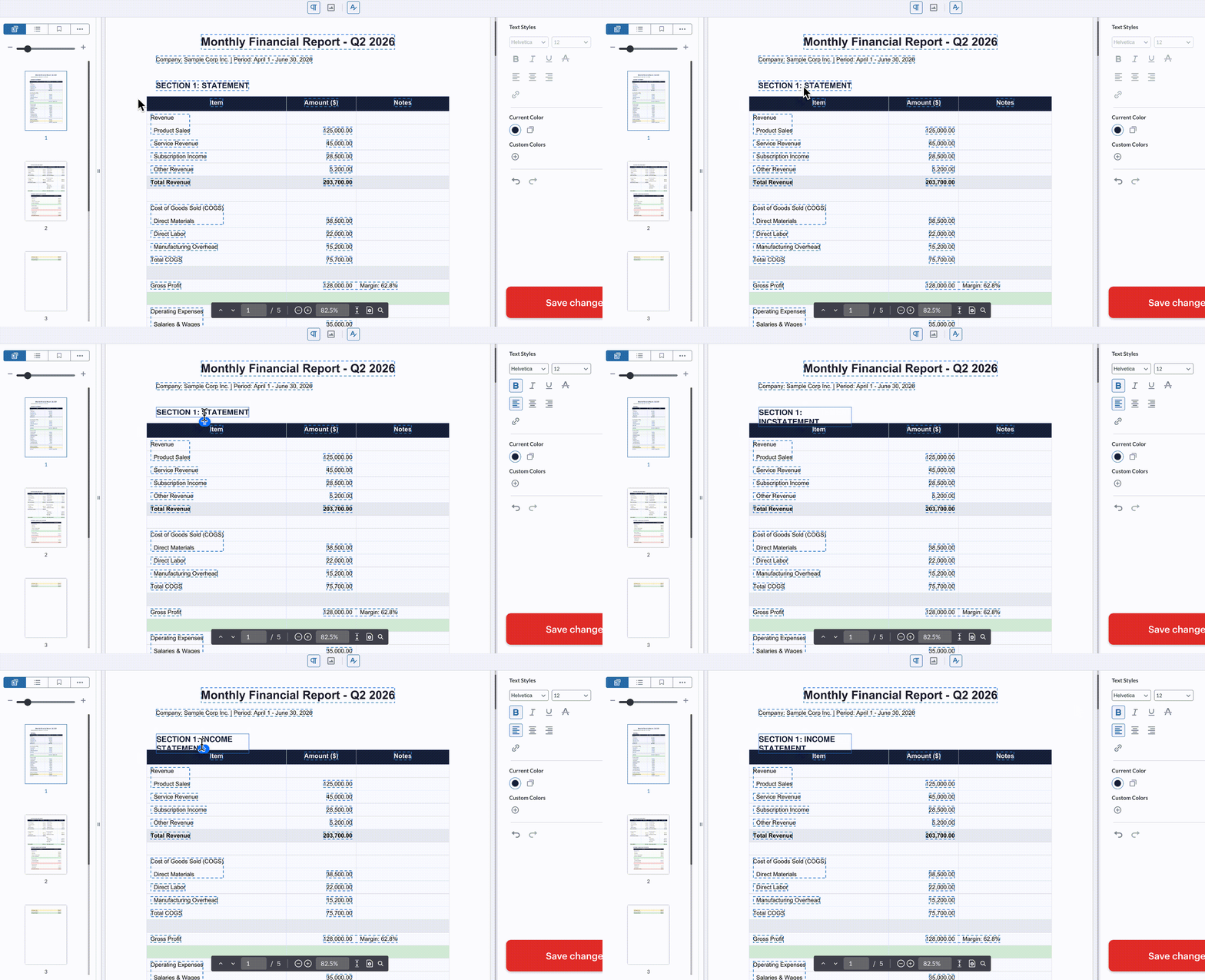
Step 1. First, open Safari and access iLovePDF's PDF editor. Next, upload your file and tap the text you want to edit.
Check the wording and layout together as you work through the changes. The video below offers a closer look at editing PDF content in UPDF.
Step 2. After that, press "Add Shapes" and place new shapes on the PDF page. Now, tap "Save Changes" to download the updated PDF.
Limitations:
- iLovePDF uploads files online, so avoid using it for private or confidential documents. It may not edit protected PDFs, scanned files, forms, or some embedded fonts. You also need a stable internet connection because everything happens online.
Frequently Asked Questions
Why can't I edit files on my iPad?
Three things usually explain it. You may be in Markup mode rather than editing mode. The PDF may carry security permissions that block changes. Or the page may be a flattened scan, which needs OCR before any text can be selected.
How do I edit an already existing PDF on my iPad?
Open the file in a dedicated editor such as UPDF for iOS rather than a markup tool. Tap "Edit", select the text layer, and change the words directly. The original formatting stays in place while you type.
Is a PDF editor free on an iPad?
Apple Files and Apple Notes are completely free for markup, drawing, and signatures. Changing original text or running OCR needs a dedicated app, and UPDF offers a free trial before you commit to it.
Is writing on a PDF the same as editing PDF text?
No. Writing on a PDF lays new annotations or drawings over the document. Editing PDF text changes the underlying content and typography of the file itself.
How can I convert a scanned PDF so I can edit it?
Run it through OCR. A tool with optical character recognition, such as UPDF, reads the printed characters on the scanned page and rebuilds them as digital text. The page then behaves like any other editable PDF.
Conclusion
In conclusion, Apple Files and Notes offer free handwriting tools while iLovePDF provides easy browser editing. To edit PDF documents on iPad, choose UPDF when changing text, images, links, and scans matters. This guide shows why UPDF edits files directly on iPad without leaving the device during changes.
Windows • macOS • iOS • Android 100% secure









 Enya Moore
 Enid Brown
 Enola Davis
 Enrica Taylor
 Engelbert White