 UPDF
UPDF
 UPDF for Windows
 UPDF for Mac
 UPDF for iPhone/iPad
 UPDF for Android
 Nomostar
 UPDF AI Online
 UPDF Sign
 IvyCraft
 Edit PDF
 Annotate PDF
 Create PDF
 PDF Form
 Edit links
 Convert PDF
 OCR
OCR PDF to Word
 PDF to Image
 PDF to Excel
 Organize PDF
 Merge PDF
 Split PDF
 Crop PDF
 Rotate PDF
 Protect PDF
 Sign PDF
 Redact PDF
 Sanitize PDF
 Remove Security
 Read PDF
 UPDF Cloud
 Compress PDF
 Print PDF
 Batch Process
 About UPDF AI
 UPDF AI Solutions
 AI User Guide
 FAQ about UPDF AI
 Summarize PDF
 Translate PDF
 Chat with PDF
 Chat with AI
 Chat with image
 PDF to Mind Map
 Explain PDF
 PDF AI Tools
 Image AI Tools
 AI Chat Tools
 AI Writing Tools
 AI Study Tools
 AI Working Tools
 Other AI Tools
 AI Bookmark Generation
 AI Bookmark Summary
 AI Watermark Generation
 AI Background Generation
 AI Sticker Generation
 AI Stamp Generation
 AI Editing Suite
 UPDF Copilot
 AI Page Management
 AI Semantic Search
 PDF to Word
 PDF to Excel
 PDF to PowerPoint
 Enterprise Solution
 Enterprise Sign
 Enterprise AI
 Enterprise Plan
 Enterprise User Guide
 Enterprise Webinar
 IT
IT Education
 Construction
 Financial Service
 Healthcare
 Insurance
 Legal
Legal Manufacturing
 Government
 Researchers & PhDs
 Solopreneurs & Freelancers
 Lawyers & Legal Professionals
 Real Estate Agents & Brokers
 Education Solution
 Customer Stories
 User Guide
 UPDF Tricks
 FAQs
FAQs UPDF Reviews
 Download Center
 Blog
Blog Newsroom
 Tech Spec
 Updates
 UPDF vs. Adobe Acrobat
 UPDF vs. Foxit
 UPDF vs. PDF Expert

You may need to modify a PDF to update outdated contact details, correct typos, replace images, revise links, or reorganize pages. With a PDF editor such as UPDF, you can edit these elements directly without recreating the document from scratch. If the file is scanned, you may need to run OCR before editing its text.
It helps to see how the document responds to a small change before making several revisions. The walkthrough below is a useful introduction to editing PDF content in UPDF.
You may also want to adapt a PDF for a different audience, remove outdated content, or rearrange its pages for a clearer reading order. This guide shows how to use UPDF to modify text, images, links, pages, headers and footers, backgrounds, signatures, and watermarks.
Part 1. How to Modify Different Elements in a PDF
UPDF lets you modify different elements of a PDF from a single workspace. Open your PDF in UPDF, then follow the relevant section below depending on whether you need to edit its content, pages, or page-level elements.
1. Modify Text
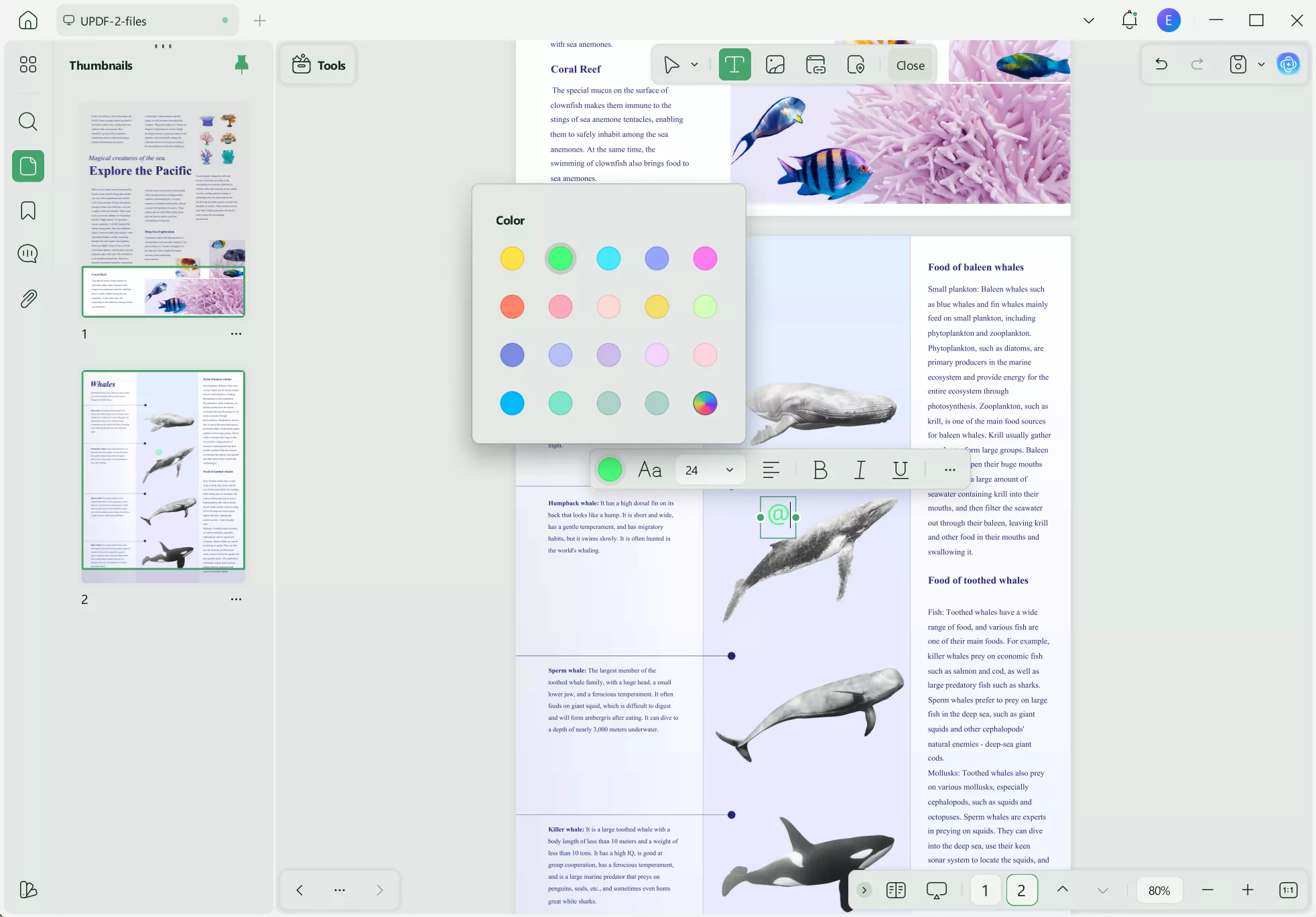
UPDF allows you to add, replace, delete, and format existing PDF text. You can change the font, size, color, alignment, and other formatting to match the rest of the document. For a scanned or image-based PDF, run OCR first to make the text editable.
Instructions. Open the PDF in UPDF and choose "Tools>Edit" from the left toolbar. Select the text you want to modify, then type to replace it or use the formatting controls to adjust its font, size, color, alignment, and style. Save the PDF when you finish editing.
Windows • macOS • iOS • Android 100% secure
2. Modify Images
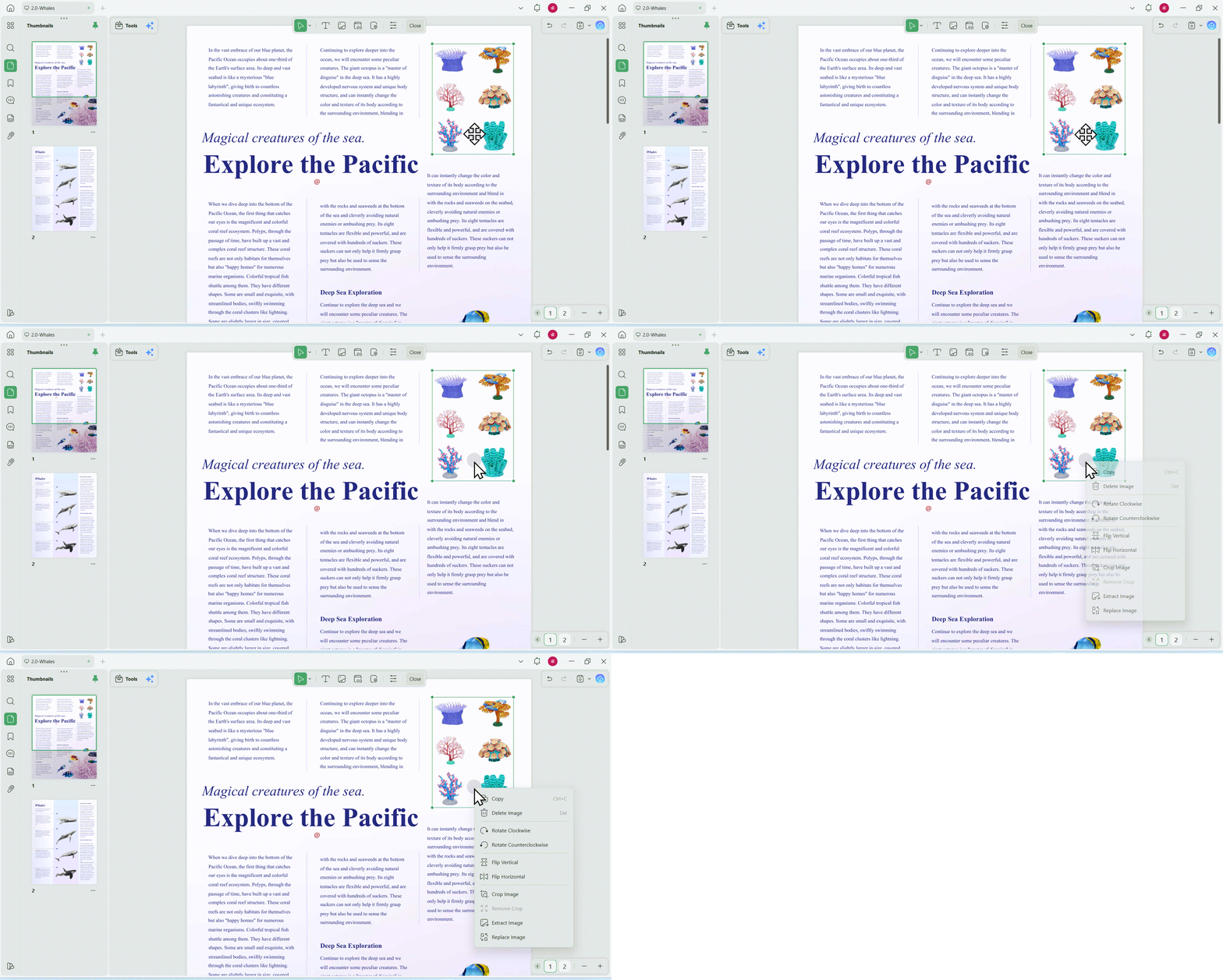
UPDF lets you copy, crop, rotate, extract, replace, or delete images in a PDF. These options are useful when an image is outdated, incorrectly positioned, or no longer relevant to the document.
Instructions. Open the PDF and select Edit PDF. Click the image you want to modify, then right-click it to open the context menu. Choose Copy, Rotate, Extract, Crop, Replace, or Delete, depending on the change you need.
3. Modify Links
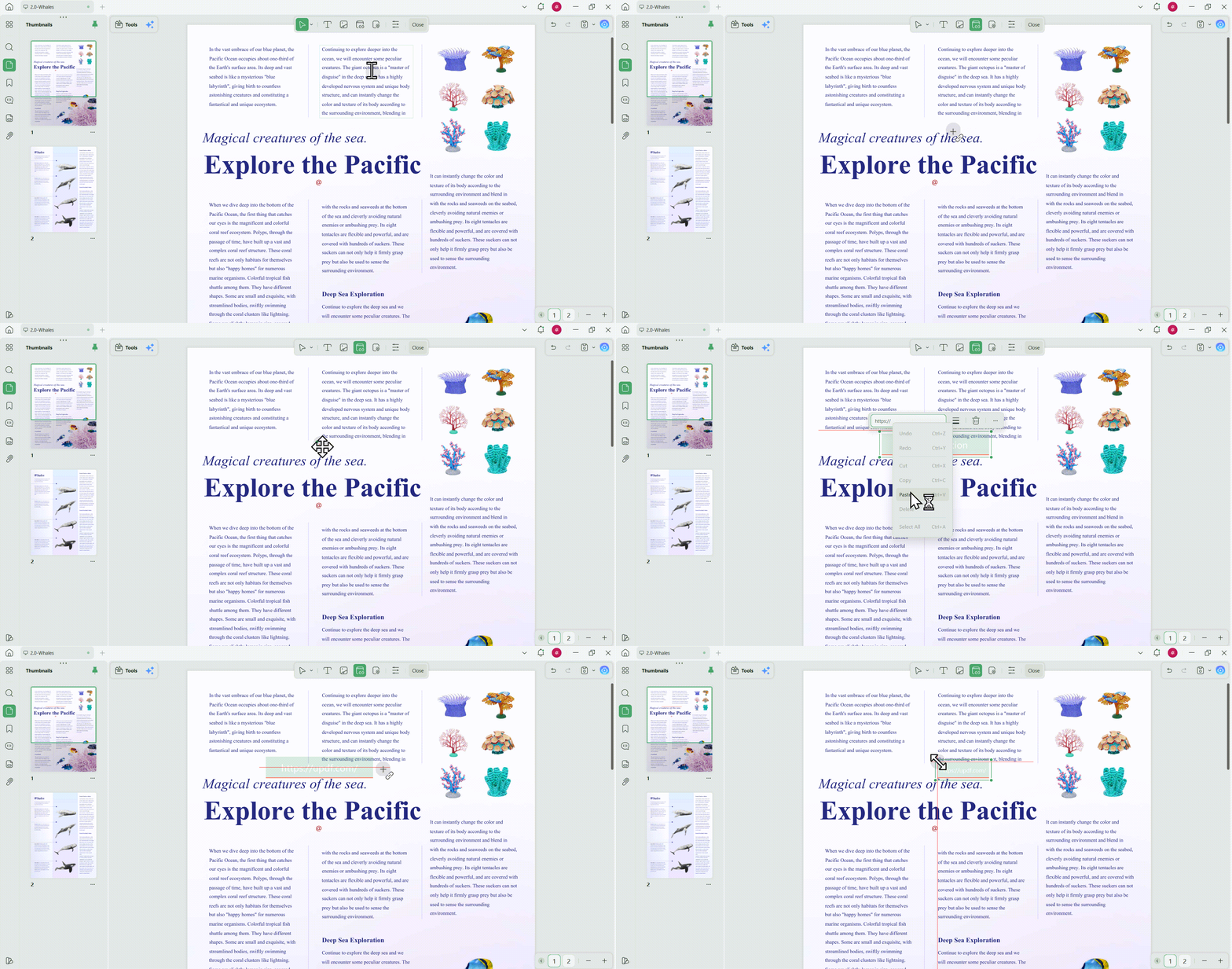
If you are looking for a PDF editor that gives you the benefit of editing the existing links in a static document, UPDF is the right choice. You can figure out if you want to keep the link type in an invisible or visible rectangular shape. With the help of the guide discussed below, you will be able to clear your query of how I can modify PDF document links:
Instructions. Within the "Edit PDF" feature of UPDF, select the "Link" button so that you can alter the existing links. Moving forward, click on the link added to the PDF a floating properties box appears. This box allows you to edit the "Link Type" and adjust the "Style" and "Thickness" of the visible shape according to your preferences.
Bonus
Instead of reading the lengthy text below, you can also choose to watch the following video to learn how to modify a PDF using UPDF. Additionally, you can directly upgrade to the pro version at a DISCOUNTED price and enjoy a hassle-free PDF modifying experience.
4. Modify Pages
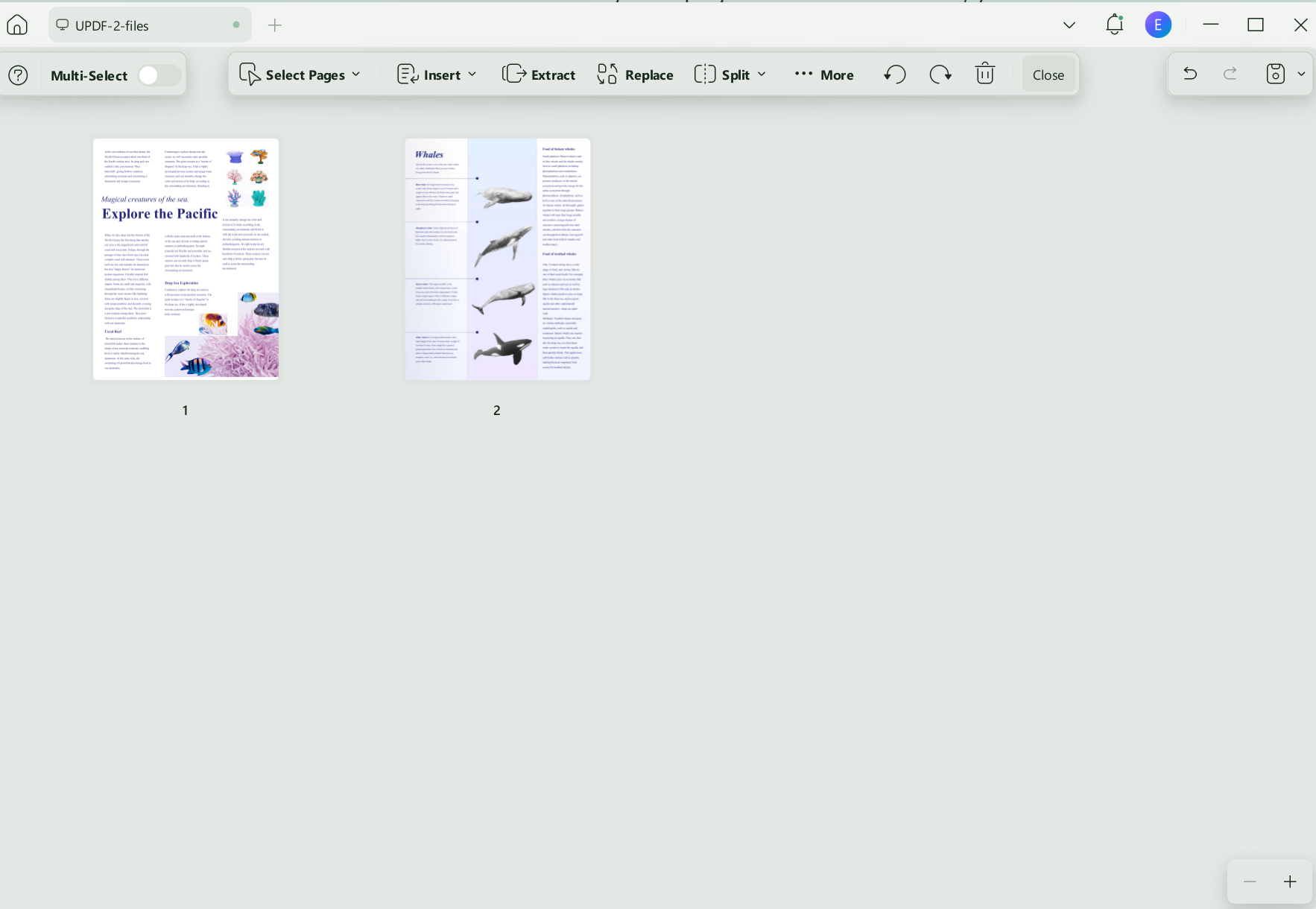
UPDF lets you rearrange, insert, replace, extract, split, rotate, and delete PDF pages. These tools help you correct the page order, remove unnecessary pages, or add updated pages without rebuilding the entire file.
Instructions. To organize pages of a PDF document, you need to first add the disorganized document to the software and click the "Organize Pages" icon. Upon accessing this tool, you get access to insert, replace, extract, split, rotate, or delete from the document according to your requirements.
5. Modify Header & Footer
You can utilize this feature of UPDF to adjust the header and footer added to your PDF documents. Users get the chance to change the entire text of the header and footer so that it matches the document. Moreover, you can adjust the layout and positioning of the text so that the PDF file looks professional. With the help of the following steps, anyone can modify PDF headers and footers using UPDF:
Step 1. To progress the modification process of your headers or footers, simply click the "Page Tools" icon on the far left corner of the screen. Select the "Header and Footer" tab and hit the "Edit Header & Footer" icon within the side panel.
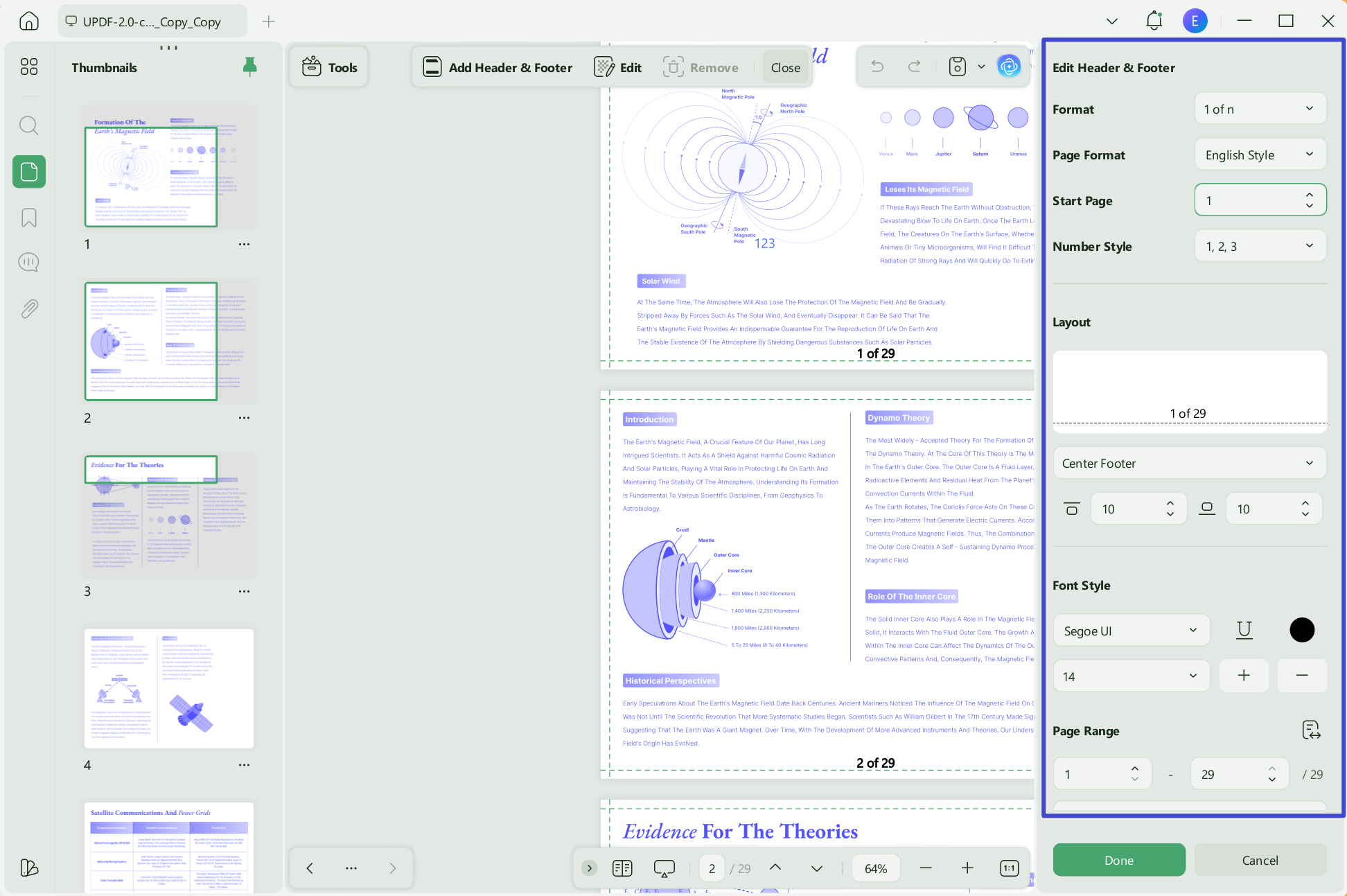
Step 2. As you hit the "Edit Header & Footer" icon, you can adjust the layout, content, font style, and size according to the PDF requirements. Once you are satisfied with the adjustments made to the properties, hit the "Done" button to avoid losing the changes made.
6. Modify Background
Moving on, let us look into how you can modify PDF backgrounds so that the content is readable to people with visual disabilities, such as color blindness. You can adjust the background to either a color, image, or plain PDF. UPDF ensures that users get access to alter the ratio of the background to avoid losing the visibility of the written content, which is explained as follows:
Windows • macOS • iOS • Android 100% secure
Step 1. Upon importing the PDF, select the "Background" button from the "Page Tools" tab and then choose the "Pen" icon that represents the "Edit Background" feature.
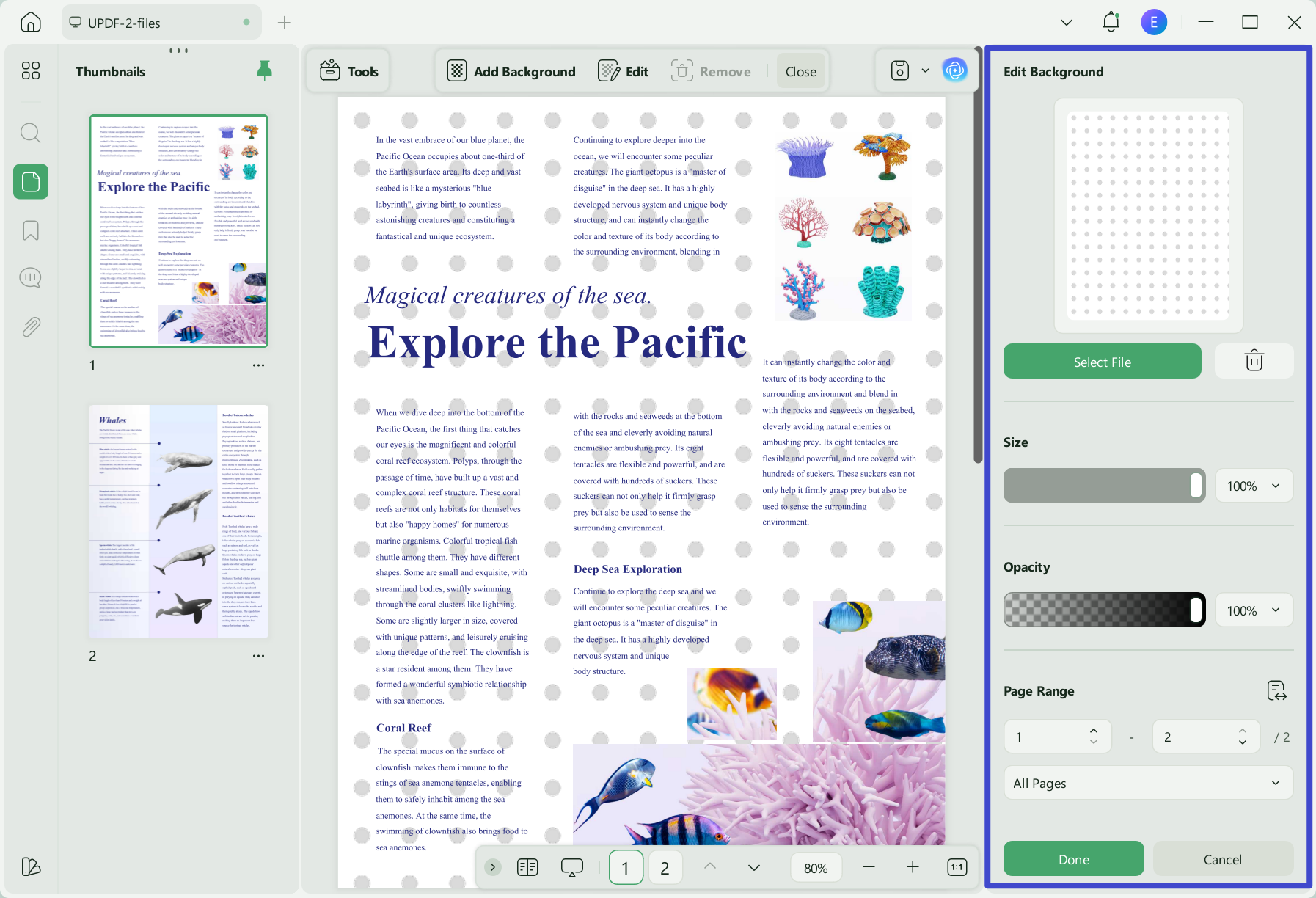
Step 2. Lastly, adjust the background color and its opacity so that it matches the content. You get to change the background to a color or image according to what is required. After getting satisfied with the adjustments, hit the "Save" button at the bottom of the properties section.
7. Modify Signature
In addition to the ability to modify the background, we can also alter PDF signatures that you add to official documents. UPDF allows you to resize, reposition, and adjust the opacity of an electronic signature added as an annotation. This is different from altering a certificate-based digital signature, which may invalidate the document’s signature status. Using UPDF, users get the ability to create multiple signatures and use them across PDFs. By tracking the steps below, you can understand how to modify a PDF signature using this tool:
Step 1. Open the PDF in UPDF and choose Comment from the left toolbar. Select Signature to add an electronic signature. Right-click the inserted signature and choose Properties.
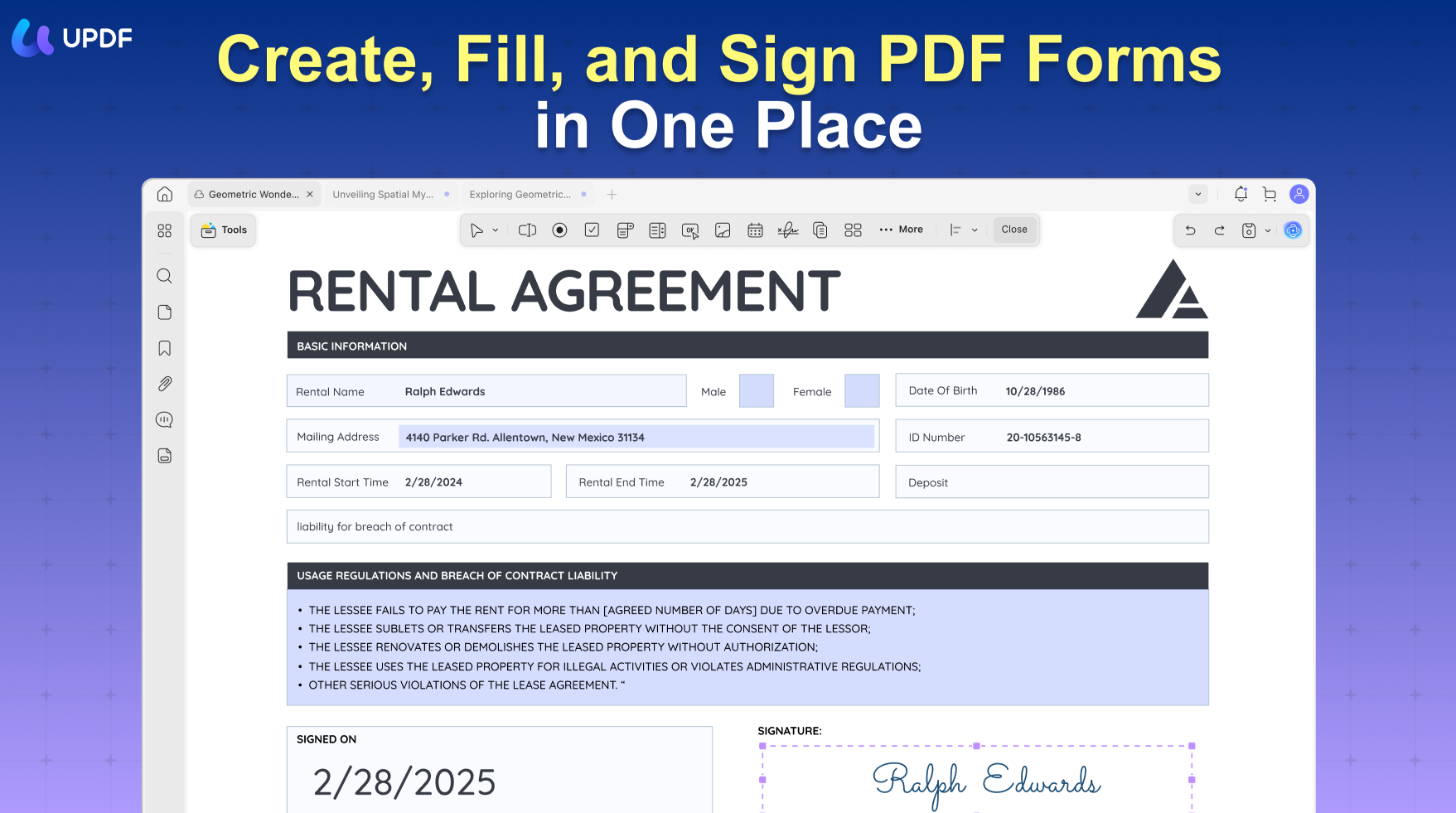
Step 2. As you click on the "Properties" option, you get to adjust the "Opacity" level of the e-sign according to your needs.
8. Modify Watermarks
UPDF also lets you edit an existing PDF watermark. You can change its text or image, size, orientation, opacity, and position to match the updated document. With the help of this feature, you can effortlessly change the watermark to a text or image. You also get to adjust the orientation to what best fits the pages and alter the opacity level to avoid any loss of text visibility. Consult the steps below to understand how to modify PDF watermarks:
Step 1. Commence the modification procedure by clicking on the "Page Tools" tab and picking "Watermarks" from the top center of the editing panel. Next, a sidebar with all the watermarks will appear, from which you will click on the "Edit Watermark" option represented by a pen icon.
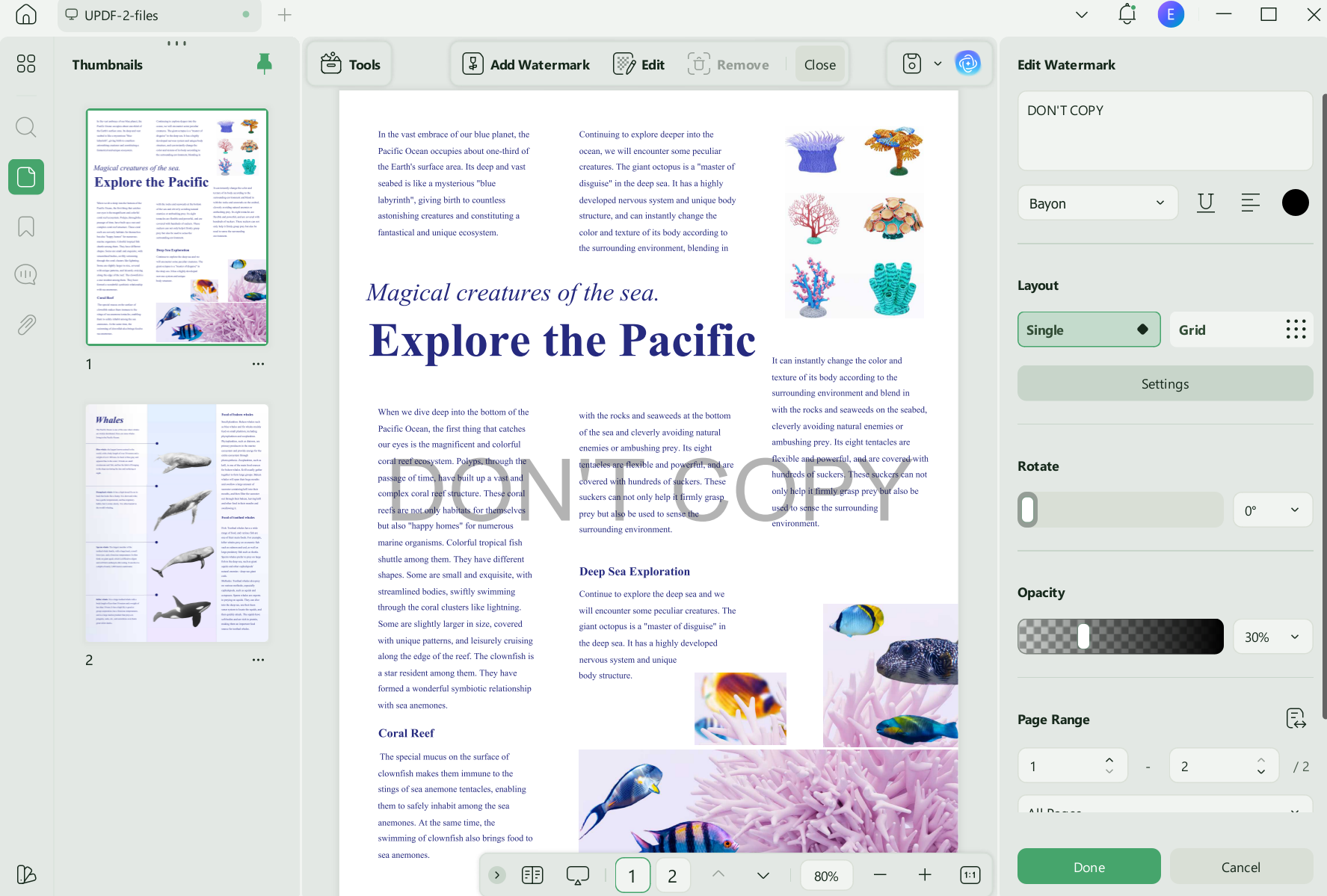
Step 2. Within the properties side panel, adjust the "Ratio of Watermark" to match the PDF. You can then change the text to alter the content of the watermark. After adjusting the settings of the watermark, hit the "Save" button to avoid losing the changes made.
Part 2. What Makes UPDF a Preferred Choice for Modifying PDFs?
In addition to the editing tools above, UPDF includes several features that can simplify more complex PDF modification workflows:
- OCR PDF: OCR converts text in scanned or image-based PDFs into searchable and editable content. This allows you to modify documents that do not contain an editable text layer. Before publishing, verify the currently supported OCR languages against the latest UPDF product specifications.
- UPDF Cloud: Store supported PDF files in the cloud and access them across compatible devices signed in to the same account. This helps you continue an editing task without manually transferring the file.
- Batch Processing: This tool facilitates its users to perform a batch process, in order to convert multiple PDFs to different formats simultaneously. Users can also effortlessly combine unlimited PDF files into a single document, as it aids in uploading and reordering various files at a time.
- Annotate PDFs: Enhance your PDF outlook through UPDF’s range of annotation tools, including adding sticky and text notes to help users engage with the document. By using its eraser feature, you can also refine your content and ensure your document looks polished and professional.
- AI Assistant: It is integrated with the latest AI technology and is capable of converting PDFs to mind maps, summarizing/translating PDFs, and chatting with images.
- More: UPDF features more capabilities beyond the above-mentioned ones, download it for a free trial now.
Windows • macOS • iOS • Android 100% secure
In addition to its advanced features, UPDF also facilitates users with excellent value for both individuals and businesses. To explore UPDF and its services more, read this article and take your knowledge to the next level.
FAQs
Q1: Why can’t I modify some text in my PDF?
The PDF may be scanned, flattened, password-protected, or created with text converted to outlines. Run OCR if the page is image-based. If the file has editing restrictions, you will need the correct permission password before modifying it.
Q2: Does modifying a PDF reduce its quality?
Editing text or links normally has little effect on visual quality. However, replacing images, compressing the file, or repeatedly exporting it with lower-quality settings may reduce image clarity. Keep an original copy and review the output before sharing it.
Q3: Can I modify a password-protected PDF?
It depends on the type of protection. If the PDF restricts editing, you must enter the correct permission password or ask the document owner for an unrestricted copy. UPDF should not be presented as a way to bypass access restrictions.
Q4: Will modifying a digitally signed PDF invalidate its signature?
In many cases, changing a digitally signed PDF after signing can invalidate the signature or show that the document has been modified. Save a separate copy and confirm the document’s signing requirements before making changes.
Conclusion
UPDF provides one workspace for modifying PDF text, images, links, pages, headers and footers, backgrounds, electronic signatures, and watermarks. Its OCR feature can also make scanned documents editable, while its cross-platform support helps you continue working across compatible devices. Download UPDF, open the PDF you want to update, and use the relevant tool above to make and save your changes.
Windows • macOS • iOS • Android 100% secure







 Delia Meyer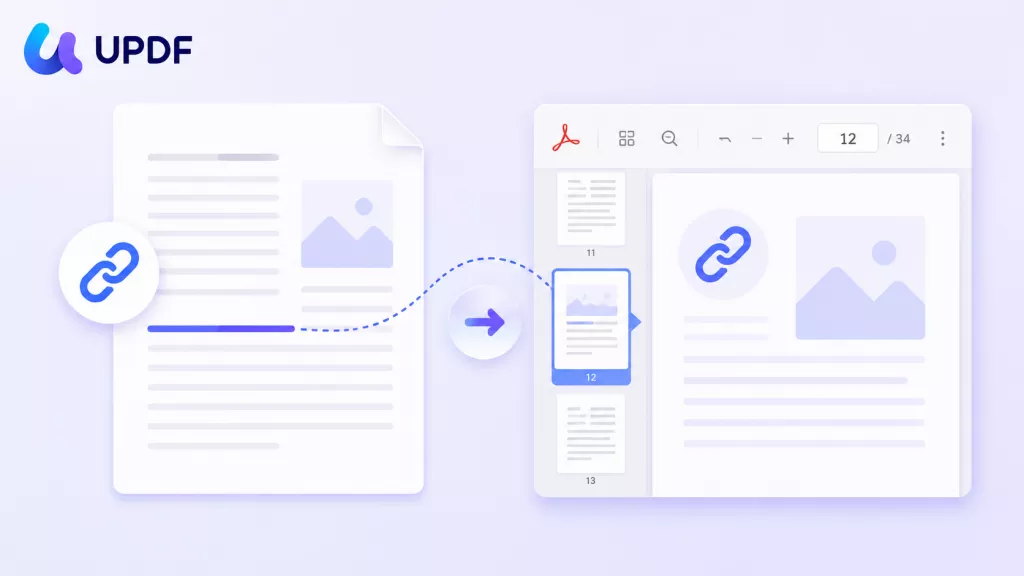
 Engelbert White

 Enrica Taylor
 Lizzy Lozano