 UPDF
 UPDF for Windows
 UPDF for Mac
 UPDF for iPhone/iPad
 UPDF for Android
 Nomostar
 UPDF AI Online
 UPDF Sign
 IvyCraft
 Edit PDF
 Annotate PDF
 Create PDF
 PDF Form
 Edit links
 Convert PDF
 OCR
 PDF to Word
 PDF to Image
 PDF to Excel
 Organize PDF
 Merge PDF
 Split PDF
 Crop PDF
 Rotate PDF
 Protect PDF
 Sign PDF
 Redact PDF
 Sanitize PDF
 Remove Security
 Read PDF
 UPDF Cloud
 Compress PDF
 Print PDF
 Batch Process

 About UPDF AI
 UPDF AI Solutions
 AI User Guide
 FAQ about UPDF AI
 Summarize PDF
 Translate PDF
 Chat with PDF
 Chat with AI
 Chat with image
 PDF to Mind Map
 Explain PDF
 PDF AI Tools
 Image AI Tools
 AI Chat Tools
 AI Writing Tools
 AI Study Tools
 AI Working Tools
 Other AI Tools
 AI Bookmark Generation
 AI Bookmark Summary
 AI Watermark Generation
 AI Background Generation
 AI Sticker Generation
 AI Stamp Generation
 AI Editing Suite
 UPDF Copilot
 AI Page Management
 AI Semantic Search
 PDF to Word
 PDF to Excel
 PDF to PowerPoint
 Enterprise Solution
 Enterprise Sign
 Enterprise AI
 Enterprise Plan
 Enterprise User Guide
 Enterprise Webinar
 IT
 Education
 Construction
 Financial Service
 Healthcare
 Insurance
 Legal
 Manufacturing
 Government
 Researchers & PhDs
 Solopreneurs & Freelancers
 Lawyers & Legal Professionals
 Real Estate Agents & Brokers
 Education Solution
 Customer Stories
 User Guide
 UPDF Tricks
 FAQs
 UPDF Reviews
 Download Center
 Blog
 Newsroom
 Tech Spec
 Updates
 UPDF vs. Adobe Acrobat
 UPDF vs. Foxit
 UPDF vs. PDF Expert


Handling scanned contracts becomes frustrating when every document requires the same lengthy manual process. Teams must make files searchable, review important clauses, correct errors, and collect signatures securely. Repeating these steps across dozens of documents consumes valuable time and increases potential mistakes.
PDF workflow automation helps reduce this workload by simplifying repetitive tasks across multiple documents. Instead of processing everything individually, teams can use batch tools and reusable AI tasks. UPDF brings these capabilities together with PDF editing, document protection, and electronic signature tools. If most of your repetitive work happens inside PDFs, you can download UPDF and test the six workflows below with your own sample files.
Windows • macOS • iOS • Android 100% secure
See the six practical workflows below →
What Is PDF Workflow Automation?
PDF workflow automation reduces repetitive document tasks by using software to simplify everyday processes. These tasks include OCR, compression, document review, editing, and electronic signature collection. Automation works at three different levels, as explained in the table below:
| Level | What It Does | Example |
|---|---|---|
| Batch Processing | Applies the same operation to multiple PDFs at once | Batch OCR or PDF compression |
| Reusable Document Tasks | Reuses predefined instructions for repetitive document tasks | Custom AI Quick Actions |
| Trigger-Based Automation | Automatically starts or routes tasks when specific events occur | APIs, RPA tools, or folder monitoring |
Batch processing still requires users to start operations and check the final results. Reusable AI tasks also require someone to open documents and run saved instructions. Trigger-based automation works differently because specific events automatically start tasks without manual intervention.
UPDF primarily supports batch processing and reusable AI tasks within its PDF workspace. It also combines document review, editing, protection, and electronic signing for smoother workflows. However, external triggers, folder monitoring, and conditional routing require dedicated workflow automation platforms. Direct CRM or ERP integrations generally require additional integration tools or specialized platforms.
6 Practical PDF Workflow Automation Examples with UPDF
UPDF is a PDF editor available for Windows, macOS, iOS, and Android. It offers batch processing, OCR, AI document analysis, editing, protection, and electronic signing tools. These features help users manage repetitive PDF tasks without coding or complex automation systems. The following six examples show how these capabilities fit into everyday document workflows.
It can process multiple PDFs through OCR, compression, watermarking, and other batch operations. However, some tasks still require users to start operations, switch tools, and review results. These examples follow UPDF 3.0 for Windows, although Mac menus may differ slightly. UPDF is also free to download without a credit card, but its free version includes watermarks and certain batch limits.
Windows • macOS • iOS • Android 100% secure
Workflow 1: Turn Scanned PDFs into Searchable Documents
Scanned contracts and invoices often contain images, making their text difficult to search. Processing dozens of scanned files individually takes time and creates unnecessary repetitive work. UPDF Batch OCR applies the same recognition settings to a group of scanned PDFs:
Step 1. Once you open UPDF, click “Tools,” and select “OCR” under “Batch Process.” If prompted, install the OCR plugin, which requires 1.68 GB on Windows, according to the UPDF technical specifications.
Step 2. Click “Add Files” and upload the scanned PDFs. Choose “Searchable PDF Only (Dual-layer OCR)” for searchable text or “Editable PDF (Dual-layer OCR)” for editable content.
Step 3. Select the correct document language, click “Apply,” and choose an output folder to save the processed PDFs.
Step 4. Open the processed files and search for names, dates, or invoice numbers to check accuracy. You can also convert the PDFs to Word, Excel, or other formats when needed.
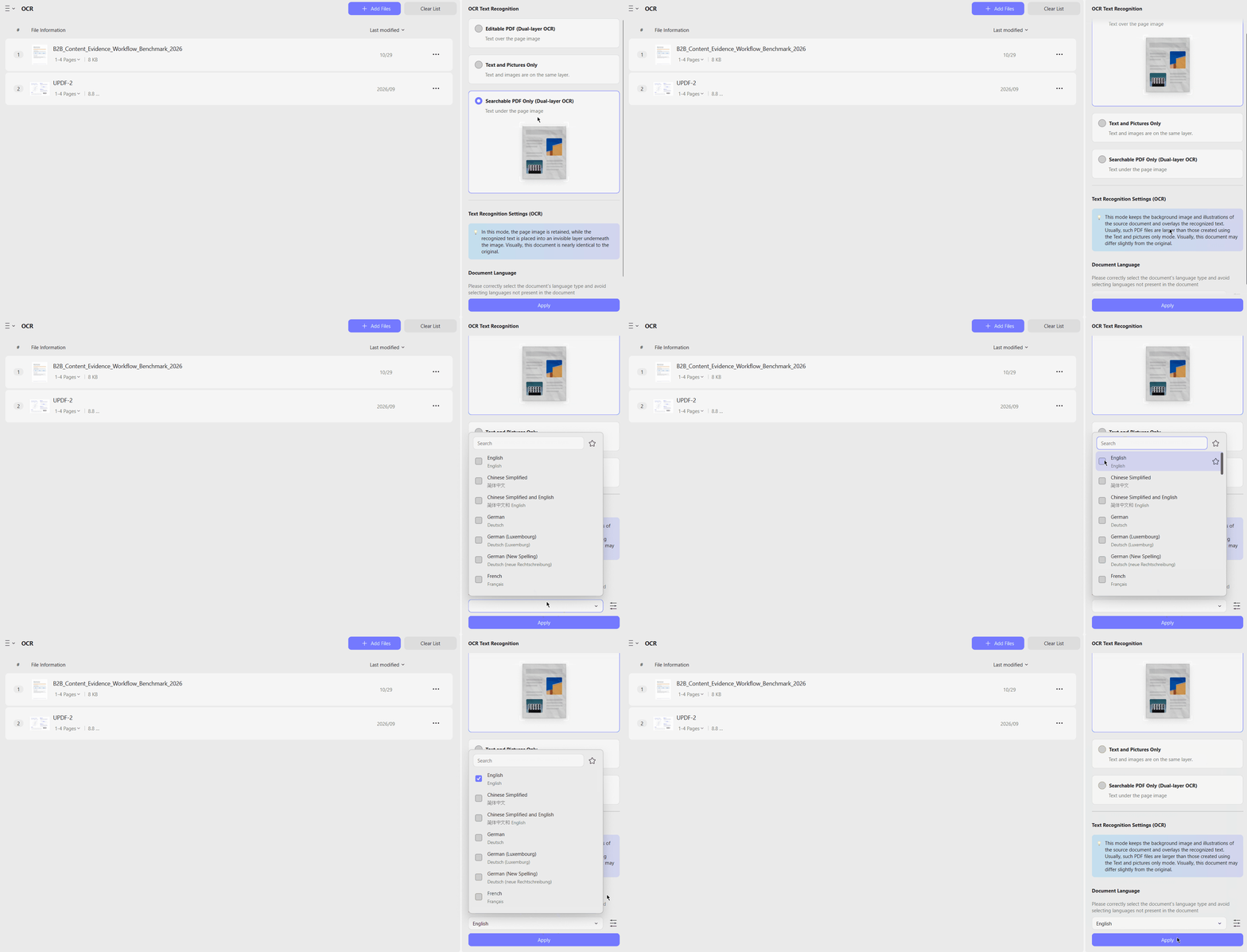
Expected Result: Searchable or editable PDFs, depending on your selected OCR output type.
Manual Checks
Workflow 2: Prepare Multiple PDFs for Secure Sharing
Sharing PDFs securely requires more than reducing file sizes, especially when documents contain confidential information. UPDF combines batch compression and formatting tools with individual redaction checks and password protection, allowing users to prepare files for external sharing in one PDF workspace.
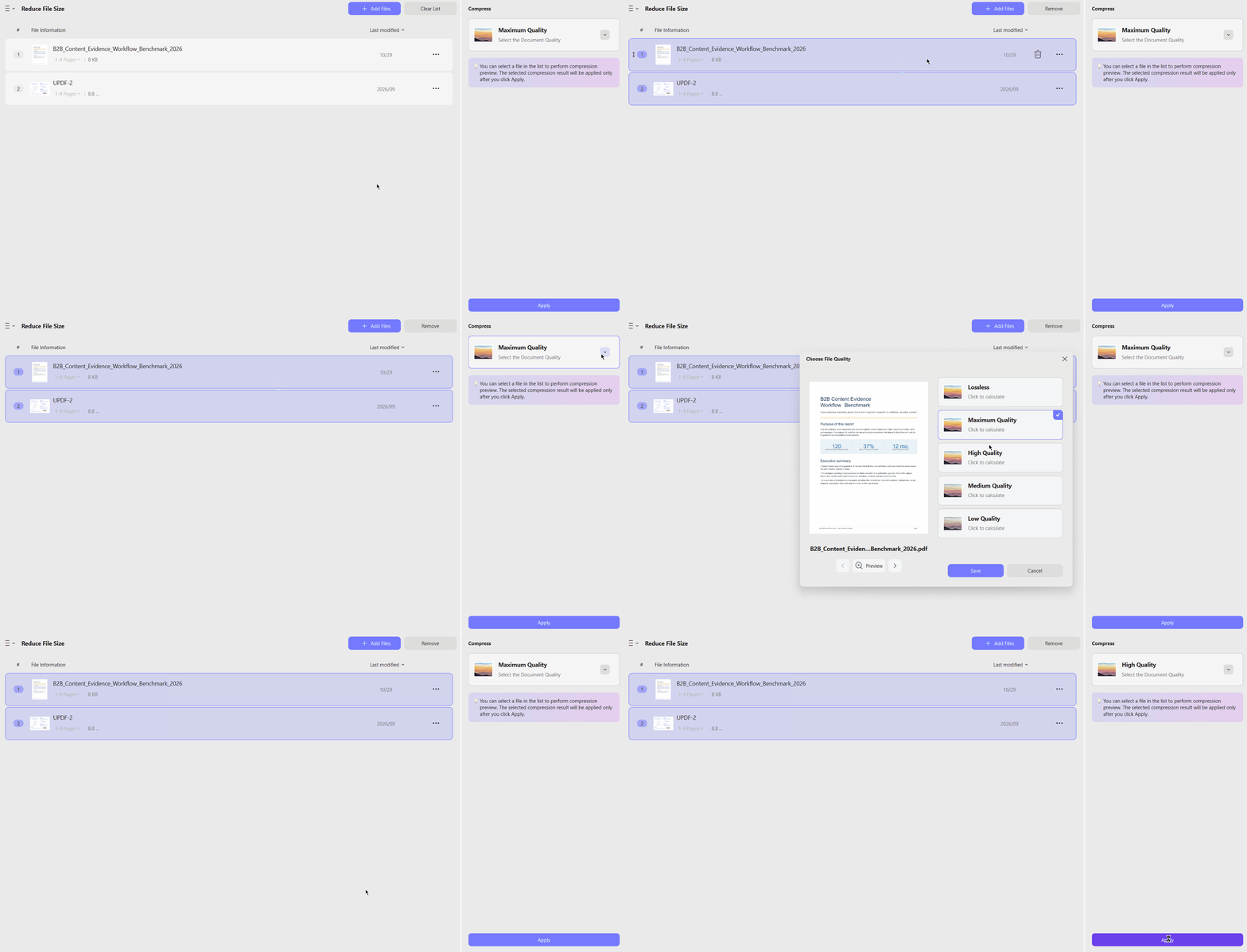
Step 1. Start by selecting “Reduce File Size” under “Batch Process.” Add your PDFs, choose a quality level, and click “Apply” to compress them.
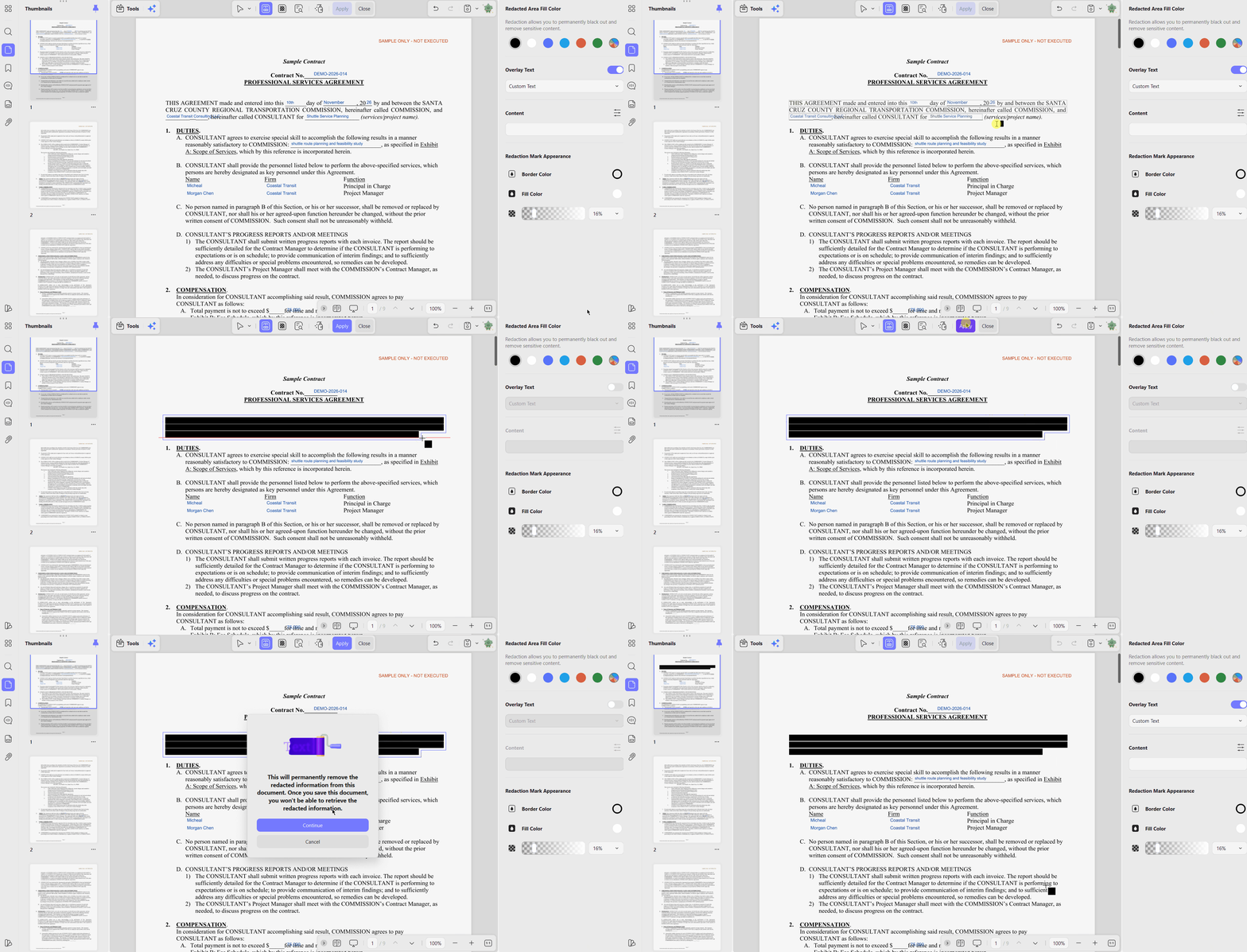
Step 2. For documents containing confidential information, go to “Tools” and select “Redact.” Confirm the warning to proceed.
Step 3. Use “Redact Text” to mark sensitive details or “Redact Search” to locate specific information. Click “Apply,” followed by “Continue,” to permanently remove the marked content.
Step 4. Next, return to “Batch Process” to add watermarks, headers, footers, or Bates numbers to multiple PDFs.
Step 5. Finally, select the batch “Encrypt” tool and set a “Document Open Password,” a permissions password, or both. Reopen the files to verify their security settings, watermarks, and numbering.
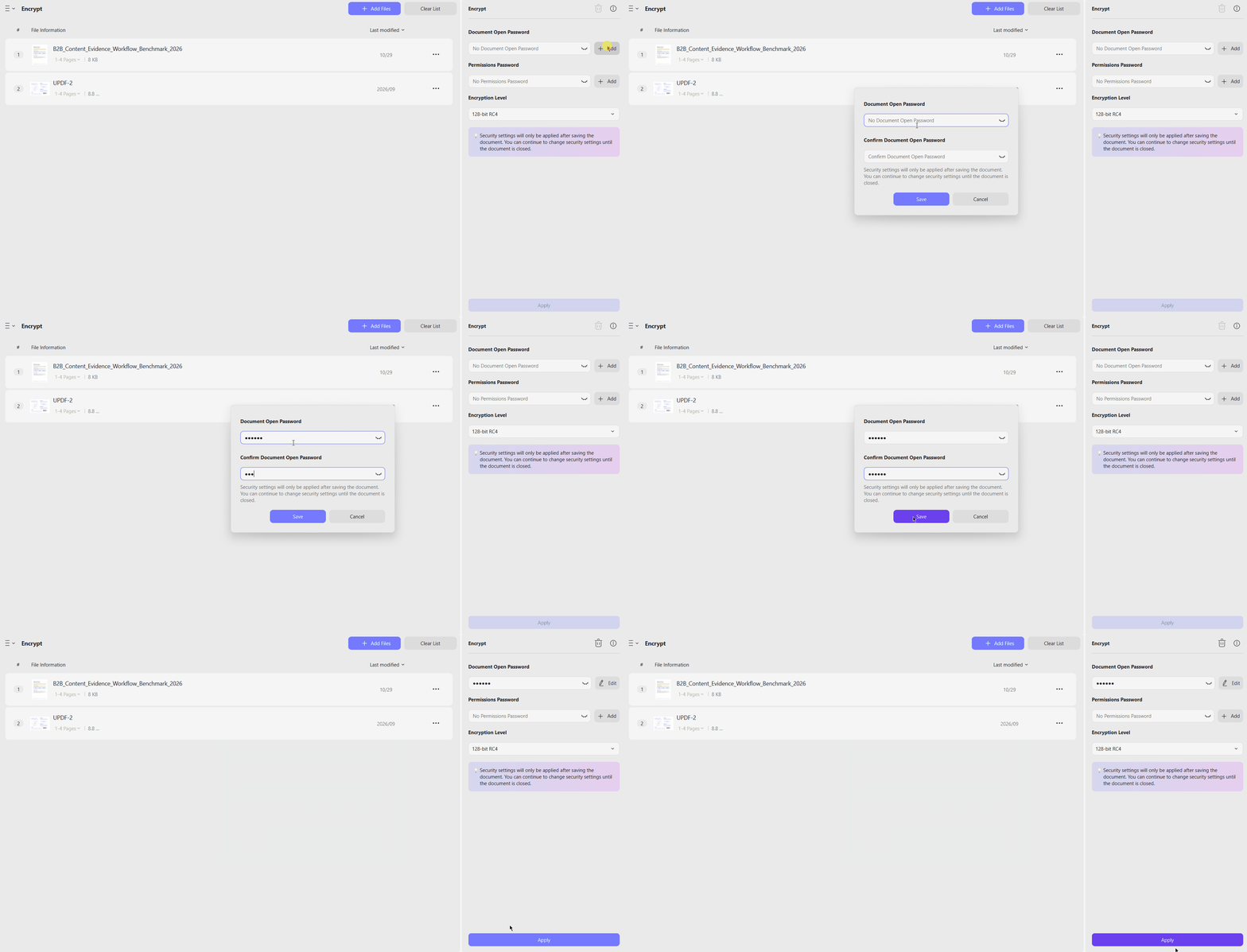
Expected Result: Smaller, consistently formatted, password-protected PDFs ready for secure sharing.
Manual Checks:
- Search for redacted text and try copying it to confirm permanent removal.
- Check passwords, watermark placement, Bates numbering, and image quality after compression.
- Review sensitive documents individually to ensure no confidential information remains exposed.
Workflow 3: Review and Revise Contracts
Reviewing a contract requires understanding its main terms, identifying clauses that deserve attention, and preparing proposed revisions. Start with a separate copy of the contract so the received version remains unchanged, then connect UPDF's Contract Assistant with its editing and annotation tools.
Step 1. Launch UPDF and open your contract. Click “UPDF AI” in the upper-right corner and select “Ask PDF.”
Step 2. Next, choose “Chat with PDF,” click the “+” button, and select “Contract Assistant.”
Step 3. Pick “Contract Risks” or “Contract Revision” based on your needs. Select the entire PDF, current page, or a specific page range for analysis.
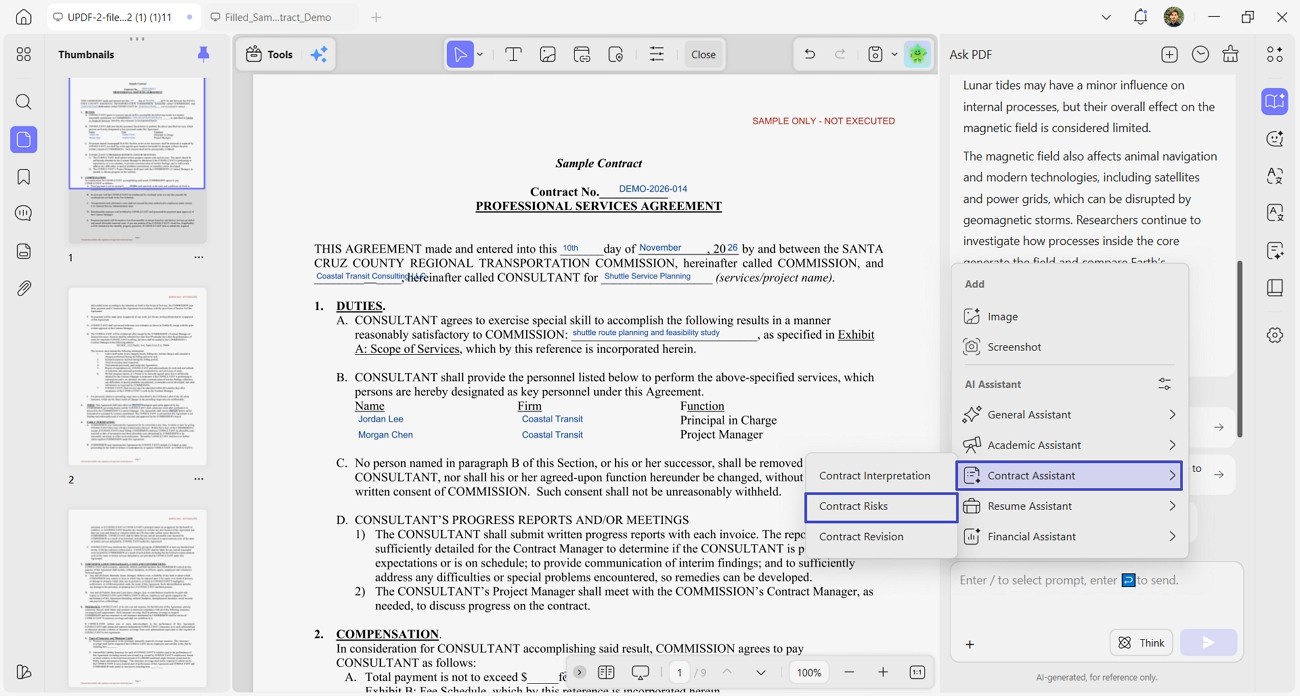
Step 4. Run an existing Quick Action or create one to identify payment obligations, renewal terms, or termination clauses. Check the AI findings against the original contract.
Step 5. Make the necessary changes using UPDF's editing or annotation tools. Save the revised contract separately to keep the original unchanged.
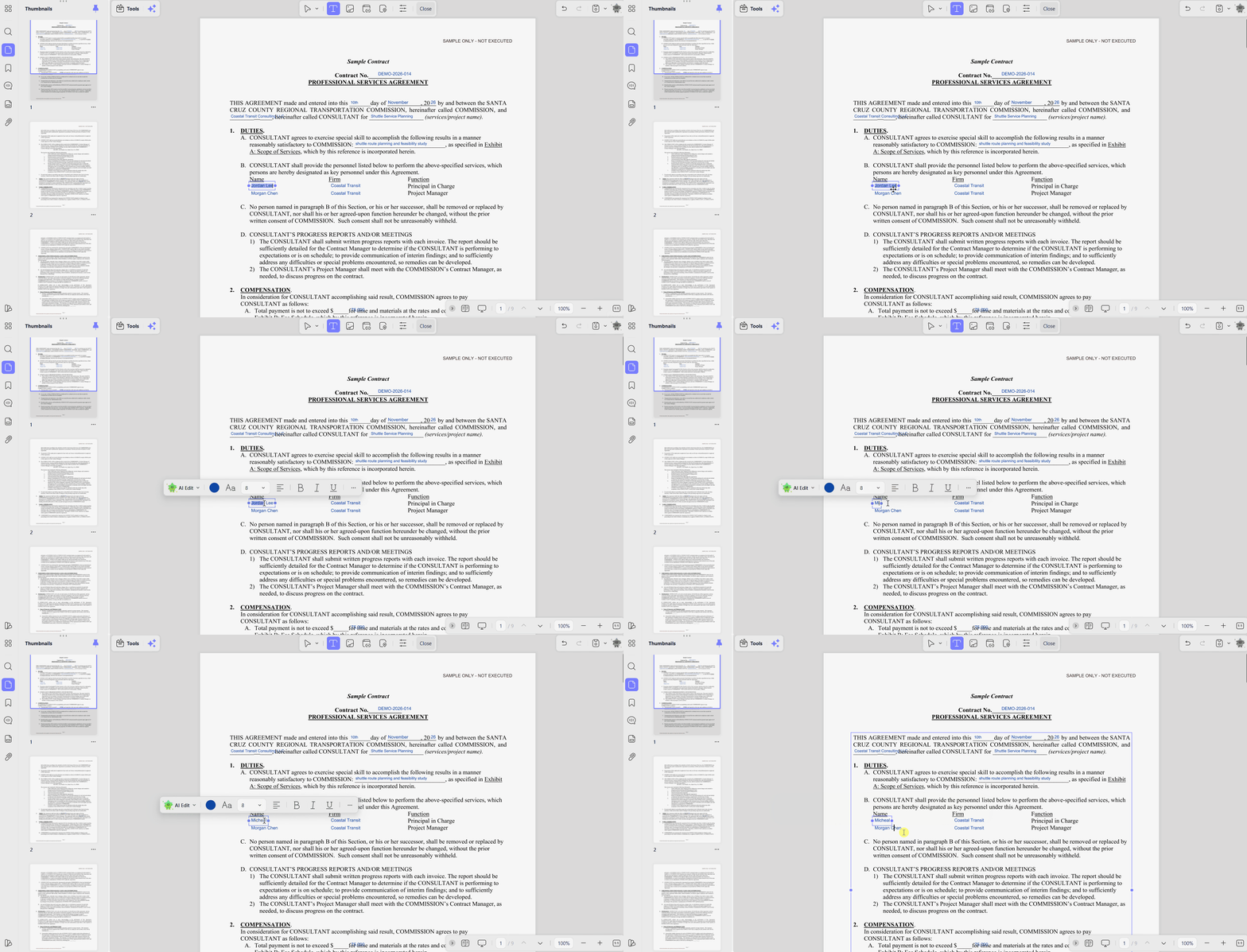
Expected Result: A reviewed and revised contract ready for further approval or negotiation.
Manual Checks:
Workflow 4: Reuse the Same AI Task for Reports or Research Papers
Researchers and financial analysts often extract the same types of information from different reports and papers. UPDF's Scenario Assistants and custom Quick Actions let them apply a consistent analysis prompt without rewriting it for every document.
Step 1. In “Ask PDF,” click the “+” button, then select the settings icon beside “AI Assistant” to open “Manage AI Assistants.”
Step 2. From the left panel, choose “Academic Assistant,” “Financial Assistant,” or another assistant based on your document type.
Step 3. Click “+ New Quick Action” to access “Quick Action Settings.” Enter a “Quick Action Name,” such as “Paper Summary,” and add your reusable instructions in the “Prompt” field.
Step 4. Select the “Assistant Category,” turn on “Enable,” and click “Apply” to save your action. You can also right-click to “Edit” or “Copy” it or drag its handle to rearrange the order.
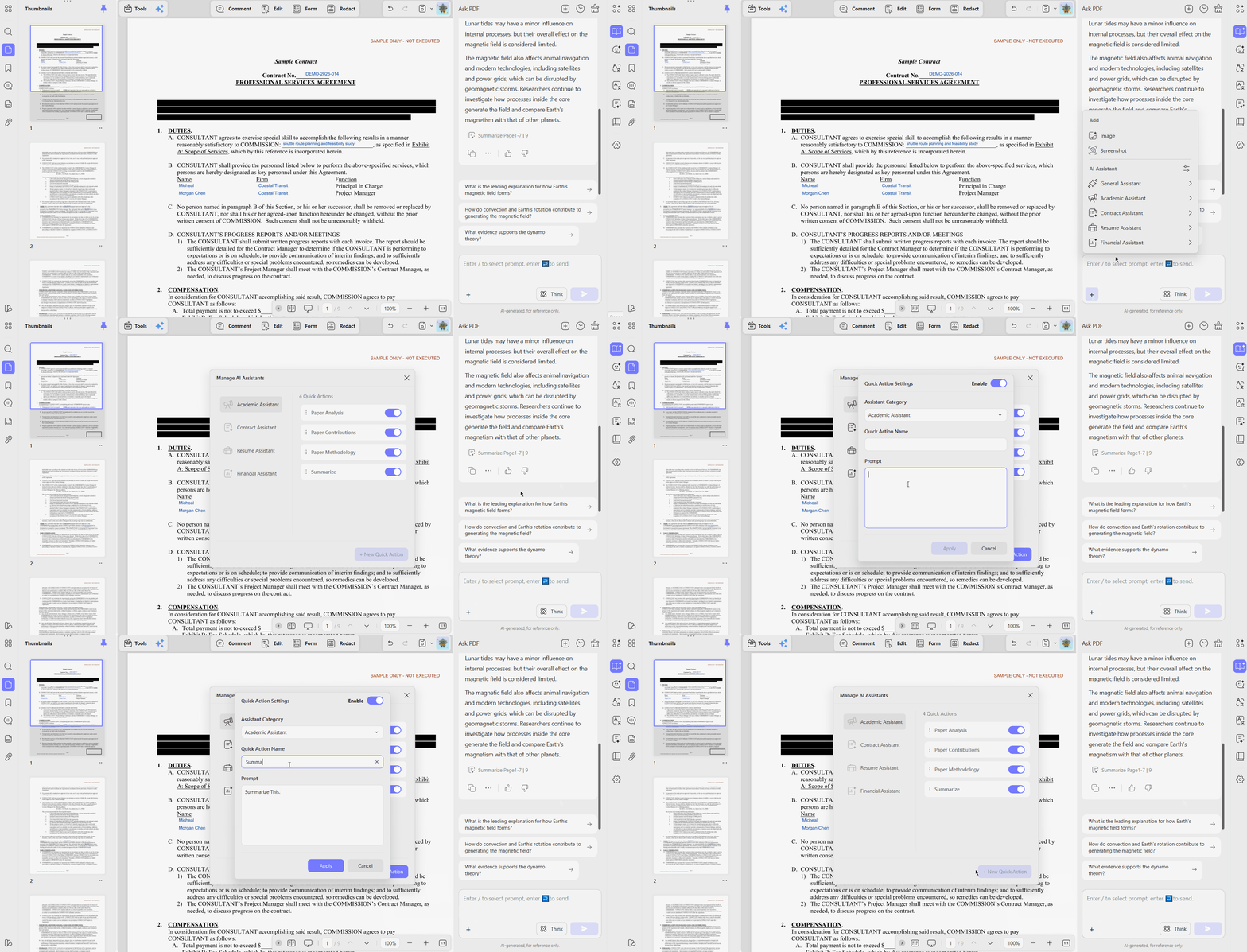
A prompt such as “Summarize the methodology, key findings, limitations, and practical implications in four separate sections” asks for the same four-part layout from every paper.
Expected Result: Consistent document analysis using the same AI instructions without rewriting prompts.
Manual Checks:
Workflow 5: Batch-Process and Standardize Multiple PDFs
A legal or operations team may need to deliver dozens of PDFs with consistent page structure, Bates numbers, branding, file size, and security settings. Instead of treating each batch tool as a separate feature demonstration, use them in a deliberate order to produce a standardized delivery set.
Step 1. Create a separate backup folder and keep every original PDF unchanged.
Step 2. Identify which files need OCR, conversion, or page-structure changes. Use Batch OCR as described in Workflow 1, and inspect the output before continuing.
Step 3. Apply structural changes first, such as splitting files or removing unwanted elements. Then add consistent backgrounds, headers, footers, watermarks, or Bates numbers across the approved files.
Step 4. Compress the standardized files if required, then apply the final encryption settings. Check page order, numbering, branding, image quality, and passwords before moving approved documents into the delivery folder.
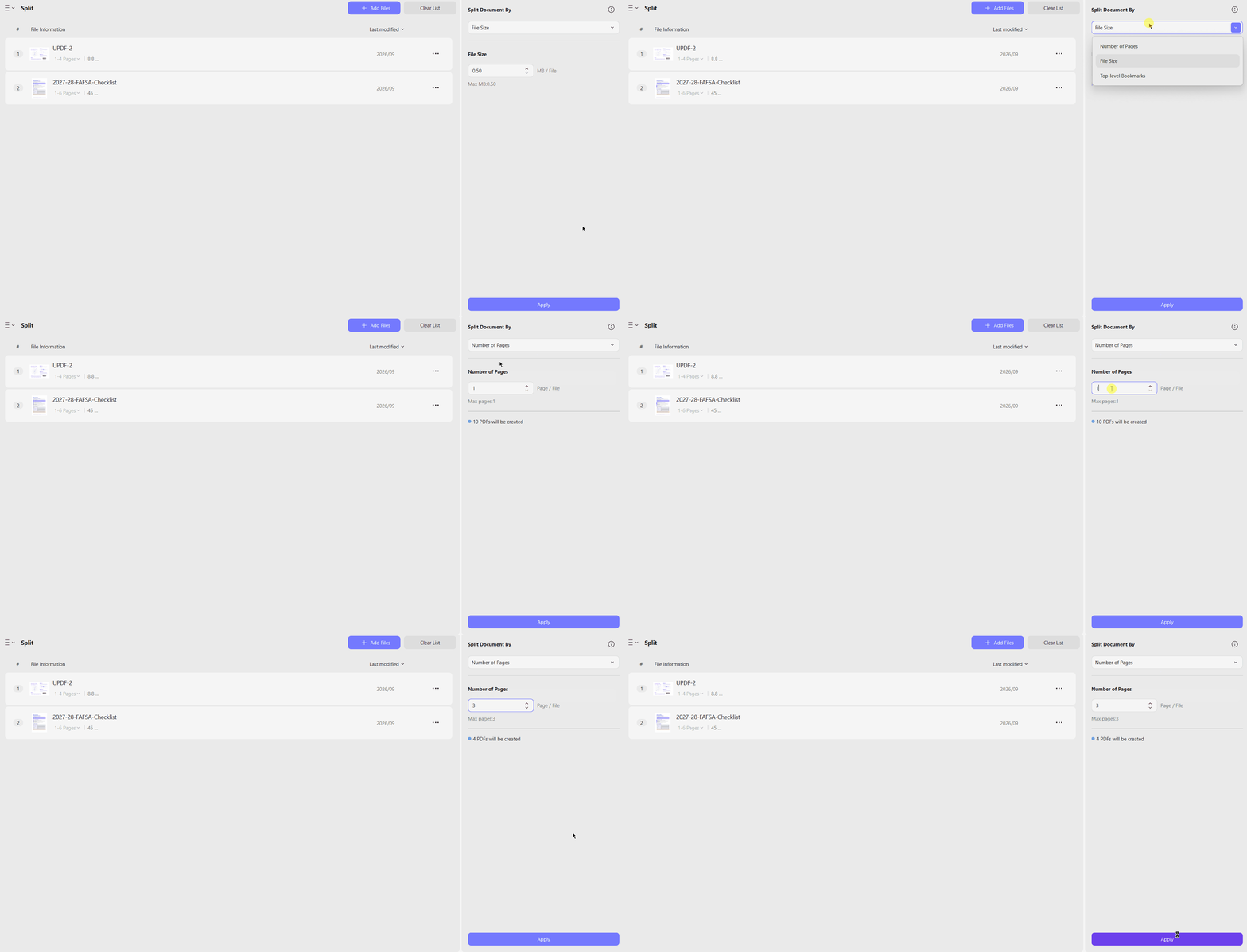
Expected Result: A delivery set with consistent page structure, identification, branding, file size, and security settings.
Manual Checks:
Workflow 6: Move a Contract from Review to Signature
Reviewing and editing a contract does not complete the workflow. The final version still needs the correct recipients, assigned fields, signing order, and follow-up. UPDF's 3.0 release connects document preparation with Request Sign and status tracking.
Step 1. Start by reviewing the contract with Contract Assistant, as explained in Workflow 3. Verify the AI findings, make the necessary edits, and save the final version.
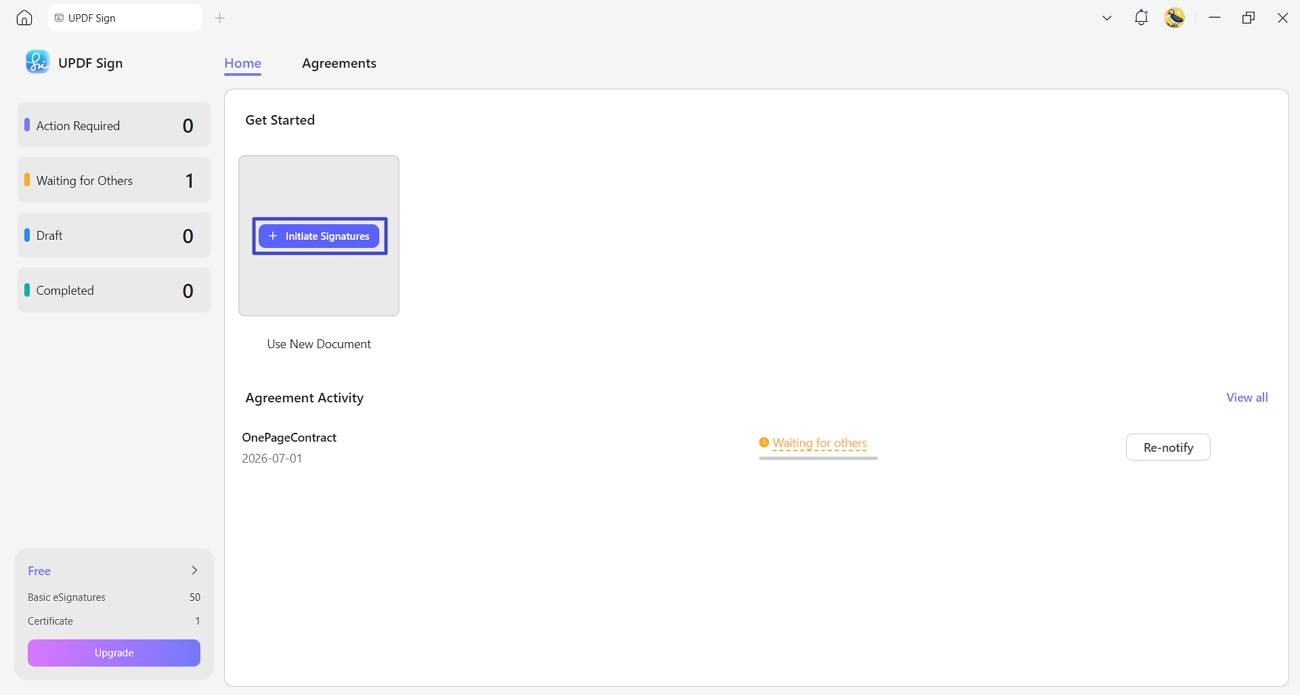
Step 2. Click “Sign” at the bottom of the UPDF home screen, select “Initiate Signatures,” and upload your contract.
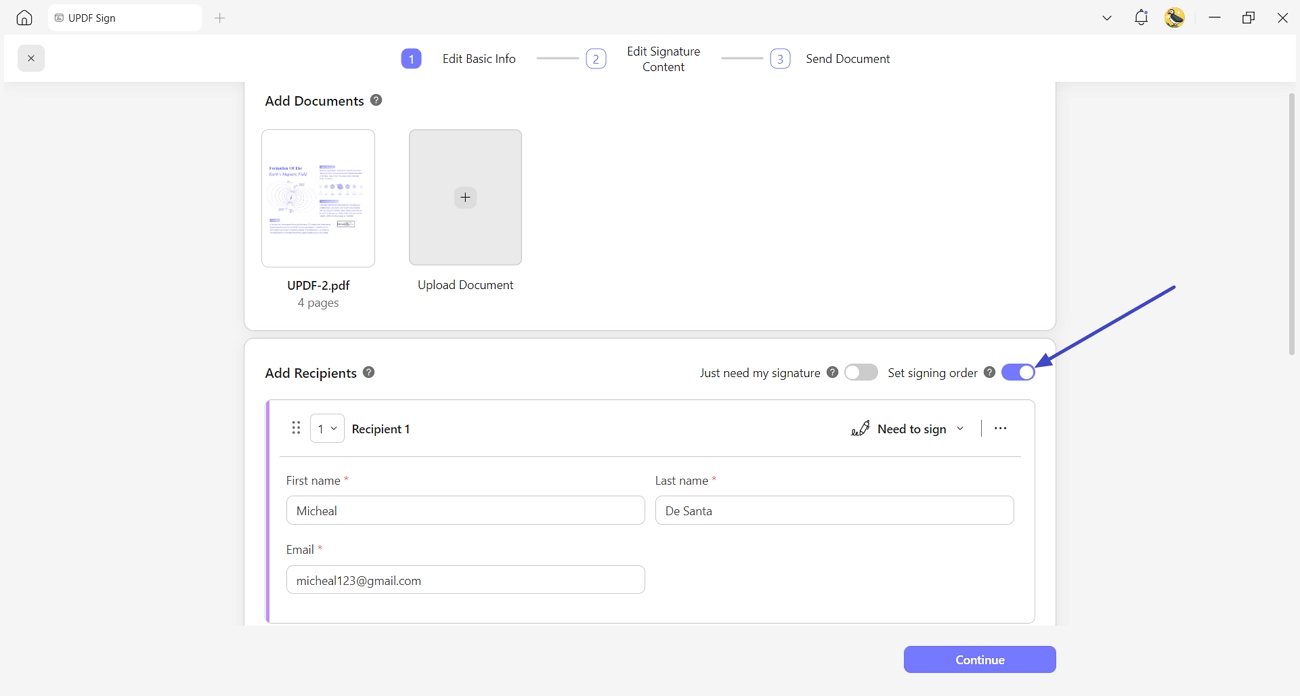
Step 3. Enter each recipient's name and email address, then select a role such as “Need to sign.” Enable “Set signing order” if signatures must be collected in sequence.
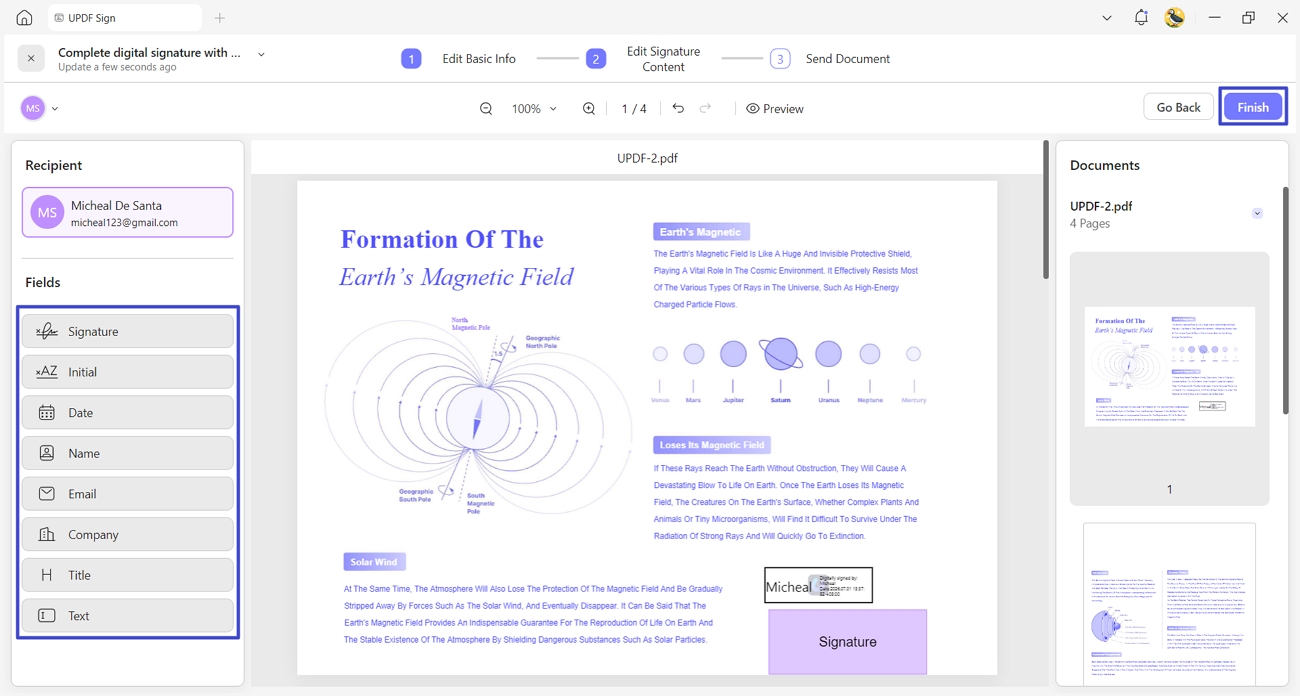
Step 4. Drag the required fields, including Signature, Initial, Date, Name, and Email, onto the document for each recipient. Click “Preview” to review the document, then select “Finish.” Choose the signature option required by the current workflow and click “Send” to request signatures.
Step 5. Track the request under the “Sent” tab, where pending agreements show “Waiting for others.” Completed agreements appear under “Completed.” Use “Re-notify” to send reminders when needed, then download and save the signed contract.
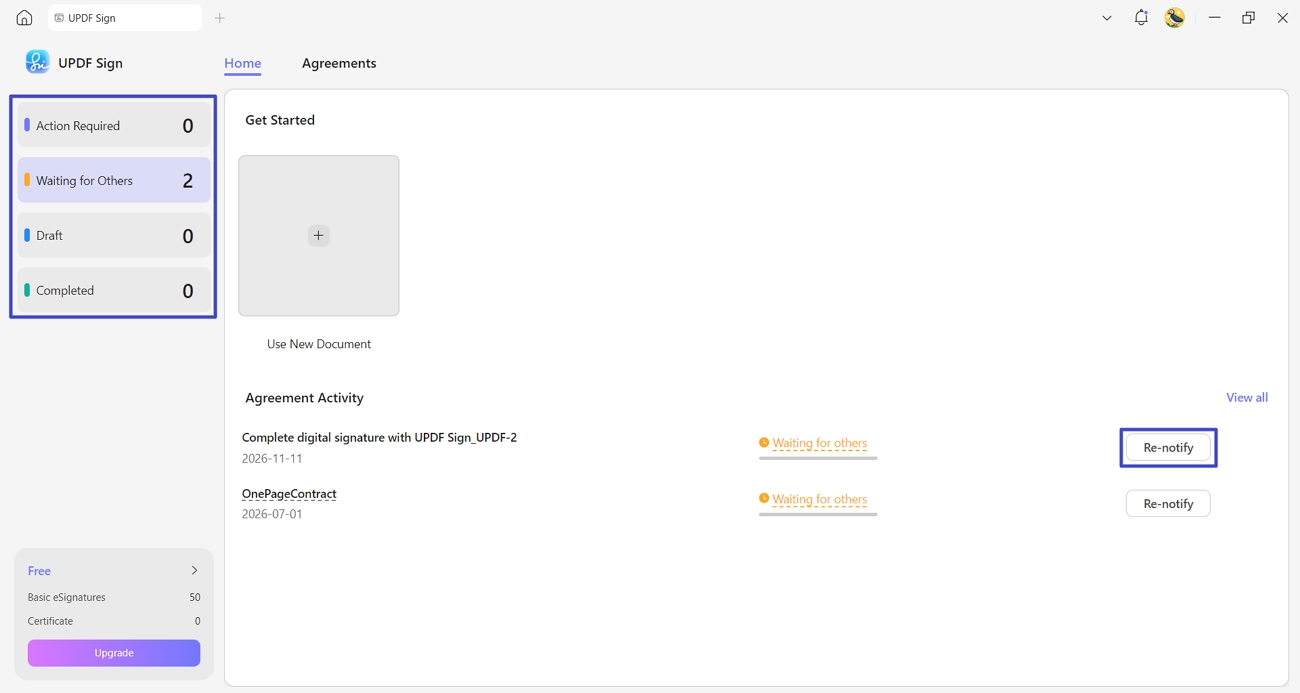
Expected Result: A complete contract workflow covering review, editing, signature collection, and status tracking.
Manual Checks:
Download UPDF and Build Your PDF Workflow
Windows • macOS • iOS • Android 100% secure
Current plans and prices are listed on the UPDF pricing page.
When UPDF Is Enough and When You Need an Automation Platform
UPDF works well for repetitive tasks involving PDF editing, processing, reviewing, and signing. However, tasks that involve external systems or automatic triggers require dedicated automation platforms. The table below helps you choose the right solution based on your needs:
| Requirement | Suitable Solution |
|---|---|
| Batch OCR, Conversion, Compression, or Watermarking | UPDF |
| Reusable AI Analysis Tasks | UPDF |
| Contract Review, Editing, Signing, and Tracking | UPDF |
| Managing Multiple PDF Tasks in One Workspace | UPDF |
| Automatic Email or Folder Monitoring | RPA or Workflow Platform |
| Conditional Document Routing | RPA or Workflow Platform |
| Direct CRM or ERP Integration | API or Integration Platform |
| Unattended Server-Side PDF Processing | Enterprise Automation Platform |
UPDF is suitable when most repetitive tasks involve working directly with PDFs. For automatic triggers, conditional routing, or connections between business systems, dedicated automation platforms are more appropriate.
PDF Workflow Automation Checklist
Before using PDF workflow automation, follow this checklist to avoid errors and keep your documents secure:
Back Up Original Files: Keep copies of your original PDFs before making any changes.
Test Small Batches: Run the workflow on a few files before processing larger batches.
Verify OCR Results: Check names, dates, amounts, and tables for recognition errors.
Check Redacted Content: Make sure removed information cannot be searched, selected, or copied.
Review AI Responses: Compare AI-generated answers with the original documents to confirm accuracy.
Confirm Signature Details: Check recipient emails, assigned fields, and signing order before sending requests.
Track Manual Tasks: Identify which steps still require manual action or approval.
Protect Sensitive Documents: Do not upload confidential, regulated, or client-owned files to an AI or cloud service unless you are authorized to do so and the service meets your organization's privacy and retention requirements.
Final Thoughts
PDF workflow automation can reduce repetitive document work, but batch processing, reusable AI tasks, and trigger-based automation solve different problems. Start with one repeated task and test it on a small set of files. UPDF can support OCR, document analysis, editing, batch processing, and signing inside the PDF workflow; external triggers and cross-system routing require a dedicated API or RPA platform.
Windows • macOS • iOS • Android 100% secure
Or View Pricing now, UPDF is currently on Black Friday sale - with up to 48% discount, plus a lifetime PDF password remover license for Windows.
FAQs
What is PDF workflow automation?
It uses software to simplify repetitive document tasks while reducing manual effort. Common tasks include OCR, conversion, redaction, document review, and electronic signature collection. Automation includes batch processing, reusable tasks, and workflows triggered by external events.
Can I automate PDF tasks without coding?
Yes, many PDF tasks can be automated without writing any programming code. UPDF offers batch processing tools and reusable AI Quick Actions for documents. External triggers and complex system integrations require dedicated automation tools or platforms.
Can UPDF process multiple PDFs at once?
Yes, UPDF supports processing multiple documents through its batch tools on Windows. These include OCR, conversion, compression, watermarking, encryption, splitting, and Bates numbering features. However, several batch tools limit free users to 2 files per batch.
How can I reuse the same AI task for different PDFs?
UPDF AI allows users to create custom Quick Actions for repeated document analysis. Save your instructions once and apply them to other documents when needed. Always verify generated responses against original files to identify potential AI errors.
What is the difference between batch processing and workflow automation?
Batch processing applies the same operation to multiple documents after manual initiation. Workflow automation can also trigger actions automatically and route documents between systems. Unlike trigger-based workflows, batch operations require users to start each processing job.
Can UPDF automatically monitor an inbox or folder?
No, UPDF cannot automatically monitor email inboxes or folders for incoming documents. It also cannot initiate processing jobs based on events from external systems. Such tasks require dedicated RPA software or platforms supporting trigger-based workflow automation.
Which PDF workflow steps still require human review?
OCR results require checking names, dates, amounts, and other important document details. Redacted content must be verified to ensure sensitive information was permanently removed. AI findings and signature requests also need careful review before final approval.






 Engelbert White

 Enrica Taylor