 UPDF
UPDF
 UPDF for Windows
 UPDF for Mac
 UPDF for iPhone/iPad
 UPDF for Android
 Nomostar
 UPDF AI Online
 UPDF Sign
 IvyCraft
 Edit PDF
 Annotate PDF
 Create PDF
 PDF Form
 Edit links
 Convert PDF
 OCR
OCR PDF to Word
 PDF to Image
 PDF to Excel
 Organize PDF
 Merge PDF
 Split PDF
 Crop PDF
 Rotate PDF
 Protect PDF
 Sign PDF
 Redact PDF
 Sanitize PDF
 Remove Security
 Read PDF
 UPDF Cloud
 Compress PDF
 Print PDF
 Batch Process
 About UPDF AI
 UPDF AI Solutions
 AI User Guide
 FAQ about UPDF AI
 Summarize PDF
 Translate PDF
 Chat with PDF
 Chat with AI
 Chat with image
 PDF to Mind Map
 Explain PDF
 PDF AI Tools
 Image AI Tools
 AI Chat Tools
 AI Writing Tools
 AI Study Tools
 AI Working Tools
 Other AI Tools
 AI Bookmark Generation
 AI Bookmark Summary
 AI Watermark Generation
 AI Background Generation
 AI Sticker Generation
 AI Stamp Generation
 AI Editing Suite
 UPDF Copilot
 AI Page Management
 AI Semantic Search
 PDF to Word
 PDF to Excel
 PDF to PowerPoint
 Enterprise Solution
 Enterprise Sign
 Enterprise AI
 Enterprise Plan
 Enterprise User Guide
 Enterprise Webinar
 IT
IT Education
 Construction
 Financial Service
 Healthcare
 Insurance
 Legal
Legal Manufacturing
 Government
 Researchers & PhDs
 Solopreneurs & Freelancers
 Lawyers & Legal Professionals
 Real Estate Agents & Brokers
 Education Solution
 Customer Stories
 User Guide
 UPDF Tricks
 FAQs
FAQs UPDF Reviews
 Download Center
 Blog
Blog Newsroom
 Tech Spec
 Updates
 UPDF vs. Adobe Acrobat
 UPDF vs. Foxit
 UPDF vs. PDF Expert

Quick Answer
PDFs with columns, tables, footnotes, or symbols may not always be read in the expected order, so it is worth testing one representative page first. With UPDF, you can read PDFs aloud on iPhone or iPad, adjust the voice and playback speed, and continue reviewing or annotating the same document when needed.
Download UPDF for free and try its PDF reading tools with one of your own documents.
Windows • macOS • iOS • Android 100% secure
Listening to a PDF is different from playing an audiobook. The document’s text layer, layout, and reading order can all affect the result. The following guide explains how to choose the right reading method, handle scanned PDFs, and fix common text-to-speech problems.
Practical rule: test one representative page before committing to a long listening session. A page with headings, a table, a citation, and a page number will reveal most reading-order and pronunciation problems.
Part 1. What a Good PDF Text-to-Speech Reader Should Do
A useful PDF voice reader should do more than pronounce visible words. Evaluate it against the task you actually have:
| Need | What to check |
| Long-form listening | Full-text playback, pause/resume, speed control, and reliable page progression |
| Accessibility | Clear focus, predictable controls, zoom support, and keyboard or touch access |
| Scanned documents | OCR support before speech |
| Academic or legal work | Accurate handling of citations, abbreviations, dates, section numbers, and footnotes |
| Proofreading | A voice that makes repeated words, missing words, and awkward sentences easier to notice |
Also check the platform, as PDF reading features may work differently on desktop and mobile devices. UPDF on iOS supports both selected-text playback and full-text Read Aloud, making it useful for users who regularly read PDFs on iPhone or iPad while commuting, studying, or working away from a desk.
Part 2. How to Read a PDF Aloud with UPDF
UPDF provides two text-to-speech options on iPhone and iPad. You can use Speak to hear a selected passage or Read Aloud for continuous full-document playback. If you want to compare these options with desktop and browser-based methods, see this complete guide on how to read a PDF aloud.
The feature works directly with PDFs that contain selectable text. If the document is a scanned or image-only PDF, use UPDF’s OCR feature on Windows or Mac first to create a searchable text layer, then open the processed PDF on your iPhone or iPad for playback. Since UPDF supports access across devices, this workflow is convenient when a document needs desktop OCR before mobile listening.
Choose the reading method that fits your task:
- Speak: Best for listening to a sentence, paragraph, or other selected passage.
- Read Aloud: Best for continuous listening with adjustable voice and speed.
- OCR followed by Read Aloud: Best for scanned documents without selectable text.
How to Read a PDF Aloud with UPDF on iPhone or iPad
Open the PDF in UPDF.
Windows • macOS • iOS • Android 100% secure
For a short passage, select the text and choose Speak. For continuous listening, select Listen Here. Choose a suitable voice and playback speed before starting a long section.

Step 1. Confirm that the text is selectable
Drag across a sentence. If individual words can be selected, the PDF already contains a usable text layer. If the entire page behaves like one image, move to the OCR workflow in Part 3.
Step 2. Start with a moderate speed
Begin near a normal speaking rate. Faster playback can work for familiar material, but it increases the chance that dates, formulas, citations, and unfamiliar names will be misunderstood.
Step 3. Keep a visual checkpoint
When the document contains numbers or instructions, pause periodically and verify the current paragraph on screen. Text to speech improves access and speed, but it should not replace visual verification for high-stakes content.
Best for
Not for
Download UPDF for free to test PDF reading, annotation, and OCR in the same document workflow.
Windows • macOS • iOS • Android 100% secure
Part 3. How to Handle Scanned PDFs
A scanned PDF contains pixels rather than selectable characters. A voice reader cannot reliably process the page until OCR creates a readable text layer. If nothing can be selected or searched, you can first recognize text in the PDF with UPDF, choose the correct document language, and test a paragraph before starting Read Aloud.
- Use a clear scan with straight pages and adequate contrast.
- Choose the correct OCR language; mixed-language pages may need extra checking.
- Verify names, prices, dates, decimal points, minus signs, and page references.
- Keep the original scan so you can compare uncertain words.
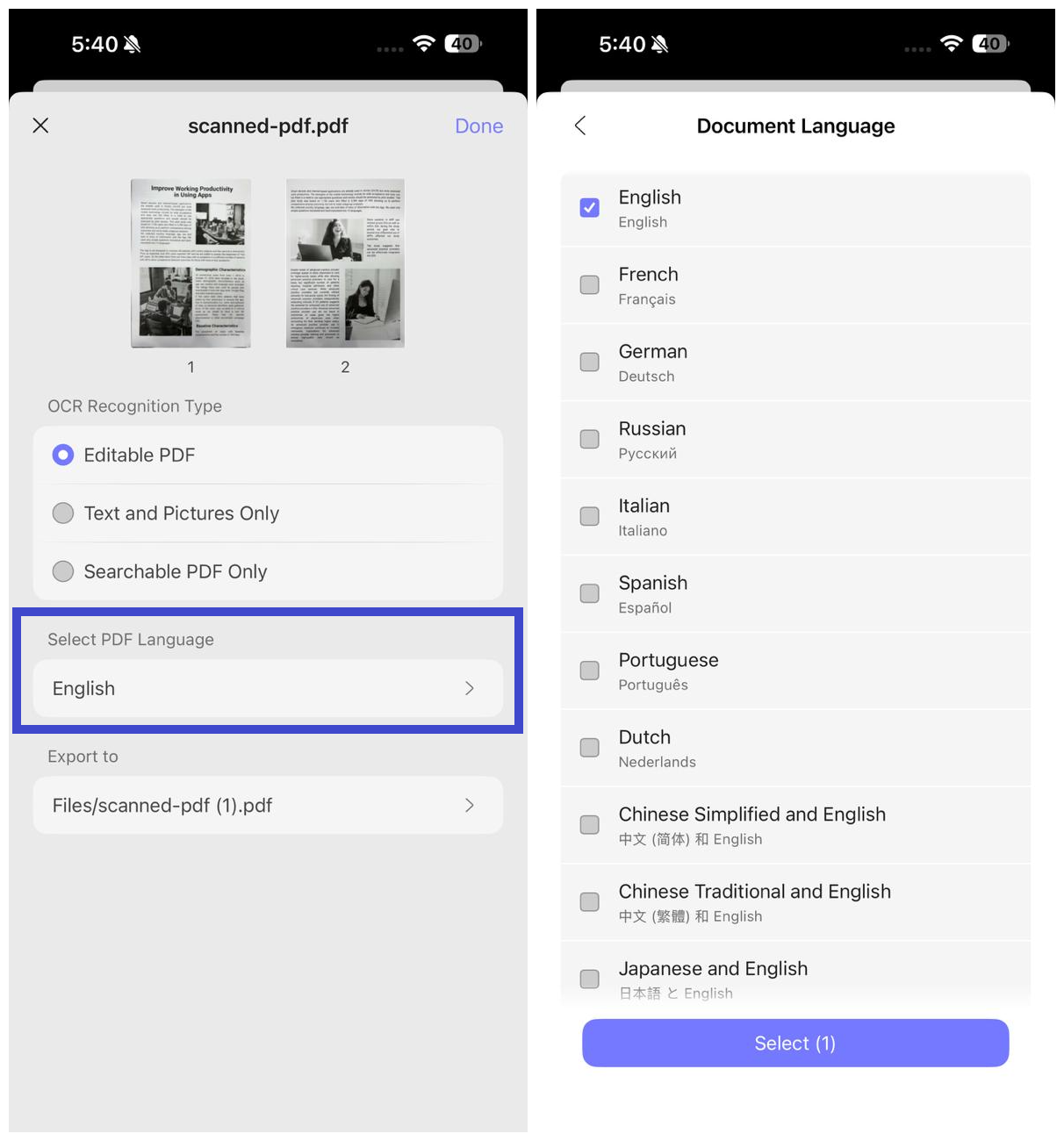
OCR accuracy and speech accuracy are separate stages. A perfectly pronounced wrong OCR result is still wrong. For invoices, medical instructions, contracts, or research data, confirm critical fields visually.
Part 4. Build a Better Listening Workflow
For a 60-page report, divide the file into listening goals instead of pressing play from page one. Preview the table of contents, bookmark the target sections, listen to one section, and add a highlight or note when something needs follow-up. If you need a fuller review workflow, learn how to annotate a PDF with highlights, notes, text boxes, and other markup tools.
- Preview headings and decide what you need to learn.
- Listen at a comfortable speed while keeping the PDF available.
- Pause at definitions, figures, and citations.
- Annotate questions instead of relying on memory.
- Review the marked passages visually at the end.
For proofreading, use a different pace from ordinary reading. Slower playback exposes missing articles, repeated phrases, and punctuation problems. Listening to your own writing is especially useful because the voice does not automatically “correct” the sentence in the way your eyes sometimes do.
When listening reveals an unclear sentence or an important claim, you can highlight the PDF and return to the marked passage after playback.
Part 5. Common Problems and Fixes
The reader skips columns or reads in the wrong order
Multi-column pages may store text in an unexpected sequence. Try reflow or conversion to a simpler format, or listen section by section rather than using uninterrupted full-page playback.
The PDF is silent
Confirm that the page has selectable text, the device volume is on, and the appropriate speech voice is installed. If the page is a scan, run OCR first.
Names and abbreviations sound wrong
Slow the playback and check the spelling. For essential terms, select a smaller passage or verify them visually. Text-to-speech engines may interpret abbreviations differently depending on punctuation and language settings.
FAQs About PDF Text to Speech
Can a PDF reader read scanned documents aloud?
Yes, after OCR creates a readable text layer. Always verify critical OCR results before relying on the spoken output.
Is text to speech useful for proofreading?
Yes. Listening can reveal repeated words, missing words, and awkward rhythm that are easy to overlook on screen.
Can I change the reading speed?
UPDF on iOS provides speed controls in its full-text Read Aloud workflow. Start moderately and slow down for technical or high-stakes passages.
Should I use text to speech for tables?
Use it cautiously. Tables depend on spatial relationships, and spoken output may not preserve row-and-column meaning. Review important tables visually.
Conclusion
The most reliable PDF text-to-speech workflow combines a readable text layer, sensible playback settings, and visual verification. Test the document structure first, use OCR for scans, and treat audio as a powerful reading aid rather than a substitute for checking critical details.







 Engelbert White
 Enya Moore
  Enrica Taylor
 Lizzy Lozano