 UPDF
UPDF
 UPDF for Windows
 UPDF for Mac
 UPDF for iPhone/iPad
 UPDF for Android
 Nomostar
 UPDF AI Online
 UPDF Sign
 IvyCraft
 Edit PDF
 Annotate PDF
 Create PDF
 PDF Form
 Edit links
 Convert PDF
 OCR
OCR PDF to Word
 PDF to Image
 PDF to Excel
 Organize PDF
 Merge PDF
 Split PDF
 Crop PDF
 Rotate PDF
 Protect PDF
 Sign PDF
 Redact PDF
 Sanitize PDF
 Remove Security
 Read PDF
 UPDF Cloud
 Compress PDF
 Print PDF
 Batch Process
 About UPDF AI
 UPDF AI Solutions
 AI User Guide
 FAQ about UPDF AI
 Summarize PDF
 Translate PDF
 Chat with PDF
 Chat with AI
 Chat with image
 PDF to Mind Map
 Explain PDF
 PDF AI Tools
 Image AI Tools
 AI Chat Tools
 AI Writing Tools
 AI Study Tools
 AI Working Tools
 Other AI Tools
 AI Bookmark Generation
 AI Bookmark Summary
 AI Watermark Generation
 AI Background Generation
 AI Sticker Generation
 AI Stamp Generation
 AI Editing Suite
 UPDF Copilot
 AI Page Management
 AI Semantic Search
 PDF to Word
 PDF to Excel
 PDF to PowerPoint
 Enterprise Solution
 Enterprise Sign
 Enterprise AI
 Enterprise Plan
 Enterprise User Guide
 Enterprise Webinar
 IT
IT Education
 Construction
 Financial Service
 Healthcare
 Insurance
 Legal
Legal Manufacturing
 Government
 Researchers & PhDs
 Solopreneurs & Freelancers
 Lawyers & Legal Professionals
 Real Estate Agents & Brokers
 Education Solution
 Customer Stories
 User Guide
 UPDF Tricks
 FAQs
FAQs UPDF Reviews
 Download Center
 Blog
Blog Newsroom
 Tech Spec
 Updates
 UPDF vs. Adobe Acrobat
 UPDF vs. Foxit
 UPDF vs. PDF Expert

iPhone Duo: $1999. UPDF for PDF Duo: free (free download; comparing, splitting, and dual-view are free; AI features like translation run on UPDF AI credits).
Apple named a phone Duo. Cute. I've been running Duo since before it could fold. No hinge, no crease, no dramatic bend — just two things on one screen, which is the entire point of a "duo" in the first place.
Because here's what nobody mentions between the keynote applause: you don't need a folding phone to look at two documents at once. When you're checking a revised contract against the old one, reading a paper while you ask questions about it, or navigating a long report while keeping the current page in sight, you just need a workspace that puts two views in front of you — and UPDF has done that on Windows, Mac, iPhone, iPad, and Android this whole time.
Windows • macOS • iOS • Android 100% secure
That's what I'm calling PDF Duo: two views, no switching. "Duo" here isn't one fixed layout — it's whatever puts two things in front of you at once: two files compared side by side, one file next to an AI panel, a document split into two panes, an original beside its translation, or the same file handed from your phone to your Mac. Here's every way to get it, no folding required.
Part 1. Which "Duo" do you need?
Before the steps, here's the fast way to pick the right one for your task and device.
| What you want | Use this | Where |
|---|---|---|
| Spot the differences between two versions of a file | Compare Files | Windows, Mac |
| Read a document while asking AI about it | Read view + AI panel | Windows, Mac |
| Two separate files open side by side | System split-screen / Split View / Multi-Window | Windows, Mac, iPad, Android |
| Thumbnails next to the page you're reading | Widen the Thumbnails panel | Windows, Mac |
| An original next to its translation | Bilingual layout / Side-by-Side Translation | Desktop & mobile app / Online |
| The same file across two devices | UPDF Cloud sync / Handoff | Cross-device |
Part 2. Method 1: Compare two PDFs side by side (the real "PDF Duo")
Best for:
- finding exactly what changed between two versions — a contract before and after edits, an invoice vs. a purchase order, a draft vs. a final. This is UPDF's purpose-built two-document view, not a screen you have to arrange yourself.
Not for:
- comparing two completely unrelated documents just to read them at the same time. Compare Files is built to surface differences; for plain side-by-side reading of two unrelated files, use system split-screen (Method 3).
The Compare Files feature puts both PDFs in one window, side by side, and pulls every difference into a panel on the right. It's available in the Windows and Mac desktop versions.
Windows • macOS • iOS • Android 100% secure
- Launch UPDF and go to Tools > Compare PDFs from the home page.
- In the window that opens, add the two files with Select File — you can pick from Recents (recently opened in UPDF) or from local storage.
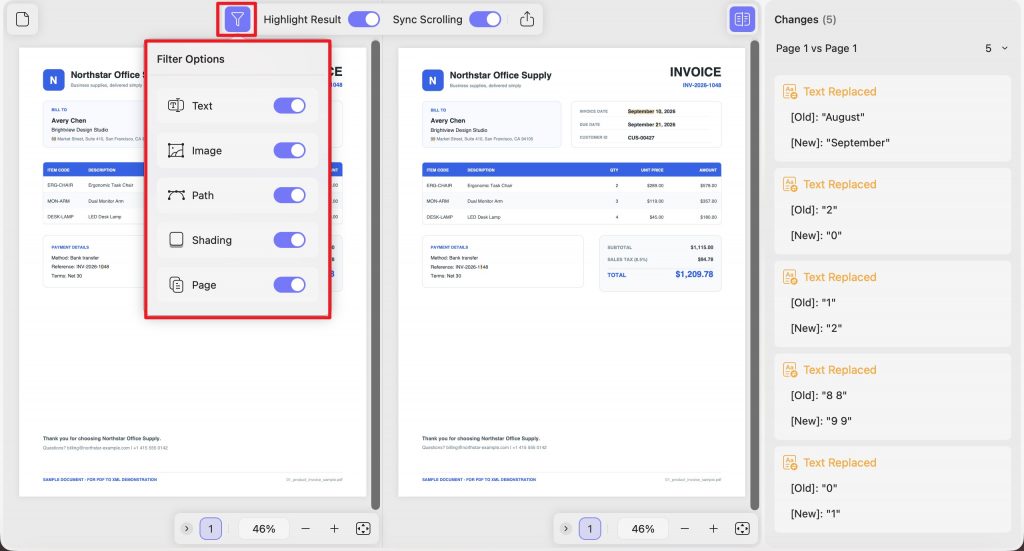
- Optionally tune the comparison: ignore text attributes like font size and color, ignore spaces, or use the filter to include only Text, Image, Path, Shading, or Page.
- Choose a page range and click Compare.
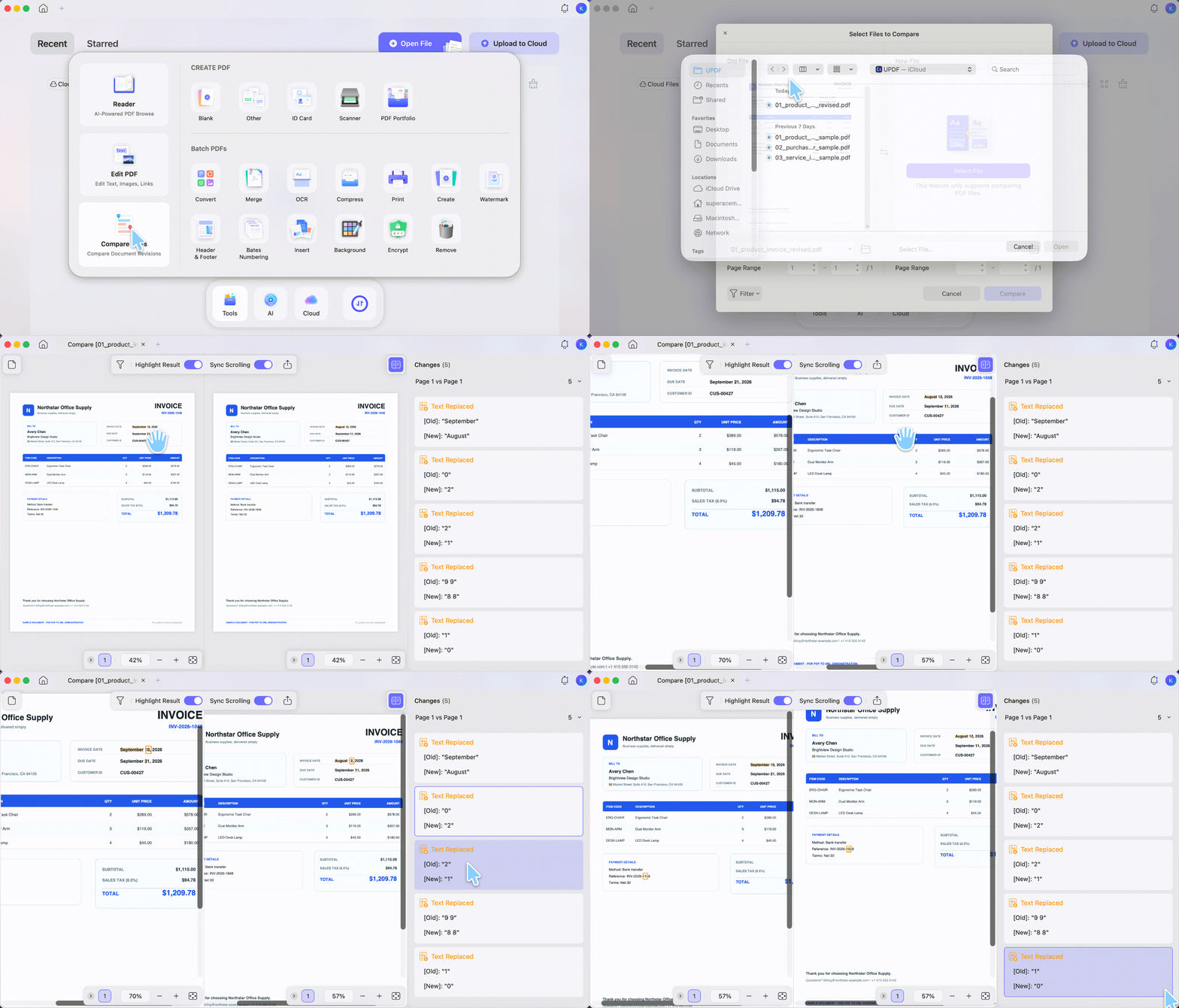
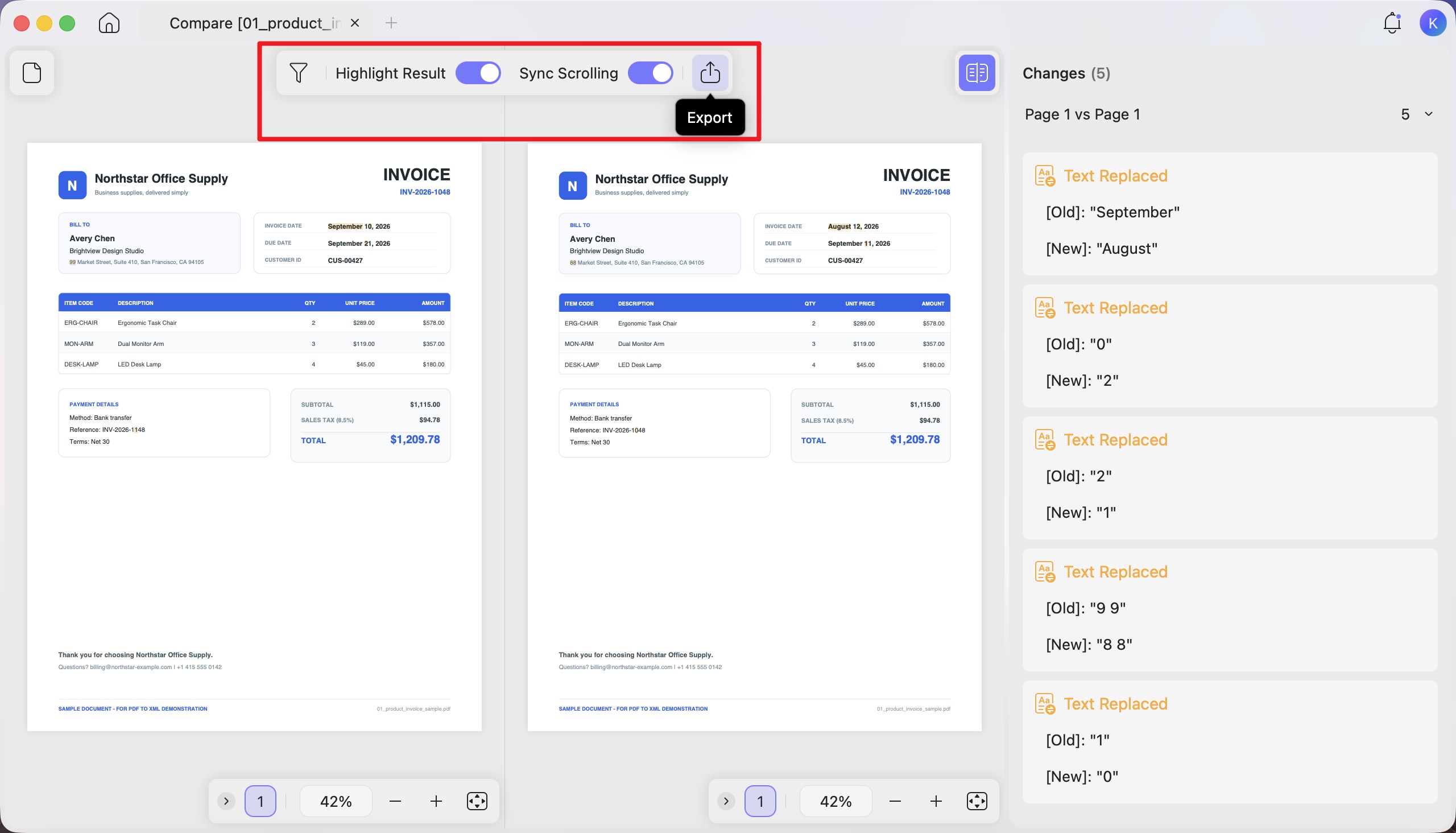
The right panel lists every change — text edits, image and path changes, inserted or deleted pages — so you can see what's different at a glance. Turn on Highlight Result to color the changes on the pages themselves, and Sync Scrolling to move through both files line by line at the same time. When you're done, use Export to save the comparison and share it with your team.
Part 3. Method 2: Read on one side, ask AI on the other
Best for:
- studying, research, or review — keeping your eyes on the document while an AI panel answers questions, summarizes, or explains, all in the same window.
Not for:
- moments you want the AI's output as a separate saved file; the panel is for working alongside the document, not for generating a standalone deliverable.
One tool, two working states at once. In the UPDF desktop app you keep the PDF open in the reading view on one side and open the AI panel on the other, so the document you're reading and the answers about it sit next to each other — no switching windows, no losing your place. Ask for a summary, an explanation of a dense paragraph, or a quick answer, and the source stays right there for you to verify against.
Also read: How to AI Chat with PDF Files: The Ultimate Document Interaction Guide
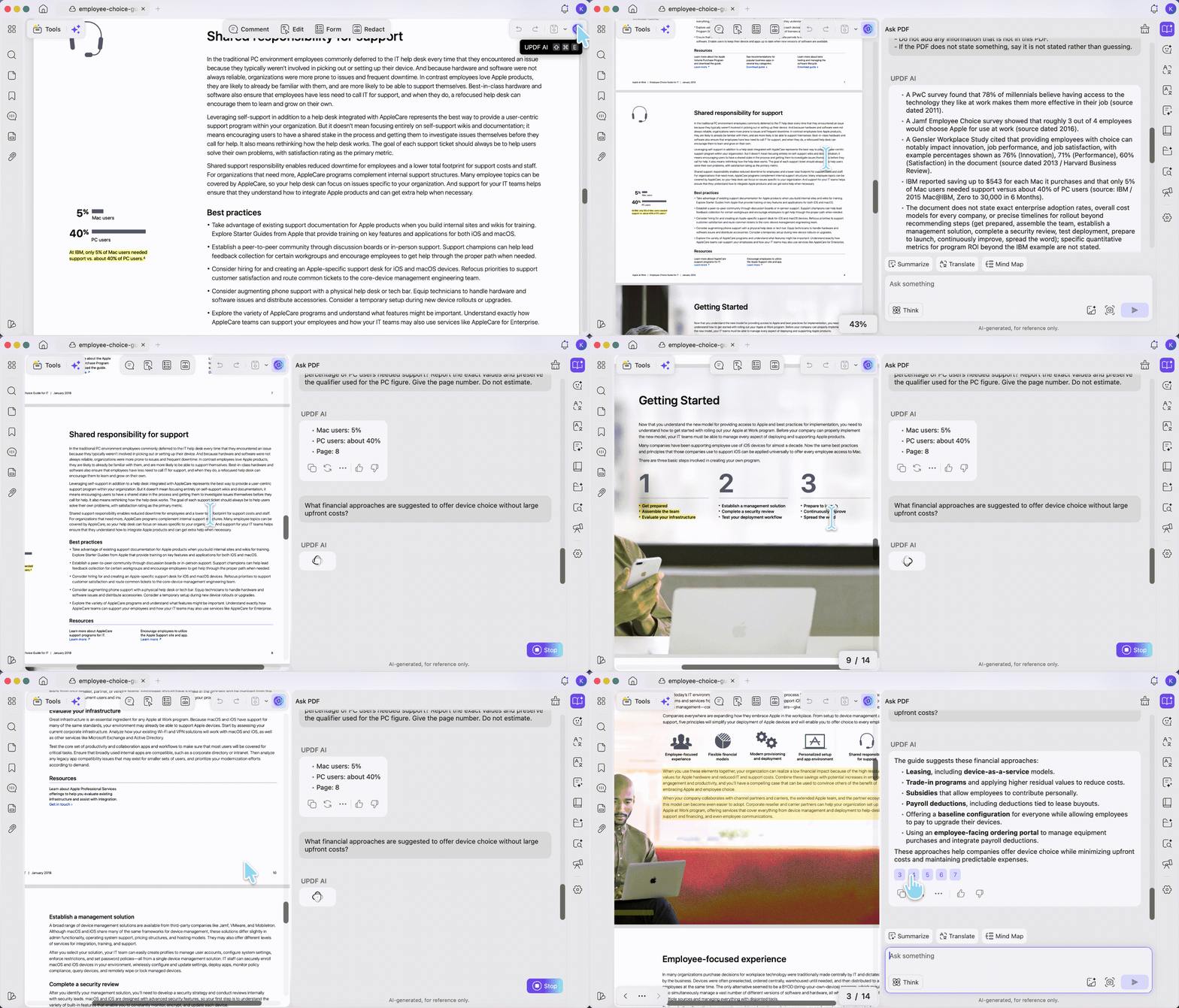
The split isn't fixed, either: drag the edge of the AI panel inward or outward to rebalance the two sides — give the document more room when you're reading, or widen the panel when you're deep in a back-and-forth with AI.
Windows • macOS • iOS • Android 100% secure
Part 4. Method 3: Two PDF windows via system split-screen
Best for:
- reading or cross-referencing two separate files at full size — two references while you write, a report next to its appendix.
Not for:
- expecting one UPDF window to split itself. On the desktop, each file opens in its own window; the side-by-side layout comes from your operating system's split-screen, not a toggle inside UPDF.
- Open the first PDF in UPDF.
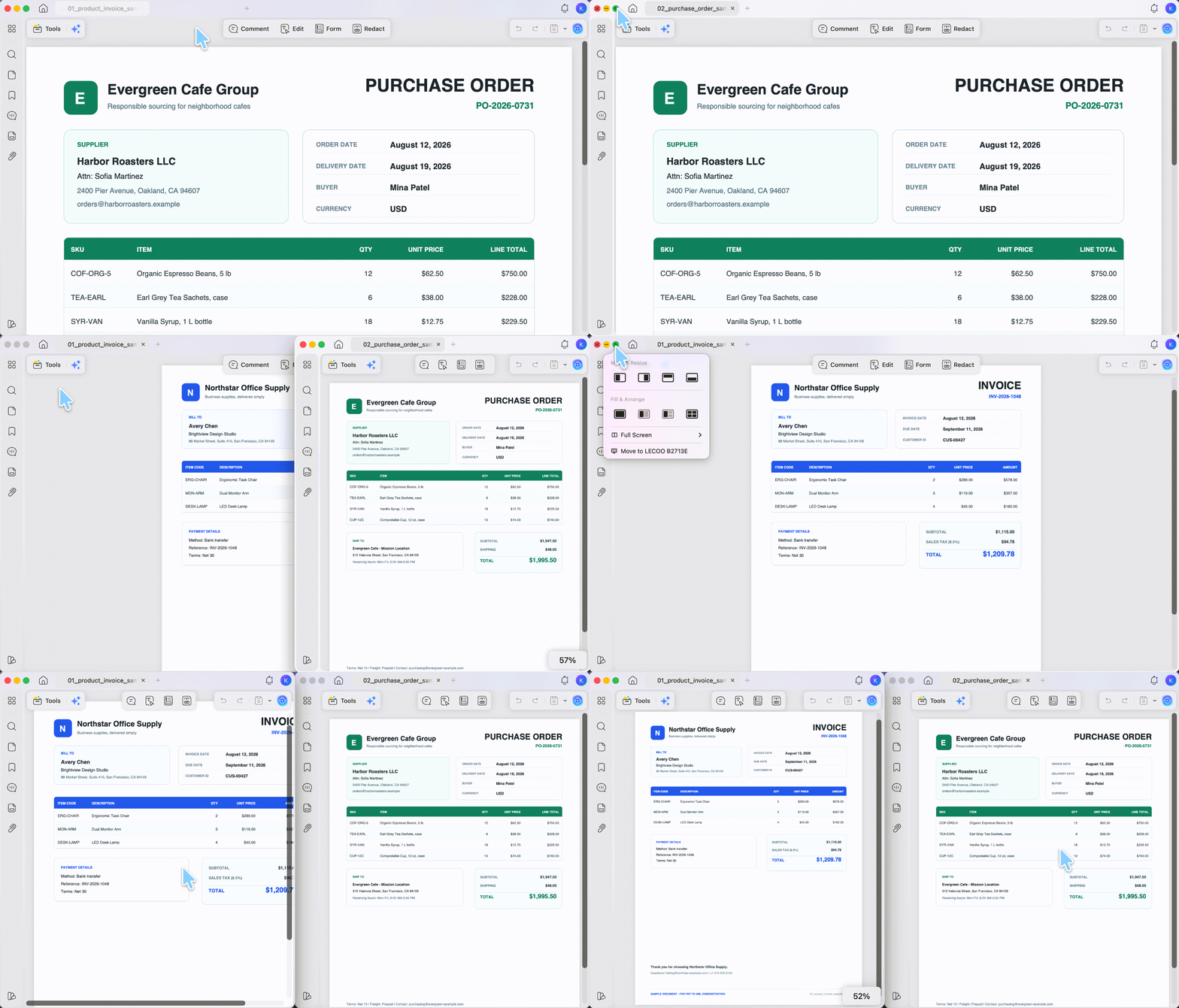
- Open the second PDF, then pull it out into its own window so both are visible at once instead of stacked as tabs. Two ways to do it: right-click the tab and choose Move Tab to New Window, or just drag the tab out of the tab bar and drop it on the desktop.
- Snap the two windows side by side:
- Windows: drag one window to the left edge until it snaps to half the screen, then pick the second window for the other half (or select a window and press Windows key + Left/Right arrow).
- Mac: hover over the green button at the top-left of a window, choose Tile Window to Left/Right of Screen, then pick the second window for the other side.
- Drag the middle divider to resize each half.
Part 5. Method 4: Split-screen on iPad, and Android
Best for:
- two files — or one PDF next to another app — on a tablet or phone, without switching back and forth.
Not for:
- heavy side-by-side editing on a small phone screen; phone split-screen is best for reading and cross-referencing.
iPad — Dual Screen Mode
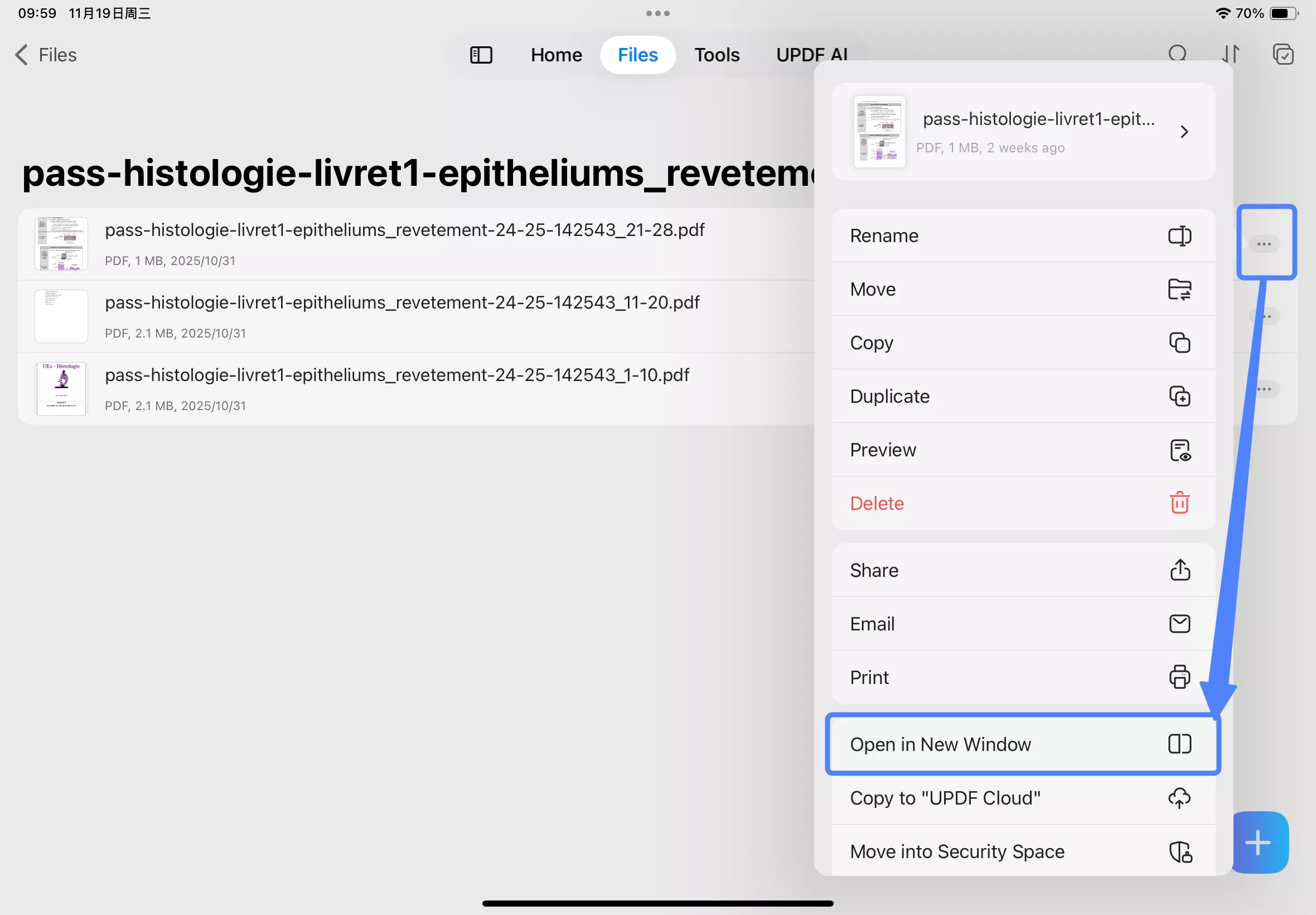
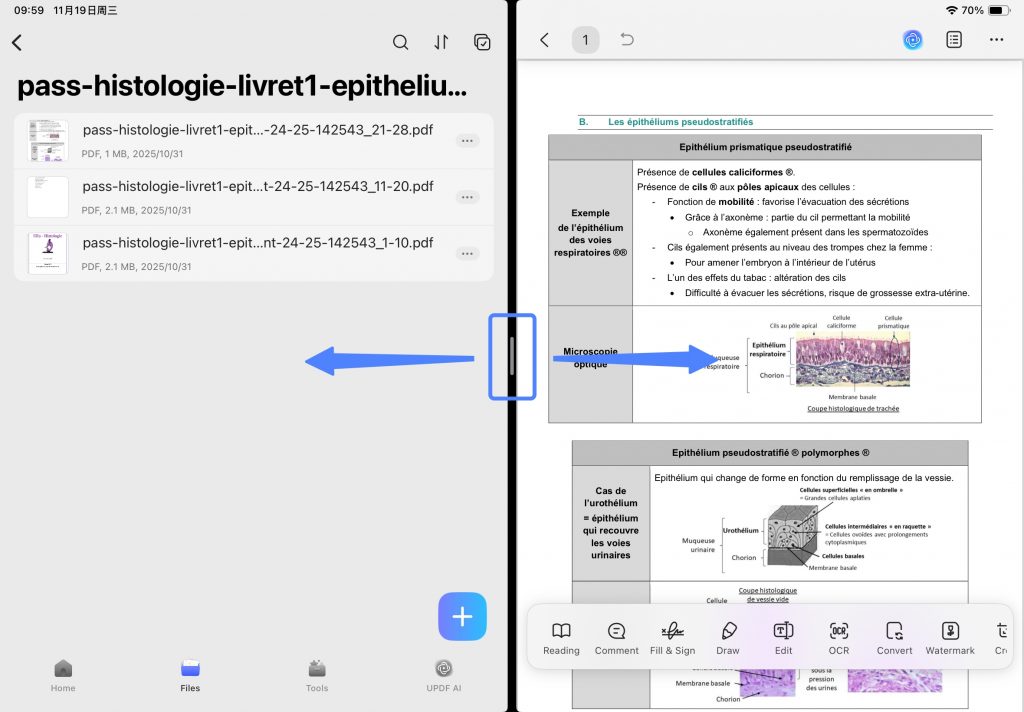
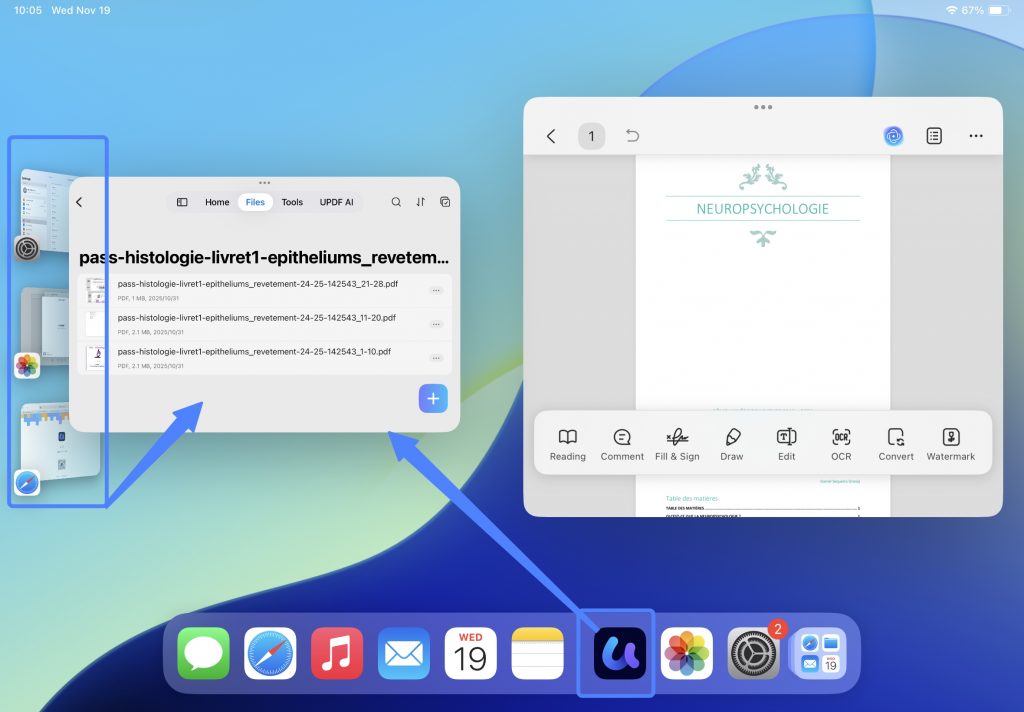
UPDF for iPad puts two UPDF windows side by side so it's easier to move files between them.
- Tap the "…" on a file and choose Open in New Window. The screen splits automatically; drag the divider to resize, or drag it to an edge to exit.
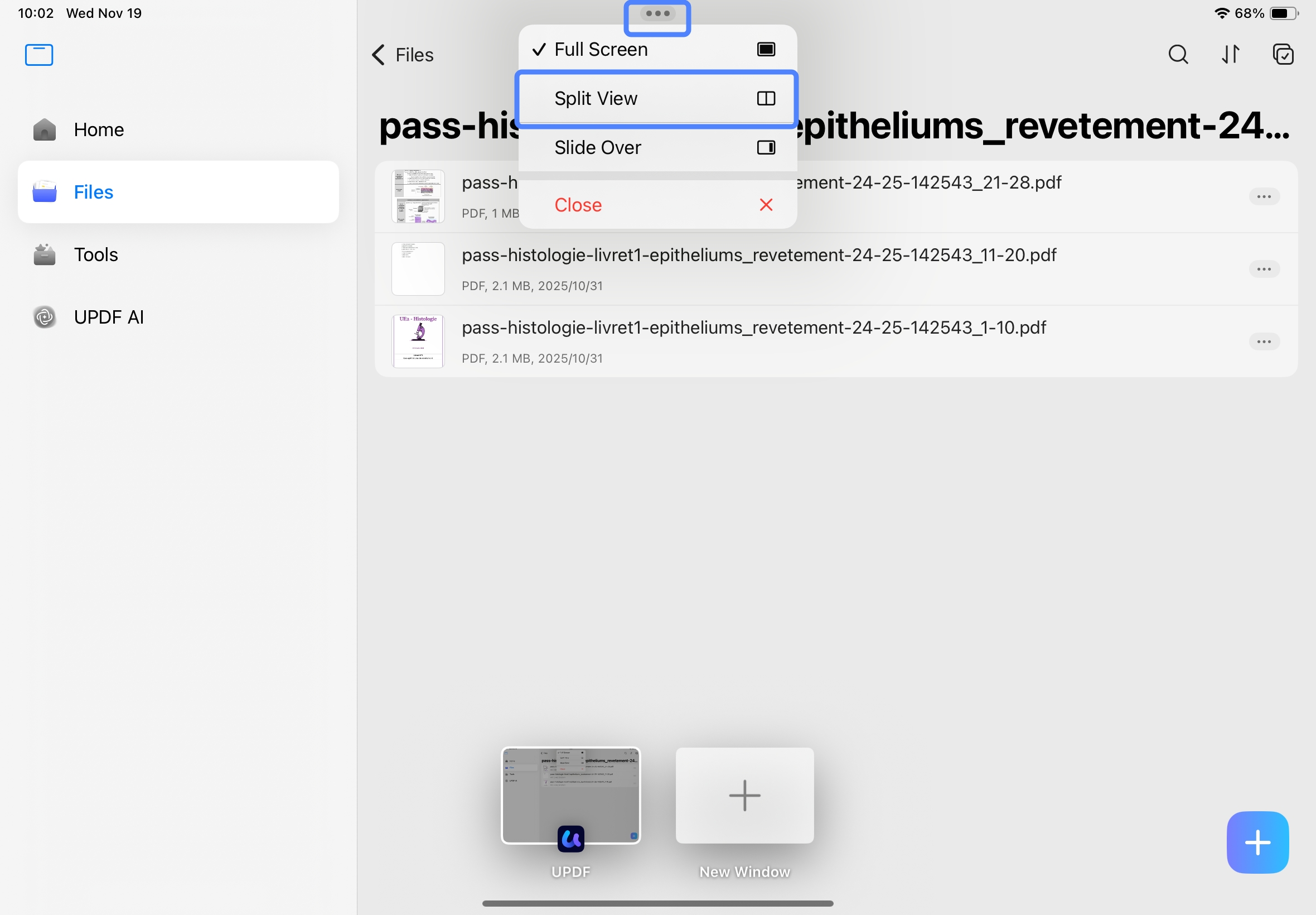
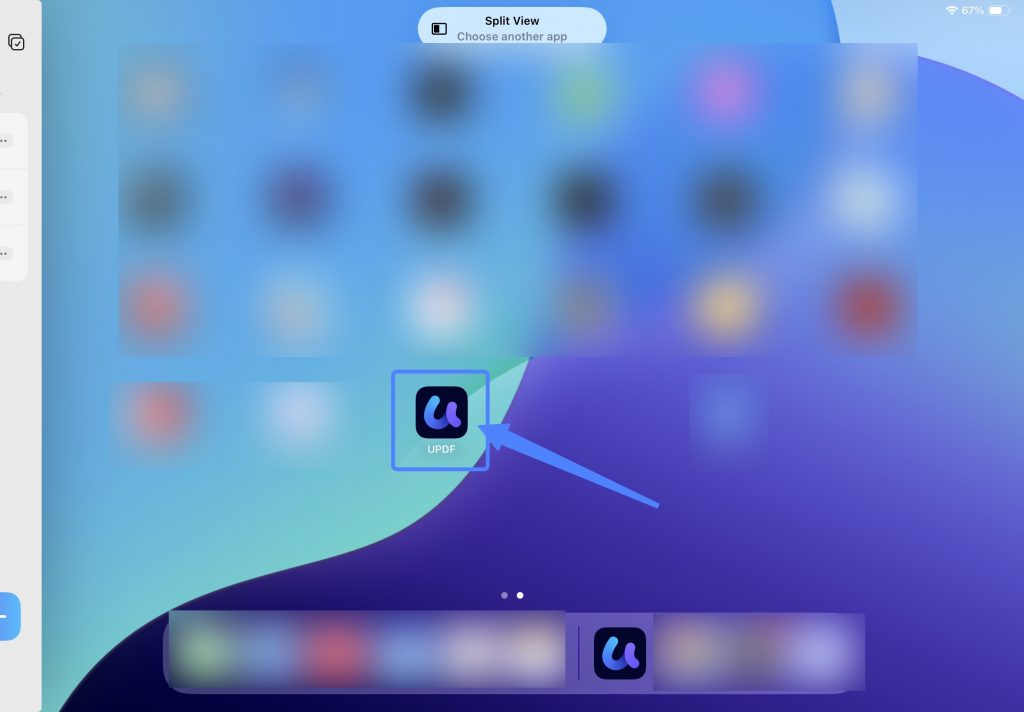
- Or tap the tab at the top, use the Multitasking button ("…"), choose Split View, and tap UPDF again for the other half.
- You can also enable Windowed Apps in Settings → Multitasking & Gestures, then drag a second app to the center of the screen, open the second app from your iPad Home Screens, or in App Library
Android
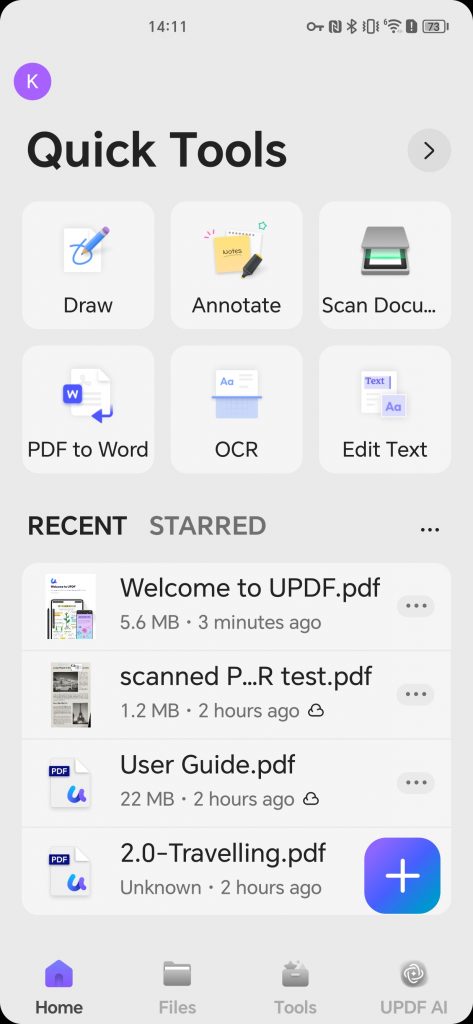
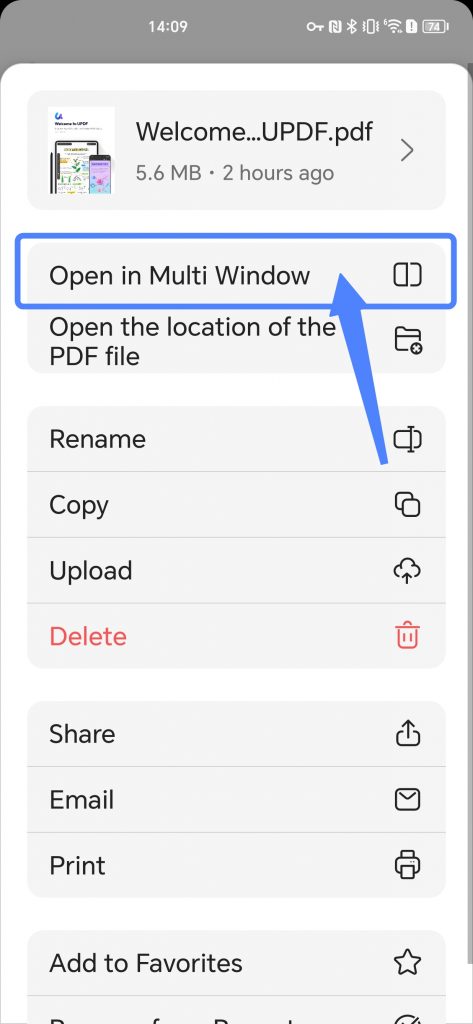
UPDF for Android supports split-screen — pair it with another app, or open two PDFs:
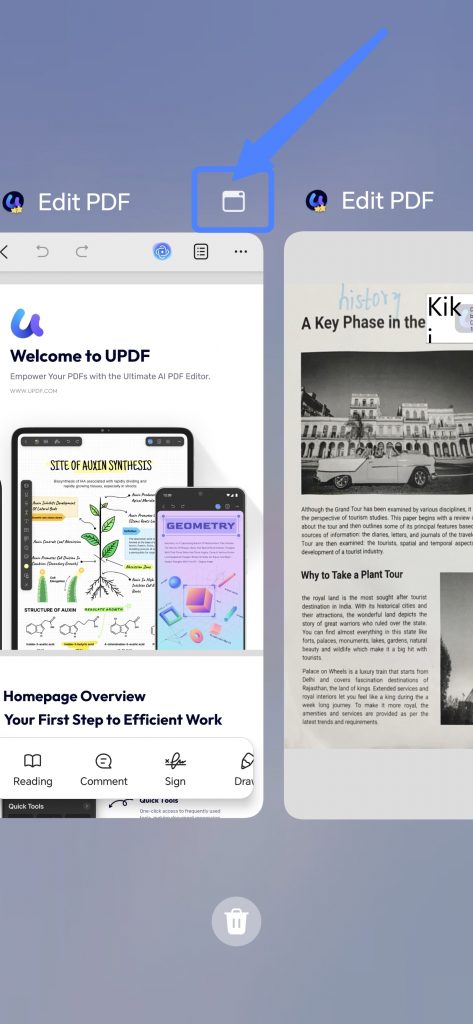
- Step 1. Long-press a PDF (or tap its "…" icon) and choose Open in Multi Window.
- Step 2. Swipe up from the bottom of your phone to bring up your phone's multitasking vie and tap the UPDF Home page.
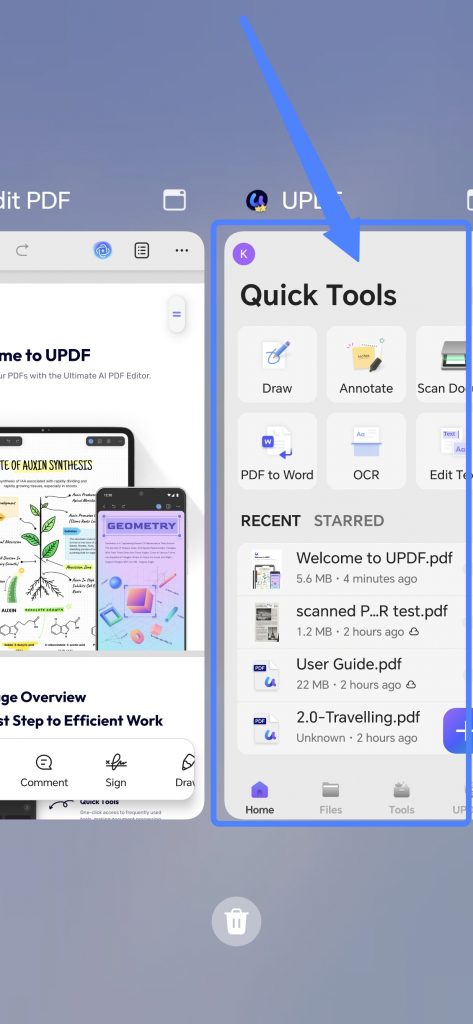
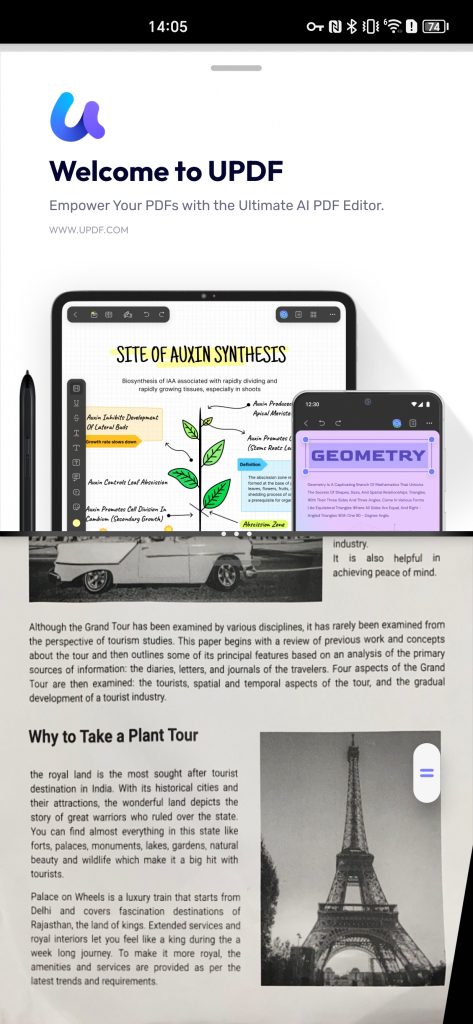
- Step 3. Open a second document, swipe up again, and tap the Window icon to send one document into split-screen (steps vary by device).
- Step 4. Adjust the position of the two windows.
Windows • macOS • iOS • Android 100% secure
Part 6. Method 5: Widen the Thumbnails panel into a dual view
Best for:
- navigating a long document — jumping around by page while keeping the current page in sight. A "one file, two panes" duo.
Not for:
- comparing two different files; this stays inside a single PDF.
The Thumbnails panel isn't stuck at a narrow width. Drag its edge outward until the thumbnails sit at about the same size as your reading view — effectively a two-panel layout inside one window, with your page overview on one side and your reading page on the other.
- Open your PDF and click the Thumbnails icon in the left sidebar.
- Grab the right edge of the panel and drag it outward.
- Keep dragging until the thumbnail pane and the reading pane are balanced side by side.
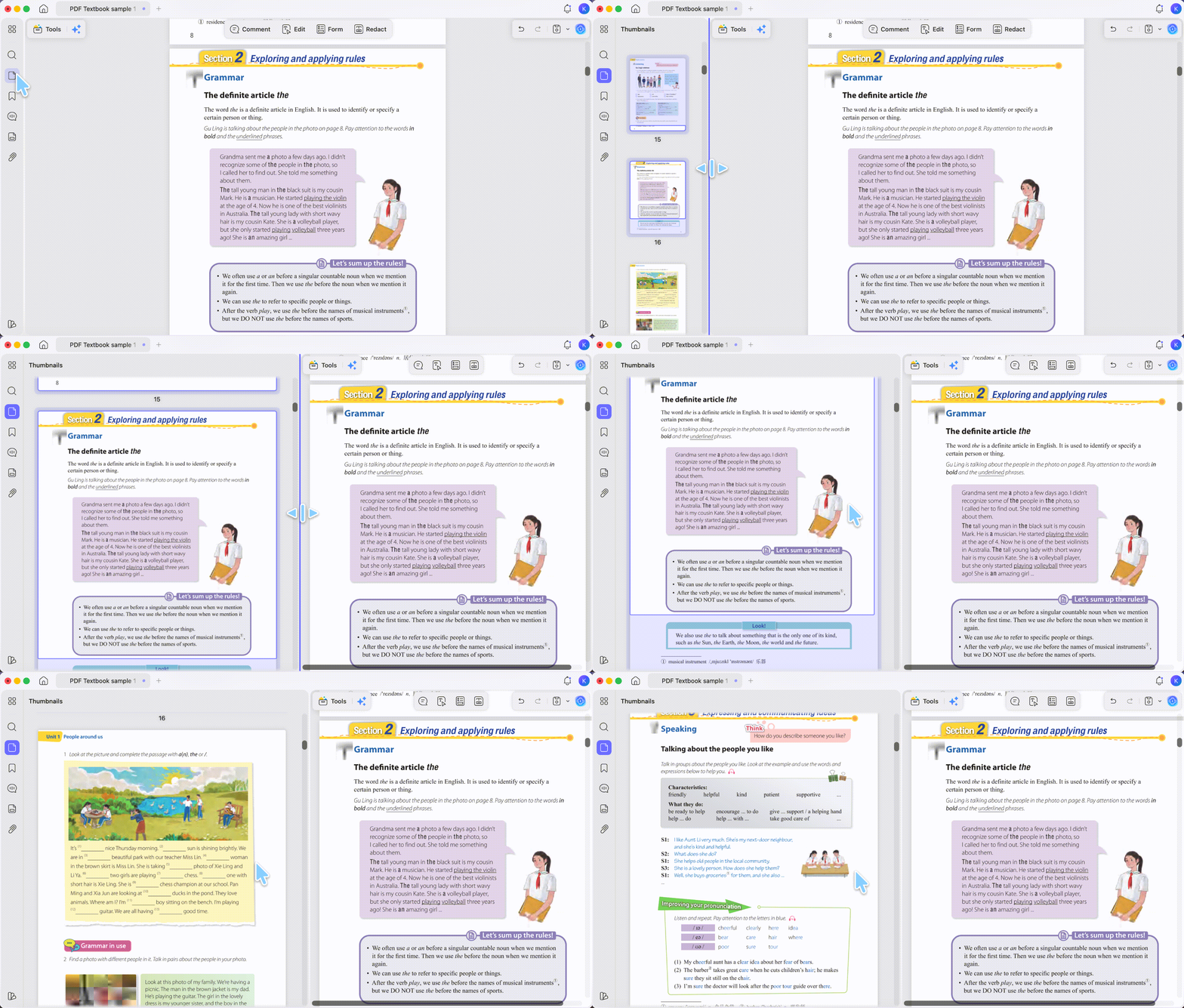
This is handy for image-heavy or design-heavy PDFs where the tiny default thumbnails are hard to read.
Part 7. Method 6: A PDF next to its translation
Sometimes the "duo" you want is one document in two languages. UPDF handles this two ways, and the right one depends on whether you're in the app or the browser. Unlike simply viewing two PDFs at once, translation runs on UPDF AI — the free plan includes a set number of AI uses, and heavier use is covered by a paid AI plan.
Bilingual layout (desktop and mobile app)
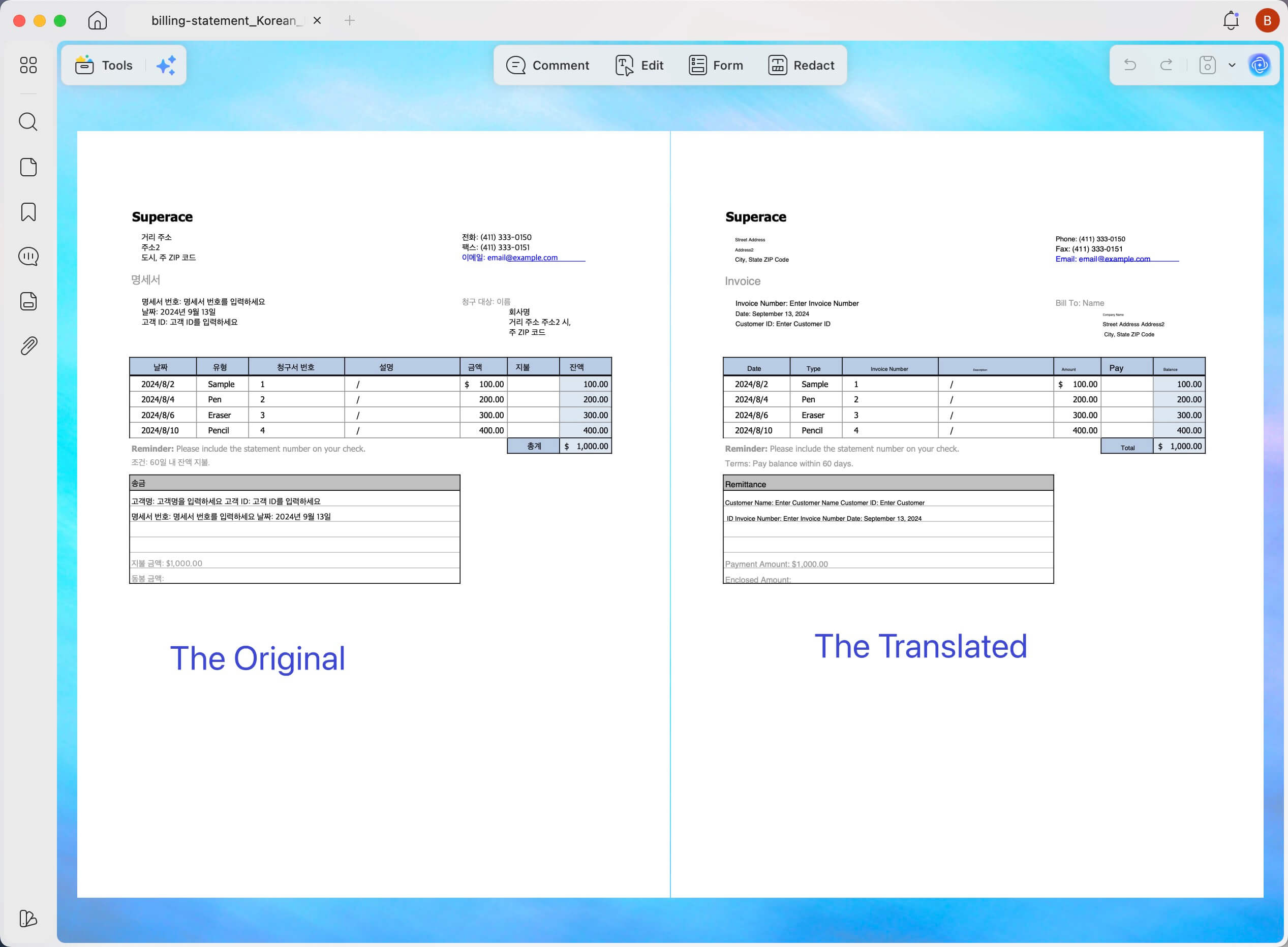
When you translate a PDF in the app, choose the output style. Instead of a clean, full-page replacement in the target language, pick the Bilingual layout to get the original and the translation side by side for line-by-line verification. Because it's generated in the app, you can download the result as a formatted PDF with the original layout preserved.
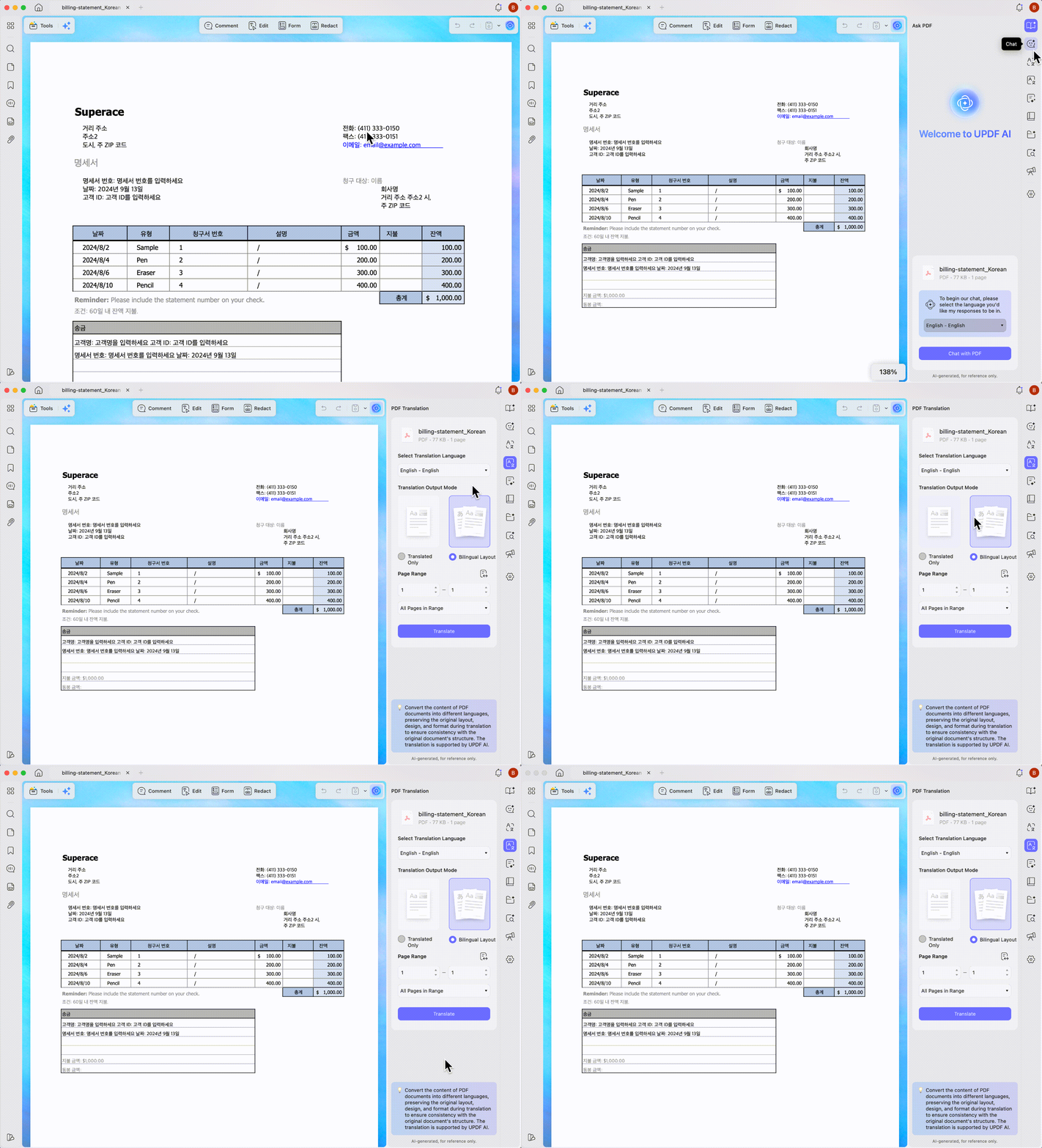
How the Translated Version Looks Like
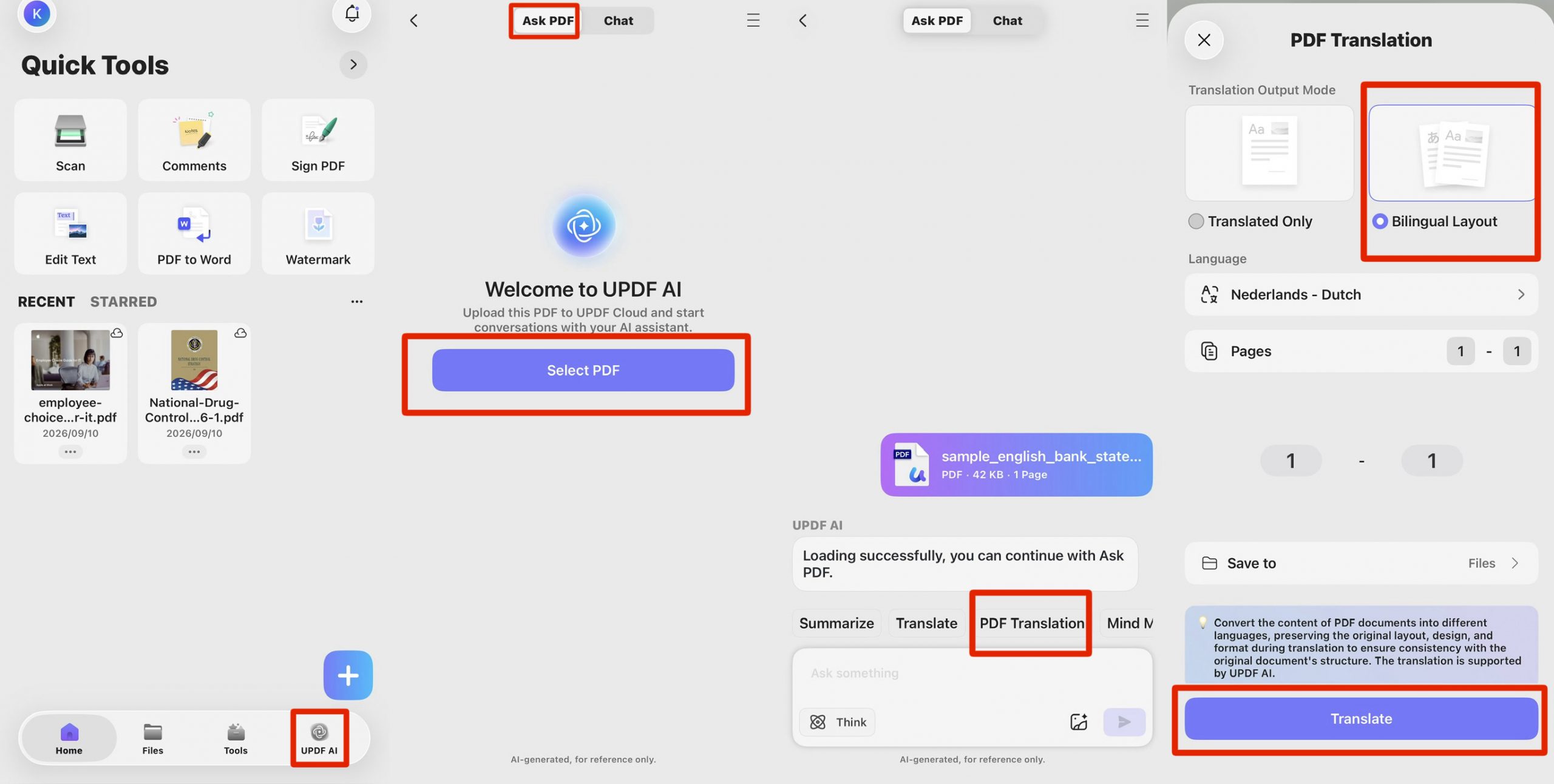
In the UPDF mobile app, go to the UPDF AI panel and switch to Ask PDF mode. There you'll see the PDF Translation feature — it also lets you translate documents while keeping a bilingual side-by-side layout.
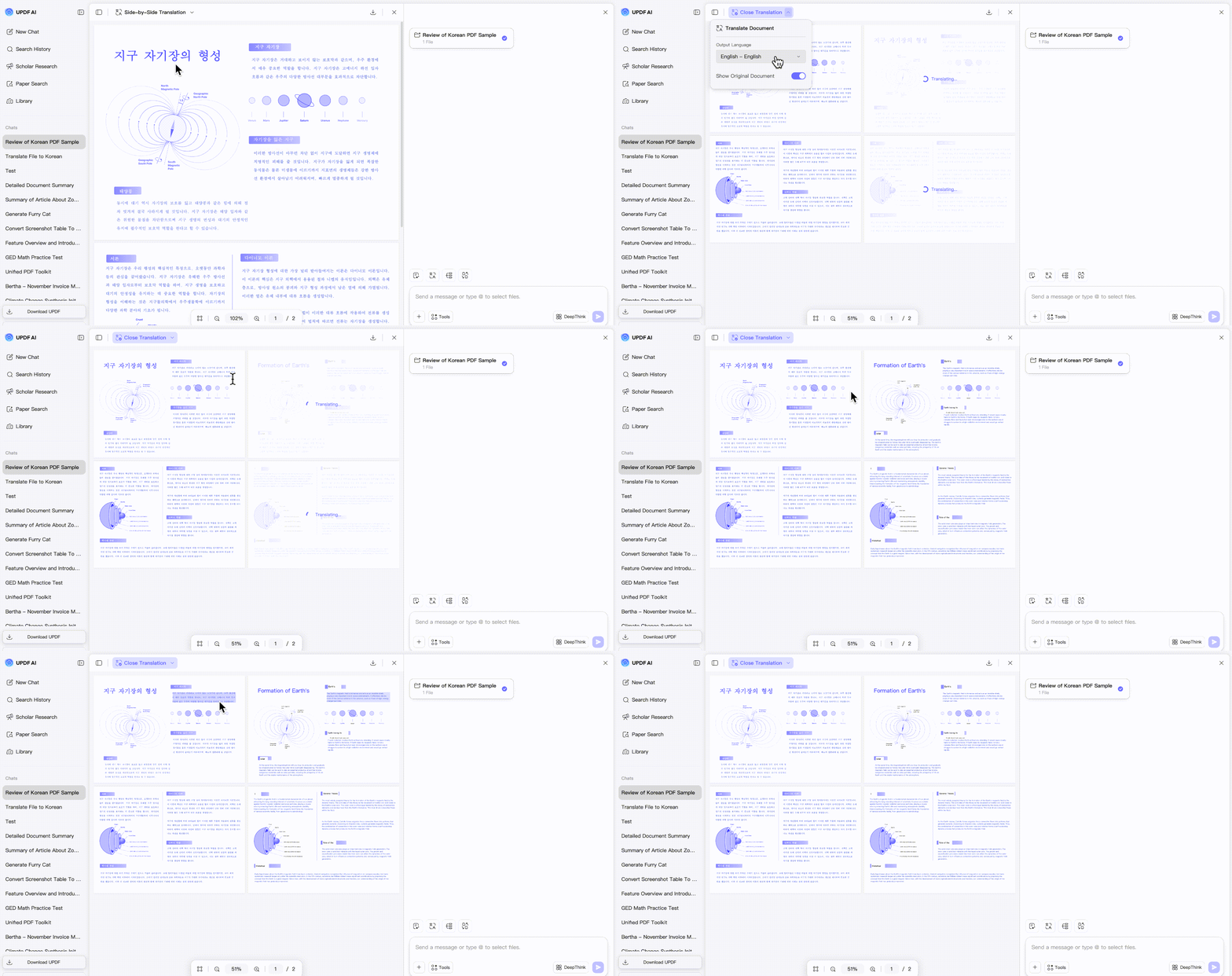
Side-by-Side Translation (UPDF AI Online)
In the browser, UPDF AI Online has a dedicated Side-by-Side Translation interface that shows your original file and the translation at the same time. This is the browser-based way to view a source and its translation together without installing anything — useful on a locked or restricted machine.
In addition to the methods above, UPDF provides several other options for translating PDFs. For more details, please refer to the video tutorial below.
Part 8. Method 7: The same file across two devices
The last duo isn't two views on one screen — it's one file across two devices, so your work follows you.
UPDF Cloud sync
UPDF works across Windows, Mac, iOS, and Android, and one account carries your files between them. Save a file to UPDF Cloud on one device and pick it up on another without emailing it to yourself.
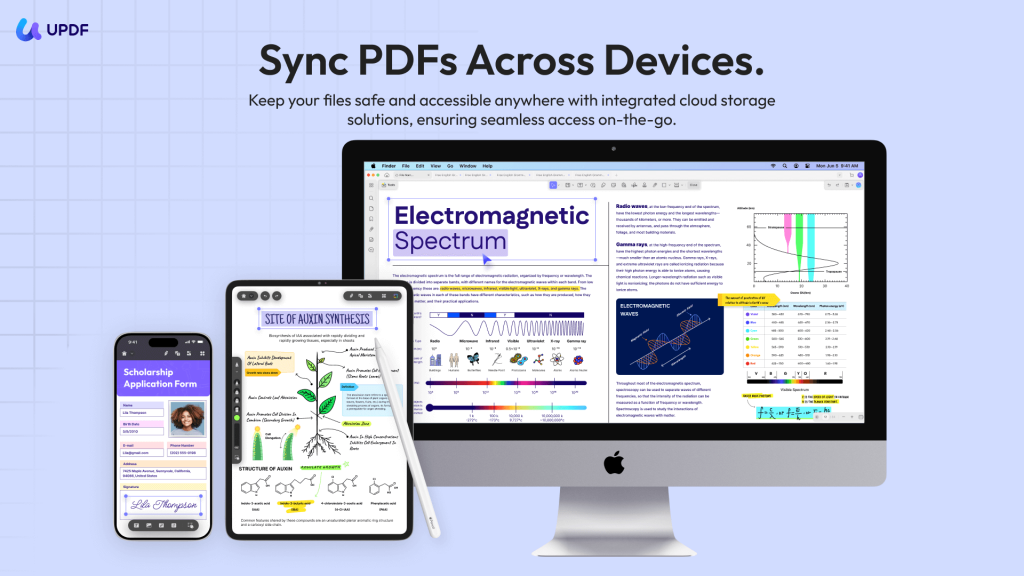
Handoff (iOS ⇄ Mac)
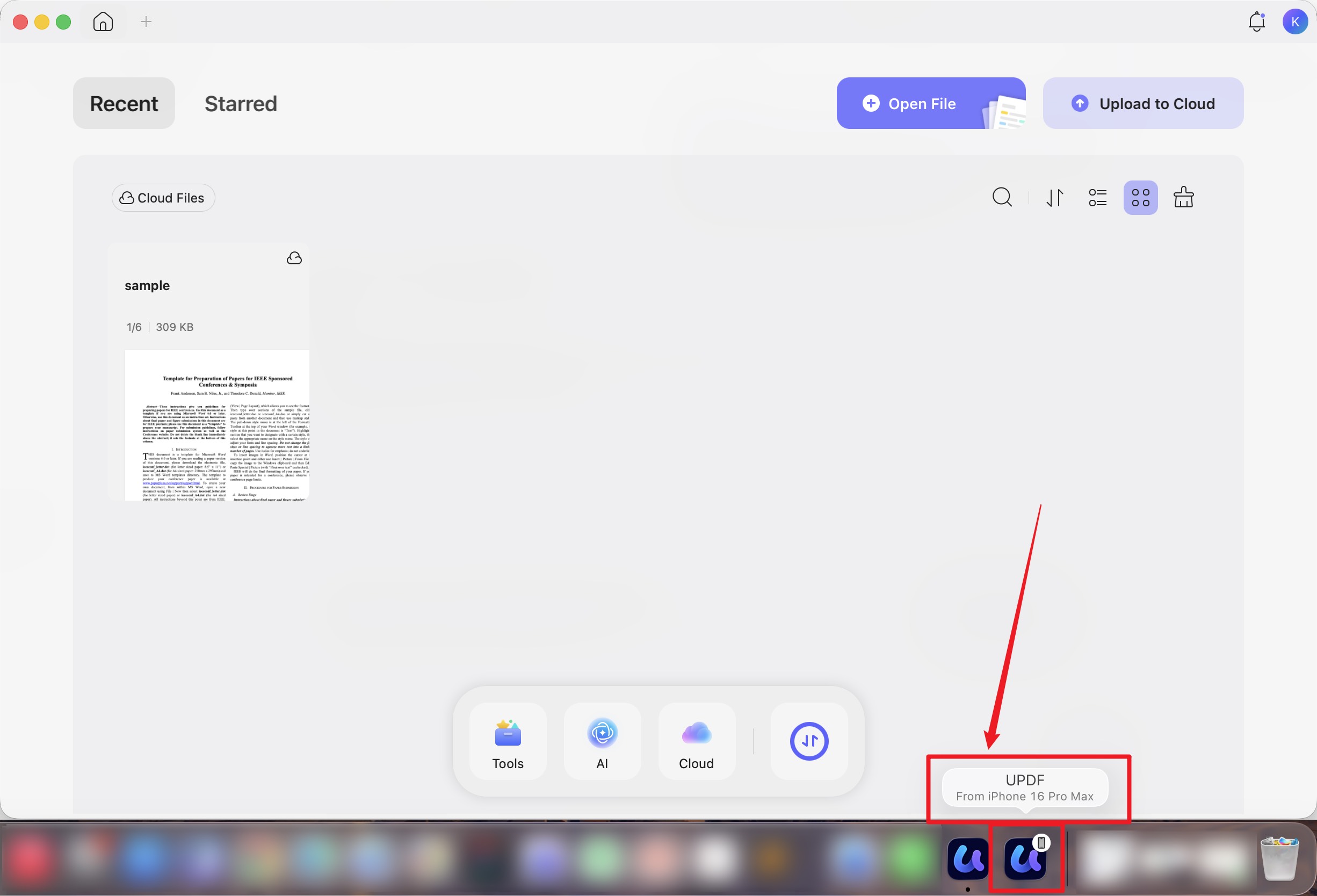
With AirDrop and Handoff enabled on both your iOS device and your Mac, open a file in the UPDF mobile app, then launch UPDF on your Mac — the file appears in the Recents list, ready to keep working on the bigger screen.
Part 9. Compare vs. split-screen vs. dual view vs. bilingual
These sound similar but solve different problems. Think of it like a desk:
- Compare Files is putting two versions of the same document on the desk and having someone circle every difference for you. Use it to find what changed.
- Split-screen is putting two separate files on the desk, side by side, to read at the same time. Use it to cross-reference.
- Dual view (widened Thumbnails) is laying one file open with its table of contents spread out beside the page. Use it to navigate a long PDF.
- Bilingual layout / Side-by-Side Translation is the same content in two languages on the desk together. Use it to verify a translation.
| Setup | Files involved | Best use | Where |
|---|---|---|---|
| Compare Files | Two versions of one document | Find differences | Windows, Mac |
| Read + AI panel | One file + AI | Study / review with answers alongside | Windows, Mac |
| System split-screen | Two separate files | Cross-reference | Windows, Mac, iPad, iPhone, Android |
| Widened Thumbnails | One file | Navigate a long document | Windows, Mac |
| Bilingual layout | One file, two languages | Verify a translation offline | Desktop & mobile app |
| Side-by-Side Translation | One file, two languages | Verify a translation in-browser | UPDF AI Online |
| Cloud sync / Handoff | One file, two devices | Continue work elsewhere | Cross-device |
Part 10. Edge cases
- "Compare isn't on my iPad." Compare Files is a desktop feature (Windows and Mac). On mobile, open the two files with split-screen instead, or run the comparison on your desktop and sync the result.
- "I opened two files but they're stacked as tabs." On desktop, tabs live inside one window. Open the second file in its own window, then use system split-screen to place them side by side.
- "My iPad won't split." iPad split behavior depends on iPadOS multitasking. If Split View won't trigger, check Settings → Multitasking & Gestures, then retry from the file's "…" menu.
- "The file didn't show up on my Mac via Handoff." Make sure AirDrop and Handoff are enabled on both the iOS device and the Mac, and that you're signed in to the same account; then open the file on mobile first and launch UPDF on the Mac to see it in Recents.
- "My translation lost its formatting." Use the app's Bilingual layout (or a translated file downloaded from the app), which preserves the original layout — rather than copying translated text out of a browser session, which carries none.
Part 11. FAQs
1. What kinds of differences does Compare Files actually detect?
It surfaces text edits, image changes, path (vector) changes, shading changes, and inserted or deleted pages. You can narrow the comparison with the filter to focus on just one type — for example, only text, or only page-level changes.
2. Can I compare two scanned PDFs?
Compare Files works on the text and objects it can read. For scanned or image-only pages, run OCR on both files first so the text becomes recognizable, then compare — otherwise the pages are treated as images rather than text.
3. When two PDFs are side by side, can I annotate and save each one separately?
Yes. In system split-screen each file is a fully independent UPDF window, so highlighting, comments, and edits in one don't touch the other, and each saves on its own.
The takeaway
"Duo" doesn't need a folding screen — it needs two views and one workspace. Compare two contract versions on a laptop, read a paper while AI answers beside it, cross-reference two files on a tablet, check a translation against its source, or hand a file from your phone to your Mac. UPDF puts both halves of the job in front of you on whatever device you're already holding. Apple can keep the hinge — I'll keep the two views. That's PDF Duo: no switching.
Windows • macOS • iOS • Android 100% secure







 Enrica Taylor
 Enola Miller
 Lizzy Lozano
