UPDF
UPDF
 UPDF for Windows
 UPDF for Mac
 UPDF for iPhone/iPad
 UPDF for Android
 Nomostar
 UPDF AI Online
 UPDF Sign
 IvyCraft
 Edit PDF
 Annotate PDF
 Create PDF
 PDF Form
 Edit links
 Convert PDF
 OCR
OCR PDF to Word
 PDF to Image
 PDF to Excel
 Organize PDF
 Merge PDF
 Split PDF
 Crop PDF
 Rotate PDF
 Protect PDF
 Sign PDF
 Redact PDF
 Sanitize PDF
 Remove Security
 Read PDF
 UPDF Cloud
 Compress PDF
 Print PDF
 Batch Process
 About UPDF AI
 UPDF AI Solutions
 AI User Guide
 FAQ about UPDF AI
 Summarize PDF
 Translate PDF
 Chat with PDF
 Chat with AI
 Chat with image
 PDF to Mind Map
 Explain PDF
 PDF AI Tools
 Image AI Tools
 AI Chat Tools
 AI Writing Tools
 AI Study Tools
 AI Working Tools
 Other AI Tools
 AI Bookmark Generation
 AI Bookmark Summary
 AI Watermark Generation
 AI Background Generation
 AI Sticker Generation
 AI Stamp Generation
 AI Editing Suite
 UPDF Copilot
 AI Page Management
 AI Semantic Search
 PDF to Word
 PDF to Excel
 PDF to PowerPoint
 Enterprise Solution
 Enterprise Sign
 Enterprise AI
 Enterprise Plan
 Enterprise User Guide
 Enterprise Webinar
 IT
IT Education
 Construction
 Financial Service
 Healthcare
 Insurance
 Legal
Legal Manufacturing
 Government
 Researchers & PhDs
 Solopreneurs & Freelancers
 Lawyers & Legal Professionals
 Real Estate Agents & Brokers
 Education Solution
 Customer Stories
 User Guide
 UPDF Tricks
 FAQs
FAQs UPDF Reviews
 Download Center
 Blog
Blog Newsroom
 Tech Spec
 Updates
 UPDF vs. Adobe Acrobat
 UPDF vs. Foxit
 UPDF vs. PDF Expert

Quick answer:
Highlighting is the easy part. The hard part is what happens after — most readers trap your highlights inside the document, so you end up with a page full of colored bars and no way to pull them together, export them, or pick up where you left off on another device. The real difference between PDF readers isn't whether they can paint a highlight; it's whether the highlight is still useful once you've made it.
That's the lens for this roundup. We looked at four desktop/cross-platform readers hands-on, then added the best picks for iPad and Android separately, since tablet reading is its own situation. If you need markup beyond highlighting, see our complete guide on how to annotate a PDF.
Part 1. How We Judged These PDF Readers
We rated each reader on the things that actually matter over a long reading session, not just whether a highlighter button exists.
| Dimension | What we checked |
|---|---|
| Reading comfort | Dark and eye-protection modes, themes, page layouts, long-session usability |
| Highlight control | Custom color and opacity, text highlight vs. area highlight |
| Highlight management | A central list or panel to review, filter, and export highlights and notes |
| Cross-device continuity | Whether the same highlights sync so you can keep reading on another device |
| Scanned documents | Whether scans can be made readable and highlightable via OCR |
Part 2. Comparison at a Glance
Most of these readers highlight for free — the paid tiers are about OCR volume, editing, conversion, and cloud sync, not basic reading and highlighting. So we split the comparison into two tables: what you get free, and what the paid tiers add.
Free reading & highlighting
| UPDF Free | PDFgear | Acrobat Reader | Foxit Reader | Xodo | |
|---|---|---|---|---|---|
| Platforms | Win / Mac / iOS / Android | Win / Mac / iOS / Android | Win / Mac / iOS / Android | Win / Mac | Win / iOS / Android / web |
| Text highlight | ✓ | ✓ | ✓ | ✓ | ✓ |
| Area highlight | ✓ (desktop) | ✓ | ✗ (shapes workaround) | ✓ | ✓ |
| Custom highlight color | ✓ | ✓ | Limited | ✓ | ✓ |
| Highlight management | List panel | Basic list | Comments list | Comments pane | Basic list |
| Highlights saved into the PDF | ✓ (standard annotations) | ✓ | ✓ | ✓ | ✓ |
| Search or filter highlights | Filterable Comment List | Basic list | Comments list | Filterable Comments pane | Basic list |
| Export highlights or notes separately | ✓ (PDF summary or text) | No dedicated highlight-summary export | Comment export depends on Acrobat plan | Comment export; options vary by platform | Limited; plan and platform dependent |
| Reading modes (Dark mode) | ✓ | ✓ | ✓ | ✓ | ✓ |
| Free-tier catches | Save adds watermark; OCR 5 uses; convert 2/day; 1GB cloud (10MB/file) | Fully free, no account | Editing/OCR/convert locked to Pro | Full reader free; editing needs Editor | Editing/convert locked to Pro |
Paid tiers — for OCR, editing, conversion, cloud sync
| UPDF Pro | Acrobat Pro | Xodo | Foxit Editor / Editor+ | |
|---|---|---|---|---|
| Price | $49.99/yr or $79.99 lifetime | Acrobat Standard: US$179.88/yr; Acrobat Pro: US$239.88/yr; Acrobat Studio: US$299.88/yr | Xodo Document Suite: $14.88/mo; Xodo (mobile): $39.99/yr or 11.99/mo | $129.99/yr; Editor+ $159.99/yr |
| Removes watermark / unlocks save | ✓ | / Reader is view/annotate only | Xodo (mobile) is view/annotate only | / Reader is free |
| OCR | ✓ | ✓ | ✓ | ✓ |
| Full editing & conversion | ✓ | ✓ | ✓ | ✓ |
| Cloud sync across devices | UPDF Cloud | Adobe Document Cloud | Xodo Drive | Editor+ (mobile + cloud) |
| Mobile apps | Included | Included | Included | Editor+ only |
If what you really want is a head-to-head on highlighting ability itself — cross-page highlighting, area highlight, color depth — see our tested comparison of 10 PDF highlighters. This page is about the reading and management experience around the highlight.
Part 3. Which Reader Fits You
Students, researchers, and review teams often need different outcomes from the same highlight tool. For a complete evidence-focused workflow, see our guide to using a PDF reader for research papers.
| If you… | are doing this | Best pick |
|---|---|---|
| Read across phone, laptop, and tablet | Want highlights synced everywhere | UPDF |
| Want zero cost, no account | Casual reading and highlighting | PDFgear |
| Want highlight export to a list | Study notes, review summaries | UPDF, Adobe Acrobat |
| Live in an Adobe or enterprise workflow | Team review with a familiar UI | Adobe Acrobat |
| Prefer a Lifetime license, Office-style UI | Heavy desktop markup | Foxit |
| Study on an iPad with Apple Pencil | Turn highlights into notes and flashcards | MarginNote, UPDF |
| Read and highlight on Android | Free, no-nonsense markup | Xodo, UPDF |
| Study for exams | Color-code textbooks and export a revision sheet | UPDF, MarginNote |
| Review research evidence | Keep page numbers and return from notes to the source | UPDF, Adobe Acrobat |
| Review documents as a team | Filter annotations by author and create a review summary | UPDF, Adobe Acrobat, Foxit |
Part 4. UPDF — Best Overall for Reading and Managing Highlights
UPDF is the pick if you want one tool that reads comfortably, highlights precisely, and — the part most readers skip — keeps your highlights usable afterward.
Windows • macOS • iOS • Android 100% secure
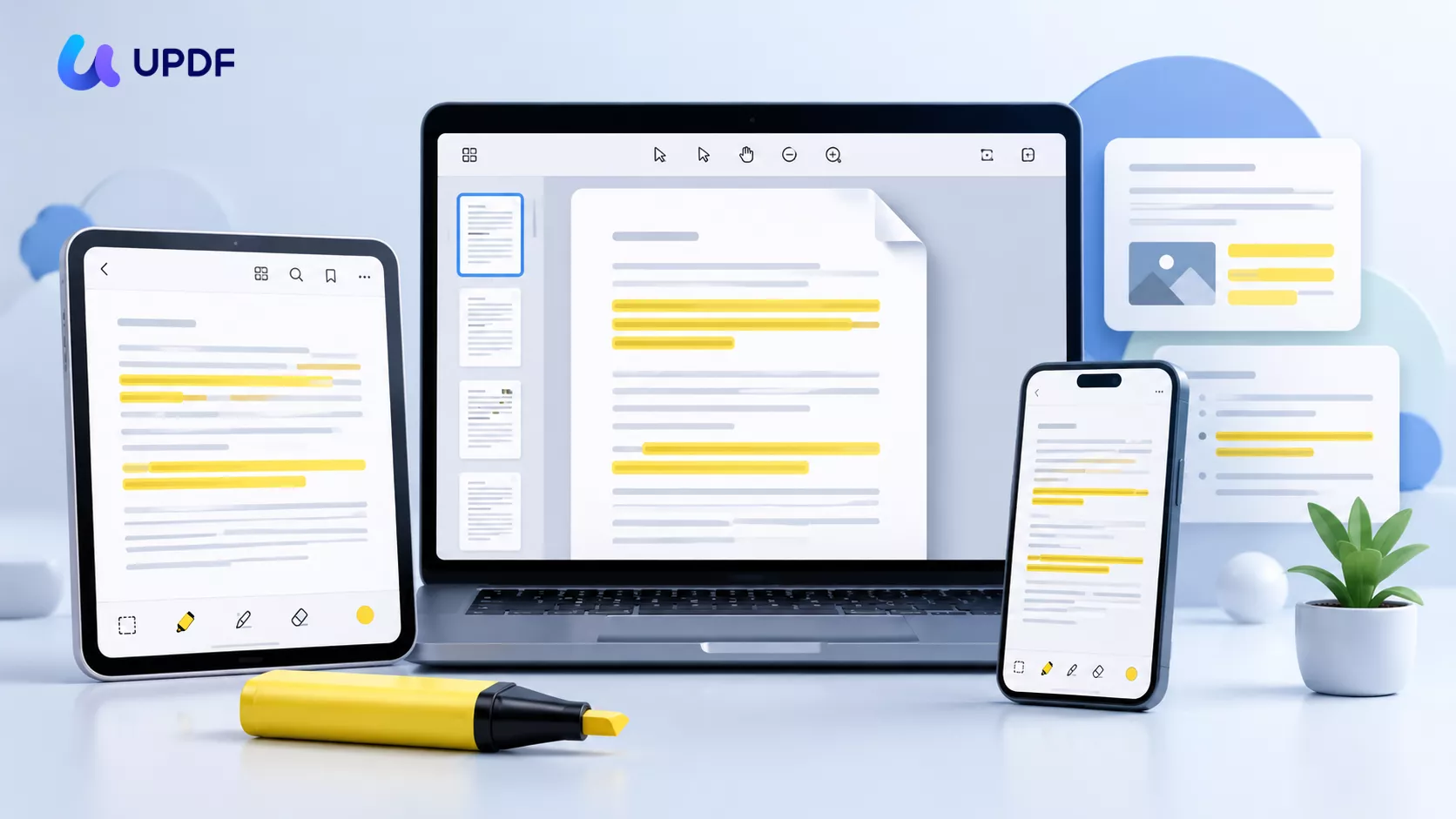
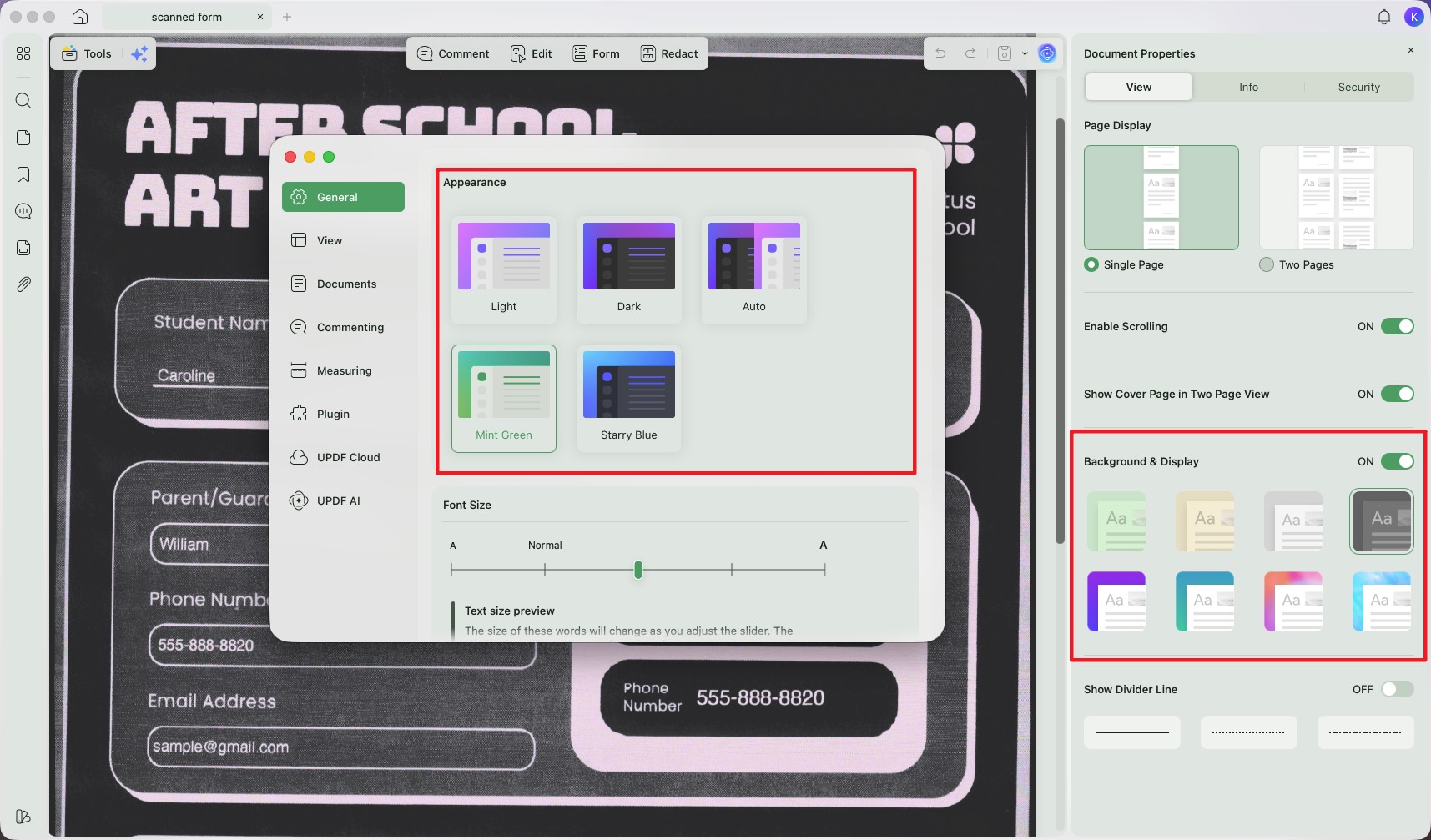
Reading. Dark mode, an eye-saver soft-tint mode for long sessions, four themes, and multiple page layouts (single, continuous scroll, two-page) make it comfortable to sit with a long document.
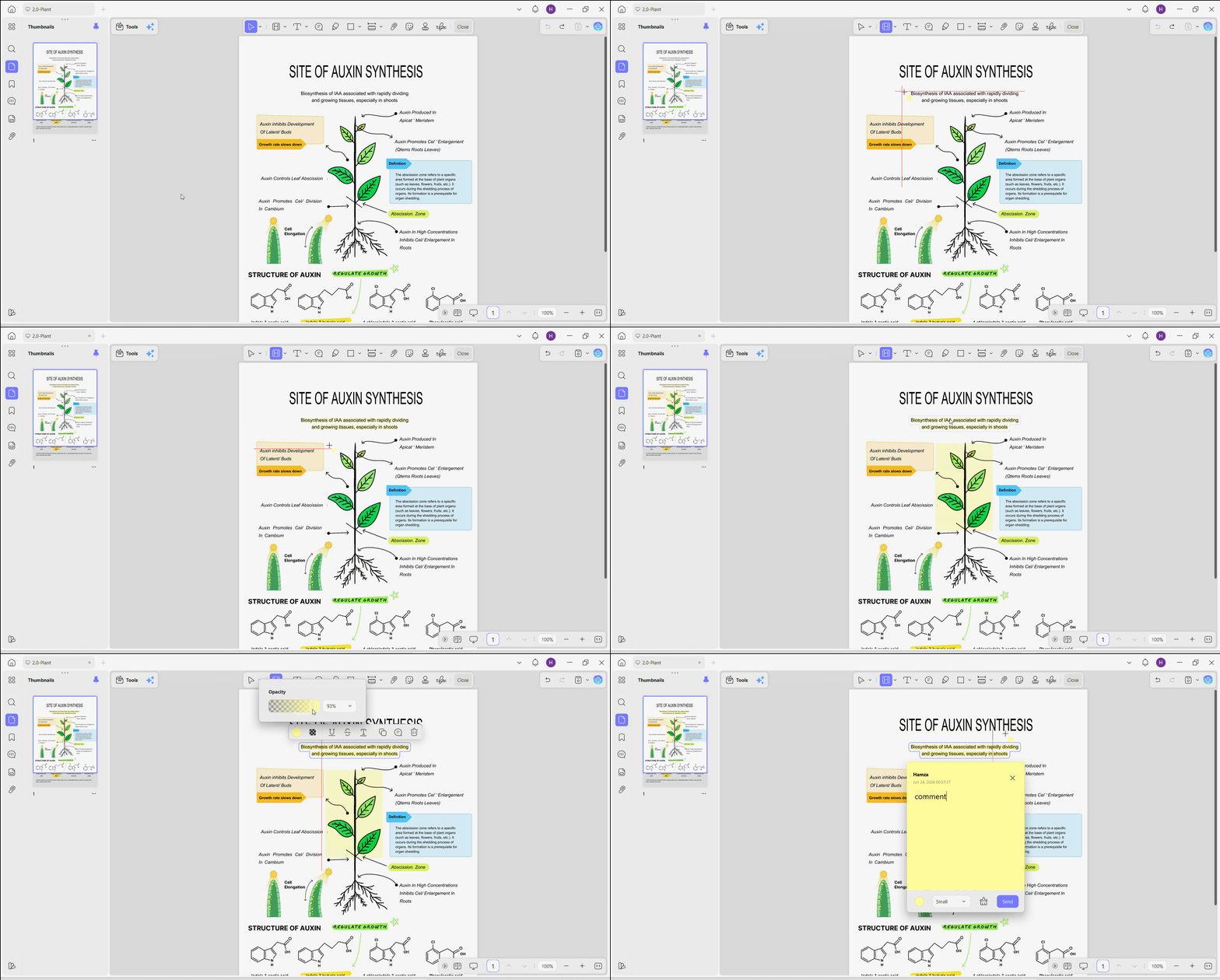
Highlighting. You get a full custom color wheel with opacity, not just a few presets, plus true area highlight for figures and scanned regions on the desktop apps (Windows and Mac). Click any existing highlight and a floating menu lets you recolor it, change opacity, attach a bound sticky note, or delete it.
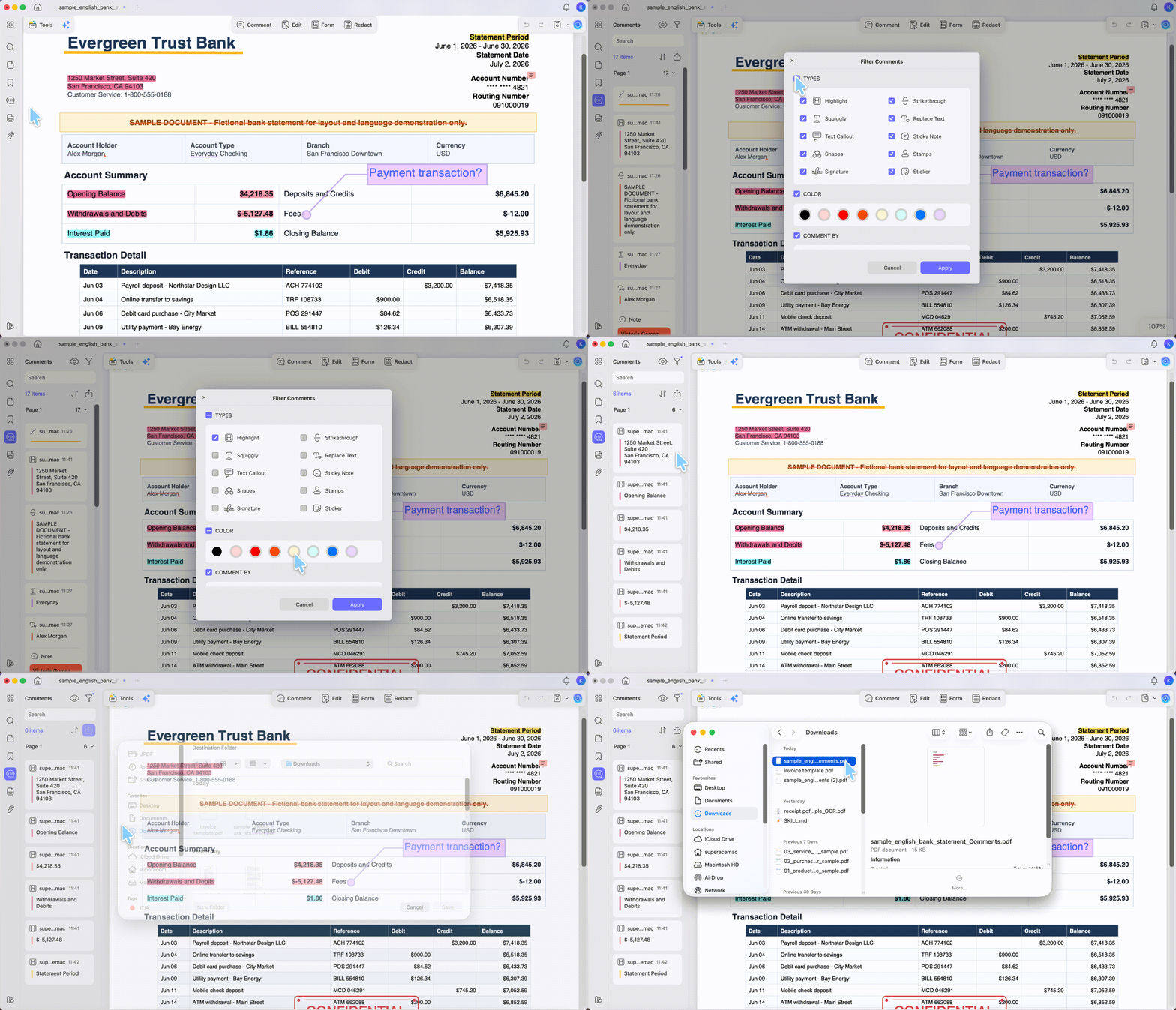
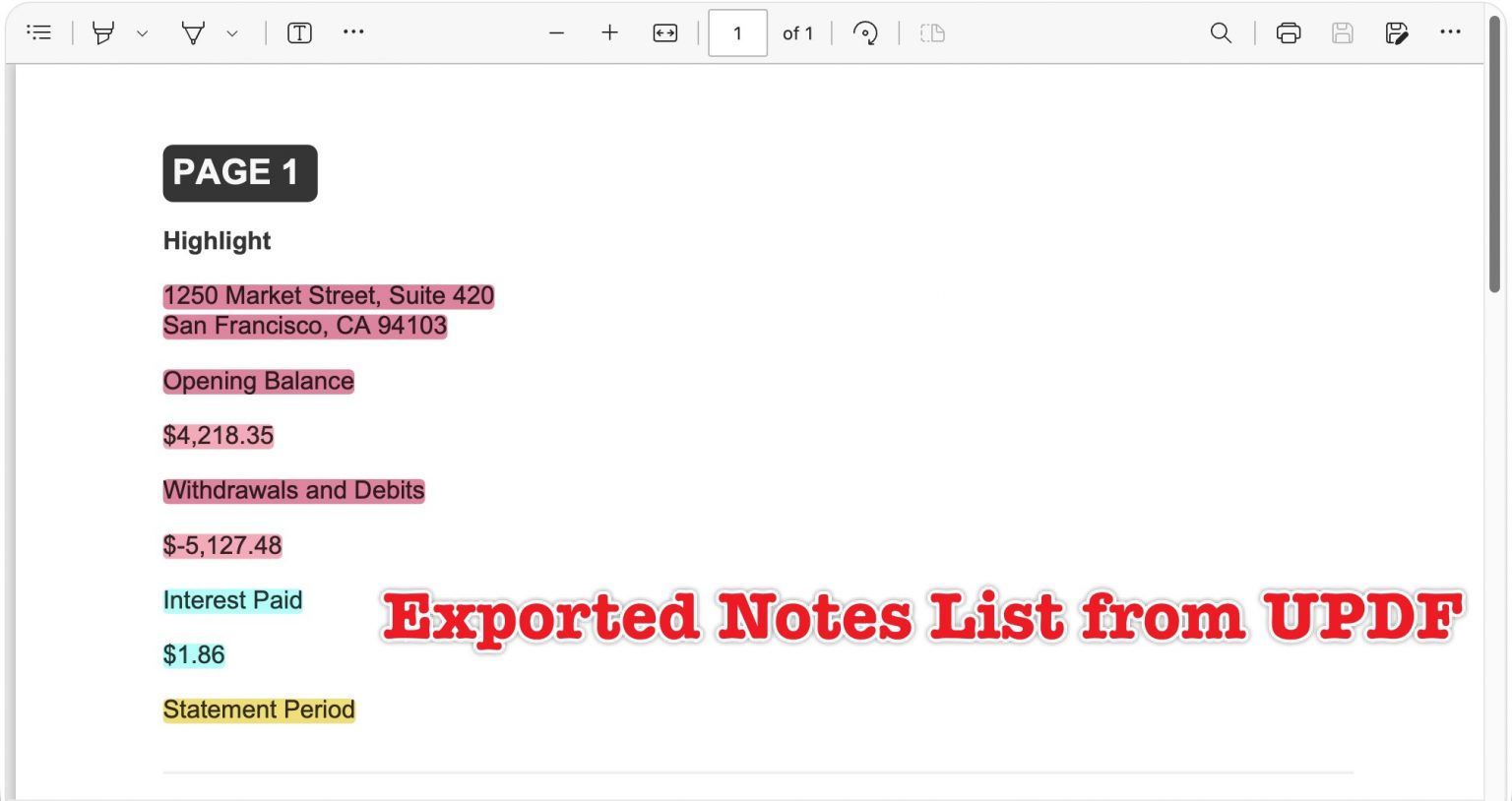
Managing highlights. This is where it separates from a plain reader. Every highlight and note lands in the Comment List panel, where you can jump to any mark, filter, and — through Export → Highlights — pull them all out into a separate file. If your whole reason for highlighting is to reuse the marked passages later, that export path matters; we cover it in depth in how to extract highlights from a PDF.
Across devices. One Pro license covers Windows, Mac, iOS, and Android — but syncing highlights between them isn't automatic from the license alone. To continue on another device, upload the file to UPDF Cloud and open it from there; a local file won't sync just because you're signed in on two machines. UPDF Cloud gives 1GB of free storage (10MB per file), with more on Pro.
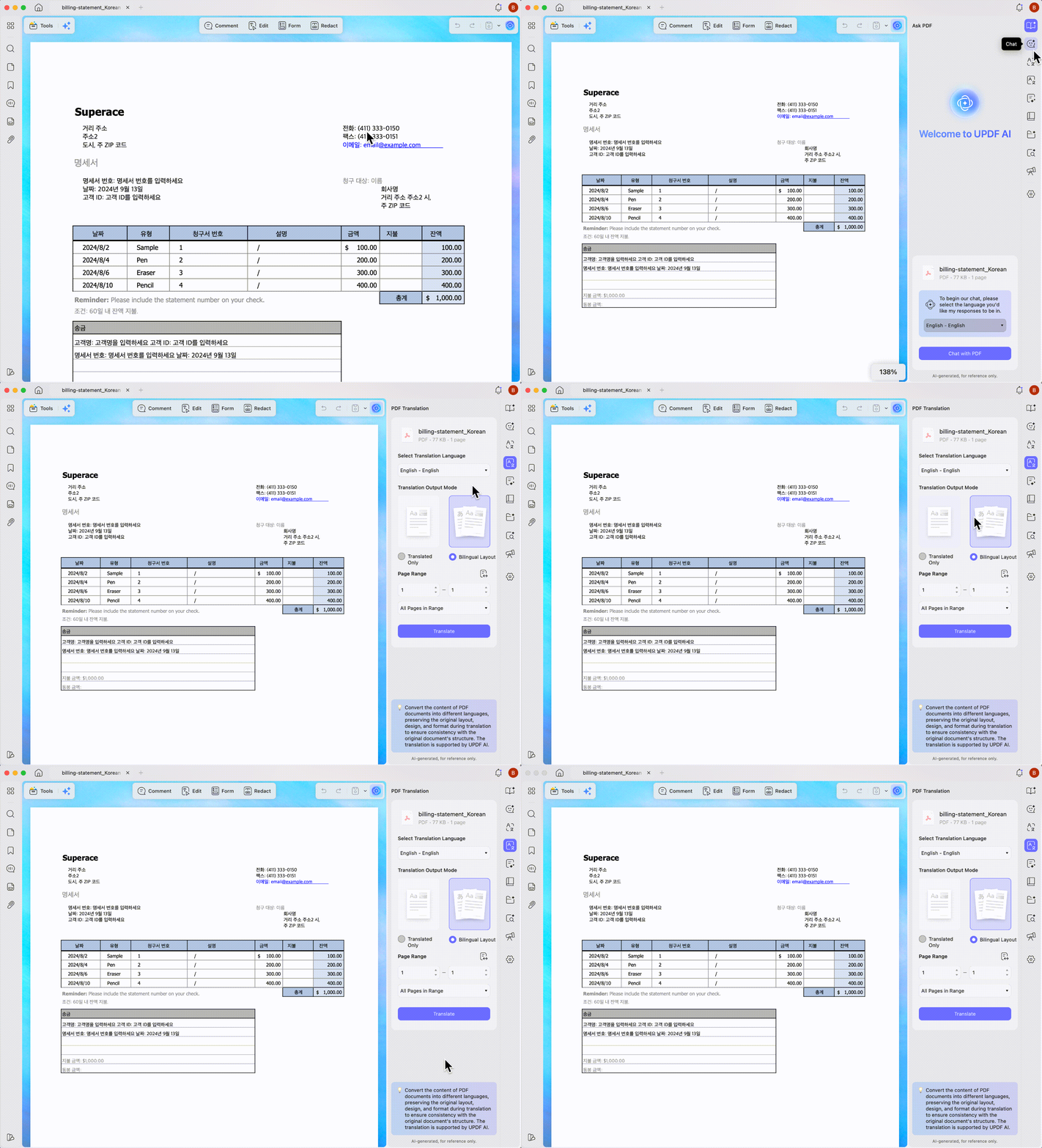
AI while reading. Built-in UPDF AI can summarize, translate, or explain a passage as you read — useful, though it's a convenience layer, not the reason to pick the app.
Best for:
- readers who work across devices and want highlights they can review and export, not just leave on the page.
Skip if:
- you never highlight at all and only need to view PDFs — any basic viewer will do, and UPDF's management and sync strengths would go unused.
For scanned documents, UPDF's OCR covers 38 languages; if scan quality is your main concern, see how the engines compare in our tested OCR software roundup. The Mac build from the official site runs on Apple silicon and includes OCR.
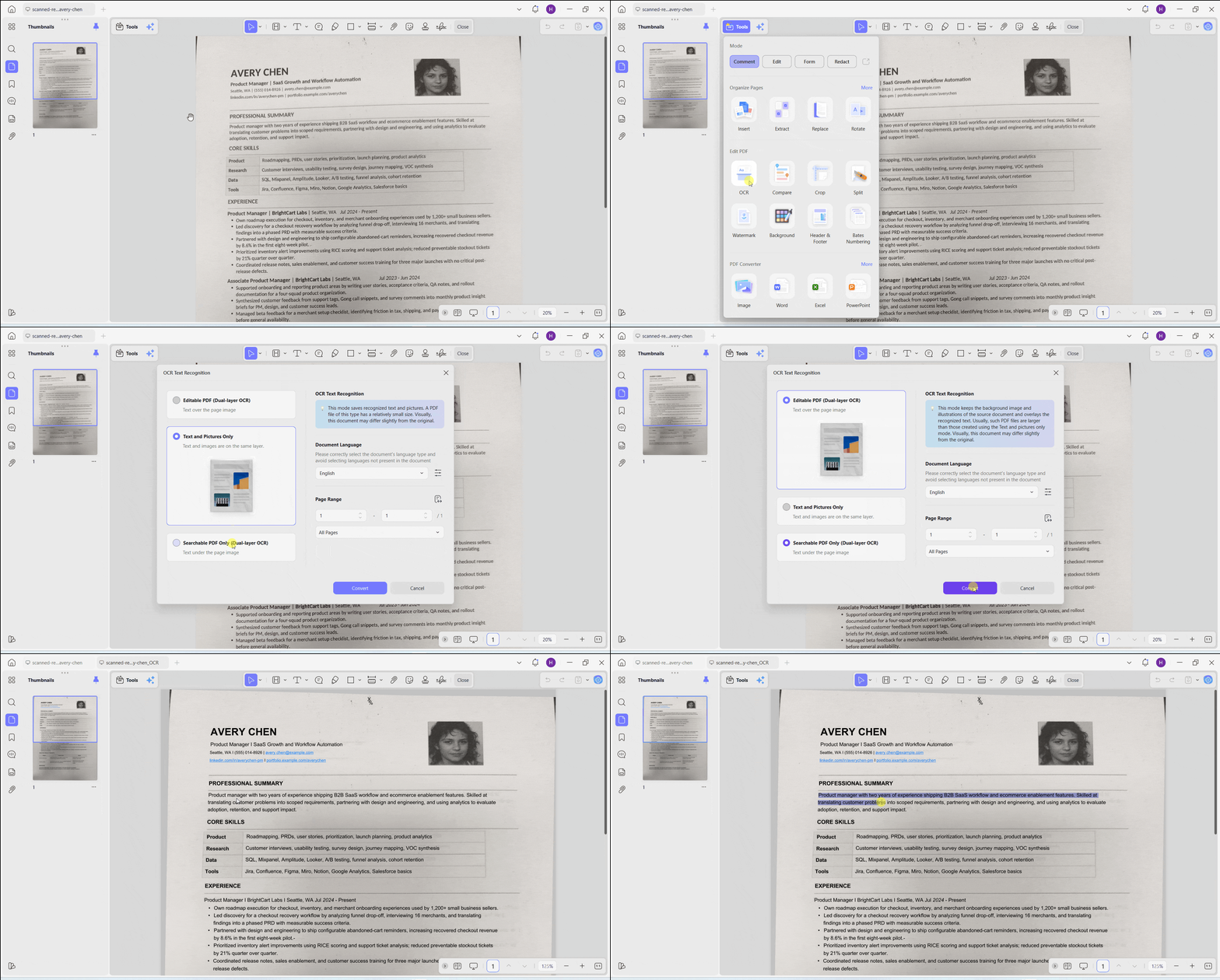
Free vs. Pro: the free version highlights and annotates fully, but it isn't unlimited — it requires sign-in, adds a watermark when you save, and caps OCR (5 uses) and conversion (2/day). Pro removes the watermark and those caps at $49.99/year or$79.99 one-time, covering all four platforms on one license.
Download UPDF for free to test highlighting and the highlight panel on your own file — installation is free, and Pro removes the export watermark when you need it.
Windows • macOS • iOS • Android 100% secure
Part 5. PDFgear — Best Free Reader with Highlighter
PDFgear is the one to reach for when you want capable highlighting without paying or signing up. It's fully free, adds no watermark, and requires no account — a rare combination.
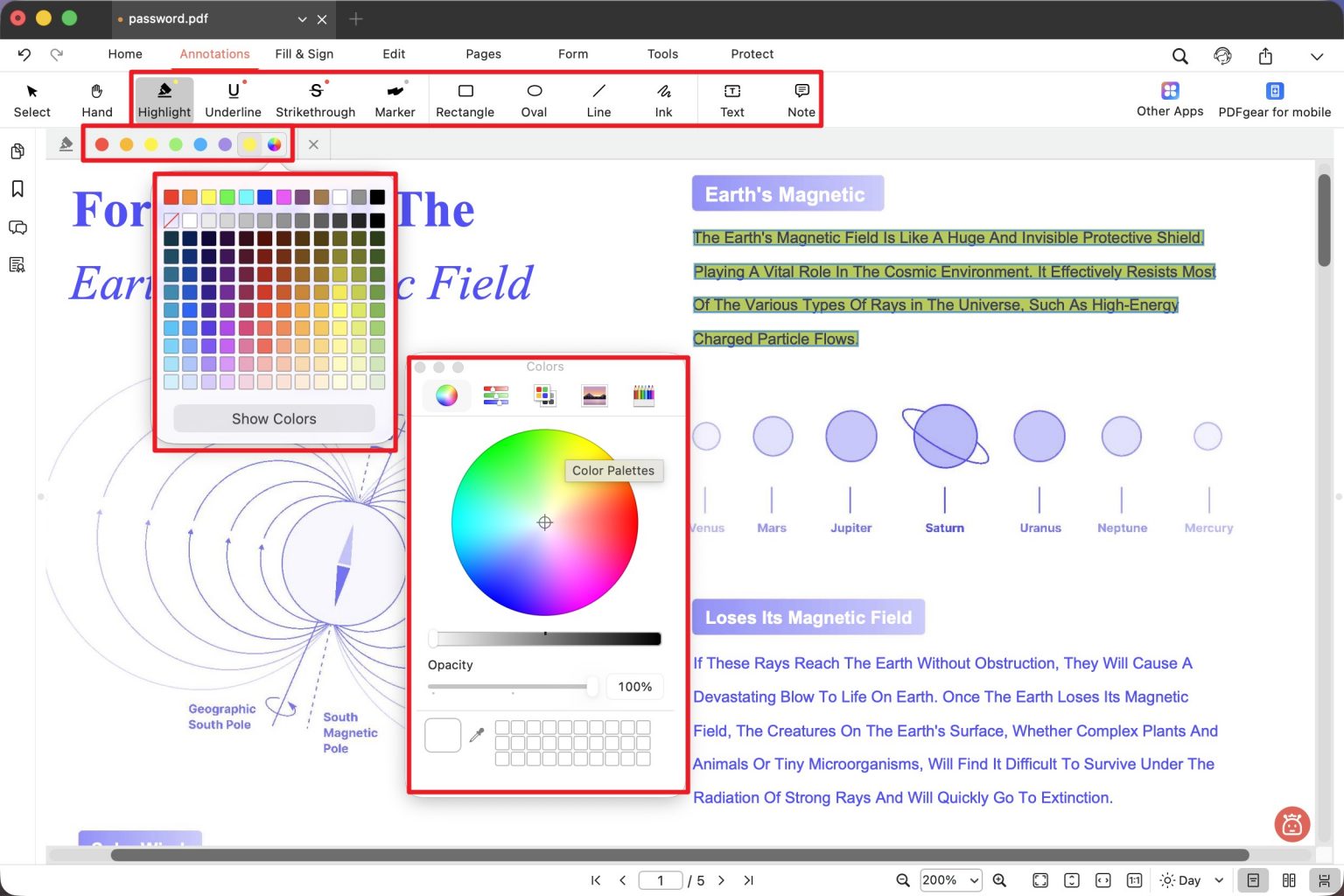
In testing it handled text highlighting and area marking cleanly, includes OCR to make scans searchable, and has a basic built-in AI for summaries. Reading comfort is more limited than UPDF's (dark mode, but fewer themes and reading modes), and its highlight management is a simpler list rather than a full export panel. It now runs on Windows, Mac, iOS, and Android.
Best for:
- anyone who wants no-cost, no-account highlighting and reading across desktop and mobile.
Skip if:
- you need deep highlight management, batch processing, or the export-to-summary workflow that UPDF offers.
Part 6. Adobe Acrobat — Familiar, but Highlighting Sits Beside a Paywall
Adobe Acrobat is the default many workplaces already run, and for good reason: it reads reliably across Windows, Mac, iOS, and Android, and its Comments list gives you a solid place to review and manage annotations.
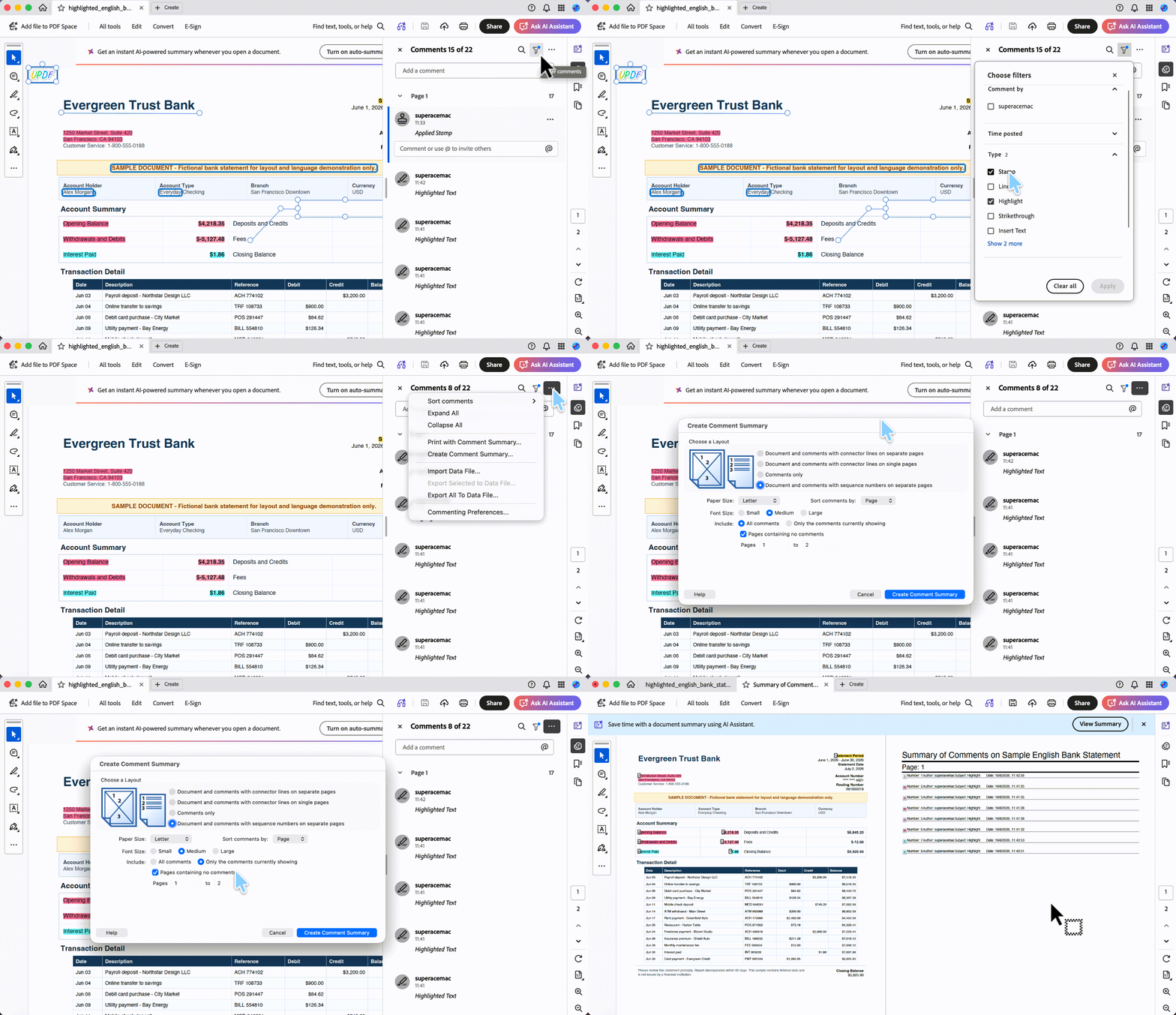
The free Acrobat Reader lets you highlight, add notes, and draw shapes. It has no dedicated area-highlight tool the way Foxit and UPDF do — you'd mark a scan or image with a rectangle or freehand shape instead — and the heavier tools (editing, conversion, and much of the AI) stay behind Acrobat Pro, which runs $19.99/month on the annual individual plan (about $239.88/year). For people already inside the Adobe ecosystem the familiarity is worth a lot; for a standalone highlighter it's expensive.
Best for:
- teams and users already standardized on Adobe who value the familiar interface.
Skip if:
- you mainly want reading and highlighting and don't want a monthly subscription.
Part 7. Foxit — Capable Free Reader, Editing Costs Extra
The free Foxit Reader is a solid desktop reader with more highlighting range than most free tools: alongside text highlight it has a dedicated Area Highlight tool and custom highlight colors, plus a Comments pane to review your marks. That makes it a genuine option if you want free area highlight on a desktop without installing a heavier app.
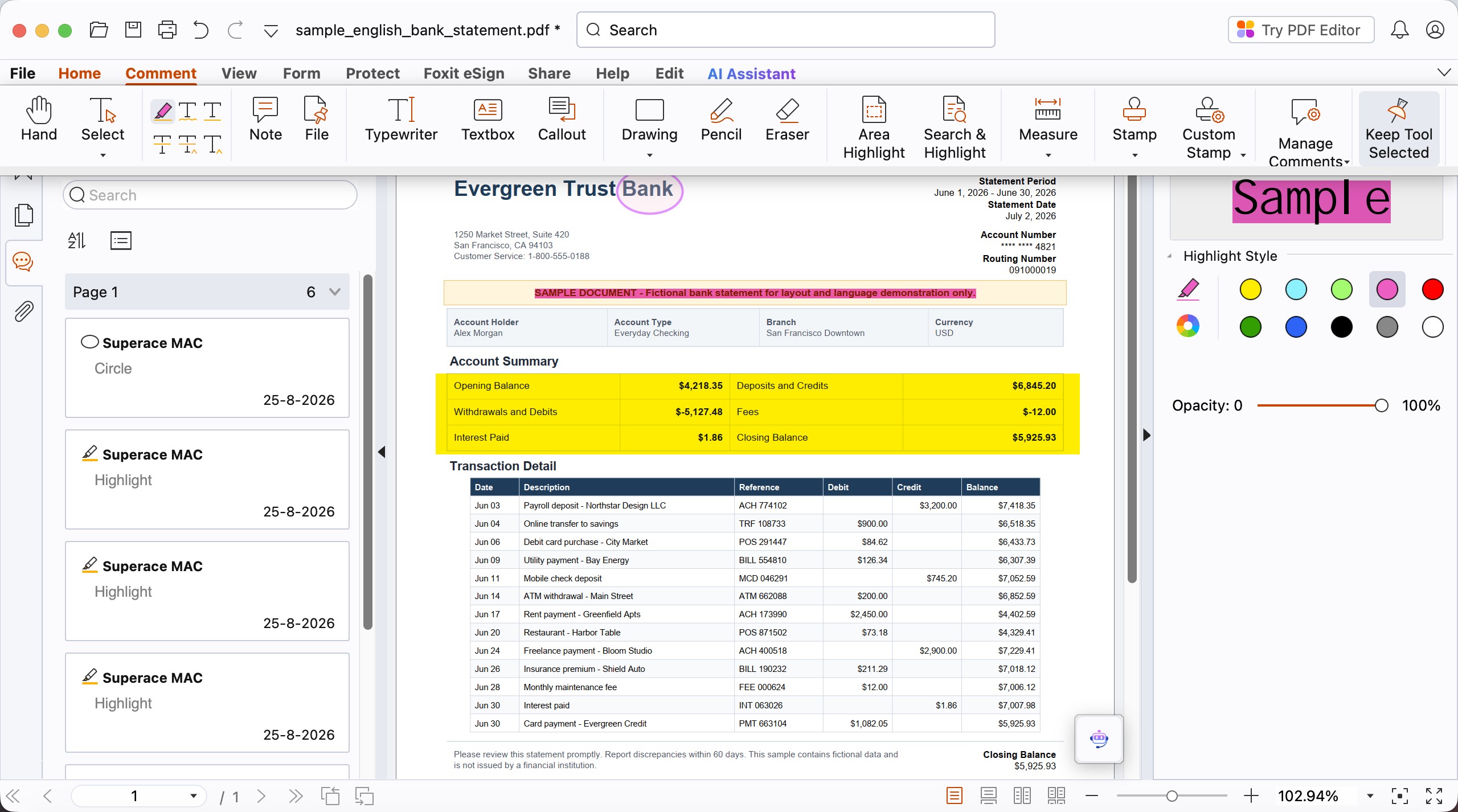
Where money comes in is editing and conversion: the full editor is $129.99/year (PDF Editor) or $159.99/year (Editor+, which adds mobile apps), and Foxit still offers a perpetual one-time license if you dislike subscriptions. The trade-offs for a reader are that the desktop apps are Windows and Mac only (mobile needs Editor+), and the ribbon interface leans professional rather than lightweight.
Best for:
- desktop users who want free text and area highlight in a full-featured reader, with a perpetual-license path if they later need editing.
Skip if:
- you read mainly on a phone or tablet, or want a lighter interface.
Part 8. Best for Tablet & Mobile Reading
Reading on a tablet with a stylus, or on a phone, is a different job from desktop markup — so pick by your platform. Note that the two apps below are strong in their own lanes but are locked to their ecosystems, which is the gap UPDF's mobile apps fill.
iPad / iOS — MarginNote 4
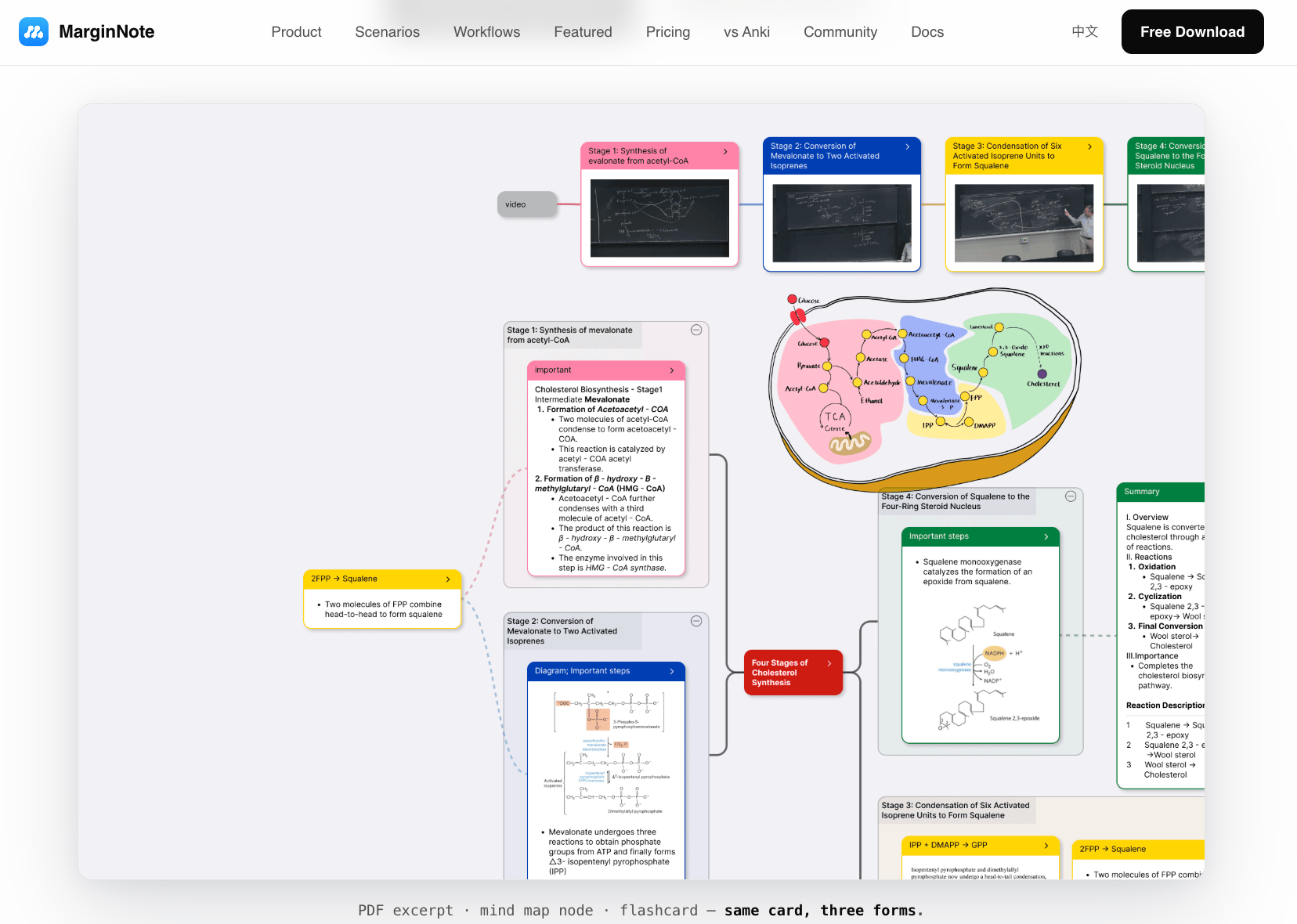
If you read to study, MarginNote 4 (version 4.4.6) turns highlighting into a learning system: one excerpt becomes a highlight, a mind-map node, and a flashcard at once. It's excellent for deep work on textbooks and papers with an Apple Pencil. The catch is platform lock-in — it exists only on Apple devices (no Android, no Windows). Pricing is a one-time $12.99 for Pro (iPhone/iPad only) or $51.99 for Max (all Apple devices).
Free on any phone — Xodo
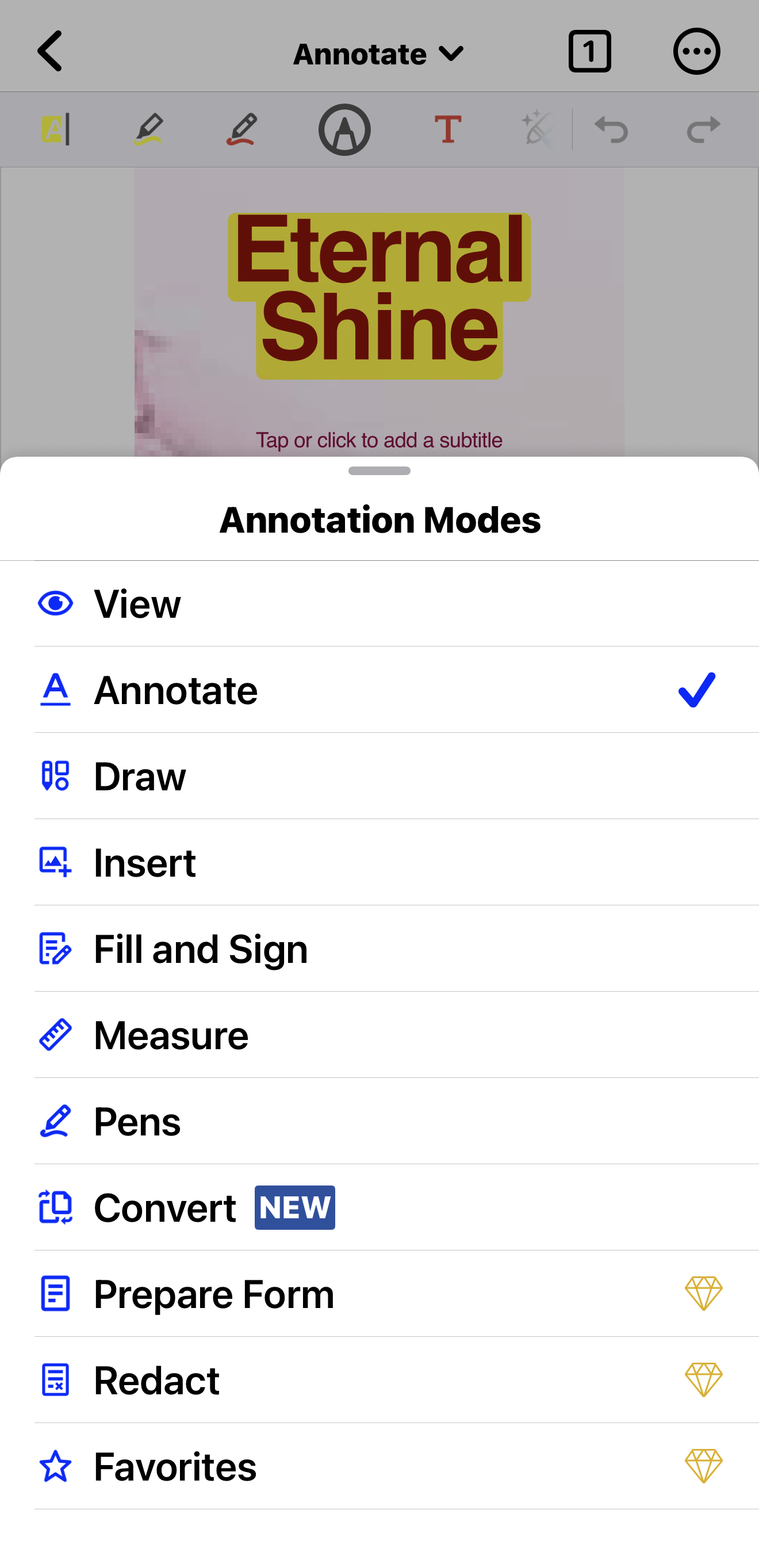
Xodo is the most no-nonsense pick for phones, and the go-to on Android where MarginNote can't run: highlighting, annotation, form filling, and signing are all free, with no watermark and no account required. Advanced export and format conversion sit behind its paid tier. It runs on Android and iOS as well as desktop and web (tested here on Xodo 9.16.0), so it's a practical everyday reader whichever phone you carry.
Both platforms — UPDF
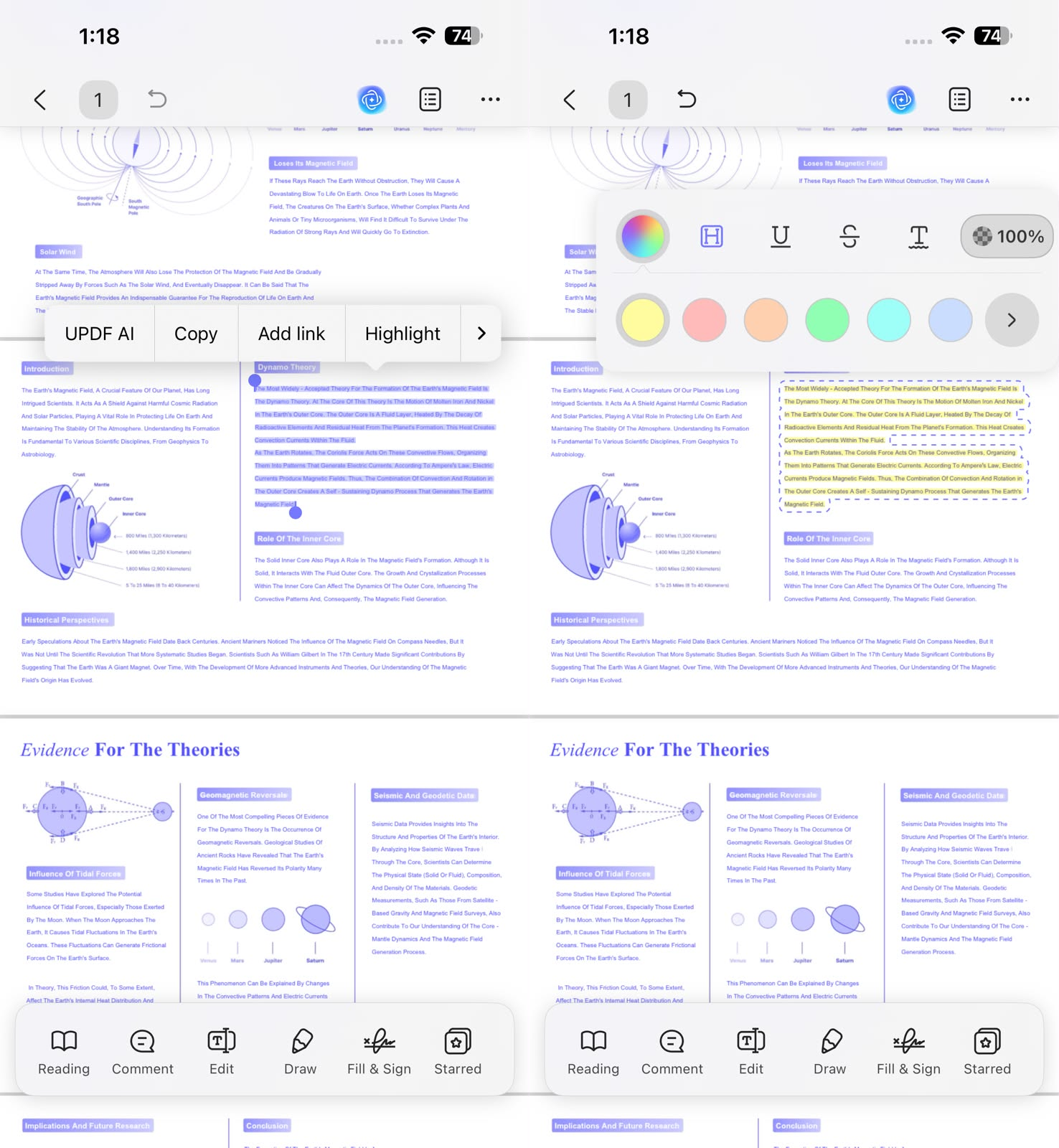
MarginNote is Apple-only, and Xodo, while it spans iOS and Android, is a lightweight reader rather than a study-and-management tool. UPDF's mobile apps (tested on 2.5.4.0641) run on both iOS and Android with full text highlighting and annotation, and — unlike the two above — pair with a desktop app that adds area highlight and the Comment List export panel. Save a file to UPDF Cloud and you can mark it on your phone, then open that same file to pick up the full workflow on a tablet or laptop. (Area highlight is a desktop feature; on mobile you get text highlighting.)
Windows • macOS • iOS • Android 100% secure
For the step-by-step of highlighting text, images, and scanned pages on any of these, see how to highlight a PDF.
Part 9. FAQ
1. Do highlights sync between my phone and computer?
What syncs is the file, not the app. A highlight is saved inside the PDF as a standard annotation, so any compatible reader on any device will show it once it has that same file — the two devices don't need to run the same app. What you need is a shared copy of the file: put it in a cloud folder (or a reader's own cloud, like UPDF Cloud), open that copy on each device, and your highlights travel with it. A local file on one machine won't appear on another just because you're signed in.
2. Can I export all my highlights into one file?
Yes, in readers with a highlight export feature. UPDF lets you pull every highlight out of the document through the Comment List's Export → Highlights option, turning a marked-up PDF into a study sheet or summary. (Some editors offer export too, though availability varies by app and platform, so check before you rely on it.) The full walkthrough appears earlier in this article.
3. Is a free online highlighter safe for confidential files?
It depends on the tool — check how it handles your file. Some web highlighters upload your document to their servers to process it; others, including PDFgear Online and Xodo, state they process files locally in the browser without uploading. For sensitive contracts, verify each tool's data handling, or use a desktop app that keeps the file on your own machine.
4. Which reader is best for highlighting scanned textbooks?
One with OCR. A scan is an image, so you need OCR to make the text selectable and highlightable first. UPDF, PDFgear, Adobe, and Foxit all include OCR.
Conclusion
Choosing a PDF reader with a highlighter isn't about whether it can highlight — nearly all of them can. It's about what happens next: can you review your highlights in one place, export them, and get the same file open across your devices? On that test, UPDF is the best all-around pick, PDFgear is the best fully-free option, the free Foxit Reader is a strong desktop choice if you want area highlight at no cost, and Adobe suits those already in its ecosystem. For tablets, MarginNote is the iPad study powerhouse and Xodo is the free phone standby — with UPDF the one that pairs mobile highlighting with a desktop workflow through UPDF Cloud.
A consistent color scheme helps separate key ideas from details you want to check later. For a visual companion, the video below focuses on reading PDFs in UPDF.
Download UPDF for free to see how the highlight panel and cross-device reading work on your own documents — installation is free, and Pro removes the export watermark when you're ready.
Windows • macOS • iOS • Android 100% secure





 Enrica Taylor
 Enola Davis