 UPDF
UPDF
 UPDF for Windows
 UPDF for Mac
 UPDF for iPhone/iPad
 UPDF for Android
 Nomostar
 UPDF AI Online
 UPDF Sign
 IvyCraft
 Edit PDF
 Annotate PDF
 Create PDF
 PDF Form
 Edit links
 Convert PDF
 OCR
OCR PDF to Word
 PDF to Image
 PDF to Excel
 Organize PDF
 Merge PDF
 Split PDF
 Crop PDF
 Rotate PDF
 Protect PDF
 Sign PDF
 Redact PDF
 Sanitize PDF
 Remove Security
 Read PDF
 UPDF Cloud
 Compress PDF
 Print PDF
 Batch Process
 About UPDF AI
 UPDF AI Solutions
 AI User Guide
 FAQ about UPDF AI
 Summarize PDF
 Translate PDF
 Chat with PDF
 Chat with AI
 Chat with image
 PDF to Mind Map
 Explain PDF
 PDF AI Tools
 Image AI Tools
 AI Chat Tools
 AI Writing Tools
 AI Study Tools
 AI Working Tools
 Other AI Tools
 AI Bookmark Generation
 AI Bookmark Summary
 AI Watermark Generation
 AI Background Generation
 AI Sticker Generation
 AI Stamp Generation
 AI Editing Suite
 UPDF Copilot
 AI Page Management
 AI Semantic Search
 PDF to Word
 PDF to Excel
 PDF to PowerPoint
 Enterprise Solution
 Enterprise Sign
 Enterprise AI
 Enterprise Plan
 Enterprise User Guide
 Enterprise Webinar
 IT
IT Education
 Construction
 Financial Service
 Healthcare
 Insurance
 Legal
Legal Manufacturing
 Government
 Researchers & PhDs
 Solopreneurs & Freelancers
 Lawyers & Legal Professionals
 Real Estate Agents & Brokers
 Education Solution
 Customer Stories
 User Guide
 UPDF Tricks
 FAQs
FAQs UPDF Reviews
 Download Center
 Blog
Blog Newsroom
 Tech Spec
 Updates
 UPDF vs. Adobe Acrobat
 UPDF vs. Foxit
 UPDF vs. PDF Expert

Ever struggled to open a PDF when Adobe feels too heavy or slow? You don’t always need Adobe software to open your PDF files, as there are plenty of other tools available. Yes, that is correct. You can use different methods, such as UPDF, Web browsers, Google Driver, online tools, mobile apps and more to open PDF without Adobe. In this article, I will tell you how to open PDFs without Adobe using five different methods. Along with that, I will also share how to use UPDF to perform more operations on PDFs. If you’re interested, you can click the button below to download it for free.
Windows • macOS • iOS • Android 100% secure
Part 1. Method 1: UPDF (Best Adobe Alternative)
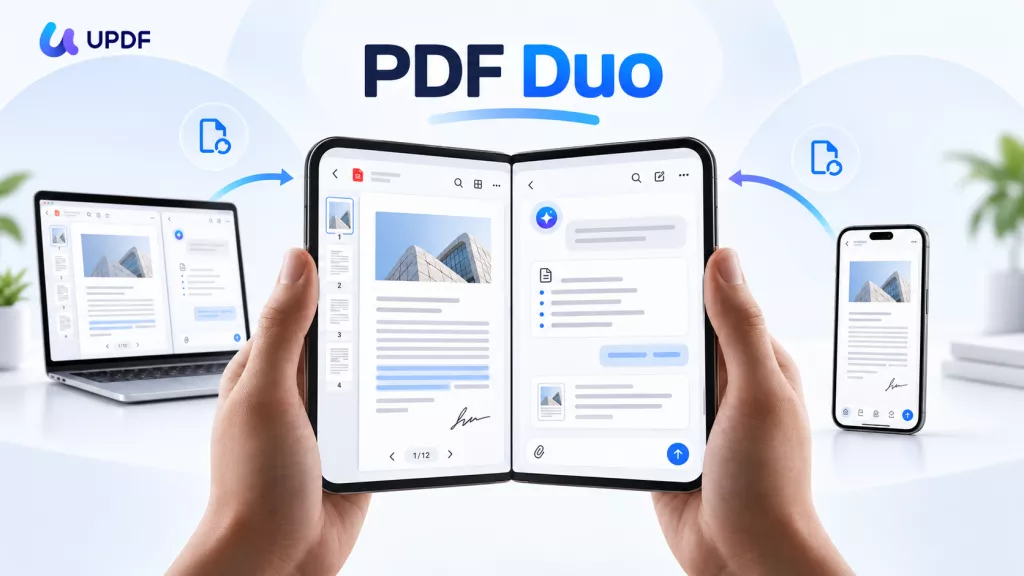
The first method to open a PDF without Adobe is using UPDF. It is a modern AI-powered PDF reader and editor that works across all platforms, including Windows, Mac, Android and iOS. You can use UPDF to edit PDF files, organize files, merge PDFs and more. This tool can also convert your PDFs into different other formats. Moreover, you can use UPDF batch mode to read multiple PDF files at the same time. Let’s discuss some of the famous features of this tool.
Windows • macOS • iOS • Android 100% secure
1. You can read PDFs for free without annoying pop-ups or ads.
2. As compared to Adobe, it is lightweight and runs smoothly on all devices.
3. It can quickly summarize long documents instantly to capture key points. It’s AI bookmark agent can read the document's structure and automatically creates smart bookmarks.
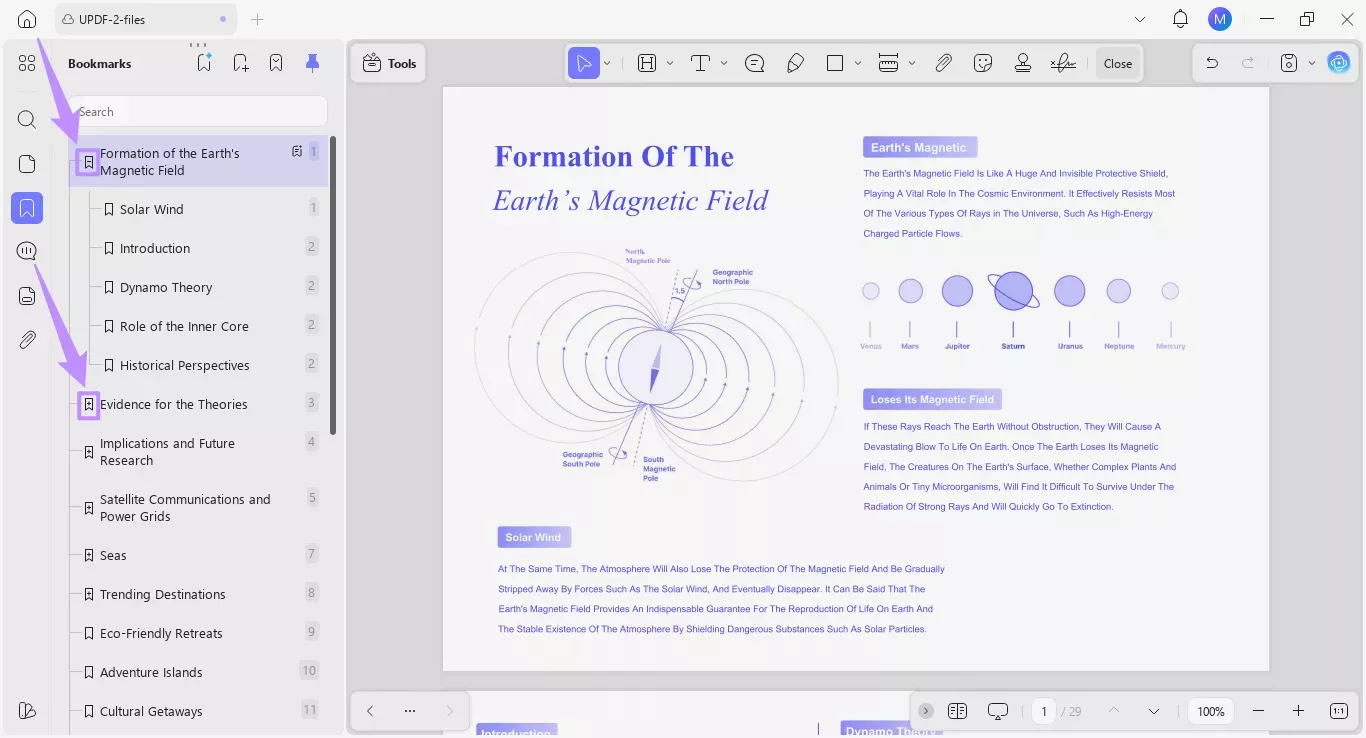
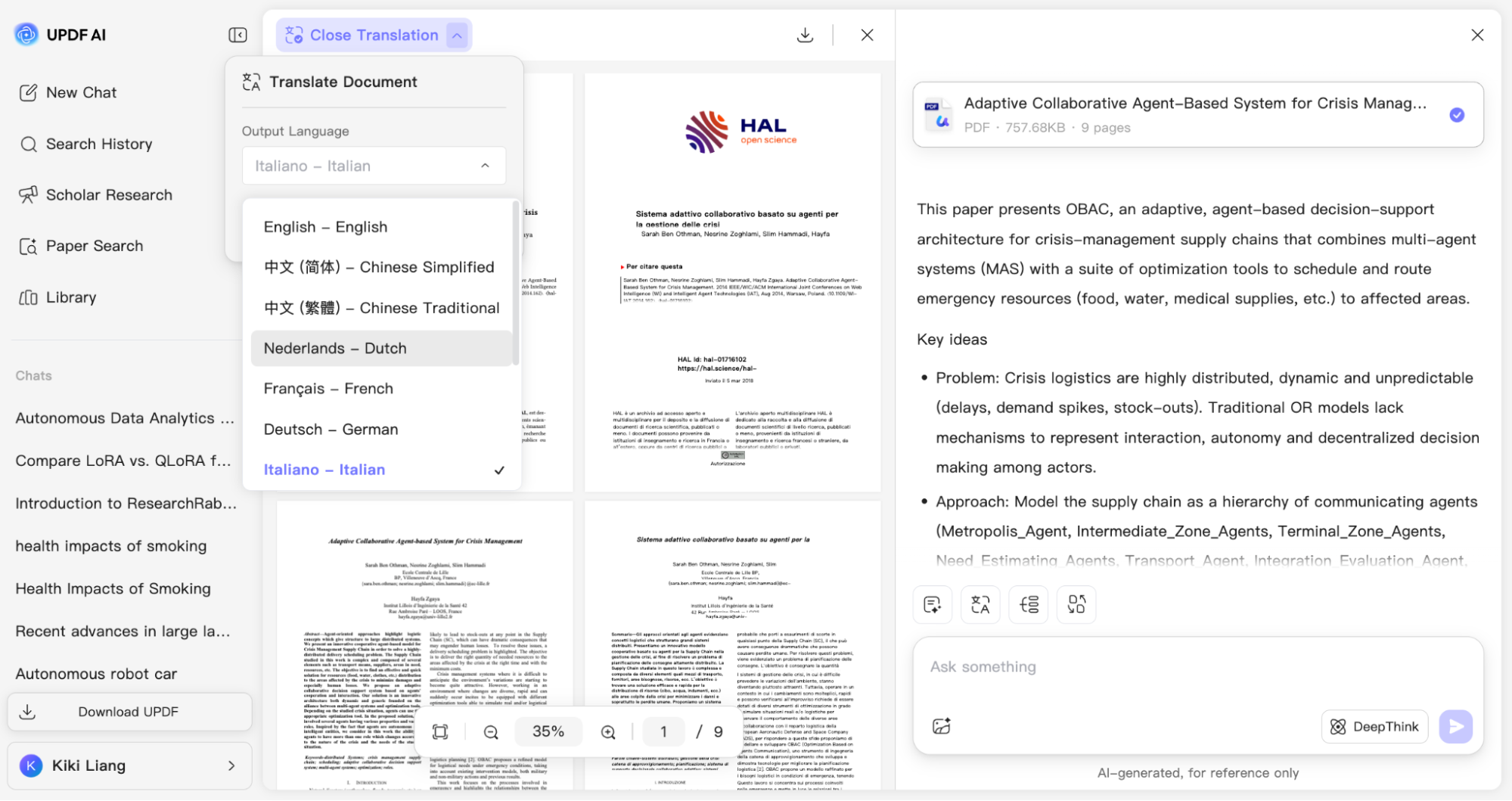
4. You can use UPDF to translate PDFs into multiple languages.
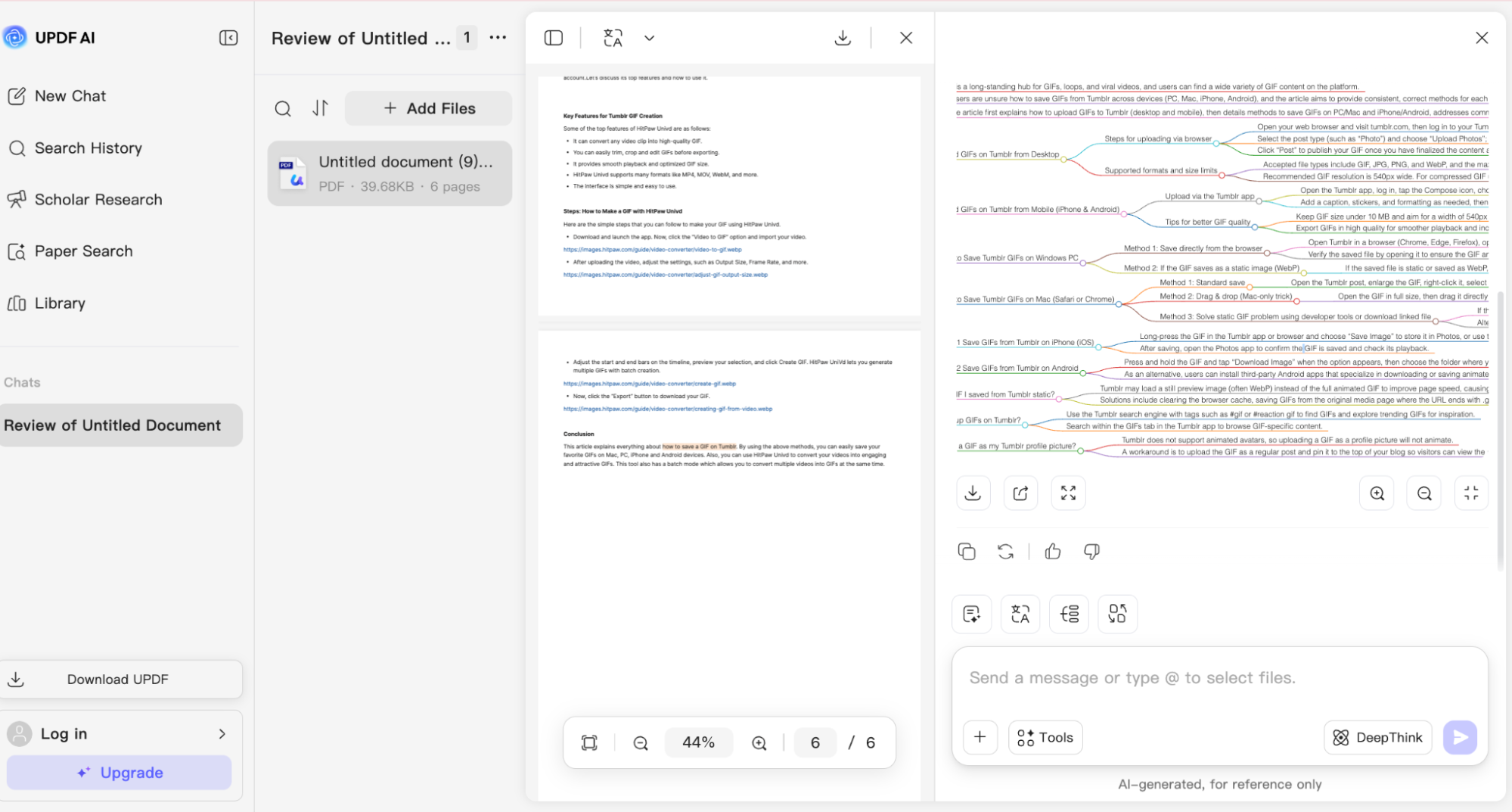
5. It generates mind maps for lengthy PDFs.
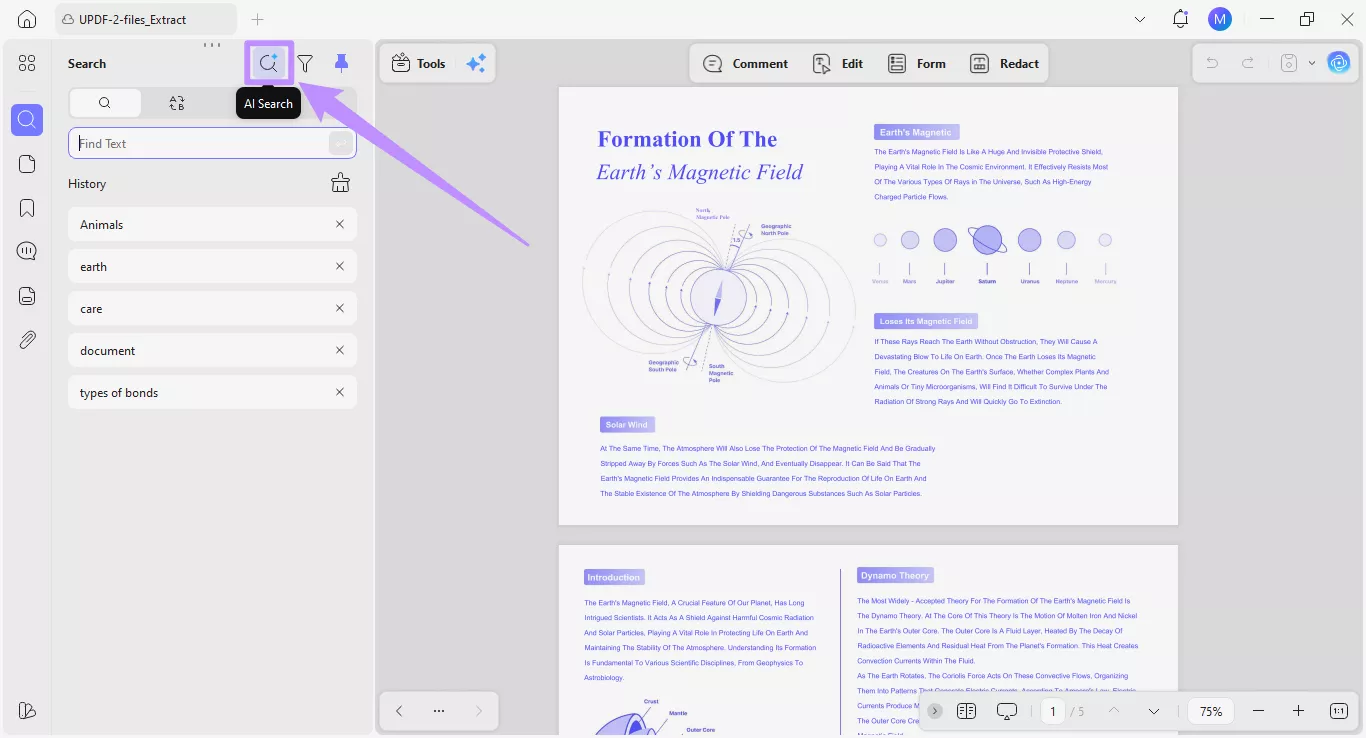
6. You can use 10 intelligent AI agents like AI Bookmark Generator, AI Watermark Creator, AI Sticker Maker, AI Stamp Creator, AI Background Generator, Semantic Search Agent and more to simplify different PDF tasks.
7. It offers a modern and intuitive UI design.
8. You can run UPDF on all your devices, like Windows, Mac, iOS, Android.
9. You can keep your files updated and accessible with the built-in cloud feature
Undoubtedly, UPDF is the best alternative to Adobe Acrobat as it is easy to use and provides many advanced features. You can use this software to chat with your PDFs. In terms of pricing, UPDF is highly recommended as it provides flexible plans, including both annual subscriptions and a one-time lifetime license starting from$79.99.
Additionally, there’s a limited-time offer for UPDF 2.5 available that gives you access to 10 intelligent AI agents. Don’t miss out—click this link and upgrade now to enjoy new features.
Windows • macOS • iOS • Android 100% secure
Part 2. Method 2: Web Browsers (Chrome, Edge, Safari)
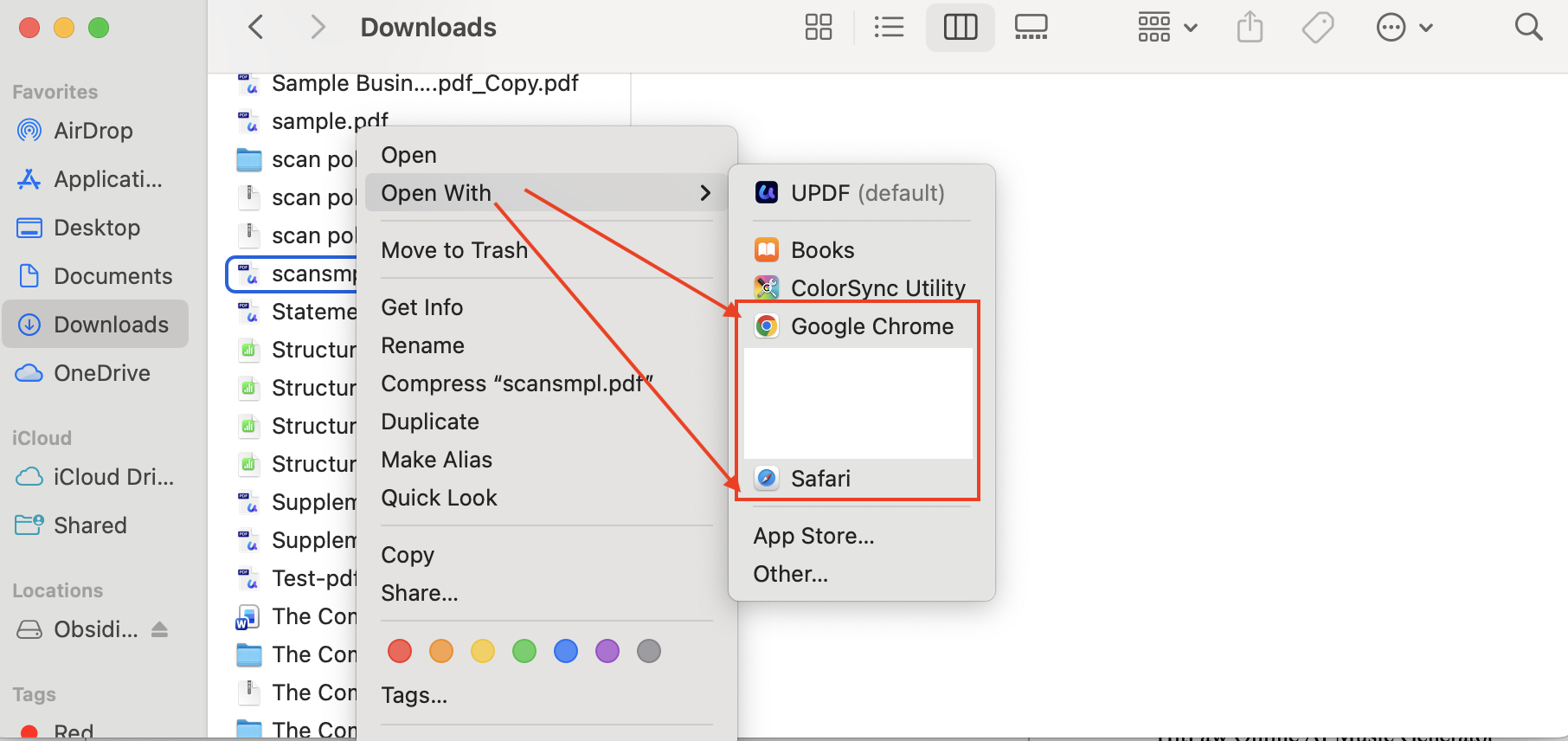
You can use popular web browsers like Google Chrome, Microsoft Edge, and Safari to quickly open PDF files without requiring any additional software. To open your PDF files in web browsers, you just need to drag and drop a PDF or click “Open with browser.”Once the file is uploaded, the built-in PDF viewer will instantly check the document and open it within seconds.
Pros:
- No need to install any additional software
- Quickly open PDF files
- Best for quick viewing or checking content
Cons:
- Limited Features
- You can’t edit PDF files, annotate or fill forms properly
Best For:
- This method is best for occasional PDF viewing and quick checks
Part 3. Method 3: Google Drive/ Gmail Viewer
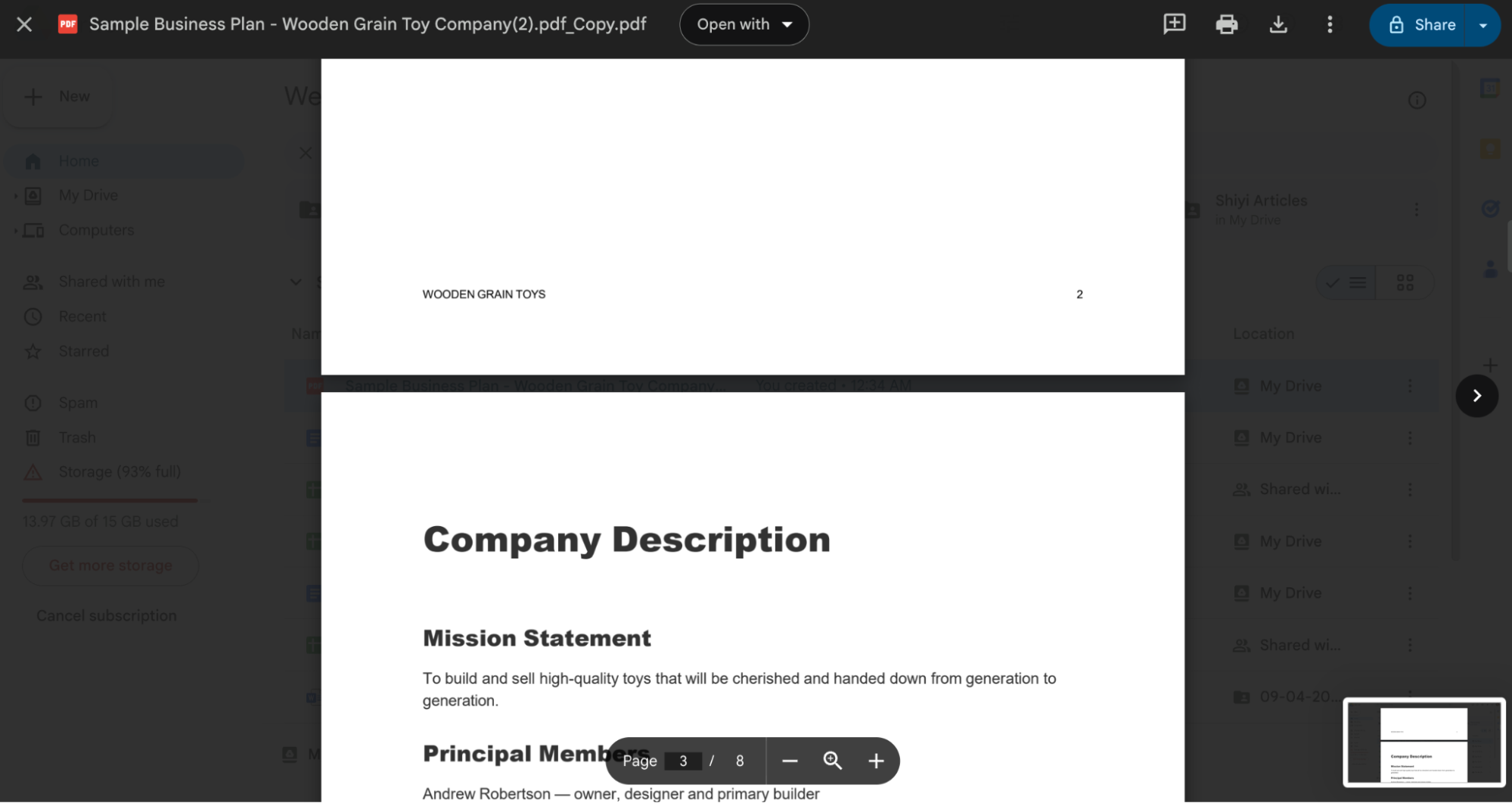
Google Drive also offers a built-in PDF viewer that lets you open and read PDFs directly in your browser without downloading them. To use this feature, just upload your PDF to Google Drive or open an attachment from Gmail, the tool will automatically open the file for you.
Pros:
- No download needed
- Fully cloud-based
- Accessible from any device
Cons:
- Requires a stable internet connection
- Can’t edit PDF files
Best For:
- Quick Cloud viewing
- Google Workspace users
Part 4. Microsoft Edge (Windows Built-in)
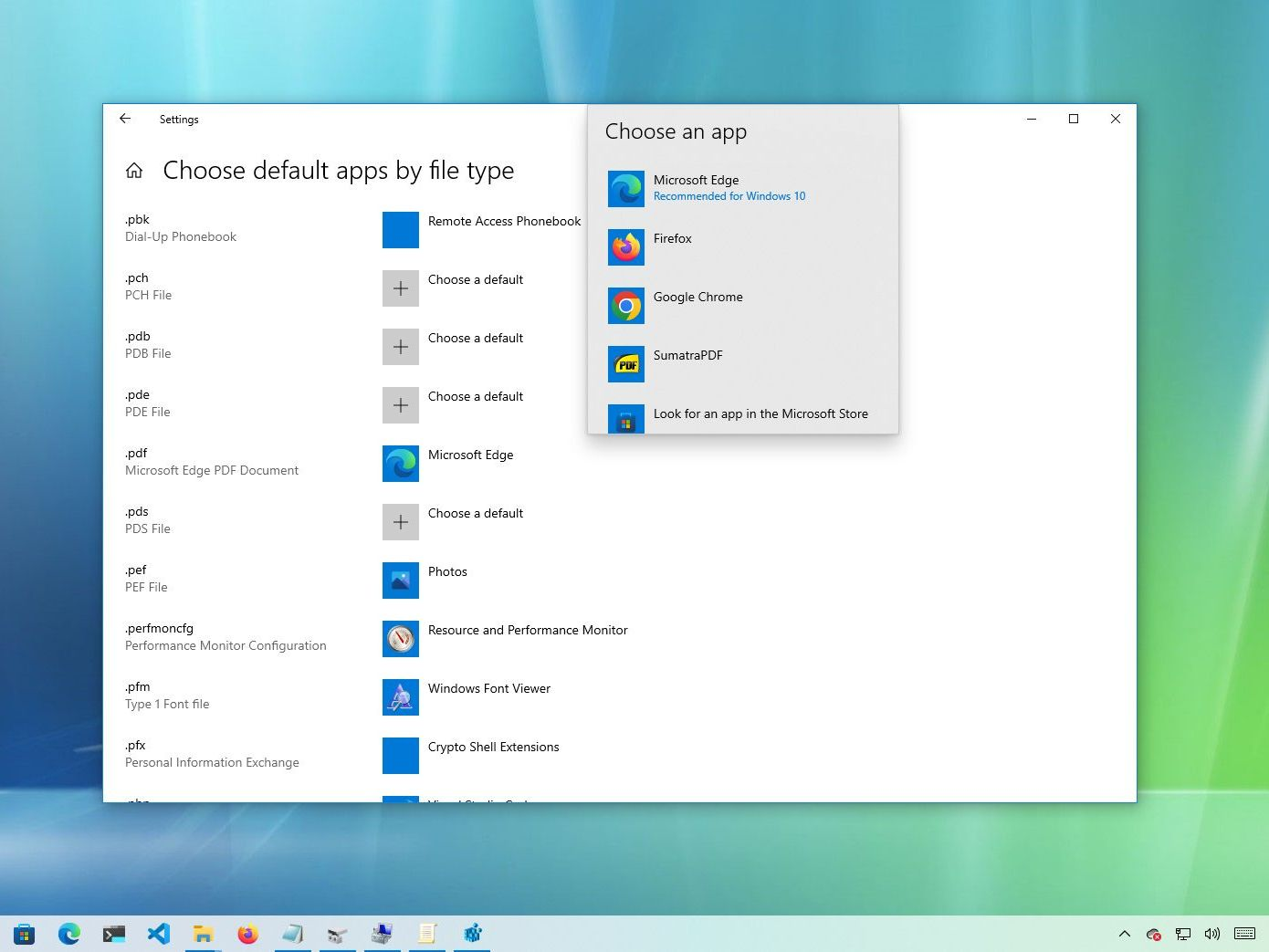
If you don’t want to use Adobe to open PDFs, you should use Microsoft Edge on Windows 10 and Windows 11. It is a built-in PDF reader that opens files instantly without using any third-party app. You can simply double-click your PDF file, and Microsoft Edge will open it directly. Once your PDF is opened, you can view, search keywords and perform basic functions like highlighting and drawing.
A practical reading example can help you decide how to work through the file. The following demonstration introduces reading PDFs in UPDF.
Pros:
- Faster than Adobe
- Offers built-in tools for highlighting text, adding notes and comments
- No installation required
Cons:
- Offers limited editing features
- Available for Windows users only
Best For:
- Windows users who need a simple PDF reader.
Part 5. Method 5: Preview (Mac Built-in)
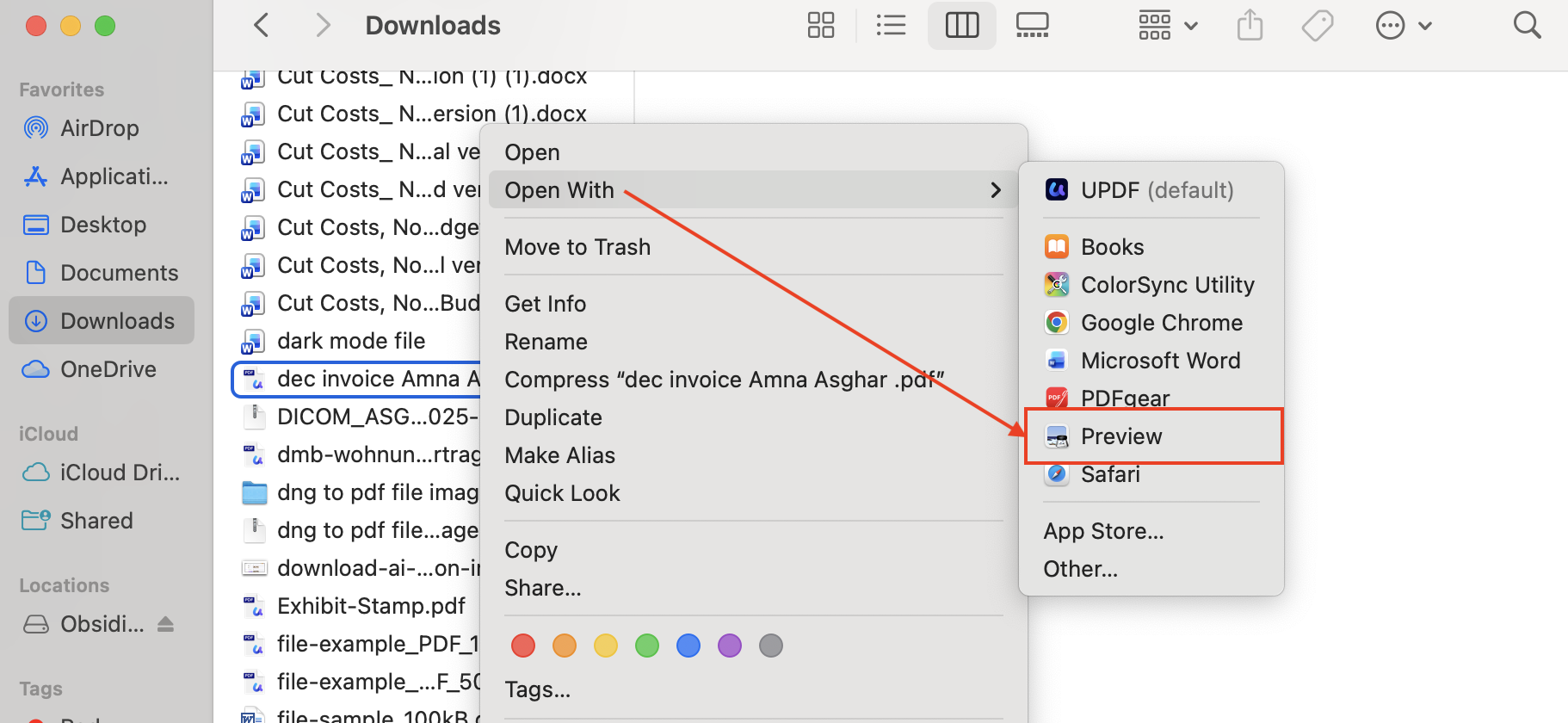
Mac users can also open PDF files without Adobe using Preview. It is a default PDF and image viewer on macOS that works better than Adobe software. This app offers a smooth and fast way to open and manage PDF files. Apart from viewing PDF files, you can read, highlight, annotate and sign your documents as well.
Pros:
- Best for Mac users
- Offers many editing features
- Faster than Adobe and other PDF readers
Cons:
- Only available on macOS
- Limited features
Best For:
- Mac users
Part 6. Comparison: 5 Methods at a Glance
The following table provides a quick overview of the top PDF viewing methods discussed above. In this table, I will compare their platform support, cost, rating and other details.
| Tool | Platform | Cost | Editing | AI Features | Rating |
| UPDF | All platforms | Free and Paid versions available | Advanced editing features | ✅ | 5/5 |
| Web Browsers | All platforms | Free | None | ❌ | 3/5 |
| Google Drive | Wed-based | Free | Basic | ❌ | 3/5 |
| Edge | Windows | Free | Basic | ❌ | 4/5 |
| preview | macOS | Free | Basic | ❌ | 4/5 |
Part 7. FAQs
What's the Best Free PDF Reader without Adobe?
Undoubtedly, UPDF is one of the best PDF readers for opening PDF files. It also offers advanced features such as editing PDFs, adding comments, and batch processing documents. You can also use this tool to translate PDFs, organize and merge files.
Is it Safe to Open PDFs without Adobe?
Yes, it is safe to open PDFs without Adobe. However, it is recommended to use a reliable PDF reader like UPDF. Also, make sure to download your files only from official or trusted sources to avoid security risks.
How to Open a PDF on iPhone without Adobe?
You can easily open PDFs on an iPhone without Adobe by using built-in apps like Apple’s built-in Books. Alternatively, you can use UPDF for iOS, which offers many advanced options like editing, annotating, and managing PDFs in one place.
Windows • macOS • iOS • Android 100% secure
Conclusion
That’s all, folks. You have finally learned how to open PDFs without Adobe. You can try all these methods to open your PDF files with ease. All of these methods are easy to use, but they lack advanced editing features, which means you cannot edit your PDF files in real time. For a more powerful and better experience, I would recommend using UPDF, as it is easy to use and provides many features like viewing, editing, annotation, and PDF AI tools in one place.
Windows • macOS • iOS • Android 100% secure




 Enya Moore
 Delia Meyer
 Lizzy Lozano