 UPDF
UPDF
 UPDF for Windows
 UPDF for Mac
 UPDF for iPhone/iPad
 UPDF for Android
 Nomostar
 UPDF AI Online
 UPDF Sign
 IvyCraft
 Edit PDF
 Annotate PDF
 Create PDF
 PDF Form
 Edit links
 Convert PDF
 OCR
OCR PDF to Word
 PDF to Image
 PDF to Excel
 Organize PDF
 Merge PDF
 Split PDF
 Crop PDF
 Rotate PDF
 Protect PDF
 Sign PDF
 Redact PDF
 Sanitize PDF
 Remove Security
 Read PDF
 UPDF Cloud
 Compress PDF
 Print PDF
 Batch Process
 About UPDF AI
 UPDF AI Solutions
 AI User Guide
 FAQ about UPDF AI
 Summarize PDF
 Translate PDF
 Chat with PDF
 Chat with AI
 Chat with image
 PDF to Mind Map
 Explain PDF
 PDF AI Tools
 Image AI Tools
 AI Chat Tools
 AI Writing Tools
 AI Study Tools
 AI Working Tools
 Other AI Tools
 AI Bookmark Generation
 AI Bookmark Summary
 AI Watermark Generation
 AI Background Generation
 AI Sticker Generation
 AI Stamp Generation
 AI Editing Suite
 UPDF Copilot
 AI Page Management
 AI Semantic Search
 PDF to Word
 PDF to Excel
 PDF to PowerPoint
 Enterprise Solution
 Enterprise Sign
 Enterprise AI
 Enterprise Plan
 Enterprise User Guide
 Enterprise Webinar
 IT
IT Education
 Construction
 Financial Service
 Healthcare
 Insurance
 Legal
Legal Manufacturing
 Government
 Researchers & PhDs
 Solopreneurs & Freelancers
 Lawyers & Legal Professionals
 Real Estate Agents & Brokers
 Education Solution
 Customer Stories
 User Guide
 UPDF Tricks
 FAQs
FAQs UPDF Reviews
 Download Center
 Blog
Blog Newsroom
 Tech Spec
 Updates
 UPDF vs. Adobe Acrobat
 UPDF vs. Foxit
 UPDF vs. PDF Expert

A PDF link makes it easier to share information, direct readers to a webpage, navigate between pages, or provide supporting files. However, “creating a link for a PDF” can refer to several different tasks.
In this guide, you’ll learn how to use UPDF to create a shareable link for a PDF, add clickable web or page links inside a PDF, and attach supporting files to a PDF.
Part 1: Different Ways to Create Links for PDFs
Before getting started, choose the method that matches your goal:
- Create a shareable link for a PDF: Generate a URL that others can open to view the PDF. Follow the steps in Part 2.
- Add a clickable link inside a PDF: Direct readers to a webpage or another page in the same PDF. Follow the steps in Part 3.
- Attach a file to a PDF: Add a supporting document that readers can open from the PDF. Follow the steps in Part 4.
Also Read: PDF to URL: 3 Best Methods With Steps
Part 2: Creating a Link for PDF Sharing
Do you wish to share your PDF document with another user? Rather than going for complicated procedures, you prefer working with simplicity. A link is the best way to share a PDF with another user. As you create a link to your PDF, it is shareable throughout any platform in the market. While you can do it using UPDF for Windows and Mac, the steps to execute this are as simple as they can be. When creating a sharing link for PDF with UPDF, it offers the functions as follows:
- Easily create a link for sharing with one click.
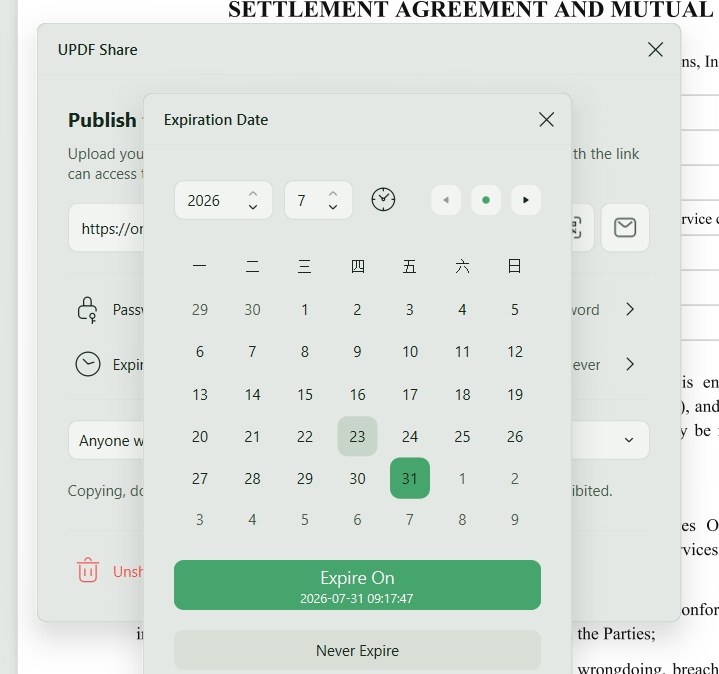
- You can set up an expiration time for the PDF file before sharing.
- You can manage the copy, download, and print permissions by enabling/disabling them freely.
- You can cancel the file sharing anytime you want.
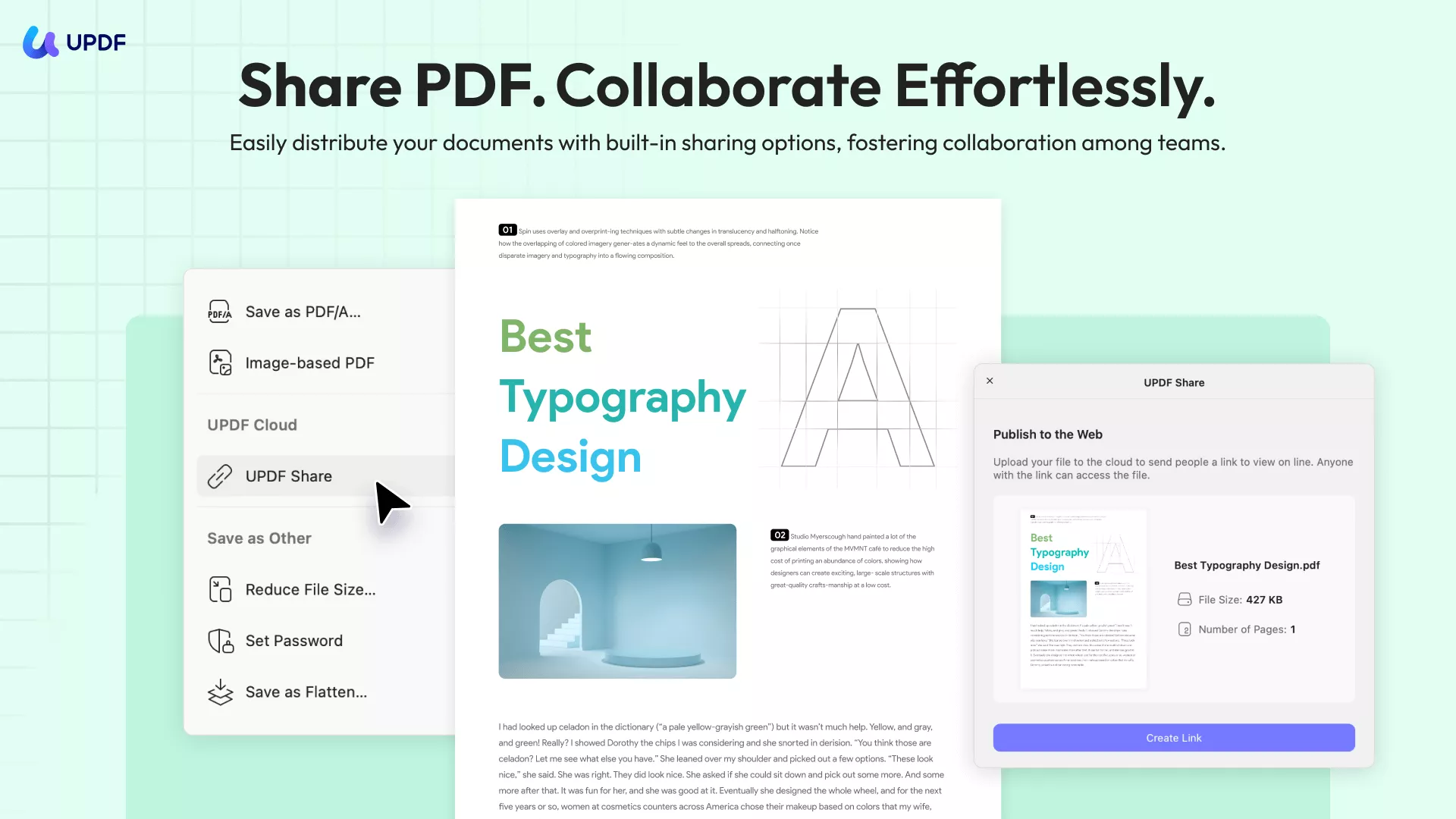
Click on the download button and look into the steps of creating a link for a PDF document:
Windows • macOS • iOS • Android 100% secure
Step 1: Access Button to Share PDF
Once the PDF file opens in UPDF, click the narrow next to "Save". You must find the "UPDF Share" button on the right side of the window. Click on it.
Step 2: Create a Link for a PDF
As you are led to a new window, click the "Create a link" button.
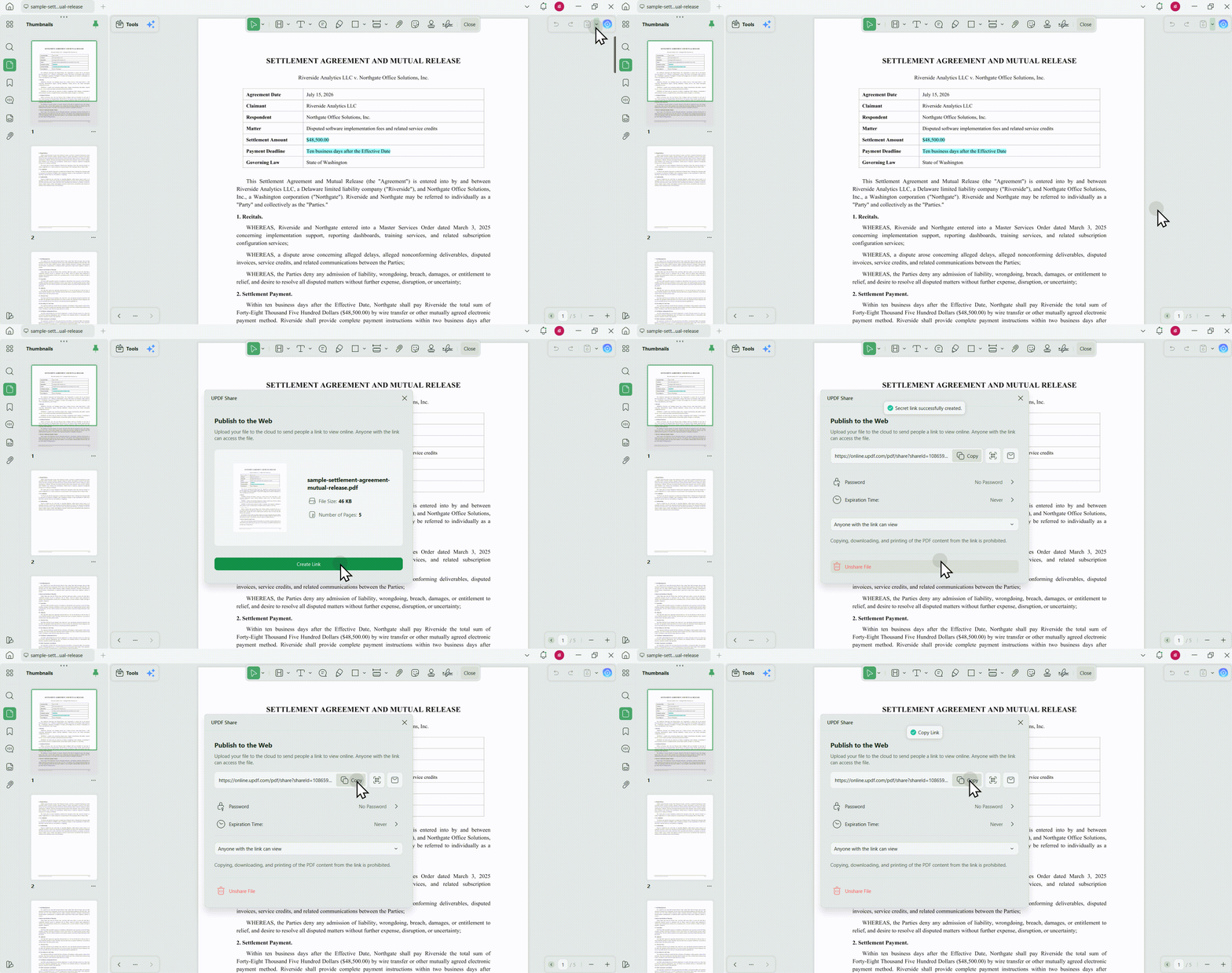
Step 3: Copy the Link for Share
Next, the link will be created and you can click the "Copy" icon to copy the link. Then you can paste it across any platform to share it with your friends and other users.
The best part of it, you can set an expiration time for the link of your PDF file. You can also decide whether you want to disable the Copy/Download/Print permissions to protect your PDF file. Amazing, right? Download and try this feature now!
Windows • macOS • iOS • Android 100% secure
What else UPDF can do for you?
Except for being a distinct and powerful PDF editor, UPDF can do so much more. It contains salient features to enhance the quality of your work.
- AI Integration: UPDF has integrated with AI, providing practical AI features to improve work efficiency: summarize/translate/explain PDFs, extract text from/ask questions about images, and convert PDFs to mind maps.
- Highlight your Work: It contains many annotating tools, including highlights, underlines, shapes, stickers, and text comments through which you can improve your reading comprehension smartly.
- Convert PDF: UPDF offers comfort to users by allowing them to convert PDF files easily to many other file formats, such as Word, Excel, PowerPoint, etc.
- Organize PDF Pages: UPDF allows you to insert, crop, rotate, replace, extract, delete, and split PDF files quickly.
- Compress PDF Files: It can help you compress PDF files to a smaller size.
- OCR: It offers a great OCR feature to help you turn scanned PDFs into searchable and editable ones.
- Protect PDF: You can set an open password and permission password with different encryption levels, including 128-bit RC4, 128-bit AES, and 256-bit AES.
- Share and Print: After editing or reading PDF files on UPDF, you can directly share them via email or print them with a single click.
In a word, UPDF is a powerful but cost-effective PDF management tool for personal or professional works. Download and give it a try now!
Windows • macOS • iOS • Android 100% secure
Part 3: Adding a clickable link inside a PDF
If you need to add a hyperlink within your PDF file for webpage redirection or document navigation, this method is distinct from simply sharing a PDF link with another user. In this section, we'll provide clear and definitive steps for creating hyperlinks in a PDF document that redirects to web pages or a specific location within the PDF.
Windows • macOS • iOS • Android 100% secure
Then, follow the steps below to create a link in PDF for web page redirection or document navigation:
Step 1: Access Editing Toolkit
With the PDF opened on UPDF, direct into the "Edit" mode in "Tools" from the left column.
Step 2: Add the Appropriate Link Type
Select "Insert & Edit Link" from the top to add a link to the PDF. As you tap on the PDF where you wish to add a link, you will be provided with two different options for the nature of the link.
You can also click "Insert & Edit Link Page" to join a PDF page with another page within the document.
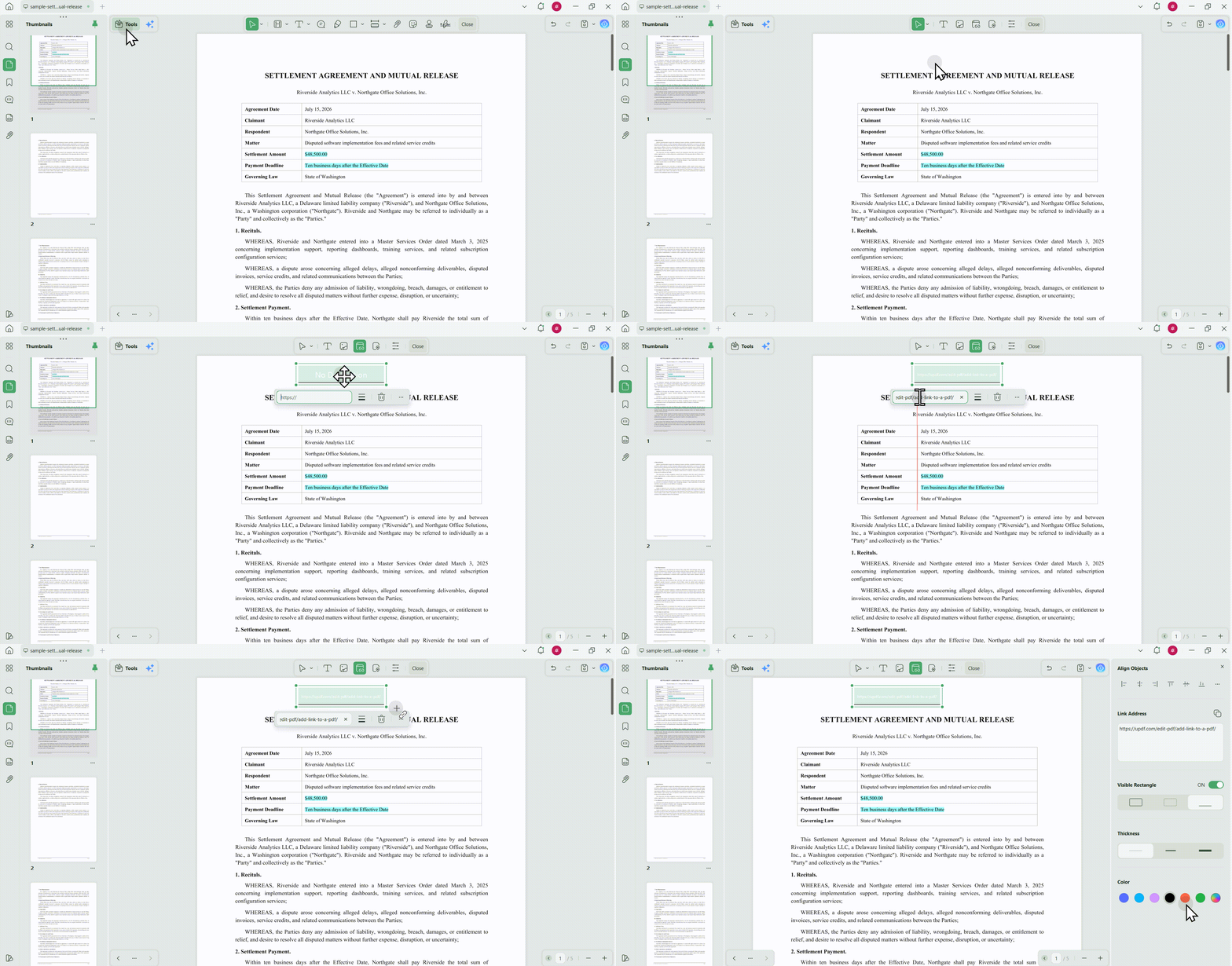
Step 3: Set Parameters of the Link
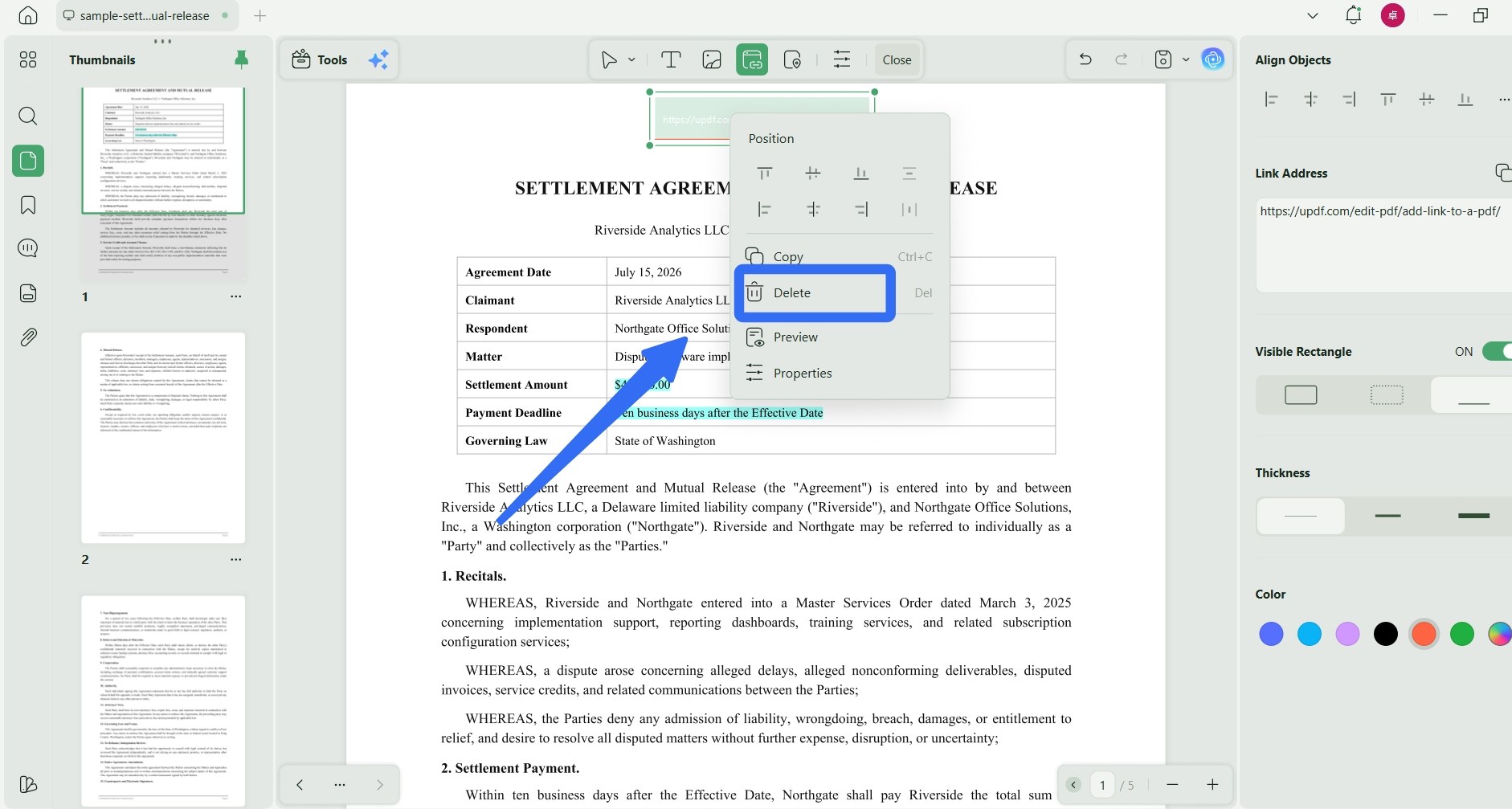
Click on the "Properties" button on the menu just above the added link. This will open a pop-up where you can set the link type, style, thickness, and color. Finally, save the file.
If you think the link is unnecessary in the future, you can also remove links from PDF quickly.
Part 4: Attaching a File to a PDF
In this part, we'll delve into the essential process of creating URL links for PDF document attachments. You'll learn how to enrich your PDFs by attaching external resources, documents, or files, providing your readers with a seamless and informative experience. Whether you're including references, supplemental materials, or interactive elements, this comprehensive guide will walk you through the steps required to create these valuable links within your PDF documents.
Now, let's download UPDF and start adding.
Windows • macOS • iOS • Android 100% secure
Step 1. Choose the Right Mode
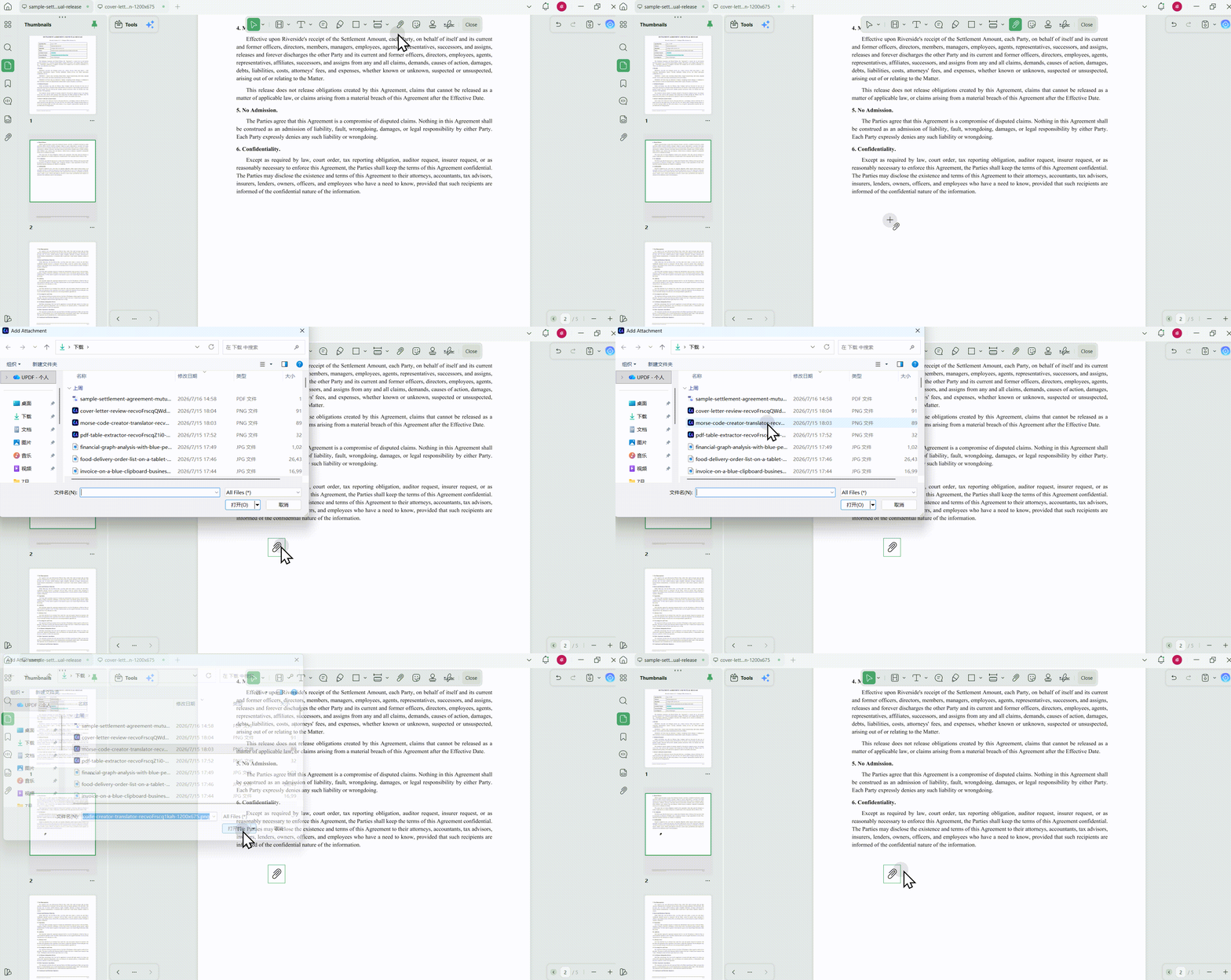
After opening the PDF in UPDF, choose the "Tools" and click Comment mode from the left panel. You'll see various options shown on the top toolbar. Click "Attachment" from the given options.
Step 2. Add a Link for an Attachment
Click on the place within the document where you want to add a link for your attachment and choose the attachment that you want to add to the PDF.
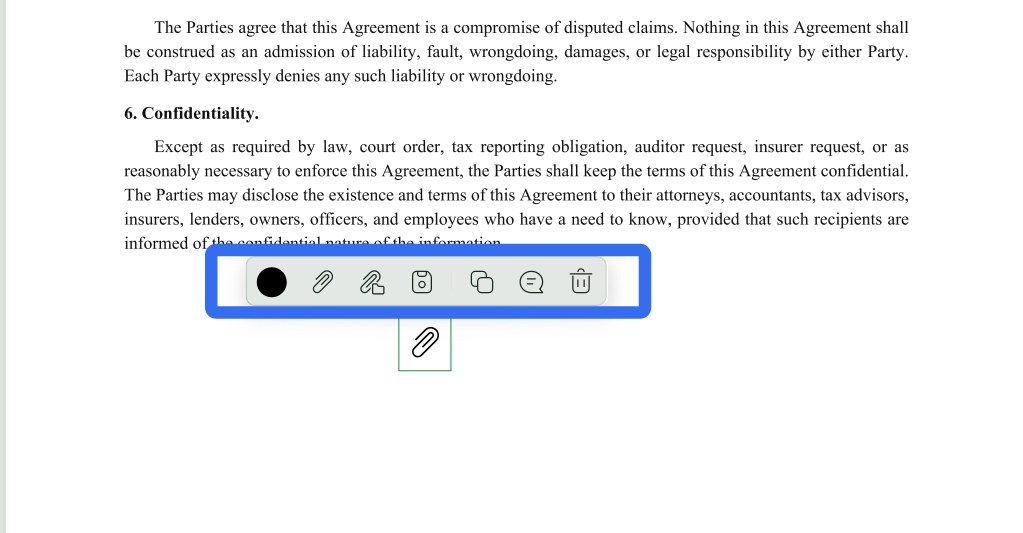
That's it. After adding the link for an attachment, you can click on it to open, save, copy, and delete the attachment.
Part 5: FAQs on Creating Links for PDF
Q1: Why Is My PDF Link Not Working?
A PDF link may stop working if it has expired, the file owner has revoked access, or the URL was copied incorrectly. Check that the complete link was shared and confirm that the PDF is still available.
If the problem affects a link embedded inside a PDF, make sure the URL includes the full address, including https://, and test the link again after saving the document.
Q2: Can I Edit a PDF After Creating a Sharing Link?
Editing the original PDF on your device may not automatically update the version that recipients access through an existing link. If you need to share the revised document, check whether the shared file can be updated or create a new link for the latest version.
Q3: Is It Safe to Share a PDF Through a Link?
Sharing a PDF through a link can be safe when suitable access controls are applied. Before generating the link, remove unnecessary personal information, redact sensitive content, and restrict copying, downloading, or printing when appropriate. You can also set an expiration time and revoke access when the document is no longer needed.
Conclusion
In this comprehensive article, we've delved into a range of methods for creating links for PDF documents. From linking to webpages to attaching external resources, we've explored how to make your PDFs more engaging and informative. By using UPDF, a powerful and versatile PDF editor, you can unlock the potential of these methods and take your documents to the next level.
With the knowledge and tools provided in this guide, you're well-equipped to make your PDFs more interactive and valuable. It's time to put these techniques into practice and enhance your PDF documents with links that captivate and inform your audience. Start your journey today by downloading it, and watch your PDFs come alive with possibilities.
Windows • macOS • iOS • Android 100% secure







 Enrica Taylor
 Engelbert White


 Lizzy Lozano