 UPDF
 UPDF for Windows
 UPDF for Mac
 UPDF for iPhone/iPad
 UPDF for Android
 Nomostar
 UPDF AI Online
 UPDF Sign
 IvyCraft
 Edit PDF
 Annotate PDF
 Create PDF
 PDF Form
 Edit links
 Convert PDF
 OCR
 PDF to Word
 PDF to Image
 PDF to Excel
 Organize PDF
 Merge PDF
 Split PDF
 Crop PDF
 Rotate PDF
 Protect PDF
 Sign PDF
 Redact PDF
 Sanitize PDF
 Remove Security
 Read PDF
 UPDF Cloud
 Compress PDF
 Print PDF
 Batch Process

 About UPDF AI
 UPDF AI Solutions
 AI User Guide
 FAQ about UPDF AI
 Summarize PDF
 Translate PDF
 Chat with PDF
 Chat with AI
 Chat with image
 PDF to Mind Map
 Explain PDF
 PDF AI Tools
 Image AI Tools
 AI Chat Tools
 AI Writing Tools
 AI Study Tools
 AI Working Tools
 Other AI Tools
 AI Bookmark Generation
 AI Bookmark Summary
 AI Watermark Generation
 AI Background Generation
 AI Sticker Generation
 AI Stamp Generation
 AI Editing Suite
 UPDF Copilot
 AI Page Management
 AI Semantic Search
 PDF to Word
 PDF to Excel
 PDF to PowerPoint
 Enterprise Solution
 Enterprise Sign
 Enterprise AI
 Enterprise Plan
 Enterprise User Guide
 Enterprise Webinar
 IT
 Education
 Construction
 Financial Service
 Healthcare
 Insurance
 Legal
 Manufacturing
 Government
 Researchers & PhDs
 Solopreneurs & Freelancers
 Lawyers & Legal Professionals
 Real Estate Agents & Brokers
 Education Solution
 Customer Stories
 User Guide
 UPDF Tricks
 FAQs
 UPDF Reviews
 Download Center
 Blog
 Newsroom
 Tech Spec
 Updates
 UPDF vs. Adobe Acrobat
 UPDF vs. Foxit
 UPDF vs. PDF Expert


A year-end close can look finished even when a few important records are still missing. One overlooked card statement, unpaid invoice, or unexplained balance can delay your accountant and carry errors into the new year. Before you close the books, make sure every account is reconciled, every difference is explained, and every adjustment is documented.
A year-end accounting checklist gives you one place to track the work, the supporting documents, and any questions that still need attention. The free fillable PDF in this guide walks you through the close and helps you prepare a cleaner handoff for your accountant or CPA. You can use UPDF to fill in the checklist, organize statements, and protect sensitive PDFs as part of a financial document workflow; use your accounting system and a qualified professional for calculations, entries, and final accounting decisions.
Download UPDF for free to fill in the checklist, add notes, and keep the related financial PDFs organized in one place.
Windows • macOS • iOS • Android 100% secure
Then, open the free fillable year-end accounting checklist to review the steps, assign tasks, and track your progress throughout the close.
Download the Free Year-End Accounting Checklist
This free year-end accounting checklist is an 11-page fillable PDF that covers the close from planning to final sign-off. Start with your business details, then use the Close Dashboard to see the status of all eight stages at a glance. For each task, you can name an owner, set a due date, update the status, record the reviewer, and note where the supporting document is saved.
The PDF also includes a missing-document tracker, an issue log, a CPA handoff page, and sections for archiving and final approval. You can preview it online without signing in. A free UPDF account is only required if you want to download or print it. After downloading, either complete it by hand or fill and annotate it digitally in UPDF.
Download UPDF to Fill and Manage It
Windows • macOS • iOS • Android 100% secure
Before Starting the Year-End Close
Before anyone starts reconciling accounts, agree on the scope of the close. Confirm the period you are closing, the accounting method, who prepares and reviews the work, and when the package must be ready. The table shows where to record each detail in the checklist:
| Detail to Confirm | Where to Record It |
|---|---|
| Fiscal Year-End | Fiscal Year-End field on the cover |
| Entity Type | Entity Type field on the cover |
| Jurisdiction | Jurisdiction field on the cover |
| Cash or Accrual Accounting | Accounting Method field on the cover |
| Accounting Software | Accounting System field on the cover |
| Included Locations or Business Units | Scope / Materiality / Special Instructions on the dashboard |
| Preparer, Reviewer, and External CPA | Preparer / Bookkeeper and Reviewer / CPA fields on the cover |
| Target Completion Date | Target Completion Date field on the cover |
| Tasks Requiring Professional Review | Top Risks, Dependencies, or Unresolved Items on the dashboard |
Next, assign an owner, due date, and reviewer to each stage on the Close Dashboard. Add the deadline for sending files to your CPA under “Known Reporting or Handoff Deadlines.”
Complete the Year-End Accounting Checklist
Once the cover and dashboard are ready, work through the following eight stages in order. To show what the checklist looks like when it is used, each stage includes a practical example from Northstar Design LLC, a US service business that closes its books on December 31 and works with contractors and an external CPA.
Do the actual bookkeeping, payroll, banking, and tax work in the appropriate systems. Use the checklist and UPDF to track progress, organize the supporting PDFs, record open questions, and prepare the final handoff.
1. Complete Pre-Close Planning and Transaction Cutoff
Start by checking that transactions are recorded in the correct year and finding any documents that are still missing. Northstar does this before reconciling its accounts, so the team is not trying to match balances against incomplete records.
- Confirm the fiscal year-end, accounting method, task owners, and CPA handoff deadline.
- Record all known sales, expenses, receipts, payments, refunds, and transfers in the accounting software.
- Review transactions around December 31 to identify potential cutoff errors.
- Identify missing invoices, receipts, statements, and duplicate or uncategorized transactions.
- Back up the accounting records before posting any adjustments.
When this stage is complete: All known transactions are recorded, missing documents are listed, and every open task has an owner and due date.
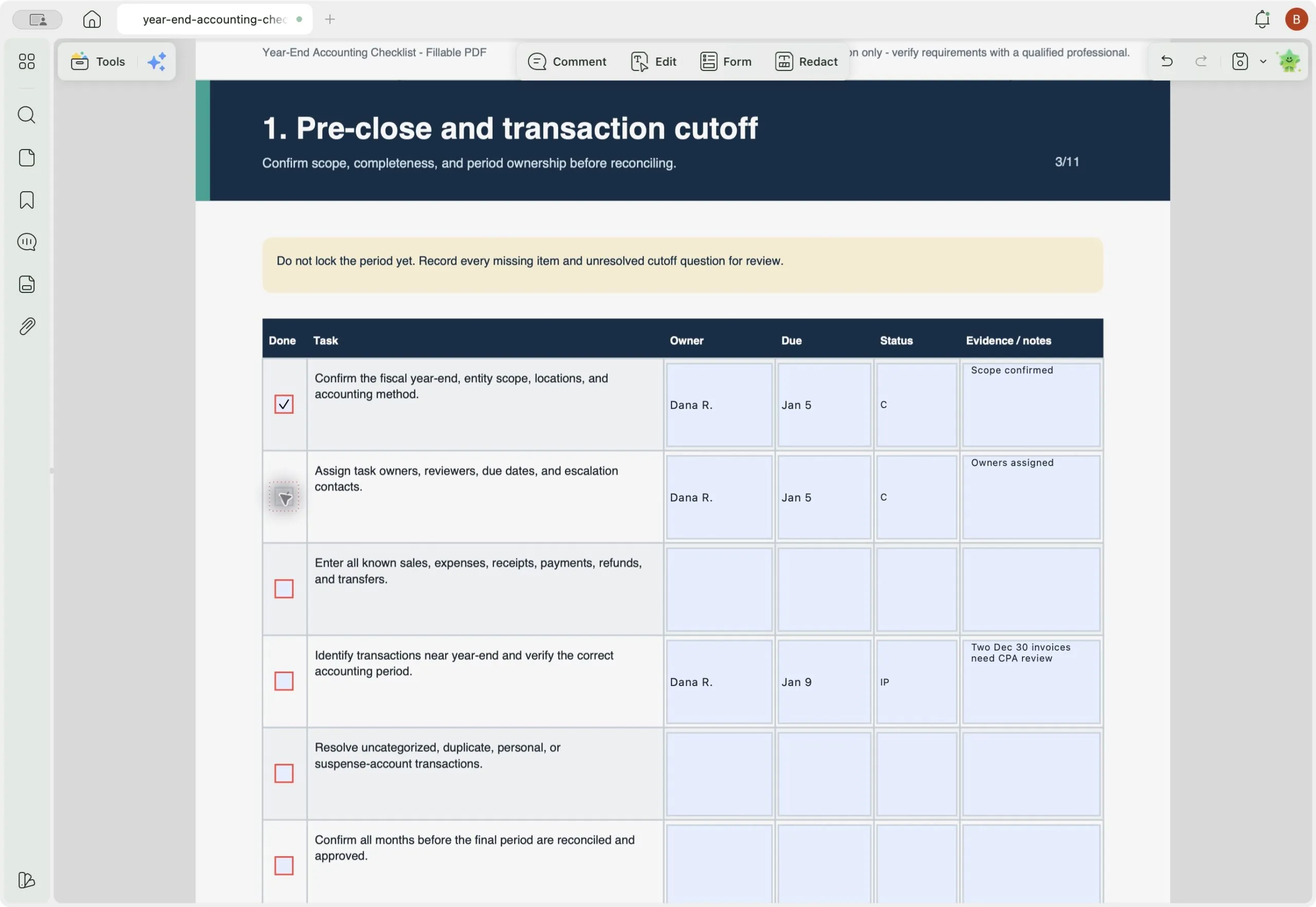
How to record it: On Page 3 of the checklist, enter the owner, due date, status, and location of the supporting evidence. In the example below, Northstar's bookkeeper, Dana, records a transaction review that is still in progress.
| Task | Owner | Due | Status | Evidence / Notes |
|---|---|---|---|---|
| Verify year-end transaction dates | Dana R. | Jan 9 | IP | Two Dec 30 invoices need CPA review |
Dana also records a missing December payment processor statement in the Missing Document Tracker on Page 10, marking its status as W (Waiting). The accounting period remains open until the necessary reviews and adjustments are completed.
2. Reconcile Cash, Cards, Loans, and Payment Processors
Reconcile every bank account, card, loan, and payment processor separately. Northstar matches each account to its own year-end statement, which makes unexplained differences easier to find.
- Download the final December statements for all bank, card, loan, and payment processor accounts.
- Compare statement balances against the corresponding records in the accounting software.
- Investigate outstanding checks, deposits in transit, processing fees, and unexplained differences.
- Verify loan principal and interest balances against the lender's year-end statement.
- Save reconciliation reports and document any remaining differences for further review.
When this stage is complete: Each account balance agrees with its statement or reconciliation report, and any remaining difference is clearly explained.
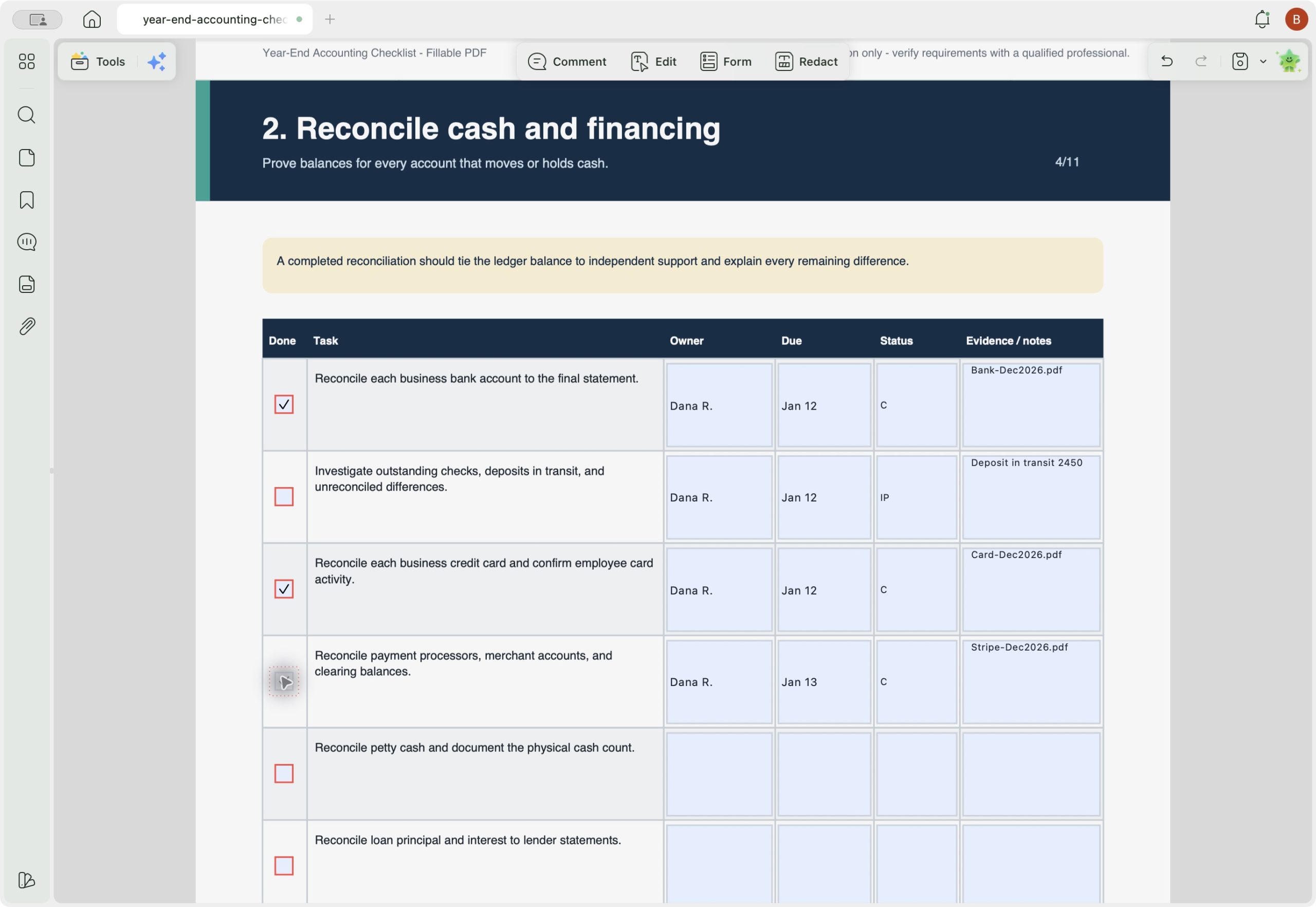
How to record it: Complete the reconciliations in your accounting software first. Northstar then uses UPDF's Batch Process > Merge tool to combine the statements and reconciliation reports, with a bookmark for each account. On Page 4 of the checklist, the team records the PDF filename and marks the task C (Completed).
3. Review Revenue, Receivables, and Payables
Next, review money that customers still owe you and bills you have not yet paid. Northstar also checks disputed and unusual balances before preparing its final statements.
- Generate accounts receivable (AR) and accounts payable (AP) aging reports as of December 31.
- Review overdue invoices, disputed payments, duplicate entries, and unusual balances.
- Check for missing customer invoices, contractor bills, refunds, and credits.
- Compare AR and AP subledger balances with the general ledger.
- Refer potential write-offs, allowances, and accruals to the CPA for review.
When this stage is complete: The receivables and payables reports agree with the general ledger, and every unresolved item has a clear note and owner.
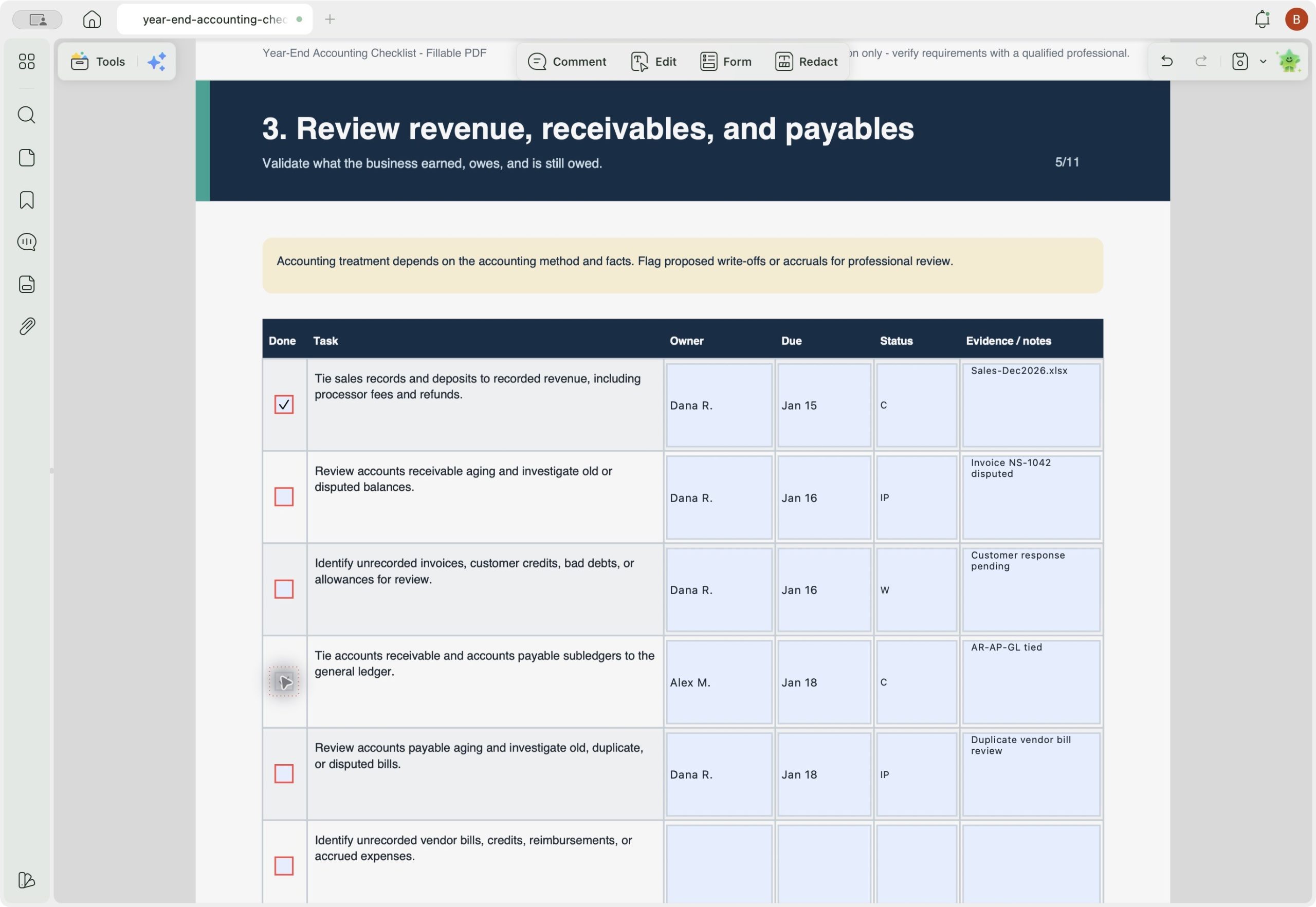
How to record it: Add unresolved balances to Page 5 and the Issue Log. Northstar combines the related invoices in one review PDF, adds notes beside amounts that need attention, and redacts private details before sharing the file. UPDF AI can extract invoice details into a table to speed up the review, but check every value against the original invoice.
4. Review Payroll, Contractors, and Tax Records
If you paid employees or contractors, make sure those payments agree with the accounting records and that the required tax details are on file. For Northstar, this means checking payroll reports and following up on missing contractor documents.
- Compare payroll reports with recorded wage expenses, liabilities, and cash payments.
- Check employee information and confirm that required contractor Form W-9 records are complete.
- Review payroll tax payments and filing confirmations using IRS Publication 15 as a reference.
- Verify applicable information return requirements to ensure the necessary reporting documents are prepared.
- Forward unresolved payroll or contractor questions to the payroll provider, bookkeeper, or CPA.
When this stage is complete: Payroll and contractor payments agree with the books, and any missing information or tax question is clearly listed for follow-up.
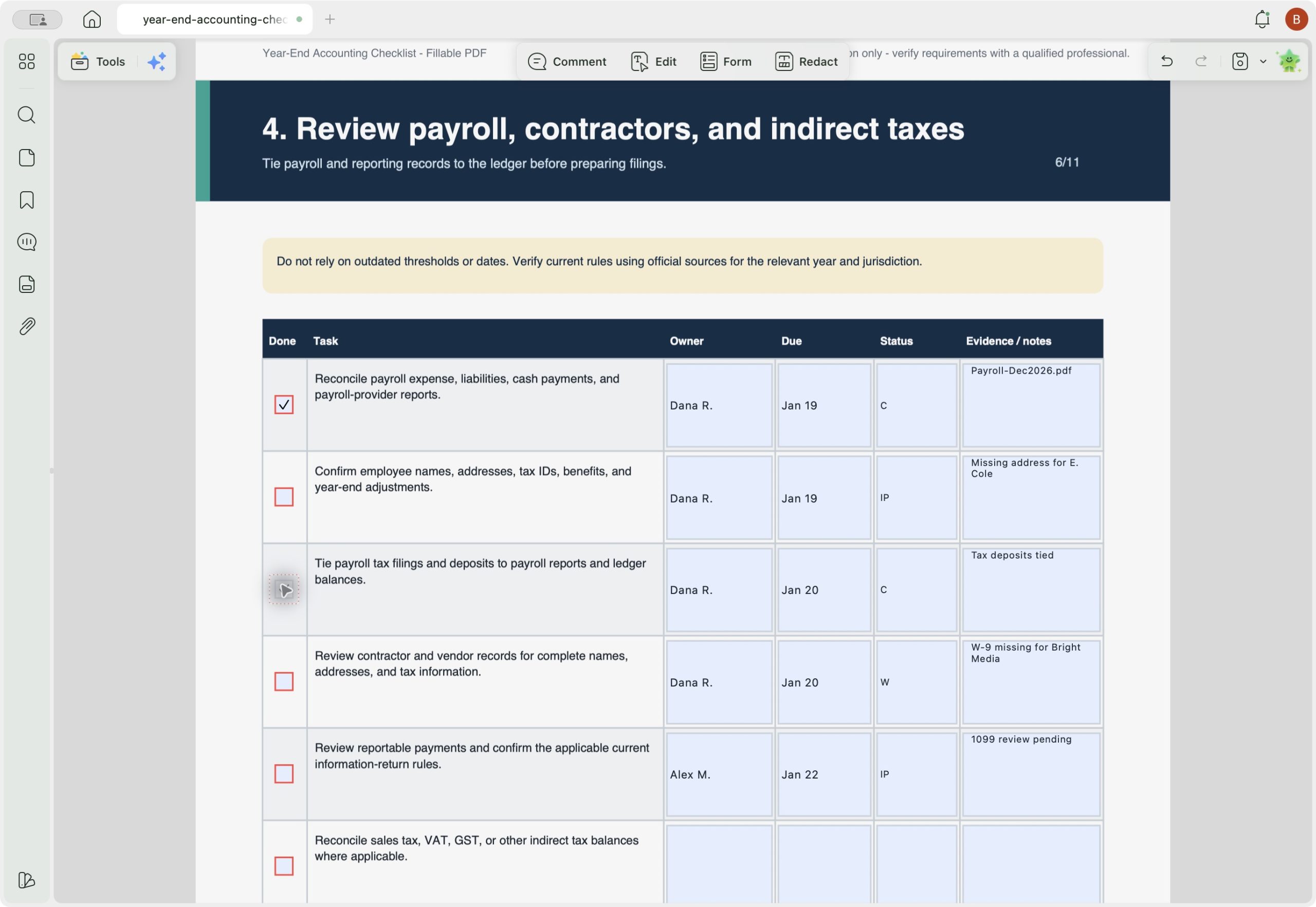
How to record it: Northstar uses OCR in UPDF to make scanned payroll and contractor files searchable. The team lists missing tax IDs, addresses, and filing confirmations on Page 6 and in the Missing Document Tracker, then redacts personal information before sending documents outside the company.
5. Review Inventory, Fixed Assets, and Financing
If your business owns stock, equipment, or has outstanding loans, gather the records that support those balances. Depending on the item, that may be a physical count, a purchase invoice, a disposal record, or a lender statement.
- Conduct and document a physical inventory count if the business holds stock.
- Investigate differences between physical inventory counts and recorded quantities.
- Update the fixed-asset register to reflect equipment purchases and disposals.
- Collect asset invoices, disposal records, and loan statements following IRS recordkeeping guidance.
- Refer depreciation, asset valuation, and classification questions to the CPA for review.
When this stage is complete: Every inventory, fixed-asset, and loan balance can be traced to a supporting record.
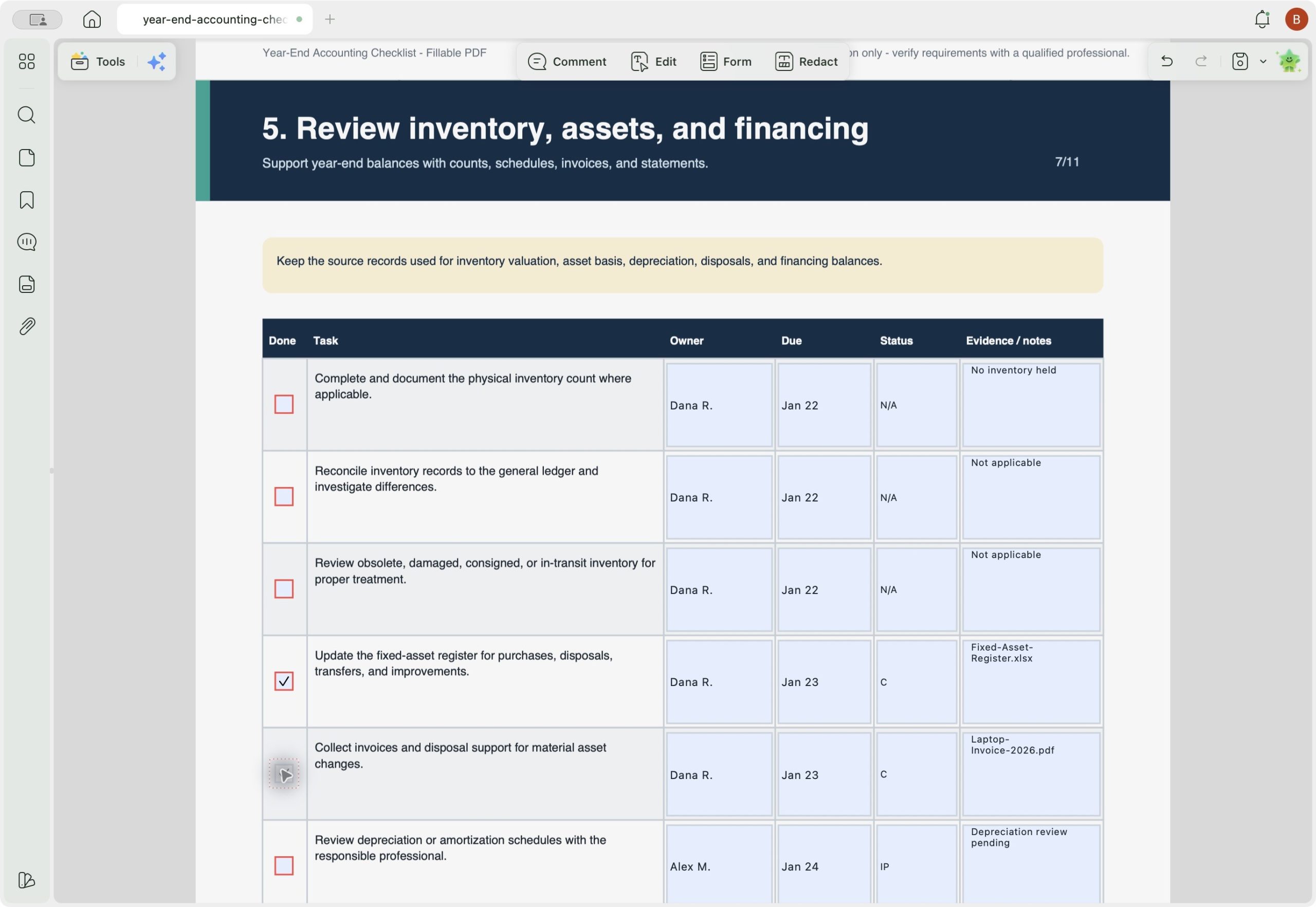
How to record it: Northstar creates separate PDF packages for assets and loans and lists the filenames in the Evidence / Notes fields on Page 7. A business that holds stock can create a third package for inventory. Because Northstar has no inventory, it marks those tasks N/A (Not Applicable) instead of leaving them blank.
6. Post Adjustments and Review Financial Statements
After the accounts are reconciled, review any adjustments that could change the final statements. Northstar's bookkeeper prepares the supporting information, and the CPA reviews the proposed entries before they are posted.
- Identify accruals, prepayments, depreciation, and potential bad debts requiring review.
- Record only approved adjustments in the accounting software.
- Generate updated trial balance, profit and loss, and balance sheet reports.
- Compare financial results against the previous year, budget, and business expectations.
- Investigate unusual, negative, inactive, or suspense account balances before final approval.
When this stage is complete: The final statements include all approved adjustments and agree with the supporting schedules.
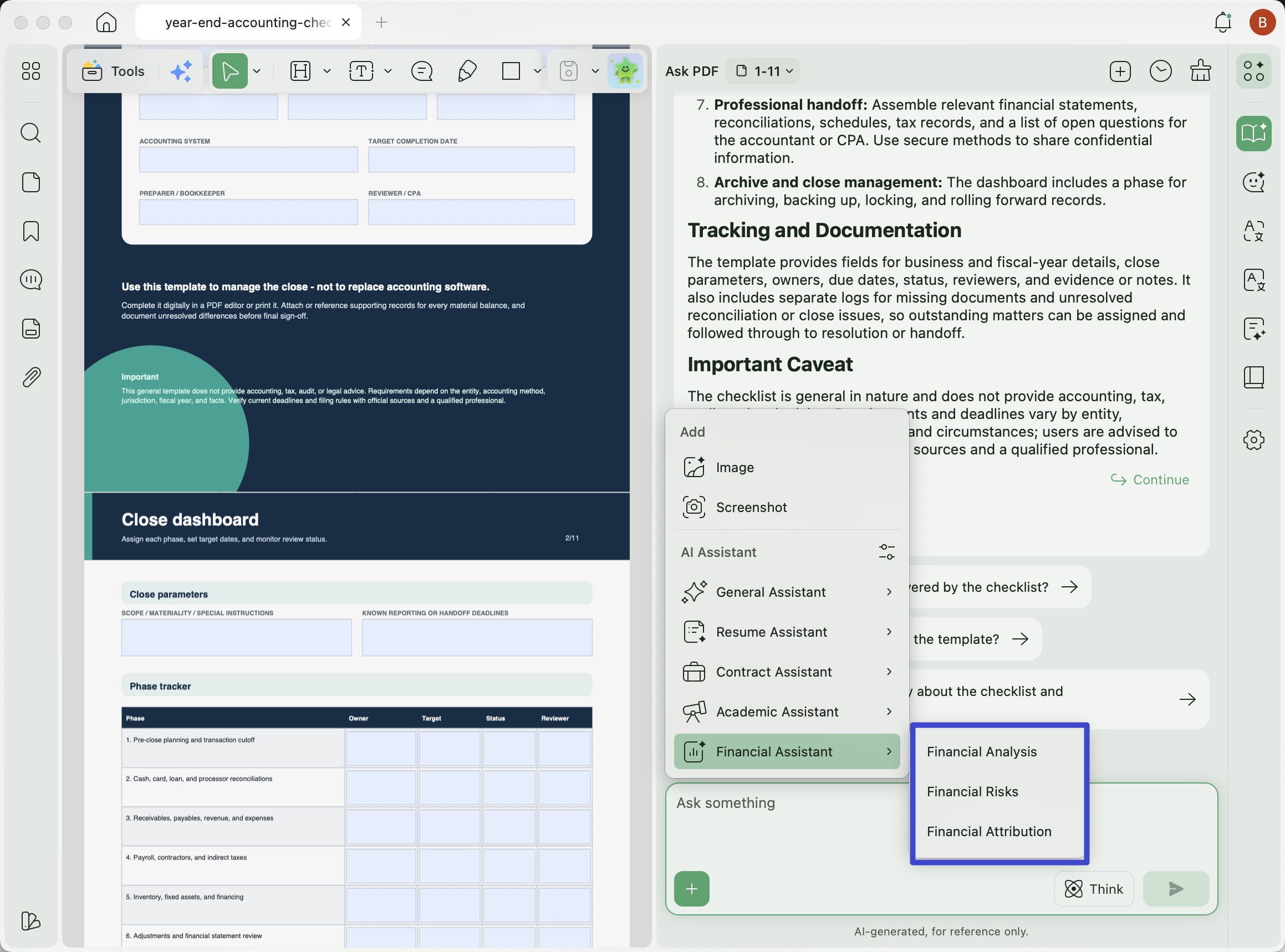
Record It in the Template: Northstar combines its profit and loss statement, balance sheet, and cash flow statement into one review PDF and adds comments to figures that need CPA clarification. UPDF AI can help summarize the reports and flag items for closer review through its financial statement analysis and financial statement PDF explanation tools. Every AI-generated finding must be checked against the original reports, and qualified professionals remain responsible for accounting decisions.
7. Prepare the CPA, Tax, or Audit Handoff
Before sending files to your accountant, arrange them so the reviewer can quickly see what is complete and what still needs an answer. Northstar groups its reports, reconciliations, and open questions into one clear handoff package.
- Review the template's document checklist to confirm all required files are available.
- Organize records into Financial Statements, Reconciliations, Payroll, Assets, and Open Items.
- Prepare a short list of unresolved questions requiring CPA attention.
- Assign a follow-up owner to each missing document or outstanding issue.
- Share the completed package through a secure, approved delivery method.
The table below outlines the key documents to include and their purpose during the CPA review.
| Document | Purpose |
|---|---|
| Trial Balance or General Ledger | Provides account-level financial details |
| Profit and Loss Statement | Summarizes annual income and expenses |
| Balance Sheet | Shows assets, liabilities, and equity |
| Bank and Card Reconciliations | Verifies recorded account balances |
| AR/AP Aging Reports | Identifies outstanding customer and vendor balances |
| Payroll Reports | Supports wages and payroll liabilities |
| Contractor Records | Supports applicable tax information reporting |
| Inventory Records | Verifies inventory balances and related costs |
| Fixed-Asset Schedule | Documents depreciation and asset disposals |
| Loan Statements | Supports loan principal and interest balances |
| Open-Item List | Highlights unresolved questions and discrepancies |
When this stage is complete: Your CPA receives an organized package and a short, clearly labeled list of outstanding items.
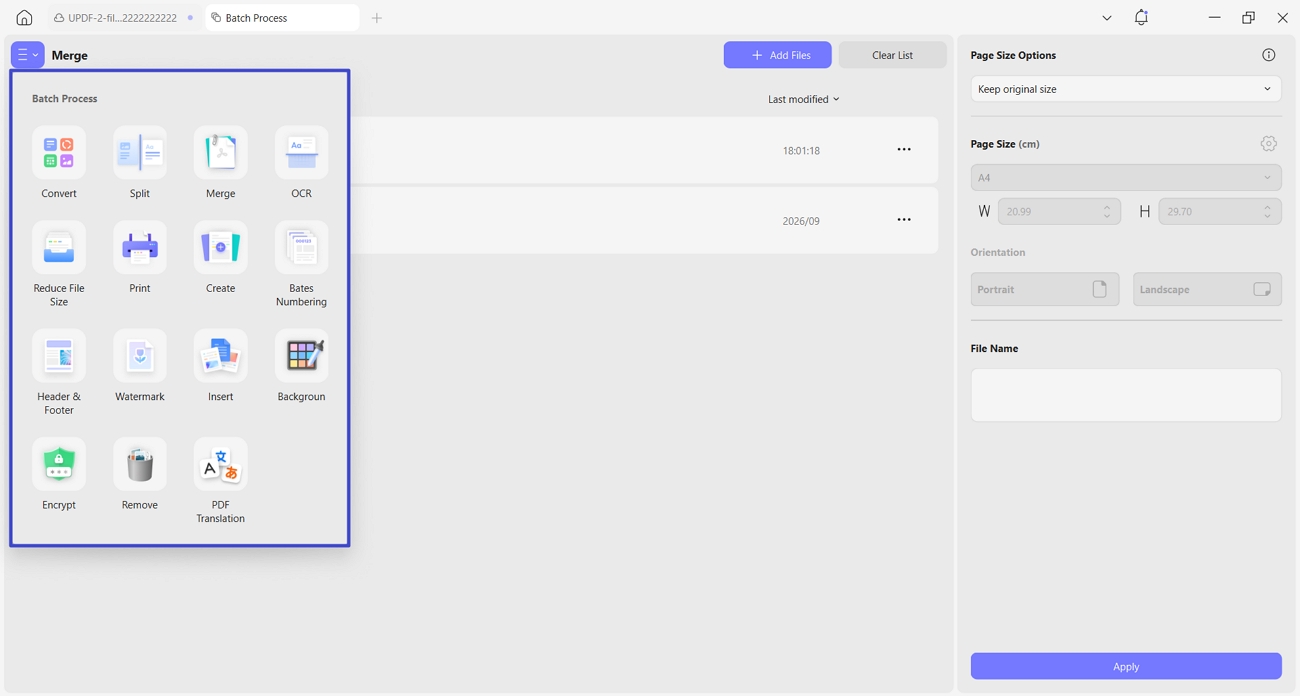
How to record it: On Page 9, enter how and when the package was sent, who received it, and which questions remain open. Northstar merges the supporting PDFs, reduces the file size when needed, and protects sensitive information with redaction or a password. The team checks the recipient and access settings before sending anything.
8. Archive, Lock, and Roll Forward
Finish by recording approved adjustments, saving the final documents, and locking the closed period. Any item that cannot be resolved now should move into the new year with an owner and a deadline.
- Record the CPA's final approved adjustments in the accounting software.
- Organize and save final financial statements, reconciliations, schedules, and approval records.
- Back up important accounting documents and verify access permissions.
- Lock the completed accounting period and confirm the new year's opening balances.
- Transfer unresolved issues into the new year with assigned owners and deadlines.
When this stage is complete: The period is closed, the final records are safely stored, and the new year starts with verified opening balances.
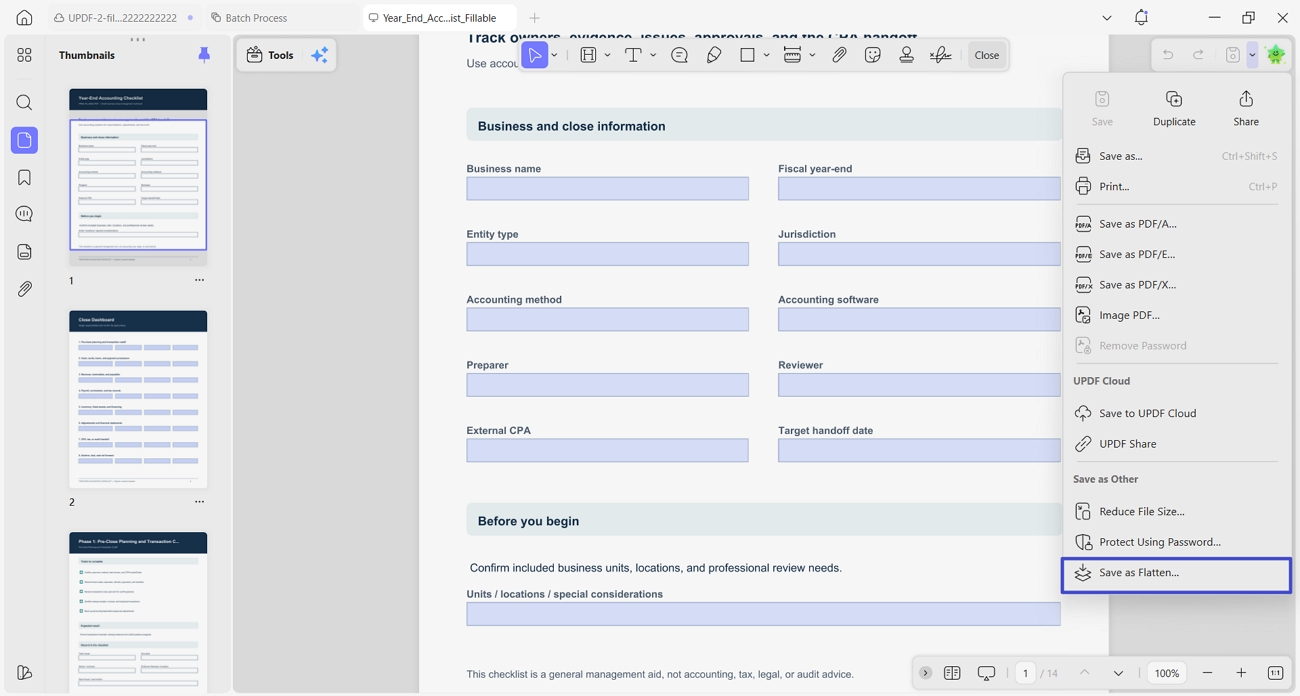
How to record it: On Page 11, Northstar records where the archive is stored, when it should be reviewed or removed, and who prepared and approved the close. The team also carries forward unresolved items and notes what could be improved next year. Saving a flattened copy in UPDF helps prevent accidental changes to the completed fields.
How to Organize Year-End Accounting Documents with UPDF
Your accounting software holds the numbers, but the evidence behind those numbers may be spread across statements, invoices, receipts, and payroll files. UPDF can help you turn those PDFs into an organized review package that supports your year-end accounting checklist. Its PDF organizer can also help you reorder, split, or combine pages before the final review. Use the table below to choose the right tool for each document task:
| Task | Where to Do It in UPDF |
|---|---|
| OCR Scanned Receipts and Statements | “OCR” under “Tools,” or “Batch Process” for multiple files |
| Merge Files by Account, Month, or Type | “Merge” under “Batch Process” |
| Split PDFs Containing Unrelated Records | “Split” under “Organize Pages” |
| Add Bookmarks, Page Numbers, or Notes | Bookmark panel, “Header & Footer,” and comment tools |
| Record Supporting File Locations | “Evidence / notes” fields in the checklist |
| Redact Confidential Information | “Redact” under “Tools,” followed by “Apply” and “Continue” |
| Protect Sensitive PDFs With Passwords | “Protect Using Password” in the save menu |
| Compress the Final CPA Handoff Package | “Reduce File Size” in the save menu |
Windows • macOS • iOS • Android 100% secure
When you scan or OCR accounting records, check that every page is complete and readable before archiving it. IRS Publication 583 explains the recordkeeping requirements for electronic storage systems.
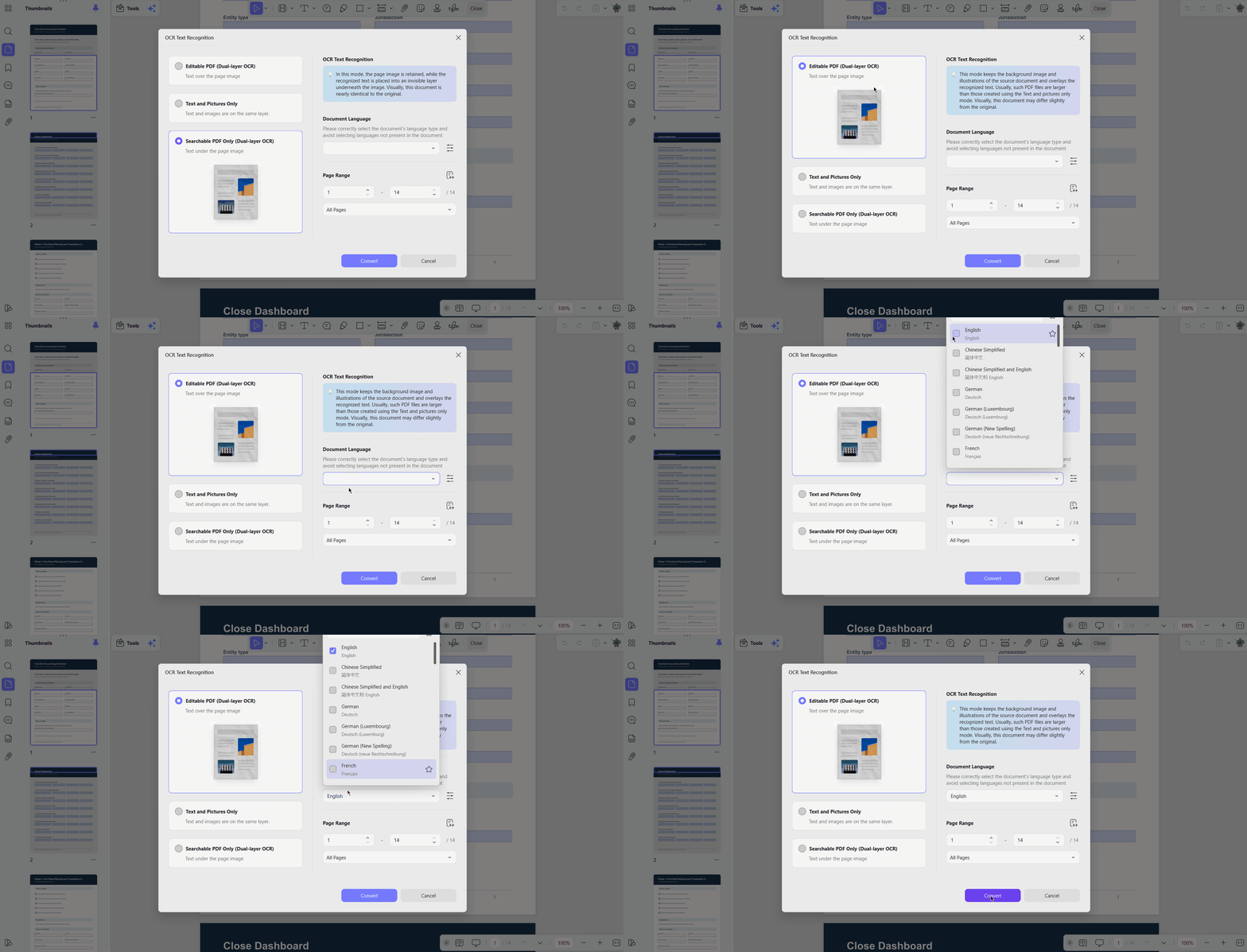
Keep the actual accounting work in your bookkeeping, payroll, and tax systems; UPDF is for preparing and organizing the related PDFs. After applying redactions, search for the removed text and try to copy it to make sure it is no longer accessible. Before sharing a file, double-check the recipient, permissions, and your company's security rules.
Managing Year-End Documents Across a Finance Team
A solo owner may complete the checklist alone, but a finance team needs a simple way to control who can use the PDF tools. UPDF Enterprise lets an administrator add or remove members and manage licenses from one dashboard. For a year-end close, the most useful team features include:
- Manage team members through the “Enterprise Management Dashboard” using “Add Member” and “Remove Member.”
- Authorize or deauthorize licenses when employees join or leave.
- Access UPDF across Windows, macOS, iOS, Android, and the web with “one license, all platforms.”
- Use PDF editing, OCR, batch processing, forms, protection, and sharing tools.
- Choose Yearly or Lifetime licensing, with volume options and enterprise support listed on the UPDF Enterprise pricing page.
Teams comparing PDF software may also consider Adobe Acrobat for teams, which manages licenses through Adobe Admin Console and is mainly sold by subscription. UPDF adds a Lifetime enterprise option while still supporting Windows, macOS, iOS, Android, and the web.
Common Year-End Accounting Mistakes
A checklist is most useful when it prevents small oversights from becoming expensive cleanup later. Watch for these common mistakes during the close and the CPA handoff:
- Preparing final financial statements before completing reconciliations can leave account balances unverified.
- Overlooking payment processors, business cards, or inactive accounts may leave important transactions unchecked.
- Mixing personal and business expenses can lead to inaccurate financial records and tax complications.
- Missing invoices, vendor bills, or transaction cutoff issues can place income and expenses in the wrong accounting period.
- Failing to retain supporting documents makes it difficult to verify balances during tax reviews or audits.
- Not assigning task owners or recording reviewer details can leave unresolved issues without accountability.
- Posting adjustments twice or without proper approval can result in incorrect financial statements.
- Locking the accounting period before recording all approved adjustments may require reopening the books.
- Relying on outdated tax thresholds or filing deadlines can lead to reporting errors and missed obligations.
- Using AI-generated financial analysis without professional verification may result in incorrect accounting decisions.
- Sharing confidential financial documents through unsecured channels can expose sensitive business information.
Final Thoughts
A smooth year-end close is less about rushing through a list and more about making every number easy to trace. Use the free year-end accounting checklist to see what is done, what evidence supports it, and what still needs an answer. UPDF can help you fill in the checklist and organize the related PDFs, while your accounting system and qualified advisers handle entries, calculations, tax treatment, and final approval.
Ready to start your year-end close? Open the free fillable year-end accounting checklist to assign tasks, track supporting documents, and monitor each stage of the process.
To complete the checklist digitally and organize the related statements, invoices, and other PDF records in one place, download UPDF for free below.
Windows • macOS • iOS • Android 100% secure
If your finance team needs centralized member and license management, explore UPDF Enterprise plans to find an option that fits your organization.
FAQs
What is included in a year-end accounting checklist?
A year-end accounting checklist usually covers planning, account reconciliations, payroll and contractor records, assets, adjustments, the CPA handoff, and final archiving. A useful checklist also shows who owns each task, its current status, and where the supporting evidence is stored.
When should a small business start its year-end close?
Start before the fiscal year ends so you can assign tasks and request missing documents early. After the final statements arrive, reconcile each account, resolve differences, and complete the remaining review before locking the period.
What documents should I give my accountant or CPA?
Send the final statements, trial balance or general ledger, and completed reconciliations. Depending on your business, also include AR/AP aging reports, payroll and contractor records, asset schedules, loan statements, and a short list of unresolved questions.
What is the difference between bookkeeping close and tax preparation?
Bookkeeping close finalizes financial transactions, reconciles accounts, and prepares accurate statements for the completed year. Tax preparation uses those finalized records to calculate obligations and prepare required returns for filing.
Can a small business close its books without an accountant?
A small business can often handle routine reconciliations, collect documents, and organize records internally. Ask a qualified accountant to review complex adjustments, tax treatment, filing requirements, or anything the team is unsure about.
How should year-end accounting documents be organized?
Group financial documents by category, including bank statements, reconciliations, payroll records, assets, and invoices. Record each file location alongside its related task so reviewers can quickly find supporting evidence.
How long should accounting records be retained?
Generally, retain tax supporting records until the applicable IRS limitation period expires, often three years. Some situations require longer retention, while employment tax records need four years under IRS guidance.
Can AI review financial statements?
AI can summarize a statement or point out changes worth checking, which may save time during the first review. Treat those results as prompts, not conclusions: verify them against the original reports and let a qualified professional decide the accounting treatment.
How should sensitive accounting files be shared?
Share sensitive financial documents through approved secure portals or other company-authorized delivery methods only. Remove unnecessary personal information beforehand, and communicate protected PDF passwords separately from the shared files.
Is UPDF Enterprise suitable for finance teams?
Yes. Finance teams can use UPDF Enterprise to prepare, review, and protect PDFs, while an administrator manages members and licenses in one place. This is especially useful when access needs to change as employees join, leave, or move between roles.









 Enid Brown

 Engelbert White
 Enrica Taylor

 Delia Meyer
