 UPDF
 UPDF for Windows
 UPDF for Mac
 UPDF for iPhone/iPad
 UPDF for Android
 Nomostar
 UPDF AI Online
 UPDF Sign
 IvyCraft
 Edit PDF
 Annotate PDF
 Create PDF
 PDF Form
 Edit links
 Convert PDF
 OCR
 PDF to Word
 PDF to Image
 PDF to Excel
 Organize PDF
 Merge PDF
 Split PDF
 Crop PDF
 Rotate PDF
 Protect PDF
 Sign PDF
 Redact PDF
 Sanitize PDF
 Remove Security
 Read PDF
 UPDF Cloud
 Compress PDF
 Print PDF
 Batch Process

 About UPDF AI
 UPDF AI Solutions
 AI User Guide
 FAQ about UPDF AI
 Summarize PDF
 Translate PDF
 Chat with PDF
 Chat with AI
 Chat with image
 PDF to Mind Map
 Explain PDF
 PDF AI Tools
 Image AI Tools
 AI Chat Tools
 AI Writing Tools
 AI Study Tools
 AI Working Tools
 Other AI Tools
 AI Bookmark Generation
 AI Bookmark Summary
 AI Watermark Generation
 AI Background Generation
 AI Sticker Generation
 AI Stamp Generation
 AI Editing Suite
 UPDF Copilot
 AI Page Management
 AI Semantic Search
 PDF to Word
 PDF to Excel
 PDF to PowerPoint
 Enterprise Solution
 Enterprise Sign
 Enterprise AI
 Enterprise Plan
 Enterprise User Guide
 Enterprise Webinar
 IT
 Education
 Construction
 Financial Service
 Healthcare
 Insurance
 Legal
 Manufacturing
 Government
 Researchers & PhDs
 Solopreneurs & Freelancers
 Lawyers & Legal Professionals
 Real Estate Agents & Brokers
 Education Solution
 Customer Stories
 User Guide
 UPDF Tricks
 FAQs
 UPDF Reviews
 Download Center
 Blog
 Newsroom
 Tech Spec
 Updates
 UPDF vs. Adobe Acrobat
 UPDF vs. Foxit
 UPDF vs. PDF Expert


Quick Answer
Finding a teacher answer key sounds simple: locate the worksheet, download its answers, and start grading. But teachers often run into two separate problems.
The first is finding the right resource. An answer key might be included in a paid teaching bundle, available as a separate download, or missing altogether. Even when a resource includes one, it may not be immediately obvious where to find it.
The second problem starts after downloading. You might receive a 50-page PDF with the answer key buried at the end, a scanned document with no selectable text, or separate files for student worksheets and teacher solutions.
That is the gap this guide closes. The first half maps the source landscape. The second half gives a platform-agnostic PDF workflow that works on any answer key you bring into it. With tools for extracting pages, OCR, annotations, and AI-assisted PDF analysis, UPDF helps teachers manage answer keys and worksheets in one workflow.
Windows • macOS • iOS • Android 100% secure
Where to Find Teacher Answer Keys Beyond TPT?
TPT is a familiar starting point for many K–12 educators, but it isn't the only place to look. Different platforms provide answer keys in different formats, so the best source depends on whether you need ready-made worksheets, free materials, or answers generated for your own questions.
1. Teacher Marketplaces: TPT and Similar Resource Libraries
Teachers Pay Teachers is a marketplace where educators purchase and download classroom resources created by other teachers. Listings that include a teacher answer key are especially useful when you need ready-to-use worksheets, lesson materials, or assessment bundles.
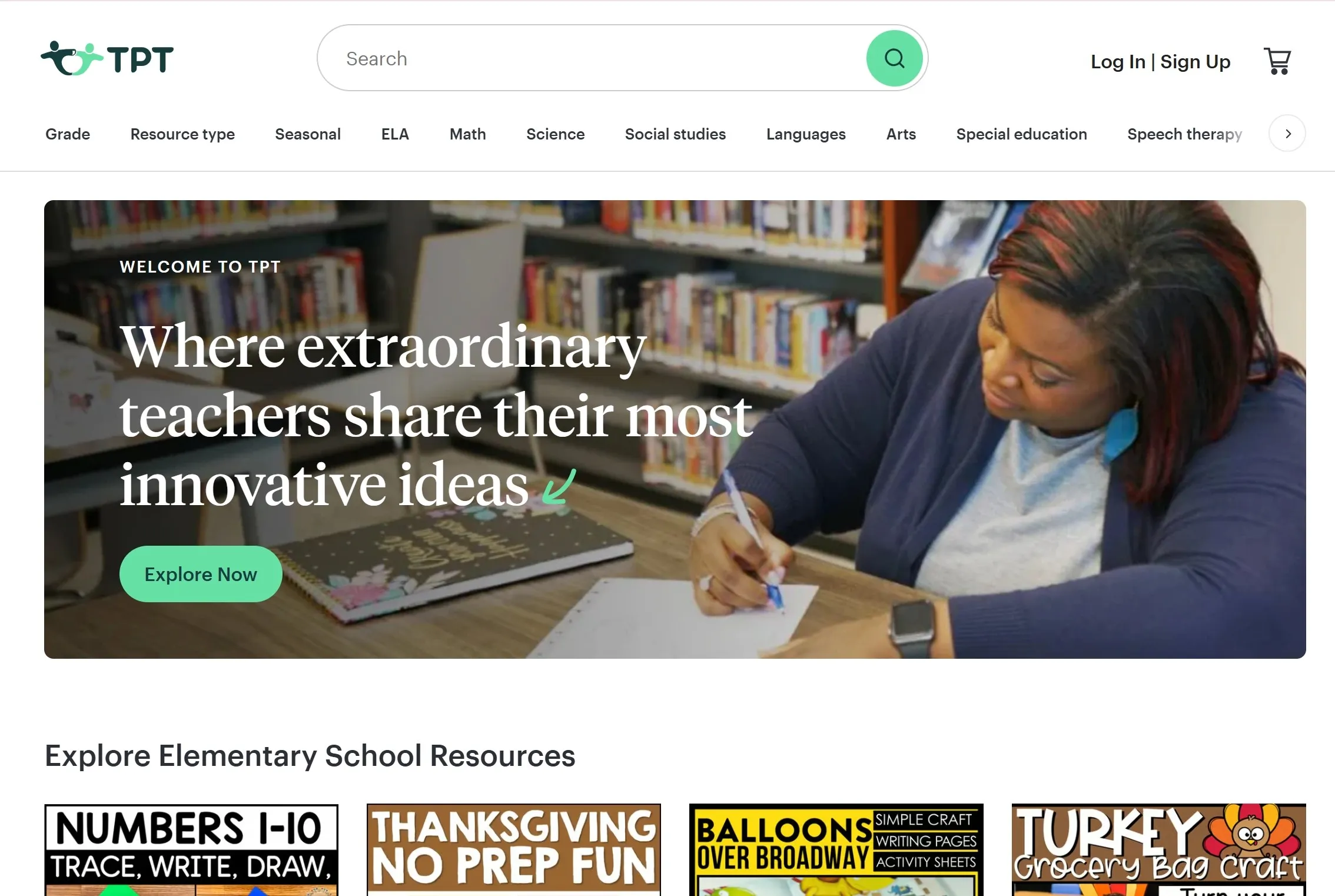
However, don't assume every purchase includes a separate answer key. Check the product description and preview before buying. The answers might appear in a separate teacher file, at the end of a combined PDF, or within a teacher edition of the resource.
For digital assignments, TPT also offers Easel, which allows teachers to create, assign, and manage interactive activities. It's useful for digital classroom workflows, although it serves a different purpose from a downloadable answer key library.
2. Subscription-Based Worksheet Libraries
If you regularly need worksheets across multiple subjects and grade levels, subscription libraries can be more convenient than searching individual marketplace listings.
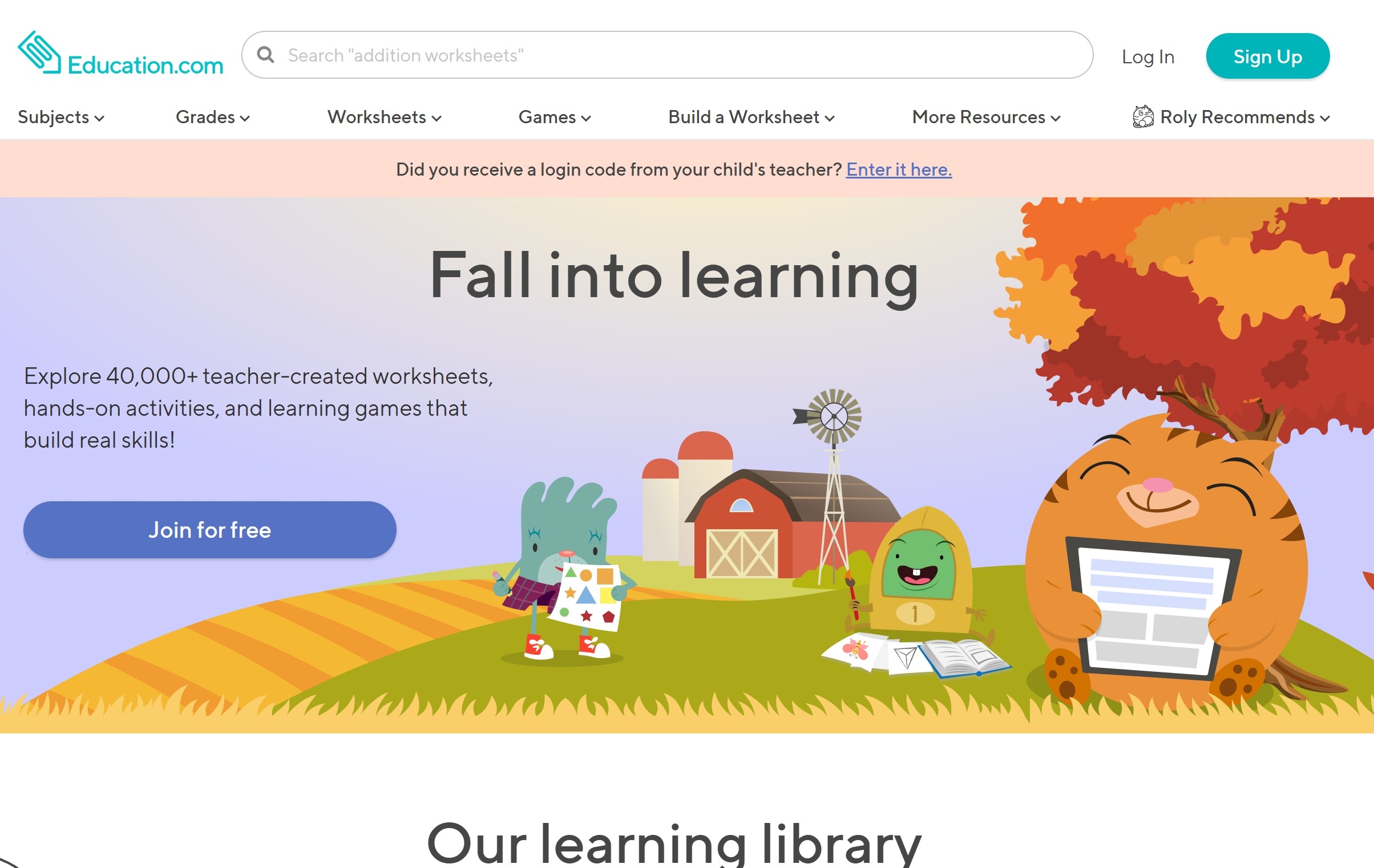
- Education.com: Provides printable worksheets and educational activities. Its answer sheets are available to Premium members for eligible worksheets, with a View Answers option appearing below the worksheet download button. Not every worksheet includes one.
- Twinkl: Offers printable teaching resources, including dedicated answer-key collections covering subjects such as reading comprehension, mathematics, and science.

These platforms are useful when you need a steady supply of classroom materials. Before downloading, check whether the answer sheet is included, whether it requires a subscription, and whether it comes as a separate file or part of a workbook.
3. Free Educational Resource Platforms
Free educational resource libraries are another option when you don't want to purchase individual worksheets or subscribe to another service.
You can explore teacher-shared lesson materials, open educational resources, and resources published by educational organizations. Some include complete answer sheets, while others provide only student-facing materials.
The main drawback is inconsistency. A worksheet may have no answer key, contain incomplete solutions, or use a format that is difficult to edit. Always check the resource description and verify important answers before using them for grading.
4. AI Worksheet Generators: Create an Answer Key When None Exists
What if you've found the right worksheet but there is no teacher answer key?
An AI worksheet generator can help when you're creating your own practice materials or need a starting point for solutions. For example, Quizbot's worksheet generator can turn lesson content, textbook pages, or topics into worksheets with answer keys and export them as Word or PDF files.
This approach is particularly useful for custom quizzes and practice exercises. However, AI-generated answers should be treated as drafts, not automatically verified solutions. Check calculations, subject-specific facts, and questions that allow multiple valid responses before giving the key to students.
Regardless of where you find an answer key, there's a good chance you'll eventually need to work with a PDF. That's where a more organized document workflow becomes useful.
How to Organize and Use Any Teacher Answer Key PDF
Once you have the answer key, the next challenge is making it practical for everyday grading. The following four steps work with PDFs from different platforms, not just TPT.
Step 1. Extract the Answer Key from a Worksheet PDF
Imagine downloading a 60-page worksheet bundle. The student exercises take up the first 45 pages, while the answer key appears near the end. Opening the entire document every time you grade an assignment wastes time.
The simplest solution is to extract the answer pages into a separate PDF.
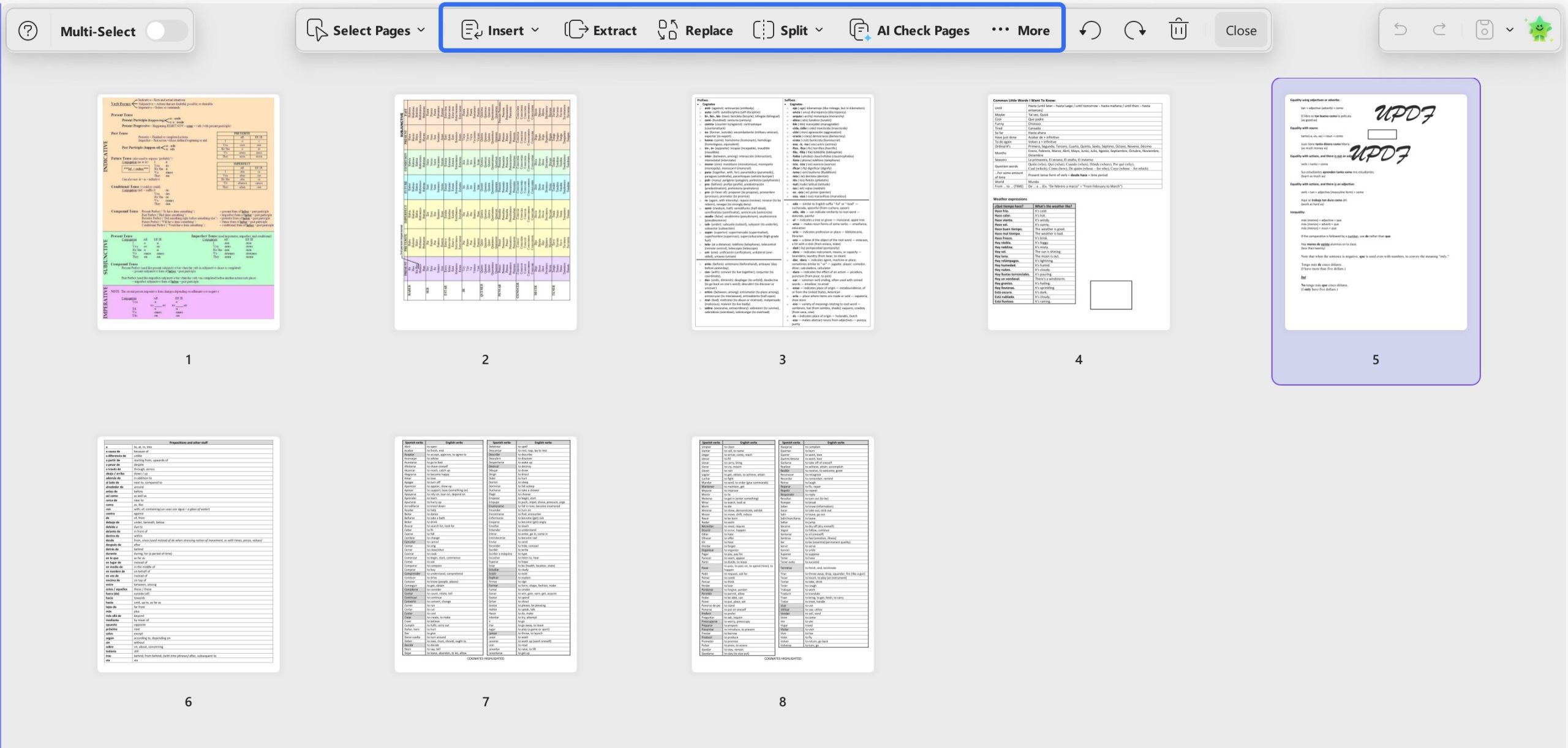
Open the document in a PDF editor, locate the relevant pages using thumbnails or page navigation, select the answer section, and save those pages as a new file. Give it a recognizable name, such as Grade-5-Fractions-Teacher-Key.pdf.
This keeps your original worksheet intact while giving you a separate reference document.
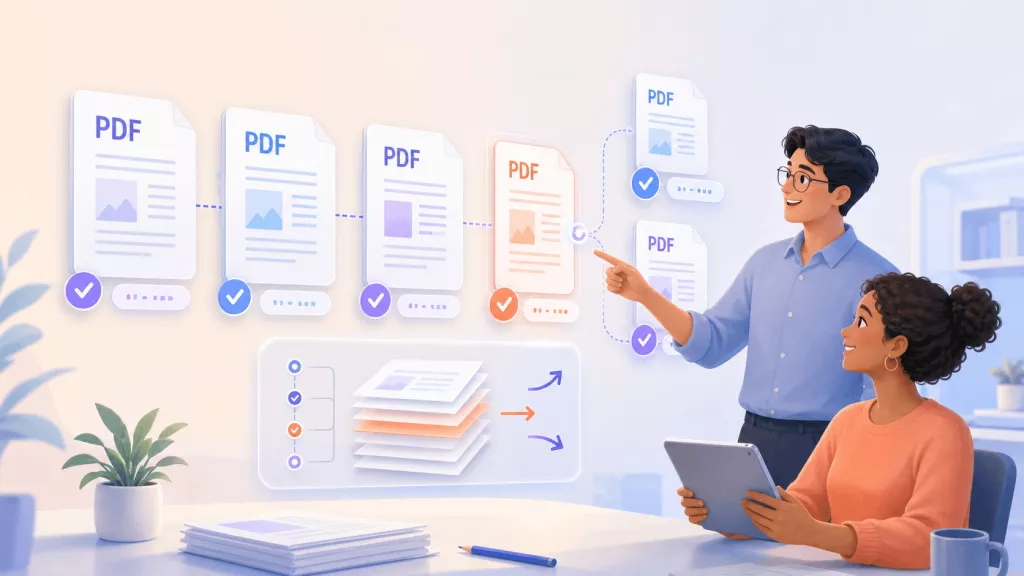
With UPDF: Its page management tools let you select and extract specific pages into a separate PDF. You can also split, reorder, or remove pages without rebuilding the entire document. With its AI page management agent, you can one-click detect the pages disordered, misplaced, or redundant—enabling effortless reorganization.
Step 2. Make Scanned Answer Keys Searchable with OCR
Not every answer key is a text-based PDF. Some are scanned worksheets or images embedded in a document. You may be able to read the answers, but you can't select a formula, search for a question number, or copy a solution.
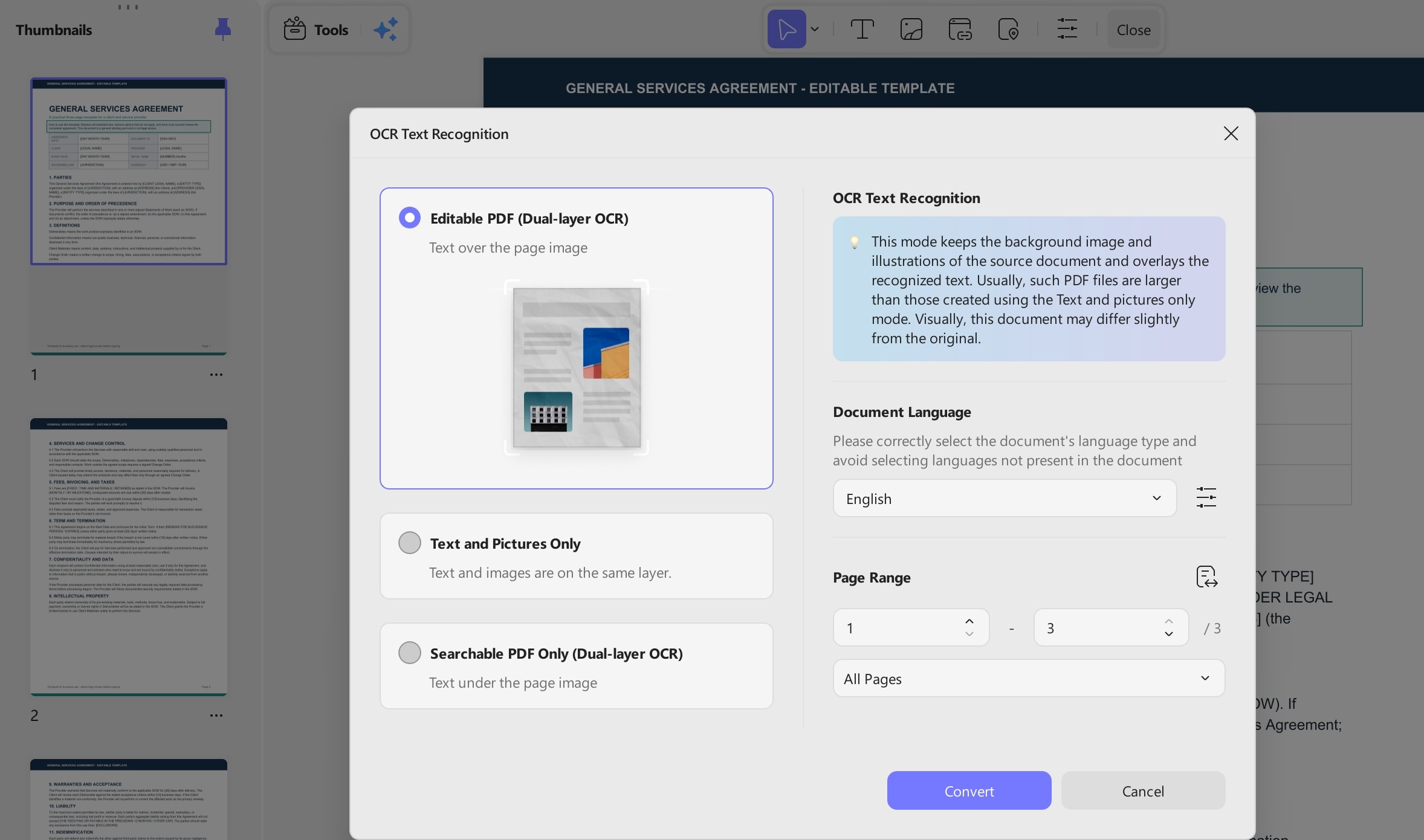
OCR (Optical Character Recognition) solves this problem by recognizing text in scanned pages and adding a searchable text layer.
After running OCR PDF, check the output carefully. Mathematical symbols, fractions, handwritten answers, and low-resolution scans can be recognized incorrectly. OCR makes the document easier to work with, but it doesn't guarantee that every character is accurate.
With UPDF: You can use its OCR feature to convert scanned PDFs into searchable or editable documents. Once processed, you can search for question numbers, select text, and add highlights or notes.
Windows • macOS • iOS • Android 100% secure
Step 3. Compare Student Work with the Answer Key
One of the biggest grading frustrations is switching repeatedly between a student's assignment and the teacher answer key.
If you're checking 20 or 30 submissions, even a small amount of unnecessary navigation adds up. It's also easy to lose track of which question you're reviewing.
A more efficient approach is to keep both documents open in separate tabs or use a split-screen view. Work through one question at a time, checking the student's response against the corresponding answer.
You can also annotate the student's PDF with highlights, comments, or marks to identify incorrect answers and explain where corrections are needed.
With UPDF: You can open multiple PDFs in separate tabs and use its annotation tools to highlight mistakes, add comments, and mark important sections. Its AI Assistant can also help explain content in a PDF or answer questions about the document, giving you another way to review unfamiliar material.
Step 4. Remove or Protect Answer Pages Before Sharing
This step is easy to overlook. You might finish preparing a worksheet, attach the PDF to an email, and accidentally send the version that still contains the teacher answer key.
Before sharing an assignment, create a separate student-facing copy.
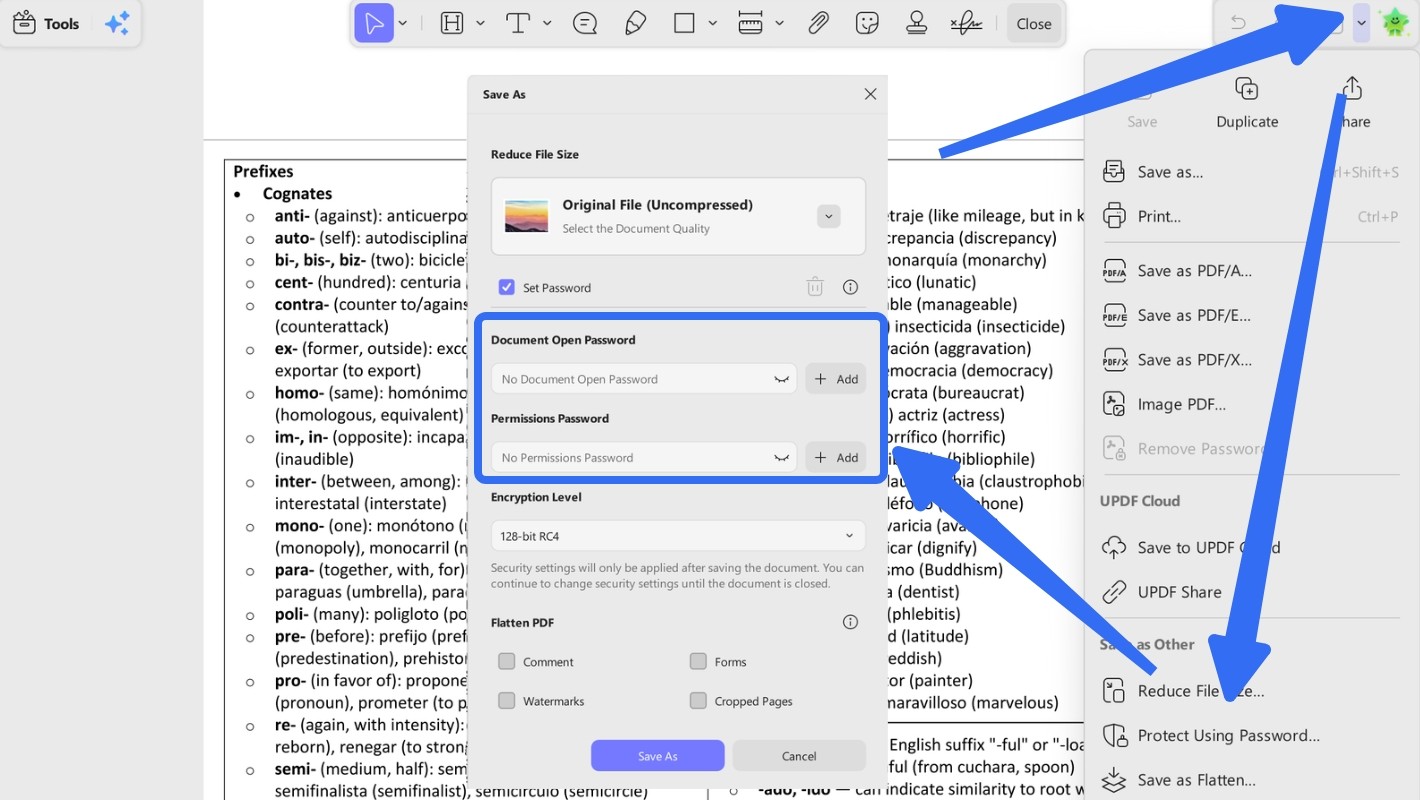
Remove answer pages, save the remaining worksheet as a new PDF, and review the final document from beginning to end. Check that no answer pages, comments, attachments, or other confidential content remain.
If you're sharing a teacher-only answer key with colleagues, consider adding password protection and restricting copying, editing, or printing where appropriate.
Remember that permission restrictions are not a substitute for keeping confidential files in the right hands. Always share the correct version with the intended recipients.
With UPDF: You can remove selected pages, save a separate student version, and apply password protection or PDF permission restrictions to teacher-only documents.
What If the Teacher Answer Key Is Missing or Incorrect?
Even a well-organized PDF workflow cannot solve every problem. Sometimes the resource simply doesn't include an answer key. Other times, the provided solution seems inconsistent with the question.
This is where AI can serve as a useful backup.
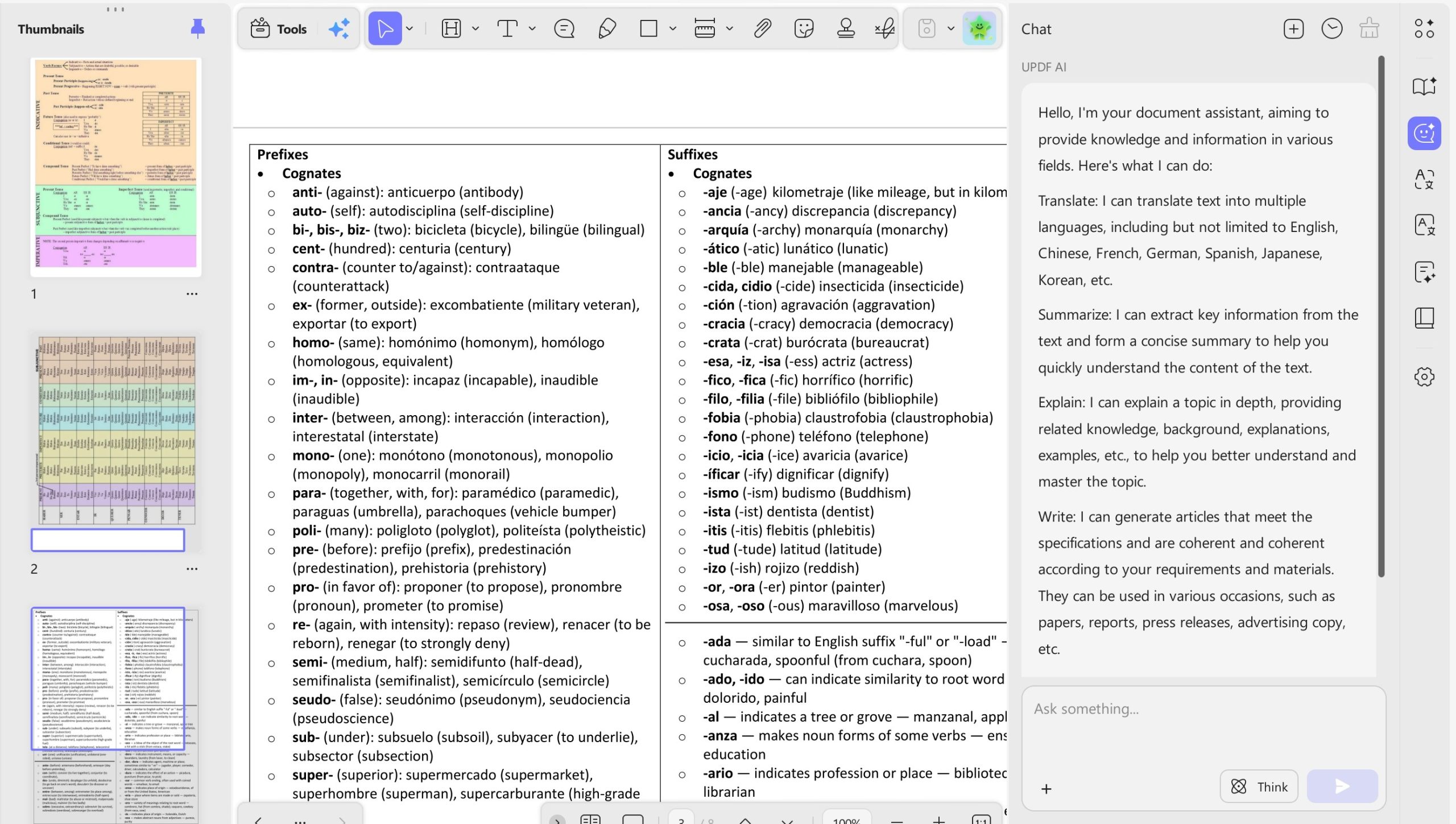
When the answer key is missing: Upload the worksheet PDF to an AI assistant like UPDF AI and ask it to solve specific questions step by step. For example:
"Read question 8 on page 3. Solve it step by step, explain the reasoning, and provide the final answer."
When an existing answer seems incorrect: Ask AI to solve the same question independently. Compare its reasoning with the supplied answer rather than accepting either result automatically.
When the answer key is image-only: Run OCR first, or provide a clear screenshot of the question and answer. AI can then help interpret the content and explain the solution.
UPDF AI supports PDF-based questions and document explanations, making it useful when you need to examine worksheet content without repeatedly copying information into another application. You can also ask it to explain a particular question or selected page.
However, there's an important distinction: UPDF does not provide a ready-made teacher answer key or replace a teacher's judgment. Its value is in helping you analyze existing documents, generate possible solutions, and cross-check questionable answers. Always verify the results, especially for complex calculations, ambiguous questions, and subjects where accuracy matters.
Windows • macOS • iOS • Android 100% secure
FAQs About Teacher Answer Keys
1. Where can I find answer keys for a worksheet I already have?
Start with the original publisher or website where you downloaded the worksheet. Search its title along with terms such as "answer key," "teacher edition," or "answer sheet." If the original source doesn't provide one, check educational resource libraries or use an AI tool to help work through the questions.
2. What if a TPT resource doesn't include an answer key?
First, check the product description and downloaded files to make sure the answer key isn't included separately. If it's genuinely missing, contact the seller to ask whether a teacher edition is available. You can also solve the questions independently or use AI to generate draft solutions for verification.
3. How do I separate an answer key from a student worksheet PDF?
Open the PDF in a page management tool, identify the pages containing answers, and use the extract function to save them as a separate document. Keep the original file unchanged so you can create a clean student version later.
4. Can AI grade assignments using an answer key PDF?
AI can compare student responses with a supplied answer key and help identify possible mistakes, but the results depend on the subject, question format, and clarity of the documents. Multiple-choice questions and straightforward calculations are generally easier to check than essays or open-ended responses. Teachers should review AI-generated grading suggestions before assigning final scores.
Final Words
Finding reliable teacher answer keys shouldn't be the hardest part of preparing a lesson or grading assignments. Whether you download resources from TPT, explore free educational libraries, or generate solutions with AI, the real challenge is often what happens after you get the files.
Instead of juggling multiple files and repeatedly switching between worksheets and answer sheets, you can use UPDF to handle these PDF tasks in a more consistent workflow. Its page management, OCR, annotation, security, and AI features help you spend less time organizing documents and more time focusing on teaching.
Download UPDF and simplify the way you organize, review, and manage teacher answer keys and classroom PDFs.
Windows • macOS • iOS • Android 100% secure







 Engelbert White

 Delia Meyer

 Enid Brown

 Enya Moore