 UPDF
UPDF
 UPDF for Windows
 UPDF for Mac
 UPDF for iPhone/iPad
 UPDF for Android
 Nomostar
 UPDF AI Online
 UPDF Sign
 IvyCraft
 Edit PDF
 Annotate PDF
 Create PDF
 PDF Form
 Edit links
 Convert PDF
 OCR
OCR PDF to Word
 PDF to Image
 PDF to Excel
 Organize PDF
 Merge PDF
 Split PDF
 Crop PDF
 Rotate PDF
 Protect PDF
 Sign PDF
 Redact PDF
 Sanitize PDF
 Remove Security
 Read PDF
 UPDF Cloud
 Compress PDF
 Print PDF
 Batch Process
 About UPDF AI
 UPDF AI Solutions
 AI User Guide
 FAQ about UPDF AI
 Summarize PDF
 Translate PDF
 Chat with PDF
 Chat with AI
 Chat with image
 PDF to Mind Map
 Explain PDF
 PDF AI Tools
 Image AI Tools
 AI Chat Tools
 AI Writing Tools
 AI Study Tools
 AI Working Tools
 Other AI Tools
 AI Bookmark Generation
 AI Bookmark Summary
 AI Watermark Generation
 AI Background Generation
 AI Sticker Generation
 AI Stamp Generation
 AI Editing Suite
 UPDF Copilot
 AI Page Management
 AI Semantic Search
 PDF to Word
 PDF to Excel
 PDF to PowerPoint
 Enterprise Solution
 Enterprise Sign
 Enterprise AI
 Enterprise Plan
 Enterprise User Guide
 Enterprise Webinar
 IT
IT Education
 Construction
 Financial Service
 Healthcare
 Insurance
 Legal
Legal Manufacturing
 Government
 Researchers & PhDs
 Solopreneurs & Freelancers
 Lawyers & Legal Professionals
 Real Estate Agents & Brokers
 Education Solution
 Customer Stories
 User Guide
 UPDF Tricks
 FAQs
FAQs UPDF Reviews
 Download Center
 Blog
Blog Newsroom
 Tech Spec
 Updates
 UPDF vs. Adobe Acrobat
 UPDF vs. Foxit
 UPDF vs. PDF Expert

You've created a great PDF – but it’s missing one thing: clickable links. Without hyperlinks, your readers can't quickly navigate to your website, jump to a specific page, or access related resources.
Example: If a 40-page employee handbook has the same outdated benefits URL on several pages, update the link target and then test every changed hotspot before sharing the PDF. For a related workflow, see edit an existing link in a PDF.
The good news? Adding links to a PDF is easier than you think. In this guide, we’ll cover 3 methods to add hyperlinks to PDFs – from free online tools to professional desktop software – so you can choose the one that fits your needs and budget.
Adding links is just one part of PDF editing – to master everything from text editing to annotation, head over to our How to Edit a PDF guide.
Part 1: What Types of Links Can You Add to a PDF?
When adding a link to a PDF, you have 3 main options:
| Link Type | What It Does | Best Used For | Recommend Tool |
|---|---|---|---|
| Web Link (URL) | Opens a web page in your browser | Directing readers to your website, online resources, or references | ✅Online Tools/✅Professional Software |
| Page Link | Jumps to a specific page within the same PDF | Table of contents, cross-references, indexes | ⚠️Online Tools/✅Professional Software |
| File Link | Opens another file on your computer | Linking to supplementary documents, attachments, or resources | ⚠️Online Tools/✅Professional Software |
💡 Pro Tip: Most PDF editors default to “Web Link” mode, but knowing all types helps you choose the right one for your document.
Then let's see how to use online tools and professional desktop software to add these clickable links to a PDF.
Part 2: 3 Methods to Add Links to a PDF
You can review four methods in a minute and quickly identify the approach that suits you best.
| Method | Best For | Pros | Cons |
|---|---|---|---|
| ① Online Tools | Quick, one-off, non-sensitive files | No install, free tiers available | File size limits, files leave your device |
| ② Desktop Software (UPDF, Adobe) | Professional, batch, sensitive docs | Local processing, full control, no limits | One-time purchase or subscription |
| ③ Free Workarounds (Word, Google Docs, Preview) | Casual, short documents | Free, tools you already own | Formatting may break, limited control |
There's no one-size-fits-all solution – choose online tools for quick, non-sensitive tasks; desktop software (like UPDF) for professional, secure, and batch work; and free workarounds for zero-budget, low-stakes documents where formatting doesn't matter.
While online tools compromise your privacy and free workarounds break your formatting, professional tools like UPDF give you full control over every link – with local processing, all link types, and batch support, all at a fraction of Adobe's cost. You can download and have a free trial directly.
Windows • macOS • iOS • Android 100% secure
Let's see how to use these methods to add a link to a PDF one by one.
Method 1 – Online Tools (Fast & Free, with Limits)
Online tools offer the quickest way to add links to PDFs—no software installation is required; you can simply use your web browser. However, capabilities vary significantly among these tools: some only support web links, while others allow for internal page navigation and file links; some are completely free, whereas others impose limits on file size or usage frequency.
| Tool | Link Types Supported | Free Limits | Registration Required | Best For |
|---|---|---|---|---|
| Sejda | Web Link, Page Link | 3 tasks/hour, ≤50MB or 200 pages | ❌ No | Drag‑and‑drop link creation with both URL and internal page links |
| Smallpdf | Web Link only | 2 tasks/hour (file size limits apply) | ❌ No | Users who already work with Word and don't mind converting back and forth |
| PDFescape | Web Link only | ≤10MB or 100 pages | ❌ No | Small, simple PDFs that only need basic web hyperlinks |
Among the three online tools compared, Sejda is the most reliable and versatile option for adding links to PDFs. If you're looking for a free online tool that actually works for adding links – whether to a website or another page in your PDF – Sejda is the most dependable choice.
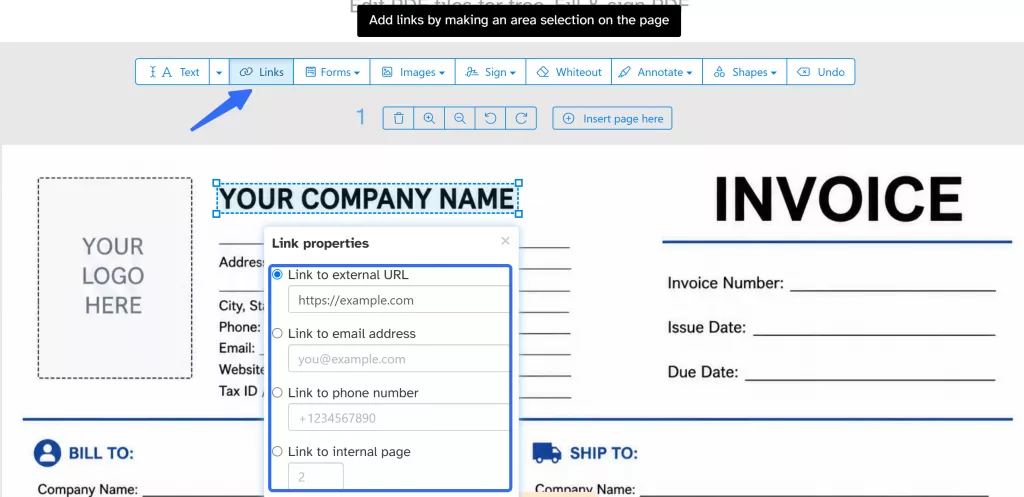
💡 Tip: If you need to link to a local file or work with PDFs larger than 50MB, you'll need to move beyond online tools – see Method 2 (Desktop Software) for a more capable solution.
Method 2 – Desktop Software (Professional, Secure, Full Control)
Here we selected 6 desktop software for user to choose according to your needs and requirements.
| Dimension | UPDF | Adobe Acrobat Pro | Foxit PDF Editor | Nitro PDF Pro | SwifDoo PDF | PDF-XChange Editor |
|---|---|---|---|---|---|---|
| Pricing (Annual) | $49.99 | $240/year | $129.99/year | $198/year | $69/year | One-time: $62–$79 |
| Can the free version add links? | ✅ (trial period) | ❌ (subscription required) | ❌ (subscription required) | ❌ (subscription required) | ✅ (basic version) | ✅ (basic version) |
| Platform | Win / Mac / iOS / Android | Win / Mac | Win / Mac / iOS / Android | Win / Mac | Win (Mac limited) | Win |
| OCR (scanned PDF support) | ✅ Built-in | ✅ Built-in | ✅ Built-in | ✅ Built-in | ✅ Built-in | ✅ Built-in |
| AI Features | ✅ Rewrite/polish/translate/summarize/chat | ⚠️ Limited (AI Assistant costs extra) | ❌ | ❌ | ❌ | ❌ |
| Batch Processing | ✅ | ✅ | ⚠️ Limited | ✅ | ❌ | ✅ |
| Local Processing (Privacy) | ✅ | Partially cloud | ✅ | ✅ | ✅ | ✅ |
| Learning Curve | Low | Medium | Low | Medium | Low | Low |
| Best For | Users who need AI + cross-platform | Enterprise / existing Adobe subscribers | Lightweight + team collaboration | Windows power users | Windows beginners | Advanced Windows users |
UPDF offers the same link-adding capabilities as Adobe Acrobat Pro – but at roughly one-third the annual cost, with the added benefit of cross-platform coverage (Windows, Mac, iOS, Android).
Why UPDF Is the Best Choice for Adding Links
- Full Link Type Support – Add web links, page links, file links, and custom JavaScript links
- Easy Link Management – Add, edit, or delete links with a few clicks
- Link Appearance Control – Customize border thickness, color, and visibility
- 100% Local Processing – Your files never leave your device – secure for sensitive documents
- Cross-Platform – One license covers Windows, Mac, iOS, and Android
- Affordable – One-time purchase at $69.99, no recurring fees
How to Add a Link in UPDF in Simple Steps
We’ll guide you through the two methods to add links to PDFs with our easy-to-follow process. Click the button below to streamline PDF management with UPDF today!
Windows • macOS • iOS • Android 100% secure
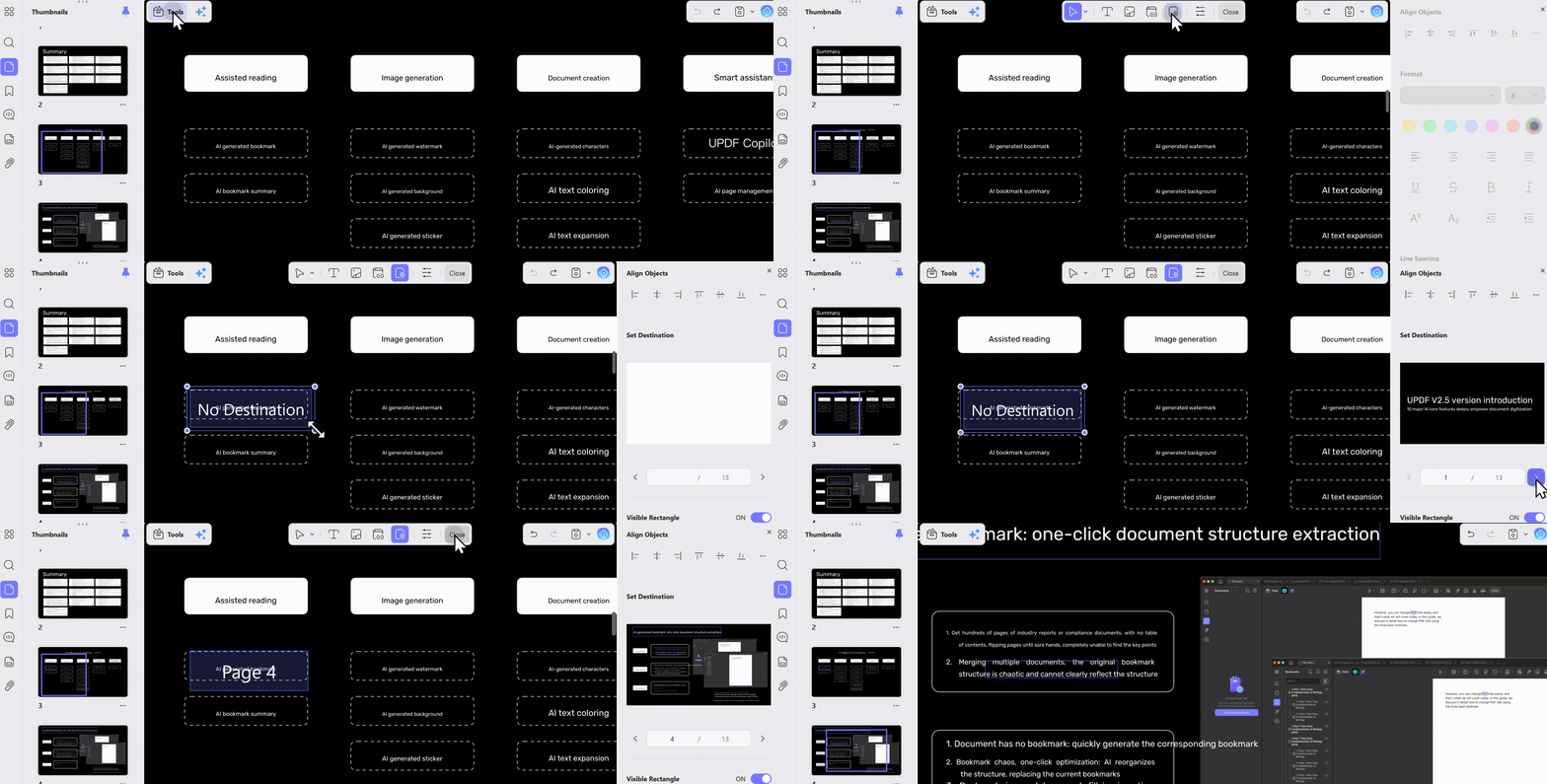
Click “Edit” on the left of your page, followed by “Link” at the top, and then drag your mouse to draw the clickable area for your link and select “Edit & Insert Link” or "Edit & Insert Link Page."
If you want to add link page to the text in PDF, check these steps below.
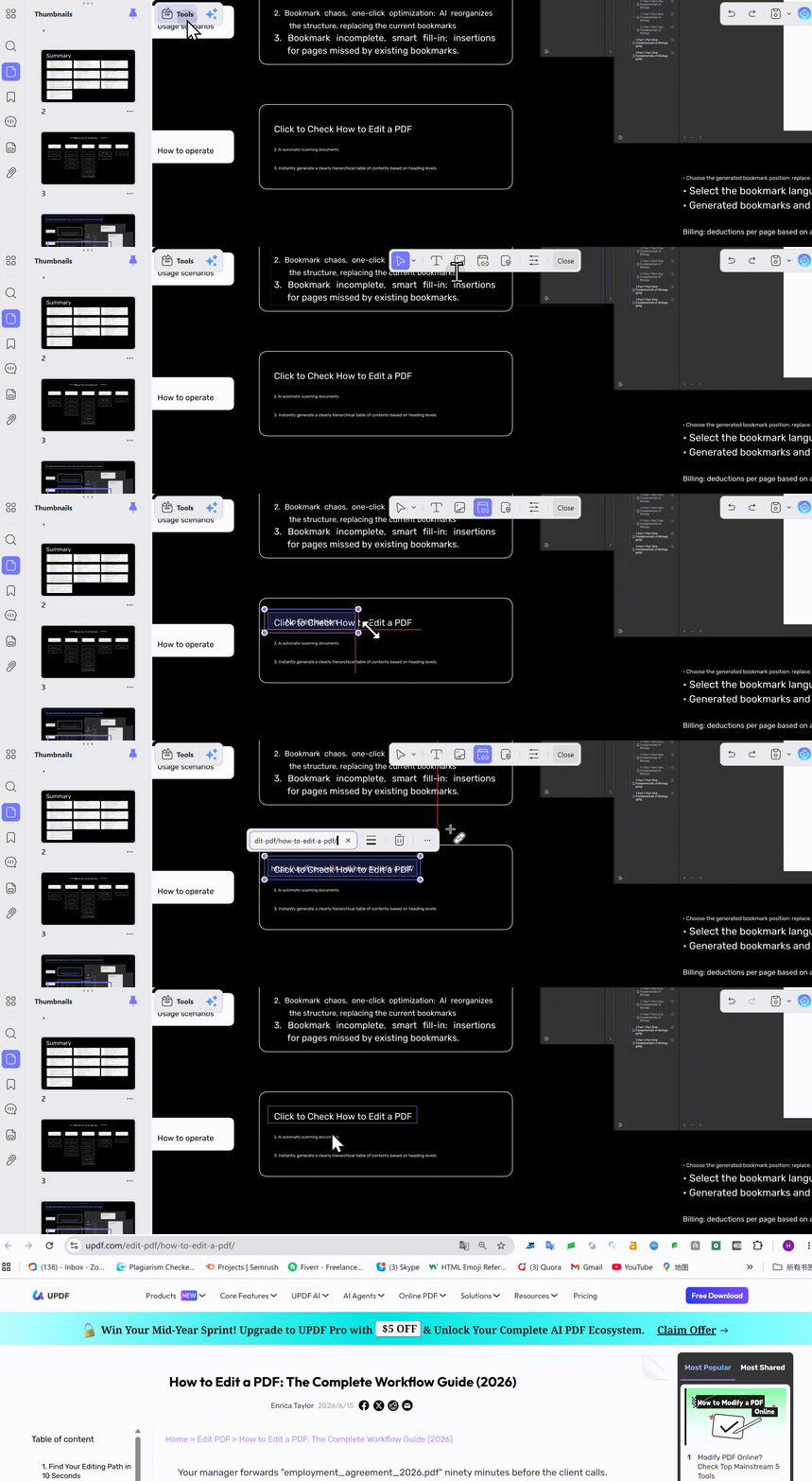
Let's check the steps to add a website link to PDF. Enter the address of the website you wish to link to and then save your PDF once complete.
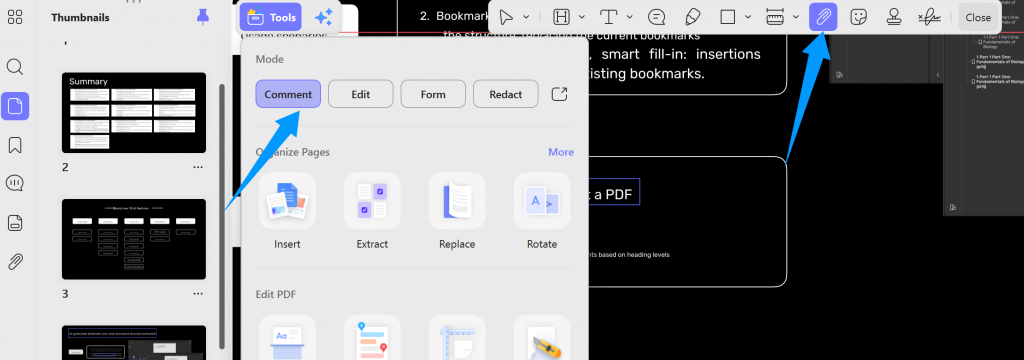
About the file link, it's an attachment you can put on PDF and then click to open it on the computer.
📌 For professionals who regularly add, edit, or manage links in PDFs, UPDF offers the best balance of functionality, security, and affordability.
Windows • macOS • iOS • Android 100% secure
If you’d like to learn more about the many features UPDF offers, read through this comprehensive review! Or if you’d prefer— check out the video below to learn why UPDF is the best PDF editor on the market. And it is free to test. If you want to upgrade to pro version, you can get it at a big discount.
Method 3 – Free Workarounds (Word, Google Docs, Preview)
If you do not want to spend money and prefer to use existing tools, please consider the following three methods and their limitations.
Using Microsoft Word
- Open your PDF in Microsoft Word (it will convert to .docx)
- Select and highlight the text you want as your anchor text
- Go to Insert > Link
- Enter the URL → Save as PDF
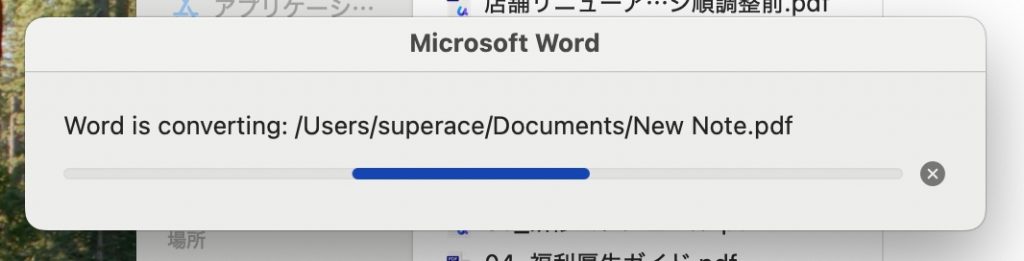
Limitations: Formatting may shift during conversion; not ideal for complex layouts. And conversion would be failed.
Using Google Docs
- Upload your PDF to Google Drive → Open with Google Docs
- Select the text → Click Insert > Link (or
Ctrl + K) - Paste your URL → Click Apply
- Go to File > Download > PDF Document
Limitations: Complex formatting (tables, images) may not survive the conversion.
Using macOS Preview
- Open your PDF in Preview
- Go to Tools > Annotate > Text to add a text box
- Type your link text → Select it → Right-click → Add Link
- Enter the URL
Limitations: Preview only supports basic web links; no page links or file links.
If you just need quick, informal documents where formatting isn't critical. For anything professional, use Method 2.
Advanced Tips for Adding PDF Links
1. Choose the Right Link Appearance
- Visible vs. Invisible links – visible links (blue, underlined) are user-friendly; invisible links work well over images or buttons
- Border settings – adjust thickness and color to match your document’s design
2. Test Your Links Before Sharing
- Always click every link in your PDF before sending it out
- Check that external URLs are still valid
- Verify page links point to the correct page numbers
3. Make Links Accessible
- According to W3C guidelines, link text should be understandable out of context
- Use descriptive link text (e.g., “Download our product catalog” instead of “Click here”)
- Ensure links are keyboard-navigable and screen-reader compatible
4. Use Link Destinations for Complex Documents
- Instead of linking to a page number (which can change), link to a named destination – a fixed point that stays accurate even if pages are added or removed
FAQ
Can I add a clickable link to text in a PDF?
Yes. Select the text area, create a link annotation, and assign the destination URL or page. Test the link after saving.
Why does a PDF link open the wrong page?
The link may use an outdated page destination or a shifted page number after pages were inserted or removed. Edit the destination and test it again.
How can I check that every PDF link works?
Open the saved PDF in a second reader and click each link. Confirm external URLs, internal page jumps, and email links all reach the intended destination.
Conclusion
Adding links to your PDFs makes them more interactive, professional, and user-friendly. Whether you choose a free online tool or professional desktop software, the key is finding a solution that fits your workflow.
For most users – especially those who handle sensitive documents, need full control over link types, or want a cost-effective solution – UPDF offers the best balance of features, security, and affordability.
Want to master all aspects of PDF editing? Check out our complete guide: How to Edit a PDF – covering text editing, image manipulation, annotation, and more.
Windows • macOS • iOS • Android 100% secure





 Enrica Taylor
 Delia Meyer
 Engelbert White
 Lizzy Lozano