 UPDF
UPDF
 UPDF for Windows
 UPDF for Mac
 UPDF for iPhone/iPad
 UPDF for Android
 Nomostar
 UPDF AI Online
 UPDF Sign
 IvyCraft
 Edit PDF
 Annotate PDF
 Create PDF
 PDF Form
 Edit links
 Convert PDF
 OCR
OCR PDF to Word
 PDF to Image
 PDF to Excel
 Organize PDF
 Merge PDF
 Split PDF
 Crop PDF
 Rotate PDF
 Protect PDF
 Sign PDF
 Redact PDF
 Sanitize PDF
 Remove Security
 Read PDF
 UPDF Cloud
 Compress PDF
 Print PDF
 Batch Process
 About UPDF AI
 UPDF AI Solutions
 AI User Guide
 FAQ about UPDF AI
 Summarize PDF
 Translate PDF
 Chat with PDF
 Chat with AI
 Chat with image
 PDF to Mind Map
 Explain PDF
 PDF AI Tools
 Image AI Tools
 AI Chat Tools
 AI Writing Tools
 AI Study Tools
 AI Working Tools
 Other AI Tools
 AI Bookmark Generation
 AI Bookmark Summary
 AI Watermark Generation
 AI Background Generation
 AI Sticker Generation
 AI Stamp Generation
 AI Editing Suite
 UPDF Copilot
 AI Page Management
 AI Semantic Search
 PDF to Word
 PDF to Excel
 PDF to PowerPoint
 Enterprise Solution
 Enterprise Sign
 Enterprise AI
 Enterprise Plan
 Enterprise User Guide
 Enterprise Webinar
 IT
IT Education
 Construction
 Financial Service
 Healthcare
 Insurance
 Legal
Legal Manufacturing
 Government
 Researchers & PhDs
 Solopreneurs & Freelancers
 Lawyers & Legal Professionals
 Real Estate Agents & Brokers
 Education Solution
 Customer Stories
 User Guide
 UPDF Tricks
 FAQs
FAQs UPDF Reviews
 Download Center
 Blog
Blog Newsroom
 Tech Spec
 Updates
 UPDF vs. Adobe Acrobat
 UPDF vs. Foxit
 UPDF vs. PDF Expert

Zooming in on PDFs should feel natural, but many tools still make reading awkward and uncomfortable for users. People often pinch and scroll on every page, losing their place and breaking their focus repeatedly. Constant side‑to‑side movement quickly turns long reports and manuals into frustrating, time‑consuming tasks. Readers want a smoother experience that helps them stay with the ideas, not the document layout.
When someone looks for a Zoomer PDF, they are really searching for effortless control and visual comfort. They want pages that fit their screen, text that feels gentle on the eyes, and layouts that remain steady. UPDF helps by offering precise zoom controls and calm reading environments that support long study or work sessions. Now, we will outline how these options turn everyday PDF reading into a focused experience.
- Comfort: Enhances visual ease to reduce fatigue during long sessions with detailed content.
- Control: Offers clear options so you can adjust pages without disrupting your reading flow.
- Continuity: Supports smooth transitions as you move between devices and ongoing projects.
Download UPDF Free: The Smartest Way to Read PDFs and enjoy a smoother reading experience.
The right view makes it easier to move through the document without losing your place. The video below offers a closer look.
Windows • macOS • iOS • Android 100% secure
Part 1. Top-Tier PDF Zoom Tools: Hands-On Testing & Reviews
Many readers jump between devices and need a viewing setup that always feels clear and comfortable. They often try one PDF zoom tool after another, searching for better control over every page. Real testing with everyday documents shows which options truly reduce strain and support longer, focused sessions. Next, we will share those results and explain how each choice changes your reading experience.
1. Adobe Acrobat Reader
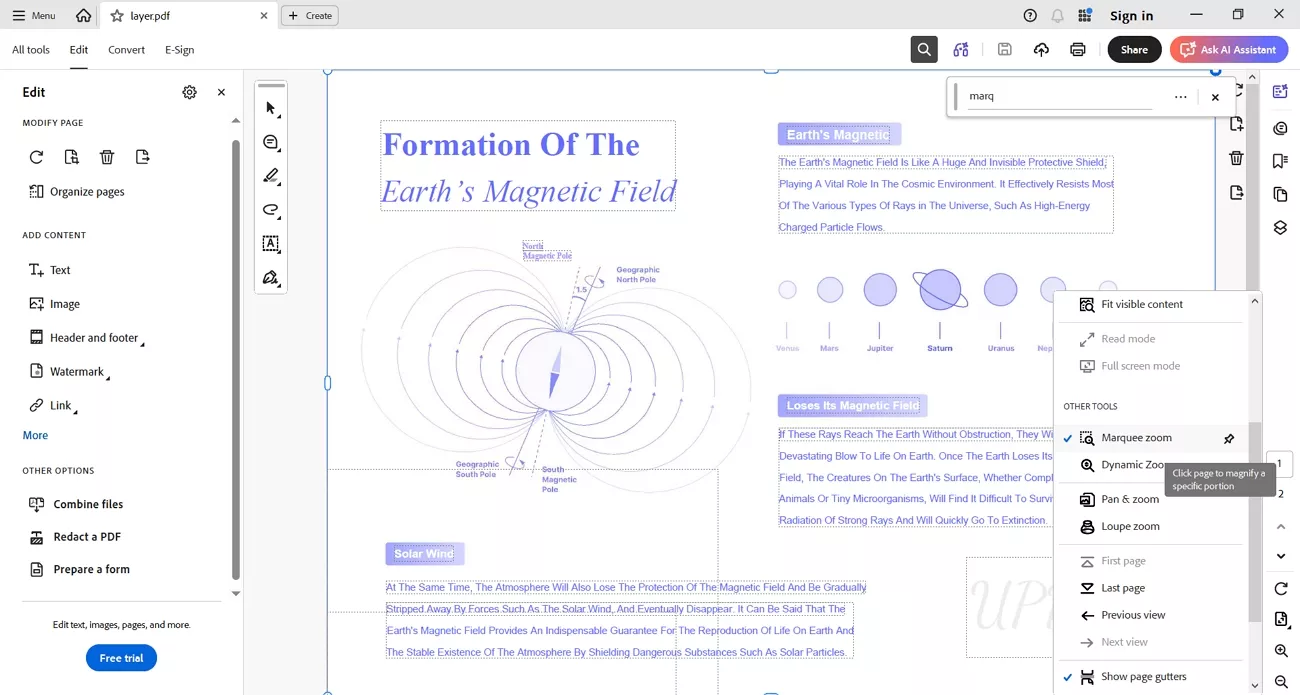
It is a common choice for viewing documents at work and school. Many people use Adobe Acrobat due to its familiar feel and the availability of most computers. Its layout focuses on tools and menus, which sometimes feel busy during long reading sessions. Readers often wish it offered a softer, more relaxing environment when working with lengthy or complex files.
Key Features
- Marquee zoom lets you draw a box around an area and enlarge that specific region.
- A zoom slider allows quick adjustments when you want to move between different view levels.
- Percentage options help you jump to chosen zoom values, like 100 or 150%.
- View and preference settings include controls to change the default zoom and opening display for new documents.
Hands-On Feedback
While stable, Adobe feels "gray and cold," especially when reading for long periods of time. Setting a default zoom requires digging into deep settings, and it lacks comfort-focused themes for long-form reading.
2. UPDF (The Professional "Eye-Care" Zoomer)
Many readers struggle with clumsy zoom controls and rigid layouts that make long documents feel tiring and confusing. This is where UPDF comes in, giving people a calmer way to view pages that match their needs. It helps users move through content smoothly, so their attention stays on ideas rather than constant adjustments.
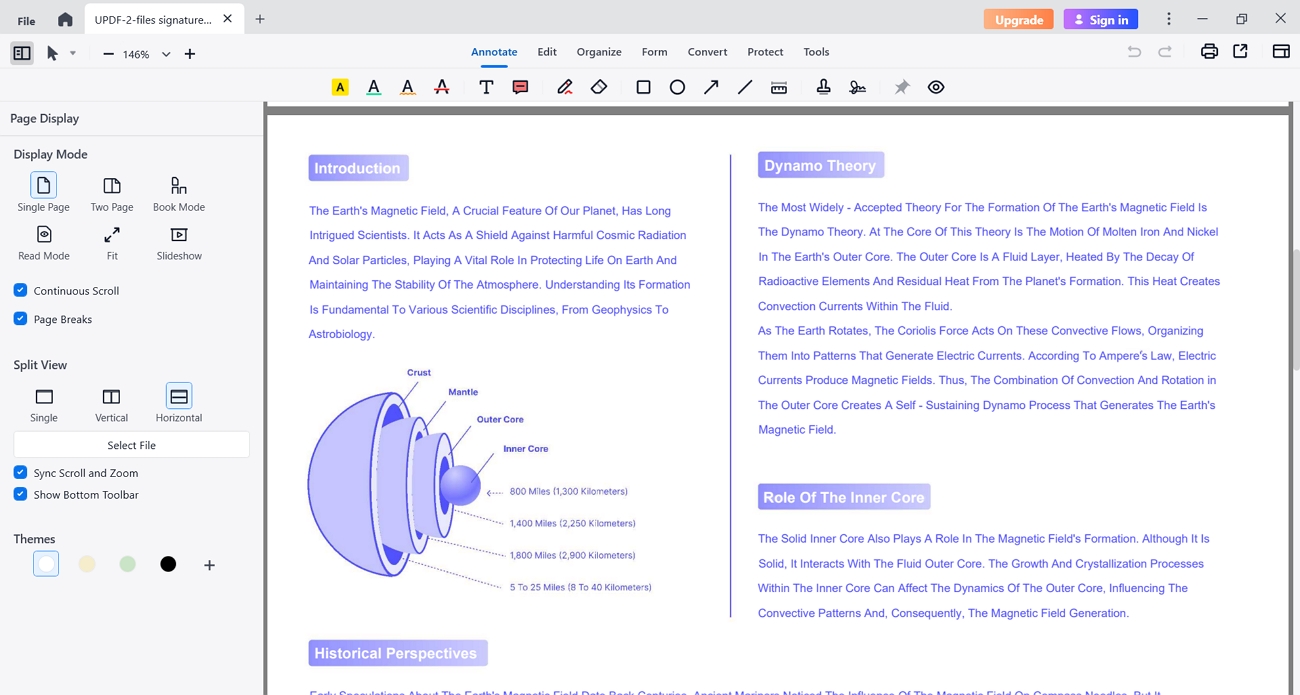
People using this Zoomer PDF feel more in control, especially when switching between different kinds of documents. With flexible page display modes, it supports more natural reading sessions that fit study, work, and focused review.
Key Features
- Custom Zoom: Lets you set exact zoom levels, so every page appears at the size you prefer.
- Fit Modes: Matches pages to your screen, helping layouts feel balanced without repeated manual resizing steps.
- Page Display Modes: Offers single, double, and scrolling views to match how you like to move through pages.
- Reading Themes: Provides different visual styles, helping your eyes stay relaxed during longer reading or review times.
How to Use UPDF for Comfortable Zooming and Reading
Once you understand what this helpful Zoomer tool can do, you might wonder how it works. So, if you want to know how to change the zoom size in PDF and improve reading comfort, follow the steps below:
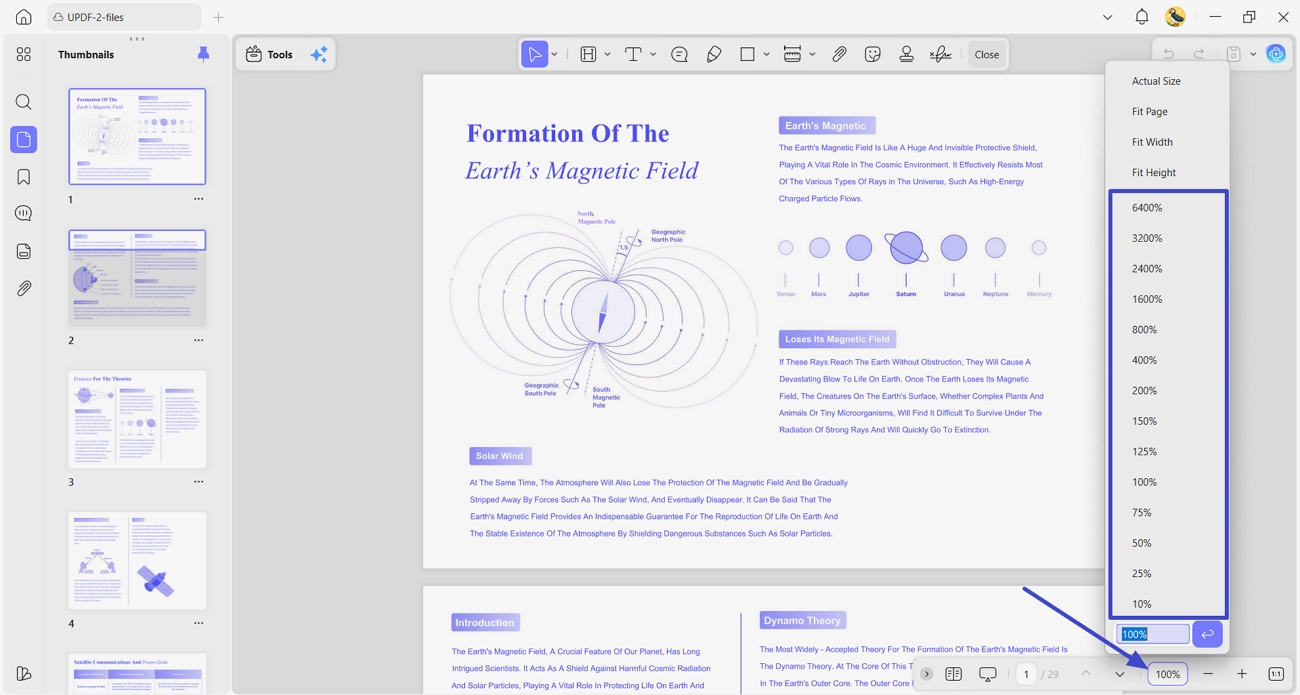
Step 1. Access Zoom Controls in UPDF
Once you open a PDF in UPDF, click the "Zoom" in the bottom right viewing control panel. Next, choose a zoom level that fits your screen and makes the text easy to read.
Windows • macOS • iOS • Android 100% secure
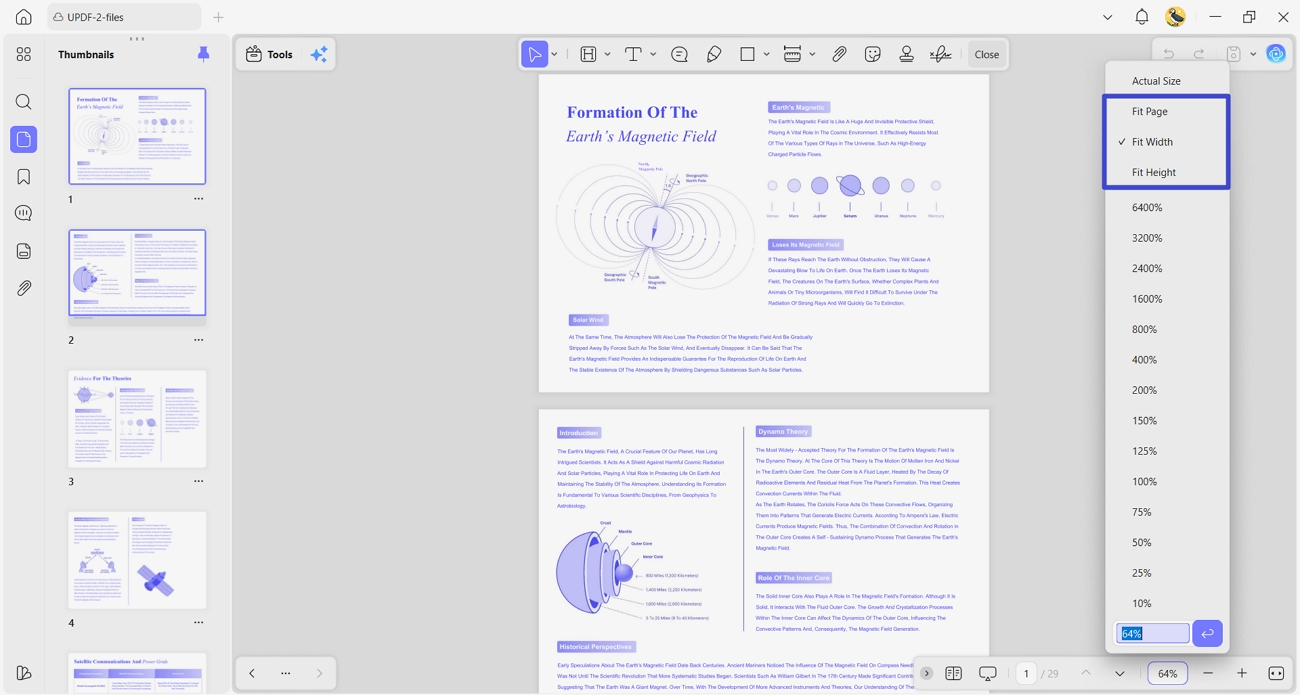
Step 2. Use the Available Auto-fit Options
After setting a zoom level, switch to "Fit Width" or "Fit Height" mode, so the page fills your screen and reduces unnecessary scrolling. When testing "Fit Width" on a multi‑column document, it instantly removed horizontal side‑to‑side movement.
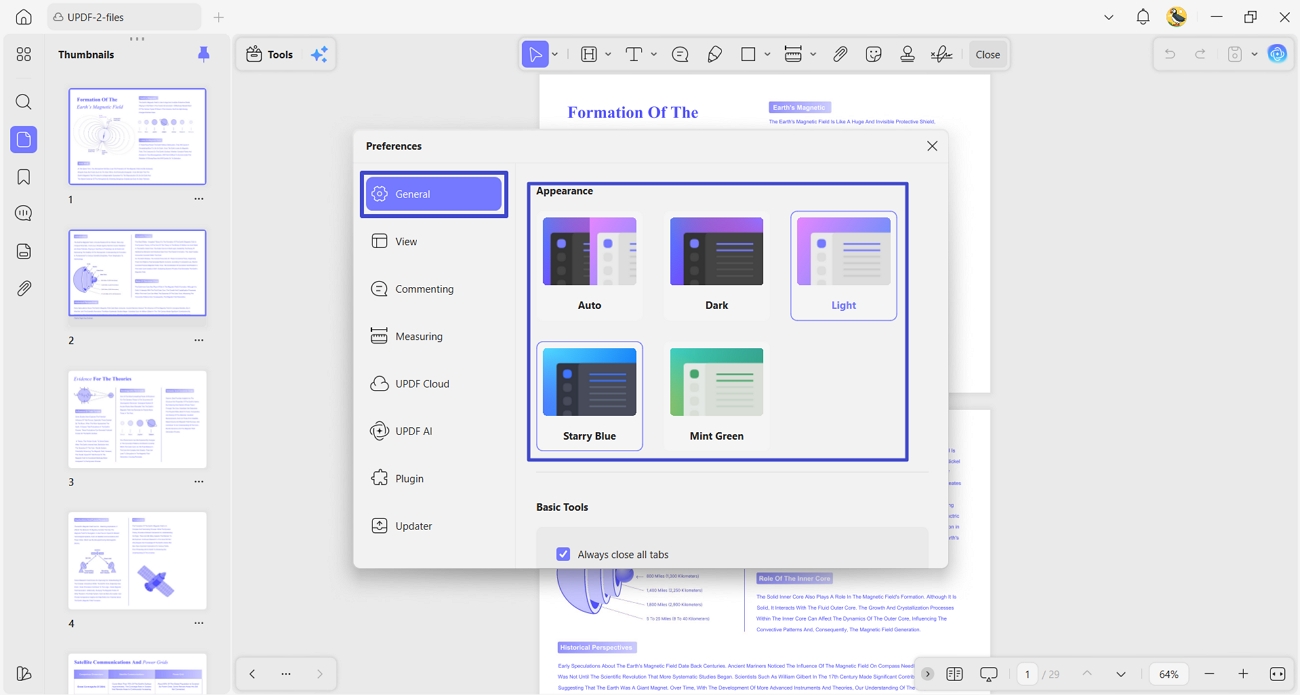
Step 3. Choose a Comfortable Reading Theme
Afterward, click the "Profile" at the top and press the "Settings" button. In the "General" section, choose a reading theme. Unlike Adobe, UPDF lets you switch between "Dark," "Starry Blue," and "Mint Green" themes to match your eyes and environment.
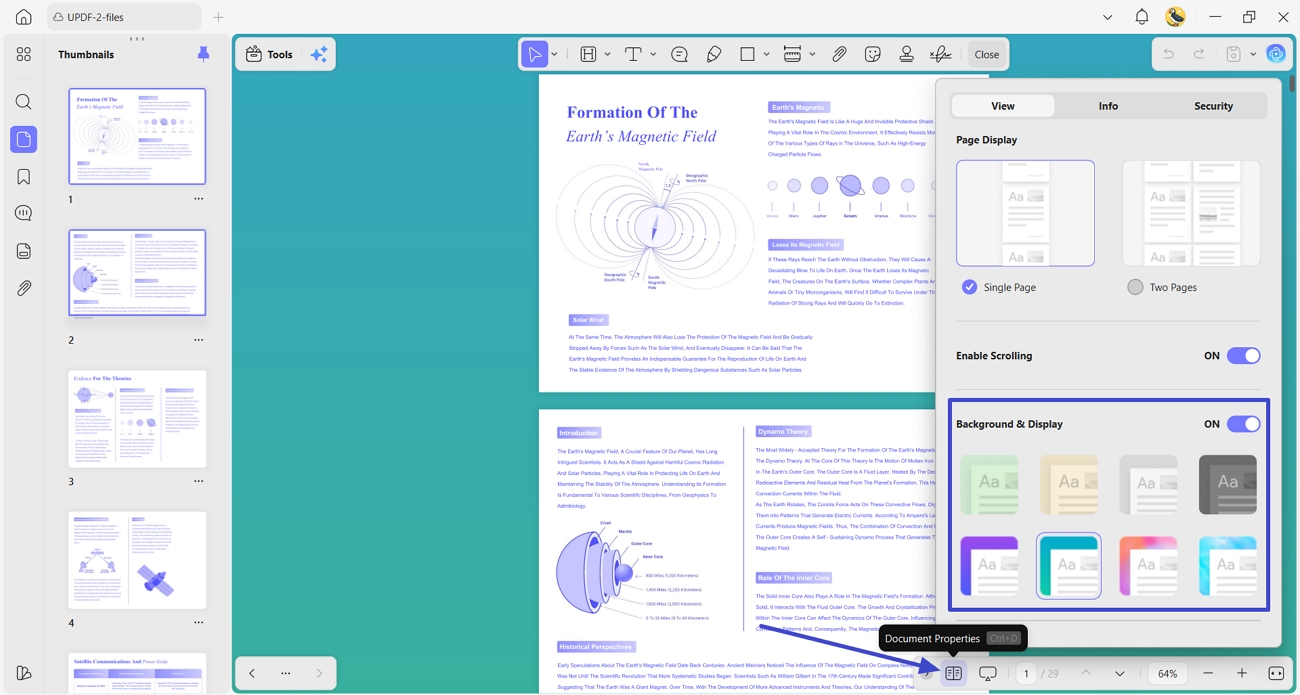
Step 4. Adjust the Page Background Color
Now, click the "Document Properties" icon at the bottom and choose a background color for your PDF page. This simple change, combined with theme options, turned my 100-page report into a comfortable, book-like experience.
The "Smart" Edge: Saved View Settings
People searching for "How to make a PDF open at a certain zoo" want tools that remember their viewing choices. UPDF keeps your preferred zoom and page view for that document, so once set, it reopens exactly as you like.
What UPDF 2.5 Comes With
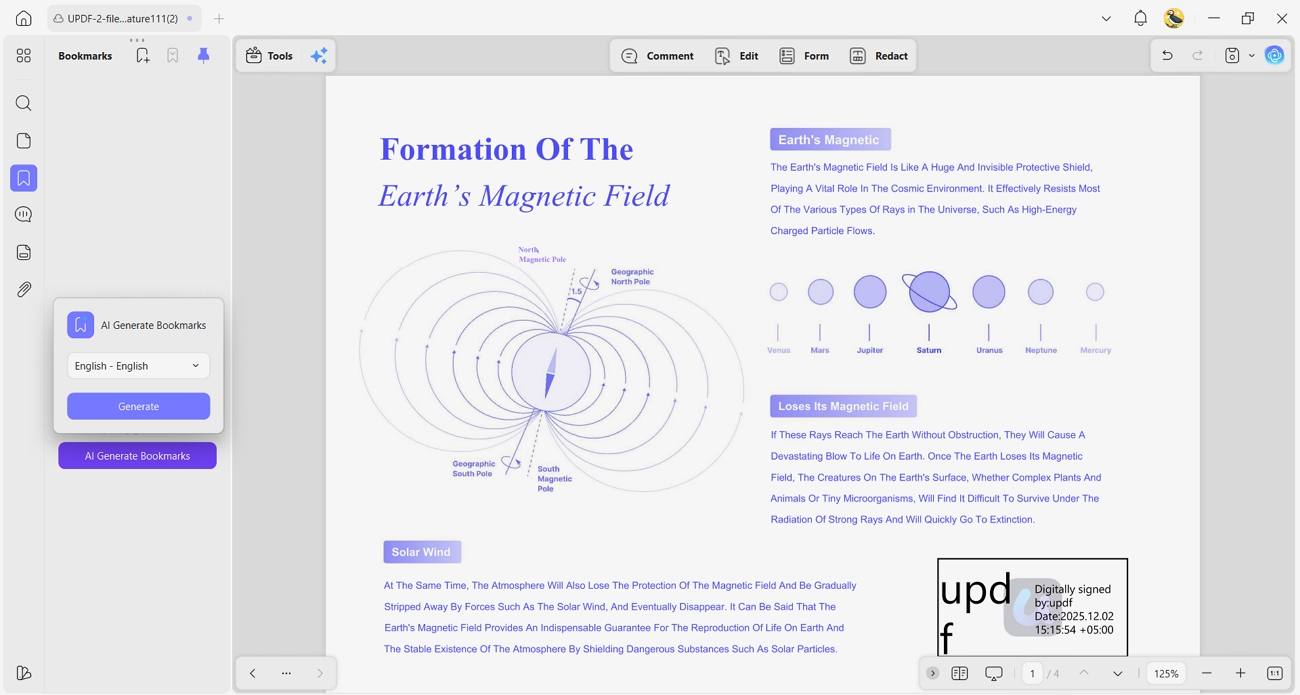
1. AI Bookmark Agent: Automatically creates a clear bookmark outline from your document structure, so you can jump between important sections instantly.
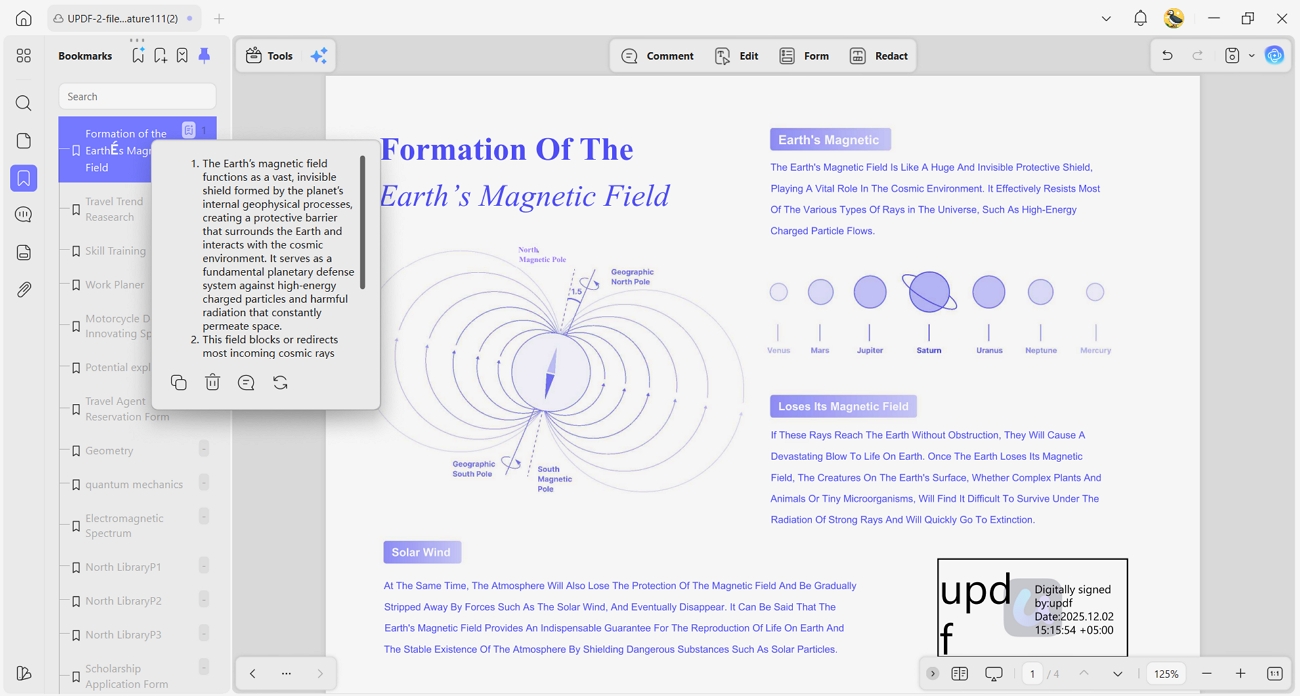
2. Bookmark Summary Agent: Produces brief summaries for bookmarked sections, making it easier to grasp long or technical PDFs quickly.
You can also get a limited-time $10 discount (valid before 8th May) when you upgrade to UPDF V2.5 from the campaign page.
3. Chrome Browser PDF Viewer & Web-based Zoomers
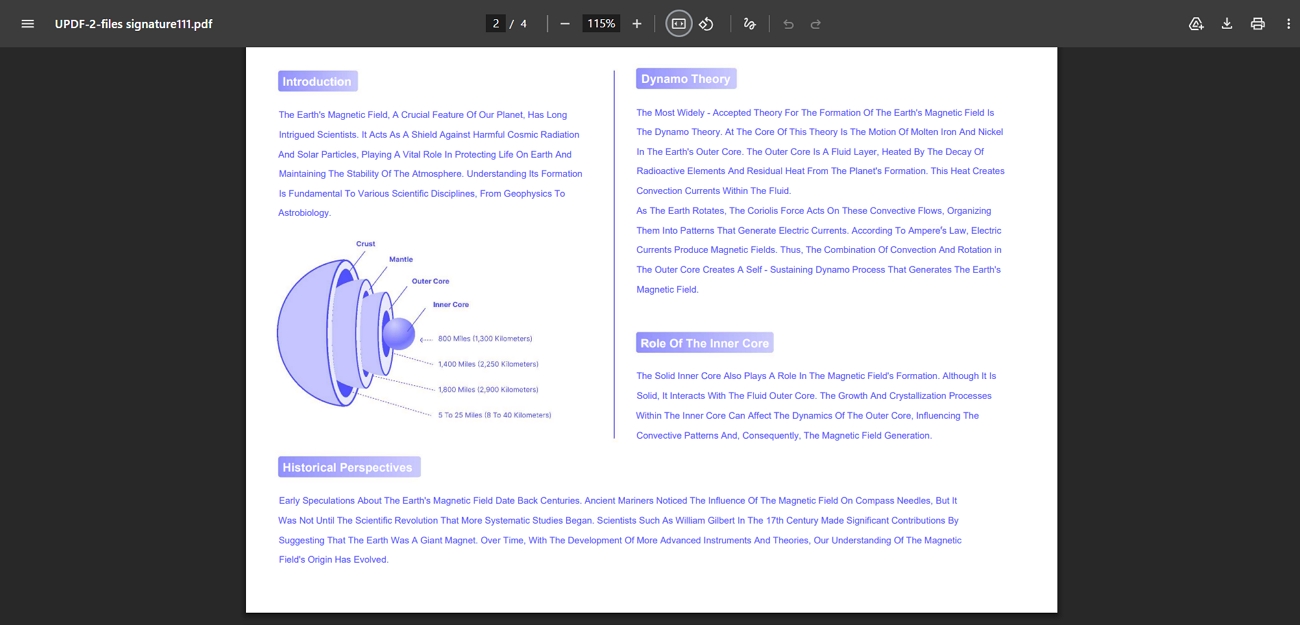
Users open PDFs in their browser when they need a quick look at a file with a Zoomer PDF. These viewers help with fast tasks like checking invoices, reading short articles, or printing simple documents. For longer study or detailed work, users often notice limits in comfort, control, and deeper viewing options.
Key Features
- Built-in zoom buttons and shortcuts enlarge or shrink PDF pages inside the browser viewer.
- Fit-to-page and fit-to-width options help align the document with your current screen size.
- No installation needed, so you can view and zoom PDF files online on most devices.
Hands-On Feedback
When reading PDFs in Chrome or WebZoomer tools, they feel fast and simple. For long textbooks or detailed reports, I miss stronger zoom control and more comfortable reading options.
4. PDF Reader Pro (Area Zoom)
Area Zoom in PDF Reader Pro lets users zoom into small sections for detailed viewing. It helps engineers and students study technical drawings and diagrams without losing page context. Readers can focus on tricky parts, like labels, to make careful corrections much easier.
Key Features
- Area Zoom works with other Zoom options, letting users switch between close-up and full-page views.
- Smooth panning lets users move around zoomed sections, useful for wide diagrams and blueprints.
- Works well with mouse or touch controls, helping users quickly inspect many technical details.
Hands-On Feedback
For technical drawings, Area Zoom feels very helpful and makes tiny labels easier to read. On mobile, it lacks a Liquid flow mode, so reading long documents feels tiring.
Part 2. FAQs
How do I zoom a PDF file?
You can zoom a PDF using the "+" and "-" buttons or keyboard shortcuts in the readers. Most apps also let you drag a zoom slider for finer control and comfort.
Can I set a default zoom for every PDF I open?
Yes, many PDF readers let you set a default zoom in preferences. UPDF remembers your chosen Zoom, so every new document matches.
What is the best zoom level for reading on a laptop?
On a laptop, many readers feel comfortable with an actual size or 100%. Some people prefer slightly higher zoom, like 125%, for small text.
Why is my PDF blurry when I zoom in?
PDFs often look blurry when zoomed because they were saved as low-resolution images. A good PDF zoom tool or a higher-quality file usually keeps text sharp when enlarged.
Conclusion
To summarize, this guide showed how different zoom options change the comfort of everyday PDF reading. Like other tools, several viewers improve basic control, but UPDF focuses more on calm, eye-friendly layouts. For readers who want a reliable Zoomer PDF experience that feels smooth across devices, UPDF stands out as the recommended choice.
Windows • macOS • iOS • Android 100% secure






 Lizzy Lozano
 Enola Miller
 Delia Meyer
 Enrica Taylor