UPDF
UPDF
 UPDF for Windows
 UPDF for Mac
 UPDF for iPhone/iPad
 UPDF for Android
 Nomostar
 UPDF AI Online
 UPDF Sign
 IvyCraft
 Edit PDF
 Annotate PDF
 Create PDF
 PDF Form
 Edit links
 Convert PDF
 OCR
OCR PDF to Word
 PDF to Image
 PDF to Excel
 Organize PDF
 Merge PDF
 Split PDF
 Crop PDF
 Rotate PDF
 Protect PDF
 Sign PDF
 Redact PDF
 Sanitize PDF
 Remove Security
 Read PDF
 UPDF Cloud
 Compress PDF
 Print PDF
 Batch Process
 About UPDF AI
 UPDF AI Solutions
 AI User Guide
 FAQ about UPDF AI
 Summarize PDF
 Translate PDF
 Chat with PDF
 Chat with AI
 Chat with image
 PDF to Mind Map
 Explain PDF
 PDF AI Tools
 Image AI Tools
 AI Chat Tools
 AI Writing Tools
 AI Study Tools
 AI Working Tools
 Other AI Tools
 AI Bookmark Generation
 AI Bookmark Summary
 AI Watermark Generation
 AI Background Generation
 AI Sticker Generation
 AI Stamp Generation
 AI Editing Suite
 UPDF Copilot
 AI Page Management
 AI Semantic Search
 PDF to Word
 PDF to Excel
 PDF to PowerPoint
 Enterprise Solution
 Enterprise Sign
 Enterprise AI
 Enterprise Plan
 Enterprise User Guide
 Enterprise Webinar
 IT
IT Education
 Construction
 Financial Service
 Healthcare
 Insurance
 Legal
Legal Manufacturing
 Government
 Researchers & PhDs
 Solopreneurs & Freelancers
 Lawyers & Legal Professionals
 Real Estate Agents & Brokers
 Education Solution
 Customer Stories
 User Guide
 UPDF Tricks
 FAQs
FAQs UPDF Reviews
 Download Center
 Blog
Blog Newsroom
 Tech Spec
 Updates
 UPDF vs. Adobe Acrobat
 UPDF vs. Foxit
 UPDF vs. PDF Expert

If you need to transform a document quickly, the iLovePDF convert pdf to word web tool offers one of the fastest ways to turn a rigid PDF into an editable Microsoft Word document directly inside your browser. This guide provides the exact step-by-step walkthrough to execute this online workflow efficiently.
iLovePDF Basic can convert one text-based PDF of up to 15 MB per task. If you cannot select a sentence in the PDF, it is probably a scan and needs Premium OCR or another OCR-enabled workflow.
⚠️ Web-Tier Conversion Constraints
- Layout Shifts: Complex multi-column structures or non-standard fonts frequently suffer from alignment breaks and overlapping text when converted on a web canvas.
- OCR Paywall: iLovePDF Basic converts PDFs that already contain selectable text. Scanned or image-only PDFs require the Premium PDF-to-Word OCR option.
To bypass these browser limitations without cost inflation, you can complement your toolkit with how to convert pdf alternatives. Downloading the local UPDF desktop client allows you to run 2 high-fidelity conversions per day entirely for free, using a native engine with Word content-style and OCR options. Complex tables, unusual fonts, and multi-column layouts should still be checked after conversion.
Windows • macOS • iOS • Android 100% secure
💡 Looking for specific platforms? If you are on a mobile device right now, skip directly to our dedicated ecosystem manuals: how to convert pdf to word on iphone or pdf to word android.
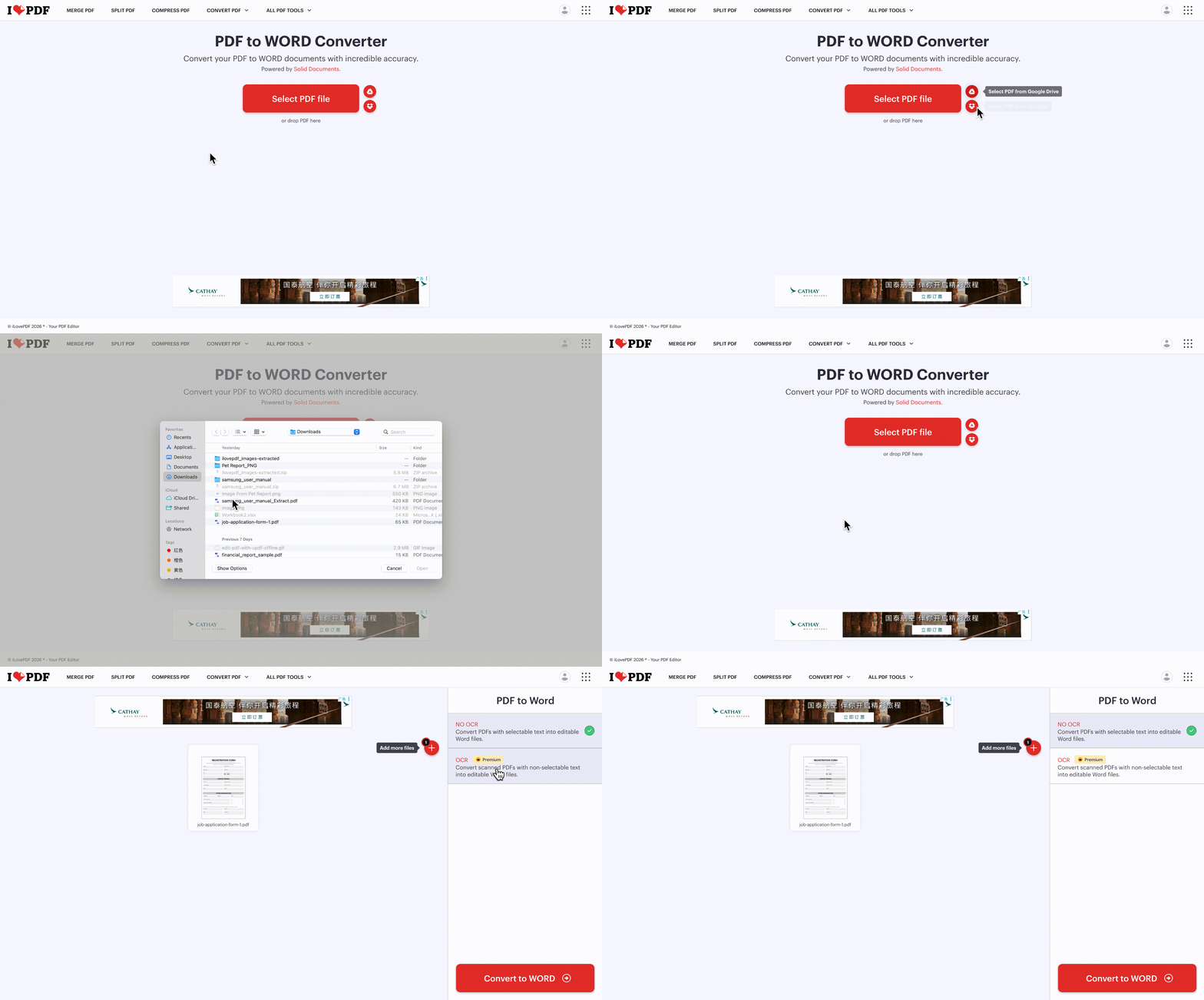
Steps to Convert PDF to Word with iLovePDF
Most people start with the basic browser workflow, running a single PDF through iLovePDF's online PDF to Word tool. So, look at the steps below to learn how this standard web-based process runs from upload through completion:
Step 1. Once you enter iLovePDF's PDF to Word portal, press "Select PDF File" and pick a document to upload via computer or cloud services like Google Drive or Dropbox.
Step 2. After the file is uploaded, click the "Convert to Word" button to begin the conversion process. Before that, choose the "OCR" button if the PDF is scanned.
Note: PDF-to-Word OCR is a Premium feature. The current plan is $5 per month when billed annually at $60.
Step 3. Lastly, press the "Download Word" option to download the Word file directly.
Operational Evaluation: "No OCR" Mode vs. "OCR" Mode
The same PDF to Word iLovePDF tool behaves differently on clean exports compared to flattened, image-based files. Understanding that difference explains why some documents stay editable in Word while others turn into locked layouts.
1. Standard Conversion (No OCR)
This mode reads existing digital text layers and skips any attempt to recognize characters inside scanned or photographed pages. When multi-column layouts or unusual corporate fonts appear, Word often shows overlapping characters, broken tables, and paragraphs jumping between lines.
Best Use Cases
- Exported employee handbooks or reports created directly in Microsoft Word with standard paragraph and heading styles.
- Client proposals generated from Google Docs where fonts, lists, and spacing follow simple, single-column formatting rules.
- Internal policy PDFs use only default system fonts and minimal tables or side-by-side content blocks.
- Lightweight marketing one-pagers without nested tables, floating captions, or tightly packed multi-column text sections.
2. Premium Conversion (OCR Mode)
This mode analyzes each page as an image, then rebuilds editable text blocks before sending content into Word. It is designed for scanned contracts, paper archives, and screenshots where there is no selectable text layer at all. Because PDF-to-Word OCR is Premium-only, Basic users need another OCR-enabled workflow for scanned pages.
Best Use Cases
- Old contract binders scanned years ago and saved only as image-based, multipage PDFs.
- Hand-signed agreements photographed with a phone and stored as picture-heavy PDFs with no selectable text anywhere.
- Historical invoices and receipts captured from paper records must be converted into searchable, editable Word files for audits.
- Government or legal archives imported from office scanners, where every page arrives as grayscale or color page images.
Everyday Free-Tier Limits to Expect
- Single-File Processing: Free web conversions only handle one PDF per task, with no real multi-file batch option.
- Basic File Limit: The free plan accepts one PDF per task, with a maximum PDF-to-Word file size of 15 MB.
- Premium Capacity: Premium supports up to 10 PDFs per task and a maximum PDF-to-Word file size of 4 GB.
- Plan Boundary: PDF-to-Word OCR and access across web, mobile, and desktop require Premium.
Alternative Route 1: Solving the Web OCR Paywall for Free
When managing image-based archives or paper contract screenshots, standard browser utilities lock the essential character recognition pipeline behind paid tiers. To bypass iLovePDF’s $9/month premium OCR restriction without cost inflation, PDF to Word Converter provide a direct, zero-subscription web alternative.
Best for:
Core Edge vs. iLovePDF:
iLovePDF Basic can convert a PDF that already has selectable text, while its PDF-to-Word OCR is Premium-only. UPDF Online provides OCR for scanned pages; its current free limit is 10 MB and 100 pages per PDF.
Quick Web-Tier Workflow:
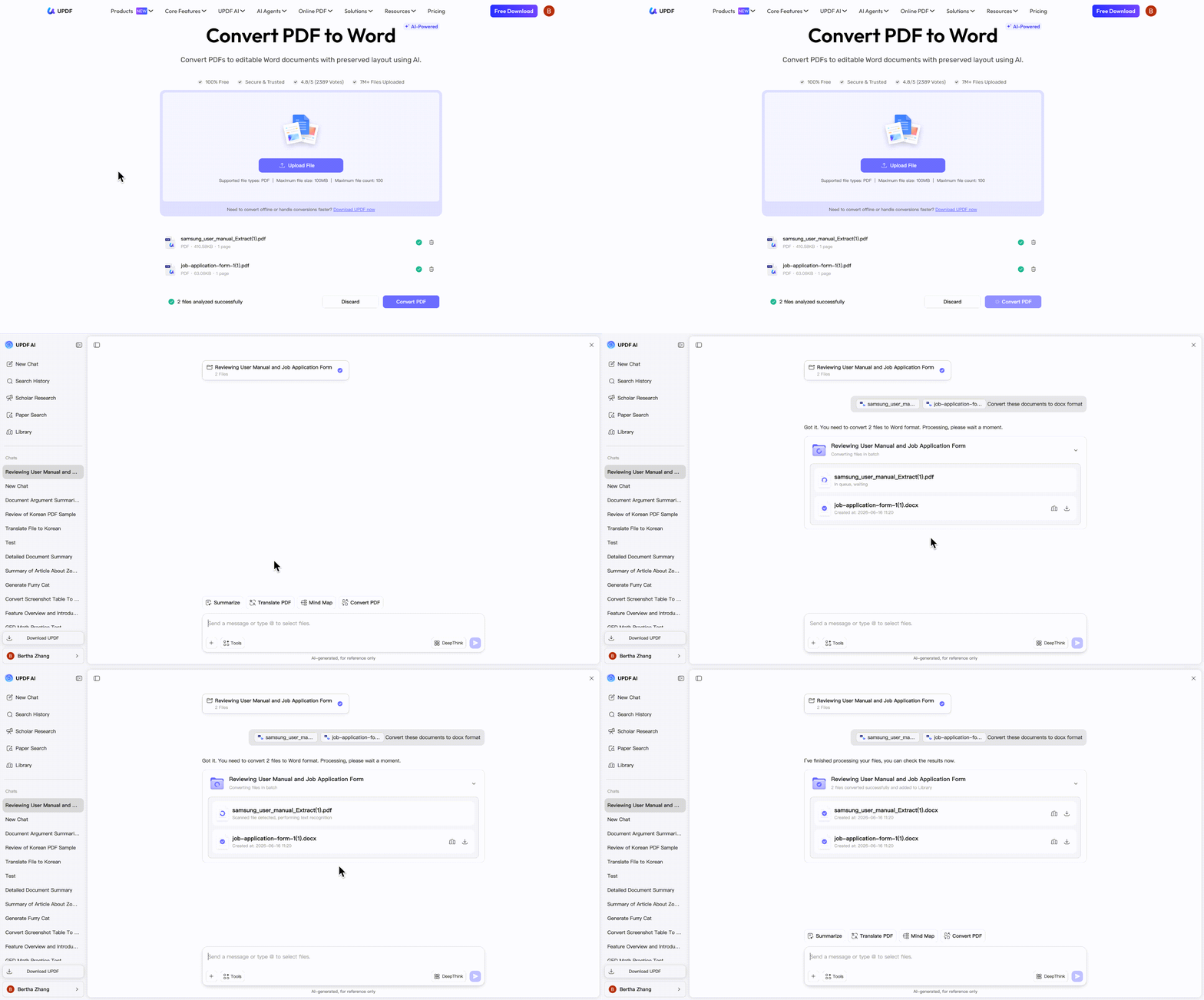
- Navigate to the UPDF Online Converter landing zone via any modern web browser.
- Drag and drop your file into the online interface. The current free limit is 10 MB and 100 pages per PDF.
- UPDF AI Online will process the file automatically. Once the conversion is complete, click the Download button to save the converted Word document to your device.
Alternative Route 2: Handling Large File Batches Locally
Repeating a browser conversion across many PDFs can become cumbersome. The native UPDF desktop app provides a local batch workflow so you can queue multiple files without uploading them to an online converter.
Windows • macOS • iOS • Android 100% secure
Best For:
Core Edge vs. iLovePDF:
Instead of dragging files manually one-by-one into a single-file cloud queue, UPDF’s desktop client utilizes multi-threaded parallel background engines to process bulk files at lightning speeds. Furthermore, all file mathematical calculations are sandboxed locally offline, ensuring sensitive data is never exposed to third-party web servers.
Quick Desktop Workflow:
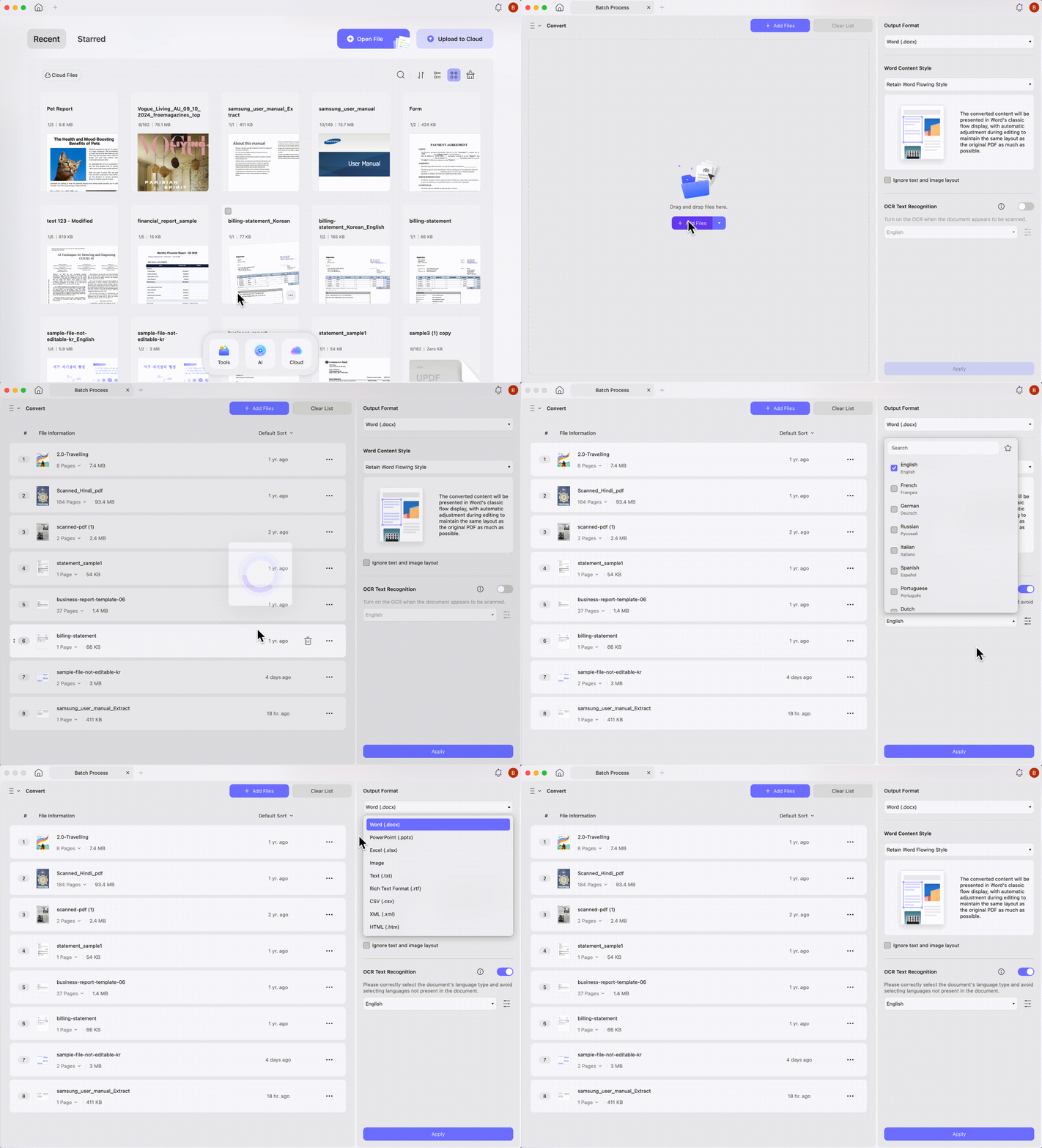
- Open the UPDF and navigate to the Tools > Batch PDFs > Convert.
- Bulk upload your multi-file document directories. Alternatively, you can multi-select several PDFs.
- Establish Word (.docx) as the uniform output profile, choose your language parameters, and execute the conversion pipeline. You can also choose OCR Text Recognition to convert scanned PDF to Word.
Before & After Converting Scanned PDF to Word using UPDF
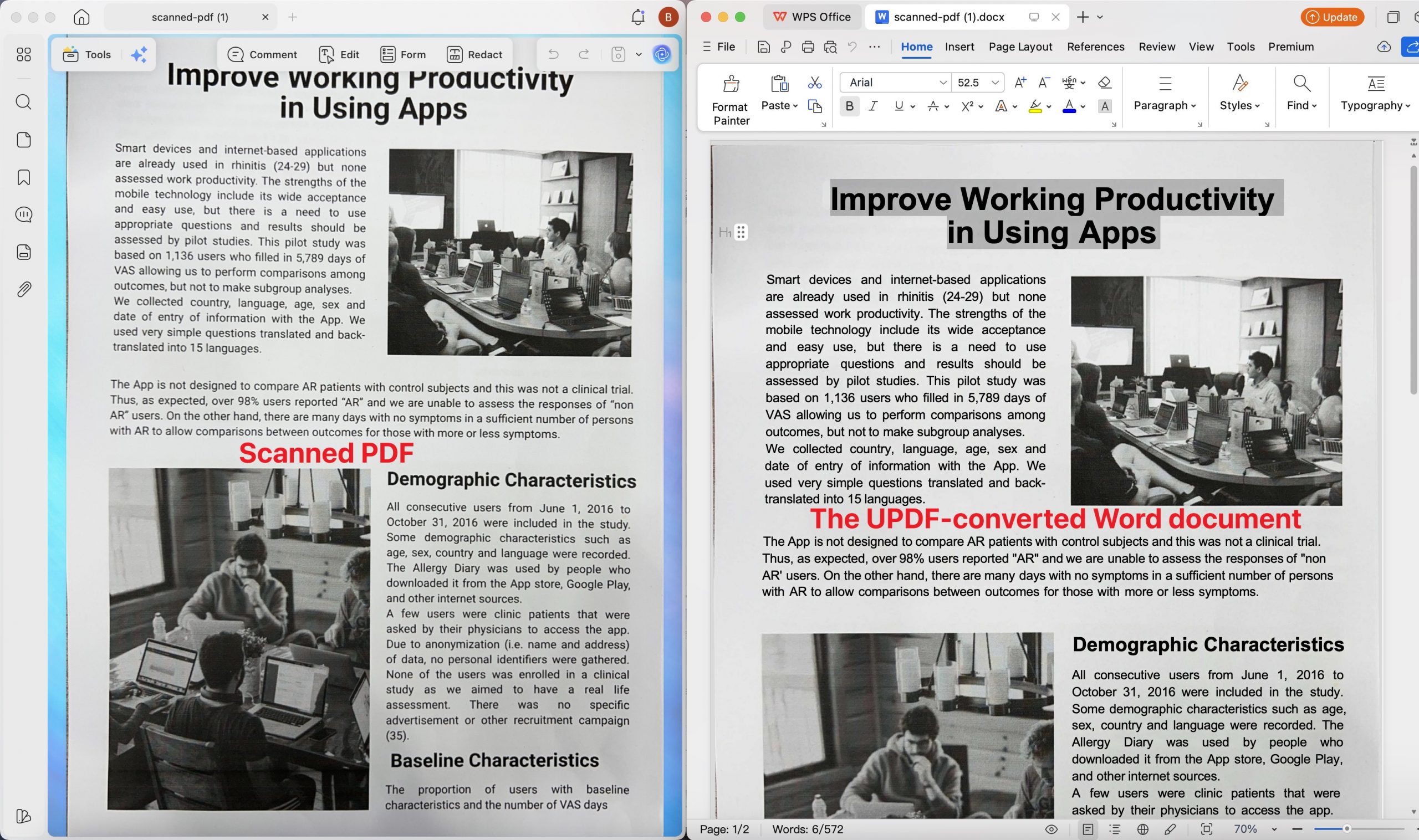
After understanding what UPDF can do with large local batches, you might still want a quick visual check. Watch this short demo to see the desktop engine push multiple PDFs into different formats at once.
When Other PDF Tasks Make More Sense
Sometimes the iLovePDF convert PDF to Word converter is not ideal for spreadsheets, plain text, or single tables. Different tasks need different tools, so it helps to nudge people toward more focused guides. Now, let's route you to the right walkthroughs without repeating full tutorials already covered elsewhere.
- For Clean Plain Text: If intricate browser styling bugs out your database scripts or CMS formatting templates, check out our dedicated pdf to rtf converter walkthrough. It isolates pure verbal strings so you can drop clean text directly into coding environments or markdown editors without hidden layout code.
- For Reverse Text Compilation: Conversely, if you are working with raw text logs, system outputs, or script drafts and need to package them into unalterable documents for clients, follow our seamless guide on how to deploy a txt to pdf compilation strategy to ensure perfect multi-device rendering.
- For Single Table Only: When one critical accounting chart matters more than the rest of the layout, learn how to copy a table from a PDF to Word. This structural walkthrough avoids processing massive document volumes when you only need a quick snippet.
FAQs
Why is my converted Word document from iLovePDF just an uneditable image?
This usually means the original PDF is scanned or image-only. iLovePDF Basic does not include PDF-to-Word OCR, so scanned pages may remain images. Use Premium OCR or another OCR-enabled converter such as UPDF.
How do I fix misaligned columns and text shifts after converting a PDF to Word?
Cloud tools often misread complex layouts, so columns, fonts, and spacing jump when you open the file. Using a desktop engine like UPDF rather than a basic PDF to Word iLovePDF flow keeps structures tighter.
Is it safe to upload confidential business contracts to free online PDF converters?
Sending sensitive contracts to third-party servers always introduces a privacy risk, especially when data retention policies are unclear. For regulated financial or legal documents, it is safer to convert everything locally on an offline app.
Final Words
In conclusion, you do not have to stay limited to a basic iLovePDF PDF-to-Word conversion. You can upgrade your daily workflow with smarter PDF tools that keep layouts clean and editable. These options help you move faster, cut repeat work, and keep documents ready for real editing.
[Launch UPDF Online Converter Now] — Convert two files together and run free OCR in your browser.
[Download UPDF Desktop Client for Free] — Batch convert faster and unlock the full PDF editing toolkit.
Windows • macOS • iOS • Android 100% secure



 Lizzy Lozano
 Engelbert White
 Enrica Taylor