 UPDF
UPDF
 UPDF for Windows
 UPDF for Mac
 UPDF for iPhone/iPad
 UPDF for Android
 Nomostar
 UPDF AI Online
 UPDF Sign
 IvyCraft
 Edit PDF
 Annotate PDF
 Create PDF
 PDF Form
 Edit links
 Convert PDF
 OCR
OCR PDF to Word
 PDF to Image
 PDF to Excel
 Organize PDF
 Merge PDF
 Split PDF
 Crop PDF
 Rotate PDF
 Protect PDF
 Sign PDF
 Redact PDF
 Sanitize PDF
 Remove Security
 Read PDF
 UPDF Cloud
 Compress PDF
 Print PDF
 Batch Process
 About UPDF AI
 UPDF AI Solutions
 AI User Guide
 FAQ about UPDF AI
 Summarize PDF
 Translate PDF
 Chat with PDF
 Chat with AI
 Chat with image
 PDF to Mind Map
 Explain PDF
 PDF AI Tools
 Image AI Tools
 AI Chat Tools
 AI Writing Tools
 AI Study Tools
 AI Working Tools
 Other AI Tools
 AI Bookmark Generation
 AI Bookmark Summary
 AI Watermark Generation
 AI Background Generation
 AI Sticker Generation
 AI Stamp Generation
 AI Editing Suite
 UPDF Copilot
 AI Page Management
 AI Semantic Search
 PDF to Word
 PDF to Excel
 PDF to PowerPoint
 Enterprise Solution
 Enterprise Sign
 Enterprise AI
 Enterprise Plan
 Enterprise User Guide
 Enterprise Webinar
 IT
IT Education
 Construction
 Financial Service
 Healthcare
 Insurance
 Legal
Legal Manufacturing
 Government
 Researchers & PhDs
 Solopreneurs & Freelancers
 Lawyers & Legal Professionals
 Real Estate Agents & Brokers
 Education Solution
 Customer Stories
 User Guide
 UPDF Tricks
 FAQs
FAQs UPDF Reviews
 Download Center
 Blog
Blog Newsroom
 Tech Spec
 Updates
 UPDF vs. Adobe Acrobat
 UPDF vs. Foxit
 UPDF vs. PDF Expert

Have you ever tried to copy a table straight out of a PDF financial statement and paste it into Google Sheets? The result is almost always a destroyed and messy table structure. Columns collapse, while fonts get scrambled. Numbers can also turn into plain text that formulas can't read. You don't have to spend hours fixing broken spreadsheets. Using a reliable PDF to Google Sheets conversion workflow can preserve your layout without manual effort.
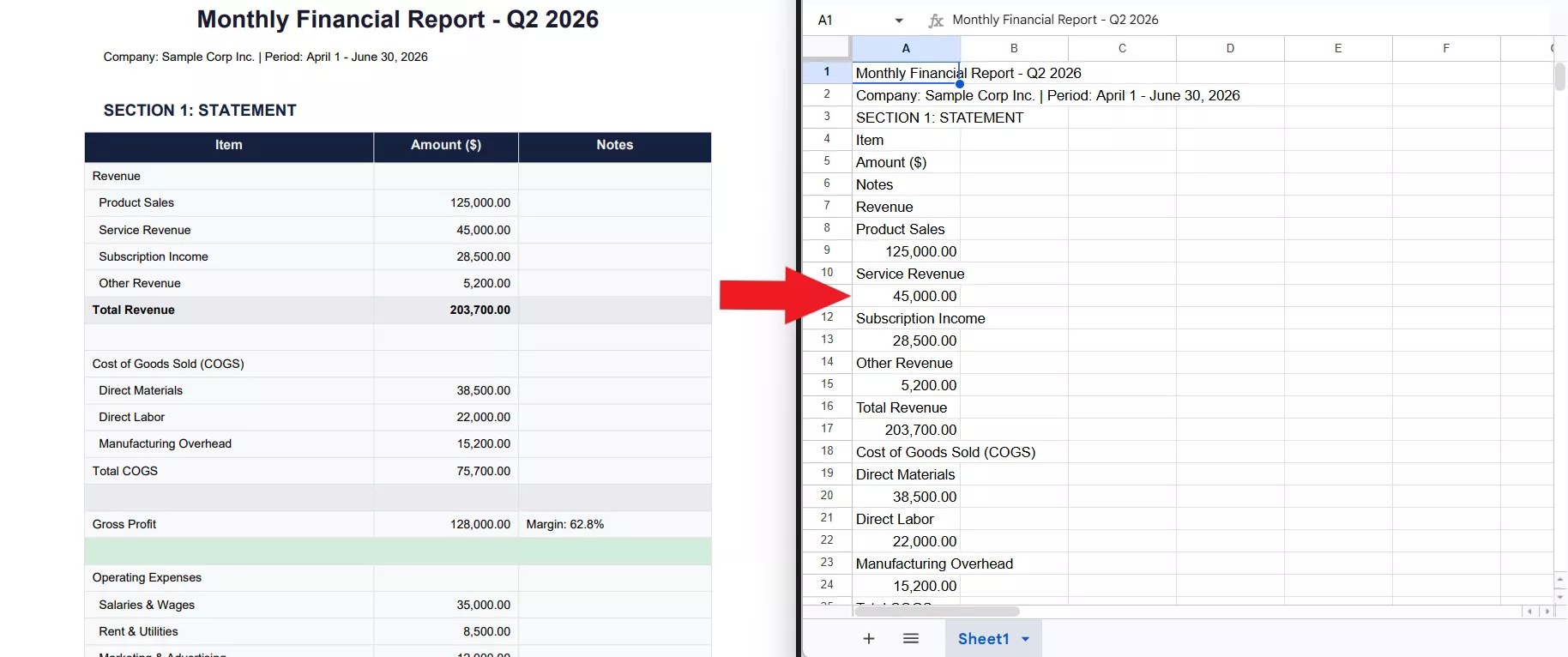
The fact is that converting a PDF to Google Sheets isn't difficult at all. Since Google Sheets doesn't support importing PDF files directly, the most reliable approach is to follow a two-step sequence.
First, convert the PDF into an Excel (.xlsx) workbook or CSV file, then upload it and open it natively with Google Sheets. This method preserves table structures far better than copying data manually.
This comprehensive guide will review 4 distinct methods to convert PDF to Google Sheets and explain where each method performs best. We will also help you choose the right solution based on your workflow to perfectly preserve your original formatting.
Find Your Perfect Sheet Conversion Method in 3 Seconds
Every PDF to Google Sheets converter claims to do the same thing, but they don't. Some prioritize formatting accuracy, while others focus on speed or browser convenience. Here's how to find your match before you start:
- Scenario A: "My PDF has colored headers, bold metrics, and custom fonts—I need 100% pixel-perfect formatting preservation OR I have dozens of files to process simultaneously." - Go straight to Method 1 (UPDF Local High-Fidelity App).
- Scenario B: "My document contains no sensitive data, it's a simple black-and-white table, and I don't want to install any software." - Go straight to Method 2 (pdf2sheets.app Web Tool).
- Scenario C: "I am a heavy Google Workspace user and want a conversion sidebar inside my browser sheet, and I don't mind a paid subscription." - Go straight to Method 3 (Marketplace Native Add-on).
- Scenario D: "I already have a pre-existing, fully paid subscription to Adobe Acrobat Pro on my desktop." - Go straight to Method 4 (Adobe Acrobat).
Method 1: Convert via UPDF (Top Recommended: 100% Formatting Retention & Batch OCR)
Best for:
- Professionals who need precise layout preservation (keeping table colors, font weights, borders, and column structures intact), or who need to process scanned/image-based PDFs and batches of files.
Not for:
- Anyone who only wants a single-click web link and doesn't want to install software or run a two-step convert-then-upload process.
UPDF is an advanced desktop-based PDF converter that can convert PDF to Google Sheets with exceptional layout preservation and zero complexity. It first converts the PDF to Excel sheet and then lets you open it directly in Google Sheets. It even offers OCR scanning to extract data from scanned PDFs.
Windows • macOS • iOS • Android 100% secure
The core capabilities of UPDF include:
- Zero Formatting Loss: Hands-on testing proves that when exporting to Excel via UPDF, the table background colors, custom fonts, specific text sizes, and font-weight variations remain 100% identical to the original PDF. What it looks like in the PDF is exactly how it renders in the output sheet.
- Scan-to-Sheet Capabilities (Advanced OCR): UPDF provides an intuitive "OCR Text Recognition" toggle. Even if your statement is a smartphone photo or a flattened scanner copy, it turns the dead pixels into fully editable data cell text.
- Granular Excel Workbook Customization: You can choose to "Create a single Worksheet for the Document," "Create Worksheet for each Table," or "Create Worksheet for each Page" to match the depth of your multi-page audits.
- High-Velocity Batch Processing: The "Batch Process" suite allows users to upload dozens of financial reports and convert them to Excel concurrently to save countless hours from tedious manual queues.
Here's how to convert PDF to Google Sheets with UPDF:
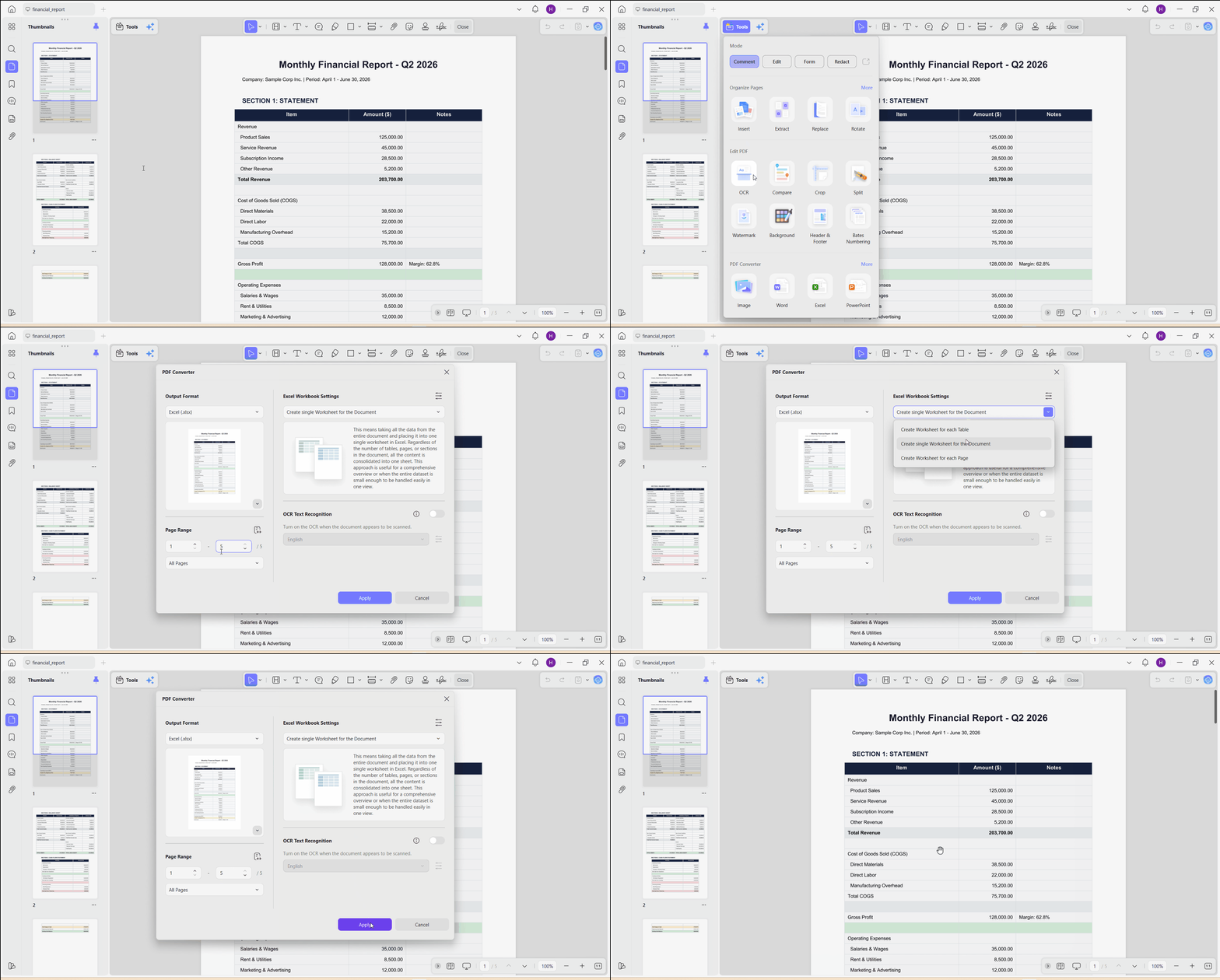
- Open your PDF file inside UPDF. Click "Tools" and select "Excel" under "PDF Converter" options.
- Select the page range, Excel Workbook settings (single worksheet per document/table/page), and toggle on "OCR Text Recognition" if you want. Once done, click "Apply".
3. After UPDF has provided the Excel sheet, go to Google Sheets and click File > Open and select the Excel sheet. Alternatively, you can upload the sheet to Google Drive and then open it with Google Sheets.
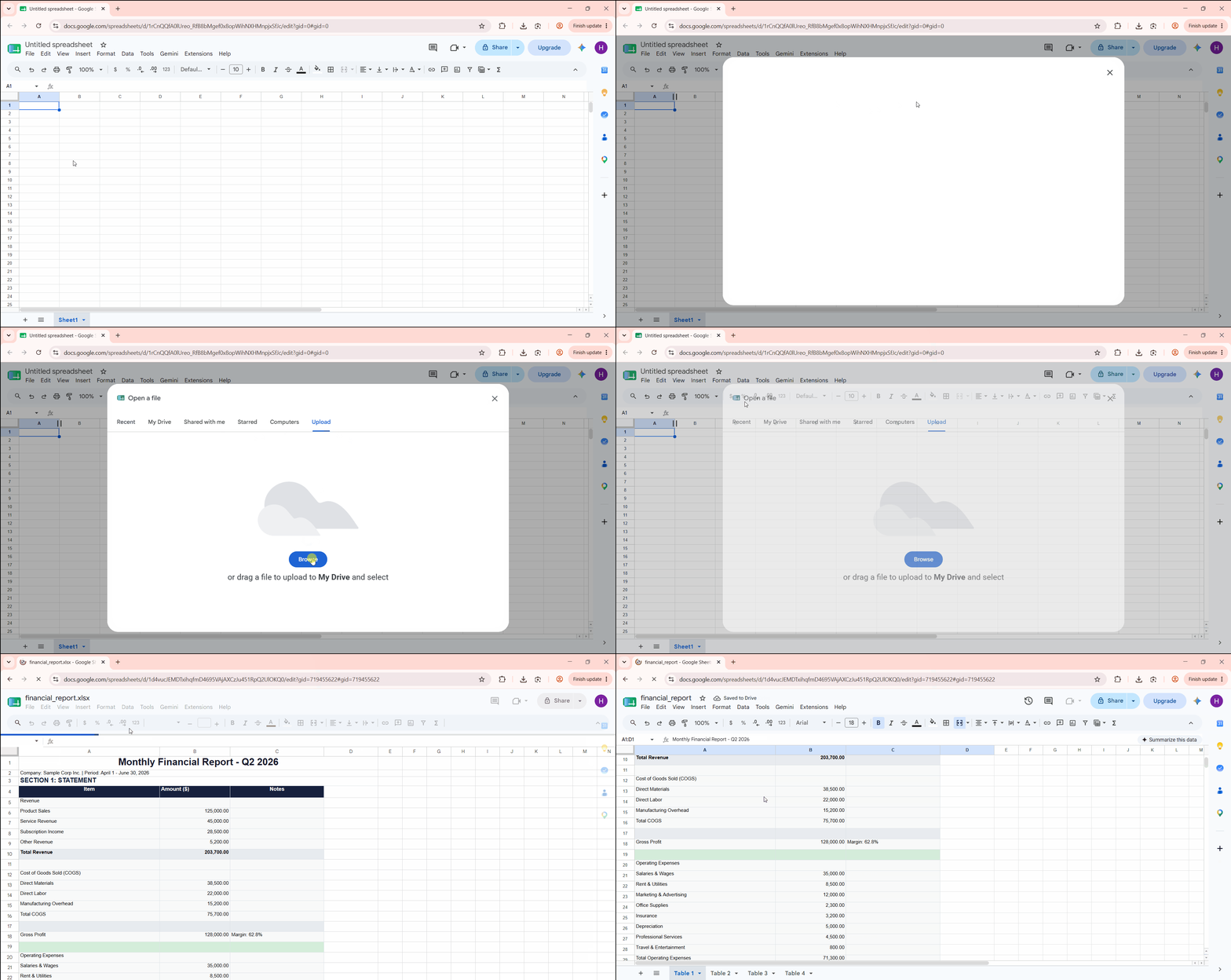
You will see a preserved spreadsheet with its original table structure, rows, columns, and most formatting intact. For additional advanced text and media transformations, view our macro playbook on how to convert PDF files effortlessly.
Download UPDF now and turn complex PDF tables into editable Google Sheets in just a few clicks and no manual reformatting.
Windows • macOS • iOS • Android 100% secure
Method 2: Convert via pdf2sheets.app (Web-Based Converter)
Best for:
- One-time, casual conversions of non-sensitive, public documents where visual formatting doesn't matter much.
Not for:
- Anyone handling confidential data (payroll, bank statements, personal information) or documents where formatting needs to survive the conversion.
pdf2sheets.app is a web-based PDF to Google Sheets converter that extracts tables and data from your PDF and creates a Google Sheets file. However, our testing shows that it completely strips out the PDF's original formatting. The distinct visual attributes, such as custom-colored headers, alternating row colors, or bold sub-totals, are completely lost during conversion.
You get a plain copy-paste version of the data, which requires you to spend significant time manually re-coloring and re-formatting the spreadsheet afterward. Manually dragging elements with your mouse frequently fractures data structures, a common problem we solved in our guide on how to copy a table from a PDF to Word without errors.
Here's how to import PDF into Google Sheets with pdf2sheets.app:
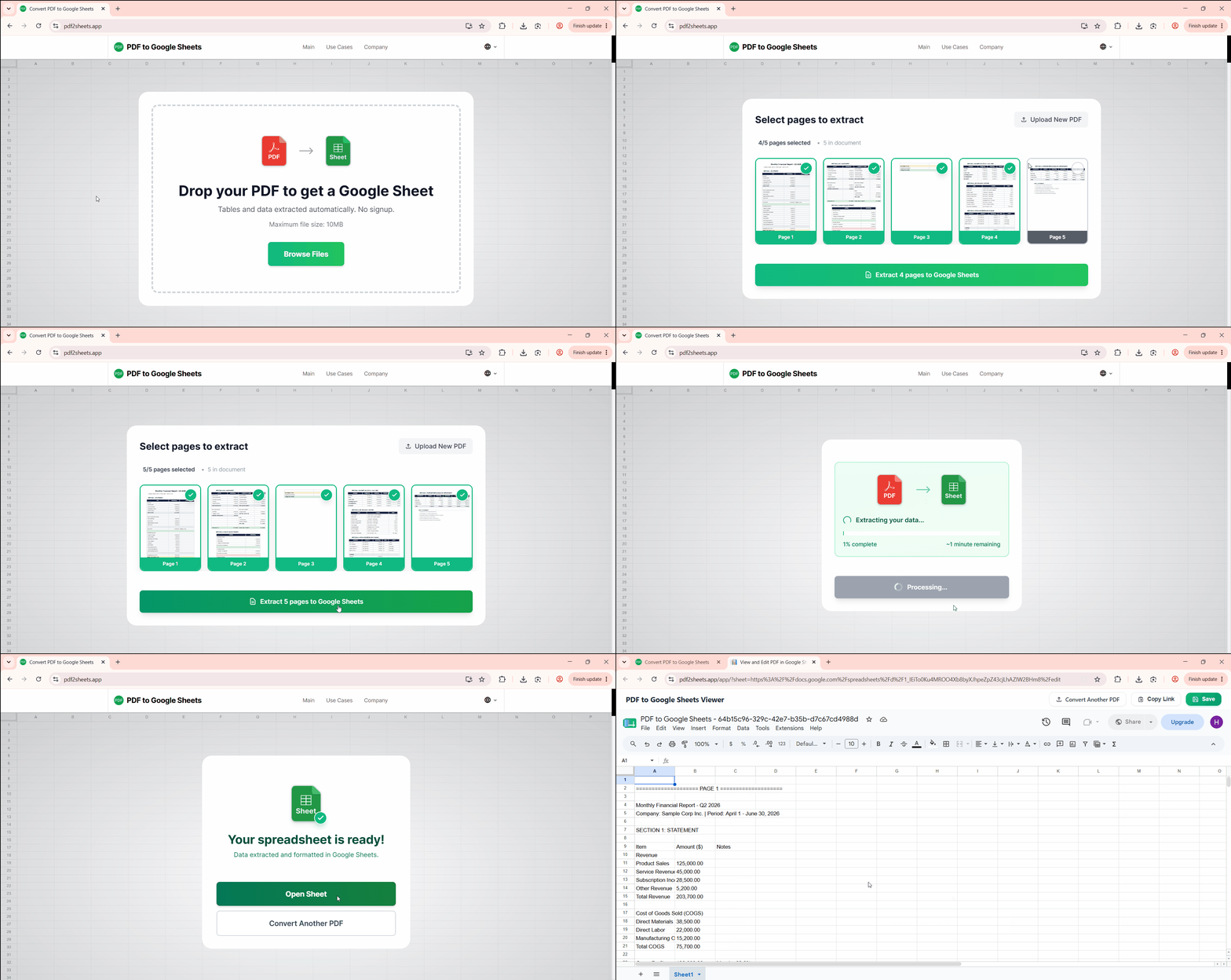
- Navigate to the pdf2sheets.app website and drag and drop your PDF.
- Select the page range and then wait for the conversion to complete.
- After the conversion, you will be taken to Google Sheets to access the converted file.
If you are handling unstructured textual data logs rather than tabular metrics, read our walkthrough on utilizing a TXT to PDF converter for cleaner documentation.
Method 3: Convert via Google Workspace Marketplace Native Add-ons
Best for:
- Heavy Google Cloud spreadsheet users who prefer to operate entirely within the native workspace interface without switching tabs.
Not for:
- Users trying to process long documents for free, or enterprise workers bound by strict internal data compliance and privacy filters.
If you spend most of your day in Google Workspace, installing a PDF conversion add-on from the Google Workspace Marketplace can be a convenient option. These extensions integrate directly with Google Sheets and allow you to import or convert PDF data from a sidebar without constantly switching between different applications.
These add-ons also have their drawbacks. Most offer limited free usage and restrict the number of pages or conversions before requiring a paid plan. They also request broad permissions to access your Google Sheets, which may not meet the privacy requirements of some businesses. For spreadsheets that require permanent, tamper-proof compliance archiving, consider moving the files into a long-term format via our tutorial on PDF to PDF-A compilation.
Compared to Google Workspace add-ons, UPDF offers greater flexibility. Its secure local environment handles unlimited document sizes/pages and batch conversion without requiring access to your Google account.
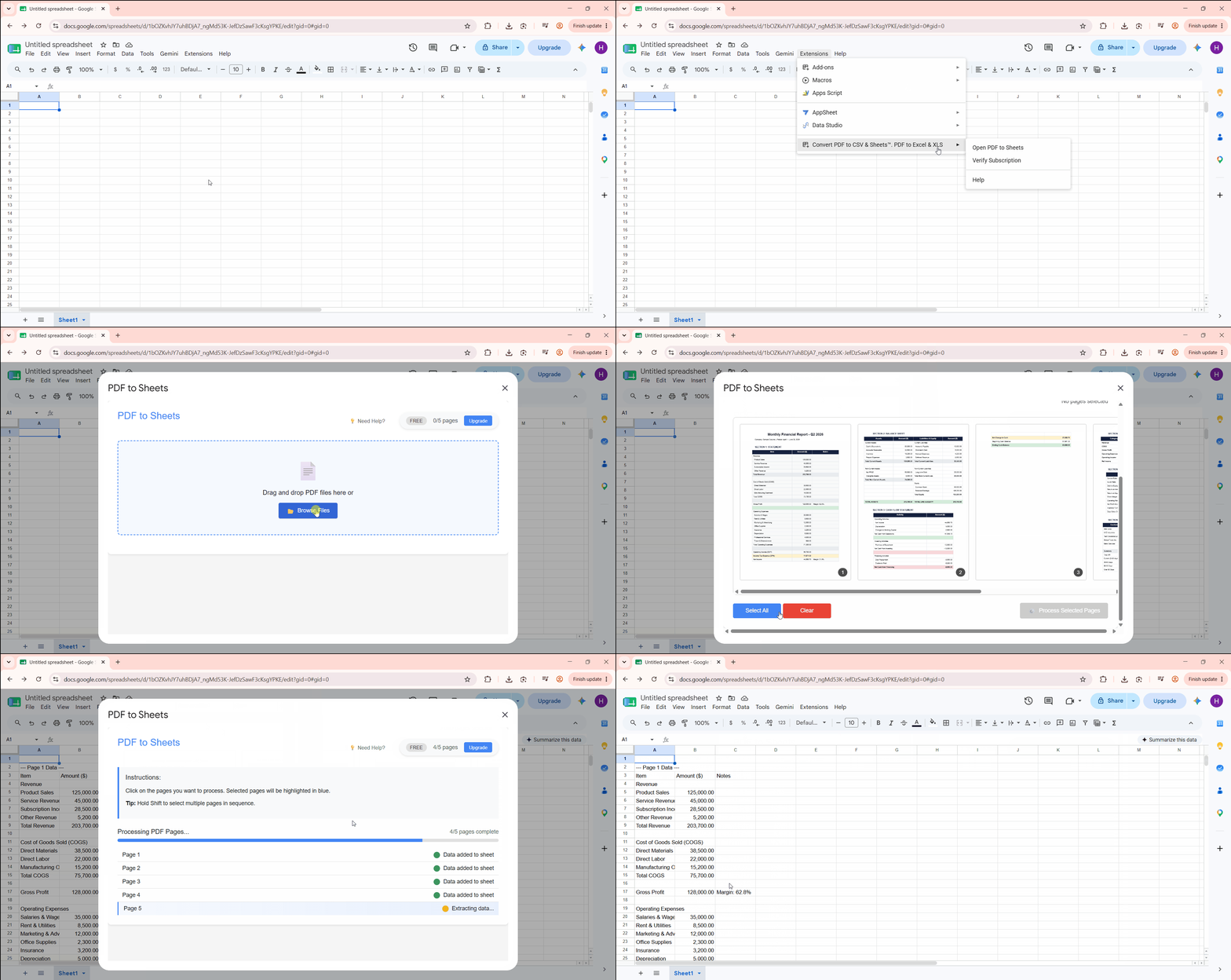
Follow these steps to convert a PDF into Google Sheets using a Google Workspace Marketplace add-on:
- Open Google Sheets, click Extensions > Add-ons > Get add-ons, then install a PDF-to-Sheets converter from the Google Workspace Marketplace.
- Open the add-on sidebar from within a new Google Sheet and upload your PDF.
- Review the imported data and adjust formatting as needed.
Beyond pulling files into sheets, many operators struggle with exporting documents out of the cloud ecosystem. Learn how to save a Google Doc as a PDF in just a couple of clicks.
Method 4: Convert via Adobe Acrobat Desktop Professional
Best for:
- Enterprise users who already have an active Adobe Acrobat Pro subscription through their organization.
Not for:
- Individuals or small businesses looking for a budget-friendly solution, as Adobe Acrobat Pro is relatively expensive and can be resource-intensive on older or lower-end computers.
Adobe Acrobat Pro is another reliable way to convert PDF to Google Sheets. It accurately extracts tables and numerical data from reports, invoices, or any financial PDF with structured layouts.
Adobe Acrobat doesn't convert PDFs directly into Google Sheets. Like UPDF, you will first need to export the PDF as an Excel file and then upload that workbook to Google Drive before opening it in Google Sheets. While Acrobat delivers reliable conversion quality, UPDF offers similar accuracy with a more modern AI interface and a more affordable price.
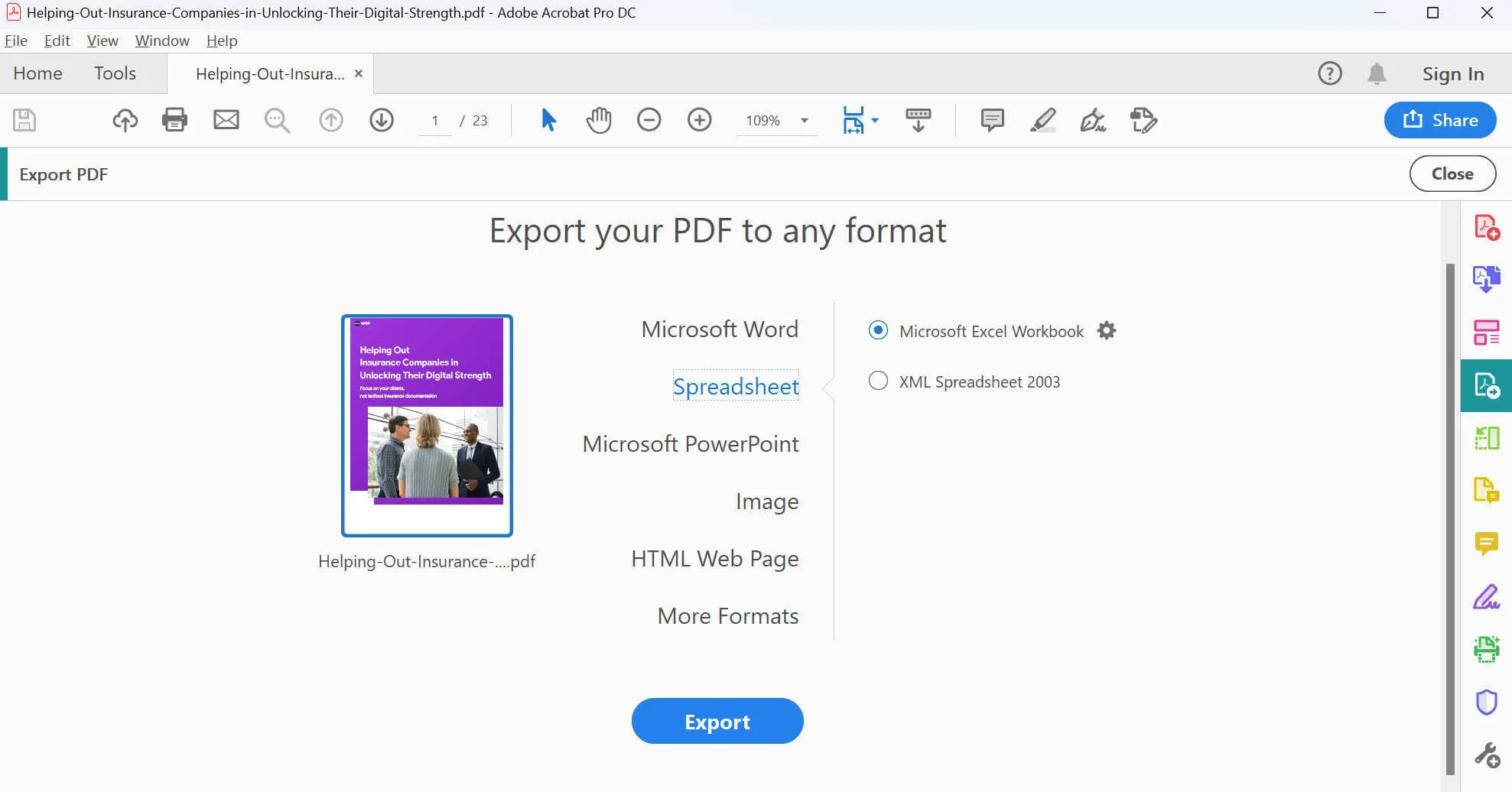
Here's how to convert PDF to Google Sheets with Adobe Acrobat Desktop:
- Launch Adobe Acrobat, open your document, and select "Export PDF" from the tools sidebar.
- Choose "Spreadsheet" as your file format output target and select "Microsoft Excel Workbook".
- Save the resulting .xlsx file to your desktop, drag it into your Google Drive cloud space, and load it as a Google Sheet.
Comprehensive Head-to-Head Comparison Matrix
Choosing Your Best Path to Flawless Spreadsheets
To help you cut through the marketing noise, we have conducted hands-on stress tests on all four methods. We evaluated how well they preserve complex layouts, their capabilities with scanned images, and their overall workflow limitations. Review the direct breakdown below to pick the perfect tool for your specific document type:
| Conversion Solution | Formatting Retention (Colors, Fonts, Weights) | Scanned PDF / Image Support (OCR) | High-Volume Batching | Core Limitation |
| UPDF Desktop | ★★★★★ Excellent – Preserves colors, fonts, borders, merged cells, and table layouts | ✅ Advanced OCR | ✅ Yes | Requires exporting to Excel before opening in Google Sheets |
| pdf2sheets.app | ★★ Basic – Often loses colors, fonts, and table styling | ❌ Basic or none | ❌ No | Formatting is stripped, and files are uploaded to an online service |
| Google Workspace Marketplace Add-ons | ★★★ Moderate – Results vary depending on the add-on | ❌ Usually No | ❌ No | Free plans have page/conversion limits and require Google account permissions |
| Adobe Acrobat Pro | ★★★★ Very Good – Preserves most tables and formatting | ✅ Yes (Acrobat Pro OCR) | ✅ Yes | Expensive subscription and still requires uploading the exported Excel file to Google Sheets |
FAQs
Why did my numbers turn into uncalculatable "text strings" after importing a PDF into Google Sheets?
This happens because lightweight converters capture numbers as visual symbols rather than actual numeric data. When you execute a PDF to Google Sheets transition using a tool that doesn't preserve cell-level data types, Google Sheets reads the digits as raw text, which breaks formulas like SUM or AVERAGE. Using a structural conversion app guarantees that text properties are encoded as numerical values right from the start.
How can I convert confidential financial statements into Google Sheets without exposing the data?
Avoid dropping sensitive documents into public web PDF to Google Sheets converters, since these store your file on an external server during processing, even briefly. For confidential data, a locally-run desktop conversion tool is the safer choice because the file never leaves your machine until you choose to upload the finished spreadsheet to your own Google Drive.
Can I convert a photo of a receipt or a paper scan into Google Sheets?
Yes, but it needs to go through OCR (Optical Character Recognition) first, since a flattened image has no underlying text data to extract. OCR-enabled tools analyze the layout, detect table boundaries, and reconstruct the content into actual editable cells rather than a static picture.
Conclusion
Choosing the right PDF to Google Sheets converter provides a smooth way to log data and eliminate redundant data entry cycles. Web-based converters provide quick and basic utility, but they fail when faced with custom table colors and complex multi-page formatting. For anything with real formatting, scanned pages, batch conversion, or confidential data, UPDF gives 100% exceptional formatting preservation along with powerful OCR and batch processing capabilities.
Don't waste any more minutes. Download UPDF and start for free with its high-fidelity Excel export engine and Batch OCR toolsets today.
Windows • macOS • iOS • Android 100% secure




 Enola Miller
 Enrica Taylor
 Delia Meyer
 Lizzy Lozano