 UPDF
UPDF
 UPDF for Windows
 UPDF for Mac
 UPDF for iPhone/iPad
 UPDF for Android
 Nomostar
 UPDF AI Online
 UPDF Sign
 IvyCraft
 Edit PDF
 Annotate PDF
 Create PDF
 PDF Form
 Edit links
 Convert PDF
 OCR
OCR PDF to Word
 PDF to Image
 PDF to Excel
 Organize PDF
 Merge PDF
 Split PDF
 Crop PDF
 Rotate PDF
 Protect PDF
 Sign PDF
 Redact PDF
 Sanitize PDF
 Remove Security
 Read PDF
 UPDF Cloud
 Compress PDF
 Print PDF
 Batch Process
 About UPDF AI
 UPDF AI Solutions
 AI User Guide
 FAQ about UPDF AI
 Summarize PDF
 Translate PDF
 Chat with PDF
 Chat with AI
 Chat with image
 PDF to Mind Map
 Explain PDF
 PDF AI Tools
 Image AI Tools
 AI Chat Tools
 AI Writing Tools
 AI Study Tools
 AI Working Tools
 Other AI Tools
 AI Bookmark Generation
 AI Bookmark Summary
 AI Watermark Generation
 AI Background Generation
 AI Sticker Generation
 AI Stamp Generation
 AI Editing Suite
 UPDF Copilot
 AI Page Management
 AI Semantic Search
 PDF to Word
 PDF to Excel
 PDF to PowerPoint
 Enterprise Solution
 Enterprise Sign
 Enterprise AI
 Enterprise Plan
 Enterprise User Guide
 Enterprise Webinar
 IT
IT Education
 Construction
 Financial Service
 Healthcare
 Insurance
 Legal
Legal Manufacturing
 Government
 Researchers & PhDs
 Solopreneurs & Freelancers
 Lawyers & Legal Professionals
 Real Estate Agents & Brokers
 Education Solution
 Customer Stories
 User Guide
 UPDF Tricks
 FAQs
FAQs UPDF Reviews
 Download Center
 Blog
Blog Newsroom
 Tech Spec
 Updates
 UPDF vs. Adobe Acrobat
 UPDF vs. Foxit
 UPDF vs. PDF Expert

Quick answer:
This guide gives you the exact Soda PDF Online steps, flags where the free tier stops, and shows a cross-platform alternative — UPDF — whose desktop, mobile, and online AI converter can turn a scanned receipt into real, editable text (free to try, with limits noted below). If you only ever convert clean, text-based PDFs and want a fully free browser tool, jump to the conversion routing table first to pick the right lane.
Part 1. Which Soda PDF Route Fits Your File?
Soda PDF is really two products with different rules. Before you start, match your situation to the right lane so you don't hit a paywall or a broken layout halfway through.
| Your situation | Route to use | What to expect |
|---|---|---|
| One or two small, text-based PDFs, want free browser conversion | Soda PDF Online → Quick Tools → PDF to Word | Free within 2 files/day or 3 MB; downloadable Word file |
| A scanned PDF or photographed document | Soda PDF Desktop (paid, Windows only) | OCR is locked behind a subscription; no free trial for it |
| Offline desktop conversion, batches, large files | Soda PDF Desktop (paid, Windows only) | Convert is locked behind a subscription; no free trial for it |
| Mac user wanting a desktop app | Soda PDF Desktop is Windows only | Mac users are limited to Soda PDF Online |
If your file is a scan, or you're on a Mac, or you want conversion that runs on every platform, Part 3 covers UPDF, which fills each of those gaps.
Part 2. How to Convert a PDF to Word with Soda PDF Online
Soda PDF's free browser tools ("Quick Tools") are the part most searchers actually reach. No install is required, and the PDF-to-Word tool works on both Windows and Mac since it runs entirely in the browser.
Step 1. Go to Soda PDF.
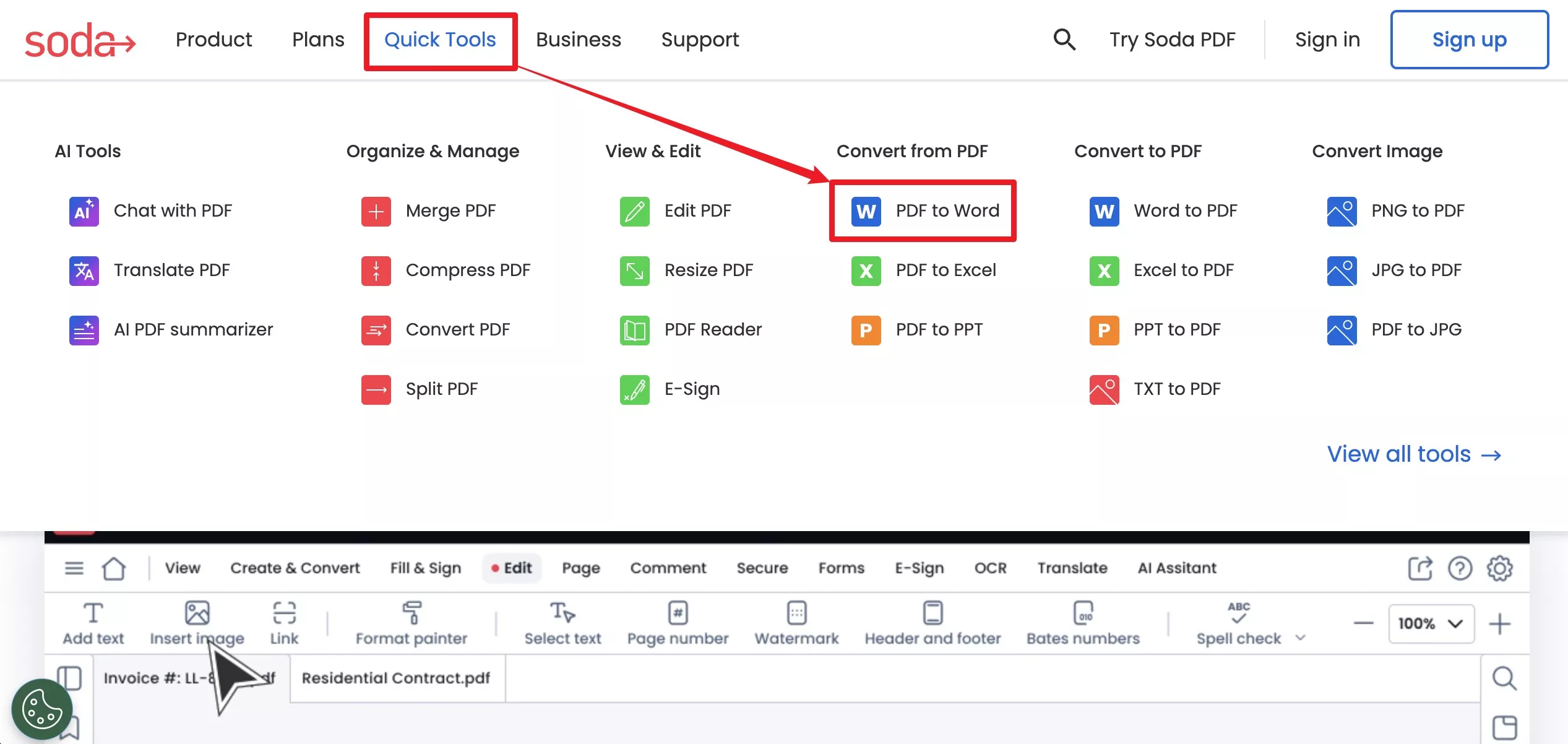
Step 2. Click Quick Tools in the top navigation bar.
Step 3. Under Convert from PDF, select PDF to Word.
Step 4. Click Choose File and locate the PDF on your device.
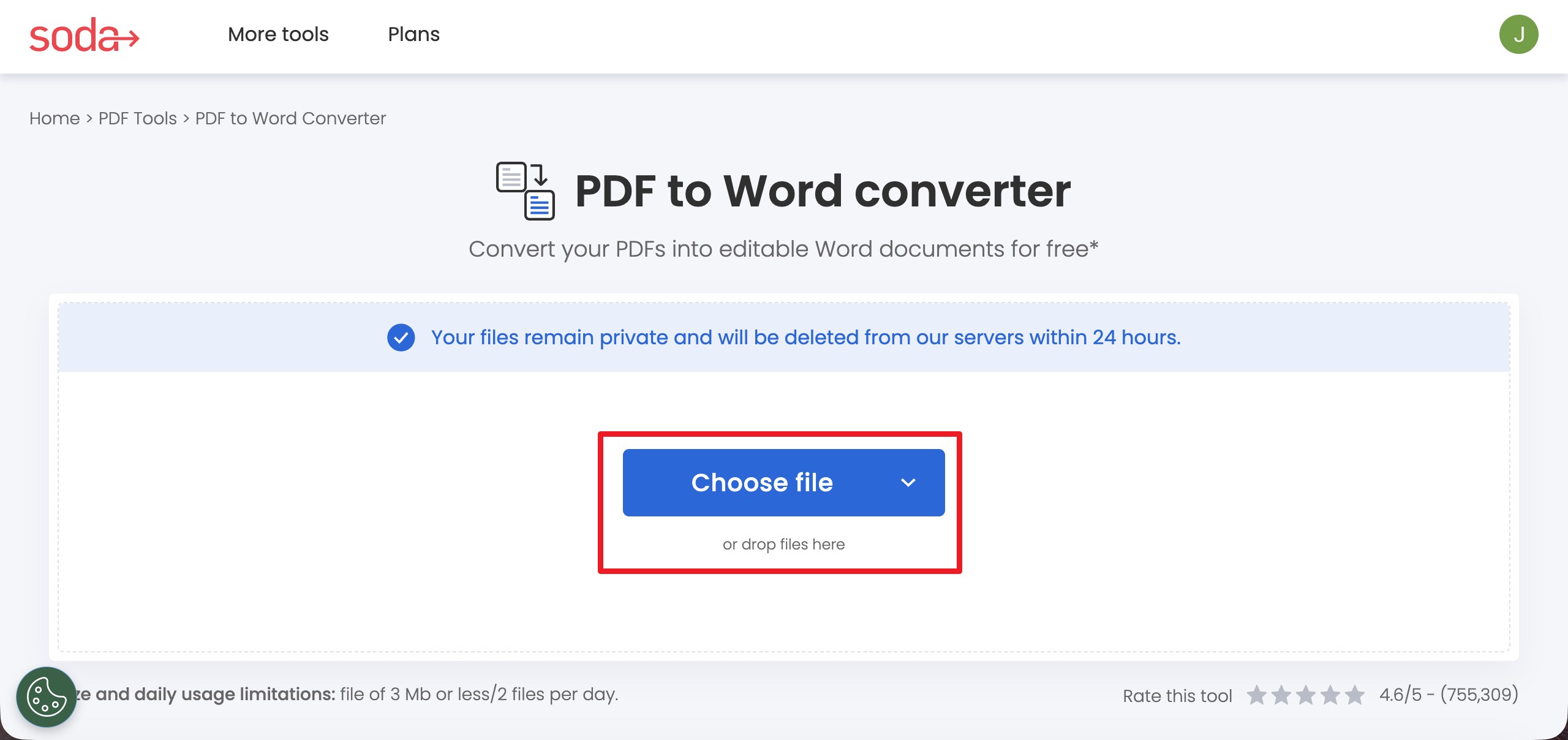
Step 5. Upload the PDF.
Step 6. Wait a few seconds while Soda PDF converts the document.
Step 7. Click the download button to save the converted Word document.
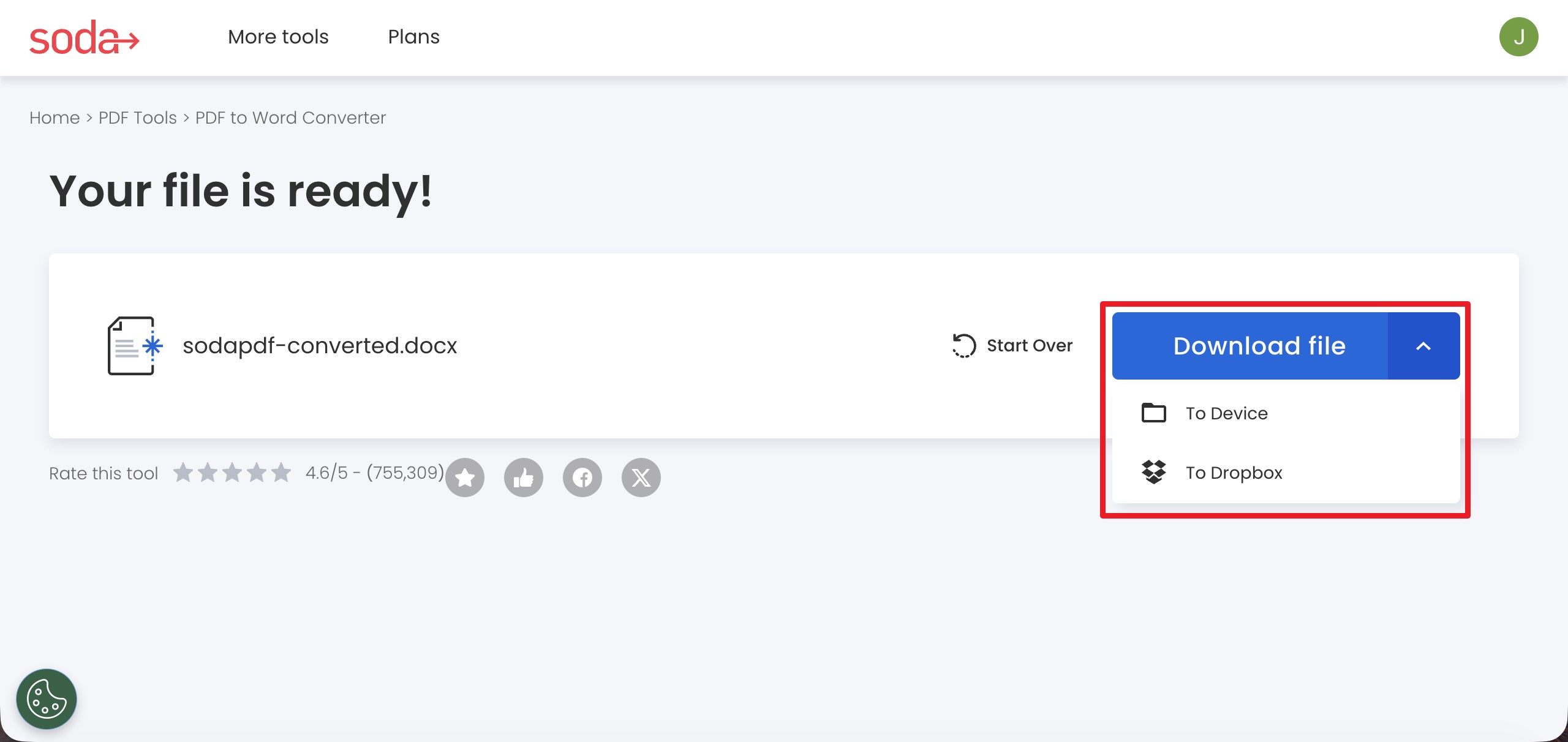
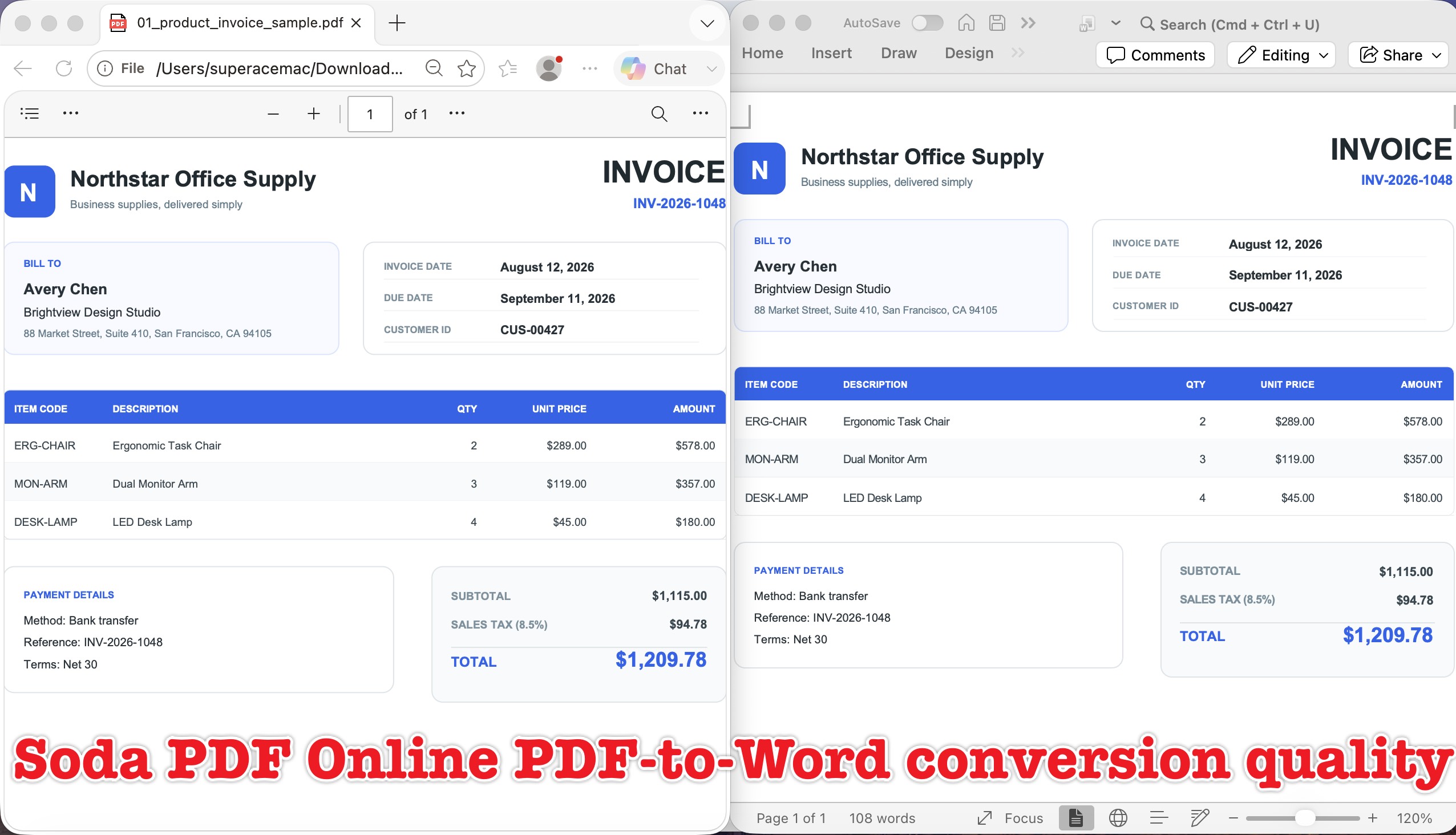
Step 8. Open the downloaded file in Microsoft Word or another compatible word processor to review it.
Best for:
- occasional, single, text-based PDFs where you don't mind a browser upload.
Not for:
- scanned PDFs (no OCR on the free online tier), files over 3 MB, or more than 2 conversions in a day — at that point Soda expects a subscription.
Free-tier reality check: Soda PDF Online lets you convert most files at no cost, but only within a limit of 2 files per day or a 3 MB maximum file size, and Soda states that downloading, printing, emailing, or saving your file can require a subscription depending on the tool. Uploaded files are deleted from Soda's servers after 24 hours.
One more thing worth knowing before you look for an offline option: Soda PDF Desktop won't help most people here. Its convert tools require a paid subscription (there's no free trial that unlocks them), and the desktop app is Windows only — Mac users are pointed back to Soda PDF Online. So for a genuinely free or cross-platform path, the alternative below is the better fit.
Part 3. Cross-Platform Alternative: Convert PDF to Word with UPDF (Desktop, Mobile & Online)
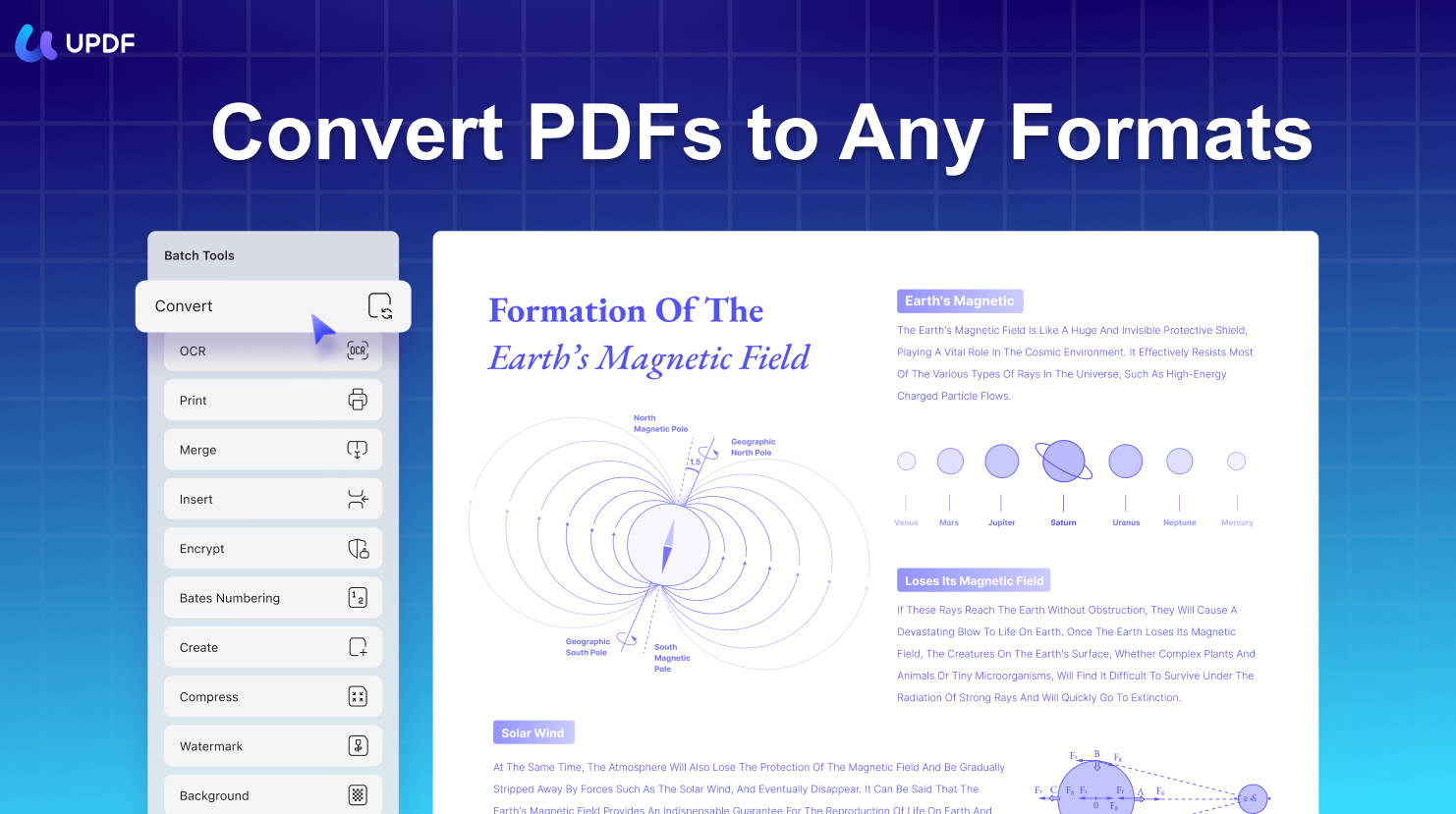
UPDF closes the three gaps Soda leaves open: it runs on Windows, Mac, iOS, and Android, so Mac users aren't pushed online; it runs OCR and conversion in the same pass, so a scanned PDF becomes editable Word text instead of a flat image; and it lets you try both for free before paying — the free tier covers 5 OCR runs (shared across all your devices) and up to 2 file conversions per day, with a trial watermark on exported files until you upgrade. That's enough to test a scanned receipt end to end; a Pro plan then lifts the OCR and daily caps.
On desktop (Windows & Mac)
Open your PDF in UPDF, go to Tools → Word, and click Convert. If your file is scanned, toggle on OCR Text Recognition inside the same PDF Converter window and pick the document language(s) before converting — UPDF recognizes 38+ languages and can tick more than one at once for mixed-language files. This runs OCR and the Word export together, in one step.
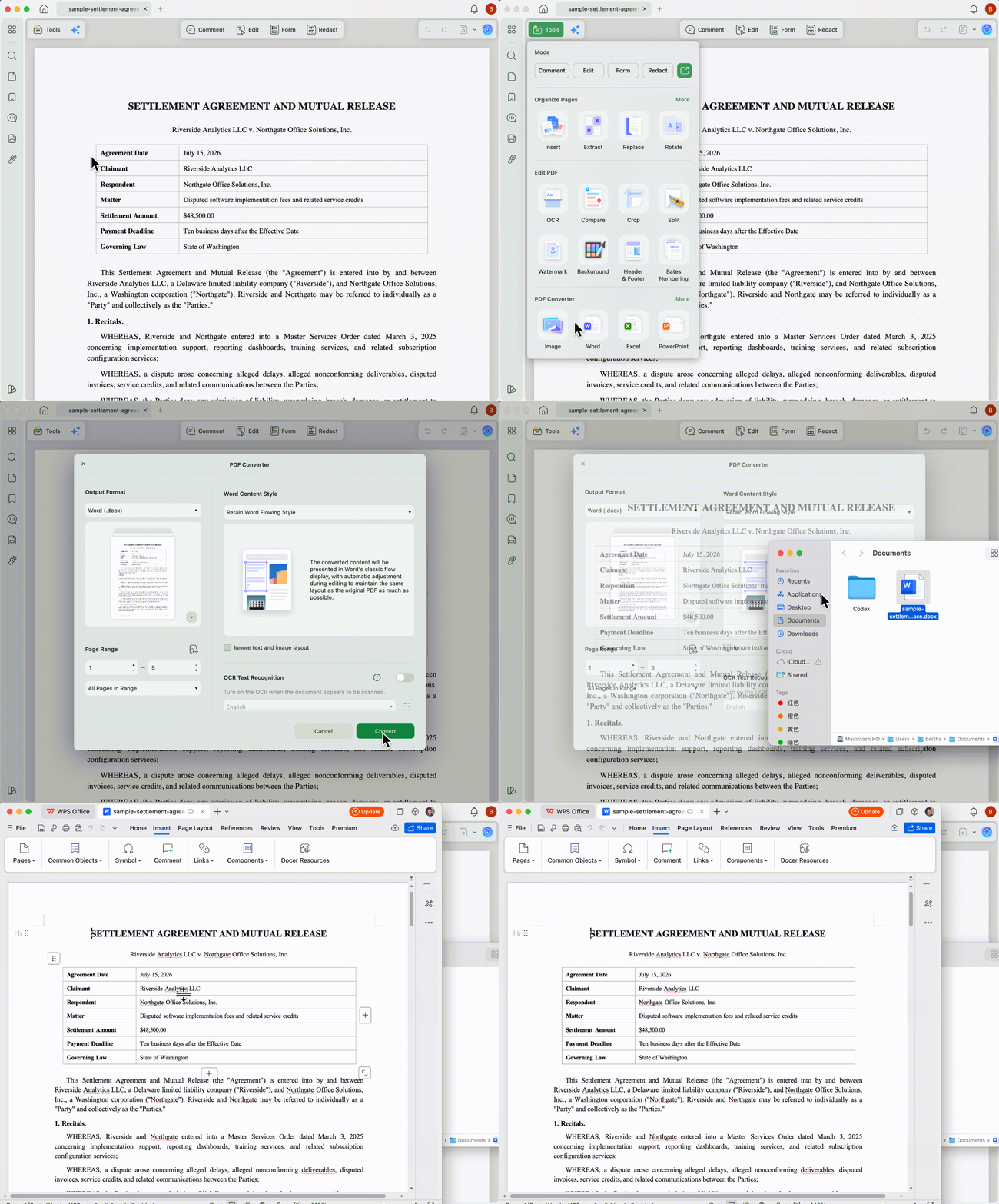
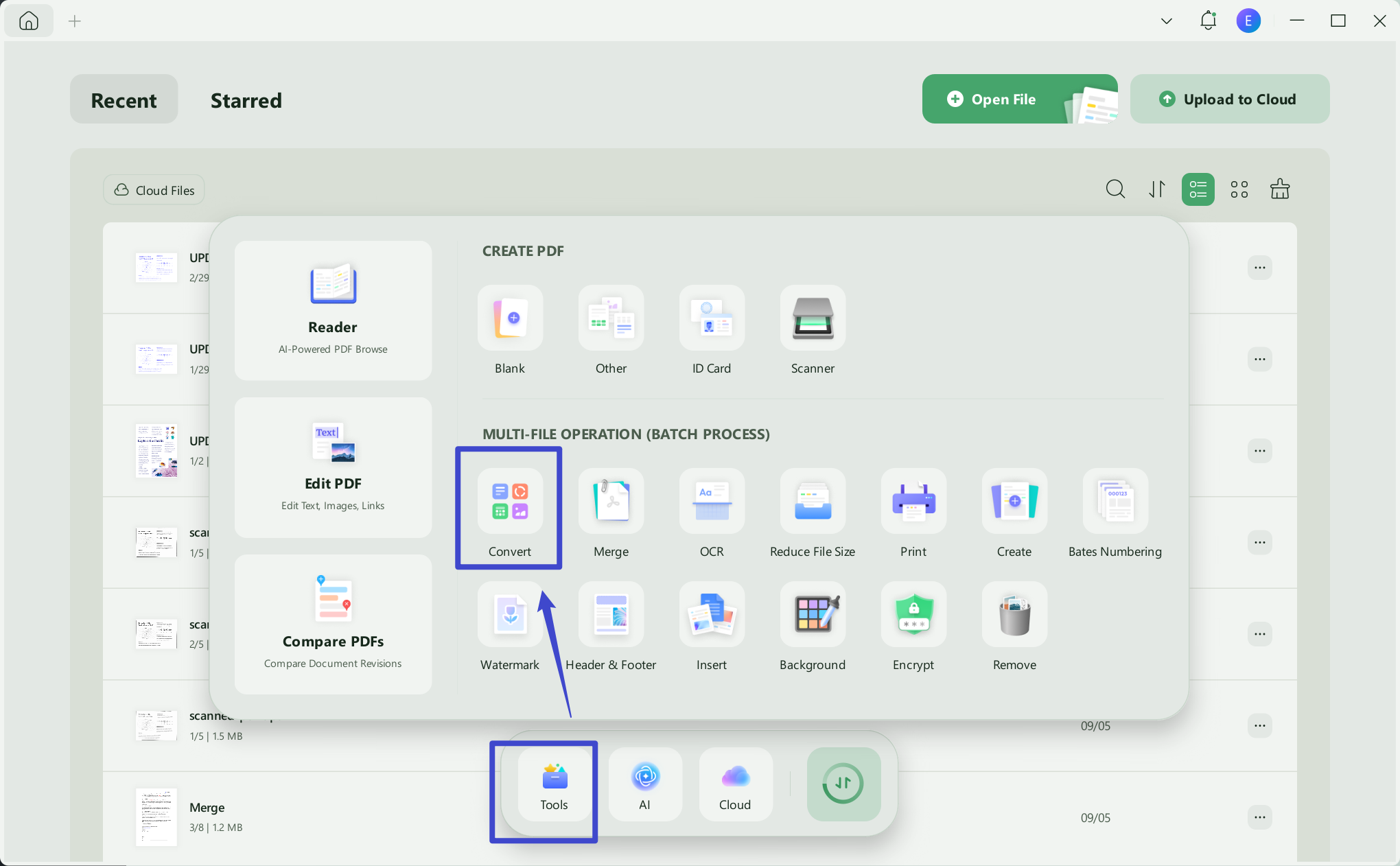
For batch jobs, Use Tools → Convert on the UPDF home screen to process many files at once. A full walkthrough of every desktop and mobile path, with screenshots, lives in the how to convert a PDF guide.
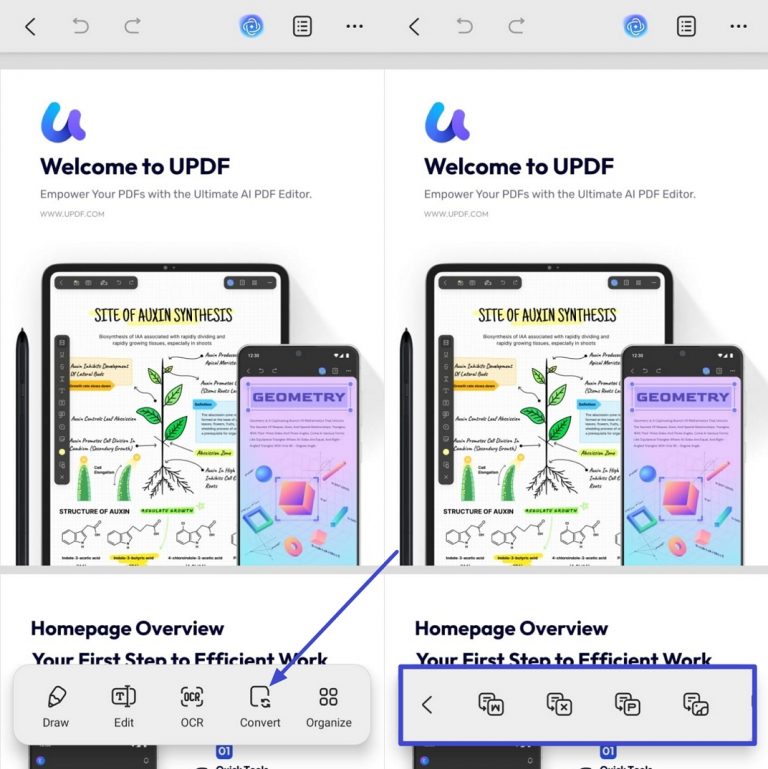
On mobile (iOS & Android)
Open the PDF in the UPDF app, tap Convert, choose Word, adjust the settings (including OCR on the platforms that support it), and export. The converted file keeps layout and formatting close to the original while making the text fully editable. Again, the how to convert a PDF guide has the step-by-step for each platform.
Why this matters for Soda users: the exact scenario Soda's free online tool can't handle — a scanned receipt or contract — is where UPDF's built-in OCR earns its place. You get editable text on your own device, on any OS, and you can verify the result on your first few files before deciding whether to upgrade.
Part 4. Scanned PDF: Soda PDF Online vs UPDF AI Online (Same File, Different Result)
If you'd rather stay in the browser, it's worth comparing Soda PDF Online against UPDF AI Online on the one file type that separates them: a scanned PDF.
Here's the same scanned cash receipt run through both tools' online converters:
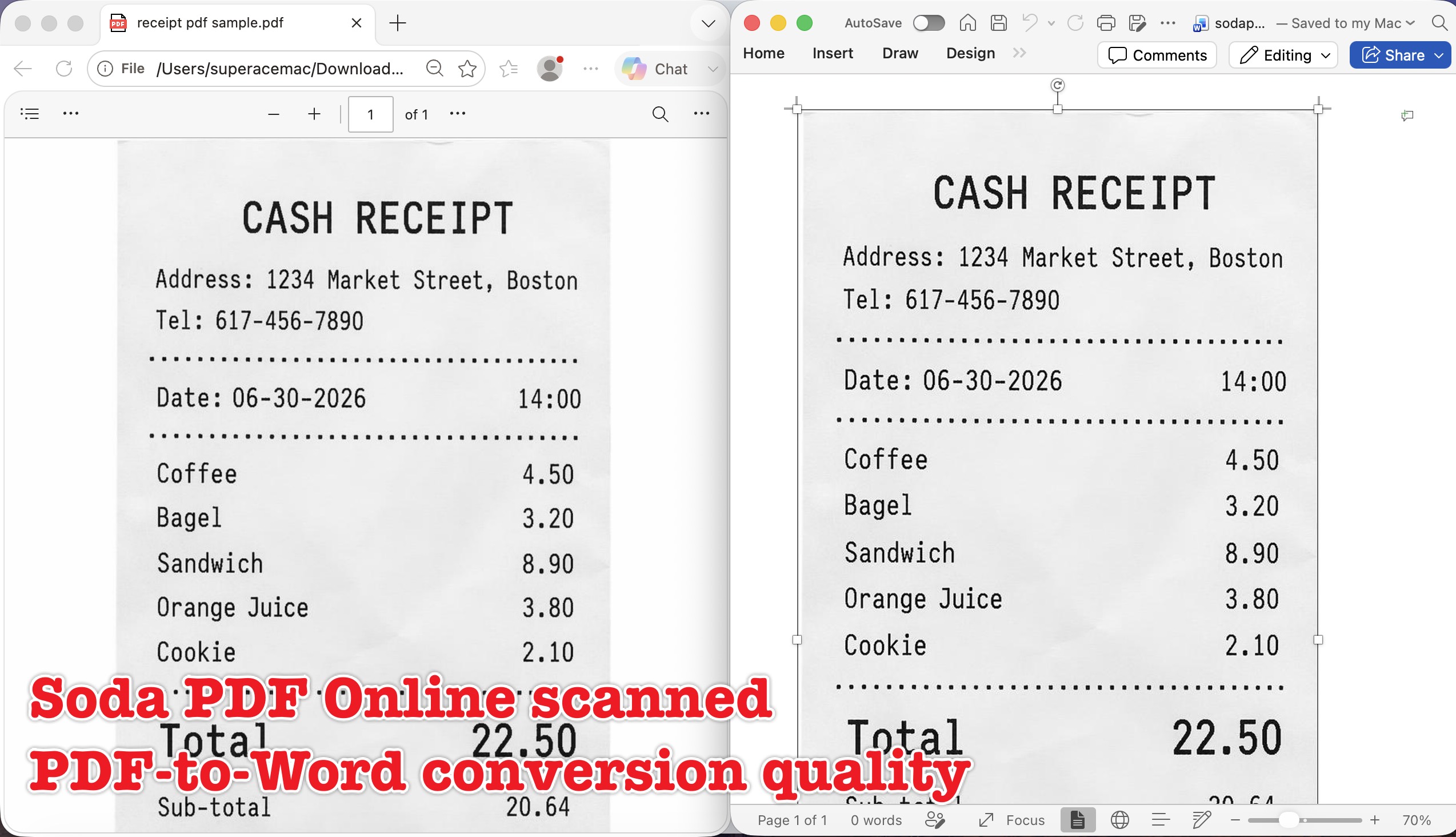
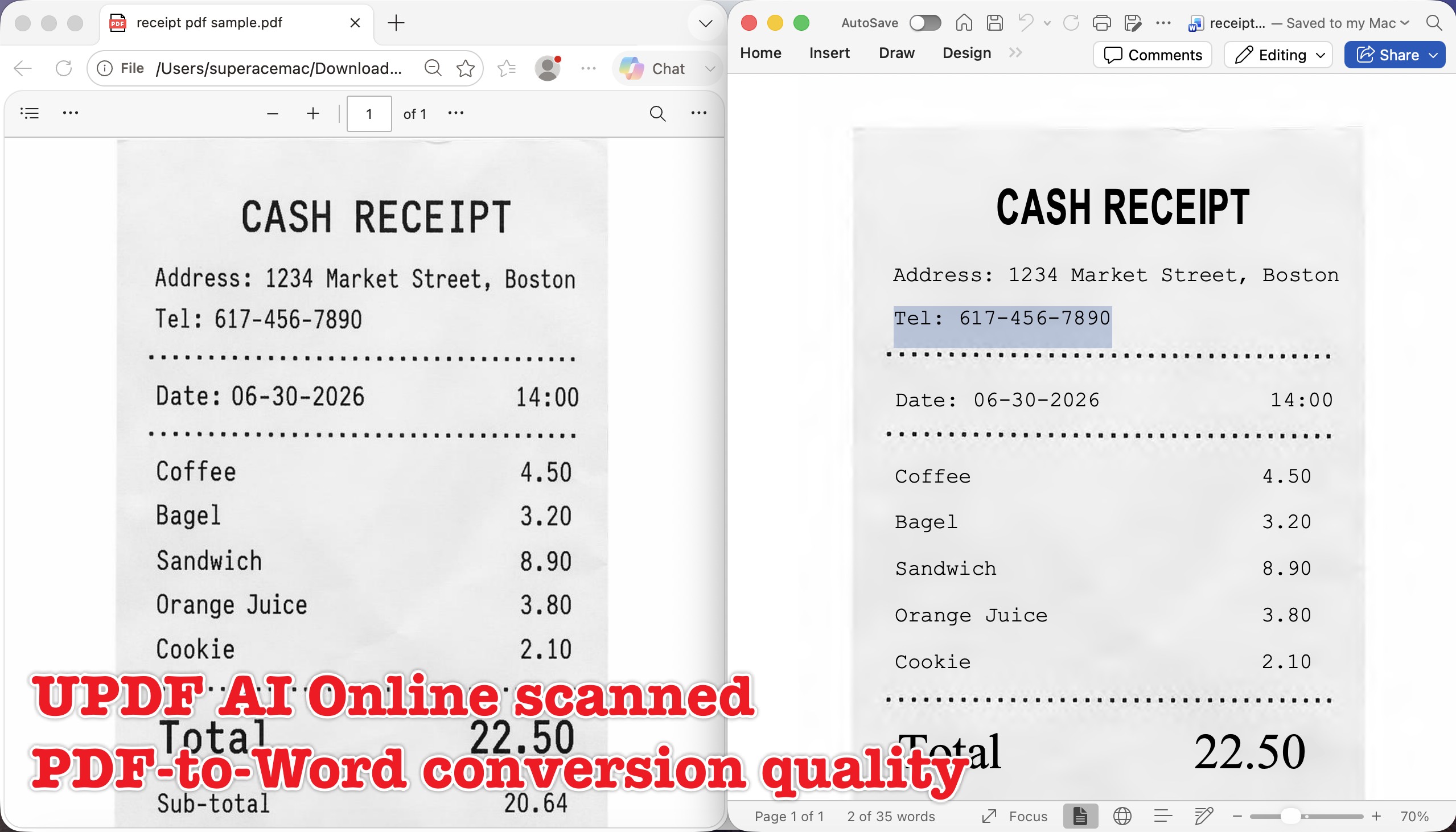
The difference is OCR. Soda PDF Online's free converter has no OCR — OCR is one of the features Soda explicitly excludes from its free online tools — so the scanned receipt lands in Word as a single flat picture you can't select or edit. UPDF AI Online performs OCR during conversion, so the same receipt comes out as real, selectable text.
How to convert with UPDF AI Online
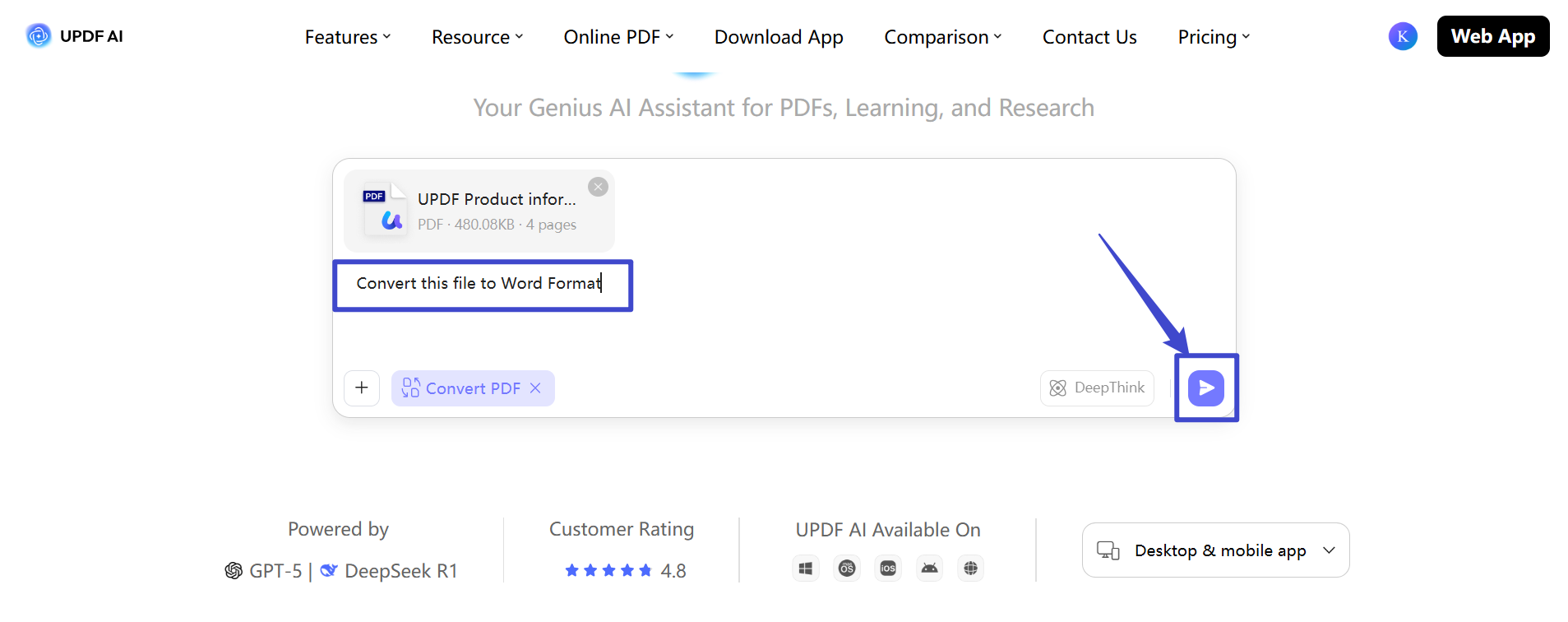
Step 1. Go to UPDF AI Online, click Convert PDF, and use the "Click, drag, or paste PDF / Image here" button to import your document.
Step 2. Type a prompt like "Convert this file to Word format" and hit the Send icon.
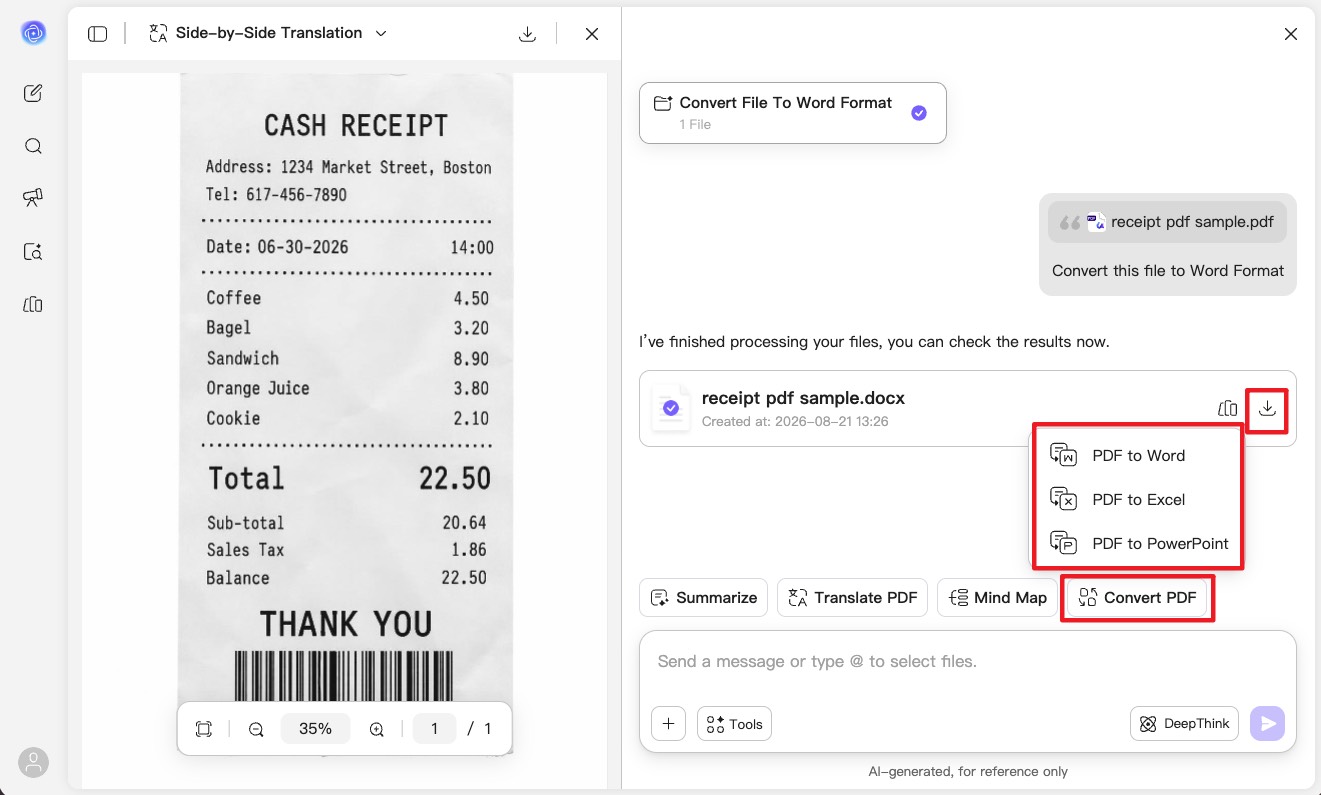
Step 3. UPDF AI returns the converted file — tap the Download icon to save it. (You can reuse the Convert PDF icon to export to Excel or PPT instead.)
One honest caveat on cost: For a scanned file, UPDF AI Online's automatic OCR is available to paid users only — so for scans, the free desktop or mobile apps (with their 5 free OCR runs) are the better free route. Where UPDF AI Online shines free is the far more common case: clean, text-based PDFs that don't need OCR. Its free tier covers 5 PDF files, 100 questions, up to 100 pages and 10 MB per PDF — more headroom for everyday, non-scanned conversions than Soda PDF Online's cap of 2 files per day or 3 MB. Upgrading lifts these to unlimited files, questions, and pages, with 100 MB per PDF.
Part 5. Soda PDF vs UPDF: Where Each One Stops
| Capability | Soda PDF Online (free) | Soda PDF Desktop | UPDF |
|---|---|---|---|
| PDF → Word in browser | ✓ (2 files/day or 3 MB) | — | ✓ (UPDF AI Online) |
| Free convert without a plan | ✓ (within daily limit) | ✗ (subscription required) | ✓ (2 files/day; trial watermark on export) |
| OCR a scanned PDF during convert | ✗ (no OCR on free tier) | ✓ (paid) | ✓ (5 free OCR runs on desktop/mobile, then Pro; AI Online OCR is paid) |
| Platforms | Any browser | Windows only | Windows, Mac, iOS, Android, Online |
| Batch conversion | ✗ | ✓ (paid) | ✓ |
| Lifetime license | ✗ (subscription only) | ✗ | ✓ (one-time option available) |
The pattern: Soda PDF Online is a fine free tool for one or two small, clean PDFs; Soda PDF Desktop is capable but Windows-only and pay-to-convert; UPDF spans every platform and is the only one of the three that lets you turn a scanned file into editable text for free on your first runs (5 OCR runs on desktop or mobile) before deciding to upgrade for unlimited use.
Part 6. Edge Cases: When the Standard Method Fails
- "The Word file opens, but tables split into separate text boxes I can't join." This happens when a converter rebuilds a bordered table as loose, individually-positioned frames instead of one native Word table. Before manually merging cells, try converting to Excel first (the grid survives better), then paste the range back into Word as a table.
- "Conversion worked, but the fonts were all substituted and the spacing is off." The original PDF used fonts not installed on your system, so Word swapped in look-alikes and the reflow shifted. Install the source fonts before opening the file, or convert with a tool that embeds font metrics rather than remapping.
- "My PDF is password-protected and the converter rejects it." A permissions (owner) password that blocks copying or editing will stop most converters cold, even the file's rightful owner's. You have to remove the restriction — with the password you set — before conversion; only do this on files you own or are authorized to edit.
- "Half the pages converted; the rest came out blank." Mixed PDFs — some pages digital text, some scanned images — convert unevenly when OCR isn't applied to the image pages. Run OCR across the whole document first so every page carries a text layer, then export.
- "The converted file is huge compared to the original." Image-heavy PDFs (especially scans) balloon when each page is embedded as a full-resolution picture in the Word file. Compress the images inside Word after conversion, or convert at a lower DPI if the tool allows it.
Part 7. FAQs
1. Will Soda PDF add a watermark to my converted Word file?
No, Soda doesn't watermark conversions. The catch is different: on the free online tier, downloading or saving the result can require a subscription depending on the tool, and you're capped at 2 files per day or 3 MB.
2. Can I convert PDF to Word offline without an internet connection?
Not with Soda's free path. Soda PDF Online needs a browser connection, and its offline desktop app is paid and Windows-only. For free offline conversion, a desktop app like UPDF processes the file locally on Windows or Mac (2 files per day).
3. Does converting a PDF to Word keep hyperlinks and bookmarks?
Usually text hyperlinks survive; bookmarks and internal cross-references often don't. If clickable links matter, check them right after conversion — most converters preserve URLs but drop the PDF's navigation structure.
Conclusion
Soda PDF Online is a reasonable free option for one or two small, text-based PDFs, but its free tier has no OCR and its desktop convert is a Windows-only, paid feature — so scanned files and Mac users fall outside its free path. When you need scanned-to-editable output, cross-platform coverage, or a free way to test conversion first, UPDF fills those gaps: 5 free OCR runs and 2 conversions a day on desktop and mobile, plus a UPDF AI Online free tier (5 files, 100 questions) for everyday non-scanned conversions. To go deeper, see the PDF to Word OCR converter guide for scanned files, the full how to convert a PDF walkthrough for every format and platform, or the roundup of the best free PDF converters.
Download UPDF for free to try converting a scanned PDF to editable Word on your own file — installation is free, and Pro features are available when you need watermark-free export or batch conversion.
Windows • macOS • iOS • Android 100% secure


 Enid Brown
 Lizzy Lozano
Testing disclaimer: