 UPDF
UPDF
 UPDF for Windows
 UPDF for Mac
 UPDF for iPhone/iPad
 UPDF for Android
 Nomostar
 UPDF AI Online
 UPDF Sign
 IvyCraft
 Edit PDF
 Annotate PDF
 Create PDF
 PDF Form
 Edit links
 Convert PDF
 OCR
OCR PDF to Word
 PDF to Image
 PDF to Excel
 Organize PDF
 Merge PDF
 Split PDF
 Crop PDF
 Rotate PDF
 Protect PDF
 Sign PDF
 Redact PDF
 Sanitize PDF
 Remove Security
 Read PDF
 UPDF Cloud
 Compress PDF
 Print PDF
 Batch Process
 About UPDF AI
 UPDF AI Solutions
 AI User Guide
 FAQ about UPDF AI
 Summarize PDF
 Translate PDF
 Chat with PDF
 Chat with AI
 Chat with image
 PDF to Mind Map
 Explain PDF
 PDF AI Tools
 Image AI Tools
 AI Chat Tools
 AI Writing Tools
 AI Study Tools
 AI Working Tools
 Other AI Tools
 AI Bookmark Generation
 AI Bookmark Summary
 AI Watermark Generation
 AI Background Generation
 AI Sticker Generation
 AI Stamp Generation
 AI Editing Suite
 UPDF Copilot
 AI Page Management
 AI Semantic Search
 PDF to Word
 PDF to Excel
 PDF to PowerPoint
 Enterprise Solution
 Enterprise Sign
 Enterprise AI
 Enterprise Plan
 Enterprise User Guide
 Enterprise Webinar
 Banking
 Healthcare
 Insurance
 Legal
Legal Manufacturing
 Government
 Researchers & PhDs
 Solopreneurs & Freelancers
 Education Solution
 Customer Stories
 User Guide
 UPDF Tricks
 FAQs
FAQs UPDF Reviews
 Download Center
 Blog
Blog Newsroom
 Tech Spec
 Updates
 UPDF vs. Adobe Acrobat
 UPDF vs. Foxit
 UPDF vs. PDF Expert

Quick Answer:
That quick test matters because a PDF can look perfectly readable while containing no machine-readable text at all. Choosing the wrong method is why copy and paste sometimes fails, Python returns an empty string, and a converter produces blank pages.
This guide uses one simple decision—whether the PDF contains selectable text—to route you to three practical methods: extract or export the text with UPDF, run UPDF OCR on scanned pages, or use Python for automated processing. It also explains what to do with mixed PDFs, permission restrictions, poor OCR results, and confidential documents.
Part1: First, Check Whether the PDF Contains Selectable Text
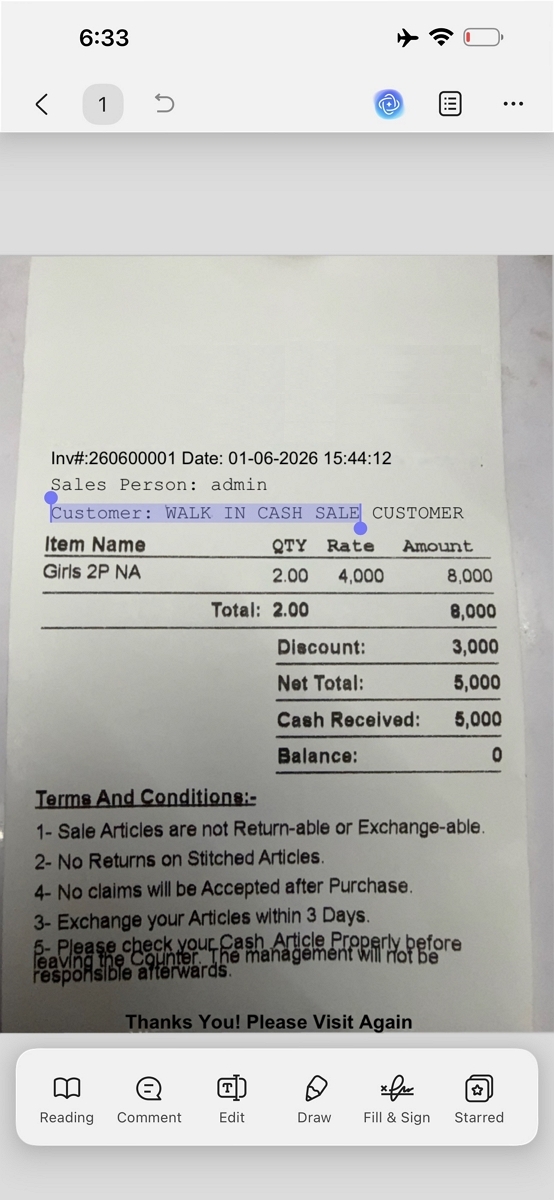
Open the PDF and drag your cursor across one sentence.
- If individual words turn blue, the PDF has a selectable text layer. Use UPDF for direct extraction or Python for an automated workflow.
- If the entire page is selected as one object, or nothing can be highlighted, it is probably a scanned or image-only PDF. Run UPDF OCR first.
- If some pages work and others do not, the PDF is mixed. Extract the existing text first, then OCR only the image-only pages.
- If text is selectable but copying is disabled, check the document permissions. A password or copying restriction is different from a missing text layer.
Another clue is zoom quality. Digitally generated text stays sharp at high zoom, while scanned letters eventually show pixels. This is only a clue, however; the selection test is more useful.
Part 2: Choose the Right Method: UPDF, UPDF OCR, or Python
| Your situation | Best method | OCR needed? | Best output |
|---|---|---|---|
| You need text from a normal, selectable PDF | Copy or export with UPDF | No | Clipboard text, DOCX, or TXT |
| The PDF is a scan, receipt, form, or photographed page | Run UPDF OCR, then copy or export | Yes | Searchable/editable PDF, DOCX, or TXT |
| You need repeatable or batch extraction | Use Python with pypdf or PyMuPDF | Not for selectable PDFs; OCR scanned pages first | Plain text or structured data |
Part 3: Extract Text from Scanned PDFs with OCR
When a PDF is just images, basic viewers cannot perform accurate PDF text extraction from those pages. You need dedicated, high-grade OCR tools to rebuild a clean, editable text layer from pixel-only scans.
Many people still need fast, precise PDF text extraction from scanned pages, receipts, and tricky layouts. This is where UPDF gives you focused OCR tools across desktop and mobile for daily workflows. Its AI-backed OCR recognizes text in 38 languages, including mixed multilingual pages, without breaking characters.
You can scan or import documents on Windows, Mac, and mobile phones and convert them into editable files. UPDF's OCR engine is tuned for up to 99% accuracy, keeping your converted documents reliable and usable.
Method 1: Multi-Lingual Desktop OCR Processing (Windows/Mac)
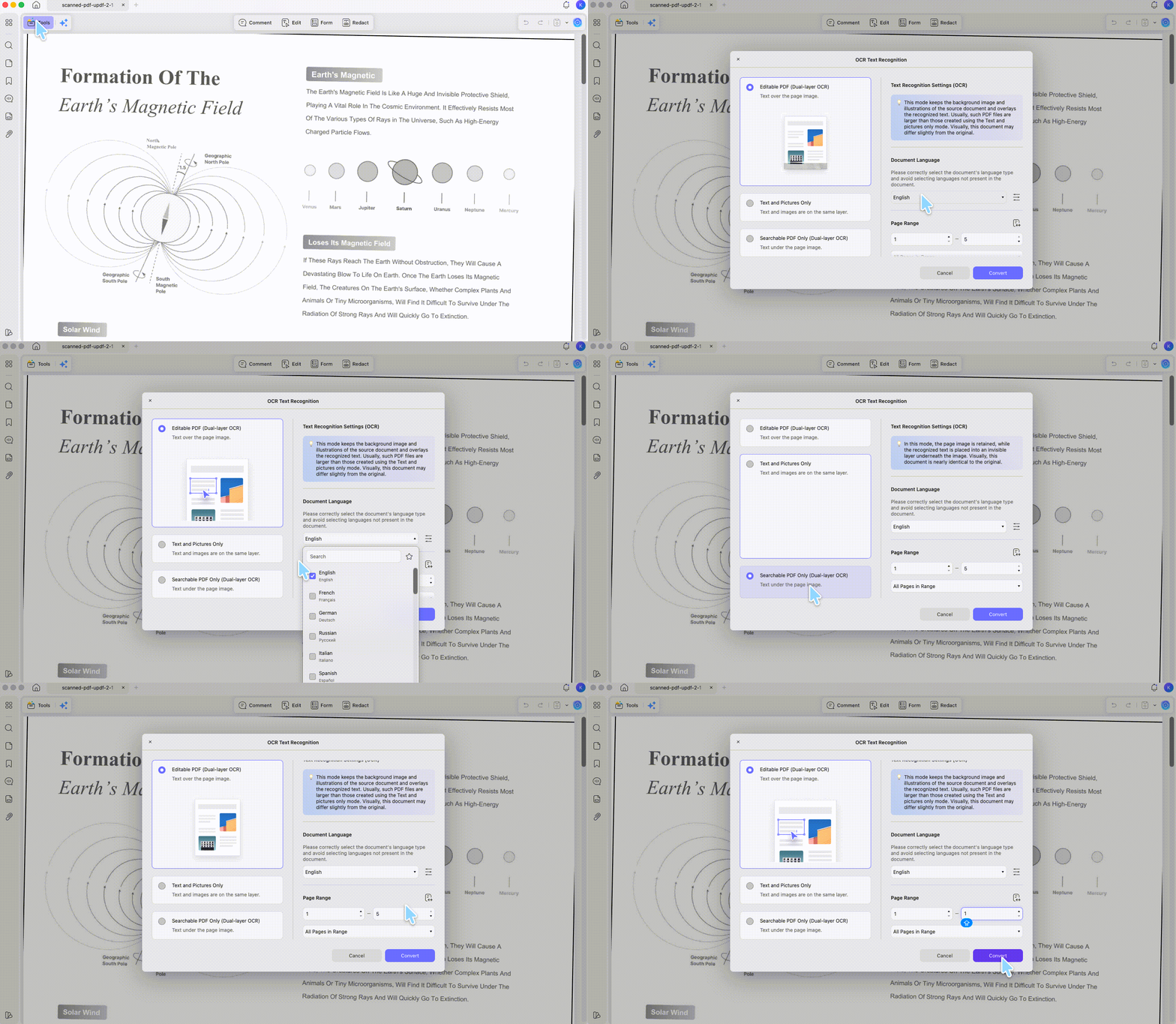
When your document is a flat scan, UPDF desktop OCR gives tighter control than simple viewing tools. It lets you carefully choose document types and languages, so you accurately recognize text in PDF. So, follow the steps below to convert complex scanned pages into precise, fully editable documents:
Step 1. Once you import a PDF into UPDF, press the "Tools" option and choose the "OCR" tool to access it.
Step 2. After that, choose the "Editable PDF" OCR mode and select the accurate languages used in the document. Next, click the "Convert" button and choose a location for the new PDF to begin OCR.
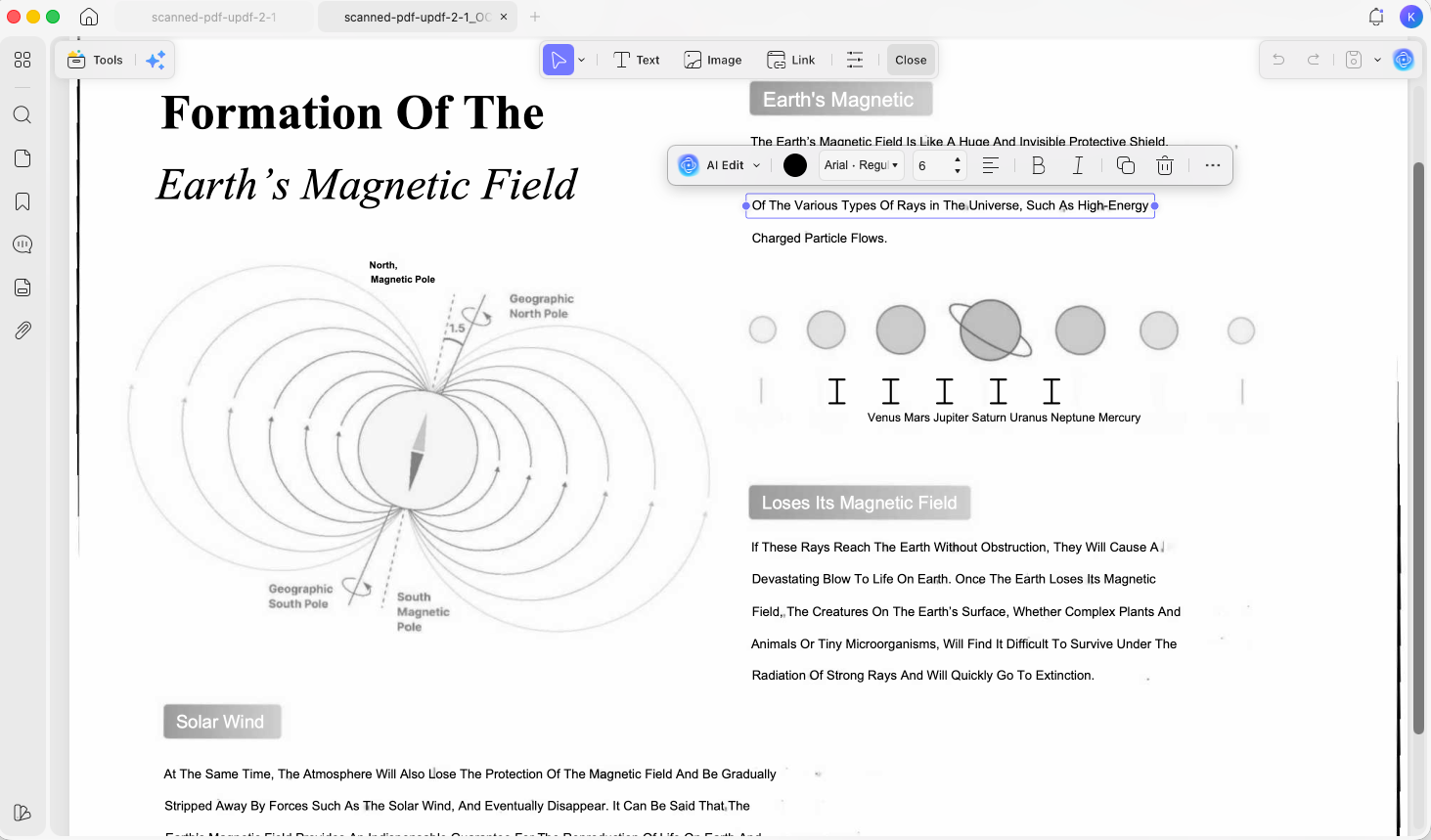
Step 3. Once OCR is finished, UPDF will automatically open the editable PDF. Next, access the "Edit" feature and change text directly on the PDF page.
Method 2: Rapid Touchscreen Mobile OCR Conversion (iOS/Android)
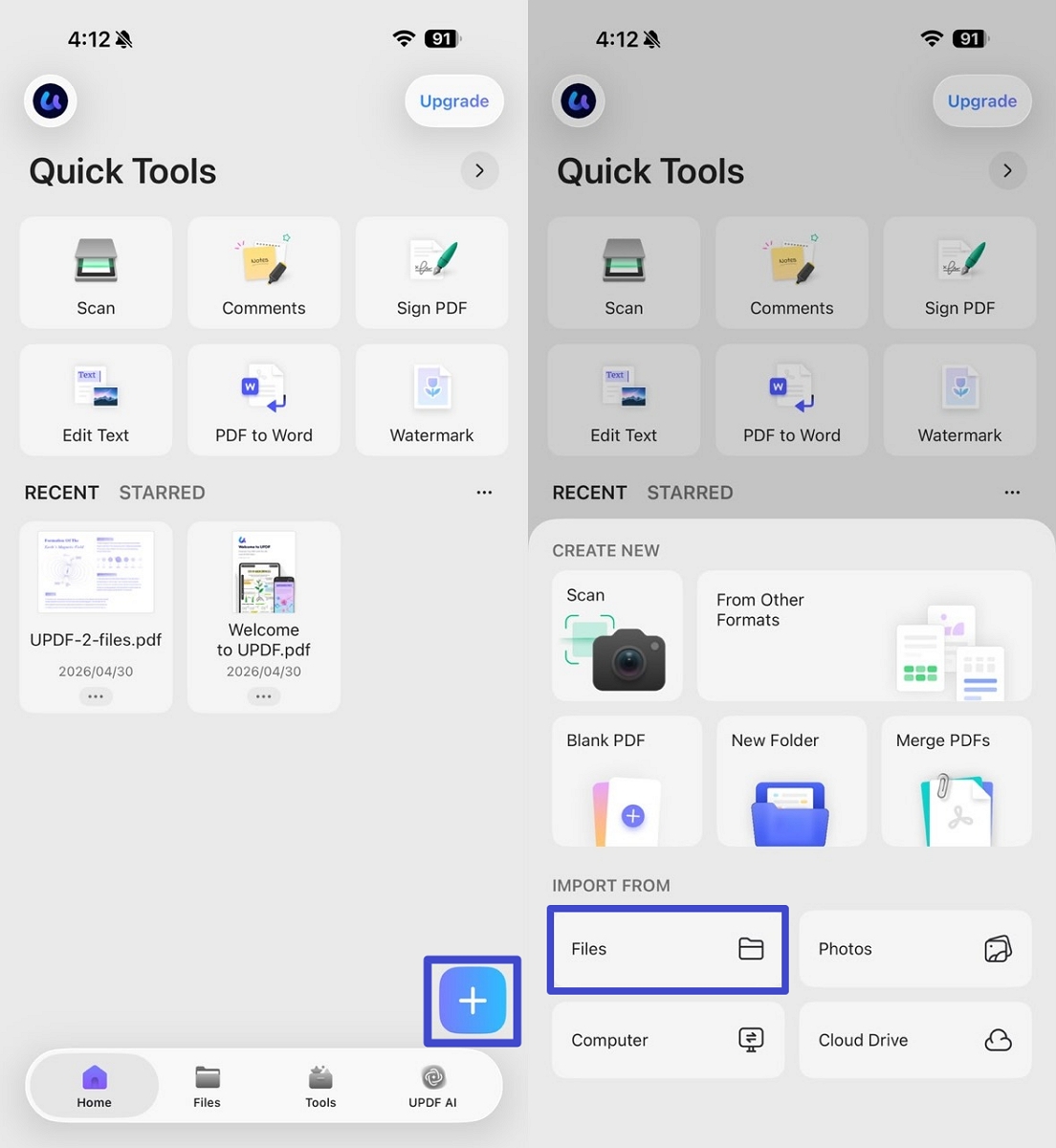
Clients often send urgent image‑only PDFs, and you must extract text from PDF directly on mobile. UPDF's app lets you open those scans, trigger OCR, and quickly copy clean text into chats. Go through the steps below to convert incoming phone documents into usable, shareable digital text instantly:
Step 1. Once you open the UPDF app on your Android or iOS phone, tap on the "+" icon and press the "File" option to import the scanned or image-based PDF. You can also directly import the image before performing OCR.
Windows • macOS • iOS • Android 100% secure
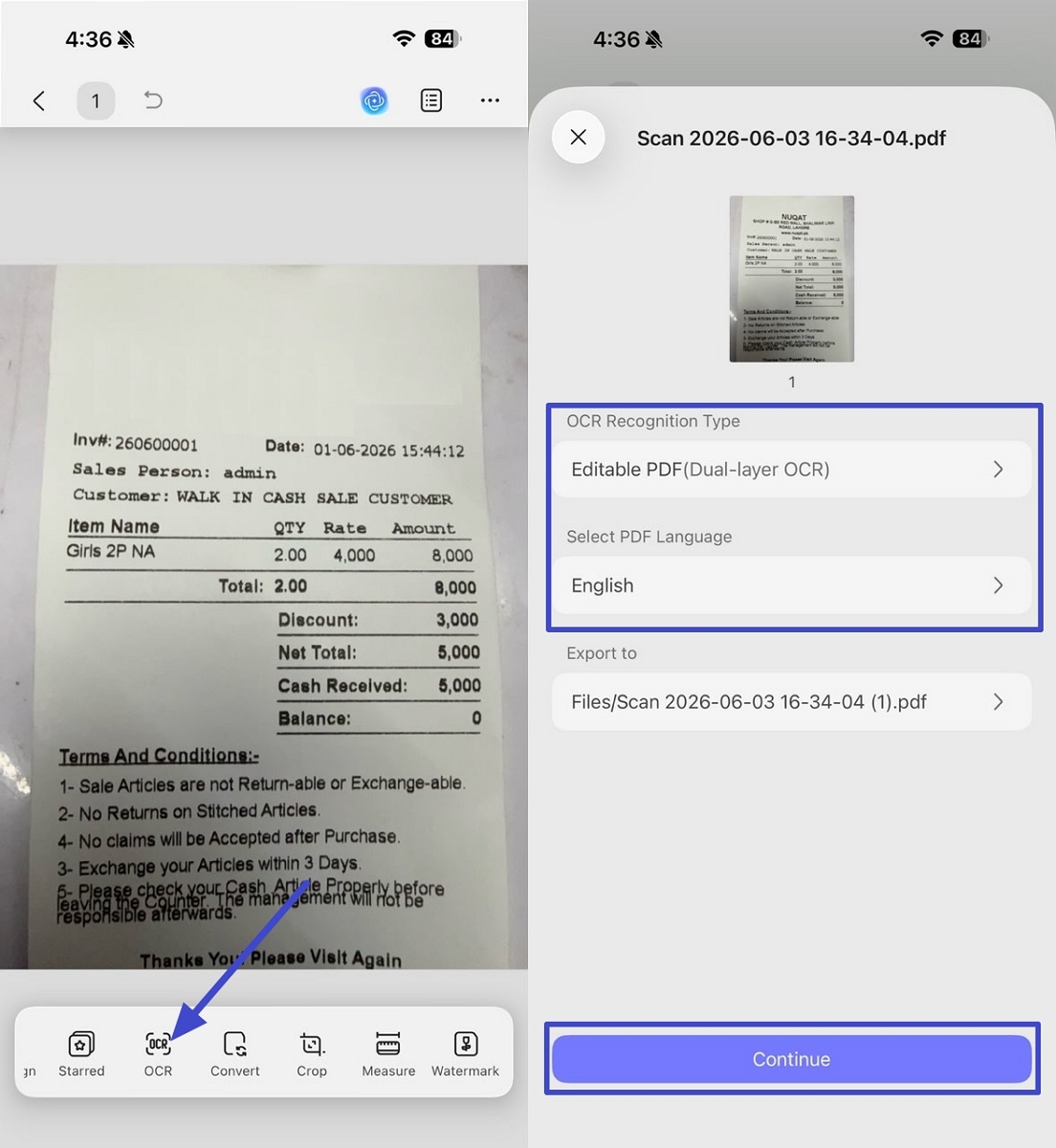
Step 2. After the file is imported, tap on the "OCR" option in the toolbar below. Next, select the "Editable PDF" mode, select the correct language, and tap on the "Continue" option. This process works the same on both Android and iOS devices.
Step 3. Now, open the OCRed file in UPDF. Select and copy some text from the PDF to see if it is searchable.
Part 4: Read PDF Text With Python
Python is the right choice when extraction must be repeatable, integrated into a data pipeline, or applied to many digitally generated PDFs. It is not automatically better for one document, and ordinary PDF libraries do not perform OCR.
Install the current pypdf package:
pip install pypdfThen read every page instead of only the first one:
from pathlib import Path
from pypdf import PdfReader

pdf_path = Path("example.pdf")
reader = PdfReader(pdf_path)

pages = []
for page_number, page in enumerate(reader.pages, start=1):
    text = page.extract_text() or ""
    pages.append(f"\n--- Page {page_number} ---\n{text}")

output = "".join(pages).strip()
Path("example.txt").write_text(output, encoding="utf-8")
print(f"Extracted {len(output):,} characters from {len(reader.pages)} pages.")
For a PDF whose spacing and columns matter, try layout mode:
text = page.extract_text(extraction_mode="layout") or ""Layout mode can improve visual spacing, but it does not reconstruct the semantic structure of every table or multi-column page.
Part 5: Beyond Extraction: Contextual UPDF Features
Once you extract text from PDF files, you still need ways to actually use that cleaned content. Some people paste results into other tools, but switching apps repeatedly slows every simple document task. Now, let's explore other built-in options that help you finish everything inside one UPDF workspace.
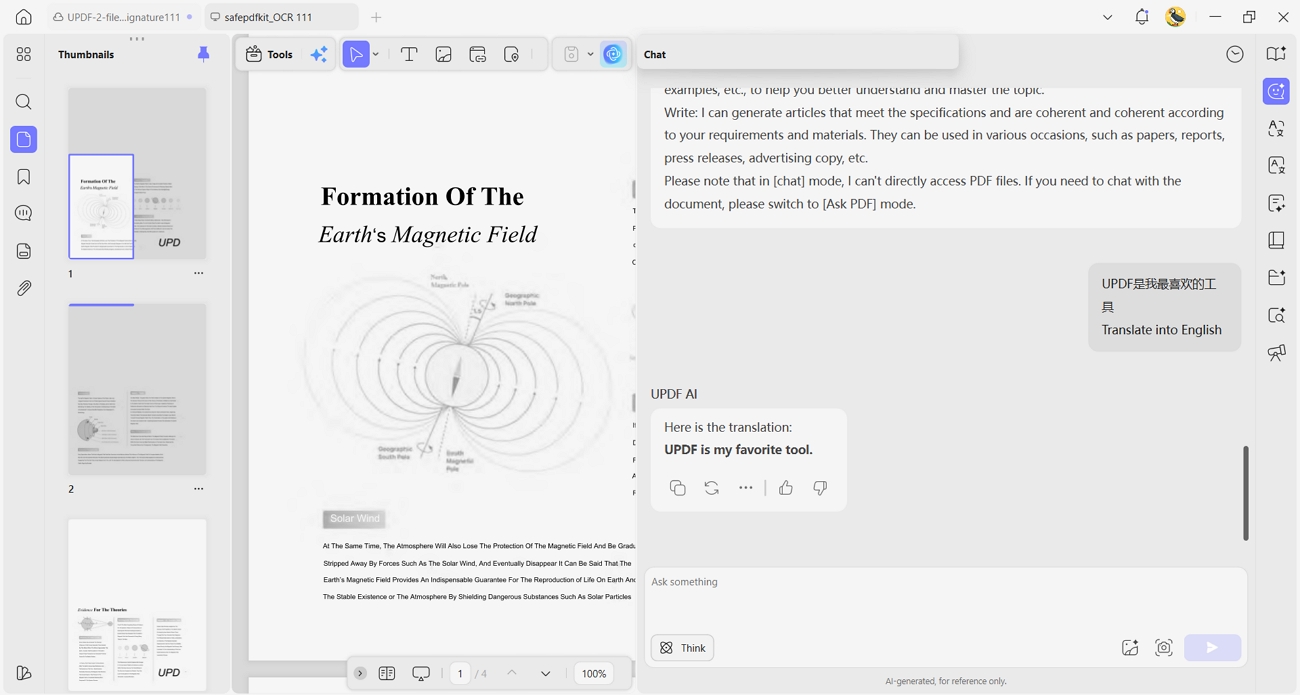
- UPDF AI Translate: After extraction, users paste foreign text into chat and instantly request translation in any language.
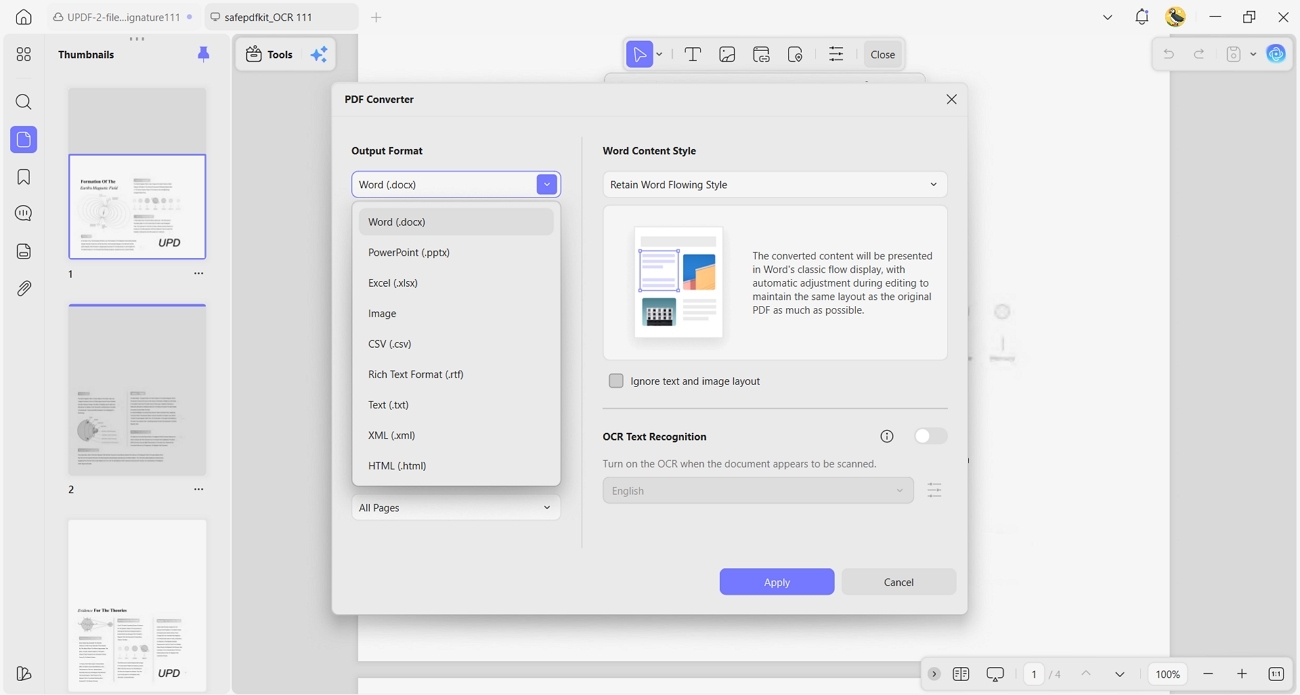
- Convert PDF: Cleaned documents can be converted into Word or Excel with tables and formatting preserved. This helps teams prepare polished reports and presentations faster when deadlines are very tight.
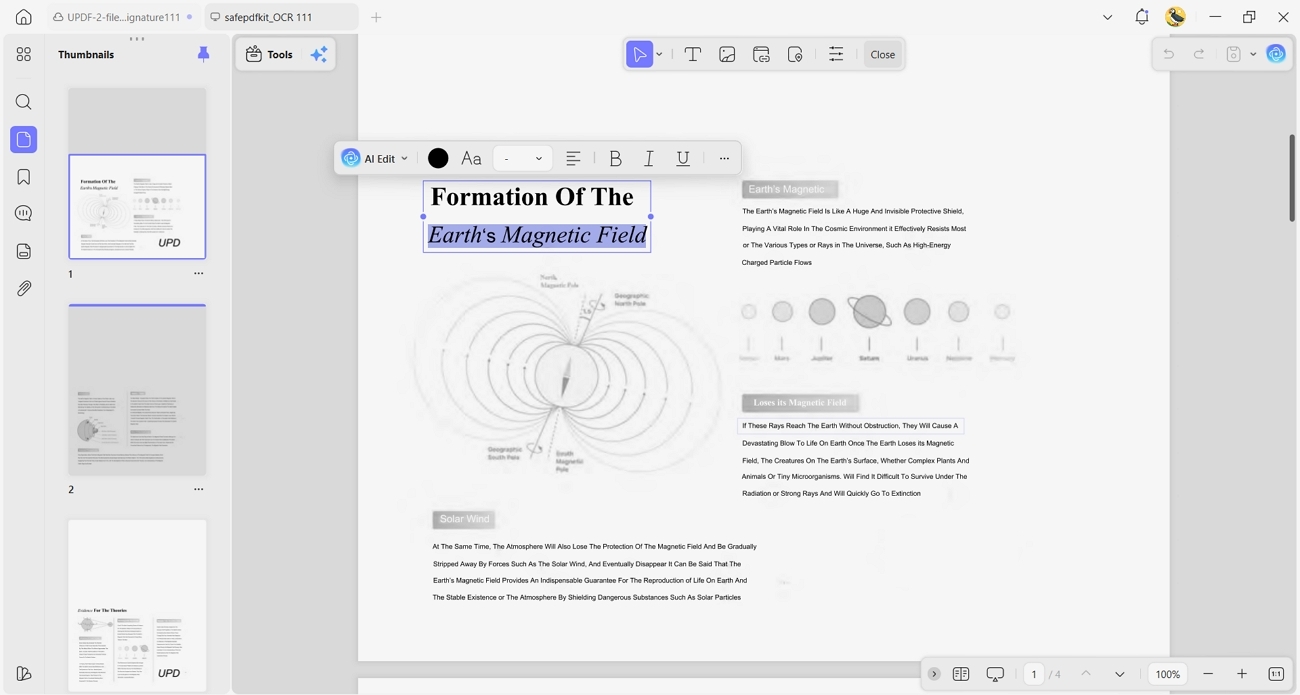
- All-in-One PDF Editor: UPDF lets you adjust text, swap images, and organize pages inside the same streamlined interface. You can install it once and handle reviewing, correcting, and finalizing documents without juggling extra tools.
So, download UPDF to start using AI Translate and convert PDFs in your documents.
Windows • macOS • iOS • Android 100% secure
FAQs
Q1: Can I extract text from a scanned PDF without OCR?
Not with an ordinary PDF text parser. A scanned page contains pixels, not characters, so it needs OCR or another image-understanding process. If you need reliable reusable text, OCR is the appropriate workflow.
Q2: Why can I search a scanned-looking PDF?
The file probably contains a hidden OCR text layer behind the page image. You can extract that text, but it may contain recognition errors from the original scan.
Q3: Should I always OCR a PDF before extracting text?
No. If the text is already selectable, use direct extraction or conversion. OCR may introduce mistakes that were not present in the embedded text layer.
Conclusion
Successful PDF text extraction begins with one diagnosis: does the page contain selectable text, or is it only an image? Use copy, conversion, or Python for a real text layer. Use OCR for scanned pages. Combine both methods for mixed files, and keep confidential documents within an approved local workflow.
UPDF brings reading, conversion, OCR, editing, and mobile access into one PDF workspace, so you can choose the appropriate path without manually retyping the document. Download UPDF and test one representative page before processing the entire file.
Windows • macOS • iOS • Android 100% secure







 Lizzy Lozano
 Enola Davis
 Enrica Taylor
 Enola Miller
 Enid Brown