UPDF
UPDF
 UPDF for Windows
 UPDF for Mac
 UPDF for iPhone/iPad
 UPDF for Android
 Nomostar
 UPDF AI Online
 UPDF Sign
 IvyCraft
 Edit PDF
 Annotate PDF
 Create PDF
 PDF Form
 Edit links
 Convert PDF
 OCR
OCR PDF to Word
 PDF to Image
 PDF to Excel
 Organize PDF
 Merge PDF
 Split PDF
 Crop PDF
 Rotate PDF
 Protect PDF
 Sign PDF
 Redact PDF
 Sanitize PDF
 Remove Security
 Read PDF
 UPDF Cloud
 Compress PDF
 Print PDF
 Batch Process
 About UPDF AI
 UPDF AI Solutions
 AI User Guide
 FAQ about UPDF AI
 Summarize PDF
 Translate PDF
 Chat with PDF
 Chat with AI
 Chat with image
 PDF to Mind Map
 Explain PDF
 PDF AI Tools
 Image AI Tools
 AI Chat Tools
 AI Writing Tools
 AI Study Tools
 AI Working Tools
 Other AI Tools
 AI Bookmark Generation
 AI Bookmark Summary
 AI Watermark Generation
 AI Background Generation
 AI Sticker Generation
 AI Stamp Generation
 AI Editing Suite
 UPDF Copilot
 AI Page Management
 AI Semantic Search
 PDF to Word
 PDF to Excel
 PDF to PowerPoint
 Enterprise Solution
 Enterprise Sign
 Enterprise AI
 Enterprise Plan
 Enterprise User Guide
 Enterprise Webinar
 IT
IT Education
 Construction
 Financial Service
 Healthcare
 Insurance
 Legal
Legal Manufacturing
 Government
 Researchers & PhDs
 Solopreneurs & Freelancers
 Lawyers & Legal Professionals
 Real Estate Agents & Brokers
 Education Solution
 Customer Stories
 User Guide
 UPDF Tricks
 FAQs
FAQs UPDF Reviews
 Download Center
 Blog
Blog Newsroom
 Tech Spec
 Updates
 UPDF vs. Adobe Acrobat
 UPDF vs. Foxit
 UPDF vs. PDF Expert

Attending industry conferences or business events often leaves you with a massive stack of collected business cards. A business card scanner app helps digitize using OCR to convert printed text into editable digital information quickly. Many tools struggle with inconsistent accuracy, weak CRM integration, and data privacy concerns.
This is where UPDF goes beyond scanning, creating searchable PDFs, enabling batch exports, and supporting cross-platform management. This article explains how tools work, compares apps, and shows why UPDF offers a more complete solution.
Windows • macOS • iOS • Android 100% secure
Part 1. How Does a Business Card Scanner Work?
Modern tools simplify contact capture and reduce manual data entry efforts for busy professionals daily. Choosing the best card scanner app depends on accuracy, speed, and how well it organizes data.
Understanding the OCR Scanning Process
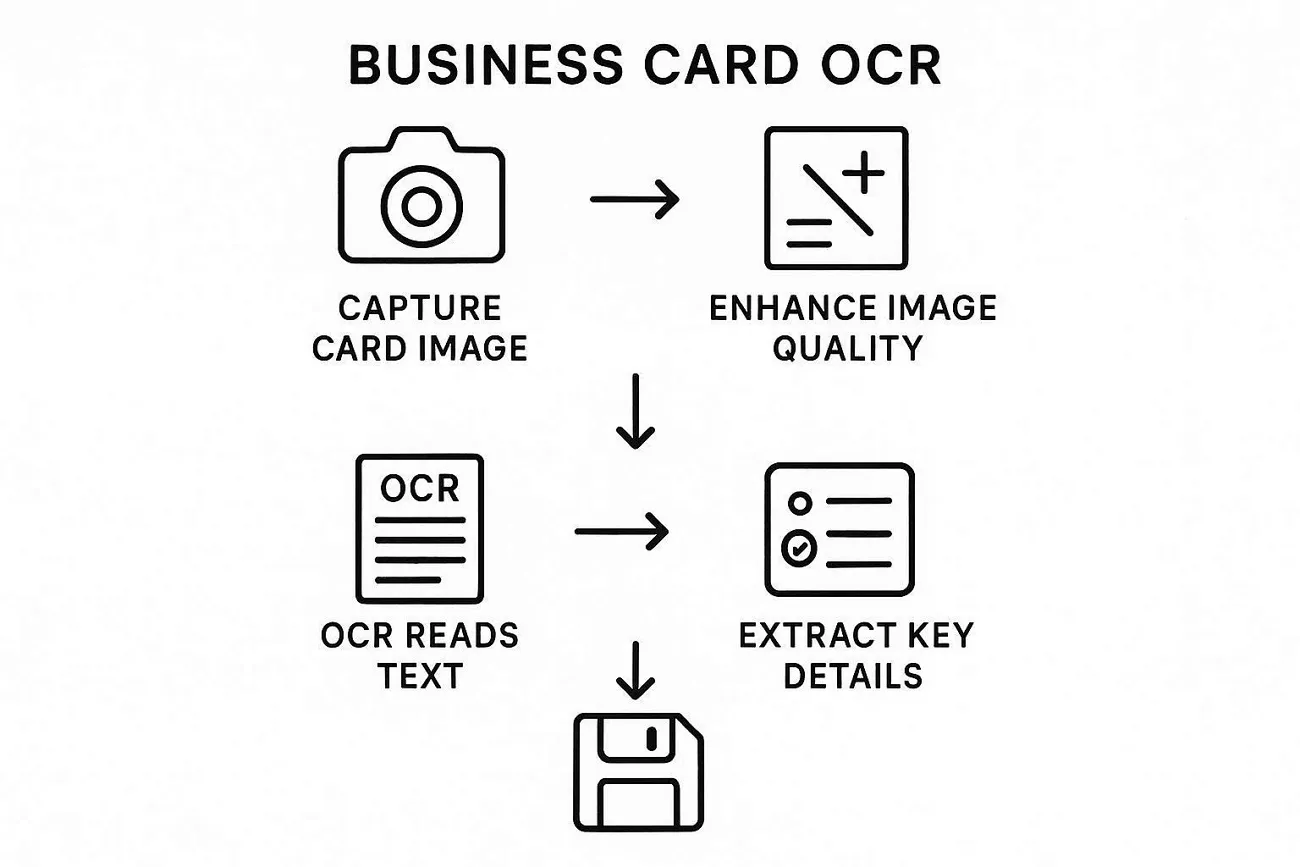
First, let’s understand how business card scanners capture and convert printed details into usable digital data:
- The card scanner app uses your camera to capture the business card image.
- Image processing improves clarity by adjusting brightness and edges for better text detection.
- OCR technology scans the image and identifies names and contact details.
- Extracted data is organized into structured fields like phone numbers.
- The final digital contact can be saved, edited, and exported into other formats easily.
How Accurate Is OCR Technology Today?
OCR technology performs well when business cards have clear text, simple fonts, and clean layouts overall. Accuracy may decrease when cards include stylized fonts, logos, or complex visual design elements. Lighting conditions and image quality also affect how correctly the scanner reads and extracts information.
Challenges in Multilingual Recognition
Scanning cards in different languages can confuse systems and reduce overall text-recognition accuracy. Let's see how a business card scanner free app handles multilingual data and related challenges.
- Language Mixing Issues: Cards with two languages can confuse OCR and result in incorrect text recognition.
- Script Recognition Limits: Some apps struggle to recognize non-Latin scripts, such as Chinese and Japanese characters.
- Formatting Differences: Different languages use varied layouts, and this makes scanners struggle to organize information fields correctly.
- Translation Gaps: Extracted text may not translate properly, leading to missing and unclear contact details information.
Part 2. Top 5 Business Card Scanner Apps
Many apps today help users quickly scan and store contact details without manual typing. These tools vary in accuracy, features, language support, and pricing depending on user needs and preferences. Choosing a business card reader for iPhone and Android depends on performance, ease of use, and reliability. Now, we will compare these apps based on accuracy and features in the table below:
| Apps | Recognition Accuracy | Supported Languages | Key Features | Pricing | Export Options |
| NexaLink Scanner | High (clean layouts) | 20 languages | Fast scanning, auto detection, contact saving, quick search | Free + premium starting from $4.99/month | CSV, Excel |
| ABBYY Card Reader | High accuracy | 25 languages | Advanced OCR, CRM sync, smart sorting, duplicate detection | Premium starting from $7.99/month | Excel, CRM |
| Covve Scan | High accuracy | 60 languages | AI scanning, enrichment, auto updates, contact insights | Free trial + premium starting from $100/year | CSV, CRM |
| CamCard | Mid to high | 17 languages | Cloud sync, sharing, notes, multi-device access | Free + premium account for $4.99/month | CSV |
| BizConnect | Moderate accuracy | 30 languages | Simple scanning, quick save, basic organization | Free + premium for $9.99/month | CSV |
Genuine Pain Points from User Feedback
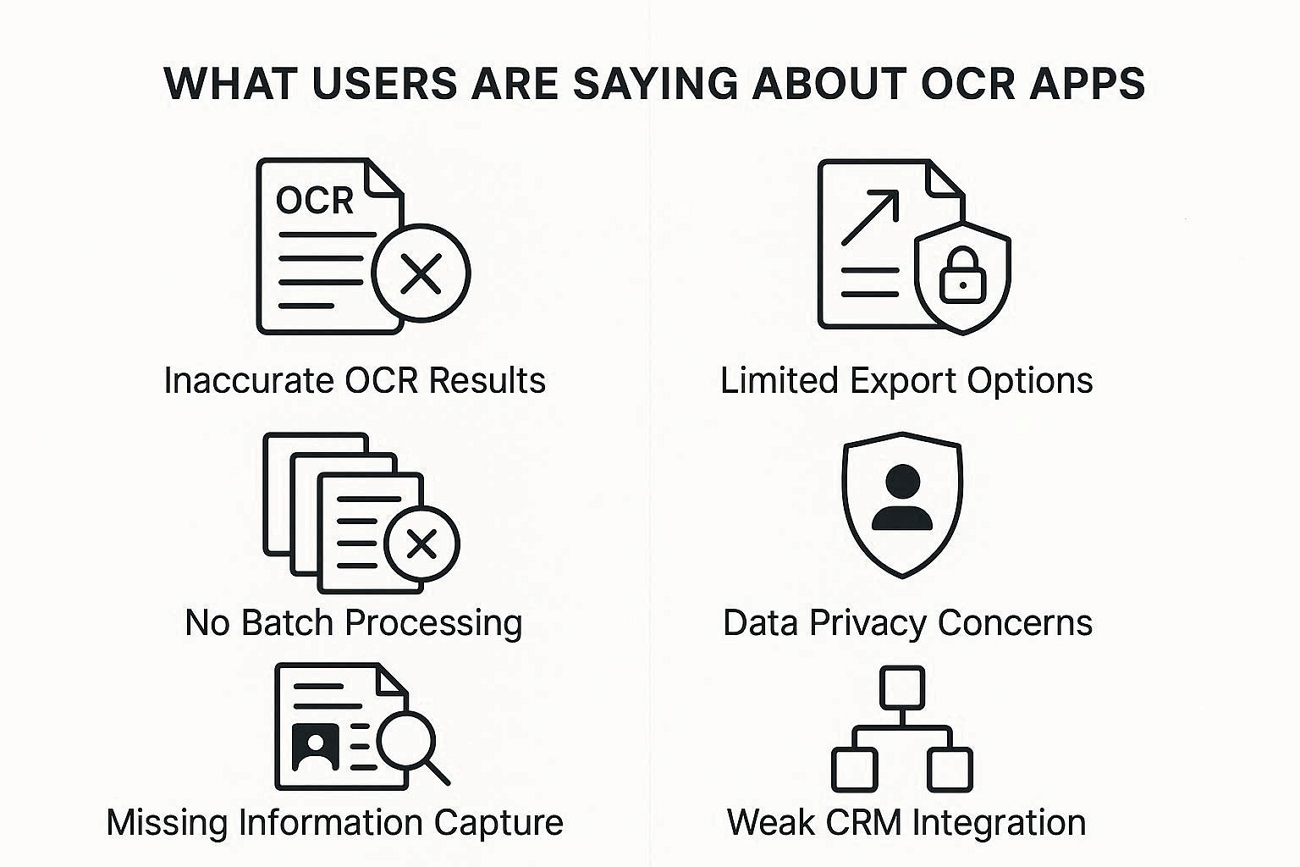
Many users report common issues while using different business card scanning apps in daily workflows. These problems affect accuracy and user experience across various tools available today.
- Inaccurate OCR Results: Apps sometimes misread names and email addresses, leading to incorrect contact details being saved.
- Limited Export Options: Many apps restrict exporting data into formats like Excel and CSV for further use.
- No Batch Processing: Users must scan cards one by one, taking time when handling large volumes.
- Data Privacy Concerns: Users worry about how their scanned contact data is protected online.
- Missing Information Capture: Important details like logos and design elements are often ignored completely.
- Weak CRM Integration: Some apps do not integrate with CRM systems, creating extra manual work.
Part 3. How to Export Scanned Business Card to Excel/CSV
Many traditional apps make exporting contact data difficult, so users waste time manually copying information into spreadsheets. They also have limited export formats and no strong CRM links, slowing down follow-ups and reporting. This is where UPDF comes in, offering a smoother way to move scanned card data into Excel or CSV.
Exporting scanned business card PDF to Excel or CSV lets users sort, filter, and share contacts easily across teams and other tools. Most apps only support simple exports, while UPDF adds flexible options and batch handling for larger contact collections.
Why UPDF Stands Out
Now, let's explore the reasons that make UPDF the business card scanner app for PC and mobile users:
- Designed for users who handle many contacts regularly and need a reliable export process.
- Reduces repetitive tasks by simplifying how scanned card information moves into organized data files.
- Helps teams work together better by making shared contact lists easier to maintain and update.
- Supports users who switch between devices and still want a consistent exporting experience everywhere.
Feature Spotlight for Business Cards
Having discussed what UPDF can do, let us explore how its key features support a complete contact workflow.
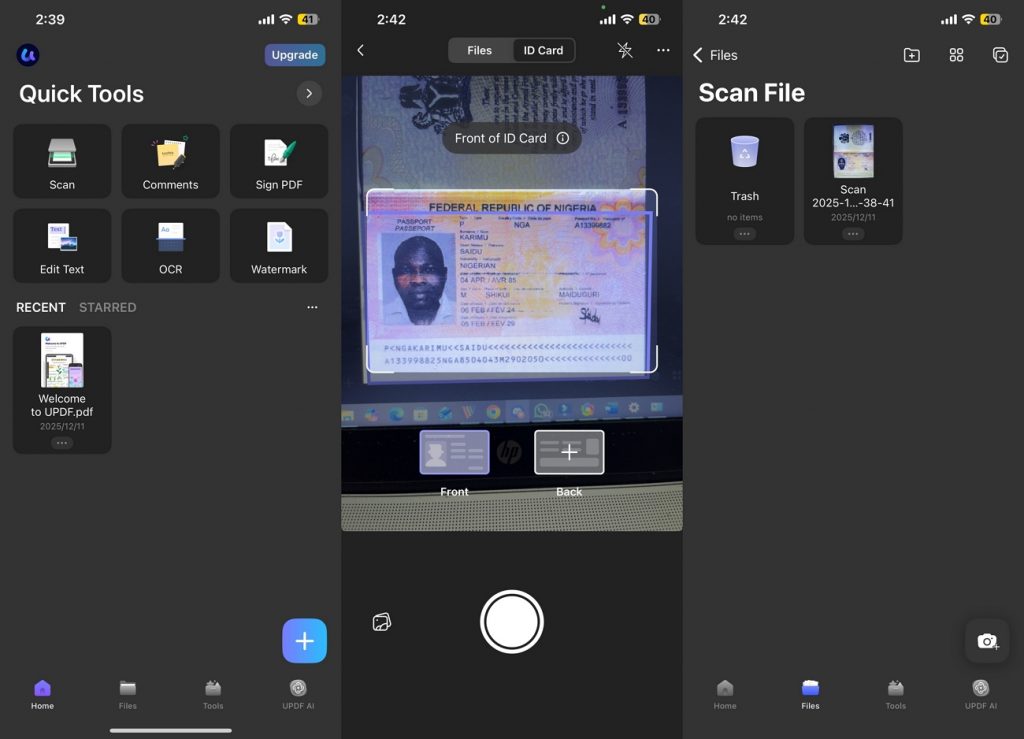
1. Scan to PDF: UPDF mobile's “Scan with Camera” feature turns physical business cards into clear PDF documents. This fast capture helps you save new contacts without needing a separate scanner.
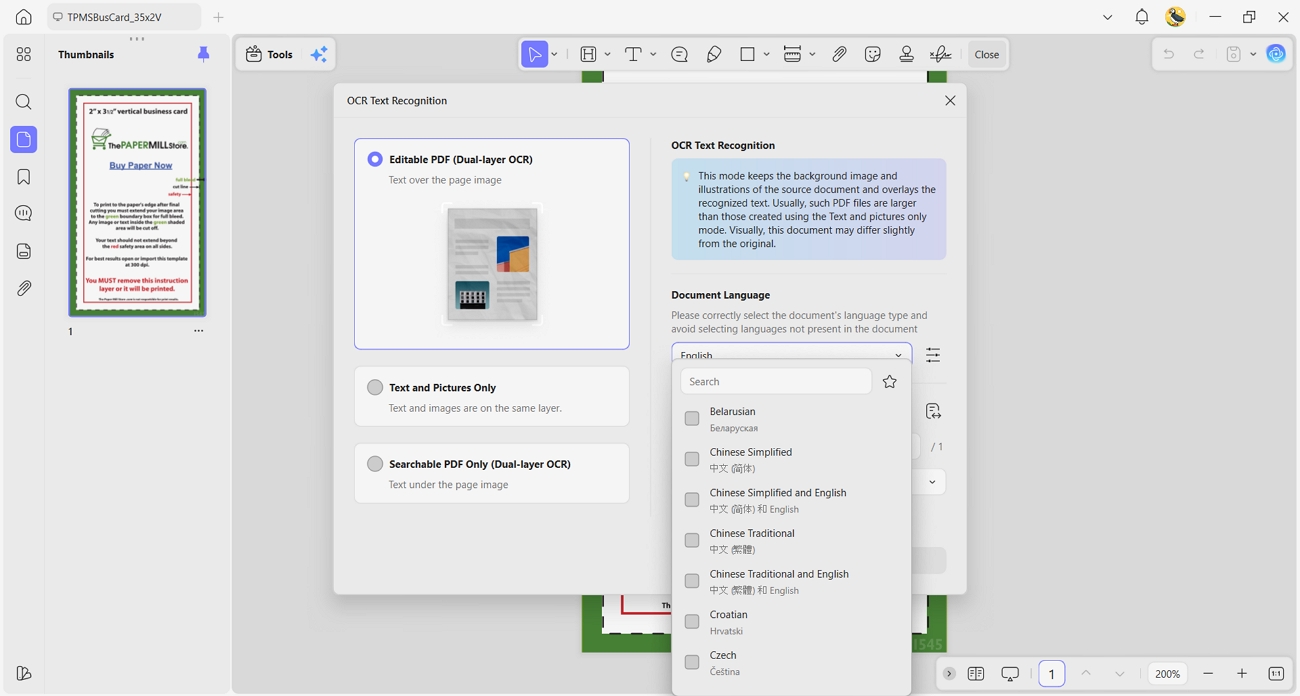
2. OCR Recognition: UPDF supports OCR in up to 38 languages to turn printed card text into editable PDF content. This multilingual support helps you work with international business cards.
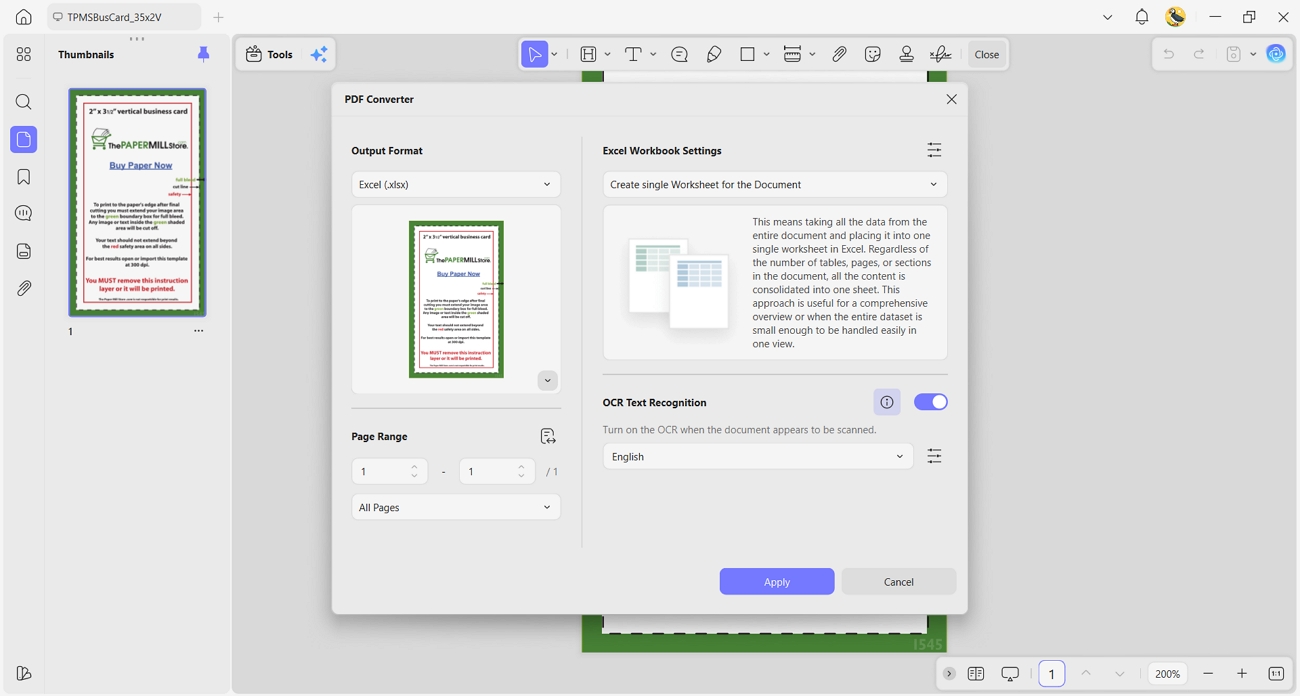
3. Data Extraction to Excel: Using UPDF’s conversion tools, you can export this recognized content into Excel‑friendly formats to reduce manual data entry.
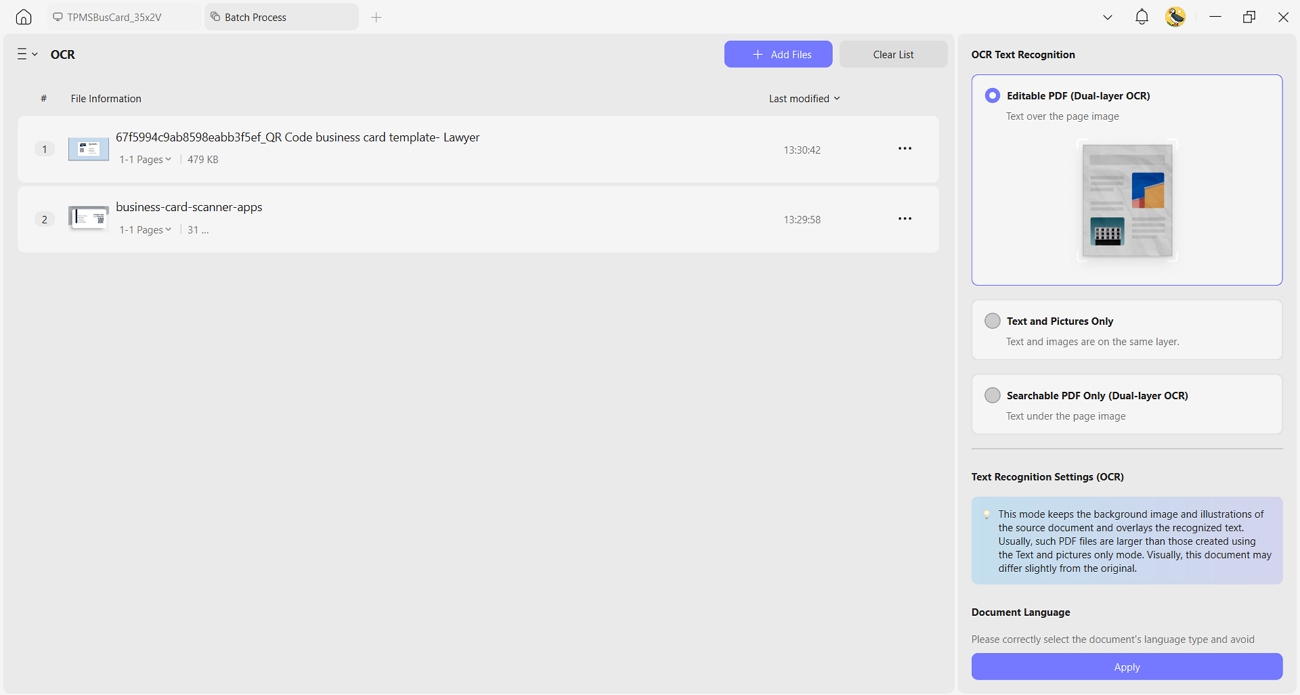
4. Batch Processing: UPDF lets you merge and scan multiple cards into a single PDF and recognize everything in one go. This batch processing is more flexible than apps that only scan single cards each time.
5. Post-Processing & Editing: After OCR, UPDF lets you add annotations and highlight important contacts. These editing options help you refine your contact archive and keep relevant information easy to review later.
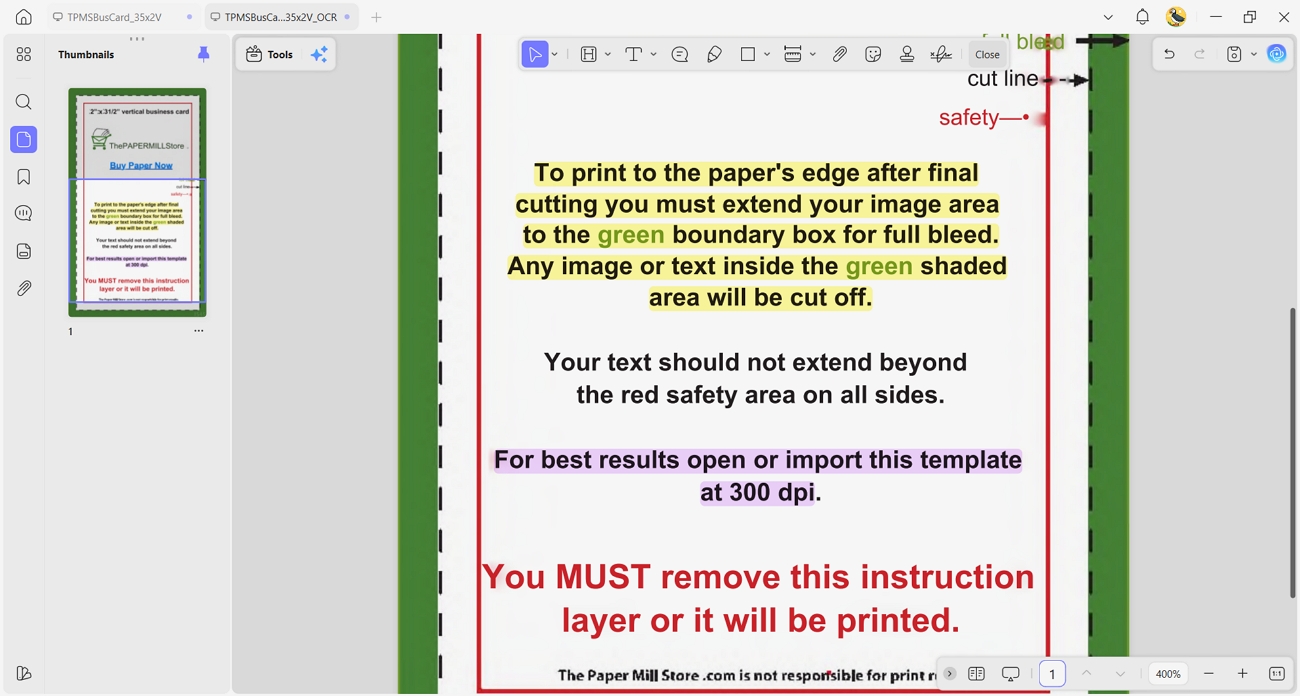
6. Cross-Platform Access: UPDF keeps your processed business card PDFs synchronized across Windows and mobile devices.
Bonus: How to Manage Scanned Business Cards
Even the best card scanner app often focuses only on turning card images into simple contact entries. Let's look at the key management needs that many traditional scanning tools still fail to address properly.
- The original card images, including logos and layout, also need safe and long-term archiving.
- Large collections of card PDFs require merging, compression, and clear renaming to stay organized and manageable.
- Business card archives should stay easy to open and review across phones and desktop devices.
- Extra details, such as company profiles or slogans, often remain outside OCR results and disappear from digital records.
- Users need a system that preserves both contact data and visual card design for future reference and context.
How UPDF Manages Scanned Cards
It gives you more control over scanned business cards instead of just saving basic contact details.
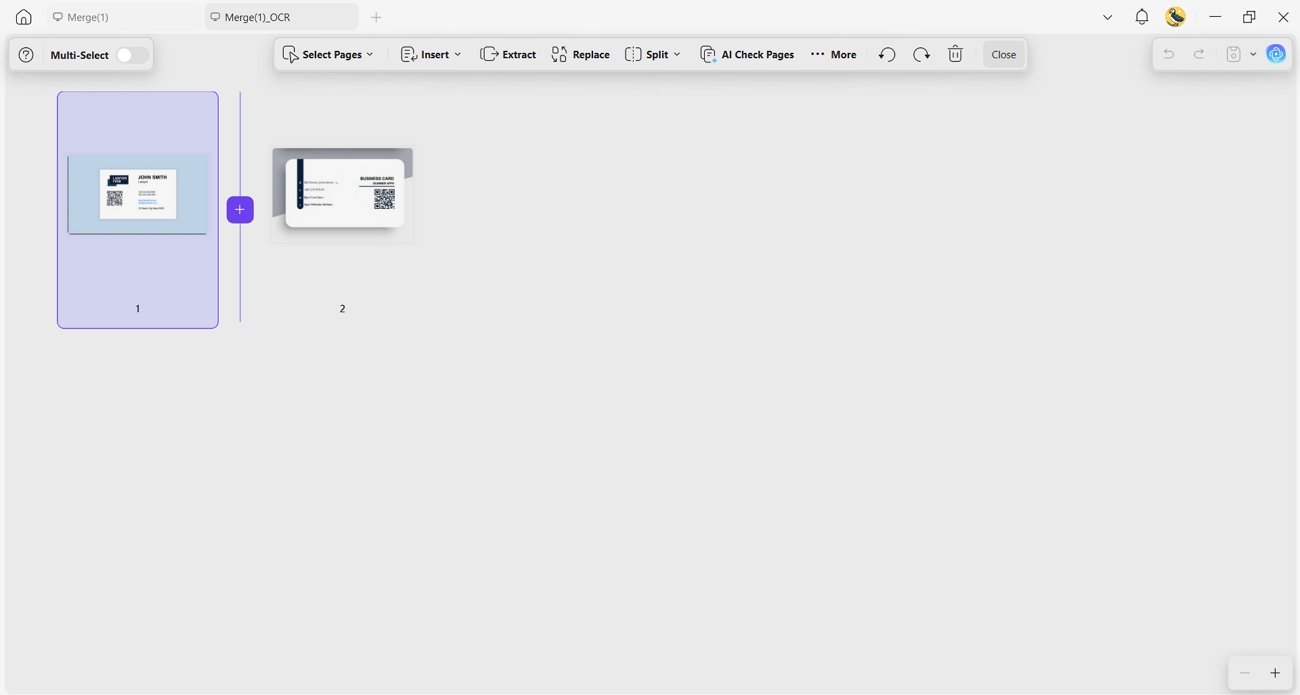
1. Page-level Management: You can reorder, remove, split, or combine pages to keep your multi-card PDFs clean, structured, and easy to review.
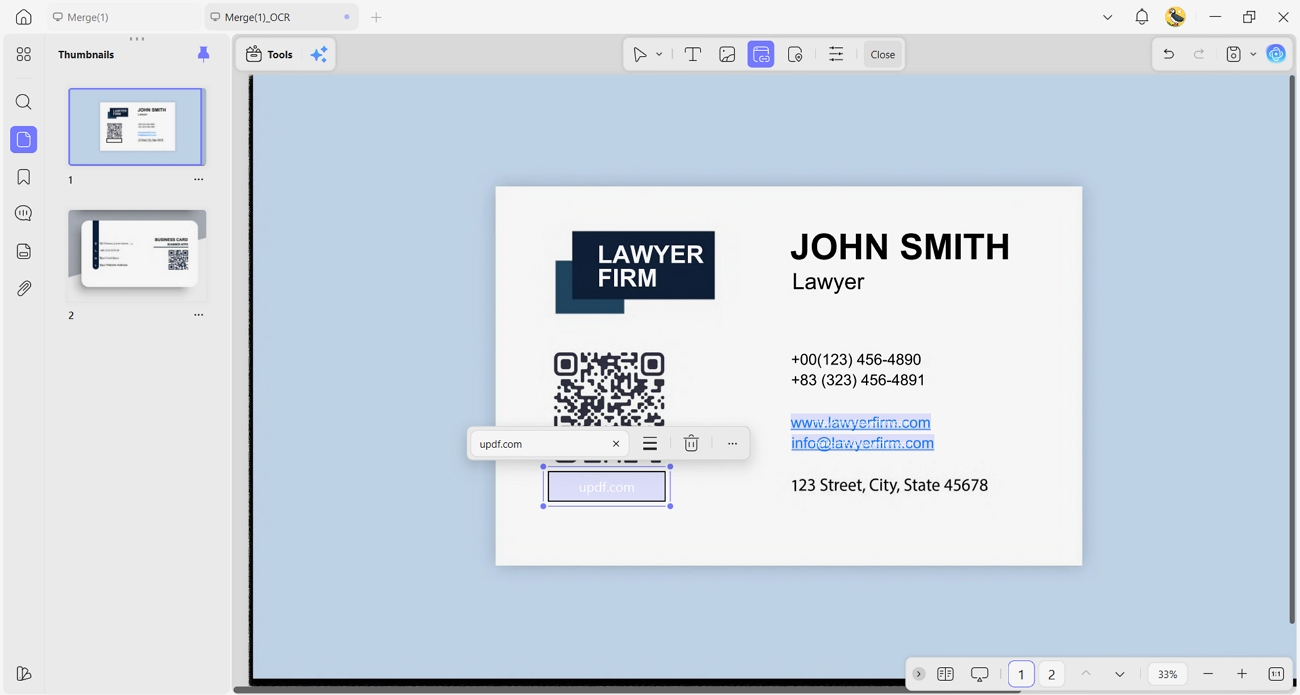
2. Tagging: Add clear tags or labels to documents and include clickable links to group related business cards.
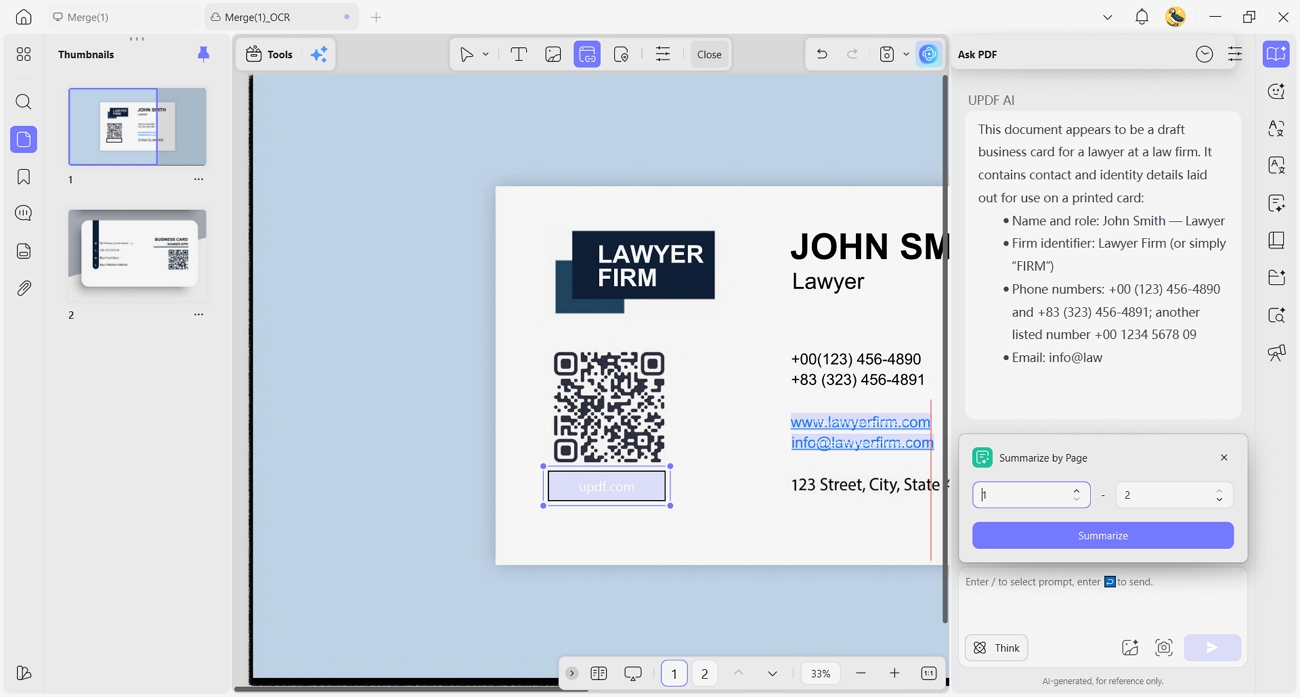
3. AI-Assisted Summaries: Generate quick summaries of documents, helping you catch key points and context from card-related files instantly.
4. Compression and Optimization: Shrink large PDF files while keeping them readable, making it simpler to store and share big card archives.
Wrapping Up
To conclude, this guide showed you how a business card scanner app turns messy stacks into organized digital contacts. You learned why accurate OCR, flexible exporting to Excel or CSV, and smart management features matter for real networking. For an all‑in‑one solution that streamlines scanning, exporting, and managing business card data across devices, we recommend UPDF.
Windows • macOS • iOS • Android 100% secure





 Enola Davis
 Enola Miller
 Engelbert White
 Lizzy Lozano