UPDF
UPDF
 UPDF for Windows
 UPDF for Mac
 UPDF for iPhone/iPad
 UPDF for Android
 Nomostar
 UPDF AI Online
 UPDF Sign
 IvyCraft
 Edit PDF
 Annotate PDF
 Create PDF
 PDF Form
 Edit links
 Convert PDF
 OCR
OCR PDF to Word
 PDF to Image
 PDF to Excel
 Organize PDF
 Merge PDF
 Split PDF
 Crop PDF
 Rotate PDF
 Protect PDF
 Sign PDF
 Redact PDF
 Sanitize PDF
 Remove Security
 Read PDF
 UPDF Cloud
 Compress PDF
 Print PDF
 Batch Process
 About UPDF AI
 UPDF AI Solutions
 AI User Guide
 FAQ about UPDF AI
 Summarize PDF
 Translate PDF
 Chat with PDF
 Chat with AI
 Chat with image
 PDF to Mind Map
 Explain PDF
 PDF AI Tools
 Image AI Tools
 AI Chat Tools
 AI Writing Tools
 AI Study Tools
 AI Working Tools
 Other AI Tools
 AI Bookmark Generation
 AI Bookmark Summary
 AI Watermark Generation
 AI Background Generation
 AI Sticker Generation
 AI Stamp Generation
 AI Editing Suite
 UPDF Copilot
 AI Page Management
 AI Semantic Search
 PDF to Word
 PDF to Excel
 PDF to PowerPoint
 Enterprise Solution
 Enterprise Sign
 Enterprise AI
 Enterprise Plan
 Enterprise User Guide
 Enterprise Webinar
 IT
IT Education
 Construction
 Financial Service
 Healthcare
 Insurance
 Legal
Legal Manufacturing
 Government
 Researchers & PhDs
 Solopreneurs & Freelancers
 Lawyers & Legal Professionals
 Real Estate Agents & Brokers
 Education Solution
 Customer Stories
 User Guide
 UPDF Tricks
 FAQs
FAQs UPDF Reviews
 Download Center
 Blog
Blog Newsroom
 Tech Spec
 Updates
 UPDF vs. Adobe Acrobat
 UPDF vs. Foxit
 UPDF vs. PDF Expert

Copying text from an image, video, or scanned document means retyping everything manually. Capture2Text makes things easier by extracting any on-screen text directly using a keyboard shortcut. Moreover, it requires no internet or complex installation.
But is it reliable enough for everyday use? This article covers everything you need to know, including its features, how to use it, benefits, limitations, and more.
Part 1. What is Capture2Text?
Capture2Text is a free tool that uses hotkeys to perform OCR on any part of your screen and copy the extracted text to your clipboard. This makes it a more productive solution to copy text from non-selectable on-screen elements.
Key Features of Capture2Text
- Extract all text within any selected screen area.
- Capture the nearest single text line using your cursor.
- Extract a forward text line starting near your cursor position.
- Extract all text from comic and manga speech bubbles.
- Supports over 90 languages with downloadable language packs.
- Translate extracted text alongside original OCR output.
- Assign custom keyboard shortcuts for OCR functions.
- Perform OCR locally using the built-in Tesseract engine.
- Read the extracted text aloud through text-to-speech support.
- Compatible with Windows 7, 8/8.1, and 10.
Part 2. How to Use Capture2Text?
In Capture2Text, each key combination is tied to a specific OCR mode. The following table explains the key functions and use cases of each hotkey.
| Shortcut Key | Functions | Usage Scenarios |
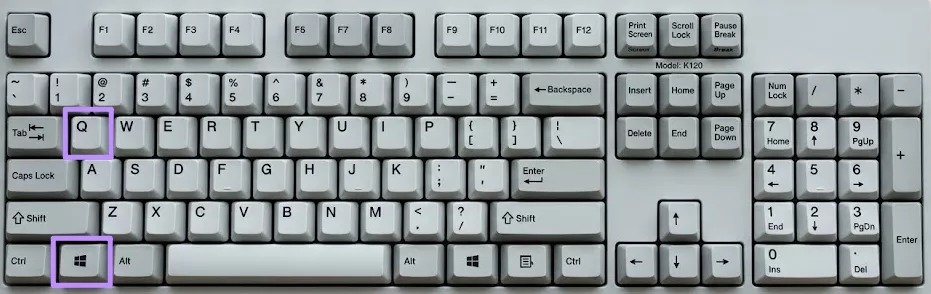
| Win+Q | Custom OCR extraction | Extracting selective text from any screen area |
| Win+W | Forward Line OCR | Extracting a specific passage that starts mid-line. |
| Win+E | Single Text Line OCR | Grabbing one line from an error message or UI label. |
| Win+S | Speech Bubble OCR | Reading dialogue in digital comics without drawing a selection box |
| Win+R | Re-capture the previously captured area | Re-running OCR on a region displaying live or changing text. |
Steps to Use Capture2Text
Now that you know the functions of all hotkeys, follow these steps to use Capture2Text.
Step 1. Download Capture2Text and unzip its zip file. Then, double-click on Capture2Text.exe to launch the tool.
Step 2. Now, move your cursor to the top left corner of the text you want to capture. Then, press the "Win + Q" keys (or other desired hotkey) to enable the blue selection box.
Step 3. Move your mouse over the desired text to select it. Then, left-click using your mouse to capture the selected text. Otherwise, press "Win + Q" again or press the "Enter" key.
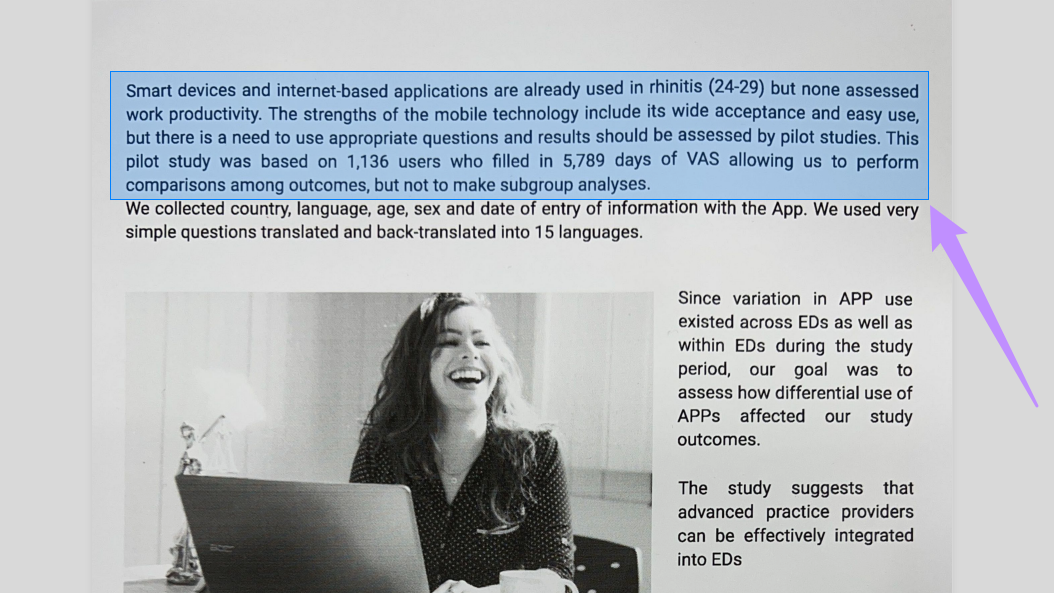
Note: If you use hotkeys for other OCR modes, this step won’t be needed. For these shortcuts, the selected text will be automatically captured and displayed in the preview window.
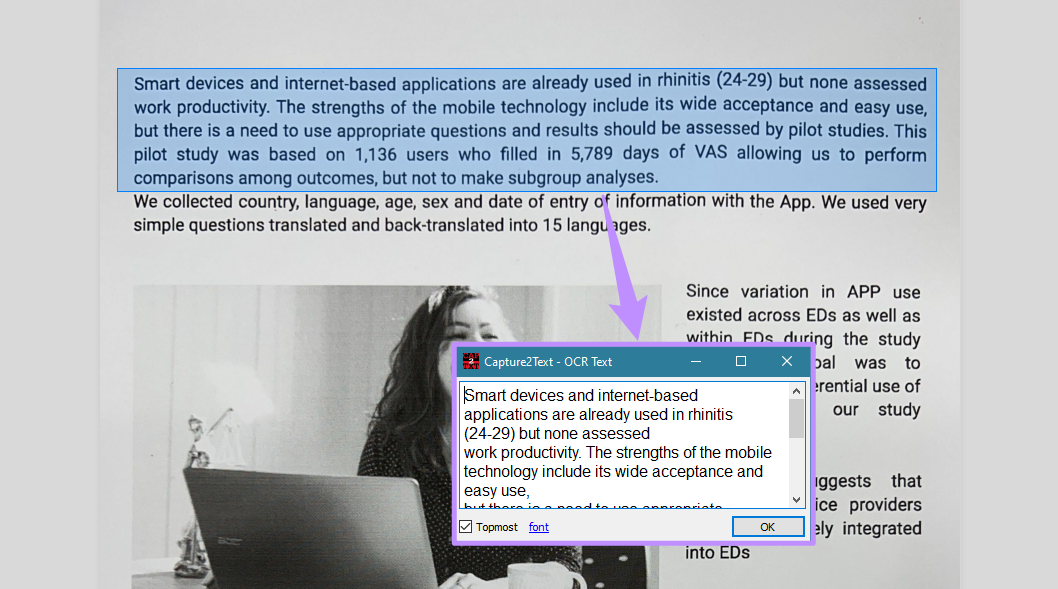
Step 4. Capture2Text will recognize the text and display it in a pop-up window. From here, you can manually edit the text if needed. Then, click "OK" to copy it to your clipboard.
Pros and Cons of Capture2Text
Capture2Text OCR offers great value as a lightweight tool, but it also comes with notable drawbacks. Here is a look at what it does well and where it falls short.
Pros:
- Completely free without ads or hidden fees.
- Fast OCR output delivered directly to the clipboard.
- Supports downloadable language packs.
- Customizable hotkeys for each OCR function.
- Preview and edit the text freely before copying.
Cons:
- Text Line captures may miss words in skewed or curved documents.
- Bubble OCR cannot reliably recognize handwritten or cursive text.
- Reduced accuracy for non-Latin script languages.
Key Limitations of Capture2Text
Capture2Text OCR also has several structural limitations that make it less suitable for more demanding or long-term use. These include the following.
- Less Accurate OCR Engine: Capture2Text ships with a Tesseract 4 alpha build from 2017 and still uses legacy Tesseract 3-era training data. This makes it less accurate for complex or non-Latin text.
- Complex Engine Updates: To update the OCR engine, you need to manually replace core files with the newer Tesseract version. Without technical knowledge, this process can lead to critical errors.
- Limited Accessibility: There is no version of Capture2Text for Windows 11 or XP, and other platforms like Mac, Linux, Android, or iOS.
These limitations are based on my own experience and authentic user feedback as quoted below.
Real User Reviews
Review 1: “I used it to translate Japanese text and not once did it even detect the correct character…” as read on SourceForge.
Review 2: “Is not working well for Chinese. No project activity for about 4 years so seems no hope for improvements…” as read on SourceForge.
Part 3. What’s the Best Alternative to Capture2Text?
Given the many limitations of Capture2Text, you will need a more accurate solution that is actively maintained and regularly updated. In this regard, UPDF stands out as the best alternative.
Unlike Capture2Text, UPDF allows you to extract text from an image or an entire document at once. You can also batch-OCR multiple scanned documents and images in one go. With support for over 38 languages, UPDF OCR is incredibly accurate for both Latin and non-Latin scripts.
In addition, UPDF offers multiple OCR output options. So, you can choose the option that best matches your workflow needs instead of working around a one-size-fits-all result.
UPDF also receives automatic updates consistently. The latest update to version 2.5 introduced 10 AI agents to automate complex PDF management tasks. Moreover, unlike Capture2Text, UPDF is available across Windows, Mac, iOS, and Android.
Steps to OCR PDF and Images with UPDF
Step 1. Launch UPDF on your device and click “Open File” to import the PDF you want to OCR.
Windows • macOS • iOS • Android 100% secure
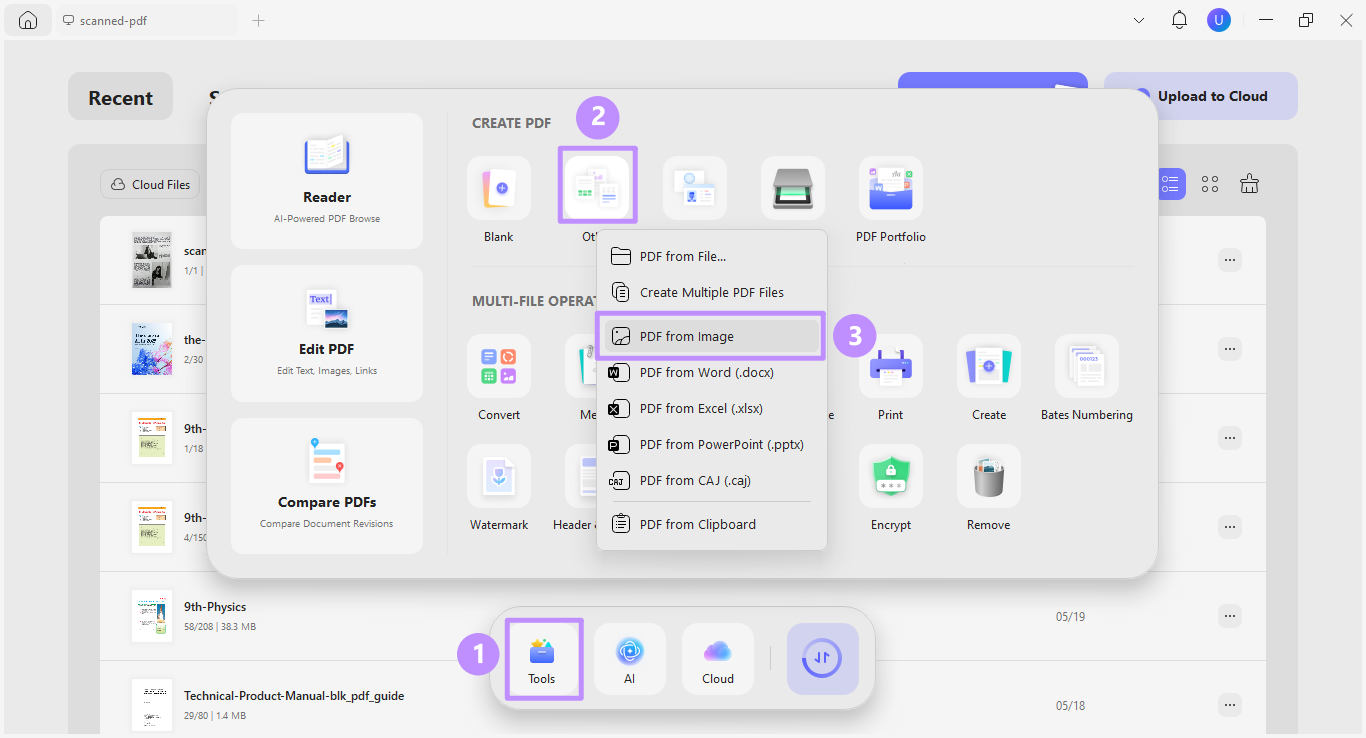
To extract text from an image, click on “Tools” at the bottom. Then, click “Other” and select “PDF from Image” from the list.
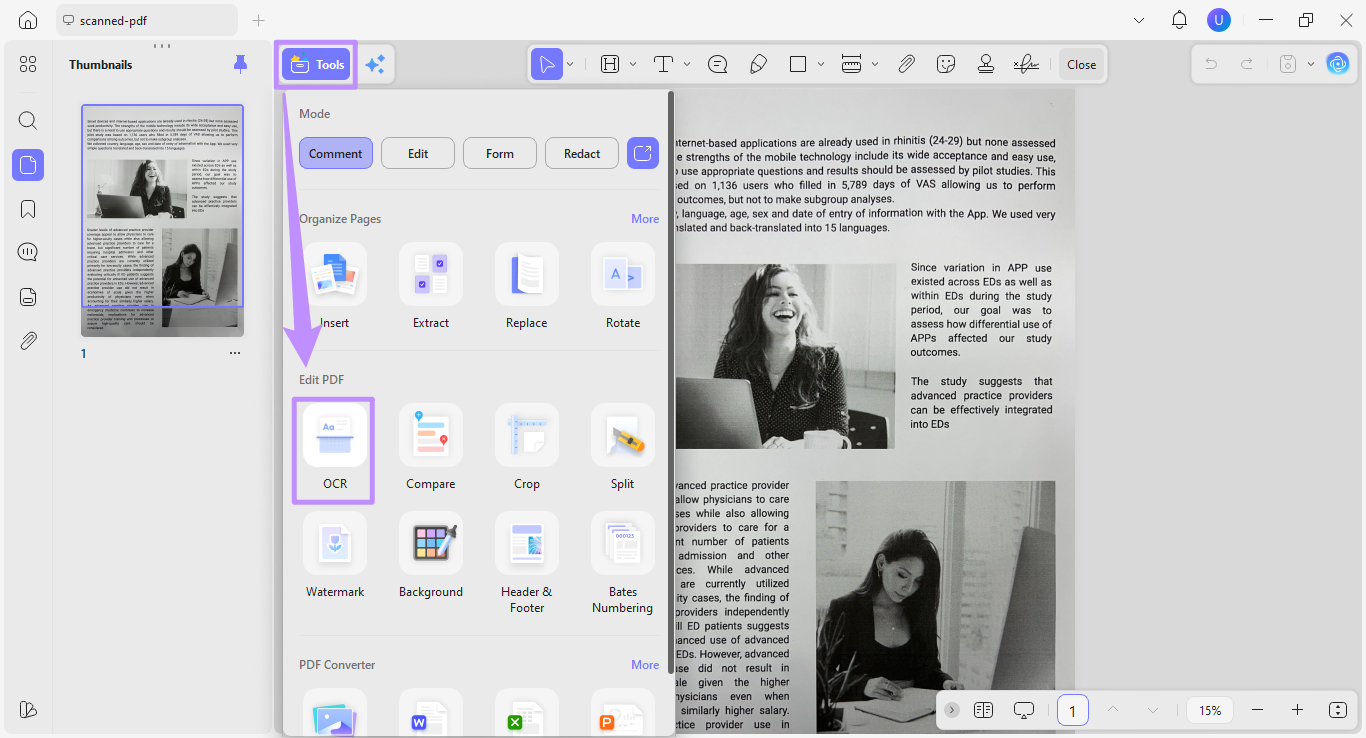
Step 2. Once your document opens, click on “Tools” from the top and select “OCR.”
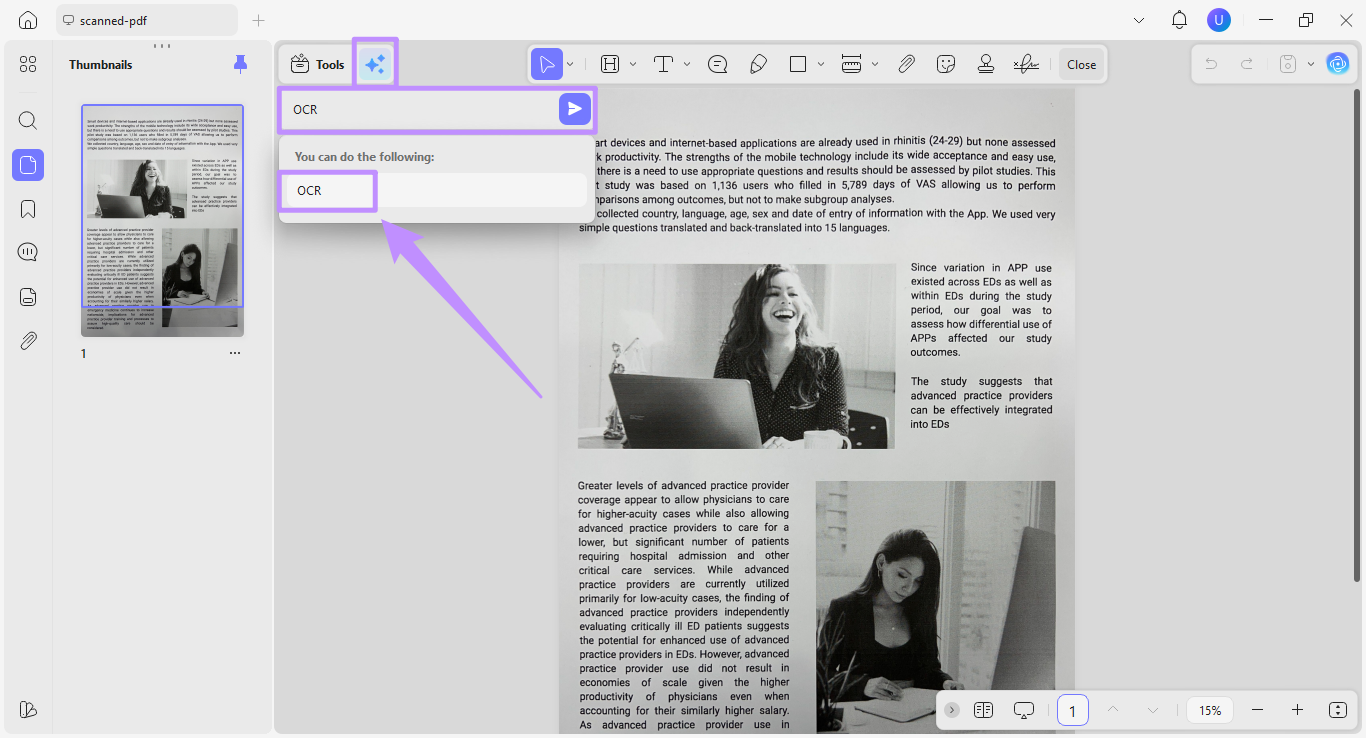
Alternatively, click the “UPDF Copilot” icon at the top. Type OCR and click “Send.” Then, select “OCR” from the list.
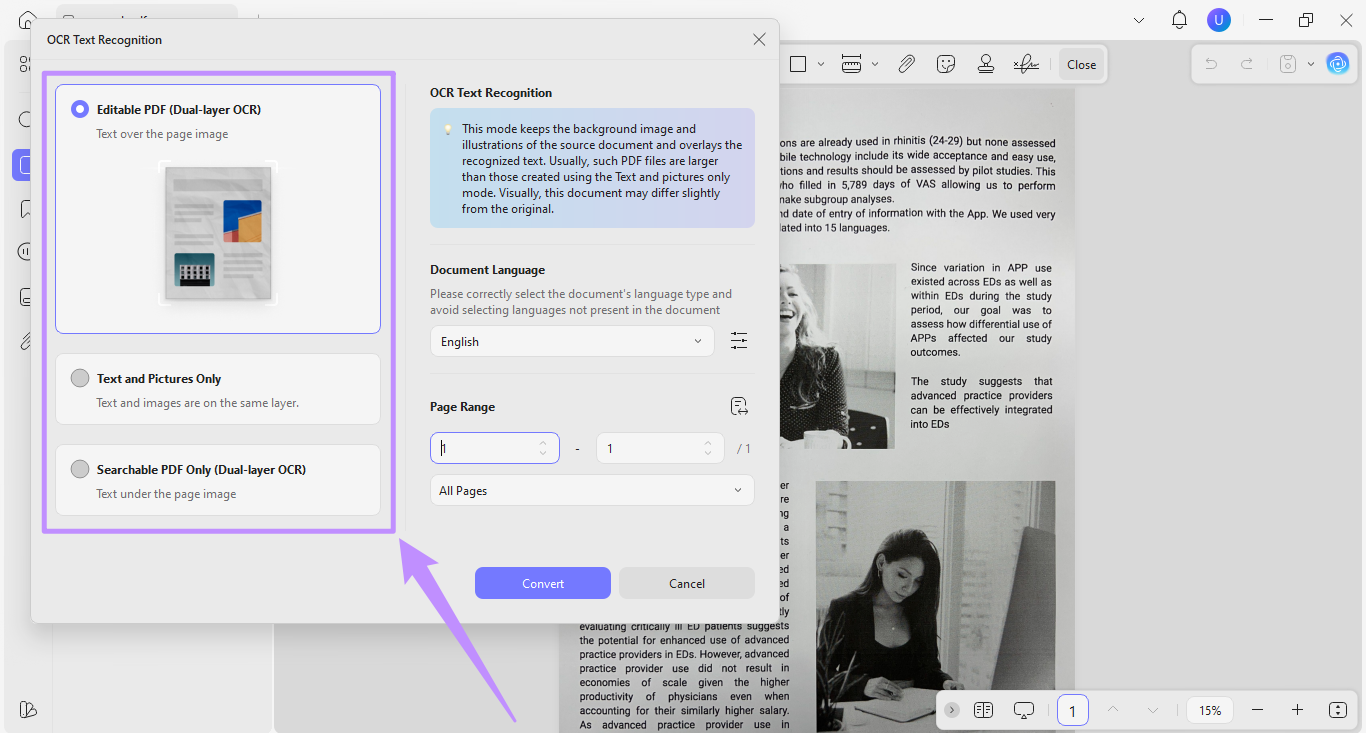
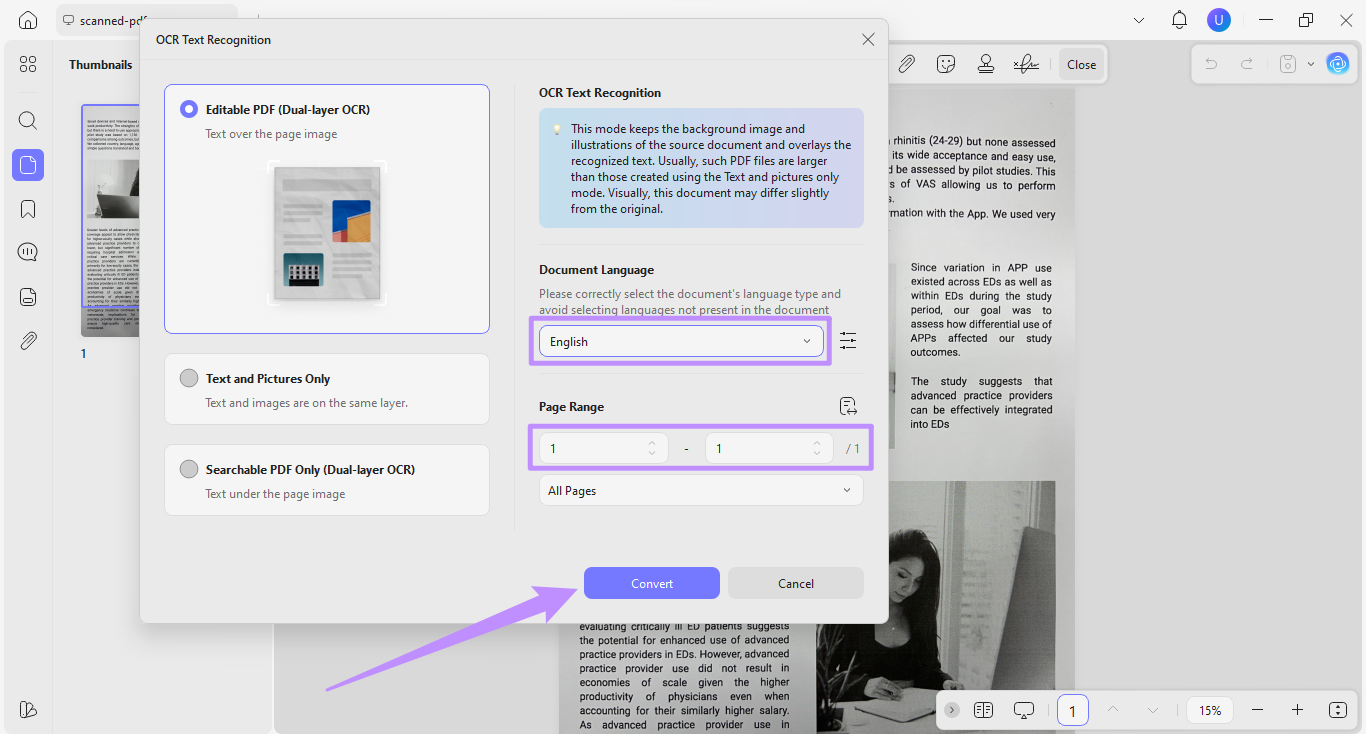
Step 3. A new window for the OCR tool will open. From here, select a text recognition mode from the three options:
- Editable PDF (Dual-layer OCR): Extracts text and places it over the original page image. You can edit, select, and search the PDF.
- Text and Pictures Only: Extracts text and pictures and places them against a neutral background for selecting, editing, and searching text.
- Searchable PDF Only (Dual-layer OCR): Extracts text and places it under the original page image. You can search or select the text.
Step 4. Click the Document Language dropdown and select the language used in your document. Define page range and click the “Convert” button to apply OCR.
FAQs
Q1. The Win+Q shortcut isn't responding, or is it being hijacked by another program?
Yes. Another application is likely using the Win+Q shortcut. To fix this, you can assign a different key combination under the Hotkeys section in Capture2Text Settings.
Q2. Why is Capture2Text unable to recognize Chinese, Japanese, or Korean text?
Capture2Text recognizes English by default. To extract Japanese or Korean text, make sure to select the correct OCR language. For Chinese, you need to manually install Chinese language data packs before performing OCR.
Q3. The program fails to function properly after launch, or won't open at all?
To fix this, make sure you are running Capture2Text as Administrator. Also, make sure that your system meets the minimum requirements and that no antivirus program is blocking the executable from running.
Q4. Is there a Mac or Linux version of Capture2Text?
No. Capture2Text is a Windows-only tool compatible with Windows 7, 8, and 10. There are no official versions available for Mac, Linux, iOS, or Android.
Q5. Is Capture2Text completely free? Are there any usage restrictions?
Yes, Capture2Text is free to download and use as an open-source tool under the GPL license. There are no usage limits, and no features are locked behind a paywall.
Final Words
Capture2Text is a great free tool for quick screen OCR on Windows. However, it is not suitable for more dedicated and long-term OCR needs. UPDF offers a far better alternative with its powerful OCR, cross-platform support, and full document editing in one place.
Windows • macOS • iOS • Android 100% secure





 Enola Miller
 Engelbert White