 UPDF
UPDF
 UPDF for Windows
 UPDF for Mac
 UPDF for iPhone/iPad
 UPDF for Android
 Nomostar
 UPDF AI Online
 UPDF Sign
 IvyCraft
 Edit PDF
 Annotate PDF
 Create PDF
 PDF Form
 Edit links
 Convert PDF
 OCR
OCR PDF to Word
 PDF to Image
 PDF to Excel
 Organize PDF
 Merge PDF
 Split PDF
 Crop PDF
 Rotate PDF
 Protect PDF
 Sign PDF
 Redact PDF
 Sanitize PDF
 Remove Security
 Read PDF
 UPDF Cloud
 Compress PDF
 Print PDF
 Batch Process
 About UPDF AI
 UPDF AI Solutions
 AI User Guide
 FAQ about UPDF AI
 Summarize PDF
 Translate PDF
 Chat with PDF
 Chat with AI
 Chat with image
 PDF to Mind Map
 Explain PDF
 PDF AI Tools
 Image AI Tools
 AI Chat Tools
 AI Writing Tools
 AI Study Tools
 AI Working Tools
 Other AI Tools
 AI Bookmark Generation
 AI Bookmark Summary
 AI Watermark Generation
 AI Background Generation
 AI Sticker Generation
 AI Stamp Generation
 AI Editing Suite
 UPDF Copilot
 AI Page Management
 AI Semantic Search
 PDF to Word
 PDF to Excel
 PDF to PowerPoint
 Enterprise Solution
 Enterprise Sign
 Enterprise AI
 Enterprise Plan
 Enterprise User Guide
 Enterprise Webinar
 IT
IT Education
 Construction
 Financial Service
 Healthcare
 Insurance
 Legal
Legal Manufacturing
 Government
 Researchers & PhDs
 Solopreneurs & Freelancers
 Lawyers & Legal Professionals
 Real Estate Agents & Brokers
 Education Solution
 Customer Stories
 User Guide
 UPDF Tricks
 FAQs
FAQs UPDF Reviews
 Download Center
 Blog
Blog Newsroom
 Tech Spec
 Updates
 UPDF vs. Adobe Acrobat
 UPDF vs. Foxit
 UPDF vs. PDF Expert

Reading a standard PDF on a Kindle can be a frustrating experience. The text stays fixed, the font is often too small, and side-scrolling is a constant hassle.
That's why converting PDF to KFX makes sense. It lets you adjust text size, change fonts, and enjoy better readability. But how do you convert a PDF to KFX? In this guide, we will explore two simple methods (online and offline) to convert a PDF to KFX, and show you how to quickly edit or clean up your PDF before making the switch.
Download UPDF and make your PDFs Kindle-ready today!
Windows • macOS • iOS • Android 100% secure
Part 1. What is a PDF?
PDF stands out for "Portable Document Format." It is the most commonly used type of file. The biggest benefit of using PDF is that it keeps everything in place. Whether your file contains text, images, and layout, it will stay in the same format—no matter where you open it. That's why it's great for reports, eBooks, and forms.

But PDFs aren't always easy to edit or read on every device. They don't adjust well on smaller screens, like Kindles. That's where conversion helps. Turning a PDF to KFX makes it easier to read on Kindle, with features like adjustable text. Before converting, tools like UPDF let you easily edit and organize your PDFs.
Part 2. What is KFX?
KFX is Amazon's special eBook format for Kindle. It makes reading easier with adjustable text, better fonts, and smoother page turns. Unlike PDFs, KFX files fit the screen perfectly. There is no zooming, no weird formatting, just a clean, easy-to-read page. Kindle also adds cool features like word lookup and better text flow.

But here's the thing—you can't just save a file as KFX. You need to convert it first. But apart from being easy to read, why would anybody want to convert a PDF to KFX?
Let's find it out in the next section!
Part 3. Why Convert PDF to KFX?
Converting to KFX dramatically improves your reading experience. Here is why you should make the switch:
- Better readability – Text automatically reflows to fit your screen size—no more zooming or horizontal scrolling.
- Adjustable text – Change font size, style, and spacing for a comfortable read.
- Faster page turns – Kindle loads KFX files quicker, making navigation smooth.
- Extra features – Enjoy word lookup, highlights, and dynamic text flow.
- Smaller file size – KFX uses advanced compression, saving valuable storage space on your device.
Now that you know about the reason, let's jump to the methods to convert PDF to KFX!
Part 4. How to Convert PDF to KFX? (2 Ways)
In this section, we will explore two ways (online & offline) to convert PDF files to KFX format. You can walk through their guides and see which one works for you.
1. Via Any eBook Converter (Offline)
Any eBook Converter is a great tool for converting PDF files to KFX on your computer. It processes files quickly and ensures the text adjusts perfectly for Kindle. The good part? It works offline. This means you don't need an internet connection.
You can easily turn static PDFs into readable eBooks using its "PDF to KFX" feature. The layout stays clean, and the text becomes adjustable.
Here is how you can convert PDF to KFX using Any eBook Converter:
Step 1: First, download and install the Any eBook software on your PC/laptop. When the installation is completed, a window will appear; click "Start Now" to open the software.
Step 2: Next, click the "Add ebook" button on the top left corner and select your PDF.
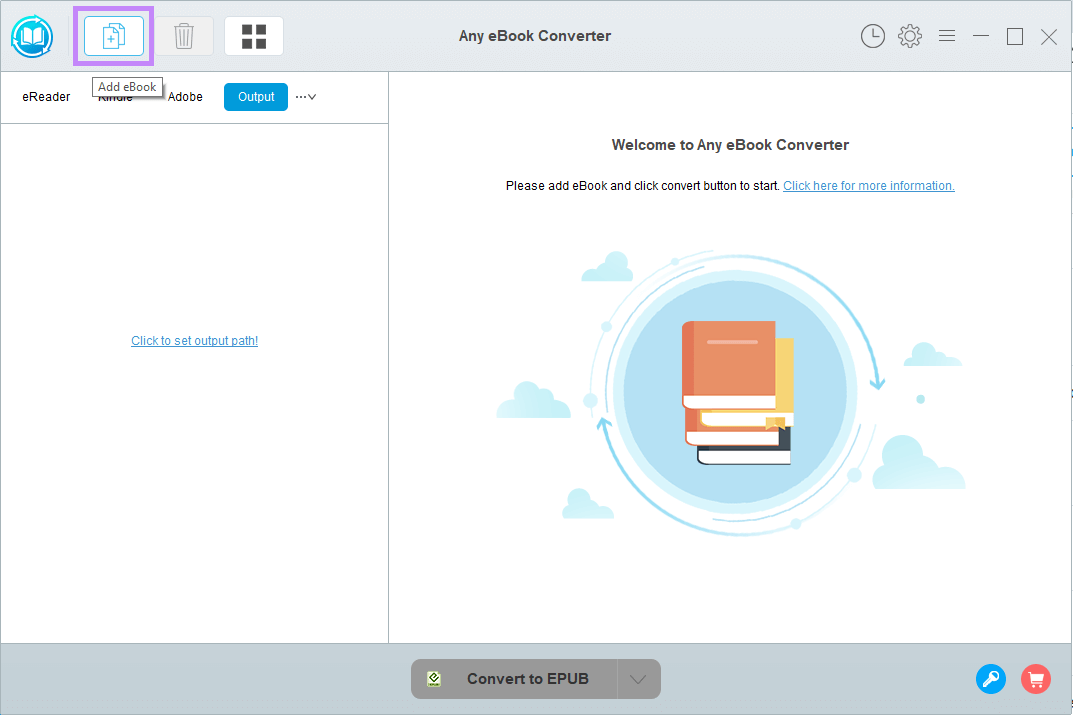
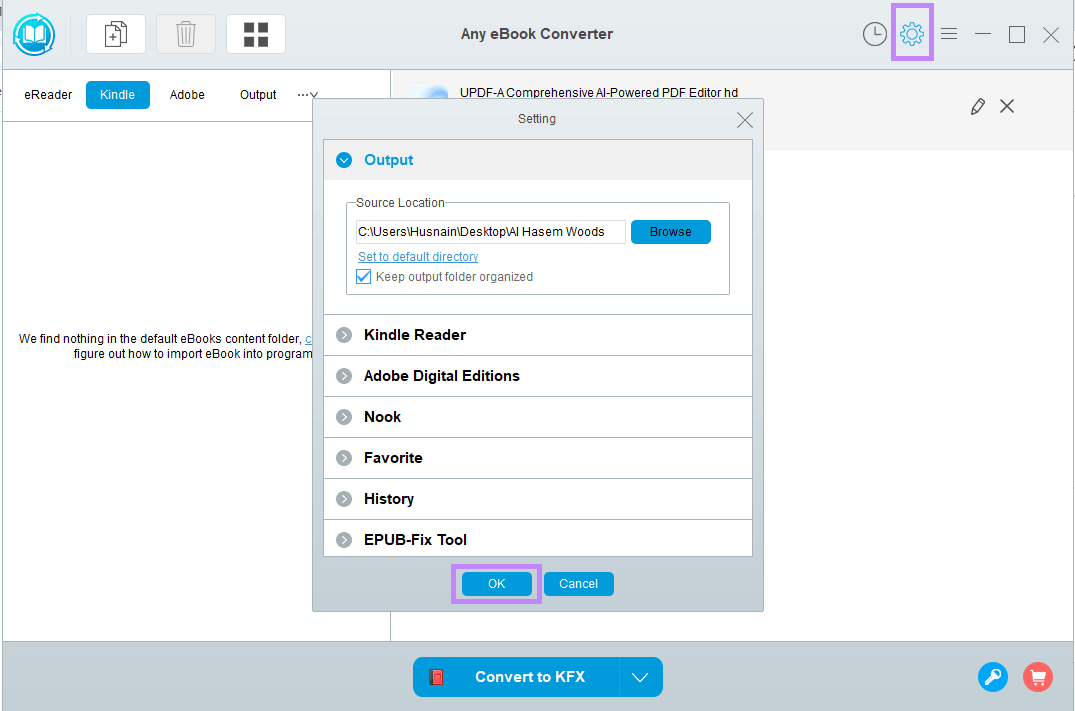
Step 3: Once the PDF file is exported, click the "Settings" icon and select the output location. Then, click "OK."
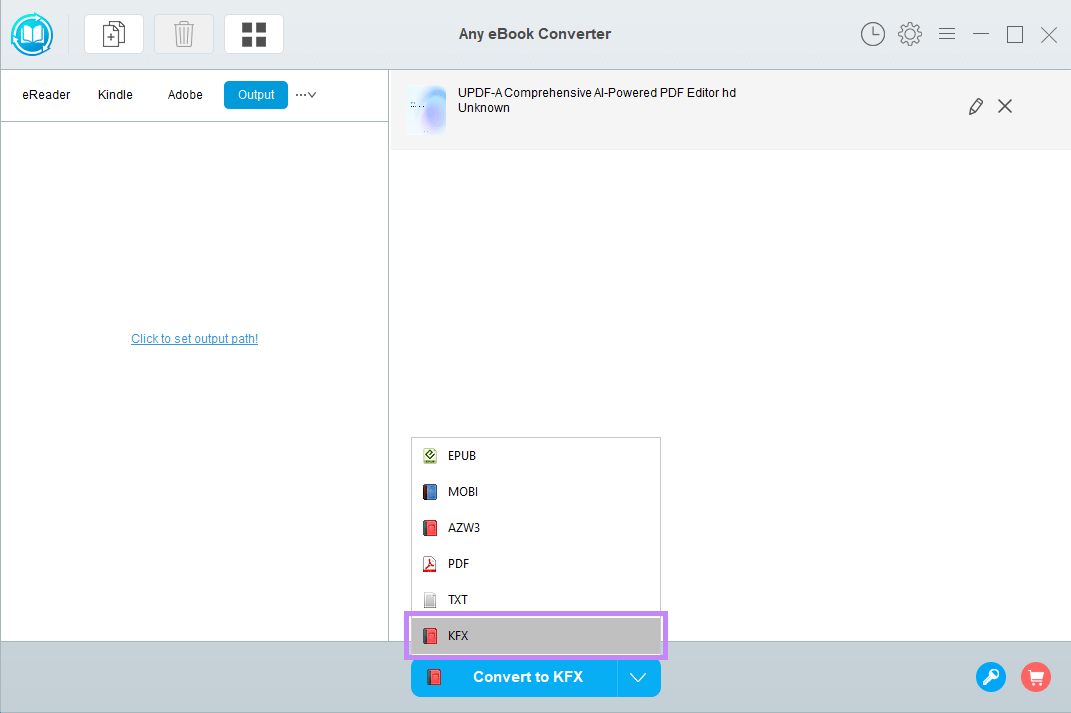
Step 4: Next, click the "V" button to open the menu and choose "KFX." Then click "Convert to KFX."
Step 5: After the conversion, you can find the KFX file by clicking the "History" icon at the top right.
That's it! But if you don't want to download any software, you can try the next method.
2. Via Send to Kindle (Online)
Send to Kindle is basically Amazon's built-in tool. It is designed to convert PDFs to KFX online. The tool is very simple. All you gotta do is upload your PDF through the Kindle web page, and Amazon will automatically convert it into a Kindle-friendly format.
However, to use this feature, you must have an internet connection. The biggest benefit is that you can use it anywhere. It comes with various options and their step-by-step guides.
Here is how to convert PDF to KFX online using the "Send to Kindle" web feature:
Step 1: Open your browser and search for Amazon Send to Kindle, or click here. Open the first link and sign in to your Amazon account. If you don't have any, create one by clicking "Sign Up."
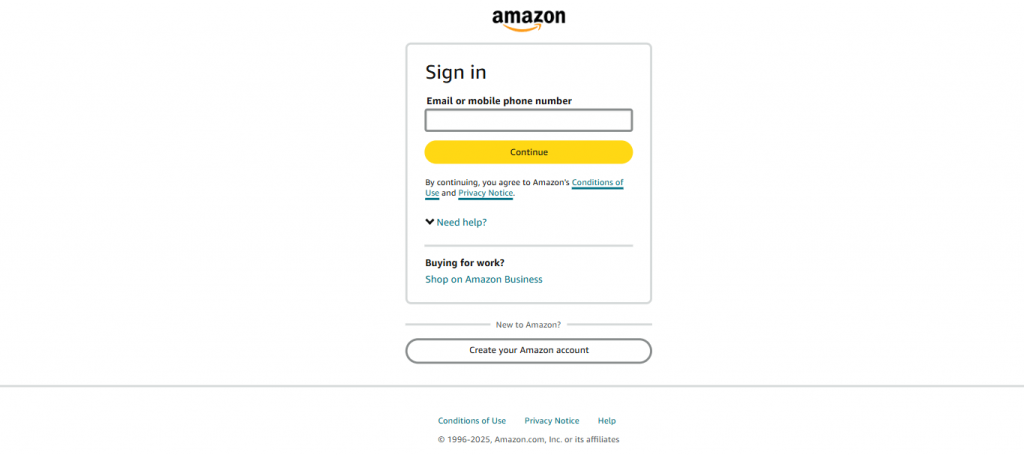
Step 2: Click "Select files from device" and upload the PDF you want to convert to KFX.
Step 3: When you see that the PDF is uploaded successfully, click the "Send" button.
Step 4: After a few minutes, check the status. If it's shown as "In library," you can access it from Amazon's library.
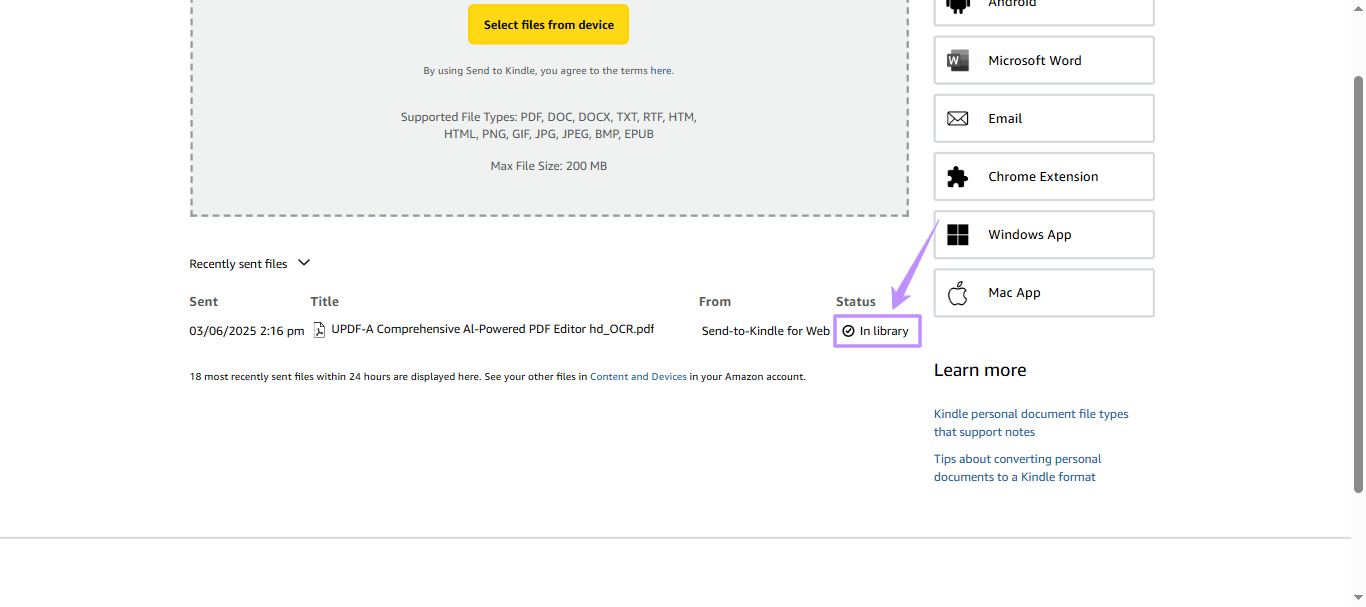
Did you see how simple it is to convert PDF to KFX online? But before converting, it's a good idea to edit or organize your PDF. Let's explore how you can do that!
Also Read: How to Convert KFX to PDF? (Online and Offline)
Bonus Tip: How to Edit and Optimize Your PDF Before Converting?
Often, PDFs contain blank pages, typos, or unnecessary watermarks that can ruin the KFX conversion. Before you convert your file, it is highly recommended to clean it up.
UPDF is an AI-powered document ecosystem that handles every PDF task with ease, offering a much more cost-effective alternative to Acrobat Pro. Beyond basic text editing and page organization, UPDF integrates advanced intelligence to prepare your documents perfectly.
Windows • macOS • iOS • Android 100% secure

A Specialized AI Workforce (Windows & macOS)
On desktop platforms, UPDF features a robust suite of 10 Autonomous AI Agents. While you may not need the creative visual generators for an eBook, you can leverage these highly relevant agents to prep your file for Kindle:
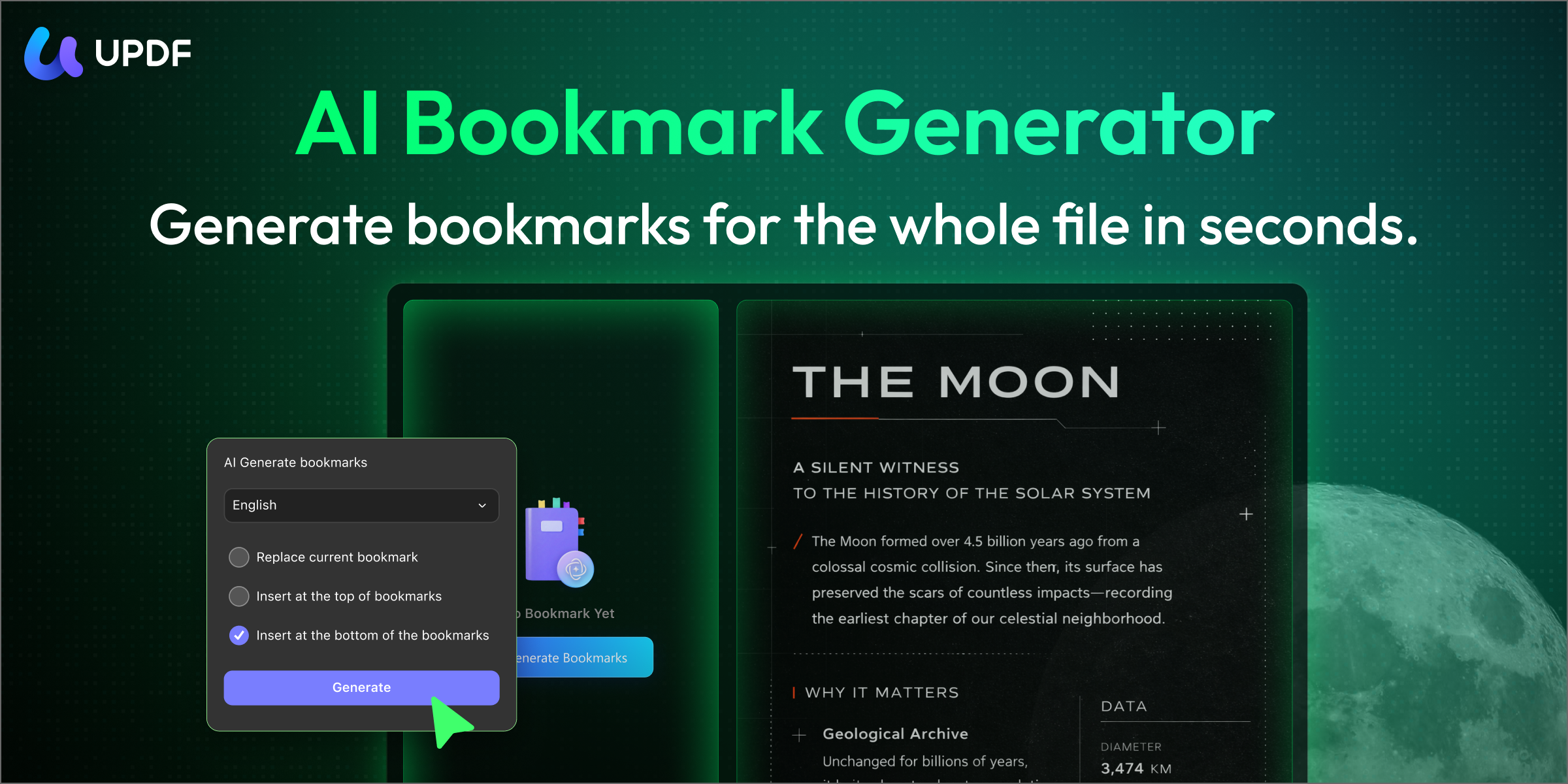
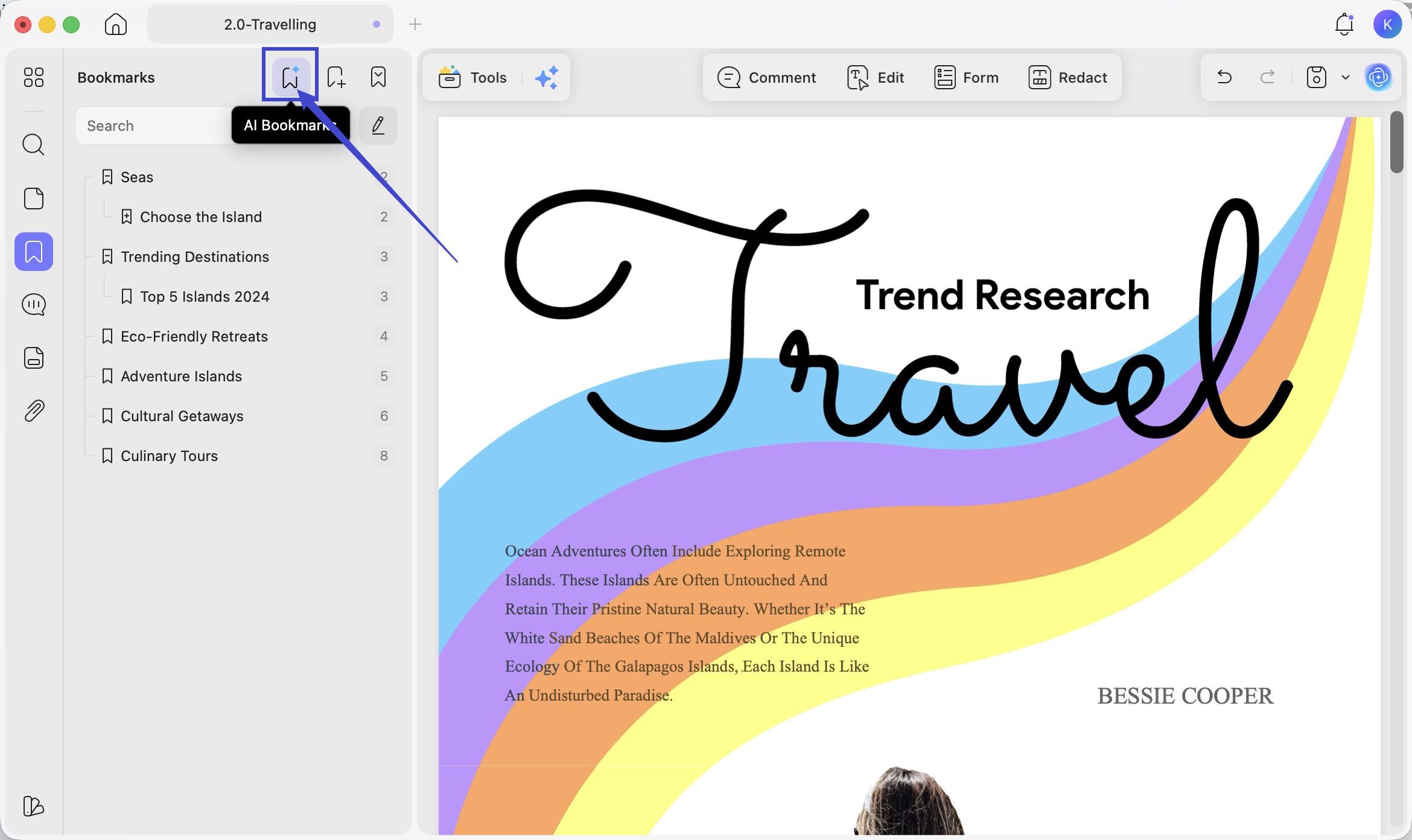
- AI Bookmark Generator: Kindles rely on a good Table of Contents for navigation. This agent automatically scans your document and generates a hierarchical outline, ensuring your converted eBook has clear, structured chapters.
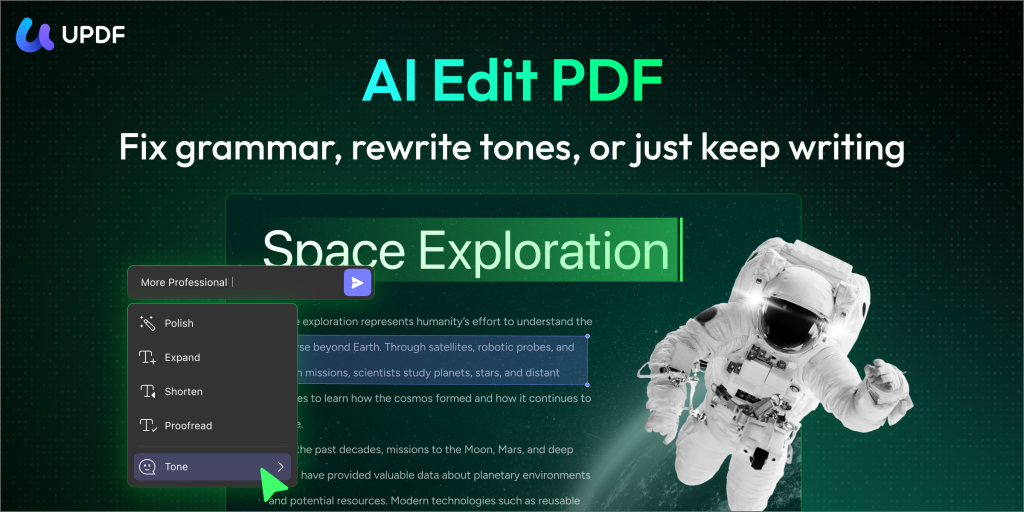
- AI Edit PDF: Use this precision editing agent for context-aware content polishing and smart text refinement, ensuring your document is typo-free before reading on your device.
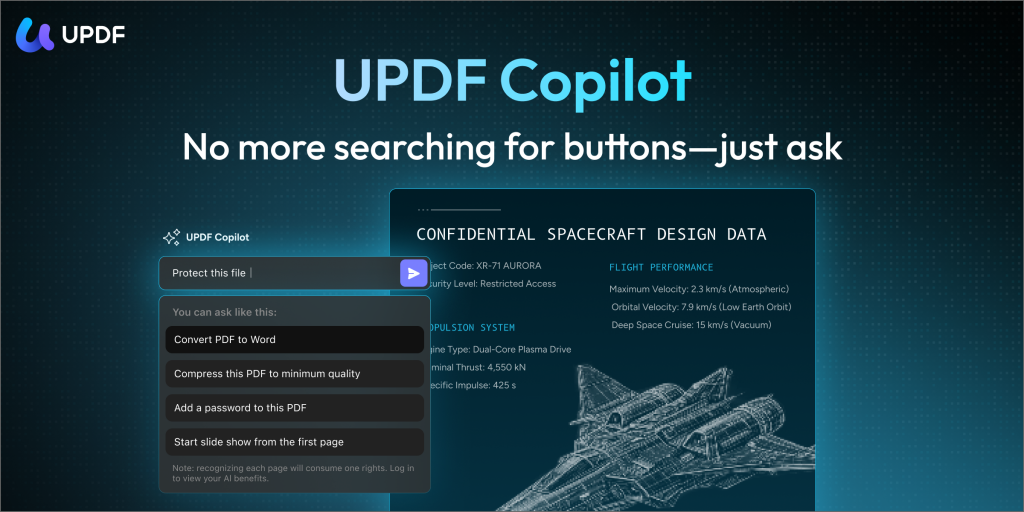
- UPDF Copilot: Activating this central command hub allows you to extract insights, summarize long chapters, or translate text.
(Note: For academic documents, UPDF also offers specialized search-oriented tools like Paper Search to locate source files, and review-oriented tools like Scholar Research for deep literature synthesis).
So, before you convert your PDF to KFX, make sure it's perfect. Download UPDF today and get everything done in one place!
Windows • macOS • iOS • Android 100% secure
How to prepare your PDF with UPDF:
Step 1: Open UPDF, click the "Open File" button, and select your PDF. You can also drag and drop your PDF file here.
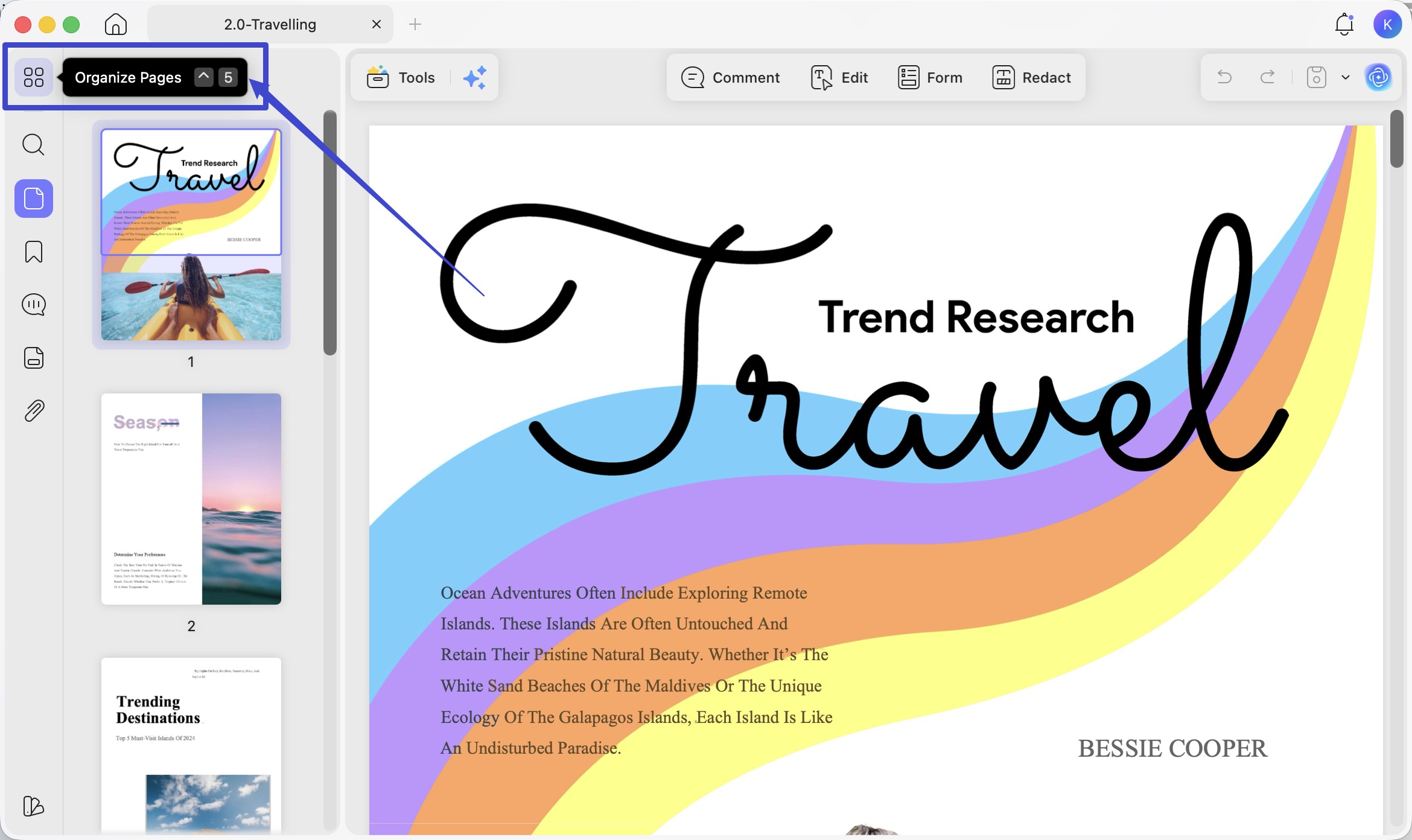
Step 2: Go to "Organize Pages" to delete irrelevant pages or extract specific chapters you want to read.
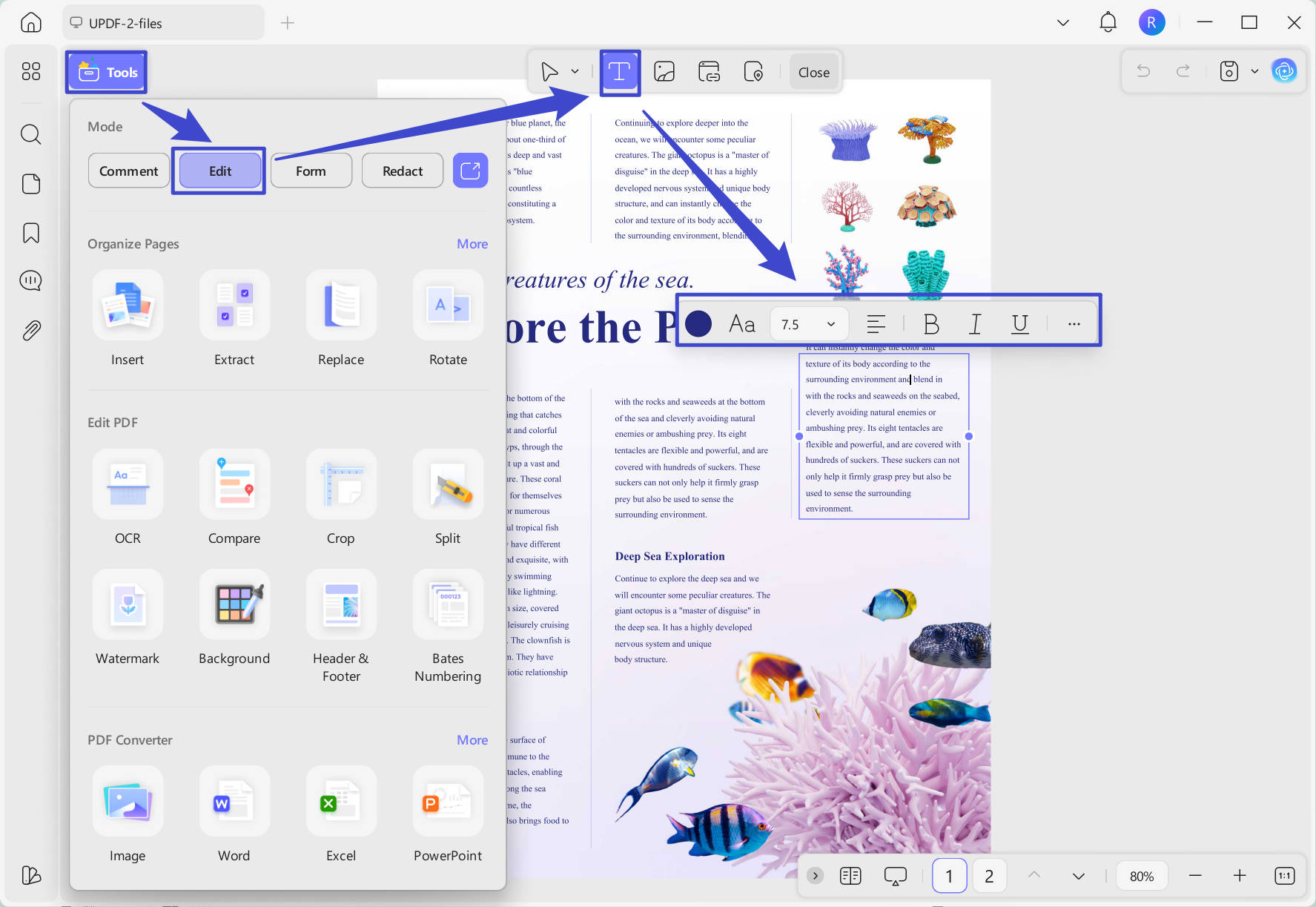
Step 3: Next, click the "Tools" > "Edit" button to open the editing options. Here, you can add/remove text, images, and links. You can also change the formatting and layout.
Step 4: Deploy the AI Bookmark to create a structured navigation menu.
Step 5: Export the clean PDF and use the methods above to convert it to KFX.
Experience UPDF's seamless workflow across Windows, Mac, iOS, and Android for free (free exports include trial watermarks). You can also explore the built-in UPDF AI capabilities with 100 free uses to get started today!
Windows • macOS • iOS • Android 100% secure
In The End
Converting a PDF to KFX is the ultimate way to unlock a smooth, customizable reading experience on your Kindle. Whether you use an offline software like Any eBook Converter or Amazon's quick Send to Kindle tool, the process takes only minutes. Just remember to ensure your source file is clean and properly formatted first. Download UPDF today to edit, organize, and optimize your PDFs before making the conversion!
Windows • macOS • iOS • Android 100% secure



 Enrica Taylor
 Grace Curry

 Lizzy Lozano