UPDF
UPDF
 UPDF for Windows
 UPDF for Mac
 UPDF for iPhone/iPad
 UPDF for Android
 Nomostar
 UPDF AI Online
 UPDF Sign
 IvyCraft
 Edit PDF
 Annotate PDF
 Create PDF
 PDF Form
 Edit links
 Convert PDF
 OCR
OCR PDF to Word
 PDF to Image
 PDF to Excel
 Organize PDF
 Merge PDF
 Split PDF
 Crop PDF
 Rotate PDF
 Protect PDF
 Sign PDF
 Redact PDF
 Sanitize PDF
 Remove Security
 Read PDF
 UPDF Cloud
 Compress PDF
 Print PDF
 Batch Process
 About UPDF AI
 UPDF AI Solutions
 AI User Guide
 FAQ about UPDF AI
 Summarize PDF
 Translate PDF
 Chat with PDF
 Chat with AI
 Chat with image
 PDF to Mind Map
 Explain PDF
 PDF AI Tools
 Image AI Tools
 AI Chat Tools
 AI Writing Tools
 AI Study Tools
 AI Working Tools
 Other AI Tools
 AI Bookmark Generation
 AI Bookmark Summary
 AI Watermark Generation
 AI Background Generation
 AI Sticker Generation
 AI Stamp Generation
 AI Editing Suite
 UPDF Copilot
 AI Page Management
 AI Semantic Search
 PDF to Word
 PDF to Excel
 PDF to PowerPoint
 Enterprise Solution
 Enterprise Sign
 Enterprise AI
 Enterprise Plan
 Enterprise User Guide
 Enterprise Webinar
 IT
IT Education
 Construction
 Financial Service
 Healthcare
 Insurance
 Legal
Legal Manufacturing
 Government
 Researchers & PhDs
 Solopreneurs & Freelancers
 Lawyers & Legal Professionals
 Real Estate Agents & Brokers
 Education Solution
 Customer Stories
 User Guide
 UPDF Tricks
 FAQs
FAQs UPDF Reviews
 Download Center
 Blog
Blog Newsroom
 Tech Spec
 Updates
 UPDF vs. Adobe Acrobat
 UPDF vs. Foxit
 UPDF vs. PDF Expert

Need to turn a PDF into an editable Word document? The right method depends on the file: use an online converter for a quick, installation-free task, the UPDF desktop app for private or repeated work, and OCR when the PDF is a scan. UPDF covers all three situations and is free to download and try.
Windows • macOS • iOS • Android 100% secure
This guide shows five practical ways to convert PDF to Word on desktop and mobile while keeping the document as usable as possible. If you need a broader overview of formats and workflows, see our guide on how to convert PDF files.
Common PDF-to-Word Problems and Fixes
| Problem | Likely cause | Recommended fix |
|---|---|---|
| Word shows page images | The source PDF is scanned. | Use the scanned-PDF OCR workflow and select the correct document language before conversion. |
| Fonts or spacing change | The original font is unavailable, or the PDF uses fixed positioning. | Use the desktop conversion settings, install the missing font where permitted, and review the DOCX. |
| Tables or columns move | The page has a complex structure. | Convert a sample page with the desktop method, then manually adjust the affected section in Word. |
| Characters are incorrect | The scan is unclear, or the OCR language is incorrect. | Follow the OCR method with a clearer, upright scan and the correct language, then proofread names and numbers. |
| Links are missing | The hyperlink was flattened or was not encoded as a live link. | Use the desktop conversion method, then check important links and restore them in Word when necessary. |
| The PDF will not convert | The file may be damaged, password-protected, or unusually large. | Confirm that you can open the file, try another conversion method, or follow our PDF not converting to Word troubleshooting guide. |
No converter can guarantee a pixel-identical Word file for every PDF because PDF and DOCX store page structure differently. The practical goal is an editable document with as much usable formatting as possible, followed by a brief review.
Method 1. Convert PDF to Word Online—No Installation
Best for: A quick conversion on any device when the PDF is not confidential and you do not want to install software.
The UPDF Online PDF to Word converter runs in a browser. Upload a PDF, let the tool process it, and download the resulting DOCX file. If the file contains scanned pages, the converter automatically applies OCR so the text in the Word output can be edited.
How to Convert a PDF to Word Online
1. Click the button below to access UPDF's online PDF-to-Word converter, and then click More > Convert PDF.
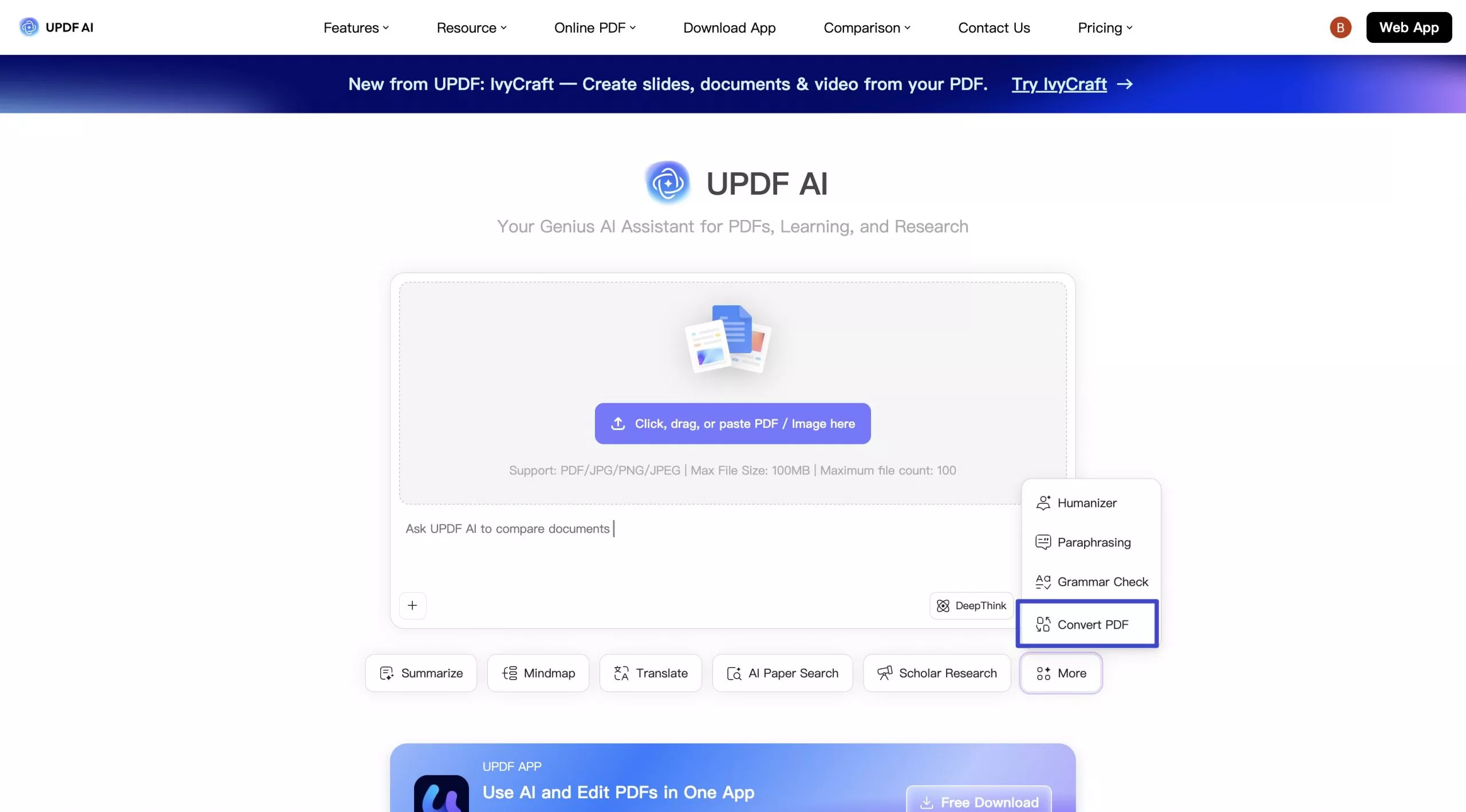
2. Select the PDF from your device. The tool detects whether OCR is needed and starts the conversion.
3. When processing finishes, download the editable Word document and check its layout.
At the time of writing, a free account supports PDFs up to 10 MB and 100 pages per file. Paid users can upload PDFs up to 100 MB and 300 pages per file, and the online batch tool can process up to 100 PDFs. Check the tool page before converting because service limits may change.
Method 2. Convert PDF to Word on Windows or Mac
Best for: Private files, larger documents, repeat conversions, or anyone who wants control over page range, output style, and OCR.
UPDF for Windows and Mac converts PDFs locally and lets you choose how Word content should flow. It also supports page-range selection and OCR for image-based documents. Download and try UPDF, then follow these steps.
Windows • macOS • iOS • Android 100% secure
Step 1. Open the PDF
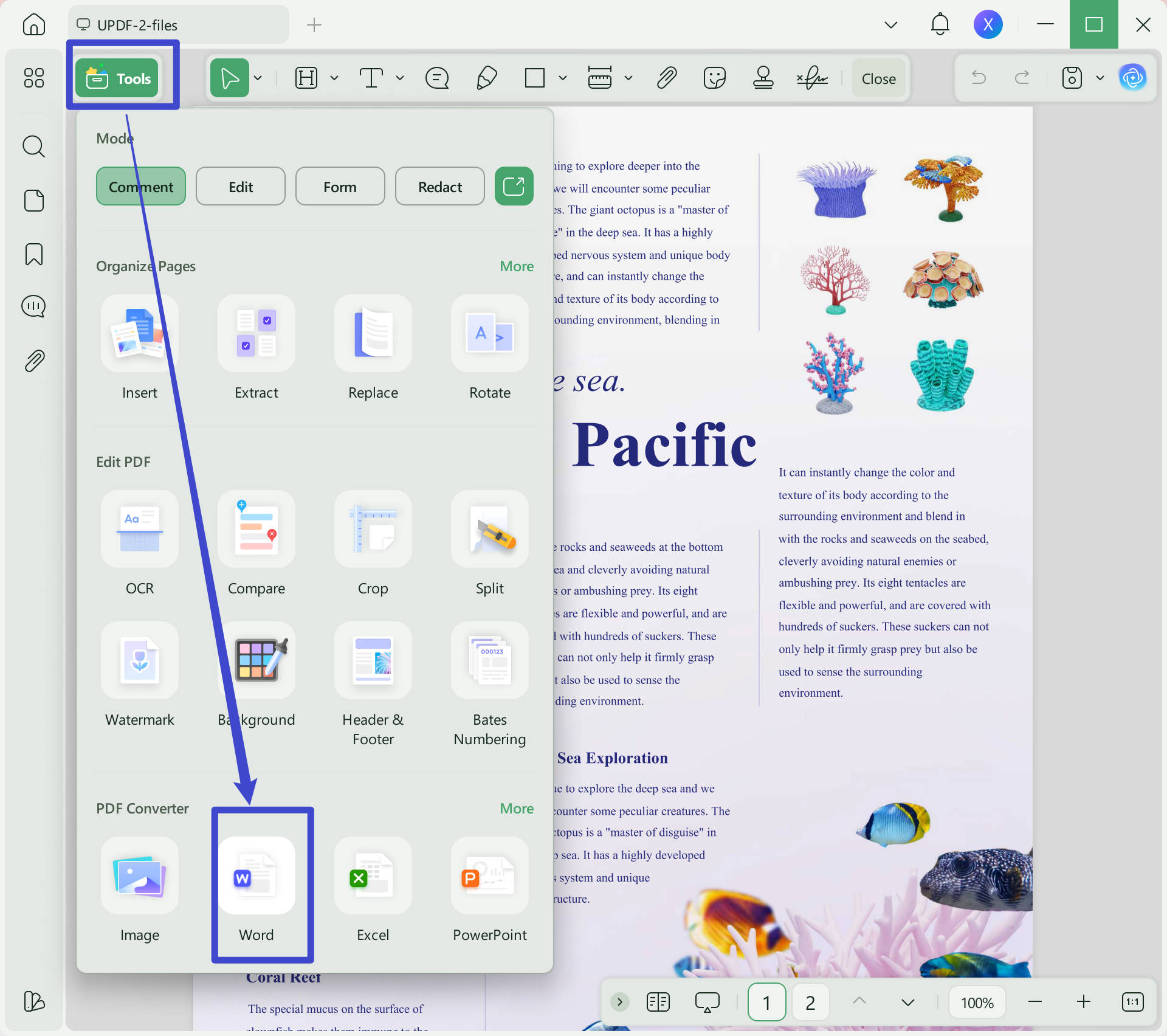
Launch UPDF, open the PDF, and select Tools from the left side.
Step 2. Choose Word and Adjust the Settings
Select Convert, choose Word as the output format, and set the page range. Depending on your editing goal, choose a flowing Word layout for easier text editing or a layout-focused option when visual structure matters more.
Step 3. Convert and Review the DOCX
Click Apply, choose a save location, and open the DOCX in Word. Complex tables, uncommon fonts, columns, and scanned pages may require a quick review after conversion.

The short video below demonstrates UPDF's conversion workflow and available output formats.
Method 3. Batch Convert Multiple PDFs to Word
Best for: Reports, invoices, research files, or document archives that need the same output format.
Instead of opening files one by one, use UPDF's batch conversion mode. For more workflow details, see how to batch convert PDF files.
- Open UPDF and go to Tools > Convert.
- Add multiple PDFs or a folder.
- Choose Word. Enable OCR when the set contains scanned PDFs, and select the correct document language.
- Click Apply and choose the destination folder.
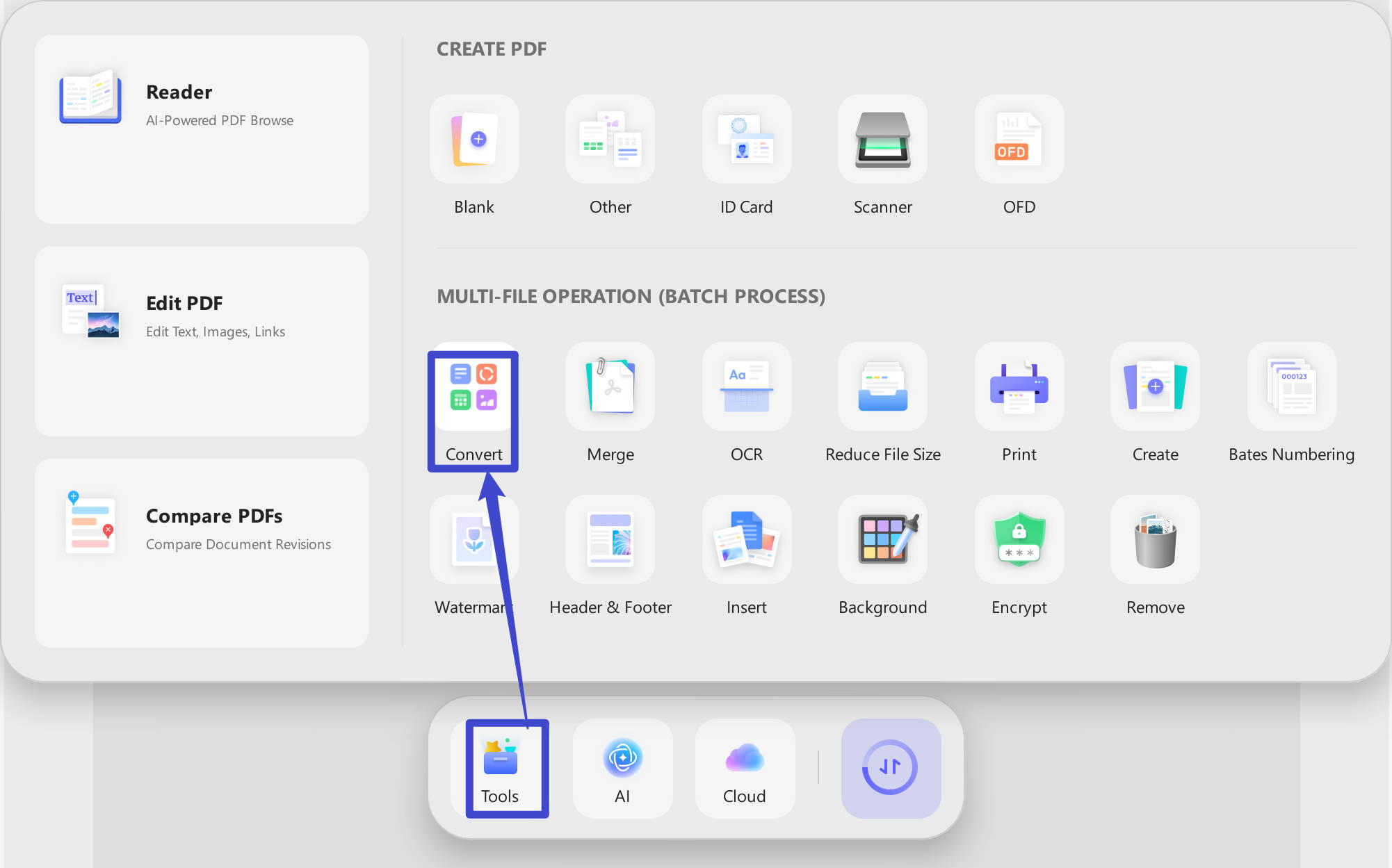
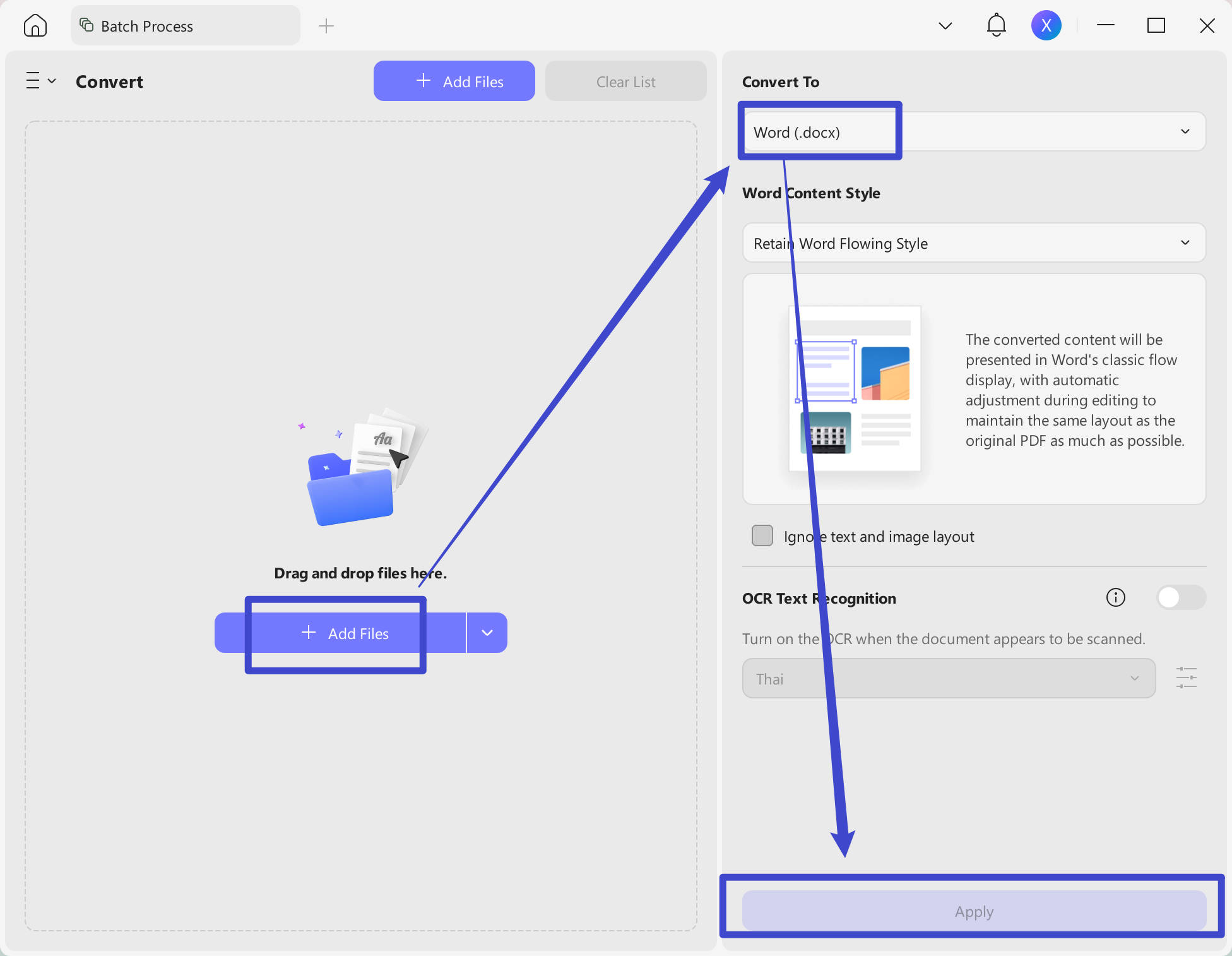
Before processing a large batch, convert one representative file first. This lets you confirm the output style and OCR language before applying the settings to every document.
Method 4. Convert a Scanned PDF to Editable Word with OCR
Best for: Image-only PDFs, photographed pages, receipts, forms, and old documents whose text cannot be selected.
A normal conversion may place scanned pages into Word as images. OCR recognizes the characters first, making the final DOCX editable. UPDF can apply OCR during conversion, or you can OCR the PDF first when you want to review the recognized text before exporting. Our dedicated guide explains more ways to convert a scanned PDF to Word.
- Open the scanned PDF in UPDF and select OCR under Tools.
- Choose the OCR output type, select the correct document language, and set the page range.
- Run OCR. Then choose Convert > Word to export an editable DOCX.
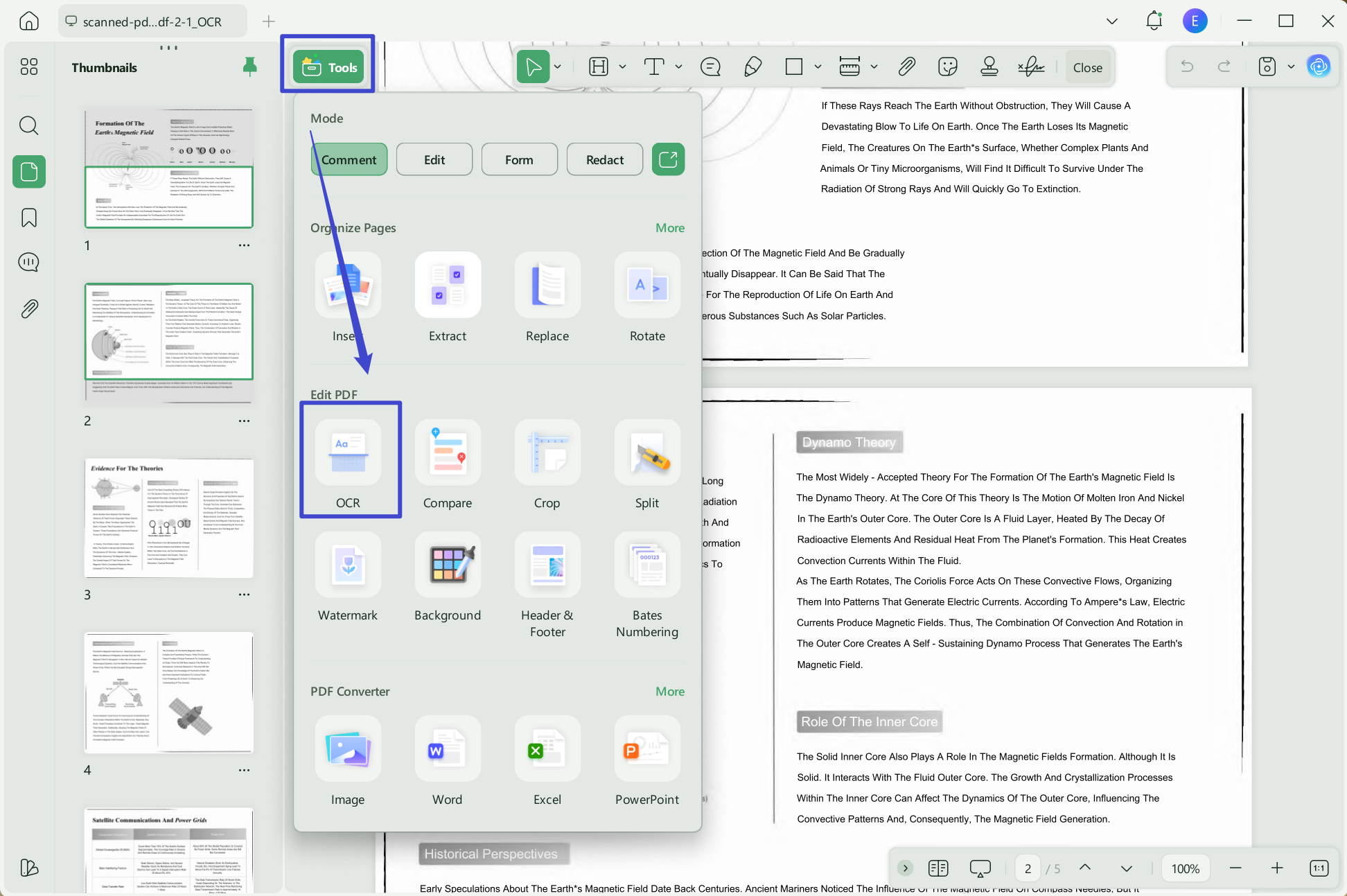
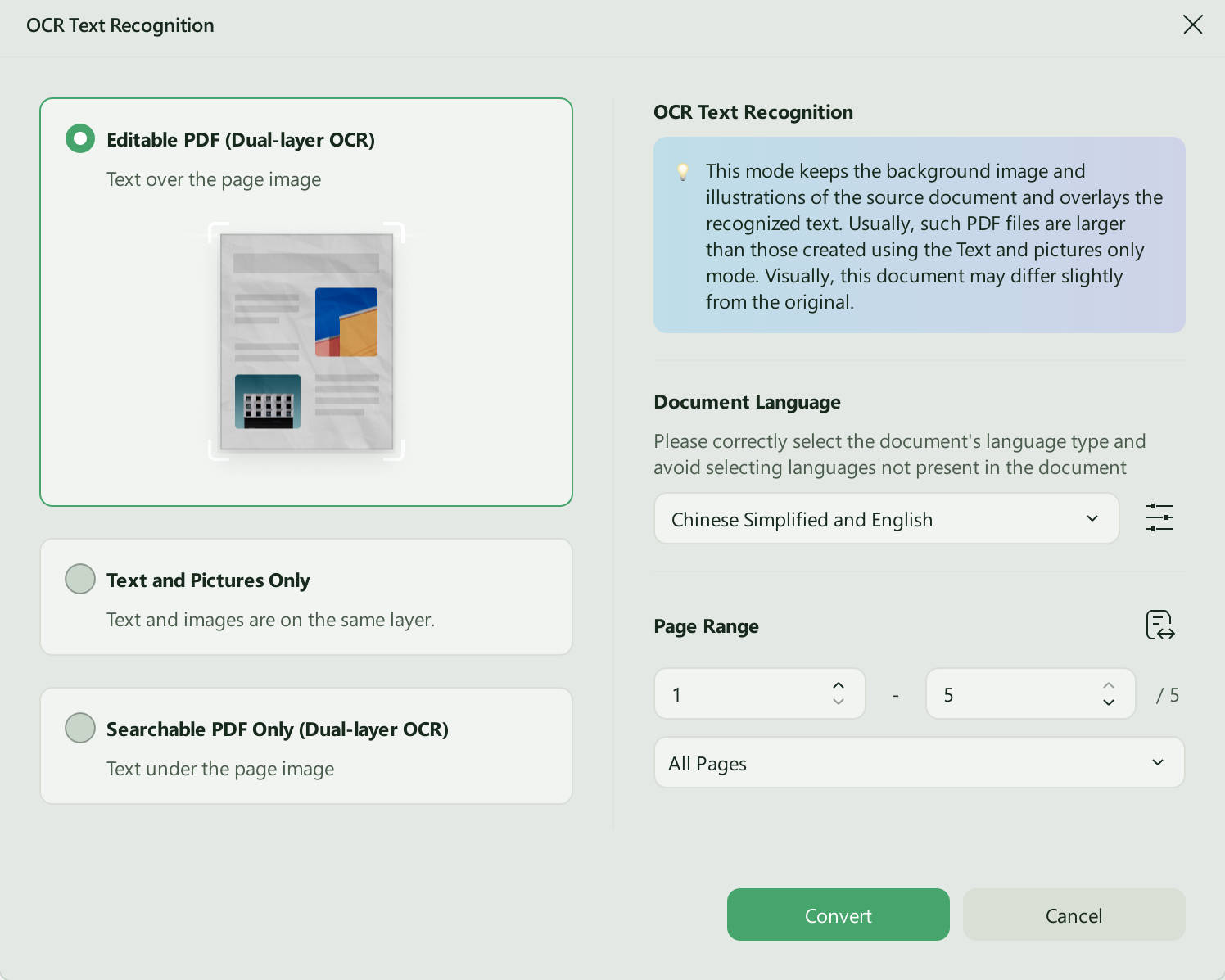
For better recognition, use a clear, upright scan and select every language that appears in the document. Always proofread names, numbers, tables, and look-alike characters such as “O” and “0.”
Method 5. Convert PDF to Word on iPhone or Android
Best for: Converting a file while traveling or when the PDF is stored on a phone or tablet.
In UPDF for iOS or Android, import the PDF, choose Tools > PDF to Word, select the output style, and enable OCR if the document is scanned. Then choose the save location and tap Done. iPhone users can also follow this detailed guide to convert PDF to Word on iPhone.
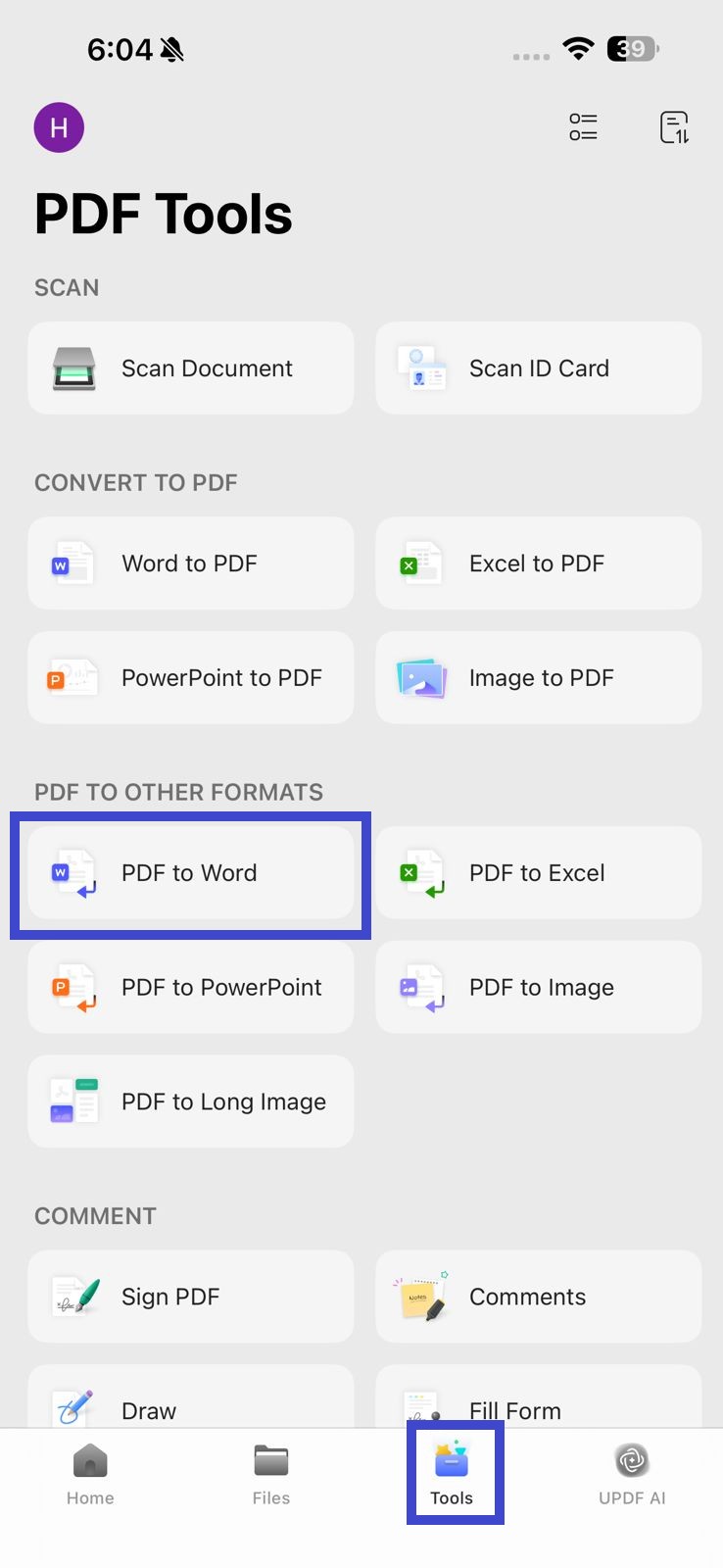
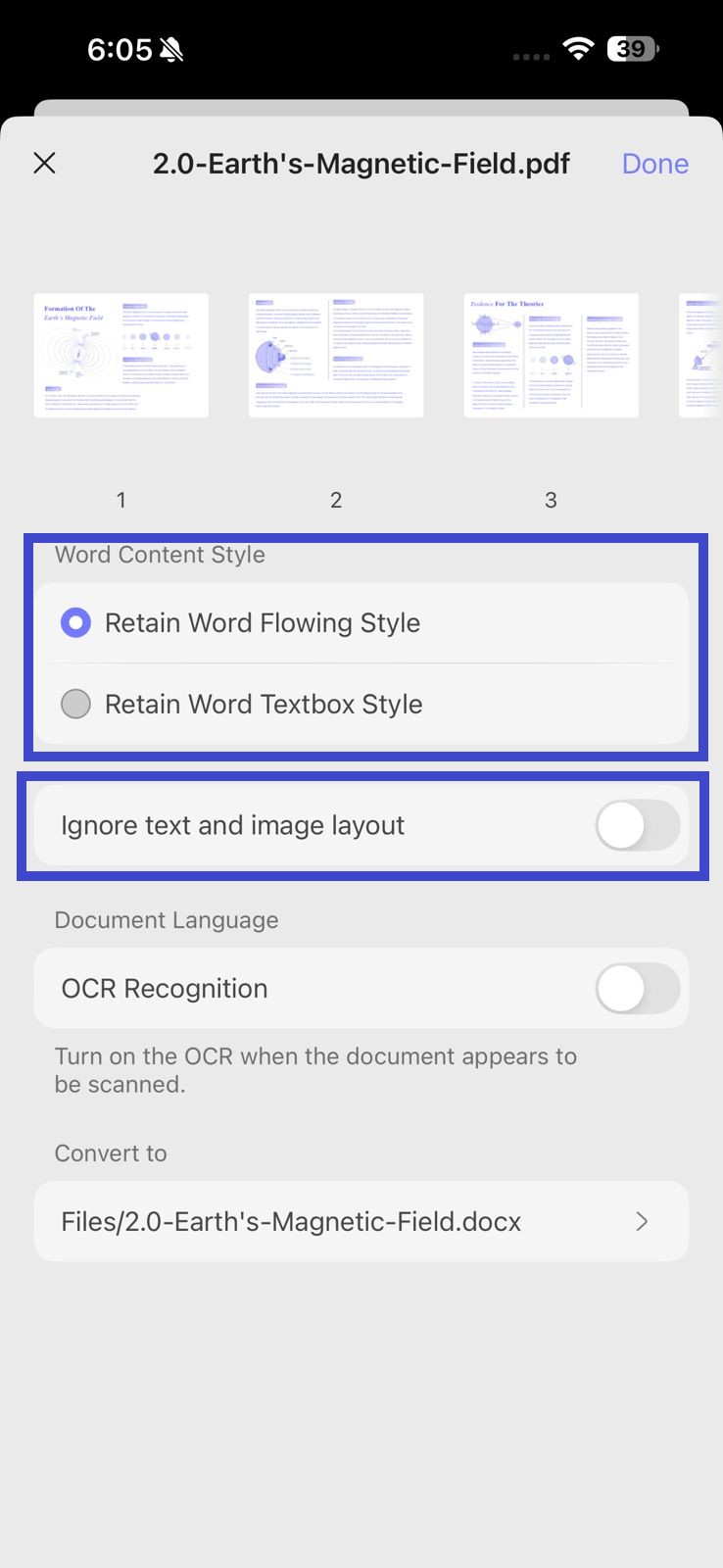
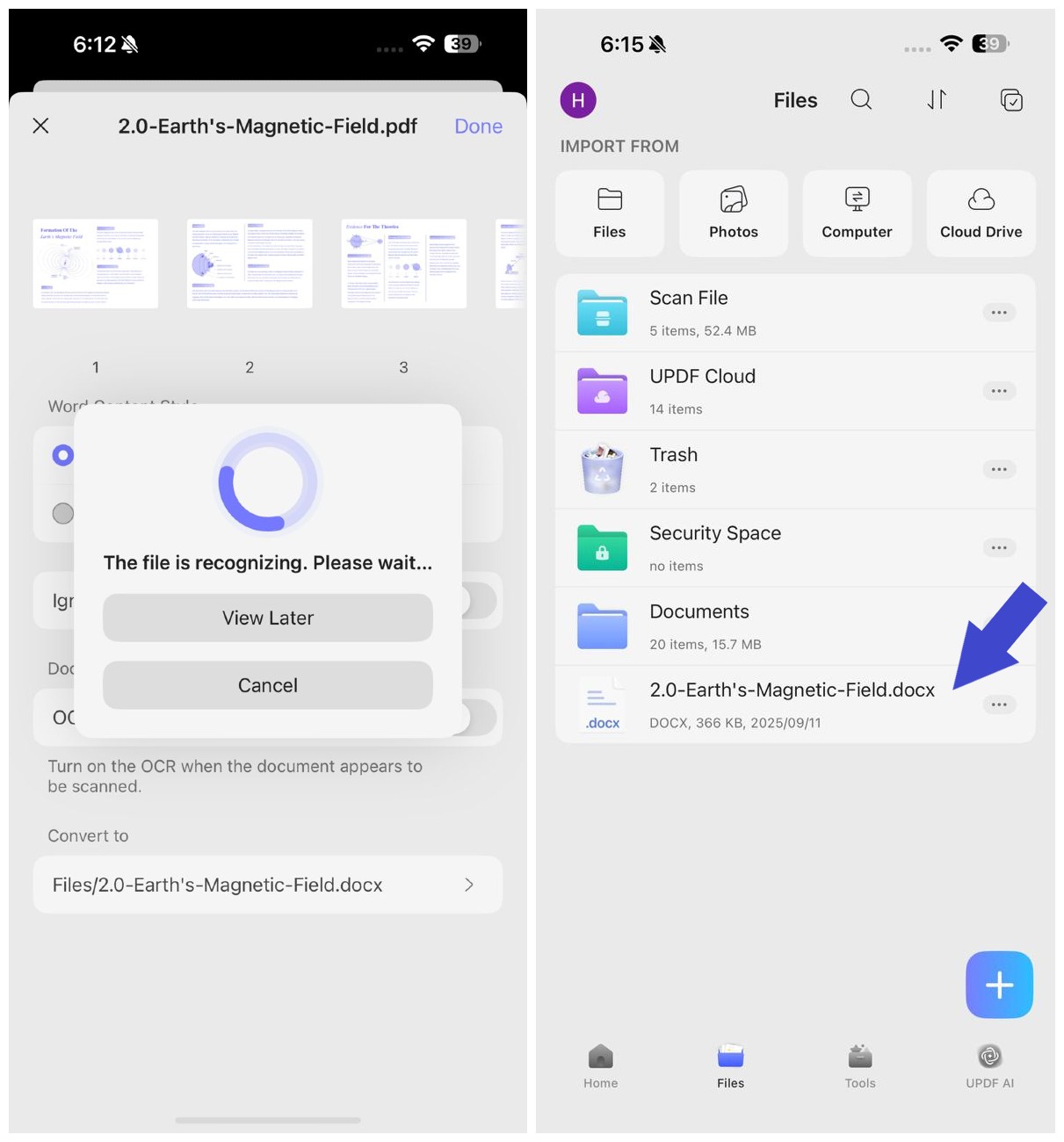
Mobile conversion is convenient for short documents. For a large batch or a layout-heavy PDF, the desktop app offers a roomier review workflow.
Other Ways to Convert PDF to Word
Use Microsoft Word
If Microsoft Word is installed, open Word, choose File > Open, and select the PDF. Word creates a converted copy that you can edit and save as DOCX. This works best with mostly textual PDFs; page breaks, columns, forms, and graphics may shift.
Use Adobe Acrobat
If you already subscribe to Adobe Acrobat Pro, open the PDF, select Convert or Export a PDF, choose Microsoft Word, and save the DOCX. Acrobat is a reasonable option for existing subscribers; if you want a PDF editor with conversion, OCR, annotation, page organization, and cross-platform access, compare it with an Adobe Acrobat alternative.
Conclusion
For a quick, non-sensitive file, UPDF Online is the fastest starting point. Choose the desktop app when privacy, batch processing, page-range control, or repeated work matters, and enable OCR whenever the PDF contains scanned pages. UPDF is free to download and try, so you can test the result with your own document before deciding which workflow fits.
Windows • macOS • iOS • Android 100% secure



 Lizzy Lozano
 Enola Davis