UPDF
UPDF
 UPDF for Windows
 UPDF for Mac
 UPDF for iPhone/iPad
 UPDF for Android
 Nomostar
 UPDF AI Online
 UPDF Sign
 IvyCraft
 Edit PDF
 Annotate PDF
 Create PDF
 PDF Form
 Edit links
 Convert PDF
 OCR
OCR PDF to Word
 PDF to Image
 PDF to Excel
 Organize PDF
 Merge PDF
 Split PDF
 Crop PDF
 Rotate PDF
 Protect PDF
 Sign PDF
 Redact PDF
 Sanitize PDF
 Remove Security
 Read PDF
 UPDF Cloud
 Compress PDF
 Print PDF
 Batch Process
 About UPDF AI
 UPDF AI Solutions
 AI User Guide
 FAQ about UPDF AI
 Summarize PDF
 Translate PDF
 Chat with PDF
 Chat with AI
 Chat with image
 PDF to Mind Map
 Explain PDF
 PDF AI Tools
 Image AI Tools
 AI Chat Tools
 AI Writing Tools
 AI Study Tools
 AI Working Tools
 Other AI Tools
 AI Bookmark Generation
 AI Bookmark Summary
 AI Watermark Generation
 AI Background Generation
 AI Sticker Generation
 AI Stamp Generation
 AI Editing Suite
 UPDF Copilot
 AI Page Management
 AI Semantic Search
 PDF to Word
 PDF to Excel
 PDF to PowerPoint
 Enterprise Solution
 Enterprise Sign
 Enterprise AI
 Enterprise Plan
 Enterprise User Guide
 Enterprise Webinar
 IT
IT Education
 Construction
 Financial Service
 Healthcare
 Insurance
 Legal
Legal Manufacturing
 Government
 Researchers & PhDs
 Solopreneurs & Freelancers
 Lawyers & Legal Professionals
 Real Estate Agents & Brokers
 Education Solution
 Customer Stories
 User Guide
 UPDF Tricks
 FAQs
FAQs UPDF Reviews
 Download Center
 Blog
Blog Newsroom
 Tech Spec
 Updates
 UPDF vs. Adobe Acrobat
 UPDF vs. Foxit
 UPDF vs. PDF Expert

However, the best method depends on the document. A simple PDF with selectable text is generally easier to convert than a scanned file, a multi-column report, or a document containing complex tables. Scanned PDFs usually require OCR before their contents can become editable.
This guide explains how to use Sejda PDF to Word online and on desktop, what its free limits are, how well it preserves formatting, and what to try when the converted Word file is incomplete or difficult to edit.
Which PDF-to-Word Method Should You Use?
The quickest route depends on whether the PDF contains selectable text, scanned pages, sensitive information, or a complex layout.
| Situation | Recommended method | Why |
| One ordinary PDF with selectable text | Sejda Online | No installation is required. |
| A scanned PDF that needs editable text | UPDF AI Online | OCR is applied automatically when a scan is detected. |
| A confidential document that should stay offline | Sejda Desktop or UPDF Desktop | The file can be processed locally. |
| Several PDFs or an entire folder | UPDF Desktop | It supports batch conversion. |
| A PDF with complex formatting | Test different layout modes | The best result depends on the document structure. |
How to Use Sejda PDF to Word Online
Best for:
- Converting an occasional PDF with selectable text without installing software.
The Sejda online PDF-to-Word converter runs directly in a browser. It can import a PDF from a computer, Dropbox, Google Drive, OneDrive, or a URL.
1. Open the converter. Go to Sejda's PDF-to-Word page in a browser.
2. Upload the PDF. Click Upload PDF file and select the document, or import it from a supported cloud service.
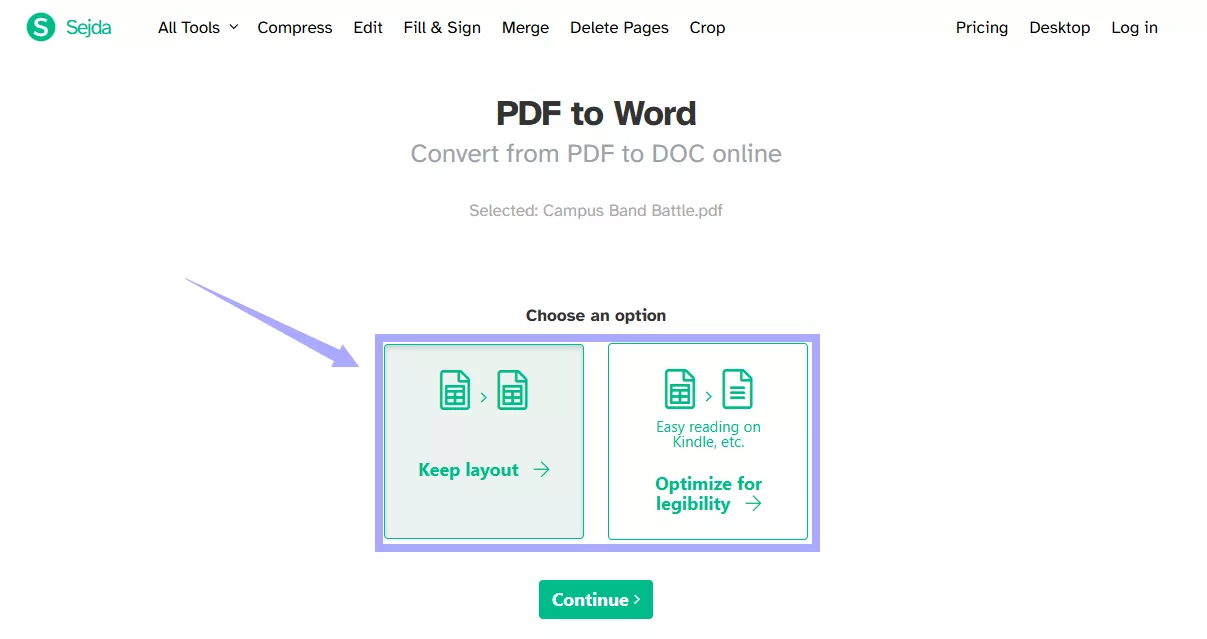
3. Choose a conversion mode. Select Keep layout to prioritize page positioning, or Optimize for legibility to prioritize readable, flowing content.
4. Start the conversion. Wait while Sejda processes the PDF.
5. Download the result. Save the converted Word document and check it before editing or sharing.
Sejda's free online service currently has the following limits:
Sejda Online Free Limits
- Up to 50 pages or 50 MB per document
- Three tasks per hour
- One file per task for free users
- Free OCR limited to 10 pages
- Uploaded files automatically deleted after two hours
The limit applies to tasks rather than individual files. Repeating a conversion with another layout setting may therefore consume an additional task.
For a regular text-based PDF, Sejda Online provides a quick workflow. However, scanned documents may require an additional OCR step. If Sejda cannot recognize the text—or the free task limit has already been reached—the UPDF Online PDF to Word Converter offers another browser-based option. Users can upload a PDF, convert it, and download the Word file directly. When a scanned PDF is detected, UPDF automatically runs OCR and produces an editable Word document.
A free UPDF account supports uploads of up to five PDFs, with a maximum of 100 pages per PDF. Paid accounts remove the file-count and page-count limits.
How to Convert PDF to Word with Sejda Desktop
Best for:
- Converting a small number of PDFs locally without uploading them to an online server.
Sejda Desktop is available for Windows, macOS, and Linux. Unlike the online converter, it processes documents locally, so the PDF does not need to leave the computer.
- Install Sejda Desktop. Download the appropriate version for the computer and open the application.
- Open the conversion tool. Choose All Tools and select PDF to Word.
- Choose PDF Files. Select the document that needs to be converted.
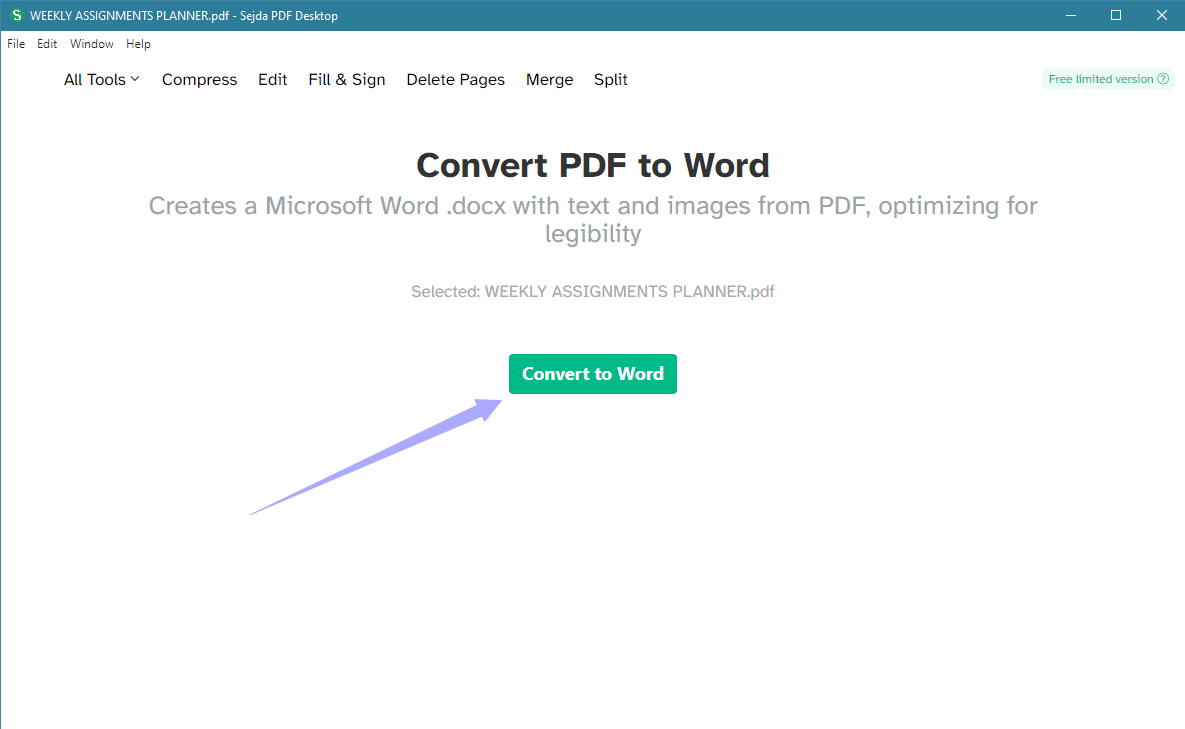
- Convert and save. Once your document is uploaded, select "Convert to Word." Then, specify a location to save it.
Sejda Desktop's free plan currently allows three tasks per day. Each document can contain up to 200 pages or 50 MB, and free users process files one at a time.
Scanned PDFs may require OCR before ordinary PDF-to-Word conversion can recognize their contents. Complex tables, multi-column layouts, and positioned objects may also need correction after conversion.
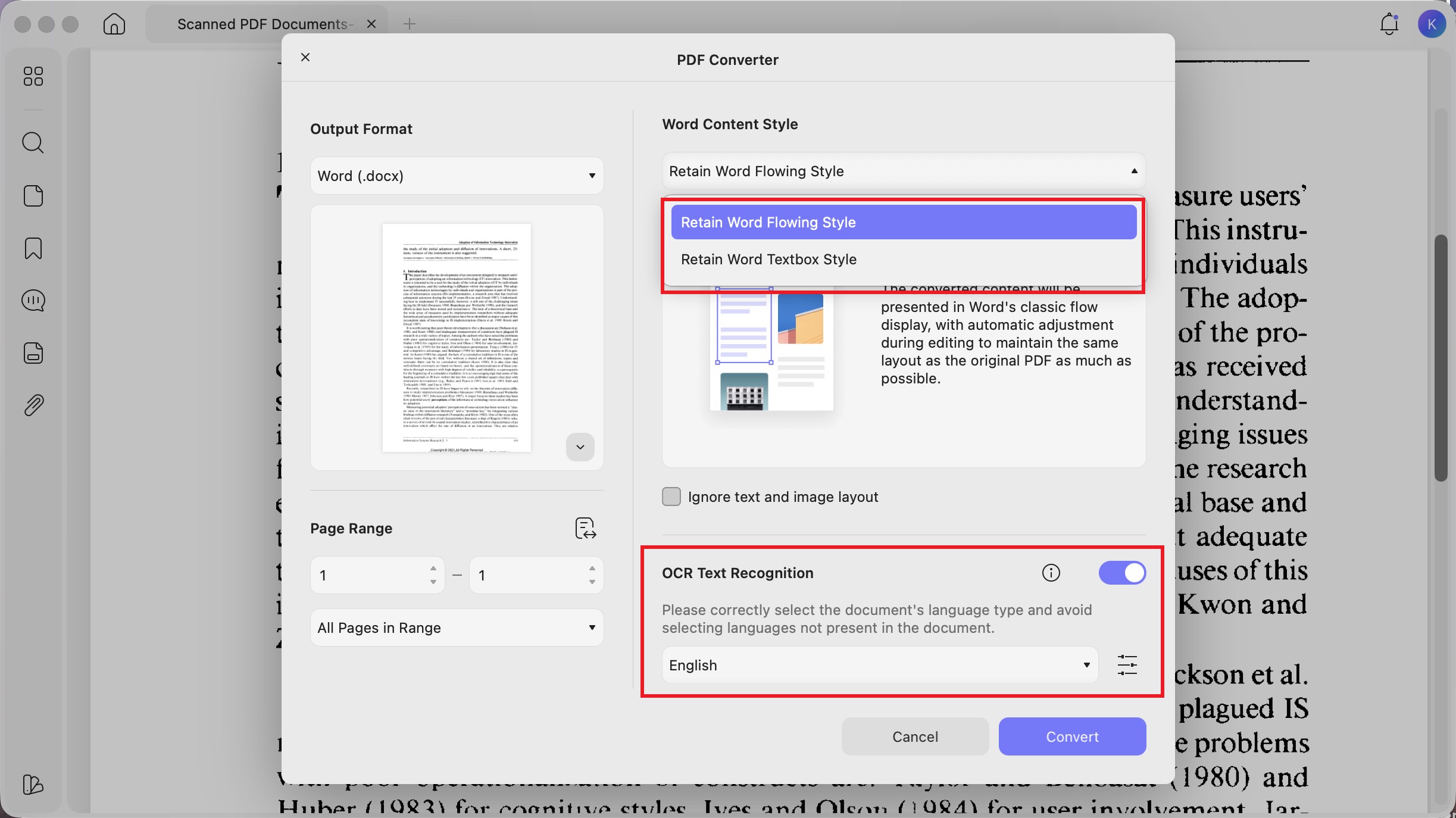
For users who need more control over PDF-to-Word output, UPDF Desktop provides flowing and textbox Word styles, built-in OCR for scanned PDFs, and batch conversion for multiple files or folders. It also includes PDF editing, annotation, organization, form, and protection tools, so users do not have to switch applications after conversion.
Windows • macOS • iOS • Android 100% secure
Does Sejda PDF to Word Preserve Formatting?
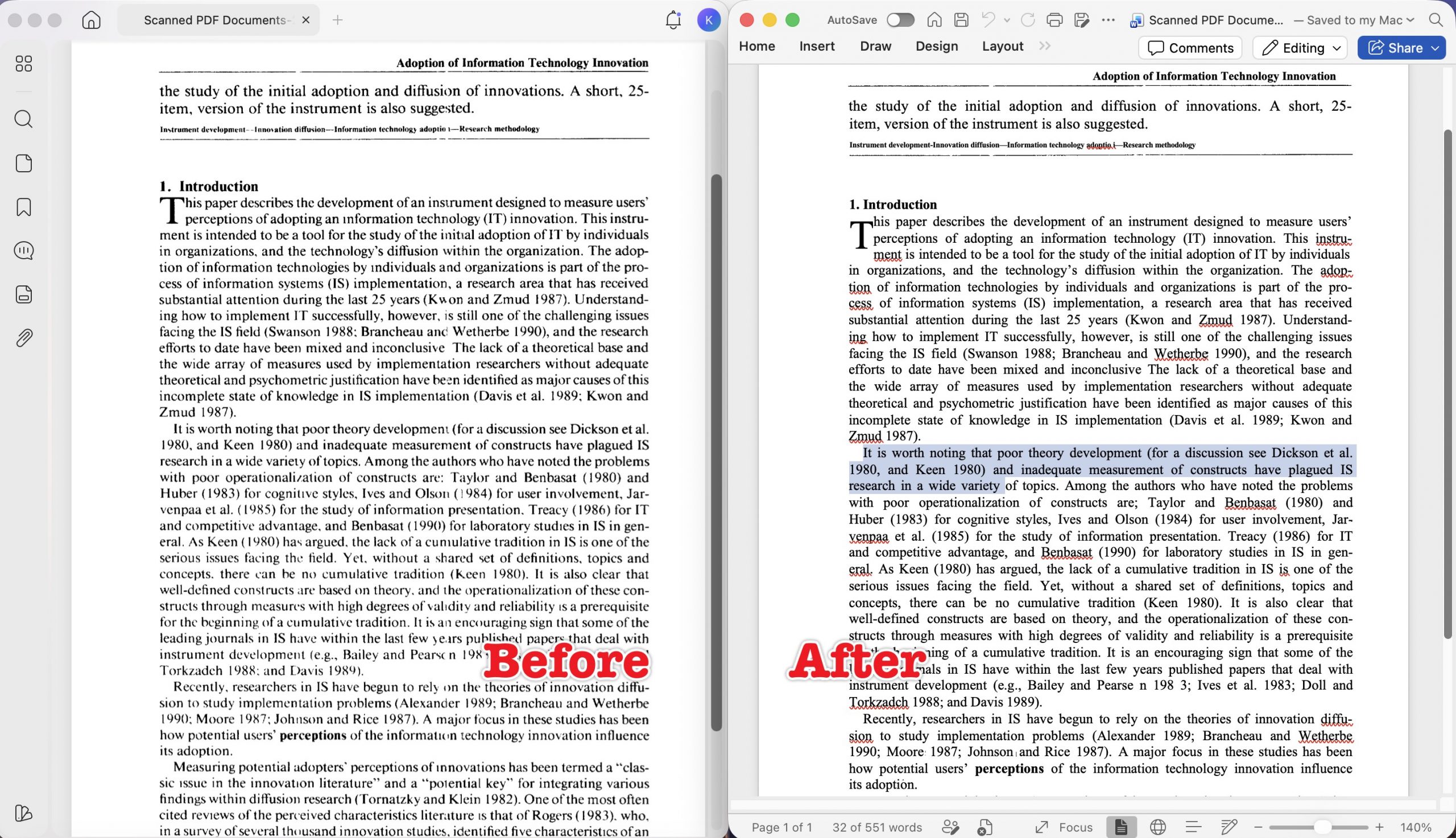
Sejda provides layout options, but a converted Word document cannot always reproduce the PDF perfectly. A PDF uses fixed page positioning, while Word uses reflowable content that can move when fonts, margins, or page settings change.
Users working with tables, forms, scans, or multi-column reports can first review the broader methods for converting PDF files without losing formatting and then choose a workflow based on the document type.
| PDF type | Likely conversion result |
| Simple text document | Text and basic paragraphs are usually easier to preserve. |
| Multi-column report | Reading order or column placement may change. |
| PDF with complex tables | Borders, cell sizes, and text alignment may need correction. |
| Form or brochure | Floating elements may move or become separate text boxes. |
| Scanned PDF | OCR is required to create editable text. |
| PDF using uncommon fonts | Word may replace missing fonts and change line breaks. |
Choose Keep layout when visual positioning is more important. If the converted document contains too many separate elements and is difficult to edit, repeat the conversion with Optimize for legibility.
No conversion method can guarantee identical results for every PDF. Check headings, columns, tables, page breaks, hyperlinks, and fonts before using the Word file professionally.
Part 4. Sejda PDF to Word vs. UPDF: Which Should You Choose?
Sejda remains the main tool discussed in this guide. The comparison below is intended for users who encounter a Sejda limit or need a workflow that Sejda's free version does not cover.
| Feature | Sejda Online | Sejda Desktop | UPDF Online | UPDF Desktop |
| Processing | Online | Local | Online | Local |
| Free usage | 3 tasks/hour | 3 tasks/day | Up to 5 PDFs; 100 pages/PDF | Free trial available |
| Free file processing | One file/task | One file at a time | Up to 5 uploaded PDFs | Individual and batch workflows |
| Scanned PDFs | OCR may be separate | OCR may be required first | Automatic OCR when detected | OCR can be enabled during conversion |
| Word output control | Keep layout or legibility | Desktop settings | Automatic output | Flowing or textbox style |
| Batch conversion | Paid plan | Paid plan | Paid account removes file-count limit | Multiple files and folders |
| Best for | Occasional browser conversion | Occasional offline conversion | Regular or scanned PDFs online | Batch, OCR, privacy, and layout control |
A simple, text-based PDF may convert successfully with Sejda Online or Desktop. UPDF Online is relevant when users want a similarly convenient browser workflow with automatic OCR, while UPDF Desktop is more suitable for repeated local conversions, layout control, and batch processing.
If several reports or archived documents need to be processed together, users can batch convert PDF to Word instead of opening and exporting every file separately.
Common Sejda PDF-to-Word Problems and Fixes
The PDF Contains Scanned Pages
A scanned PDF contains page images rather than selectable text. UPDF Online can recognize scanned content and automatically apply OCR during conversion. Users who need to select OCR languages, page ranges, or recognition settings can follow this guide to convert a scanned PDF to Word with a desktop workflow.
Tables or Columns Move in Word
Repeat the Sejda conversion using Keep layout. If the result is still incorrect, convert only the necessary pages or try UPDF's textbox-style Word output. Tables with merged cells, irregular borders, or embedded images are more likely to require manual corrections.
The Word File Is Difficult to Edit
A layout-preserving conversion may create separate positioned objects. Try Optimize for legibility in Sejda or Retain Word flowing style in UPDF to generate more continuous text.
The Sejda Free Limit Has Been Reached
Wait for the online quota to reset, use Sejda Desktop, upgrade the Sejda plan, or try UPDF Online for another browser-based conversion.
Fonts and Line Breaks Look Different
The source PDF may use fonts that are not installed on the computer. Install the appropriate font if licensing allows it, or replace it with a similar font in Word. Differences in page size and paragraph spacing can also alter line breaks.
The PDF Is Password-Protected
UPDF Online does not currently convert password-protected PDFs. Open the document with the correct password in an authorized desktop application before converting it. PDF conversion tools should not be presented as a way to bypass document security.
Frequently Asked Questions
Is Sejda PDF to Word free?
Yes. Sejda Online currently allows three free tasks per hour for documents of up to 50 pages or 50 MB. Sejda Desktop allows three free tasks per day for documents of up to 200 pages or 50 MB.
Can Sejda convert scanned PDFs to Word?
Scanned PDFs require OCR before their text can become editable. Sejda provides OCR functionality, but free OCR is limited. UPDF Online can automatically recognize scanned pages and apply OCR during PDF-to-Word conversion.
Is Sejda PDF to Word safe?
Sejda states that online files are encrypted and automatically deleted after two hours. Sejda Desktop processes documents locally and may be more appropriate for confidential files.
Does Sejda preserve the original formatting?
Sejda's Keep layout mode attempts to preserve page positioning, but tables, columns, fonts, and floating objects may still change. Important Word documents should always be checked after conversion.
Can Sejda convert multiple PDFs to Word at once?
Free Sejda users process one file per task. Multiple-file processing requires a paid plan. UPDF Desktop provides an alternative batch workflow for multiple files and folders.
Which Sejda conversion mode should I choose?
Choose Keep layout when page positioning is important. Choose Optimize for legibility when readable and editable text matters more. For an important document, convert it both ways and compare the results.
Which online converter should I use for a scanned PDF?
Use an online PDF-to-Word converter that supports OCR. UPDF Online automatically recognizes scanned PDFs, performs OCR during conversion, and produces an editable Word document.
Conclusion
Sejda PDF to Word is useful for occasional conversions. Its online version requires no installation, while Sejda Desktop keeps processing on the local computer. The Keep layout and Optimize for legibility modes also let users prioritize either appearance or editability.
If a scanned PDF does not convert correctly in Sejda, UPDF Online offers a closely matched browser-based alternative and automatically performs OCR when needed. For multiple, confidential, or layout-heavy PDFs, UPDF for Windows and Mac provides batch conversion, local processing, and two Word output styles.
Windows • macOS • iOS • Android 100% secure




 Enid Brown
 Engelbert White