UPDF
UPDF
 UPDF for Windows
 UPDF for Mac
 UPDF for iPhone/iPad
 UPDF for Android
 Nomostar
 UPDF AI Online
 UPDF Sign
 IvyCraft
 Edit PDF
 Annotate PDF
 Create PDF
 PDF Form
 Edit links
 Convert PDF
 OCR
OCR PDF to Word
 PDF to Image
 PDF to Excel
 Organize PDF
 Merge PDF
 Split PDF
 Crop PDF
 Rotate PDF
 Protect PDF
 Sign PDF
 Redact PDF
 Sanitize PDF
 Remove Security
 Read PDF
 UPDF Cloud
 Compress PDF
 Print PDF
 Batch Process
 About UPDF AI
 UPDF AI Solutions
 AI User Guide
 FAQ about UPDF AI
 Summarize PDF
 Translate PDF
 Chat with PDF
 Chat with AI
 Chat with image
 PDF to Mind Map
 Explain PDF
 PDF AI Tools
 Image AI Tools
 AI Chat Tools
 AI Writing Tools
 AI Study Tools
 AI Working Tools
 Other AI Tools
 AI Bookmark Generation
 AI Bookmark Summary
 AI Watermark Generation
 AI Background Generation
 AI Sticker Generation
 AI Stamp Generation
 AI Editing Suite
 UPDF Copilot
 AI Page Management
 AI Semantic Search
 PDF to Word
 PDF to Excel
 PDF to PowerPoint
 Enterprise Solution
 Enterprise Sign
 Enterprise AI
 Enterprise Plan
 Enterprise User Guide
 Enterprise Webinar
 IT
IT Education
 Construction
 Financial Service
 Healthcare
 Insurance
 Legal
Legal Manufacturing
 Government
 Researchers & PhDs
 Solopreneurs & Freelancers
 Lawyers & Legal Professionals
 Real Estate Agents & Brokers
 Education Solution
 Customer Stories
 User Guide
 UPDF Tricks
 FAQs
FAQs UPDF Reviews
 Download Center
 Blog
Blog Newsroom
 Tech Spec
 Updates
 UPDF vs. Adobe Acrobat
 UPDF vs. Foxit
 UPDF vs. PDF Expert

Quick Answer:
Syncing files on Mac can mean keeping a folder updated through a cloud service, transferring documents to an iPhone, or continuing work on the same PDF on another device. These tasks require different workflows.
Start by choosing what needs to stay updated and where you need to access it. The methods below separate general folder syncing, device file transfers, and PDF syncing so you can follow the right process.
Part 1. Choose the Right Sync Workflow
| What you want to do | Use this method | Scope |
|---|---|---|
| Access folders across Apple devices | iCloud Drive | Files in iCloud Drive, including Desktop and Documents when enabled |
| Access Google Drive files from your Mac | Google Drive for desktop | Stream or mirror My Drive |
| Keep a Dropbox folder updated | Dropbox | Files and folders managed through Dropbox |
| Transfer documents to an iPhone or iPad app | Finder | Supported apps’ file-sharing areas |
| Continue editing a PDF on another device | UPDF Cloud | PDFs uploaded to your UPDF account |
Need to synchronize two local folders or a folder on an external drive? Check the source, destination, sync direction, and deletion rules before choosing a utility. Our Mac file sync software guide covers software selection; check each tool’s supported workflow rather than assuming cloud access means local folder-pair synchronization.
Part 2. Sync Folders with iCloud Drive
Use iCloud Drive to access files across devices signed in to the same Apple Account.
- Open System Settings > your name > iCloud > Drive. On some macOS versions, this is labeled iCloud Drive.
- Turn on Sync this Mac.
- Save or move the files you want to sync into iCloud Drive in Finder.
- To include your Desktop and Documents folders, enable Desktop & Documents Folders.
- Wait for uploading to finish, then check the files on your other device.
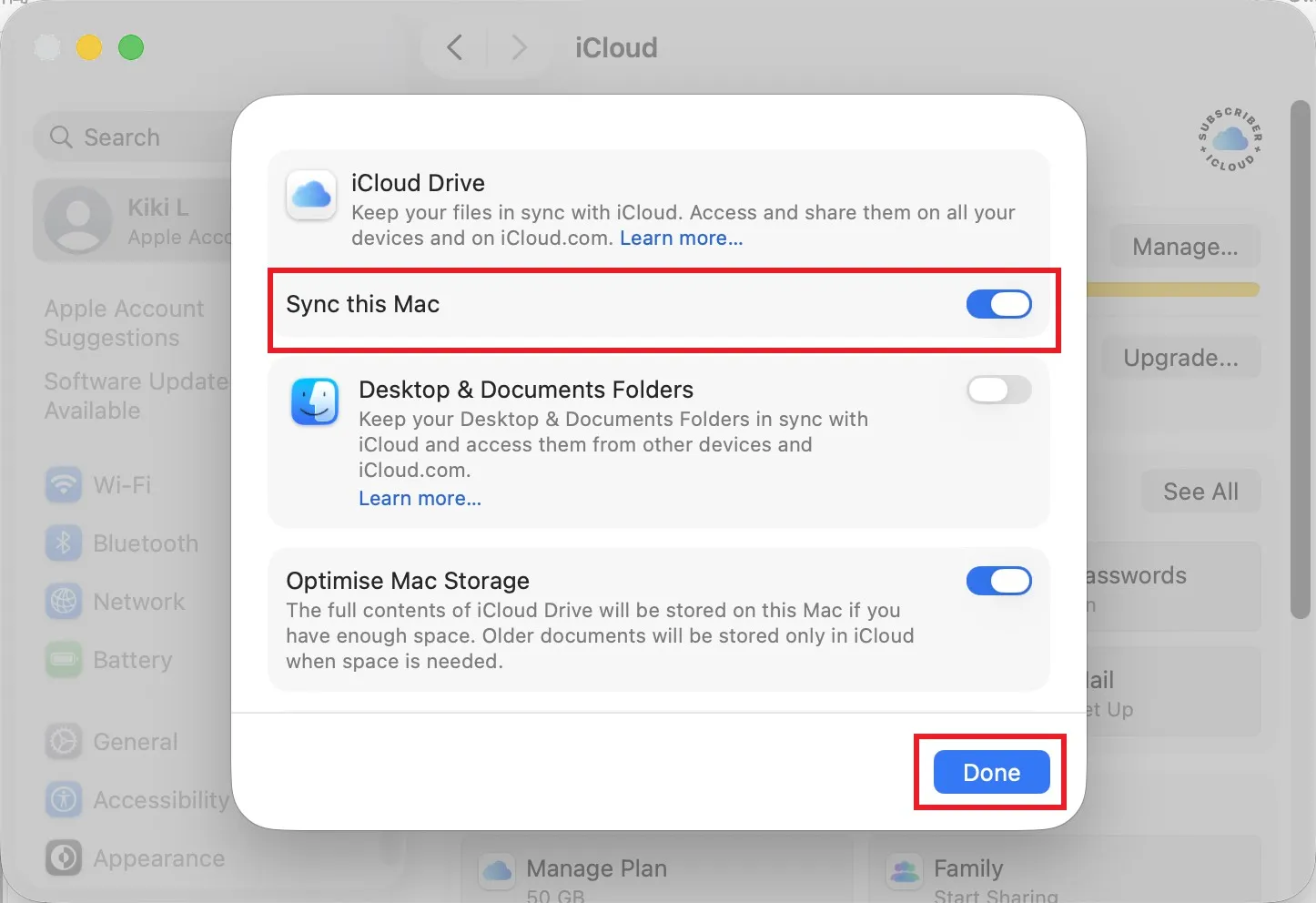
Enabling iCloud Drive does not automatically include every folder on your Mac. Deleting a synced file on one device also removes it from other devices using the same account, so retain a separate backup of important files. Menu appearance can vary with macOS.
Part 3. Sync Google Drive Files on Mac
Step 1: Install Google Drive for desktop and sign in. Open its menu-bar icon, then choose Settings > Preferences > Folders from Drive.
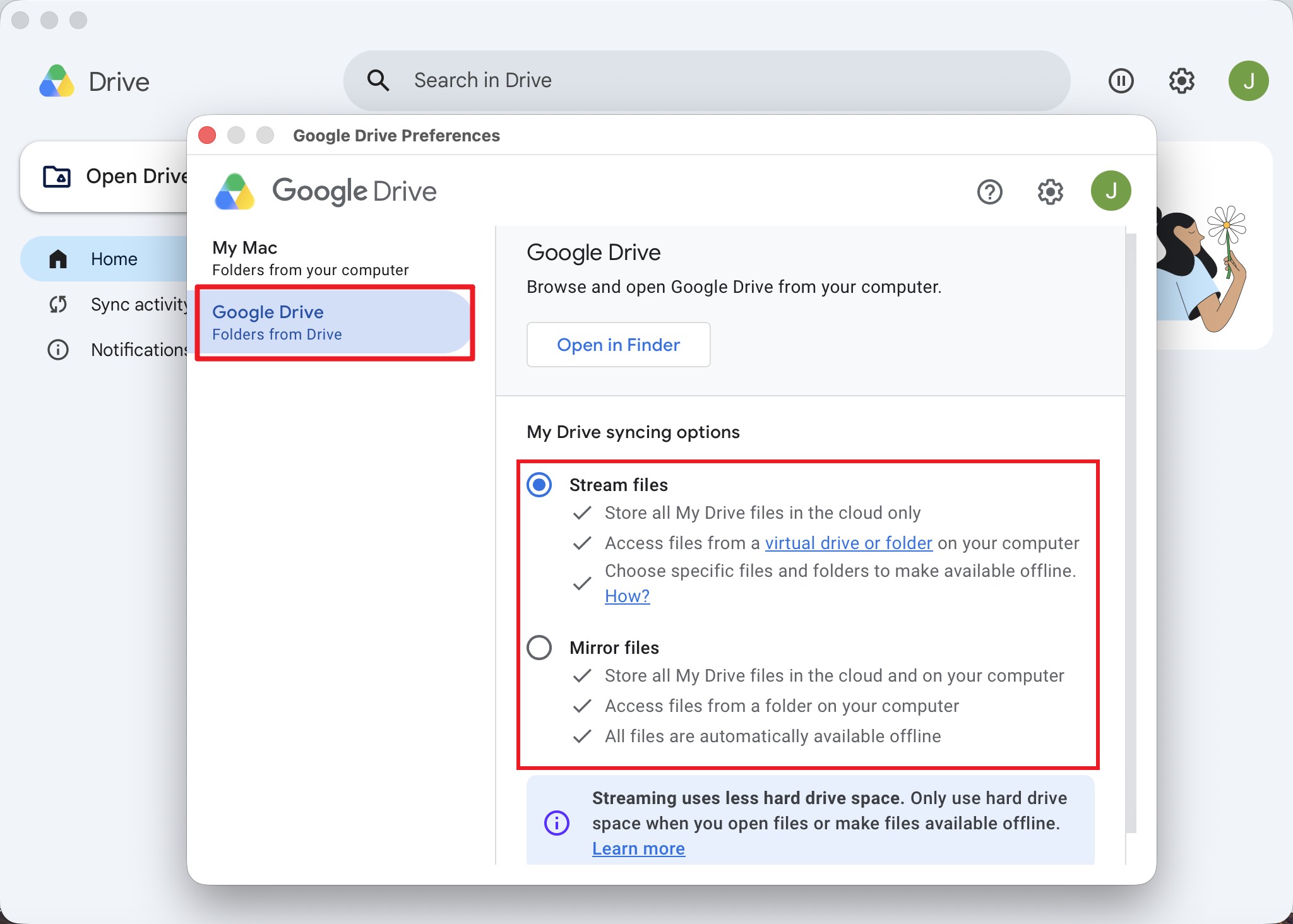
Step 2: Under My Drive syncing options, select the option that matches your storage needs:
- Stream files: Keep files primarily in the cloud, using local space for accessed or offline files.
- Mirror files: Keep a full copy of My Drive on your Mac as well as in the cloud. This uses local disk space and provides offline access.
Allow syncing to finish before checking files on another device. Changes to streamed or mirrored files are reflected across connected devices. These options control My Drive; they do not configure arbitrary pairs of local folders.
A standard Google Account includes up to 15 GB of storage at no charge, shared across Google Drive, Gmail, and Google Photos.
Part 4. Sync Files with Dropbox
Step 1: Install the Dropbox desktop app, sign in, and open your Dropbox folder in Finder. Add the files or folders you want Dropbox to manage, then wait for syncing to complete before opening them elsewhere.
Step 2: Open Dropbox’s menu-bar menu and go to Preferences > Sync to review storage settings:
- Available offline: Keep files downloaded for use without an internet connection.
- Online-only: Keep files visible in Finder while reducing local storage use.
- Selective sync: Choose which Dropbox folders appear on that computer. Unselected folders remain in your Dropbox account.
Dropbox currently lists macOS 11 or later for its standard desktop app; the File Provider experience requires macOS 12.5 or later. Check current system requirements and File Provider requirements before installing. Storage controls are described in Dropbox’s preferences guide.
Part 5. Transfer Files to an iPhone or iPad with Finder
Finder can transfer documents to apps that support file sharing. This is different from continuously synchronizing two folders.
- Connect your iPhone or iPad to your Mac using a USB or USB-C cable.
- Open Finder and select the device in the sidebar.
- Click Files to display apps that support file sharing.
- Drag the required documents onto an app’s name.
- Confirm the files are available in that app, then eject the device before disconnecting it.
Files transferred this way do not require the Sync button. Music, photos, and other supported content use separate Finder syncing controls. For sending a file to someone else, see how to share files on Mac.
Part 6. Access and Update PDFs with UPDF Cloud
Use UPDF Cloud when you want to continue working on the same PDF across Mac, Windows, iPhone, iPad, or Android devices. This workflow applies to uploaded PDFs; it does not set up automatic synchronization of arbitrary Finder folders.
Windows • macOS • iOS • Android 100% secure
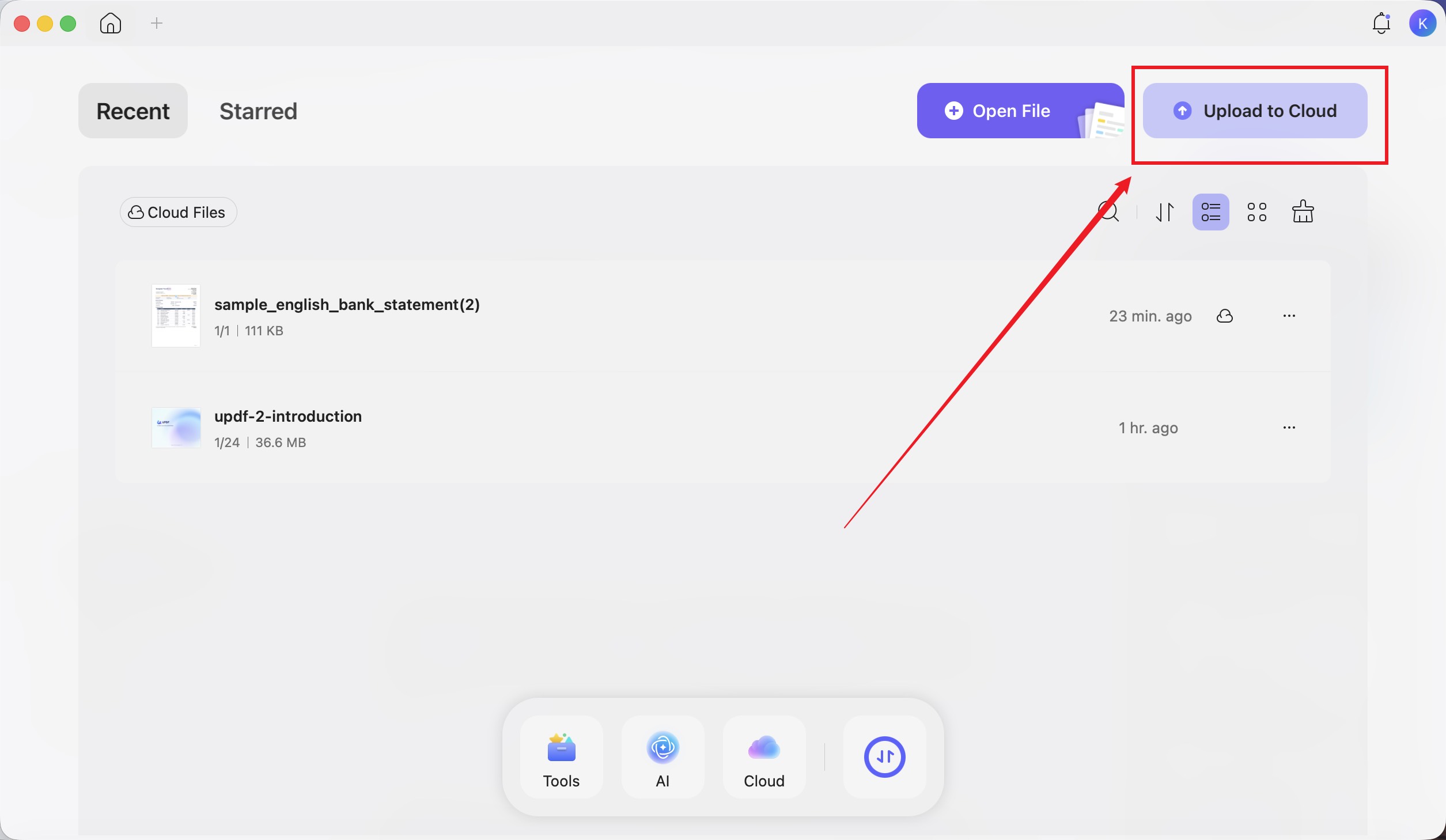
- Sign in to UPDF on your Mac.
- Click Upload to Cloud and select your PDF. For an open document, you can also choose Save > Save to UPDF Cloud.
- Open the uploaded PDF from UPDF Cloud. To change its text, choose Tools > Edit.
- Choose File > Save after making changes.
- On another device, sign in to the same UPDF account and open that PDF from UPDF Cloud. Check that your latest changes appear before continuing.
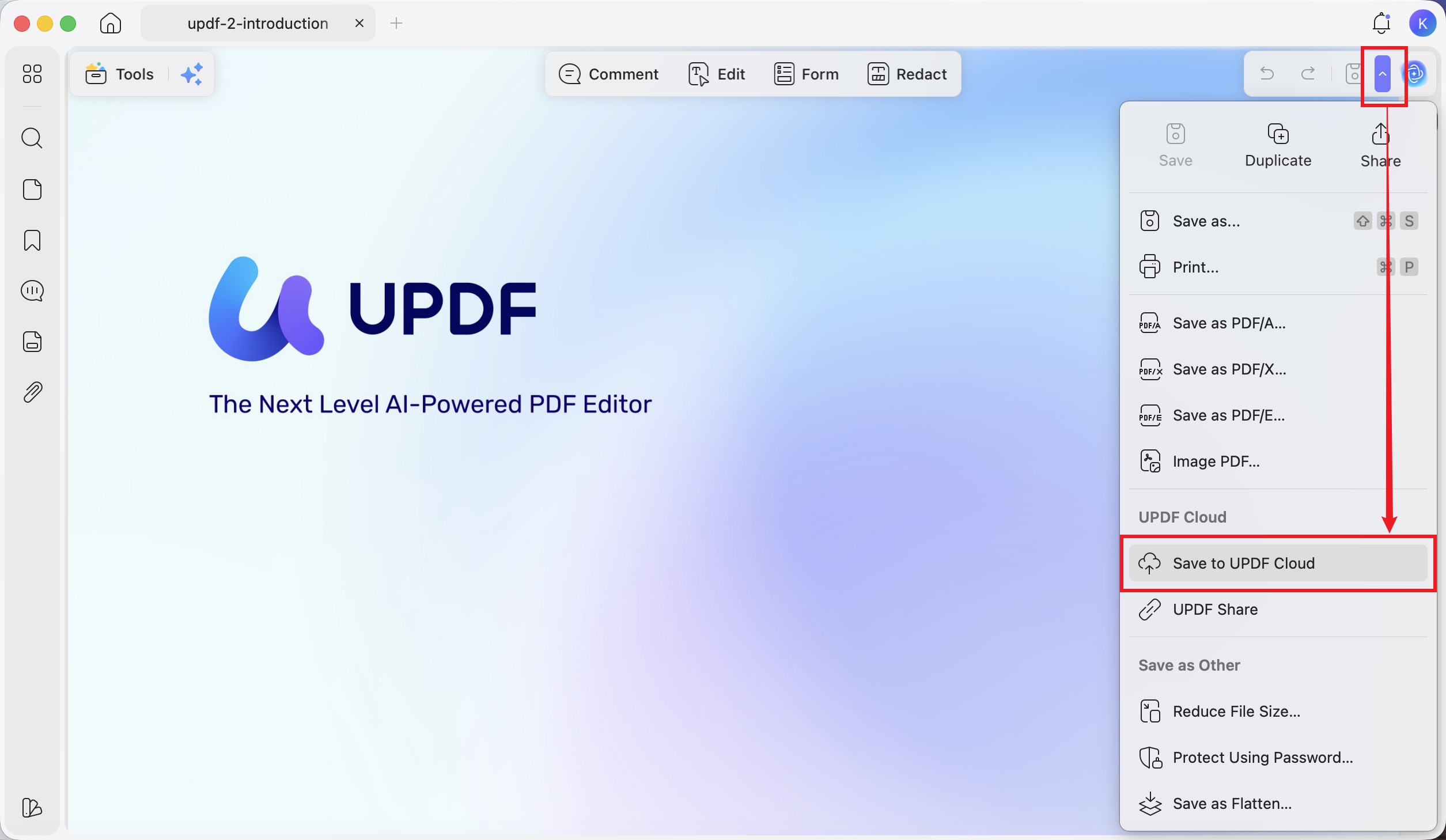
Downloading a separate local copy creates another working file. Do not assume later edits to that copy will automatically update the cloud document. Cloud access also does not mean every PDF editing feature is identical across desktop and mobile.
To continue your PDF work across devices, download UPDF and open your uploaded documents through UPDF Cloud.
Windows • macOS • iOS • Android 100% secure
Part 7. Sync Direction and Conflicting Changes
Before relying on a sync workflow, test it with a disposable file: create it on one device, wait for syncing, and confirm it appears at the destination. Repeat with an edit. Check deletion rules separately before using the workflow for important documents.
Avoid editing the same file on two devices at once unless the application explicitly supports collaborative editing. Dropbox can create conflicted copies when simultaneous or offline edits overlap. Compare both versions and merge the required changes manually before removing either copy.
For UPDF Cloud, finish and save your changes on one device, then confirm the updated cloud document on the next device before editing further. This is a precaution.
Part 8. FAQs About Syncing Files on Mac
1. Why are my Desktop and Documents folders empty after I turn off iCloud syncing?
Turning off Desktop & Documents Folders leaves existing files in iCloud Drive and creates new local folders. Open iCloud Drive to locate your files, then copy the items you want to retain locally.
2. Why won’t my Photos library sync through iCloud Drive?
Apple lists Photos, iMovie, and Aperture libraries as ineligible for uploading through Desktop and Documents syncing. Use the relevant app’s supported library workflow instead.
Conclusion
Choose the workflow that matches what you need to keep updated. Use iCloud Drive, Google Drive, or Dropbox for managed folders; Finder for supported device file transfers; and UPDF Cloud for PDFs you want to access and update across devices. Confirm the latest version at the destination before continuing your work.
Windows • macOS • iOS • Android 100% secure




 Enrica Taylor
 Enid Brown