 UPDF
UPDF
 UPDF for Windows
 UPDF for Mac
 UPDF for iPhone/iPad
 UPDF for Android
 Nomostar
 UPDF AI Online
 UPDF Sign
 IvyCraft
 Edit PDF
 Annotate PDF
 Create PDF
 PDF Form
 Edit links
 Convert PDF
 OCR
OCR PDF to Word
 PDF to Image
 PDF to Excel
 Organize PDF
 Merge PDF
 Split PDF
 Crop PDF
 Rotate PDF
 Protect PDF
 Sign PDF
 Redact PDF
 Sanitize PDF
 Remove Security
 Read PDF
 UPDF Cloud
 Compress PDF
 Print PDF
 Batch Process
 About UPDF AI
 UPDF AI Solutions
 AI User Guide
 FAQ about UPDF AI
 Summarize PDF
 Translate PDF
 Chat with PDF
 Chat with AI
 Chat with image
 PDF to Mind Map
 Explain PDF
 PDF AI Tools
 Image AI Tools
 AI Chat Tools
 AI Writing Tools
 AI Study Tools
 AI Working Tools
 Other AI Tools
 AI Bookmark Generation
 AI Bookmark Summary
 AI Watermark Generation
 AI Background Generation
 AI Sticker Generation
 AI Stamp Generation
 AI Editing Suite
 UPDF Copilot
 AI Page Management
 AI Semantic Search
 PDF to Word
 PDF to Excel
 PDF to PowerPoint
 Enterprise Solution
 Enterprise Sign
 Enterprise AI
 Enterprise Plan
 Enterprise User Guide
 Enterprise Webinar
 IT
IT Education
 Construction
 Financial Service
 Healthcare
 Insurance
 Legal
Legal Manufacturing
 Government
 Researchers & PhDs
 Solopreneurs & Freelancers
 Lawyers & Legal Professionals
 Real Estate Agents & Brokers
 Education Solution
 Customer Stories
 User Guide
 UPDF Tricks
 FAQs
FAQs UPDF Reviews
 Download Center
 Blog
Blog Newsroom
 Tech Spec
 Updates
 UPDF vs. Adobe Acrobat
 UPDF vs. Foxit
 UPDF vs. PDF Expert

A professional PDF color changer serves several practical needs. Some readers replace stark white backgrounds with sepia, mint green, or dark mode to reduce eye strain during long sessions. As frequently discussed in Reddit communities such as r/pdf, users adjust document colors to avoid wasting black or color ink. Others change only the screen background while keeping the original document unchanged, ensuring physical printouts remain clean and unaffected.
Color adjustments also help emphasize headings, paragraphs, annotations, or important contract clauses. However, each tool offers a different level of control. Basic options apply a blanket recolor across the document, while advanced editors target selected text, individual pages, or annotations. For precise color adjustments alongside broader editing features, a comprehensive PDF editor offers the most practical solution.
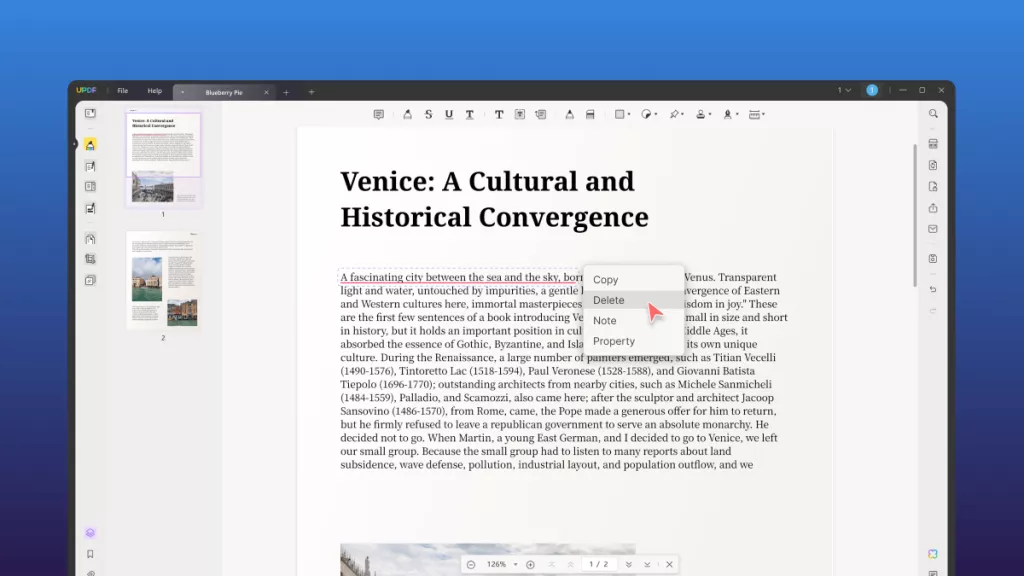
The appearance of the page matters as much as whether the file opens successfully. A helpful next reference is the following demonstration of editing PDF content in UPDF.
Color changes are usually part of a wider editing task. If you also need to update text, images, or page elements, follow this guide on how to edit a PDF before applying the final color settings.
Part 1. PDF Color Modification Matrix: Which Tool Fits Your Needs?
Every tool below takes a different approach to changing PDF colors, from precise, targeted edits to one-click global swaps. Use the table to match your situation to the right pick.
| Your Need | Target Audience | Precision | Best Solution |
| Edit specific text, paragraphs, page backgrounds, annotations, or reading colors | Professionals, students, designers | Extremely High | Jump to UPDF |
| Replace the background and text colors across the entire PDF instantly | Casual users needing quick fixes | Low | Jump to i2PDF |
| Adjust document colors through built-in accessibility preferences | Enterprise users, legal teams | Medium | Jump to Acrobat |
| Recolor a document when the black ink cartridge is empty | Home and office users | Medium | Jump to Super Tool |
Part 2. Deep-Dive Review: The 4 Best PDF Color Changer Tools
Four tools consistently come up for changing PDF colors, and each is built for a different level of control. Here's how they actually compare.
1. UPDF — The Ultimate All-in-One PDF Color Editor
Best for:
- Users who need precise edits and print-safe, eye-friendly reading modes.
During hands-on testing, UPDF worked as a complete PDF editor rather than a basic recoloring tool. You can change text color, adjust page backgrounds, recolor annotations, and manage other PDF elements from one interface. These controls make it suitable for professional, academic, and personal documents requiring selective edits.
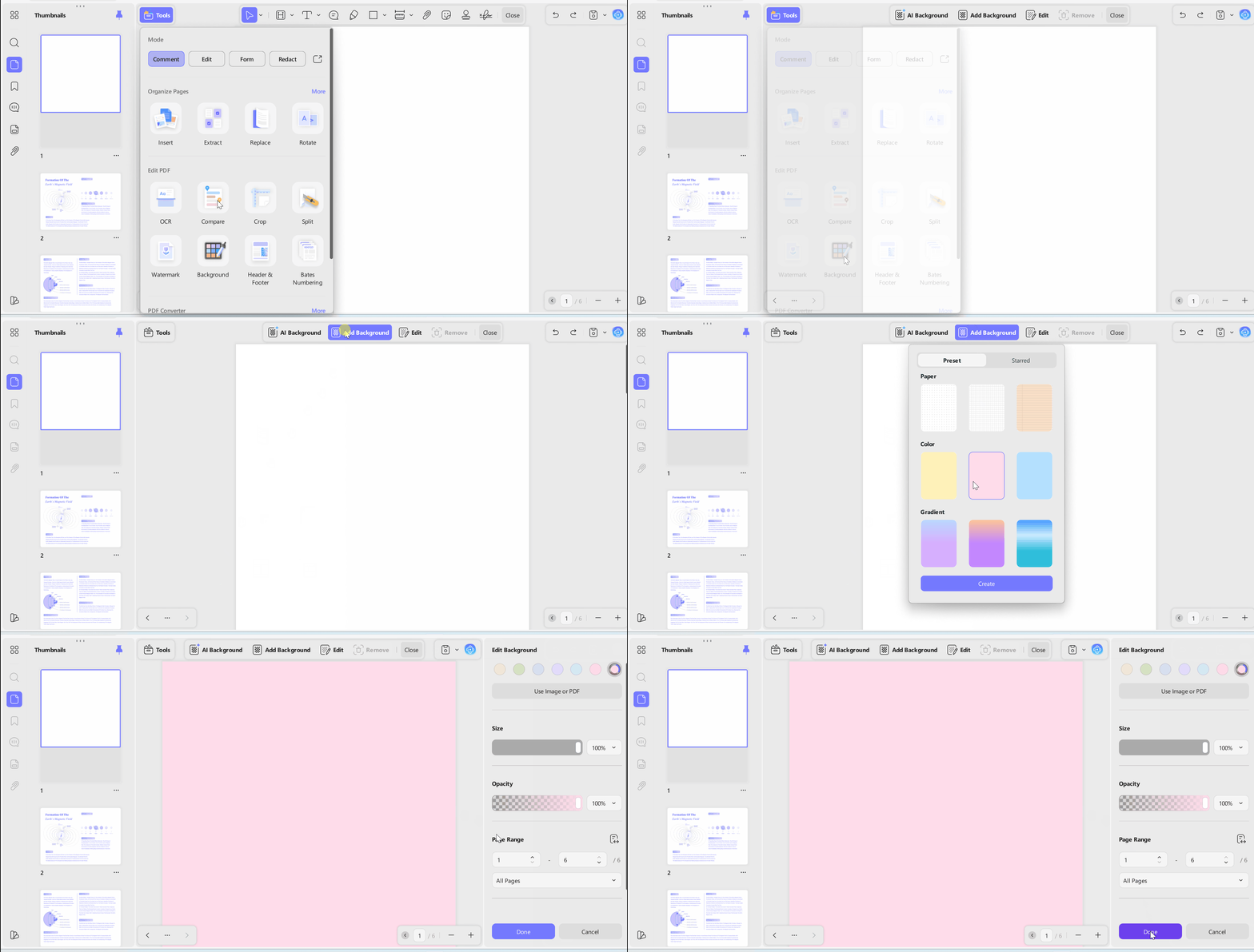
Its strongest advantage is precision. Instead of applying one color across the entire file, you can update individual words, paragraphs, annotations, or selected page backgrounds. A full custom color palette offers more flexibility than limited preset swatches. The original layout remains intact because UPDF changes only the elements you select rather than rebuilding every page.
Windows • macOS • iOS • Android 100% secure
Key Features
- Change Text Color: Select existing text blocks and change text color without rebuilding the document layout. Edit headings, paragraphs, or labels directly while preserving surrounding formatting and alignment.
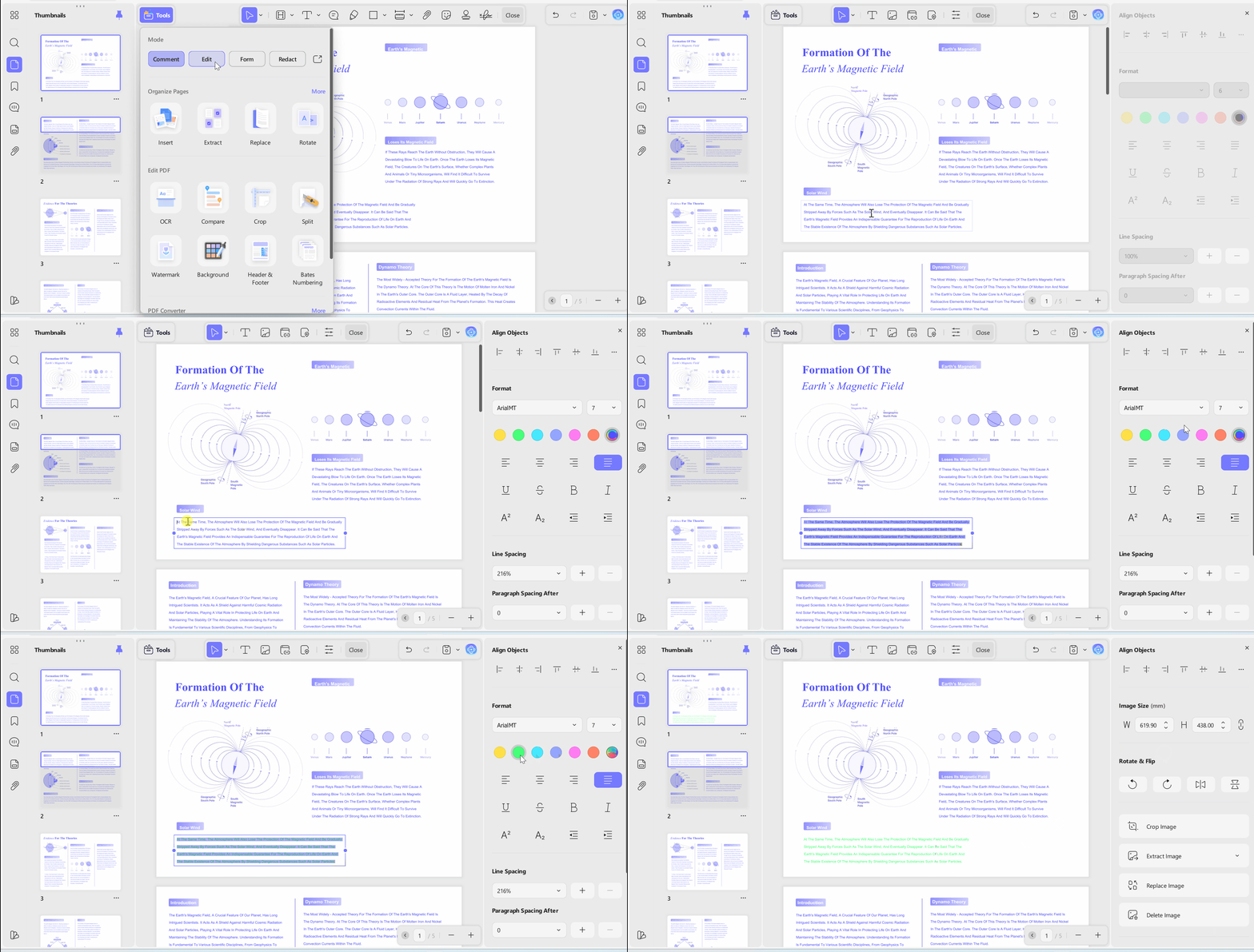
- Annotation & Object Recoloring: Update highlights, underlines, shapes, callout boxes, and handwritten signatures with matching colors. Keep visual feedback organized by assigning different colors to comments throughout your document.
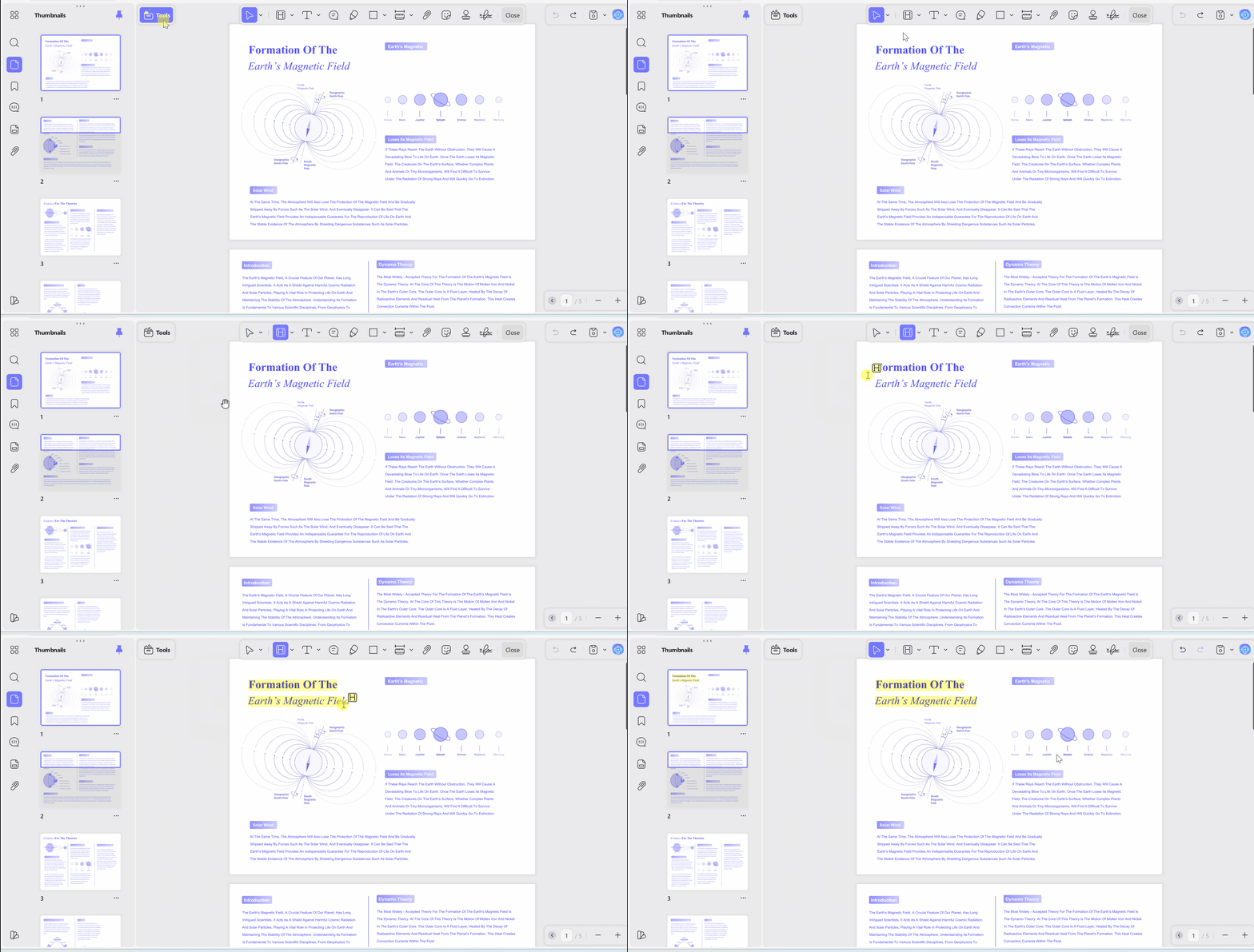
- Text & Background Precision: Change text color across whole documents or only selected words, paragraphs, or pages. Choose any shade from the custom color palette, giving your edits far greater flexibility.
- Print-Safe Reading Mode: Switch to a softer reading background that reduces eye strain during lengthy review sessions. Your PDF stays unchanged, so printed pages keep their original white background every time.
- Page Range Color Editing: Apply background or text color changes only to the pages you actually choose. Leave remaining pages untouched, making partial updates much easier for lengthy PDF documents.
- Custom Color Templates: Save your preferred color combinations instead of creating them for every new project. Reuse saved palettes across future PDFs to maintain consistent branding and document styling.
- Real-Time Preview: Preview every color adjustment immediately before confirming changes to your PDF. Fine-tune shades confidently because each modification appears instantly as you work.
- Batch Processing & Clean Interface: Process multiple pages from a straightforward workspace without navigating complicated menus. Finish large color-editing tasks faster while maintaining consistent results throughout your document.
For background replacements, the change PDF background color guide explains each step in greater detail. When you need a complete black-to-white conversion instead, Invert PDF colors provides the relevant method. UPDF also offers a Black and White print setting that removes color only during printing, leaving the original PDF unchanged. This option helps reduce color ink use when printing in black and white.
2. i2PDF — Best Lightweight Online Global Color Replacer
Best for:
- One-click global color replacement on non-sensitive files without installing software.
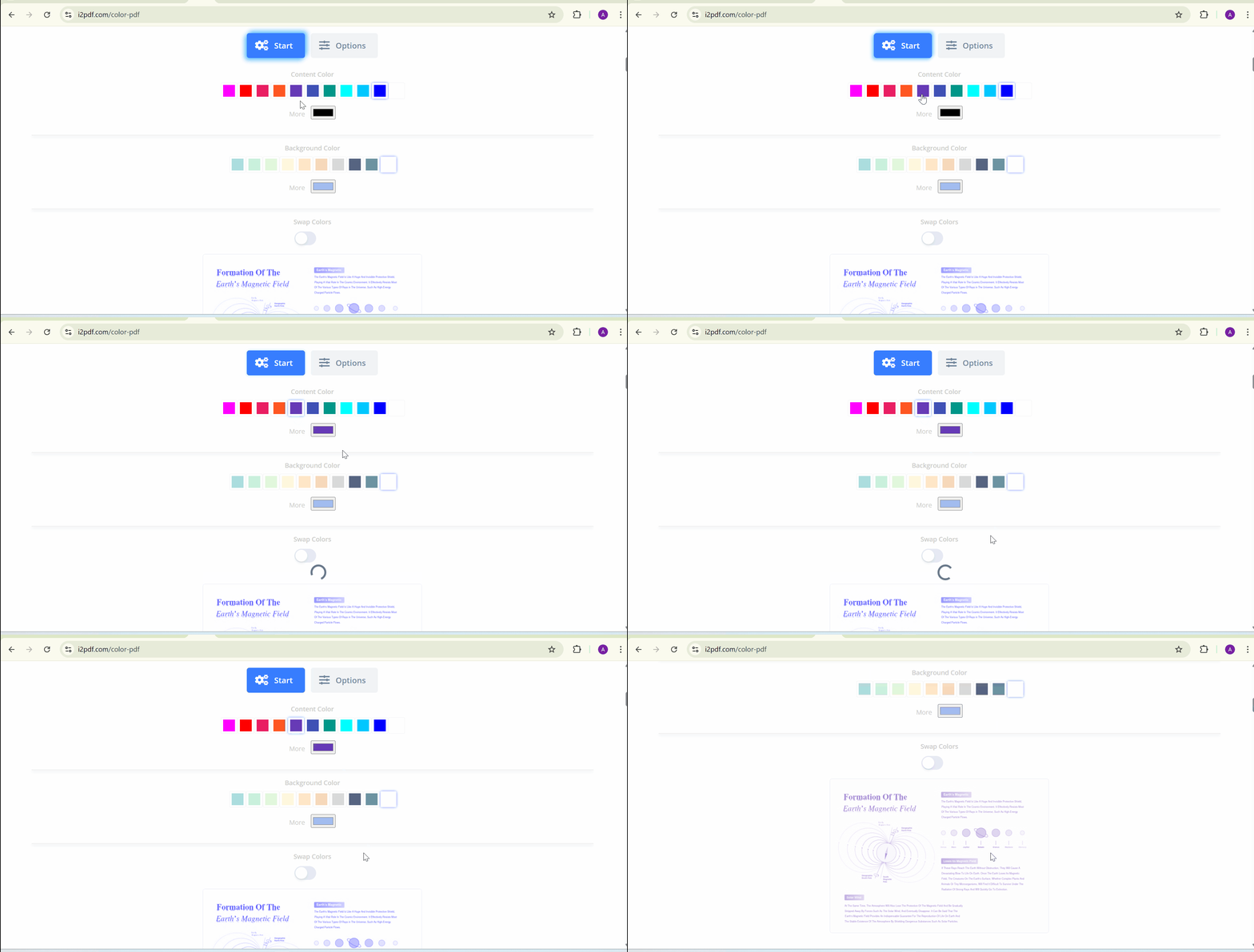
Our test showed that i2PDF works well as a lightweight PDF color changer for quick browser-based recoloring. It updates page backgrounds, text, and embedded graphics across the entire document in one pass, making it suitable for simple, non-sensitive files.
The main drawback is its all-or-nothing approach. You cannot recolor one word, annotation, or specific page independently. Color choices are limited to a few preset swatches, with no custom hex picker available. Since documents upload to cloud servers, confidential business files may face privacy and security concerns.
3. Adobe Acrobat Pro — Traditional Enterprise Color Options
Best for:
- Users with active Creative Cloud subscriptions who prefer modifying display colors through accessibility settings.
Testing shows that Acrobat places its color controls under Preferences > Accessibility > Replace Document Colors. This display-focused PDF color changer mainly helps low-vision users apply high-contrast presets or select custom text and background colors for easier reading.
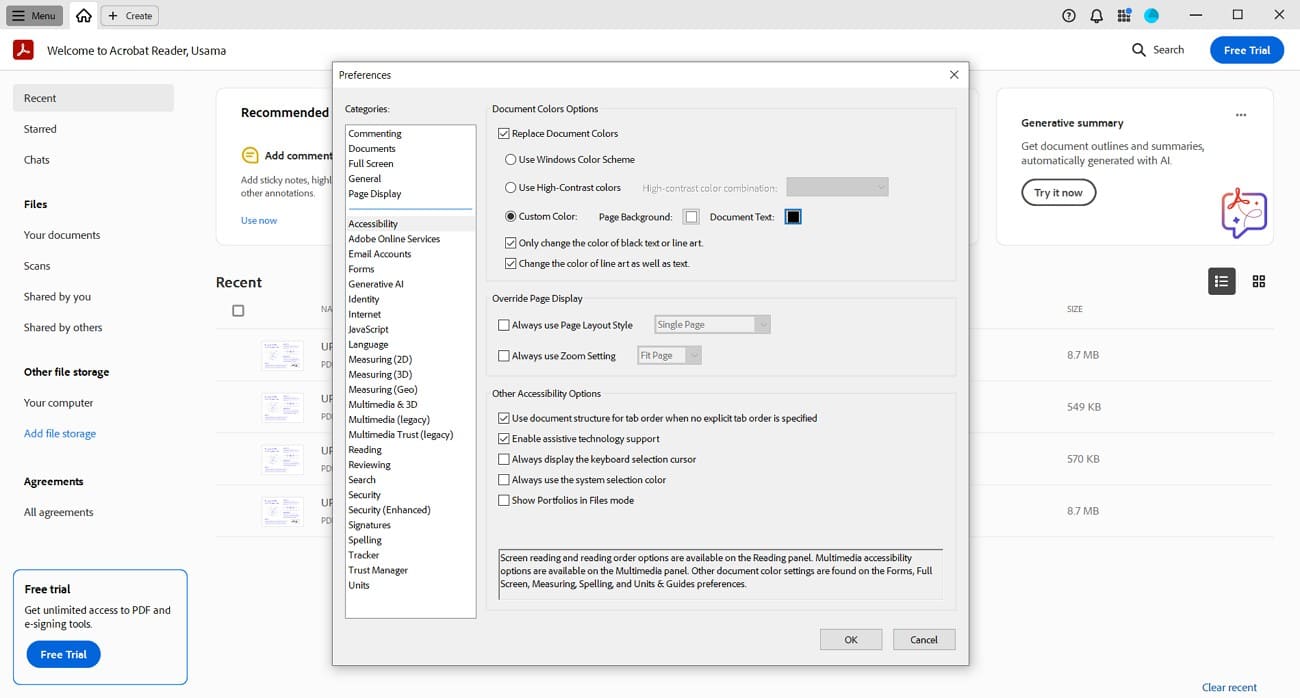
These changes only appear inside Acrobat on your device. The PDF returns to its original colors when shared, printed, or opened elsewhere because the file itself remains unchanged. Scanned and image-based PDFs may also respond inconsistently. With subscriptions costing around $20 to $30 per month, Acrobat suits existing users better than it does anyone seeking a dedicated color-changing tool.
4. Super Tool — Best for Printing Without Black Ink
Best for:
- Users without black ink who need immediate printing and no editing.
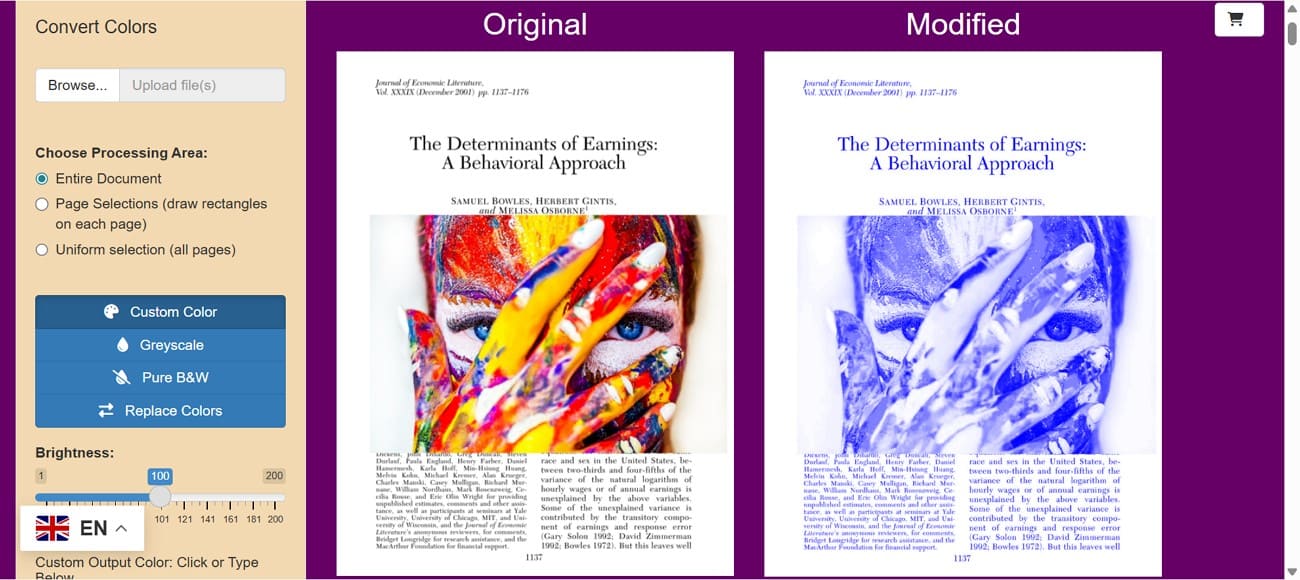
Hands-on testing shows that Super Tool focuses on one task: printing without black ink. After you upload a PDF, it replaces black text, images, and other dark elements with dark blue or composite shade, allowing your printer to use color ink instead.
Its limitations are equally clear. You cannot recolor one section, edit text, or save preferences for future documents. Super Tool works well for a one-time printing emergency, but its narrow feature set makes it unsuitable for broader PDF color changing.
Frequently Asked Questions
Can I change the reading background color of a PDF without affecting how it prints?
Yes. Using a desktop reader like UPDF, you can adjust the display or reading background to sepia, dark mode, or mint green in the app's preferences. This setting only changes how the PDF appears on your screen; the file's underlying properties stay untouched, so your paper printouts remain standard white.
How do I change text color in a PDF without altering the background?
Open your PDF in UPDF, enter Edit PDF mode, select the text you want to change, and pick a shade from the floating color palette. The page background stays completely untouched.
What should I do if my printer is out of black ink and I need to print a PDF?
You have two options. Use an online tool like Super Tool to convert black text to dark blue. Or open the PDF in UPDF and manually set the text color to dark blue or brown. Either way, this forces the printer to complete the job using color ink cartridges instead of black.
Conclusion
To conclude, choosing the right PDF color changer comes down to how much precision you actually need. Web utilities like i2PDF or Super Tool are handy for quick global swaps or print emergencies, but they can't target specific words or pages. For real precision, page-range backgrounds, print-safe reading modes, or editing individual text blocks, UPDF is the more complete solution.
Windows • macOS • iOS • Android 100% secure





 Enola Davis
 Engelbert White
 Enrica Taylor
 Lizzy Lozano