 UPDF
UPDF
 UPDF for Windows
 UPDF for Mac
 UPDF for iPhone/iPad
 UPDF for Android
 Nomostar
 UPDF AI Online
 UPDF Sign
 IvyCraft
 Edit PDF
 Annotate PDF
 Create PDF
 PDF Form
 Edit links
 Convert PDF
 OCR
OCR PDF to Word
 PDF to Image
 PDF to Excel
 Organize PDF
 Merge PDF
 Split PDF
 Crop PDF
 Rotate PDF
 Protect PDF
 Sign PDF
 Redact PDF
 Sanitize PDF
 Remove Security
 Read PDF
 UPDF Cloud
 Compress PDF
 Print PDF
 Batch Process
 About UPDF AI
 UPDF AI Solutions
 AI User Guide
 FAQ about UPDF AI
 Summarize PDF
 Translate PDF
 Chat with PDF
 Chat with AI
 Chat with image
 PDF to Mind Map
 Explain PDF
 PDF AI Tools
 Image AI Tools
 AI Chat Tools
 AI Writing Tools
 AI Study Tools
 AI Working Tools
 Other AI Tools
 AI Bookmark Generation
 AI Bookmark Summary
 AI Watermark Generation
 AI Background Generation
 AI Sticker Generation
 AI Stamp Generation
 AI Editing Suite
 UPDF Copilot
 AI Page Management
 AI Semantic Search
 PDF to Word
 PDF to Excel
 PDF to PowerPoint
 Enterprise Solution
 Enterprise Sign
 Enterprise AI
 Enterprise Plan
 Enterprise User Guide
 Enterprise Webinar
 IT
IT Education
 Construction
 Financial Service
 Healthcare
 Insurance
 Legal
Legal Manufacturing
 Government
 Researchers & PhDs
 Solopreneurs & Freelancers
 Lawyers & Legal Professionals
 Real Estate Agents & Brokers
 Education Solution
 Customer Stories
 User Guide
 UPDF Tricks
 FAQs
FAQs UPDF Reviews
 Download Center
 Blog
Blog Newsroom
 Tech Spec
 Updates
 UPDF vs. Adobe Acrobat
 UPDF vs. Foxit
 UPDF vs. PDF Expert

This "conversion-to-corruption" disaster happens constantly in fast-paced professional environments. From an engineering perspective, a PDF works like a fixed canvas—a rigid presentation layout system based on fixed coordinate paths. In contrast, editing environments like Microsoft Word or Excel utilize flowable and flexible layout architectures where text and cells shift whenever adjustments occur.
Standard or free online conversion engines lack the capability to decode the underlying layout metadata. They blindly scrape raw string characters, causing entire paragraph alignments, rows, and columns to collapse together. True professional-grade data extraction relies on an advanced layout intelligence engine that accurately translates fixed graphics vectors into native, responsive file elements. By deploying a dedicated layout matching processor like UPDF, teams can seamlessly move documents between formats while locking text, tables, and typography safely in place.
Windows • macOS • iOS • Android 100% secure
1. PDF Conversion Quick-Routing Matrix
When you move PDFs into other formats, layouts often break and waste precious working time. Look at the table below to quickly find the best option for your needs:
| Target Output Format | Recommended Action Path in UPDF | Core Document Asset Preserved |
| Word Document | Export PDF → Word | Paragraph layout |
| Excel Spreadsheet | Export PDF → Excel | Table grid |
| PowerPoint Slides | Export PDF → PowerPoint | Slide structure |
| PNG/JPEG/TIFF/GIF Images | Export PDF → Image | Visual quality |
| HTML Web Page | Export PDF → HTML | Page structure |
| XML Data Structure | Export PDF → XML | Tagged hierarchy |
| RTF Rich Text File | Export PDF → RTF | Basic text styling |
| Scanned Paperwork | OCR → Export to desired format | Searchable, editable text |
If you prefer a quick visual walkthrough of these choices, watch the video below. The video shows real documents being converted, so you understand which option protects your layout best.
2. How to Convert PDF to Microsoft Office Formats (Word/Excel/PPT)
In daily business routines, we often need to return a complex balance sheet layout inside financial_statement.pdf back to an Excel sheet for formula execution, or recover a customer proposal into an interactive PPT slide deck for a team presentation. To prevent broken borders or layout shifting, you must execute a standardized export workflow that locks the document's original paragraph properties.
Step-by-Step Workflow:
- Launch UPDF and open your document workspace. If you have dozens of corporate agreements or invoices to process simultaneously, simply select Tools > Convert under the Batch PDFs to run parallel processing (all following file types support this time-saving batch execution).
Windows • macOS • iOS • Android 100% secure
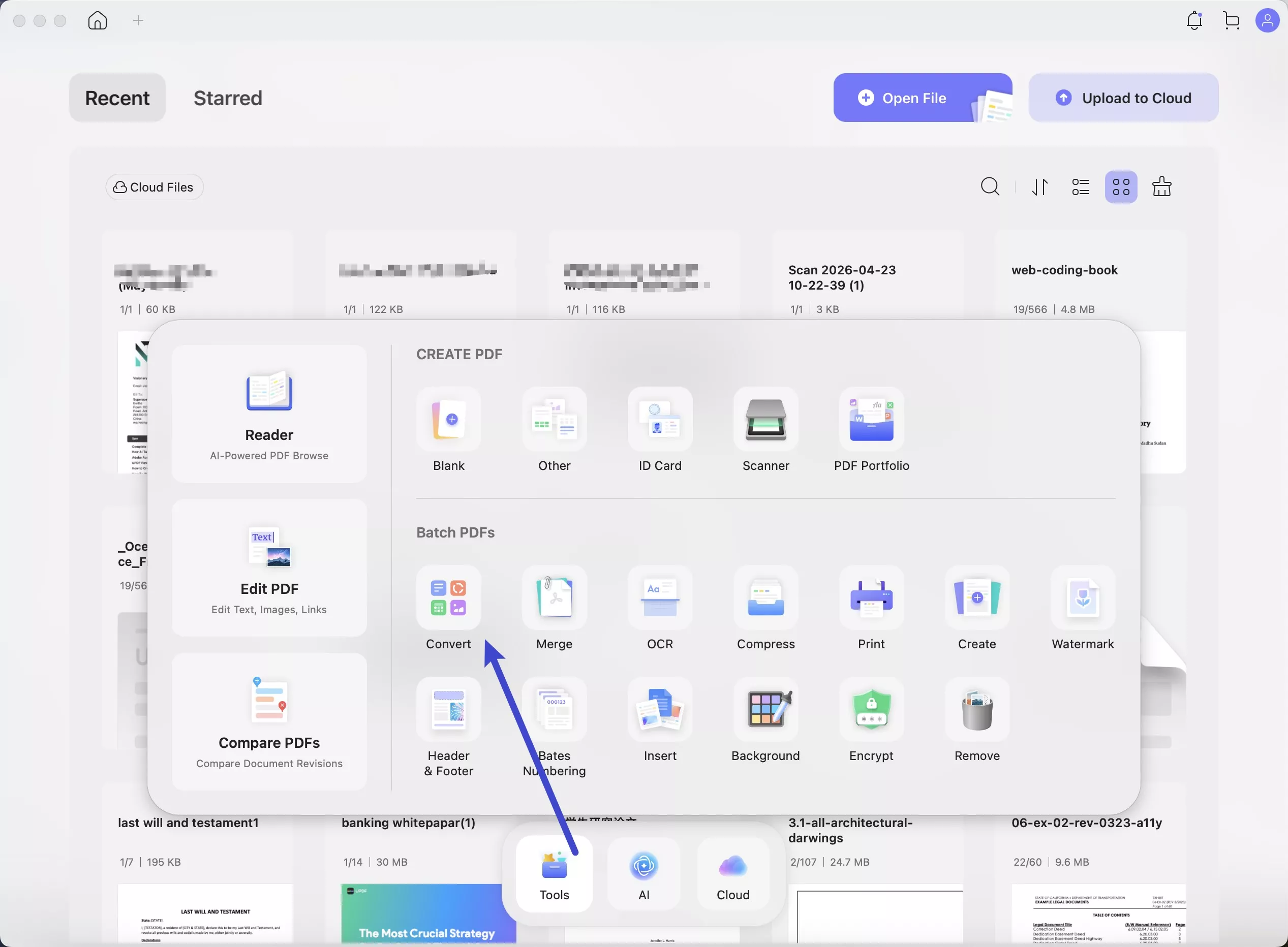
Otherwise, easily drag and drop your target file into the editing viewer.
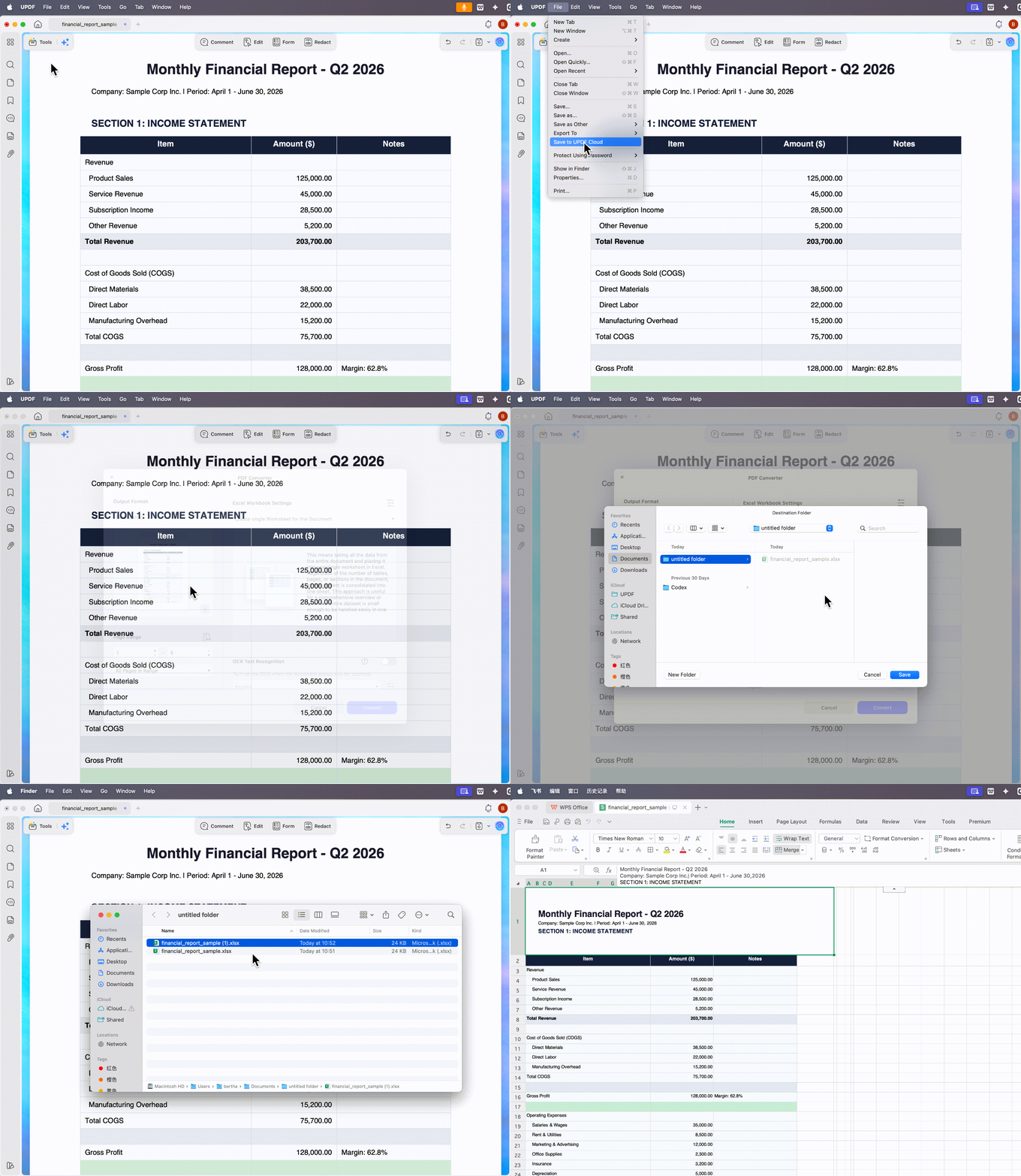
2. Navigate to the right-hand panel utility bar and click the Export PDF icon to reveal the formatting extension dropdown panel.
3. Select the specific operational output based on your immediate task requirements:
- To adjust legal terms or prose clauses, click convert PDF to Word to compile a standard .docx file.
- To unpack structured data matrices, click convert PDF to XLS to generate a .xlsx spreadsheet. If you are handling static paper bills, you can simultaneously toggle the OCR switch inside the configuration pop-up; this will prove highly beneficial, as it transforms flat background pixels into executable cells, making it perfect for migrating a complex pdf bank statement to excel workflow without breaking layout columns.
- To restore a slideshow presentation layer, click convert PDF to PPT to build interactive .pptx slides.
4. Verify your layout retention parameters and click the Export button.
3. How to Convert PDF on iPhone/iPad or Android Mobile Devices
When working remotely, traveling, or attending live conferences, team members often receive urgent digital documentation over email or messaging applications. You do not need to wait until you return to a desktop workstation; you can instantly extract data extensions right from a phone or tablet viewport.
Step-by-Step Workflow:
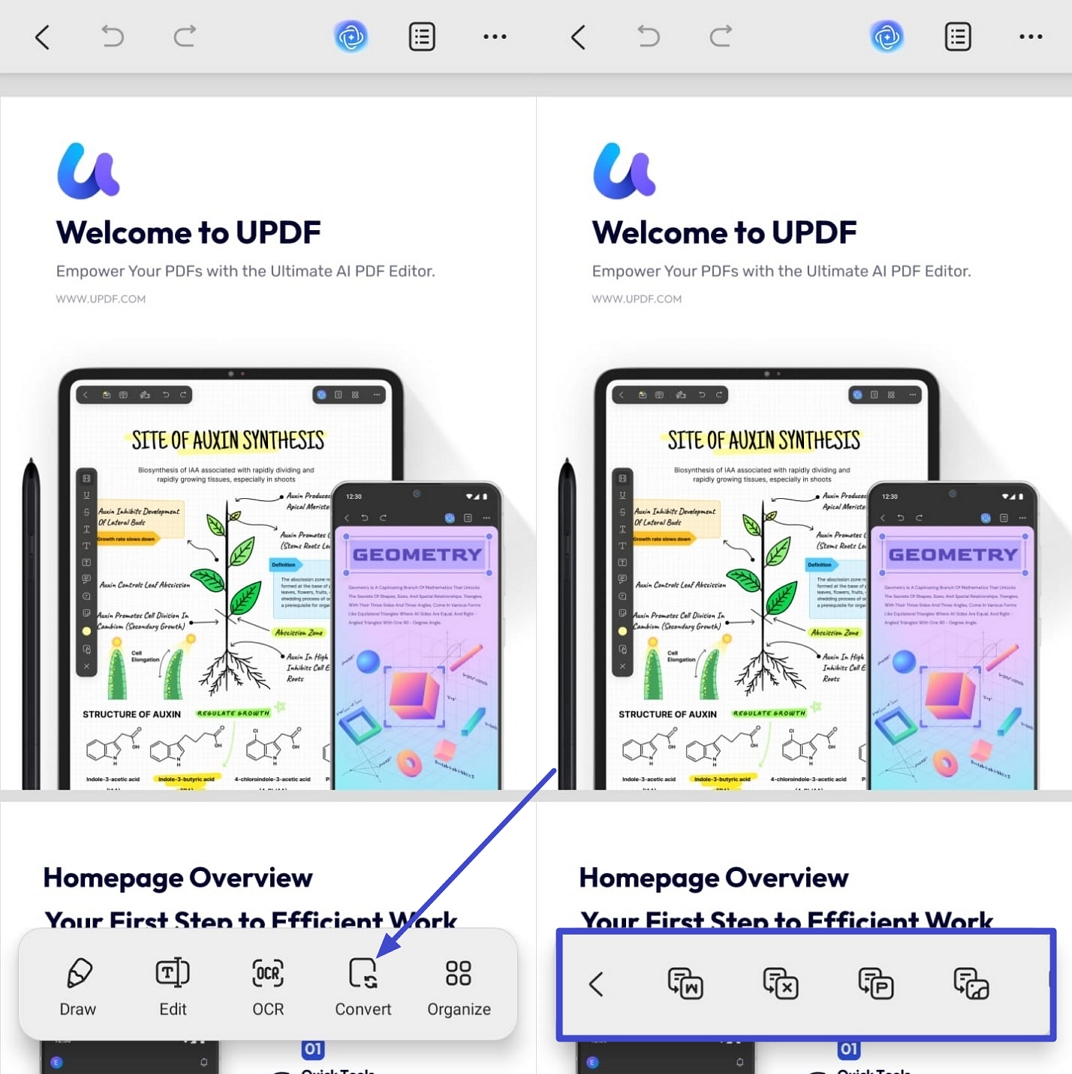
- To convert PDF on Android, open a PDF on UPDF Android, press the "Convert" option and choose the format you want to convert to.
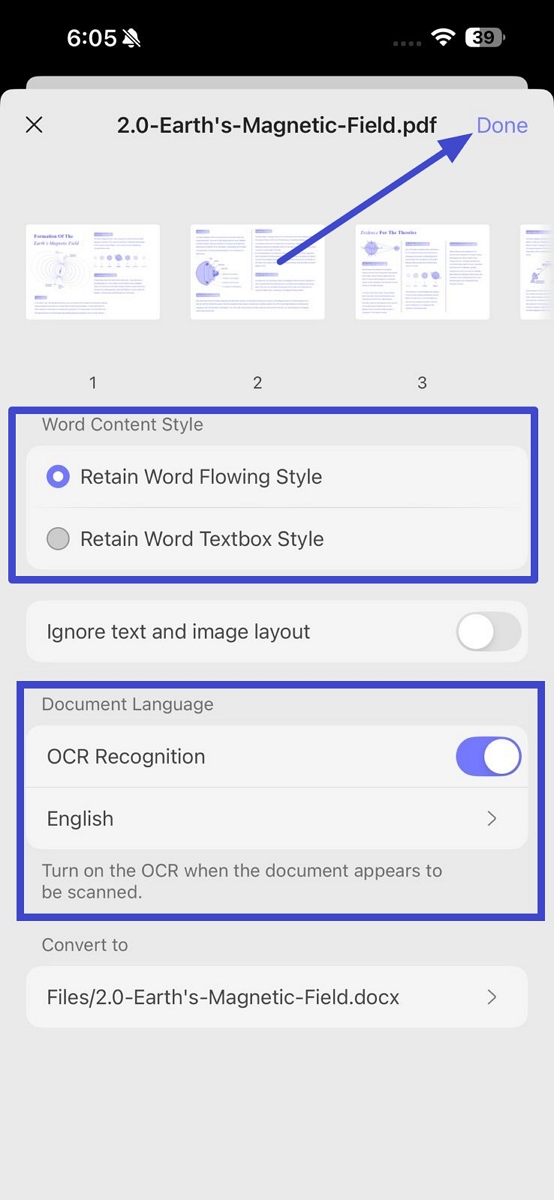
2. On iPhone, UPDF iOS converts the PDFs in the same way. After the format is selected, turn on the OCR option and choose a "Word Content Style" option. Once done, press the "Done" option. Moreover, this third-party tool creates sharp PNG images and stores them on your device or in iCloud.
4. How to Convert PDF to High-Resolution Images (PNG/JPEG/TIFF/GIF)
Design agencies and marketing managers frequently require turning specific multi-page catalogs or flyer assets into distinct image extensions for immediate social media publication or inline web deployment. Because separate web channels demand distinct image compliance profiles, the underlying extraction engine must dynamically match your specific rendering intent.
Step-by-Step Workflow:
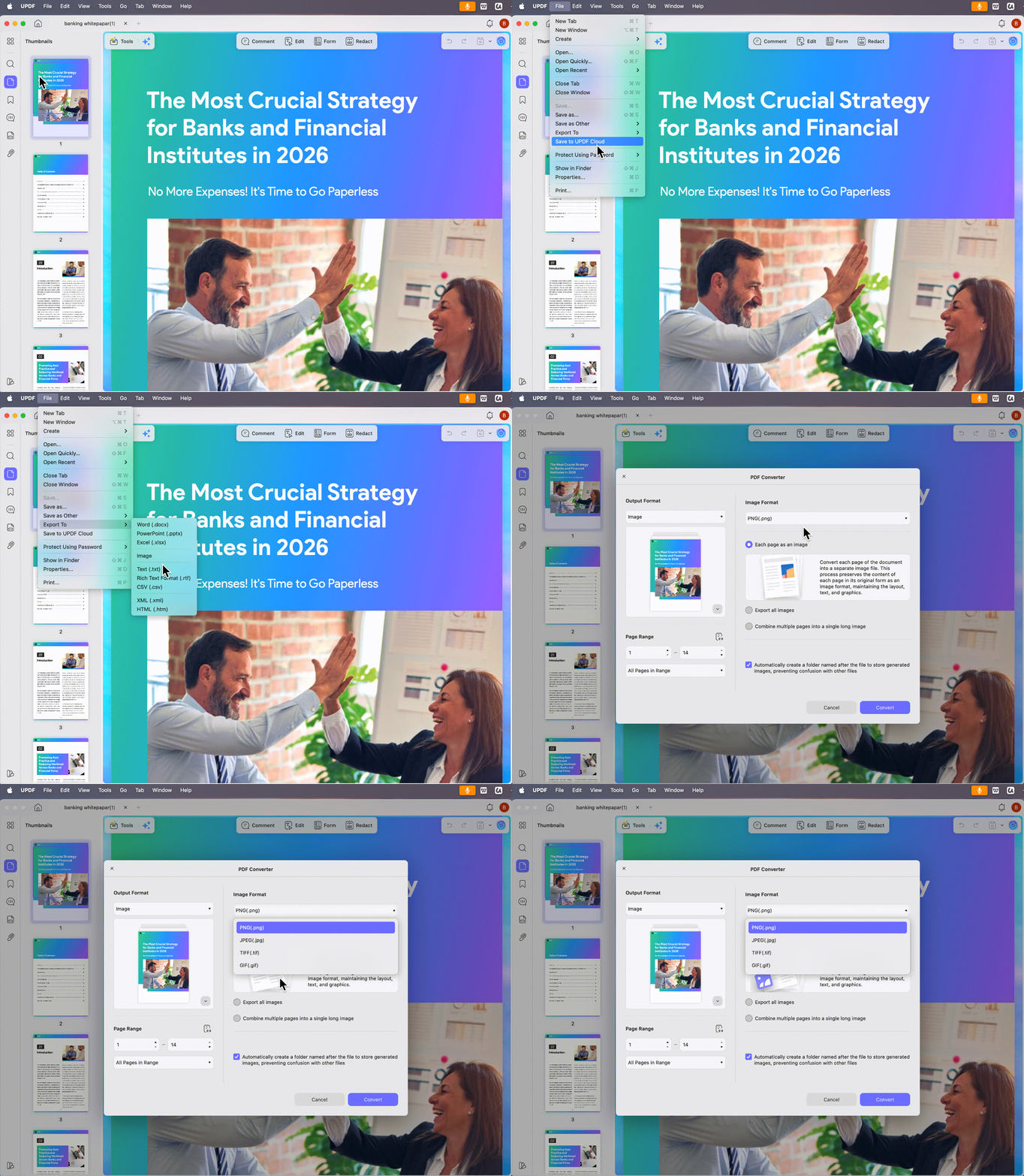
- Upon accessing the PDF convert in UPDF Desktop, choose the "Image" option as output format and select the "PNG" image format. Next, press the "Apply" option to convert a PDF to PNG.
- To convert the PDF to BMP or another image format, simply choose that format, and the tool will convert the PDF. Make sure to select the page range of the PDF to convert.
5. How to Convert PDF to Web and Structurally Coded Layouts (HTML/XML/RTF)
For software developers and database analysts, migrating static document elements directly into standard corporate website headers or extracting clean structural data trees to feed server-side databases is an essential automation requirement.
Step-by-Step Workflow:
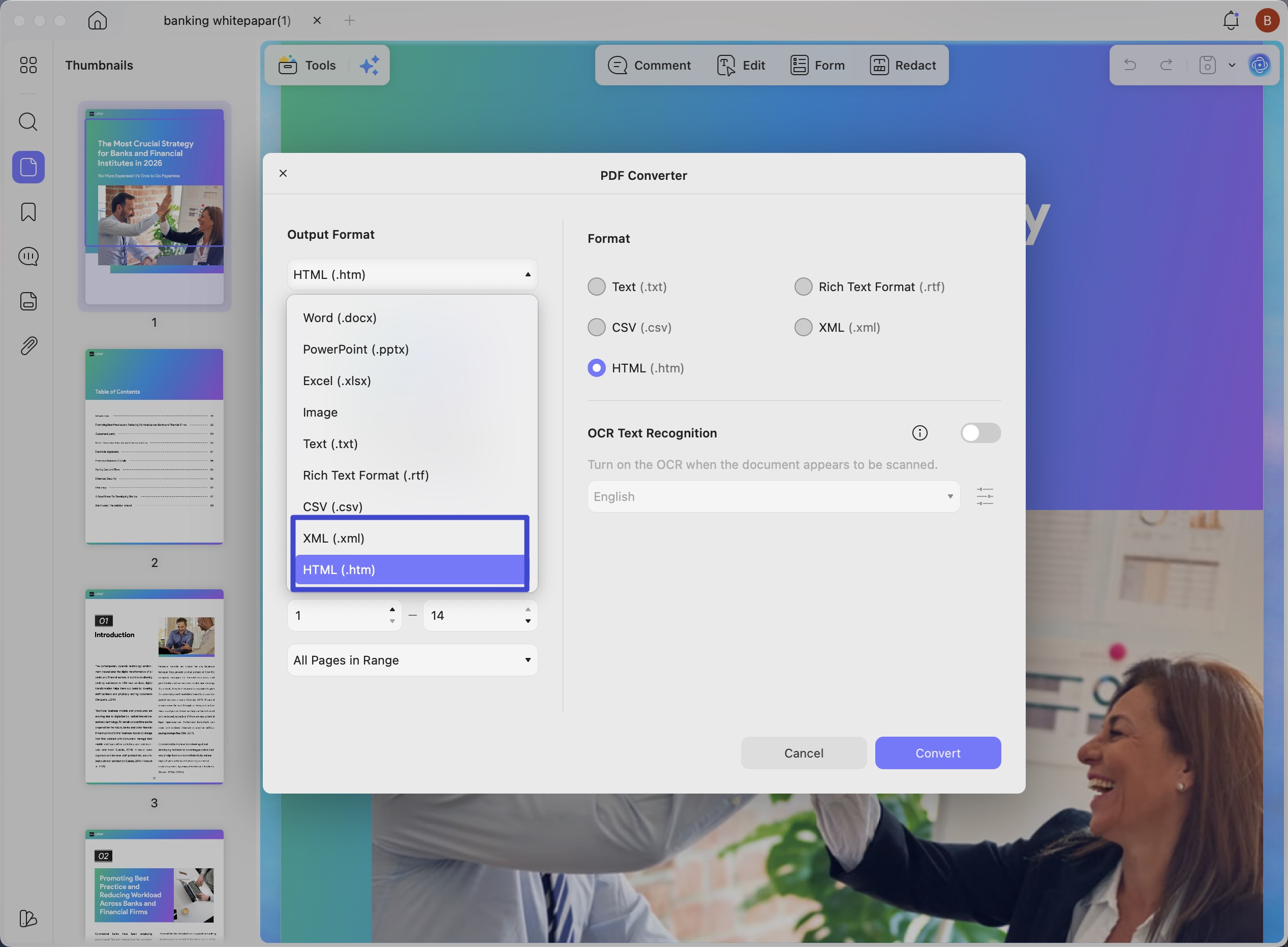
- In the Convert feature, choose the "HTML" option in the output format section. Select the page range and click the "Apply" button to begin converting the PDF to HTML.
- Afterward, select the "XML" option in the same interface to convert the PDF to XML. To turn a PDF into RTF format, select the "Rich Text Format (.rtf)" option under the Formats.
6. How to Convert Scanned PDF Documents via OCR
When you interact with physical documentation that has been compiled from flat flatbed scanners or smartphone photography (invoice_scanned.pdf), you will notice that the individual characters behave like unselectable background pixels. Running a standard export against such files will simply yield blank pages or unreadable graphic documents.
Step-by-Step Workflow:
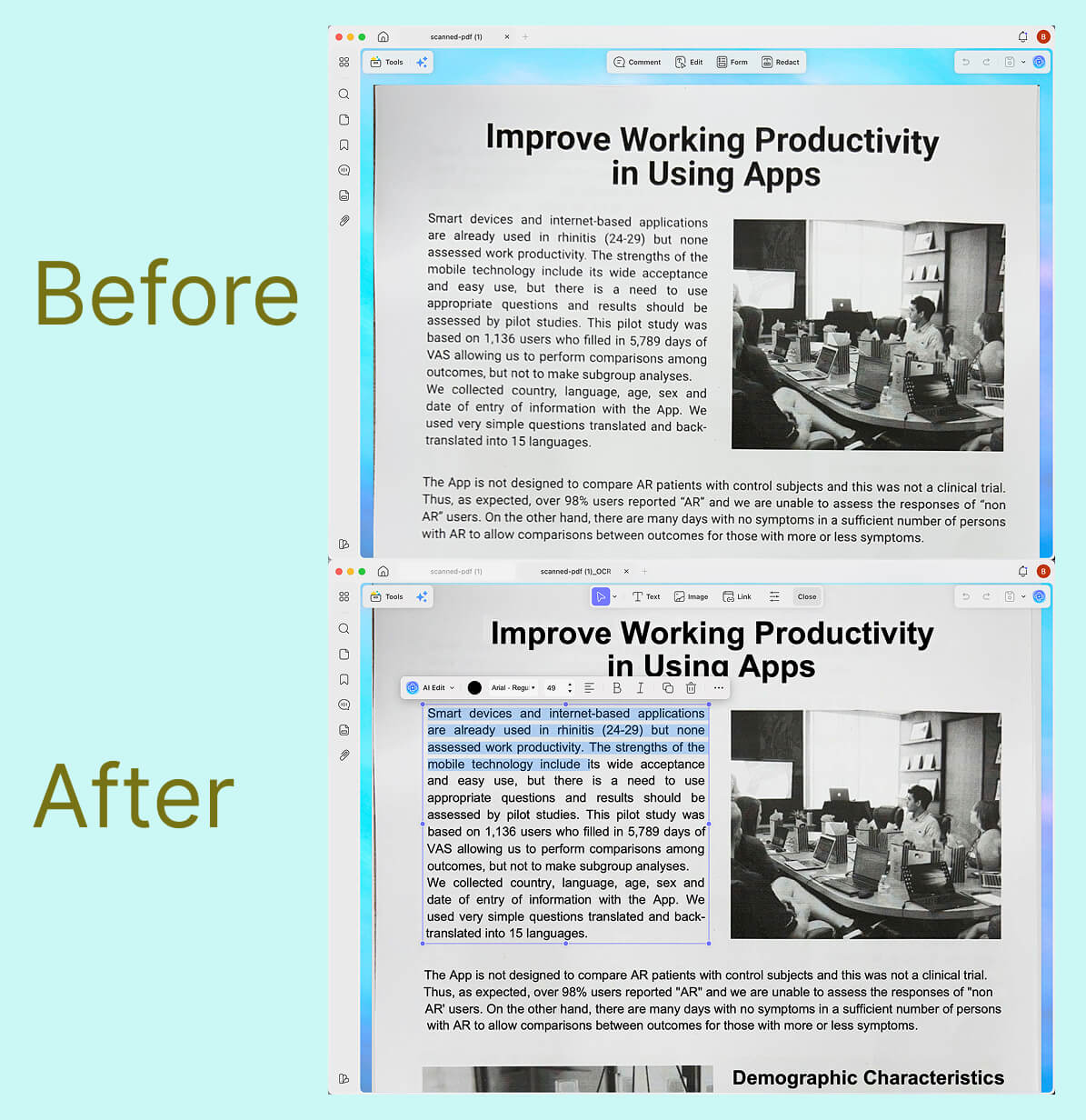
- On the main interface, click the "Tools" option and press the "OCR" option.
- Next, choose the "Editable OCR" type and select up to 38 languages used in the document for recognition. Afterward, select the scanned page range and click the "Convert" button to start OCR. After conversion, UPDF allows you to edit the scanned PDF.
[Batch Convert & OCR PDFs Natively with UPDF Now]
Windows • macOS • iOS • Android 100% secure
7. Reverse Workflows: How to Convert Other Formats Into PDF
A large portion of the digital workspace searching for "convert pdf" actually intends to run the inverse process—combining individual text sheets, spreadsheets, or images into a unified, secure PDF package. For instance, teams frequently convert raw txt to pdf configurations to lock formatting configurations against modifications, or search how to save google doc as pdf configurations for immediate client distribution.
To keep this technical resource strictly centered on outgoing conversion methodologies, we have compiled these reverse creation steps in our dedicated master deployment guide: How to Create a PDF.
8. Cloud Integration and Long-Term Archiving Channels (Google & PDF/A)
Some cloud-first teams must move local PDF files into shared online spaces for collaboration. They often send reports from PDF to Google Docs so teammates can edit together. Finance or operations groups also push spreadsheets through PDF to Google Sheets pipelines for live tracking.
Moreover, many departments still convert PDF to Word when they need detailed editing before cloud sharing. Legal teams and records managers must store important files safely for many years without layout changes. They use PDF to PDF-A options in UPDF's advanced export panel for long-term archiving.
9. Hidden Functional Barriers of Free Online Web Converters
Many users rely on quick browser tools, like iLovePDF to Word, for fast fixes. These services work for tiny jobs, but large files over 50MB often time out. Every upload sends sensitive business files to unknown servers, which creates serious data leak risks.
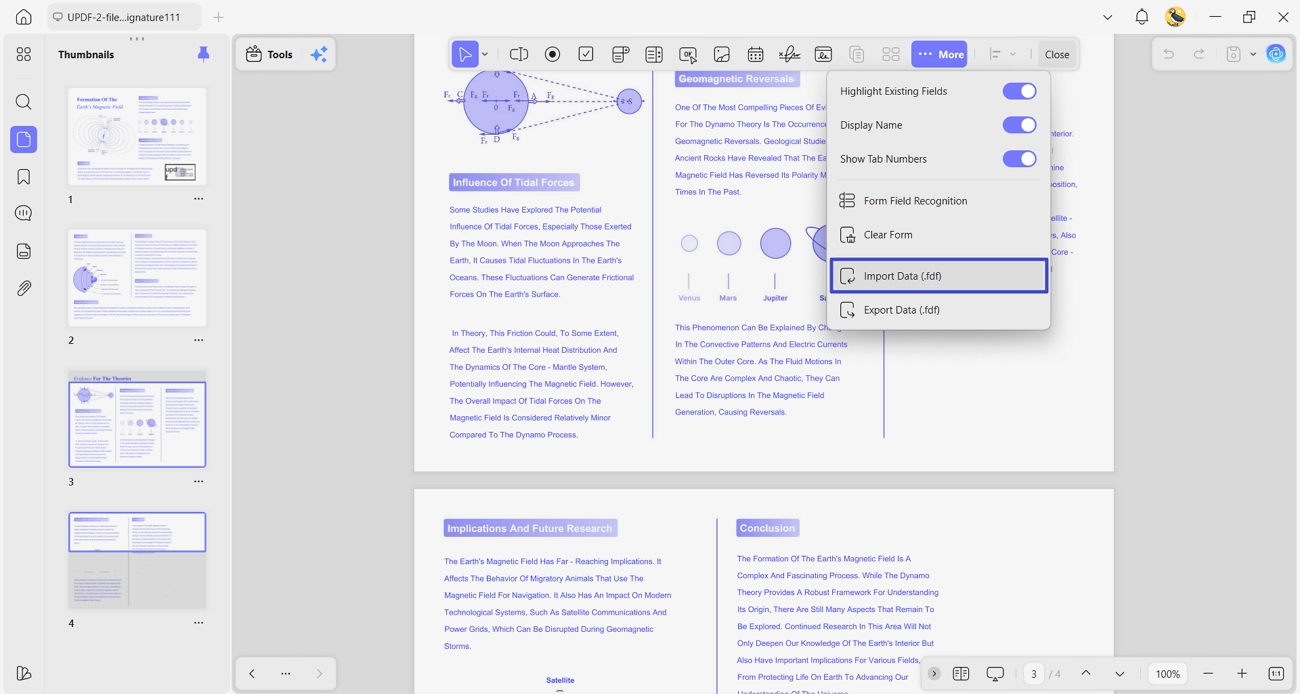
Most web converters cannot handle special formats, such as PDF to DjVu, reliably at all. Structured database forms, including FDF-to-PDF workflows, may break completely and lose information.
10. PDF Conversion Framework Matrix (Capabilities & Privacy Boundaries)
Advanced users often compare local tools like UPDF with free web converters and simple system viewers. They focus on layout accuracy, OCR languages, batch jobs, big files, and strict privacy rules. The table below shows how each option handles these factors when you convert to PDF or others:
| Capability | UPDF (Local Desktop) | Free Online Converters | System Readers/Browsers |
| Layout Match Accuracy | ✓ High | ✗ Often unstable | ✗ Basic export only |
| Multi-language AI OCR | ✓ 38 languages | ✗ Limited or none | ✗ Not available |
| Multi-file Batch Concurrency | ✓ Process 100+ files simultaneously | ✗ A single file | ✗ Not supported |
| Large-file Handling | ✓ 100MB+ local | ✗ 50MB upload timeouts | ✗ Struggle with size |
| GDPR-grade Data Privacy | ✓ Offline sandbox | ✗ Server-side storage | ✓ Depends on platform |
11. Connected Document Feature Hub
After converting files, many workflows continue with editing, page organization, or AI-powered document understanding. Look at the table below to quickly jump into the next matching UPDF feature:
| Linked Feature Module | Real-World Production Use Case | Destination Feature Area |
| Adjusting text directly in PDFs | Found a clerical error before exporting? Edit original text strings inside the PDF layer without needing an external Word tool. | PDF Direct Text Adjustment |
| Reordering and structuring pages | Clean up layout issues by stripping unneeded pages, rotating landscape elements, or splitting chapters before export. | Document Page Architecture |
| Reading PDF data with AI insights | Instantly analyze, summarize, or translate multi-page translated text outputs immediately post-conversion. | AI Data Interpretation |
FAQ: Formatting and Data Security Solutions
Which is the safest free PDF converter?
The safest option is a trusted desktop converter that processes everything offline on your own device. As no files go to external servers, confidential business documents stay private and cannot leak online.
Can a PDF file contain a virus or malware?
Yes, attackers can hide malicious code, scripts, or links inside PDF files and interactive elements. Using verified offline software like UPDF lowers the malware infection risk.
Can I convert a PDF for free without losing formatting?
Basic free tools usually work for simple text, but struggle with complex layouts, fonts, and tables. For accurate formatting, use UPDF to preserve layout structure during export.
Are free online PDF converters safe to use for work documents?
For sensitive work files, online converters are risky because uploads may expose confidential information to third parties. Offline desktop processing is safer for corporate data and helps meet strict GDPR compliance metrics.
Conclusion: Streamline Your File Interoperability Workflows
To conclude, modern teams should not accept broken layouts, scattered tables, or long nights fixing damaged documents. With a strong typographic matching engine, you convert PDF files and keep the structure stable everywhere. Using offline tools like UPDF keeps conversions accurate, documents secure, and daily work smoother.
Windows • macOS • iOS • Android 100% secure



 Enrica Taylor
 Enola Miller
 Enola Davis
 Enid Brown
Sarah Jenkins, Finance Director