 UPDF
UPDF
 UPDF for Windows
 UPDF for Mac
 UPDF for iPhone/iPad
 UPDF for Android
 Nomostar
 UPDF AI Online
 UPDF Sign
 IvyCraft
 Edit PDF
 Annotate PDF
 Create PDF
 PDF Form
 Edit links
 Convert PDF
 OCR
OCR PDF to Word
 PDF to Image
 PDF to Excel
 Organize PDF
 Merge PDF
 Split PDF
 Crop PDF
 Rotate PDF
 Protect PDF
 Sign PDF
 Redact PDF
 Sanitize PDF
 Remove Security
 Read PDF
 UPDF Cloud
 Compress PDF
 Print PDF
 Batch Process
 About UPDF AI
 UPDF AI Solutions
 AI User Guide
 FAQ about UPDF AI
 Summarize PDF
 Translate PDF
 Chat with PDF
 Chat with AI
 Chat with image
 PDF to Mind Map
 Explain PDF
 PDF AI Tools
 Image AI Tools
 AI Chat Tools
 AI Writing Tools
 AI Study Tools
 AI Working Tools
 Other AI Tools
 AI Bookmark Generation
 AI Bookmark Summary
 AI Watermark Generation
 AI Background Generation
 AI Sticker Generation
 AI Stamp Generation
 AI Editing Suite
 UPDF Copilot
 AI Page Management
 AI Semantic Search
 PDF to Word
 PDF to Excel
 PDF to PowerPoint
 Enterprise Solution
 Enterprise Sign
 Enterprise AI
 Enterprise Plan
 Enterprise User Guide
 Enterprise Webinar
 IT
IT Education
 Construction
 Financial Service
 Healthcare
 Insurance
 Legal
Legal Manufacturing
 Government
 Researchers & PhDs
 Solopreneurs & Freelancers
 Lawyers & Legal Professionals
 Real Estate Agents & Brokers
 Education Solution
 Customer Stories
 User Guide
 UPDF Tricks
 FAQs
FAQs UPDF Reviews
 Download Center
 Blog
Blog Newsroom
 Tech Spec
 Updates
 UPDF vs. Adobe Acrobat
 UPDF vs. Foxit
 UPDF vs. PDF Expert

How to Convert PDF on Android with UPDF?
Converting files on Android phone can be tricky. Many apps are slow or limit what you can do. But UPDF for Android makes this process simple. It allows you to turn your PDF into Word, Excel, PowerPoint, and images. You don't need extra tools or a computer. Everything works in one app.
In this guide, you will learn how to use UPDF to convert your PDF on Android step by step. You will explore the options inside the app and how easy the process is.
To get started, download UPDF for Android today. You can find it on the Google Play Store or use the button below.
Windows • macOS • iOS • Android 100% secure
1. PDF to Word
You can turn any PDF into a Word file. This makes it easy to change the text and layout. The whole process is very simple and quick. You can do it with just a few taps.
Here is how you can do that:
- Open the UPDF app on your Android device. Tap on "Tools."
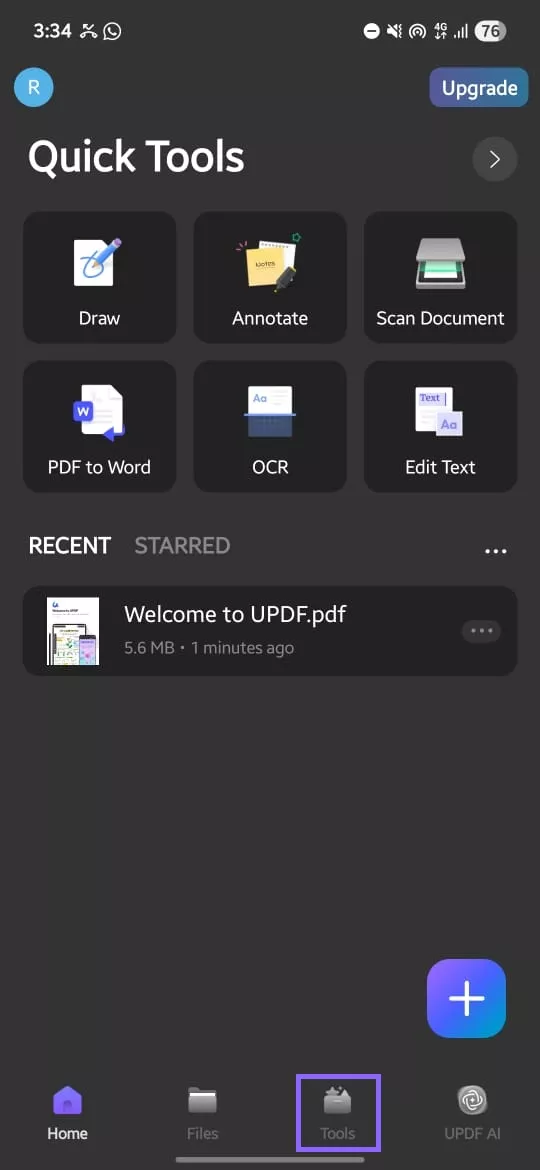
- Then select "PDF to Word" under PDF TO OTHER FORMATS" section. Choose the PDF file you want to convert.
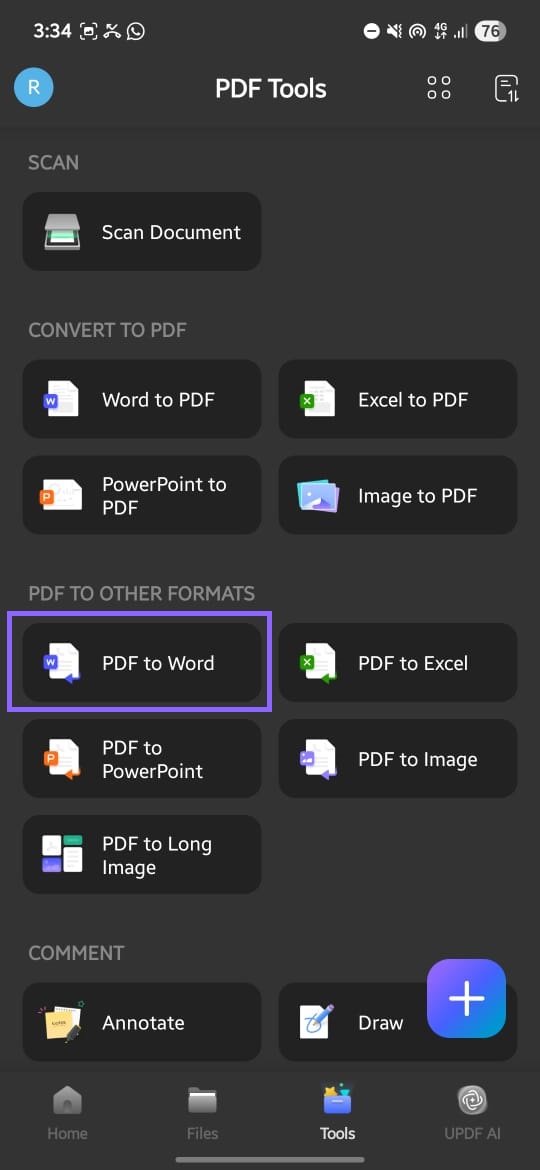
- Pick the "Word content style."
- Retain Word Flowing Style (best for easy text editing)
- Retain Word Textbox Style (keeps the original layout inside text boxes)
You can also toggle "Ignore Text and Image Layout" if you only want plain text.
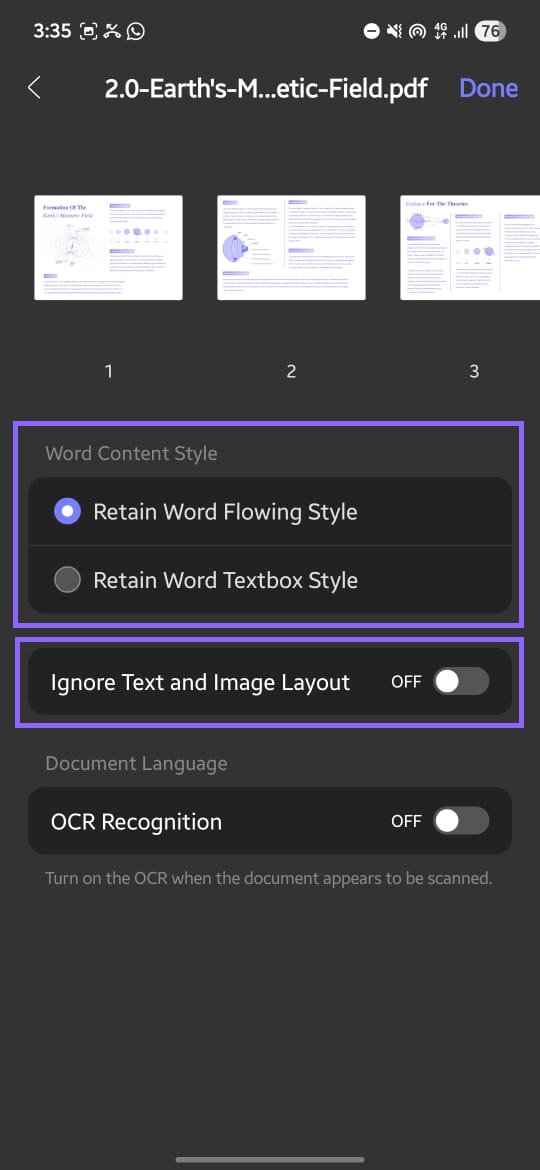
- If your document is scanned, enable "OCR." This lets the app recognize text from images. Select the "Document Language" so OCR works more accurately.
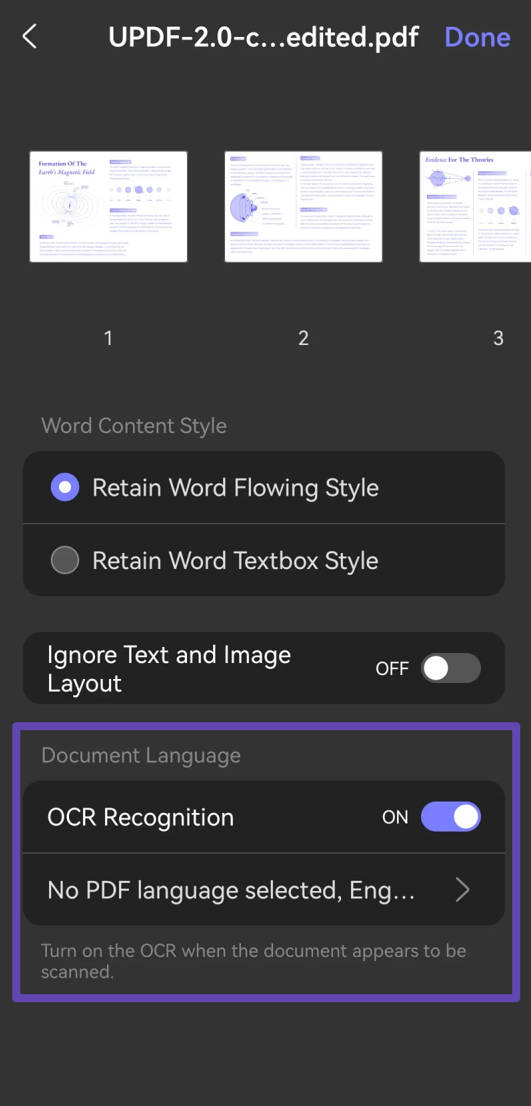
- Tap "Done" on the top right corner and wait for the conversion to finish. Your Word file will be ready to use. Once ready, you can click "Save" and select the location where you want to save it.
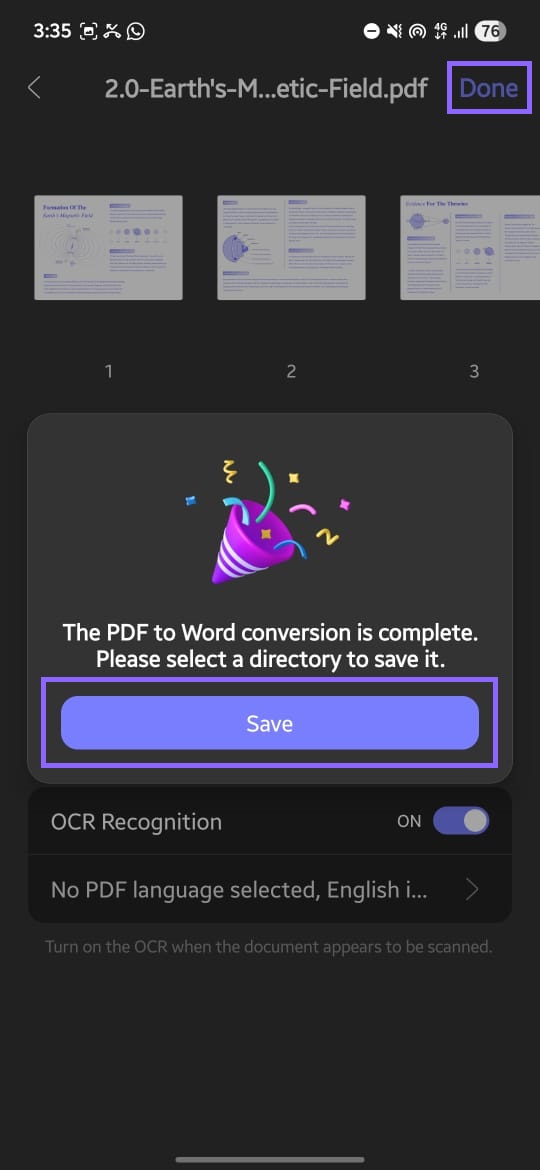
2. PDF to Excel
When you need to work with data from a PDF, UPDF makes it simple. The app converts your file into an Excel sheet, keeping tables, rows, and numbers in order. This way, you can edit and manage your data without typing it all again. To convert your PDF to Excel:
- Go to "Tools," and choose "PDF to Excel." Select the PDF file you want to convert from your device.
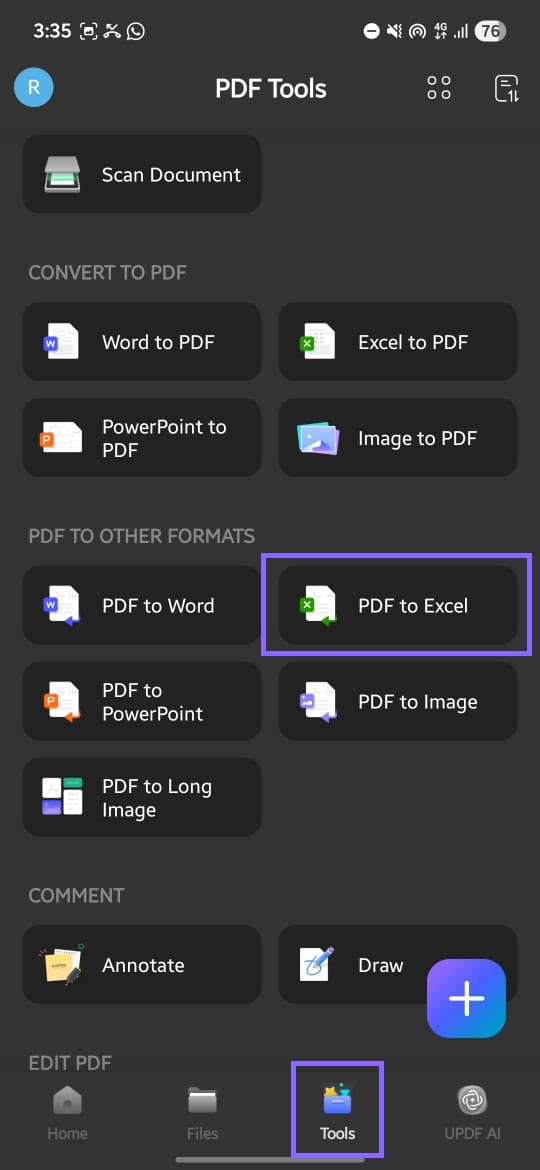
- Next, open "Excel Workbook Settings." You can choose from the following:
- Create Single Worksheet for the Document (each PDF page becomes a separate Excel sheet)
- Convert the entire document into a worksheet (all content stays in one sheet)
- Create worksheet for each table (every table in the PDF becomes its own sheet)
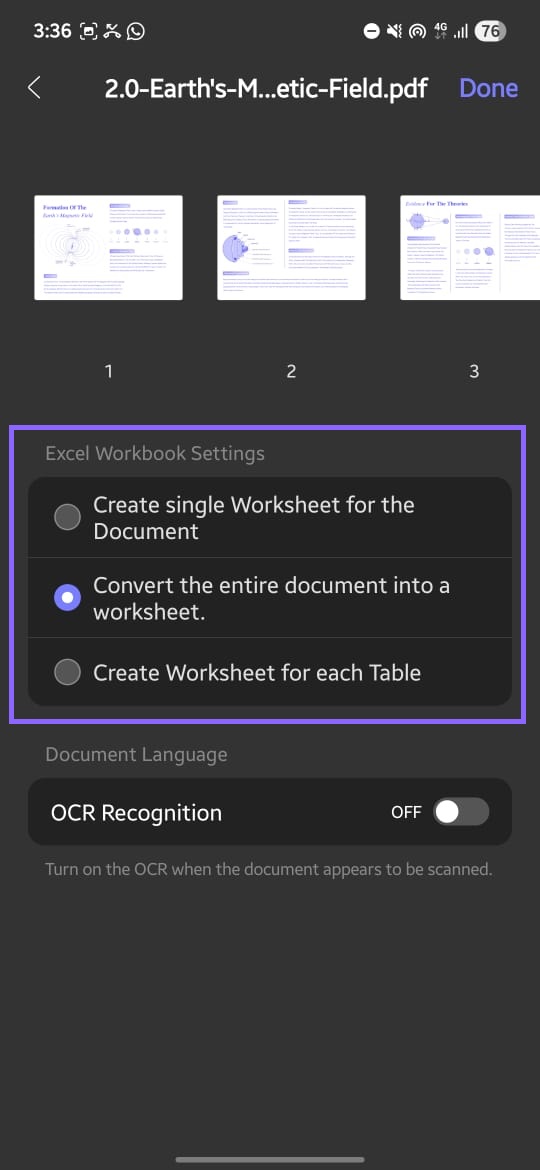
- If the file is scanned, turn on "OCR." This helps the app read and convert text or numbers from images. Pick the correct "Document language" for better OCR accuracy.
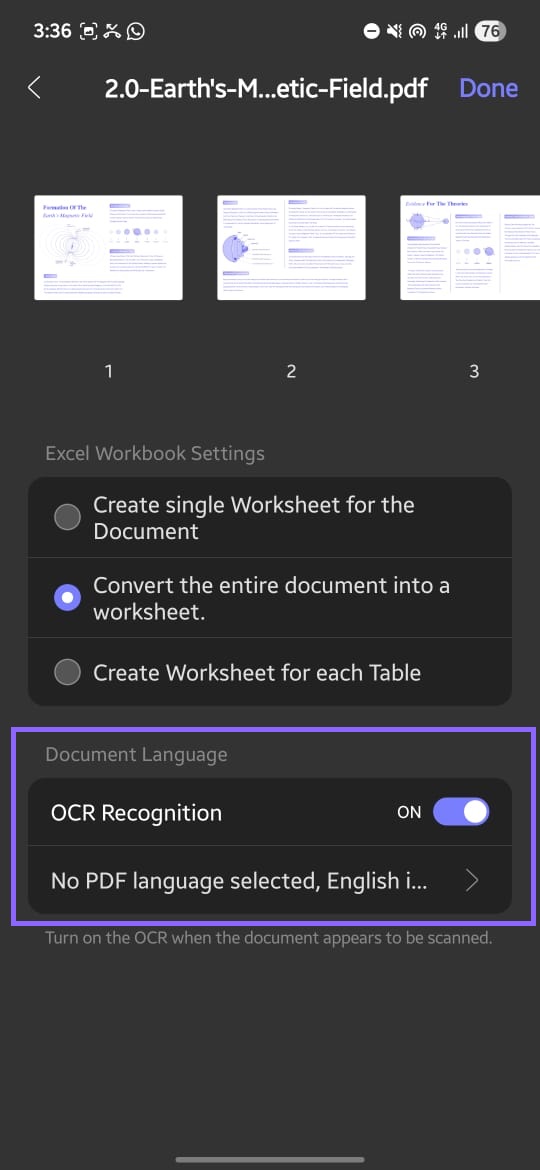
- Click "Done" and within a few seconds, your Excel sheet will be ready. Click Save" on the pop-up tab and choose the location where you want to save it.
3. PDF to PPT
Sometimes you need to turn a PDF into a presentation. UPDF for Android makes this quick by converting your file into a PowerPoint slide deck. The text, images, and layout stay in order so that you can edit and present right away.
Here are the steps to do so:
- Open UPDF and in the "Tools" tab, select "PDF to PowerPoint."
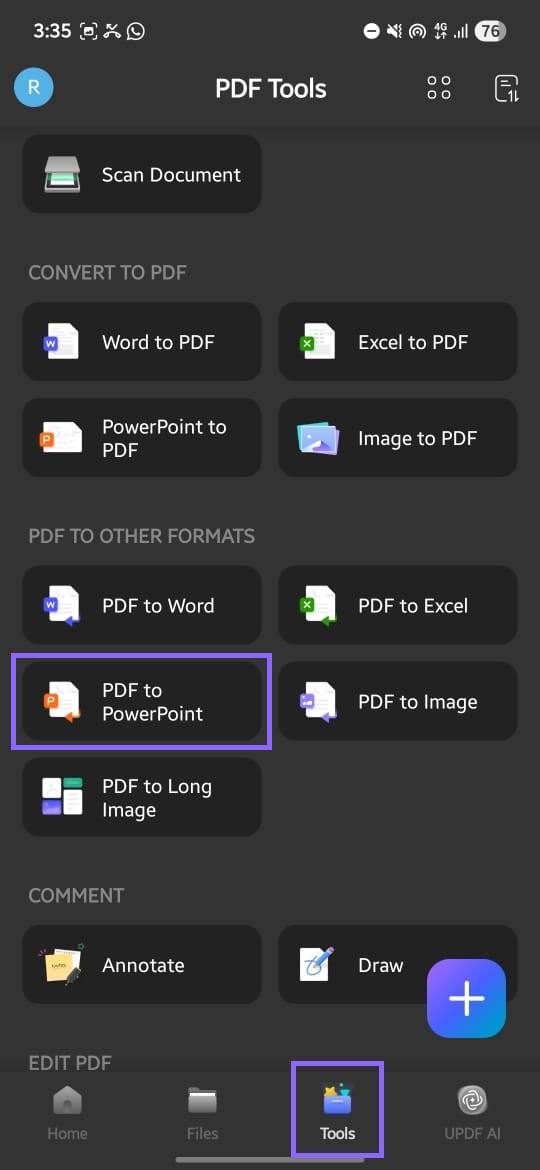
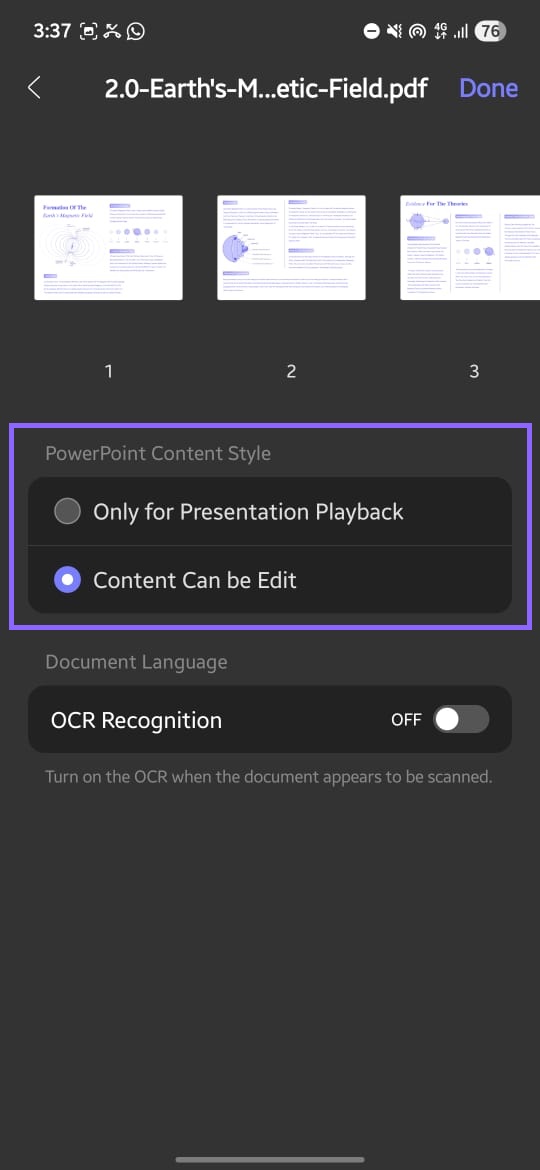
- Next, select the PDF you wish to convert and open it. You will see a new tab open. In the "PowerPoint Content Style" section, choose how you want the slides created:
- Only for Presentation Playback (keeps the look of the PDF for the presentation).
- Content Can be Edit (content is placed into editable text boxes and shapes).
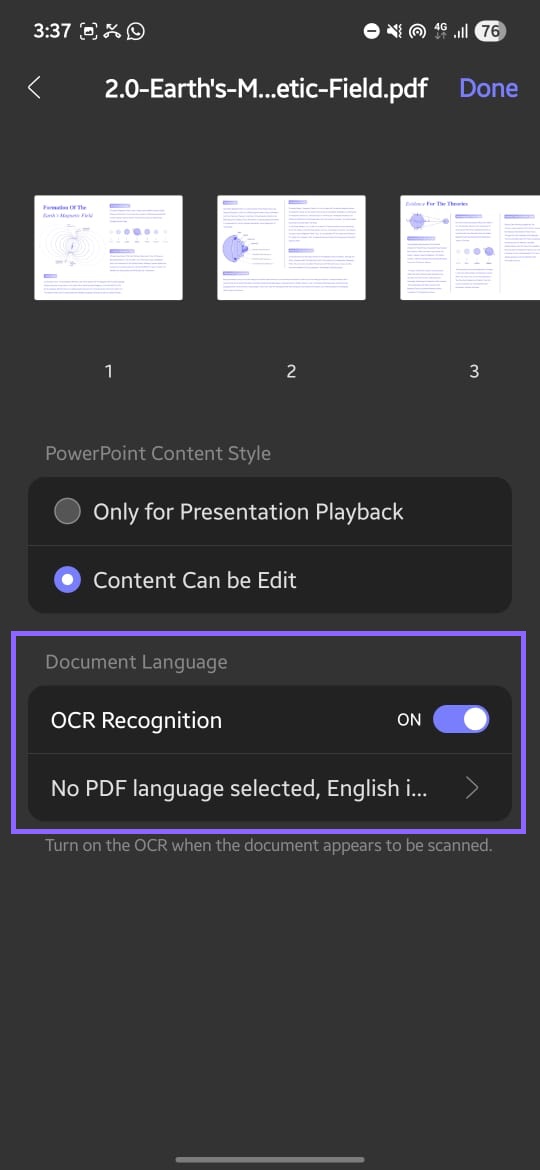
- If your PDF is scanned, turn on "OCR Recognition." Then set the "Document Language" so the text is recognized correctly.
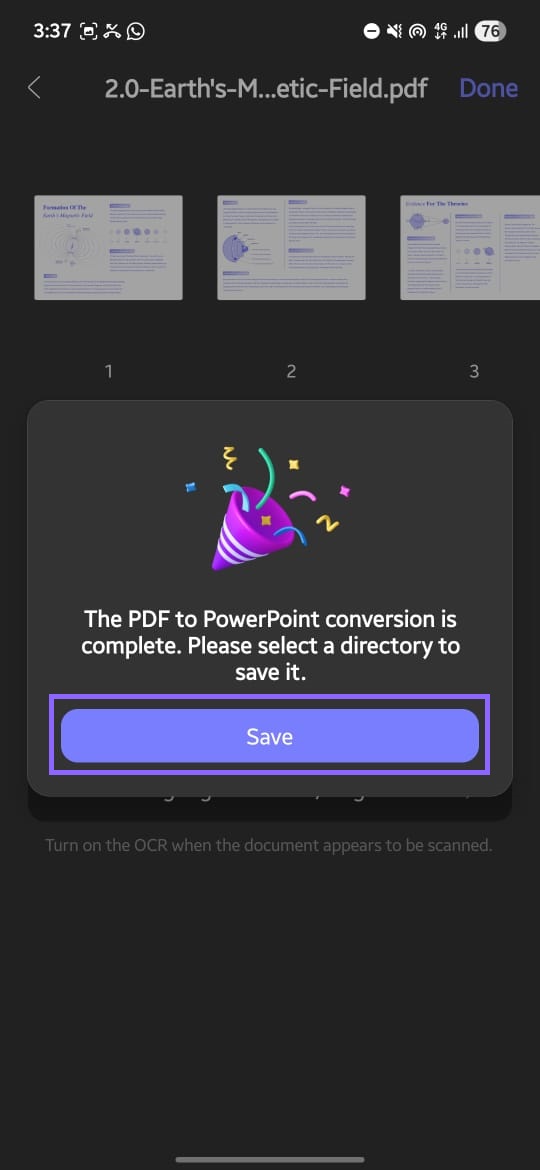
- Click "Done" in the top right corner. UPDF will process the file, and a pop-up will appear. Next, click "Save" and select a folder to store your new PowerPoint file.
4. PDF to Image
Sometimes you may want to turn a PDF into pictures instead of documents. UPDF for Android lets you convert your PDF pages into clear image files. This is perfect to share, upload, or use them anywhere without needing a PDF reader.
Here is how to convert PDF to image:
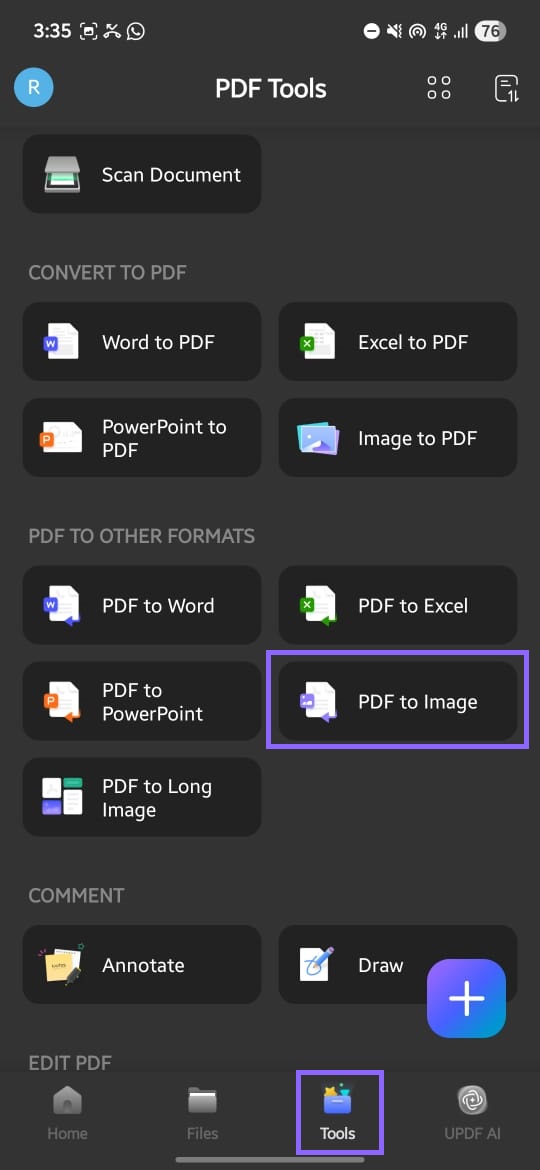
- Open UPDF, click the "Tools" button, and select "PDF to Image." Choose the PDF file you want to turn into images.
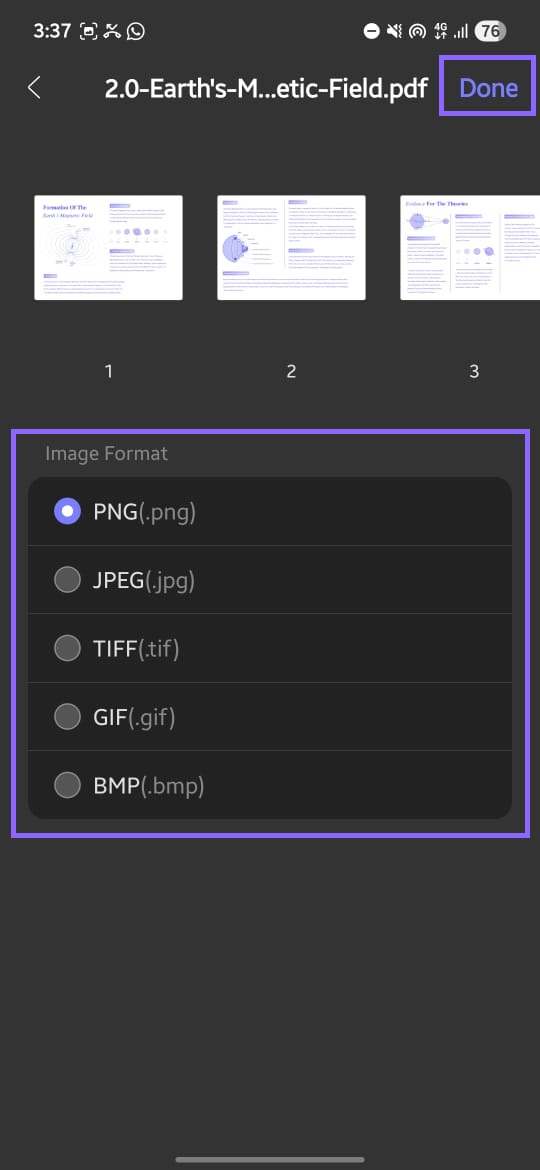
- Pick the image format you want. UPDF can convert your PDF to PNG, JPEG, BMP, GIF, and TIFF. Once the format is selected, click "Done" to start the conversion.
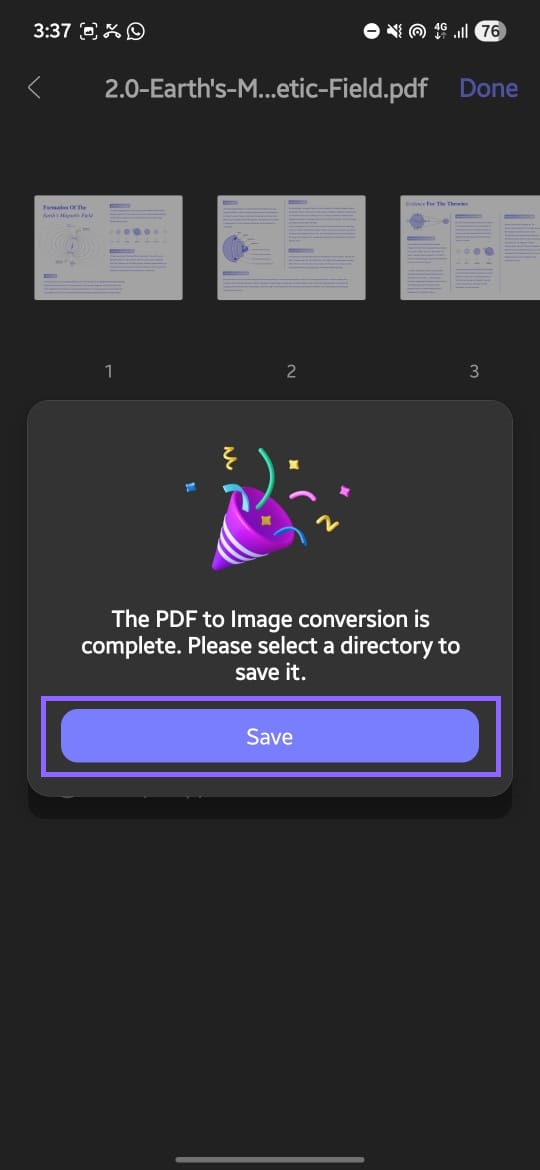
- Once complete, save the images to your preferred folder on your device.
5. PDF to Single Long Image
This feature lets you turn a whole PDF into just one picture. All the pages are put together into one long image. This is great for viewing or sharing on your phone.
Here is how you can do it:
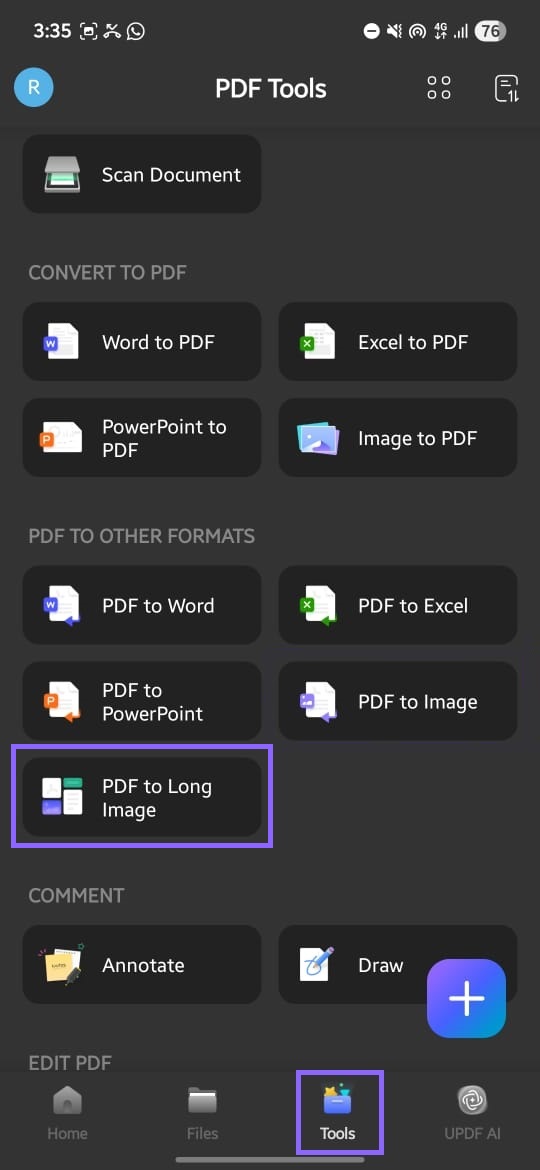
- Open the "Tools" tab and select "PDF to Long Image." Then, open the PDF file you want to convert into a single long image.
- Next, choose from the available formats: PNG, JPEG, BMP, GIF, and TIFF.
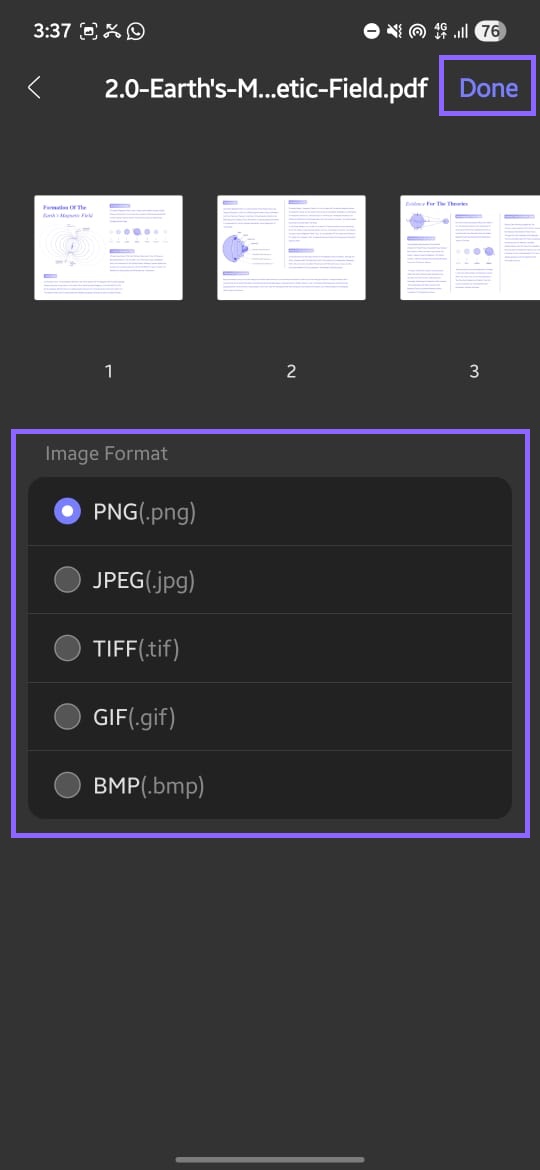
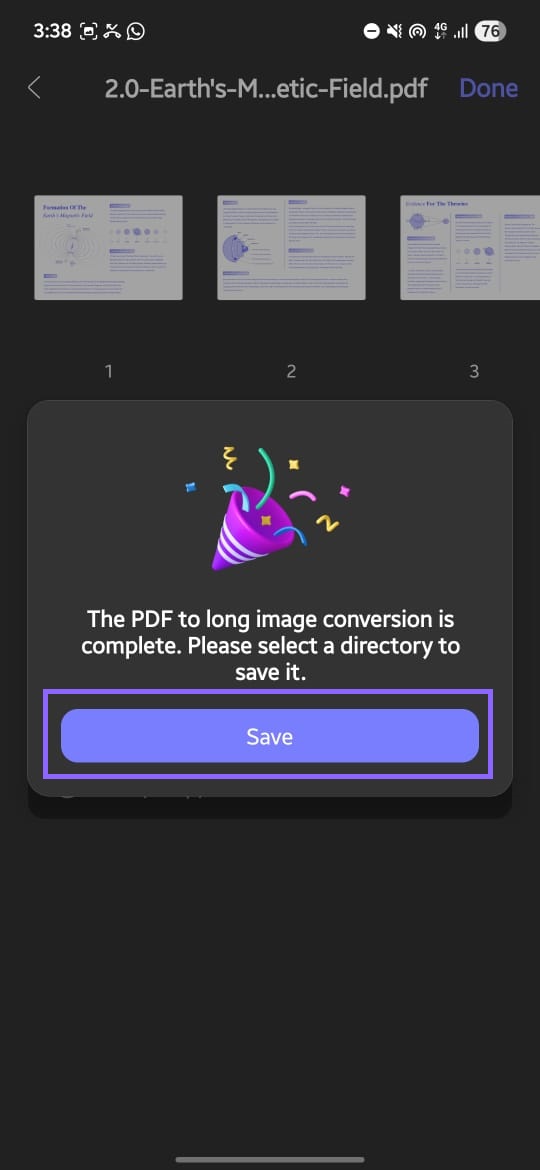
- Click "Done" at the top right to start the conversion. Then, save the long image to your device.
If you want to use UPDF on many devices, you can get a single license. This one license works for your phone, tablet, and computer. You can buy this one license from the official UPDF website.
Download UPDF for Android today to try it out, and when you're ready, purchase your license. That way, you'll have one account for all your devices.
Windows • macOS • iOS • Android 100% secure