 UPDF
UPDF
 UPDF for Windows
 UPDF for Mac
 UPDF for iPhone/iPad
 UPDF for Android
 Nomostar
 UPDF AI Online
 UPDF Sign
 IvyCraft
 Edit PDF
 Annotate PDF
 Create PDF
 PDF Form
 Edit links
 Convert PDF
 OCR
OCR PDF to Word
 PDF to Image
 PDF to Excel
 Organize PDF
 Merge PDF
 Split PDF
 Crop PDF
 Rotate PDF
 Protect PDF
 Sign PDF
 Redact PDF
 Sanitize PDF
 Remove Security
 Read PDF
 UPDF Cloud
 Compress PDF
 Print PDF
 Batch Process
 About UPDF AI
 UPDF AI Solutions
 AI User Guide
 FAQ about UPDF AI
 Summarize PDF
 Translate PDF
 Chat with PDF
 Chat with AI
 Chat with image
 PDF to Mind Map
 Explain PDF
 PDF AI Tools
 Image AI Tools
 AI Chat Tools
 AI Writing Tools
 AI Study Tools
 AI Working Tools
 Other AI Tools
 AI Bookmark Generation
 AI Bookmark Summary
 AI Watermark Generation
 AI Background Generation
 AI Sticker Generation
 AI Stamp Generation
 AI Editing Suite
 UPDF Copilot
 AI Page Management
 AI Semantic Search
 PDF to Word
 PDF to Excel
 PDF to PowerPoint
 Enterprise Solution
 Enterprise Sign
 Enterprise AI
 Enterprise Plan
 Enterprise User Guide
 Enterprise Webinar
 Banking
 Healthcare
 Insurance
 Legal
Legal Manufacturing
 Government
 Researchers & PhDs
 Solopreneurs & Freelancers
 Lawyers & Legal Professionals
 Real Estate Agents & Brokers
 Education Solution
 Customer Stories
 User Guide
 UPDF Tricks
 FAQs
FAQs UPDF Reviews
 Download Center
 Blog
Blog Newsroom
 Tech Spec
 Updates
 UPDF vs. Adobe Acrobat
 UPDF vs. Foxit
 UPDF vs. PDF Expert

Quick answer:
Here's the catch most highlighter round-ups miss: not all "highlighting" is the same thing. A true PDF highlighter snaps a colored block onto the text's character grid — square, precise, locked to the words. A note-taking app like Goodnotes lays down a free-drawn brush stroke that follows your hand and can spill past the text. Both look like a yellow highlight; they behave nothing alike. Pick the wrong type and you'll fight the tool every time you mark a document.
So we put ten of the most-used tools through the same hands-on test on real documents, focused on what actually separates a highlighter you'll keep from one you'll abandon: can it highlight across a page break, can it highlight an area (not just text), how deep is its color and opacity control, and how fast is it to recolor or annotate a mark after the fact.
If you want the complete annotation workflow — not just highlighting but comments, shapes, and stamps — see our PDF annotator guide. This article is about which highlighter to choose.
Part 1. What Makes a "Highlighter" — Character-Bound vs. Free-Drawn
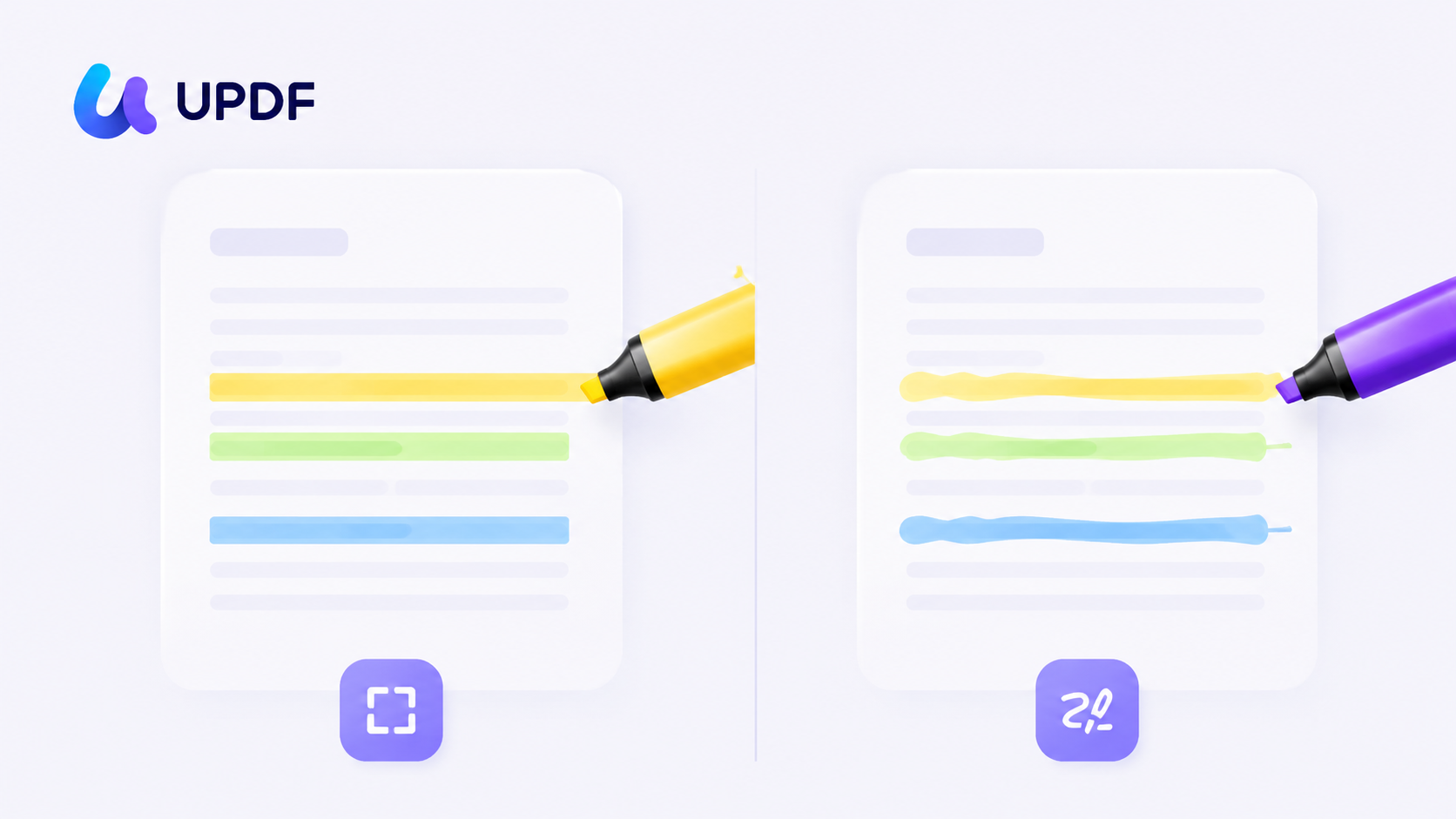
Before the tools, the distinction that decides which one is right for you:
- Character-bound highlight (UPDF, Adobe, Foxit, PDF Reader Pro, PDFgear, Nitro, Drawboard's Text Highlight): the color snaps to the underlying text grid, producing a clean rectangular block that can't drift off the words no matter how shaky your hand. This is what you want for reading, reviewing, and studying typed documents.
- Free-drawn highlight (UPDF, Goodnotes, Notability, Drawboard's freehand Highlight): a semi-transparent brush layer that follows your stroke. Flexible and natural with a stylus, but it spills past text edges unless the app auto-straightens it. This is what you want for handwriting-style study on a tablet.
Summary: character-bound is precise and locked to text; free-drawn is flexible and locked to your hand. Most "which highlighter is best" arguments are really arguments about which of these two you need. For example, use character-bound highlighting on a selectable-text contract clause, then use an area mark over a scanned floor-plan label or diagram.
Part 2. How We Judged Each Tool
Five things, all tested on the same documents in June 2026:
| What we tested | Why it matters |
|---|---|
| Cross-page highlighting | Can one drag carry a highlight across a page break, or does it stop dead at the page edge? |
| Area highlight | Can you highlight a rectangular region (scans, figures, tables) — not just selectable text? |
| Color & opacity depth | Preset swatches only, or full color wheel / HEX / RGB plus opacity slider? |
| Edit-after / floating menu | Select an existing highlight and recolor, comment, or delete it in one tap? |
| Export / extract highlights | Can you pull all highlighted text into a summary, CSV, or note app? Without this, your marks are trapped inside the PDF. |
| Free access & price | What can you do for free, and what unlocks the rest? |
Test conditions (June 2026). All findings below come from hands-on testing in June 2026 with the versions listed. Software updates may change behavior, menus, or pricing after this date.
| Tool | Version tested |
|---|---|
| UPDF | v2.5.4 |
| Adobe Acrobat | v2026.001.21662 |
| Preview (Mac) | v11.0 |
| Foxit PDF Editor | v2026.1.1.70276 |
| PDF Reader Pro | v5.3.0 |
| PDFgear | v2.25 |
| Nitro PDF Pro | v26.1.1 |
| Goodnotes | v7.0.66 |
| Notability (Mac) | v16.4 |
| Drawboard PDF | v5.1.0 |
Part 3. Which Highlighter Should You Choose?
Match the tool to who you are, then read its full test results below. If you need a complete PDF annotator — not just highlighting — see our full guide, but the tools below handle both.
| If you are… | …doing this | Best pick |
|---|---|---|
| Researcher / student (typed PDFs) | Highlighting papers across page breaks, using different colors for different types of notes | UPDF (cross-page on Windows) + deep color control |
| Lawyer / reviewer | Precise text highlights with attached comments on contracts and case files | UPDF or Adobe |
| Engineer / technical reviewer | Marking up drawings, area highlights, measurement | UPDF or Foxit (area highlight + measure); Drawboard PDF for drawing markup |
| Tablet note-taker (Apple Pencil) | Handwriting-style study, free-drawn highlights, audio notes | Goodnotes or Notability |
| Mac user who wants free | Quick highlights with no install or cost | Preview (Mac) |
| Anyone wanting free, cross-platform basics | Simple text highlights without a subscription | PDFgear |
| Knowledge worker / researcher | Building a full annotation workflow: highlights + comments + shapes + extraction to notes | UPDF or Adobe (full PDF annotator suites) |
Part 4. UPDF — Cross-Page, Area Highlight, and Deep Color in One App
UPDF was the most complete highlighter in this test: it does the precise, character-bound work and the things most precise highlighters can't, on both Windows and Mac. UPDF also lets you extract all highlights and comments into a single summary view, so your reading marks can become study notes without manual copy-paste.
Cross-page & area highlight. On Windows, UPDF supports cross-page highlighting, cross-page underline, and area highlight — drag straight through a page break and the highlight continues, or draw a box to highlight a region of a scan or figure. That combination is rare among character-bound tools.
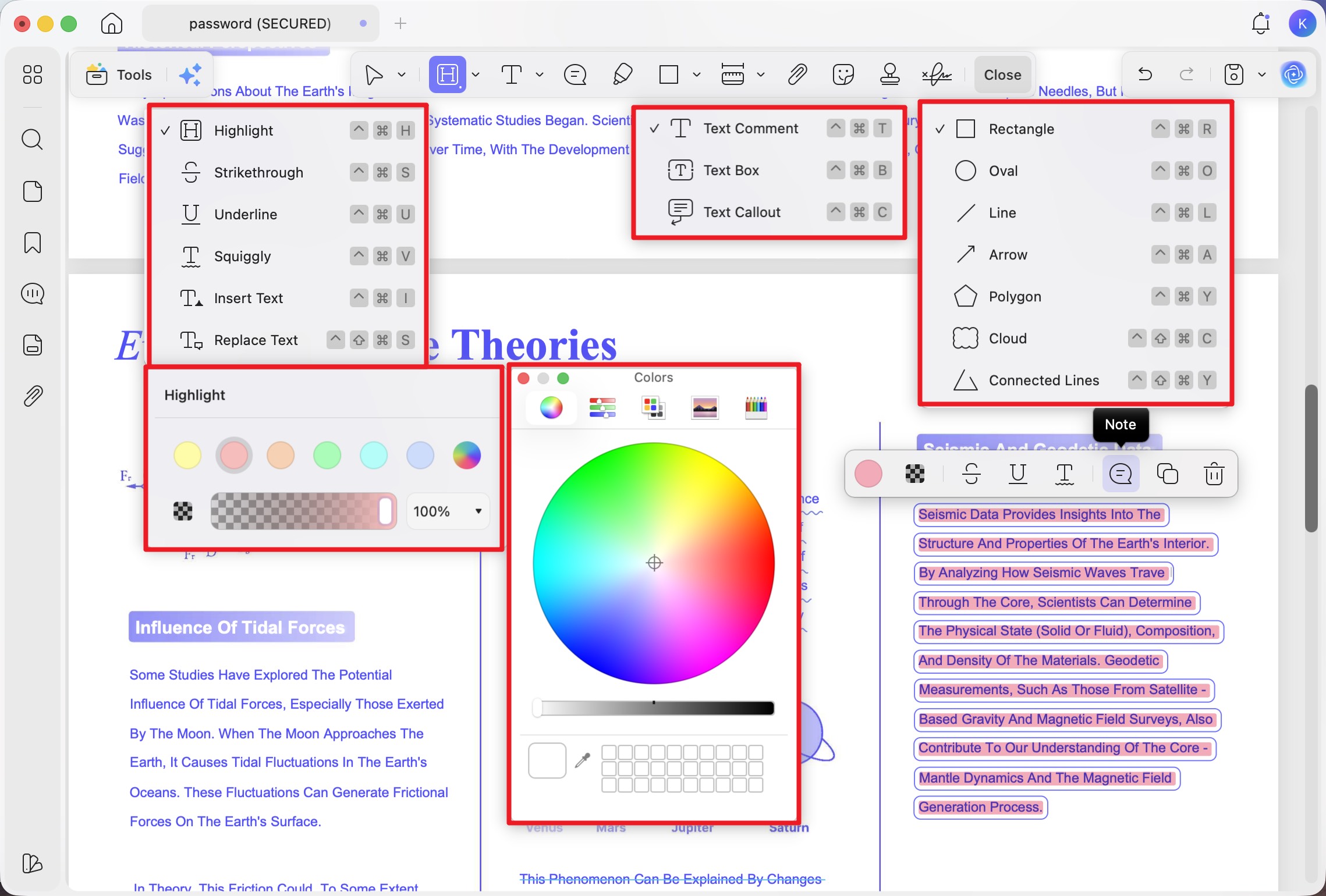
Text markup range. Beyond highlight, it covers underline, strikethrough, squiggly, plus insert-text and replace-text — each with a keyboard shortcut shown right next to it (on Mac, highlight is ^⌘H, strikethrough ^⌘S, and so on), so you can mark up without leaving the keyboard.
Color & opacity depth. Six preset highlight colors, then full custom control via a color wheel, sliders, a swatch grid, and an eyedropper for stepless color; opacity is tunable through a gradient bar or dropdown. That's deeper than the preset-only swatches most tools stop at.
Edit-after / floating menu. Select any existing highlight or annotation and a contextual floating bar pops up — switch color, change opacity, apply underline/strikethrough/squiggly, attach a sticky-note comment, duplicate, or delete the highlight in one move. This is the fastest re-edit flow of any tool here.
UPDF also doubles as a full PDF editor, so the same app that highlights your document can edit its text and images. Download UPDF for free to try highlighting on your own file — installation is free; export carries a trial watermark until you upgrade.
Windows • macOS • iOS • Android 100% secure
Best for:
- anyone who needs precise text highlighting with deep color control on Windows or Mac — and especially Windows users who also want cross-page and area highlight.
Skip if:
- you specifically want stylus-driven, handwriting-style free-drawn highlighting on a tablet — that's Goodnotes/Notability territory.
Free access & price: The free version highlights and annotates fully — all the markup tools above are usable for free; the only catch is a trial watermark when you export. Pro removes the watermark and is US$49.99/year or US$79.99 one-time, both covering Windows, Mac, iOS, and Android on up to 4 devices.
Watch the video tutorial below to know more!
Part 5. Adobe Acrobat — Deep Color Palette, but No Cross-Page Highlight
Adobe handles the core markup well and offers the widest preset palette here, but stumbles on cross-page work.
Cross-page & area highlight. Adobe cannot highlight across a page break, and there's a quirk worth knowing: when you draw a highlight and pause too long before releasing, the highlight line straightens out on you. Highlighting typed text does auto-fit to the text width cleanly.
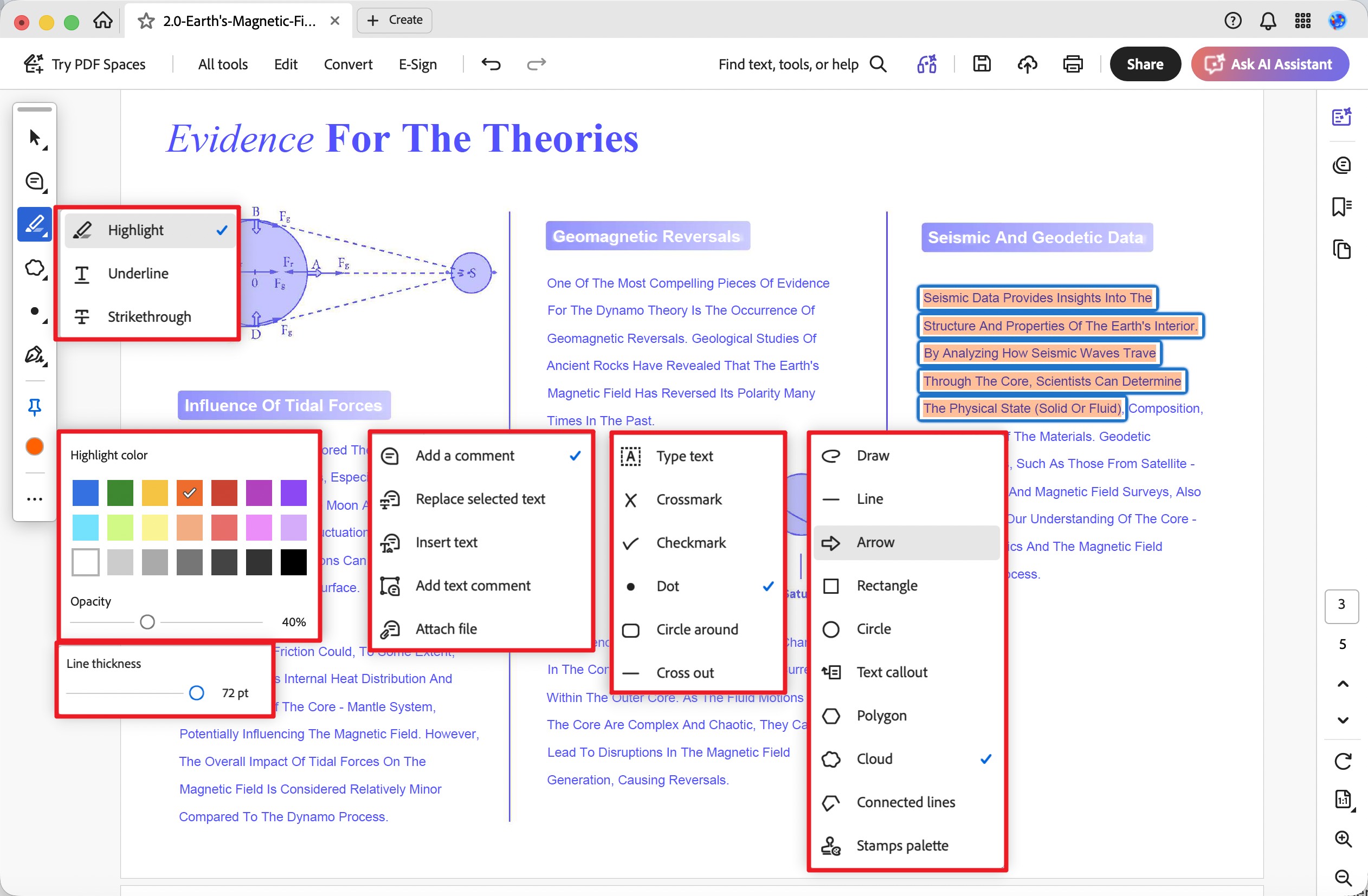
Text markup range. Highlight, underline, strikethrough for text markup; a separate Comments toolset adds replace-text, insert-text, comment boxes, and file attachments; a Quick Marks set adds checkmarks, crossmarks, dots, circle-around, and cross-out; and a full drawing set covers freehand, lines, arrows, shapes, callouts, polygons, clouds, connected lines, and a stamps palette.
Color & opacity depth. 14 preset color swatches — the most presets of any tool tested — with opacity on a slider and line thickness adjustable up to 72 pt.
Edit-after / floating menu. Select an existing highlight and a floating bar lets you attach a sticky-note comment, change color (from the 14 presets), or delete it.
Best for:
- Acrobat-ecosystem users who want a large preset palette and don't need cross-page highlighting.
Skip if:
- you highlight long documents that run across page breaks, or you're cost-sensitive — it's the priciest option here.
Free access & price: Adobe Reader is free and can highlight, underline, strikethrough, and comment. Full editing and advanced markup need Acrobat Pro, US$239.88/year ($19.99/mo billed annually). Adobe no longer sells true perpetual licenses, though a non-subscription Acrobat Pro 2024 desktop license with 3-year access is available.
Part 6. Preview (Mac) — Free, Fast, and Surprisingly Cross-Page
Preview ships free with every Mac and quietly does something most paid tools don't: highlight across pages.
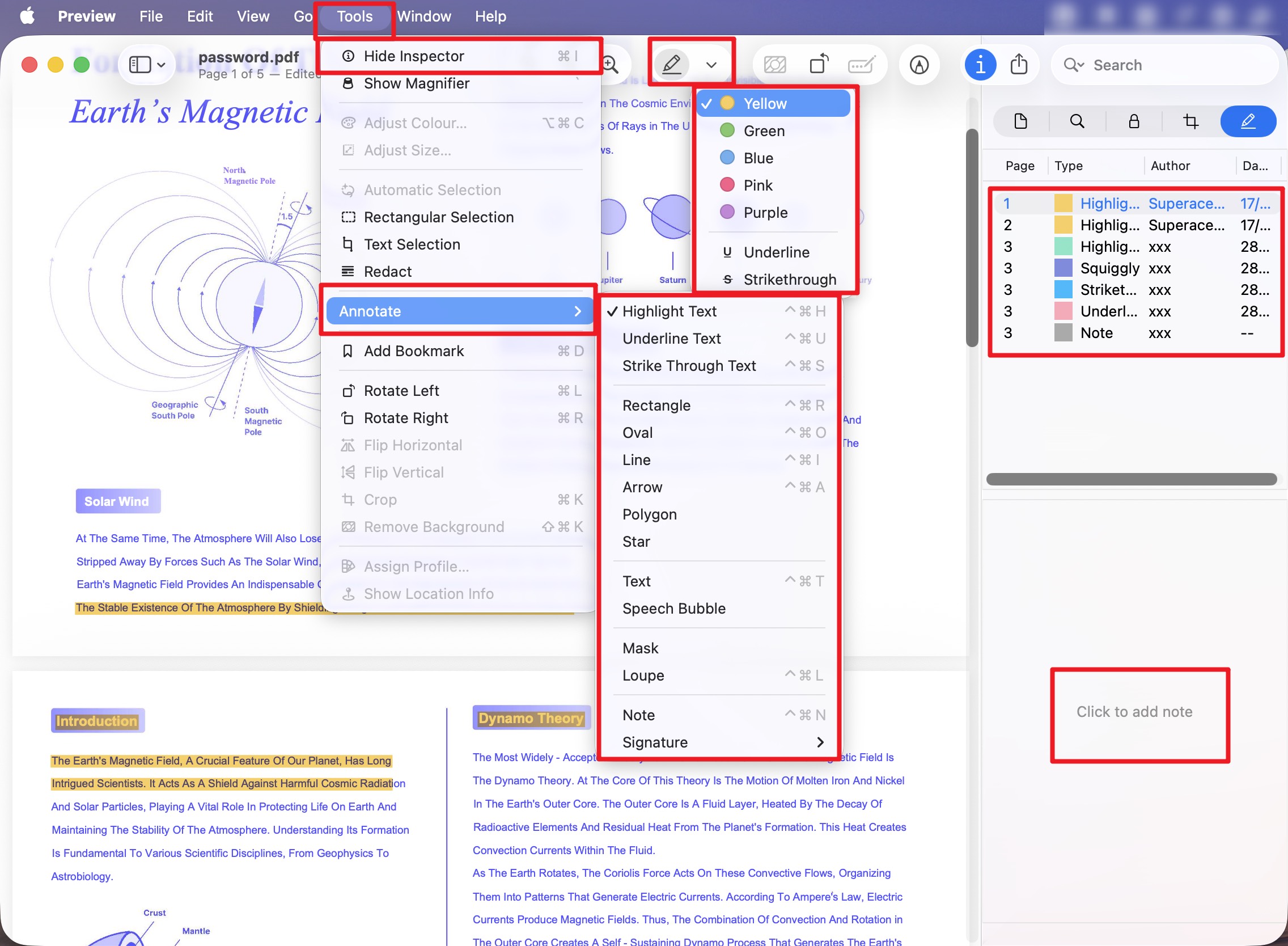
Cross-page & area highlight. Preview supports cross-page highlighting — drag continuously across different pages and the highlight follows. There's no dedicated area highlight, but a Mask tool and Loupe cover some of that ground. A neat touch: in Annotate mode, double-clicking anywhere on a line instantly highlights that whole line.
Text markup range. Highlight, underline, strikethrough (with system shortcuts like ^⌘H shown in the menu), plus text boxes, speech bubbles, notes (^⌘N), signatures, basic shapes (rectangle, oval, line, arrow, polygon, star), and advanced extras like Mask and Loupe (^⌘L). It even has a built-in Redact tool.
Color & opacity depth. Five preset colors (yellow, green, blue, pink, purple) from the highlighter dropdown, where you can also switch to underline or strikethrough — but no custom color wheel. Shallow compared to the paid tools.
Edit-after / floating menu. This is Preview's weak point: to add a note to a highlight you must first select that highlight's row in the right-hand Inspector sidebar (⌘I), then type into a dedicated "Click to add note" box. There's no quick floating bar on the highlight itself.
Best for:
- Mac users who want free, instant, cross-page highlighting with zero setup.
Skip if:
- you need custom colors, area highlight, or a fast in-place edit menu.
Free access & price: Completely free, built into macOS. No Windows version.
Part 7. Foxit PDF Editor — Strongest for Precise, Region-Based Highlighting
Foxit is the most feature-dense character-bound highlighter here, with tools aimed at heavy reviewers and a precise fine-tuning mechanic.
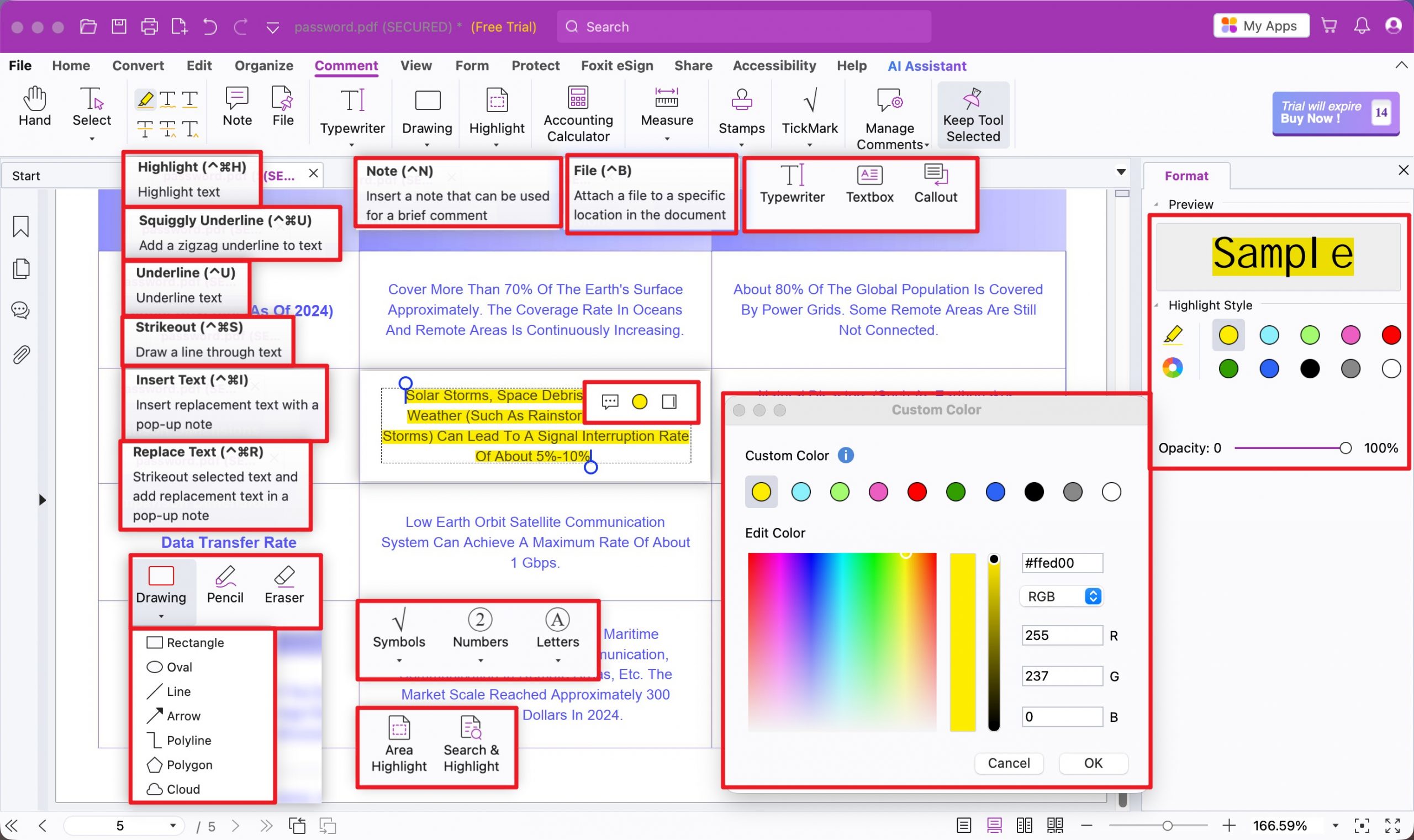
Cross-page & area highlight. Foxit has area highlight and search-and-highlight (highlight every instance of a term at once) built in. For precision, you can drag a rectangular gesture to grab all the text in a region, then drag the blue circular handles at the start and end of the highlight to make it stop exactly at a specific line or character.
Text markup range. Highlight, squiggly underline, underline, strikeout, insert-text, replace-text, area highlight, search-and-highlight; notes (^⌘N) and file attachments (^⌘B); typewriter, text box, callout; a full drawing set (pencil, eraser, rectangle, oval, line, arrow, polyline, polygon, cloud); plus pro marks like symbols, numbered/lettered sequences, an accounting calculator, measure, stamps, and tick marks.
Color & opacity depth. A dedicated Format sidebar with a live Sample preview at the top, 12 highlight presets, and a Custom Color dialog with spectrum, RGB values, and HEX input for stepless color; opacity is a percentage slider from 0–100%.
Edit-after / floating menu. Click a marked passage and a three-icon mini bar appears to add a comment, switch color, or open/hide the sidebar.
Best for:
- technical and legal reviewers who need area highlight, search-and-highlight, and character-precise fine-tuning.
Skip if:
- you want a simple, cheap highlighter — Foxit's depth comes with a learning curve and a Pro price.
Free access & price: Foxit Reader is free for viewing and basic markup; full editing needs Foxit PDF Editor, US$129.99/year, with PDF Editor+ at US$159.99/year or a perpetual license at US$209.99.
Part 8. PDF Reader Pro — Clean Dual-Panel Color Control, but No Cross-Page
PDF Reader Pro keeps the core markup tidy and gives two ways to tune color, but shares the common cross-page and area-highlight gaps.
Cross-page & area highlight. Neither — no cross-page highlighting, no area highlight. It highlights selectable text only.
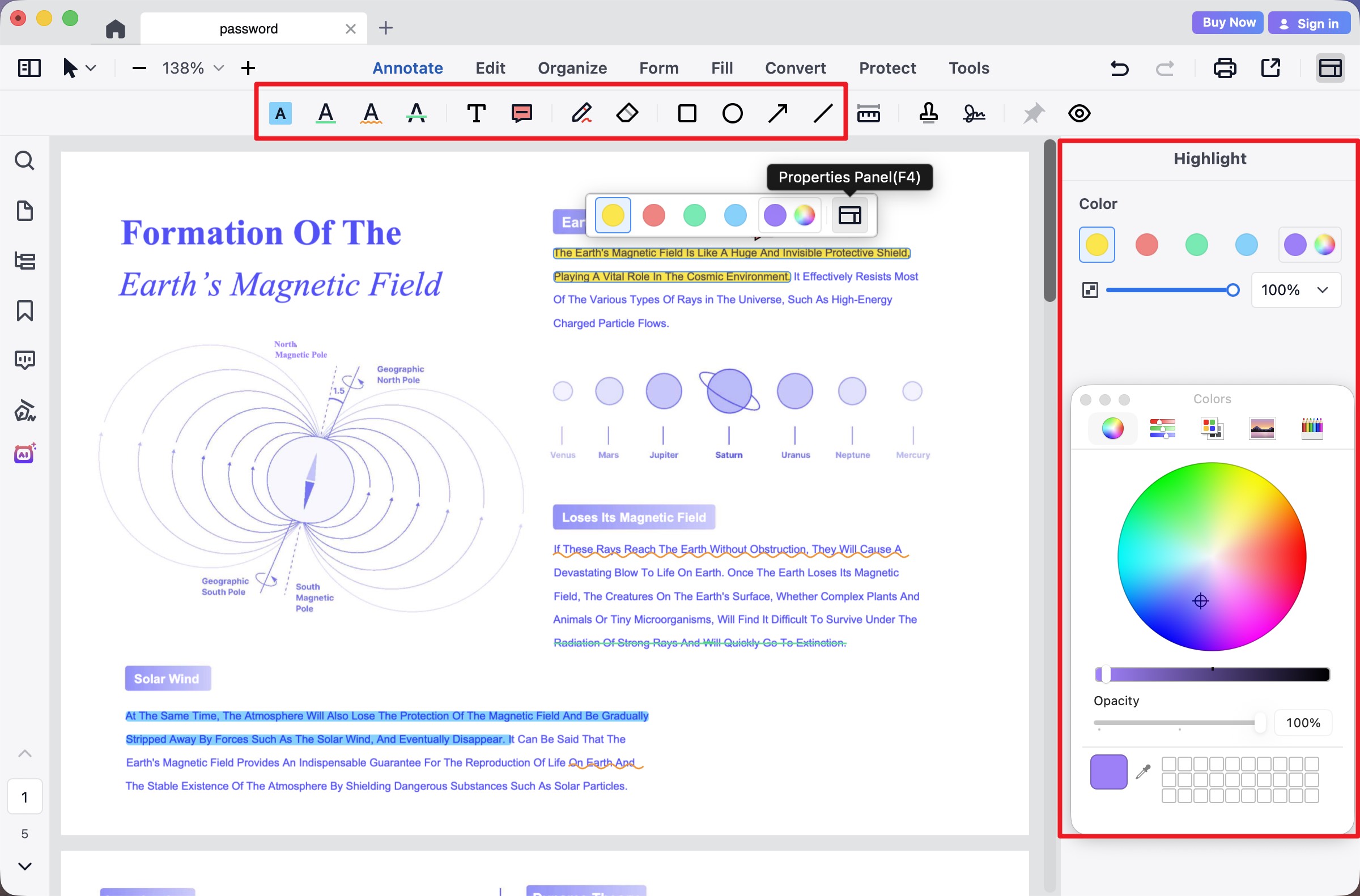
Text markup range. Highlight, underline, squiggly underline, strikethrough; text box and anchored note/free text; freehand (^⌘P), eraser, rectangle, circle, arrow, line — all with Mac default shortcuts.
Color & opacity depth. Two ways to adjust: a quick floating Properties bar (F4) with 5 preset colors, a custom-palette icon, and a toggle to the full panel; and a right-side Highlight panel with 5 presets plus the rainbow circle that opens the macOS Colors window (wheel, sliders, grid, eyedropper) for stepless color, and an opacity slider/percentage dropdown.
Edit-after / floating menu. The F4 floating Properties bar on a selected highlight is the quick path; the right panel is the deep path.
Best for:
- Mac users who want a clean, affordable highlighter with two-tier color control.
Skip if:
- you need cross-page or area highlight.
Free access & price: Free version at $0 (with limits); Standard is US$59.99/year, Advanced US$79.99/year, and a permanent license US$99.99.
Part 9. PDFgear — Genuinely Free, Great Color Range, Limited Highlight Scope
PDFgear is the free standout: no cost, no watermark, no account — and a surprisingly rich color picker — but its highlight scope is basic.
Cross-page & area highlight. Neither — no cross-page highlighting and no area highlight; it marks selectable text only.
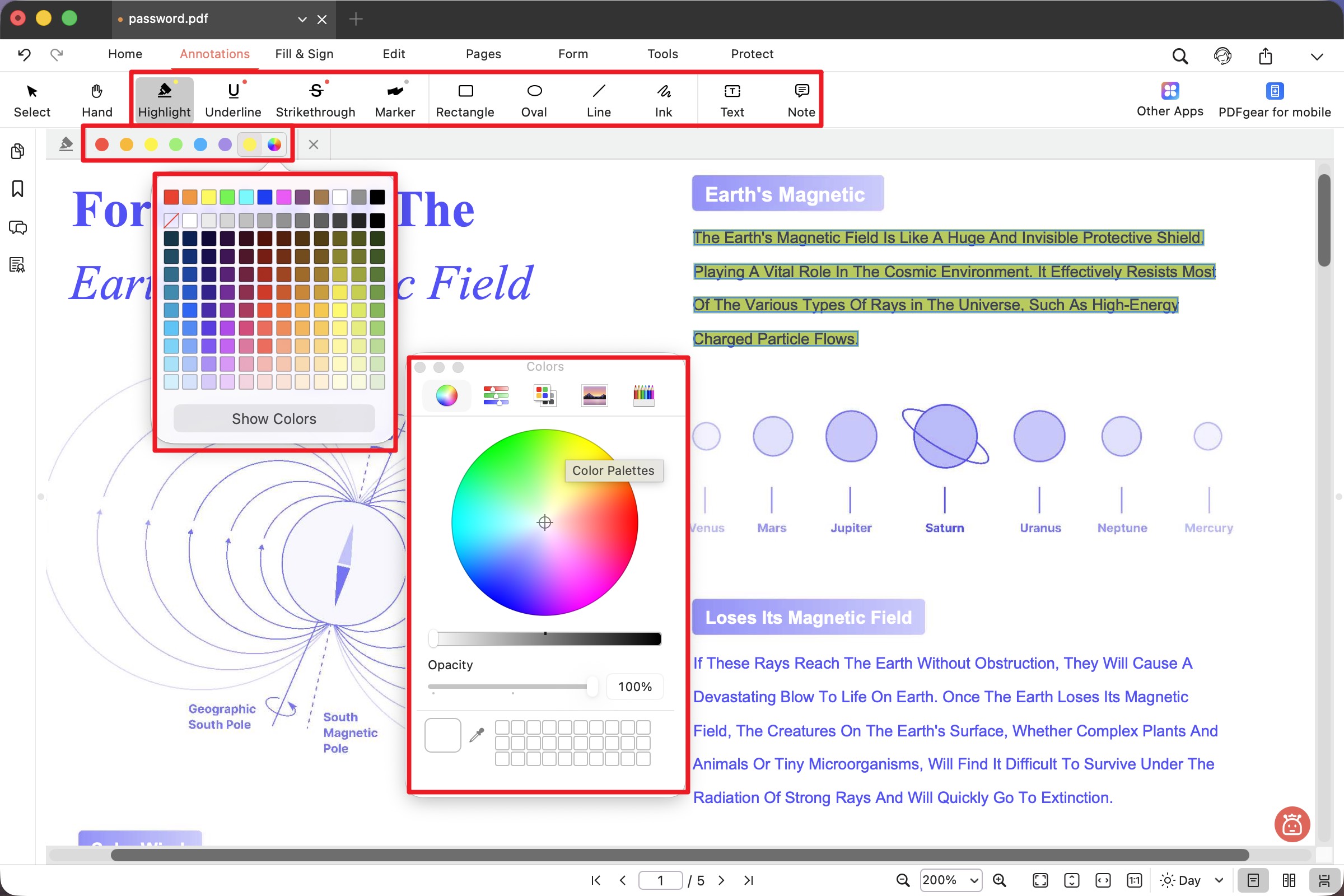
Text markup range. Highlight, underline, strikethrough; a marker, rectangle, oval, line, and freehand ink; text and sticky-note comment. No keyboard shortcuts are shown anywhere in the UI.
Color & opacity depth. A three-tier system that punches above its free price: a Quick Color Ribbon with 7 common colors appears under the toolbar; clicking the rainbow icon opens a grid of up to 144 colors (with a "no color/cancel" option); and a "Show Colors" button at the bottom calls the system color picker for stepless custom color.
Edit-after / floating menu. Basic — recolor via the ribbon; no rich floating edit bar like UPDF's.
Best for:
- anyone wanting a free, no-watermark highlighter with a genuinely deep color picker for everyday typed PDFs.
Skip if:
- you need cross-page or area highlight, or keyboard-shortcut speed.
Free access & price: Fully free, all features, no watermark, no account required.
Part 10. Nitro PDF Pro — Cross-Page Highlight with an Unusual Color System
Nitro does support cross-page highlighting and has a distinctive custom-color mechanic tied to system preferences.
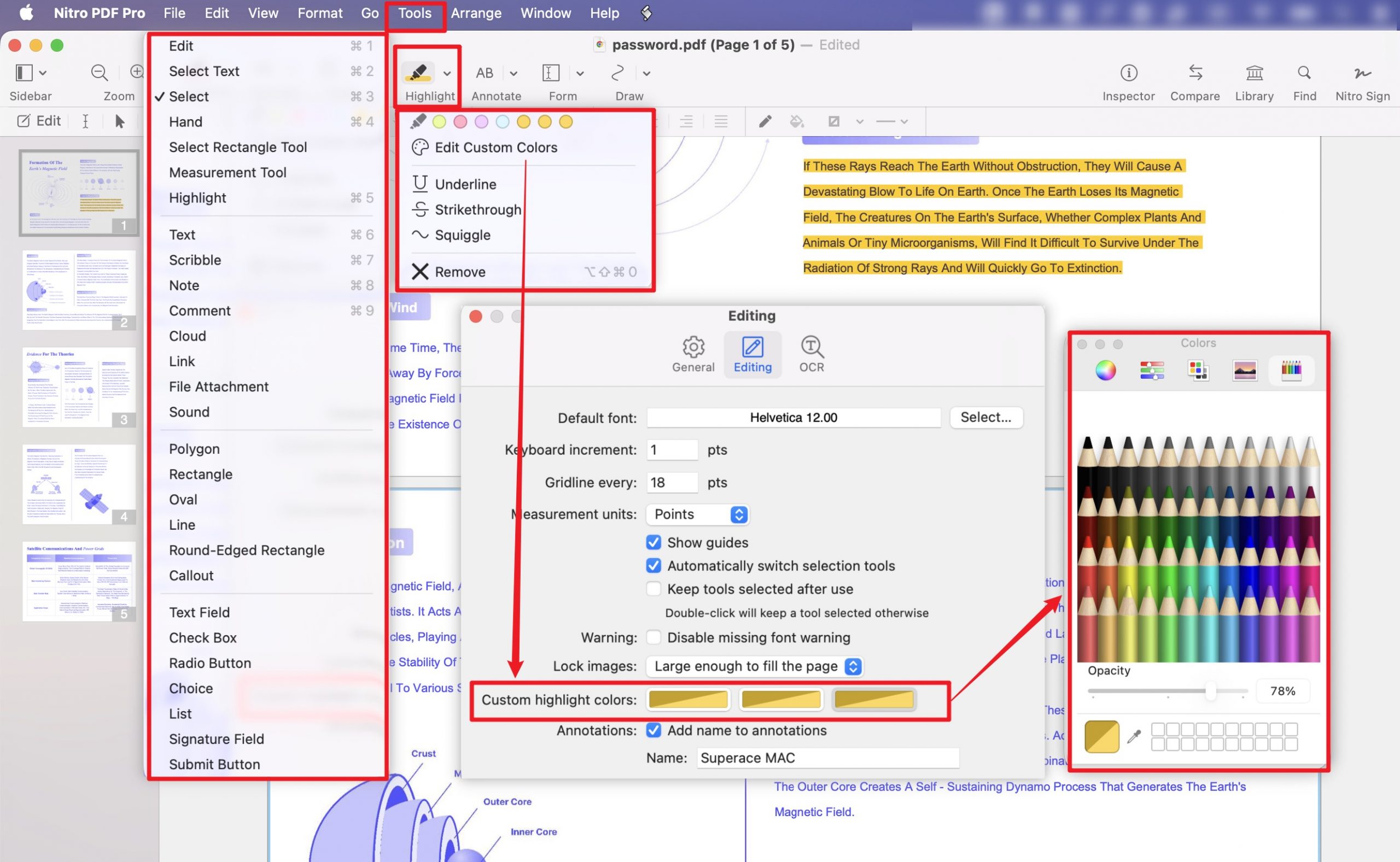
Cross-page & area highlight. Nitro can highlight text across pages. No dedicated area highlight surfaced in testing.
Text markup range. Highlight, underline, strikethrough, squiggle, plus a remove-markup shortcut (⌥⇧⌘X); text, scribble, note, comment, callout; and a graphics/link/media set — polygon, rectangle, oval, line, round-edged rectangle, cloud, link, file attachment, and sound.
Color & opacity depth. The highlight icon drops down 6 base colors. Custom color is unusual: clicking "Edit Custom Colors" opens an Editing window with 3 dedicated custom highlight slots; clicking a slot opens the system Colors window (wheel, sliders, palettes, image palettes, crayons) with stepless color and a per-slot opacity slider. Powerful, but more buried than a one-click custom picker.
Best for:
- Nitro-workflow users (Windows or Mac) who want cross-page highlighting and don't mind the deeper color menu.
Skip if:
- you want one-click custom color, or a lasting perpetual license — Nitro is subscription-first, and even its one-time Classic license only covers three years, not perpetuity.
Free access & price: No permanent free plan; 14-day free trial (no credit card, no watermark). Nitro PDF Standard is US$15/user/month billed annually (US$180/year); a one-time three-year Classic license is US$270.
Part 11. Goodnotes — Best for Handwriting-Style Highlighting on a Tablet
Goodnotes is a different animal: its highlighter is a free-drawn brush, not a character-bound block, which makes it ideal for stylus study and poor for precise text marking.
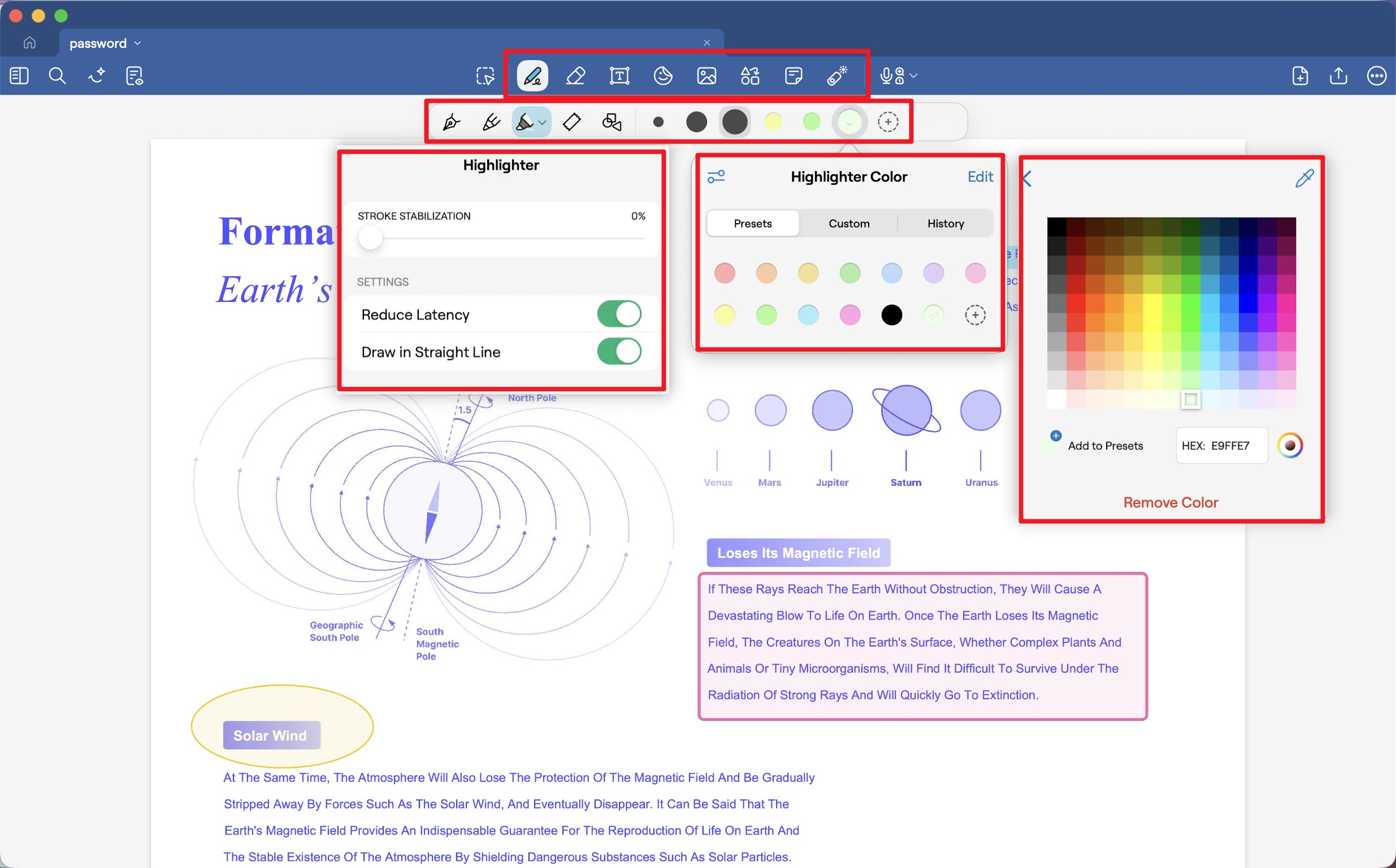
Cross-page & area highlight. Goodnotes cannot highlight text across pages. Its highlight is a freehand layer, so "area" isn't a concept — you simply paint wherever you want, including past the text edges.
Highlight mechanic. While highlighting, hold the pen at the end of a stroke and the wobbly line snaps to a perfectly straight highlight — and this works across multiple lines for continuous wrapped highlighting. Its Draw Shape mode similarly straightens hand-drawn shapes on hold.
Tools & markup. A Writing group (pen, pencil, highlighter, tape, draw-shape, eraser), text boxes, elements (stickers, GIFs), images, a dedicated Shapes tool, sticky notes, and a laser pointer. A lasso-selection floating menu is the real power center — Goodnotes AI, change color, resize, cut, duplicate, delete, plus a deep second menu (copy, paste-and-match-style, layer order, screenshot, create-element, edit text, add comment).
Color & opacity depth. Persistent quick swatches; the advanced picker supports color wheel, RGB, and HEX with saved custom favorites. Thickness has fine/medium/thick presets, each slider-tunable.
Best for:
- students and tablet users who want natural, handwriting-style highlighting with a stylus and smart shape correction.
Skip if:
- you need precise, character-bound highlights on typed documents, or cross-page highlighting.
Free access & price: Free up to 3 notebooks (effectively a trial). Essential is US$11.99/year and Pro is US$35.99/year; cross-platform sync needs the Pro tier.
Part 12. Notability — Free-Drawn Study Highlighting, No Standalone Shapes
Notability is Goodnotes' closest rival on tablets — same free-drawn highlight philosophy, with its own strengths and one notable limitation.
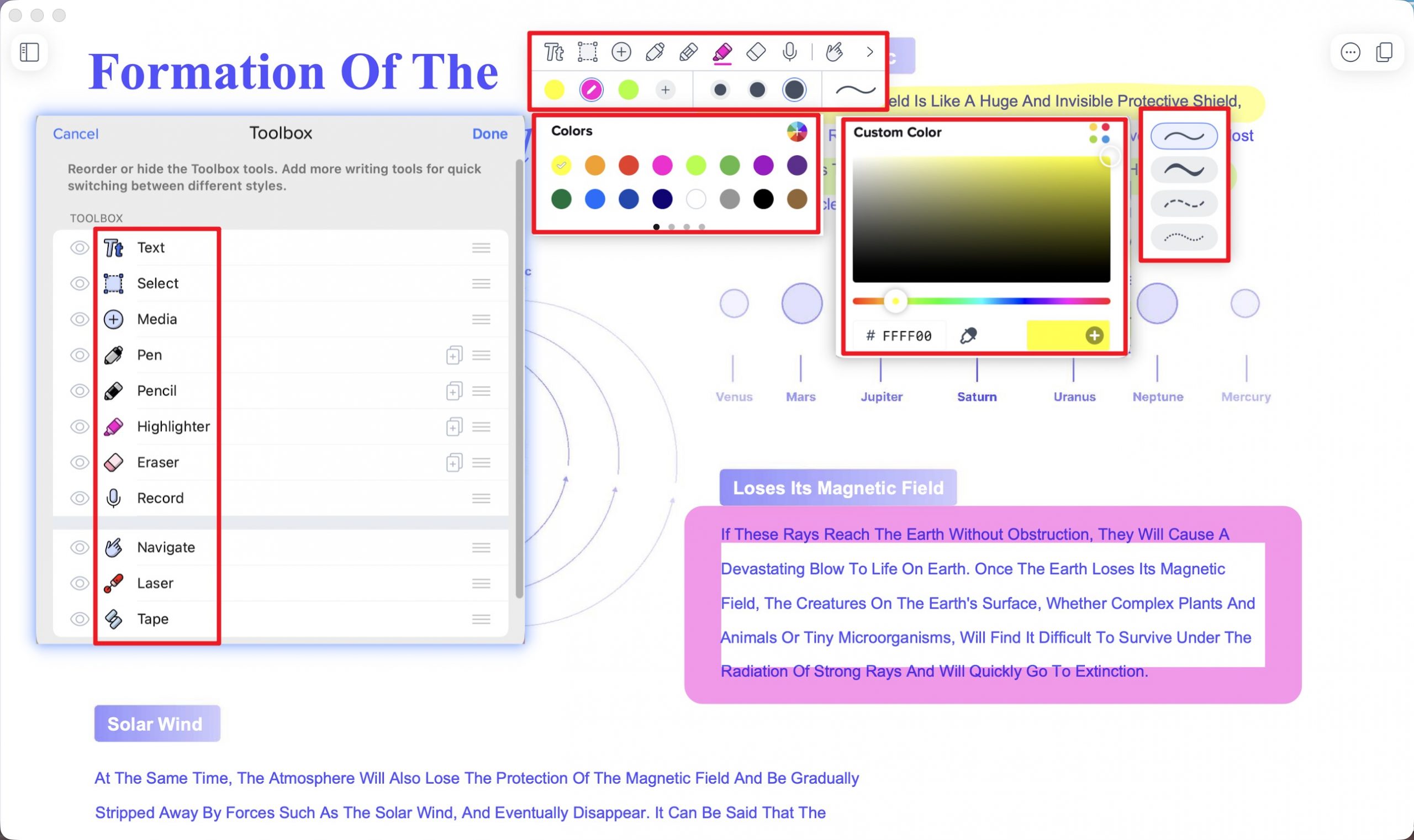
Cross-page & area highlight. Notability cannot continuously highlight across a page break — at the physical page edge the stroke is forced to stop; you lift, turn the page, and start again. No character-bound area highlight.
Highlight mechanic. Like Goodnotes, its highlighter is a semi-transparent free-drawn tool; closed shapes are drawn by hand and straightened on hold.
Tools & markup. Pen, pencil, highlighter, eraser (pixel or whole-stroke), tape, and laser. Notably, there's no standalone shapes tool — every rectangle or circle must be hand-drawn and auto-corrected. Its standout is the always-on Properties quick menu under the toolbar: 16 colors tiled on screen (swipeable, with a rainbow-wheel custom picker, eyedropper, HEX input, and + to save), plus 4 thickness presets and 4 physical line styles (straight, dashed, dotted) you can switch between live.
Best for:
- Apple-device note-takers who value fast color switching and live-lecture audio sync over precise PDF text marking.
Skip if:
- you need standalone shapes, cross-page highlighting, or character-bound precision.
Free access & price: A free Starter tier includes all editing tools and content, with unlimited note-editing on the web. Plus is US$19.99/year; Pro (full AI, live transcription) is US$99.99/year.
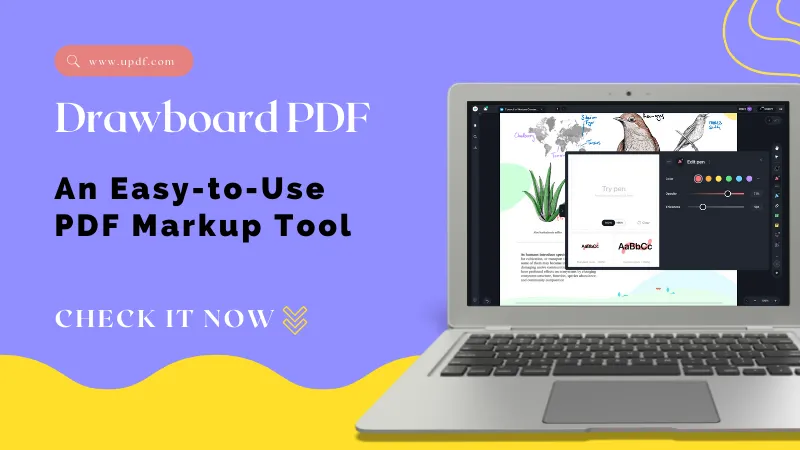
Part 13. Drawboard PDF — Two Highlight Engines in One, Built for Engineering
Drawboard PDF is the rare tool that ships both highlight types side by side, with a markup set aimed squarely at engineering and standards documents.
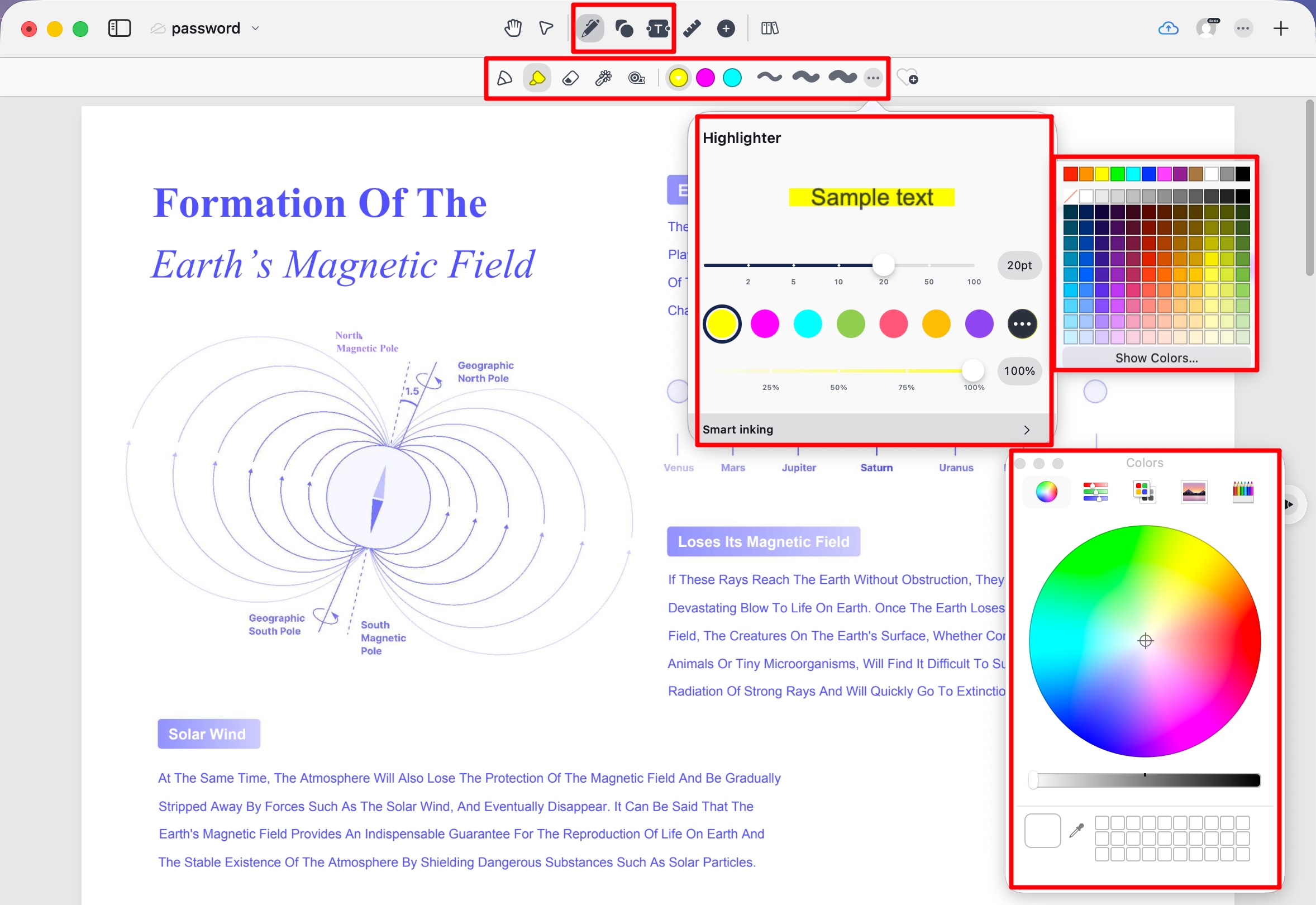
Cross-page & area highlight. Drawboard cannot highlight across page breaks, and it has no area highlight — you're limited to one stroke (freehand) or one text run (character-bound) at a time.
Two highlight engines. This is Drawboard's signature: a Text Highlight that's character-bound (snaps to the text grid, absolutely square, immune to hand shake) for marking typed text, and a separate freehand Highlight brush whose edges follow your hand and won't straighten on hold. Having both in one app is genuinely uncommon.
Tools & markup. Text markup (text highlight, underline, squiggle, strikethrough); drawing (pen, freehand highlight, eraser); shapes (rectangle, ellipse, line, arrow, polygon, polyline); and extras suited to technical documents (cloud, callout, note).
Color & opacity depth. 12 base swatches plus a gradient color field for stepless color with direct HEX input; thickness on a numeric slider; opacity 1–100%; line style solid or dashed; and for closed shapes, separate fill color and fill opacity controls independent of the border.
Best for:
- engineers and technical reviewers who want both highlight engines, precise numeric control, and drawing/measurement tools.
Skip if:
- you need cross-page or area highlight, or just want a simple reader-highlighter.
Free access & price: Free Basic plan with unlimited local docs (no ads). Paid tiers are Pro Lite US$49.99/year (extended toolset, 10-doc sync), Pro Plus US$83.90/year (full toolset, 50-doc sync), and Pro Unlimited US$159.99/year (unlimited sync), all with a 7-day free trial. Available on Windows, Mac, iOS, Android, and web.
Part 14. Comparison Chart: 10 PDF Highlighters in 2026
| Tool | Highlight type | Cross-page | Area highlight | Color depth | Edit-after menu | Mobile app | Price |
|---|---|---|---|---|---|---|---|
| UPDF | Both | ✅ (Win) | ✅ (Win) | 6 presets + wheel/grid/eyedropper + opacity | Full floating bar | iOS + Android | $$49.99/yr or $$79.99lifetime |
| Adobe Acrobat | Character-bound | ❌ | ❌ | 14 presets + opacity, 72pt line | Floating bar (color/comment/delete) | iOS + Android | $239.88/yr |
| Preview (Mac) | Character-bound | ✅ | No (Mask only) | 5 presets, no custom | Via Inspector sidebar only | None (Mac only) | Free |
| Foxit PDF Editor | Character-bound | ❌ | ✅ + search-and-highlight | 12 presets + HEX/RGB + opacity | 3-icon floating bar | iOS + Android | from $129.99/yr |
| PDF Reader Pro | Character-bound | ❌ | ❌ | 5 presets + system picker + opacity | F4 floating bar + side panel | iOS + Android | free tier; $59.99/yr+ |
| PDFgear | Character-bound | ❌ | ❌ | 7 + 144-grid + system picker | Basic recolor | iOS + Android | Free |
| Nitro PDF Pro | Character-bound | ✅ | ❌ | 6 presets + 3 custom slots + opacity | Standard | iOS only | $180/yr; $270 3-yr |
| Goodnotes | Free-drawn | ❌ | ❌ | Quick swatches + wheel/HEX | Lasso menu (rich) | iOS + Android | free (3 notebooks); $11.99/yr, Pro $35.99/yr |
| Notability | Free-drawn | ❌ | ❌ | 16 colors + custom + 4 line styles | Properties quick menu | iOS + Android | free Starter; $19.99/yr |
| Drawboard PDF | Both | ❌ | ❌ | 12 + gradient/HEX + opacity | Properties window | iOS + Android | free Basic; Pro $49.99–$159.99/yr |
One note on protected files: most of these tools will refuse to highlight a permissions-protected PDF until you enter or remove the password. A document that "won't highlight" is often locked, not broken — and you should only remove restrictions on files you own or are authorized to edit.
Tip | How to Annotate PDFs: The Highlighting Layer
Picking the right tool is half the battle. Using it well is the other half:
Part 15. FAQ
1. Why won't my highlight continue onto the next page?
Most PDF highlighters treat each page as a physically separate canvas, so the stroke stops at the page edge. Only some tools carry a highlight across a page break — in our test, UPDF (Windows), Preview, and Nitro did; Adobe, Foxit, PDF Reader Pro, PDFgear, Goodnotes, Notability, and Drawboard did not.
2. What's the difference between highlighting text and highlighting an area?
Text highlighting snaps to selectable characters, so it needs real text underneath. Area highlight drops a colored rectangle over a region regardless of what's there — useful for scans, images, tables, or figures. Among the tools tested, UPDF (Windows) and Foxit offer true area highlight; most others don't.
3. Can I highlight a scanned PDF?
Only if the scan has a text layer. A scan is an image, so a character-bound highlighter has no text to grab — you'd need area highlight, or run OCR first to create a text layer. Tools with area highlight (UPDF, Foxit) handle this best.
4. Which of these highlighters have a mobile app?
Most do. UPDF, Adobe Acrobat, Foxit, PDF Reader Pro, PDFgear, Goodnotes, Notability, and Drawboard all have both iOS and Android apps. Nitro PDF Pro is iOS-only on mobile. Preview has no mobile app at all — it's a built-in macOS feature (and Mac-only on desktop too). On the desktop side, Foxit also runs on Linux and Drawboard has a web app. Our hands-on testing above was done on desktop, so mobile highlighting behavior may differ from what's described.
5. Why does my highlight look crooked in some apps but perfectly straight in others?
Because they use different engines. Character-bound highlighters (UPDF, Adobe, Foxit, etc.) lock the color to the text grid, so it's always square. Free-drawn highlighters (Goodnotes, Notability, Drawboard's brush) follow your hand — some straighten the line if you hold at the end of the stroke, others don't.
6. Why do my PDF highlights disappear when I share the file?
Make sure you saved or exported the annotated PDF itself, rather than sharing an earlier original. Reopen the exported copy to check the marks. If they appear in one reader but not another, inspect that reader’s annotation display settings and try a standard PDF viewer.
Conclusion
The first question isn't "which highlighter is best" — it's which kind you need. Character-bound highlighters keep color locked to the text for precise reading and review; free-drawn highlighters follow your stylus for natural, handwriting-style study. Once you know which side you're on, the choice narrows fast.
In our testing, UPDF was the most complete on the character-bound side — pairing deep custom color and the fastest edit-after menu on both Windows and Mac with cross-page and area highlight on Windows. Goodnotes and Notability own the free-drawn, tablet side; Preview and PDFgear are the standout free options; Foxit and Drawboard go deepest for technical work; Adobe brings the widest preset palette.
Download UPDF for free to try highlighting on your own document — installation is free, and you can explore every markup tool before deciding.
Windows • macOS • iOS • Android 100% secure



 Enid Brown
 Lizzy Lozano
 Enya Moore