UPDF
UPDF
 UPDF for Windows
 UPDF for Mac
 UPDF for iPhone/iPad
 UPDF for Android
 Nomostar
 UPDF AI Online
 UPDF Sign
 IvyCraft
 Edit PDF
 Annotate PDF
 Create PDF
 PDF Form
 Edit links
 Convert PDF
 OCR
OCR PDF to Word
 PDF to Image
 PDF to Excel
 Organize PDF
 Merge PDF
 Split PDF
 Crop PDF
 Rotate PDF
 Protect PDF
 Sign PDF
 Redact PDF
 Sanitize PDF
 Remove Security
 Read PDF
 UPDF Cloud
 Compress PDF
 Print PDF
 Batch Process
 About UPDF AI
 UPDF AI Solutions
 AI User Guide
 FAQ about UPDF AI
 Summarize PDF
 Translate PDF
 Chat with PDF
 Chat with AI
 Chat with image
 PDF to Mind Map
 Explain PDF
 PDF AI Tools
 Image AI Tools
 AI Chat Tools
 AI Writing Tools
 AI Study Tools
 AI Working Tools
 Other AI Tools
 AI Bookmark Generation
 AI Bookmark Summary
 AI Watermark Generation
 AI Background Generation
 AI Sticker Generation
 AI Stamp Generation
 AI Editing Suite
 UPDF Copilot
 AI Page Management
 AI Semantic Search
 PDF to Word
 PDF to Excel
 PDF to PowerPoint
 Enterprise Solution
 Enterprise Sign
 Enterprise AI
 Enterprise Plan
 Enterprise User Guide
 Enterprise Webinar
 IT
IT Education
 Construction
 Financial Service
 Healthcare
 Insurance
 Legal
Legal Manufacturing
 Government
 Researchers & PhDs
 Solopreneurs & Freelancers
 Lawyers & Legal Professionals
 Real Estate Agents & Brokers
 Education Solution
 Customer Stories
 User Guide
 UPDF Tricks
 FAQs
FAQs UPDF Reviews
 Download Center
 Blog
Blog Newsroom
 Tech Spec
 Updates
 UPDF vs. Adobe Acrobat
 UPDF vs. Foxit
 UPDF vs. PDF Expert

Quick Answer:
Ctrl or Shift before deleting them together. This multi-selection method is currently not supported on Mac.In most PDF files, highlighting is stored as a separate annotation. This means you can select and delete the colored highlight while keeping the original text unchanged.
However, not every highlight works the same way. Some highlights are editable comments, while others have been flattened into the page and cannot be selected directly.
This guide explains how to remove highlighted text in PDF files in every common situation. It covers UPDF, Smallpdf, Adobe Acrobat, Foxit PDF Editor, and PDFgear, as well as methods for handling highlights that cannot be selected.
Part 1. Before You Remove Highlighted Text: Identify the Highlight Type
Before choosing a removal method, click the highlighted area under Comment mode and check whether a selection border, floating toolbar, or comment box appears. This will help you determine whether the highlight is an editable annotation or part of the PDF page.
| What happens when you click it? | Highlight type | Recommended solution |
|---|---|---|
| A border or floating toolbar appears | Editable highlight annotation | Select the highlight and delete it in Comment mode |
| The highlight appears in the comment list | Editable highlight annotation | Delete it from the page or comment list |
| Nothing happens when you click it | Scanned or flattened content | Find the original PDF or edit the page content carefully |
| The colored area can be selected in Comment mode | Shape or background object | Delete the object after confirming that it is separate from the text |
| You want to delete the words underneath the highlight | Editable PDF text | Remove the highlight first, then delete the text in Edit mode |
If the highlight can be selected, proceed to Part 1. If it cannot be selected, jump to Part 4 for solutions for scanned and flattened PDFs. If you want to delete the actual words rather than the colored highlight, go to Part 5.
Part 2. How to Remove Highlighted Text in PDF with UPDF
UPDF lets you remove PDF highlights without affecting the underlying text. You can delete a highlight directly from the page or through the comment list.
This method works on both Windows and Mac when you need to remove highlights individually. UPDF also provides additional tools to annotate PDFs with highlights, underlines, strikeouts, notes, shapes, and other markup.
After the individual-removal method, the video below shows how UPDF's annotation workspace handles highlights, comments, and other markup tools.
Step 1. Open the Highlighted PDF
Download and launch UPDF on your Windows or Mac computer. Click Open File and select the PDF containing the highlighted text.
Windows • macOS • iOS • Android 100% secure
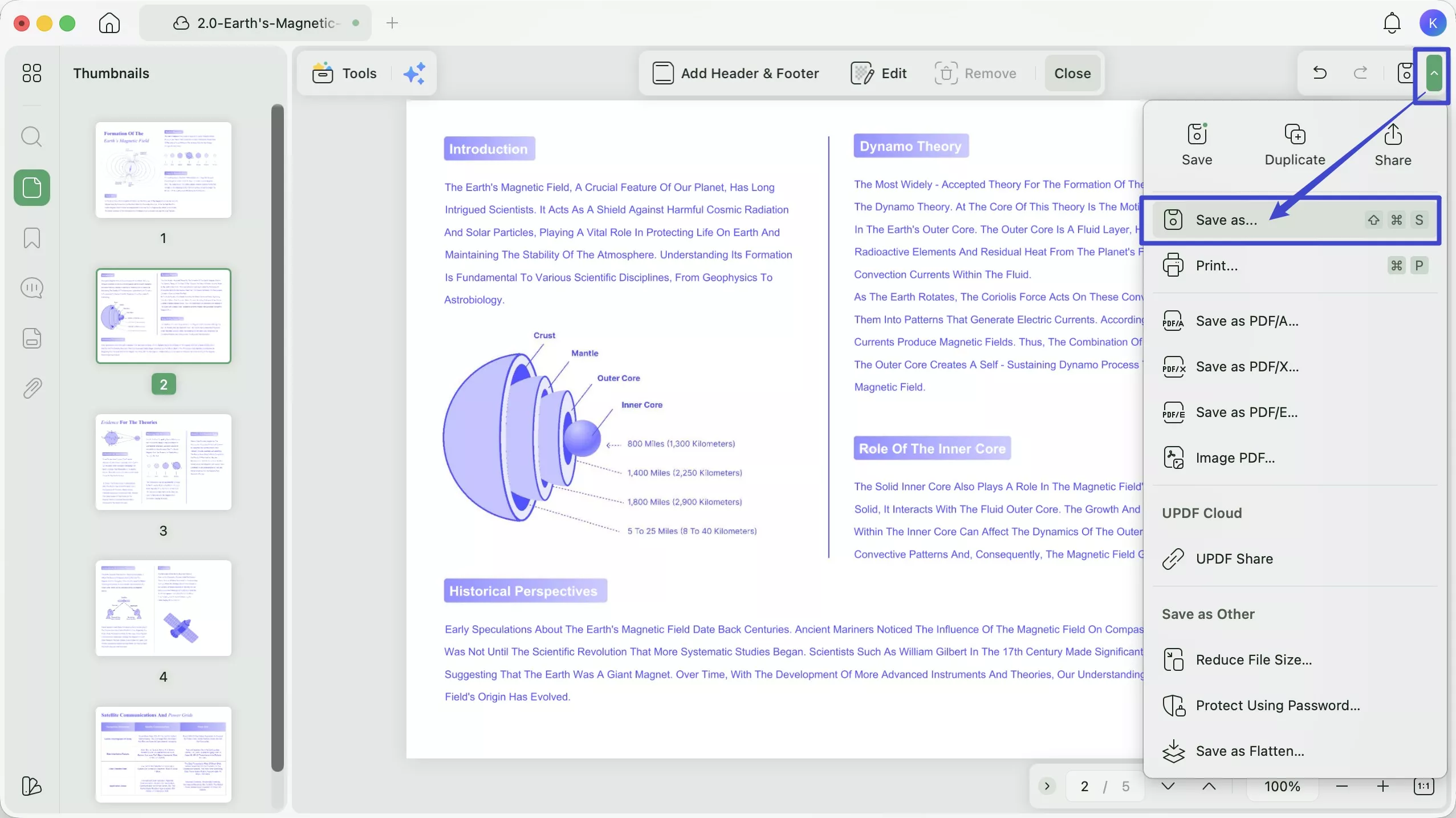
After opening the document, consider using Save As to create a copy. This gives you an original version in case you remove an annotation accidentally.
Step 2. Enter Comment Mode
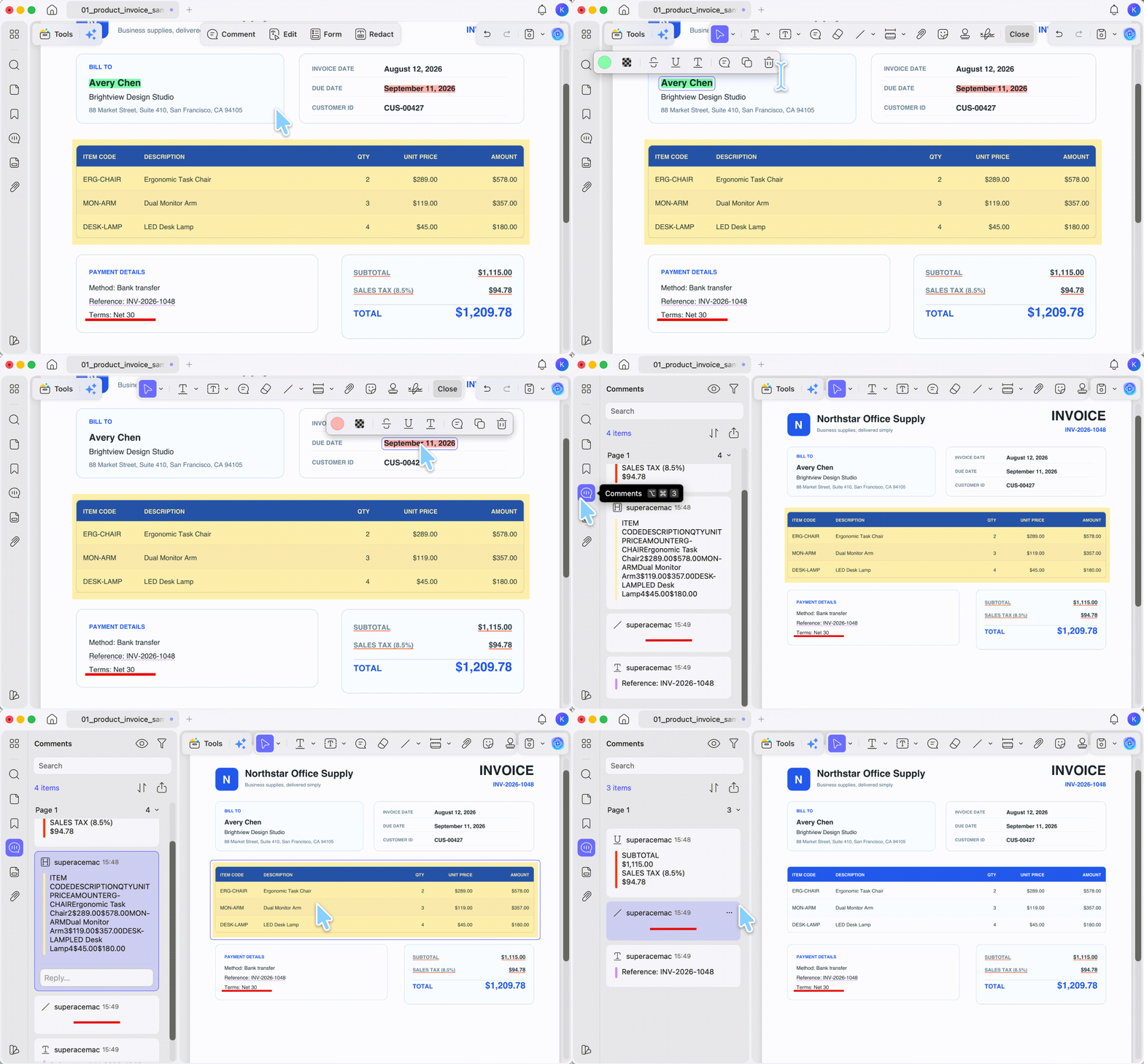
From the top toolbar, choose Comment.
Highlights are usually stored as comments or annotations rather than ordinary PDF text. If you remain in Edit mode, you may not be able to select the highlight correctly.
Step 3. Select the Highlighted Text
Click the highlighted area on the PDF page. Once selected, a border or floating toolbar should appear.
You can remove the highlight in any of the following ways:
- Click the Delete or trash icon on the floating toolbar.
- Right-click the highlight and choose Delete.
- Press the Delete key.
- Locate the highlight in the comment list and delete it there.
The colored highlight will disappear, but the original text will remain on the page.
Step 4. Save the PDF
Go to Save to update the existing PDF, or choose Save As to create a clean copy.
Open the saved file again and confirm that the highlight has been removed successfully.
Part 3. How to Remove All Highlights from a PDF on Windows
If a PDF contains dozens or hundreds of highlights, deleting them individually is inefficient.
UPDF for Windows allows you to select multiple highlights from the comment list and delete them together.
Windows-only feature: The Ctrl and Shift multi-selection methods described below are currently available only in UPDF for Windows. UPDF for Mac does not currently support this workflow, so Mac users need to remove highlights individually.
Step 1. Open the Comment List
Open the PDF in UPDF for Windows and enter Comment mode. Then open the comment list from the sidebar.
Windows • macOS • iOS • Android 100% secure
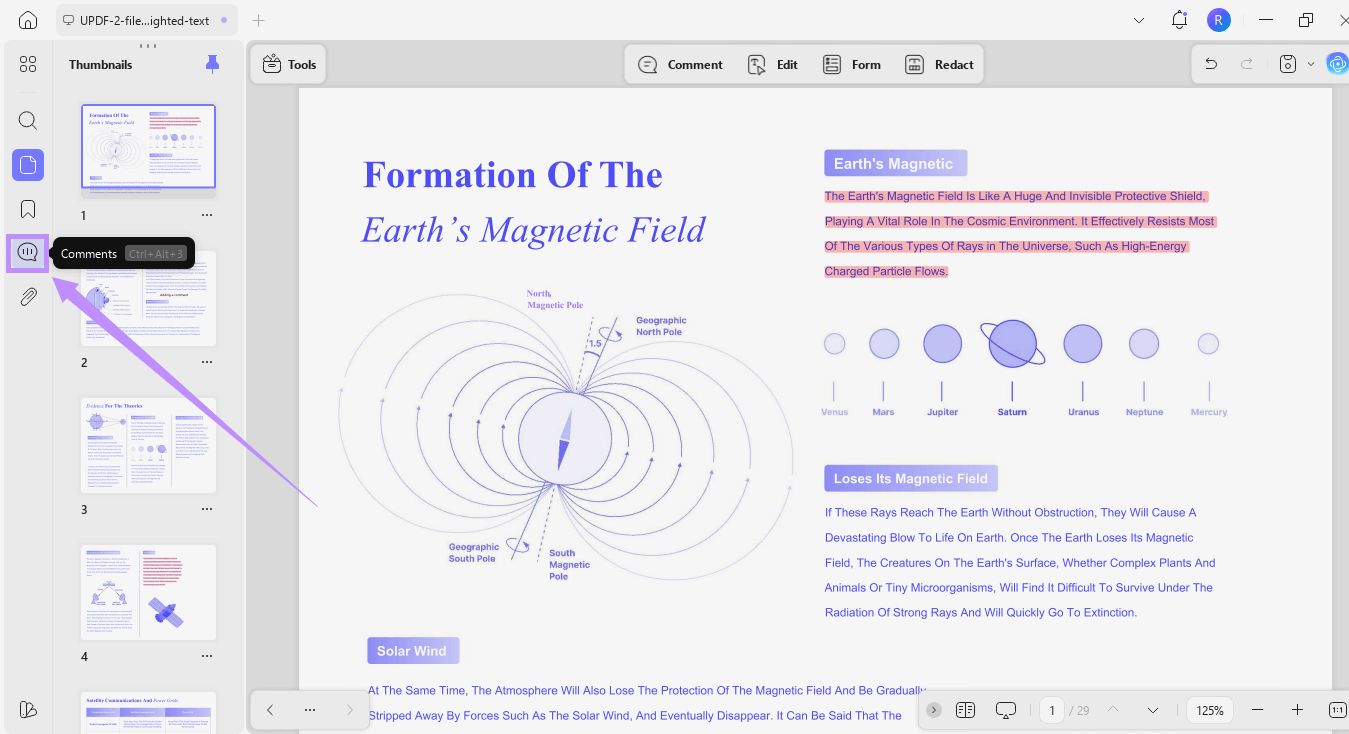
The panel displays the annotations in the document, including highlights, underlines, strikeouts, shapes, notes, stamps, and other comments.
Step 2. Filter the List by Highlight
Click the Filter Comments option at the top of the comment panel.
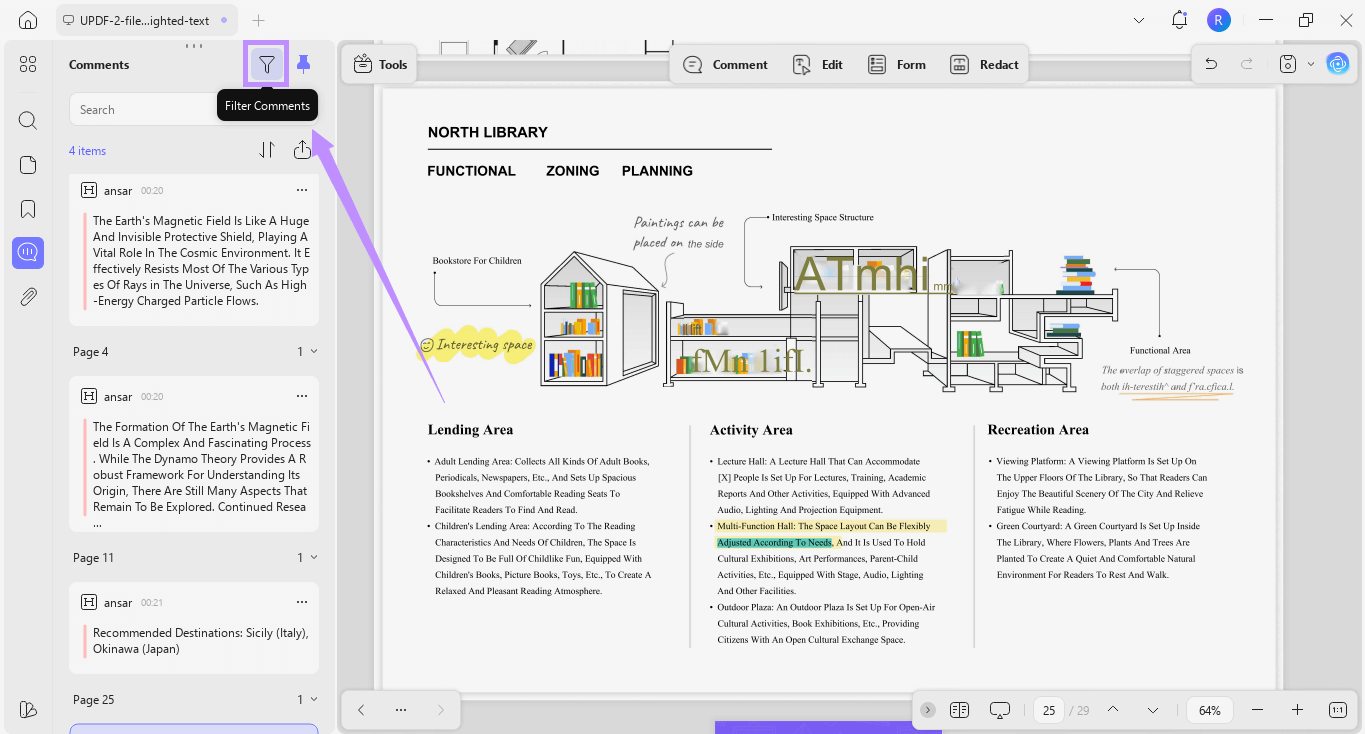
Deselect the other annotation types, select Highlight, and apply the filter. The list should now display only the highlight annotations in the document.
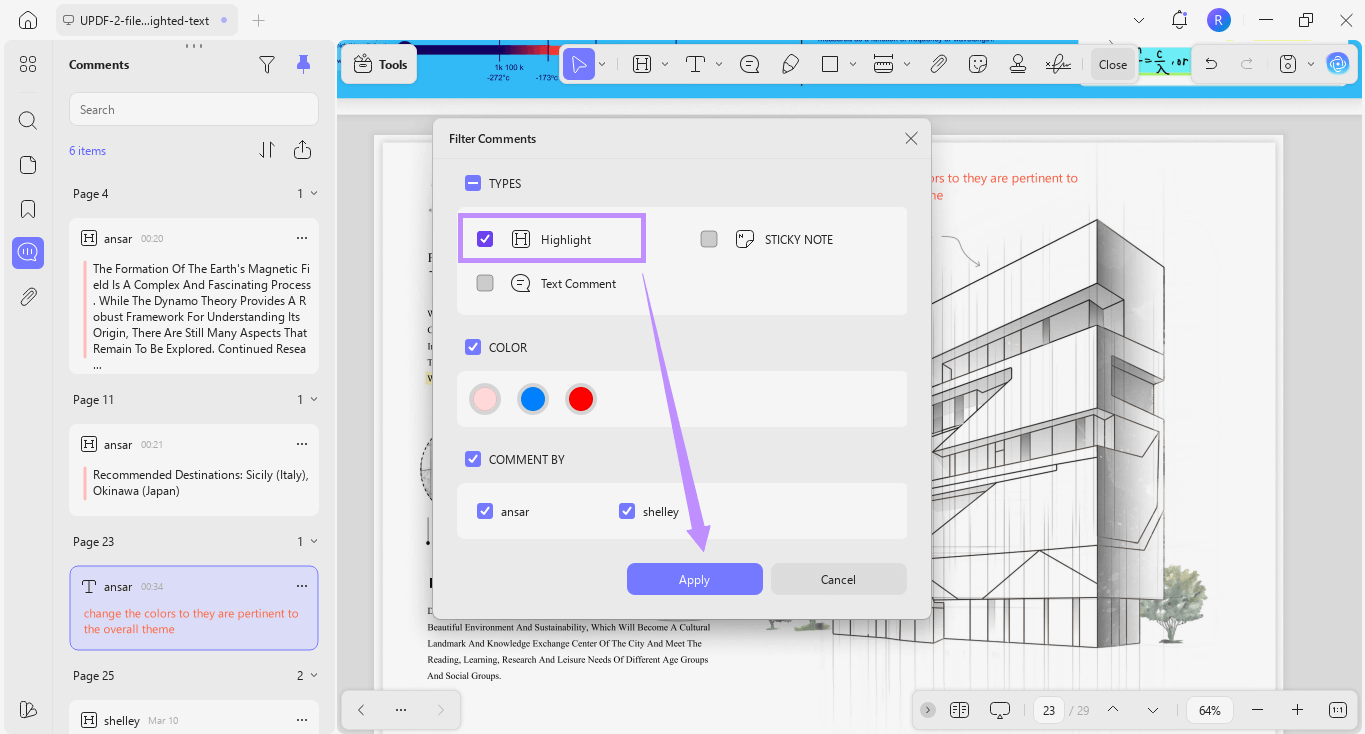
Filtering first helps prevent you from accidentally deleting sticky notes, text comment, shapes, or other comments that you want to keep.
Step 3. Select Multiple Highlights
UPDF for Windows provides two ways to select multiple items:
- Hold
Ctrland click the highlights you want to remove one by one. - Click the first highlight, hold
Shift, and click the last highlight to select a continuous range.
To select all the filtered highlights, click the first item and then hold Shift while clicking the last item in the list.
The selected highlights will be visually marked in the comment panel.
Step 4. Delete the Selected Highlights
After selecting the highlights, right-click the selected items and choose Delete, or click the available Delete button.
UPDF for Windows will remove all the selected highlights in one operation.
Step 5. Review and Save the Document
Scroll through the PDF and confirm that the required highlights have been removed. Then save the file.
If the document includes important annotations from other reviewers, save the cleaned version as a separate PDF instead of overwriting the original.
Part 4. Other Ways to Remove Highlights from a PDF
UPDF is not the only tool that can remove highlighted text from a PDF. You can also use Smallpdf, Adobe Acrobat, Foxit PDF Editor, or PDFgear.
The best choice depends on whether you want to work online or offline, the number of highlights you need to remove, and whether the PDF contains sensitive information.
For single highlights: Any tool works. If you're in a browser, Smallpdf or Adobe Acrobat online will do the job. If you're on desktop, the built‑in comment mode in any PDF reader is sufficient. The process is essentially the same across all tools, though the exact menu names may vary slightly. Upload your editable PDF files with highlights and then choose to delete them one by one. The following is an example of the online tool - Smallpdf.
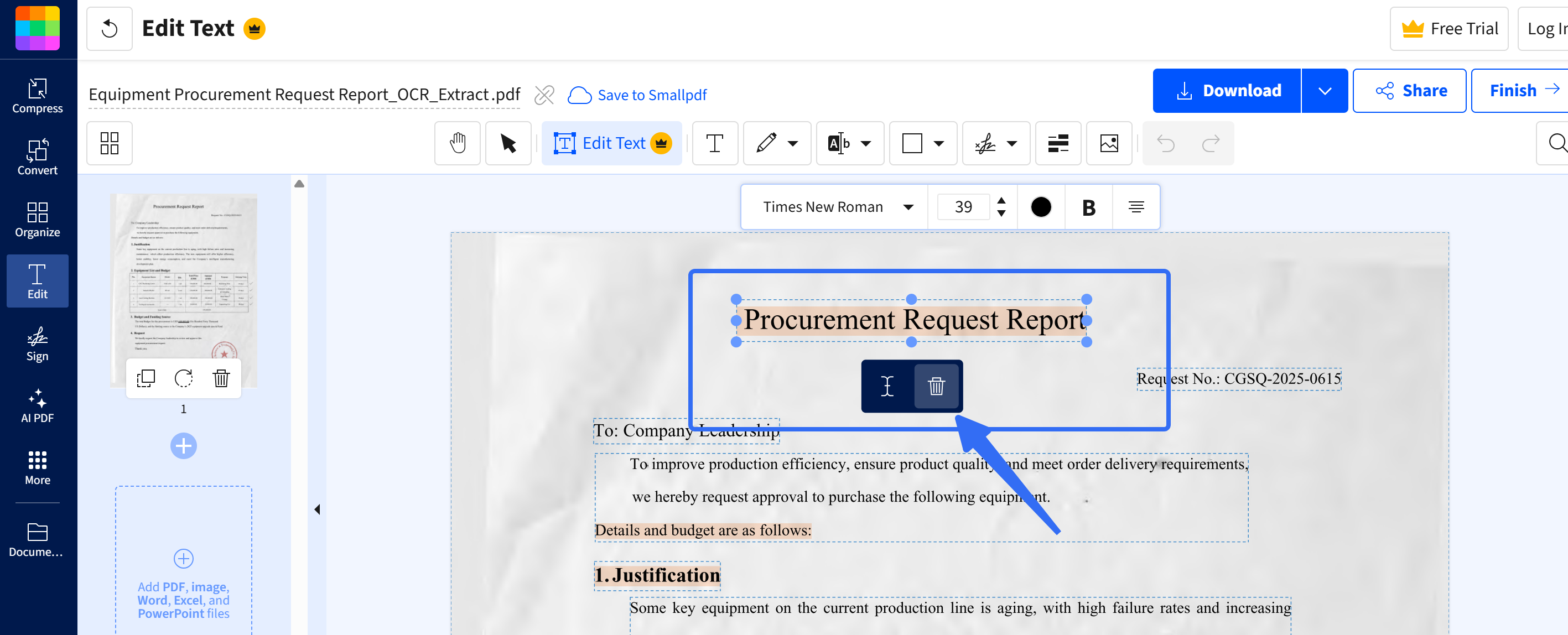
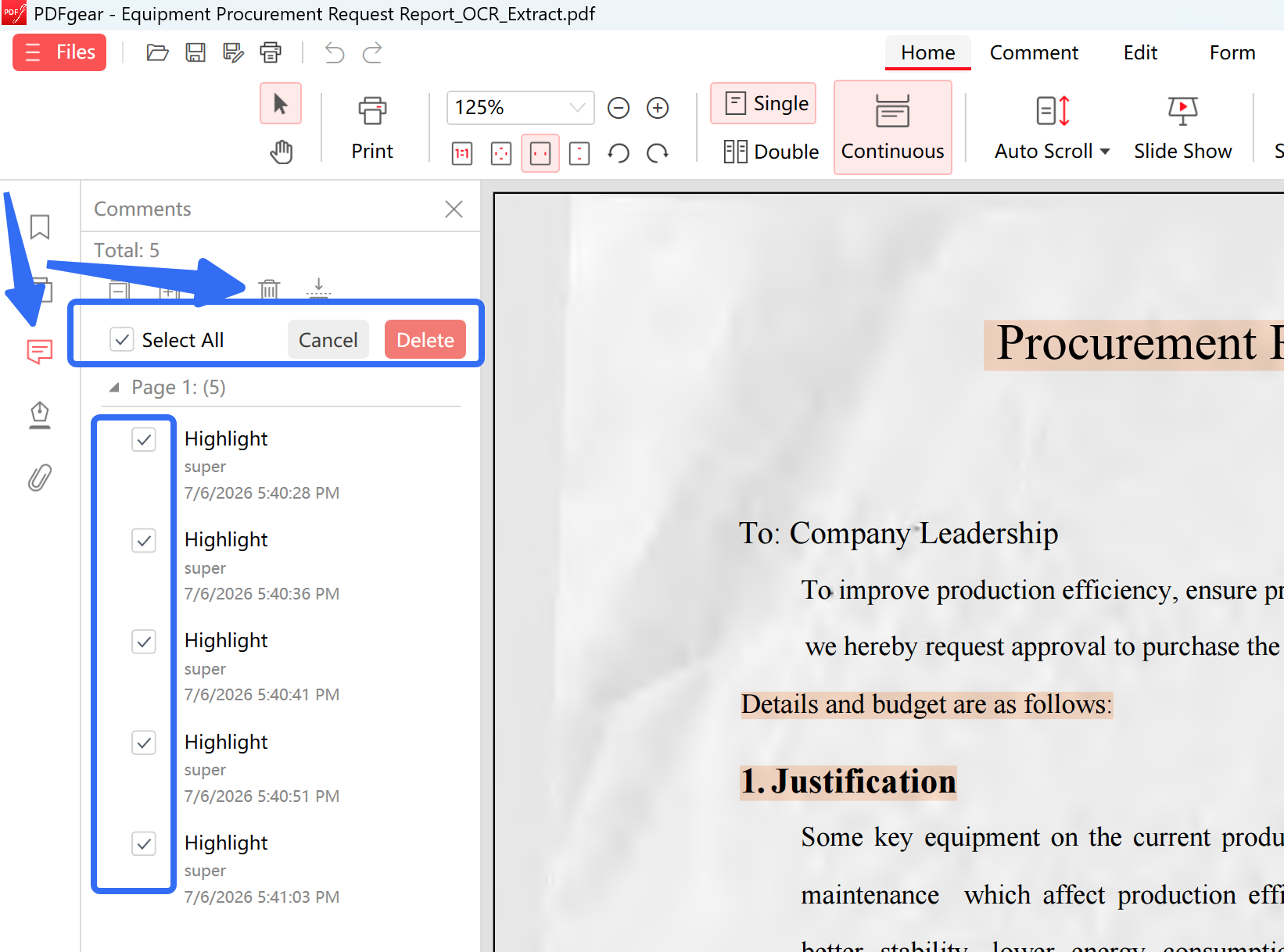
For bulk deletion: Online tools like Smallpdf lack a "remove all" button — you have to delete highlights page by page. Desktop tools like PDFgear support batch deletion via the comment list.
For filtering and organizing: UPDF and Foxit, Adobe stand out with the ability to filter highlights by page, author, type, color, and date — a level of control that online tools and PDFgear simply don't offer.
If the highlight you're trying to delete is unresponsive — it won't select, won't show a border, and won't respond to right‑click — that means it's not a comment at all. It's been "burned in" to the page. The next part covers how to handle that.
Part 5. How to Remove Burned‑In Highlighted Text in PDF?
If clicking the highlighted area does nothing, the highlight may no longer be an editable annotation.
This normally happens in one of three situations.
1. The PDF Is a Scanned Image
A scanned PDF is essentially a collection of page images. The highlight and the text may both be part of the same image.
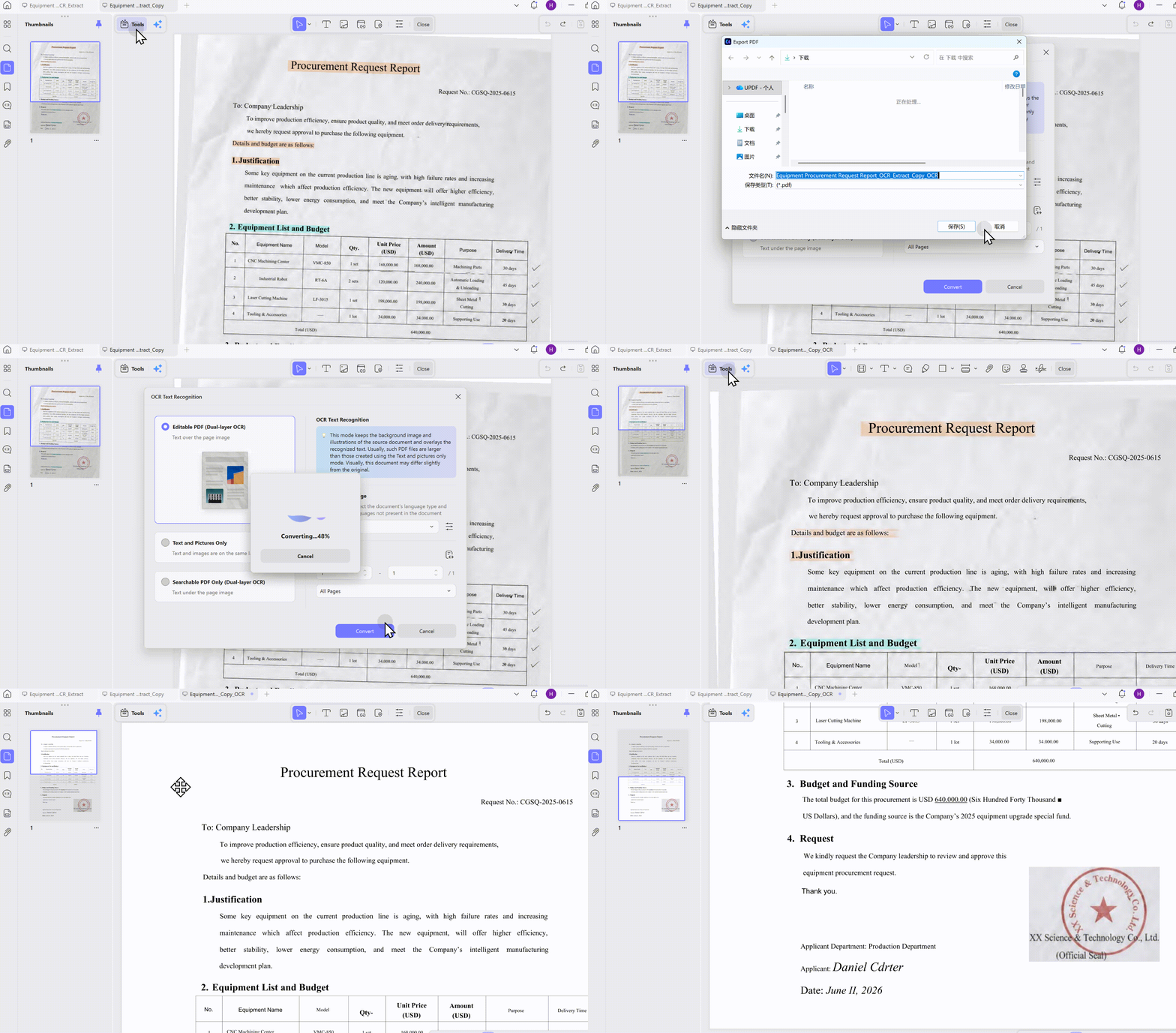
UPDF's OCR technology can recognize the text in a scanned PDF, but OCR alone does not automatically separate or remove the highlight color.
Windows • macOS • iOS • Android 100% secure
Possible solutions include:
- Obtain an original, unhighlighted version of the document.
- Use OCR and recreate the affected text.
- Edit the page image carefully.
- Cover and replace the affected area if document accuracy permits.
Windows • macOS • iOS • Android 100% secure
Always save a backup because image editing may affect both the highlight and the text underneath it.
2. The PDF Has Been Flattened
Flattening merges annotations with the PDF page. Once this happens, the highlight no longer exists as an independent comment.
The safest solution is to return to the original, unflattened PDF and remove the highlight from that version.
If the original file is unavailable, you may need to edit or recreate the affected page content carefully.
3. The Highlight Is Part of the Page Background
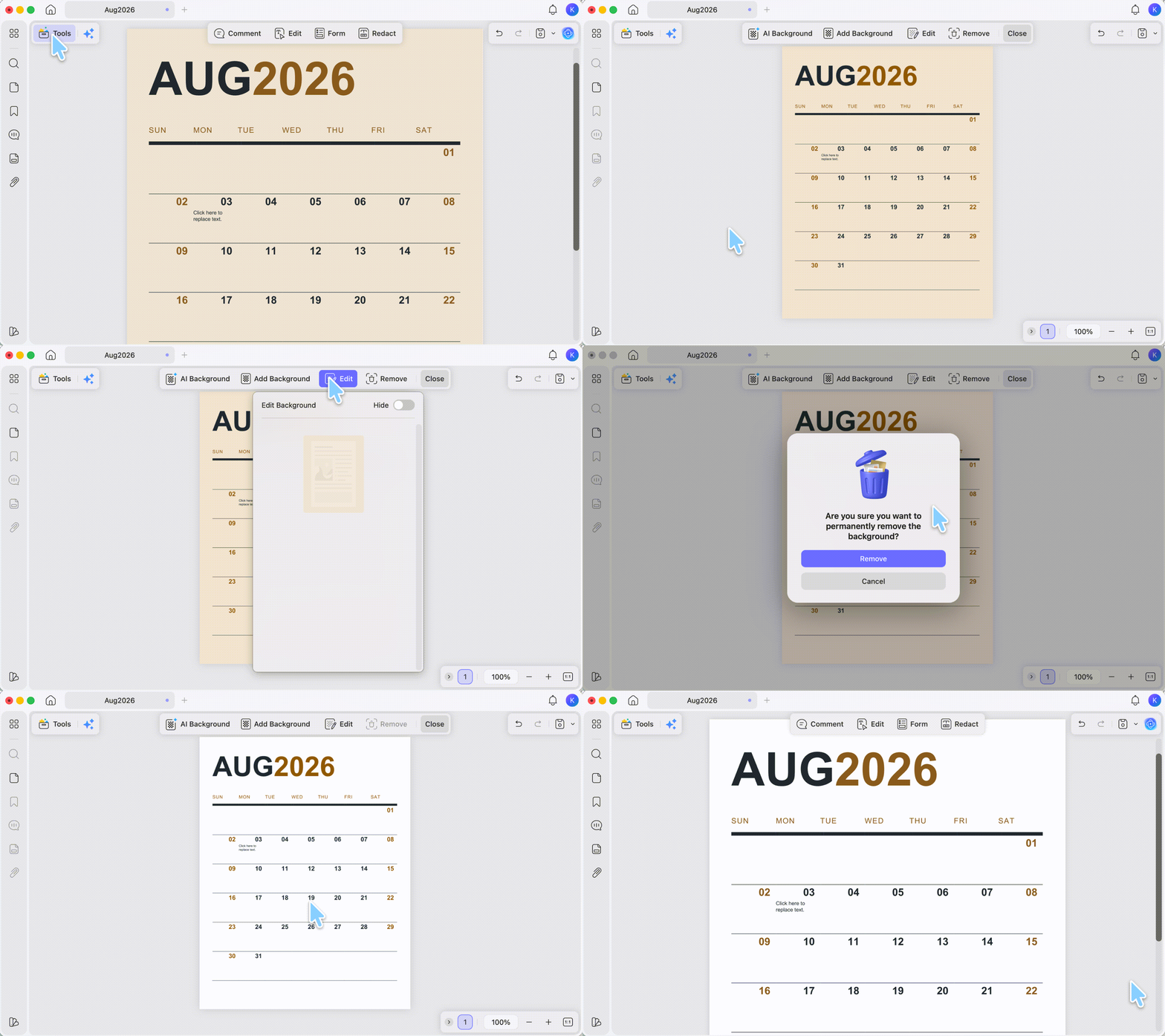
Some PDFs use colored shapes or background elements instead of standard highlight annotations.
Go to Tools > Background in UPDF and check whether the colored object can be selected separately. If it can, delete the object and confirm that the text remains unchanged.
Windows • macOS • iOS • Android 100% secure
If the colored area and text are part of the same image, treat the document as a scanned or flattened PDF.
Part 6. How to Delete the Actual Highlighted Text
“Remove highlighted text” can have two different meanings:
- Remove the highlight color but keep the words.
- Delete both the highlight and the words underneath it.
The previous methods remove the highlight annotation only. If you want to erase the actual words, use the PDF editing feature instead.
For an Editable PDF
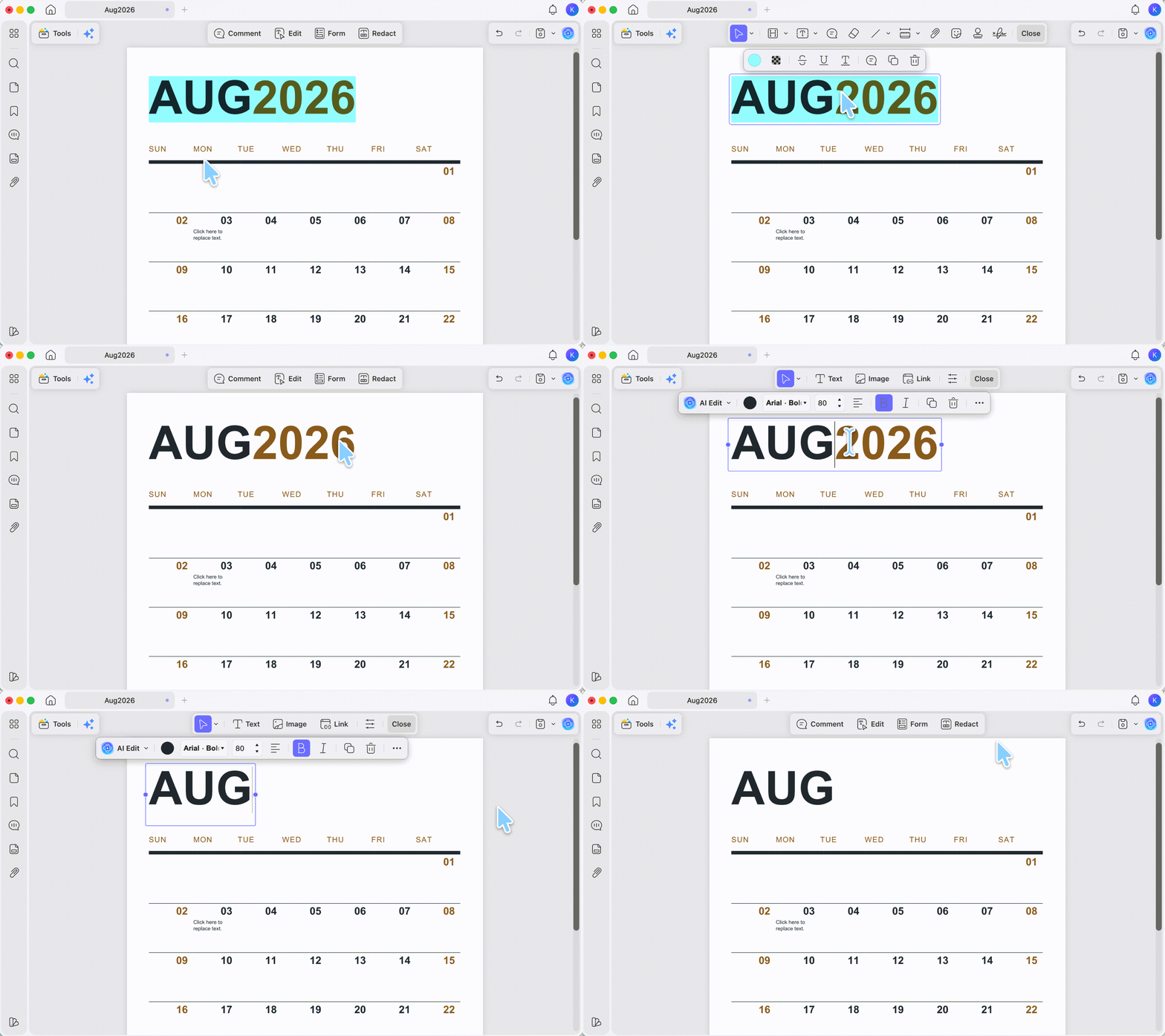
To delete the actual highlighted text with UPDF:
- Open the PDF in UPDF.
- Go to Comment from the top to remove the highlight annotation first if it prevents you from selecting the words.
- Then, click Close to exit Comment mode and go to Edit.
- Select the text you want to remove.
- Press Delete.
- Adjust the remaining text or layout if necessary.
- Save the PDF.
You can learn more about using UPDF to edit PDF text, images, and links.
Windows • macOS • iOS • Android 100% secure
Deleting the actual text changes the document’s content, so make a backup before proceeding.
For a Scanned PDF
If the PDF is scanned, use UPDF’s OCR PDF tool to recognize the text first.
After OCR:
- Open the processed PDF.
- Enter Edit mode.
- Check whether the recognized text can be selected.
- Delete or replace the required words.
- Review the page layout.
- Save the result as a new PDF.
OCR accuracy depends on the scan quality, language, fonts, and page layout. Proofread the edited section before sharing the document.
Part 7. Common Issues and Fixes for Removing Highlighted Text in PDF
Even with the right approach, things don't always go smoothly. This section tackles the most common "it still won't work" scenarios.
Q1: I click the highlight, but nothing happens.
Why this happens: You're probably in "View" or "Read" mode, not Comment Mode.
Fix: Look for a toolbar button or menu item labeled Comment, Annotate, or Review. Switch to that mode, then click the highlight again.
Q2: I deleted the highlight, but it reappeared after saving.
Why this happens: You likely deselected the highlight instead of deleting it. Clicking away from a selected highlight doesn't remove it — it just stops showing the selection border.
Fix: Make sure you perform an actual deletion action: right‑click → "Delete," press the Delete key, or click the trash can icon. Then save the file.
Q3: The highlight is "stuck" — I can't select it at all.
Why this happens: The highlight is no longer a comment annotation. It's been "flattened" into the page content.
Fix: This is a different problem with a different solution. Jump to Part 5 to check how UPDF solves it in clicks for the full walkthrough on handling burned‑in highlights.
Q4: How do I bulk‑delete highlights on a Mac?
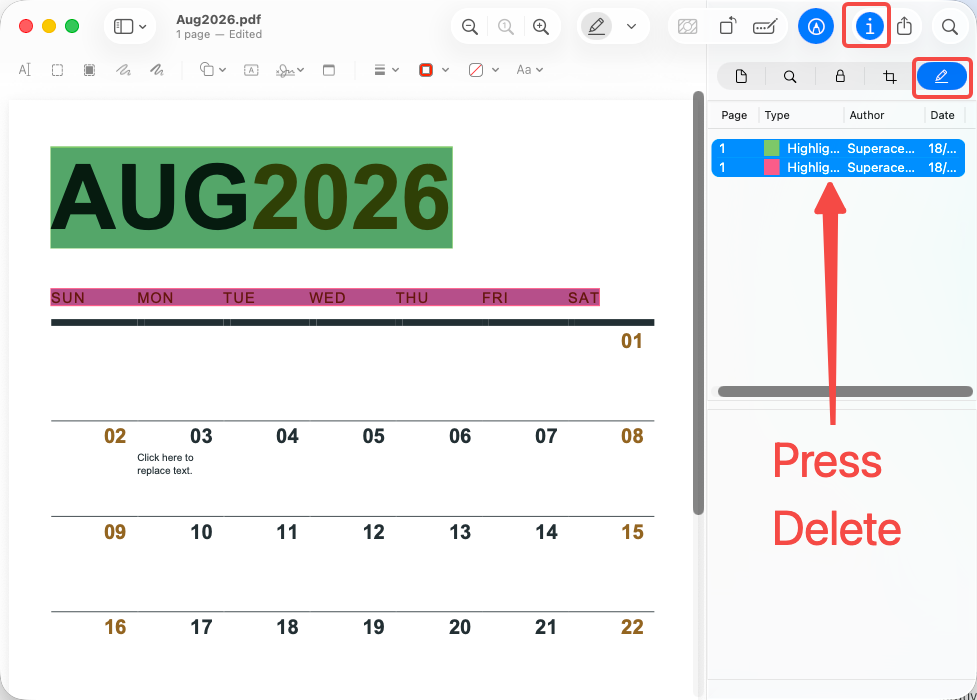
Mac Preview Users:
- Open the PDF in Preview → click the "Inspector" icon (a toolbox) from the top toolbar
- Select the Annotations Inspector tab → select all highlights from the list → press Delete
- Alternatively, click each highlight one by one and press Delete
For more control: Consider using a third‑party tool like UPDF, which offers proper comment list management on Mac.
Windows • macOS • iOS • Android 100% secure
Part 8. Frequently Asked Questions
1. Will Removing a Highlight Delete the Text?
No. If the highlight is a normal PDF annotation, deleting it removes only the colored markup. The original text remains unchanged. To delete the actual words, use Edit mode instead.
2. Can I Remove Only Highlights of a Specific Color?
If your version of UPDF provides color filtering in the comment panel, filter the comments by annotation type and color before selecting them. This lets you remove one group of highlights while retaining highlights in other colors.
3. Can I Undo a Deleted Highlight?
You can normally use the Undo (Ctrl/Command + Z) command before closing the file. Keeping an original backup is still recommended, especially when deleting multiple highlights.
4. Why Can’t I Remove Highlights from a Protected PDF?
The PDF may have editing or commenting restrictions. Check the document’s security permissions. You will need the correct password or an unrestricted copy before modifying its annotations.
Conclusion
Removing highlighted text from a PDF is straightforward when the highlight is an editable annotation. Open the document in UPDF, enter Comment mode, select the highlighted area, and delete it without affecting the words underneath.
If the PDF contains many highlights, UPDF for Windows lets you filter the comment list and use Ctrl or Shift to select multiple highlights before deleting them together. This multi-selection workflow is currently not supported on Mac, where highlights need to be removed individually.
Smallpdf, Adobe Acrobat, Foxit PDF Editor, and PDFgear provide additional ways to remove PDF highlights. Their support for online editing and multiple-comment management varies, so choose the method that matches your device and document.
For flattened or scanned highlights, check whether you can access the original PDF before editing the page content. If you need to delete the actual highlighted words rather than the colored markup, use Edit mode or OCR as appropriate.
For more ways to add, manage, and remove PDF annotations, see UPDF’s guide to annotating PDFs.
Windows • macOS • iOS • Android 100% secure







 Lizzy Lozano
 Grace Curry
 Enola Davis