 UPDF
 UPDF for Windows
 UPDF for Mac
 UPDF for iPhone/iPad
 UPDF for Android
 Nomostar
 UPDF AI Online
 UPDF Sign
 IvyCraft
 Edit PDF
 Annotate PDF
 Create PDF
 PDF Form
 Edit links
 Convert PDF
 OCR
 PDF to Word
 PDF to Image
 PDF to Excel
 Organize PDF
 Merge PDF
 Split PDF
 Crop PDF
 Rotate PDF
 Protect PDF
 Sign PDF
 Redact PDF
 Sanitize PDF
 Remove Security
 Read PDF
 UPDF Cloud
 Compress PDF
 Print PDF
 Batch Process

 About UPDF AI
 UPDF AI Solutions
 AI User Guide
 FAQ about UPDF AI
 Summarize PDF
 Translate PDF
 Chat with PDF
 Chat with AI
 Chat with image
 PDF to Mind Map
 Explain PDF
 PDF AI Tools
 Image AI Tools
 AI Chat Tools
 AI Writing Tools
 AI Study Tools
 AI Working Tools
 Other AI Tools
 AI Bookmark Generation
 AI Bookmark Summary
 AI Watermark Generation
 AI Background Generation
 AI Sticker Generation
 AI Stamp Generation
 AI Editing Suite
 UPDF Copilot
 AI Page Management
 AI Semantic Search
 PDF to Word
 PDF to Excel
 PDF to PowerPoint
 Enterprise Solution
 Enterprise Sign
 Enterprise AI
 Enterprise Plan
 Enterprise User Guide
 Enterprise Webinar
 IT
 Education
 Construction
 Financial Service
 Healthcare
 Insurance
 Legal
 Manufacturing
 Government
 Researchers & PhDs
 Solopreneurs & Freelancers
 Lawyers & Legal Professionals
 Real Estate Agents & Brokers
 Education Solution
 Customer Stories
 User Guide
 UPDF Tricks
 FAQs
 UPDF Reviews
 Download Center
 Blog
 Newsroom
 Tech Spec
 Updates
 UPDF vs. Adobe Acrobat
 UPDF vs. Foxit
 UPDF vs. PDF Expert


Quick Answer
Managing contracts through email can quickly become messy. You send a document to one person, wait for approval, follow up with another signer, and sometimes end up with several versions of the same agreement. It gets even harder when a contract requires legal review, management approval, and signatures from external clients.
An Adobe signature workflow helps organize these steps in one digital process. This guide explains how to prepare, route, sign, and track contracts with Adobe Acrobat Sign, how to avoid common delays.
If you want to use Sign, you almost inevitably have to pay for Acrobat—and you’ll also be subject to a limit of 150 signatures per year, unless you upgrade to a more expensive tier. So, we also introduce how UPDF separates editing from signing so you're not paying for both when you only need one.
What Is an Adobe Signature Workflow?
An Adobe signature workflow is a digital process for moving a document from preparation to review, approval, signing, and storage using Adobe Acrobat or Adobe Acrobat Sign.
Rather than emailing separate copies of a contract to different people, you create one agreement and define who needs to review or sign it. The platform sends notifications, manages signing order, and records agreement activity.
There are two common ways to use it:
- Standard signature requests: Suitable for sending individual contracts to one or multiple recipients. You can assign signing roles, add fields, and track progress.
- Custom workflows: Designed for recurring or more complex business processes. Administrators can configure predefined documents, participant roles, routing rules, and instructions through the Workflow Designer. (This feature just opens for Enterprise Account)
You don't need a complex workflow for every contract. A simple signature request is often enough for a standard client agreement, while an automated workflow makes more sense for repeatable processes such as employee onboarding or vendor agreements.
How to Create an Adobe Signature Workflow: 6 Essential Steps
Step 1. Prepare and Review the Contract
Before opening Acrobat Sign, make sure the document is ready for approval.
Start by checking that you're using the latest contract version. Confirm the parties' names, payment terms, contract dates, obligations, and any required attachments. Remove outdated drafts and resolve internal comments before sending the agreement externally.
Next, identify everyone involved in the process.
For example, a sales contract might require:
- A sales manager to approve the commercial terms.
- A legal representative to review specific clauses.
- A customer to sign the agreement.
- A company representative to provide the final signature.
Keep in mind that an approver and a signer are not necessarily the same person. Defining their responsibilities beforehand helps prevent unnecessary routing steps.
Step 2. Upload the Document and Add Recipients
Open Adobe Acrobat and select E-Sign > Request e-signatures. Enter the recipient's email address and name, then choose Prepare document.
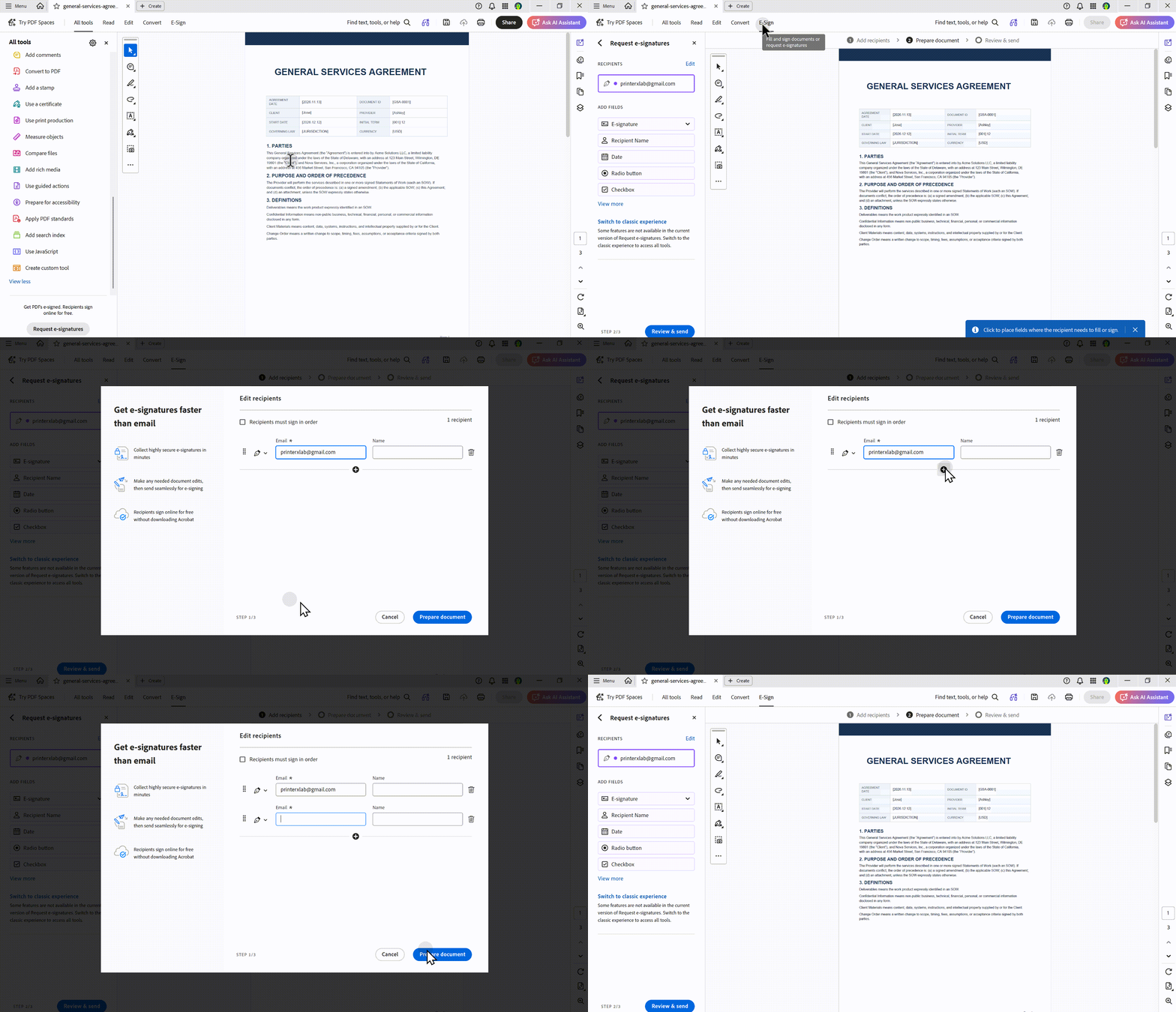
You can add multiple recipients, include yourself when necessary, and copy other people who only need to receive a notification or document copy.
Before proceeding, give the agreement a recognizable name. Something like ClientName_ServiceAgreement_2026 is easier to find later than a generic filename such as Contract_Final.pdf.
If your contract contains multiple documents, check their order before sending. Acrobat Sign can combine uploaded documents into one agreement, so the sequence affects how recipients receive the final document.
Step 3. Set the Signing and Approval Order
One of the most important decisions in an Adobe signature workflow is determining when each participant should receive the agreement.
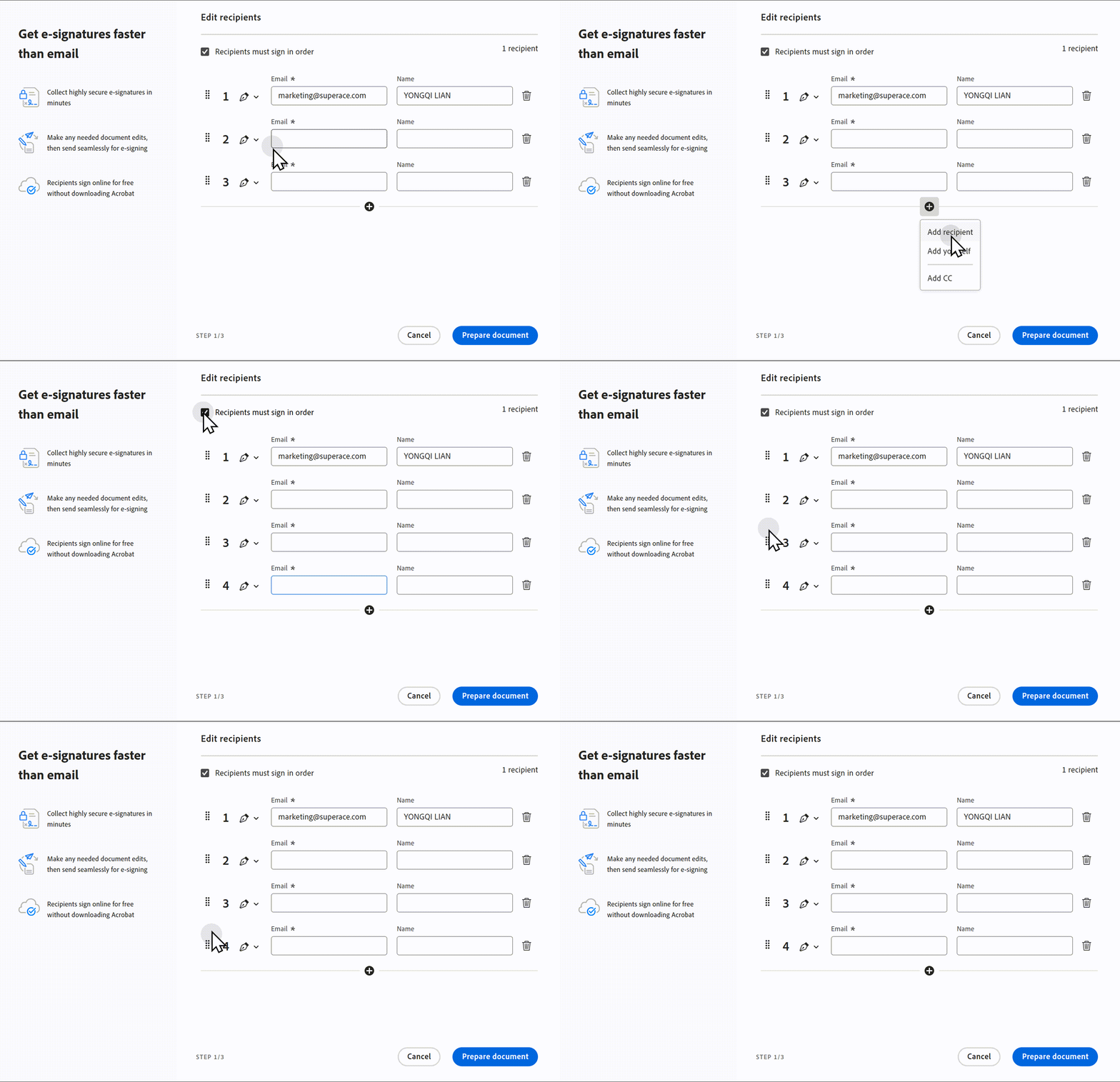
Adobe supports several routing approaches:
Sequential signing: Recipients receive the agreement one after another. The next person is notified after the previous participant completes their action. This works well when a manager must approve a contract before a customer signs it.
Parallel signing: All recipients receive the request at the same time. This is useful when multiple stakeholders need to sign independently and there is no required order.
Hybrid signing: A combination of sequential and parallel participation. For example, a contract might first go through a group of internal reviewers before moving to a final executive signer.
Choose the routing method based on your actual approval process, not simply the number of recipients. An unnecessary signing sequence can slow down a contract that could otherwise be completed simultaneously.
Note that hybrid routing may require administrator configuration.
Step 4. Add Signature Fields and Authentication
After setting up recipients, prepare the document's interactive fields.
Select the appropriate field type and place it where the recipient needs to provide information. Common fields include:
- Signature fields for legally designated signers.
- Initial fields for acknowledging specific pages or sections.
- Date fields for recording relevant dates.
- Text fields for names, titles, or other required information.
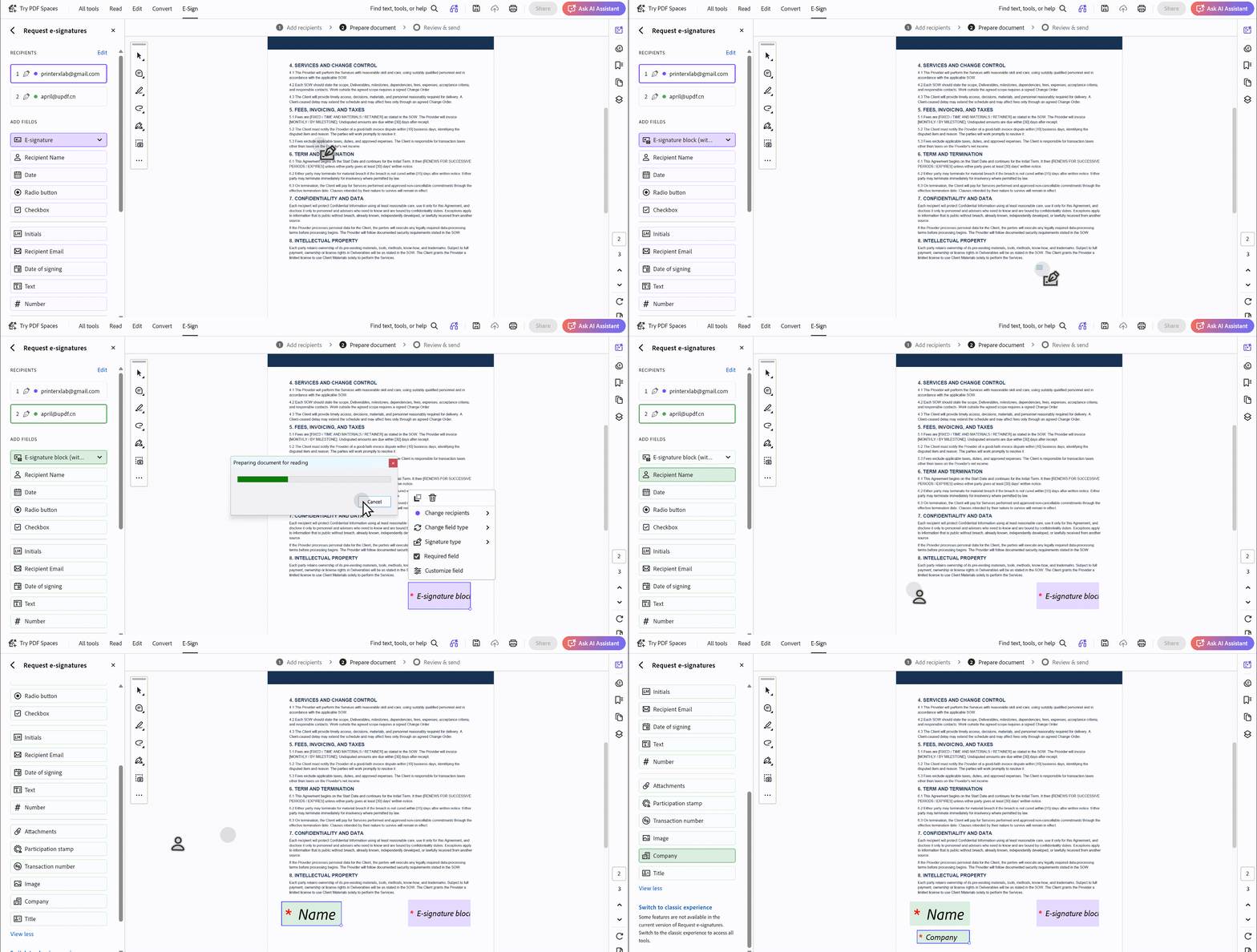
Pay particular attention to field assignment when multiple people are involved. A signature field intended for the customer should not accidentally be assigned to an internal reviewer.
You should also consider recipient authentication. Depending on your organization's requirements and available Adobe plan, you may be able to use additional verification methods, such as passwords or identity checks.
Before sending, review the entire document and confirm that all required fields are assigned correctly.
Step 5. Send, Monitor, and Follow Up
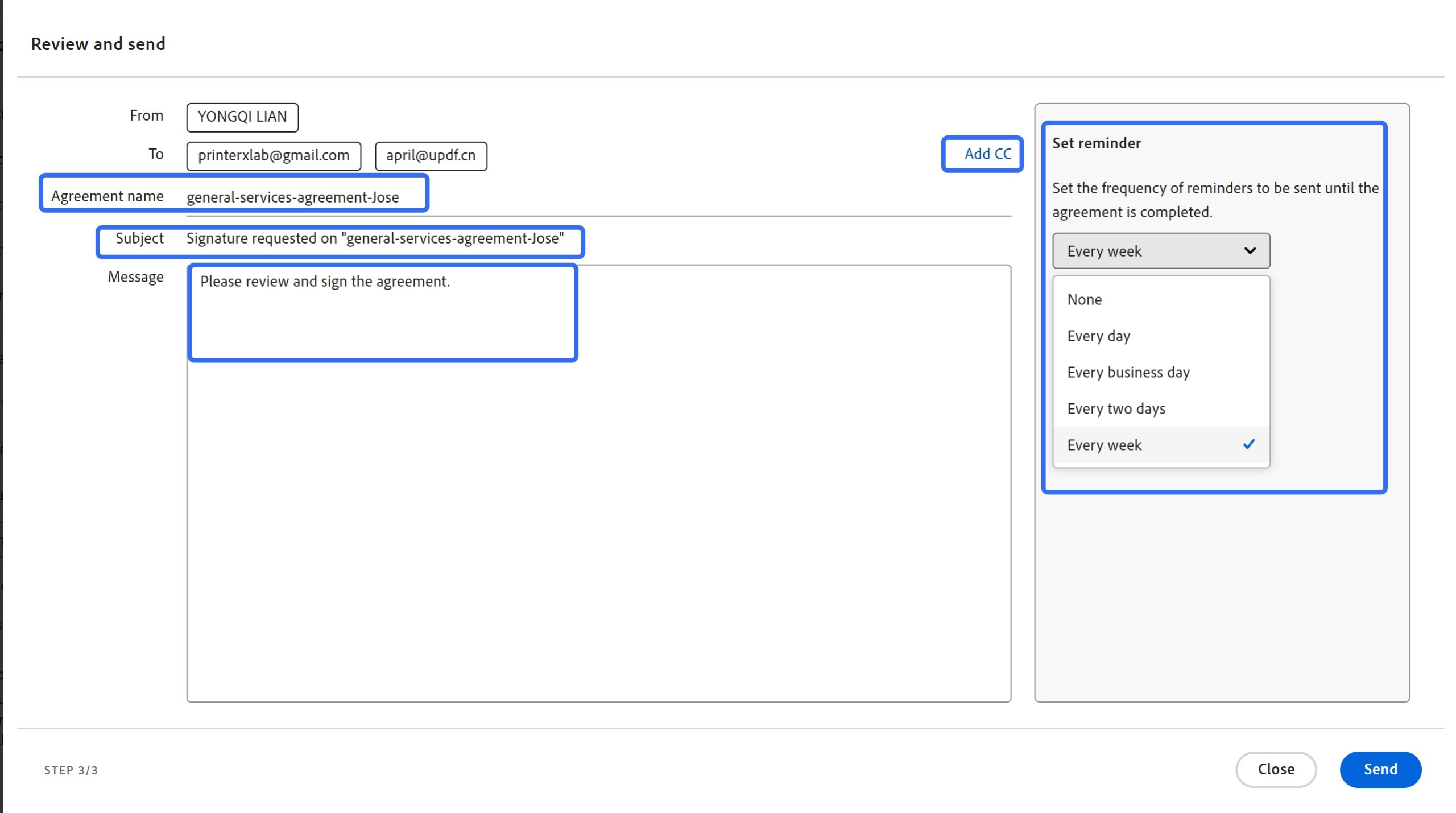
Once the document is ready, review the agreement name, recipients, message, and reminder settings. Then select Send.
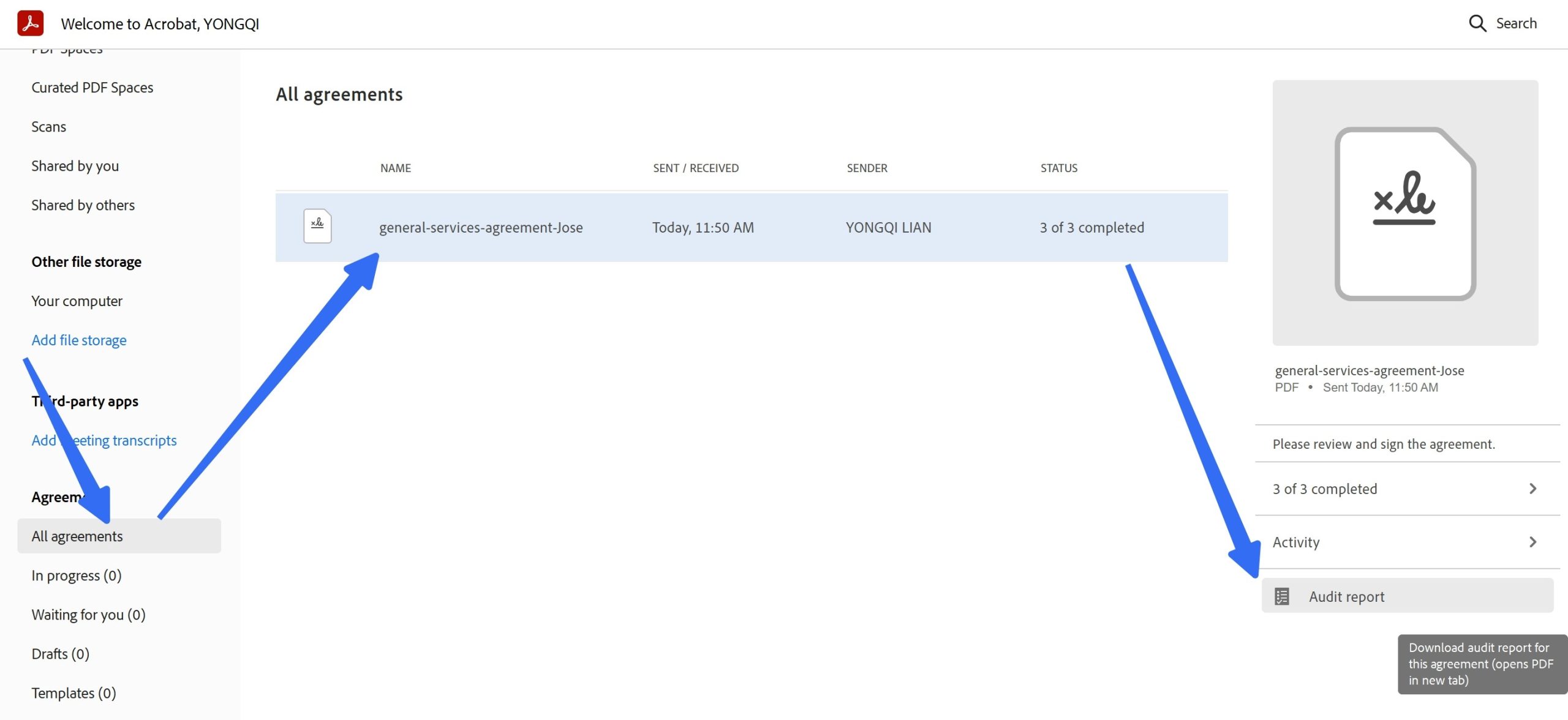
Adobe Acrobat Sign provides agreement management features that help you see which contracts are still in progress and which have been completed.
Don't assume that sending a request means the process is finished. A recipient may overlook the email, be unavailable, or have difficulty accessing the document.
Set reasonable reminder intervals and deadlines for important agreements. When a contract is delayed, check its activity history to identify the current recipient and the last recorded action.
A useful practice is to follow up with the person responsible for the next step rather than repeatedly emailing everyone involved.
Step 6. Collect the Signed PDF and Store the Audit Trail
When all required participants have completed their actions, download the final signed agreement.
You should also retain the associated audit report. It records important agreement events, including document creation, delivery, recipient activity, signatures, and the final status.
For better contract management, store the signed PDF and audit report together in a clearly organized folder.
A practical naming system might look like this:
Contracts / 2026 / Clients / ClientName / Signed_Agreement.pdf
Restrict access to people who need the document, and follow your organization's retention and backup policies.
This final step matters because a signed contract is not useful if nobody can locate the correct version when it is needed later.
How to Make Recurring Contract Workflows More Efficient
If your organization sends similar contracts regularly, creating a reusable template can save considerable time.
Create Reusable Templates
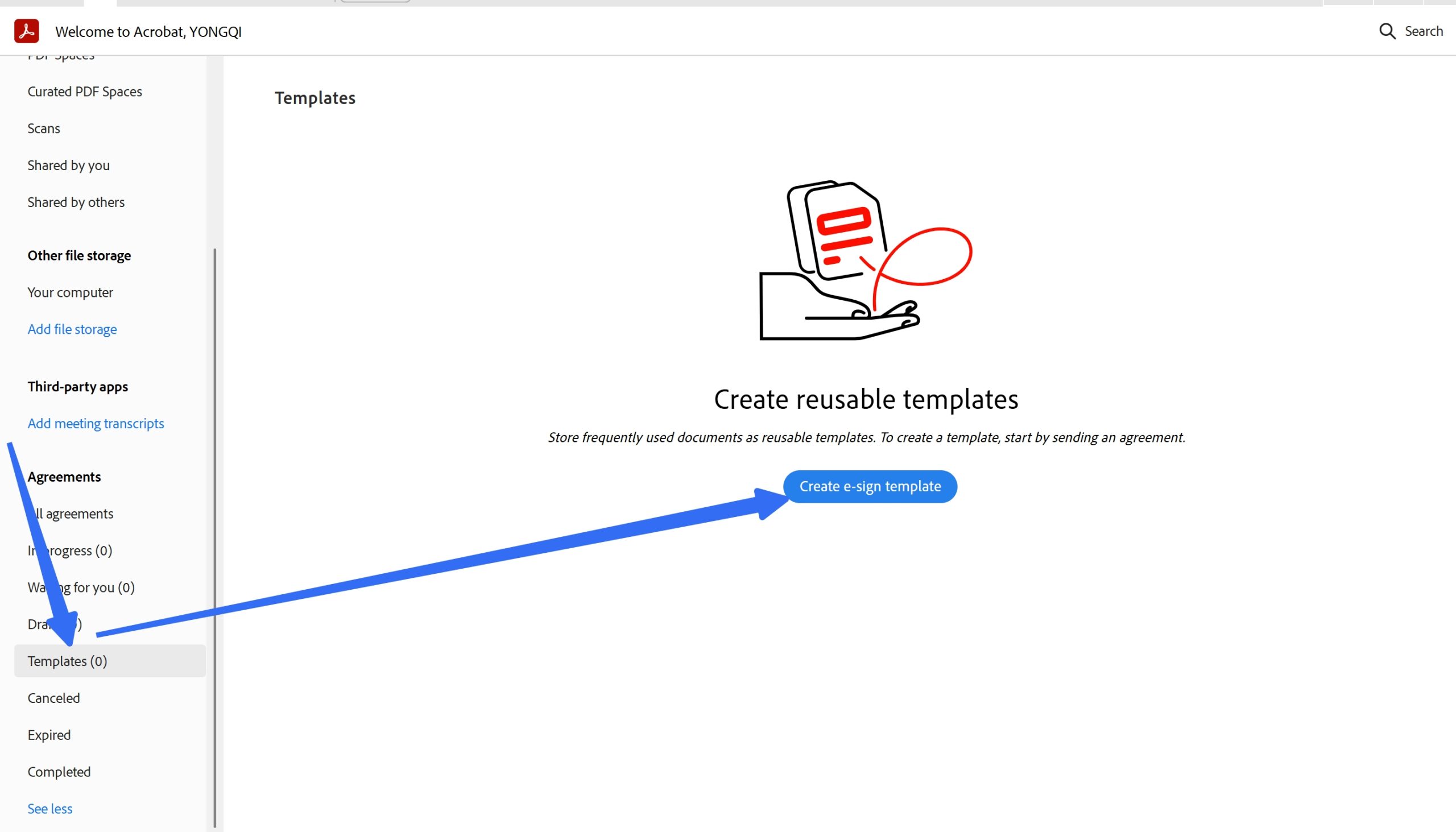
Instead of uploading the same agreement and placing signature fields every time, create a reusable document template.
You can prepare commonly used fields and agreement details in advance. This is particularly useful for employment agreements, client onboarding documents, service agreements, and vendor contracts.
Templates also reduce mistakes caused by forgetting a required signature field or changing the order of recipients.
Use Custom Workflow Designer for Complex Processes
For organizations with more detailed requirements, Adobe Acrobat Sign's Custom Workflow Designer offers additional control.
Administrators can define recipient roles, signing order, document packages, sender input fields, and workflow instructions. This makes recurring processes more consistent across departments.
However, access is plan-dependent. Adobe's current documentation identifies Custom Workflow Designer support for Acrobat Sign Solutions and Government, rather than configurable access through standard Acrobat Standard or Pro plans.
For occasional contracts, a regular signature request may be all you need. Consider a custom contract management workflow when multiple departments repeatedly follow the same approval process.
Common Adobe Signature Workflow Problems and How to Fix Them
Even a well-designed workflow can encounter practical problems.
Signature request emails aren't arriving.
Check the recipient's email address, spam folder, and the agreement's activity history. If the activity shows a bounced email, investigate the delivery issue with your email administrator or Adobe support rather than repeatedly sending duplicate requests.
The wrong person receives the signature request.
Review the recipient list and signing order before sending. Make sure each signature field is assigned to the correct participant.
A recipient hasn't completed their part.
Check the agreement's current status and send an appropriate reminder. For time-sensitive contracts, communicate the deadline directly rather than relying entirely on automated notifications.
The signing interface looks different from the instructions.
Adobe offers different signing experiences across Acrobat desktop, Acrobat web, and Acrobat Sign. Some custom workflow options also depend on account permissions. Confirm which product and interface your organization uses before following an interface-specific tutorial.
These are not just theoretical concerns. Adobe Community discussions include reports of bounced notifications, while Reddit users have also described confusion caused by overlapping document preparation and signing interfaces. A clear internal procedure can make these workflows easier for everyone.
Where UPDF Fits into Your Contract Workflow
Adobe Acrobat Sign is useful for routing agreements and collecting signatures. However, contract management often involves more than sending a document for signing.
You may need to review clauses, edit PDF content, organize pages, add comments, or understand a lengthy agreement before it reaches the signing stage.
UPDF 3.0 also introduces UPDF Sign, bringing signature requests into its PDF workspace on Windows and Mac.
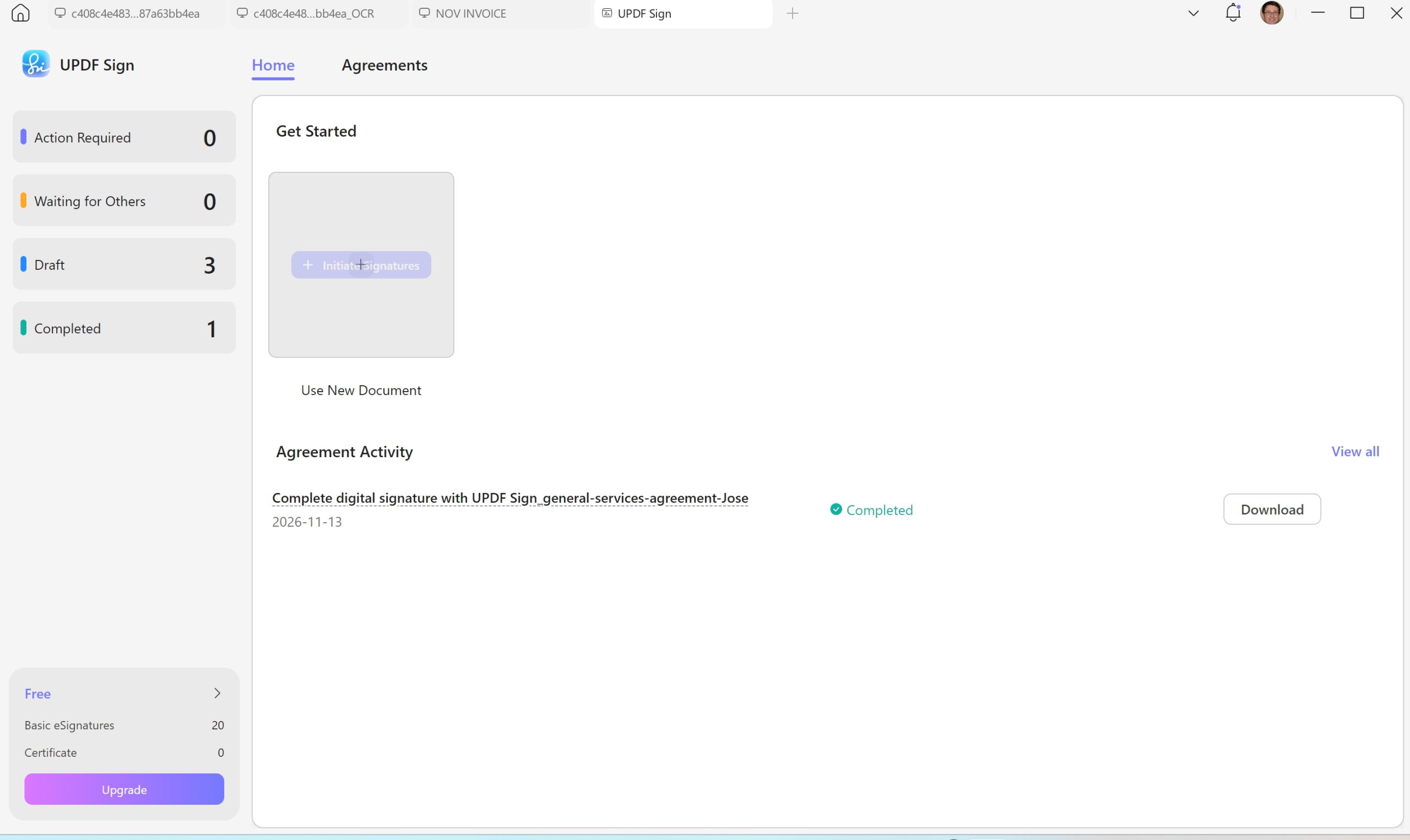
You can prepare a contract, add recipients, assign signature and date fields, establish a signing order, and track whether recipients have viewed or signed the document. Reminders are also available to help follow up on pending requests.
This gives teams another option when they prefer to review, edit, and manage contracts in one PDF-focused environment.
Sign Without the Per-User Subscription Stack
Before comparing prices, it's worth understanding what you're actually buying from Adobe.
Acrobat Sign exists as a standalone product, but Adobe doesn't sell it that way to most buyers. On the public pricing page, e-signing is folded into the Acrobat subscription tiers: Acrobat Standard at $14.99/month includes basic signing with a 150-signature annual cap, and Acrobat Pro at $19.99/month lifts that cap but still requires the full Acrobat subscription. The true standalone Acrobat Sign Solutions product—the one with unlimited seats and enterprise compliance features—isn't listed with a price at all. You have to call sales.
That structure matters because it means you can't buy “just the signing part” at a lower price. The entry point is the Acrobat subscription, and the signature allowance at that entry point is modest.
UPDF splits these two jobs differently but you can edit and sign PDF in one place. The UPDF Pro education plan at $39.99/year includes PDF editing, OCR, conversion, and 20 basic eSignatures per year in one subscription and UPDF Pro Individual plan at $64.99 per year or $94.99 for lifetime including editing and annotation features, and 50 basic eSignatures per year.
Windows • macOS • iOS • Android 100% secure
If signing volume grows, UPDF Sign sits alongside it as a separate add-on—$99/year for unlimited basic esignatures and 300 Certificate-based signature requests, no Acrobat-style editor license required.
That's not an argument that UPDF matches Adobe's enterprise audit trail or compliance infrastructure—it doesn't. The question is whether a solo operator or a small team needs to pay for that infrastructure to send a lease, an offer letter, or a vendor agreement.
Batch Signing Without a Workflow Designer
Adobe's custom workflows are built for administrators who configure recipient roles and locked fields at the account level. UPDF Sign takes a more direct route: upload up to 50 documents at once and send them to up to 50 recipients for signature, with tracking built into the same dashboard. For a freelancer sending separate engagement letters to a dozen clients, or a small HR team pushing offer letters out in a batch, that's the difference between a ten-minute task and an afternoon of workflow configuration.
Reusable Signatures and Custom Fields
UPDF supports electronic signatures (drawn, typed, or imported as an image) and digital signatures with certificate-based verification. Once a signature is created, it can be reused across documents rather than redrawn each time. Custom signature fields let you define where the recipient needs to sign, and the tracking view shows who has signed and who hasn't.
Also Read: Electronic Signature vs Digital Signature
Windows • macOS • iOS • Android 100% secure
Frequently Asked Questions
Can I create a signature workflow with Adobe Acrobat Pro?
Yes. Acrobat Pro supports requesting signatures, adding recipients, assigning signature fields, and tracking agreements. However, advanced custom workflow configuration is associated with Acrobat Sign Solutions and other supported service tiers.
What is the difference between sequential and parallel signing?
Sequential signing sends an agreement to recipients in a defined order, while parallel signing allows all recipients to receive it simultaneously. Sequential routing is useful for approval chains; parallel routing works better when everyone can sign independently.
Do recipients need an Adobe account to sign a document?
In a typical email-based signature request, recipients can open the signing link and complete their action without creating a full Adobe account. Additional authentication requirements may still apply depending on the sender's settings.
How do I track a signed contract in Adobe Acrobat Sign?
Open the agreement management area and select the relevant agreement. You can review its status and activity history, download the completed PDF, and access the audit report for a record of the transaction.
Conclusion
An effective Adobe signature workflow is more than a way to collect electronic signatures. It connects contract preparation, internal approval, recipient routing, follow-up, and document storage into one manageable process.
Start with a clear signing order, prepare the document carefully, and keep the signed agreement and audit report together. If you need features like PDF editing, OCR, or file conversion alongside e-signature capabilities, UPDF offers a more convenient and cost-effective solution. Alternatively, if your sole requirement is to sign documents and you’d prefer to avoid the extra cost of an Adobe Acrobat subscription, UPDF Sign is the better choice.






 Engelbert White
 Enya Moore
 Enola Miller
 Enrica Taylor