 UPDF
UPDF
 UPDF for Windows
 UPDF for Mac
 UPDF for iPhone/iPad
 UPDF for Android
 Nomostar
 UPDF AI Online
 UPDF Sign
 IvyCraft
 Edit PDF
 Annotate PDF
 Create PDF
 PDF Form
 Edit links
 Convert PDF
 OCR
OCR PDF to Word
 PDF to Image
 PDF to Excel
 Organize PDF
 Merge PDF
 Split PDF
 Crop PDF
 Rotate PDF
 Protect PDF
 Sign PDF
 Redact PDF
 Sanitize PDF
 Remove Security
 Read PDF
 UPDF Cloud
 Compress PDF
 Print PDF
 Batch Process
 About UPDF AI
 UPDF AI Solutions
 AI User Guide
 FAQ about UPDF AI
 Summarize PDF
 Translate PDF
 Chat with PDF
 Chat with AI
 Chat with image
 PDF to Mind Map
 Explain PDF
 PDF AI Tools
 Image AI Tools
 AI Chat Tools
 AI Writing Tools
 AI Study Tools
 AI Working Tools
 Other AI Tools
 AI Bookmark Generation
 AI Bookmark Summary
 AI Watermark Generation
 AI Background Generation
 AI Sticker Generation
 AI Stamp Generation
 AI Editing Suite
 UPDF Copilot
 AI Page Management
 AI Semantic Search
 PDF to Word
 PDF to Excel
 PDF to PowerPoint
 Enterprise Solution
 Enterprise Sign
 Enterprise AI
 Enterprise Plan
 Enterprise User Guide
 Enterprise Webinar
 IT
IT Education
 Construction
 Financial Service
 Healthcare
 Insurance
 Legal
Legal Manufacturing
 Government
 Researchers & PhDs
 Solopreneurs & Freelancers
 Lawyers & Legal Professionals
 Real Estate Agents & Brokers
 Education Solution
 Customer Stories
 User Guide
 UPDF Tricks
 FAQs
FAQs UPDF Reviews
 Download Center
 Blog
Blog Newsroom
 Tech Spec
 Updates
 UPDF vs. Adobe Acrobat
 UPDF vs. Foxit
 UPDF vs. PDF Expert

Most users searching “how to add a text box to a PDF” expect a straightforward click-and-type tool, yet PDFs feature two unrelated text box tools with unique uses. Floating text comment annotations add draft feedback without modifying source content, while embedded text field form elements create fillable areas for surveys and applications.
Example: For a blank application form that is not fillable, place a text box over each response area, match the font size, and check that no text is clipped when the file is reopened. For a related workflow, see add notes to a PDF.
Picking the wrong tool ruins your workflow: annotations only overlay pages, and form fields enable interactive input. This guide clarifies their key differences and walks you through proper usage to avoid common editing mistakes.
Part 1. Text Box vs. Text Field in PDF: Which One Do You Need?
To build editable PDFs for surveys or applications that others can fill out, you must insert interactive text form fields. This function is available exclusively in desktop editors like UPDF, as all mainstream online PDF platforms lack support for creating fillable form elements. Go to Part 2 for adding a text box to PDF files.
If you only need to attach temporary notes, feedback, or extra remarks above PDF content, opt for text comment annotations. These floating text overlays keep the original document intact and are accessible via online PDF tools, desktop software, and Mac Preview. The choice of method depends on your needs; consult the table below to find the approach that fits your specific scenario.
| Your Situation | Recommended Path | Key Differentiator / Factors | Jump to |
|---|---|---|---|
| Quick, one‑off text box, don't want to install anything | Online Solution | No installation, browser‑based, file upload required, free quotas apply | Part 3.1 |
| Add a note on a sensitive document (contracts, NDAs, personal data) | Desktop Solution | 100% local processing — file never uploaded to any cloud server | Part 3.2 |
| You add text boxes regularly — need full control, multiple text types, batch processing | Desktop Solution | Professional features, unlimited usage, no quotas, one‑time payment | Part 3.2 |
| You're on a Mac, want a built‑in tool with zero extra cost | Mac Preview | Pre‑installed on every Mac, completely free, no installation, good for basic needs | Part 3.3 |
| You work across multiple devices (Win + Mac + mobile) and need sync | Desktop Solution | Cross‑platform support, single license covers all devices | Part 3.2 |
- Text Comment = floating note on top of page (doesn't change original content)
- Text Field = interactive form element (others can type into it)
- Most online tools support Text Comment only
- Desktop tools support both Text Comment AND Text Field
- Mac Preview is a free built‑in option for Text Comment only
Now that you know which tools are available, let’s compare them to help you choose the right one. Here’s a preview: UPDF is the best solution for this task—it allows you to easily add both text boxes for annotations and interactive text fields, all while offering a perfect balance of lightweight performance and great value. Let’s take a closer look.
Windows • macOS • iOS • Android 100% secure
Part 2. How to Add Text Filed Box to PDF?
Most people don't realize this, but online tools cannot create fillable text fields in PDFs. They can help you fill a form, but they cannot create one. To add a text field that others can type into, you need desktop software.
| Tool | Price | Text Field | Other Form Fields | Field Properties | Platform | Best For |
|---|---|---|---|---|---|---|
| Adobe Acrobat Pro | Subscription (~$240/year) | ✅ | ✅ Checkboxes, radio buttons, dropdowns, signatures, barcodes | Required fields, validation, default values, character limits | Win, Mac | Enterprise-level forms |
| UPDF | One-time ($79.99) | ✅ | ✅ Checkboxes, radio buttons, dropdowns, signatures | Required fields, default values, basic validation | Win, Mac, iOS, Android | Best value — one-time payment, cross-platform |
| Foxit PDF Editor | Subscription ($129/year) | ✅ | ✅ Checkboxes, radio buttons, dropdowns, signatures | Required fields, validation, default values | Win, Mac | Word-like interface, enterprise integration |
| PDFgear | Completely free | ✅ | ✅ Basic form fields | Basic field properties | Win, Mac | Budget $0 — basic form creation |
| Open PDF Studio | Free / Open source | ✅ | ✅ Basic form fields | Basic field properties | Win, Mac, Linux | Open source, privacy-focused |
Among all PDF editors listed, UPDF stands out with unmatched combined strengths that competitors cannot match. Unlike Adobe Acrobat and Foxit PDF Editor, which charge costly annual subscriptions, UPDF only requires a one-time lifetime fee with no recurring charges.
It delivers full form functionality equivalent to premium paid tools, including complete interactive text fields, checkboxes, radio buttons, and signature boxes, plus configurable field rules such as mandatory entries and default values.
Furthermore, UPDF supports Windows, Mac, iOS, and Android simultaneously, a cross-platform advantage missing from most rivals. While PDFgear and Open PDF Studio are free, they only offer limited basic field customization.
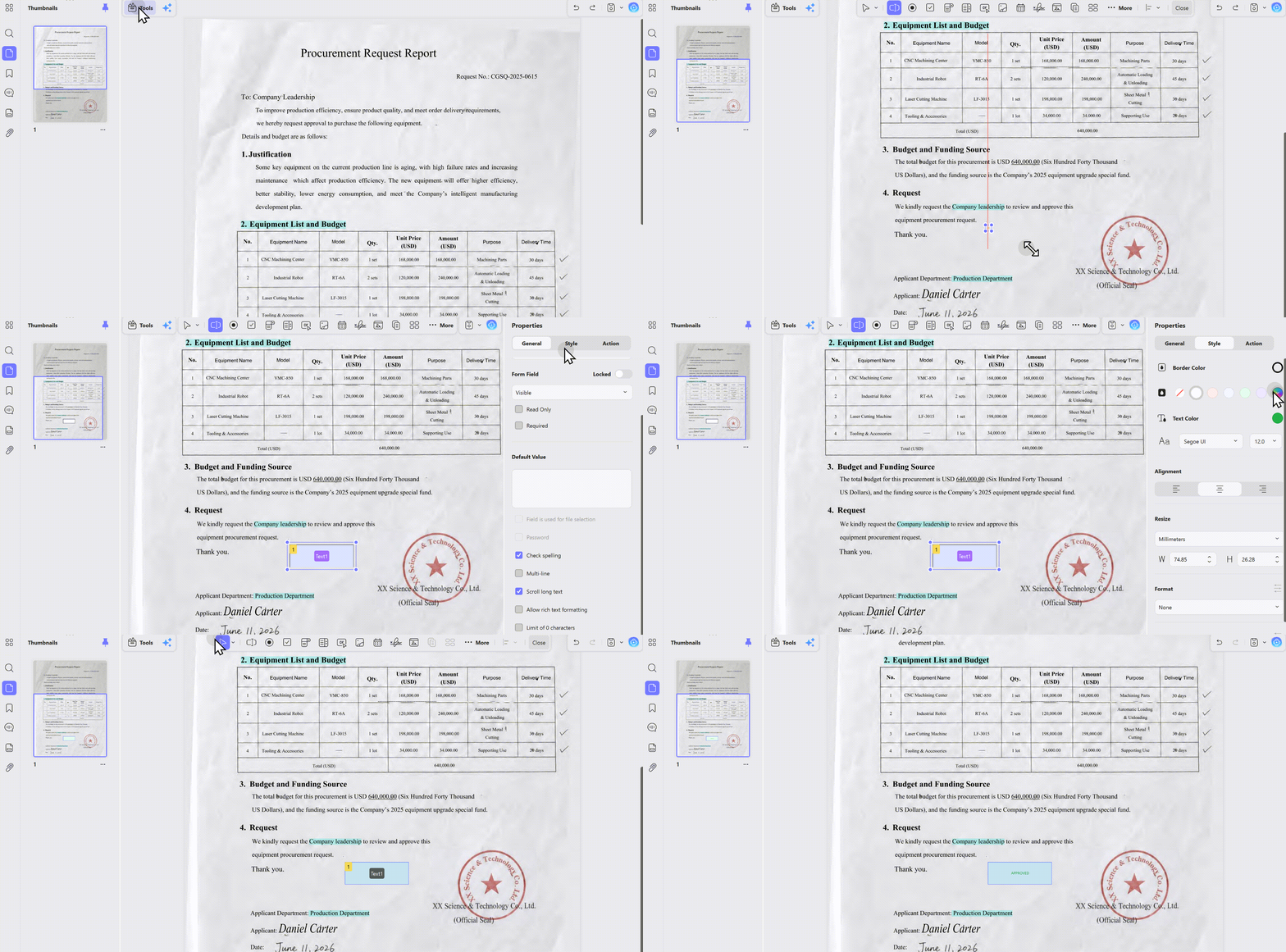
If you want to create fully featured fillable text fields affordably across all your devices, UPDF is your ideal choice. Read on to learn the simple steps to add a functional text field to PDFs with UPDF. Click Form mode and then add a text field to the place you want to put it. Then everything's done!
Windows • macOS • iOS • Android 100% secure
The steps to add a text field box to a PDF on iPhone and other mobile devices with UPDF are simple and easy in 3 steps: first, click Fill & Sign and then click the Text button; then you can customize text properties—such as color, font, and size—as well as the placement of the box.
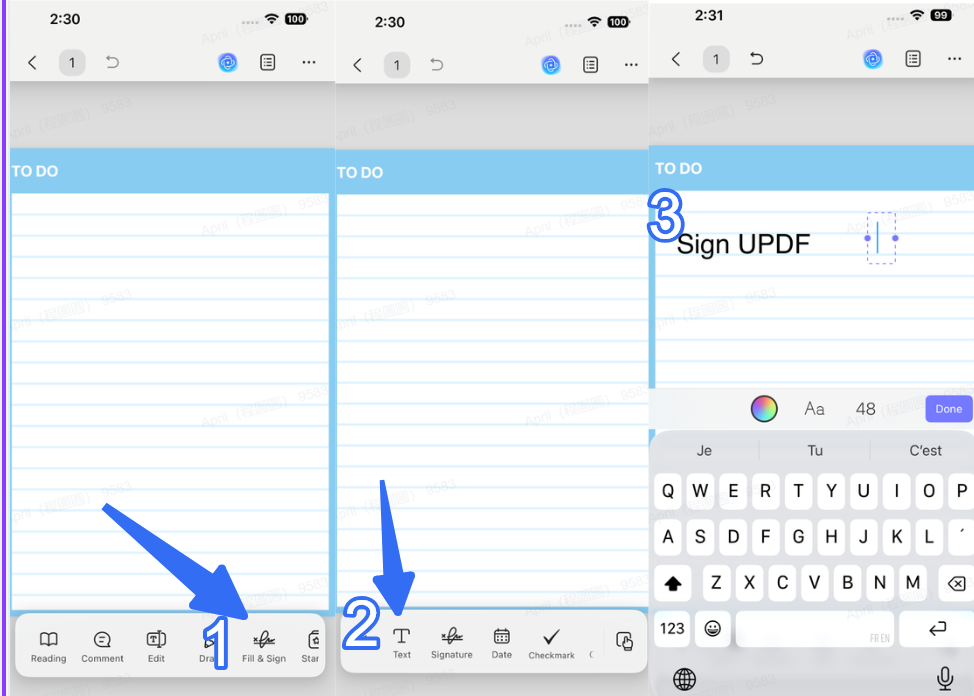
Adding a text field box to PDF has been solved easily with the help of UPDF; let's continue to check how to add a text comment box to PDF online and with desktop tools!
Part 3. How to Add Text Comment Box to PDF?
If you need to add a note, comment, or extra text to a PDF without changing the original content — this section is for you.
A Text Comment is a floating annotation that sits on top of the page. It doesn't alter the original document — like adding a sticky note to a printed page. It's perfect for:
- Marking up drafts for review
- Adding explanations or extra context
- Leaving feedback for colleagues
- Inserting temporary notes for yourself
As analyzed in Part 1, both online and desktop tools have their respective strengths, and the right approach is to choose based on your specific needs. However, finding the perfect fit among the vast array of available tools can be challenging; therefore, we have tested a selection of tools—ranging from popular market options to those that rank highly in search results—to save you time and the cost of trial and error.
Before comparing the available tools, this video shows UPDF's annotation workspace, including text comments, highlights, drawings, and other markup options.
Online Tools for Adding Text Comments to PDF
| Tool | Free Access | File Limits | Privacy | Customization | Extra Watermark? | Best For |
|---|---|---|---|---|---|---|
| Adobe Acrobat Online | Free with Adobe account | — | Adobe cloud storage | ✅ Font, size, color, formatting | ❌ No | Most reliable, industry standard |
| Smallpdf | Free (limited daily) | — | Standard cloud processing | ✅ Size, color, formatting | ❌ No | Simple, fast interface |
| Quillbot PDF Editor | Free | — | Standard cloud processing | ✅ 100+ colors, movable | ❌ No | Color customization |
| iLovePDF | Free (limited) | — | Standard cloud processing | ✅ Font, size, color | ❌ No | Clean design |
| Soda PDF Online | Free | — | Standard cloud processing | ✅ Font, size, color, bold/italic | ❌ No | Multiple placement options |
| PDFescape | Free | 10MB / 100 pages | Standard cloud processing | ✅ Basic formatting | ✅ Subtle watermark | Small files only |
| Smallpdf (note) | Free (limited) | — | Standard cloud processing | ✅ Formatting options | ❌ No | Quick, one-off needs |
The method for adding a text comment box is virtually identical across all online tools: upload the file, add the text comment box, then save and export. The differences lie in their free usage allowances, file size limits, text customization options, collaboration capabilities, and privacy features. Take Adobe Acrobat online as an example:
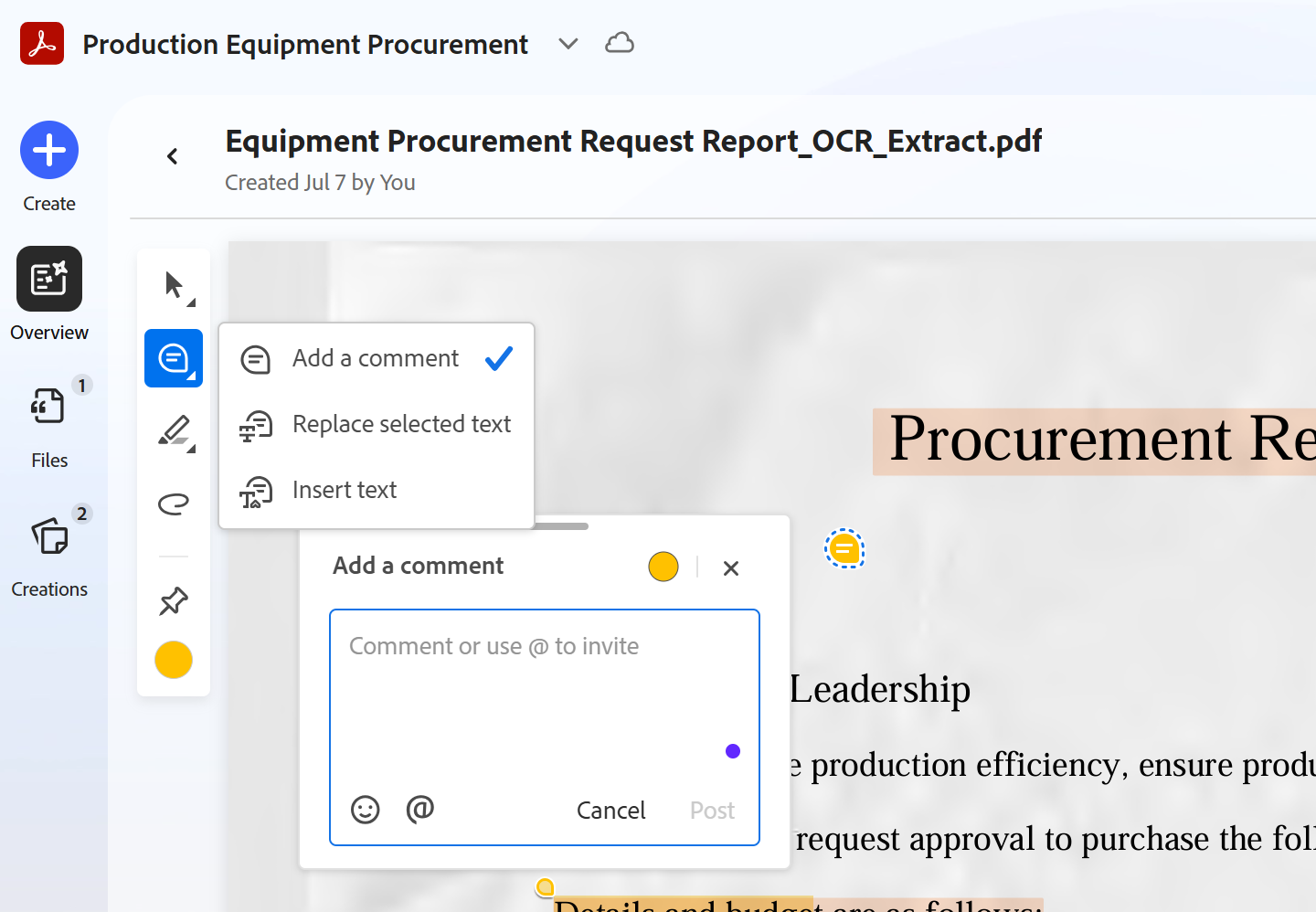
⚠️ Privacy Reminder: All online tools require uploading files to cloud servers. For sensitive documents — contracts, NDAs, financial reports — use Desktop software instead.
Add Text Comment Box to PDF with Desktop Tools as Adobe
| Tool | Text Types | Customization | Platform | Best For |
|---|---|---|---|---|
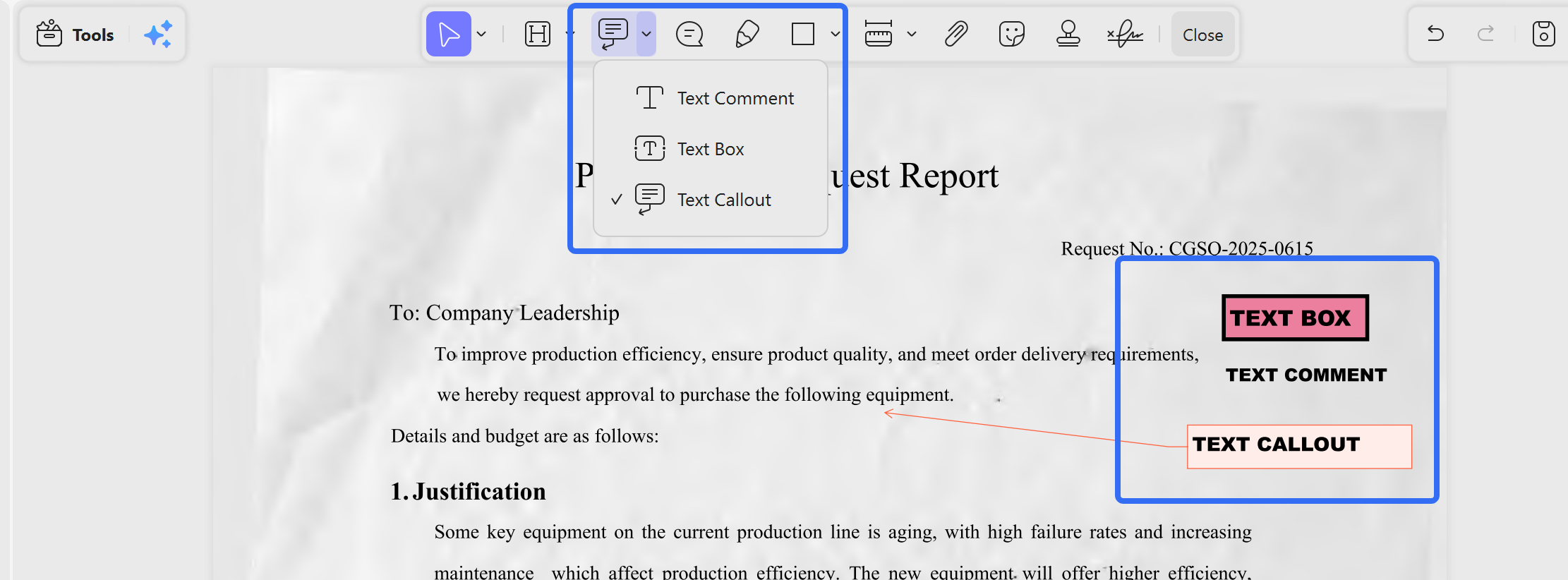
| Adobe Acrobat Pro | Text Comment, Text Box, Callout | Full — font, size, color, border, background | Win, Mac | Enterprise use, industry standard |
| UPDF | Text Comment, Text Box, Text Callout | Full — font, size, color, alignment, border, background | Win, Mac, iOS, Android | Best value — all text types, cross-platform, one-time payment |
| Foxit PDF Editor | Text Comment, Text Box, Callout | Full — font, size, color, alignment, border | Win, Mac | Word-like interface, enterprise integration |
| PDFgear | Text Comment, Text Box | Basic — font, size, color | Win, Mac | Budget $0 — basic text comment needs |
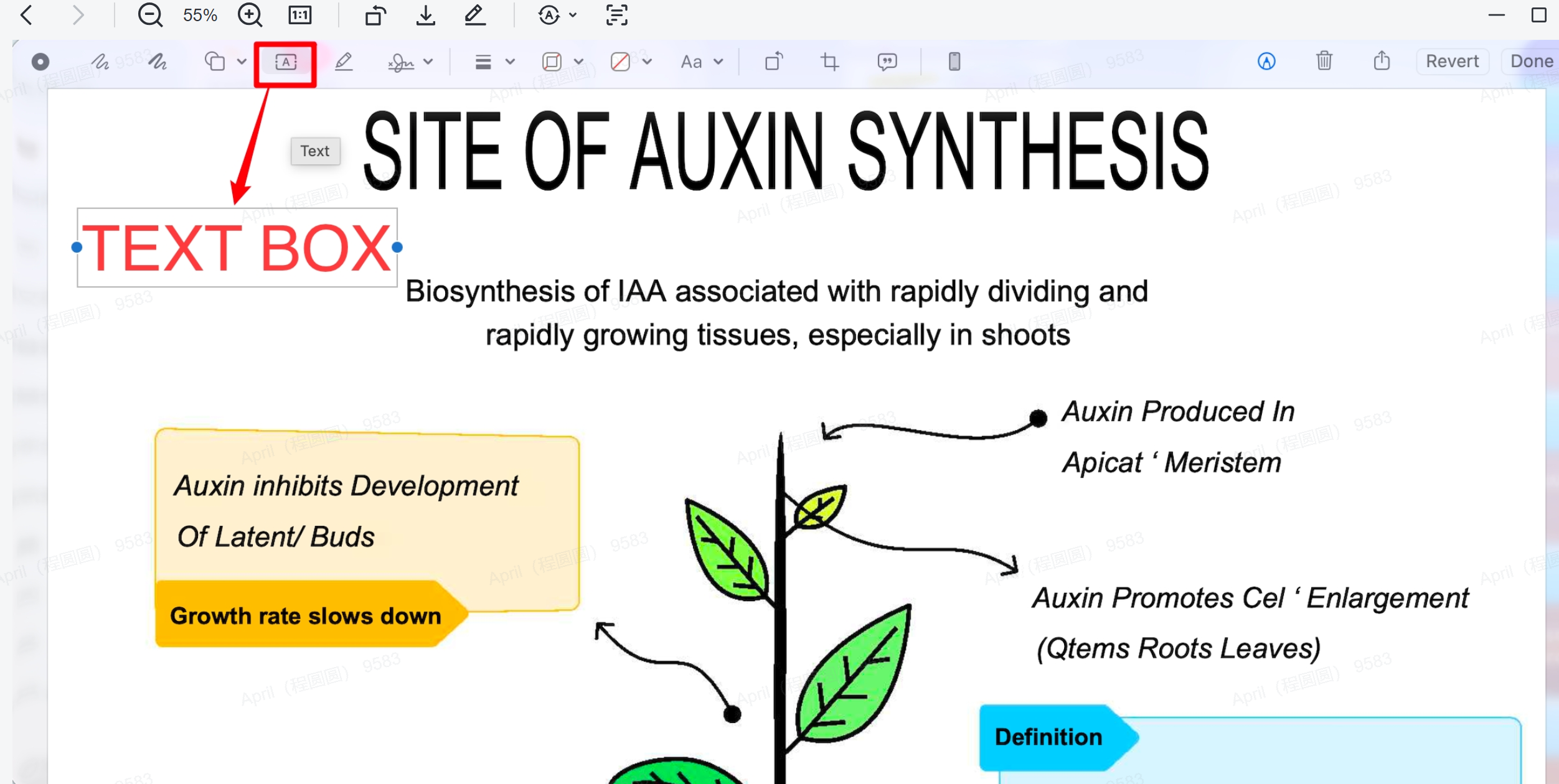
We already compared the pros and cons of these tools when looking at adding form fields to PDFs, and UPDF clearly comes out on top. It offers the most comprehensive text box options at the best value — three text types (Text Comment, Text Box, Text Callout), cross-platform support, and one-time pricing. Upload your file to UPDF and then enter Comment mode in the Tools Bar. You can add a text comment box to PDF easily, adjust the text color or size, and place it as you want.
Windows • macOS • iOS • Android 100% secure
Add Text Comment Box to PDF on Mac Preview
To add text boxes via Mac Preview, open your PDF file, launch the Markup Toolbar by tapping the toolbox icon, then select the "T" text tool. Click anywhere on the page to generate a floating text box, input your content, and drag its edges or body to resize or reposition it. Customize styles, including borders, font type, size, color, and background shade, through formatting panels, and save edits directly to the original PDF file when finished.
FAQ
Is a PDF text box the same as editable PDF text?
No. A text box is usually an annotation placed over the page, while editable PDF text is part of the document content.
Can I move or resize a PDF text box after adding it?
Yes, while the annotation remains editable. Select its border, then drag it or use the resize handles.
How do I stop text boxes from shifting in a PDF?
Set the final size and position, save the file, reopen it in another reader, and flatten a copy only when no more edits are needed.
Conclusion
Whether you need a simple text comment, a callout with a leader line, or a fillable form field, UPDF has you covered — with all three text types, cross-platform support (Win, Mac, iOS, Android), and a one‑time payment that saves you hundreds over subscriptions.
Try UPDF and download it to start adding text boxes in seconds.
This guide covers everything you need to add text boxes to PDFs. If you're looking for a more comprehensive walkthrough on PDF annotations — including highlights, sticky notes, drawings, stamps, and more — visit our full pillar guide: How to Annotate PDF.
Windows • macOS • iOS • Android 100% secure





 Enola Miller
 Engelbert White

 Enola Davis