 UPDF
UPDF
 UPDF for Windows
 UPDF for Mac
 UPDF for iPhone/iPad
 UPDF for Android
 Nomostar
 UPDF AI Online
 UPDF Sign
 IvyCraft
 Edit PDF
 Annotate PDF
 Create PDF
 PDF Form
 Edit links
 Convert PDF
 OCR
OCR PDF to Word
 PDF to Image
 PDF to Excel
 Organize PDF
 Merge PDF
 Split PDF
 Crop PDF
 Rotate PDF
 Protect PDF
 Sign PDF
 Redact PDF
 Sanitize PDF
 Remove Security
 Read PDF
 UPDF Cloud
 Compress PDF
 Print PDF
 Batch Process
 About UPDF AI
 UPDF AI Solutions
 AI User Guide
 FAQ about UPDF AI
 Summarize PDF
 Translate PDF
 Chat with PDF
 Chat with AI
 Chat with image
 PDF to Mind Map
 Explain PDF
 PDF AI Tools
 Image AI Tools
 AI Chat Tools
 AI Writing Tools
 AI Study Tools
 AI Working Tools
 Other AI Tools
 AI Bookmark Generation
 AI Bookmark Summary
 AI Watermark Generation
 AI Background Generation
 AI Sticker Generation
 AI Stamp Generation
 AI Editing Suite
 UPDF Copilot
 AI Page Management
 AI Semantic Search
 PDF to Word
 PDF to Excel
 PDF to PowerPoint
 Enterprise Solution
 Enterprise Sign
 Enterprise AI
 Enterprise Plan
 Enterprise User Guide
 Enterprise Webinar
 IT
IT Education
 Construction
 Financial Service
 Healthcare
 Insurance
 Legal
Legal Manufacturing
 Government
 Researchers & PhDs
 Solopreneurs & Freelancers
 Lawyers & Legal Professionals
 Real Estate Agents & Brokers
 Education Solution
 Customer Stories
 User Guide
 UPDF Tricks
 FAQs
FAQs UPDF Reviews
 Download Center
 Blog
Blog Newsroom
 Tech Spec
 Updates
 UPDF vs. Adobe Acrobat
 UPDF vs. Foxit
 UPDF vs. PDF Expert

Windows users have more PDF annotation options than any other platform. There's a tool for every budget, every workflow, and every level of complexity — from completely free and open-source to professional-grade commercial applications. Conventional PDF viewers typically lack the functionality to draw or write by hand on documents effortlessly. To add notes to a PDF without changing its format, you need dedicated PDF annotation software.
Example: A teacher grading a folder of assignments can use reusable stamps and comments for speed, while keeping an editable master copy before exporting feedback for students. For a related workflow, see review PDF annotation options on Mac.
But with so many options, how do you choose? You will find the best one that suits you after reading this article.
Top 10 PDF Annotators for Windows at a Glance
With countless PDF annotators for Windows available, picking the right one feels overwhelming. Below is a snapshot of 10 leading options to match your annotation workflow and budget.
UPDF is the only PDF annotator on this list that combines professional annotation, AI-powered features, OCR, cross-platform sync, and a one‑time purchase option. It works on Windows, Mac, iOS, and Android — a single license covers all your devices. Let's see the features and functions below to check the details of UPDF and when to choose the other annotators in specific scenarios.
Windows • macOS • iOS • Android 100% secure
The Best All-Rounder for Windows Users - UPDF
After comparing all the tools, UPDF emerges as the most complete PDF annotator for most Windows users.
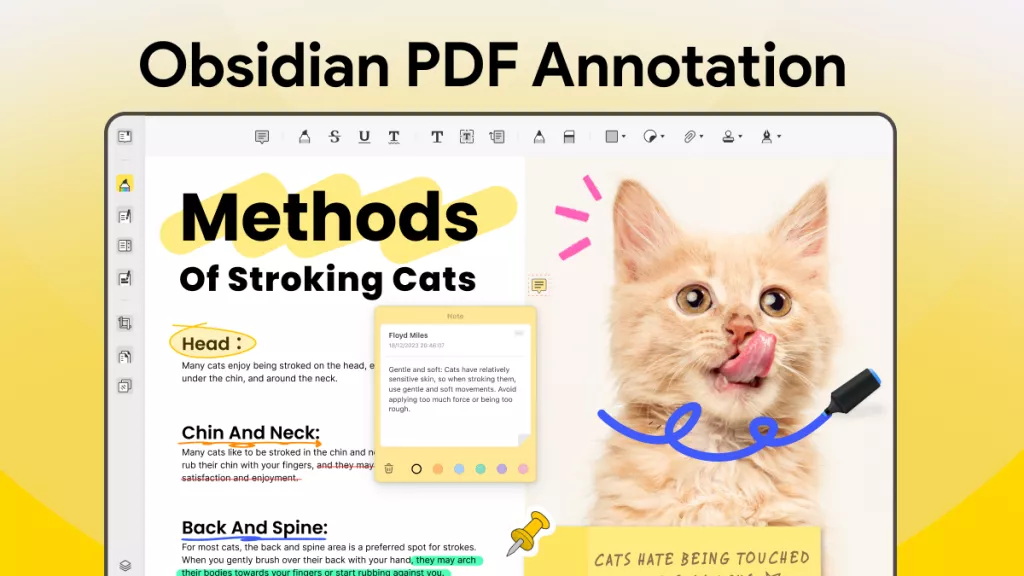
UPDF supports cross-page annotation, allowing users to continuously add and manage annotations across multiple pages. This is especially valuable for reviewing long documents where consistent marking matters — legal contracts, academic papers, and multi-page reports.
Windows • macOS • iOS • Android 100% secure
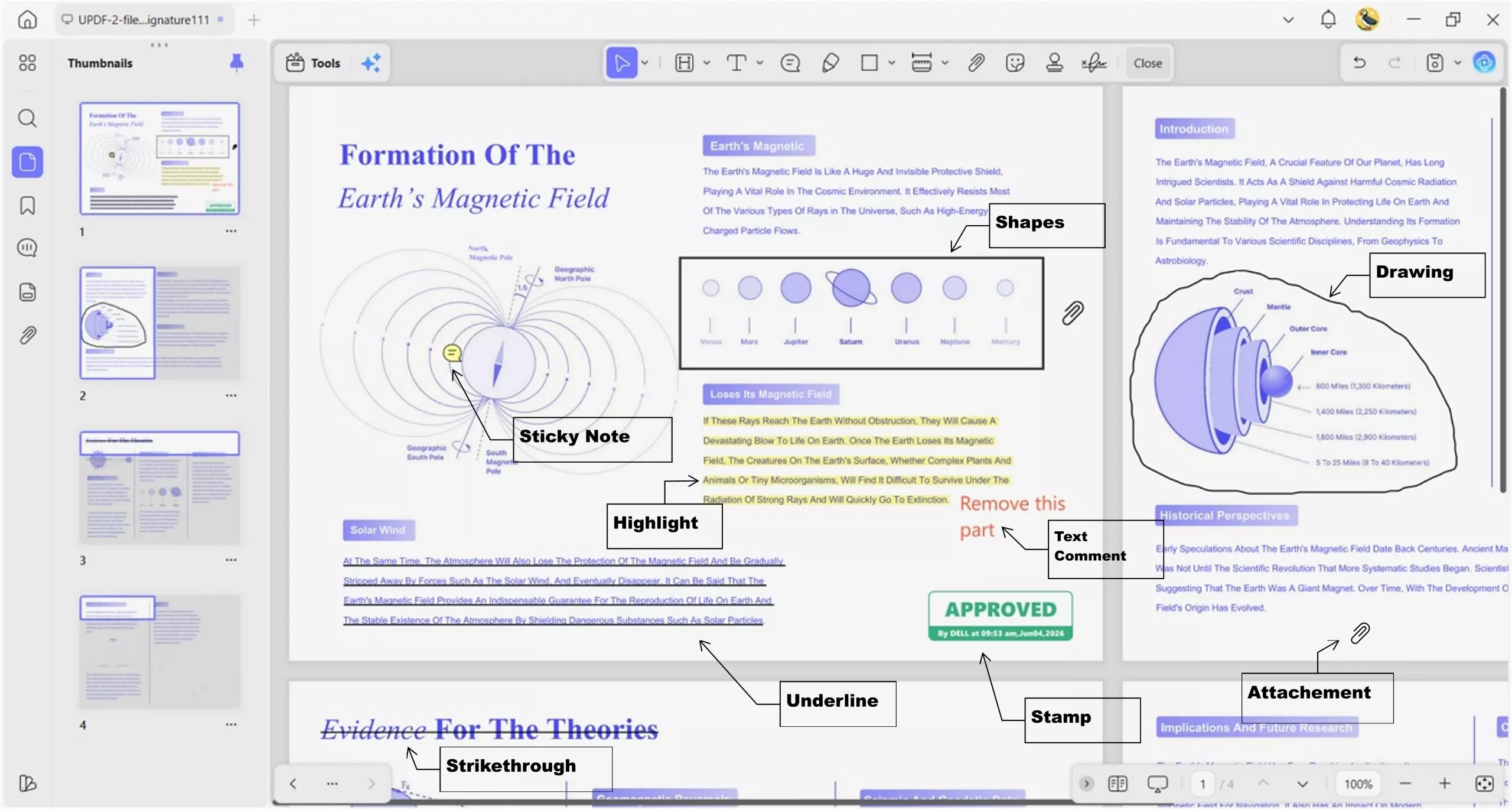
Annotation Features:
- Highlight, underline, strikethrough, and squiggly annotations
- Sticky notes, text boxes, and callouts
- Freehand drawing and shapes
- Cross-page annotation — continuously add and manage annotations across multiple pages
- Digital signatures and form filling
Additional Capabilities:
- AI-powered summarization, translation, and explanation
- OCR for scanned documents
- PDF editing (text, images, links)
- Conversion, compression, and page organization
Pricing:
- Annual subscription: $49.99/year
- Lifetime license: $79.99 (one-time)
Pros:
- AI-powered annotation assistance
- Cross-platform (Windows, Mac, iOS, Android)
- One-time purchase option available
- OCR built-in
- Clean, minimalist UI
Cons:
- Requires Windows 10 or newer (it is best to upgrade to the latest version to enjoy the full range of features)
- AI features require an additional subscription, but with 100 free questions and 5 files, you can have a trial first to decide whether to pay for it
Users consistently highlight UPDF's clean interface, AI capabilities, and value for money:
"UPDF simplifies workflows, enabling users to annotate, edit, convert, protect, organise PDF files and more — often tasks that were previously spread across multiple tools."
"It has a much better user interface — lighter, more responsive, and far more pleasant to use. While most PDF editors tend to feel overwhelming, UPDF keeps things minimalist, offering just the right balance of features and customisation."
If, after reviewing the introduction to UPDF above, you still feel it isn't the tool you're looking for to solve how to annotate PDF, please take a look at other tools suitable for specific use cases.
Find PDF Annotators for Windows Fit for Workflow
If UPDF doesn't match your specific needs, here are the best tools for different scenarios.
Use Case 1: I Annotate with a Stylus or Tablet Pen
PDF Annotator has been in active development for over 20 years, specifically designed for Windows users who need to add handwritten notes, drawings, and comments using a mouse, tablet PC pen, or external graphics tablet.
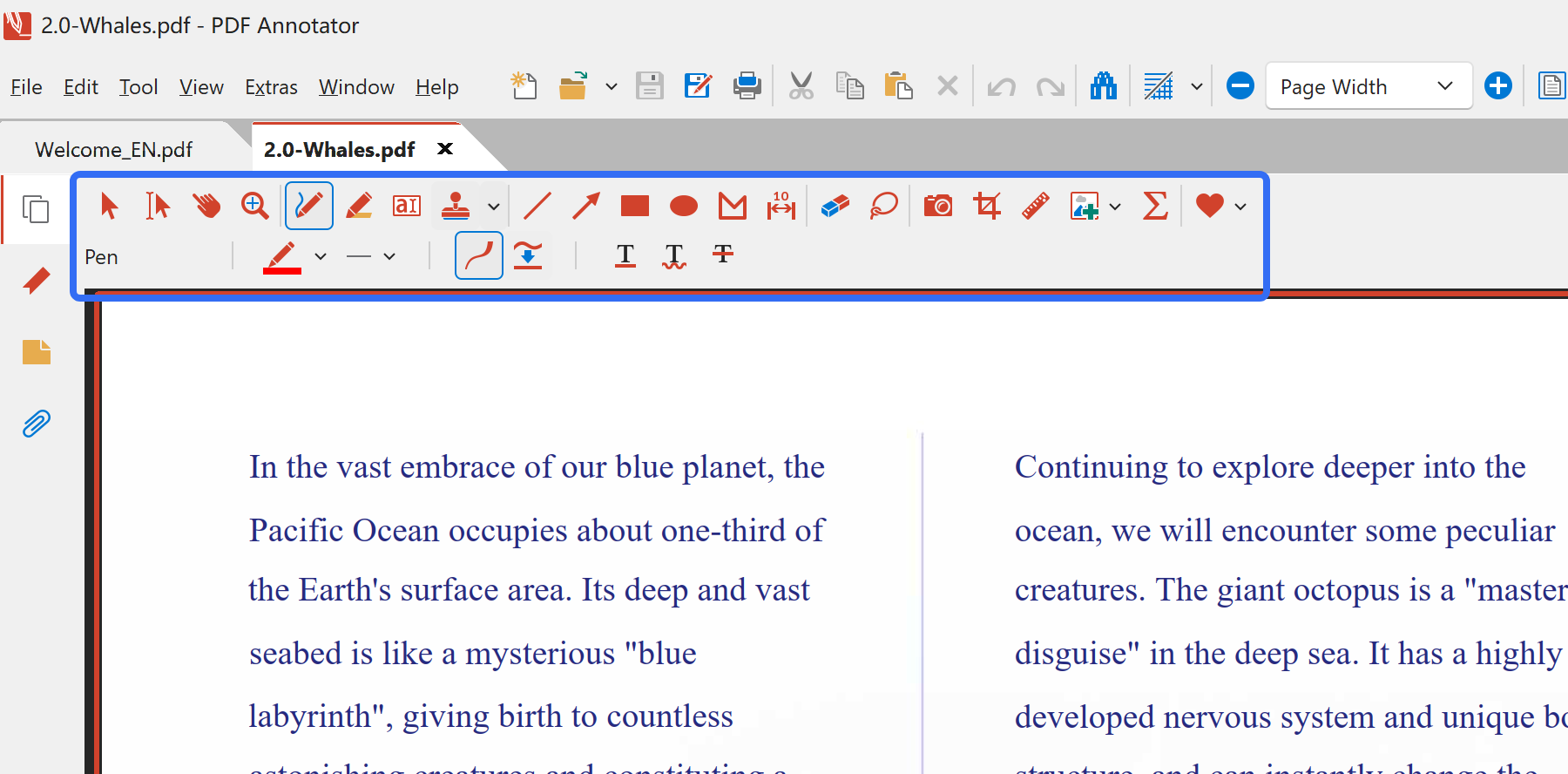
Version 10 (2025/2026) Major Updates:
PDF Annotator 10 features a completely redesigned user interface optimized for Windows 11. The main menu and toolbar now share a single row, new vector-based icons ensure crisp rendering on all displays, and improved multi-monitor support allows windows to be moved easily between monitors with different DPI settings.
Key Features:
- Virtual pens, markers, and highlighters
- Handwritten notes feel "almost like writing in the margin of a printed document"
- Version 10 redesigned for Windows 11
- Works with mouse, stylus, or touchscreen
- Annotations stored as vector objects for better quality
Pros:
- Purpose-built for pen/stylus input, mature product (20+ years), active development
Cons:
- Windows-only, no macOS or Linux support, some advanced features may have a learning curve
Pricing: $79.95 one-time / 30-day free trial
"PDF Annotator stands out in the crowded Office Tools arena for its intuitive interface and seamless integration into everyday workflows."
Use Case 2: I Want Professional Annotation for Free
Open PDF Studio is a free, open-source PDF editor and annotator that runs on Windows, macOS, Linux, and Android. Built with Tauri 2, it delivers a modern, fast experience with a Microsoft Office-style ribbon interface.
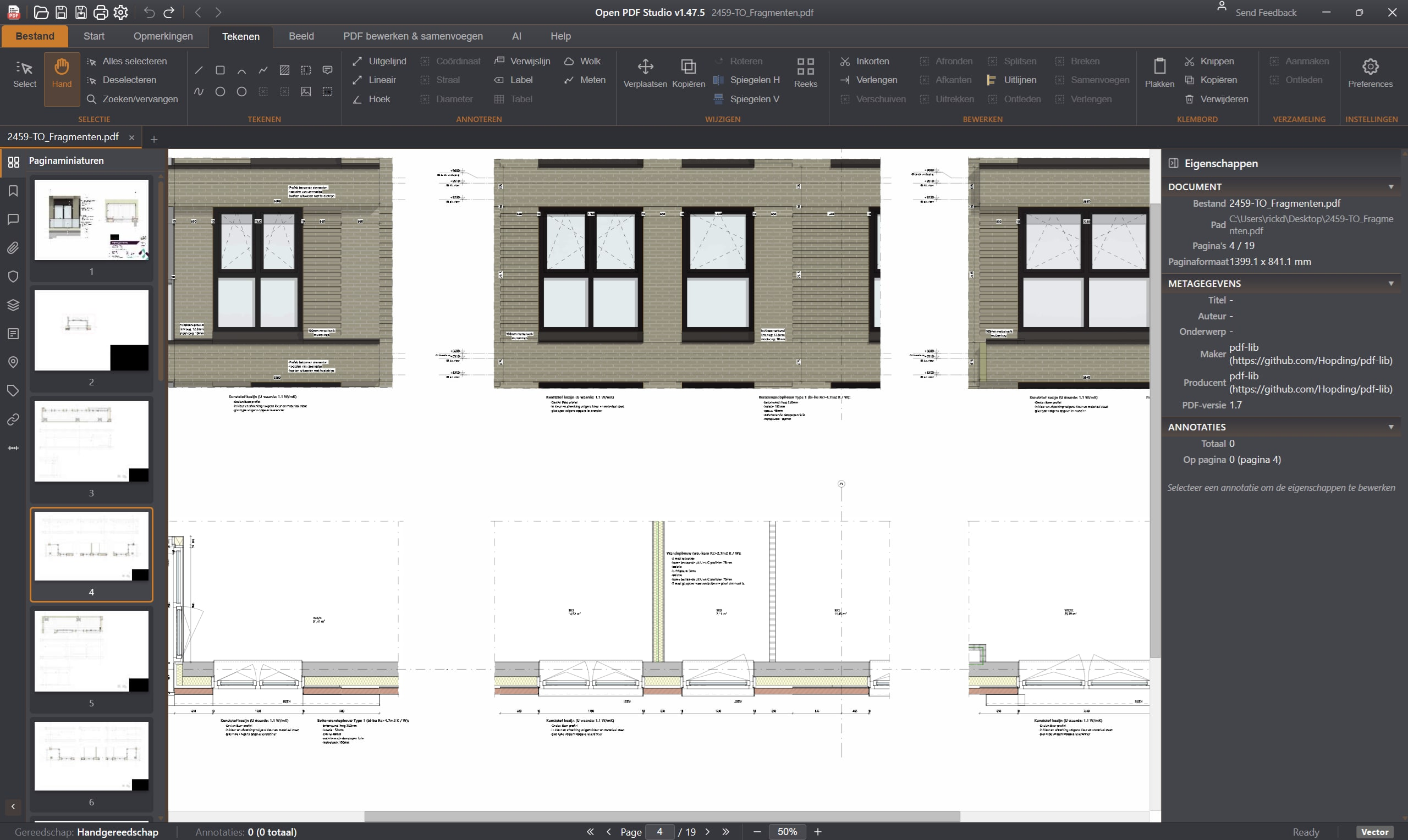
Key Features:
- 20+ annotation tools — highlight, underline, strikethrough, shapes, freehand drawing, text boxes, callouts, sticky notes, stamps
- Measurement tools — distance, area, perimeter with scale calibration
- PDF Compare — side-by-side and overlay modes with automatic change detection
- Redaction — permanently remove content
- No telemetry, no watermarks, no subscriptions
Pricing: Free (open-source, LGPL-3.0)
Use Case 3: I Want Free Annotation with AI Assistance
PDFgear is completely free — no account required, no watermarks, no page limits. It includes ChatGPT Copilot integration for AI assistance.
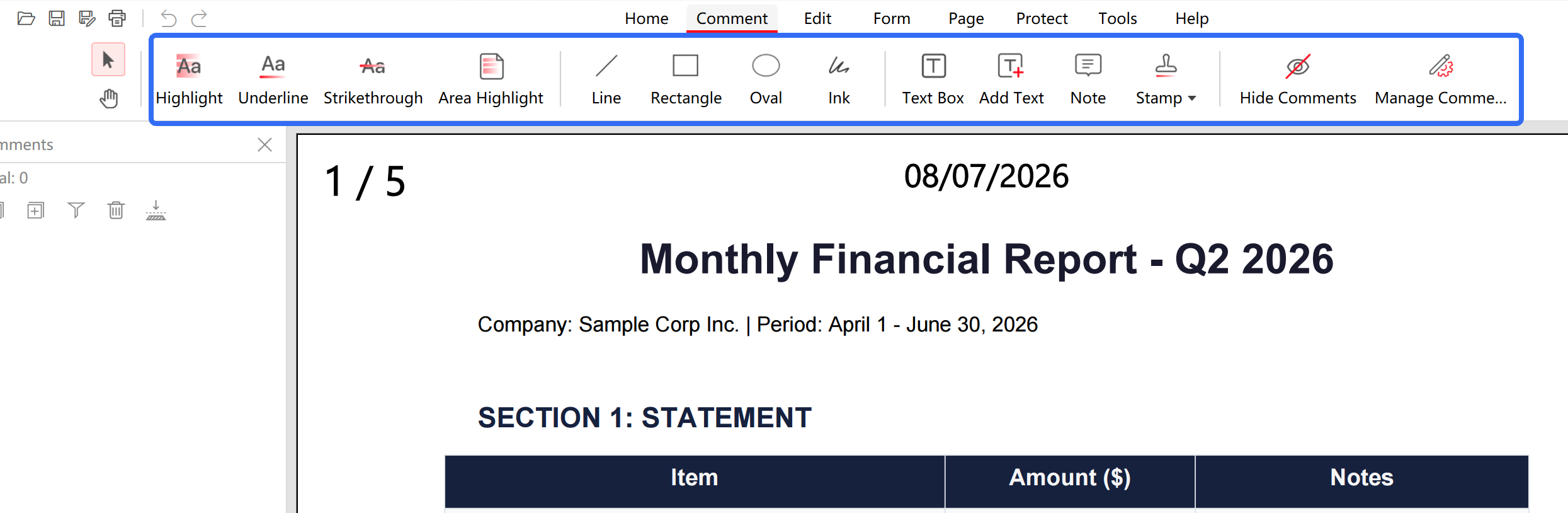
Key Features:
- Full annotation suite (highlight, underline, strikethrough, sticky notes, text boxes, drawing)
- Copilot AI — chat with your document
- Text editing — preserves original fonts
- Cross-platform (Windows and Mac)
Pricing: Free
"It's feature-rich, has a very intuitive UI and best of all — the full version is completely free."
Use Case 4: I Need a Lightweight, Portable Tool on a USB Drive
KillerPDF is a free, open-source PDF editor designed for Windows users who want a lightweight tool without subscriptions, account creation, or telemetry.
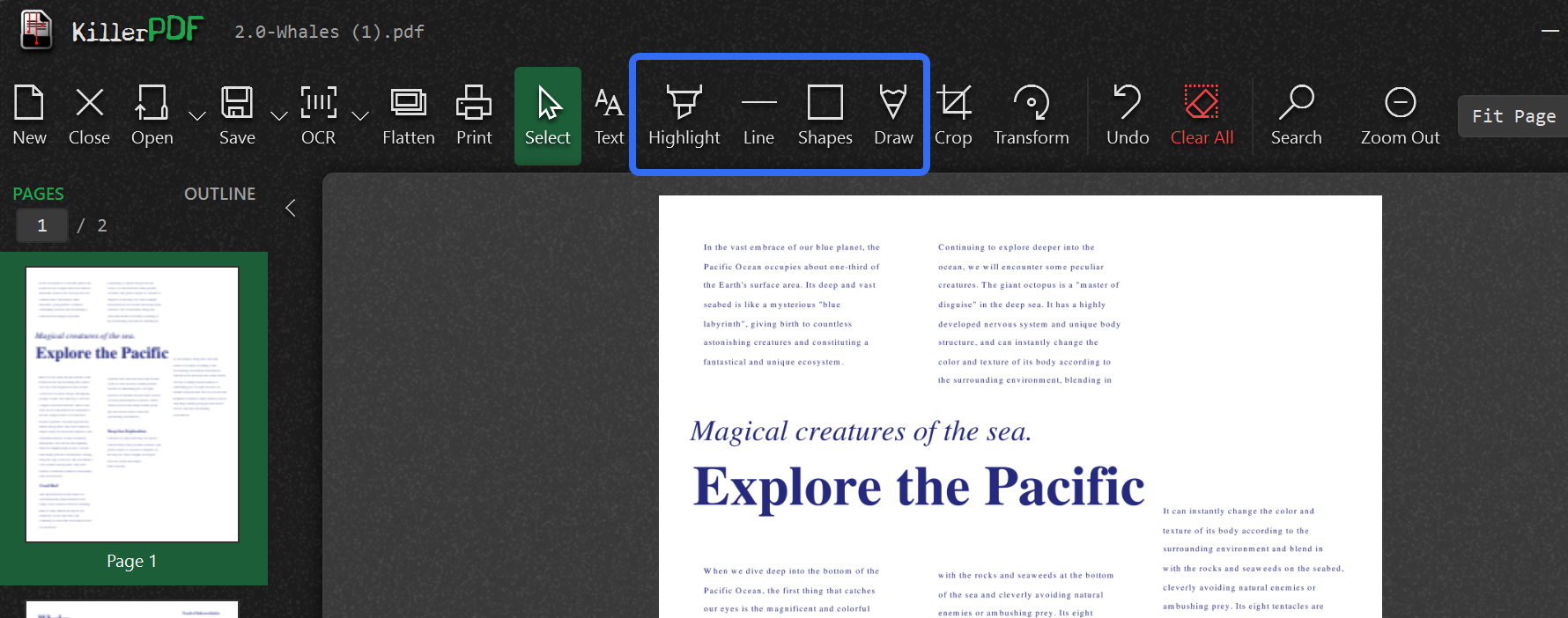
Key Features:
- Single ~10 MB EXE — run from USB drive, no installation required
- No telemetry, no account, no phone-home
- Built-in OCR (Tesseract bundled)
- Merge and split PDFs
- 6 color themes (Dark, Light, High Contrast, Blood, Greed, Cyanotic)
Pricing: Free (open-source, GPLv3)
Use Case 5: I'm a Windows Power User Who Values Speed
PDF-XChange Editor is a Windows-only PDF editor that many users consider faster than Adobe Acrobat Pro at a fraction of the cost. It opens large PDFs in seconds.
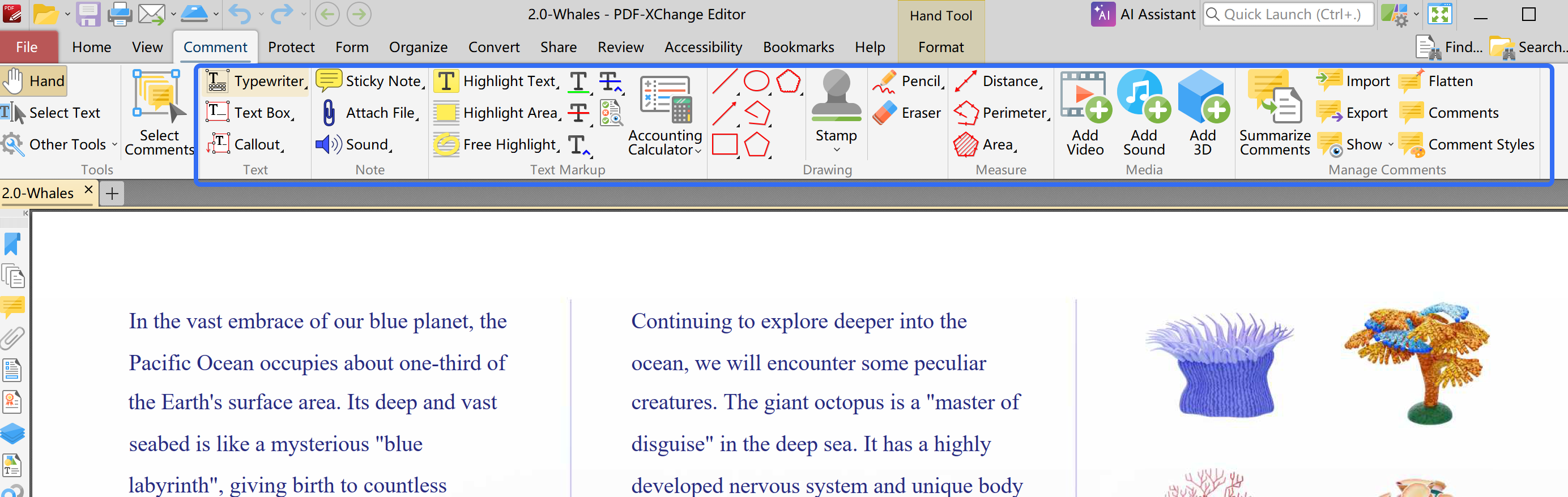
Key Features:
- Extremely fast performance
- Full annotation suite
- OCR (Pro version)
- Highly configurable interface
Pricing: Free version / $46-$79 one-time for paid
Use Case 6: I Just Need Basic Annotation like Word Interface
Foxit PDF Reader is completely free for viewing, annotating, and commenting on PDFs. Runs on Windows, macOS, Linux, iOS, and Android.
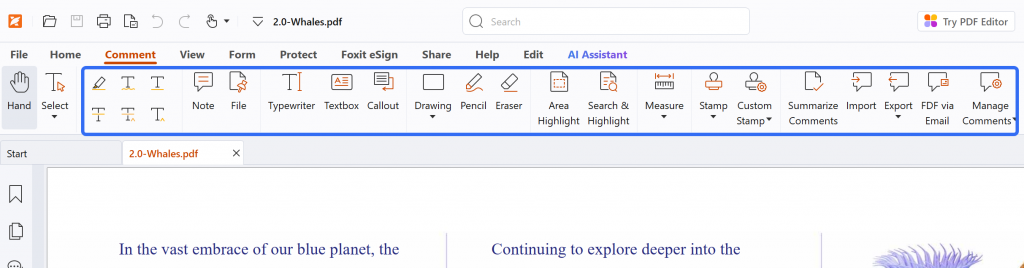
Key Features:
- Highlighting, underlining, sticky notes, drawing, stamps
- Lightweight and fast
- Enterprise deployment options
Pricing: Free / $130+/year for Pro
Use Case 7: I Need the Industry Standard
Adobe Acrobat is the company that invented the PDF format, and it remains the industry standard with the most comprehensive feature set. Available in three tiers:
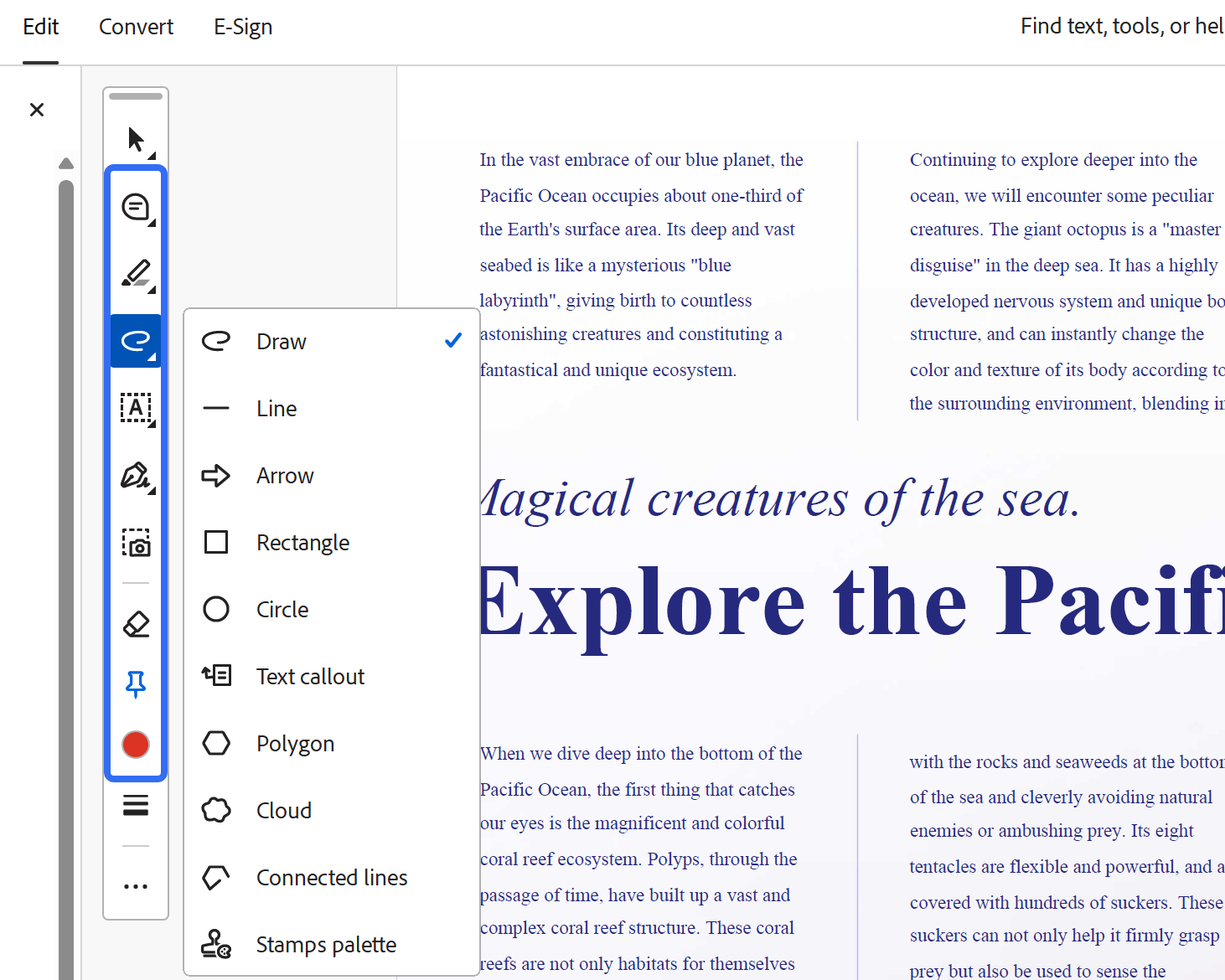
Annotation Features:
- Sticky notes, highlights, stamps, drawing tools, text annotations with tracked replies
- Add file, image, or audio attachments as annotation attachments
- Callout annotations with custom colors, opacity, and icons
- Commenting tools available in all tiers, including free Reader
AI Assistant: Add‑on for ~$4.99/mo — summarize long PDFs, ask questions, get citation-backed responses. The AI Assistant understands document content and structure, allowing you to use natural language to perform PDF tasks.
Pros:
- Industry standard, most comprehensive feature set, cross‑platform (Windows, Mac, web, mobile), mature and reliable
Cons:
- Expensive subscription with no one‑time purchase option; AI Assistant costs extra; Standard tier lacks OCR and redaction, the best alternative - UPDF gets a cleaner UI and equally comprehensive functionality for just one-fifth of the cost, drastically reducing the learning curve.
Windows • macOS • iOS • Android 100% secure
Use Case 8: I Want Free Stylus Annotation for Note-Taking
OneNote is a free note‑taking app included with Windows and Microsoft 365. PDF annotation is a secondary feature, not a primary function.
How It Works:
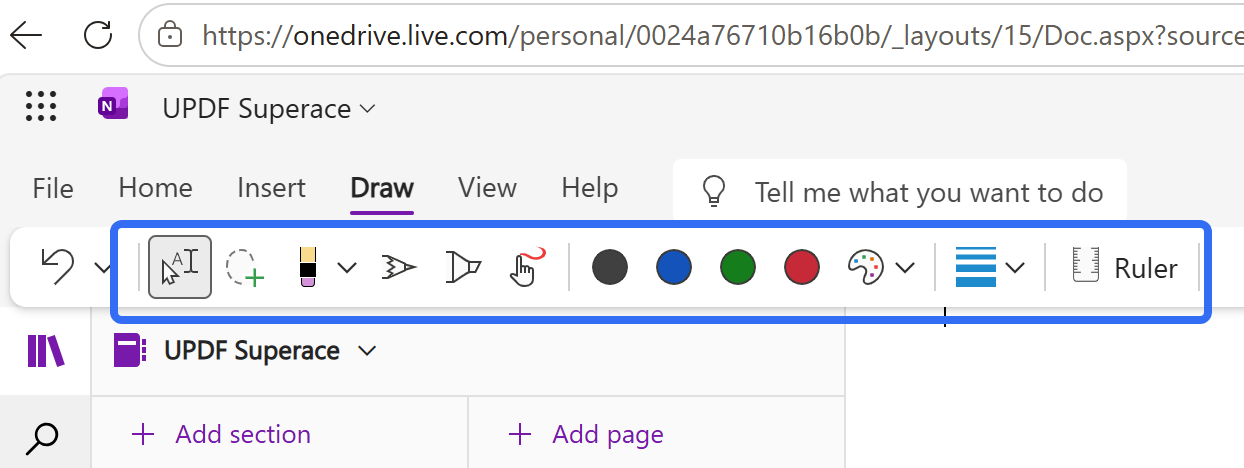
- Insert a PDF as a "File Printout" — each page appears as an image stacked vertically in your note
- Use the Draw tab to ink, highlight, or add text over the PDF printout
- Ink annotations can now be moved together with the PDF printout — Microsoft added the ability to keep ink annotations with images and PDF printouts, and further improved tracking for scenarios where PDF printouts and images might be moved due to content layout updates
Key Limitations:
- PDFs are inserted as images/printouts, not as editable documents
- Annotations can misalign when exported back to PDF
- OneNote's PDF handling is optimized more for quick viewing and annotation than for precise, margin-stable, round‑trip PDF layout
Pros:
- Free, pre‑installed on Windows, excellent stylus support, great for students and note‑takers
Cons:
- Limited annotation tools (mostly ink and highlight), no OCR, no AI, annotations may misalign on export, not suitable for professional PDF workflows
Use Case 9: I'm in Architecture, Engineering, or Construction
Drawboard PDF is a Windows‑first PDF annotator optimized for tablets, touch screens, and stylus input. It is used by millions of engineers, architects, lawyers, students, and educators every day for fast and collaborative PDF markup.
Key Features:
- Best-in-class ink for flawless stylus hand-feel
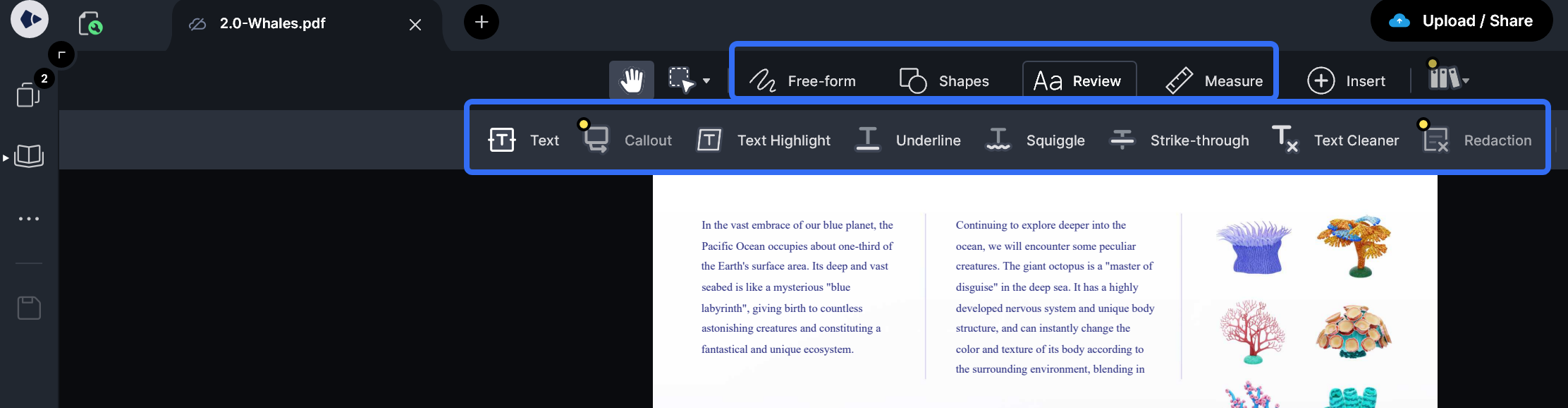
- Text review markup — freehand highlighter, text highlighter, underline, strikeout, squiggly
- Insert lines and shapes — cloud tool, rectangle, ellipse, line, arrow, polygon and polyline
- Add text with a range of fonts and text styling options
- Insert images and camera photos onto PDFs
- Customize and edit annotation colors, stroke widths, and opacities
- Insert, rotate and delete PDF pages
- Open, read, mark up and save large and complex PDF documents
Pro Features:
- Redact text and sections of your PDF documents
- Measure elements with length and area measurement tools and smart page calibration
- Add callouts, hyperlinks, and audio notes
- On-page ruler — measure objects with the ease of using a tape measure
Pros:
- Purpose‑built for stylus and touch, trusted by millions in AEC industries, measurement tools ideal for blueprints and drawings, free tier available
Cons:
- Some users report lag when opening large PDFs — "open a slightly larger one, like a few hundred MB or 1GB PDF, it's really slow"; many features locked behind subscription paywall; frequent mentions of the app being laggy with rendering issues; login and authentication issues
Pricing: Basic: Free / Pro: Subscription starts from $4.19 per month (no one‑time purchase option)
What are the Advantages of PDF Annotator on your PC?
While we have mentioned all paid and free PDF annotators on Windows, we are sure that while reading through them, you must have thought about the benefit of having an annotator on your PC. If this is the case, let us answer it for you.
1. Enhanced Collaboration
PDF annotation allows users to directly sign PDF documents, highlight important sections and save important files. Hence, users can have a more enhanced digital collaboration with another party instead of printing every PDF page.
2. Better Way to Give Feedback
Within companies or even schools, PDF documents are massively used. Using the amazing stickers available on the annotation tools, users can not only make their PDF more attractive, but reviewers can also make use of the relatable stickers or stamps to put in their reviews too.
3. Note Taking on PDF
The education sector is making massive use of PDFs when providing notes and educational data. Students with annotating tools can directly make notes on the same PDF without switching between different books while studying.
FAQ
What should I look for in a PDF annotator for Windows?
Prioritize the markup tools you use, annotation compatibility, search, stylus support, export options, and whether files can be processed offline.
Will PDF comments open in other Windows PDF readers?
Standard annotations usually do, but appearance and advanced features can vary. Test the saved file in the recipient’s viewer.
Can I annotate PDFs with a stylus on Windows?
Yes. Choose an app with pen, pressure, eraser, and palm-rejection support, then test handwriting on your device.
Wrapping Up
We understand that among the many annotator tools present in the market, choosing a service that sits well with you can be daunting. However, we hope this guide on the best PDF annotator for Windows was helpful to you.
While all the mentioned PDF annotators are unique, UPDF is the star of the show. This service is your best pick, with exceptional pricing, features, and an easy-to-use interface. So, download it today.
Windows • macOS • iOS • Android 100% secure





 Engelbert White
 Enya Moore
 Enola Miller
 Enid Brown