 UPDF
UPDF
 UPDF for Windows
 UPDF for Mac
 UPDF for iPhone/iPad
 UPDF for Android
 Nomostar
 UPDF AI Online
 UPDF Sign
 IvyCraft
 Edit PDF
 Annotate PDF
 Create PDF
 PDF Form
 Edit links
 Convert PDF
 OCR
OCR PDF to Word
 PDF to Image
 PDF to Excel
 Organize PDF
 Merge PDF
 Split PDF
 Crop PDF
 Rotate PDF
 Protect PDF
 Sign PDF
 Redact PDF
 Sanitize PDF
 Remove Security
 Read PDF
 UPDF Cloud
 Compress PDF
 Print PDF
 Batch Process
 About UPDF AI
 UPDF AI Solutions
 AI User Guide
 FAQ about UPDF AI
 Summarize PDF
 Translate PDF
 Chat with PDF
 Chat with AI
 Chat with image
 PDF to Mind Map
 Explain PDF
 PDF AI Tools
 Image AI Tools
 AI Chat Tools
 AI Writing Tools
 AI Study Tools
 AI Working Tools
 Other AI Tools
 AI Bookmark Generation
 AI Bookmark Summary
 AI Watermark Generation
 AI Background Generation
 AI Sticker Generation
 AI Stamp Generation
 AI Editing Suite
 UPDF Copilot
 AI Page Management
 AI Semantic Search
 PDF to Word
 PDF to Excel
 PDF to PowerPoint
 Enterprise Solution
 Enterprise Sign
 Enterprise AI
 Enterprise Plan
 Enterprise User Guide
 Enterprise Webinar
 IT
IT Education
 Construction
 Financial Service
 Healthcare
 Insurance
 Legal
Legal Manufacturing
 Government
 Researchers & PhDs
 Solopreneurs & Freelancers
 Lawyers & Legal Professionals
 Real Estate Agents & Brokers
 Education Solution
 Customer Stories
 User Guide
 UPDF Tricks
 FAQs
FAQs UPDF Reviews
 Download Center
 Blog
Blog Newsroom
 Tech Spec
 Updates
 UPDF vs. Adobe Acrobat
 UPDF vs. Foxit
 UPDF vs. PDF Expert

Using different highlight colors can make a PDF easier to review. For example, you might use yellow for key information, green for completed items, and red for content that requires attention. But what if you have already highlighted the text using the wrong color?
You can change the color of an existing PDF highlight by selecting the annotation and choosing another color from its properties. In this guide, we will show you how to do this with UPDF on Computer, and Mobile.
Part 1: How to Change Highlight Color in PDF on a Computer?
UPDF is the best PDF tool for changing highlight colors on both Windows and Mac. With it, you can easily adjust highlight colors anytime you like. If a highlighted section no longer serves you, you can remove it with just a click. Plus, UPDF lets you add text comments, callouts, and sticky notes to your highlights for better organization and context.
Download UPDF now and follow the guide below to learn how to change highlight colors in your PDF!
Windows • macOS • iOS • Android 100% secure
Step 1: Open the Highlighted PDF
Open the UPDF toolbox on your Windows or Mac and add your PDF file with the highlights you want to change the color for by clicking on the "Open File" button. Browse your PDF file's location and select the file to open it.
Step 2: Open the Comment Tools
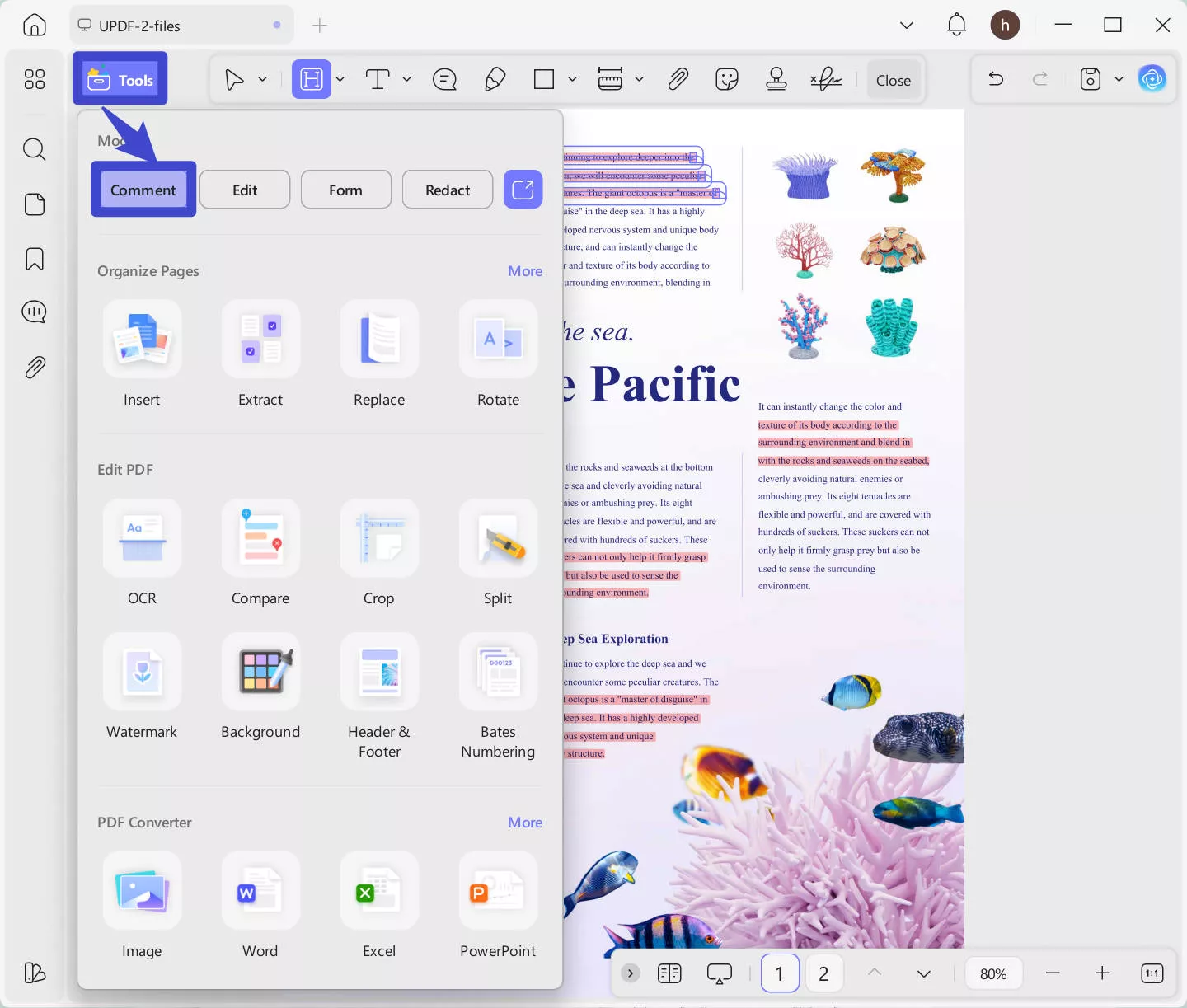
After opening the document, click on the “Tools” > "Comment" to display the annotation tools. Then locate the existing highlight whose color you want to change.
Step 3: Change the Color of your Highlighted Text
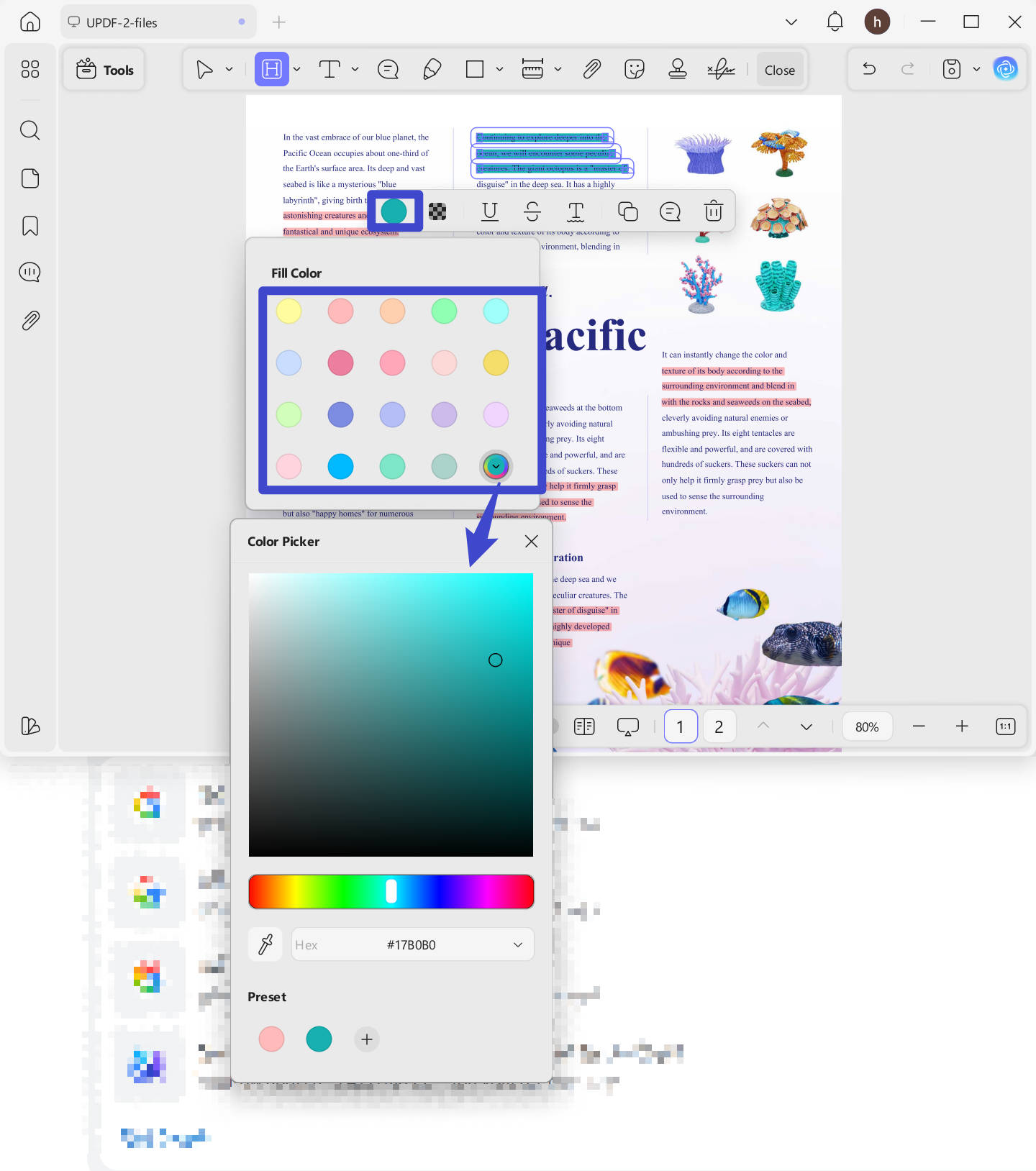
Simply click on the highlighted text, then select the color properties icon to choose your desired fill color. If the color you want isn’t in the list, click the last option and use the slider to customize it. You can also use the Color Picker tool to grab any color directly from your screen. Once you find a color you like, click the “+” icon under Preset to save it for future use.
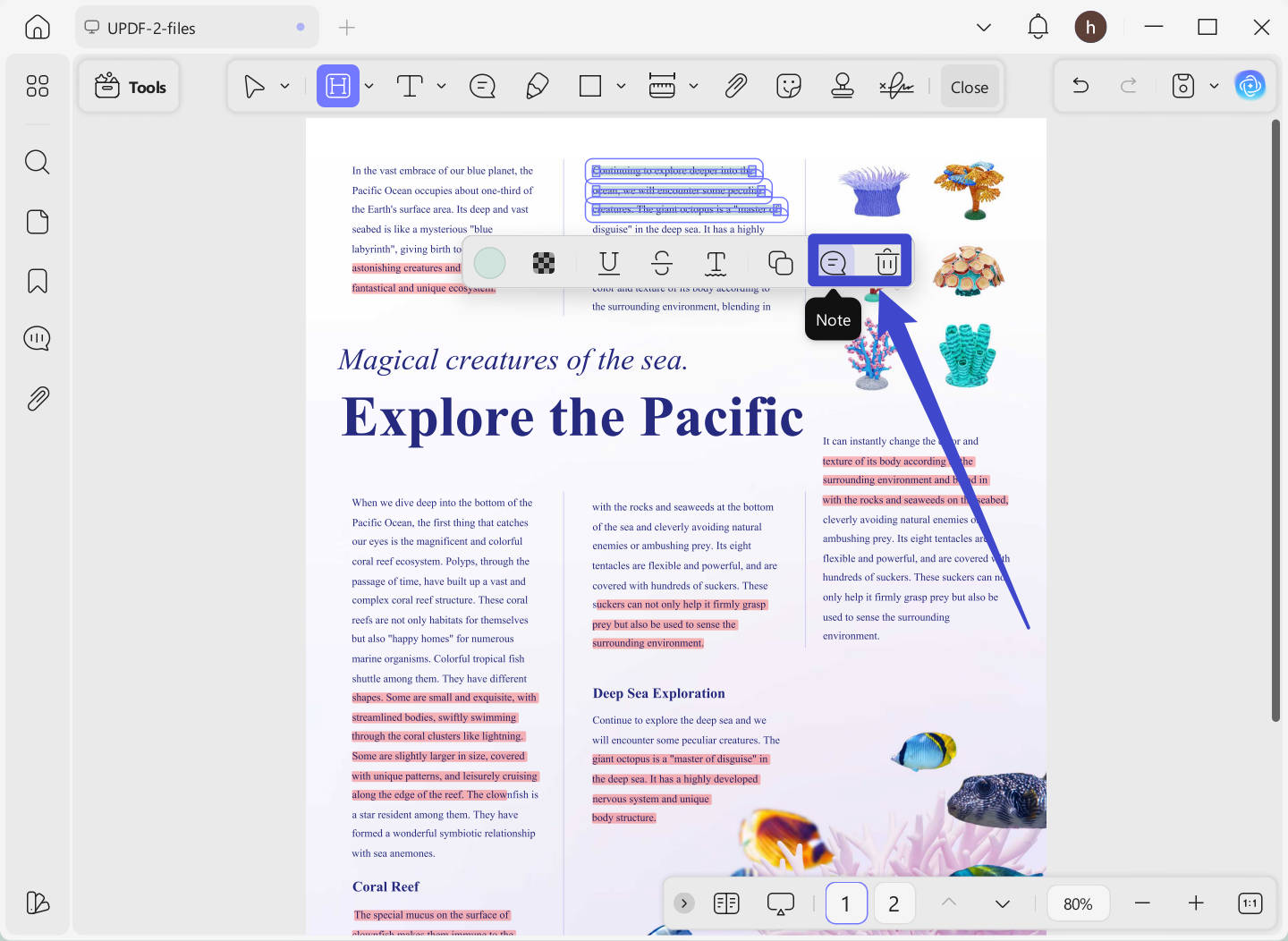
Tip: To add a sticky note or remove a highlight, just click on the highlighted text. Then choose “Sticky Note” to add one, or hit “Delete” to remove the highlight.
Step 4. Save the Changes
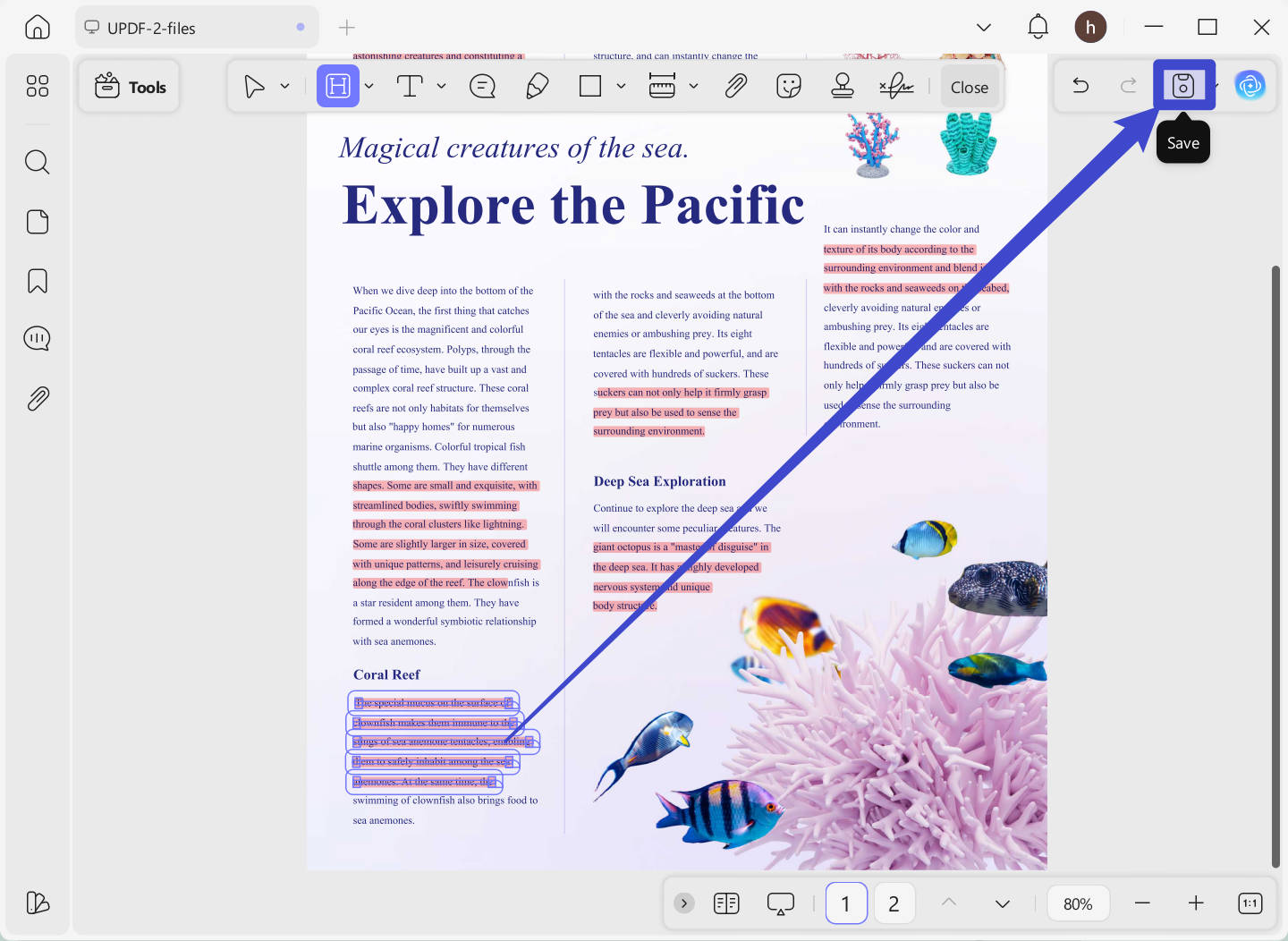
Now, you can click on the "Save" button to save the changes.
Apart from changing highlight color in PDF, UPDF for Windows and Mac has many other features, you can watch the video below or read this review article to learn more.
Part 2: How to Change Highlight Color in PDF on Mobile?
If you want to change the highlight color in PDF on your mobile device, you can also do that with UPDF. UPDF for iOS and UPDF for Android can help you change the highlight color easily. As the guide is similar for iOS and Android, I will show the guide for Android here.
Just click the button below to download UPDF for your device now.
Windows • macOS • iOS • Android 100% secure
Step 1. Open UPDF on Android or iOS, select the place where your highlighted PDF is stored, and tap to open the PDF.
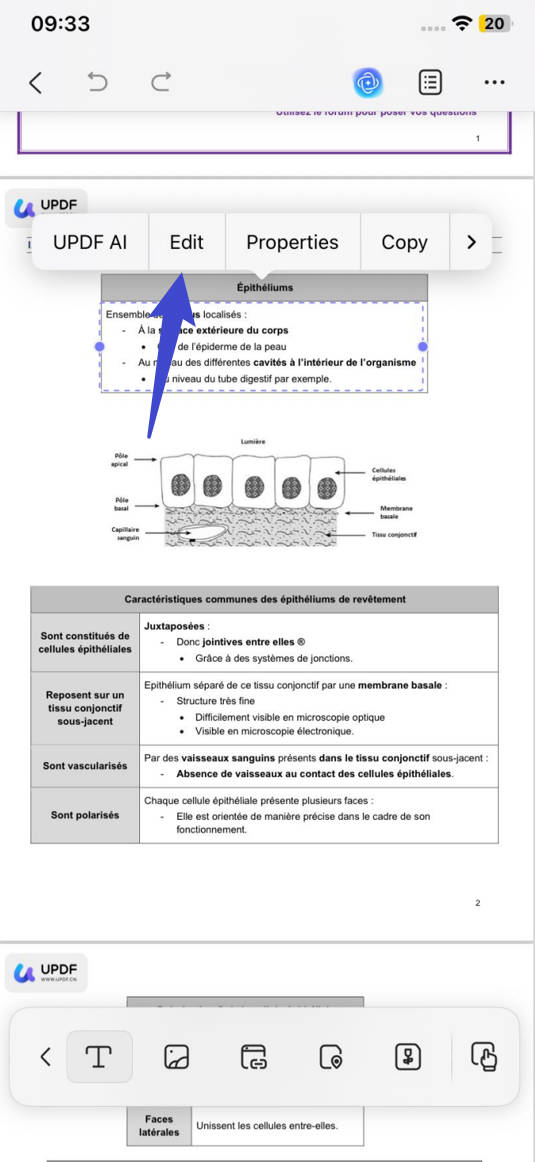
Step 2. Now, you can tap on the highlighted text, and you will get the pop up menu "Edit". Tap on it.
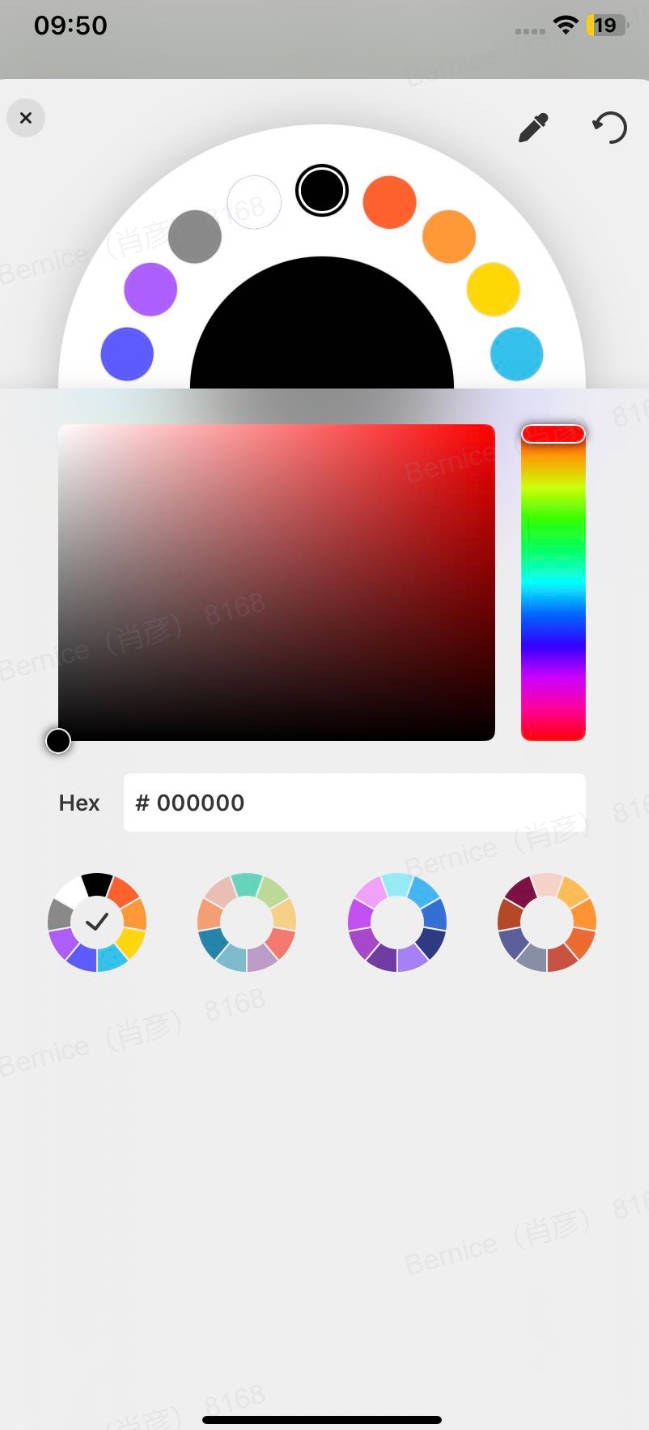
Step 3. Now, you can pick the color from the bottom list. And it will change the highlight color directly. Tap on the "<" icon at the top menu to save the changes.
Sams to Windows and Mac versions, UPDF for Android and iOS have many other features. You can download UPDF for iOS or Android from the App Store or Google Play to test it.
Part 3. FAQS About Changing Highlight Color in PDF
Q1. How to Change Highlight Color in PDF with Adobe Acrobat?
Open the PDF with highlighted text, hover over the section you want to change, and click on it. A pop-up menu will appear—just tap the color icon to choose a new highlight color.
Q2. How to Change Highlight Color in Foxit?
In Foxit, open your PDF, right-click the highlighted text, and choose Properties. Select a new color under the Appearance tab, then click Set Current Properties as Default if you want it saved.
Q3. How to Change Highlight Color in Preview?
Right-click on the PDF with highlighted text and select “Open With” > “Preview.” Next, hover your mouse over the highlighted text you want to change, right-click on it, and choose the color you prefer. That’s it—you’ve successfully changed the highlight color!
Q4. How to Change Highlight Color in PDF Gear?
In PDF Gear, open your PDF, click the highlighted text, then select the color icon from the toolbar or pop-up menu to choose a new highlight color.
Conclusion
Changing the color of an existing PDF highlight takes only a few steps with UPDF. Open the document, select the highlight, choose a new color, and save the PDF.
The process is available on Windows, Mac, iPhone, iPad, and Android, allowing you to maintain a consistent annotation system across different devices without learning a completely different workflow for each platform.
Download UPDF to change highlight colors, create custom color presets, add notes, and organize your PDF annotations more clearly.
Windows • macOS • iOS • Android 100% secure









 Engelbert White

 Enola Miller