UPDF
UPDF
 UPDF for Windows
 UPDF for Mac
 UPDF for iPhone/iPad
 UPDF for Android
 Nomostar
 UPDF AI Online
 UPDF Sign
 IvyCraft
 Edit PDF
 Annotate PDF
 Create PDF
 PDF Form
 Edit links
 Convert PDF
 OCR
OCR PDF to Word
 PDF to Image
 PDF to Excel
 Organize PDF
 Merge PDF
 Split PDF
 Crop PDF
 Rotate PDF
 Protect PDF
 Sign PDF
 Redact PDF
 Sanitize PDF
 Remove Security
 Read PDF
 UPDF Cloud
 Compress PDF
 Print PDF
 Batch Process
 About UPDF AI
 UPDF AI Solutions
 AI User Guide
 FAQ about UPDF AI
 Summarize PDF
 Translate PDF
 Chat with PDF
 Chat with AI
 Chat with image
 PDF to Mind Map
 Explain PDF
 PDF AI Tools
 Image AI Tools
 AI Chat Tools
 AI Writing Tools
 AI Study Tools
 AI Working Tools
 Other AI Tools
 AI Bookmark Generation
 AI Bookmark Summary
 AI Watermark Generation
 AI Background Generation
 AI Sticker Generation
 AI Stamp Generation
 AI Editing Suite
 UPDF Copilot
 AI Page Management
 AI Semantic Search
 PDF to Word
 PDF to Excel
 PDF to PowerPoint
 Enterprise Solution
 Enterprise Sign
 Enterprise AI
 Enterprise Plan
 Enterprise User Guide
 Enterprise Webinar
 IT
IT Education
 Construction
 Financial Service
 Healthcare
 Insurance
 Legal
Legal Manufacturing
 Government
 Researchers & PhDs
 Solopreneurs & Freelancers
 Lawyers & Legal Professionals
 Real Estate Agents & Brokers
 Education Solution
 Customer Stories
 User Guide
 UPDF Tricks
 FAQs
FAQs UPDF Reviews
 Download Center
 Blog
Blog Newsroom
 Tech Spec
 Updates
 UPDF vs. Adobe Acrobat
 UPDF vs. Foxit
 UPDF vs. PDF Expert

If you only need to add a signature to PDF in Microsoft Edge, you don't need to install anything extra — Edge has a built-in Draw tool and Text tool that get the job done in under a minute. The catch is that Edge doesn't save your signature, doesn't support legally-recognized digital IDs, and doesn't let you send a document to someone else for signing.
Below I'll cover the two methods Edge offers, then show you two alternatives — UPDF for saving and reusing signatures across documents, and UPDF Sign for PAdES-compliant signing and requesting signatures from others.
Windows • macOS • iOS • Android 100% secure
Part 1. How to Add Signature in Microsoft Edge?
Microsoft Edge is a helpful tool for viewing PDFs on your device. It has a Draw tool and a Text tool on its top toolbar. Both work without any extension. Note that what Edge creates is a visual mark, not a cryptographic digital signature — so this is fine for casual approvals (internal forms, quick acknowledgements) but not for contracts or anything that needs legal verification.
Way 1. Add a Signature with the Draw Tool
We will first start with adding a signature using the draw tool. This method is very simple and offers you options to adjust the size of a pen while drawing a signature.
Best for: a handwritten-style signature when you have a stylus, touchscreen, or trackpad.
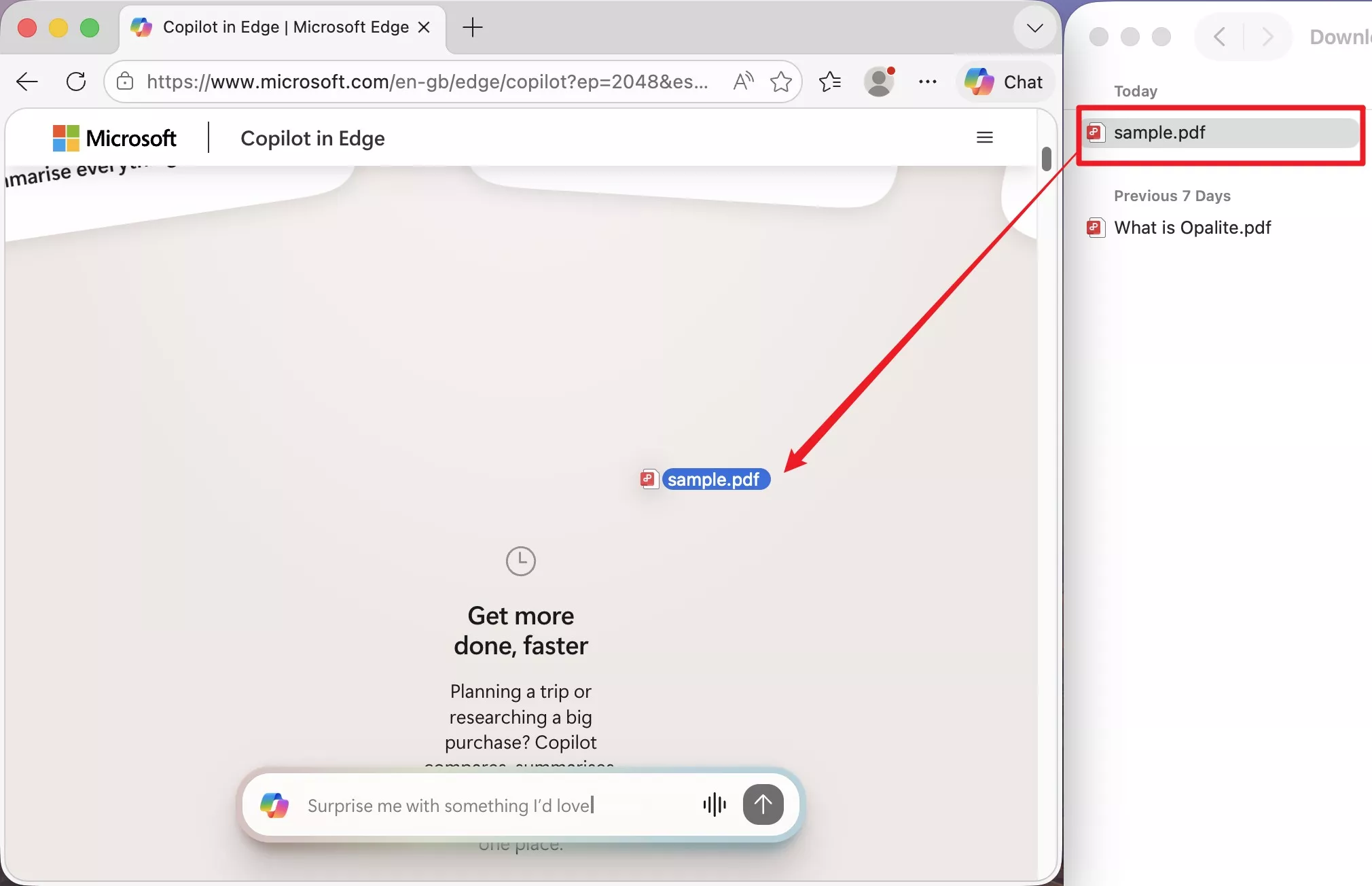
Step 1. Drag and drop your PDF into a Microsoft Edge window.
Step 2. On the top toolbar, click the Draw tool. Click the small arrow next to it to change pen color and thickness.
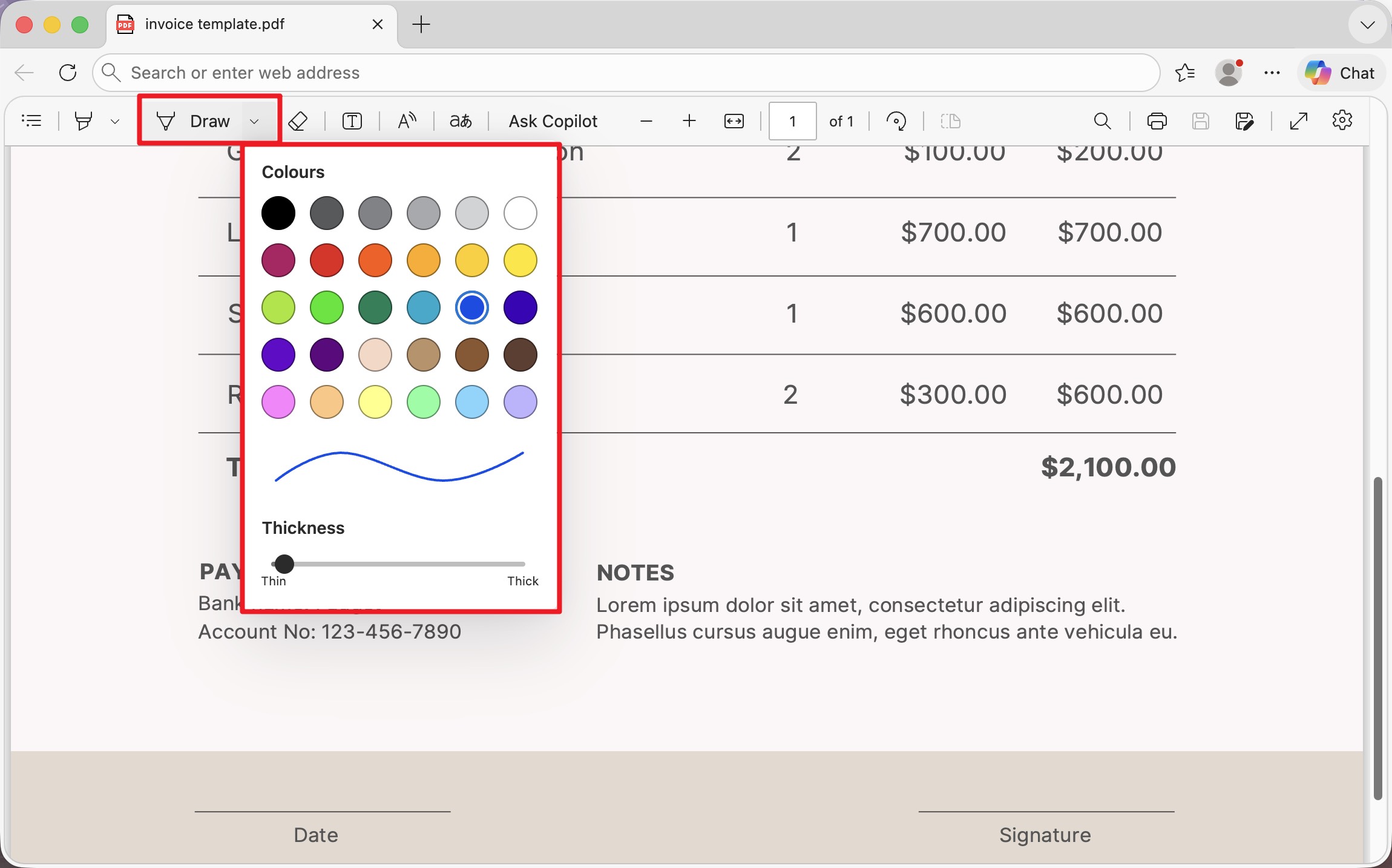
Step 3. Draw your signature in the signature line. To undo, click Erase and trace over the stroke — Edge doesn't have an undo-all option for inked PDFs.
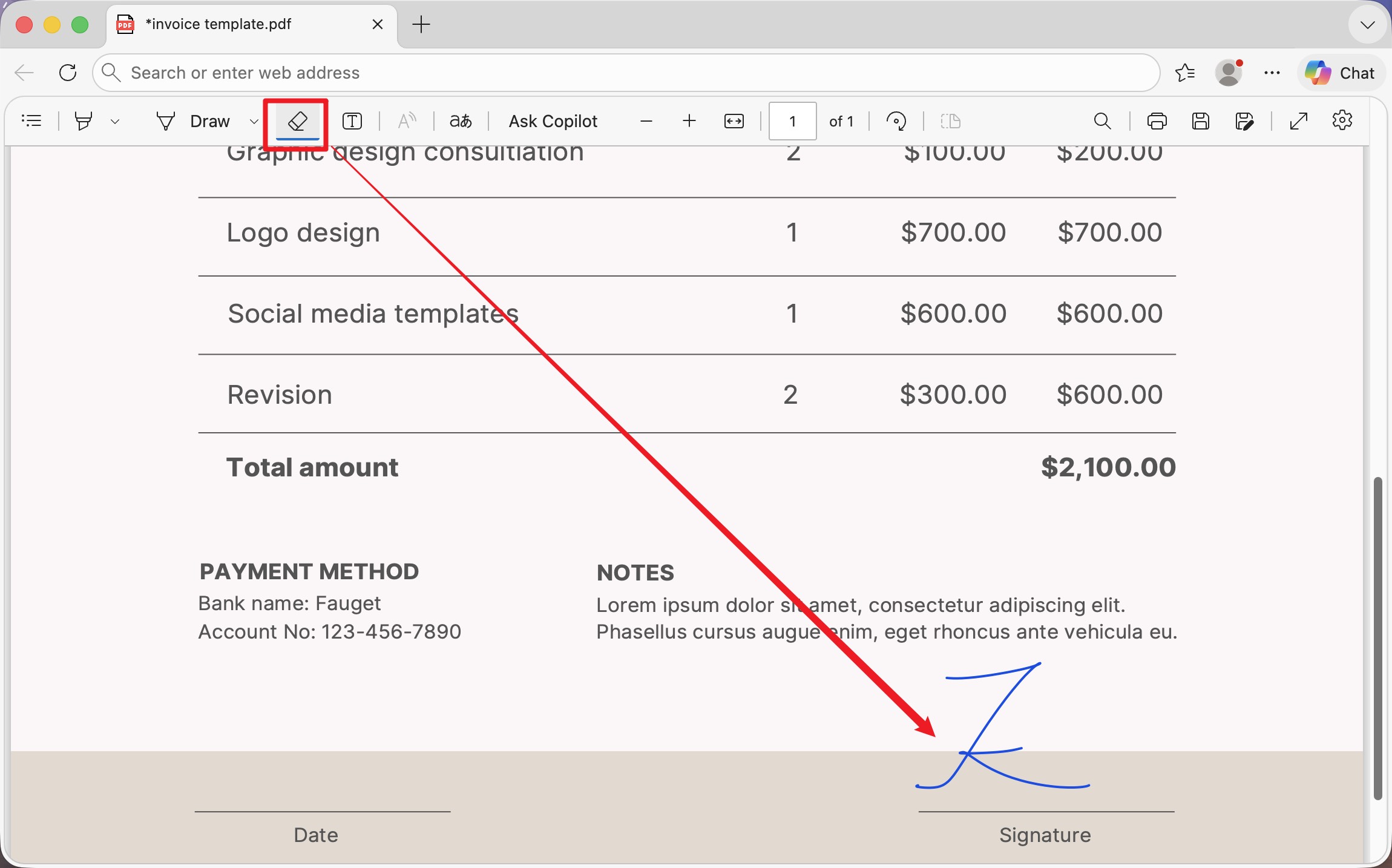
Way 2. Add a Typed Signature with the Text Tool
Another great method regarding how to add a digital signature in Microsoft Edge is via text box. This allows you to adjust the text box anywhere on your PDF file. You can even move the text box based on your requirements.
Best for: when you only need your printed name on a form, not a handwritten look.
Follow the steps to make your documents look professional:
Step 1. Drag and drop your PDF into a Microsoft Edge window.
Step 2. On the top toolbar, click Text, then click the spot where the signature should go.
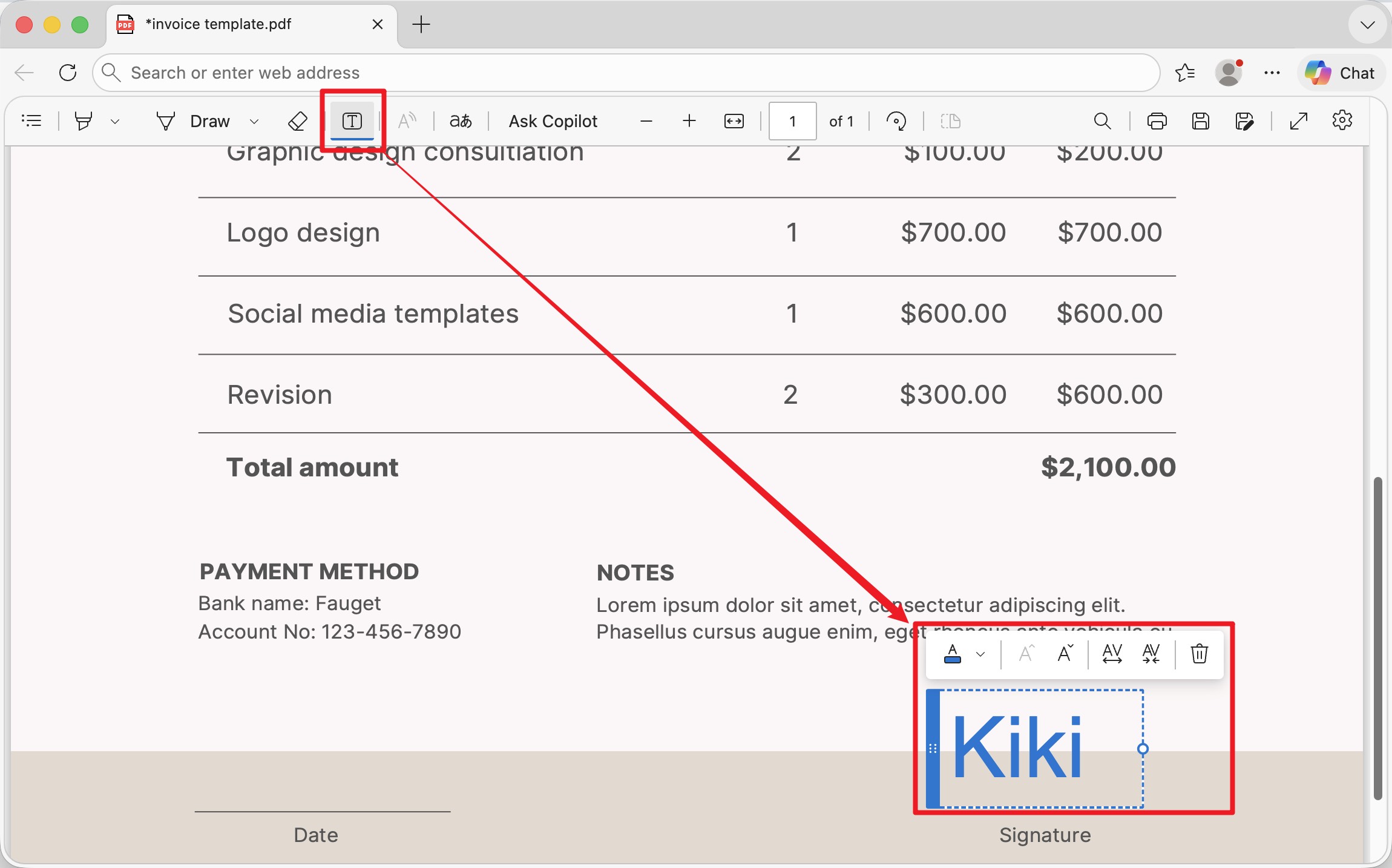
Step 3. Type your name. Use the formatting controls to change font, size, and color — picking a script-style font (if you have one installed) makes it look closer to a handwritten signature.
Part 2. When Edge Isn't Enough: 2 Better Ways to Sign PDFs
Edge's marks live only on the file you draw them on — close it without saving, or open a new contract tomorrow, and you start from scratch. There's also no digital ID, no audit trail, and no way to send a document out for someone else's signature.
If any of that matters for your use case, the two tools below cover everything Edge can't:
- UPDF (desktop + mobile) — save your signature once, reuse it across PDFs, plus apply a cryptographic digital signature with your own certificate.
Windows • macOS • iOS • Android 100% secure
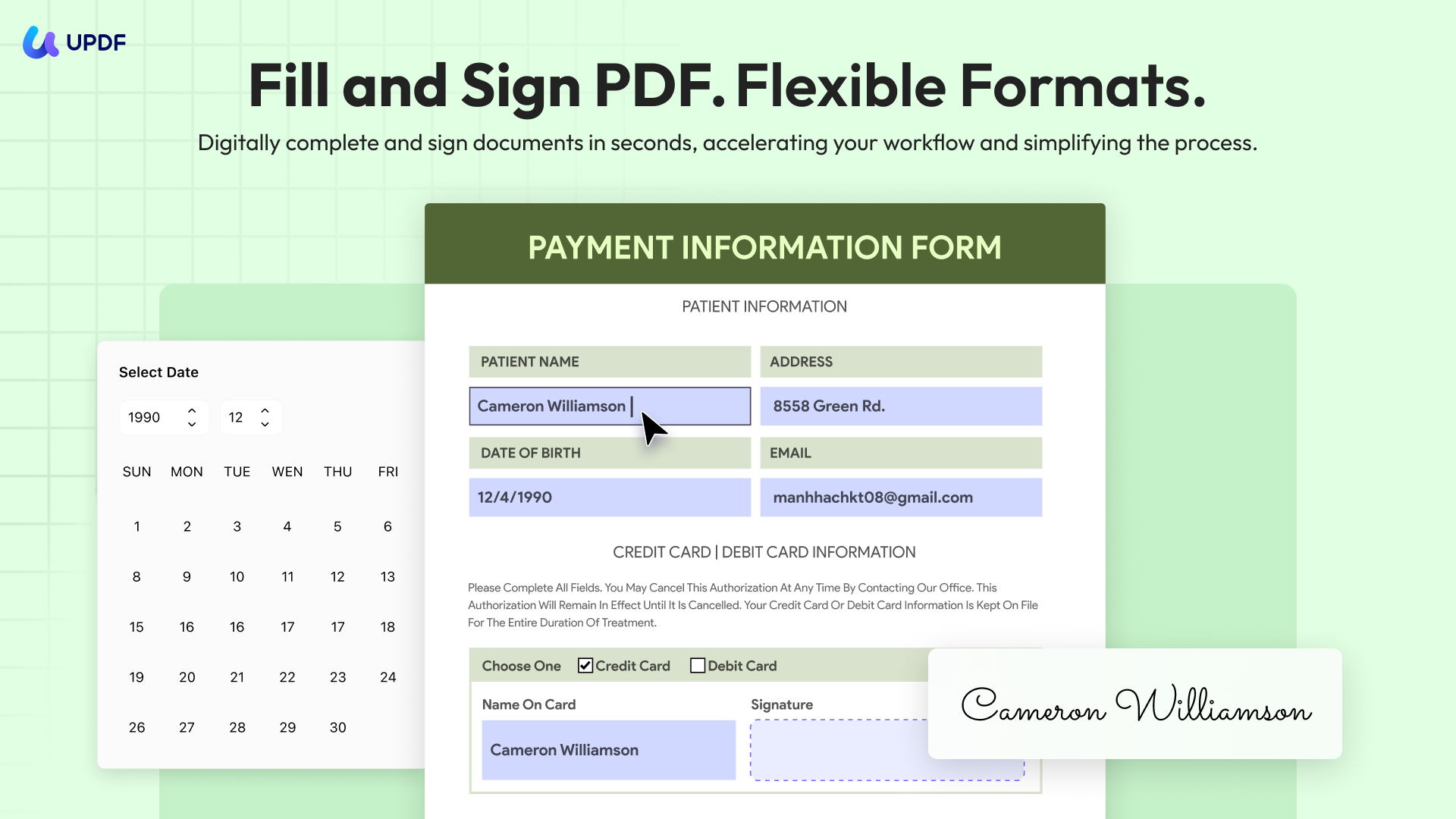
- UPDF Sign (web) — for PAdES-compliant e-signatures and for collecting signatures from other people.
Way 1. Sign with UPDF — One Signature, Used Everywhere
UPDF treats signing as a workflow, not a single action. You create a signature once (typed, drawn, or imported as an image), and it's available across every PDF you open on Windows, Mac, iOS, and Android. For documents that need legal weight, UPDF also supports certificate-based digital signatures.
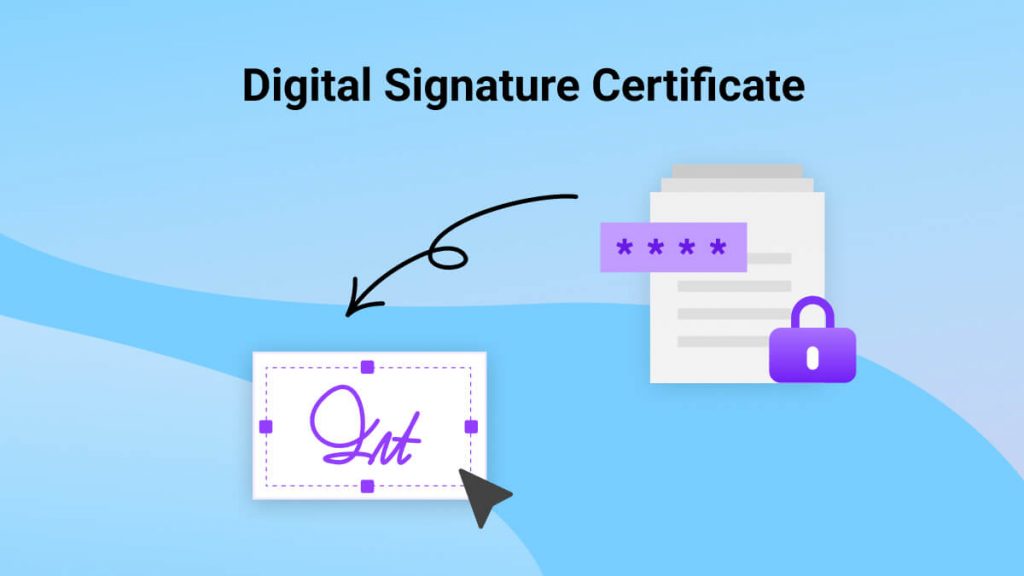
Add a reusable signature in UPDF
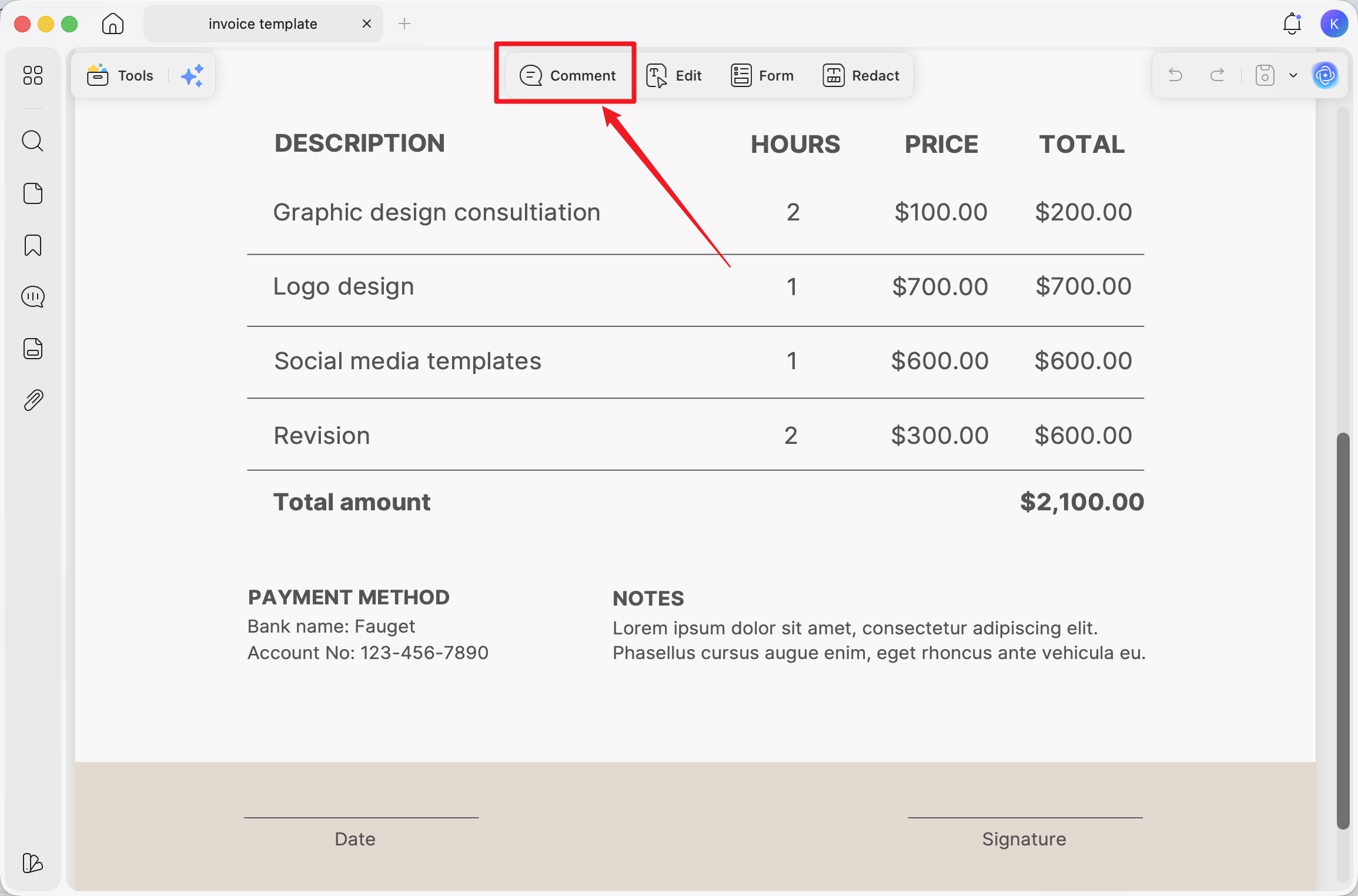
Step 1. Open your PDF in UPDF and click Comment on the top toolbar.
Windows • macOS • iOS • Android 100% secure
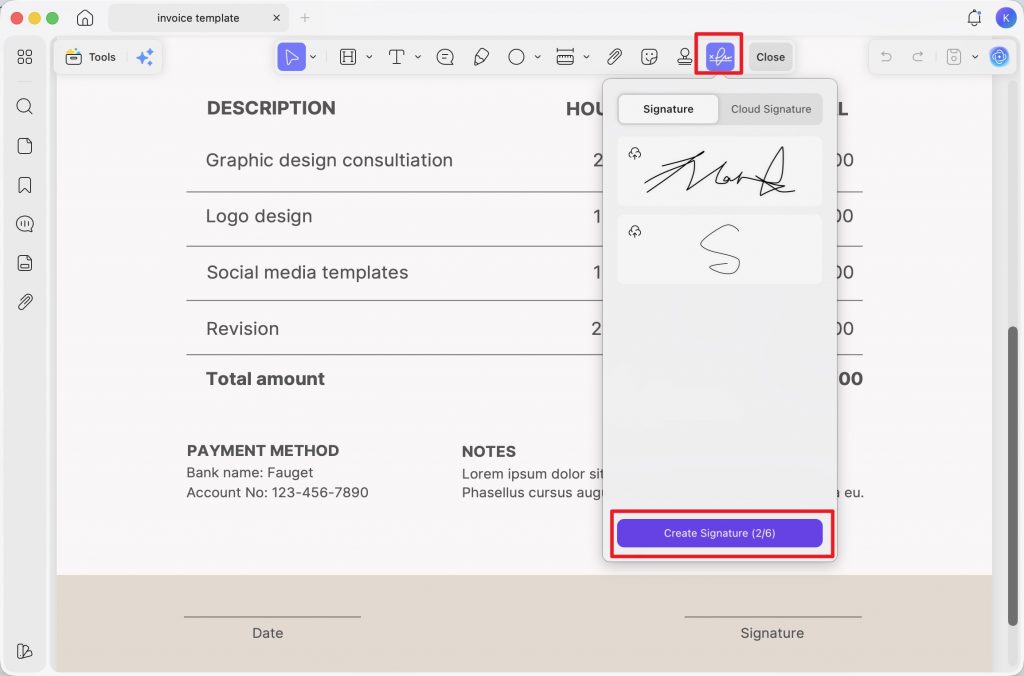
Step 2. Click the Signature tool, then click Create Signture.
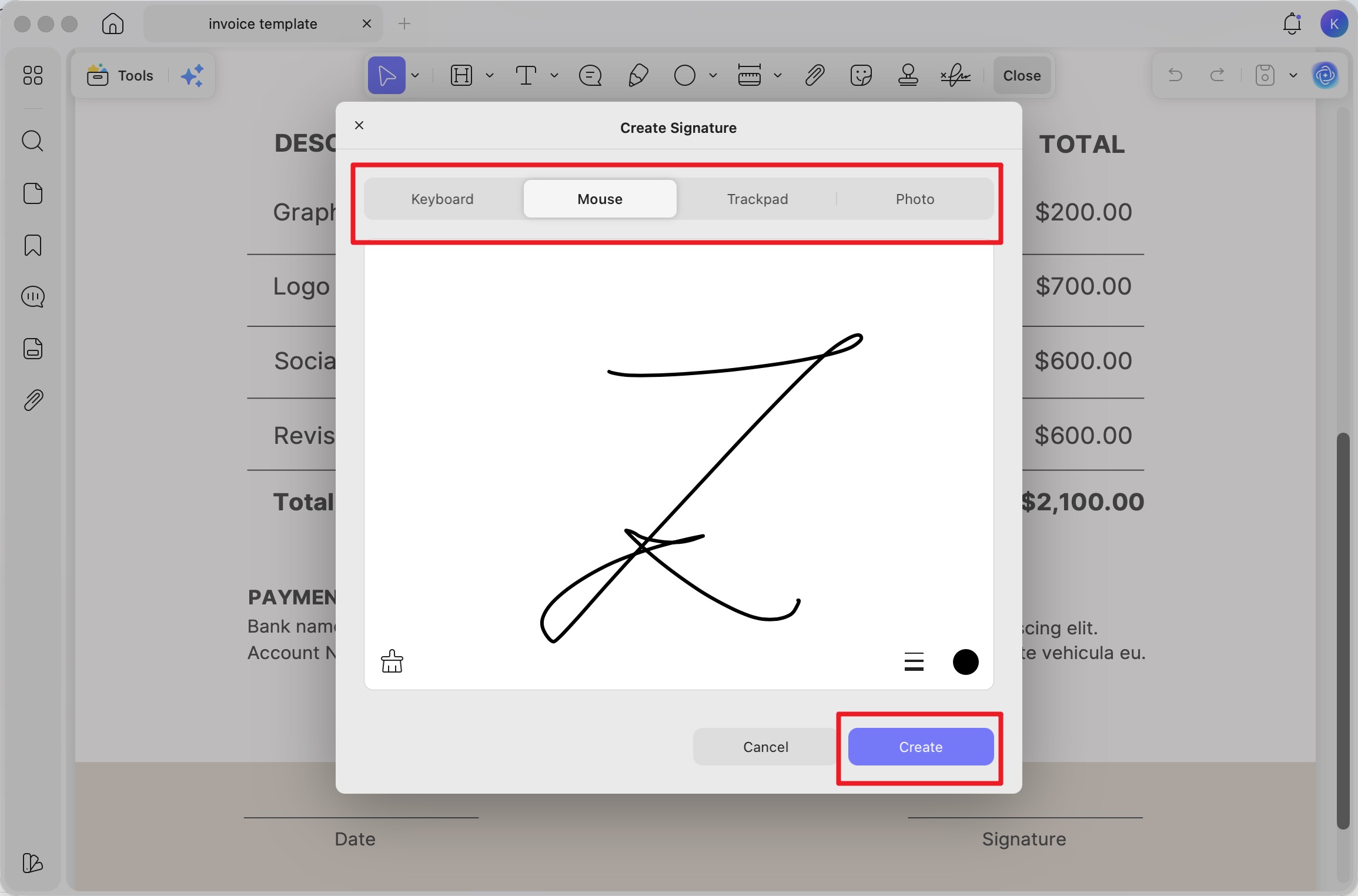
Step 3. Choose Keyboard, Trackpad, Mouse, or Photo to build the signature, adjust style, and click Create. UPDF stores it for future PDFs — no re-creating each time.
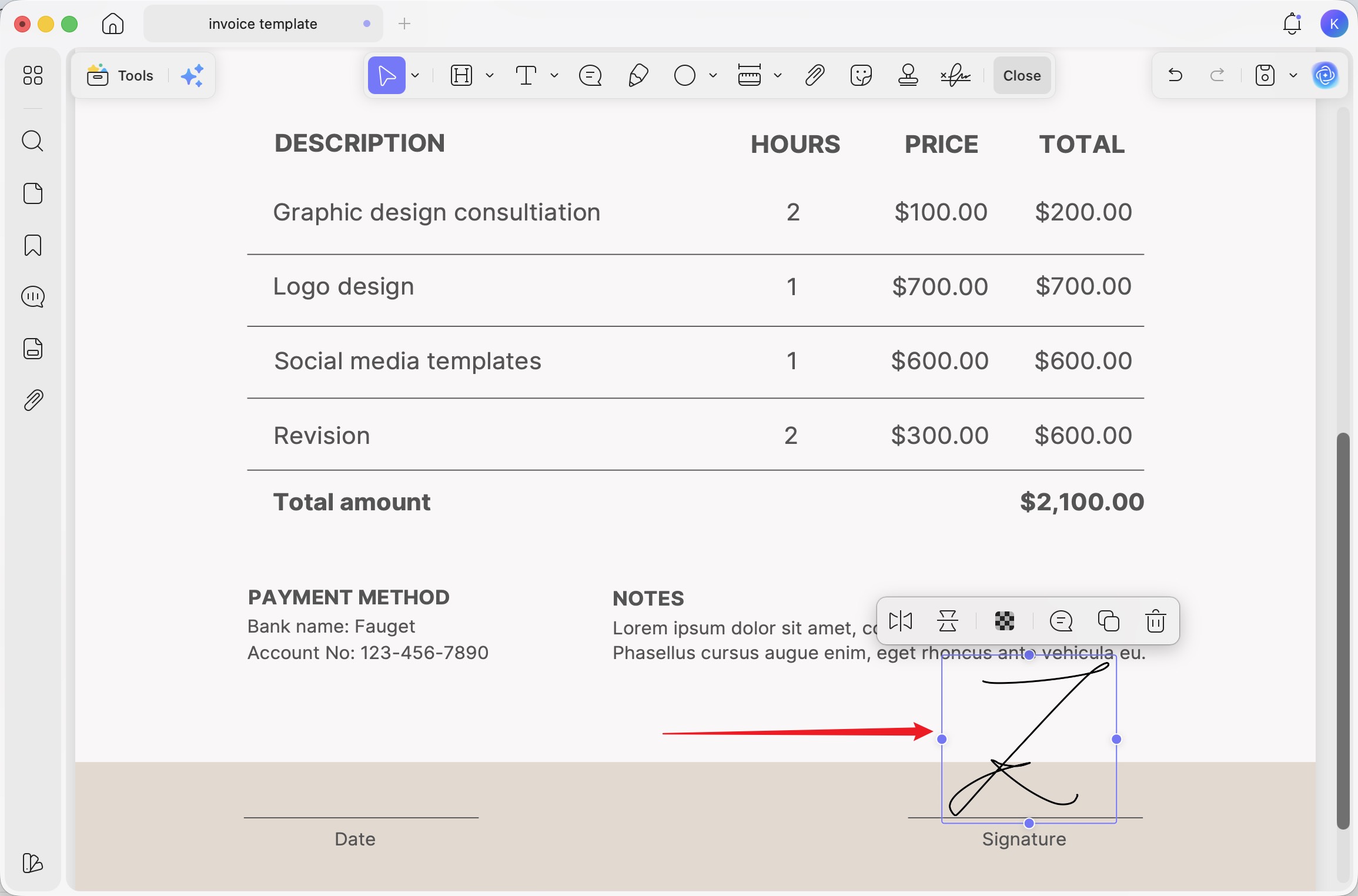
Step 4. Click on the document where you want to place the signature. Drag to resize or reposition.
Need a certificate-based digital signature?
For professional PDF files, you can add a digital signature to protect your PDF files. Here is the guide:
Step 1. Open your PDF in UPDF and click Form on the top toolbar.
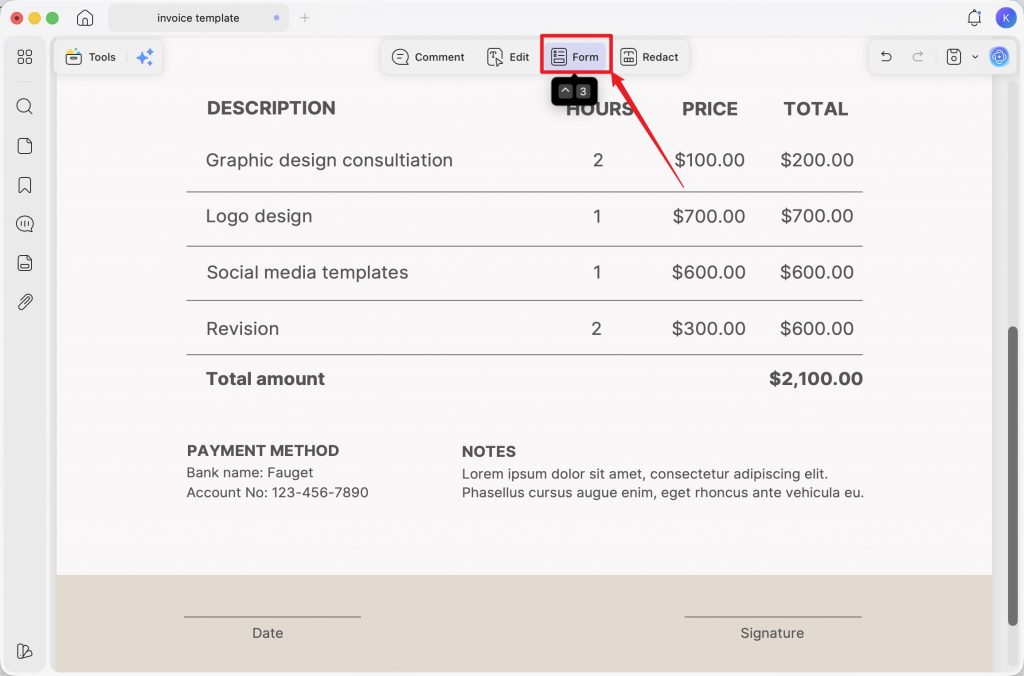
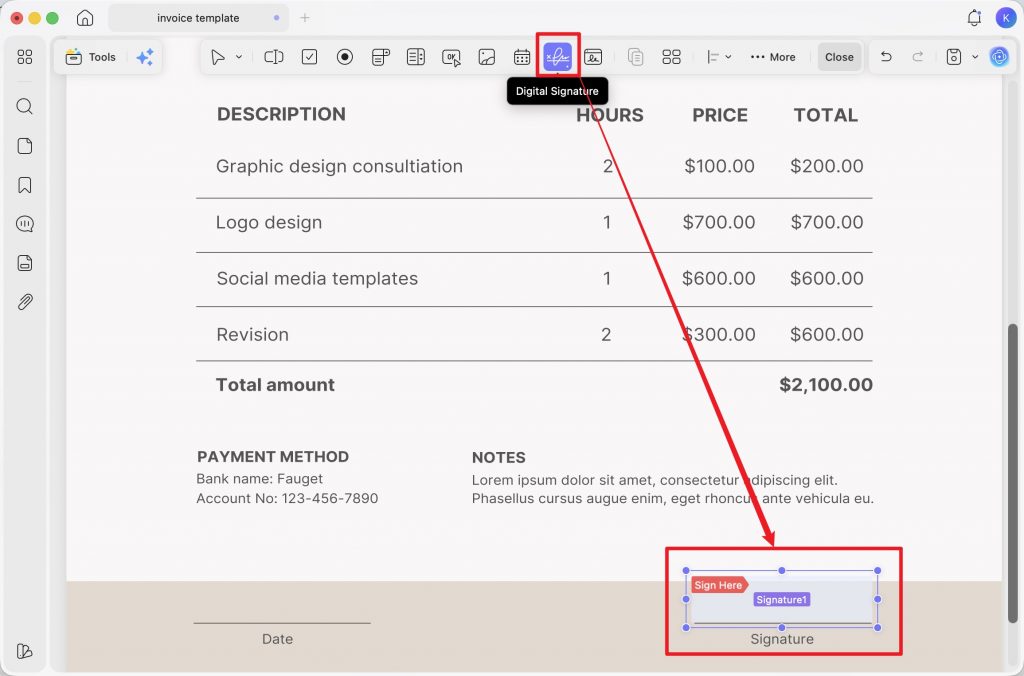
Step 2. Click on Digital Signature and draw a rectangle where the signature should go.
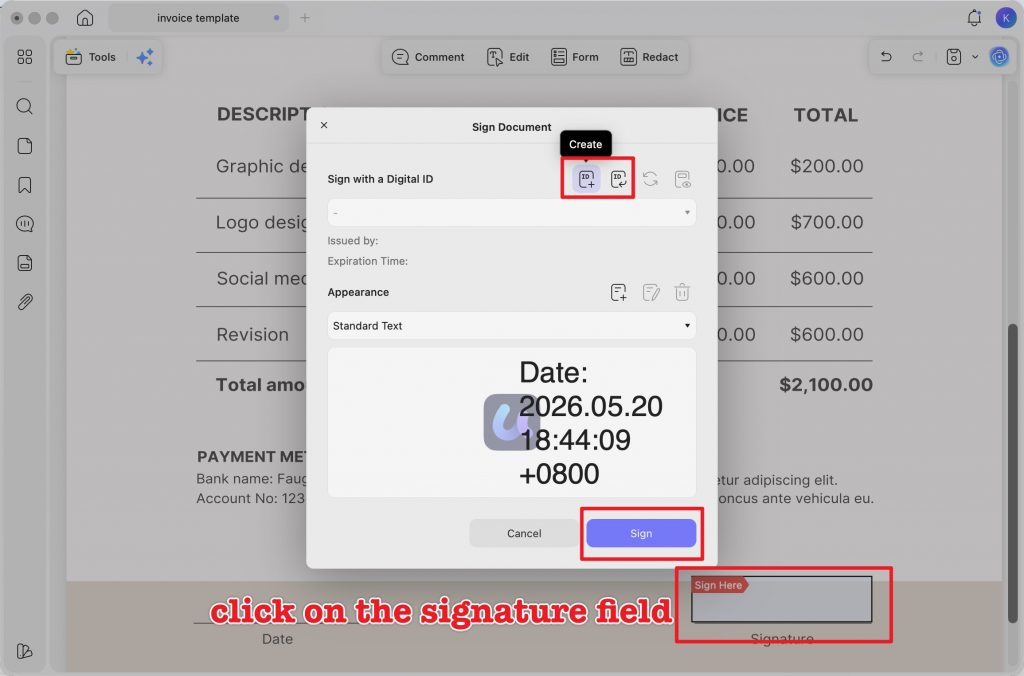
Step 3. Clicking on the "Close" icon on the top menu to exit the "Form" mode. Now, you can start to add the signature by clicking on the signature field, then create or import your digital ID.
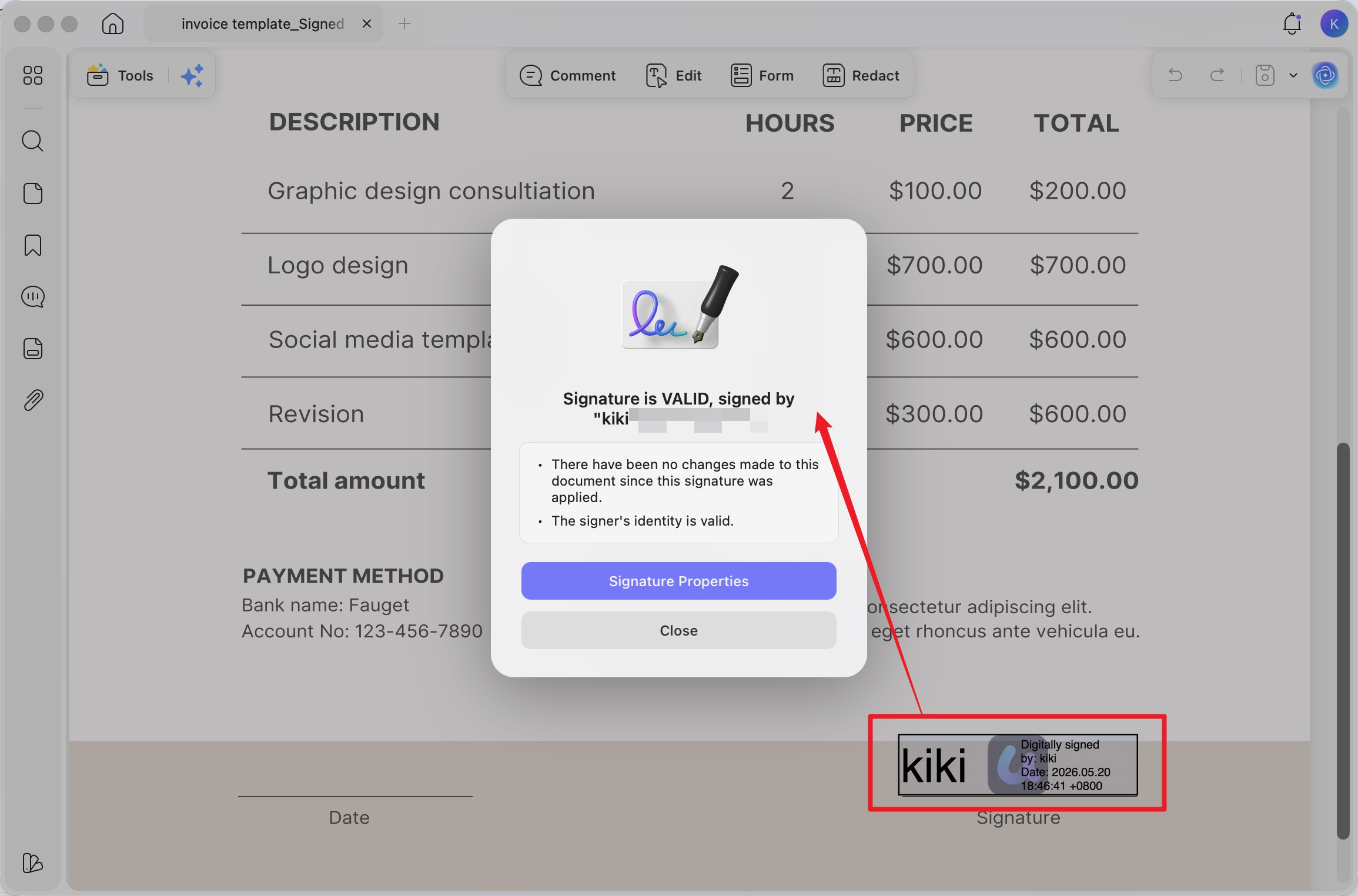
Step 4. After creating the signature, click on "Sign" to place it in the designated field. Once the signature is in place, select the location where you'd like to save the signed PDF. The signature is now securely embedded in the document.
Download UPDF for free and sign your first PDF in under a minute — no subscription required to get started.
Windows • macOS • iOS • Android 100% secure
Way 2. Sign or Request Signatures Online with UPDF Sign
UPDF Sign is the web-based version for the situations Edge can't handle at all: PAdES-compliant signatures (the EU's standard for legally-recognized e-signatures), sending a document to multiple recipients for signing in order, and a real-time audit trail. It supports PAdES-B-B, PAdES-B-T, and PAdES-B-LT levels.
Step 1. Go to sign.updf.com and log in (or sign up — the free plan includes 2 signature requests with no watermark or credit card required).
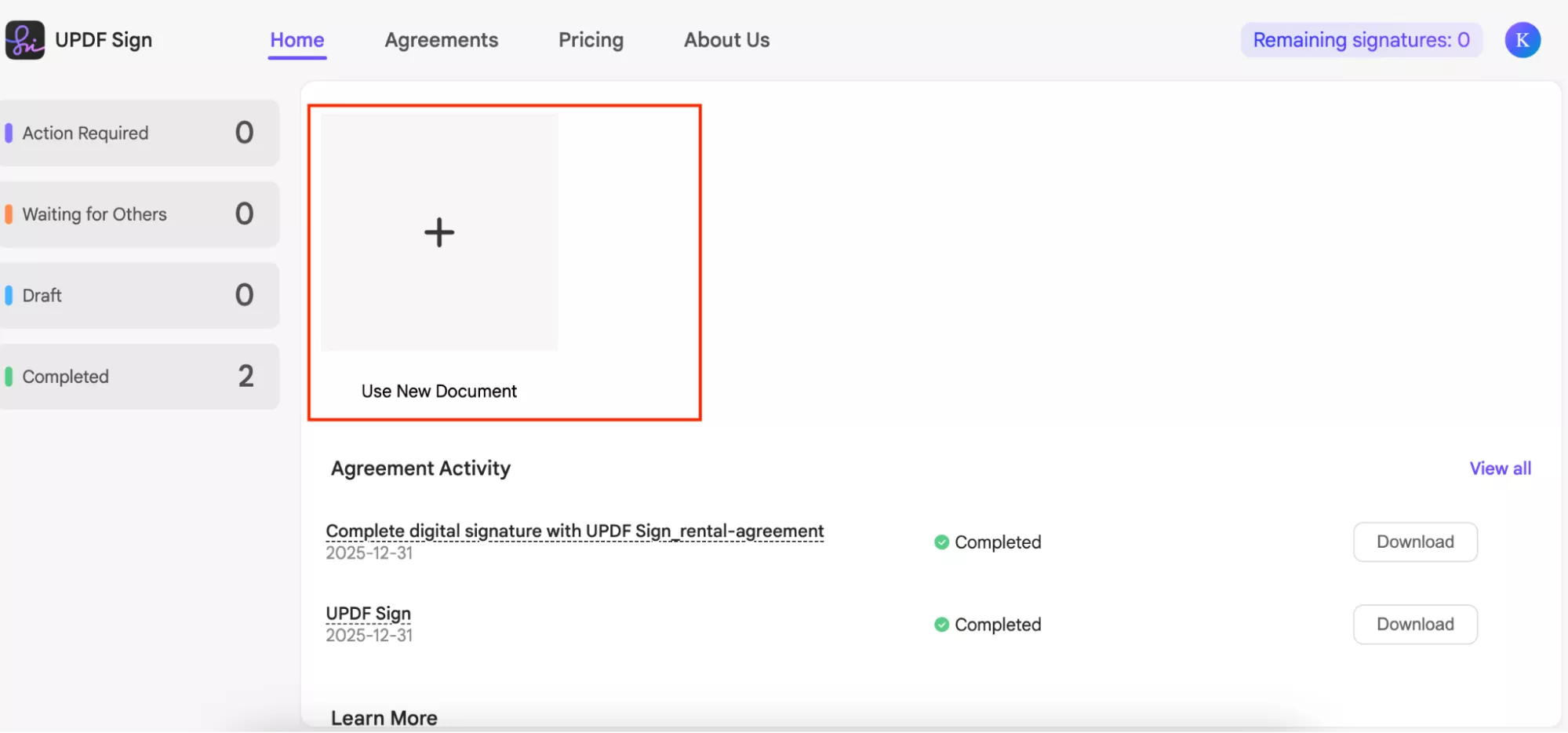
Step 2. On the dashboard, click Use New Document.
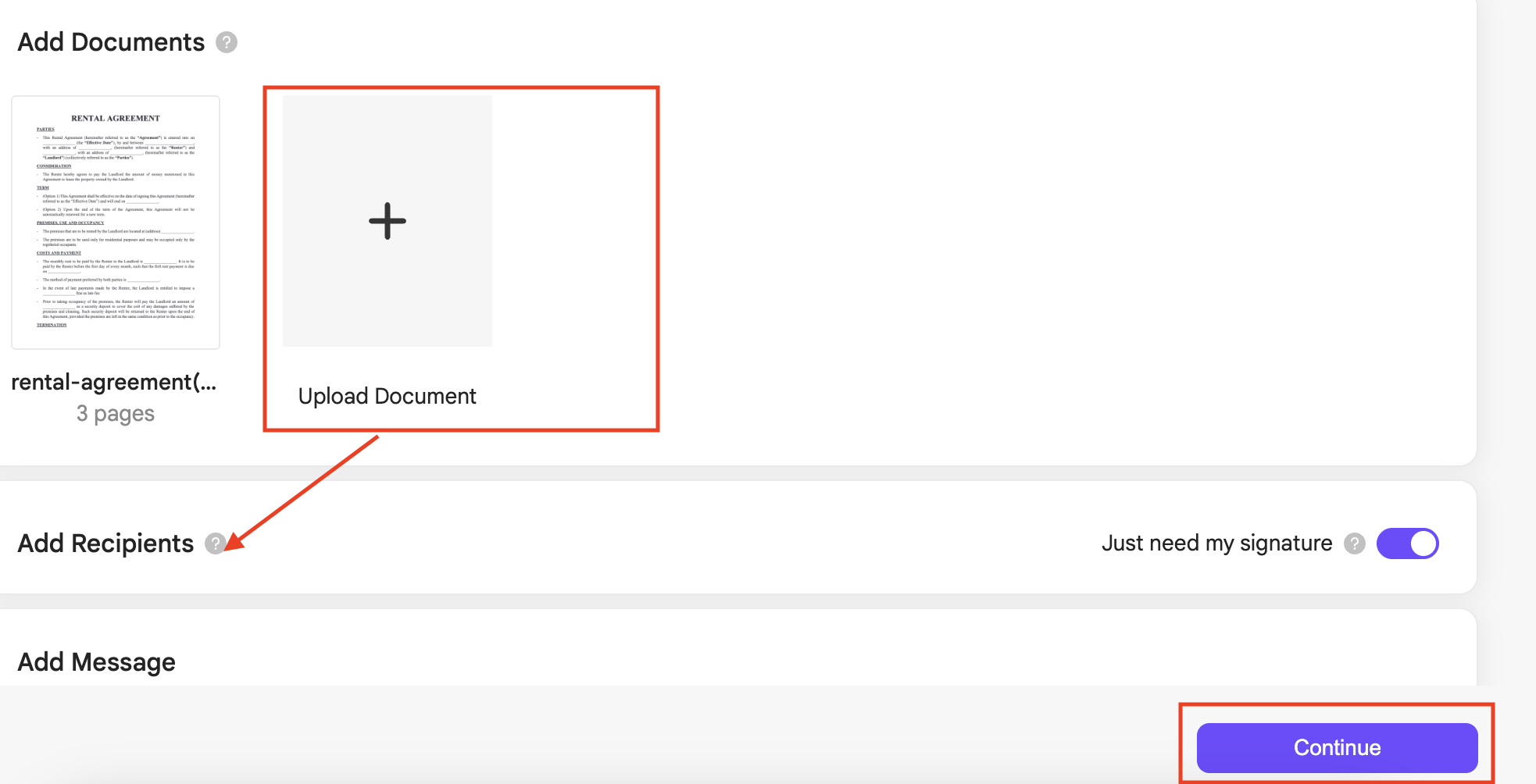
Step 2. Next, click the Upload Document option to to add your PDF, and click Continue.
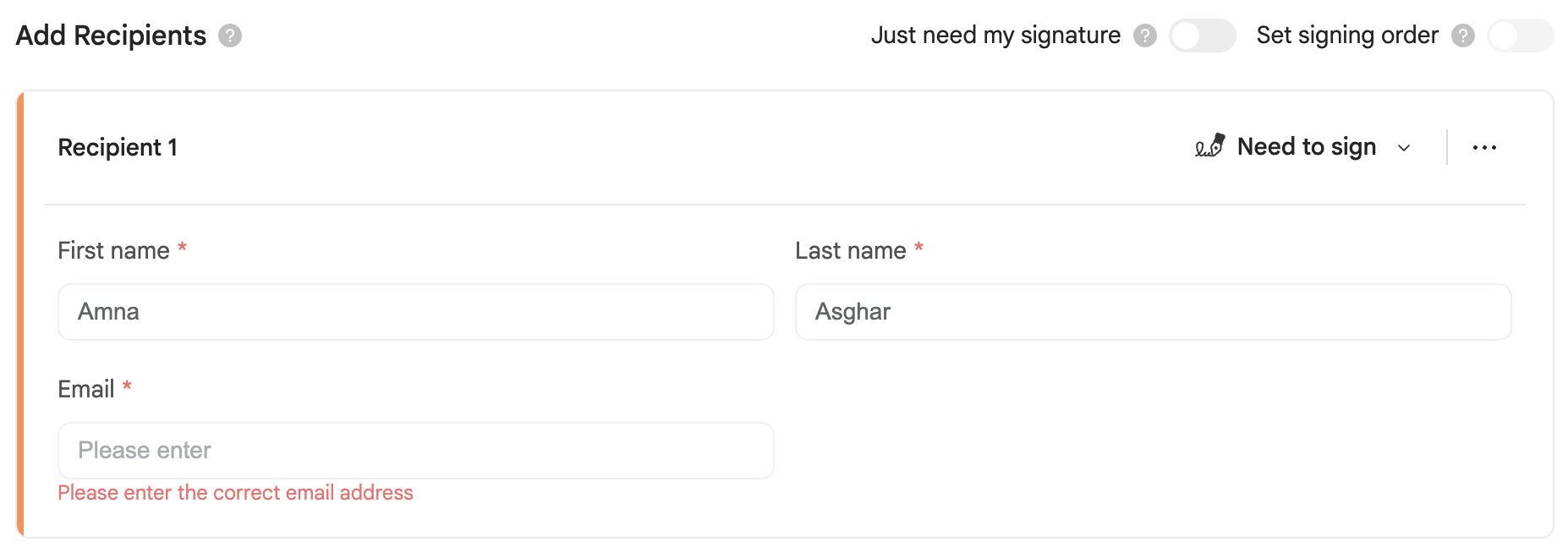
Step 3. Add recipient details (first name, last name, email) — or check the option to sign it yourself only if you don't need anyone else's signature.
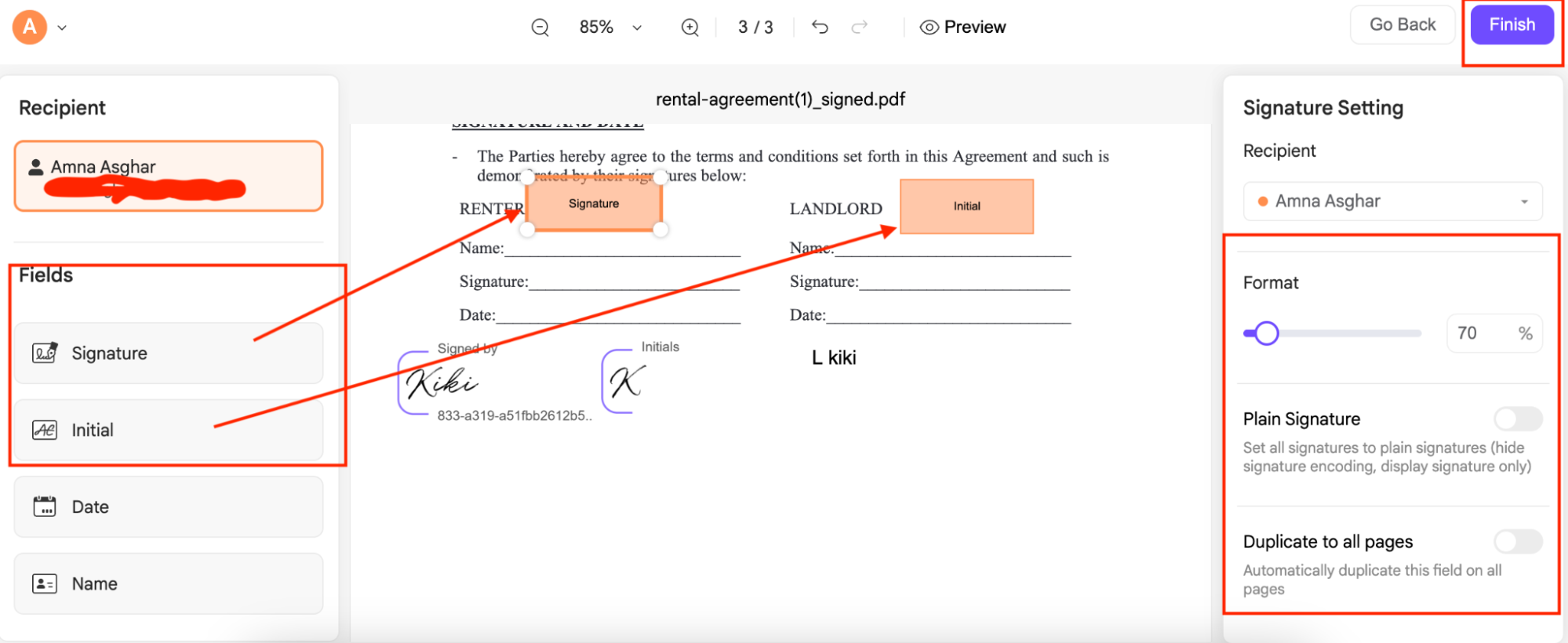
Step 4. Drag the Signature and Initial fields onto the PDF where each recipient should sign. Adjust font, plain signature style, or duplicate fields across pages from the right panel. Click Finish.
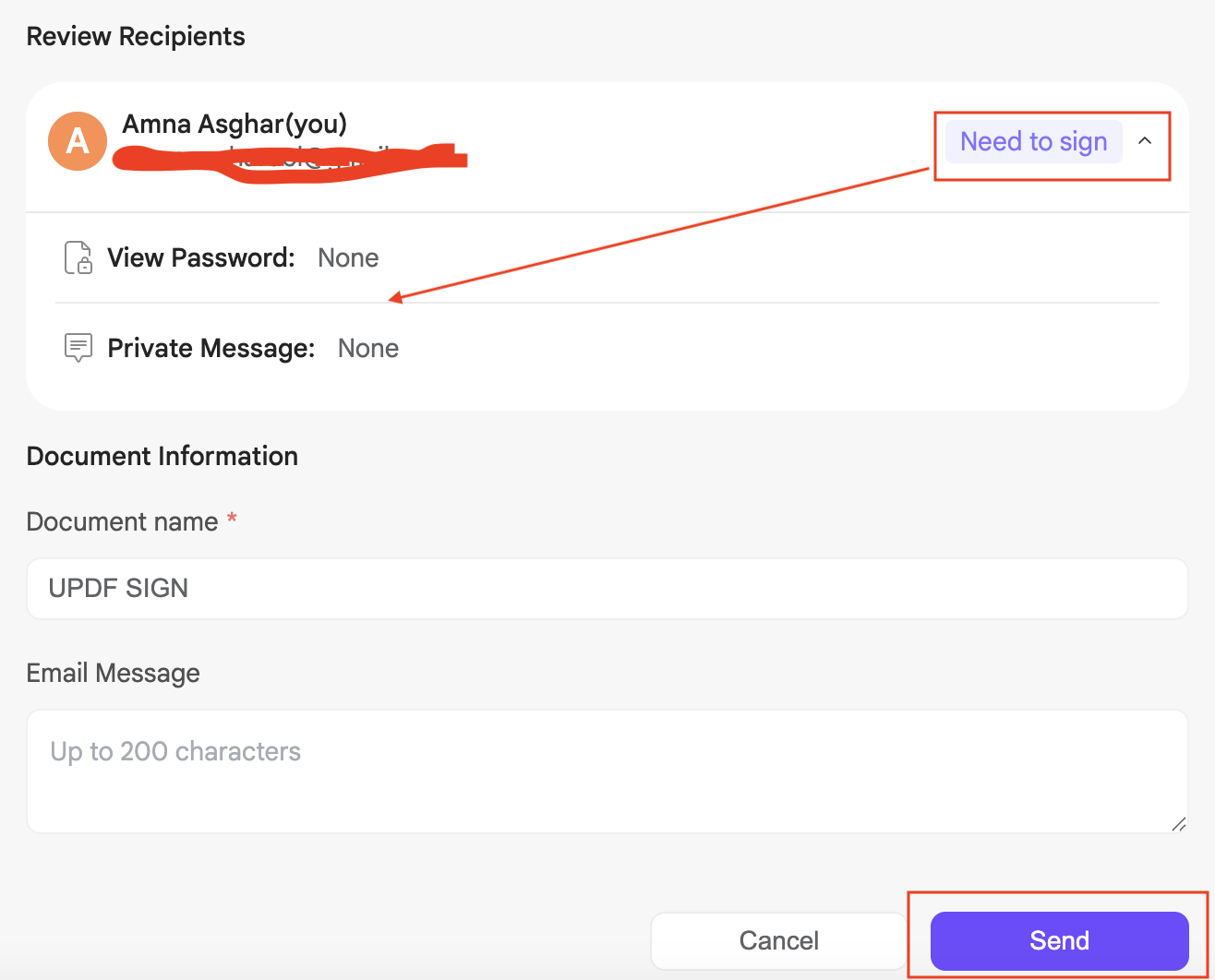
Step 5. Review the document name and email message, then click Send.
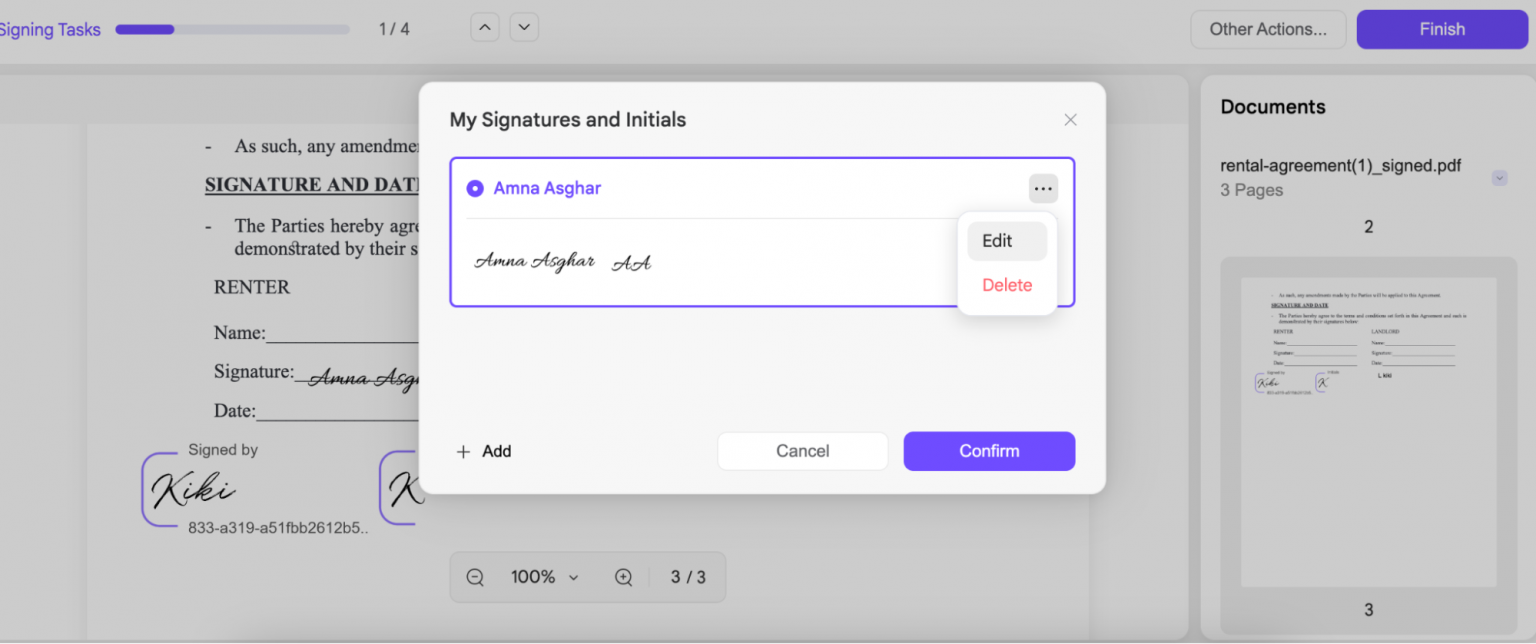
Step 6. Recipients open the link in their email, click the Signature box, choose a style (typed, drawn, or uploaded image), and click Confirm.
Final Words
Microsoft Edge's Draw and Text tools work fine for one-off marks on internal documents, but they fall short the moment you need a reusable signature, a legally-recognized digital signature, or signatures from other people. UPDF closes the first two gaps with a saved signature library and certificate-based digital signatures. UPDF Sign handles the third with PAdES-compliant e-signatures and multi-party signing workflows.
While Microsoft Edge offers a simple way to sign PDFs, UPDF and UPDF Sign are two better choices. Download UPDF via the button below or visit UPDF Sign here to try and see they are what you need.
Windows • macOS • iOS • Android 100% secure




 Enya Moore
 Lizzy Lozano
 Enrica Taylor