UPDF
UPDF
 UPDF for Windows
 UPDF for Mac
 UPDF for iPhone/iPad
 UPDF for Android
 Nomostar
 UPDF AI Online
 UPDF Sign
 IvyCraft
 Edit PDF
 Annotate PDF
 Create PDF
 PDF Form
 Edit links
 Convert PDF
 OCR
OCR PDF to Word
 PDF to Image
 PDF to Excel
 Organize PDF
 Merge PDF
 Split PDF
 Crop PDF
 Rotate PDF
 Protect PDF
 Sign PDF
 Redact PDF
 Sanitize PDF
 Remove Security
 Read PDF
 UPDF Cloud
 Compress PDF
 Print PDF
 Batch Process
 About UPDF AI
 UPDF AI Solutions
 AI User Guide
 FAQ about UPDF AI
 Summarize PDF
 Translate PDF
 Chat with PDF
 Chat with AI
 Chat with image
 PDF to Mind Map
 Explain PDF
 PDF AI Tools
 Image AI Tools
 AI Chat Tools
 AI Writing Tools
 AI Study Tools
 AI Working Tools
 Other AI Tools
 AI Bookmark Generation
 AI Bookmark Summary
 AI Watermark Generation
 AI Background Generation
 AI Sticker Generation
 AI Stamp Generation
 AI Editing Suite
 UPDF Copilot
 AI Page Management
 AI Semantic Search
 PDF to Word
 PDF to Excel
 PDF to PowerPoint
 Enterprise Solution
 Enterprise Sign
 Enterprise AI
 Enterprise Plan
 Enterprise User Guide
 Enterprise Webinar
 IT
IT Education
 Construction
 Financial Service
 Healthcare
 Insurance
 Legal
Legal Manufacturing
 Government
 Researchers & PhDs
 Solopreneurs & Freelancers
 Lawyers & Legal Professionals
 Real Estate Agents & Brokers
 Education Solution
 Customer Stories
 User Guide
 UPDF Tricks
 FAQs
FAQs UPDF Reviews
 Download Center
 Blog
Blog Newsroom
 Tech Spec
 Updates
 UPDF vs. Adobe Acrobat
 UPDF vs. Foxit
 UPDF vs. PDF Expert

A good PDF reader with a translator should let you understand a foreign-language document without repeatedly copying text into another app. The right choice depends on whether you need to translate a selected sentence, a complete PDF, or a scanned document.
Quick answer: UPDF is the most complete option in this comparison because it combines PDF reading with selected-text translation, full-document translation with layout retention, and OCR-assisted translation for scanned PDFs. The alternatives below may suit users who only need lightweight selection translation or a browser-based tool.
Start with the comparison table, then use the detailed reviews to check platforms, translation workflow, OCR support, and important free-use limitations. If you are new to document viewers, see our guide on how to read a PDF.
Which PDF Reader with Translator Suits You Best?
Here are the 5 best PDF tools with translator capabilities! They all offer some excellent features, but choosing the right one can be difficult. But don't worry! Let's help you find the best one using the comparison below.
| PDF Reader | Best for | Translation workflow | Whole PDF | Scanned PDF / OCR | Platforms |
|---|---|---|---|---|---|
| UPDF | Reading, translating, and editing in one workflow | Selected text, AI chat, pages, or full document | Yes, with layout retention | Yes, with OCR | Windows, macOS, iOS, Android, and online |
| SumatraPDF | Lightweight selection translation on Windows | Sends selected text to services such as Google or DeepL | No | No | Windows |
| PDF Book Translator | Side-by-side reading of long text-based PDFs | Extracts and translates PDF text | Yes | No built-in OCR | Windows |
| Foxit Reader | Users already working in the Foxit ecosystem | AI-assisted selected-text or document translation | Yes, subject to AI credits | Supported through Foxit AI/PDF Editor plans | Windows, macOS, mobile, and web |
| DeftPDF | Occasional browser-based translation | Upload and translate online | Yes | Limited; verify the source PDF first | Web |
Quick Decision Guide:
- Choose UPDF for selected-text, page, and full-document translation, especially when you also need OCR, layout retention, annotation, or editing.
- Choose SumatraPDF for lightweight Windows reading and occasional translation of selected text through an external service.
- Choose PDF Book Translator for a simple side-by-side view of long, text-based PDFs on Windows.
- Choose Foxit if you already use its PDF ecosystem and accept the separate AI-credit terms.
- Choose DeftPDF for an occasional browser-based translation when installing software is not practical.
UPDF is the strongest all-round option here because it supports the most translation workflows without separating reading from the rest of the PDF task. You can translate, verify the result against the source, annotate important passages, and continue editing or converting the same document.
Windows • macOS • iOS • Android 100% secure
💡UPDF is the best all-rounder for students, researchers, and professionals who need accurate translation + full PDF editing + cross-platform support. Let's go through them one by one, starting with the UPDF.
5 Best PDF Reader with Translators
After reviewing the best PDF tools, we have carefully picked the ones with efficient translation features. These tools can help you simplify your reading process. You can also minimize the time spent switching to platforms like Google Translate to understand foreign languages.
Are you ready to handle your PDFs more productively? Let's explore the best tools for it below!
1. UPDF - Best PDF Reader with Translator on Windows, Mac, Android, iOS and Online
UPDF combines a full PDF reader with AI translation, so you can understand a document and keep working with it in the same app. Translate selected text while reading, ask AI to translate specific pages, or create a translated copy of the complete PDF while retaining its original layout. For image-based files, UPDF can first recognize the text with OCR and then translate it.
Best for
The short video below shows the reading and AI workflow in UPDF 2.5. You can use the desktop or mobile app when you want translation beside the original PDF, or open UPDF AI Online for a quick browser-based translation without installing software.
Now, let's explore the standout features of UPDF for reading and translating your PDFs.
Key Translation Features:
- Translate by Selection (Reader Mode): Highlight any text in the PDF and get an instant translation popup. No copy-paste needed.
- Translate with AI Chat: Ask UPDF AI to translate a passage or specified pages, then follow up to clarify terminology or context while the source PDF remains available beside the conversation.
- Translate Scanned PDFs: Built-in OCR recognizes text in image-based PDFs, then translates the extracted text.
- Full-PDF Translation with Layout Retention: Translate the complete document and download a translated PDF that retains the original structure, including tables, images, and multi-column layouts.
- Explain Translations: Ask UPDF AI to explain complex terms or context, not just translate them.
Other Reading Features:
- Single/double page view, slideshow mode, bookmarks, annotations, and highlights
- Read-aloud mode (iOS) and dual-screen comparison (iPad)
- Cross-platform sync via UPDF Cloud
Let's move ahead now and discover some pros and cons of using UPDF.
Pros:
- PDF reading is free, and a free UPDF AI account includes 30 questions so you can test selected-text and chat-based translation before upgrading.
- It offers a one-stop solution to read and translate PDF documents.
- It is a cross-platform solution with full Windows, Mac, iOS and Android support. Moreover, the AI assistant is also available online.
- You can also use it online to translate, summarize, and interact with your PDFs.
- Regardless of the platform, you can use one premium license for four devices.
- It offers pocket-friendly pricing plans and several discounts.
Cons:
- It adds a watermark on the edited PDF documents in free plan.
Tip
If you regularly read research papers, contracts, manuals, or reports in another language, UPDF reduces the need to switch between a reader, OCR tool, translator, and editor. Download it below to try the workflow for free, or review UPDF pricing when you need higher AI limits and the complete PDF toolkit.
Windows • macOS • iOS • Android 100% secure
✨ Boost Your Productivity with UPDF
Upgrade to UPDF Pro to unlock premium PDF features. A lifetime license is available with lifetime upgrades, so you do not need a recurring subscription for the core PDF editor.
2. SumatraPDF - The Free PDF Reader with Google Translate
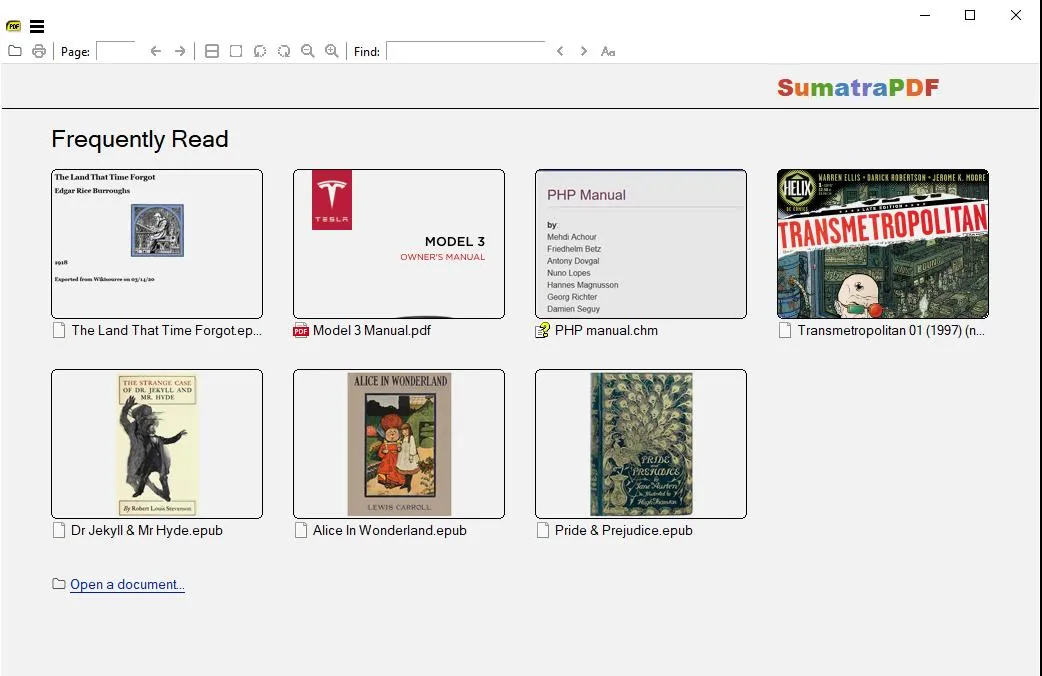
SumatraPDF is a free, open-source PDF reader for Windows. It can send selected text to services such as Google Translate or DeepL from its Selection menu, but the translation relies on the chosen external service rather than a full-document translation engine inside the reader.
Best for
How Translation Works:
- Select any text in the PDF
- Right-click and choose "Translate with Google Translate" (or DeepL)
- Your browser opens with the translated text automatically
Warning
Let's dive deeper into the key features of this PDF reader with Google Translate!
Key Features:
- Translate from Selection: Sumatra lets you translate PDFs from selected text. You can find the translation option from the right-click context menu.
- Online Translation: Sumatra does not have a built-in translation feature. But it lets you automatically open your browser to use Google Translate and DeepL.
- Extensive Language Support: You can translate from over 175 languages with online Google translation support.
Now let's look at the pros and cons of using SumatraPDF
Pros:
- It is super-easy to use, particularly for beginners.
- Minimal system resource usage ensures quick startup and loading times
- It lets you read PDFs, ePubs, MOBIs, and other formats.
- You can run it from a USB drive without installing it.
Cons:
- It requires an active internet connection to translate text.
- You cannot automatically translate an entire PDF document with it.
- It is available only for Windows operating systems.
Let's move forward and explore the following tool to read and translate PDFs.
3. PDF Book Translator - Simple PDF Book Reader with Translator
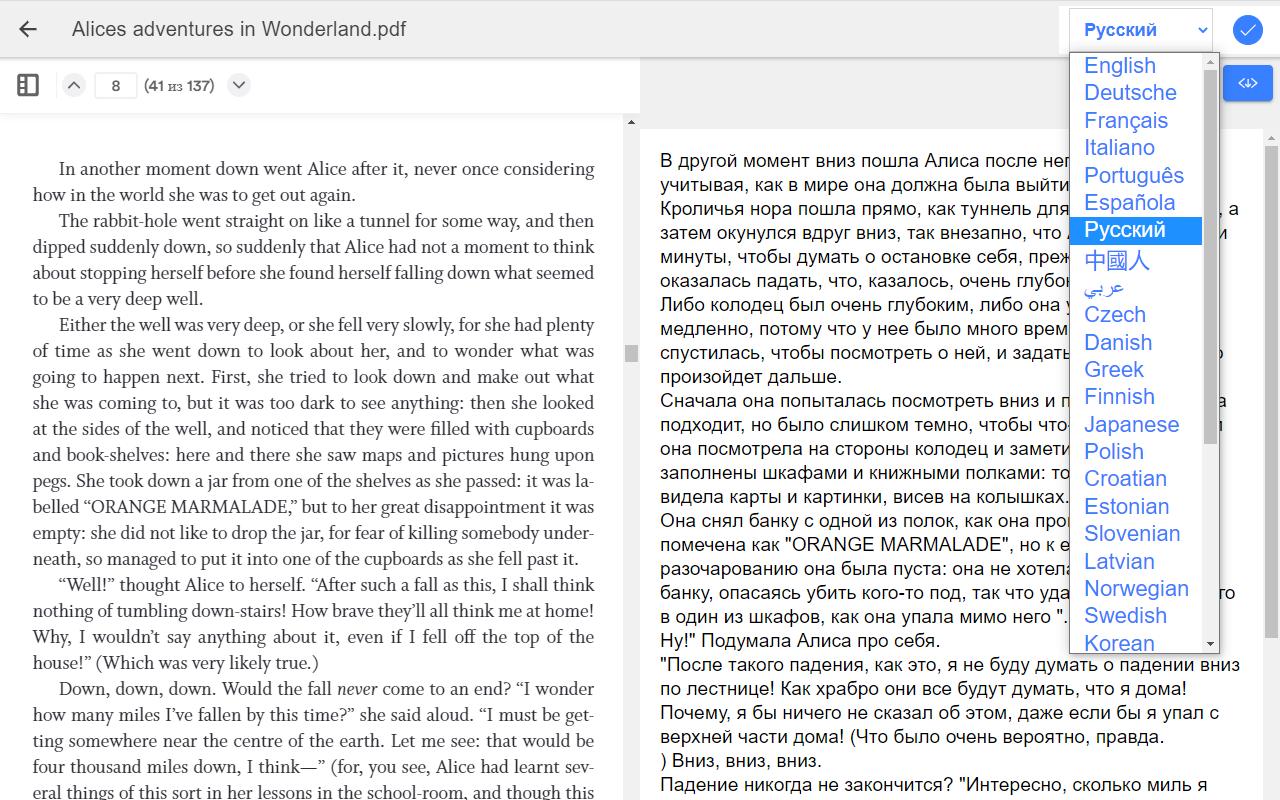
PDF Book Translator is a Windows app designed for reading and translating entire PDF documents — especially ebooks and long reports — with a single click. It extracts all text from the PDF, translates it, and displays the original and translated versions in a split view.
Best for
Here are the essential PDF reading and translating features it has to offer.
PDF Reading Features:
- Line Focus: It highlights a selected number of lines to help you read with more focus. You can choose to focus on single, double, and triple lines at a time.
- Page Themes: Change the background colors of your PDF with 23 color themes. Choose from bright hues to sleek black and white.
- Zoom Display: You can zoom in and out of the page to read through areas with smaller text and images.
- Personalize Text: It lets you change the text size, spacing and style to enhance your reading.
Translating Features:
- Automatic Translations: It translates text and entire PDF documents automatically. No need to search for a translation option!
- Translate Specific Text: You can select a particular part of the text and get instant translation. No manual navigation is involved.
- Translate Whole PDFs: It extracts all the PDF text once uploaded and translates the entire document to another language.
- Edit the Translation: The cool thing is the ability to edit and rewrite the translation as required.
Pros:
- It does not change the formatting of the original PDF after translation.
- It can handle intricate documents and right-to-left languages.
- You can read the original and translated version in a split view.
- It is free to use.
Cons:
- There are no initial guidelines for use, which can make it confusing for beginners.
- It does not offer any advanced PDF reading features.
- It is not available for platforms other than Windows.
Now, let's move on to our next PDF reader!
4. Foxit Reader - The PDF Reader with Translation Feature
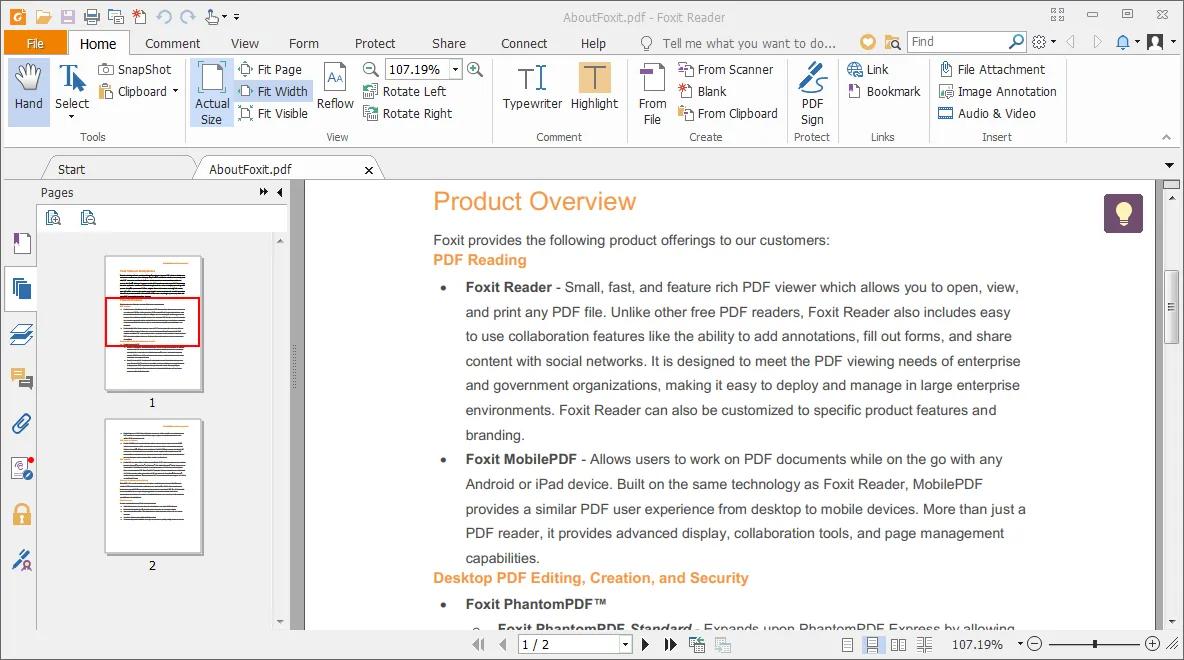
Foxit PDF Reader offers AI-assisted translation for selected text, while broader document translation and scanned-file support depend on Foxit AI/PDF Editor access. Foxit provides a limited monthly AI allowance, and higher usage requires a separately priced AI plan, so users should check current credits before choosing it for frequent translation.
Best for
Let's review its main features before discussing its pros and cons.
PDF Reading Features:
- PDF View Options: Personalize the layout to text-only view, rotate view, read view, and auto-scroll mode.
- Read Aloud: You can select a part of the text to get read out loud by a robotic voice.
- Zooming the Page: It lets you zoom in on the page up to 6400% for enhanced reading. You can also hyper-zoom out using your mouse.
- Night Mode: It offers a night mode that turns your PDF background dark grey. It lets you read PDFs easily in areas with low light levels.
- Add Bookmarks: You can add bookmarks for specific pages to easily find them later.
Translating Features:
- Translate from Text: You can select a specific text for translation. Just choose a language and send the text to the AI assistant. It will convert the text into your preferred language.
- Translate Entire Document: You can select a specific page range or all the document pages for translation.
Now let's find out the pros and cons of this PDF reader.
Pros:
- It offers flexible ways to personalize your reading experience.
- You can add various annotations and markups for enhanced reading.
- Its interface resembles MS Word, offering familiar navigation for beginners.
- You can use it on all platforms regardless of the operating system.
Cons:
- It provides limited language support for translation.
- It tends to crash often, especially on lower-end devices.
- No PDF editing features on the free version.
Warning: Foxit's AI translation sends your document text to Foxit's cloud servers. Do not use it for highly confidential documents unless you have verified your organization's data compliance policy.
5. DeftPDF - The Best Online PDF Reader with Translator
DeftPDF is a browser-based PDF tool that translates entire documents without requiring any software installation. You upload a PDF, select the target language, and download the translated file — all within your web browser.
Best for
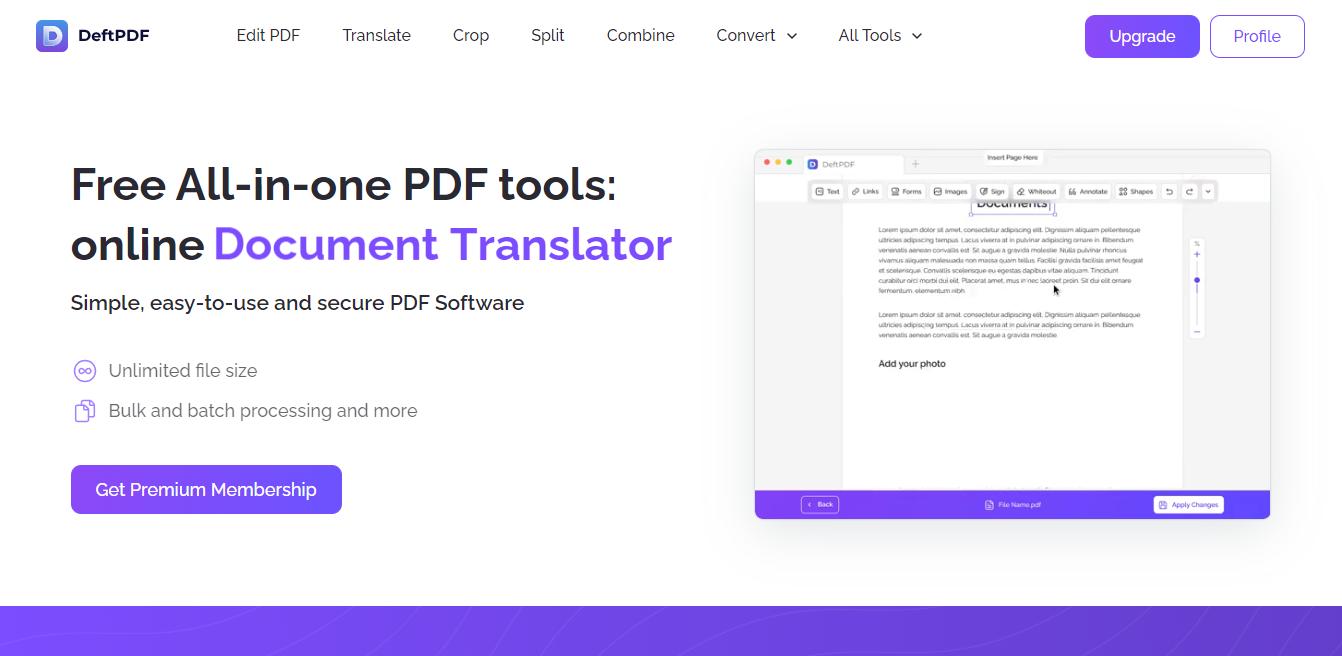
PDF Reading Features:
- Write New Text: You can take notes by writing the text directly over your PDFs.
- Annotation Tools: It lets you strikethrough, highlight, and underline. You can also use a free drawing tool for unlimited creativity.
Translating Features:
- Translate PDF Entirely: You can translate an entire PDF document to a different language in a few clicks.
- Automatic PDF Translation: DepftPDF automatically analyzes and translates the document after uploading the file. You can then save the document for free.
- Choose the Language Type: You can choose from a wide range of languages for translating your text.
Now, let's look at the lowdowns of using DeftPDF.
Pros:
- It offers a more accessible cross-platform solution to translate documents.
- It can automatically translate PDFs without manual procedure.
- You can also translate scanned files with this tool.
- Despite being an online platform, it works fast to translate PDFs.
Cons:
- It does not offer a customizable PDF reading experience.
- You need a stable internet connection to use it.
- Documents are uploaded to a remote service, so it may not suit every confidential workflow.
Because DeftPDF is browser-based, review its privacy policy before uploading contracts, medical records, or other confidential documents. The same caution applies to any AI translation service: confirm the provider's data-handling terms and remove sensitive information when appropriate.
That's all about the best PDF readers with translation capabilities!
FAQ: PDF Reader with Translator
Can I translate a PDF while reading without copy-pasting?
Yes. UPDF and Foxit Reader let you highlight text and see the translation instantly inside the app. SumatraPDF offers right-click translation that opens your browser automatically — still faster than manual copy-paste, but not in-app.
Do PDF translators keep the original formatting?
It depends on the tool. UPDF and Foxit Reader preserve tables, images, and columns well. PDF Book Translator keeps basic formatting. DeftPDF retains moderate layout. SumatraPDF only translates selected text, so formatting is not a factor.
Is it safe to translate confidential PDFs online?
Cloud-based translation requires document content to be processed by a remote service. Before translating contracts, medical records, or other confidential files, review the provider's privacy and retention terms and redact sensitive information when appropriate. A local reader alone does not translate a document unless it connects to a translation service.
What is the best PDF reader with translator for Windows?
For free, lightweight right-click translation: SumatraPDF. For whole-document translation with OCR: UPDF. For a familiar Word-like interface: Foxit Reader.
Final Thoughts
The best PDF reader with translator depends on how you work. If you only need to translate a word or sentence while reading, SumatraPDF or Foxit Reader handle it for free. If you read entire foreign-language books or reports, PDF Book Translator's split view is ideal. For quick one-off translations without installing anything, DeftPDF works in any browser.
If you regularly work with foreign-language PDFs—especially scanned documents, contracts, manuals, or research papers—UPDF provides the most complete workflow in this list. It handles selected text, specific pages, and full-document translation, supports OCR for scanned files, and lets you verify, annotate, edit, or convert the result without rebuilding your workflow in another app.
Windows • macOS • iOS • Android 100% secure







 Enid Brown
 Enola Miller