 UPDF
UPDF
 UPDF for Windows
 UPDF for Mac
 UPDF for iPhone/iPad
 UPDF for Android
 Nomostar
 UPDF AI Online
 UPDF Sign
 IvyCraft
 Edit PDF
 Annotate PDF
 Create PDF
 PDF Form
 Edit links
 Convert PDF
 OCR
OCR PDF to Word
 PDF to Image
 PDF to Excel
 Organize PDF
 Merge PDF
 Split PDF
 Crop PDF
 Rotate PDF
 Protect PDF
 Sign PDF
 Redact PDF
 Sanitize PDF
 Remove Security
 Read PDF
 UPDF Cloud
 Compress PDF
 Print PDF
 Batch Process
 About UPDF AI
 UPDF AI Solutions
 AI User Guide
 FAQ about UPDF AI
 Summarize PDF
 Translate PDF
 Chat with PDF
 Chat with AI
 Chat with image
 PDF to Mind Map
 Explain PDF
 PDF AI Tools
 Image AI Tools
 AI Chat Tools
 AI Writing Tools
 AI Study Tools
 AI Working Tools
 Other AI Tools
 AI Bookmark Generation
 AI Bookmark Summary
 AI Watermark Generation
 AI Background Generation
 AI Sticker Generation
 AI Stamp Generation
 AI Editing Suite
 UPDF Copilot
 AI Page Management
 AI Semantic Search
 PDF to Word
 PDF to Excel
 PDF to PowerPoint
 Enterprise Solution
 Enterprise Sign
 Enterprise AI
 Enterprise Plan
 Enterprise User Guide
 Enterprise Webinar
 IT
IT Education
 Construction
 Financial Service
 Healthcare
 Insurance
 Legal
Legal Manufacturing
 Government
 Researchers & PhDs
 Solopreneurs & Freelancers
 Lawyers & Legal Professionals
 Real Estate Agents & Brokers
 Education Solution
 Customer Stories
 User Guide
 UPDF Tricks
 FAQs
FAQs UPDF Reviews
 Download Center
 Blog
Blog Newsroom
 Tech Spec
 Updates
 UPDF vs. Adobe Acrobat
 UPDF vs. Foxit
 UPDF vs. PDF Expert

Have you ever printed a PDF or taken it to be spiral-bound, only to discover that the punch holes cut straight through your text? Or perhaps you need extra white space along the edges to print lecture slides, leave hand-written notes, or align inconsistent page layouts.
Adding margins to a PDF is a fundamental page layout technique, yet standard PDF readers rarely offer a direct way to do it. Many users mistakenly try to scale down content during printing, which often results in blurry text, warped image proportions, or misaligned headers.
To properly add margins to a PDF, you need a method that expands page boundaries or customizes canvas dimensions without distorting the underlying content.
Whether you are preparing a single contract for physical binding or applying uniform margins across a stack of multi-page reports, choosing the right tool makes all the difference. In this guide, you will learn two straightforward ways to add margins to a PDF—both for individual files and in bulk—using UPDF's precise page controls.
Windows • macOS • iOS • Android 100% secure
Method 1: How to Add Margins to a Single PDF File (With Precise Controls)
Best For:
UPDF provides precise page controls that help users add margin to PDF documents without difficulty. Its cropping tools let you adjust page boundaries while keeping document content clear and organized. You can also learn broader page editing methods through how to edit a PDF for additional guidance. Now, follow the steps below to learn how to add margins to a PDF using UPDF:
Step 1. Once you open UPDF, press the "+" icon in the top left corner and press the "Open File" option to import your PDF.
Step 2. Next, choose the "Tools" option and press the "Crop" tool. Afterward, you will see dotted adjustment frames appear over the page.
Step 3. After that, press the "Page Size" option in the top toolbar and choose "Custom" page size. Next, enter the space values you want at the top and bottom of the pages. Choose the "Orientation" and page range you want to apply margin to. Once done, press "Ok."
Step 4. You can also use the "Margin Controls" section on the right side panel to precisely crop the extra margins on your pages.
Step 5. Once all pages are finalized, press the "Apply" button and save the document.
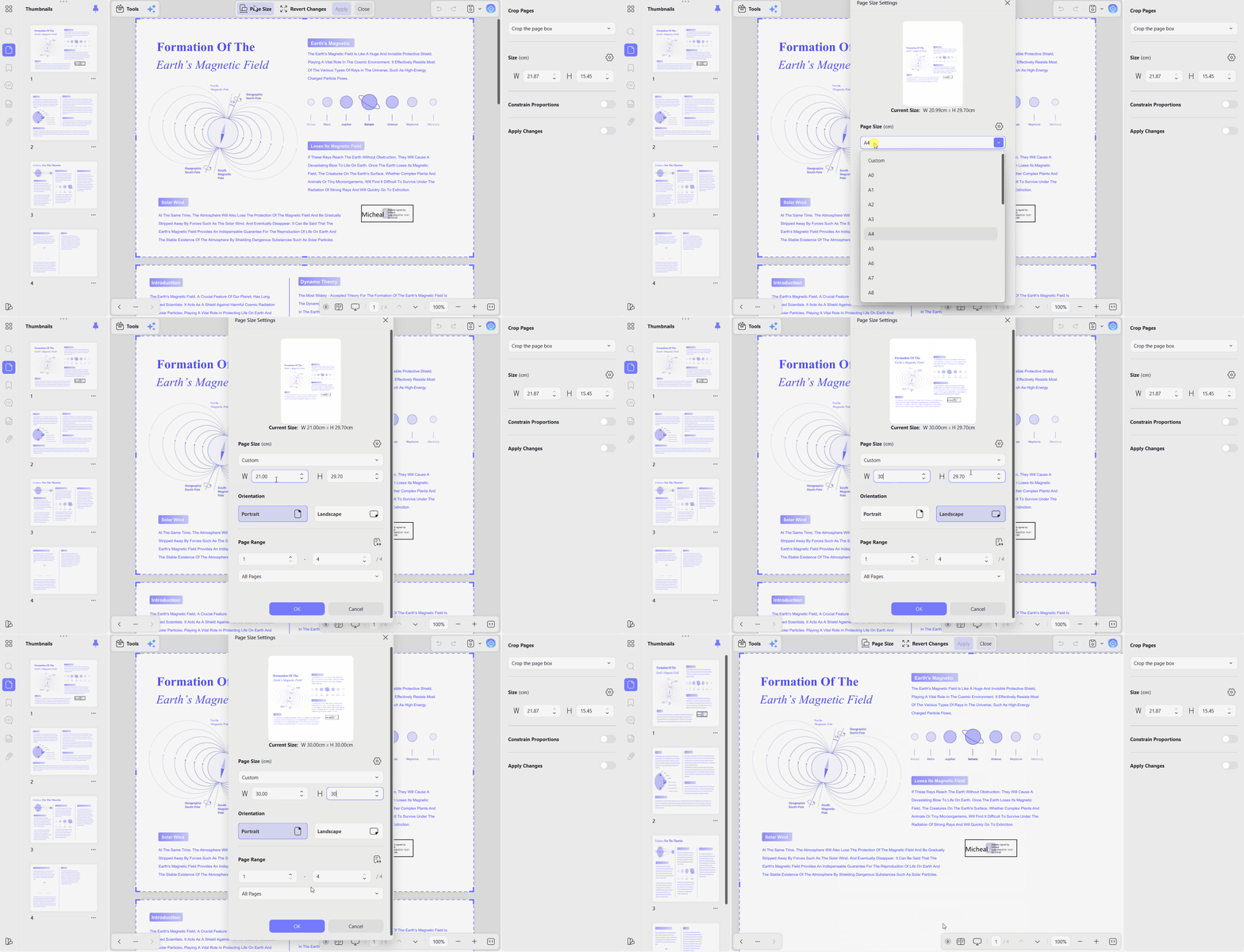
The Margin Controls Explained
Next, let's understand the 4 margin controls and how each one affects your PDF page layout:
- Margin Values: Top, Bottom, Left, and Right sides each accept their own separate margin figure. A left binding gutter leaves other edges unchanged; standard margins usually start around 0.5–1 inch.
- Measurement Units: Points, Inches, Millimeters, Centimeters, and Picas are all available for selection within UPDF. Print shops and binderies usually prefer millimeters, while everyday office documents commonly use inches instead.
- Constrain Proportions: Turning this on keeps the page's original width-to-height ratio while making margin adjustments. This keeps the familiar page shape and avoids unusual formats that printer trays cannot match.
- Page Size and Preview: Size fields show final dimensions, while thumbnails preview your resulting page layout. Checking both before applying changes helps prevent incorrect layouts and wasted paper during printing runs.
Explore our PDF margin editor comparison to understand dedicated alternatives before choosing the right tool for your specific needs.
Method 2: How to Add Margins to Multiple PDF Files in Batch
Best for:
Adjusting margins separately across many PDF documents can quickly become repetitive and consume valuable working time. This PDF margin editor helps users apply margins by combining separate documents before adjusting them together. After combining the files, you can apply the same margin settings across every included page easily. To combine multiple PDFs and apply uniform margins efficiently, use the following steps for better results:
Step 1. On UPDF's home page, press the "Tools" option and choose the "Merge" tool under the Batch Process section.
Step 2. In the following interface, press the "Add Files" button to import all PDF files and rearrange the files in the correct order you aim for. Once done, press the "Apply" button to merge the PDFs and open the merged PDF in UPDF.
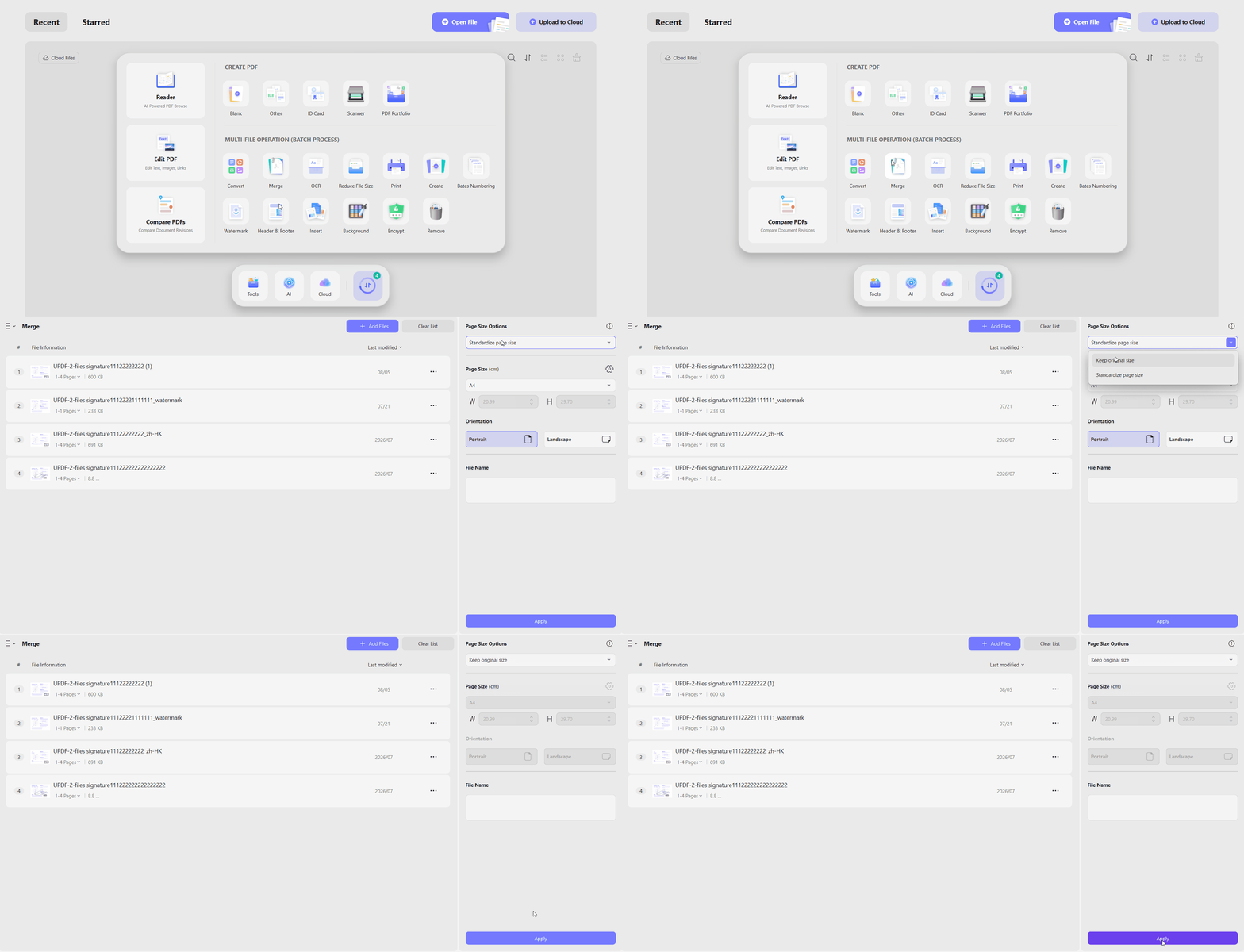
Step 3. Afterward, access the "Crop" tool and repeat the same steps we did in Method 1. While selecting the page range, choose "All Pages" to apply margins to PDFs.
Step 4. If you want to separate the PDFs again, press the "Organize Pages" option and select the "Split" tool. Choose the "Split by Number of Pages" option and set the number of pages, then press "Split." All PDFs will be saved in the targeted location.
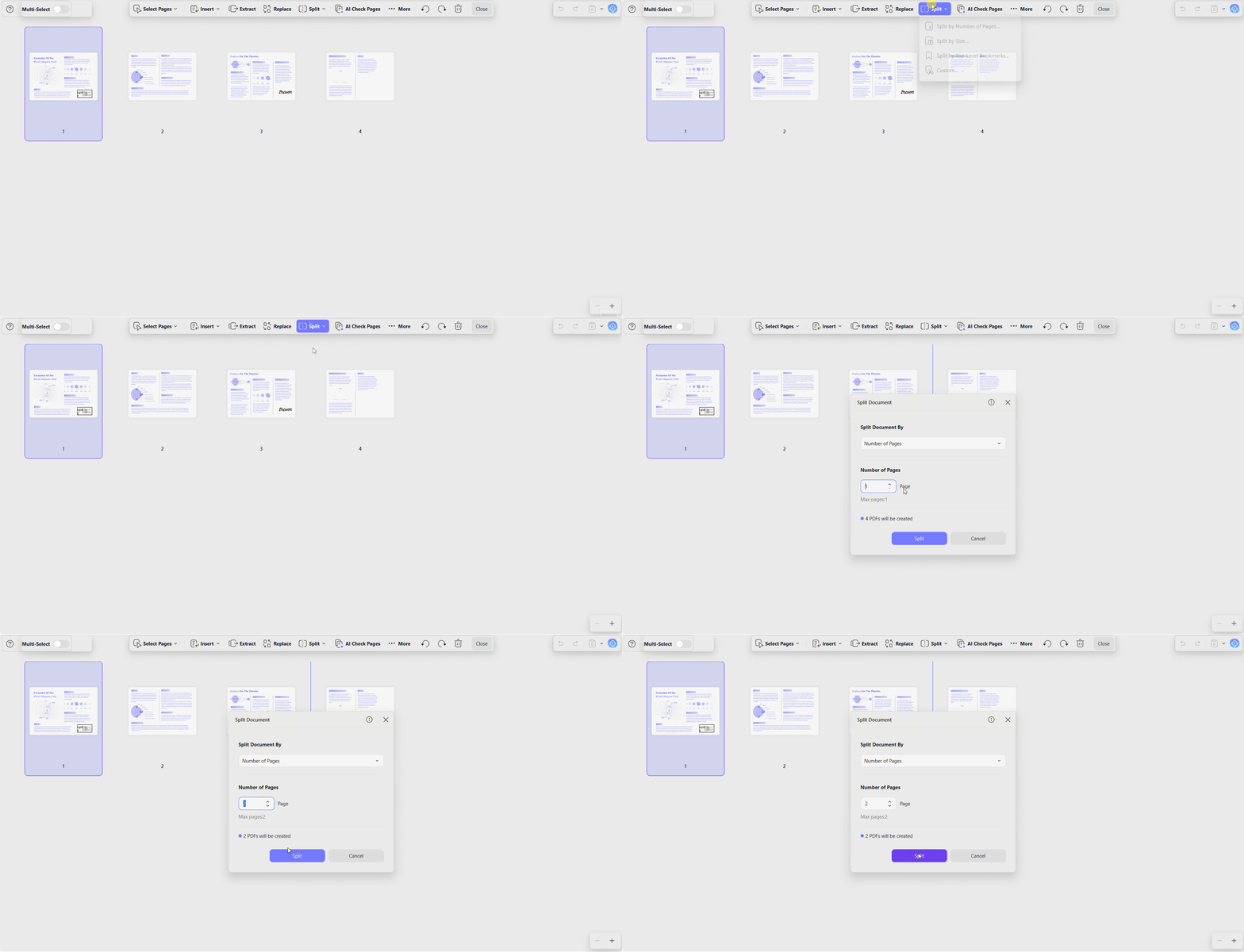
The same margin panel also handles reverse adjustments when documents contain too much unwanted white space. Our guide explains how to remove margin from a PDF and trim unnecessary space from document pages easily. Both methods use the same controls, keeping margin adjustments simple and manageable during batch processing tasks.
Whether you need to adjust PDF margins on a single contract or batch process multiple reports, UPDF gives you complete control over your PDF layout.
Windows • macOS • iOS • Android 100% secure
Why Adjust PDF Margins? Common Use Cases
After learning how to add margins to PDF batch or single files, let's explore 3 common situations requiring margin adjustments:
- Printing and Binding: Extra left or top gutter space protects text from hole punches and spiral coils. A wider inside margin also makes documents easier to place inside ring binders.
- Adding Notes and Annotations: Wider side margins create physical space for handwritten notes and comments. This extra room helps reviewers mark lecture slides, draft contracts, and other printed documents.
- Fixing Layout Discrepancies: PDFs exported from different applications may have inconsistent page boundaries and spacing. Standardizing their margins creates a cleaner, more consistent appearance across the complete document set.
Frequently Asked Questions
Can I add margins to specific pages in a PDF?
Yes, enter "Top," "Bottom," "Left," and "Right" values inside the "Crop" panel for precise adjustments. Next, enable "Apply Changes" to open the Page Range field for selecting specific PDF pages. Enter your custom page range, and UPDF leaves every other document page completely unchanged afterward.
Does adding margins change the content scale or text quality of the PDF?
No, margin adjustments change page boundaries without resizing or rendering the original content inside them. Text remains sharp, while images keep their original resolution and visual quality after margin changes. You can also restore original page dimensions later using the same Crop panel when needed.
How do I print a PDF without margins if I added too much space?
Adjust printer settings instead of editing your PDF again when margins become too wide accidentally. Options like borderless printing or page scaling can help printers ignore unnecessary extra margin space. Read how to print PDF without margins for detailed settings across different platforms and printers.
Conclusion
To conclude, you can add margins to PDF files easily using UPDF's available layout controls. For one document, use the crop settings to set margin values and selected page ranges. For multiple files, use "Batch Combine" first, then apply consistent margins across all combined pages. UPDF keeps original content unchanged, making it useful for printing, binding, and annotation tasks easily.
Take control of your PDF page layouts and formatting today. Download UPDF for free and customize your margins with ease!
Windows • macOS • iOS • Android 100% secure







 Enrica Taylor
 Lizzy Lozano

 Enid Brown
 Enola Miller