UPDF
UPDF
 UPDF for Windows
 UPDF for Mac
 UPDF for iPhone/iPad
 UPDF for Android
 Nomostar
 UPDF AI Online
 UPDF Sign
 IvyCraft
 Edit PDF
 Annotate PDF
 Create PDF
 PDF Form
 Edit links
 Convert PDF
 OCR
OCR PDF to Word
 PDF to Image
 PDF to Excel
 Organize PDF
 Merge PDF
 Split PDF
 Crop PDF
 Rotate PDF
 Protect PDF
 Sign PDF
 Redact PDF
 Sanitize PDF
 Remove Security
 Read PDF
 UPDF Cloud
 Compress PDF
 Print PDF
 Batch Process
 About UPDF AI
 UPDF AI Solutions
 AI User Guide
 FAQ about UPDF AI
 Summarize PDF
 Translate PDF
 Chat with PDF
 Chat with AI
 Chat with image
 PDF to Mind Map
 Explain PDF
 PDF AI Tools
 Image AI Tools
 AI Chat Tools
 AI Writing Tools
 AI Study Tools
 AI Working Tools
 Other AI Tools
 AI Bookmark Generation
 AI Bookmark Summary
 AI Watermark Generation
 AI Background Generation
 AI Sticker Generation
 AI Stamp Generation
 AI Editing Suite
 UPDF Copilot
 AI Page Management
 AI Semantic Search
 PDF to Word
 PDF to Excel
 PDF to PowerPoint
 Enterprise Solution
 Enterprise Sign
 Enterprise AI
 Enterprise Plan
 Enterprise User Guide
 Enterprise Webinar
 IT
IT Education
 Construction
 Financial Service
 Healthcare
 Insurance
 Legal
Legal Manufacturing
 Government
 Researchers & PhDs
 Solopreneurs & Freelancers
 Lawyers & Legal Professionals
 Real Estate Agents & Brokers
 Education Solution
 Customer Stories
 User Guide
 UPDF Tricks
 FAQs
FAQs UPDF Reviews
 Download Center
 Blog
Blog Newsroom
 Tech Spec
 Updates
 UPDF vs. Adobe Acrobat
 UPDF vs. Foxit
 UPDF vs. PDF Expert

Editing a PDF file online free is useful when you need to fix a typo, add a quick note, sign a form, or highlight a public document without installing software. The catch is that "edit PDF online" can mean very different things: some tools only add a new layer on top of the page, while others can change existing text only after you sign in or upgrade.
You can work more confidently once you understand how the editor handles the page. Watch the video below for a closer look at editing PDF content in UPDF.
If the PDF is simple and not confidential, start with an online editor. If the file contains contracts, invoices, IDs, scanned pages, or a layout you cannot afford to break, it is safer to edit the PDF locally with UPDF. UPDF lets you edit text and images, run OCR, annotate, organize pages, convert files, and save changes on your own device instead of uploading private files to a web tool. Download UPDF to edit your PDFs for free while keeping the original formatting.
Windows • macOS • iOS • Android 100% secure
Quick Answer: Should You Edit a PDF Online?
Use a free online PDF editor for low-risk edits: adding a text box, filling a form, drawing, highlighting, signing, or covering a small area with whiteout. Do not assume every online PDF editor can rewrite the original text layer inside the PDF. That depends on the tool, the PDF structure, and whether the feature is free.
| Your PDF task | Best route | Why |
|---|---|---|
| Add a note, signature, highlight, shape, or image | Online editor is usually fine | These edits sit on top of the page and do not require deep PDF text editing. |
| Replace real text in a PDF | Try an online editor, but check the result carefully | Some tools require Pro for direct text editing; others use whiteout-style replacement. |
| Edit a scanned PDF | Use OCR first, then edit. Read the guide >> | A scanned PDF is often an image until OCR creates editable text. |
| Edit contracts, tax files, IDs, financial statements, or HR documents | Use UPDF offline | You avoid uploading private files to a third-party server. |
| Preserve exact fonts, columns, tables, or layout | Use UPDF on desktop | Desktop editing gives better control over original text, images, links, pages, and OCR. |
Before You Start: Pick the Right Editing Method
Before opening any editor, check what you are really trying to change. A lot of "free online PDF editing" disappointment comes from using the wrong method for the file type.
- If the text is selectable: you may be able to edit or replace the real text, depending on the online tool.
- If the text is not selectable: the PDF is likely scanned or flattened. Use OCR before trying to edit the words—tools like UPDF's AI-powered OCR can turn scanned pages into editable text in seconds.
- If you only need a visual correction: an online editor can add a text box or white rectangle over the old content.
- If you need the edited PDF to look professional: use a desktop PDF editor like UPDF or Adobe Acrobat so font, spacing, and layout are easier to control.
How to Edit a PDF File Online Free
The general workflow is simple: open an online PDF editor, upload or select your PDF, make edits, download the file, then reopen the result to check layout. The important part is choosing a tool that matches the exact type of edit you need, especially if your real task is to add text to PDF online rather than rewrite the original text layer.
1. PDF24 Tools: Best for Free Basic Editing Without Registration
PDF24 Tools is a good first stop when you want a free browser-based editor with no registration. Its page says the tool is free, has no time restrictions, and automatically deletes files from its server after a short time. It works well for adding text, images, drawings, forms, and simple marks.
- Open PDF24's Edit PDF tool.
- Choose your PDF or drag it into the upload area.
- Use the toolbar to add text, draw, insert shapes, or place images. Note that PDF24 does not support editing the existing text in PDFs, it only allows for adding new text and images to PDFs.
- Click the save icon, then download the edited PDF.
Watch the limit:
- PDF24 does not support editing existing text or images in PDFs.
- PDF24 itself suggests converting PDF to Word when you need to edit PDF text deeply. That is a clue: it is better for visual edits and simple changes than for delicate, original-text rewriting.
2. Adobe Acrobat Online: Best for Comments, Markups, and Fill & Sign
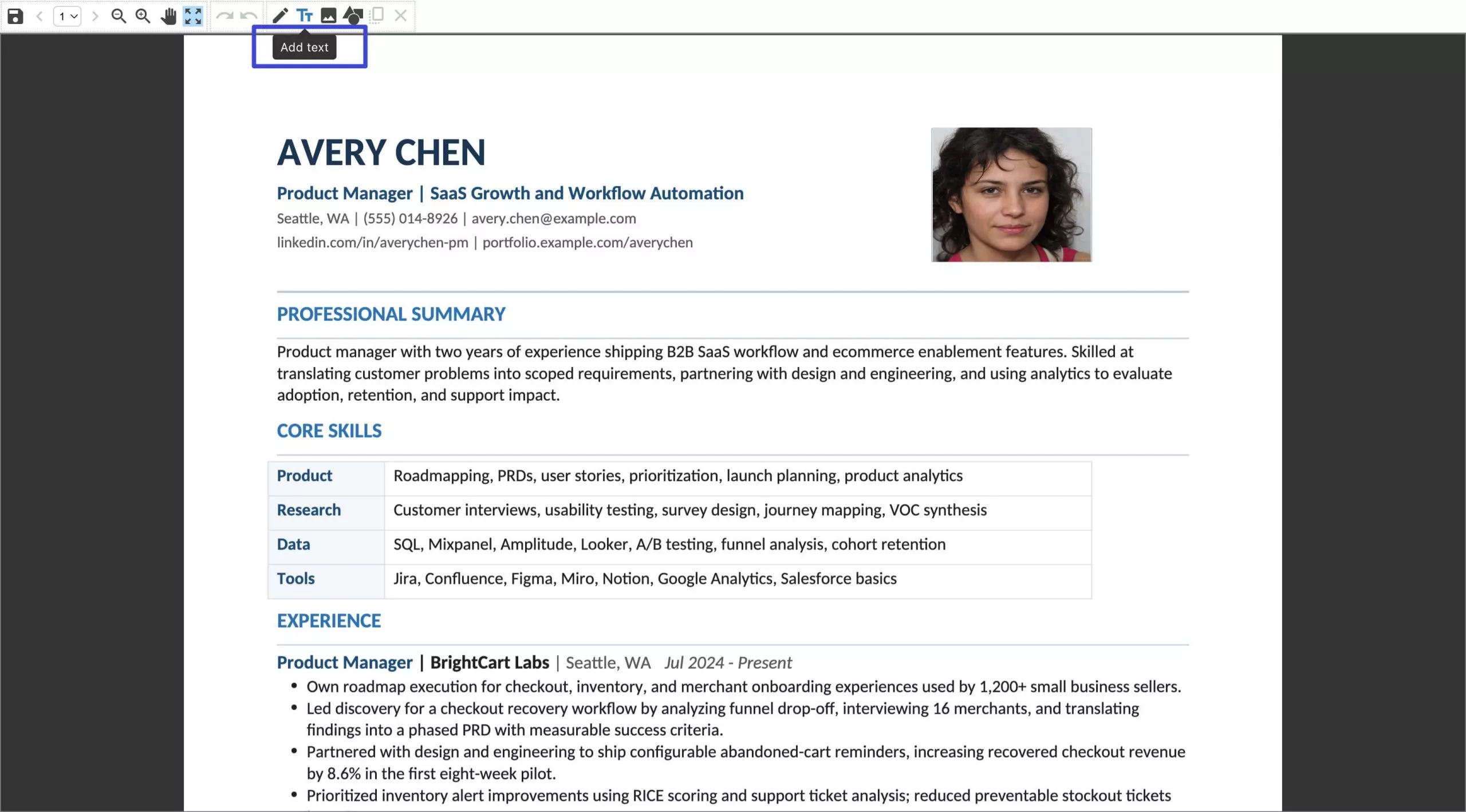
Adobe Acrobat Online is a reliable option for basic tasks like adding text boxes, comments, highlights, drawings, and signatures. You can upload a PDF and sign in with a free Adobe account to quickly annotate or fill out documents.
- Open Adobe Acrobat Online PDF Editor.
- Select or drag your PDF into the upload zone.
- Sign in when prompted.
- Add text boxes, sticky notes, highlights, drawings, or a signature.
- Download the edited file or share a link.
Watch the limit:
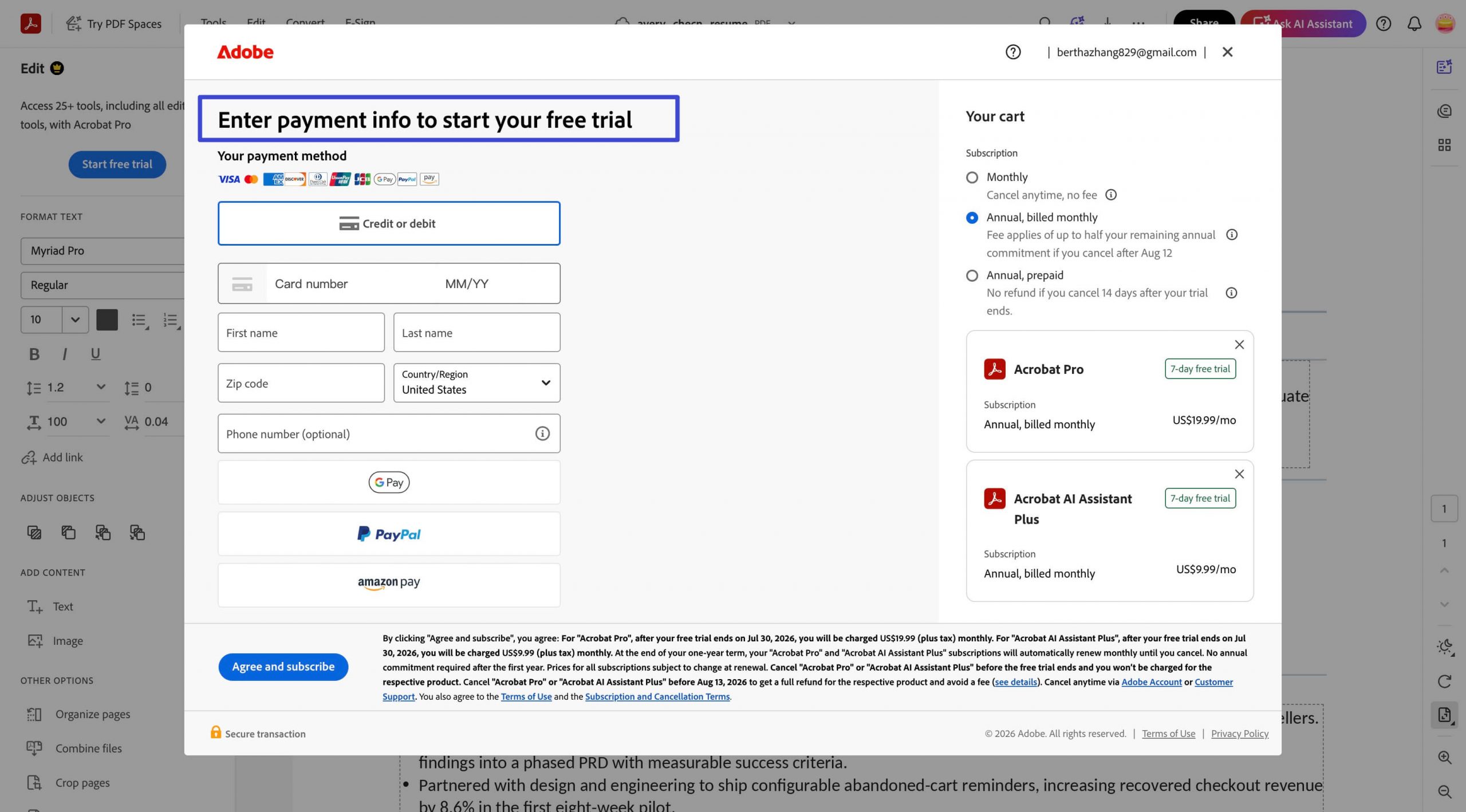
- The free online editor strictly focuses on annotations and basic markups. While Adobe offers a 7-day free trial to unlock advanced features like direct text editing, it requires you to enter credit card details upfront. If you need to rewrite original text regularly or want to avoid automatic billing risks, compare the workflow and lifetime value with a dedicated desktop editor like UPDF.
3. Smallpdf: Best for a Polished Online Workflow
Smallpdf offers one of the smoothest online PDF editing experiences across Mac, Windows, and mobile browsers. It is great for basic tasks like inserting new text, images, shapes, highlights, sticky notes, organizing pages, and exporting the final document.
- Open Smallpdf's PDF editor.
- Upload your PDF from your device or cloud storage.
- Add text, images, shapes, markups, or e-signatures. Alternatively, you can edit the existing text or images by selecting them.
- Organize pages if needed.
- Export and download the file.
Watch the limit:
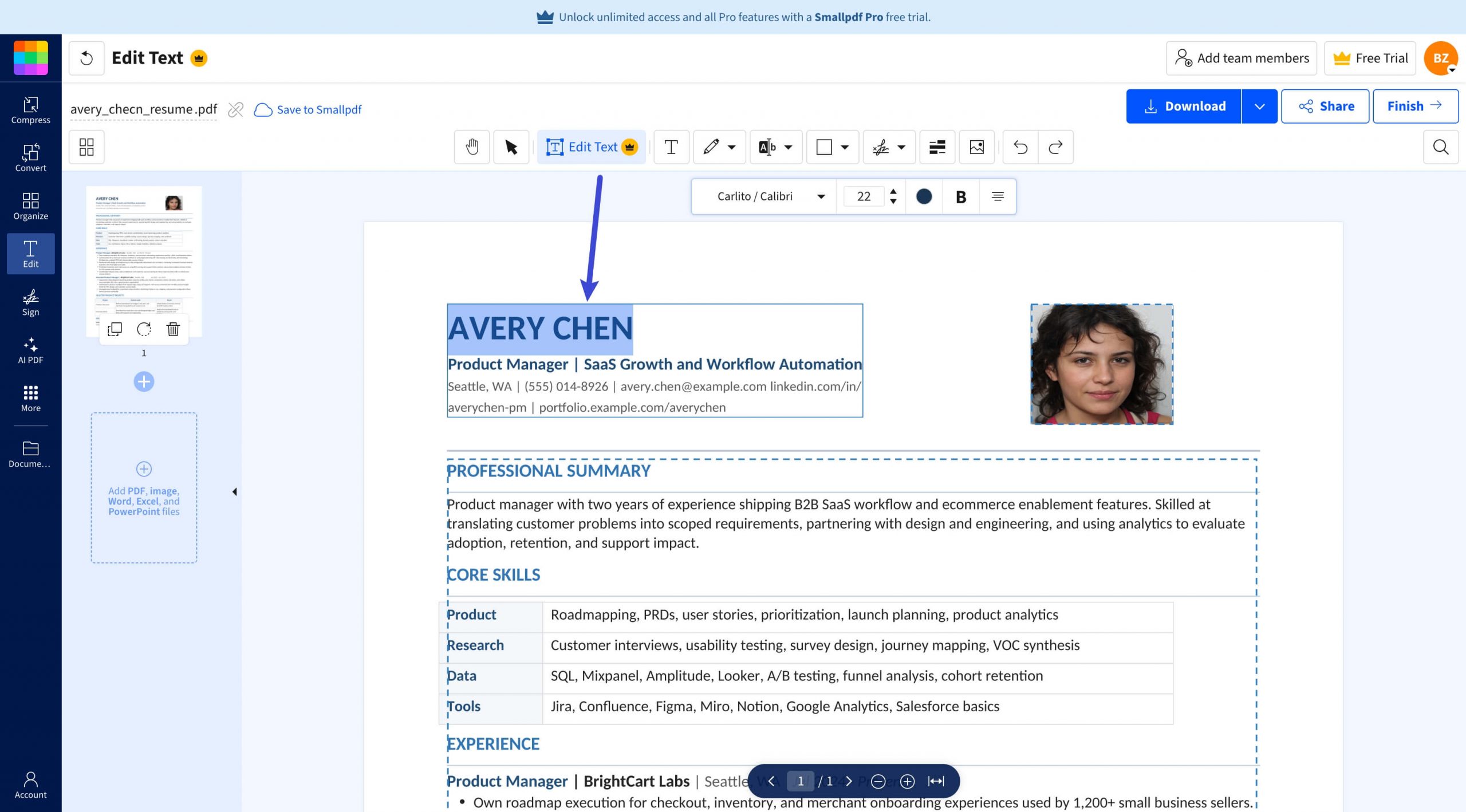
- Smallpdf provides better editing quality and dynamic layout handling than many other browser tools, but its free version only covers adding new elements. To modify existing text or images inside the PDF, you need to sign up for a 7-day free trial, which requires credit card details upfront.
4. Xodo: Best for One-Off Online Editing
Xodo lets you upload a PDF, add or edit text, annotate, crop, redact, fill, sign, and download or share the edited file. It is useful when you need a quick browser tool and do not want to install a desktop app.
- Open Xodo's online PDF editor.
- Upload your PDF.
- Use the toolbar to add text, annotate, fill, sign, crop, or redact.
- Download the edited PDF or share it.
Watch the limit:
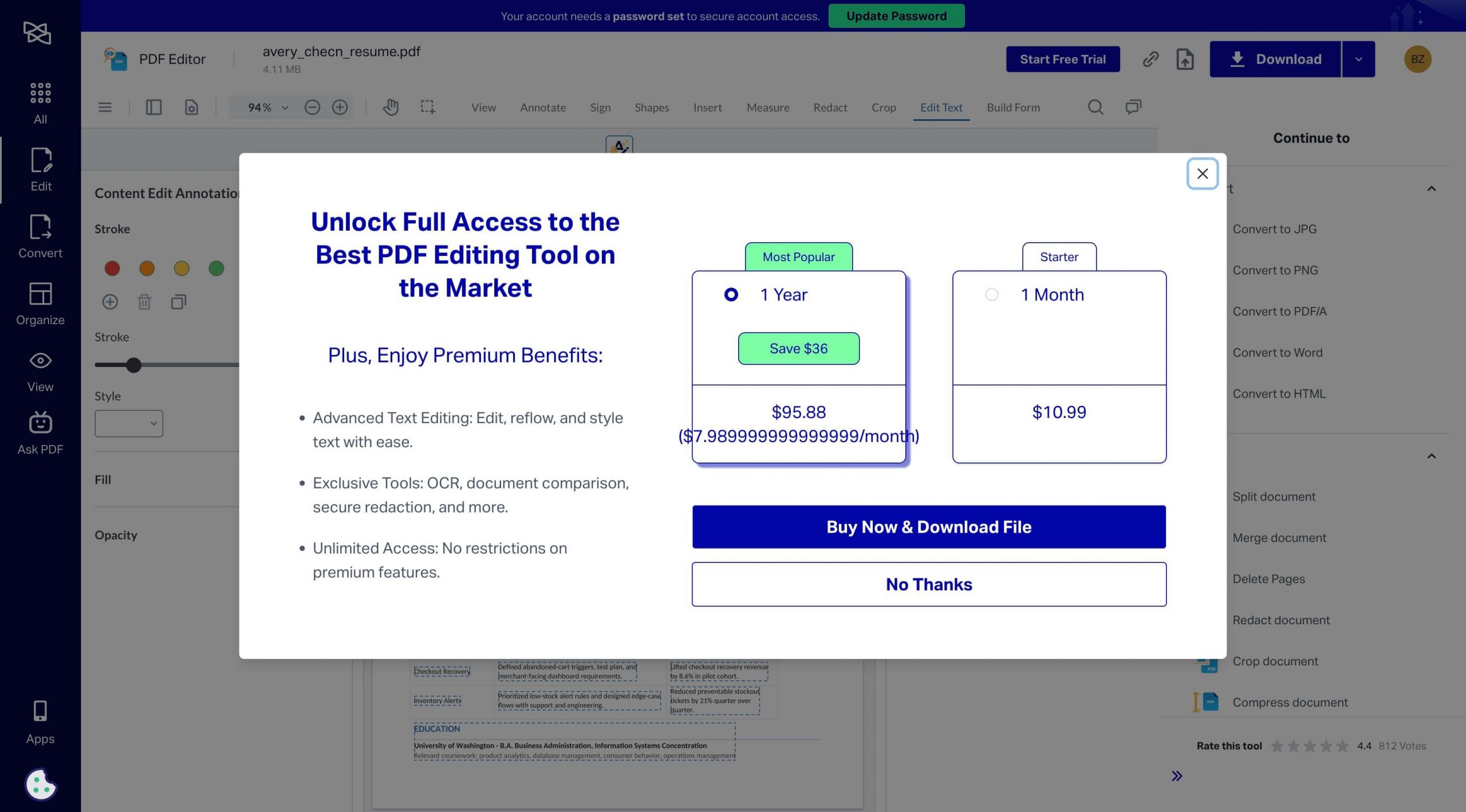
- While Xodo allows basic page tasks and adding new markups, modifying existing text inside the PDF is a paid feature. Free users can access advanced text editing through a 3-day free trial, but it requires entering credit card details upfront.
- Coupled with a strict daily free action limit, Xodo works well for quick, occasional tasks, but may feel restrictive if you want to avoid auto-renewal risks or handle multiple files.
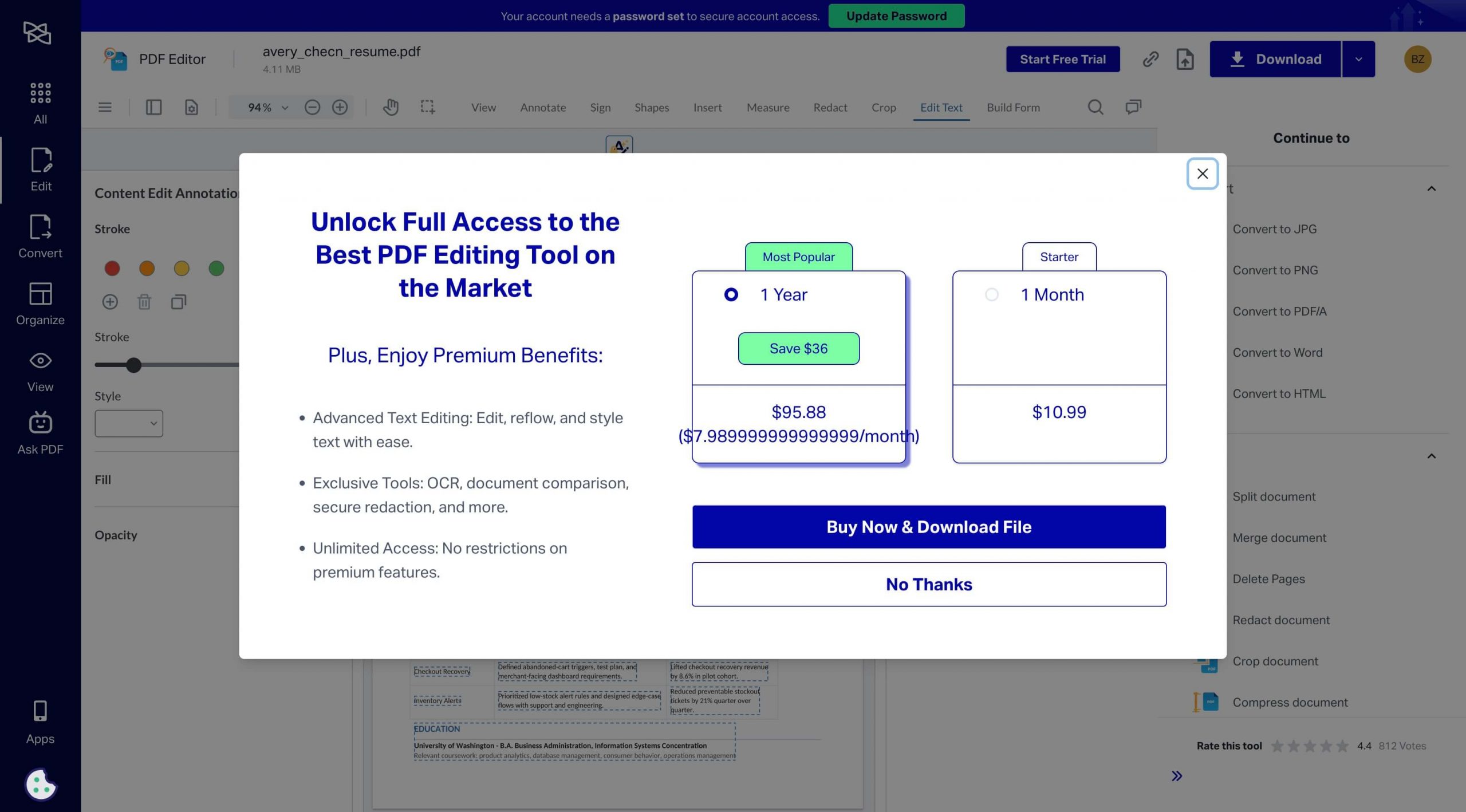
5. LightPDF: Best for Quick Text Edits in a Browser
LightPDF presents its online editor as a way to add, delete, change, and highlight text in the browser. Its page also says files are encrypted on cloud servers and permanently deleted after 24 hours.
- Open LightPDF's free online PDF editor.
- Drag your PDF into the upload area or choose it from your device.
- Add, delete, replace, or highlight text. You can also enter the edit mode to edit the exisiting text. However, you can not change the text alignment.
- Download the edited PDF.
Watch the limit:
- Because files are processed through cloud servers, uploading confidential documents may violate company privacy policies or data regulations.
- Additionally, online text editing options remain limited compared to desktop software. For private, contract-level, or highly formatted files, it is safer to edit locally with UPDF.
When an Offline PDF Editor Is the Better Choice
Online editors are convenient when the file is public, simple, and edited only once. An offline PDF editor becomes the better choice when the document is private, scanned, layout-sensitive, or part of repeat work. At that point, the question is not just "online or offline"; it is whether the offline tool can handle the whole PDF workflow without forcing you to switch apps.
UPDF is a good fit for that workflow because it combines PDF text and image editing, OCR for scanned PDFs, annotation, page organization, conversion, compression, and protection in one app. For a fuller desktop workflow, use the how to edit a PDF guide. That combination matters when you need to correct a PDF, check the layout, convert or protect it, and keep the file on your own device.
- Choose an online editor for a quick note, signature, highlight, or public one-page file.
- Choose UPDF when you need local processing, OCR, real text/image edits, page management, or a cleaner cross-device PDF workflow. If the task is mainly text insertion, see how to add text to PDF.
Windows • macOS • iOS • Android 100% secure
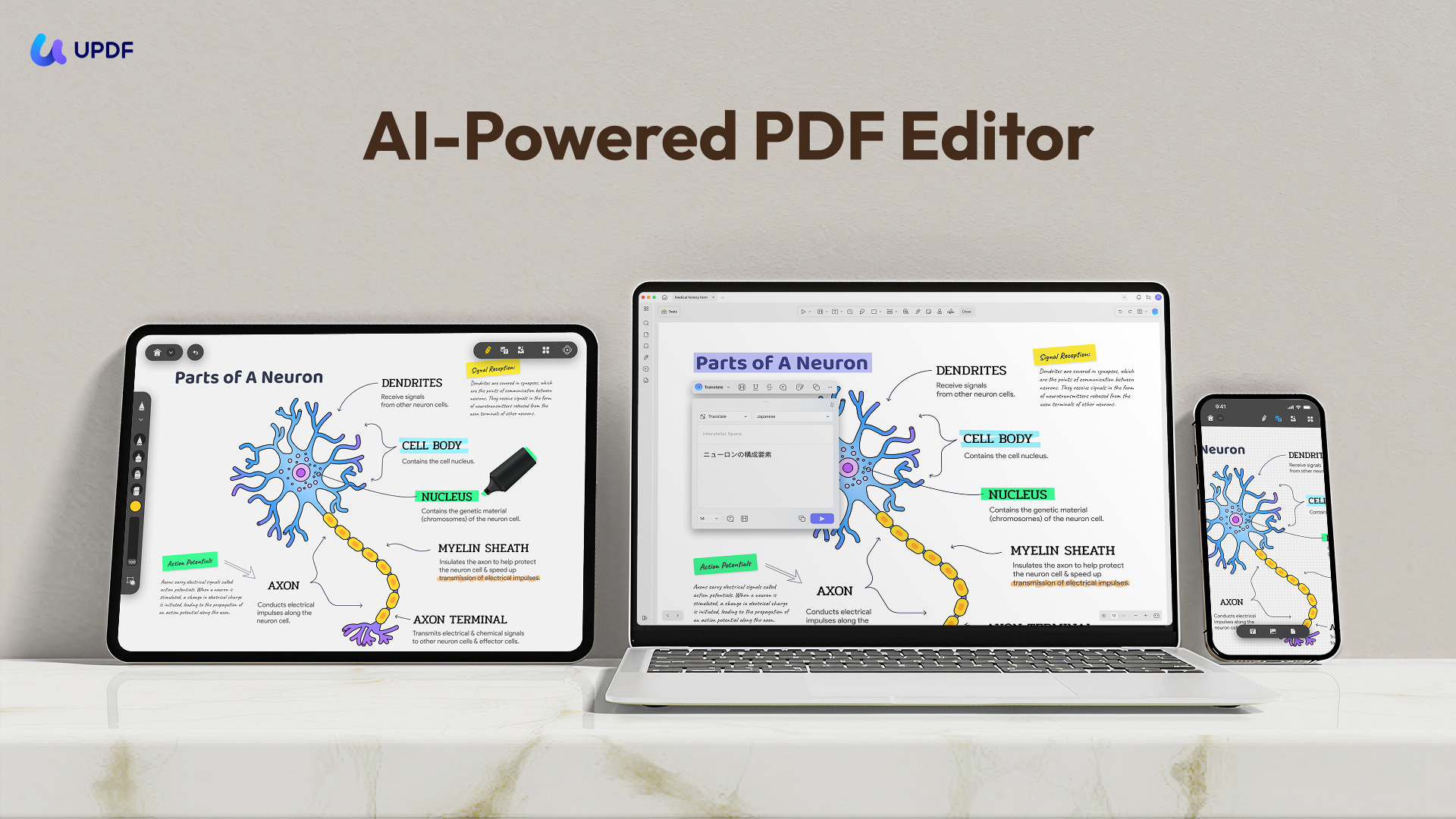
UPDF also has dedicated apps for Windows, Mac, iPhone, iPad, and Android. Since this article focuses on free online PDF editing rather than a device-specific workflow, detailed device steps are better handled in separate guides such as editing text on Windows, editing text on Mac, editing text on iPhone/iPad, and editing text on Android.
Online PDF Editor vs. UPDF
The table below is not meant to say every online editor is weak. Browser tools are often the fastest option for simple files. The difference appears when you need privacy, OCR, original text editing, stable formatting, or a repeatable PDF workflow.
| Need | Free online PDF editor | Why UPDF may be better |
|---|---|---|
| Install-free access | Best advantage; works directly in a browser. | / |
| Quick annotation or form filling | Good for public, simple PDFs. | Also works, and keeps the edited file local if the document is private. |
| Edit original PDF text or images | Varies by tool; some require Pro or use whiteout-style replacement. | UPDF is designed for direct text/image editing plus layout checks in one desktop/mobile workflow. |
| Scanned PDF editing | Often needs a separate OCR step or paid feature. | UPDF includes OCR in the PDF workflow. |
| Private documents | Depends on upload policy, storage rules, and deletion timing. | Local editing is easier to justify for contracts, IDs, finance files, HR files, and client documents. |
| Repeated PDF work | Daily limits, file-size limits, sign-in prompts, or paid walls may interrupt work. | UPDF is more suitable when editing, OCR, annotation, conversion, page organization, and protection happen together. |
If browser editing is still the right route, read how to edit on PDF online. If you plan to edit the document after converting it, compare that workflow with how to edit a PDF in Word.
FAQ
Why did my online PDF editor ask me to sign in or upgrade before downloading?
Many online PDF editors let you upload and make simple changes for free, but may limit direct text editing, large files, repeated tasks, OCR, or final downloads. Check the tool's pricing and feature limits before uploading important files.
How do I know whether an online editor changed the real PDF text?
Reopen the downloaded PDF and try selecting the edited words. If the text selects normally and reflows with nearby text, it is likely real text editing. If it behaves like a placed text box or cover-up layer, the original PDF text was probably not changed.
What should I check before uploading a business PDF to an online editor?
Check whether the file contains personal, financial, legal, client, or company-confidential information. Also review the tool's upload, storage, deletion, and account policy. If the document is sensitive, local editing is safer.
Can I start online and finish the PDF in UPDF?
Yes. For a simple first pass, you can use an online editor, download the PDF, then open it in UPDF to check formatting, run OCR, organize pages, protect the file, or make more precise local edits.
Conclusion
Editing a PDF file online free is the fastest route for simple, non-confidential changes. PDF24, Adobe Acrobat Online, Smallpdf, Xodo, and LightPDF can all help with quick browser-based edits, but each has its own limits around sign-in, text editing, file handling, daily use, or advanced features.
If the file is private, scanned, layout-sensitive, or part of repeat work, choose an offline editor by looking at the whole workflow: local processing, OCR, original text and image editing, page organization, conversion, and file protection. UPDF is worth considering when those tasks need to happen in one PDF app rather than across several tools.
Windows • macOS • iOS • Android 100% secure









 Enola Davis
 Enrica Taylor