 UPDF
UPDF
 UPDF for Windows
 UPDF for Mac
 UPDF for iPhone/iPad
 UPDF for Android
 Nomostar
 UPDF AI Online
 UPDF Sign
 IvyCraft
 Edit PDF
 Annotate PDF
 Create PDF
 PDF Form
 Edit links
 Convert PDF
 OCR
OCR PDF to Word
 PDF to Image
 PDF to Excel
 Organize PDF
 Merge PDF
 Split PDF
 Crop PDF
 Rotate PDF
 Protect PDF
 Sign PDF
 Redact PDF
 Sanitize PDF
 Remove Security
 Read PDF
 UPDF Cloud
 Compress PDF
 Print PDF
 Batch Process
 About UPDF AI
 UPDF AI Solutions
 AI User Guide
 FAQ about UPDF AI
 Summarize PDF
 Translate PDF
 Chat with PDF
 Chat with AI
 Chat with image
 PDF to Mind Map
 Explain PDF
 PDF AI Tools
 Image AI Tools
 AI Chat Tools
 AI Writing Tools
 AI Study Tools
 AI Working Tools
 Other AI Tools
 AI Bookmark Generation
 AI Bookmark Summary
 AI Watermark Generation
 AI Background Generation
 AI Sticker Generation
 AI Stamp Generation
 AI Editing Suite
 UPDF Copilot
 AI Page Management
 AI Semantic Search
 PDF to Word
 PDF to Excel
 PDF to PowerPoint
 Enterprise Solution
 Enterprise Sign
 Enterprise AI
 Enterprise Plan
 Enterprise User Guide
 Enterprise Webinar
 IT
IT Education
 Construction
 Financial Service
 Healthcare
 Insurance
 Legal
Legal Manufacturing
 Government
 Researchers & PhDs
 Solopreneurs & Freelancers
 Lawyers & Legal Professionals
 Real Estate Agents & Brokers
 Education Solution
 Customer Stories
 User Guide
 UPDF Tricks
 FAQs
FAQs UPDF Reviews
 Download Center
 Blog
Blog Newsroom
 Tech Spec
 Updates
 UPDF vs. Adobe Acrobat
 UPDF vs. Foxit
 UPDF vs. PDF Expert

Quick Answer:
Open the PDF in UPDF and click Edit. If text isn’t selectable, run OCR first, then click Edit.
The one distinction that decides everything: is your PDF a regular (digital) file or a scanned one? A regular PDF already has a live text layer — a PDF editor turns it into an editable file instantly. A scanned PDF is really a picture of text with no text layer, so clicking it does nothing until OCR (Optical Character Recognition) rebuilds that layer. Quick test: try to select a sentence with your cursor. If it highlights, skip to the regular-PDF steps; if it won’t, you need OCR first.
An edit should leave the surrounding content as clear as it was before. You can use the following video as a visual guide to recognizing text in PDFs with UPDF OCR.
Which Method Do You Need? (Quick Routing Table)
Match your file and goal to the right method, then jump to that section.
| Your situation | Method | Best for |
| Text highlights when you select it | Edit directly (regular PDF) | Updating contracts, reports, or forms you made digitally |
| Text won’t select — it’s a scan or photo | Run OCR to make editable | Scanned agreements, old paperwork, image-based PDFs |
| You want to edit it in Word, not the PDF | OCR + convert to Word/Excel | Heavy rewrites, reusing content in another document |
| You’re on a phone or tablet | UPDF mobile (edit or OCR) | Quick fixes away from your desk |
Part 1. How to Make a Regular PDF Editable
A regular PDF was created digitally — exported from Word, a browser, or design software — so its text is already live. You just need an editor that unlocks it. Open the document in UPDF — if you don’t have it yet, download UPDF for free and install it in under a minute — then turn on Edit mode.
Windows • macOS • iOS • Android 100% secure
Step 1. Open the PDF in UPDF and click Edit in the top toolbar.
Step 2. Click any text block to place your cursor, then type to change wording, or adjust font, size, and color from the side panel.
Step 3. To swap an image, select it and replace, crop, or delete it; to add a clickable link, use Insert & Edit Link.
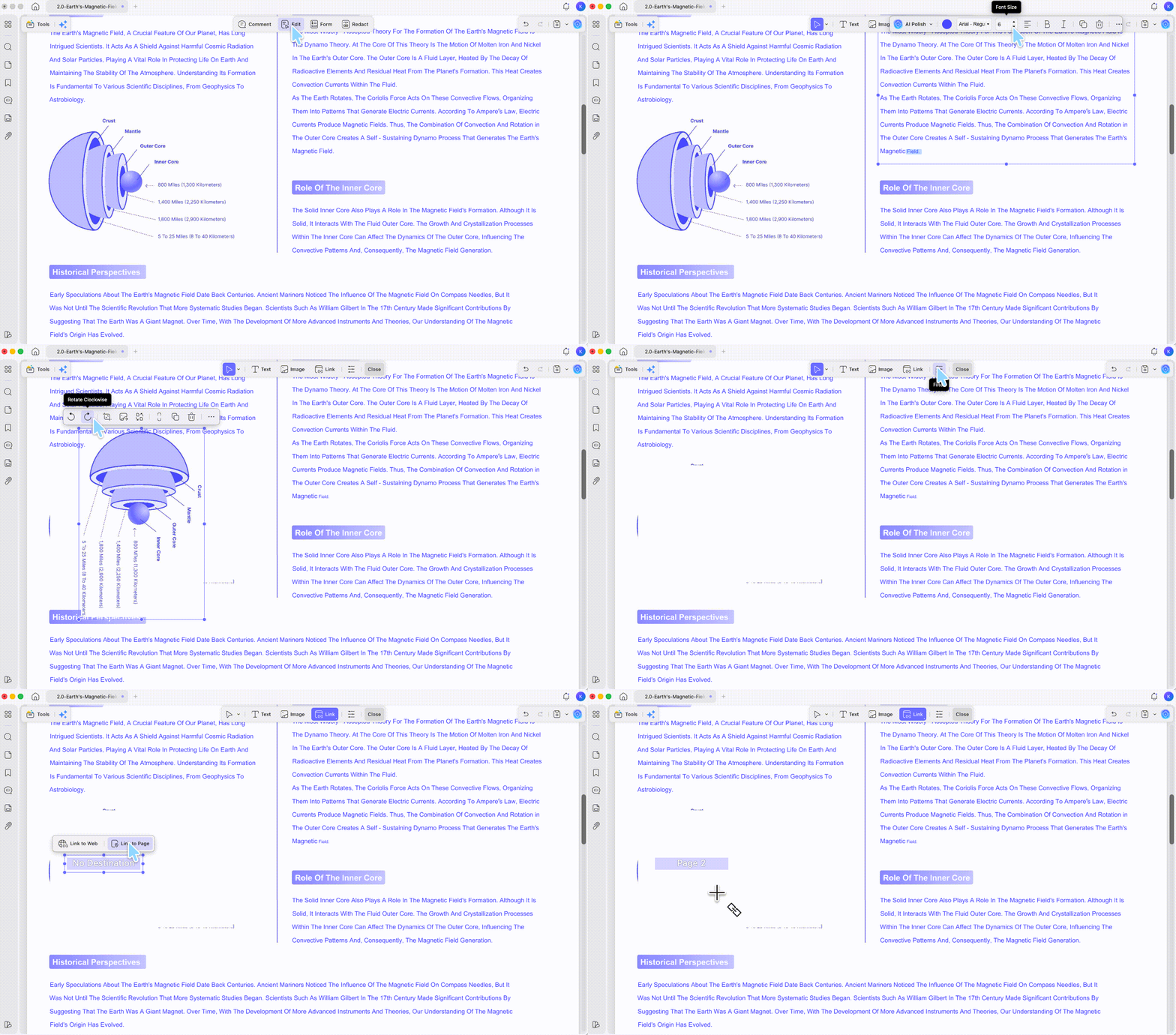
Step 4. Click Save (or Save As Other to keep the original untouched).rts and follow the steps to make a PDF writable.
Best for:
- Fixing typos, updating dates, swapping figures in PDFs you or a colleague created.
Not for:
- Scanned paperwork — if the text won’t select, jump to the OCR section below.
Part 2. How to Make a Scanned PDF Editable with OCR
A scanned or photographed PDF is an image — there’s no text underneath for an editor to grab. OCR reads the picture and rebuilds a real, selectable text layer, converting a scanned PDF to an editable PDF and also making PDF searchable. UPDF's OCR tool can recognize text in a PDF across 38 languages and preserve the original layout and fonts — and if you only need the words rather than an editable file, you can extract text from a PDF with UPDF AI.
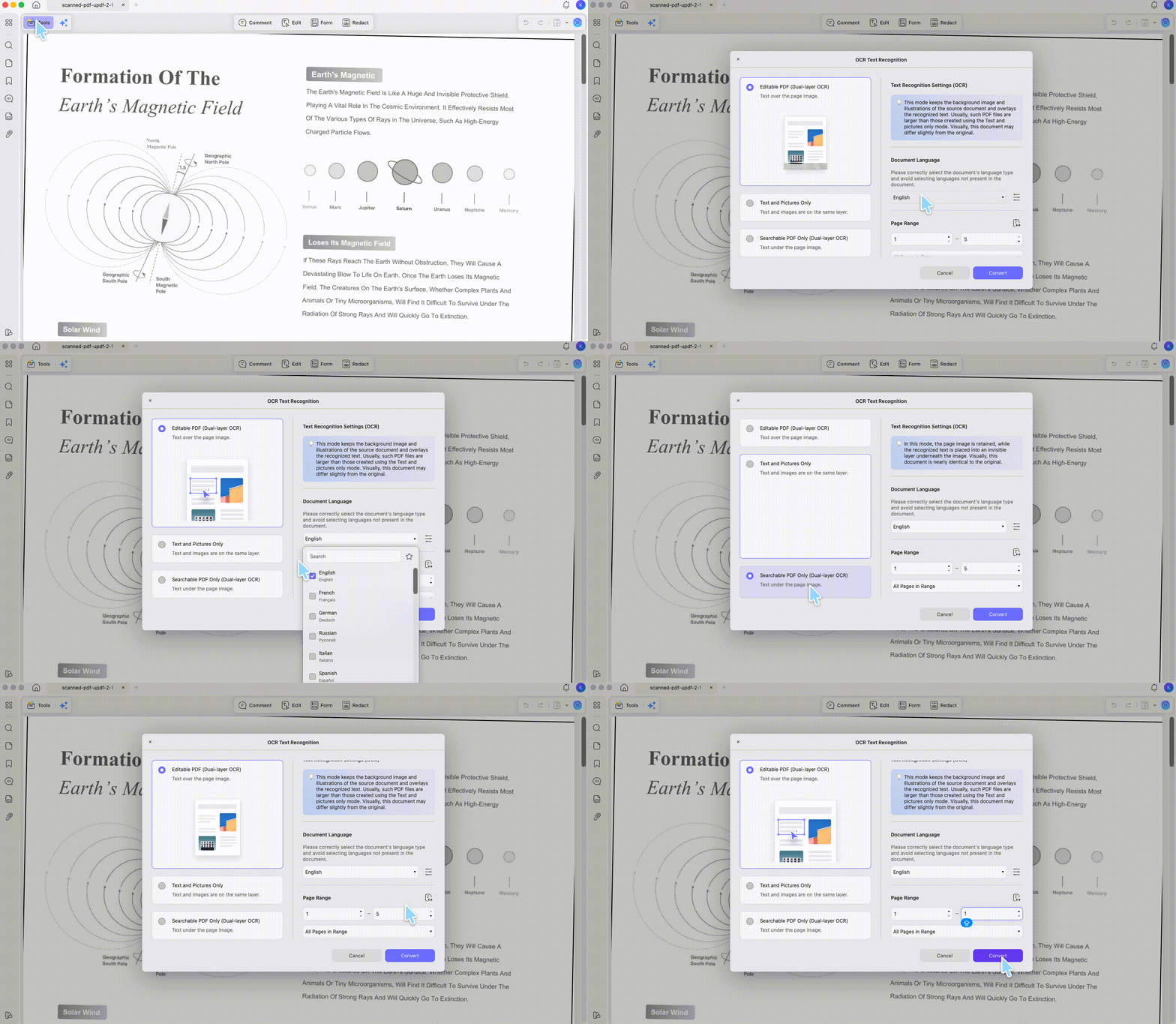
Step 1. Open the scanned PDF in UPDF, then go to leftside Tools → OCR.
Step 2. Set the document language, page range, and layout. Choose Editable text (text over or under the page image) rather than a searchable-image-only option, then click Convert.
Step 3. When OCR finishes, click Edit in the top toolbar — the once-flat scan now behaves like a regular PDF, so you can correct and reformat the text.
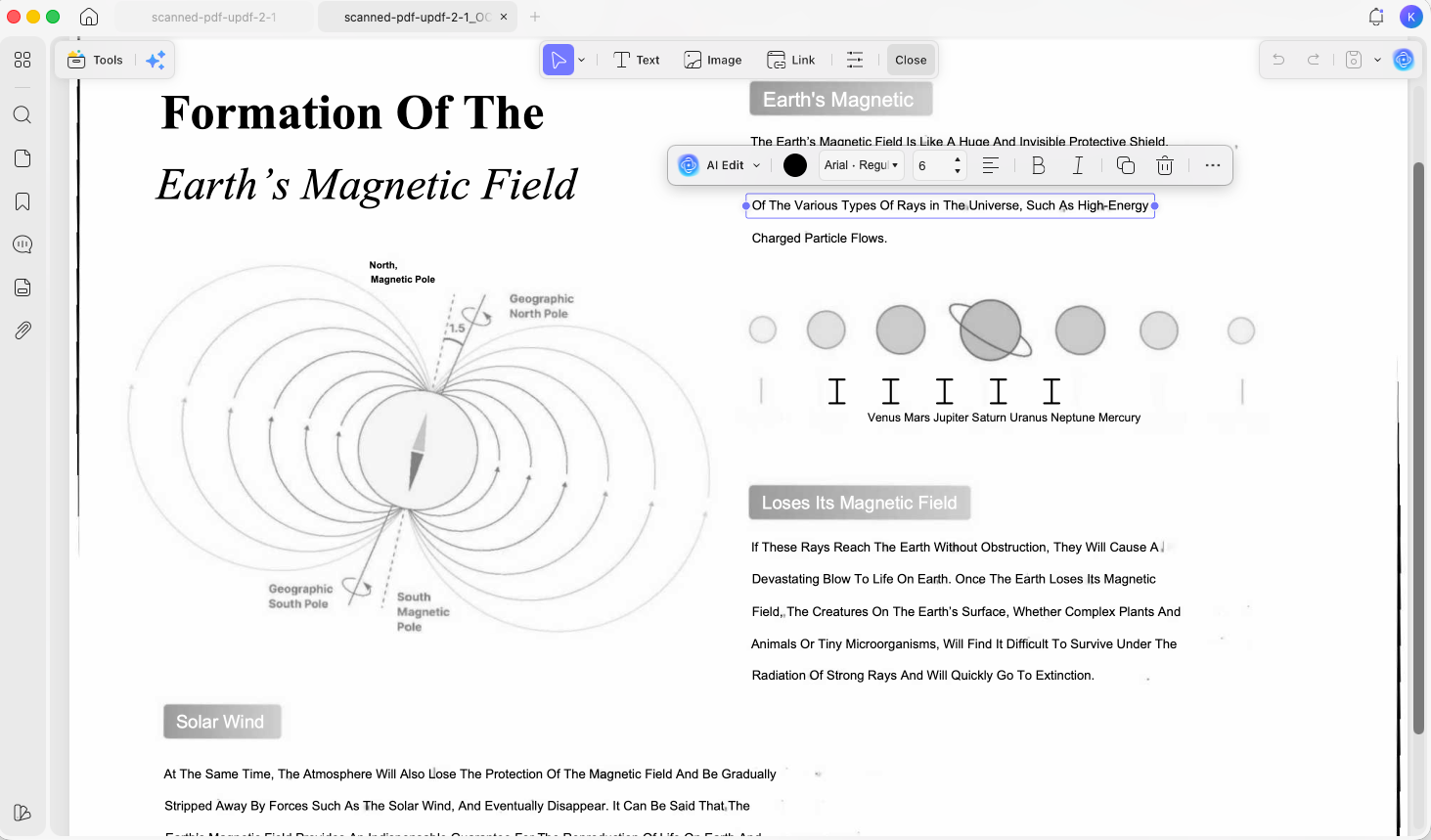
Accuracy reminder:
Best for:
- Scanned contracts, textbook pages, and any image-based PDF — including receipt OCR for expense and bookkeeping records.
Not for:
- Files whose text already selects — running OCR on those is unnecessary and can slightly soften sharp digital text.
Download UPDF for free to try making your own regular or scanned PDF editable — installation is free, and Pro features are available when you need watermark-free export or batch OCR.
Windows • macOS • iOS • Android 100% secure
Prefer to Edit in Word? Convert Instead
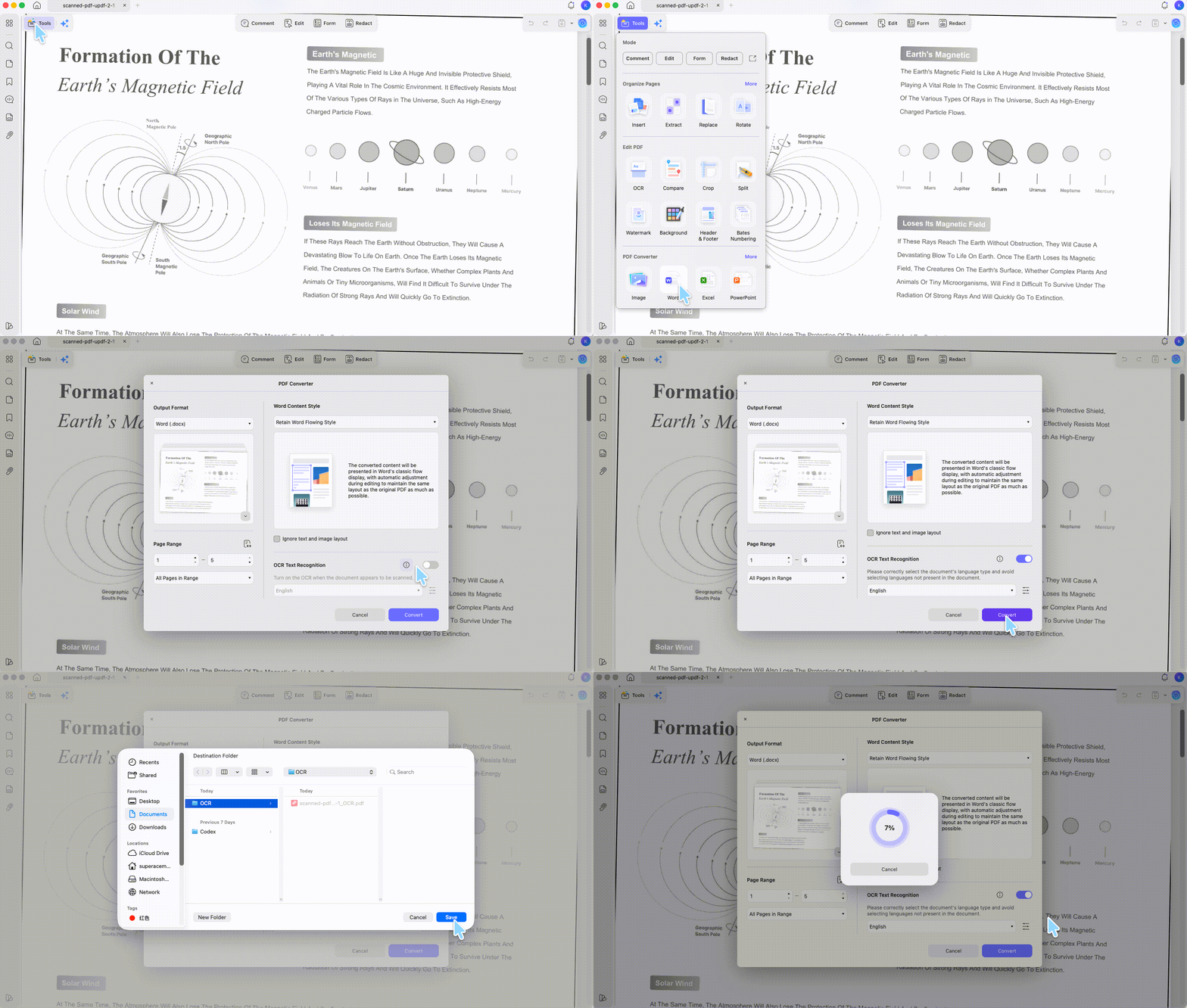
If you’d rather do a heavy rewrite in a word processor, you can change the PDF editable format — exporting it to Word (or Excel, PowerPoint, RTF) instead of editing in place. In UPDF, this and OCR happen together: open the file, choose Export PDF to Word (or Excel, PowerPoint, RTF), toggle on OCR Text Recognition if the source is scanned, and click Convert. You get a .docx — a fully editable file format you can open anywhere.
Note
Part 3. Make a PDF Editable on iPhone, iPad & Android
One UPDF license covers desktop and mobile, so you can edit on the device you have on hand. Install UPDF for iOS or UPDF for Android, then open your file.
Windows • macOS • iOS • Android 100% secure
Step 1. Tap the + button to import the PDF.
Step 2. For a regular PDF, tap Edit and tap the text to change it. For a scan, tap OCR, set the language, and tap Continue — the editable result saves to your UPDF files.
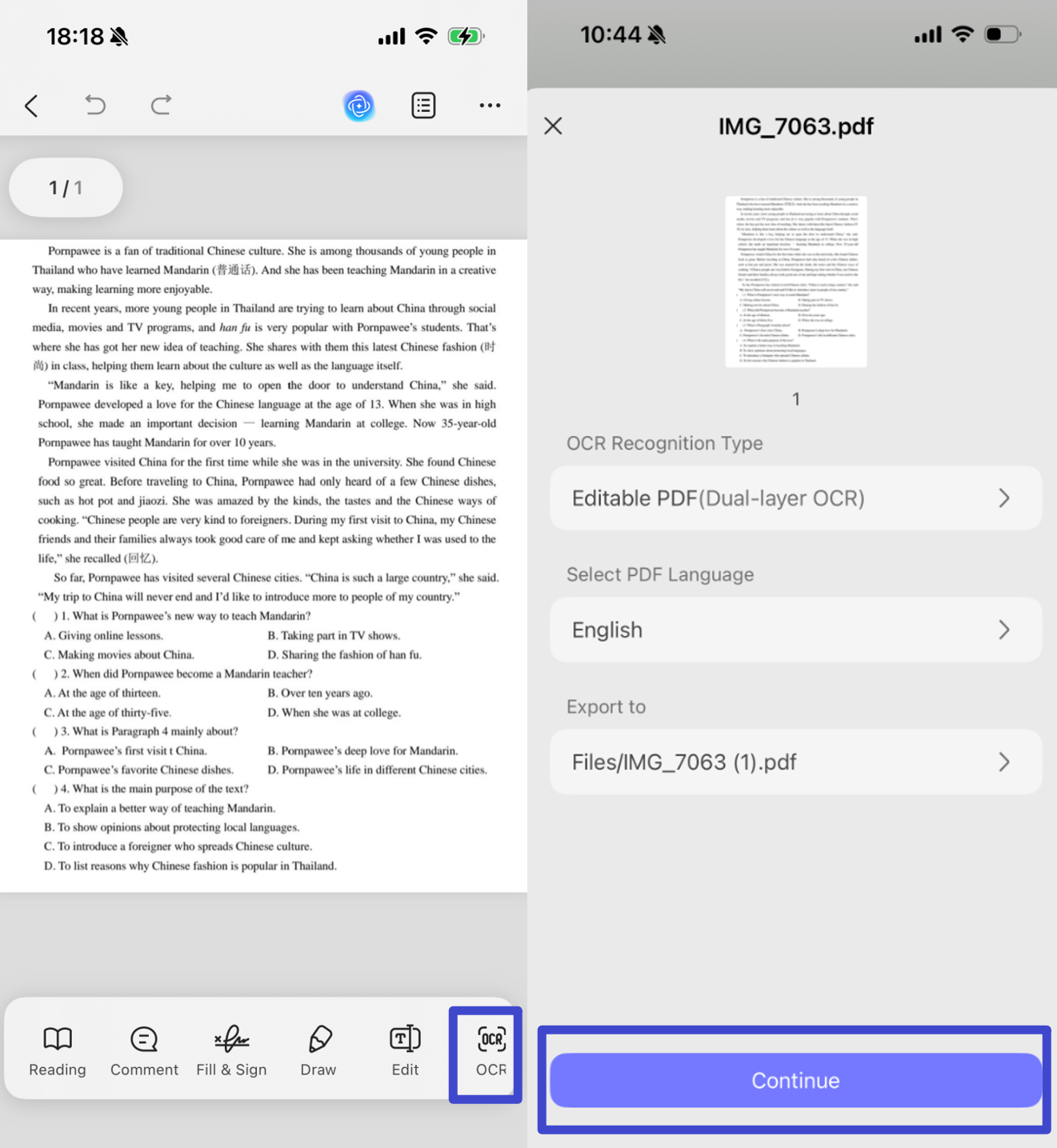
Step 3. Tap Edit on the OCRed file to copy or rewrite the text, then save.
Best for:
- Quick edits and OCR on the move — a photographed receipt, a contract that arrives by email.
Not for:
- Long multi-page OCR jobs, which run faster on desktop.
Part 4. UPDF vs. Online PDF Editors (Honest Comparison)
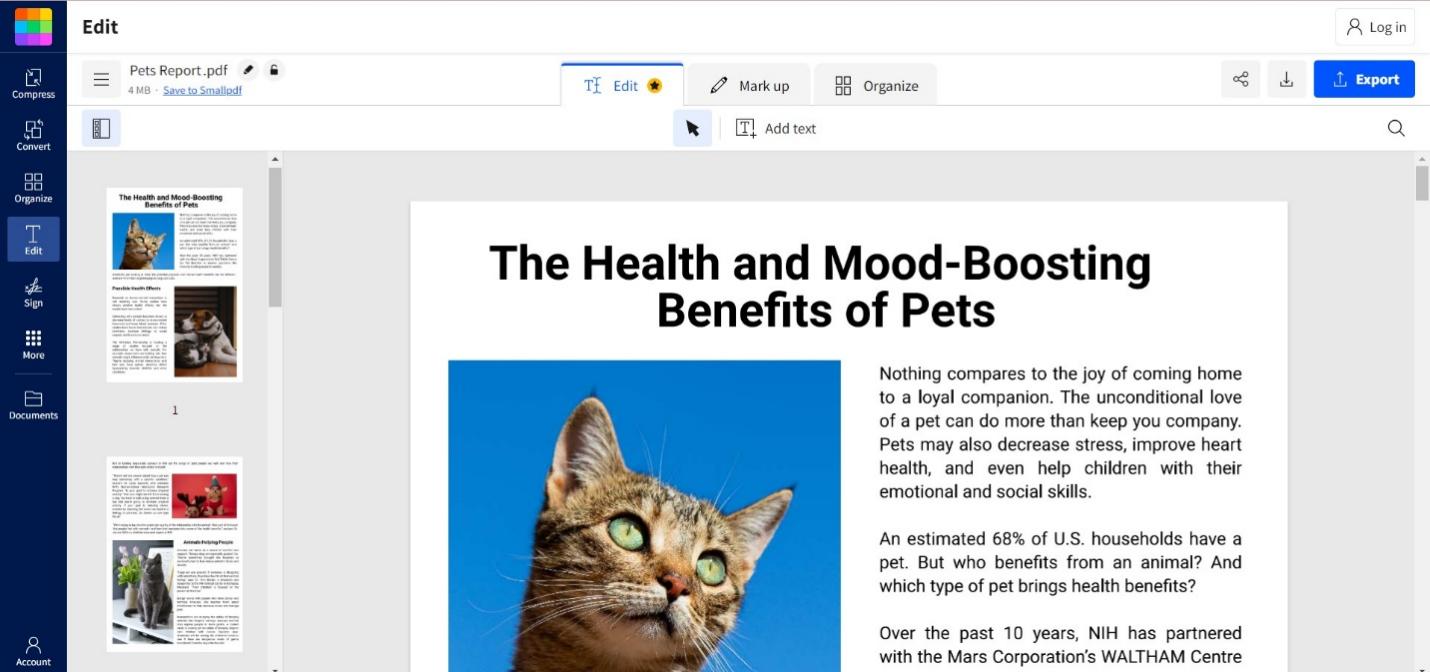
Browser tools like Smallpdf are fine for a one-off edit, but they carry real limits for regular work. Here are the hard constraints, UPDF’s included.
| Capability | UPDF (desktop) | Online editors (e.g. Smallpdf) |
| Editing depth | Full text, image, link, page editing in one window | Often basic text/annotation only; deep edits limited |
| OCR for scanned PDFs | Built in OCR, 38 languages, layout preserved | Available but usually behind a paid tier; page caps common |
| File size / internet | No upload, no size cap, works offline | Needs fast internet; maximum file-size limits |
| Privacy | File stays on your device | File uploaded to a third-party server |
| Cost | Free to try; Pro $49.99/yr or $79.99 one-time. Export without watermark needs Pro; batch OCR is a Pro feature | Free tier limited; recurring subscription for full use |
Why it matters: for contracts, IDs, and financial PDFs, uploading to a web server is the real risk. UPDF processes everything locally, so sensitive documents never leave your computer. See the full UPDF vs. Adobe Acrobat comparison if you’re weighing a heavier editor.
Part 5. If the PDF Still Won’t Let You Edit (Edge Cases)
- Edit mode is greyed out or blocked. The PDF is permission-protected. Enter the password or remove the restriction first — only on files you own or are authorized to edit. See how to remove PDF security.
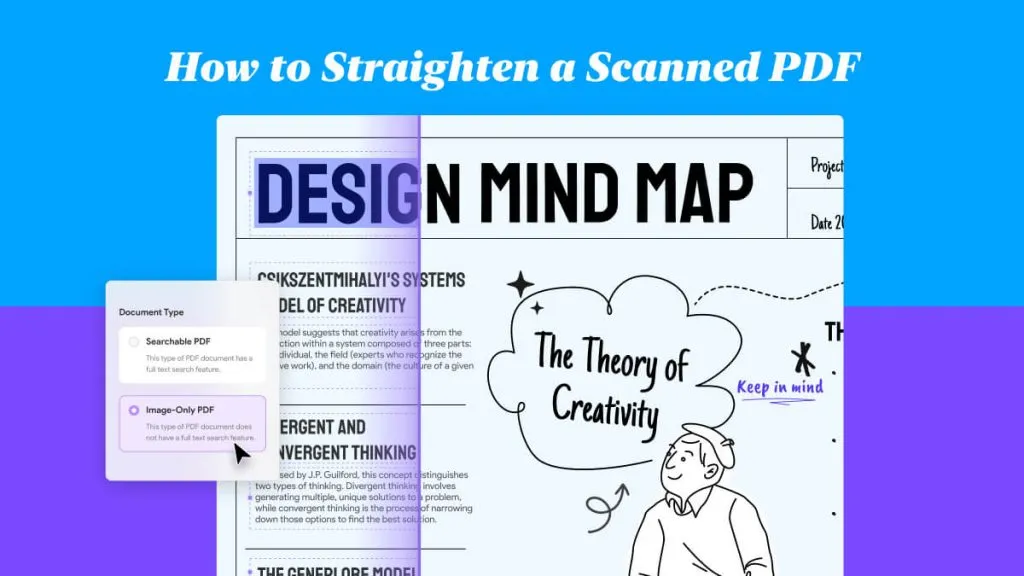
- You ran OCR but the text still won’t select. The scan is likely too low-resolution or skewed. Re-scan at 300 DPI, deskew the PDF to straighten the page, then run OCR again — recognition quality depends heavily on a clean, upright image.
- OCR text is editable but full of errors. Check that you set the correct document language before running OCR; an English-only pass on a French or German document will misread accented characters. Re-run with the right language selected.
- Edited text looks like a different font. The original font isn’t installed on your system, so the editor substitutes one. Pick the closest installed font in the edit panel, or install the original font and reopen the file.
- The file you want to edit isn’t a PDF yet. Drag a Word, Excel, PowerPoint, or image file onto the UPDF desktop window to convert it to PDF first, then edit or OCR as usual.
Part 6. FAQ
1. Will editing a PDF change its formatting?
Editing in place with UPDF keeps the layout intact — you’re changing live text. Converting to Word can shift complex formatting, so edit-in-place is safer for forms and designed pages.
2. Can I make a PDF editable without uploading it anywhere?
Yes. A desktop app like UPDF edits and OCRs files locally, so contracts, IDs, and financial PDFs never leave your device — unlike browser tools that upload to a server.
3. Do I need to OCR a PDF I made from Word?
No. A PDF exported from Word already has a live text layer, so it’s editable straight away. OCR is only for scans and photos.
4. How do I make a PDF non-editable?
If your goal is to lock a file so others can't change it, that's the reverse of this guide. You can flatten the content or add password and permission restrictions — see how to make a PDF non-editable for the steps.
Conclusion
Making a PDF editable comes down to one question: can you select the text? If yes, a PDF editor unlocks it in a click; if no, OCR rebuilds the text layer first. UPDF handles both in one app — plus image, link, and page edits — across Windows, Mac, iOS, and Android, and keeps your files local.
Download UPDF for free to try making your own PDF editable — installation is free, and Pro features are available when you need watermark-free export or batch OCR.
Windows • macOS • iOS • Android 100% secure




 Lizzy Lozano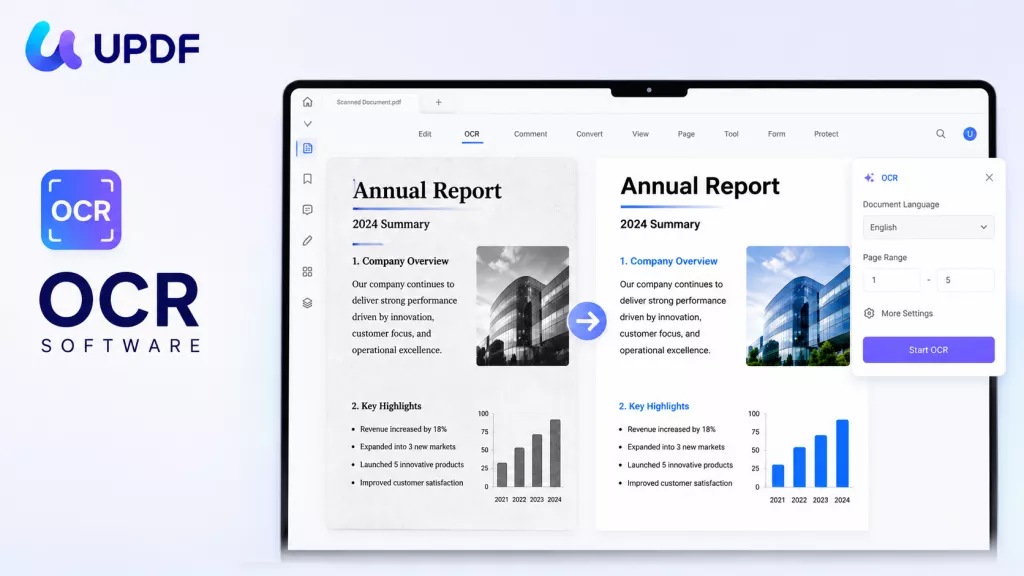
 Enola Davis