 UPDF
 UPDF for Windows
 UPDF for Mac
 UPDF for iPhone/iPad
 UPDF for Android
 Nomostar
 UPDF AI Online
 UPDF Sign
 IvyCraft
 Edit PDF
 Annotate PDF
 Create PDF
 PDF Form
 Edit links
 Convert PDF
 OCR
 PDF to Word
 PDF to Image
 PDF to Excel
 Organize PDF
 Merge PDF
 Split PDF
 Crop PDF
 Rotate PDF
 Protect PDF
 Sign PDF
 Redact PDF
 Sanitize PDF
 Remove Security
 Read PDF
 UPDF Cloud
 Compress PDF
 Print PDF
 Batch Process

 About UPDF AI
 UPDF AI Solutions
 AI User Guide
 FAQ about UPDF AI
 Summarize PDF
 Translate PDF
 Chat with PDF
 Chat with AI
 Chat with image
 PDF to Mind Map
 Explain PDF
 PDF AI Tools
 Image AI Tools
 AI Chat Tools
 AI Writing Tools
 AI Study Tools
 AI Working Tools
 Other AI Tools
 AI Bookmark Generation
 AI Bookmark Summary
 AI Watermark Generation
 AI Background Generation
 AI Sticker Generation
 AI Stamp Generation
 AI Editing Suite
 UPDF Copilot
 AI Page Management
 AI Semantic Search
 PDF to Word
 PDF to Excel
 PDF to PowerPoint
 Enterprise Solution
 Enterprise Sign
 Enterprise AI
 Enterprise Plan
 Enterprise User Guide
 Enterprise Webinar
 IT
 Education
 Construction
 Financial Service
 Healthcare
 Insurance
 Legal
 Manufacturing
 Government
 Researchers & PhDs
 Solopreneurs & Freelancers
 Lawyers & Legal Professionals
 Real Estate Agents & Brokers
 Education Solution
 Customer Stories
 User Guide
 UPDF Tricks
 FAQs
 UPDF Reviews
 Download Center
 Blog
 Newsroom
 Tech Spec
 Updates
 UPDF vs. Adobe Acrobat
 UPDF vs. Foxit
 UPDF vs. PDF Expert


Quick Answer
Pi7 PDF (also written "Pi7PDF") is a free online PDF toolkit known for one thing most competitors don't offer: most of its tools process your files entirely in your browser — nothing is ever uploaded to a server. It's 100% free with no account and no watermarks. But how good is it really? We tested Pi7 PDF hands-on to check its tool range, privacy claims, and limits — and to find out when a full PDF editor like UPDF makes more sense.
Part 1. What is Pi7 PDF?
Pi7 PDF (you'll also see it written as "Pi7PDF" or "Pi7 PDF Tool") is a web-based, all-in-one platform from Pi7, an India-based developer founded in 2018. It performs a wide range of PDF tasks directly in your browser — no download, no install, no account.
Two things define it. First, it's genuinely 100% free: no subscriptions, no watermarks, no daily limits. Second, its architecture is privacy-first. Pi7 splits its tools into two groups:
Runs fully in your browser (file never leaves your device): PDF compression to an exact KB/MB size, merge, split, rotate, rearrange, crop, page numbers, Bates numbering, sign PDF, password protect (AES-256), unlock PDF, image to PDF, PDF to Excel, PDF redactor, watermark, highlight, contrast editor, and the PPT/Excel-to-PDF converters.
Runs on Pi7's server, then auto-deletes your file: the online PDF editor, OCR, and PDF to Word/JPG conversion. According to Pi7, server-processed files are deleted automatically 15–20 minutes after processing, and you can also delete them manually at any time.
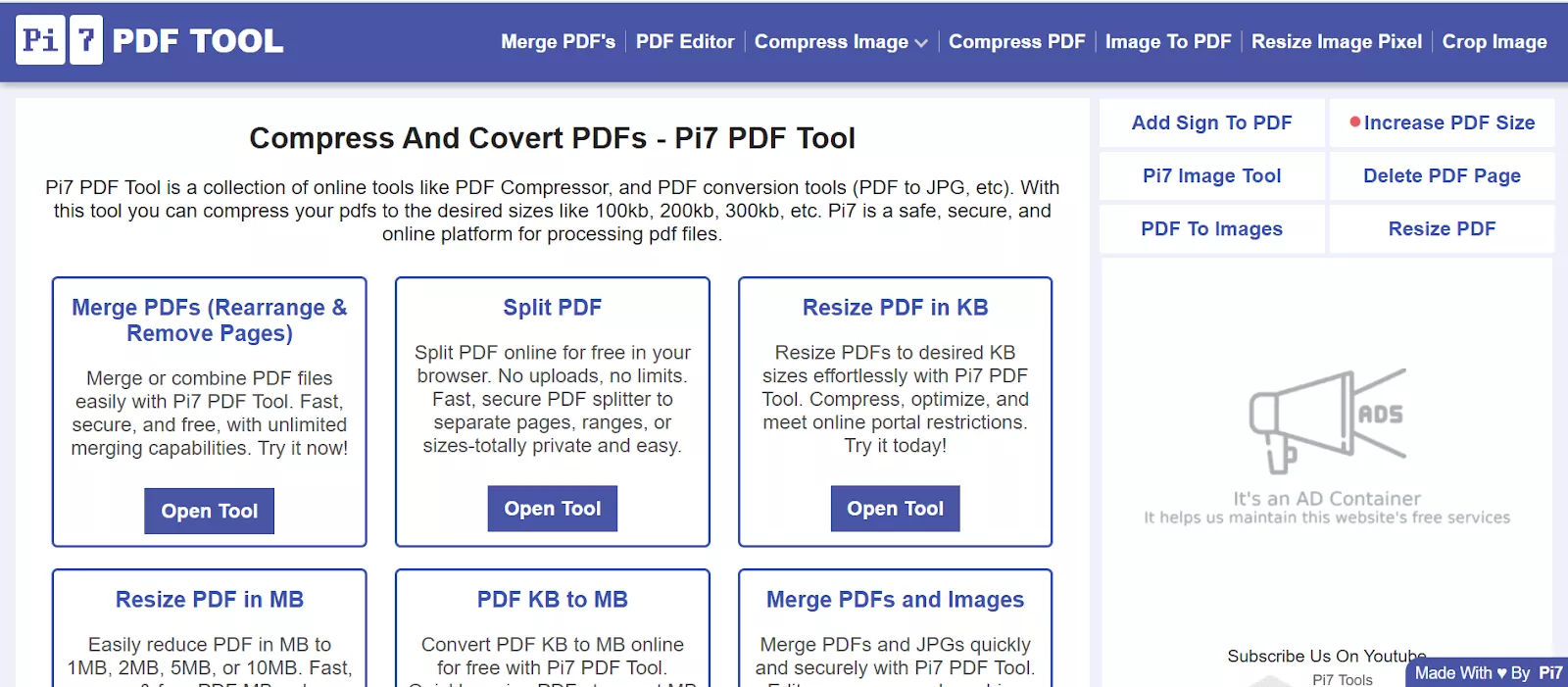
Pi7 PDF offers a collection of tools that help manage PDFs and meet different user needs. In this section, I'll mention some of the other key tools that Pi7 PDF provides to make PDF management easier.
- Merge PDF: This tool lets you combine multiple PDFs or even images into one document. Plus, page management tools allow you to rearrange, remove, flip, or crop pages during the process.
- Split PDF: Using the Pi7 PDF Splitter, you can split your PDFs by ranges, specific pages, or even by file size while maintaining original layout. Within seconds, your PDF will be split and automatically downloaded.
- Resize PDF: Resize tool can convert your PDF to your desired KB or MB size. PDF is resized within seconds, so there’s no need to wait for long processing times.
- Add page number to PDF: Pi7 PDF provides a tool to insert page numbers anywhere in PDF. You can adjust the font size, font colors, and font weight of the page numbers.
- Rotate PDF: You can rotate a single page, selected pages, or even the entire PDF quickly. You also get the option to make all pages the same width after rotation.
- Reduce PDF Size: Pi7 PDF Compressor lets you reduce your PDF files to your desired size. The tool also displays the new file size for your reference after performing the compression.
- Increase PDF Size: You can increase their PDF files to their desired size with just a few clicks. You just need to enter the required size in KB or MB, and the tool will adjust the file accordingly.
- Rearrange PDF Pages: Pi7 PDF tool lets you reorder your PDF pages by simple drag & drop or using move buttons. Plus, you can rotate or crop pages before generating the new PDF.
- Crop PDF: In case you want to adjust page dimensions, the Pi7 PDF Cropper lets you do it quickly. You can crop all pages uniformly or customize each page individually depending upon your preference.
- Delete PDF Pages: Using this tool, you can remove unnecessary pages from your PDF. While deleting, you can also rearrange remaining pages, and the new PDF will reflect these changes.
- Unlock PDF: With the help of this tool, you can remove passwords and restrictions from protected PDF files. By just uploading the file and entering the file’s password, you can unlock it for editing.
- Convert PDF to Word/JPG: Pi7 PDF offers conversion tools that let you convert PDF files into Word or JPG formats. You can convert up to three PDFs into these formats at the same time.
- Count Words in PDF: This tool helps you count the number of words in a PDF document accurately. You can specify the page range to see the total words and characters.
- Edit PDF: With the PDF editor tool, you can edit text, add images, and insert/delete pages. It also includes a wide range of tools that allow you to adjust the size, color, and font of text.
Part 2. Is Pi7 PDF Free to Use?
Yes — and this is the real deal, not a trial. Pi7 PDF's entire tool selection is completely free: every tool, every feature, including the OCR, the editor, the redactor, and the signature audit trail. No account, no daily limits, no watermarks on anything you download. The site is ad-supported, which is how it stays free.
One caveat we confirmed in testing: while there's no hard daily limit, batch tools process a fixed number of files per round — up to 3 PDFs at once for PDF to Word, up to 6 for Word to PDF — and some tools have file size caps (for example, the Resize PDF tool accepts files up to 10 MB, and images up to 15 MB). For occasional use this never comes up; for heavy use it slows you down.
Part 3. Is it Safe to Use?
This is where Pi7 is stronger than most free online tools. Because most of its tools run entirely in your browser, the majority of the time there is no upload at all — a contract or ID scan literally never leaves your device. Nothing to breach, nothing to delete.
For the server-based tools (the editor, OCR, and PDF to Word/JPG), Pi7 states that files are deleted automatically 15–20 minutes after processing, never shared or reused, and you can delete them manually at any time via the "delete my PDF from server" option.
Honest assessment:
As with any ad-supported site, the pages themselves carry third-party ad scripts — the files are private, your browsing is tracked like on any free site.
Browser-local tools (compression, merge, split, sign, encrypt, redact, etc.): as safe as offline software, since no file is transmitted.
Server tools (editor, OCR, Word/JPG conversion): reasonable for everyday documents; for highly confidential files, prefer the local tools or an offline editor.
Part 4. Why Pi7 PDF Still Isn't Enough — Its Real Limits
Pi7 PDF works well for basic, quick PDF tasks. But depending on your usage, these limits matter:
- Ad-supported interface. As a free tool, Pi7 displays multiple ads across its tool pages. Understandable, but distracting if you work with PDFs daily.
- Basic editing only. The editor handles text changes on digital PDFs well, but it can't seamlessly edit scanned documents even after OCR (the workflow is split across separate tools), it can't compare documents, and there's no AI assistance for summarizing or translating.
- Limited batch and file caps. Batch conversion stops at 3 files (PDF to Word) or 6 files (Word to PDF) per round, with no true batch across the whole toolkit. Individual tools cap file sizes — the Resize PDF tool tops out at 10 MB, images at 15 MB.
- No apps, network-dependent. Everything lives in the browser tab. There's no desktop or mobile app, no offline mode, and performance on large files depends on your connection and browser memory.
Note that earlier versions of Pi7 lacked OCR entirely — that's no longer true, but its OCR is a separate, server-based tool with no layout-preserving export to an editable document.
Part 5. Online PDF Tools vs. a Full PDF Editor — Which Do You Actually Need?
Free online tools like Pi7 PDF and full editors like UPDF aren't really competitors — they solve different problems. Here's the honest difference:
An online tool like Pi7 PDF is a collection of single-purpose utilities: one file in, one operation, one file out. Great when the task is small and one-off. But it can't hold a whole document workflow: editing a 60-page report, fixing a typo on page 12, highlighting three passages, adding comments for a colleague, converting the result to Word, and doing it again tomorrow on a different file.
A full PDF editor is built for that workflow: open any PDF — digital or scanned — and edit, annotate, convert, OCR, redact, and sign in one place, with batch operations and offline access.
Quick self-test:
- "I need to compress one file to 200KB for a job portal" → Pi7 PDF is perfect, use it.
- "I edit, convert, or review PDFs every week" → you need a full editor.
If you're in the second camp, here's what we recommend.
UPDF is a cross-platform PDF editor designed for both everyday and professional use. It goes beyond basic online tools by offering advanced editing, batch processing, OCR, and AI-powered features—while still keeping the interface clean and easy to use.
Windows • macOS • iOS • Android 100% secure

Why Choose UPDF Over Online PDF Tools?
For occasional browser-based tasks, Pi7 PDF is genuinely convenient — we mean that. But if you hit any of these walls regularly: scanned documents that need real text editing, more than a handful of files at a time, page-level changes inside an editing session, or confidential files you'd rather process offline, a full editor saves you hours.
That's where UPDF comes in. It's a cross-platform PDF editor for Windows, Mac, iOS, and Android that covers everything Pi7 PDF does — and removes its limits:
Editing that includes scans. UPDF's OCR converts scanned PDFs into editable documents directly inside the editor, with 99%+ accuracy and layout preservation. No separate tool, no round trip. (Pi7's OCR creates searchable PDFs but doesn't feed into its editor.)
True batch processing. Convert, compress, OCR, encrypt, or merge hundreds of files in one queue — not 3 or 6 at a time.
One continuous workflow. Edit text and images, annotate, fill forms, redact, add signatures, Bates number, convert to 14+ formats, and chat with the document via UPDF AI — all in a single file session, online or offline.
Works offline, with apps. Files are processed locally on your device by default, and your license covers desktop and mobile.
- Works Across All Devices: UPDF supports Windows, macOS, iOS, and Android, allowing you to access and manage PDFs seamlessly across devices with a single license.
- Advanced Editing & File Conversion: Unlike Pi7 PDF’s limited conversion options, UPDF supports converting PDFs to 14+ file formats, giving you more flexibility for different workflows.
- OCR for Scanned Documents: UPDF’s built-in OCR turns scanned PDFs and images into searchable and editable documents—an essential feature missing from Pi7 PDF.
- Batch PDF Processing: Save time by processing multiple PDFs at once, including OCR, compression, conversion, merging, and encryption.
- AI-Powered PDF Assistance: With UPDF AI, you can chat with PDFs, summarize content, translate text, and extract insights—features designed to improve productivity, not just file handling.
- Reliable Performance, Even with Large Files: Since UPDF runs locally, it’s not affected by internet speed or browser limitations, making it more stable for long documents and frequent use.
| Item | Pi7 PDF | UPDF |
|---|---|---|
| Price | 100% free, ad-supported | Free version; affordable one-time & annual plans |
| Processing location | Mostly in-browser (local); some server tools | Local-first on your device |
| OCR | Separate online tool; searchable PDFs only | Built-in, editable + searchable, layout preserved |
| Editing | Basic text edits on digital PDFs | Full text, image, and link editing, digital and scanned |
| Batch | 3–6 files per round, limited tools | True batch across convert, OCR, compress, encrypt |
| File limits | e.g., 10 MB resize cap, 15 MB images | Handles large files locally |
| Platforms | Browser only | Windows, Mac, iOS, Android, online |
| AI features | None | Summarize, translate, chat with PDF |
| Apps | None | Desktop + mobile |
| Best for | One-off quick tasks, exact-size compression | Daily PDF work, scans, batch, confidential docs |
If Pi7 PDF's limits are starting to show up in your day, try UPDF free — the same tasks, minus the walls.
Windows • macOS • iOS • Android 100% secure
FAQs About Pi7 PDF
Is Pi7 PDF the same as Pi7PDF?
Yes. "Pi7 PDF," "Pi7PDF," and "Pi7 PDF Tool" all refer to the same free online toolkit from Pi7, available at pdf.pi7.org. People write it both ways, which is why you see both spellings.
Is Pi7 PDF really free?
Yes — all tools are free with no account, no daily limits, and no watermarks. The site is ad-supported. The only practical limits are batch sizes (3–6 files per round, depending on the tool) and per-tool file size caps.
Does Pi7 PDF upload my files to a server?
For most tools, no — compression, merging, splitting, rotating, signing, encrypting, redacting, and image conversion all happen locally in your browser. Only a few tools (the editor, OCR, and PDF to Word/JPG) use Pi7's servers, and those files are auto-deleted after 15–20 minutes.
Can Pi7 PDF edit scanned documents?
Only partially. You can overlay new text, signatures, and whiteout on scans, but the scanned text itself isn't editable. Pi7's separate OCR tool makes scans searchable, though it doesn't turn them into seamlessly editable documents — for that you need an editor with built-in OCR, such as UPDF.
What is better than Pi7 PDF?
For free one-off tasks, Pi7 PDF is already one of the best options available. If you regularly edit PDFs, work with scans, or need batch processing and AI features, UPDF is the more capable choice.
Final Words
Pi7 PDF is one of the better free online PDF toolkits we've tested: genuinely free, no watermarks, no account, and — unusually for this category — most tools never upload your files at all. For compressing a PDF to an exact size, merging a few files, or signing something quickly, it's an easy recommendation.
Its limits show up the moment your needs get deeper: scans that need real editing, more than a few files at a time, or a workflow that lives in one app. That's where UPDF fits — full editing with built-in OCR, true batch processing, AI assistance, and offline apps for every platform. Try UPDF free and see which side of the line you fall on.
Windows • macOS • iOS • Android 100% secure






 Enid Brown

 Enya Moore
 Enrica Taylor