UPDF
UPDF
 UPDF for Windows
 UPDF for Mac
 UPDF for iPhone/iPad
 UPDF for Android
 Nomostar
 UPDF AI Online
 UPDF Sign
 IvyCraft
 Edit PDF
 Annotate PDF
 Create PDF
 PDF Form
 Edit links
 Convert PDF
 OCR
OCR PDF to Word
 PDF to Image
 PDF to Excel
 Organize PDF
 Merge PDF
 Split PDF
 Crop PDF
 Rotate PDF
 Protect PDF
 Sign PDF
 Redact PDF
 Sanitize PDF
 Remove Security
 Read PDF
 UPDF Cloud
 Compress PDF
 Print PDF
 Batch Process
 About UPDF AI
 UPDF AI Solutions
 AI User Guide
 FAQ about UPDF AI
 Summarize PDF
 Translate PDF
 Chat with PDF
 Chat with AI
 Chat with image
 PDF to Mind Map
 Explain PDF
 PDF AI Tools
 Image AI Tools
 AI Chat Tools
 AI Writing Tools
 AI Study Tools
 AI Working Tools
 Other AI Tools
 AI Bookmark Generation
 AI Bookmark Summary
 AI Watermark Generation
 AI Background Generation
 AI Sticker Generation
 AI Stamp Generation
 AI Editing Suite
 UPDF Copilot
 AI Page Management
 AI Semantic Search
 PDF to Word
 PDF to Excel
 PDF to PowerPoint
 Enterprise Solution
 Enterprise Sign
 Enterprise AI
 Enterprise Plan
 Enterprise User Guide
 Enterprise Webinar
 IT
IT Education
 Construction
 Financial Service
 Healthcare
 Insurance
 Legal
Legal Manufacturing
 Government
 Researchers & PhDs
 Solopreneurs & Freelancers
 Lawyers & Legal Professionals
 Real Estate Agents & Brokers
 Education Solution
 Customer Stories
 User Guide
 UPDF Tricks
 FAQs
FAQs UPDF Reviews
 Download Center
 Blog
Blog Newsroom
 Tech Spec
 Updates
 UPDF vs. Adobe Acrobat
 UPDF vs. Foxit
 UPDF vs. PDF Expert

Text to speech in Google Docs is useful for proofreading, accessibility, and hands-free review, but the setup changes by device. This guide explains the desktop, Android, and iPhone workflows, followed by practical fixes when the Speak option does not appear.
If you also listen to PDFs, UPDF offers PDF reading tools for desktop and iOS without first converting the file to Google Docs. You can try it free, then follow the PDF-specific steps in Part 5.
Windows • macOS • iOS • Android 100% secure
Part 1. How to Use Text-to-Speech on Google Docs on Desktop?
On desktop, Google Docs exposes speech commands only after screen reader support is enabled. You also need a compatible screen reader running—such as ChromeVox, NVDA, JAWS, or VoiceOver—because Google Docs itself does not generate the voice. Open the document in your browser, then follow these steps:
1. Enable screen reader for Google Docs
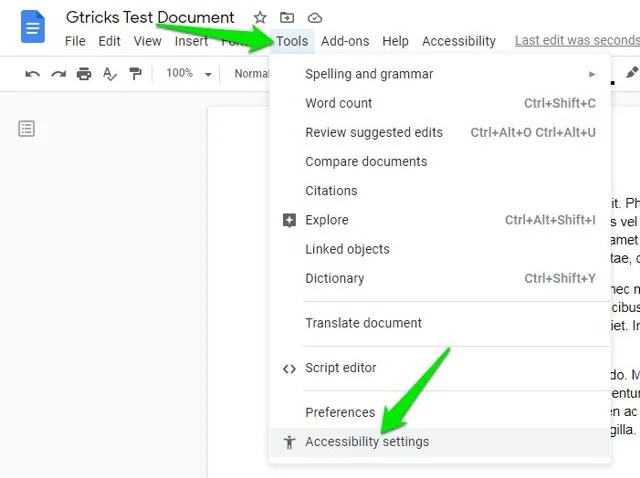
To enable your screen reader software to speak for Google Docs, you need to enable it first to do that, you will go to "Tools," and there you need to click "Accessibility Settings." Now you will see a pop-up window of Accessibility Settings where you need to checkmark the "Turn on screen reader support" option and finish by clicking "OK."
2. Use the accessibility option for doing text-to-speech
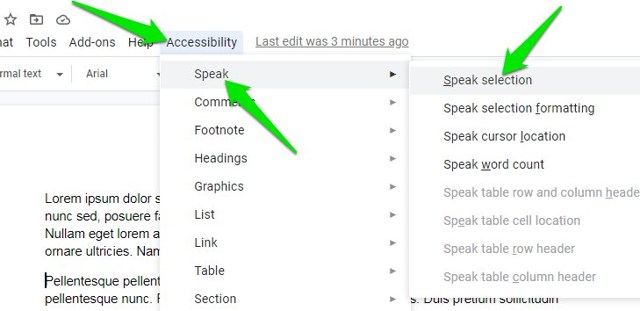
Now everything is set up, and you can click the "Accessibility" option from the top of your screen in Google Docs. Now click "Speak" and then choose "Speak Selection." These steps will start text-to-speech of the selected content in your Google Docs, so ensure that you select the text with your cursor before using this step. For an easier experience, you can use the "Ctrl + Alt + X" keyboard shortcut after selecting the text.
Part 2. How to Use Google Docs Text to Speech on Android?
Google Docs for Android does not include its own TTS control, so use Android accessibility features such as Select to Speak. Menu names can vary by phone brand and Android version; search Settings for “Select to Speak” if it is not listed in the main Accessibility menu.
1. Go to Accessibility Settings on your device.
To enable this feature, you need to open the settings of your device and head to the accessibility section. There, you will find the "Select to Speak" feature.

2. Turn on Select to Speak
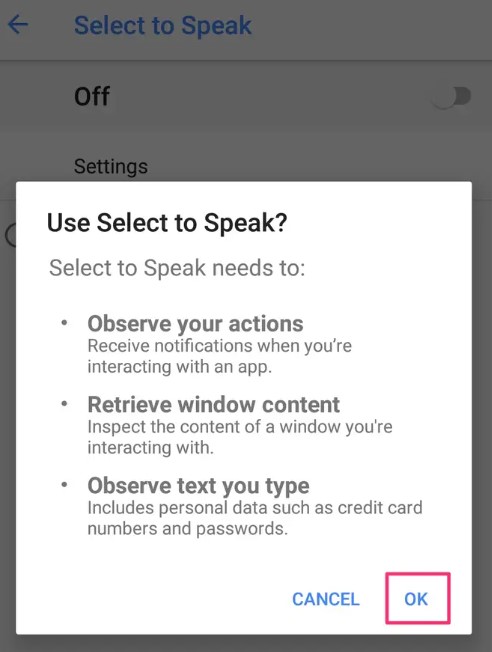
Tap on "Select to Speak" and tap "OK." Doing so will enable the feature for you. Now, you can head to the Google Docs document and select the text that you want to read out loud. After you select the text, there will appear a text-to-speech icon on the lower-right of the screen or the selection will show a circle pop-up. You can use the available one, and your Android device will automatically start speaking the selected text.
Part 3. How to Use Google Docs Text to Speech on iPhone?
On iPhone and iPad, Google Docs relies on Apple’s Spoken Content controls. Enable Speak Selection first, then select the passage you want to hear. For a PDF-focused mobile workflow, see how to read a PDF on iPhone.
1. Enable Spoken Content settings on iPhone
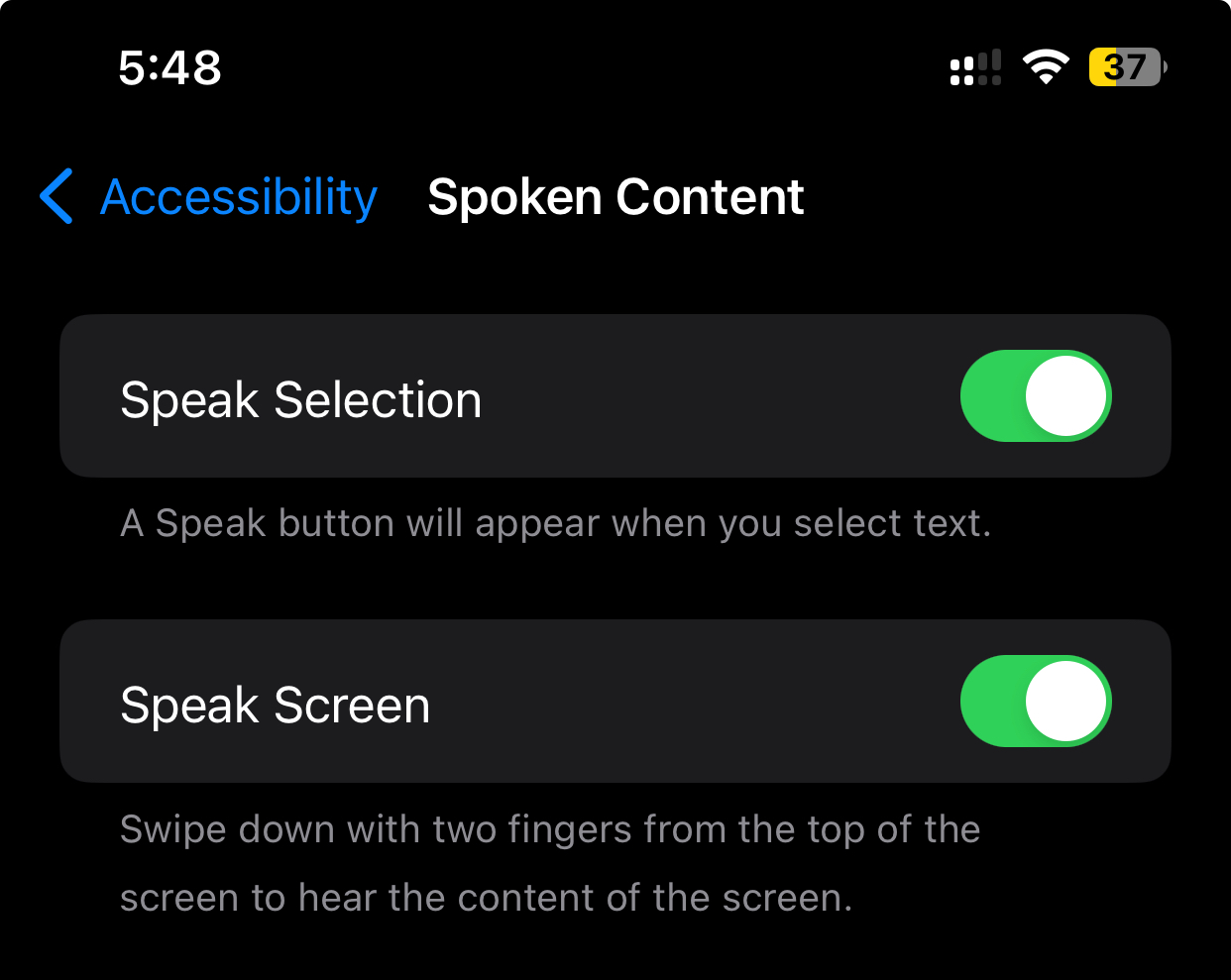
To do Google Docs text-to-speech on your iPhone, you first need to enable the Spoken Content accessibility settings. So, open settings and search for "Speak Selection." Tap the first option from the search results and toggle the "Speak Selection" feature.
2. Select text in Google Docs and tap Speak.
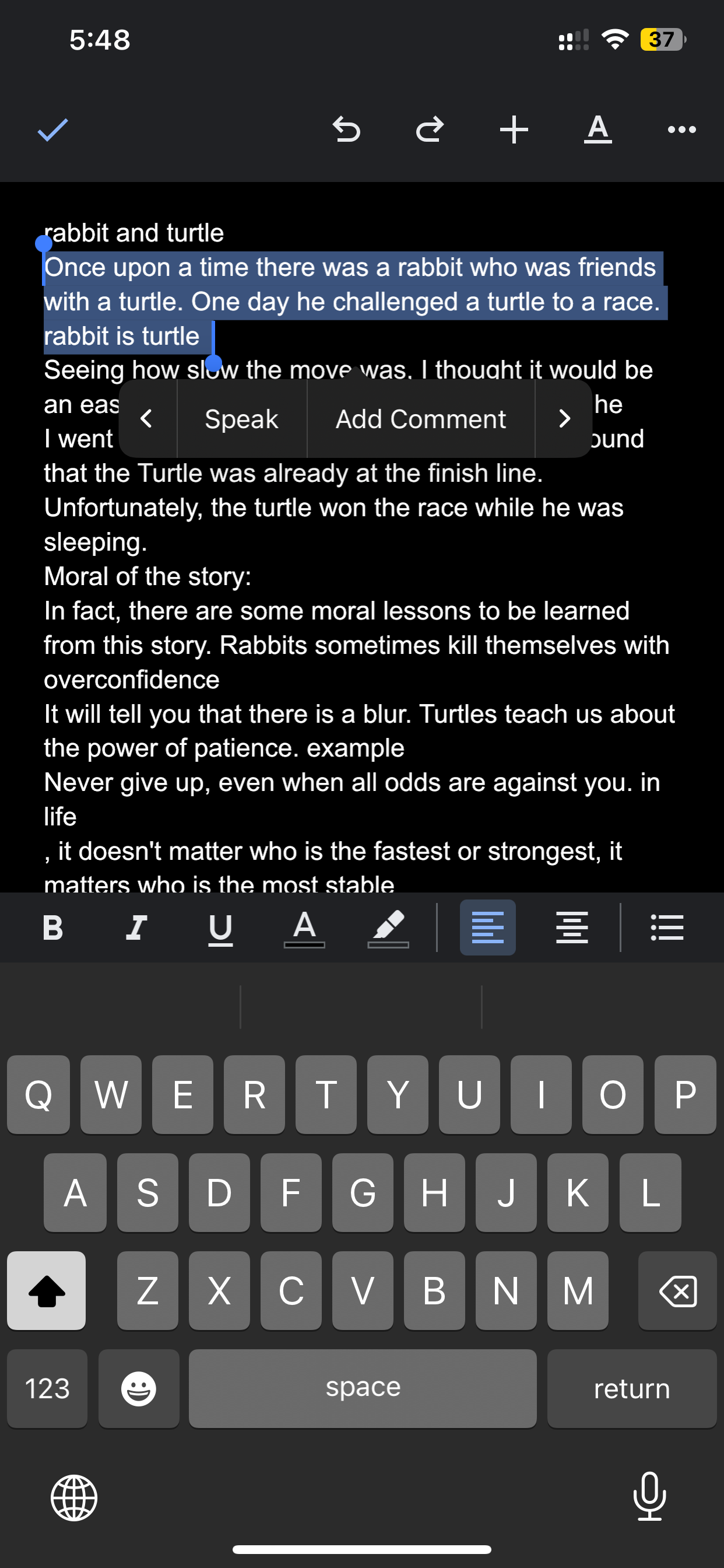
Now, go to the Google Docs application on your iPhone and open the document of your choice. Tap and hold the text to select it, then set the starting and ending points according to your requirements. As you select some text, you will see a pop-up menu that has multiple options. Use the "Right Arrow" to navigate through different options and tap "Speak" once you see it. The selected text in the Google Docs application will be read aloud now.
Part 4. Google Docs Text to Speech Not Working? Fixed!
Check the symptom first instead of repeating every setup step. The table below maps the most common problems to the fastest fix.
| Problem | Likely cause | What to do |
|---|---|---|
| Accessibility or Speak menu is missing | Screen reader support is off, or no screen reader is running | In Google Docs, open Tools > Accessibility Settings, enable screen reader support, and start your screen reader. |
| Text is selected but nothing plays | The speech command was not triggered or the selection lost focus | Select a short sentence again, then use Accessibility > Speak > Speak Selection. Test the screen reader in another app. |
| The keyboard shortcut does nothing | A browser, extension, or operating-system shortcut is conflicting | Use the menu command first. If it works, disable conflicting extensions or change the shortcut. |
| There is no sound | Muted output, wrong audio device, or low speech volume | Play another audio source, check the selected speaker or headphones, and review the device's speech-volume setting. |
| Mobile speech controls do not appear | Select to Speak or Speak Selection is disabled | Re-enable the relevant accessibility control in Android or iOS Settings, then reopen Google Docs. |
| Speech stops or skips content | Complex formatting, comments, tables, or a temporary browser issue | Test a plain paragraph, refresh the document, update the browser/app, or try another supported browser. |
Google Docs also needs an active connection to load and sync the document. If the page itself is not updating correctly, reconnect before troubleshooting speech controls.
Part 5. Bonus Tip: How to Do Text to Speech for PDF?
Google Docs is designed for editable documents, not for preserving a PDF’s original layout while you listen. If your source file is a PDF, UPDF is a more direct option: its PDF reader keeps the document in PDF format, lets desktop users speak selected text, and gives iPhone/iPad users continuous Read Aloud controls with voice, speed, pause, and page navigation options. This is especially useful for reviewing reports, study material, or long documents without converting them first. For a broader comparison of methods, see the guide on how to read a PDF aloud.
Windows • macOS • iOS • Android 100% secure
TTS on Desktop (Mac/Win)
Step 1: Launch UPDF on PC and Access File
First, click the "Free Download" button to install UPDF on your computer, launch it on your Mac or Win and hit the "Open File" option to import the required PDF file you want to read aloud.

Step 2: Select the Text in Read Mode to Read Aloud
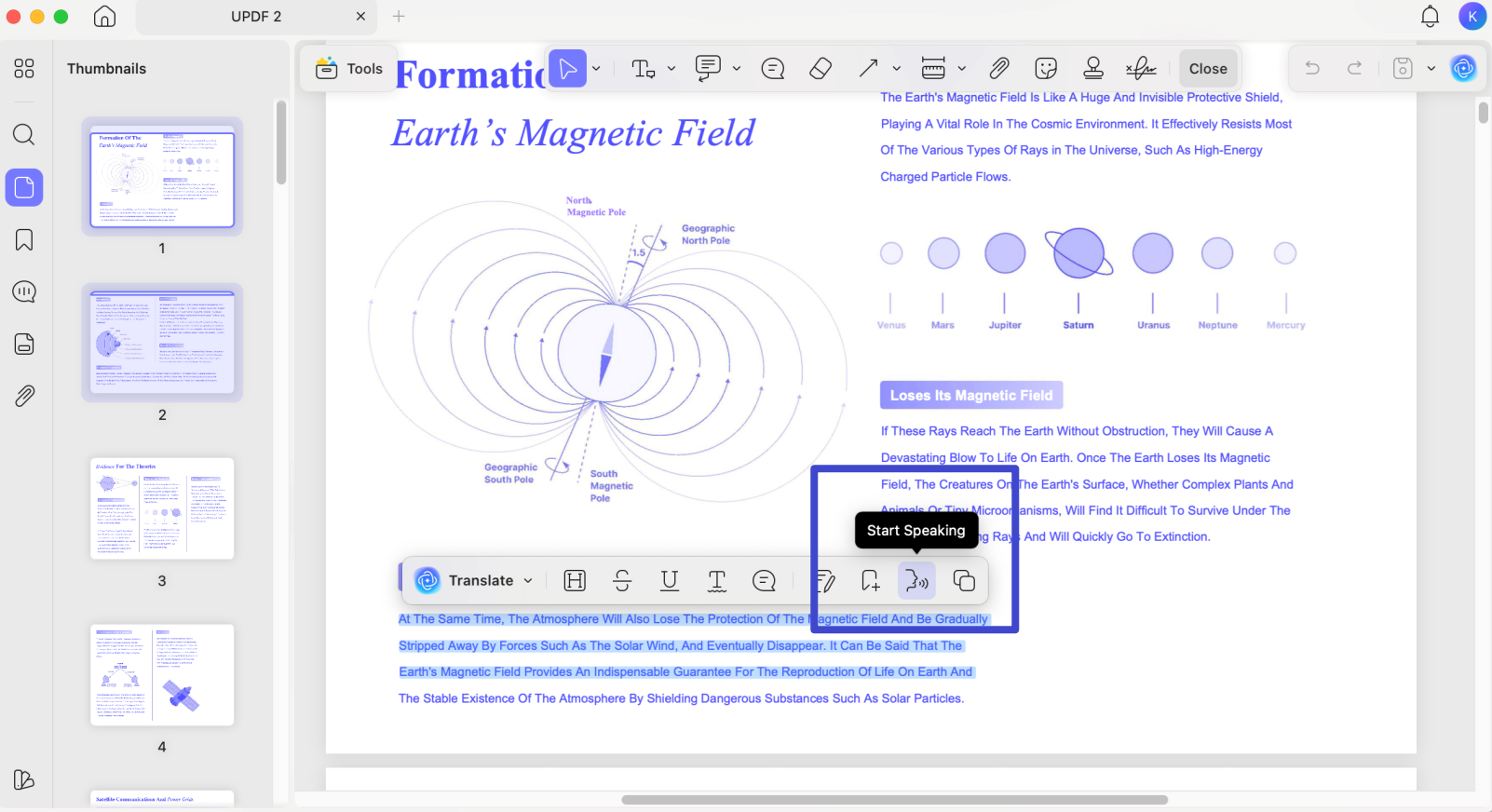
Next, select the specific content you wish to have read aloud. Perform a right-click on the chosen text, and from the ensuing dropdown menu, opt for "Start Speaking."
TTS on iOS
Step 1: Launch UPDF on iOS and Access File
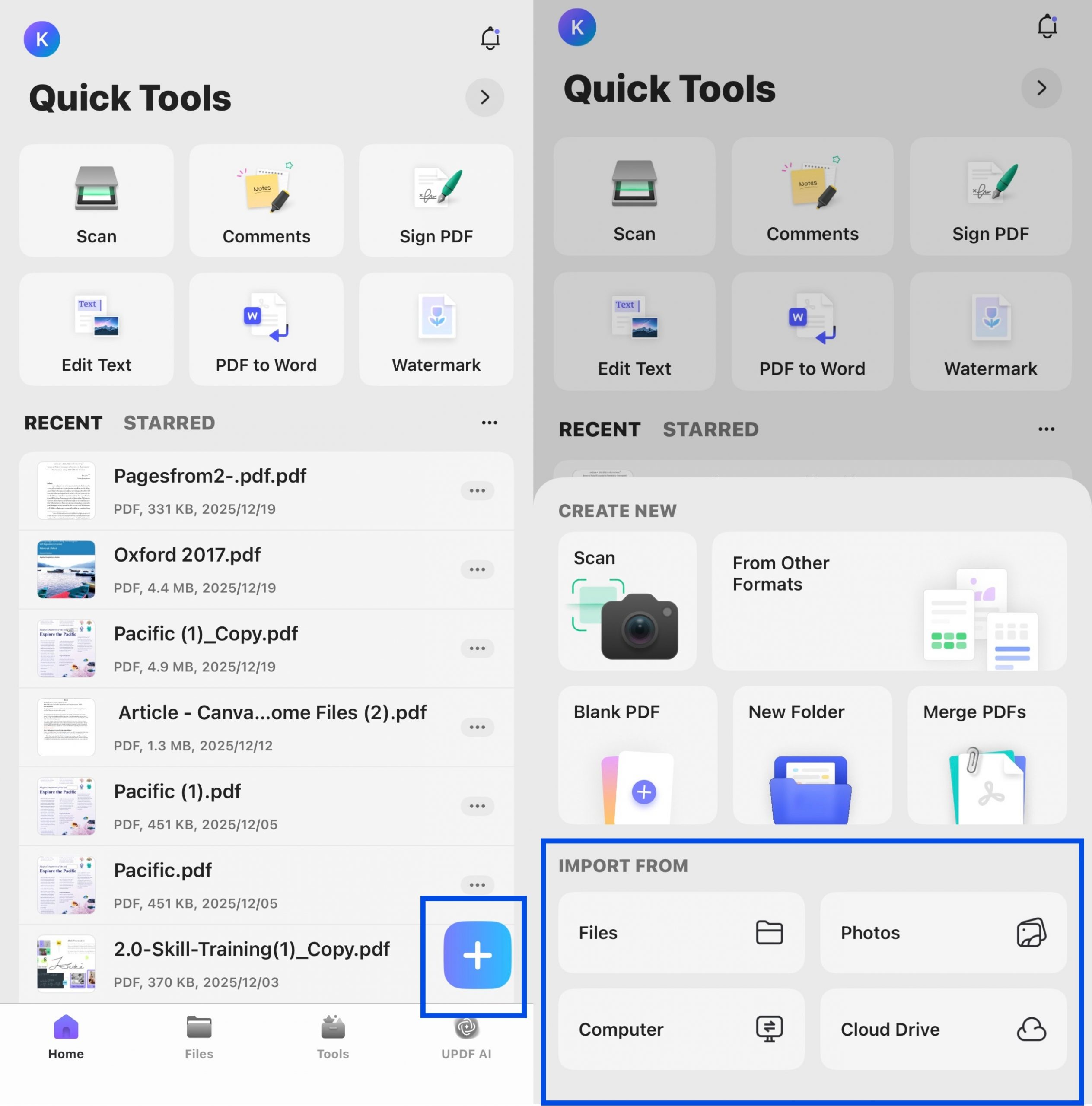
First, install UPDF for iOS on your iPhone or iPad, launch it, and tap the "+" option to import the PDF you want to hear.
Step 2: Select the Text to Read Aloud
Next, select the specific content you wish to have read aloud. Select Listen Here from the floating toolbar, and UPDF will start reading aloud.
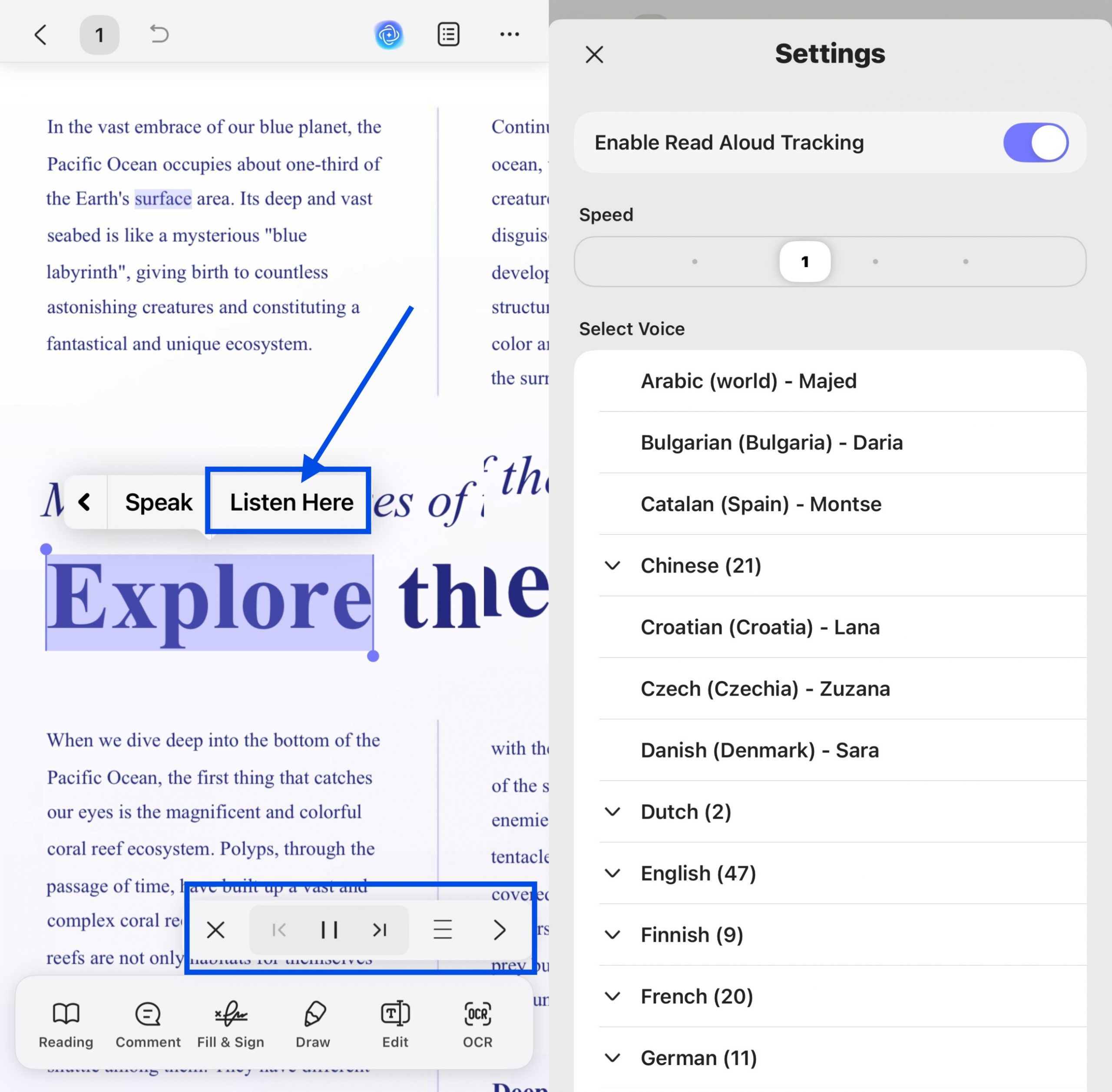
Use the playback toolbar to stop, pause, resume, or move between pages. Open the menu to enable Read Aloud Tracking, adjust the speed, and choose a suitable voice or language. If you are comparing apps or need more accessibility details, this guide to a PDF reader with text to speech explains what to check before a long listening session.
During reading, the corresponding text will be highlighted, making it easier for you to locate the current content being read aloud.
TTS for Scanned PDFs on Desktop and iOS
If the page behaves like one image and you cannot select individual words, run OCR on the scanned PDF first. UPDF can create a searchable text layer while preserving the document layout, after which the recognized text can be selected and read aloud. OCR supports 38 languages and is available as an advanced feature; check the current UPDF pricing if you need it regularly.
Step 1: Launch UPDF on PC or iOS and Access File
Based on the steps mentioned above, launch UPDF on your computer or iOS device and open your scanned document.
Windows • macOS • iOS • Android 100% secure
Step 2: Perform OCR on PC or iOS
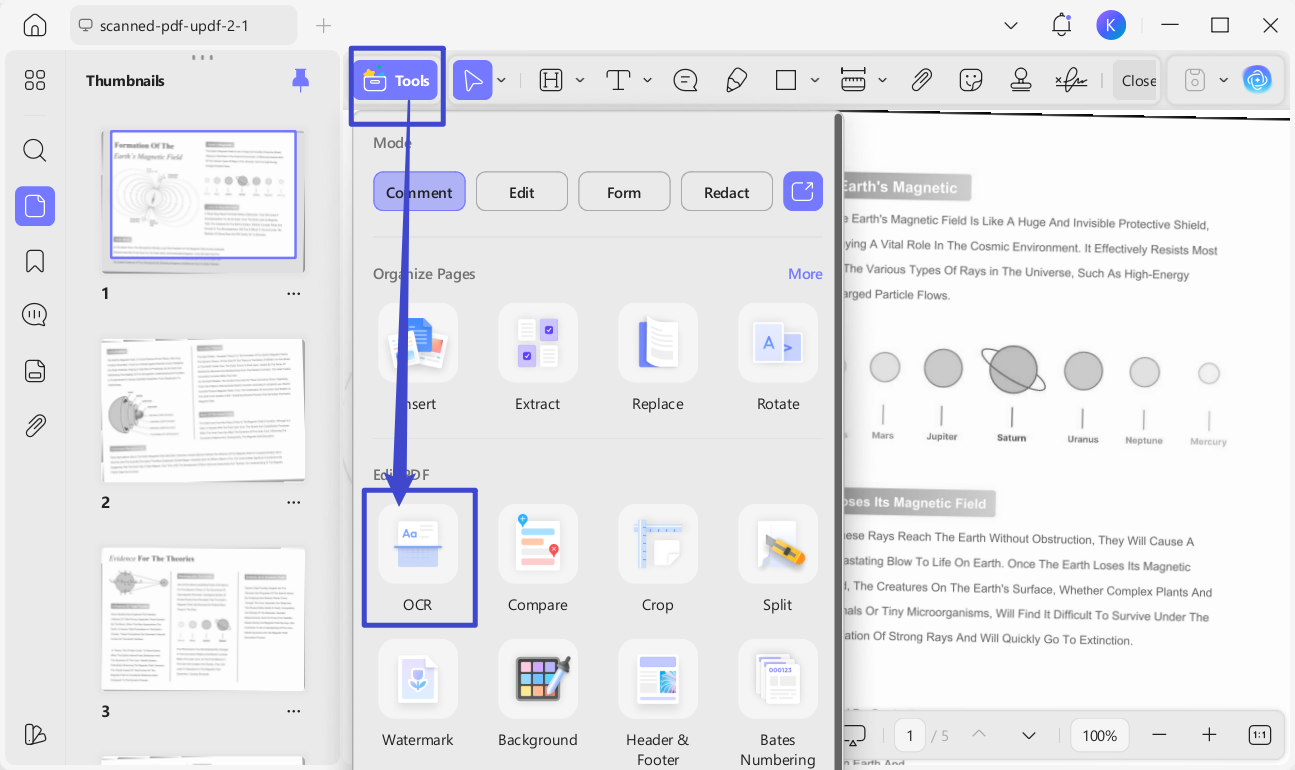
For computer users, click OCR in Tools.
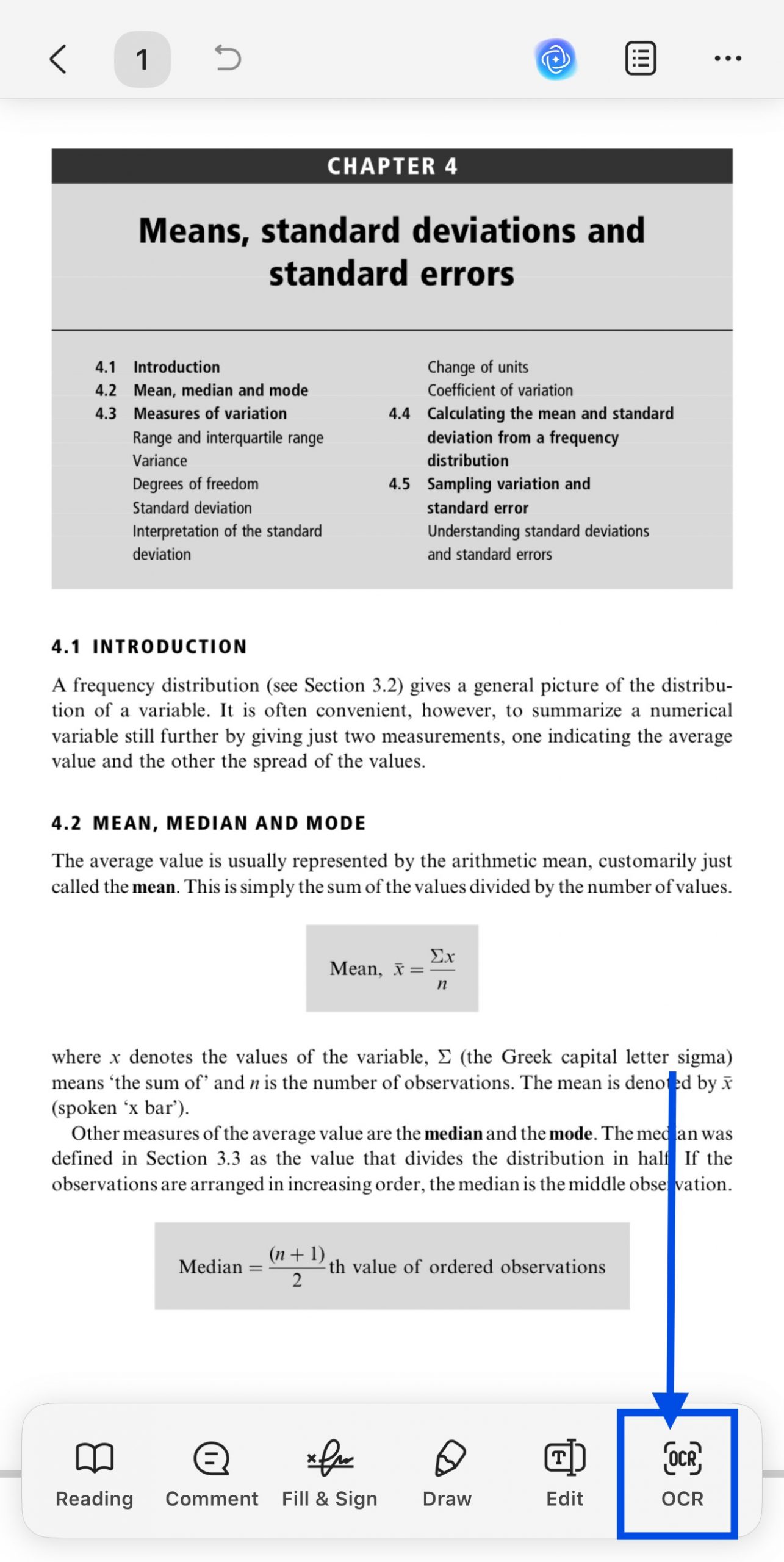
For iOS users, select OCR from the bottom toolbar.
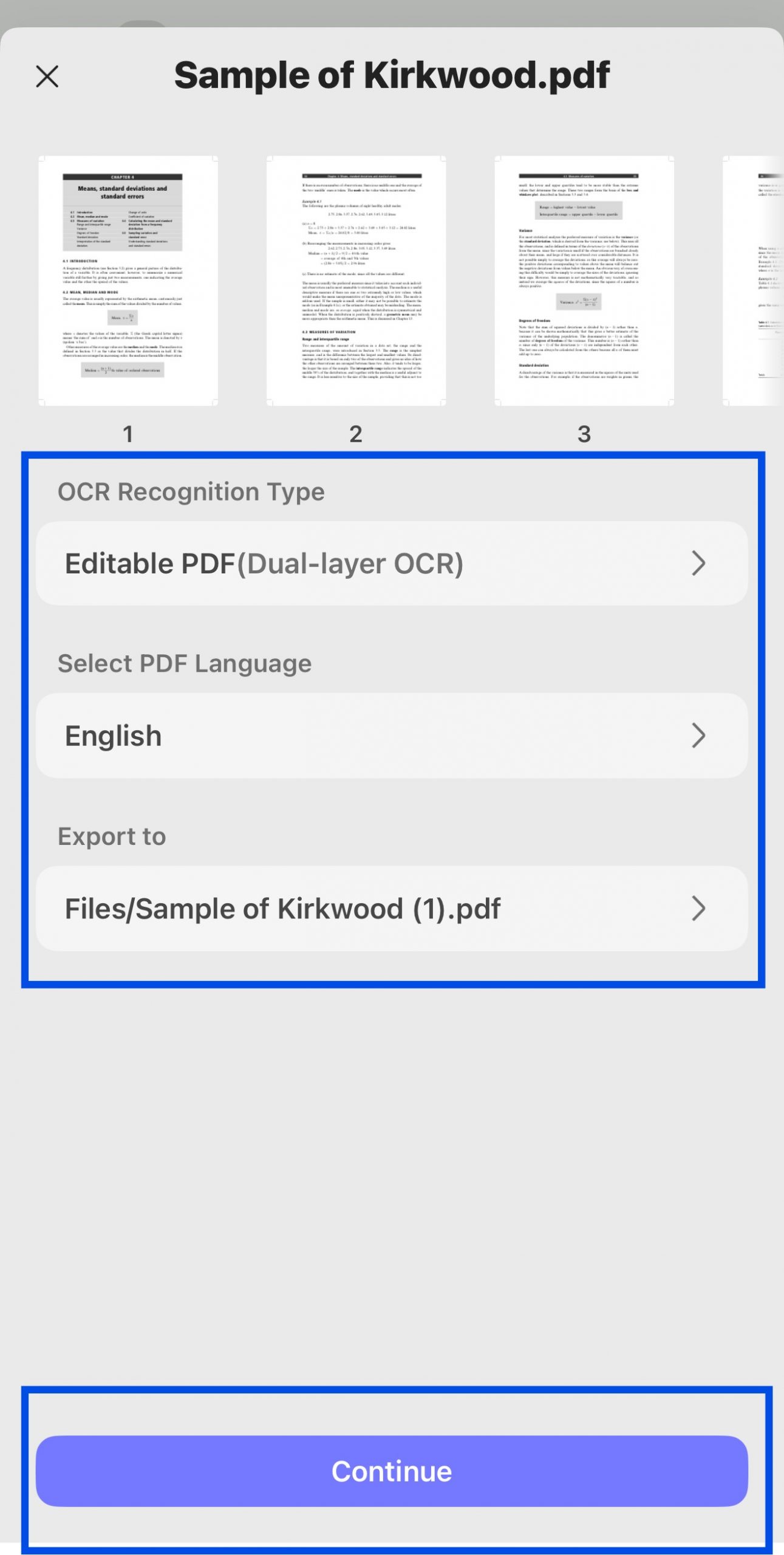
Step 3. Customize OCR settings (Mode, Language, Page Range)
As it opens up, it will provide you with 3 different options of Document Type, which include Editable PDF, Text and Picture Only, and Searchable PDF Only.
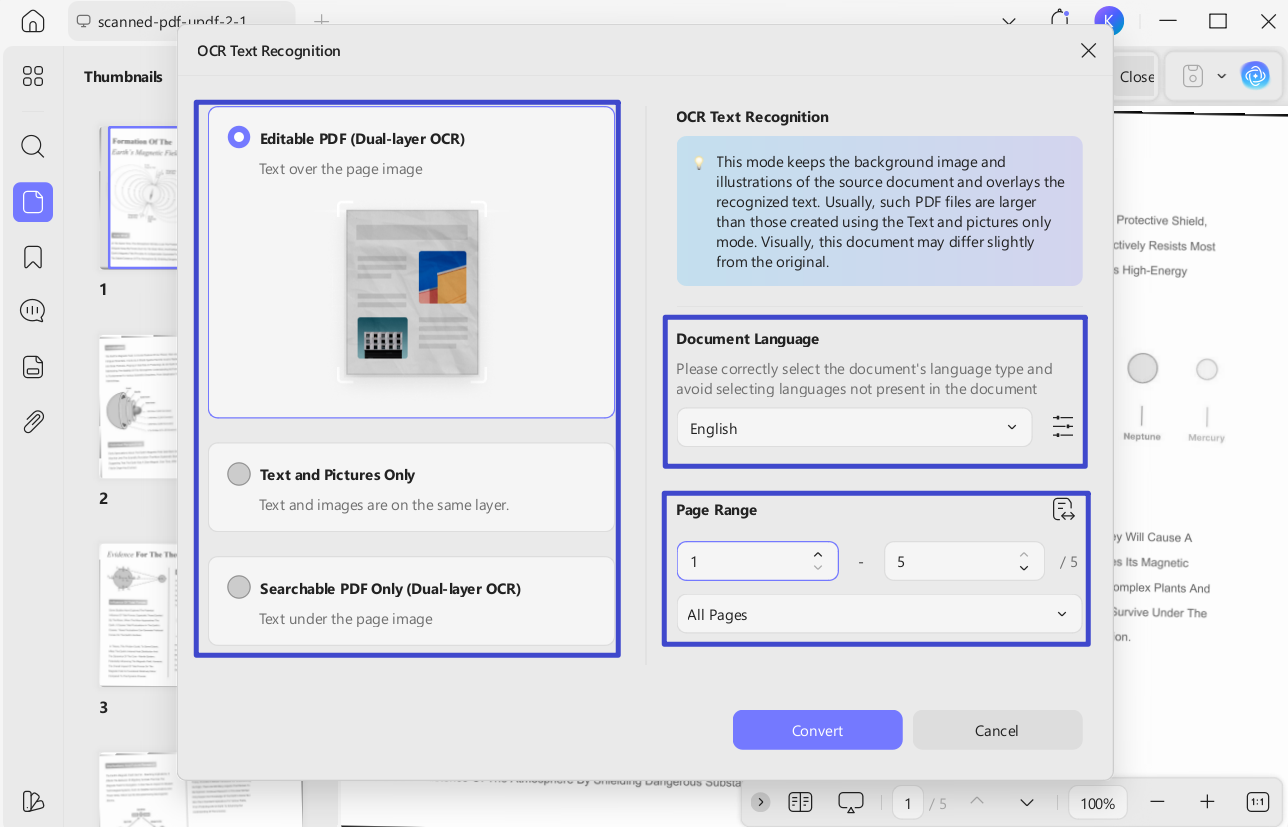
Define a proper Document Language with the option of 38 different languages across the extended menu and choose the page range. Once done, press the Convert/Continue button to execute OCR across.
Step 4. Open the OCRed File and Select Text to Read Aloud
Once the OCR is completed, open the newly-generated OCRed PDF and use the methods mentioned above to read PDF aloud.
Other Useful PDF Reading Features
Beyond speech playback, UPDF lets you search long documents, add bookmarks, highlight or annotate while reading, and use AI to summarize or explain difficult passages. These tools keep the listening and review workflow in the same file. If audio is your main requirement, compare the practical options in this guide to the best PDF audio readers.
Final Words
Google Docs is one of the best platforms for working on text documents within a collaborative environment. However, it may not be very productive for everyone, considering the reading time and energy it takes. That's where text to speech on Google Docs can be a very helpful feature, but the problem is that most users don't know how to utilize it.
With the detailed guide for different devices shared above, we hope that now you can do text-to-speech on any Google Docs file regardless of the device you are using. The only type of file that is not supported here is PDF since you may lose PDF formatting if used in Google Docs for reading aloud. So, you may use UPDF by downloading it for free for performing text-to-speech on any PDF file.
Windows • macOS • iOS • Android 100% secure








 Enola Miller