UPDF
UPDF
 UPDF for Windows
 UPDF for Mac
 UPDF for iPhone/iPad
 UPDF for Android
 Nomostar
 UPDF AI Online
 UPDF Sign
 IvyCraft
 Edit PDF
 Annotate PDF
 Create PDF
 PDF Form
 Edit links
 Convert PDF
 OCR
OCR PDF to Word
 PDF to Image
 PDF to Excel
 Organize PDF
 Merge PDF
 Split PDF
 Crop PDF
 Rotate PDF
 Protect PDF
 Sign PDF
 Redact PDF
 Sanitize PDF
 Remove Security
 Read PDF
 UPDF Cloud
 Compress PDF
 Print PDF
 Batch Process
 About UPDF AI
 UPDF AI Solutions
 AI User Guide
 FAQ about UPDF AI
 Summarize PDF
 Translate PDF
 Chat with PDF
 Chat with AI
 Chat with image
 PDF to Mind Map
 Explain PDF
 PDF AI Tools
 Image AI Tools
 AI Chat Tools
 AI Writing Tools
 AI Study Tools
 AI Working Tools
 Other AI Tools
 AI Bookmark Generation
 AI Bookmark Summary
 AI Watermark Generation
 AI Background Generation
 AI Sticker Generation
 AI Stamp Generation
 AI Editing Suite
 UPDF Copilot
 AI Page Management
 AI Semantic Search
 PDF to Word
 PDF to Excel
 PDF to PowerPoint
 Enterprise Solution
 Enterprise Sign
 Enterprise AI
 Enterprise Plan
 Enterprise User Guide
 Enterprise Webinar
 IT
IT Education
 Construction
 Financial Service
 Healthcare
 Insurance
 Legal
Legal Manufacturing
 Government
 Researchers & PhDs
 Solopreneurs & Freelancers
 Lawyers & Legal Professionals
 Real Estate Agents & Brokers
 Education Solution
 Customer Stories
 User Guide
 UPDF Tricks
 FAQs
FAQs UPDF Reviews
 Download Center
 Blog
Blog Newsroom
 Tech Spec
 Updates
 UPDF vs. Adobe Acrobat
 UPDF vs. Foxit
 UPDF vs. PDF Expert

If you have tried to fix a typo or rebrand a PDF document, you may find the font won't budge. This leads to a common question: can we even change fonts in a PDF?
The short answer is yes, but PDFs work differently than Word files. A PDF is a fixed-layout format, so its text, graphics, fonts, and positioning are locked in place. That's great for preserving how a document looks across devices, which we miss in a word processor. However, the right PDF font changer can swap fonts without wrestling with the file's underlying structure.
Some of the common scenarios that need font-changing:
- Updating the font of text that's already in the document.
- Choosing a font for new text boxes you are adding.
- Making text in a scanned or image-based PDF editable in the first place.
- Replacing fonts consistently across an entire multi-page file.
Each of these calls for a different approach, and we will walk through all of these in this step-by-step guide.
Want to customize fonts in your PDF right away? Download UPDF for free to edit fonts smoothly across Windows, Mac, iOS, and Android.
Windows • macOS • iOS • Android 100% secure
Method 1: How to Change Font in PDF for Selected Text or Text Boxes (Using UPDF)
Many times, the common need is to change the font in a PDF text box or a specific line/paragraph. UPDF's Edit PDF feature makes the process quick and simple.
UPDF is an advanced PDF editor that makes editing PDFs almost as easy as editing a Word document. You can change the font family, font size, color, and other text formatting without converting your PDF to another format. It also supports editing both existing text and newly added text boxes.
The revised text should still look like it belongs in the document. For a practical example of editing PDF content in UPDF, watch the walkthrough below.
If you want to see everything else the tool can do beyond fonts, our full how to edit a PDF guide walks through UPDF's complete editing toolkit.
Below, we will show you how to change the font for existing text as well as how to choose a different font when adding new text boxes.
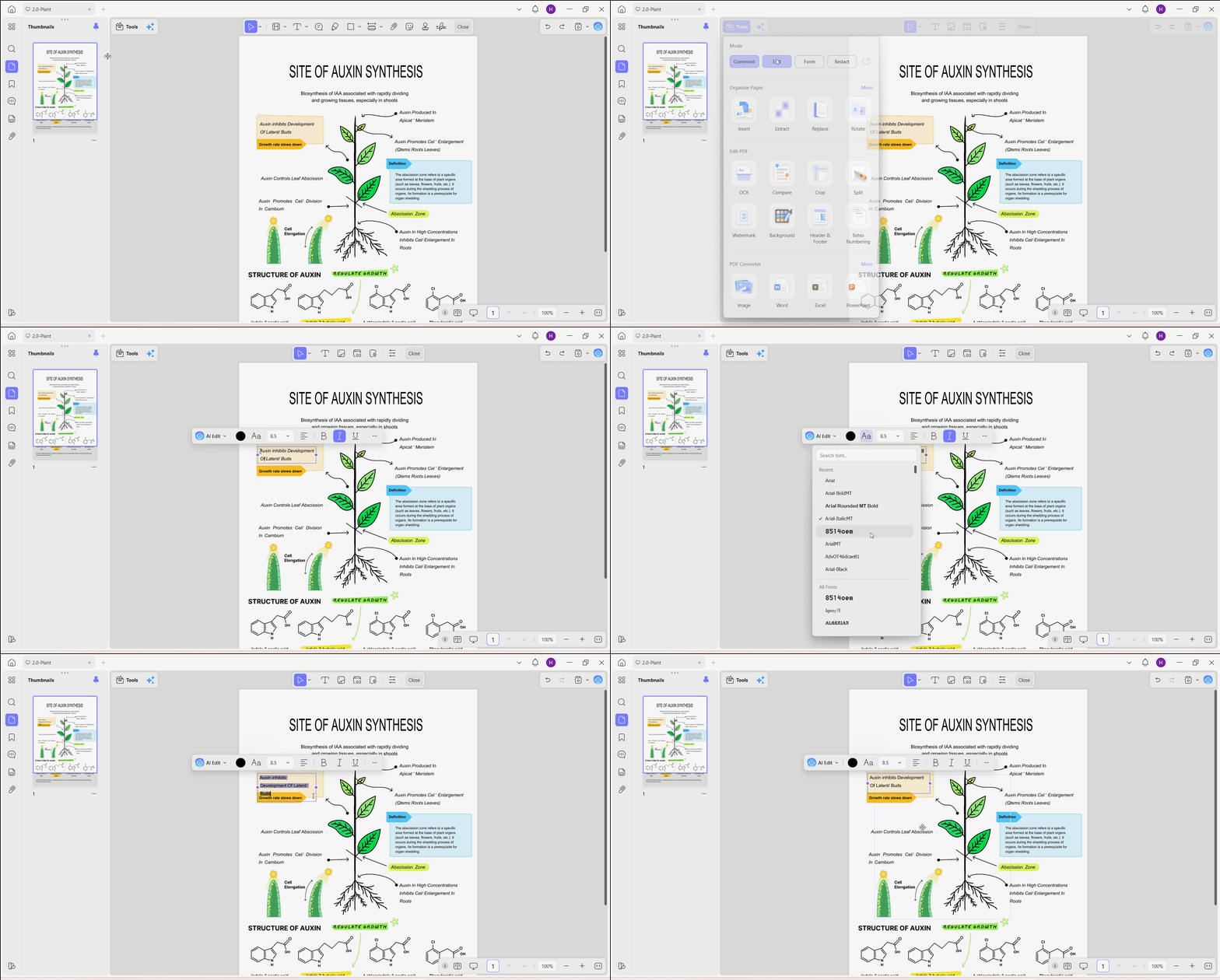
Scenario A: Changing Font for Existing Text
- Open UPDF and import your PDF document.
- Click Tools > Edit from the top right corner to enter editing mode.
- Click inside the text box you want to edit and highlight the text whose font you want to change.
- A small formatting toolbar will appear above the selected text. Open the Font Family dropdown and select your preferred font. Your selected text updates immediately, while the rest of the document remains intact.
Scenario B: Change the Font from a New Text Box
- In the Edit PDF mode (Tools > Edit), click "Text" from the top toolbar.
- Click anywhere on the page to insert a new text box.
- Type the content, highlight it, and then use the font panel to pick your preferred typeface/size/color.
- After making all edits, click elsewhere on the page to finalize the text box.
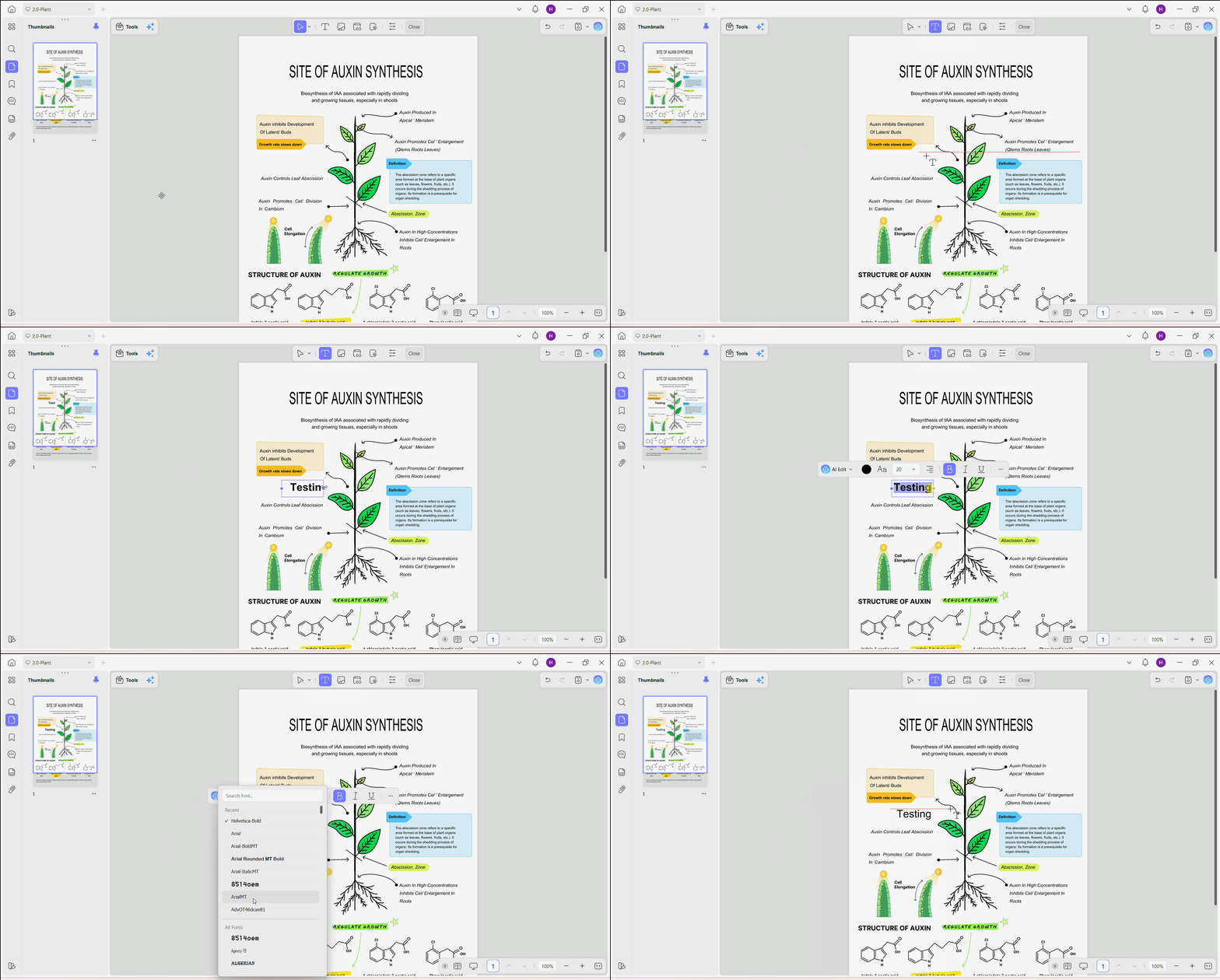
System Font Compatibility: UPDF automatically fetches and supports all local system fonts installed on your Windows or Mac device (.ttf/.otf). If you need a specific corporate or custom typeface, just install it on your operating system first. Afterward, UPDF will pick it up, with no need for an extra import step required.
A Few Things to Check Along the Way
- Not sure what font is already in your document? Read the find font from PDF guide to identify embedded fonts before you start swapping anything out.
- Trying to keep formatting consistent across a document? Take a look at the edit PDF with same font guide so your typography stays uniform without disrupting the layout.
- Text looking cramped or overflowing after a font swap? Different typefaces have different character widths, so you may need to learn how to change font size in PDF to fine-tune the fit.
Method 2: How to Change Font in Scanned or Image-Based PDFs (OCR First)
Sometimes the font won't change because there's no actual text to select. Scanned documents or image-based PDFs have pictures of text, so there isn't any editable text layer for a PDF editor to work with.
To change the font in a PDF in this case, you first need to convert the scanned content into editable text through OCR (Optical Character Recognition). UPDF supports performing OCR, and the steps are as follows:
- Open the scanned document in UPDF, then click Tools > OCR at the top.
Windows • macOS • iOS • Android 100% secure
- Select "Editable PDF" layout, document language, and page range. Then, tap "Convert".
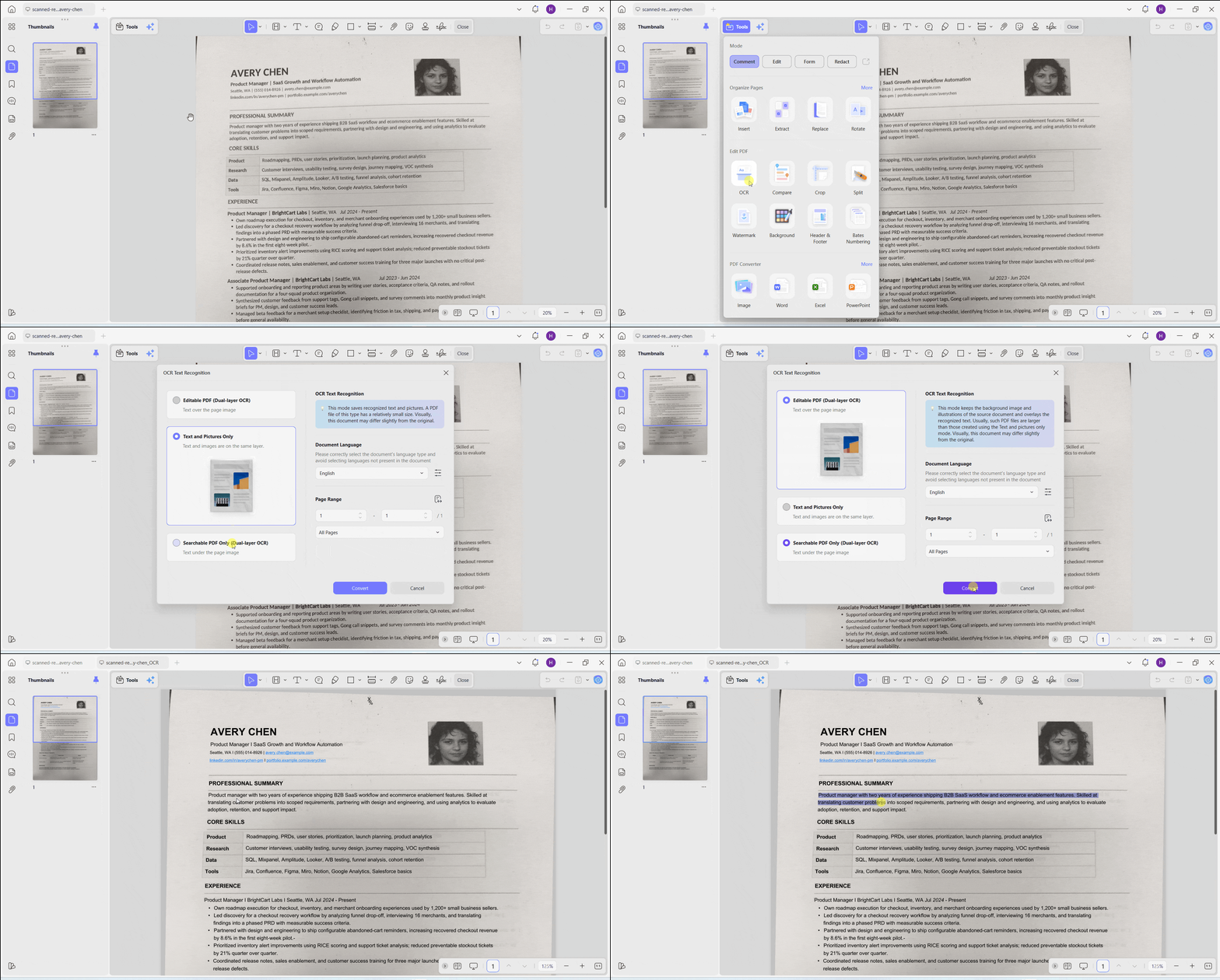
- After the OCR, the non-editable image turns into an editable PDF layer. From here, follow the steps in Method 1 to select the recognized text and change its font as needed.
Method 3: How to Change Font for an Entire PDF (The Smart Workaround)
Many users ask: "Can I replace every font in my PDF with one click?" Unfortunately, there is an important limitation you should know about.
Why No PDF Editor Can Replace Every Font Automatically
PDF files aren't structured like Word documents. Each paragraph, heading, caption, and table is stored as an independent text object with a precise position on the page.
Due to that, no PDF editor offers true document-wide font replacement across multi-page PDFs with a single click.
Some software, including Adobe Acrobat, allows users to edit or select text within individual text boxes or pages. If you are interested in Adobe's approach, see our guide on how to change font in Adobe Acrobat. However, there is a much better workflow for large documents.
The Best Full-Document Font Replacement Solution (UPDF PDF-to-Word Workflow)
A reliable way to overcome this limitation is to rely on a tool that has the desired font-replacement feature. Microsoft Word features a powerful native "Replace Fonts" engine.
So, what you can do is convert PDF to Word using UPDF's high-precision conversion engine, replace fonts in Word, and save it back as the PDF.
Follow these steps to change the full-document font:
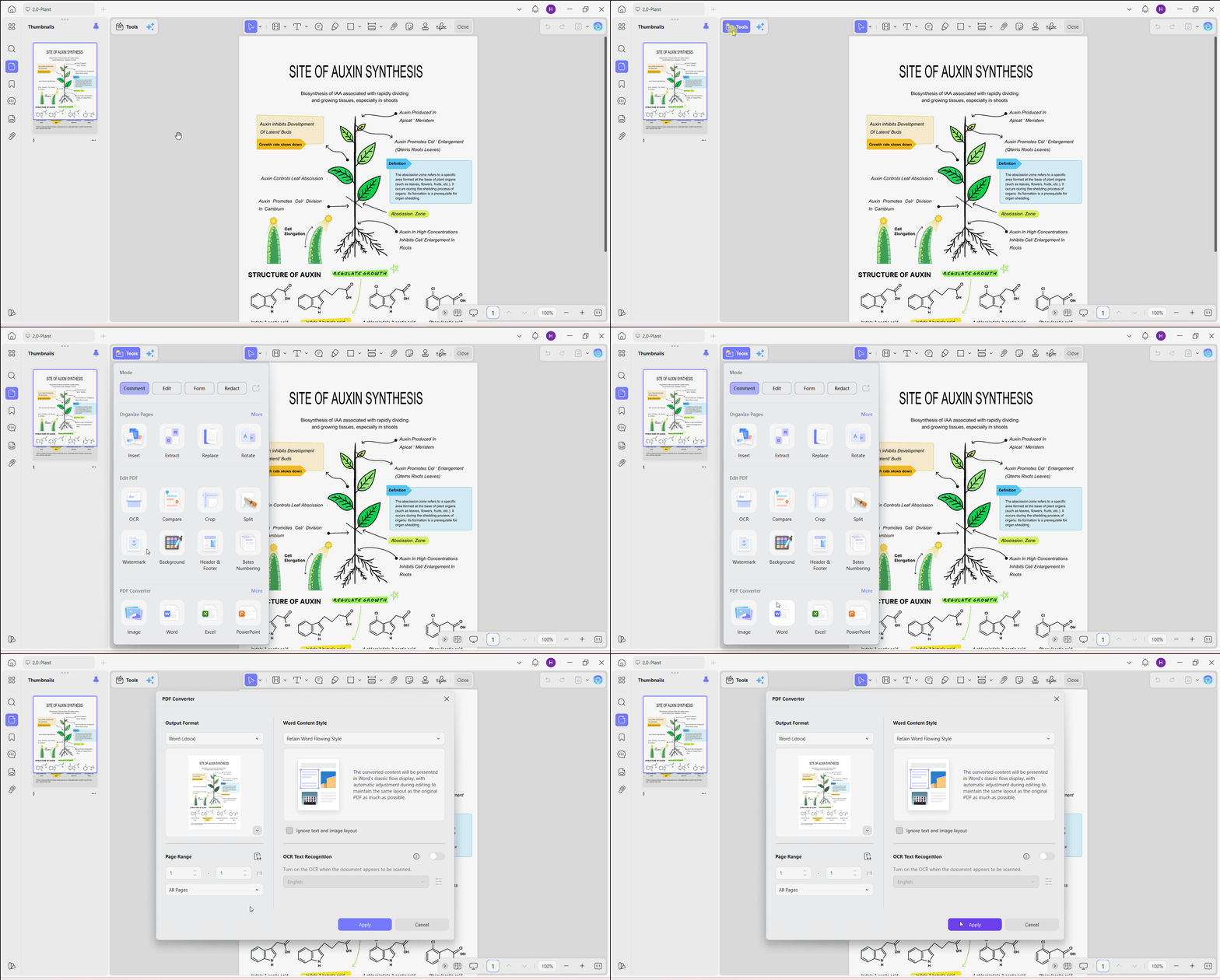
1. Open your document in UPDF and click Tools > Word to convert the PDF to Word format.
2. Open the converted file in Microsoft Word and go to Home > Replace > More > Format and pick Font.
3. Choose the old font you want to remove and click OK.
4. Click inside the Replace with box and make sure it is empty.
5. Click Format, then Font again.
6. Choose your new replacement font and click OK.
7. Click the Replace All button.
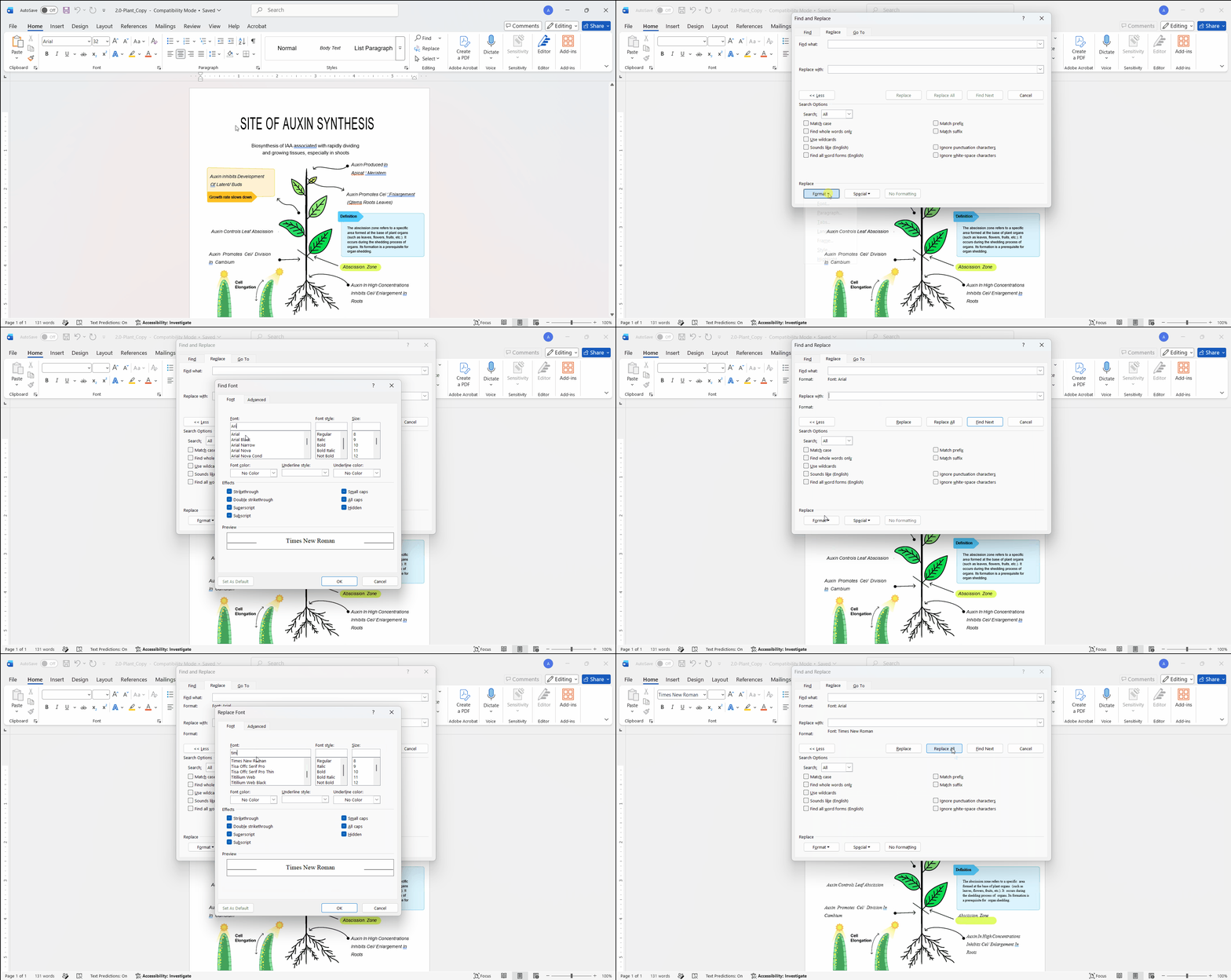
8. Save your modified Word file, then reopen and save it in UPDF to produce a high-quality PDF.
Because UPDF's conversion engine preserves layout and formatting with high accuracy, you get the benefit of Word's global font tools without the usual mess of broken formatting on the way back to PDF.
Whether you need to tweak a single text box font, process scanned documents, or edit a full file, UPDF makes font editing effortless. But don't just take our word for it. Download UPDF and change the font in a PDF for free yourself.
Windows • macOS • iOS • Android 100% secure
Quick Comparison: Which Method Fits Your Font Changing Need?
| Goal / Scenario | Recommended Method | Workflow Speed | Best Solution / Tool |
| Change the font for existing text or a new text box | Open Edit PDF, select the existing text or insert a new text box, then choose the desired font from the formatting toolbar. | Extremely Fast (Seconds) | UPDF Edit PDF |
| Change the font in a scanned or image-based PDF | Run OCR to convert the scanned document into an editable PDF, then use Edit PDF to change the font. | Fast (1–2 Minutes) | UPDF OCR + Edit PDF |
| Replace fonts throughout an entire PDF document | Export the PDF to Word, use Microsoft Word's Replace Fonts feature to swap fonts globally, then save the file back as a PDF. | Moderate | UPDF PDF-to-Word + Microsoft Word Replace Fonts |
Frequently Asked Questions
Why can't I change the font in a PDF?
This usually comes down to one of two reasons. First, the PDF might be a scanned document or image-based file with no editable text layer (you can run UPDF's OCR engine first to resolve this). Second, the file may have editing restrictions or a password applied, which needs to be removed before any editing can happen.
Why does the layout mess up when I change font in a PDF?
Different font families have distinct font metrics (character widths and line heights). Swapping to a font with wider proportions inside a fixed PDF layout can cause text to overflow its bounding box. Adjusting the font size slightly alongside the font change using UPDF can fix this.
Is it possible to change font in a PDF for free?
Yes. While basic PDF viewers only allow reading, UPDF offers a free trial that lets users experience text box font changes, OCR text recognition, and PDF-to-Word conversions firsthand.
How do I change font style (Bold, Italic, Color) in a PDF?
Enter Edit PDF mode in UPDF and highlight your text. Right alongside the Font Family dropdown, the context menu provides quick controls for font size, font color, bold, and italics. All of these are adjustable instantly.
Bottom Line
It is straightforward to change fonts in a PDF once you match the right method to the job's scope. For localized text, new text boxes, and scanned files, editing directly inside UPDF gets the job done in a few clicks. For document-wide font changes, the PDF-to-Word workflow is the most efficient way to ensure consistent results across all pages.
Take control of your PDF formatting with ease. Download UPDF today to change fonts and polish your documents with just a few clicks.
Windows • macOS • iOS • Android 100% secure









 Lizzy Lozano
 Enola Davis
 Delia Meyer
 Enola Miller