 UPDF
 UPDF for Windows
 UPDF for Mac
 UPDF for iPhone/iPad
 UPDF for Android
 Nomostar
 UPDF AI Online
 UPDF Sign
 IvyCraft
 Edit PDF
 Annotate PDF
 Create PDF
 PDF Form
 Edit links
 Convert PDF
 OCR
 PDF to Word
 PDF to Image
 PDF to Excel
 Organize PDF
 Merge PDF
 Split PDF
 Crop PDF
 Rotate PDF
 Protect PDF
 Sign PDF
 Redact PDF
 Sanitize PDF
 Remove Security
 Read PDF
 UPDF Cloud
 Compress PDF
 Print PDF
 Batch Process

 About UPDF AI
 UPDF AI Solutions
 AI User Guide
 FAQ about UPDF AI
 Summarize PDF
 Translate PDF
 Chat with PDF
 Chat with AI
 Chat with image
 PDF to Mind Map
 Explain PDF
 PDF AI Tools
 Image AI Tools
 AI Chat Tools
 AI Writing Tools
 AI Study Tools
 AI Working Tools
 Other AI Tools
 AI Bookmark Generation
 AI Bookmark Summary
 AI Watermark Generation
 AI Background Generation
 AI Sticker Generation
 AI Stamp Generation
 AI Editing Suite
 UPDF Copilot
 AI Page Management
 AI Semantic Search
 PDF to Word
 PDF to Excel
 PDF to PowerPoint
 Enterprise Solution
 Enterprise Sign
 Enterprise AI
 Enterprise Plan
 Enterprise User Guide
 Enterprise Webinar
 IT
 Education
 Construction
 Financial Service
 Healthcare
 Insurance
 Legal
 Manufacturing
 Government
 Researchers & PhDs
 Solopreneurs & Freelancers
 Lawyers & Legal Professionals
 Real Estate Agents & Brokers
 Education Solution
 Customer Stories
 User Guide
 UPDF Tricks
 FAQs
 UPDF Reviews
 Download Center
 Blog
 Newsroom
 Tech Spec
 Updates
 UPDF vs. Adobe Acrobat
 UPDF vs. Foxit
 UPDF vs. PDF Expert


View PDF on Mac
With UPDF on Mac, you can view and manage PDF documents with ease. It offers multiple viewing modes, lets you open PDFs in separate windows, organize documents using tabs, and resume reading from your previous position. You can also adjust page gaps for a more comfortable reading experience. This guide will walk you through the different ways to view PDFs on your Mac.
Windows • macOS • iOS • Android 100% secure
View PDF in Different Modes
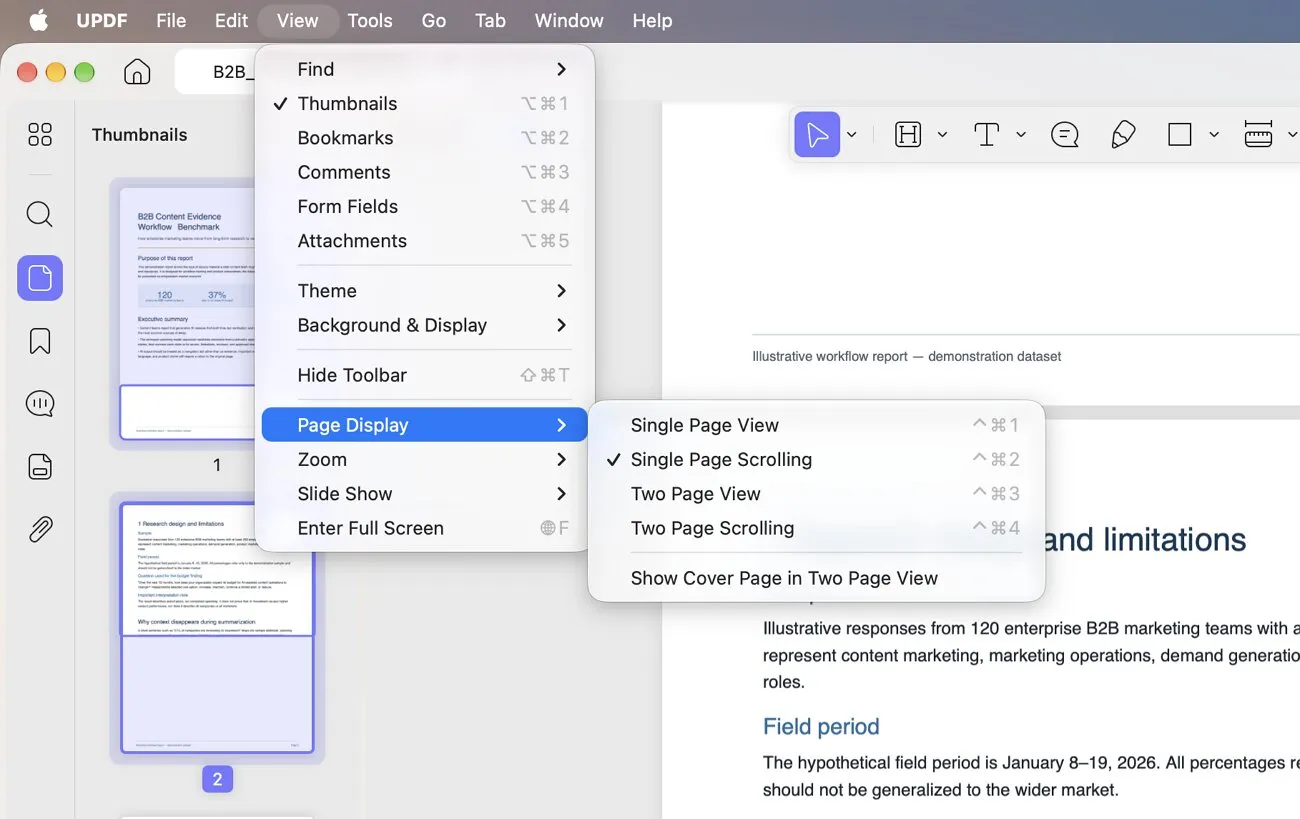
PDF documents can be viewed in different ways in UPDF, such as single-page, two-page, and with or without the scrolling option.
To change the page view mode, you can click the "View" and select the "Page Display" option. And then choose the appropriate mode:
Single Page View: View PDF pages one at a time.
Two Page View: View PDF pages like a book - side by side. And if you want to show the cover page in this mode, you can select "Show Cover Page in Two Page View".
Single Page Scrolling/Two Page Scrolling: Both views offer a scrolling option that makes for a better reading experience.
Show or Hide Page Gaps
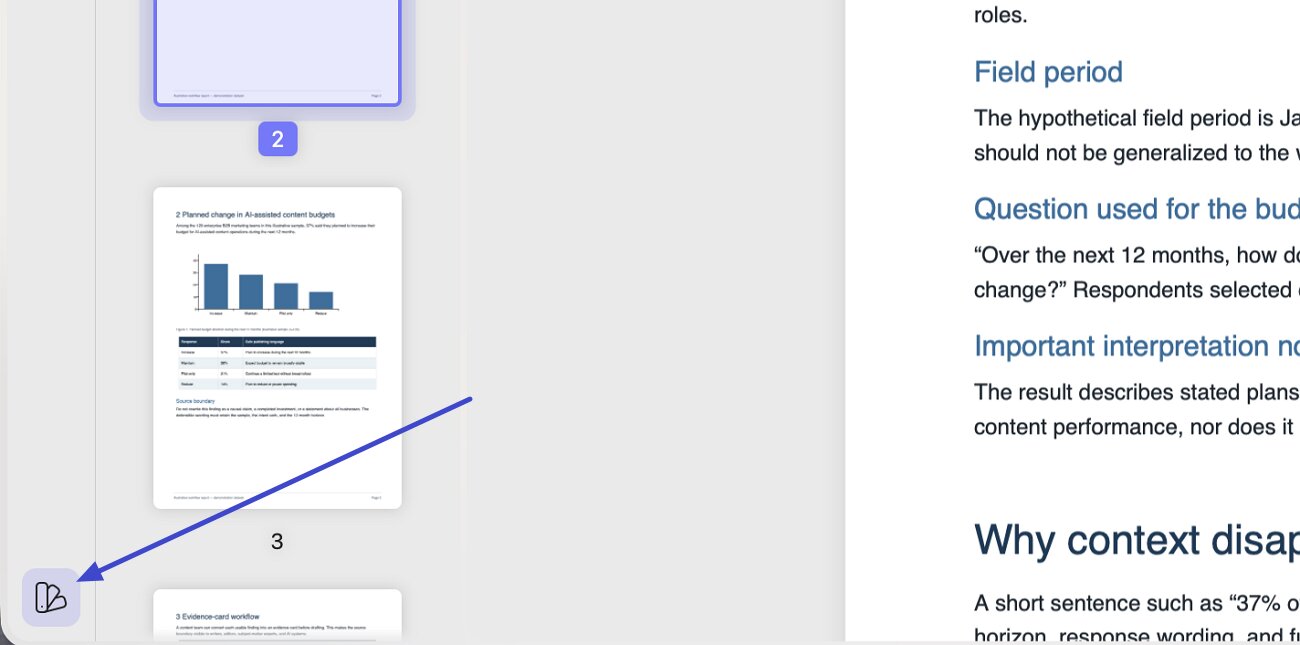
UPDF for Mac lets you control the divider lines between PDF pages for a more comfortable reading experience. You can enable these lines to clearly distinguish individual pages or disable them for a more continuous view. Here is how to show or hide page divider lines in UPDF:
Step 1. Access Appearance Settings. Open UPDF on your Mac and click the “Appearance” option in the bottom-left corner.
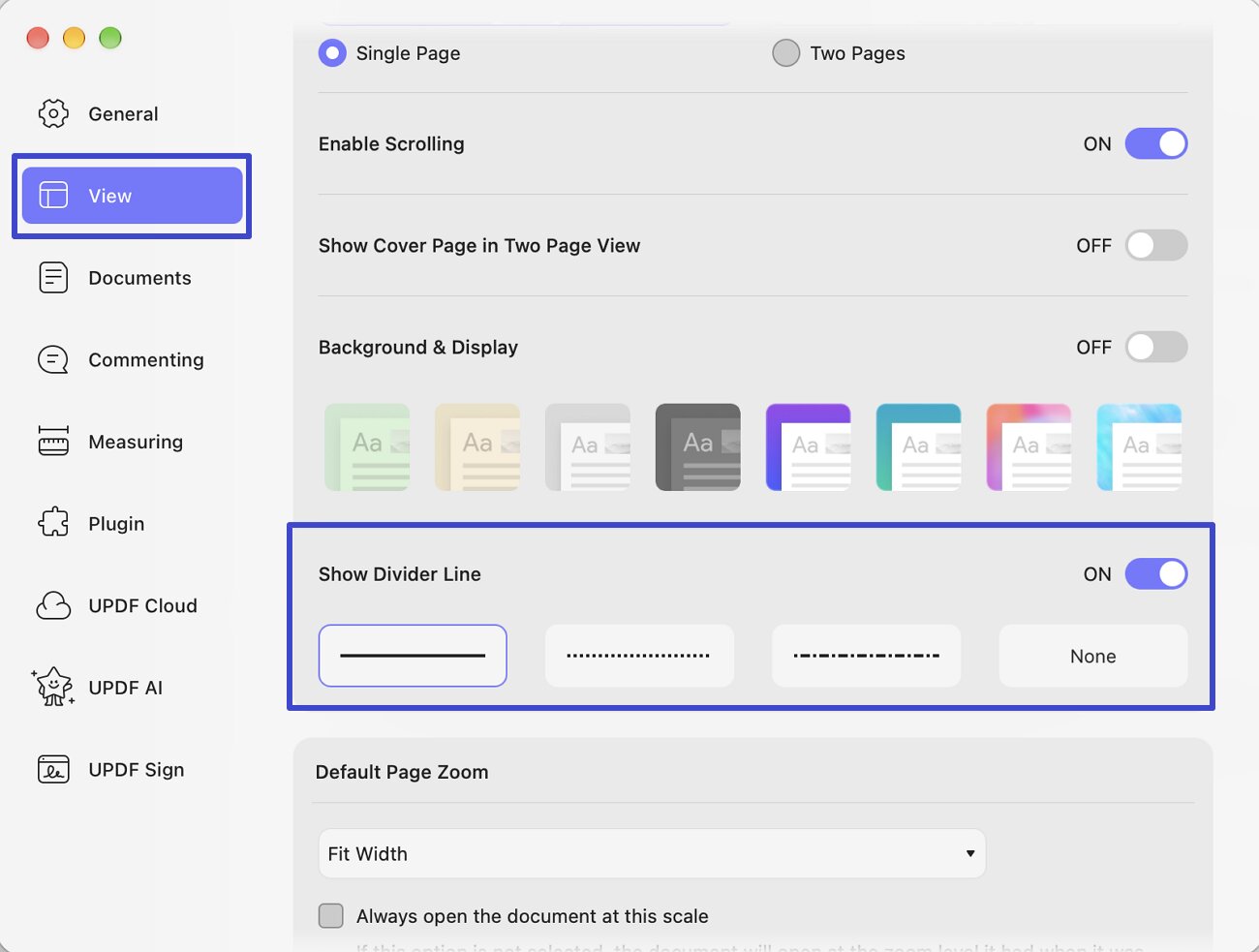
Step 2. Adjust Page Divider Settings. Next, select the “View” section and locate the “Show Divider Line” option. Check this option to display a prominent divider line between PDF pages or uncheck it to hide the line.
View Multiple PDFs
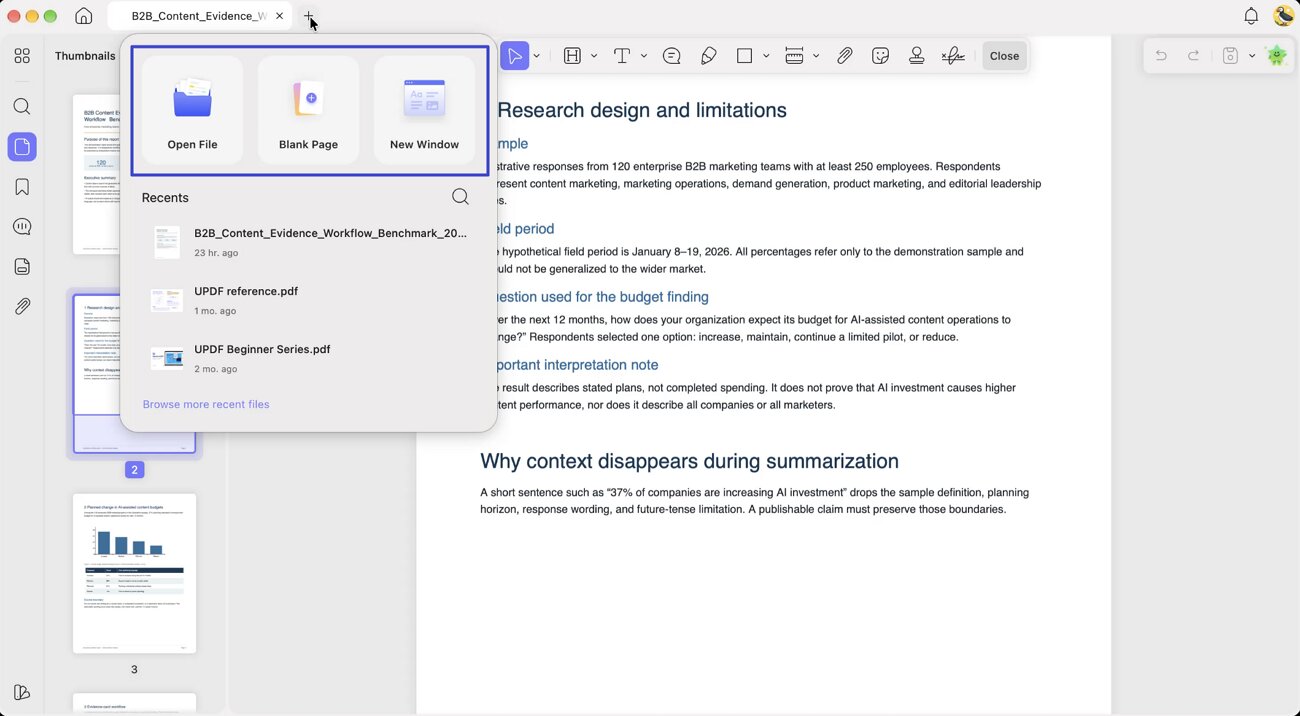
UPDF allows you to open and view multiple PDFs in different tabs. Click the "+" icon to open more PDFs in different tabs.
Each PDF will open in its own tab so you can navigate among them with just a click of the mouse.
Open PDFs in a New Window and Access Recent Files
Working with several PDF documents becomes more convenient when you can access them in separate UPDF windows. The recent files list also helps you return to documents you've worked on without searching for them manually. Follow the instructions below to use both options on your Mac:
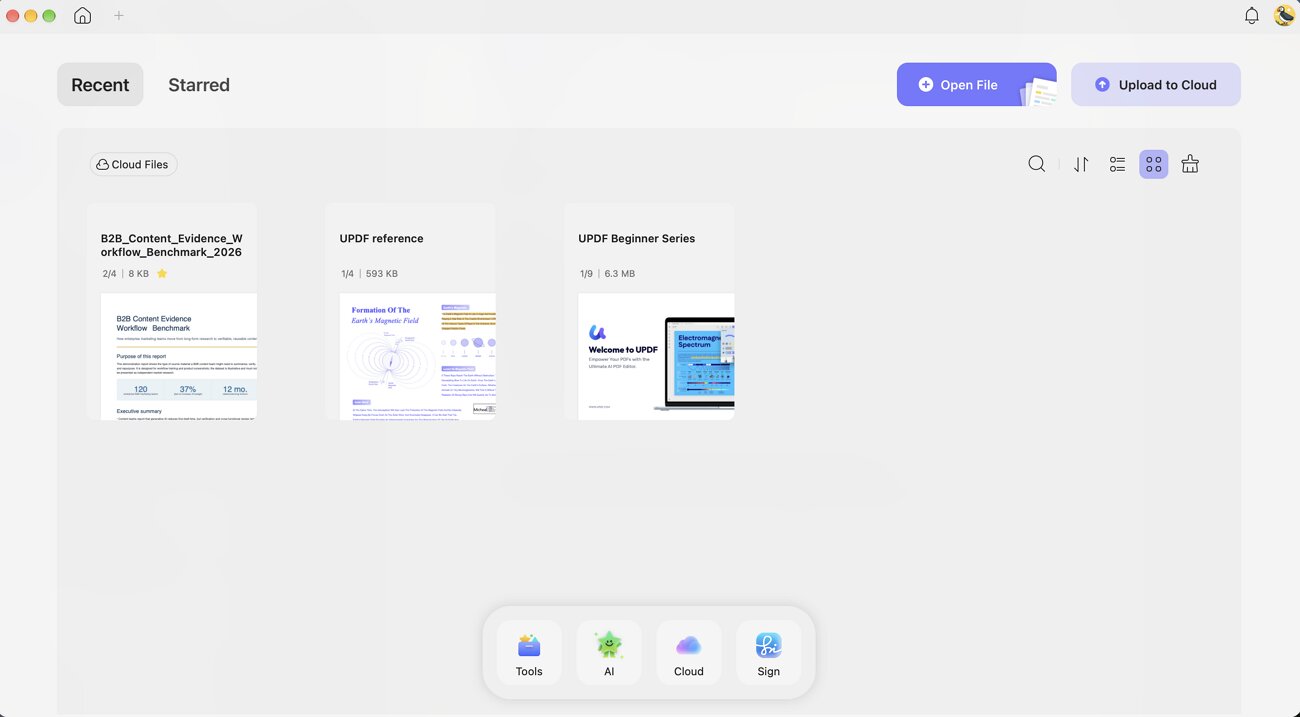
Instructions. Click the “+” icon and select “New Window” to launch another UPDF window. Then, click the “+ Open File” icon again and select the PDF you want to open from the “Recents” list.
Organize Open PDFs with Mac Tabs
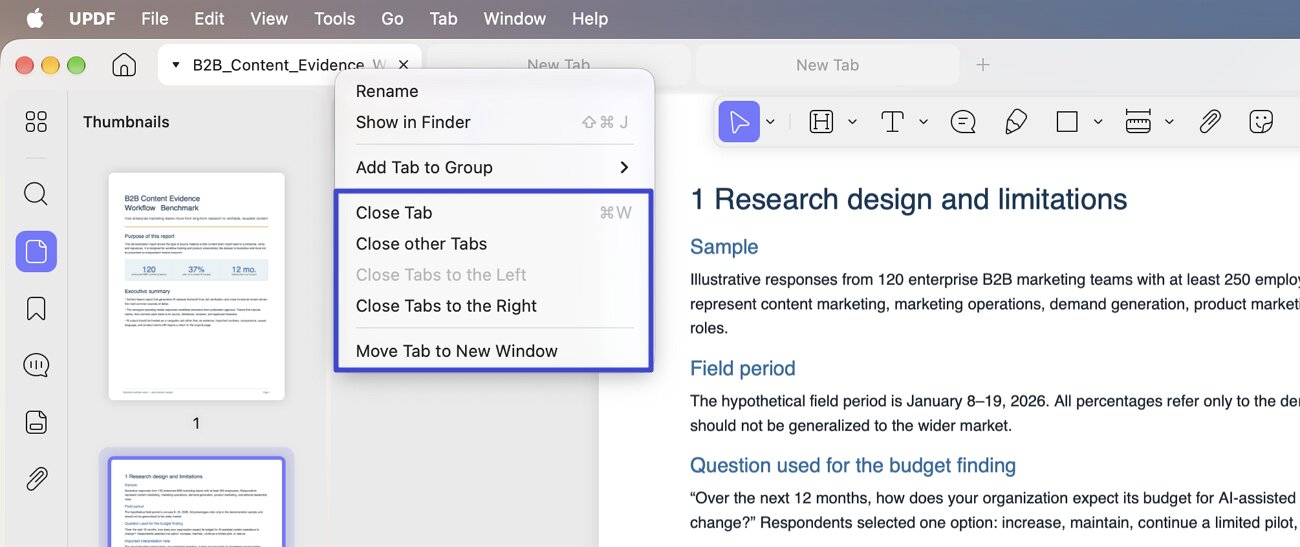
UPDF for Mac provides tab management options to help you organize multiple PDF documents within the same workspace. You can close unnecessary tabs, group related documents, or move individual PDFs into separate windows. Use the steps below to manage your open PDF tabs:
Step 1. Access Tab Management Options. Open multiple PDFs in UPDF and control-click any document tab at the top of the interface. A context menu will appear with different tab management options.
Step 2. Manage Your PDF Tabs. Choose “Close Tab” to close the selected document or “Close Other Tabs” to keep only the current tab open. You can also select “Add Tab to Group” to organize related documents together or “Move Tab to New Window” to open the selected PDF in a separate window.
Navigate a PDF
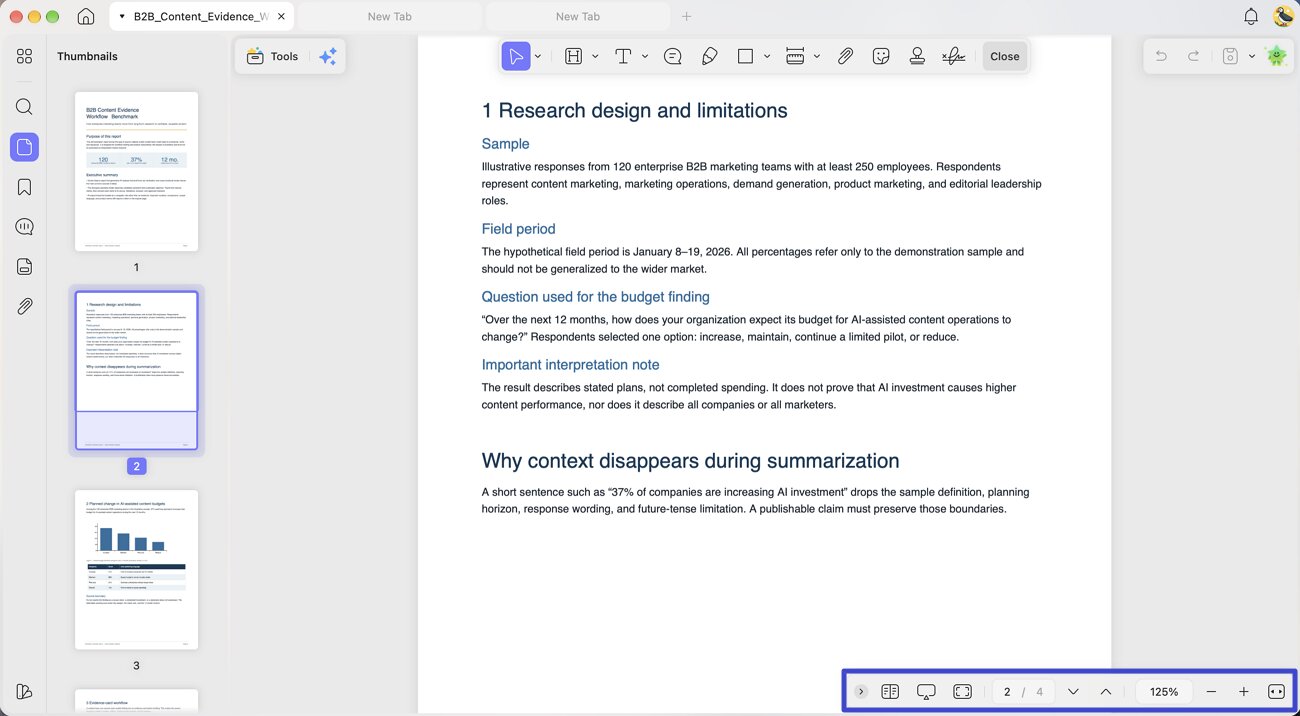
The navigation toolbar at the bottom of an open document can be used for this purpose. It is conveniently placed at the top of the interface after you choose the "Reader" mode.
There are nine navigation options available:
- View Settings
- Slide
- Full Screen
- Go to a specific page number
- Next Page
- Previous Page
- Choose the page zoom
- Zoom In/Out
- Fit Width
Restore Previous Reading Position
When reading lengthy PDFs, UPDF for Mac can remember your last reading position so you don't have to find the same page again. Once enabled, this feature automatically restores your previous reading state whenever you reopen a document. To activate this feature, follow these steps:
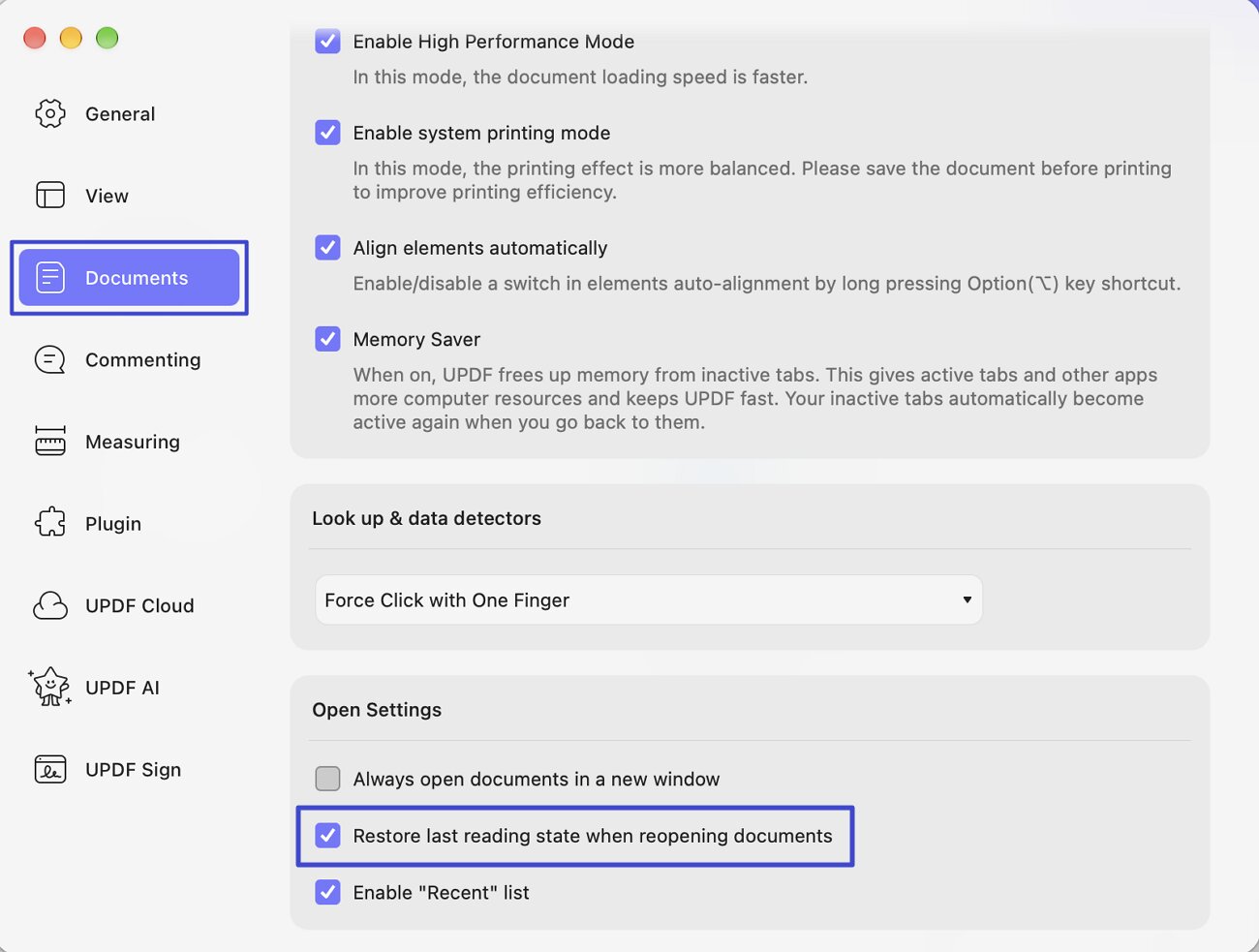
Step 1. Enable Reading State Restoration. Launch UPDF on your Mac and navigate to “Settings” > “Documents.” Find the “Restore last reading state when reopening documents” option and check the box to enable it.
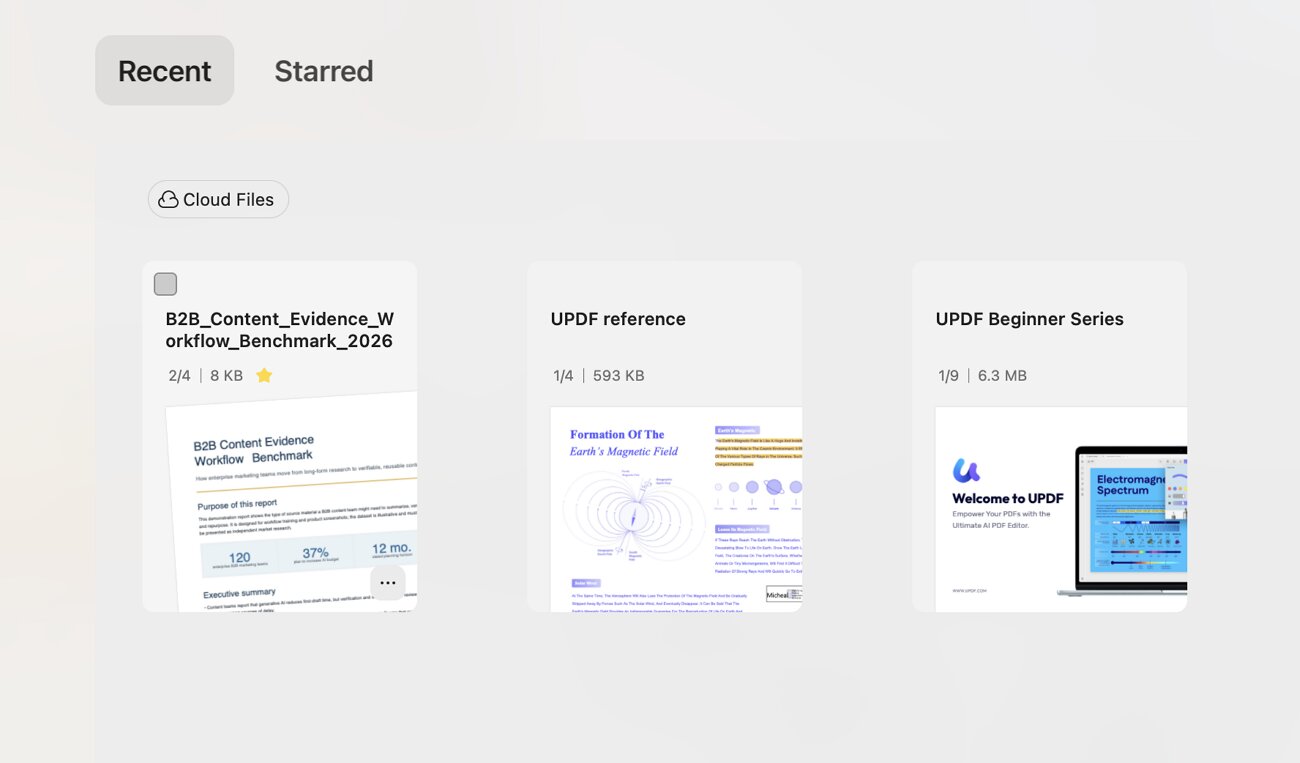
Step 2. Reopen a Recent PDF. Return to the “Home” page and open a PDF you previously viewed. UPDF will automatically restore your last reading position, allowing you to continue from where you stopped.
Display a PDF as a Slideshow
UPDF supports displaying a PDF as a slideshow.
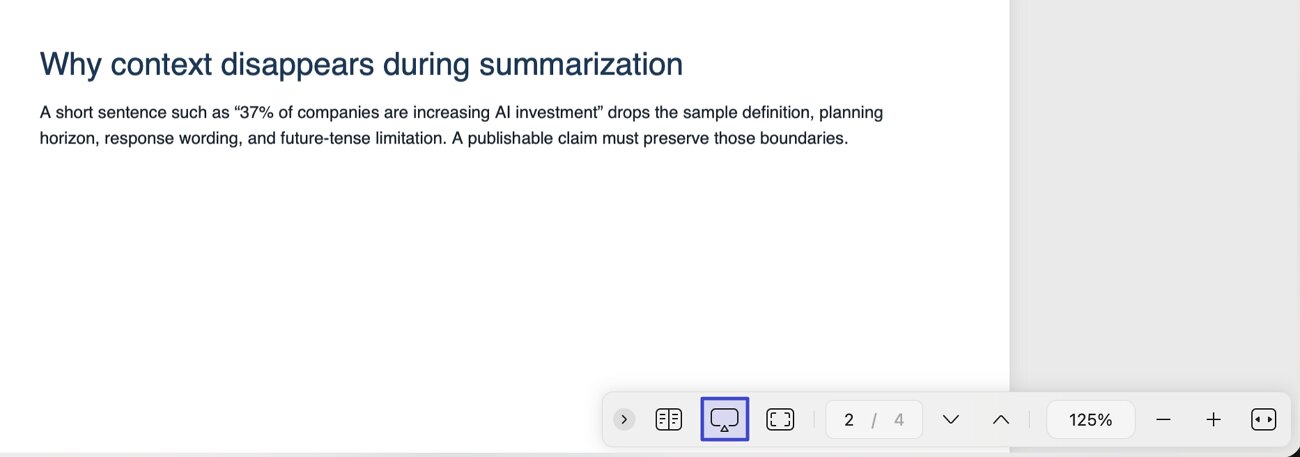
To display a PDF as a slideshow, click the "Slide Show" icon on the bottom toolbar.
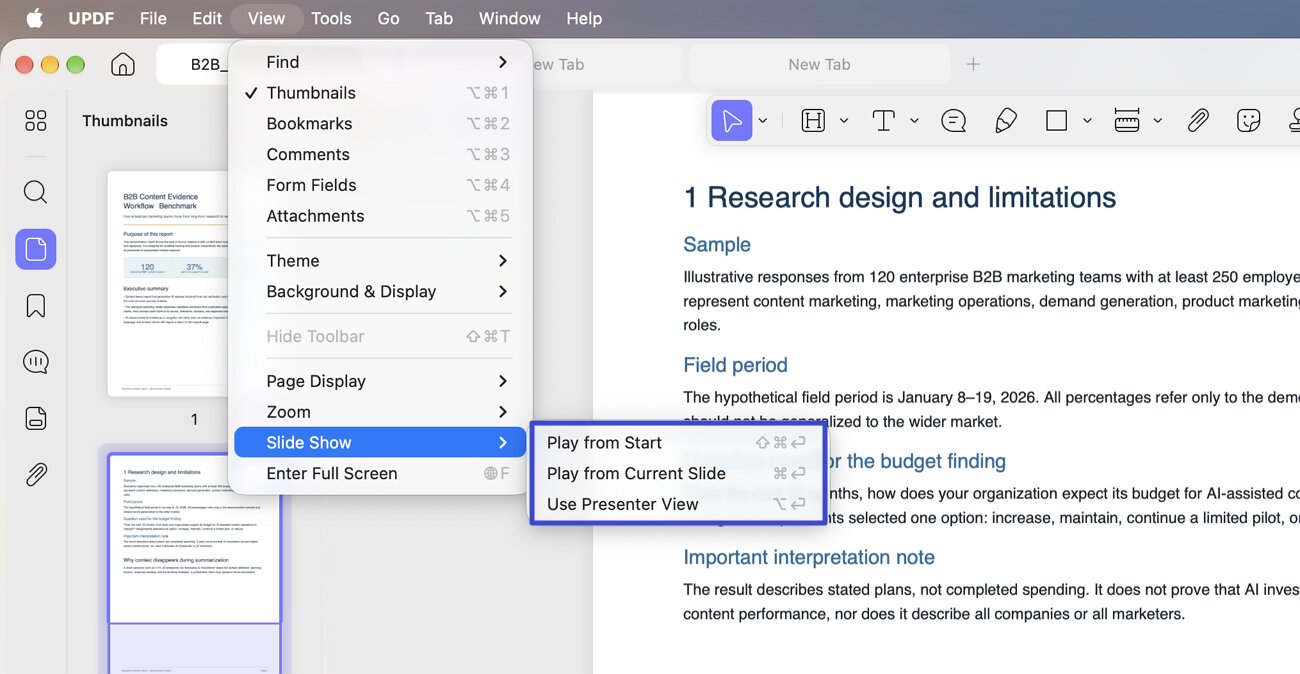
Alternatively, go to "View" and choose the "Slide Show" option. For displaying the slideshow, you can:
- Play from Start
- Play from the Current Slide
- Use Presenter View
You will enter into slideshow mode. UPDF provides a Pen tool in the bottom-left corner of the interface. This pen tool acts like a laser pointer during your presentation and you can point to the section where you want to emphasize.
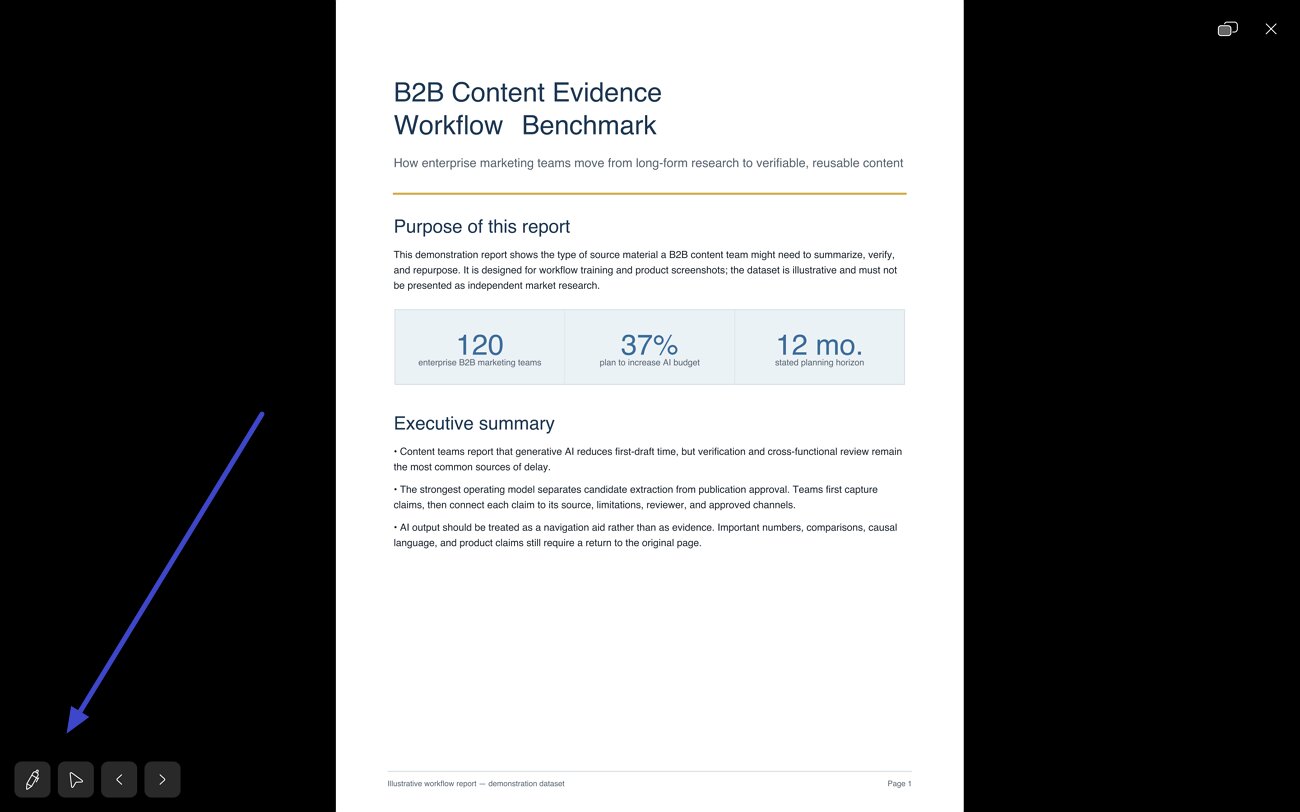
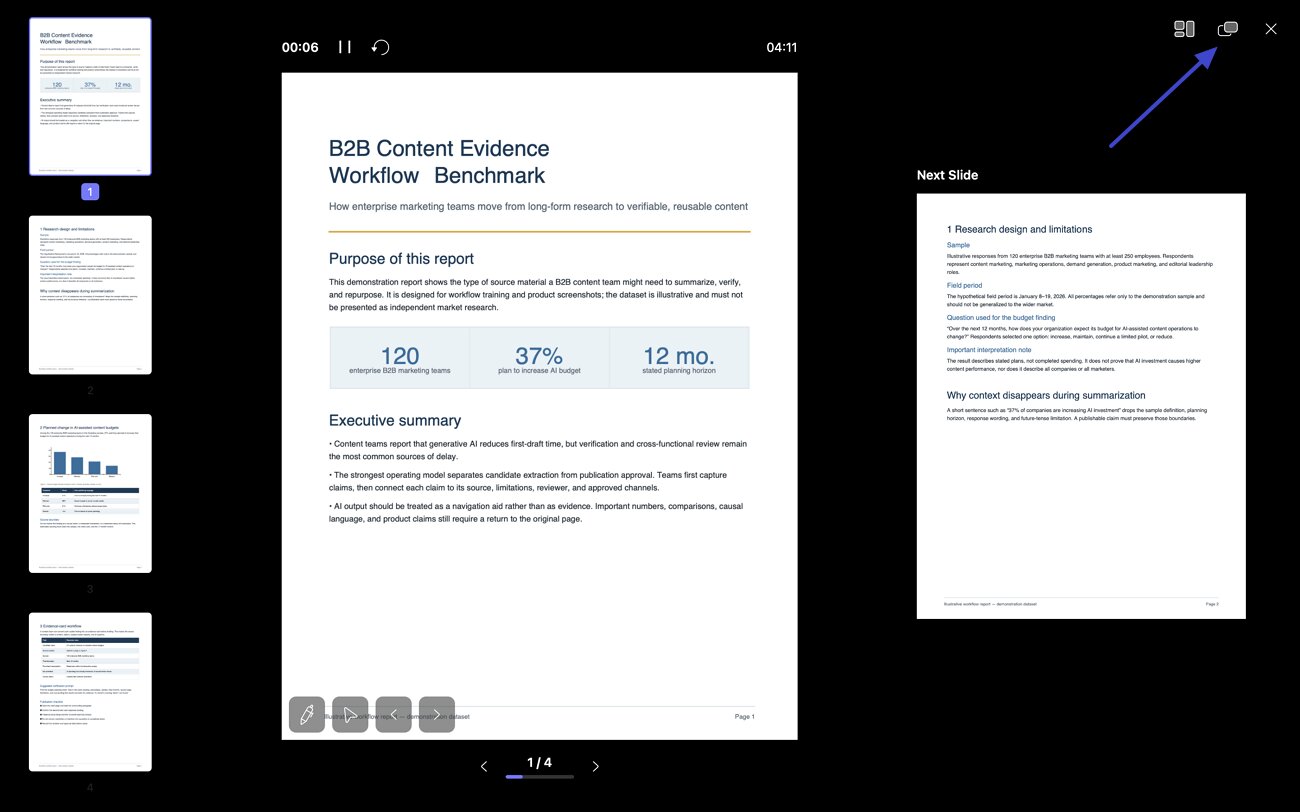
UPDF also provides a timer for your slideshow. You can count the time from the beginning of your display.
You can switch from the "Full-Screen View" to the "Presenter View" by clicking the icon on the top-right corner.
View PDF in Dark or Light Mode
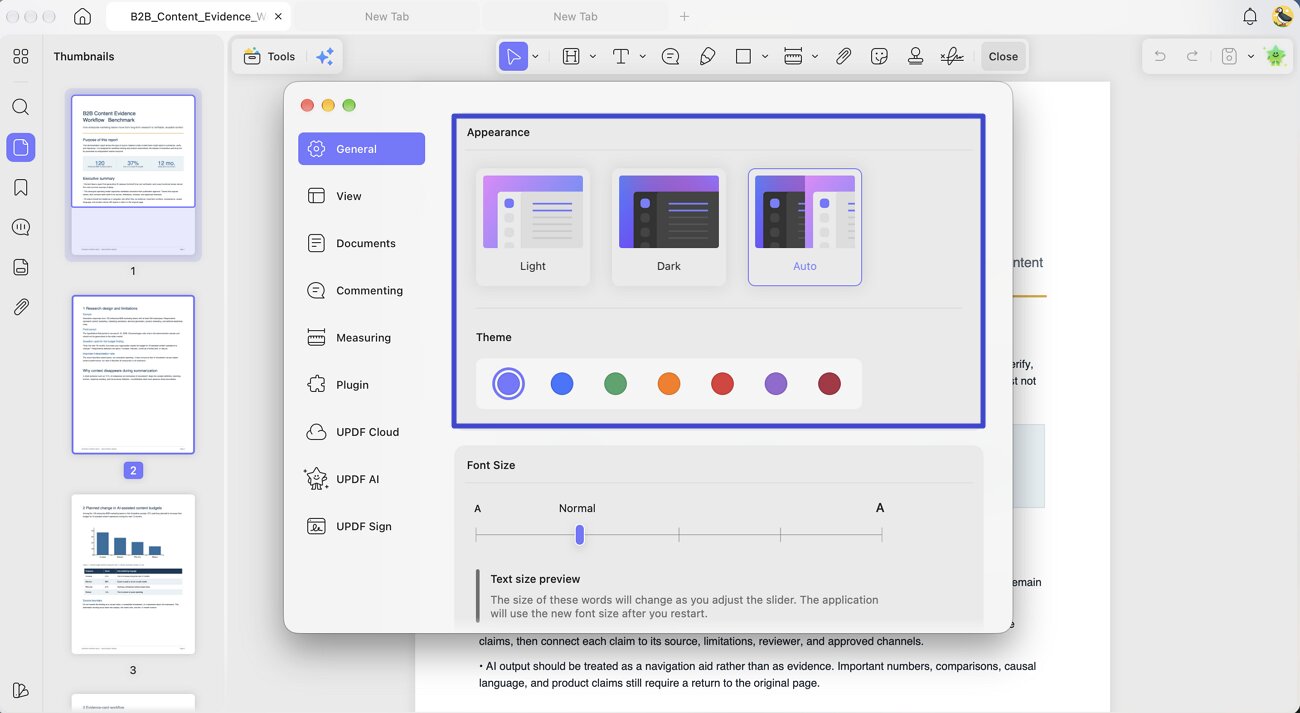
You can change to read PDF in dark mode or light mode per your needs. Here is the guide.
Click on the "Appearance" icon on the bottom, select "General", choose "Light" or "Dark" mode to change your UPDF appearance. Mint Green and Starry Blue modes are also available, if you feel like bringing a change to your UPDF interface. Auto theme will auto-select the UPDF theme based on the theme of your computer.
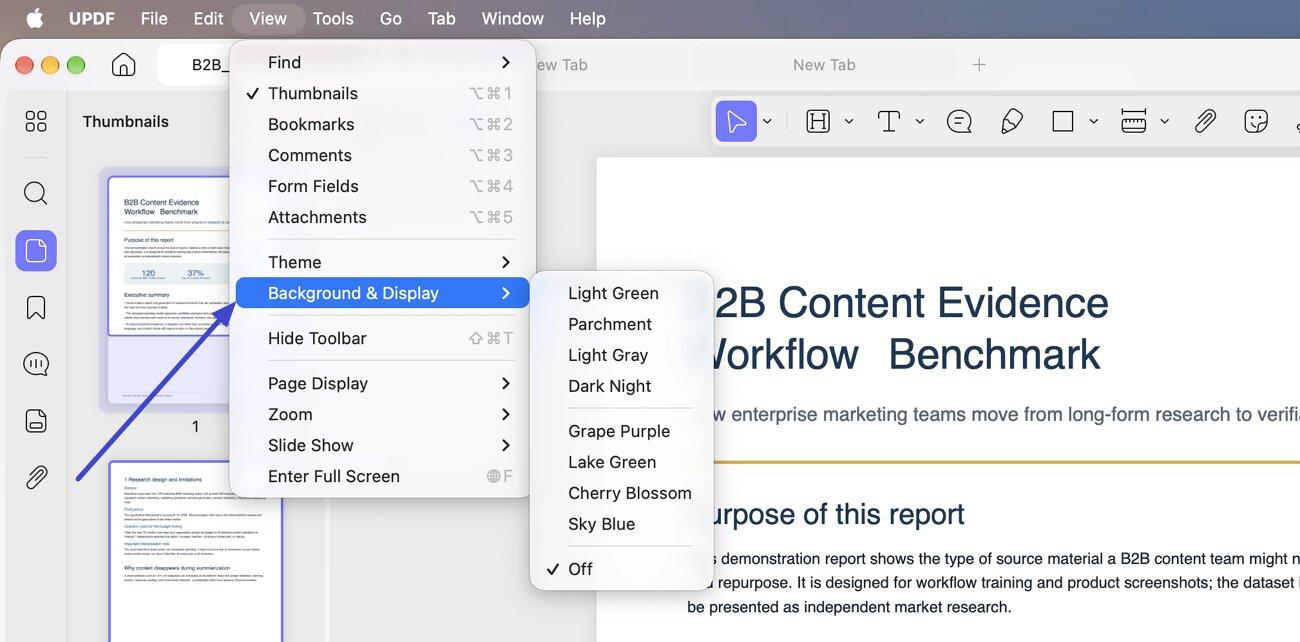
Additionally, you can move to the View section to enable “Background and Display.” Reading in this mode will put less strain on your eyes.
Search Text When Reading PDF
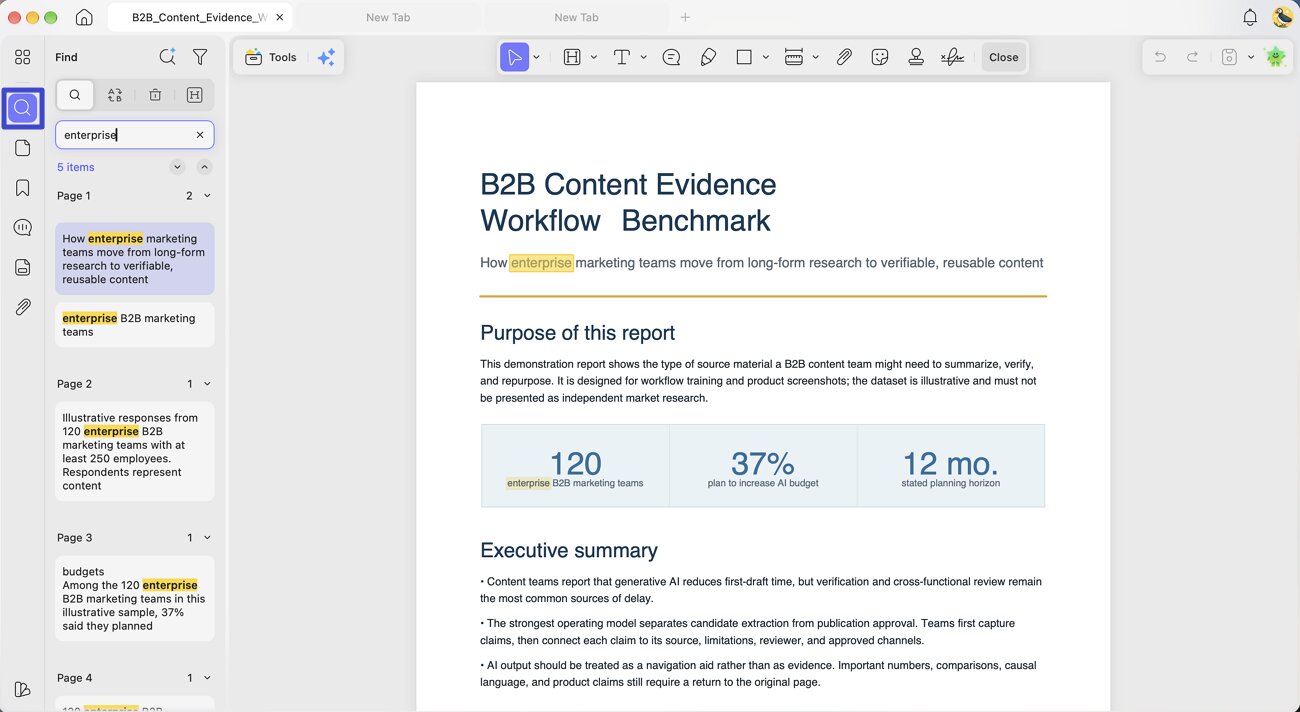
If you need to find some specific words quickly, you can use UPDF on Mac to do it.
Click on the “Find” icon at the right side toolbar, and enter the keyword "library" for example here. You can find a list of results. You can click on any one to navigate quickly to the part with this word.