 UPDF
UPDF
 UPDF for Windows
 UPDF for Mac
 UPDF for iPhone/iPad
 UPDF for Android
 Nomostar
 UPDF AI Online
 UPDF Sign
 IvyCraft
 Edit PDF
 Annotate PDF
 Create PDF
 PDF Form
 Edit links
 Convert PDF
 OCR
OCR PDF to Word
 PDF to Image
 PDF to Excel
 Organize PDF
 Merge PDF
 Split PDF
 Crop PDF
 Rotate PDF
 Protect PDF
 Sign PDF
 Redact PDF
 Sanitize PDF
 Remove Security
 Read PDF
 UPDF Cloud
 Compress PDF
 Print PDF
 Batch Process
 About UPDF AI
 UPDF AI Solutions
 AI User Guide
 FAQ about UPDF AI
 Summarize PDF
 Translate PDF
 Chat with PDF
 Chat with AI
 Chat with image
 PDF to Mind Map
 Explain PDF
 PDF AI Tools
 Image AI Tools
 AI Chat Tools
 AI Writing Tools
 AI Study Tools
 AI Working Tools
 Other AI Tools
 AI Bookmark Generation
 AI Bookmark Summary
 AI Watermark Generation
 AI Background Generation
 AI Sticker Generation
 AI Stamp Generation
 AI Editing Suite
 UPDF Copilot
 AI Page Management
 AI Semantic Search
 PDF to Word
 PDF to Excel
 PDF to PowerPoint
 Enterprise Solution
 Enterprise Sign
 Enterprise AI
 Enterprise Plan
 Enterprise User Guide
 Enterprise Webinar
 IT
IT Education
 Construction
 Financial Service
 Healthcare
 Insurance
 Legal
Legal Manufacturing
 Government
 Researchers & PhDs
 Solopreneurs & Freelancers
 Lawyers & Legal Professionals
 Real Estate Agents & Brokers
 Education Solution
 Customer Stories
 User Guide
 UPDF Tricks
 FAQs
FAQs UPDF Reviews
 Download Center
 Blog
Blog Newsroom
 Tech Spec
 Updates
 UPDF vs. Adobe Acrobat
 UPDF vs. Foxit
 UPDF vs. PDF Expert

Your manager forwards "employment_agreement_2026.pdf" ninety minutes before the client calls. Three figures need updating, while a clause must be reworded. You click the text in your browser, and nothing happens.
In a panic, you turn to the web, only to hit a frustrating wall—one that Operations Lead John Henry knows all too well:
This isn't a glitch. Under the ISO 32000-2 standard, a PDF is a self-contained and flat vector document. Every character and image is locked to absolute coordinates on a flat canvas. Chrome, Preview, Adobe Reader, and other standard readers treat those coordinates as read-only, which is why direct editing fails without a professional layout reflow engine.
Windows • macOS • iOS • Android 100% secure
Prefer a visual walkthrough? The 3-minute video below shows how to edit a PDF live in real-world scenarios. If you prefer written steps for a specific device or tasks, scroll past the video to jump straight to the section that fits your situation.
It helps to see how the document responds to a small change before making several revisions. You can follow the video below for an introduction to editing PDF content in UPDF.
1. Find Your Editing Path in 10 Seconds
Different editing tasks need different tools. Use the table below to go directly to the workflow that solves your problem. No need to read every section.
| What do you want to do? | Recommended Method | Core Feature to Use |
| Change or delete existing text | UPDF Desktop (Windows / Mac) | Text Reflow Engine |
| Swap out a logo or chart | UPDF Desktop | Image Object Editor |
| Fix broken hyperlinks / add new ones | UPDF Desktop | Link & Interactivity Panel |
| Edit a scanned paper document | UPDF Desktop (OCR module) | AI-Powered OCR Recognition |
| Zero-install | Smallpdf / iLovePDF / Sejda (online) | Web-based text overlay editor |
| Edit on iPhone or Android | UPDF Mobile App | Mobile Edit & Annotation Suite |
2. How to Edit Text in a PDF
Text editing is the most requested PDF task, but traditional editors often turn simple touch-ups into a chaotic layout redesign. UPDF resolves this day-to-day frustration through an intelligent Text Reflow Engine. By reading the embedded font tables and tracking metrics in real-time, UPDF lets you edit words in PDF files inline—just like a standard Word processor—without losing your original formatting.
Unlike rigid tools where inserting a single word causes text to prematurely drop into an ugly second line, UPDF’s bounding boxes dynamically scale and self-adapt to your real-time content length to keep lines perfectly intact. For messy or shifted documents, you can simply select multiple independent text frames simultaneously and snap them into clean alignment—such as a one-click Align Left or Align Right—instantly restoring structural order.
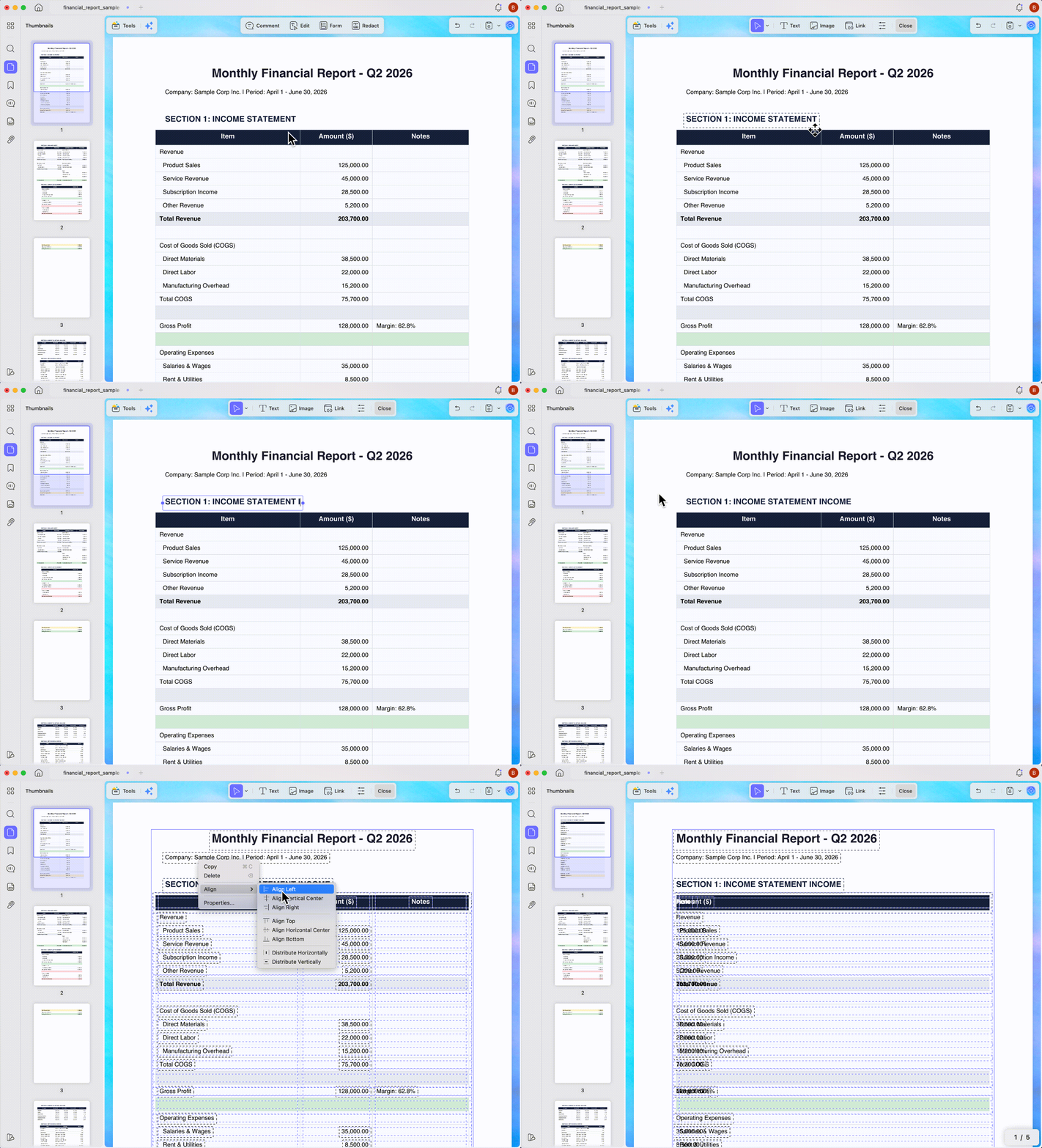
How can I make changes to a pdf file without shifting columns? Follow this streamlined workflow to open and edit pdf documents smoothly using UPDF's professional text layout reflow engine:
Step 1.Open UPDF, click Open File, and select your target PDF.
Step 2. Click Tools > Edit. The document enters Edit Mode. Text areas become clickable objects outlined in blue.
Step 3. Double-click any text block. A cursor appears inside the paragraph, like a word processor. Select the text you want to change and type the replacement content.
Watch the paragraph reflow in real time. UPDF's engine automatically adjusts line breaks to preserve column width and spacing.
Step 4. To remove text from a PDF, select the sentence and press Delete. The surrounding text closes up cleanly without leaving a gap.
Bonus Tip:
Step 5. Click outside the text block when finished. Press Ctrl+S (Windows) or Cmd+S (Mac) to save.
3. How to Edit PDF Image Assets and Graphics Directly
The text columns surrounding an image in a PDF are anchored relative to the image's bounding box. When you swap out an image using a basic overlay tool, those columns overlap/shift to the wrong position.
The right PDF image editor targets the graphical object layer and replaces the vector data inside the existing bounding box without disturbing the text flow around it. This is useful for updating a company logo on a letterhead, replacing a product photo in a brochure, or other scenarios. It can also help add an image to a PDF, like an endorsement stamp or e-signature, at a precise position on the page.
Follow the steps below to replace/add/extract an image in a PDF using UPDF:
Step 1. Click Tools > Edit to enter Edit Mode. Existing images appear as selectable objects when you hover over them.
Step 2. To replace an image, click the image to select it. A contextual toolbar appears with options: Rotate, Flip, Crop, Replace, Extract, and Delete.
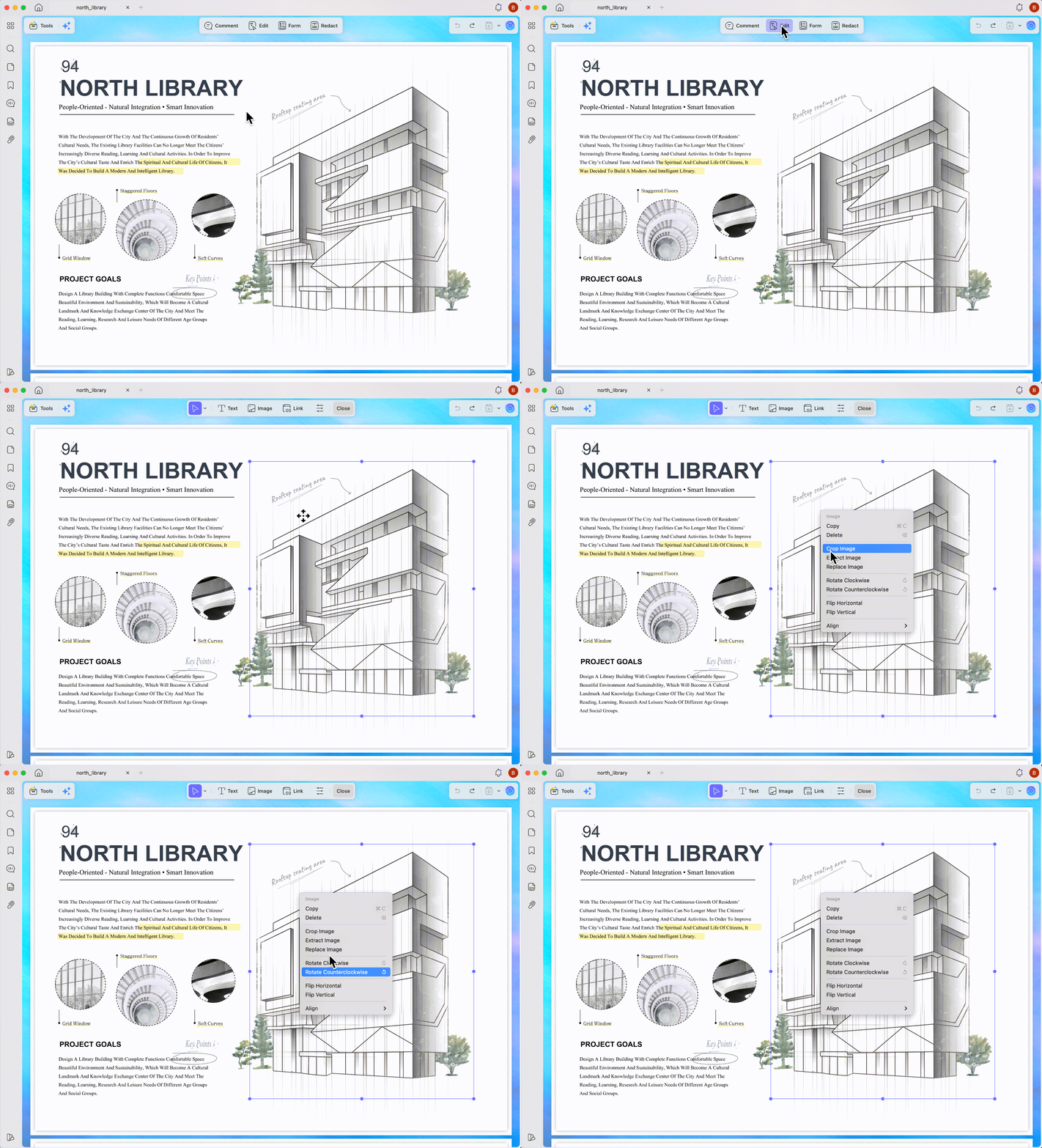
Step 3. To add an image, click the Image icon from the top bar, tap the mouse key where you want to place the image, and then select the image. Afterward, you can adjust the dimensions and position of the image.
Step 4. To extract images from a PDF, click the image and tap the Extract icon. Select the format and resolution, and then tab Extract.
4. How to Edit Links and Interactivity in a PDF
Hyperlinks in PDFs age fast, while broken links are a credibility problem. For example, an internal cross-reference might be pointing to a deleted page number, or a resource document might have moved to a new domain.
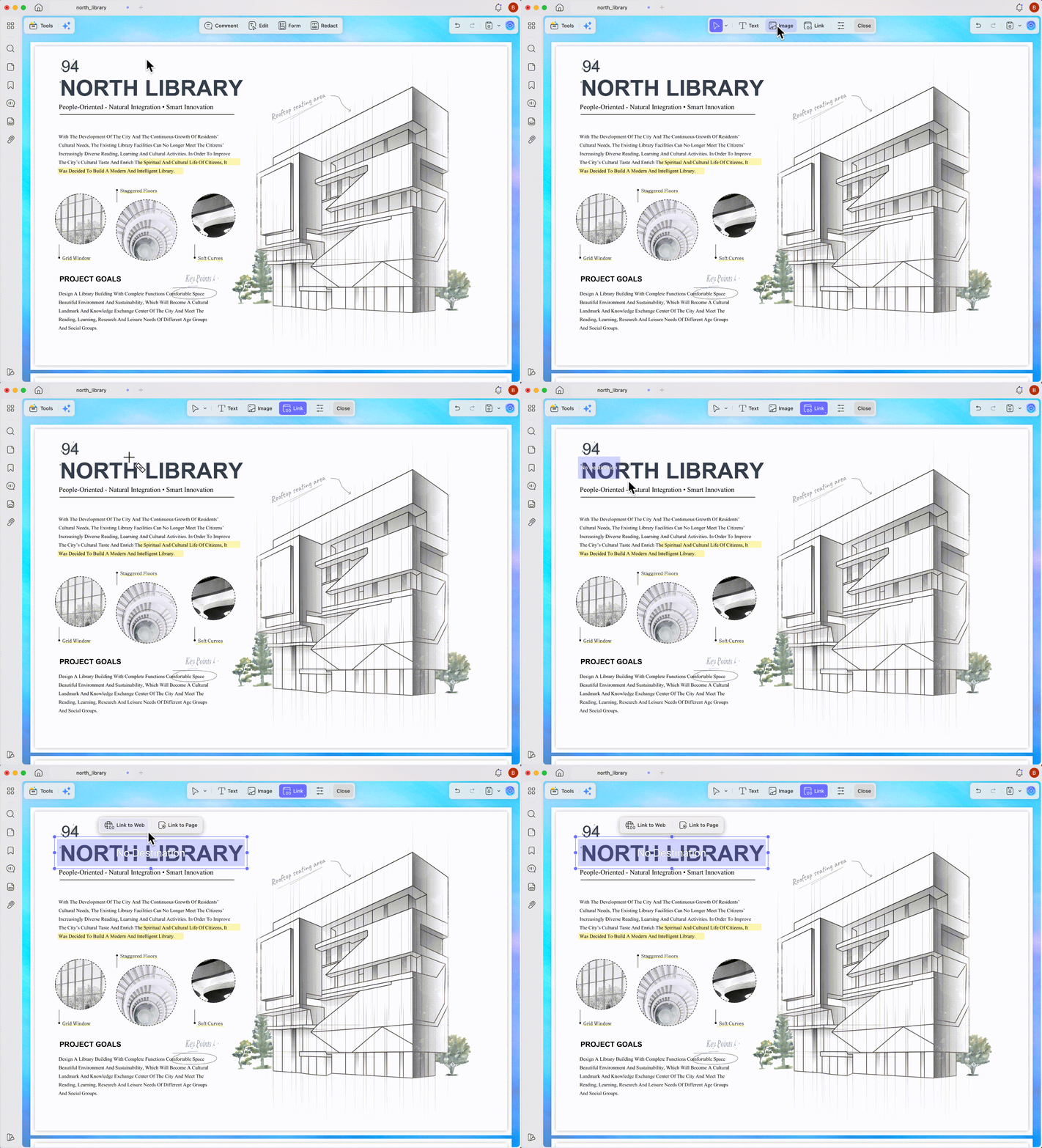
Follow these quick steps on how to add a link to a PDF using UPDF's link editor:
Step 1. Open the PDF with UPDF and click Tools > Edit. There you will see two options: Insert & Edit Link (web) and Insert & Edit Link Page.
Step 2. To add a web link, click the Insert & Edit Link icon from the top menu bar, tap the mouse key where you want to add the link, and then paste the URL.
Step 3. To add a page link, click the Insert & Edit Link From Page icon from the top menu bar, tap the mouse key where you want to add the link, and then select the page to link.
5. How to Edit a Scanned PDF Document
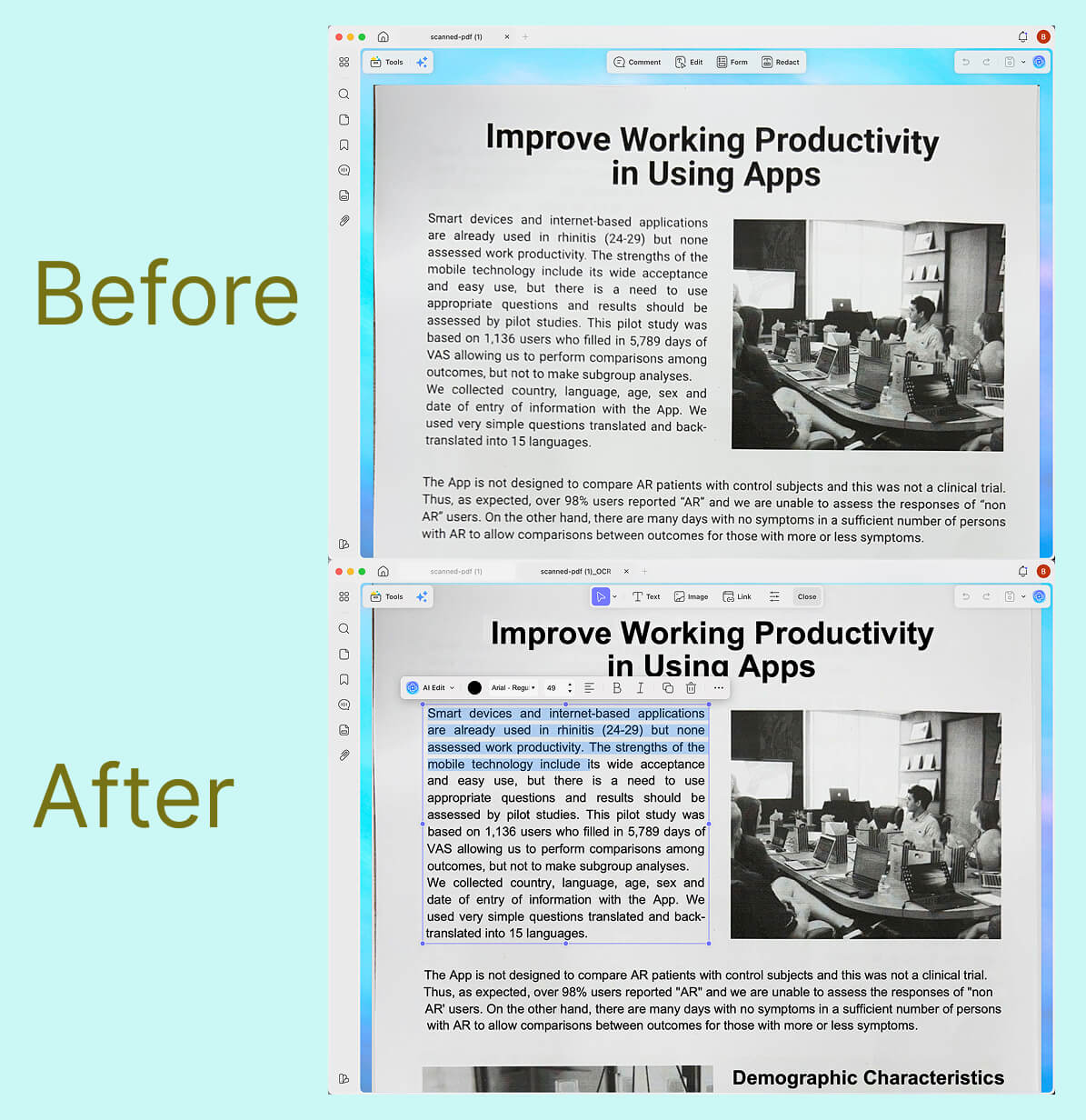
Scanned documents are the most locked-down PDFs, with a high-resolution photograph embedded within the PDF shell. It is a flat image with no text layer at all, so standard edit tools are useless here.
AI-Powered OCR (Optical Character Recognition) solves this. It analyzes the pixel grid of each scanned page, identifies character shapes, maps them to Unicode characters using machine-learning glyph models, and constructs a complete editable text layer beneath the original image. The result is a document that looks identical to the original scan but now carries a hidden text layer that UPDF's edit engine can search and modify.
These are the steps to edit a scanned PDF with UPDF's OCR module:
Step 1. Open your scanned PDF in UPDF. Click Tools > OCR.
Step 2. In the pop-up OCR settings, select the OCR type, document language, and page range. Afterward, click the Convert button.
Step 3. Within seconds, you will get a new PDF file that now includes editable and searchable content. Now, you can simply click Tools > Edit and start editing the text/images.
[Start OCR & Edit with UPDF]
Windows • macOS • iOS • Android 100% secure
How to Edit a Protected PDF File (Unlocking Permissions)
6. Device & Budget-Specific Editing Workflows
#1 How to Edit a PDF Online for Free ( Zero-Install)
If you only need to execute a minor text adjustment on a non-sensitive document, browser-based platforms offer a quick, zero-install shortcut.
"I was just updating a single metric inside an open text field using a web tool, and the editing frame forced a clumsy line drop that threw off the adjacent margins. I had to manually drag, stretch, and reposition the rigid text box just to make a single word fit on one line."
To demonstrate this layout behavior, here is how the process works using iLovePDF as a typical example, you can use this tool to remove text online free:
Step 1. Go to iLovePDF website and click Choose Files to upload the PDF.
Step 2. Click on an existing piece of text to open its editing frame. If you append characters or insert a new word, keep in mind that the bounding box remains a fixed, rigid width—the text will prematurely drop to a second line, requiring you to manually click and stretch the borders to fix the line break.
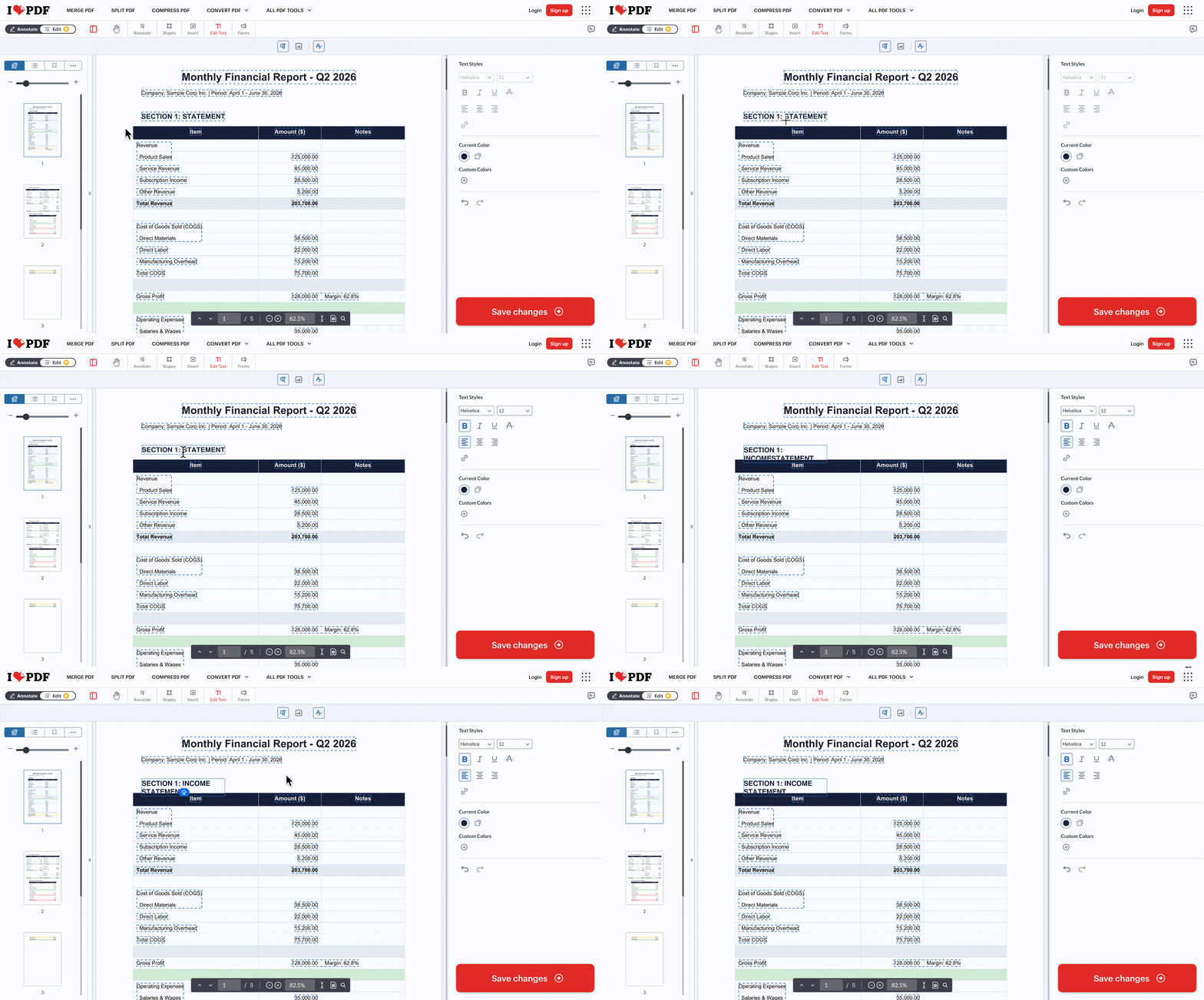
Step 3. After editing, click Download to save the edited PDF.
Reminder:
After making edits locally, you can use the UPDF Cloud to safely upload, store, share, and view your completed documents across devices without sending the raw file to an unvetted third party.
#2 How to Edit a PDF on Mac
Editing a PDF on Mac is similar to Windows if you use a compatible cross-platform editor. UPDF for Mac features a dedicated Apple Silicon build to enable the tool to run natively on macOS. UPDF processes large documents and OCR operations much faster than x86 emulation layers, with near-instant page rendering even on 200-page files. The Mac version is also tuned for trackpad fluid gesture inputs.
Follow these quick steps on how to edit a PDF on Mac using UPDF:
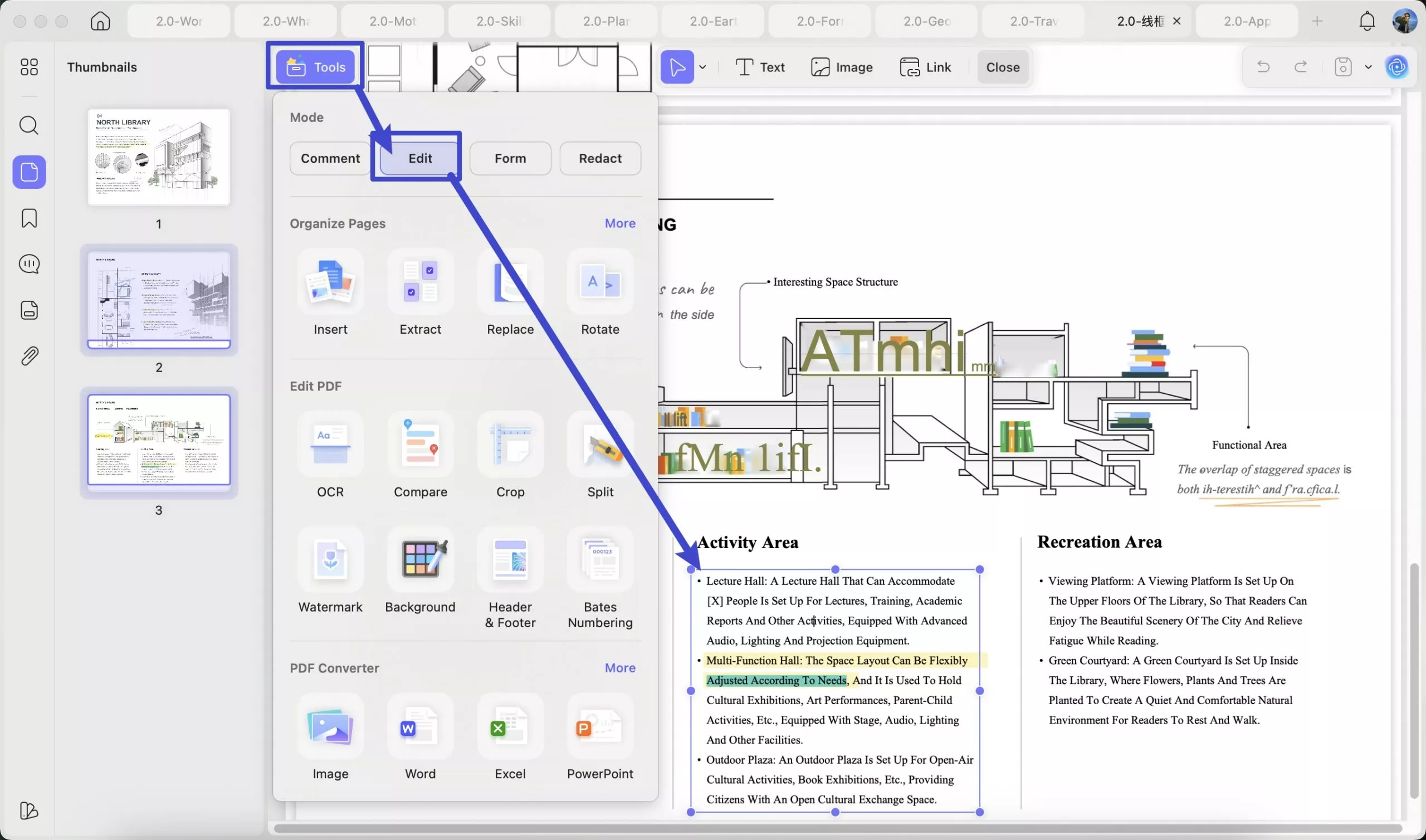
Step 1. Install UPDF for Mac.
Windows • macOS • iOS • Android 100% secure
Step 2. Launch UPDF and open your target PDF via File > Open or drag it onto the UPDF window from Finder.
Step 3. Click Tools > Edit. All text blocks and image objects are now editable. Now proceed using the same steps outlined above.
#3 How to Edit a PDF File on iPhone/Android
Often, there is a need for on-the-go editing, such as approving a contractor invoice while traveling or dropping a quick e-signature on an onboarding document. Similarly, there might be a need to correct a typo in a report before a meeting. UPDF's mobile app enables smooth editing of a PDF file without the need to transfer the file to the desktop.
The following two steps sum up how to edit a PDF file on iPhone/Android in seconds:
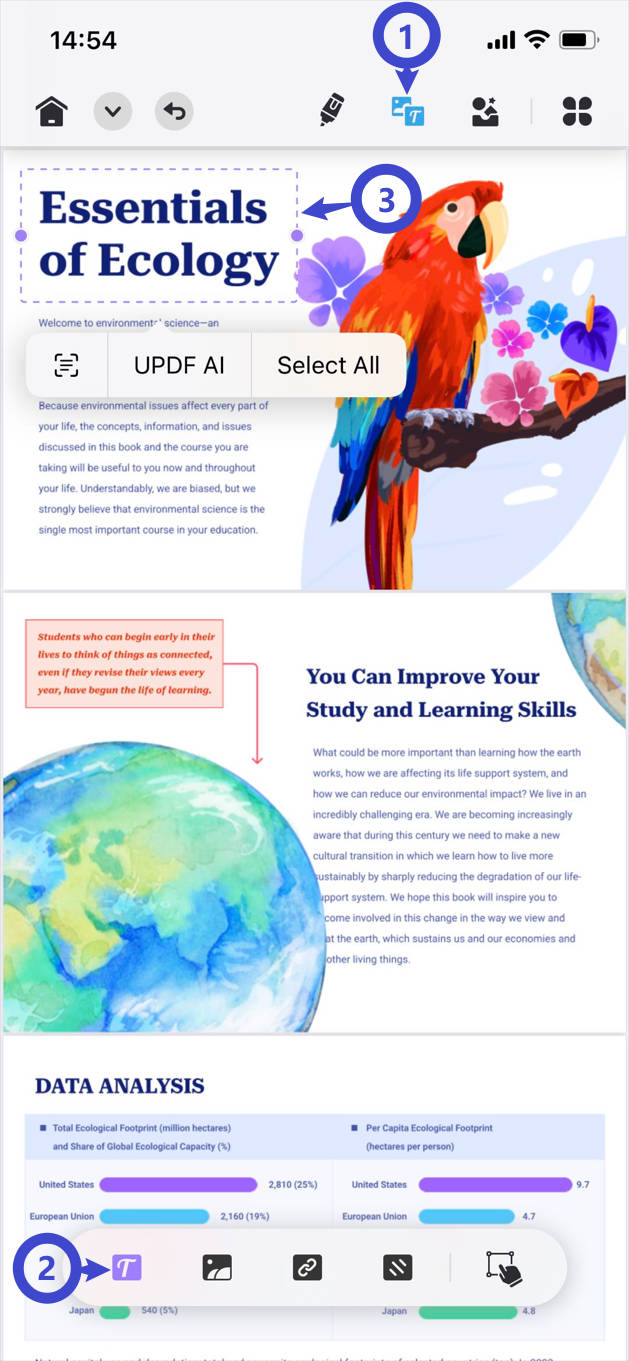
Step 1. Install and launch the UPDF app from the App Store (iOS) or Google Play Store (Android).
Step 2. Click the Edit icon from the bottom menu bar. Afterward, select the T shape and make edits to the content or add new content. You can also use other options to edit images, sign, annotate, and more.
7. Desktop App vs. Online Tools vs. Built-in Viewers
PDF editing is full of options that look similar on the surface but differ in real-world constraints. The table below evaluates these options with criteria that matter for professional use. These are the same gaps that arise in online community discussions like the Reddit OnlyOffice PDF Threads, where users routinely report online tools failing with large files or corrupting fonts.
| Capability | Desktop Apps (UPDF) | Free Online Tools(Smallpdf, Sejda, iLovePDF) | Built-in Viewers(Preview, Chrome, Edge) |
| Inline text reflow (no floating text boxes) | ✔ Full | ✘ Text-box overlays only | ✘ Read-only |
| Scanned document OCR recognition | ✔ AI-Powered, 38 languages | ⚠ Limited / paywalled | ✘ Not available |
| File size support (100 MB+ documents) | ✔ No enforced cap | ✘ 10–25 MB cap (free tier) | ⚠ Opens but cannot edit |
| Image replace / extract | ✔ Full object editor | ⚠ Add only, no replace | ✘ Not available |
| Hyperlink editing | Create or edit web + page links | ⚠ Add only on some tools | ✘ Not available |
| Data privacy (offline / local processing) | ✔ 100% local, GDPR-safe | ✘ Files uploaded to 3rd-party servers | ✔ Local only |
| Original font family preservation | ✔ Matched via font metrics | ✘ Falls back to generic fonts | ✘ Not applicable |
| AI writing assistant (rephrase / translate) | ✔ Built-in UPDF AI panel | ✘ Not available | ✘ Not available |
| Mobile editing (iOS / Android) | ✔ Full mobile app | ⚠ Mostly browser-based only | ⚠ Annotation only |
| Installation required | ⚠ Yes, desktop install | ✔ No install needed | ✔ Pre-installed |
8. Related PDF Tools and Workflows
How to edit a PDF is one piece of a broader document workflow. The table below links to adjacent UPDF feature guides that work alongside the editing tools covered in this article.
| Task Category | What You Can Do | Feature Guide |
| Annotation & Markup | Add sticky notes, highlights, drawing tools, stamps, and freehand ink annotations to PDF documents without altering the source text layer | PDF Annotation & Markup Guide |
| Page Management & Reordering | Insert, delete, rotate, crop, or drag-and-drop reorder individual pages inside multi-page PDFs without re-exporting the whole document | Page Management & Reorder Guide |
9. FAQs
Can I edit a PDF for free?
Yes, some desktop and browser-based tools allow basic text edits for free. However, free online editors rely on text-box overlays rather than true inline editing, which means font mismatches and layout distortion are common side effects. They also cap file sizes and upload your document to external servers. The better alternative is to opt for a feature-packed and low-cost desktop PDF editor.
How can I edit a PDF without Adobe Acrobat?
UPDF is a full-featured alternative that covers all core Acrobat editing workflows, including text reflow, image replacement, hyperlink editing, OCR, and more. Apple Preview is only useful for basic annotation and some text additions, as Preview does not support inline text reflow. A dedicated PDF editor like UPDF is the most practical Acrobat-free path for anything beyond surface-level changes.
Can I edit a PDF on my phone?
Use a dedicated mobile PDF editor to make edits to a PDF. For example, UPDF's iOS and Android apps support inline text editing, image insertion, link management, annotations, and mobile e-signatures.
Is it safe to edit confidential PDFs online?
No, uploading a confidential document to a free online tool carries real data exposure risk. Your file is transmitted to and stored on third-party servers outside your control. The recommended approach is to use a desktop editor that processes files 100% locally. This way, your confidential PDFs never leave your machine, and you stay fully GDPR-compliant.
Why Can't I Directly Edit PDF Text inside Google Chrome or Microsoft Edge?
Most users trying to make changes to a pdf file open it in Chrome or Edge, only to find the text behaves like a flat image. Built-in browsers function strictly as vector viewers under the ISO 32000-2 layout specification. They can overlay annotations, highlights, or text boxes, but they lack a native semantic reflow engine to modify the existing typography coordinates locally.
10. Streamline Your PDF Document Workflows
PDF editing should be a smooth, click-and-type process, not an hourly chore of converting and reforming files. The tools and workflows covered above in our how to edit a PDF guide give you a clear path for every scenario, including inline text reflow for native documents, AI-powered OCR for scanned files, image and link editors for interactive content, and purpose-built mobile apps for on-the-go changes. Download UPDF for free and put the right engine behind every text reflow you do.
Windows • macOS • iOS • Android 100% secure






 Lizzy Lozano
 Enola Miller

 Engelbert White
 Delia Meyer