 UPDF
UPDF
 UPDF for Windows
 UPDF for Mac
 UPDF for iPhone/iPad
 UPDF for Android
 Nomostar
 UPDF AI Online
 UPDF Sign
 IvyCraft
 Edit PDF
 Annotate PDF
 Create PDF
 PDF Form
 Edit links
 Convert PDF
 OCR
OCR PDF to Word
 PDF to Image
 PDF to Excel
 Organize PDF
 Merge PDF
 Split PDF
 Crop PDF
 Rotate PDF
 Protect PDF
 Sign PDF
 Redact PDF
 Sanitize PDF
 Remove Security
 Read PDF
 UPDF Cloud
 Compress PDF
 Print PDF
 Batch Process
 About UPDF AI
 UPDF AI Solutions
 AI User Guide
 FAQ about UPDF AI
 Summarize PDF
 Translate PDF
 Chat with PDF
 Chat with AI
 Chat with image
 PDF to Mind Map
 Explain PDF
 PDF AI Tools
 Image AI Tools
 AI Chat Tools
 AI Writing Tools
 AI Study Tools
 AI Working Tools
 Other AI Tools
 AI Bookmark Generation
 AI Bookmark Summary
 AI Watermark Generation
 AI Background Generation
 AI Sticker Generation
 AI Stamp Generation
 AI Editing Suite
 UPDF Copilot
 AI Page Management
 AI Semantic Search
 PDF to Word
 PDF to Excel
 PDF to PowerPoint
 Enterprise Solution
 Enterprise Sign
 Enterprise AI
 Enterprise Plan
 Enterprise User Guide
 Enterprise Webinar
 IT
IT Education
 Construction
 Financial Service
 Healthcare
 Insurance
 Legal
Legal Manufacturing
 Government
 Researchers & PhDs
 Solopreneurs & Freelancers
 Lawyers & Legal Professionals
 Real Estate Agents & Brokers
 Education Solution
 Customer Stories
 User Guide
 UPDF Tricks
 FAQs
FAQs UPDF Reviews
 Download Center
 Blog
Blog Newsroom
 Tech Spec
 Updates
 UPDF vs. Adobe Acrobat
 UPDF vs. Foxit
 UPDF vs. PDF Expert

Page replacement in a PDF refers to swapping an outdated or incorrect page with a new page from another document without rebuilding or re-exporting the entire document. This is useful when you need to update a price sheet, proposal page, contract clause, or report without changing everything else.
The problem is that many tools claiming to let you replace PDF pages online do not offer a true Replace function. Instead, you often have to upload a second PDF, insert all of its pages, find the page you actually need, and manually delete the rest. That becomes frustrating with long proposals and reports, where scrolling through dozens of thumbnails can slow down your browser and increase the risk of removing the wrong page.
UPDF takes a more precise approach with a native page replacement feature that lets you select the exact page to replace and the exact page to use from another PDF. So, if you don't want to manually delete unwanted pages in browser tabs? Download UPDF for free to experience true 1-click precise page replacement offline!
Windows • macOS • iOS • Android 100% secure
Part 1: How to Replace PDF Pages Online (3 Web Tools)
1. Replace Pages Online via iLovePDF
Best For:
How it works:
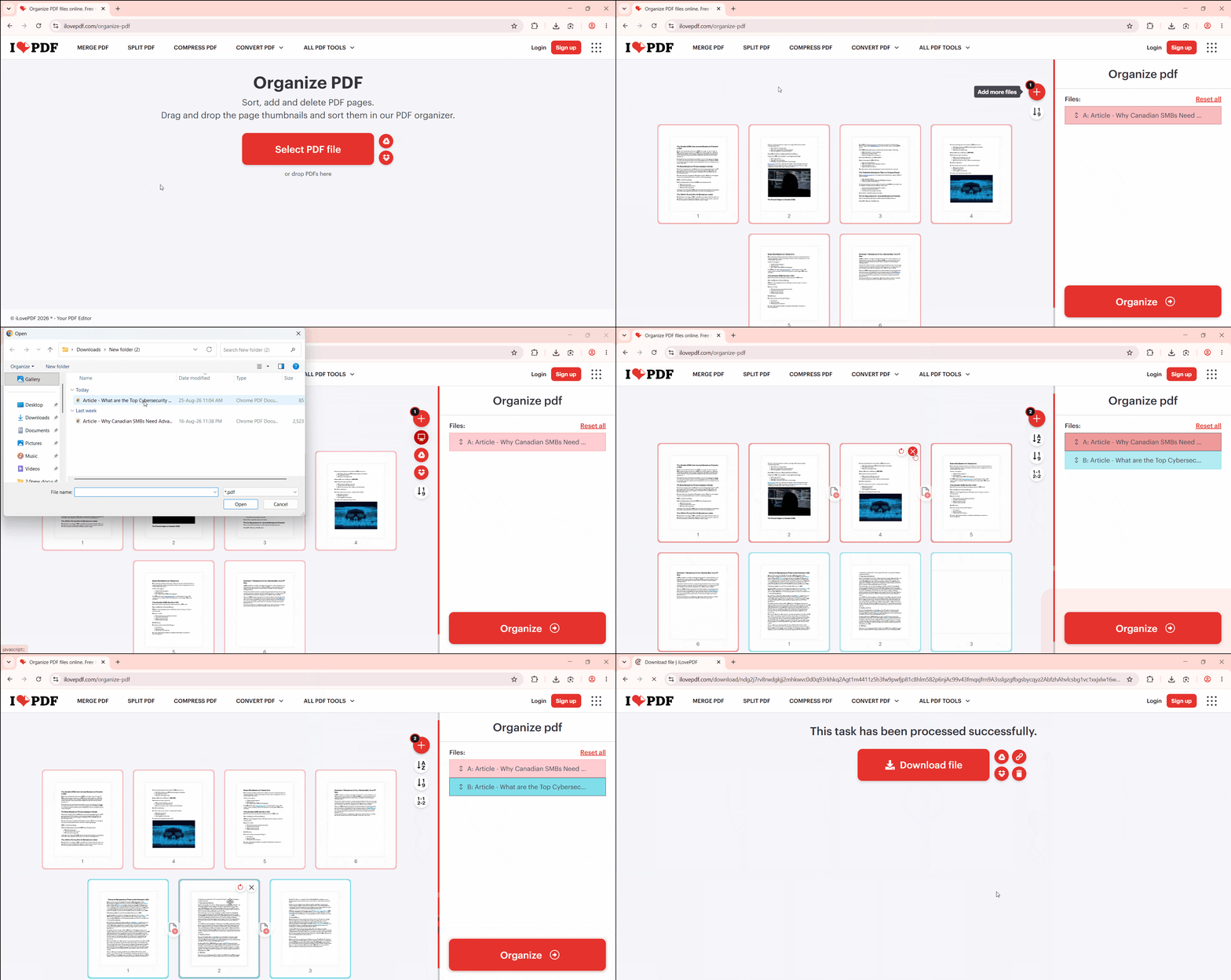
- Go to the iLovePDF Organize PDF tool and upload your main document.
- Click the red + icon to upload the second PDF containing your replacement page.
- iLovePDF inserts every page from that second file into your document as thumbnails.
- You then have to scroll through and delete the pages you don't need. Plus, you have to manually drag the one page you want into the correct position.
Limitations:
- iLovePDF's replace PDF online tool inserts all pages from the second file. There's no way to tell iLovePDF "just grab page 5 from this file." It's an all-or-nothing import. For longer documents, you are doing manual cleanup on every single upload. After you have swapped the page, you will still need to go back and delete pages in PDF that got left behind from the import.
2. Swap PDF Pages Online via Smallpdf
Best For:
How it works:
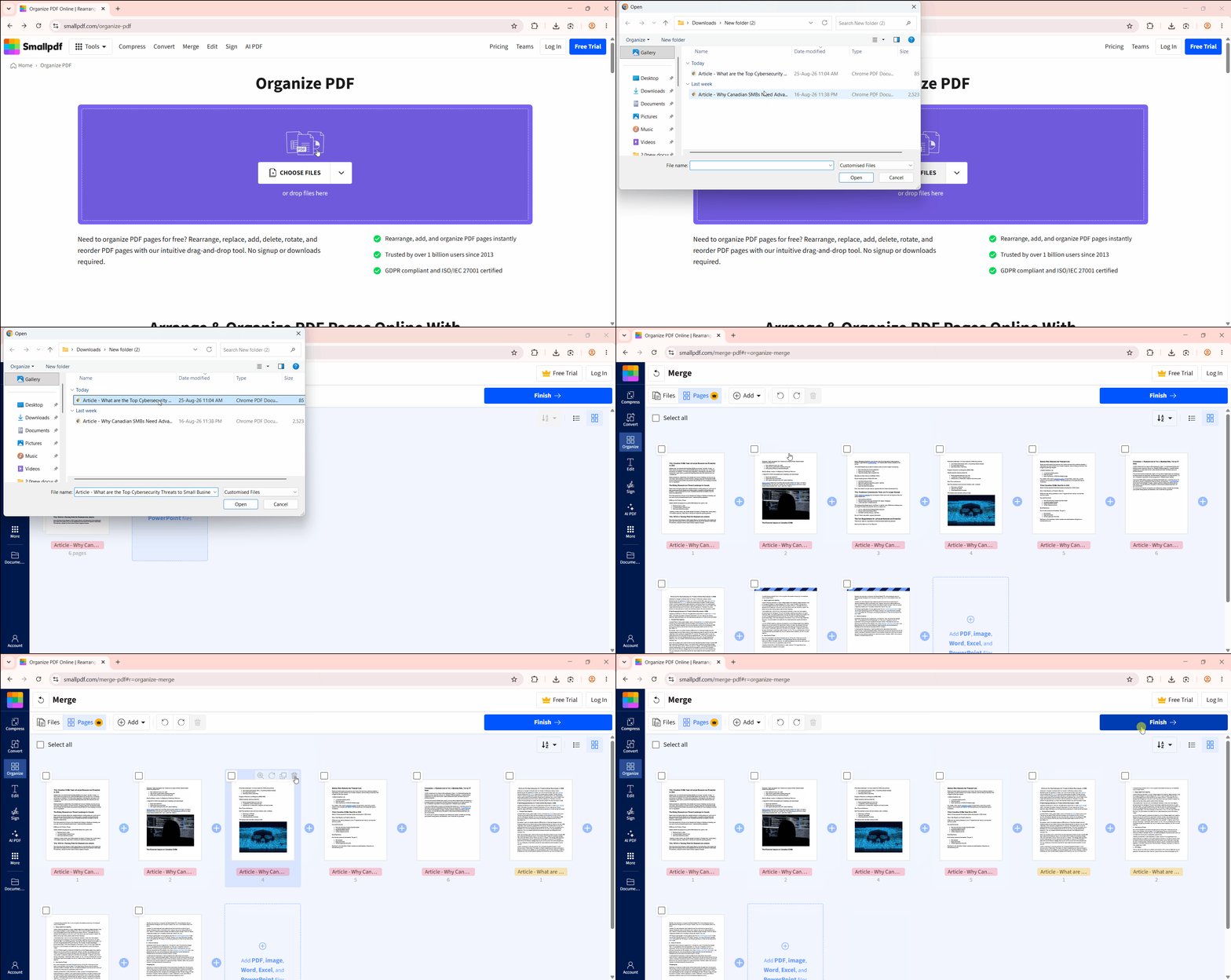
- Drag and drop your original PDF into Smallpdf's Organize PDF tool.
- Upload the second PDF to expand its pages into the same thumbnail view.
- Manually select the page you want to keep and delete the rest.
Limitations:
- Smallpdf has no dedicated page-swap dialog. You are doing the same insert-then-delete dance as iLovePDF's replace PDF online tool. Plus, large files may lag while thumbnails render. If your real need is just to pull one page from a larger file, it's often faster to extract pages from PDF directly.
3. Rearrange & Replace Pages Online via Adobe Acrobat Online
Best for:
How it works:
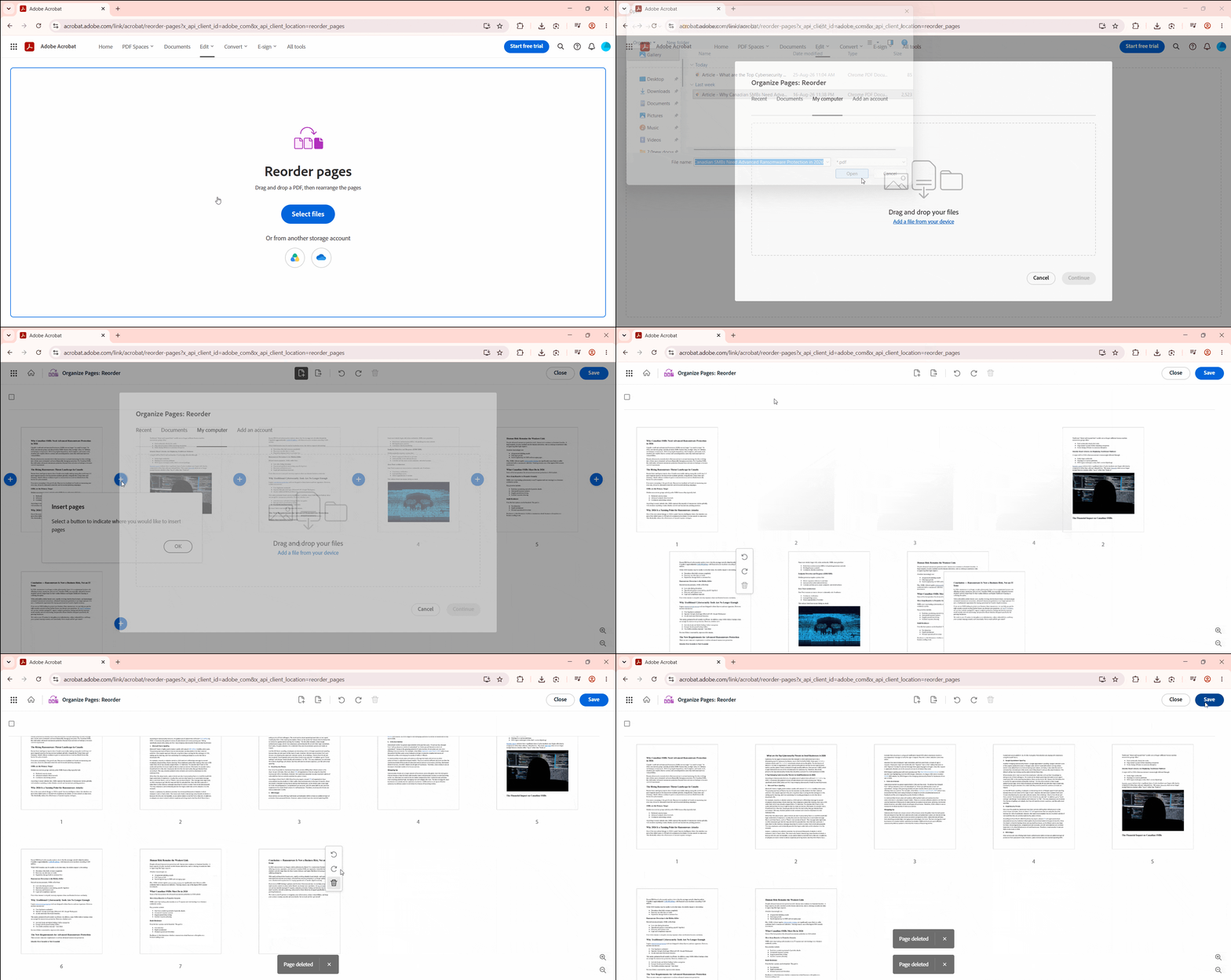
- Log into Acrobat Online's rearrange pages tool and upload your PDF.
- Use the insert function to bring in your updated document.
- Manually select and delete the outdated pages.
Limitations:
- Acrobat Online requires you to log in to access its replace PDF pages online interface. Plus, frequent use quickly runs into premium paywalls. Like the other two, it has no single-step "replace this page with that page" feature. You are still managing the swap by hand.
Part 2: Native 1-Click PDF Page Replacement via UPDF (Desktop & Mobile)
1. Native & Precise Page Replacement with UPDF Desktop
Best For:
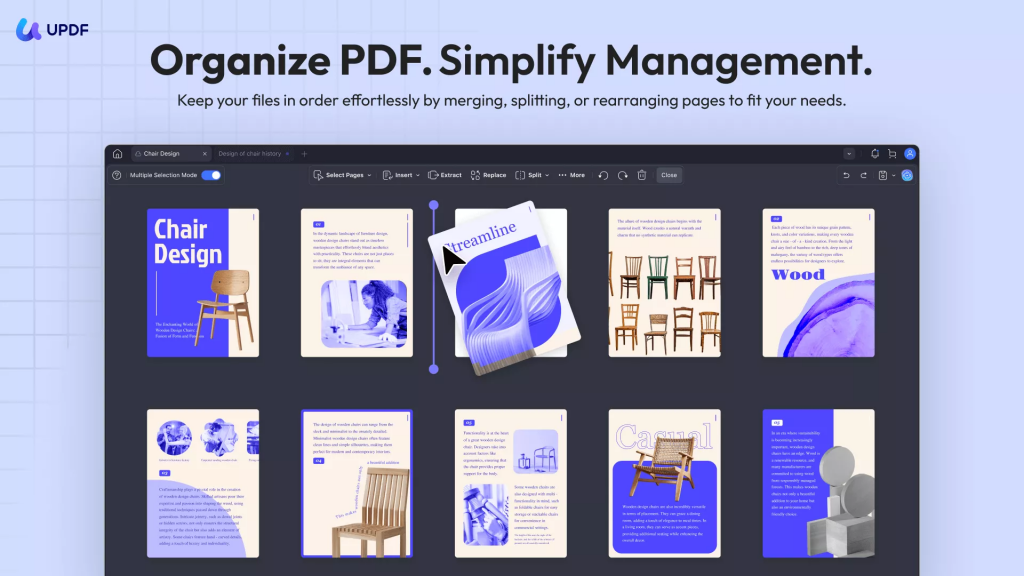
UPDF is an advanced desktop PDF editor with a built-in Replace function in its page organizer, so there's no import-everything-then-delete cycle. You can directly select the pages to replace and insert the other pages from another document at the exact spot.
How it works:
- Open the PDF with UPDF. Click Tools and tap Replace under the Organize Pages options.
- Click to select the page you want to replace. You can also select multiple pages by holding the Ctrl key.
- Click the Replace option in the top toolbar, then select the other PDF document to replace the pages.
- Select the page range of the second document you want to add, then click Replace.
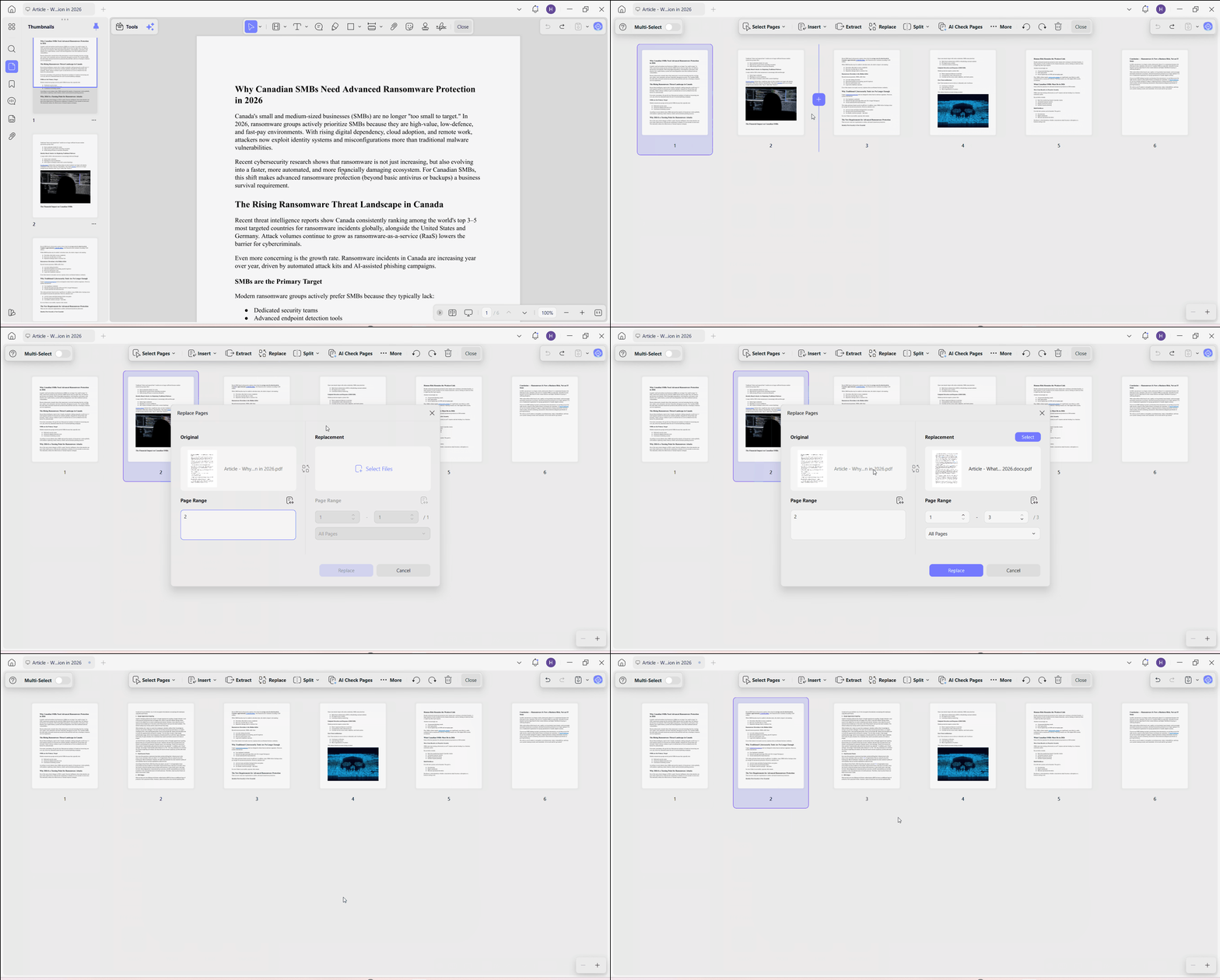
Within seconds, UPDF will replace the selected page(s) in the original document with the corresponding page(s) from the second document. Even if the new document is 500 pages long, UPDF extracts only Page 5 to perform the replacement instantly. There is no need to import all 500 pages or manually purge unneeded content to replace pages in PDF.
Beyond replace, UPDF's Organize Pages panel covers the rest of the toolkit as well, including Delete, Insert, Extract, Split, Rotate, and Reorder. If you are comparing this against just appending new content, the difference from add pages to PDF is that replace swaps existing content in place rather than growing the document.
2. On-the-Go Page Replacement with UPDF Mobile (iOS & Android)
Best For:
UPDF mobile app includes a full Organize Pages module where users can insert new pages, remove outdated ones, and adjust layout order on mobile screens. You don't need a separate license for that. One UPDF account/license unlocks premium features across Windows, Mac, iOS, and Android.
How it works:
- Launch the UPDF mobile app on your iPhone/Android device and open the PDF.
- Click the Pages icon from the top right and select Organize Pages.
- Use the Insert option to add a PDF and then remove the unwanted pages.
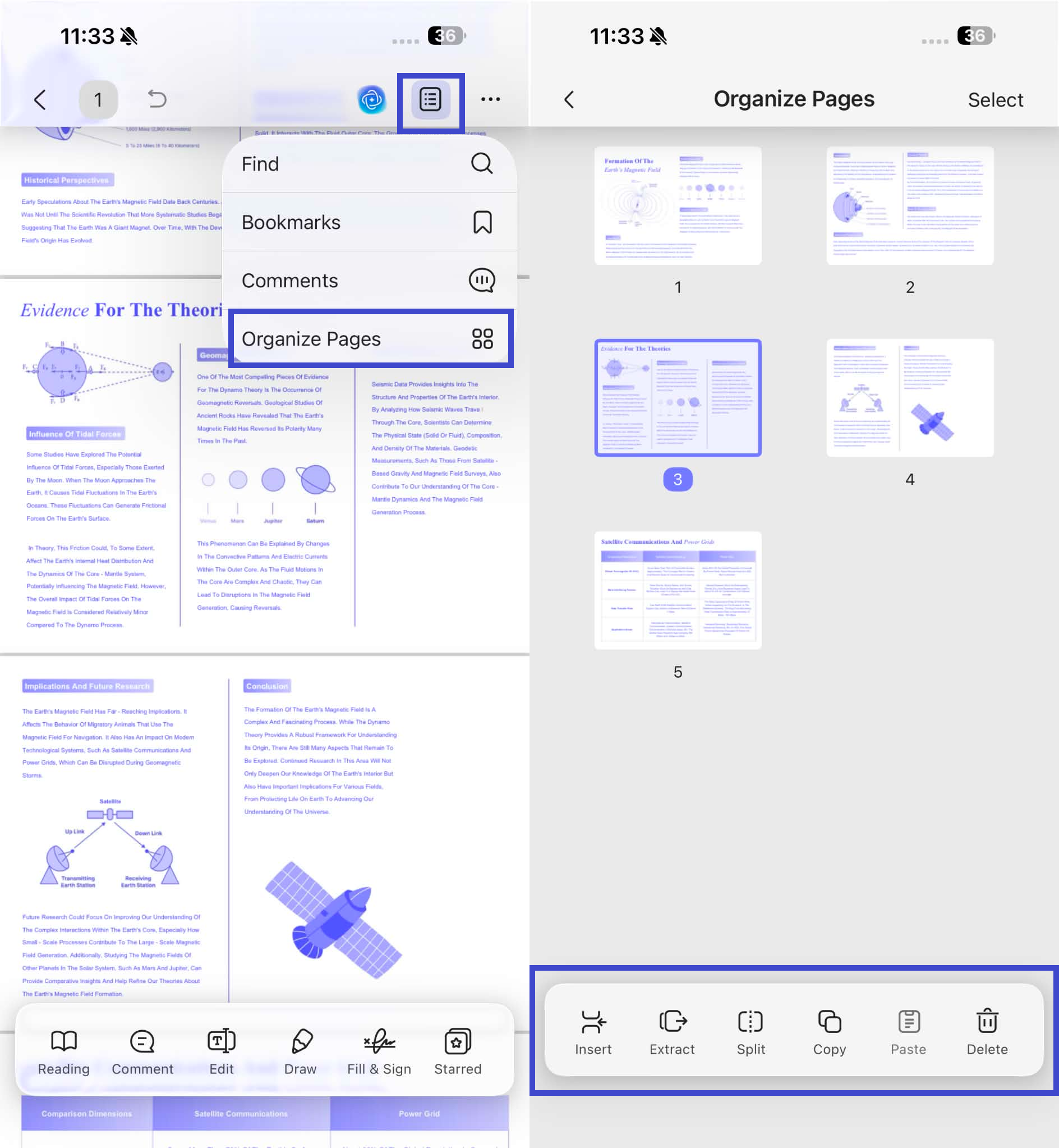
That's how to replace PDF proposals or other documents on the go. You can also use the Extract, Split, and Copy options to fulfill other PDF page organization needs.
Tip: If you are mainly clearing out pages on the go rather than swapping them, the PDF page remover covers bulk deletion specifically.
Stop wasting time manually deleting unwanted pages in web browsers. Download UPDF to replace pages in 1 click across Windows, Mac, iOS, and Android!
Windows • macOS • iOS • Android 100% secure
Frequently Asked Questions
Can I replace a page in a PDF without deleting and re-uploading?
Yes. Most online tools require uploading a full second document and manually deleting the extra pages. Desktop software like UPDF has a native Replace feature that lets you swap a specific page number directly in one step.
How do I swap or replace pages in a PDF proposal?
Open the proposal in UPDF, click Organize Pages, select the outdated page, and click Replace. Choose your updated file, set the target page number, and UPDF replaces it instantly without breaking the surrounding formatting or links.
Is it safe to replace sensitive PDF pages using free online tools?
Web-based tools require uploading your files to remote cloud servers. For confidential business proposals, legal contracts, or financial reports, using an offline desktop application like UPDF guarantees full document privacy and data security.
Can I replace pages in a PDF on mobile devices?
Yes. UPDF's iOS and Android apps let you insert updated pages, delete obsolete ones, and reorder your document's layout directly from a phone or tablet.
Conclusion
Replace PDF pages online tools like iLovePDF, Smallpdf, and Acrobat Online can get you to a replaced page, but their insert-everything-then-delete-the-rest workaround becomes frustrating on anything longer than a few pages. UPDF replaces that with an actual one-click Replace function, plus the full organize PDF pages toolkit, on both desktop and mobile.
The finished file should contain the pages readers need in a clear order. For a closer look at the tools, the next video covers organizing PDF pages in UPDF.
Stop fighting with insert-and-delete workarounds. Download UPDF for free and replace PDF pages the way it should work in one click.
Windows • macOS • iOS • Android 100% secure





 Enya Moore
 Enid Brown

 Lizzy Lozano