UPDF
UPDF
 UPDF for Windows
 UPDF for Mac
 UPDF for iPhone/iPad
 UPDF for Android
 Nomostar
 UPDF AI Online
 UPDF Sign
 IvyCraft
 Edit PDF
 Annotate PDF
 Create PDF
 PDF Form
 Edit links
 Convert PDF
 OCR
OCR PDF to Word
 PDF to Image
 PDF to Excel
 Organize PDF
 Merge PDF
 Split PDF
 Crop PDF
 Rotate PDF
 Protect PDF
 Sign PDF
 Redact PDF
 Sanitize PDF
 Remove Security
 Read PDF
 UPDF Cloud
 Compress PDF
 Print PDF
 Batch Process
 About UPDF AI
 UPDF AI Solutions
 AI User Guide
 FAQ about UPDF AI
 Summarize PDF
 Translate PDF
 Chat with PDF
 Chat with AI
 Chat with image
 PDF to Mind Map
 Explain PDF
 PDF AI Tools
 Image AI Tools
 AI Chat Tools
 AI Writing Tools
 AI Study Tools
 AI Working Tools
 Other AI Tools
 AI Bookmark Generation
 AI Bookmark Summary
 AI Watermark Generation
 AI Background Generation
 AI Sticker Generation
 AI Stamp Generation
 AI Editing Suite
 UPDF Copilot
 AI Page Management
 AI Semantic Search
 PDF to Word
 PDF to Excel
 PDF to PowerPoint
 Enterprise Solution
 Enterprise Sign
 Enterprise AI
 Enterprise Plan
 Enterprise User Guide
 Enterprise Webinar
 IT
IT Education
 Construction
 Financial Service
 Healthcare
 Insurance
 Legal
Legal Manufacturing
 Government
 Researchers & PhDs
 Solopreneurs & Freelancers
 Lawyers & Legal Professionals
 Real Estate Agents & Brokers
 Education Solution
 Customer Stories
 User Guide
 UPDF Tricks
 FAQs
FAQs UPDF Reviews
 Download Center
 Blog
Blog Newsroom
 Tech Spec
 Updates
 UPDF vs. Adobe Acrobat
 UPDF vs. Foxit
 UPDF vs. PDF Expert

Not sure which online PDF cropper to use? Compare 15 free tools by features, privacy, page range options, and limits — find the best one for your needs.
Example: For a scanned receipt with a dark border, crop one page first and confirm that the merchant name, date, total, and receipt number remain visible before downloading the result. For a related workflow, see compare online PDF cropping methods.
In this article, we'll discuss how to crop PDF pages online and the best offline alternative - UPDF delivers precise dimension cropping and one-click A3/A4/A5 resizing without manual tweaks. As an offline tool, it safeguards file privacy, supports bulk page cropping, and avoids online upload limits or data leakage risks.
Windows • macOS • iOS • Android 100% secure
Top 15 PDF Online Croppers
Can't remove unwanted margins or scanner shadows from your PDF? Here are 15 free online PDF croppers — with privacy‑first options that keep your files local.
| Tool | Free Access | Page Range Options | Pros | Cons |
|---|---|---|---|---|
| Smallpdf | Free (limited daily tasks) | Single or all pages | No signup, works on any device | Limited daily free usage |
| iLovePDF | Free (limited) | Single or all pages | Intuitive, mobile app available | Ads in free version |
| PDF Image Tool | Free | Single or all pages (auto-crop) | Privacy-first, browser-based processing | Feature set is limited |
| PDF Resizer | Free | All pages (auto-crop) | Customizable page dimensions | Focuses on resizing rather than cropping |
| Visual PDF | Free | Single or multiple or all pages | Intuitive visual interface | Limited information available |
| PDF2Go | Free | Single page | No technical skills required | Crop page one by one, no batch process |
| Adobe Acrobat Online | Free (requires Adobe login) | All or specified page range | Industry standard, precise control | Requires login |
| Xodo | Free | Current or specified page range | Strong privacy, cross-platform support | Can't revert changes after applying |
| PDF Candy | Free | Single Page | No registration, no ads | Just crop one page once |
| Sejda | Free (3 tasks/hour) | All, current, or specified pages (auto-crop) | Precise, auto-select crop area | Pop-up ads in interface |
| iScanner | Free | Current or all pages | AI-enhanced features | Focuses on scanning rather than cropping |
| Lumin | Free (requires login) | All, current, or specified pages | Precise, reusable crop presets | Requires account registration |
| FreeConvert | Free | All, current, or specified pages | Supports numeric precision cropping | Focuses more on format conversion |
| PDF Techno | Free | All or specified pages | Privacy-friendly, no registration required | Limited information available |
| Deftpdf | Free | All or single page | AI-assisted crop suggestions, no upload | Newer tool with limited track record |
These tools differ across three main dimensions:
Privacy & Security
- Xodo, PDF Image Tool, PDF Techno, and deftpdf process files on your device — files never leave your browser. Best for sensitive documents.
- Smallpdf, Adobe, and iLovePDF use cloud processing — files are uploaded to servers but typically encrypted and auto-deleted.
Page Range Control
- Adobe, Xodo, Lumin, and Sejda support cropping all, current, or specific pages — maximum flexibility.
- PDF Candy and some others apply the same crop to all pages — less control.
Free Access & Limits
- Smallpdf and Sejda have daily or hourly task limits.
- Adobe and Lumin require free account registration.
- deftpdf, PDF Techno, and PDF Image Tool are fully free with no signup.
General Steps — Crop PDF PageOnline
Regardless of which tool you choose, the general workflow is the same:
Step 1: Upload your PDF file.
Step 2: Drag the crop box handles to select the area you want to keep.
Step 3: Choose your page range — current page, all pages, or specific pages.
Step 4: Click "Crop" or "Apply" to process.
Step 5: Download your cropped PDF.
Limitations of Online Tools & When to Switch to Desktop
While online tools are convenient, they have clear limitations:
| Limitation | Why It Matters |
|---|---|
| Privacy risks | Files must be uploaded to third-party servers — not suitable for confidential documents. |
| Usage limits | Free tiers cap file size, pages, or daily tasks. |
| Precision | Hard to achieve pixel-perfect crops; most cannot crop background images. |
| Internet required | Cannot work offline. |
| Batch processing | Most process one file at a time. |
Let's check the following 5 offline solutions when online tools aren't enough.
Tested 5 Offline Solutions When Online Tools Aren't Enough
Desktop software keeps your files on your own machine (no cloud upload), offers the highest precision, and supports advanced cropping features like custom margins, crop boxes (Crop/Trim/Bleed/Art boxes), and batch processing.
UPDF stands out as a strong offline PDF editor known for its easy-to-use design and advanced features that make cropping PDF pages efficient. You can simply drag the crop box to adjust the size of PDF pages. In addition, you have the option to put the required dimensions manually while cropping the pages. You can even select a custom page range to apply the cropping effect on more than one page at a time to organize PDF pages.
It's designed to work without an internet connection and is particularly effective in smoothly cropping PDF pages. Furthermore, the software offers a convenient solution for users who want to personalize their documents. Moreover, it excels in efficiently organizing PDF pages with a range of versatile tools. Below is a step-by-step guide on how to crop PDF pages using UPDF PDF cropper.
Step 1. Download UPDF and Open Your File in the Software
First, you have to click the "Free Download" button given below to get your hands on this tool for performing cropping functions. Once installed, launch UPDF and click the "Open File" button to open your desired file from your system.
Windows • macOS • iOS • Android 100% secure
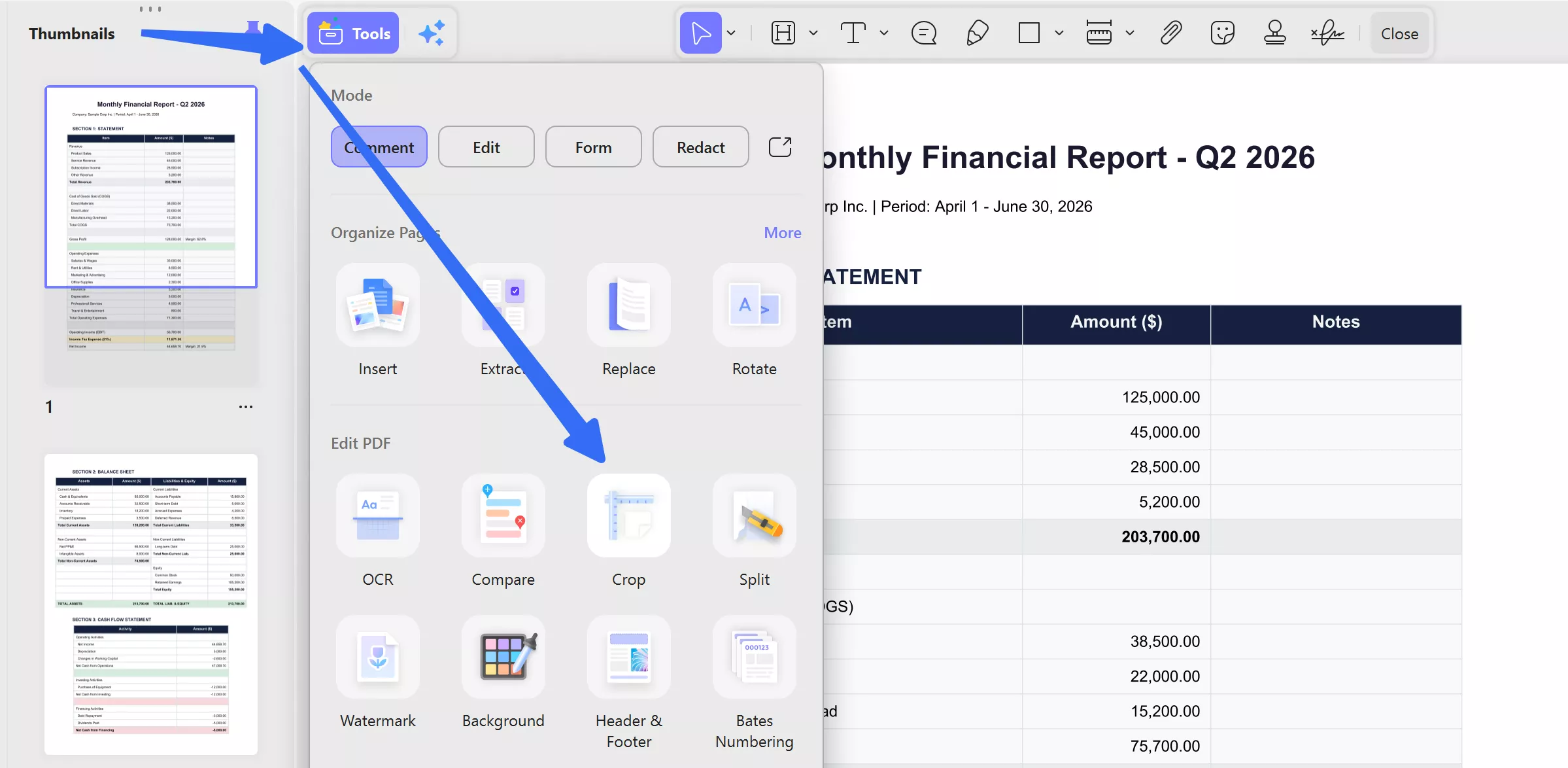
Step 2. Crop PDF Pages Using the Crop Box
After opening the file, go to the left toolbar and click the "Crop Pages" tool, and the thumbnails of document pages will appear. Then, navigate through the list of pages, select the page to crop with a left-click, and view it on the screen. Now, proceed further by adjusting the page size by dragging the "Crop" box according to your requirements.
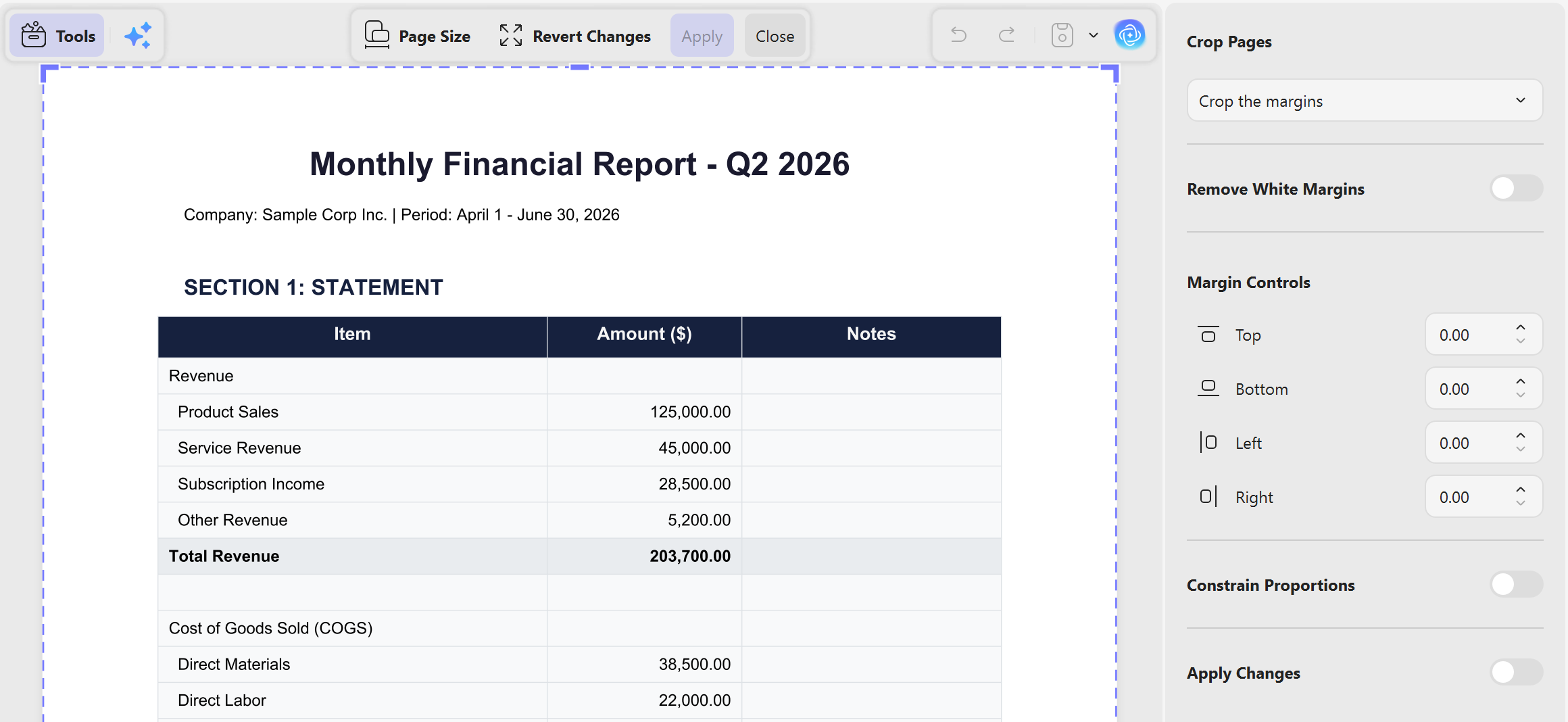
Step 3. Customize the Page Size with the Options Feature
Additionally, click the "Options" icon next to the page, which opens a panel on the right side. Here, manually input size values in the top, bottom, left, and right boxes. Moreover, changes can be undone by clicking the "Revert Changes" button. If you want to customize the cropping page, click "Apply Changes" on the top-left and set the page range. Finally, click "Crop" at the top right and save your modifications.
For enhanced features and capabilities, we highly encourage downloading UPDF for a more seamless and efficient PDF page cropping process.
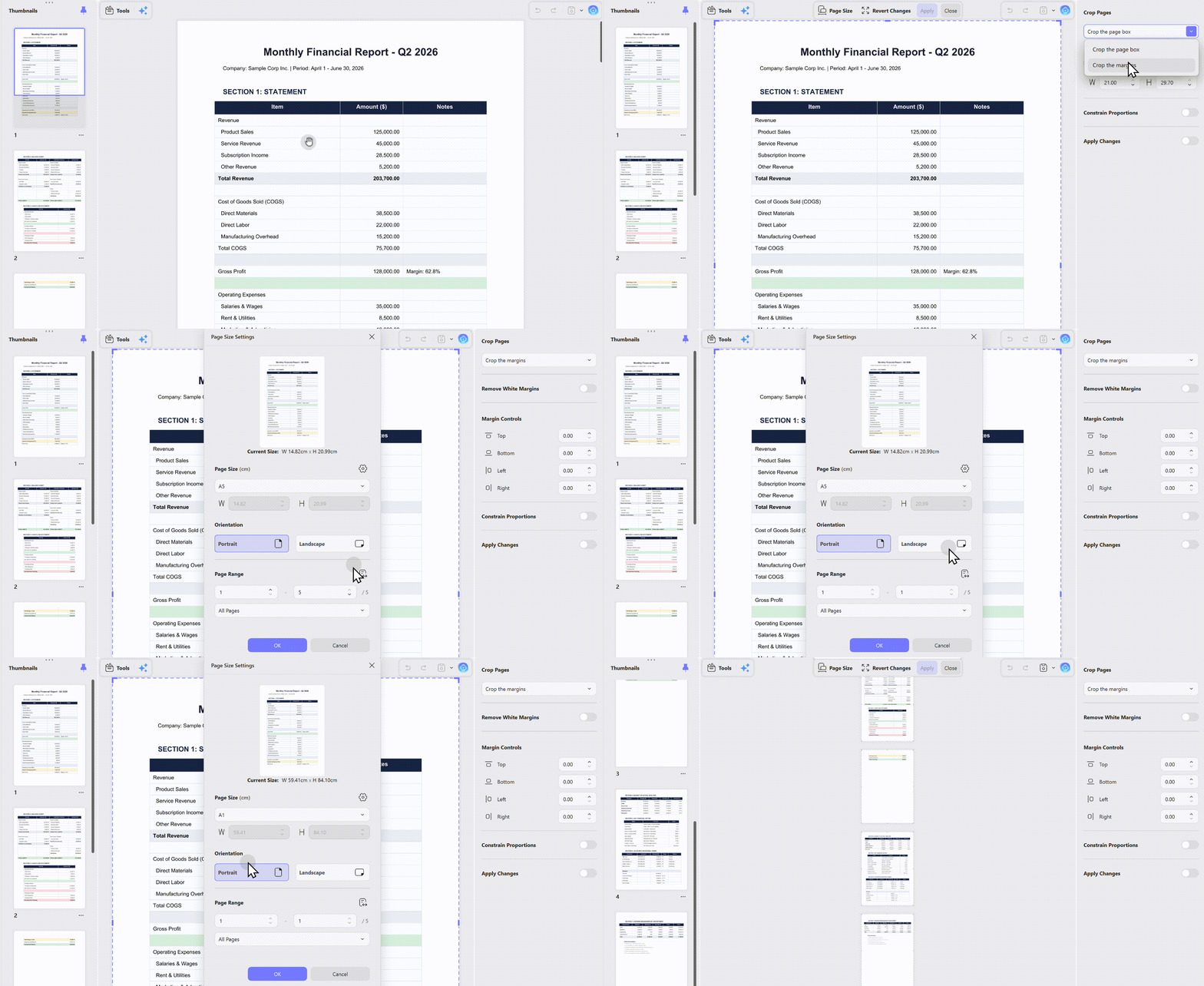
What's more, UPDF also lets you check page dimensions to accurately calculate the exact cropping margin needed to reach your target size. It comes with preset standard sizes including A3, A4, and A5 for one-click page resizing, eliminating the need for manual cropping.
Windows • macOS • iOS • Android 100% secure
FAQ
Does online PDF cropping remove data outside the crop box?
Not always. Many tools only change the visible page boundary, so hidden content may remain in the file.
Can I crop different PDF pages by different amounts online?
Some tools allow per-page crop boxes, while others apply one setting to all pages. Check mixed page sizes before saving.
Is online cropping suitable for confidential PDFs?
Only if the provider’s privacy and deletion practices meet your needs. Use offline processing for sensitive files.
Conclusion
We have concluded that the use of online tools to crop PDF pages provides a handy and effective option for users who want to customize their documents. However, for a more complete and secure PDF cropping experience, UPDF emerges as the preferred choice to crop and organize PDF pages in one place.
The page should fit its intended use without cutting off important details. For the next step, you can explore organizing PDF pages in UPDF in the video below.
Besides, it ensures not only efficient cropping but also advanced features and strong document security to uphold a commitment to user satisfaction. We strongly recommend downloading UPDF to enhance your PDF cropping experience. Moreover, if you switch to UPDF Pro, you will get a generous discount available for a limited time.
Windows • macOS • iOS • Android 100% secure





 Enrica Taylor
  Enola Miller

 Enola Davis