 UPDF
UPDF
 UPDF for Windows
 UPDF for Mac
 UPDF for iPhone/iPad
 UPDF for Android
 Nomostar
 UPDF AI Online
 UPDF Sign
 IvyCraft
 Edit PDF
 Annotate PDF
 Create PDF
 PDF Form
 Edit links
 Convert PDF
 OCR
OCR PDF to Word
 PDF to Image
 PDF to Excel
 Organize PDF
 Merge PDF
 Split PDF
 Crop PDF
 Rotate PDF
 Protect PDF
 Sign PDF
 Redact PDF
 Sanitize PDF
 Remove Security
 Read PDF
 UPDF Cloud
 Compress PDF
 Print PDF
 Batch Process
 About UPDF AI
 UPDF AI Solutions
 AI User Guide
 FAQ about UPDF AI
 Summarize PDF
 Translate PDF
 Chat with PDF
 Chat with AI
 Chat with image
 PDF to Mind Map
 Explain PDF
 PDF AI Tools
 Image AI Tools
 AI Chat Tools
 AI Writing Tools
 AI Study Tools
 AI Working Tools
 Other AI Tools
 AI Bookmark Generation
 AI Bookmark Summary
 AI Watermark Generation
 AI Background Generation
 AI Sticker Generation
 AI Stamp Generation
 AI Editing Suite
 UPDF Copilot
 AI Page Management
 AI Semantic Search
 PDF to Word
 PDF to Excel
 PDF to PowerPoint
 Enterprise Solution
 Enterprise Sign
 Enterprise AI
 Enterprise Plan
 Enterprise User Guide
 Enterprise Webinar
 IT
IT Education
 Construction
 Financial Service
 Healthcare
 Insurance
 Legal
Legal Manufacturing
 Government
 Researchers & PhDs
 Solopreneurs & Freelancers
 Lawyers & Legal Professionals
 Real Estate Agents & Brokers
 Education Solution
 Customer Stories
 User Guide
 UPDF Tricks
 FAQs
FAQs UPDF Reviews
 Download Center
 Blog
Blog Newsroom
 Tech Spec
 Updates
 UPDF vs. Adobe Acrobat
 UPDF vs. Foxit
 UPDF vs. PDF Expert

Quick answer:
One thing that trips people up: rotating a page and rotating an image inside a page are two different jobs. If a photo is sideways but the page itself is upright, page rotation won't fix it — you need image rotation, which this guide covers in Part 2. UPDF for Windows is also one of the few editors that lets you rotate an image to a custom angle, not just 90°/180° steps.
This is a focused how-to for Windows. The same rotation tools exist on Mac, iPhone, and iPad — see the full cross-device walkthrough on how to organize PDF pages.
Each page should open in the orientation that makes its content easiest to read. The next video takes a practical look at organizing PDF pages in UPDF.
Part 1: Rotate PDF Pages Permanently on Windows
Browsers can spin a page on screen, but the rotation vanishes when you close the file. To make it stick, use an editor that writes the change into the document. Open your file in UPDF — if you don't have it yet, download UPDF for free and install it in under a minute.
Windows • macOS • iOS • Android 100% secure
Step 1. Click Open File on the home screen and choose your PDF.
Step 2. Click Organize Pages in the left-hand vertical menu. Thumbnails of every page appear with a toolbar on top.
Step 3. Click a page thumbnail to select it. To rotate several at once, use Multi-Select to pick a range or specific pages — or press Ctrl + A to select every page and rotate the whole document in one go.
Step 4. Click Rotate Counterclockwise or Rotate Clockwise until the orientation is right. UPDF rotates in 90° steps and previews the result instantly.
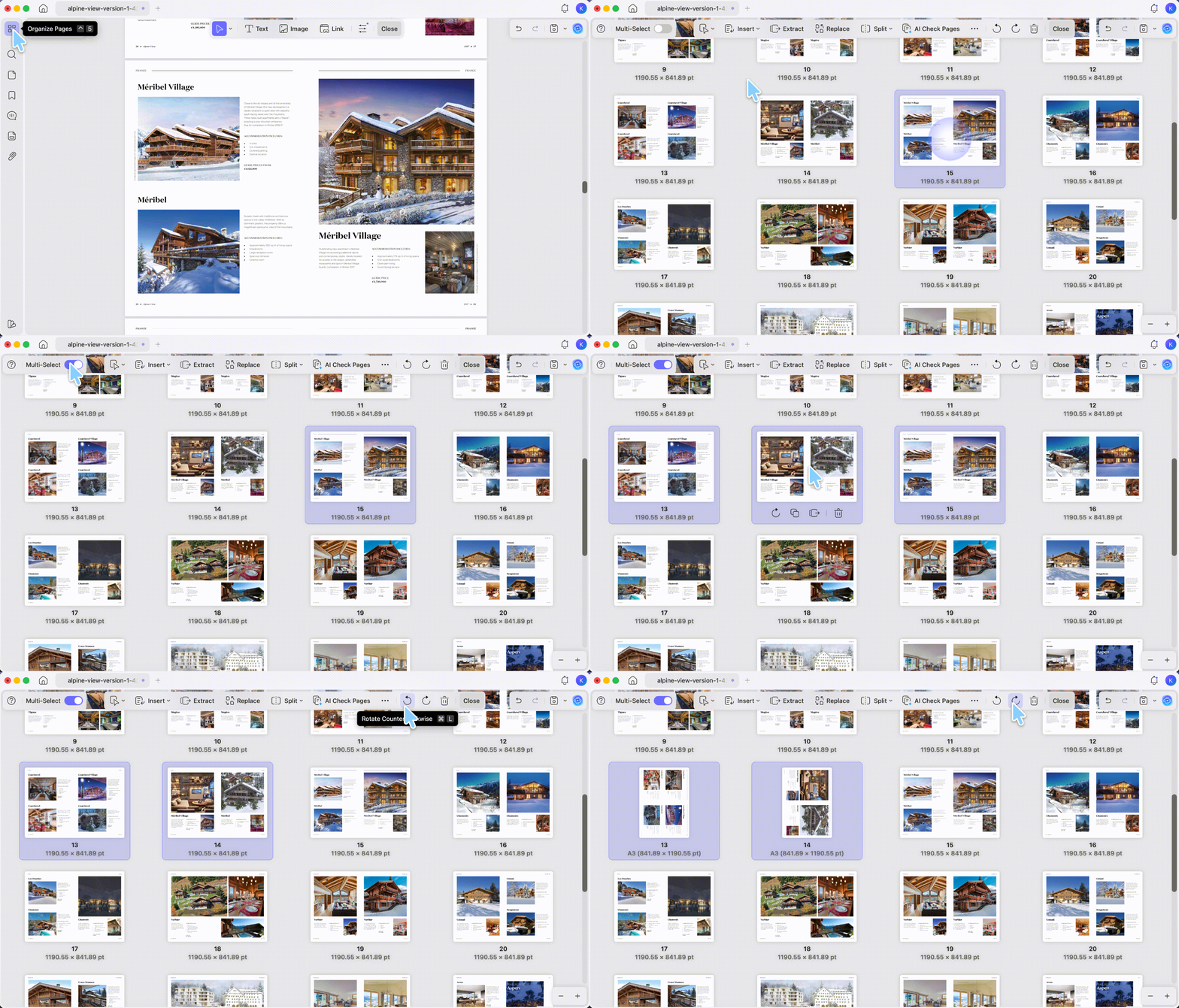
Step 5. Press Close, then choose Save → Save As Other to export a rotated copy while leaving the original untouched — or Save to overwrite the original.
Because the rotation is saved into the file, it stays correct on every device and in every reader you open it in afterward — unlike a browser's temporary spin.
Rotate an entire document through Print
If you'd rather force one orientation across every page at once — handy when a document is a mix of portrait and landscape pages — you can do it from the print dialog.
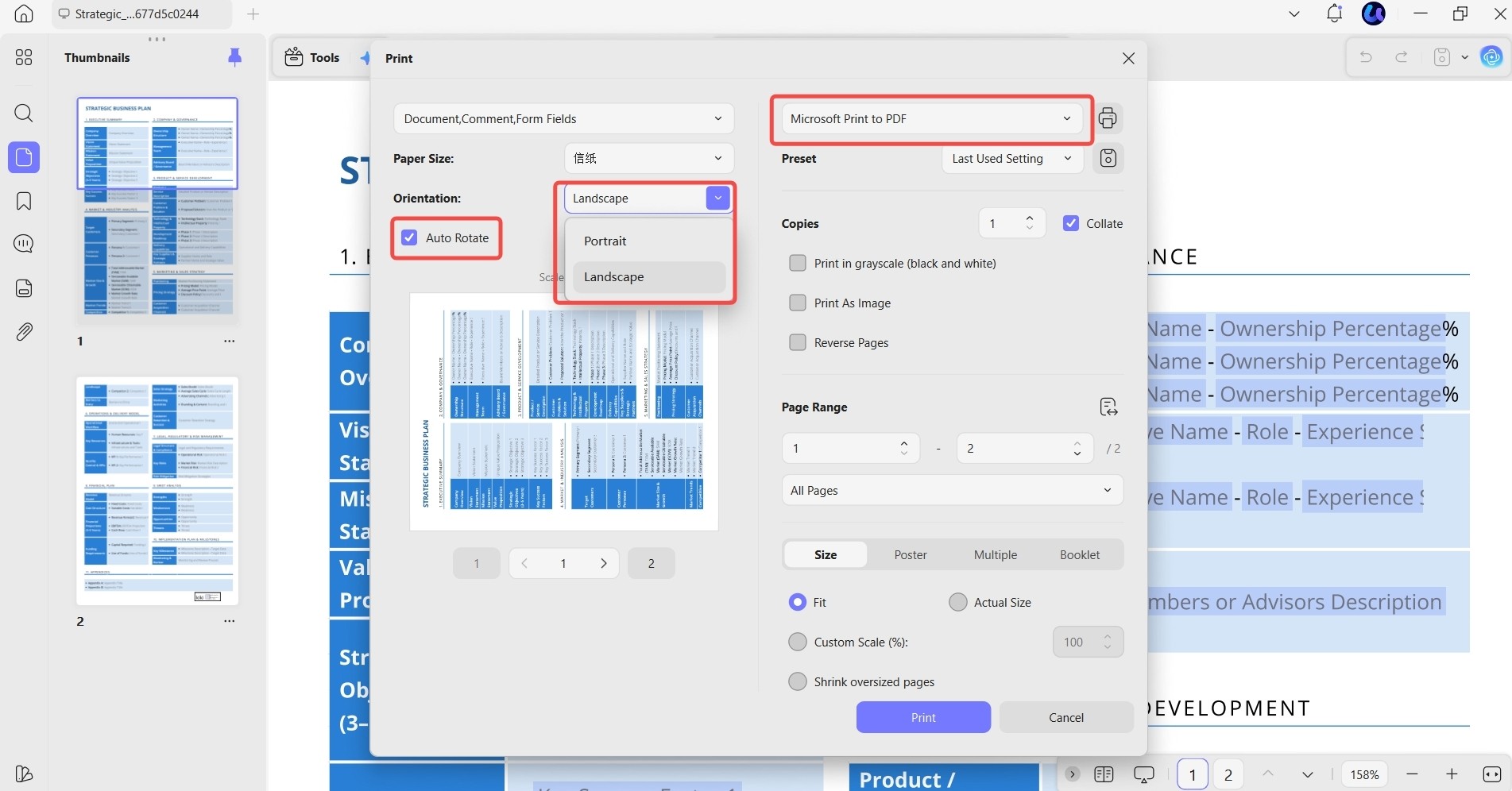
Step 1. With your PDF open in UPDF, go to the drop-down arrow next to the Save icon → Print to open the print dialog.
Step 2. In the left column, set Orientation to Landscape or Portrait, and tick Auto Rotate just below it so each page fits the chosen orientation.
Step 3. In the top-right printer dropdown, choose Microsoft Print to PDF, then click Print. Windows saves a new PDF with every page in the orientation you set. (Microsoft Print to PDF is a Windows feature; the macOS print dialog handles this differently.)
Download UPDF for free to try rotating your pages — installation is free, and Pro features unlock when you need watermark-free export or advanced tools.
Windows • macOS • iOS • Android 100% secure
Part 2: Rotate an Image Inside a PDF on Windows
When the page is upright but a photo, logo, or scanned figure on it is sideways, you rotate the image object itself — not the page. This is a separate flow inside Edit mode.
Step 1. Open the PDF and click Edit on the top toolbar to enter editing mode.
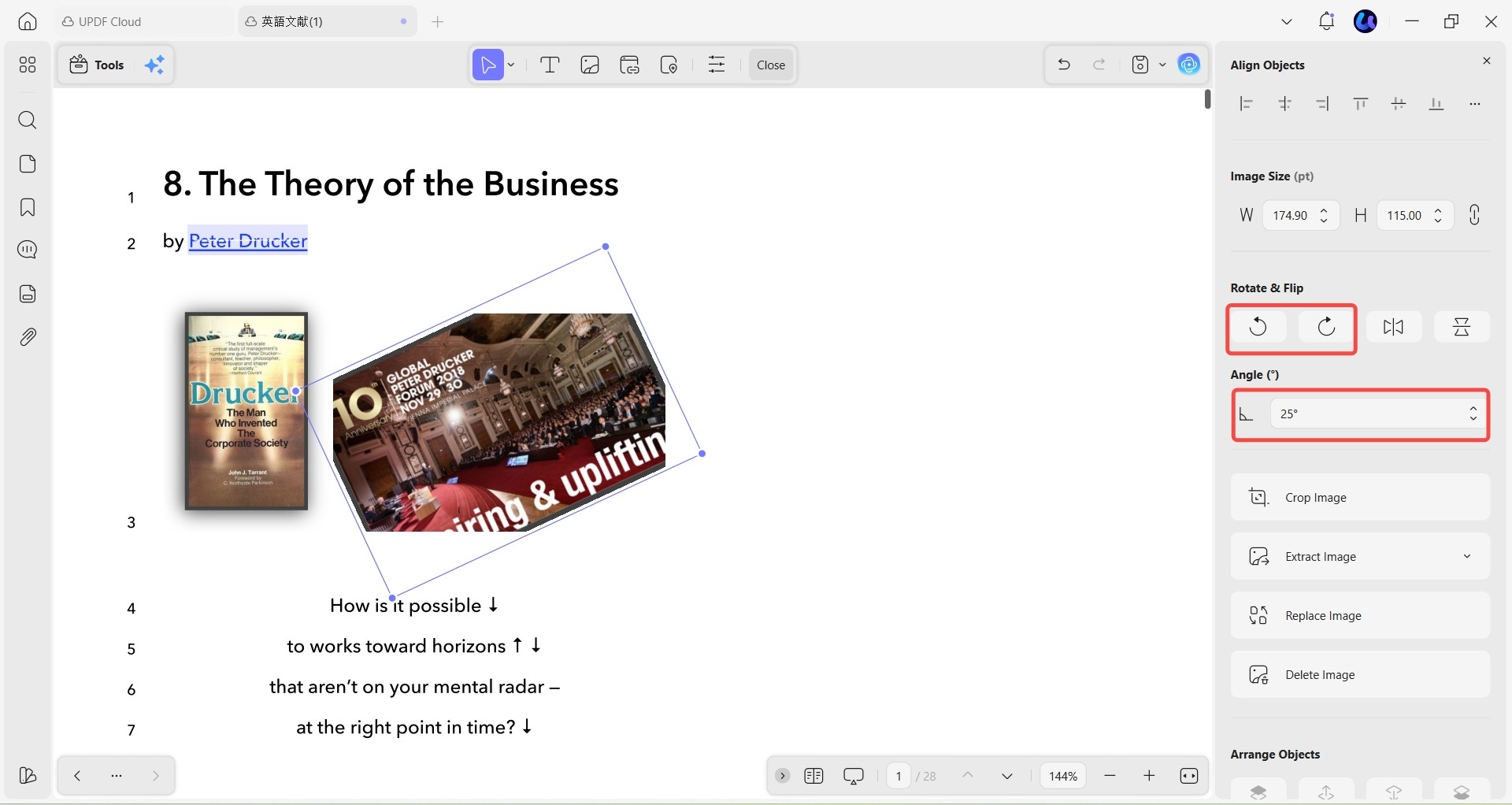
Step 2. Click the image. A toolbar appears above it with Rotate Counterclockwise and Rotate Clockwise buttons — click either for a quick 90° turn.
Step 3. For anything other than a right angle, right-click the image and choose Properties. The Align Objects panel opens on the right, with Rotate & Flip controls.
Step 4. In that panel, type an exact figure into the Angle field — for example 25° — to set a custom rotation. (This custom-angle input is available on UPDF for Windows; the Mac version currently rotates in 90° steps only.)
Step 5. Save your file.
Rotate every image on a page at once
If a page is full of images that all need turning the same way — a catalog or brochure — you don't have to do them one by one. UPDF's Filter lets you grab them all in one action.
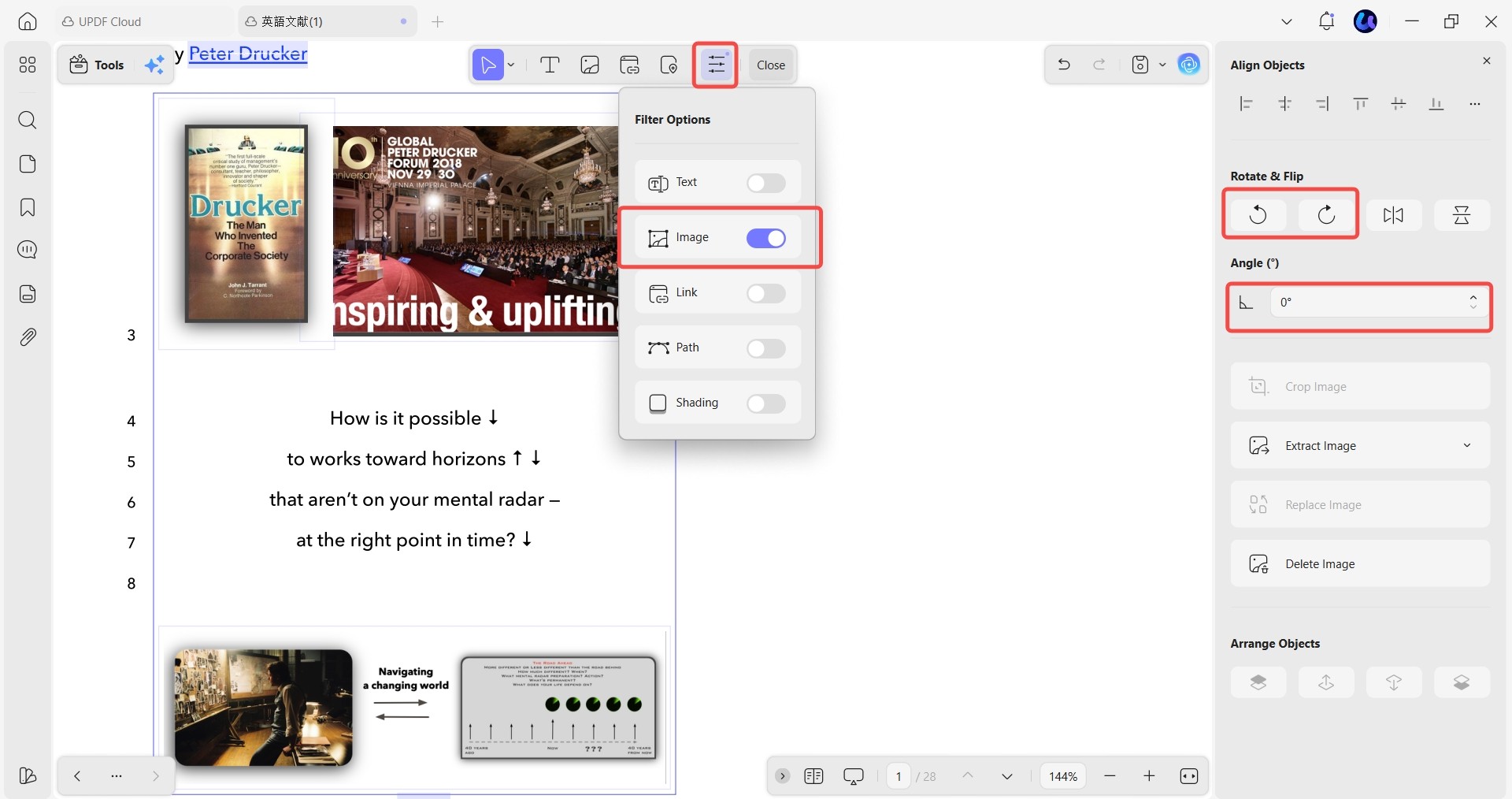
Step 1. In Edit mode, click the Filter icon in the top editing toolbar to open Filter Options.
Step 2. Turn off every toggle except Image, so only images are selectable and text or links won't be caught.
Step 3. Press Ctrl + A to select every image on the page at once.
Step 4. Right-click and choose Properties, then set the rotation (a preset direction or a custom Angle) — it applies to all selected images together.
Rotating an image on iPhone and iPad
Image rotation also works in the UPDF app on iOS. Open the PDF, tap the Edit icon in the bottom-right corner, tap the image, and use the rotate option in the little bar that appears over it. (For page rotation across all mobile devices, see the organize PDF pages guide.)
Page Rotation vs. Image Rotation — Which One You Need
These two get mixed up constantly, and picking the wrong one wastes time. A one-line way to keep them straight:
- Rotate a page → turns the entire sheet, including everything on it. Use it when a whole scanned page came in sideways or upside down. Lives in Organize Pages.
- Rotate an image → turns one picture while the page and its text stay put. Use it when the layout is fine but a single photo or figure is misaligned. Lives in Edit mode.
Think of the page as a sheet of paper on a desk and the image as a photo lying on top of it: turning the paper turns everything, while turning the photo moves only the photo. If your text should stay readable and only a picture is crooked, you want image rotation — not page rotation.
Part 3: Rotate a PDF Free on Windows with Microsoft Edge
If you only need a quick turn and don't want to install anything, Microsoft Edge — built into Windows — can rotate a PDF, with one catch: the rotation isn't saved as a change by default.
Step 1. Right-click the PDF, choose Open with → Microsoft Edge.
Step 2. Use the Rotate button in Edge's toolbar to turn the view.
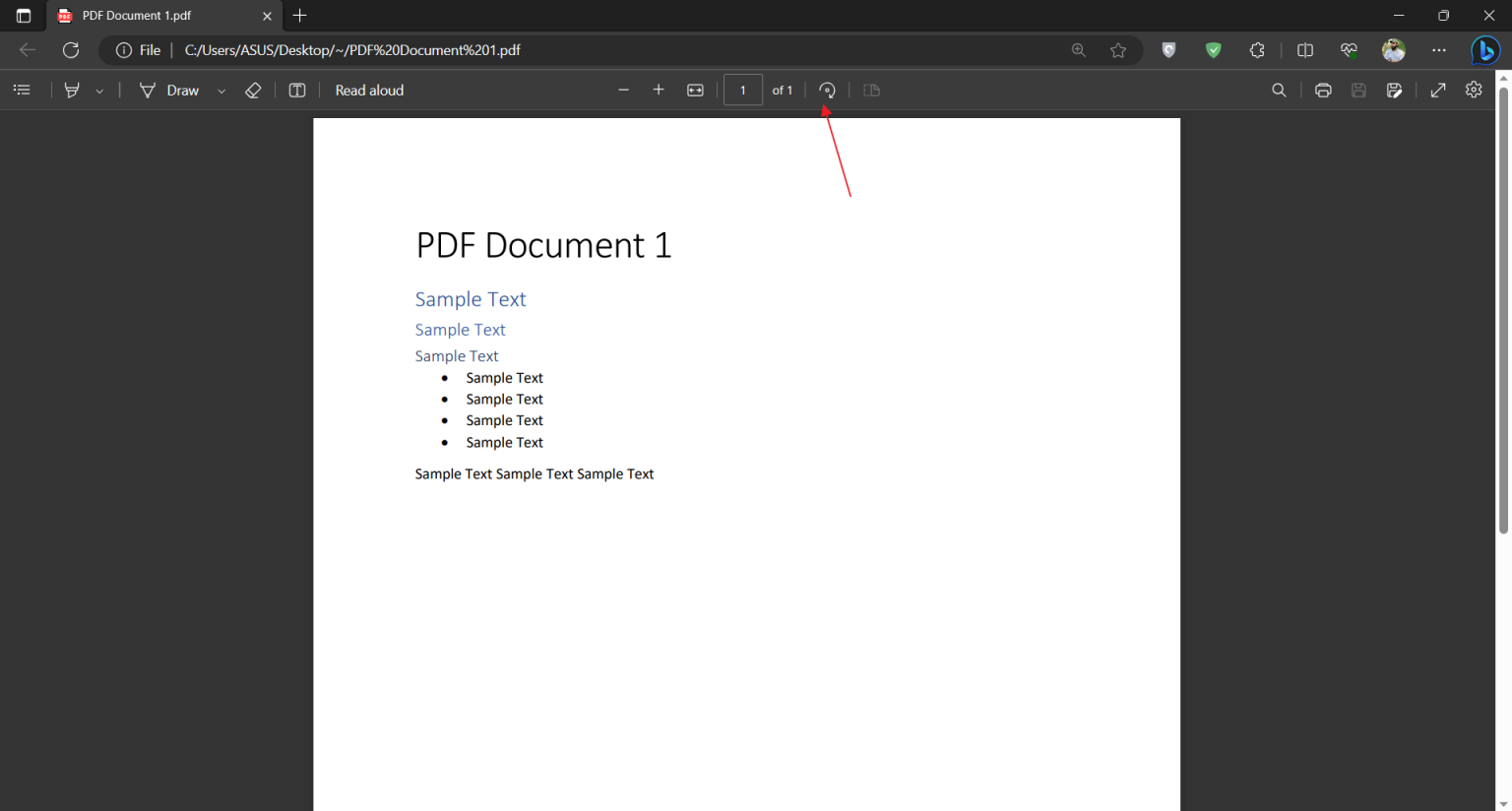
Step 3. To force Edge to save the rotation, make a real edit it will register: click Add text, type a character anywhere, delete it again, then click Save. Edge now writes the rotation into the file.
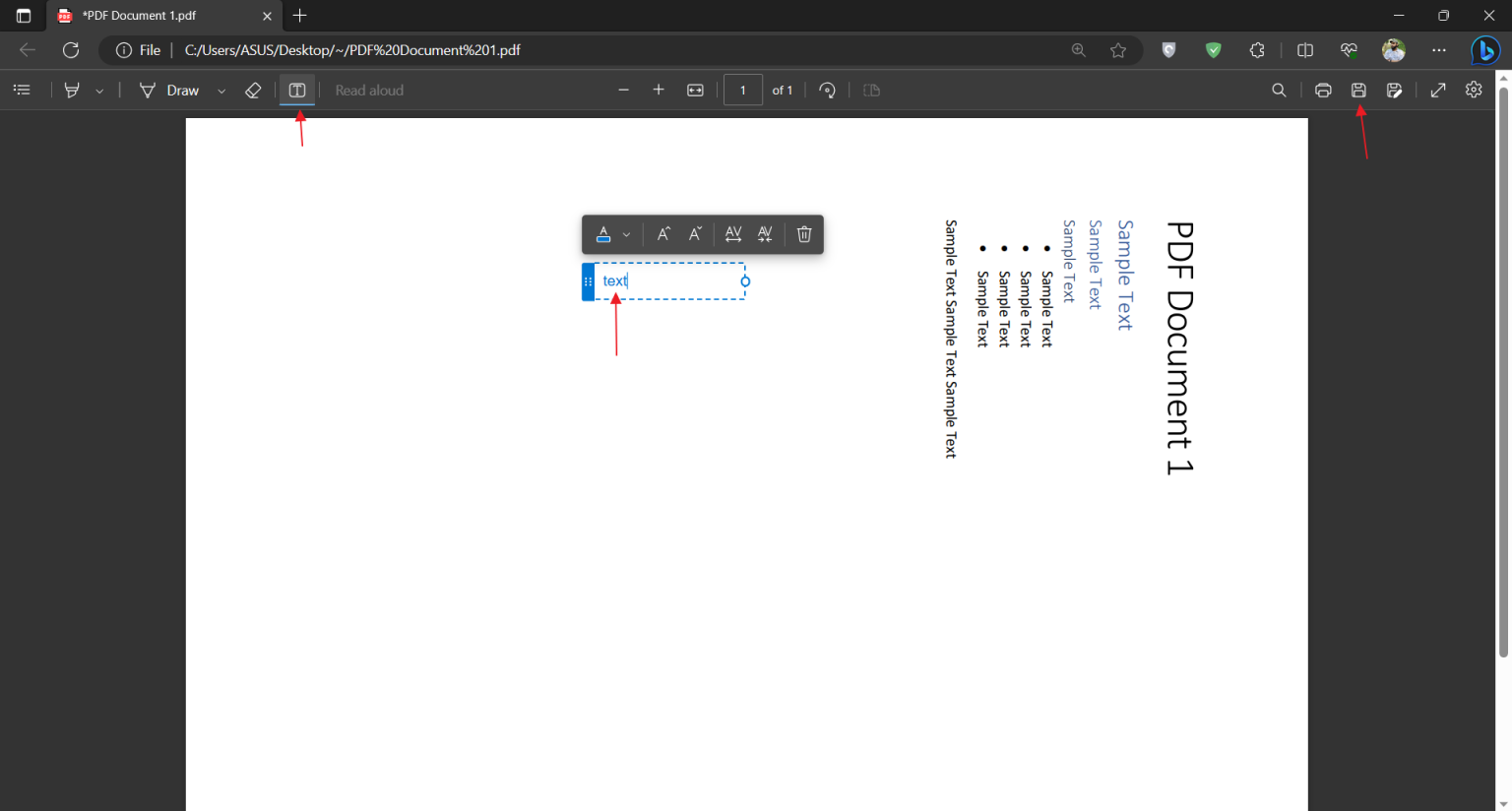
Edge only saves back to the original file — there's no "save a copy" option — so it's not ideal when you need to protect the untouched original. For a saved copy, a controllable angle, or image-level rotation, use UPDF instead.
Part 4: Edge Cases: When Rotation Doesn't Behave
- "I rotated the page but it reset when I reopened it." You almost certainly used a browser's on-screen rotate, which is temporary. Rotate in UPDF's Organize Pages and Save As Other to make it permanent.
- "The page is straight but the photo on it is still sideways." That's an image, not a page — switch to Edit mode and rotate the image (Part 2).
- "I need 30°, not 90°." Right angles are all most editors offer; use UPDF for Windows' Angle field to type an exact custom value.
- "Rotating the page turned my text sideways too." Page rotation turns everything on the sheet. If only one element should move, undo and rotate that image instead.
Part 5: FAQs
1. Does rotating a PDF reduce its quality?
No. Rotation only changes orientation, not the underlying content, so text and images stay as sharp as the original.
2. Can I rotate a PDF back to its original orientation later?
Yes. Rotation is fully reversible — turn the page or image the opposite way, or undo the change, and re-save.
3. Will rotating a scanned PDF make its text selectable?
No. Rotation changes page orientation, but a scanned page remains an image. If you also need to search or copy its words, run OCR on the upright page and save the recognized PDF.
Conclusion
Rotating a PDF on Windows comes down to picking the right target: use Organize Pages for whole pages and Edit mode for a single image, and reach for UPDF's Windows-only custom Angle field when a plain 90° turn won't do. Microsoft Edge handles a quick temporary spin, but only UPDF saves a clean copy and rotates images to an exact degree. For the same tools across Mac, iPhone, and iPad, see the full guide on how to organize PDF pages.
Download UPDF for free to try rotating a page or image on your own file — installation is free, and Pro features are available when you need watermark-free export or advanced tools.
Windows • macOS • iOS • Android 100% secure





 Enrica Taylor
 Lizzy Lozano
  Delia Meyer
 Enola Miller