 UPDF
UPDF
 UPDF for Windows
 UPDF for Mac
 UPDF for iPhone/iPad
 UPDF for Android
 Nomostar
 UPDF AI Online
 UPDF Sign
 IvyCraft
 Edit PDF
 Annotate PDF
 Create PDF
 PDF Form
 Edit links
 Convert PDF
 OCR
OCR PDF to Word
 PDF to Image
 PDF to Excel
 Organize PDF
 Merge PDF
 Split PDF
 Crop PDF
 Rotate PDF
 Protect PDF
 Sign PDF
 Redact PDF
 Sanitize PDF
 Remove Security
 Read PDF
 UPDF Cloud
 Compress PDF
 Print PDF
 Batch Process
 About UPDF AI
 UPDF AI Solutions
 AI User Guide
 FAQ about UPDF AI
 Summarize PDF
 Translate PDF
 Chat with PDF
 Chat with AI
 Chat with image
 PDF to Mind Map
 Explain PDF
 PDF AI Tools
 Image AI Tools
 AI Chat Tools
 AI Writing Tools
 AI Study Tools
 AI Working Tools
 Other AI Tools
 AI Bookmark Generation
 AI Bookmark Summary
 AI Watermark Generation
 AI Background Generation
 AI Sticker Generation
 AI Stamp Generation
 AI Editing Suite
 UPDF Copilot
 AI Page Management
 AI Semantic Search
 PDF to Word
 PDF to Excel
 PDF to PowerPoint
 Enterprise Solution
 Enterprise Sign
 Enterprise AI
 Enterprise Plan
 Enterprise User Guide
 Enterprise Webinar
 Banking
 Healthcare
 Insurance
 Legal
Legal Manufacturing
 Government
 Researchers & PhDs
 Solopreneurs & Freelancers
 Lawyers & Legal Professionals
 Real Estate Agents & Brokers
 Education Solution
 Customer Stories
 User Guide
 UPDF Tricks
 FAQs
FAQs UPDF Reviews
 Download Center
 Blog
Blog Newsroom
 Tech Spec
 Updates
 UPDF vs. Adobe Acrobat
 UPDF vs. Foxit
 UPDF vs. PDF Expert

For millions, Microsoft Lens PDF Scanner has been a reliable scanner in their pocket, free and ready to use on the go. However, Microsoft has now retired the app with the goal of unifying all its tools under the Microsoft 365 ecosystem. That means you need a replacement.
This article covers everything you need to know about the shutdown and the best alternatives you can try. Among all the tools covered, UPDF stands out as the most capable alternative with multiple scan modes, export options, and AI agents and integration.
Windows • macOS • iOS • Android 100% secure
Part 1: Everything about Microsoft Lens PDF Scanner
Microsoft Lens PDF Scanner is a free mobile scanning app for iOS and Android devices. It launched as Office Lens in 2015 and quickly became the go-to scanning tool for students and professionals alike. It allowed you to capture information from documents, whiteboards, business cards, receipts, and even handwritten memos. Moreover, the app automatically removes shadows and odd angles to produce clearer and more readable results.
Key Features of Microsoft Lens
Here's a look at its core functions.
- Multi-mode Scanning: Dedicated modes for Whiteboard, Document, Business Card, and Photo.
- OCR Technology: Automatically recognize printed and handwritten text into editable Word or Text files.
- Multi-format Export: Export scans as PDF, image, Word, or PowerPoint files or directly to OneDrive or OneNote.
- Image Enhancement: Adjust exposure, brightness, and contrast after scanning, and apply effects to improve readability.
Microsoft Service Shutdown Timeline and Response
Unfortunately, Microsoft has officially discontinued the app as of March 2026. Instead, the scanning functions are seamlessly integrated within Microsoft 365 Copilot and OneDrive. The reason behind this change is to consolidate all Microsoft products into one unified platform.
Here’s a quick look at the app’s shutdown timeline.
| Timeline | Specific Events |
| February 9, 2026 | officially retired, NO downloads and installations |
| February 9, 2026 | Removed from Apple App Store and Google Play Store |
| March 9, 2026 | No new scans creation |
Now that there‘s no official Microsoft Lens PDF Scanner download available, Microsoft 365 Copilot remains the only official alternative.
Official Alternative: Microsoft 365 Copilot
The Microsoft 365 Copilot is Microsoft's all-in-one productivity app that allows you to scan and manage your documents, create new content, and access Word, Excel, PowerPoint, and PDFs. For scanning specifically, the app offers an "Image to Text" function that uses Microsoft's cloud-based vision models to extract text from images, screenshots, and scanned pages. It also integrates scanning output directly into the OneDrive ecosystem.
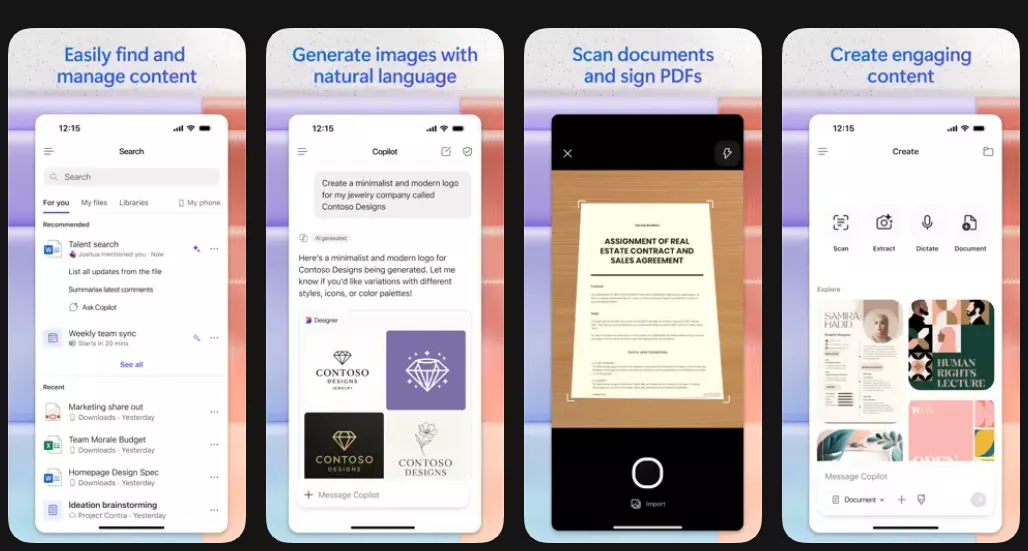
Pros:
- Automatic adjustment of the scan quality.
- Apply filters to improve text clarity.
- Export directly to PDF, images, and OneDrive.
- Save scans to your phone to share with other apps directly.
- Detect, copy, and translate text from captured scans.
- Compress file size before export.
Cons:
- No direct export to Word or PowerPoint.
- Scanning is limited to the mobile app.
- Only one scanning mode is available.
Part 2: Better Alternative to Microsoft Lens PDF Scanner
Microsoft 365 Copilot does not offer any dedicated scan modes or flexible export options. If these limitations are a letdown for you, below is a quick comparison of the four best alternatives, so you can choose the right one for your needs.
| Feature | UPDF | Adobe Scan | CamScanner | Google Drive Scanner |
| Primary Purpose | PDF editor + scanner | Scan-first app | Scan-first app | Cloud storage with scanning |
| Scan Modes | ✔ (Mobile and Desktop) | ✔ | ✔ | × |
| Export Formats | PDF, Word, Excel, PPT, Image (PNG/JPEG/TIFF/BMP/GIF), Long Image | PDF (Word/ PPT, Excel paid) | PDF, Image, (Word/Excel/PPT paid) | PDF, JPEG |
| Local Saving | ✔ | ✔ | ✔ | × |
| Editing Tools | Advanced | Advanced | Advanced | Basic |
| AI Assistance | ✔ | ✔ | ✔ | × |
| Cloud Integration | Optional | Optional | Optional | Required |
| Cost | Free + paid plans | Free + paid plans | Free + paid plans | Free (15 GB cloud) |
As you can see, UPDF is the only tool here that offers a complete PDF scanning and editing solution. It also includes AI integration and multi-format export with a paywall. You can test all features for free without worrying about time limits. Download it now to scan your documents.
Windows • macOS • iOS • Android 100% secure
Now, let’s review all the tools in detail.
1. UPDF (Recommended)
UPDF is a full-featured PDF management tool available on Windows, Mac, iOS, and Android. Unlike most scanning apps, its scanner works on both mobile and desktop, so you can use it as an alternative to Microsoft Lens PDF Scanner for PC when you need to digitize a document. Once scanned, you can edit, convert, annotate, AI chat, and manage the file, all without switching to a separate app.
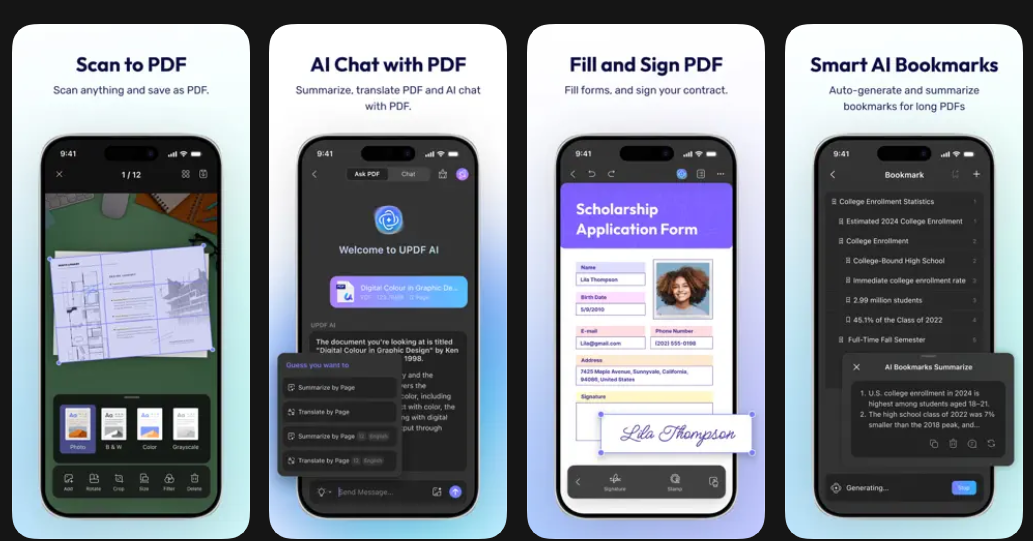
Here’s a look at its key features.
- Scan Modes: Dedicated scanning modes for ID cards, driver's licenses, bank cards, and documents on iOS.
- Auto Scan: Automatically detect page edges or enable or disable automatic capturing and cropping of scanned images.
- Page Controls: Rotate, crop, resize, apply filters, and extract individual pages to split a multi-page scan into standalone documents.
- Batch Scanning: Capture multiple pages at once and merge them into a single PDF automatically.
- Recognize Text With OCR: Convert your scans into fully editable and searchable PDFs with support for over 38 languages.
- AI-Powered Tools: Summarize, translate, or get explanations from scanned documents directly within the app.
- Multi-Format Export: Convert to Word, Excel, PowerPoint, and images. You can also convert all pages into a single continuous long image for easy sharing.
- Annotation and Editing: Highlight, mark up, edit text, add stamps, stickers, and signatures.
- Advanced Desktop Scanning: Set the page size, orientation, color mode, and image resolution. You can also enable OCR directly during the scan, so the output is editable and searchable
2. Adobe Scan
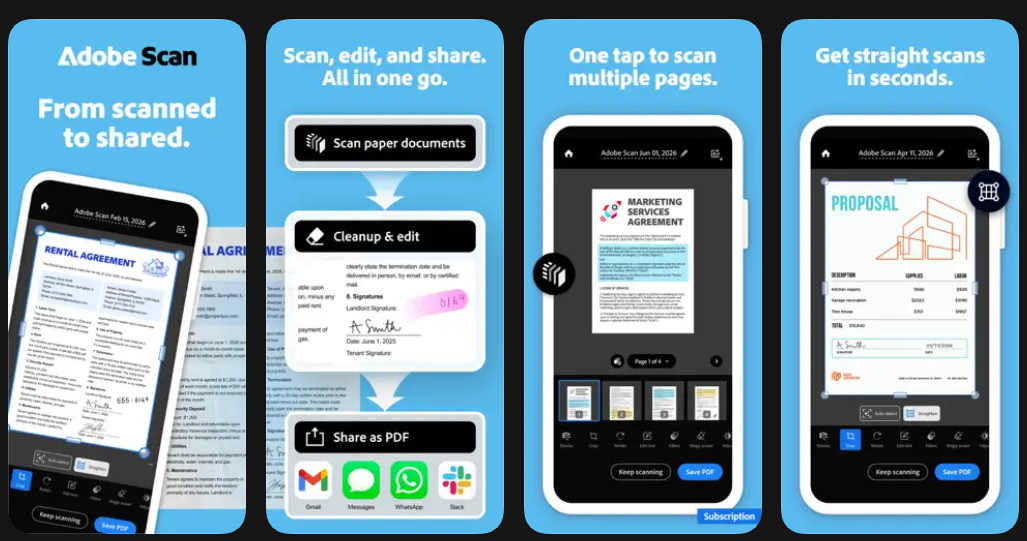
Adobe Scan is a mobile scanner app for iOS and Android. It offers dedicated scan modes for documents, ID cards, books, business cards, and whiteboards. Once you select a mode, it automatically detects borders, captures, removes shadows, and whitens the image. You can also choose to apply OCR to the saved PDFs for further text editing. But while you can export to PDF for free, it requires a subscription for Word, Excel, or PowerPoint.
3. CamScanner
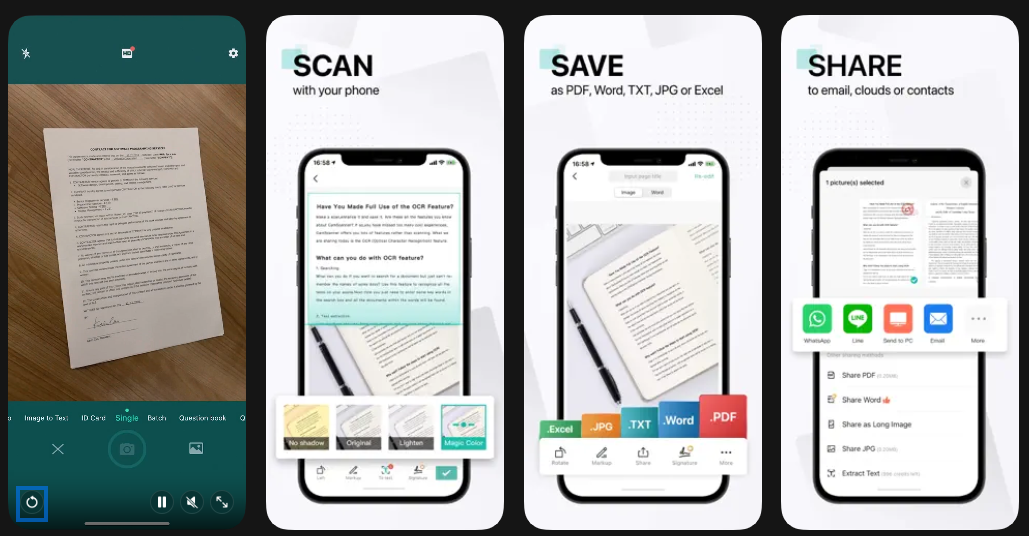
CamScanner is especially known for its Auto Page-Turn Capture feature that can recognize page flips and capture images automatically. It also offers various dedicated scan modes for ID cards, documents, question sets, codes, and more. Moreover, you can extract text directly using the camera or use the built-in AI to chat with the document. Also, exporting to Word, Excel, and access to many AI-driven tools is paid.
4. Google Drive Scanner
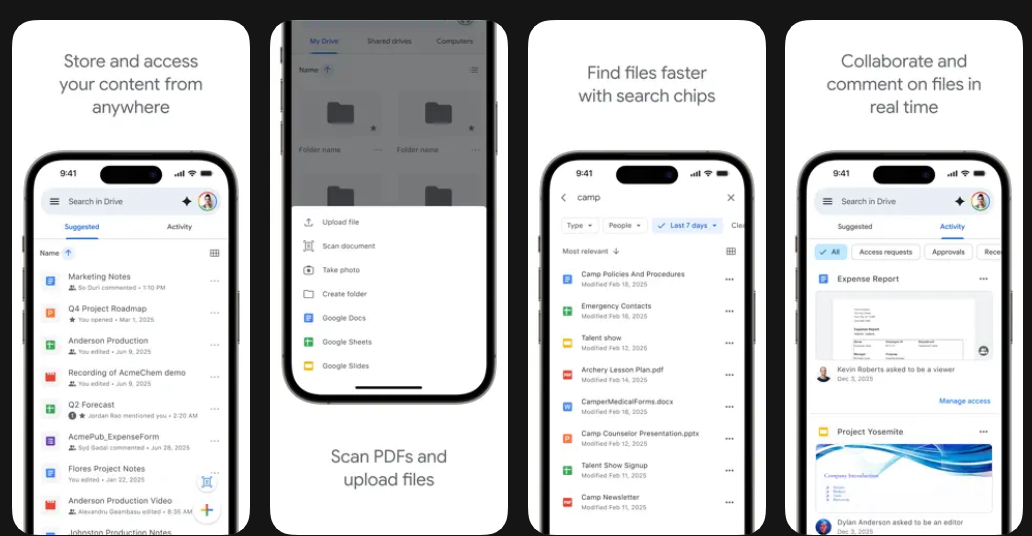
Google Drive's built-in scanner allows you to scan multi-page documents directly from the mobile app. Its Document scanning mode, which is still in beta testing, can scan multiple pages in camera view at once. Then, it automatically enhances the image to improve lighting, white balance, and contrast. Once scanned, you can save the file as a PDF or JPEG on Google Drive.
FAQs
Q1: Once Microsoft Lens is completely discontinued, will I still be able to view the documents I previously scanned?
You can still access previously scanned documents as long as the app is installed and you are signed into your Microsoft account.
Q2: What alternative apps offer a substitute for Lens's most useful feature—business card scanning?
UPDF and CamScanner both support ID and business card scanning. Adobe Scan also captures business cards and extracts contact details similar to Lens's card mode.
Q3: Are all of these alternative applications free to use?
Not all are completely free. UPDF and Google Drive Scanner offer the most features without payment. Adobe Scan and CamScanner lock key features like Word export, OCR, and AI tools behind paid subscriptions.
Q4: I have grown accustomed to using Lens; how can I back up all of my scanned data?
You can export your scans from Lens's “MyScans” folder as PDFs or images. Then, you can save them locally or upload them to OneDrive for backup.
Conclusion
Microsoft Lens PDF Scanner may be gone, but your scanning workflow does not have to suffer. Microsoft 365 Copilot is the official replacement, but it lacks key export options and dedicated scanning modes. UPDF fills all these gaps with multiple scan modes, advanced editing, and OCR. Plus, it works across all platforms. Download it now to scan and manage your documents effortlessly.
Windows • macOS • iOS • Android 100% secure





 Enola Miller
 Enola Davis

 Enrica Taylor