 UPDF
UPDF
 UPDF for Windows
 UPDF for Mac
 UPDF for iPhone/iPad
 UPDF for Android
 Nomostar
 UPDF AI Online
 UPDF Sign
 IvyCraft
 Edit PDF
 Annotate PDF
 Create PDF
 PDF Form
 Edit links
 Convert PDF
 OCR
OCR PDF to Word
 PDF to Image
 PDF to Excel
 Organize PDF
 Merge PDF
 Split PDF
 Crop PDF
 Rotate PDF
 Protect PDF
 Sign PDF
 Redact PDF
 Sanitize PDF
 Remove Security
 Read PDF
 UPDF Cloud
 Compress PDF
 Print PDF
 Batch Process
 About UPDF AI
 UPDF AI Solutions
 AI User Guide
 FAQ about UPDF AI
 Summarize PDF
 Translate PDF
 Chat with PDF
 Chat with AI
 Chat with image
 PDF to Mind Map
 Explain PDF
 PDF AI Tools
 Image AI Tools
 AI Chat Tools
 AI Writing Tools
 AI Study Tools
 AI Working Tools
 Other AI Tools
 AI Bookmark Generation
 AI Bookmark Summary
 AI Watermark Generation
 AI Background Generation
 AI Sticker Generation
 AI Stamp Generation
 AI Editing Suite
 UPDF Copilot
 AI Page Management
 AI Semantic Search
 PDF to Word
 PDF to Excel
 PDF to PowerPoint
 Enterprise Solution
 Enterprise Sign
 Enterprise AI
 Enterprise Plan
 Enterprise User Guide
 Enterprise Webinar
 IT
IT Education
 Construction
 Financial Service
 Healthcare
 Insurance
 Legal
Legal Manufacturing
 Government
 Researchers & PhDs
 Solopreneurs & Freelancers
 Lawyers & Legal Professionals
 Real Estate Agents & Brokers
 Education Solution
 Customer Stories
 User Guide
 UPDF Tricks
 FAQs
FAQs UPDF Reviews
 Download Center
 Blog
Blog Newsroom
 Tech Spec
 Updates
 UPDF vs. Adobe Acrobat
 UPDF vs. Foxit
 UPDF vs. PDF Expert

In this digital world, I used to think connecting my iPhone to remote storage was complicated, especially when I first discovered iPhone WebDAV. I realized many beginners feel the same confusion when trying to link their phone to a WebDAV server.
This guide shows every step, from locating your WebDAV server address to entering your login details correctly. Moreover, I will also share how UPDF for iOS lets me open and annotate PDFs directly from my server. With no need to download files locally, I keep my storage free while still having everything I need on hand.
Windows • macOS • iOS • Android 100% secure
Part 1. What is WebDAV?
When I first heard about WebDAV, it sounded like another confusing technical term. As I experimented with it, I realized it’s simply a way to reach remote files. Now it feels like a direct tunnel between my phone and a folder stored somewhere else.
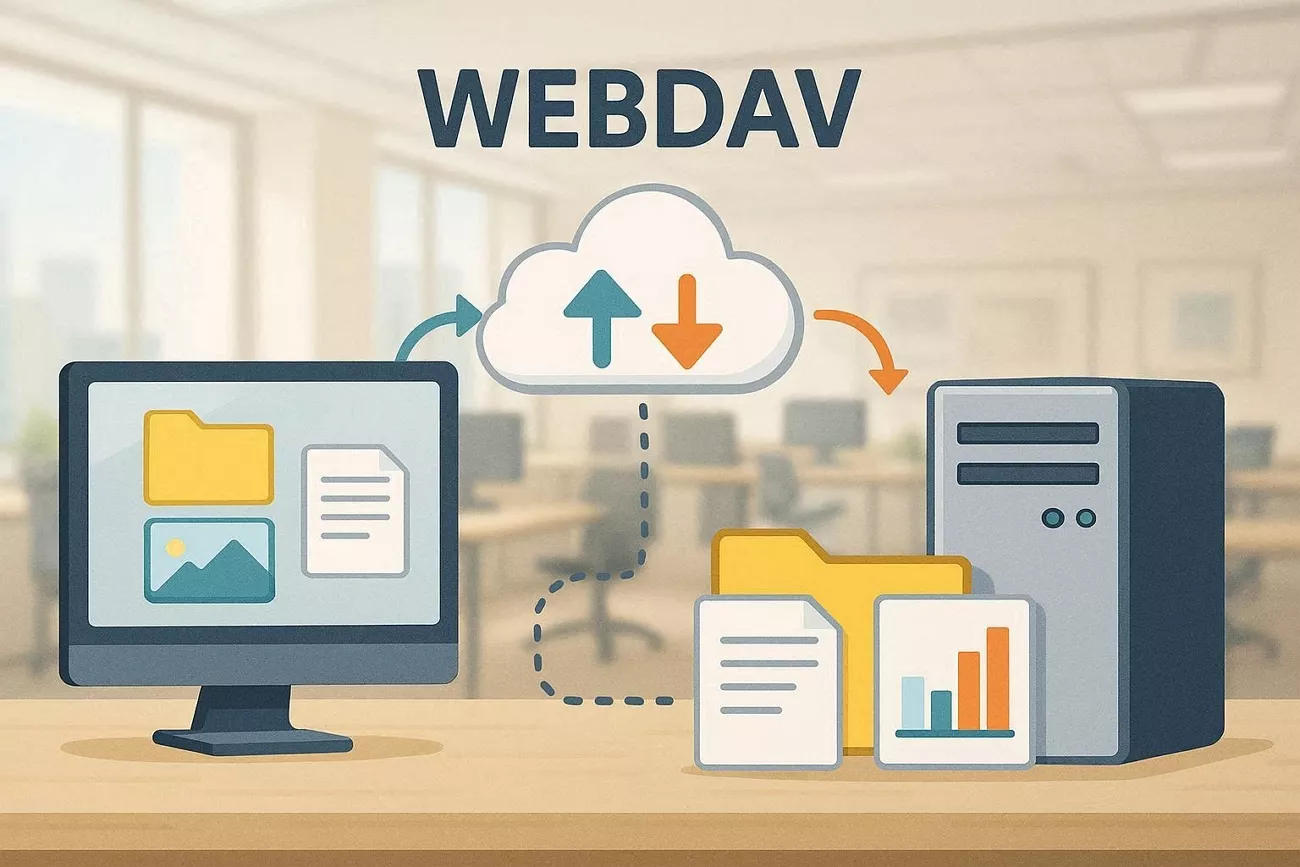
WebDAV vs Regular Cloud Drive
From my own use, regular cloud drives often keep everything locked inside one company’s ecosystem. Thus, look at the table below to see how this difference actually shows up in daily use:
| Aspect | WebDAV | Regular Cloud Drive (Google Drive, iCloud) |
| Openness | Open standard, many different apps can connect | Closed systems, designed mainly for the provider’s tools |
| Ecosystem Lock‑in | Not tied to one brand or app | Strongly tied to one provider’s apps and services |
| Access Method | Connect using a server address and login details | Accessed through the official app or website |
| App Compatibility | Any WebDAV‑enabled app can browse and edit files | Full features mainly inside the official app |
| Storage Experience | Remote files can behave almost like local storage | Feels like a separate storage box |
Why WebDAV Matters for iPhone Users?
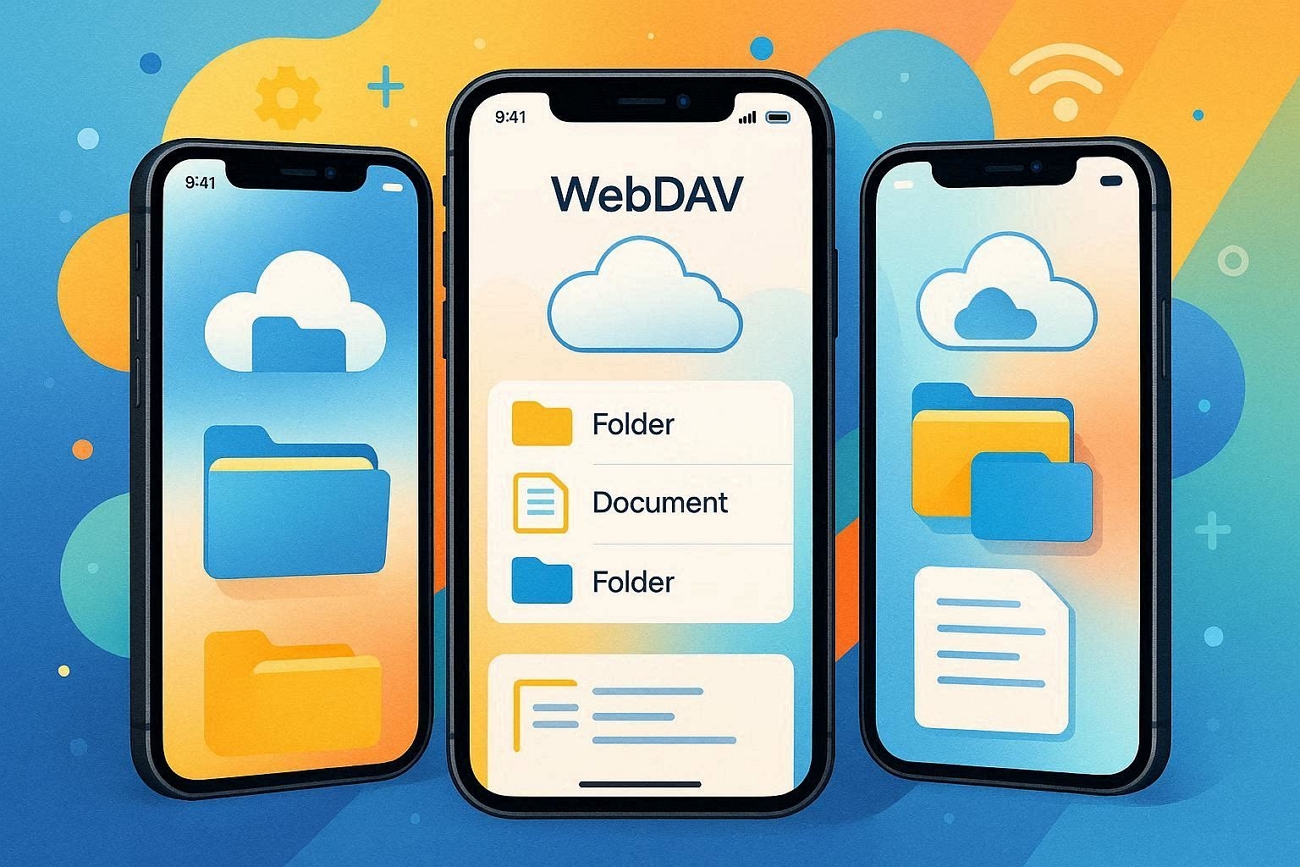
On my iPhone, WebDAV makes remote files feel close without filling up local storage. Opening work documents directly from a server has saved me from endless downloading and deleting. With iPhone WebDAV set up, everyday file access feels smoother while important documents stay off-device safely.
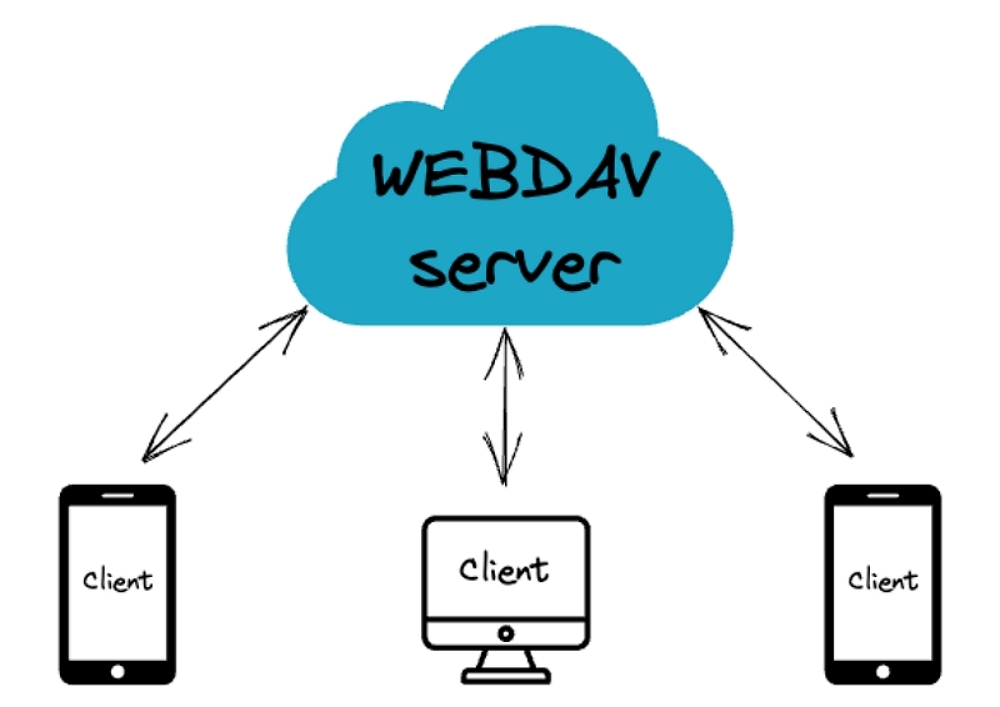
Part 2. What Is a WebDAV Server — and Do I Need to Set One Up Myself?
In the beginning, the phrase “WebDAV server” made me picture expensive hardware sitting in a rack. Later on, I realized it usually means an online service that lets me reach stored files. Rather than investing in devices, I now prefer connecting to services that publish folders over WebDAV.
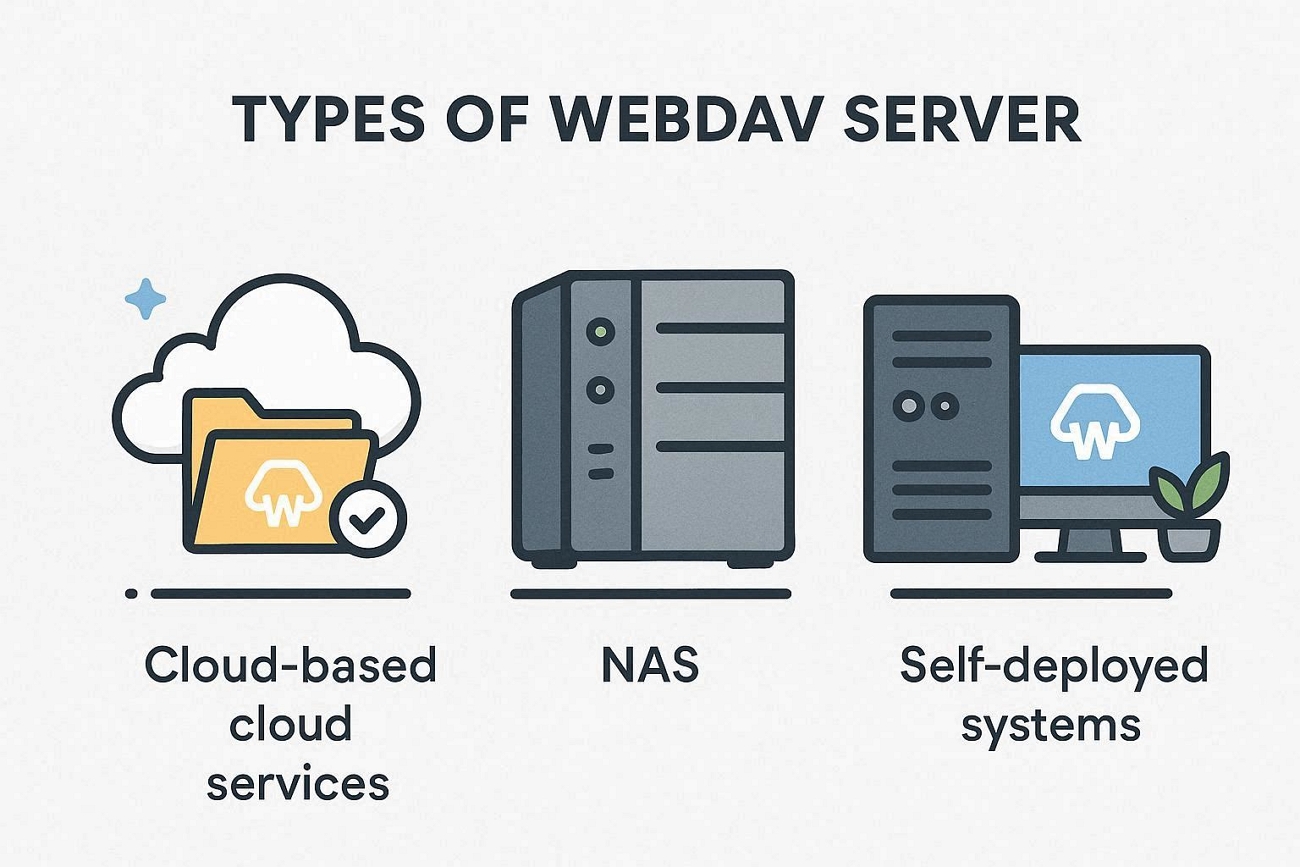
Types of WebDAV Server Options
From my experience, WebDAV options fall into 3 clear groups that shape how setup feels. Now, I will share these 3 options from the easiest to the most complex for beginners:
- Sign‑Up‑and‑Go Cloud Services: These are online platforms like Koofr or Jianguoyun that already support WebDAV out of the box. I simply register, log in, and get a WebDAV URL without touching any complicated settings.
- NAS Device: Devices like Synology NAS or QNAP sit in my home or office as private storage. I purchase the box once, then use the brand’s tools to enable secure WebDAV access.
- Self‑Deployed Systems: Self‑hosted platforms like Nextcloud or ownCloud run on a server that I control directly. I handle installation, updates, and security, which makes this option best for confident technical users.
Do You Need to Build Your Own Server?
For most daily needs, especially simple iPhone WebDAV access, the first type works well. I usually start with a sign‑up cloud service, get my WebDAV URL, and begin connecting within minutes.
Part 3. Why Would You Want WebDAV on Your iPhone?
When I set up iPhone WebDAV, my phone finally felt connected to all my files. Now, I’ll share my everyday situations where WebDAV quietly solves problems in the background.
- Files on My Computer: Important documents often stay on my computer, but I still need them when traveling. With WebDAV, those files stay on the computer while I open them directly from my phone.
- Tired of Re‑Downloading: Some files are used daily and downloading them again and again becomes frustrating.: WebDAV lets me open the latest version straight from the server without extra download steps.
- Dealing with Large Files: Big PDFs and media files can eat my iPhone storage faster than I expect. WebDAV keeps those large files on the server while my phone simply streams or previews them.
In practice, WebDAV turns my iPhone into a terminal that reads files directly from a remote server. Instead of acting like a crowded storage box, my phone becomes a smart viewer for remote documents.
Part 4. Getting Your WebDAV Address from Koofr
Koofr came up while I was searching for a simple, privacy‑friendly way to store and sync documents. I get 10 GB of free storage without entering any credit card details at signup. Knowing my data isn’t sold or monetized matches the kind of tools I feel comfortable using.
The native WebDAV support with a fixed, predictable server address makes my iPhone WebDAV setup easier. Seeing that lots of people already use and test Koofr also gives me extra reassurance for everyday work.
How to Get Your Koofr WebDAV Address
When I’m ready to set up Koofr for WebDAV, everything starts on their website. Follow the steps below to create my account and store connection details for future sharing:
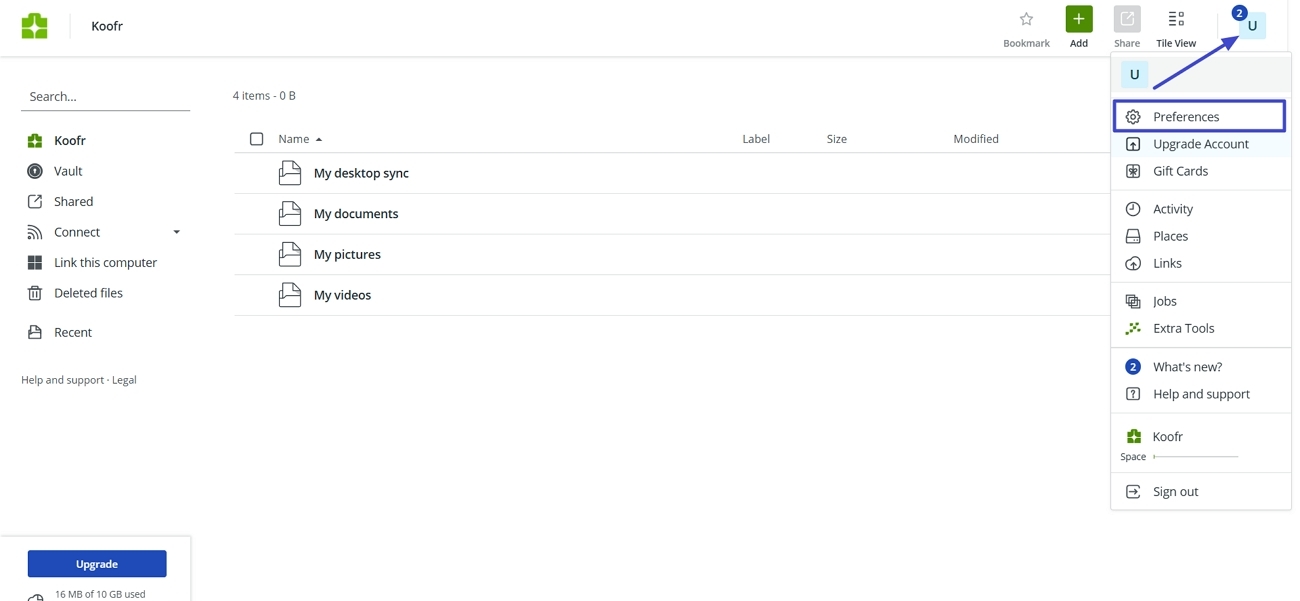
Step 1. First, launch koofr.eu and create an account using your Email or phone number. Once created, click the “Avatar” icon in the top left corner and press the “Preferences” option.
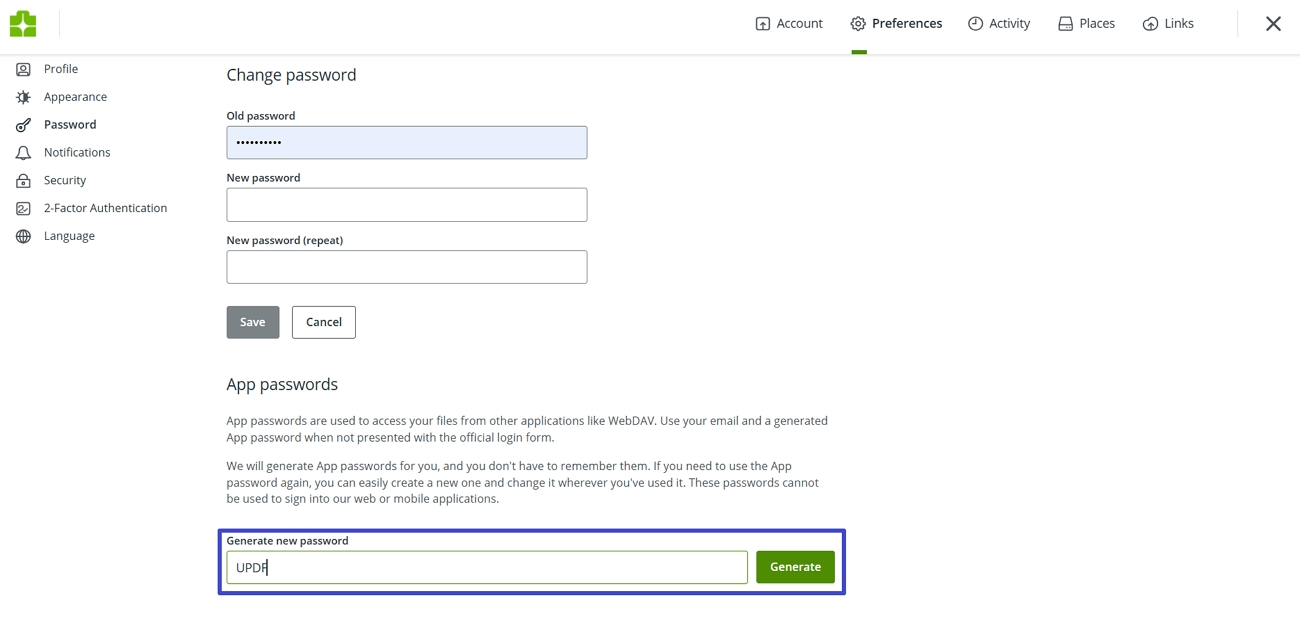
Step 2. After that, click the “Password” option and enter a recognition name in the “Generate New Password” text box. Next, click the “Generate” button to create a password. It will use this separate password for connection rather than your main login password.
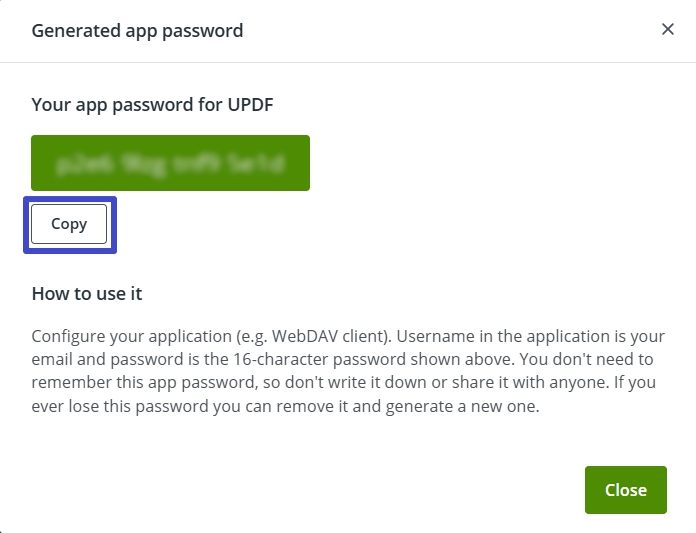
Step 3. After the password is generated, press the “Copy” option to copy it for use when connecting to UPDF. Save the address “https://app.koofr.net/dav/Koofr,” “Account Email,” and “Generated Password” for connecting.
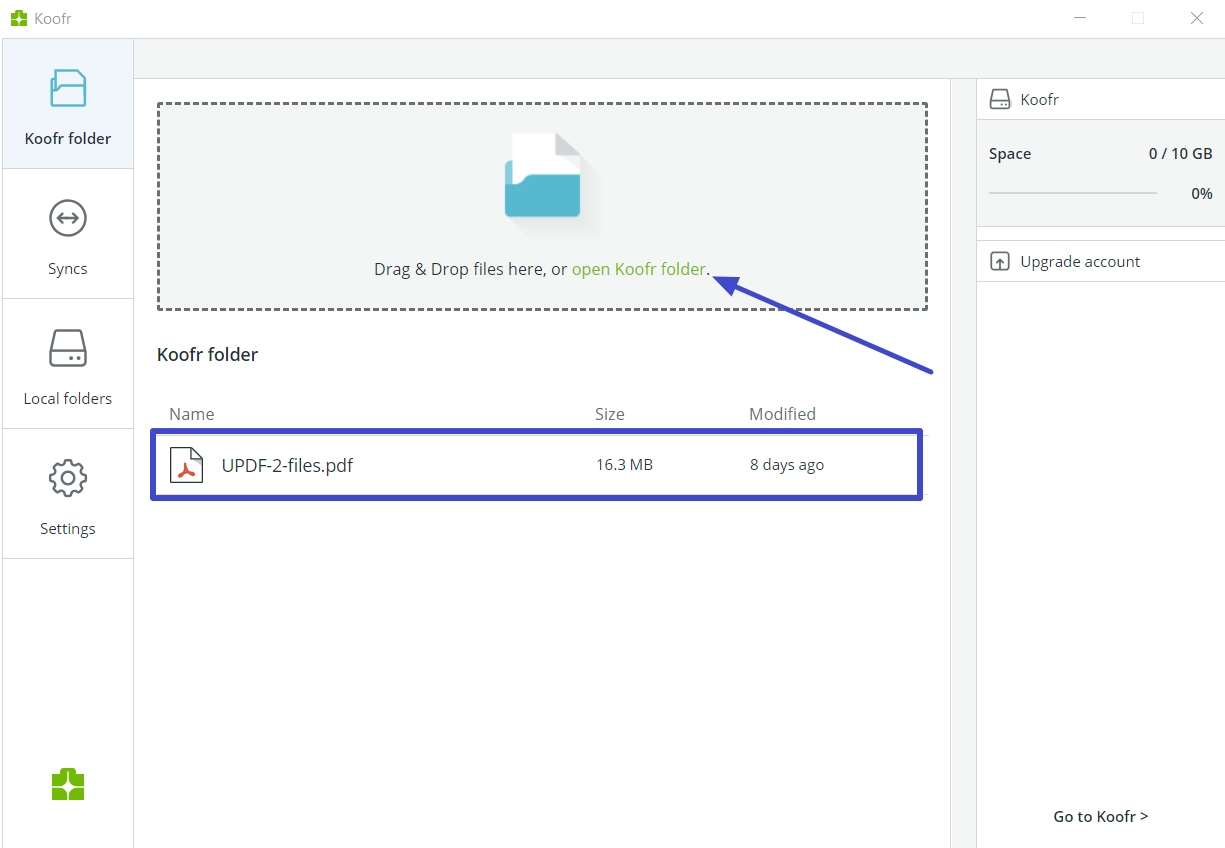
Step 4. To link the platform to your computer, select the “Link to Computer” option, then download the web app. After the web app is installed, move the file or folder to the Koofr Folder.
Part 5. Connecting to Koofr on iPhone Using UPDF for iOS
The main problem was keeping PDFs on a server while still working comfortably from my phone. This is where UPDF steps in as a dedicated PDF editor that supports direct server connections. Instead of downloading files every time, I can open server‑stored PDFs and start reading immediately.
Annotations, highlights, and comments stay synced with the original files, so nothing feels scattered or duplicated. For my iPhone WebDAV setup, this means one app for viewing, organizing, and updating important PDF documents. With UPDF for iOS handling the connection behind the scenes, my workflow stays simple, fast, and consistent.
Windows • macOS • iOS • Android 100% secure
Step-by-Step: Connecting Koofr with UPDF on iPhone
Before starting, make sure your iPhone and the device running Koofr are on the same Wi‑Fi network. Now, follow the steps below to connect your Koofr WebDAV address and finish the setup:
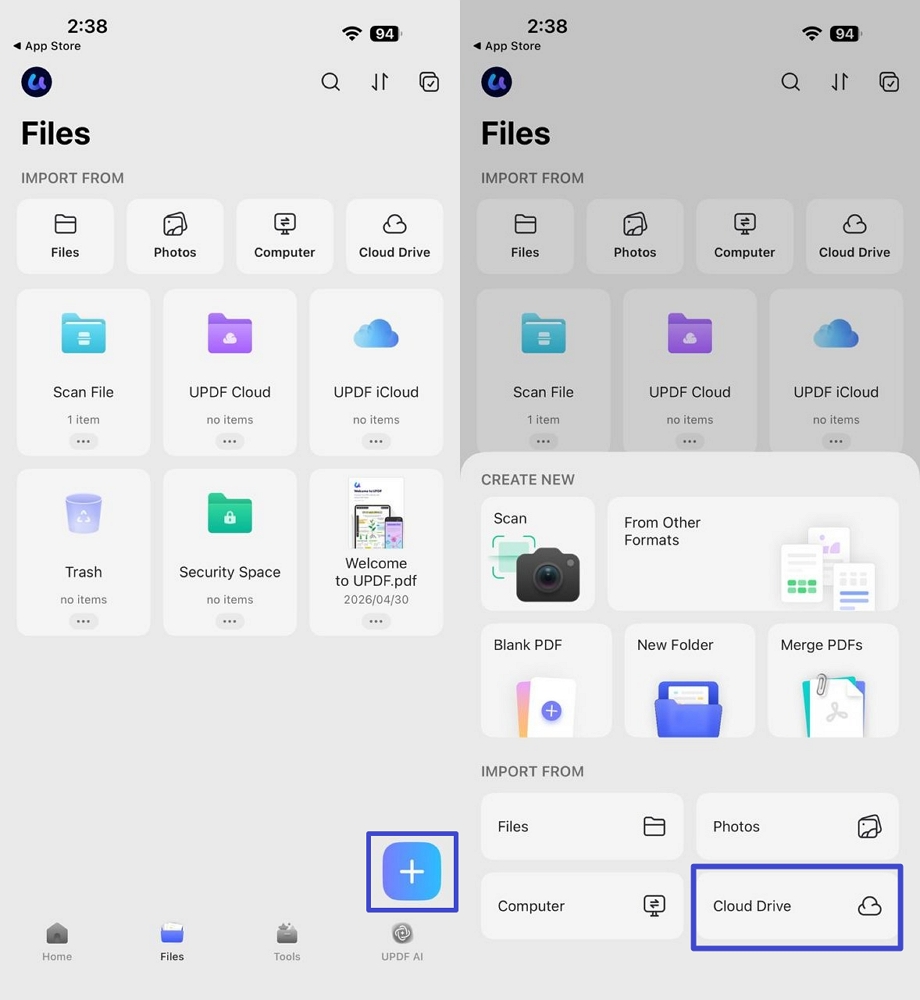
Step 1. Access The Cloud Drive on UPDF
Upon entering the UPDF’s main screen, press the “+” icon and tap on the “Cloud Drive” option.
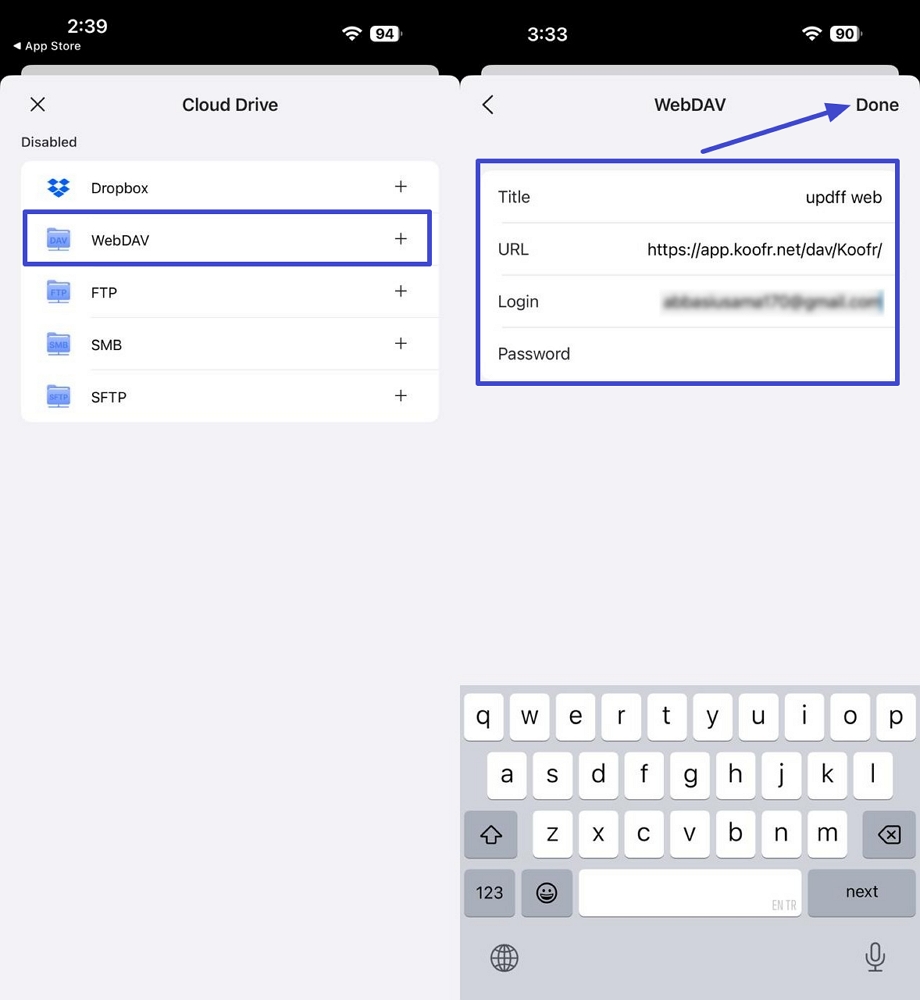
Step 2. Choose the WebDAV Server
After that, press the “WebDAV” option and enter the “Title,” “URL Address,” “Login Email,” and “Password.” Make sure to use the separately generated password by Koofr. Once done, tap on the “Done” option in the top left corner.
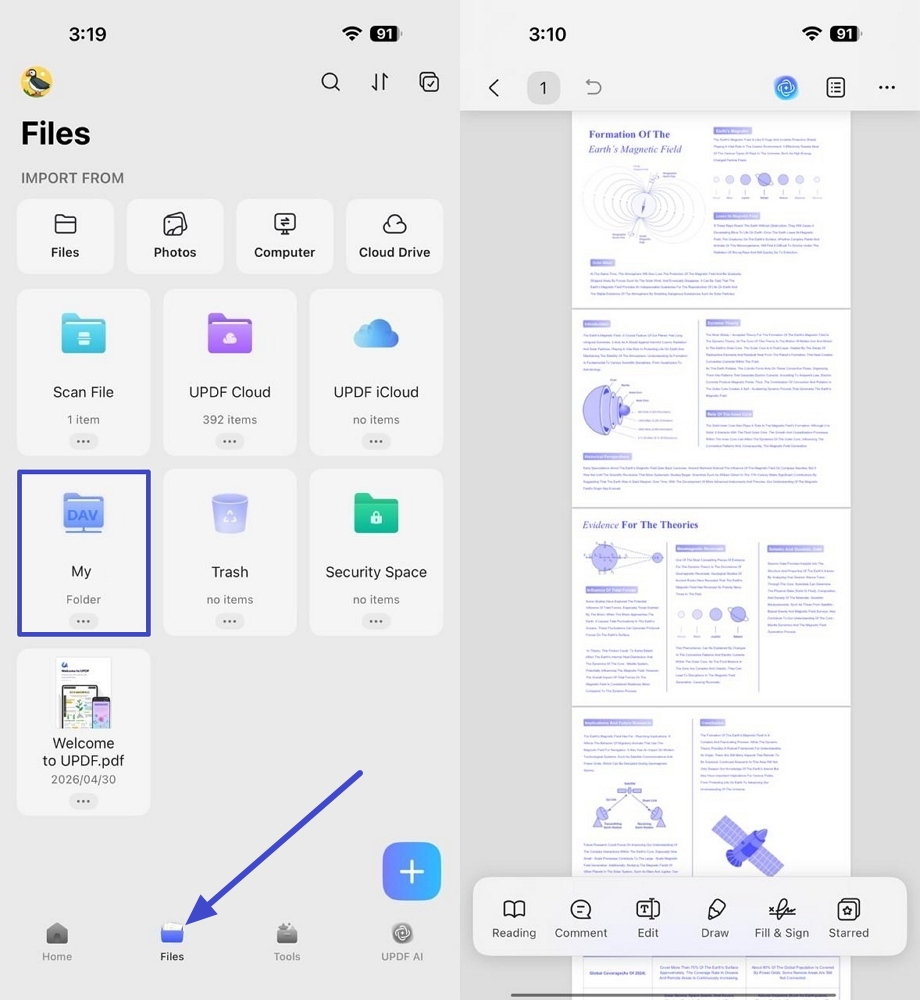
Step 3. Access The WebDrive Drive
Now, press the “File” tab at the bottom to see the newly created WebDAV drive. Once you see that, open it and access your saved PDF files. You can edit and annotate directly in UPDF, and changes sync back to Koofr automatically.
Windows • macOS • iOS • Android 100% secure
Related Topics:
Conclusion
To conclude, setting up iPhone WebDAV turns your phone into a flexible window into all your important documents. With a simple WebDAV server and the right app, opening, reading, and annotating remote PDFs becomes surprisingly effortless. If you want one place to manage and mark up server‑stored PDFs like me, I recommend using UPDF for iOS.
Windows • macOS • iOS • Android 100% secure





 Enrica Taylor
 Enola Davis
 Lizzy Lozano

- Electrical-Mud-1503