 UPDF
UPDF
 UPDF for Windows
 UPDF for Mac
 UPDF for iPhone/iPad
 UPDF for Android
 Nomostar
 UPDF AI Online
 UPDF Sign
 IvyCraft
 Edit PDF
 Annotate PDF
 Create PDF
 PDF Form
 Edit links
 Convert PDF
 OCR
OCR PDF to Word
 PDF to Image
 PDF to Excel
 Organize PDF
 Merge PDF
 Split PDF
 Crop PDF
 Rotate PDF
 Protect PDF
 Sign PDF
 Redact PDF
 Sanitize PDF
 Remove Security
 Read PDF
 UPDF Cloud
 Compress PDF
 Print PDF
 Batch Process
 About UPDF AI
 UPDF AI Solutions
 AI User Guide
 FAQ about UPDF AI
 Summarize PDF
 Translate PDF
 Chat with PDF
 Chat with AI
 Chat with image
 PDF to Mind Map
 Explain PDF
 PDF AI Tools
 Image AI Tools
 AI Chat Tools
 AI Writing Tools
 AI Study Tools
 AI Working Tools
 Other AI Tools
 AI Bookmark Generation
 AI Bookmark Summary
 AI Watermark Generation
 AI Background Generation
 AI Sticker Generation
 AI Stamp Generation
 AI Editing Suite
 UPDF Copilot
 AI Page Management
 AI Semantic Search
 PDF to Word
 PDF to Excel
 PDF to PowerPoint
 Enterprise Solution
 Enterprise Sign
 Enterprise AI
 Enterprise Plan
 Enterprise User Guide
 Enterprise Webinar
 IT
IT Education
 Construction
 Financial Service
 Healthcare
 Insurance
 Legal
Legal Manufacturing
 Government
 Researchers & PhDs
 Solopreneurs & Freelancers
 Lawyers & Legal Professionals
 Real Estate Agents & Brokers
 Education Solution
 Customer Stories
 User Guide
 UPDF Tricks
 FAQs
FAQs UPDF Reviews
 Download Center
 Blog
Blog Newsroom
 Tech Spec
 Updates
 UPDF vs. Adobe Acrobat
 UPDF vs. Foxit
 UPDF vs. PDF Expert

Quick answer: You usually do not need a separate PDF reader just to open a PDF on your phone. Current iPhones and Android phones can display PDFs through Preview, Files, a browser, Google Drive, or another built-in viewer.
A dedicated app becomes worthwhile when you regularly search long documents, highlight selectable text, manage comments, sign files, use OCR, convert PDFs, or organize pages. Use the table below to decide before installing anything.
| What you need to do | Do you need another PDF reader? |
|---|---|
| Open, zoom, search, or share an occasional PDF | Usually no—the built-in viewer is enough |
| Add simple handwritten marks | Usually no |
| Highlight selectable text and manage comments | Often yes |
| Fill or sign forms | It depends on the phone and form type |
| Edit PDF text, use OCR, convert files, or organize pages | Yes—a dedicated PDF app is more practical |
| Handle confidential files offline | Prefer a trusted local app instead of uploading files in a browser |
If you fall into one of the advanced-use rows, UPDF is a cross-platform option for iOS and Android. You can download it and try the relevant mobile tools for free; otherwise, keep using the viewer already on your phone.
Windows • macOS • iOS • Android 100% secure
Part 1. What Does a PDF Reader Do?
A PDF reader or PDF viewer opens a PDF while preserving its page layout. Built-in viewers usually cover opening, scrolling, zooming, searching, printing, and sharing. A dedicated reader may add deeper navigation, selectable-text highlighting, comment management, signatures, OCR, conversion, AI assistance, and page organization.
- Read and navigate: Use thumbnails, bookmarks, page numbers, search, and different page layouts.
- Review: Highlight, underline, add notes, draw, and return to comments later.
- Complete tasks: Fill supported forms, add signatures, scan paper documents, or share a finished copy.
- Work with difficult files: Use OCR for image-only scans, convert PDFs, or organize pages when the built-in viewer cannot.
The difference is not whether an app can open a PDF; it is whether it supports the next action you need without moving the file to another device or online service.
Part 2. Do I Need a PDF Reader on My Phone?
Not always. If you only open an attachment, boarding pass, receipt, or manual occasionally, the software already on your phone is normally sufficient. Install another app when the built-in option cannot complete a repeatable task such as structured annotation, OCR, conversion, page management, or cross-device document work.
What Your iPhone Can Do Without Another PDF App
On a current iPhone, Preview and Files can open PDFs, search text, share files, and support common markup workflows. Apple’s current Preview guide also documents filling supported PDF forms, using AutoFill, adding text boxes, and creating signatures. This is enough for many one-off tasks, although a dedicated app is still useful for OCR, conversion, advanced annotation management, or working with the same documents across iOS, Android, Windows, and Mac. See Apple’s form-filling instructions for the current workflow.
What Android Can Do Without Another PDF App
Android behavior varies by phone maker and the app used to open the file. Files by Google can open, search, print, share, and protect PDFs in Safe Folder, and its current viewer provides freehand pen, highlighter, erase, undo, and annotation visibility controls. Google Drive can fill some interactive forms, but not every form type, including certain XFA files or documents that only look like forms. Review the Files by Google PDF guide before installing another reader.
If you want a more capable PDF reader for Android, first identify the missing task. You may only need stronger text highlighting, document search, signatures, OCR, conversion, or page organization. If PDFs keep opening in the wrong app, change the default PDF viewer on Android rather than installing several readers.
Form support needs particular care. UPDF for iPhone and iPad supports interactive fields and signatures. UPDF for Android can add or edit text, annotate, and sign, but it does not fill interactive checkboxes and other form fields in the same way. Our guide to filling out a PDF form on Android explains the available alternatives.
Part 3. When UPDF Mobile Is Useful
UPDF Mobile is most relevant when you have moved beyond occasional viewing. It combines reading, annotation, scanning, conversion, OCR, cloud access, and AI-assisted document understanding, while keeping the normal open-and-read workflow straightforward. Features differ between iOS and Android, so choose it for the tasks your phone actually supports.
For Reading and Reviewing
Use page layouts, thumbnails, bookmarks, page-number jumps, text search, and zoom controls to move through long documents. Annotation tools include highlight, underline, strikethrough, squiggly lines, notes, stickers, and freehand drawing, making the app useful for study material, reports, and document review.
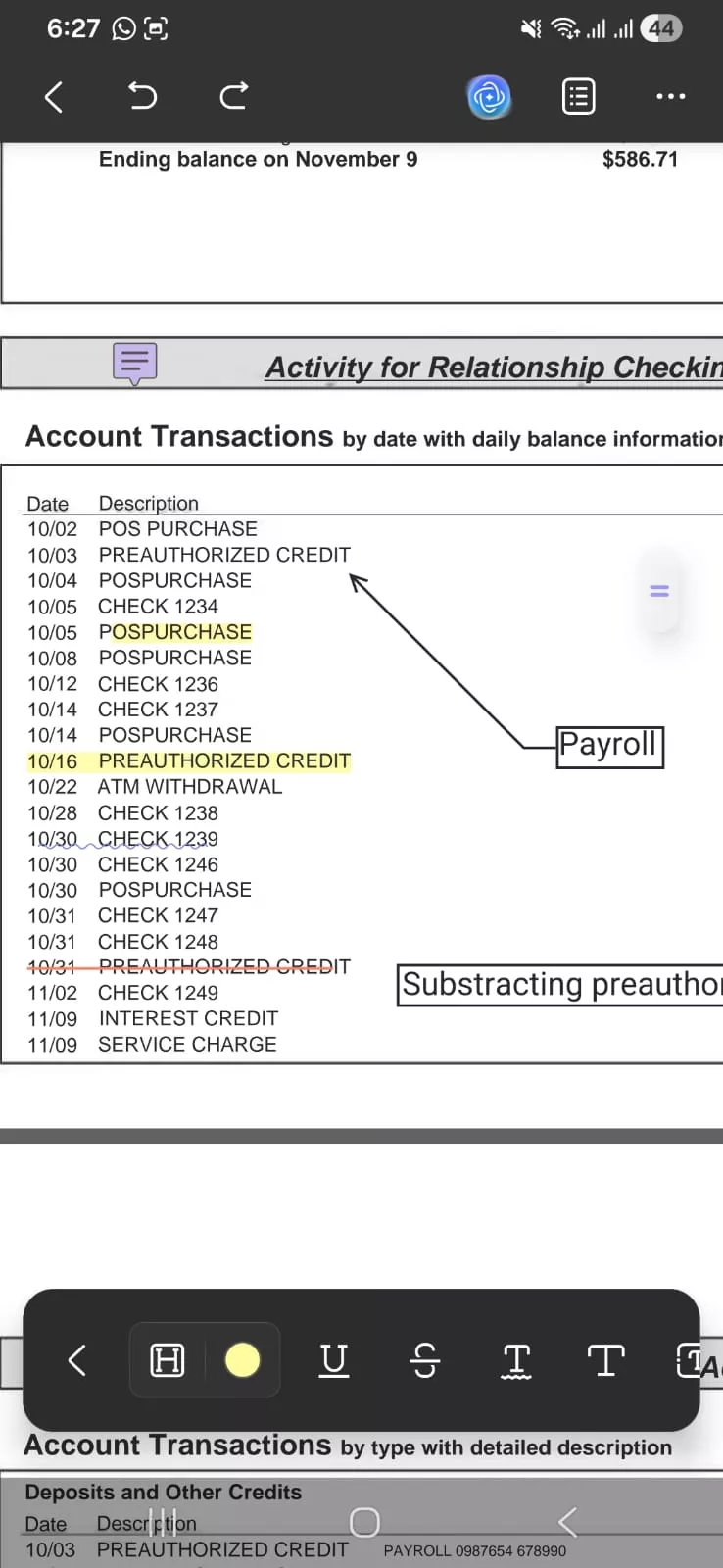
For Scanned or Complex PDFs
UPDF can scan paper documents, apply OCR to image-based PDFs, convert files to editable formats, and organize pages. UPDF AI can summarize a document, explain selected content, translate passages, and answer questions, which is helpful when reading a long report on a small screen.
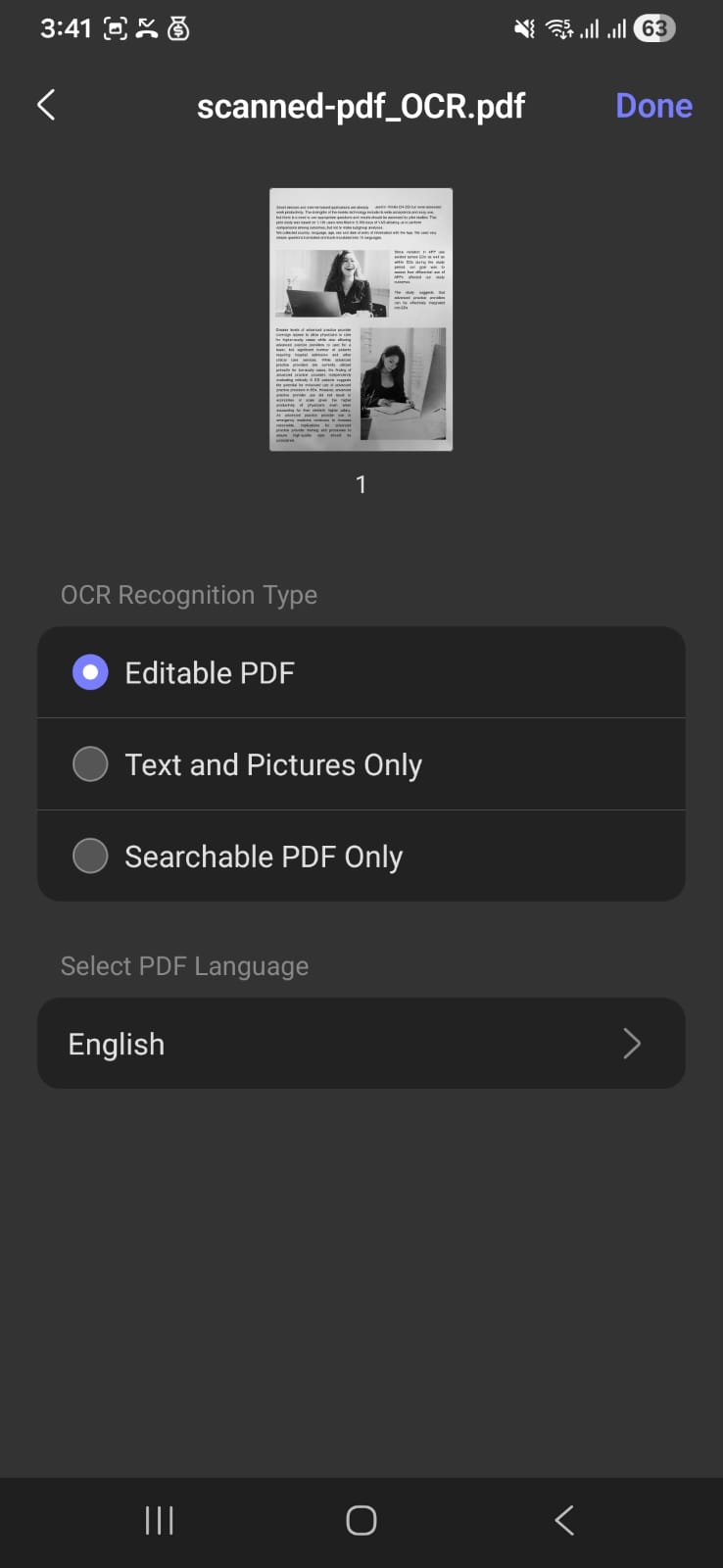
For Working Across Devices
UPDF Cloud supports document access across mobile and desktop devices. The iOS version of UPDF also supports interactive form filling and signing, while the Android version of UPDF is better suited to reading, text editing, annotation, signing, scanning, and related mobile workflows.
Pricing and Best Fit
UPDF is free to download and try on iOS and Android. Yearly and lifetime Pro plans are available, while AI has separate plan terms. Check the UPDF pricing page for current options.
Try UPDF if you regularly read, search, annotate, scan, convert, organize, or understand PDFs on a phone and want a consistent account across devices. If you only open an occasional PDF, the built-in viewer remains the simpler choice.
Windows • macOS • iOS • Android 100% secure
Part 4. How to Get Started with UPDF Mobile
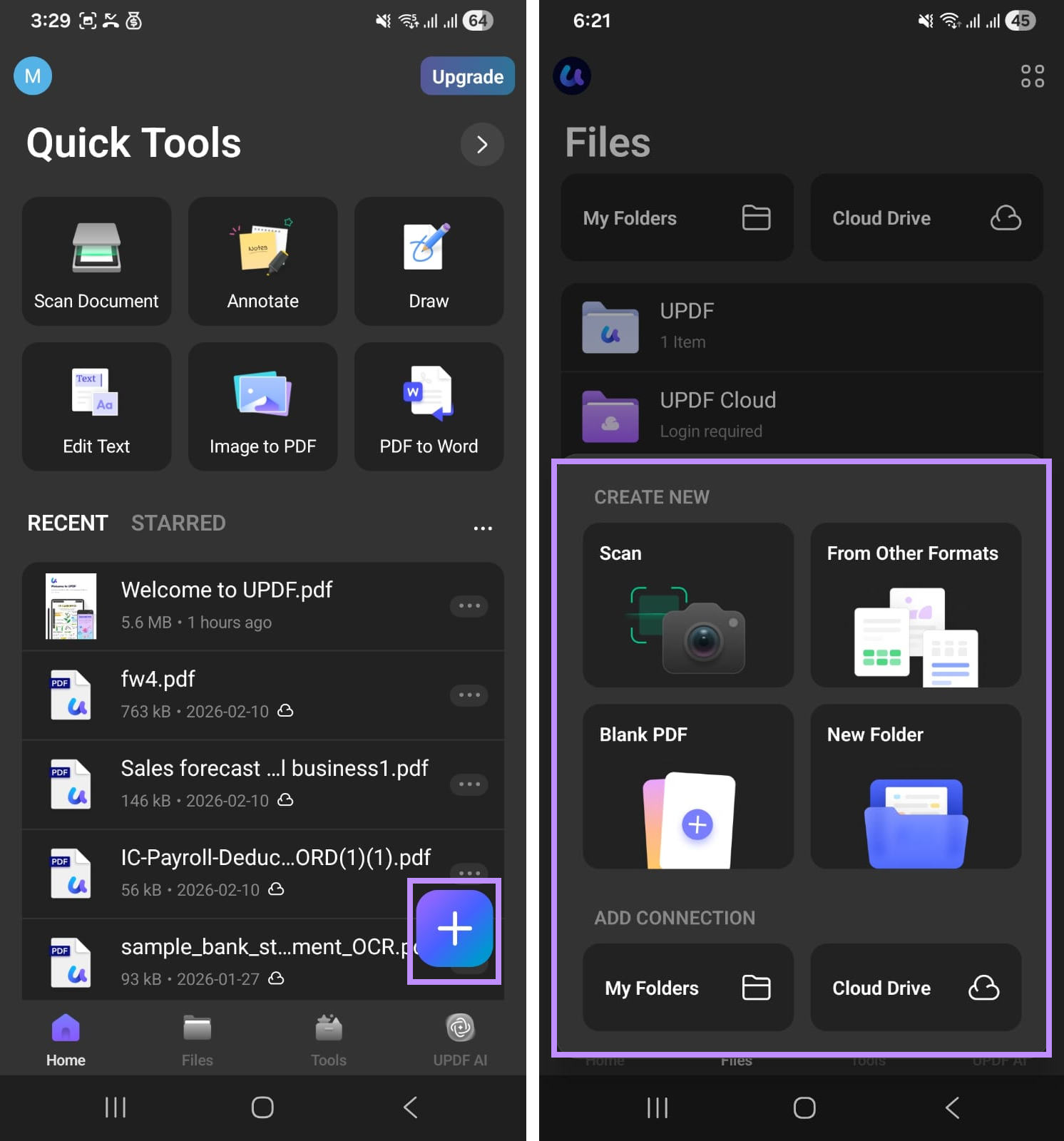
The exact labels vary slightly between iOS and Android, but the basic workflow is short:
- Download UPDF from the App Store or Google Play.
- Open or import a PDF from Files, Downloads, email, cloud storage, or another app.
- Use the reading and annotation toolbar, or choose scanning, conversion, OCR, page organization, or AI when the document requires it.
- Sign in when you want account-based features such as UPDF Cloud synchronization.
Part 5. Comparison: Mobile PDF Reader Options
Start with the option already on your phone, then install a dedicated app only when its extra workflow solves a specific problem.
| Option | Platforms | Installation | Best for | Notable mobile tools | Cost model |
|---|---|---|---|---|---|
| Apple Preview and Files | iPhone, iPad | Included on supported iOS versions | Basic reading, markup, signatures, and supported forms | Search, markup, form filling, AutoFill, text boxes, signatures | Included with iOS |
| Files by Google / Google Drive | Android; Drive also on iOS | Often preinstalled or already used | Basic viewing, search, sharing, and simple markup or forms | Search, freehand annotation, printing, sharing; some form filling in Drive | Free; Drive storage limits apply |
| UPDF | iOS, Android, Windows, Mac | Install separately | Reading plus OCR, conversion, editing, AI, and cross-device work | Annotation, search, scan, OCR, conversion, cloud; interactive forms on iOS | Free trial; yearly and lifetime upgrades |
| Adobe Acrobat Reader | iOS, Android, web, desktop | Install separately | Adobe document and review workflows | View, annotate, sign, forms, cloud, and paid AI/editing options | Free with paid upgrades |
| PDF Expert | iOS, Mac | Install separately | Apple-focused PDF workflows | Reading, annotation, editing, forms, and cloud access | Free with paid upgrade |
| Xodo | iOS, Android, web, Windows | Install separately | Cross-platform annotation | View, annotate, forms, and cloud connections | Free with paid upgrade |
The built-in option is enough for occasional reading. A dedicated app earns its place when it adds a workflow you use repeatedly—not simply because it can open the same PDF.
Part 6. FAQs
Q1. Do I really need a separate PDF reader app on my iPhone?
Not for basic viewing. Files, Preview, a browser, or another built-in option can usually open a PDF. A dedicated app becomes useful when you need advanced search, annotation, signing, OCR, conversion, or document management.
Q2. Can I sync my PDFs between my phone and computer?
Yes. UPDF Cloud can sync supported files across mobile and desktop. iOS users can also access iCloud, and both platforms can use supported cloud or sharing workflows.
Q3. What does a PDF reader do on mobile that I can't do in a browser?
A browser may be enough for quick viewing, but dedicated apps usually offer deeper offline access, annotation, bookmarks, signing, OCR, conversion, and page management. Features vary by browser and app, so choose based on the workflow you need.
Conclusion
You do not need a separate PDF reader simply to open a PDF on most modern phones. Install one when you regularly need better navigation, annotation, signing, OCR, conversion, or page management.
UPDF is a useful option for those broader workflows on iOS and Android, with reading tools, annotation, cloud access, and AI-assisted understanding in one app. If those capabilities match your needs, download and try UPDF; otherwise, continue using the viewer already on your phone.







 Enola Miller
 Enrica Taylor
