 UPDF
UPDF
 UPDF for Windows
 UPDF for Mac
 UPDF for iPhone/iPad
 UPDF for Android
 Nomostar
 UPDF AI Online
 UPDF Sign
 IvyCraft
 Edit PDF
 Annotate PDF
 Create PDF
 PDF Form
 Edit links
 Convert PDF
 OCR
OCR PDF to Word
 PDF to Image
 PDF to Excel
 Organize PDF
 Merge PDF
 Split PDF
 Crop PDF
 Rotate PDF
 Protect PDF
 Sign PDF
 Redact PDF
 Sanitize PDF
 Remove Security
 Read PDF
 UPDF Cloud
 Compress PDF
 Print PDF
 Batch Process
 About UPDF AI
 UPDF AI Solutions
 AI User Guide
 FAQ about UPDF AI
 Summarize PDF
 Translate PDF
 Chat with PDF
 Chat with AI
 Chat with image
 PDF to Mind Map
 Explain PDF
 PDF AI Tools
 Image AI Tools
 AI Chat Tools
 AI Writing Tools
 AI Study Tools
 AI Working Tools
 Other AI Tools
 AI Bookmark Generation
 AI Bookmark Summary
 AI Watermark Generation
 AI Background Generation
 AI Sticker Generation
 AI Stamp Generation
 AI Editing Suite
 UPDF Copilot
 AI Page Management
 AI Semantic Search
 PDF to Word
 PDF to Excel
 PDF to PowerPoint
 Enterprise Solution
 Enterprise Sign
 Enterprise AI
 Enterprise Plan
 Enterprise User Guide
 Enterprise Webinar
 IT
IT Education
 Construction
 Financial Service
 Healthcare
 Insurance
 Legal
Legal Manufacturing
 Government
 Researchers & PhDs
 Solopreneurs & Freelancers
 Lawyers & Legal Professionals
 Real Estate Agents & Brokers
 Education Solution
 Customer Stories
 User Guide
 UPDF Tricks
 FAQs
FAQs UPDF Reviews
 Download Center
 Blog
Blog Newsroom
 Tech Spec
 Updates
 UPDF vs. Adobe Acrobat
 UPDF vs. Foxit
 UPDF vs. PDF Expert

Finding the best scanning app for Android matters when you handle important paperwork and need clean digital copies. Modern scanner apps can turn contracts and handwritten notes into sharp PDFs and easy files you can share. However, the Google Play Store is crowded with similar tools, and it is hard to see which scanner truly fits.
This guide breaks down the key features and highlights the apps that match real study and home scenarios. Throughout the article, you will see how UPDF stands out as the ultimate solution for powerful scanning and smart PDF control as the world’s first AI agents PDF editor.
Windows • macOS • iOS • Android 100% secure
Part 1. How to Choose the Best Scanning App for Android
The best PDF scanner app for Android depends on how often you scan and your personal needs. Think about what you scan most before choosing anything.
Different User Types and Recommendations
Everyone uses scanning apps differently, so this guide groups users into three simple types. Look at the table below to quickly see which apps match your own scanning needs best:
| Users Type | Typical Scenarios | Core Requirements | Recommend |
| Students/Researchers | Scanning textbooks, lecture notes, research papers, and study handouts | Clear scans, strong OCR, easy export to searchable PDF, cloud backup | UPDF, Adobe Scan |
| Business Professionals | Scanning contracts, invoices, receipts, business cards, and client documents | High accuracy, secure storage, fast sharing to email and cloud services | UPDF, Microsoft Lens |
| Individual/Home Users | Scanning bills, forms, receipts, school papers, and personal identity documents | Simple interface, quick scanning, low cost, good privacy and offline support | UPDF, Genius Scan, Google Drive Scan |
Part 2. Pick Your Best Scanning App for Android
Once you know how to choose the best Android phone scanner app, you might start thinking about your real options. The Google Play Store offers many scanning apps, and it can be hard to tell which ones are actually worth your time. Now, look at the table below to compare options and find the scanner that fits your real needs:
| Functions | UPDF App | Adobe Scan | CamScanner | Genius Scan | Google Drive Scanner | FairScan |
| OCR Support | ✔ | ✔ | ✔ | ✔ | ✔ (basic) | × |
| OCR Accuracy | High | High | Good | Good | Basic | N/A |
| PDF Editing | Full editing | In other Adobe apps | Basic markup only | Limited | × | × |
| Format Conversion | ✔ | Via Adobe services | Limited/external tools | Limited | To Google formats | × |
| AI Assistant | ✔, built‑in AI | × | × | × | × | × |
| AI‑Generated Mind Map | ✔ | × | × | × | × | × |
| Cloud Synchronization | ✔, UPDF Cloud | ✔, Adobe Cloud | ✔, in paid plans | ✔, via cloud services | ✔, Google Drive | ×, local only |
| Batch Processing | ✔, multi‑file tools | ✔, multi‑page scans | ✔ | ✔, multi‑page scans | ✔, multi‑page | ✔, multi‑page |
| Privacy Policy Rating | Transparent commercial policy | Cloud and account based | Freemium, data and analytics | Fair, upgrade model | Google Ecosystem | Privacy‑first, no tracking |
| Pricing | Free, Pro from $49.99/year, Lifetime from $79.99 | Free, extras via Adobe plans | Free, Premium starting from $39.99/year | Free, Ultra starting from $39.99/year | Free | Free |
After exploring the best PDF scanner apps for Android, let’s now highlight the main strengths and drawbacks of each tool:
1. UPDF
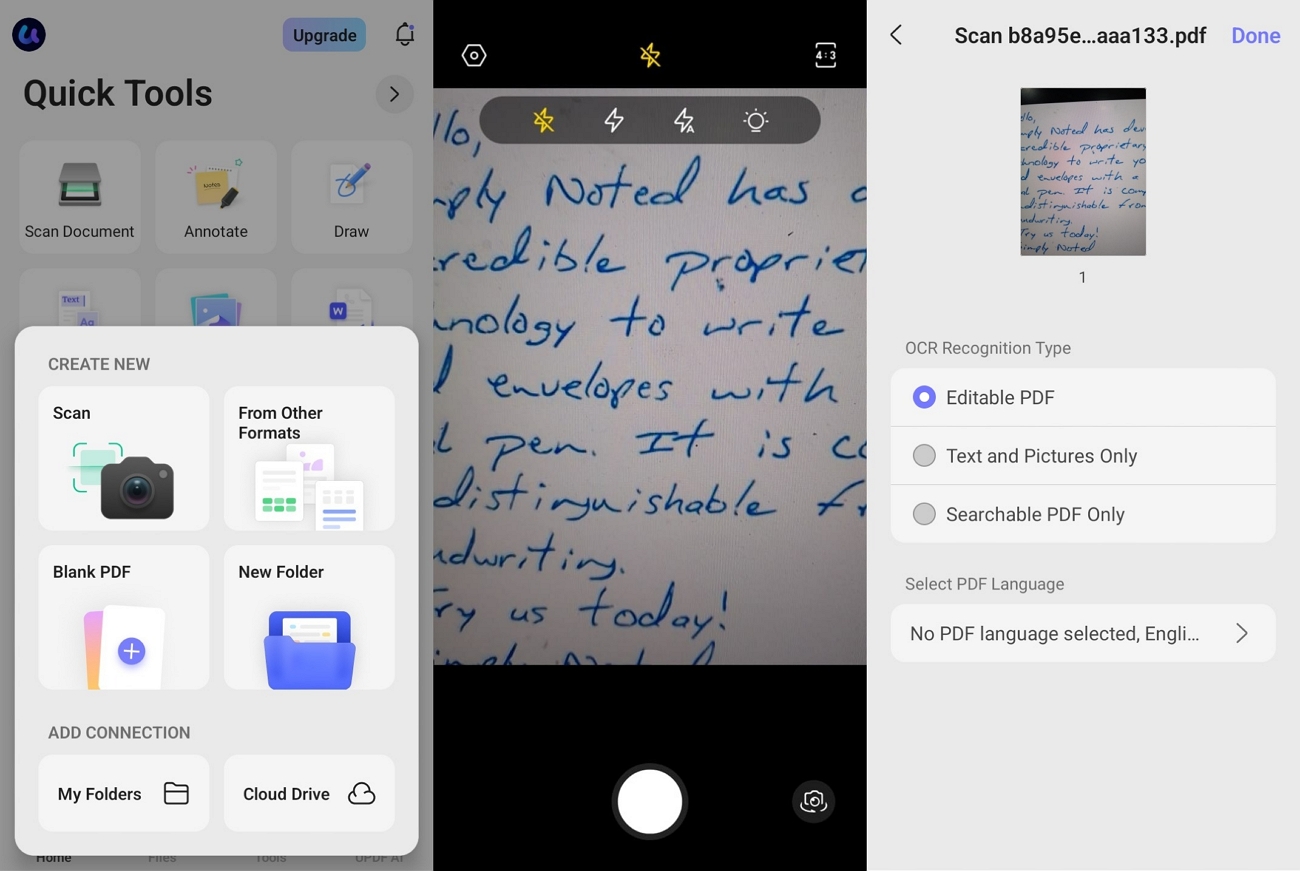
An all‑in‑one PDF tool that helps you edit and organize documents. You can scan paper files into clear PDFs and run OCR to turn them into editable text. It also allows users to convert to multiple other formats to make sharing and reuse simple. OCR accuracy can reach up to 99% on supported documents. UPDF OCR recognizes text in 38 different supported languages.
Windows • macOS • iOS • Android 100% secure
Key Highlights
- UPDF scans documents into clear PDFs and lets you manage every file.
- You can organize scanned PDFs, rename, and keep everything structured in UPDF.
- UPDF cloud syncs your scanned documents so you can access them safely across different devices.
Cons
- Advanced scanning and PDF tools need Pro plans.
User Rating
- G2: 4.5/5
2. Adobe Scan
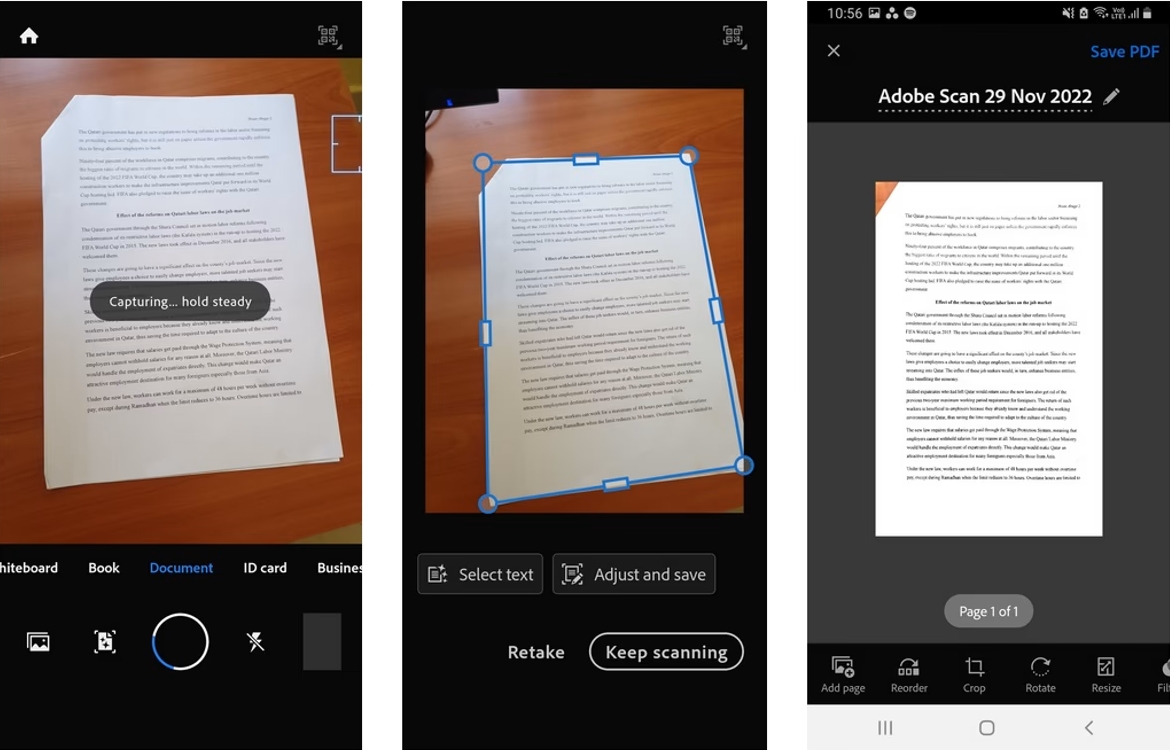
This is a popular mobile scanner from Adobe that focuses on clear captures and reliable text recognition. With a subscription, it can increase OCR capacity from 5 pages to 100 pages in a single file. You can also combine multiple scans into one PDF when handling long documents and stacked paperwork.
Key Highlights
- AI Assistant and generative summaries pull key points and draft follow‑ups.
- High‑speed bulk scanning turns stacks of documents into PDFs within seconds.
Cons
- Free OCR limit starts at only 5 pages per document.
- Blurred scans with detailed text and tricky lighting conditions.
User Rating
- Play Store Rating: 4.6/5
3. CamScanner
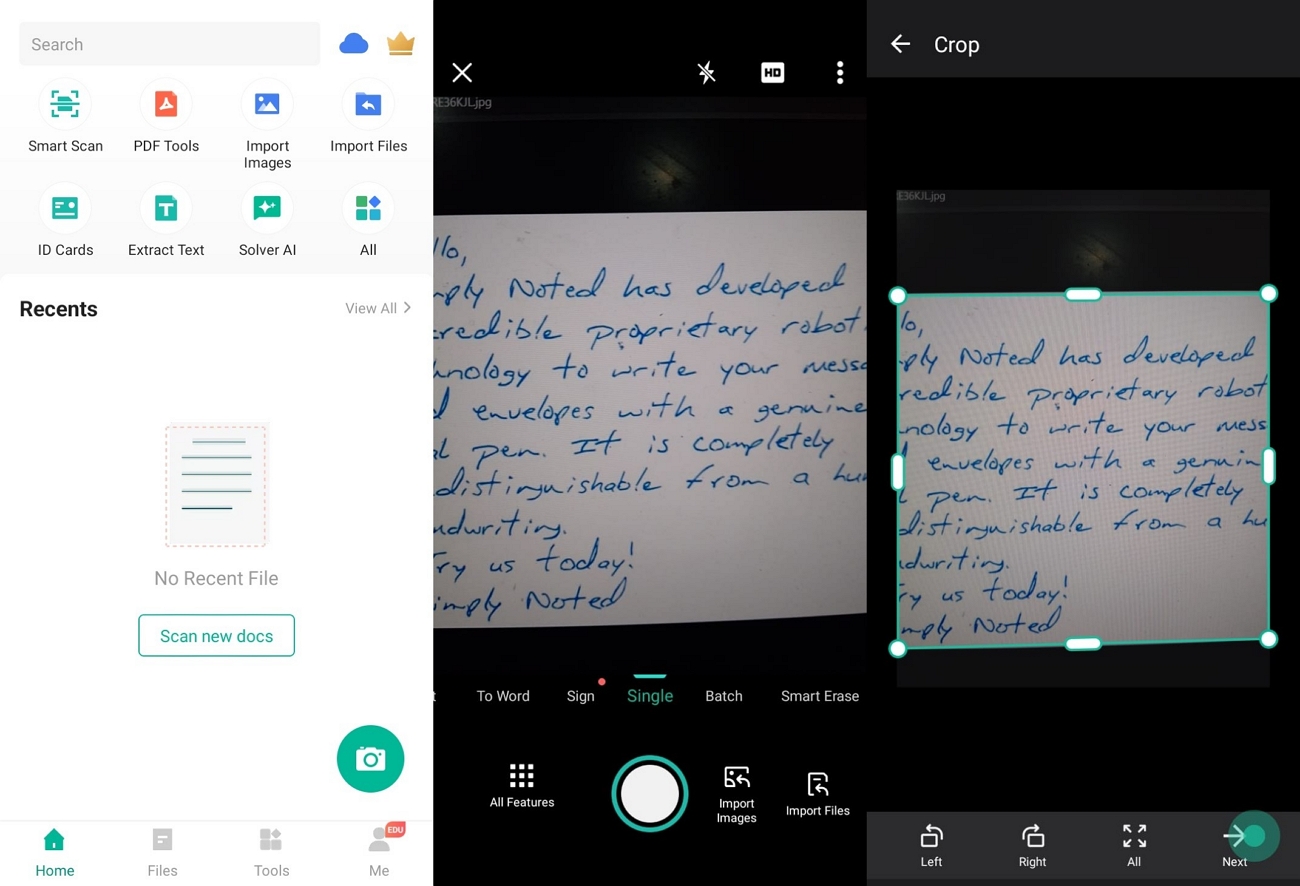
One of the best scanning apps for Android that turns your camera into clear PDFs using smart cropping and image enhancement is CamScanner. It supports batch scanning for multi-page documents and can apply OCR to extract editable, searchable text. Its OCR engine produces high accuracy on clean printed documents in practical scanning tests.
Key Highlights
- Bulk scans many document types using smart cropping and auto enhancement.
- Extracts text from scans for search, editing, and sharing workflows.
Cons
- OCR quality can drop on complex layouts or low-quality originals.
- Important scan and sync features depend on signing in and cloud access.
User Rating
- Play Store Rating: 4.6/5
4. Genius Scan
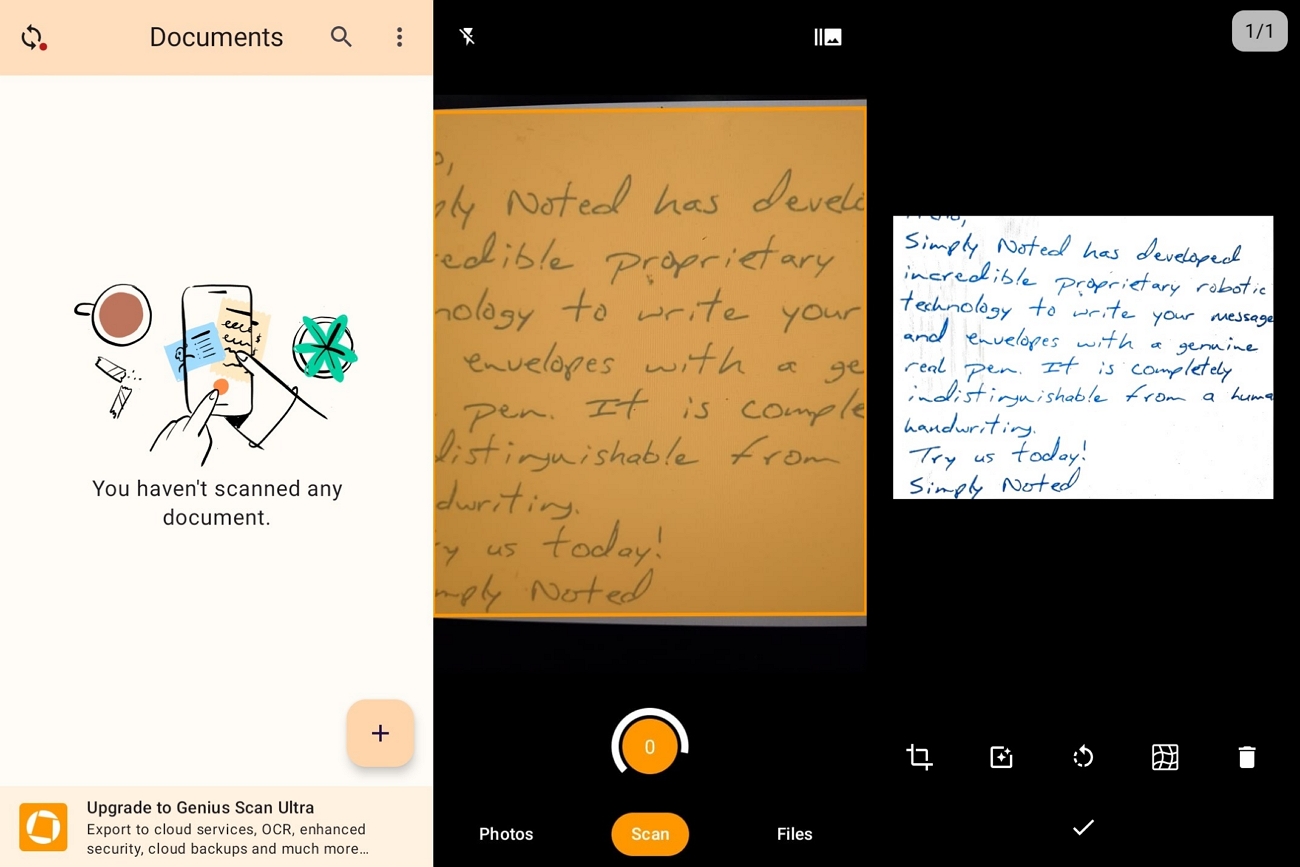
This scanner app focuses on fast smart scanning with automatic page detection and cleanup for clear documents. Genius Scan lets you batch scan multiple pages into one PDF and remove shadows and defects automatically. Its upgraded OCR engine can recognize text for full‑text search and supports advanced text recognition in recent versions.
Key Highlights
- Smart scanning cleans shadows and fixes distortion for clearer multi‑page PDFs.
- On‑device processing with biometric unlock and PDF encryption protects sensitive scans.
Cons
- Advanced cloud backup features may require upgrading from the free version.
- Many export and organization options can feel heavy for simple one‑page scans.
User Rating
- Play Store Rating: 4.6/5
5. Google Drive
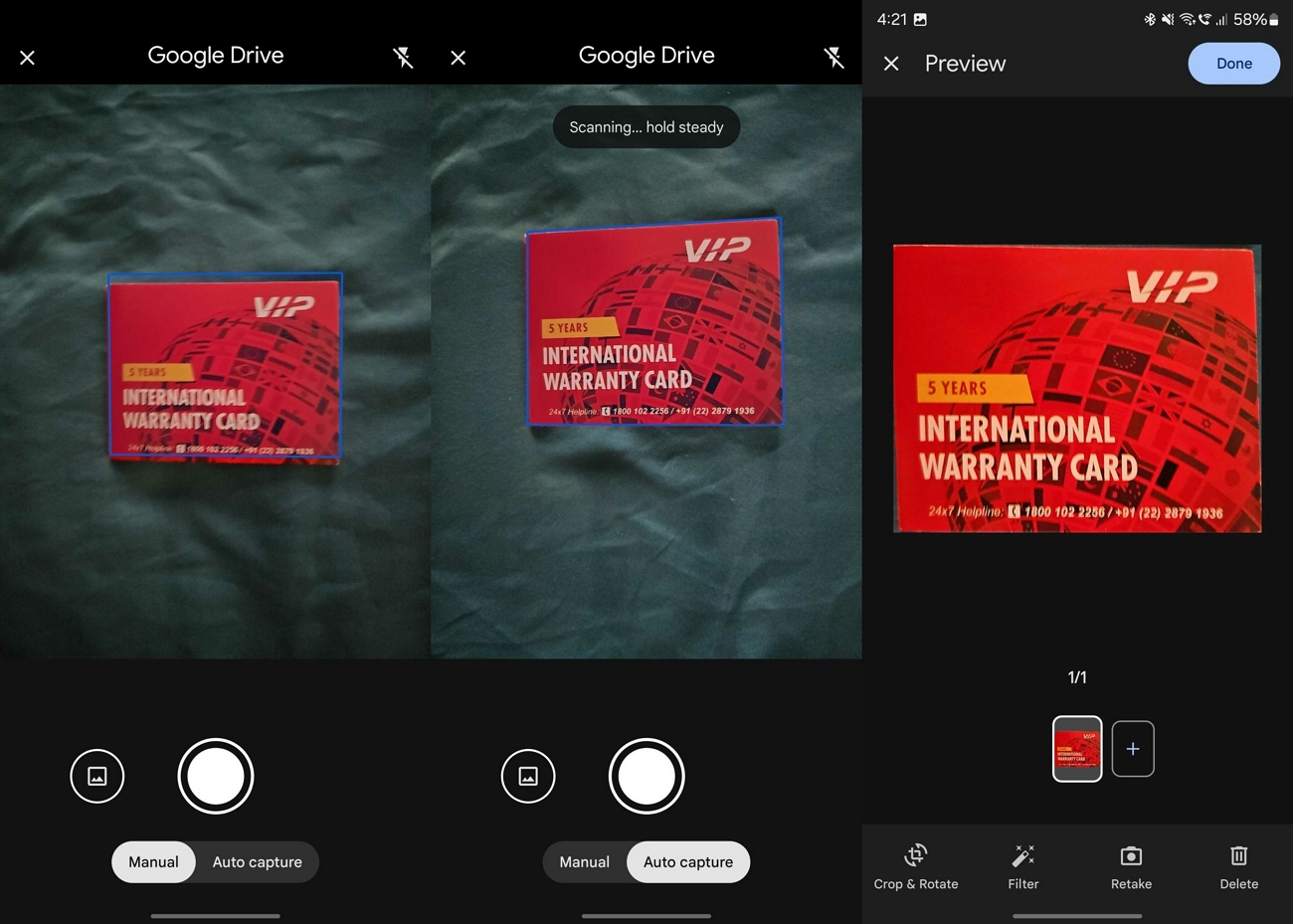
It offers a built-in scanner that saves documents directly into your Google Drive. Google Drive gives every account 15GB of free cloud space for scans and other files. You can scan multiple-page documents to PDF and keep everything organized in folders with a simple search.
Key Highlights
- Built-in Drive scanner sends files straight to cloud storage.
- Auto cropping and shadow removal quickly improve basic document scans.
Cons
- Lacks advanced editing tools like detailed markup or page rearrangement.
- Depends on the internet connection for reliable saving and syncing.
User Rating
- Play Store Rating: 4.4/5
6. FairScan
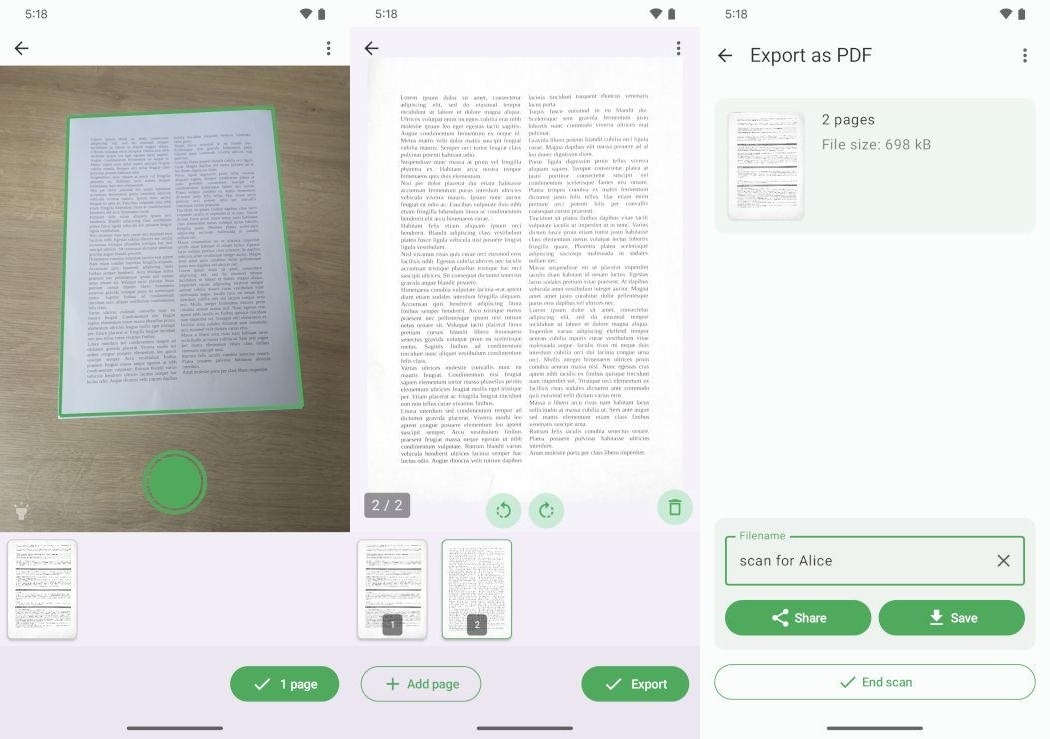
This best free Android scanner app that prioritizes privacy for everyday document scanning. FairScan scans pages offline in a few seconds and exports clean PDFs without ads or account signups. It only asks for camera and storage permissions and keeps every scanned document stored locally on your device.
Key Highlights
- Creates multi-page PDFs offline with automatic detection and image enhancement.
- Open source design without ad trackers, watermarks, or page limits.
Cons
- Lacks built-in OCR for turning scans into searchable, editable text.
- No cloud backup or sync, which may limit cross-device access.
User Rating
- N/A
FAQs
What limitations do free scanning apps typically have?
Some Free Scanning Apps reduce output quality, add watermarks, restrict cloud storage, or block important export formats. Alternatively, UPDF removes many of these limits and offers higher-quality output with more useful features.
Why do some scanning apps require network access permissions?
Many scanning apps use the internet for cloud sync, online OCR, or sending files directly through email. Some apps also check licenses, download updates, or load online templates and resources while you are using them.
Is the built-in scanning feature on Android phones sufficient for most needs?
The built-in scanner in the camera or file apps works fine for basic documents and occasional personal use. For study, business, or heavy scanning, the best Android phone scanner app usually offers more powerful tools.
What should I do if a scanned PDF file is too large?
Lower the resolution, switch to black and white, or remove extra pages to reduce file size. You can also compress PDFs with UPDF to shrink documents while keeping good readability for sharing.
Conclusion
To conclude, this guide explained how different user types need different features from the best scanning app for Android. You also learned how to spot the key features that really matter and ignore the rest. Free options can handle light tasks, while advanced tools with OCR and security are better for heavy work. For an all-in-one, user-friendly option that handles scanning and PDF management together, we recommend UPDF.
Windows • macOS • iOS • Android 100% secure





 Enrica Taylor
 Enola Miller


 Enola Davis