 UPDF
UPDF
 UPDF for Windows
 UPDF for Mac
 UPDF for iPhone/iPad
 UPDF for Android
 Nomostar
 UPDF AI Online
 UPDF Sign
 IvyCraft
 Edit PDF
 Annotate PDF
 Create PDF
 PDF Form
 Edit links
 Convert PDF
 OCR
OCR PDF to Word
 PDF to Image
 PDF to Excel
 Organize PDF
 Merge PDF
 Split PDF
 Crop PDF
 Rotate PDF
 Protect PDF
 Sign PDF
 Redact PDF
 Sanitize PDF
 Remove Security
 Read PDF
 UPDF Cloud
 Compress PDF
 Print PDF
 Batch Process
 About UPDF AI
 UPDF AI Solutions
 AI User Guide
 FAQ about UPDF AI
 Summarize PDF
 Translate PDF
 Chat with PDF
 Chat with AI
 Chat with image
 PDF to Mind Map
 Explain PDF
 PDF AI Tools
 Image AI Tools
 AI Chat Tools
 AI Writing Tools
 AI Study Tools
 AI Working Tools
 Other AI Tools
 AI Bookmark Generation
 AI Bookmark Summary
 AI Watermark Generation
 AI Background Generation
 AI Sticker Generation
 AI Stamp Generation
 AI Editing Suite
 UPDF Copilot
 AI Page Management
 AI Semantic Search
 PDF to Word
 PDF to Excel
 PDF to PowerPoint
 Enterprise Solution
 Enterprise Sign
 Enterprise AI
 Enterprise Plan
 Enterprise User Guide
 Enterprise Webinar
 IT
IT Education
 Construction
 Financial Service
 Healthcare
 Insurance
 Legal
Legal Manufacturing
 Government
 Researchers & PhDs
 Solopreneurs & Freelancers
 Lawyers & Legal Professionals
 Real Estate Agents & Brokers
 Education Solution
 Customer Stories
 User Guide
 UPDF Tricks
 FAQs
FAQs UPDF Reviews
 Download Center
 Blog
Blog Newsroom
 Tech Spec
 Updates
 UPDF vs. Adobe Acrobat
 UPDF vs. Foxit
 UPDF vs. PDF Expert

The first time I tried accessing computer files using SMB on iPhone, it felt confusing and slow. I struggled to connect devices properly, often failing to open important documents stored on my computer. After testing different methods, I realized there was a much simpler way to access files seamlessly.
Moreover, I discovered that using the right app made everything faster and more reliable daily. With UPDF for iOS, I can connect through SMB and open PDF files instantly without downloads. Now I can edit and annotate documents directly from my phone to save time and effort.
Windows • macOS • iOS • Android 100% secure
Part 1. What Is SMB?
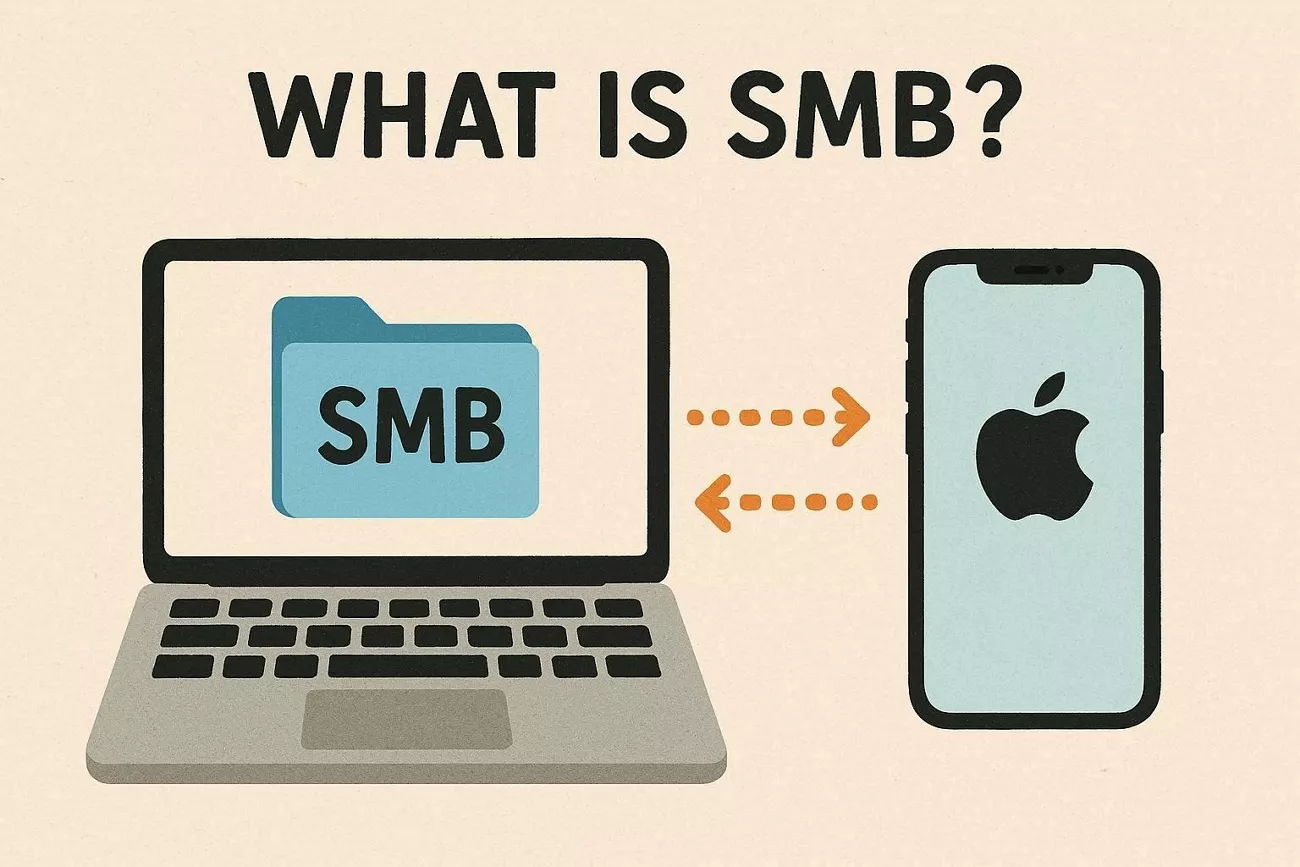
A protocol that allows devices to access and transfer files between computers over the same network connection. I use SMB to connect devices on the same Wi-Fi and access files without moving them. It works by letting my iPhone communicate directly with my computer or storage devices at home. As long as both devices stay on the same Wi-Fi, I can open files quickly.
Common Use Cases of SMB
Before exploring deeper technical details, let me share how SMB types appear in everyday file-sharing situations.
- Shared Folder on Windows: Windows computers share a folder to allow another computer to access and use files.
- Mac to Windows Connection: A Mac connects to a Windows shared folder to open and manage files directly.
- Network Storage Access: A NAS device stores files and lets laptops access them over the same home network connection.
- Media Streaming over Network: Devices stream media files from a shared computer without copying them to local storage.
- Office File Collaboration: Multiple users access shared folders on one system to view and edit files together.
Why It Matters for iPhone
With SMB iPhone, my phone becomes a direct gateway to files stored on my computer. Accessing files over Wi-Fi means no cables, no uploads, and no repeated file transfers. Working directly on files saves storage space and keeps everything updated in one place. Editing and viewing documents instantly make my workflow faster and more convenient every day.
Part 2. SMB Types: Which Version Do You Need?
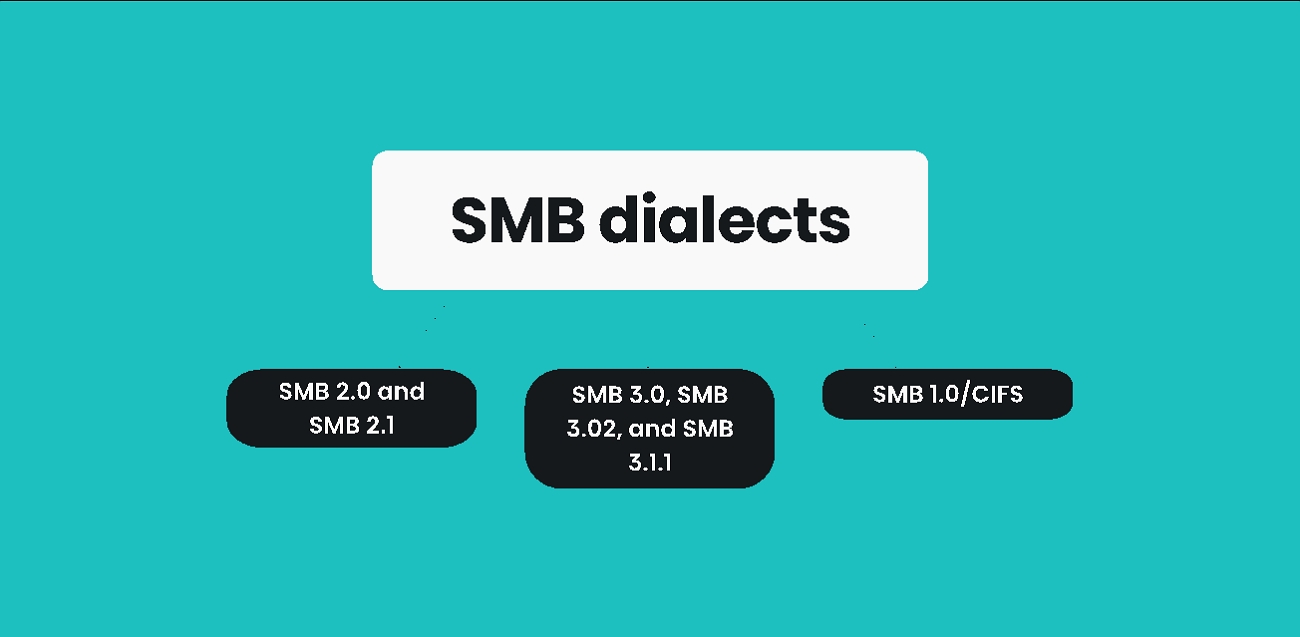
SMB started decades ago and improved over time to fix issues in file sharing. While exploring different SMB versions, I noticed that each one fixed slow speeds and weak security. Better performance and stronger protection were added as technology and network needs continued growing. It has become clear that newer SMB versions offer safer and faster file sharing today.
SMB Versions Comparison
I reviewed different SMB types to understand their differences in security, speed, and overall performance. Now, I will compare each version and explain which is safest and best suited for everyday file-sharing needs:
| Version | Release Era | Speed & Performance | Security Level | Key Features | Recommendation |
| SMB 1 | 1980s | Slow and inefficient | Low (highly vulnerable) | Basic file sharing only | Do not use (deprecated) |
| SMB 2 | Windows Vista | Faster with improved efficiency | Moderate | Better performance, reduced network load | Acceptable but outdated |
| SMB 3 | Windows 8/Server 2012 | High speed with optimized transfers | High (supports encryption) | Encryption, improved reliability | Recommended for all users |
Which SMB Version Should You Use?
Most modern systems, like Windows 11 and macOS, automatically select the highest SMB version. I usually do not need to change settings because everything works using the best version available. Newer versions like SMB 3 provide better protection and performance for file access needs.
Part 3. SMB vs. WebDAV — What's the Difference?
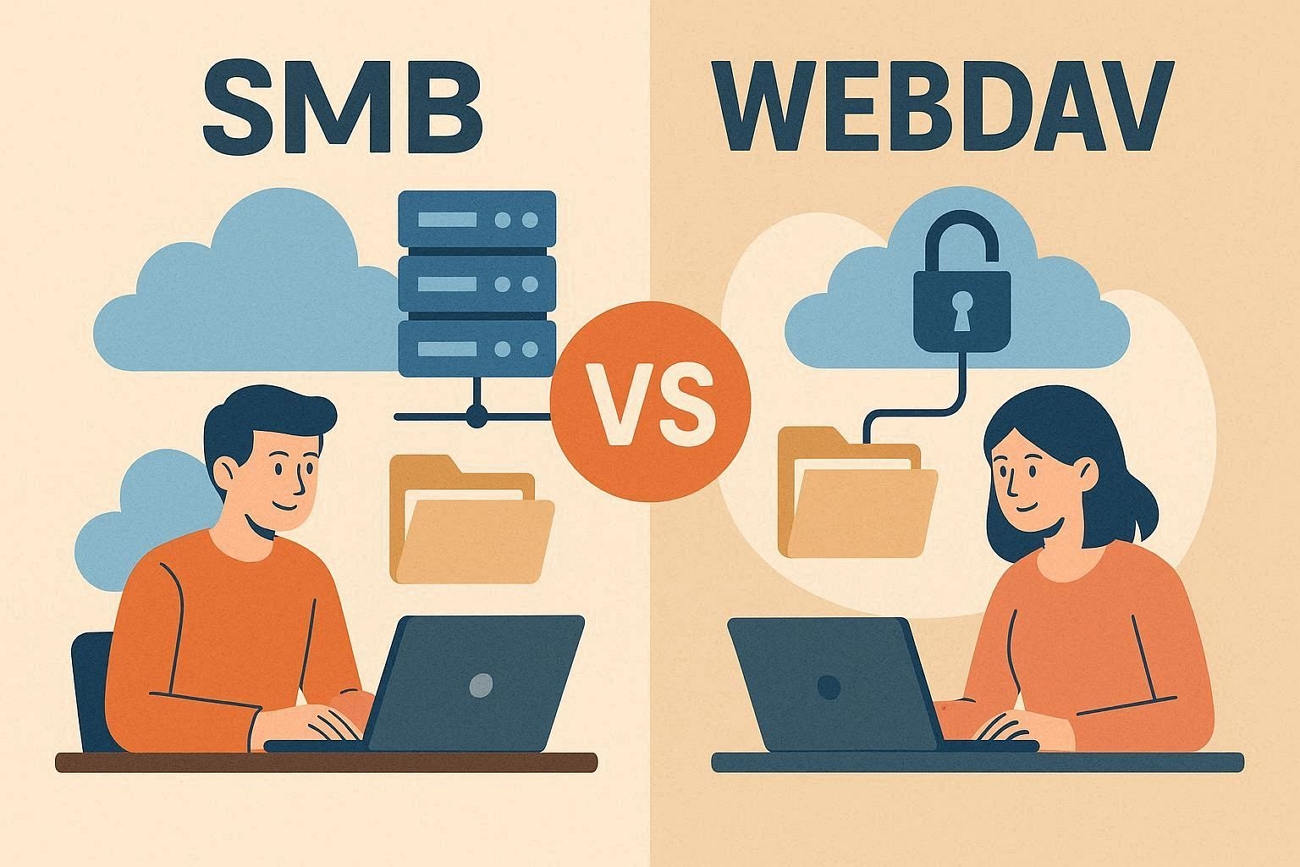
SMB iPhone connections work best on my local network when I access files at home. When I work remotely, WebDAV feels useful because it accesses files over the internet. WebDAV uses web protocols and often appears when connecting to remote storage locations; look at the table below to compare them.
| Aspect | SMB | WebDAV |
| Works Over | Local network (same Wi-Fi) | Internet (anywhere with online access) |
| Typical Use | Home or office computers and NAS devices | Cloud storage and remote servers |
| File Source | Your own computer, server, or NAS | Cloud services or web-based storage |
| Speed | Faster on local networks | Depends heavily on internet connection quality |
| Security | Ability to use encryption with newer SMB versions | Uses HTTP/HTTPS, can be secured with HTTPS |
| Setup Complexity | Needs network sharing and permissions set up | Often configured via web or app settings |
| Offline Behavior | Works as long as the local network is available | Requires internet, except for cached files |
SMB usually fits best for local network access, while WebDAV works better for remote or cloud access. Read our WebDAV article for a deeper explanation.
Part 4. Finding Your SMB Address
When I first set this up, I learned my SMB address is simply my device’s local IP. The URL format looks like smb://[device's local IP address]/[shared folder name] when I write it. Understanding this structure helps me connect different SMB types and reach the exact folder I shared.
Finding the SMB Address on Mac
On a Mac, SMB sharing is built into the system, and many people use it to share files with other devices. It’s helpful for users who keep most documents on their Mac but want to open them from an iPhone or another computer. To get everything ready for that kind of access, follow the steps below:
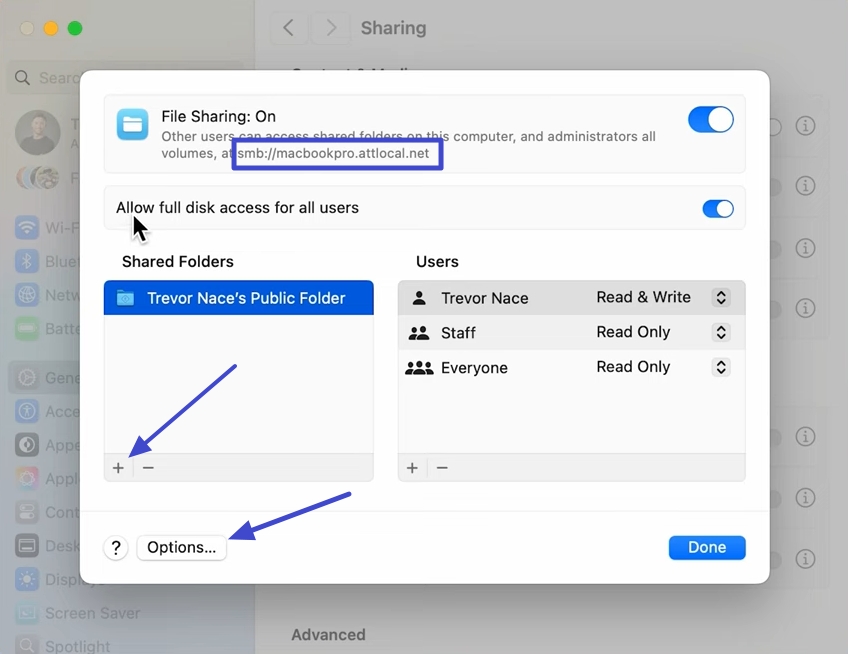
Step 1. First, open System Settings on your Mac and click the “General” tab. Next, press the “Sharing” option and turn on the “File Sharing” slider. Afterward, click the “i” icon.
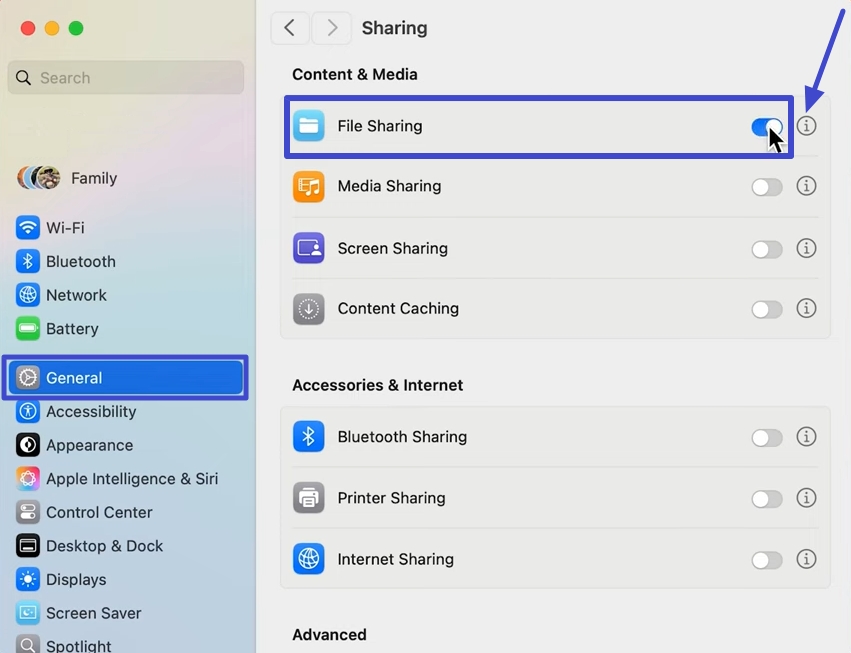
Step 2. The URL shown at the top can be pasted to UPDF or other apps to access the file. Under the “Shared Folder” option, click the “+” to add the folder. Afterward, click the “Options” button at the bottom.
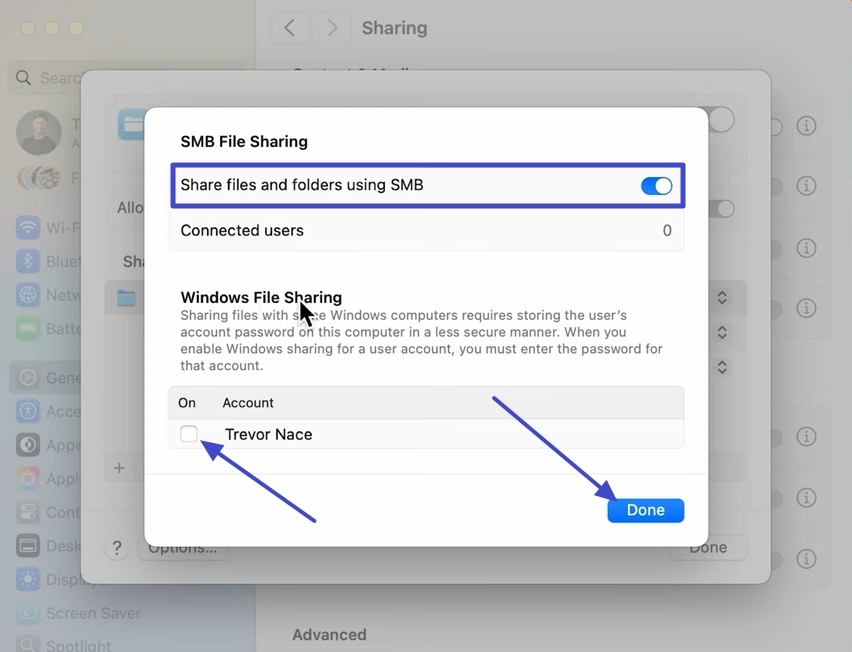
Step 3. Now, turn on the “Share Files and Folders Using SMB” option and tick mark your user name. It will require the password you used to open your Mac. Enter the password and click the “Done” button.
Finding the SMB Address on Windows
On Windows, SMB sharing is popular because it works smoothly with most home and office networks. Many Windows users prefer this method to quickly share folders across multiple PCs and tablets. Follow the steps below to create your shared folder URL:
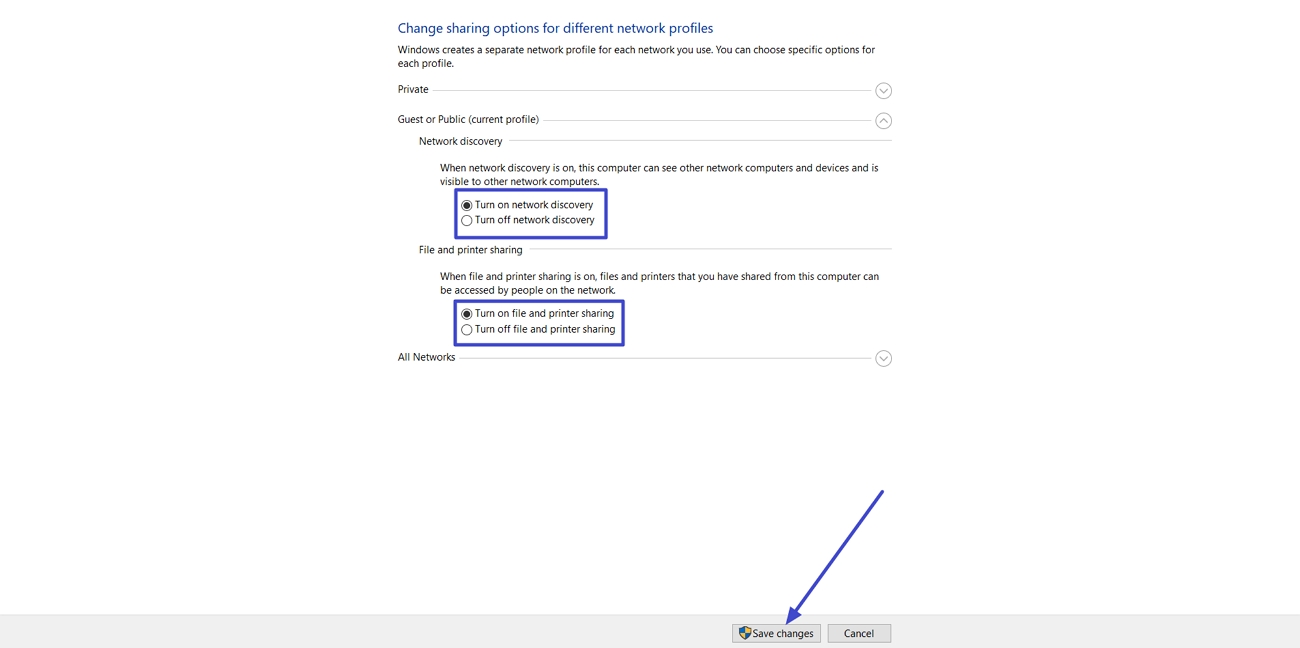
Step 1. First, access the “Network & Internet” settings and navigate to the “Advanced Sharing Settings.” After that, turn on the “Network Discovery” and “File and Printer Sharing” options and press the “Save Changes” button.
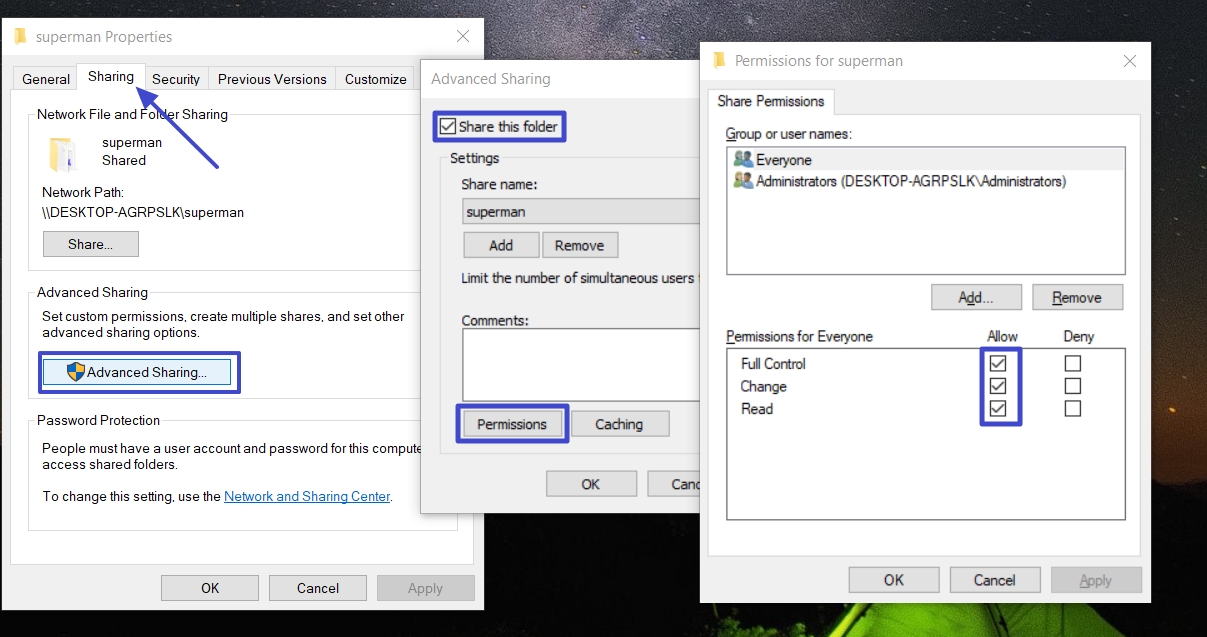
Step 2. Open the properties of the folder you want to share. Click the “Sharing” tab and press the “Advanced Sharing” option. Check the “Share this Folder” option and press the “Permissions” button and check all the options under the “Allow” option.
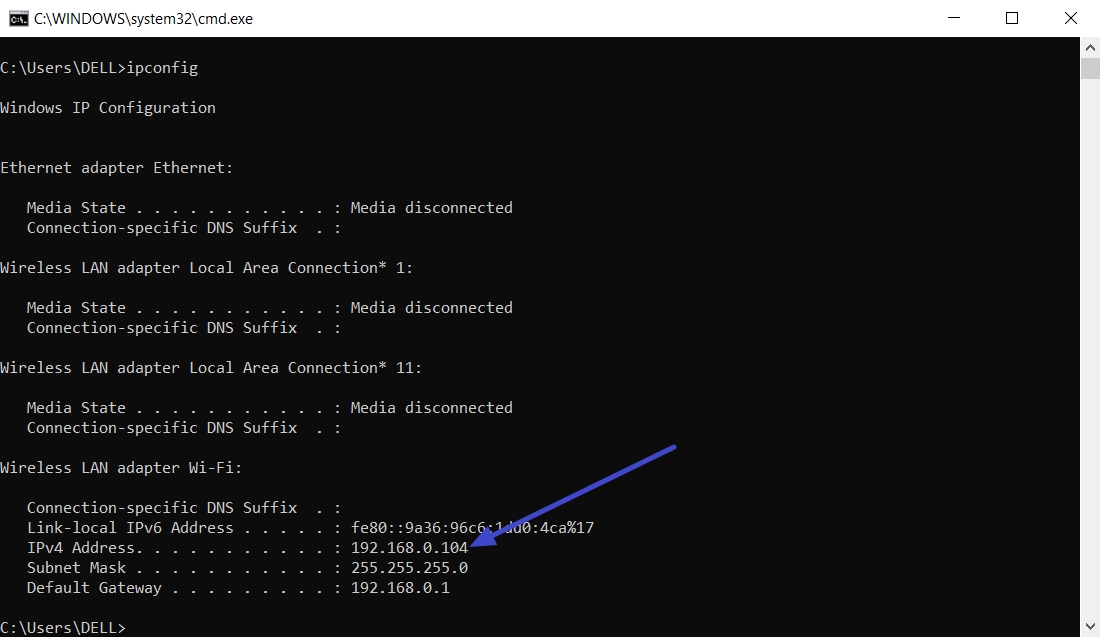
Step 3. Now, open Command Prompt and type “ipconfig”. Find the “IPv4 address” and your address will be “smb://192.168.1.5/YourSharedFolderName.” You also need to confirm your username to log in to UPDF afterward.
Finding the SMB Address on NAS
Most NAS devices have SMB enabled by default, so my shared folders are usually ready. I simply open the NAS admin panel and check the network section for its local IP. That IP address identifies my NAS on the home or office network for every device.
To connect from SMB iPhone clients or other apps, I combine this IP with a shared folder. The complete address looks like smb://NAS-IP/SharedFolderName, which I can paste directly into UPDF.
Part 5. Connecting to SMB on iPhone Using UPDF for iOS
I used to waste time copying PDFs between devices whenever I wanted to read or annotate. This is where UPDF stepped in as a simple way to open documents directly over my home network. With UPDF, I can connect my iPhone to a computer or NAS using a secure SMB link.
Once connected, I simply browse the shared folders, tap a PDF, and start reading immediately. All my highlights and comments stay in sync on the original file, so nothing gets duplicated or lost. Thanks to UPDF for iOS, my PDFs finally feel like they live in one organized, connected place.
Windows • macOS • iOS • Android 100% secure
Step-by-Step: Connecting UPDF to SMB
When I first needed to handle different SMB types on my network, I learned UPDF for that. Now, follow the steps below to see how I connect my iPhone to network storage:
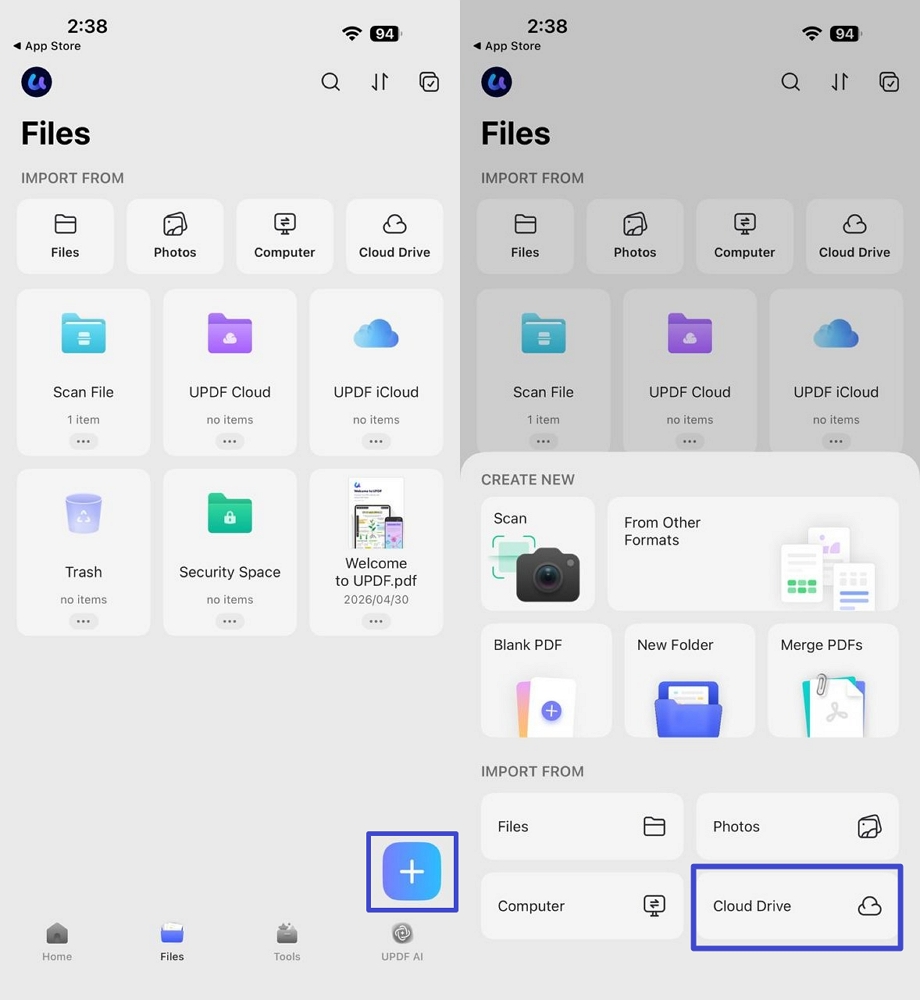
Step 1. Access Cloud Drive on UPDF
Once you open UPDF on iPhone, press the “+” icon in the main screen and tap on the “Cloud Drive” option.
Step 2. Enter SMB Details
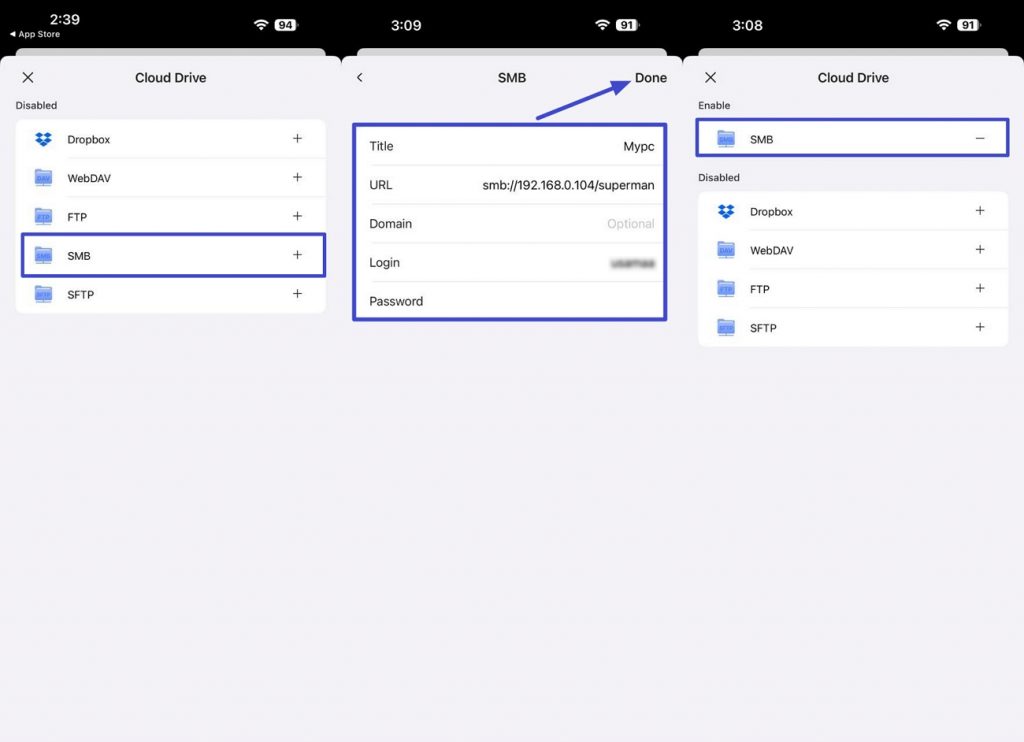
After that, select the “SMB” option. Once selected, enter the “Title,” “Generated URL,” “Account Login Name,” and “Password” that you used to open your Windows PC or Mac. Afterward, tap on the “Done” option in the top left corner to enable the SMB.
Step 3. Check the Shared Folder
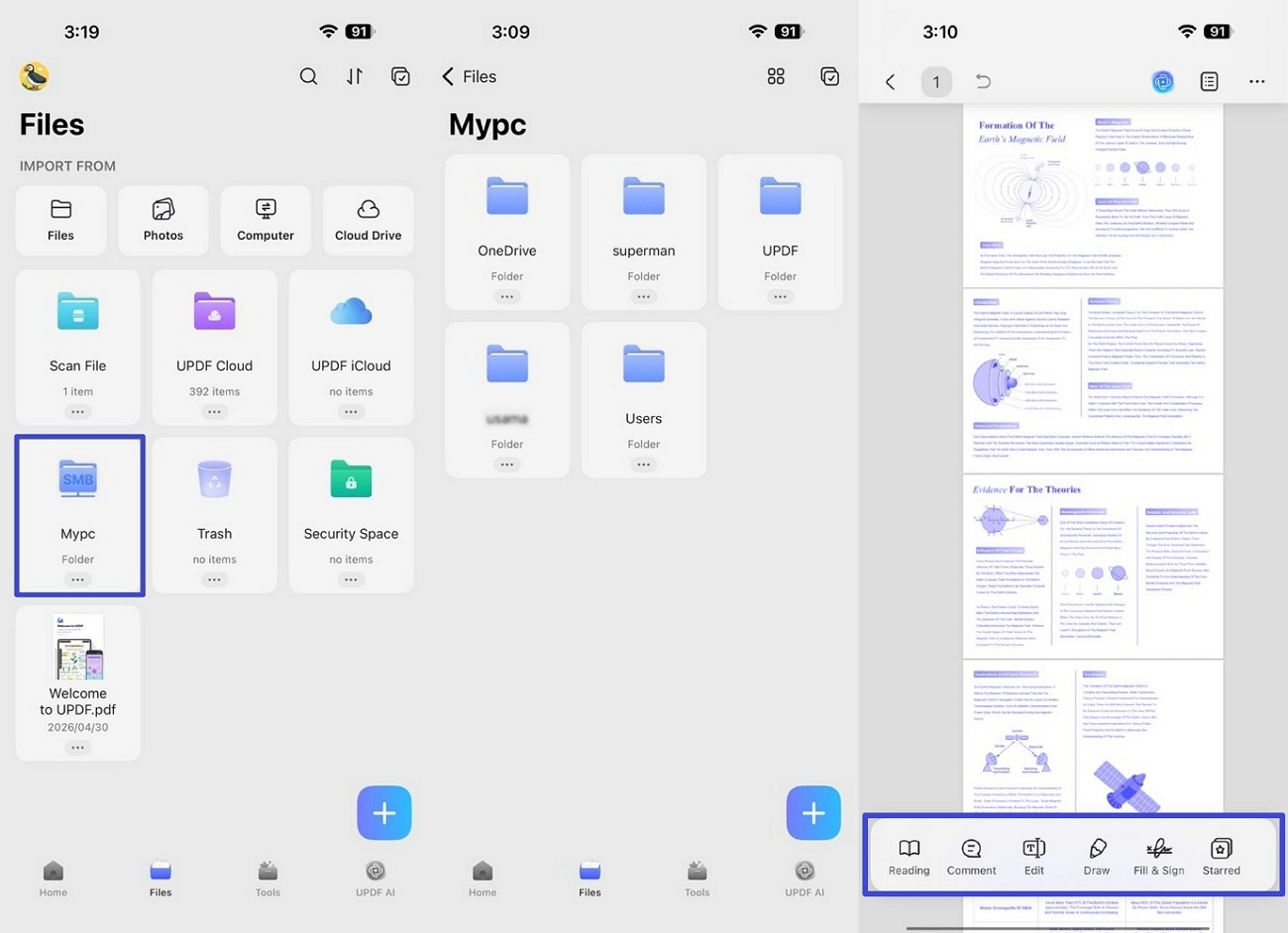
Next, tap on the “File” option at the bottom and select the “SMB” shared folder that was added. You can access the folder and PDF files stored in that folder. Moreover, you can annotate PDFs directly inside UPDF, and changes sync back to the computer automatically.
While everything runs over my local network, I notice speeds are much faster than cloud-based WebDAV. Large PDFs open almost instantly on my iPhone, so I spend less time waiting and more reading.
Windows • macOS • iOS • Android 100% secure
Conclusion
In conclusion, SMB iPhone connections let me handle PDFs directly on my network without slow cloud transfers. This setup keeps everything organized on my computer or NAS while still feeling instantly available on mobile. If you want fast, reliable PDF access from shared folders like mine, I recommend using UPDF for iOS.
Windows • macOS • iOS • Android 100% secure





 Lizzy Lozano
  Delia Meyer
 Enola Davis
 Enrica Taylor
- Piipperi800